Program level design using
e-Portfolios: Getting the big picture
PANOS VLACHOPOULOS & SHERRIE LOVE
Program level design using
e-Portfolios: Getting the big picture
Beginning with
getting the
assessment right
Programmatic
Assessment
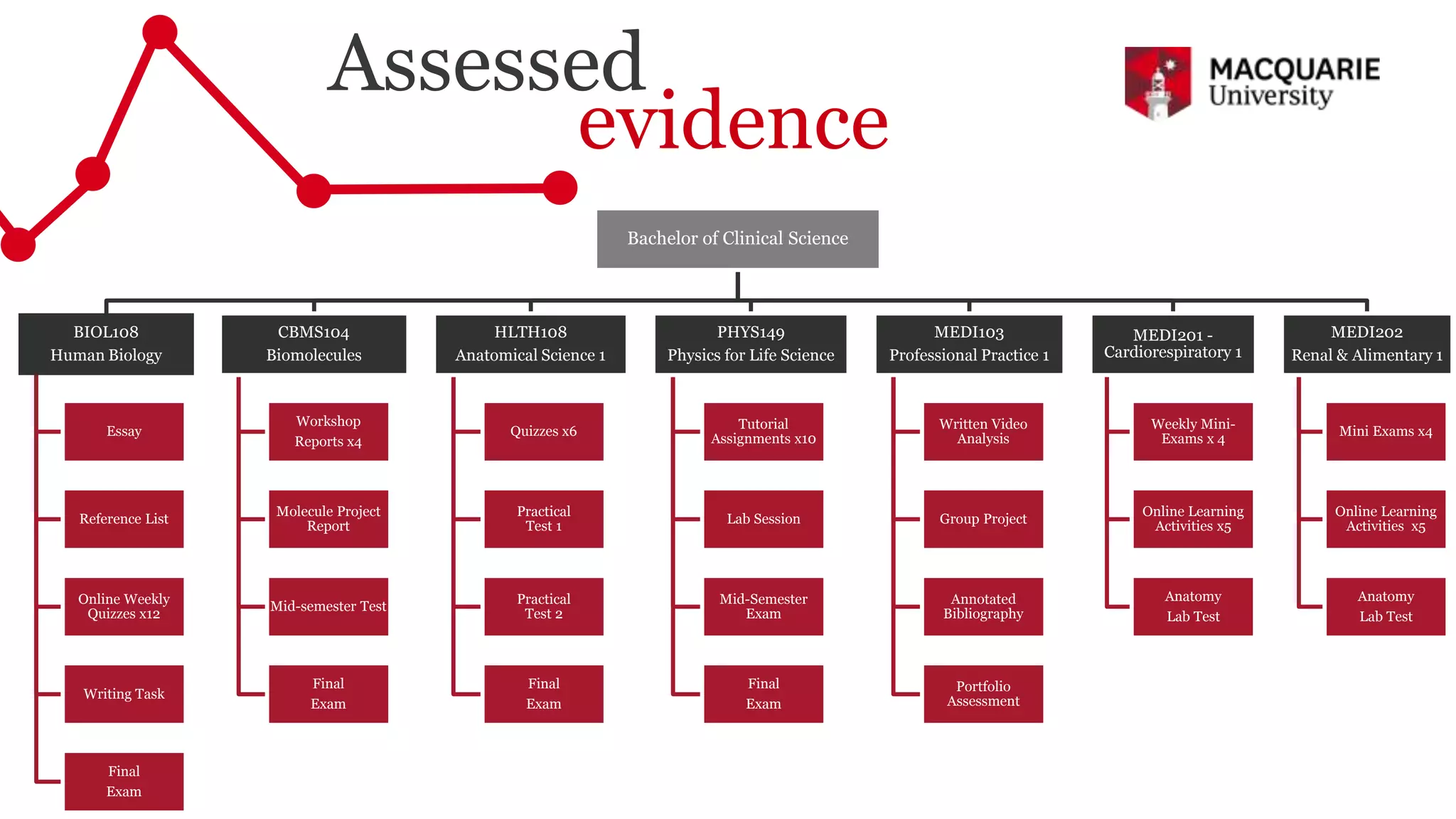
? Getting the big picture
Our storybegins with
What does a
graduate look
like?
Scientist & Scholar Engaged Citizens Professionals
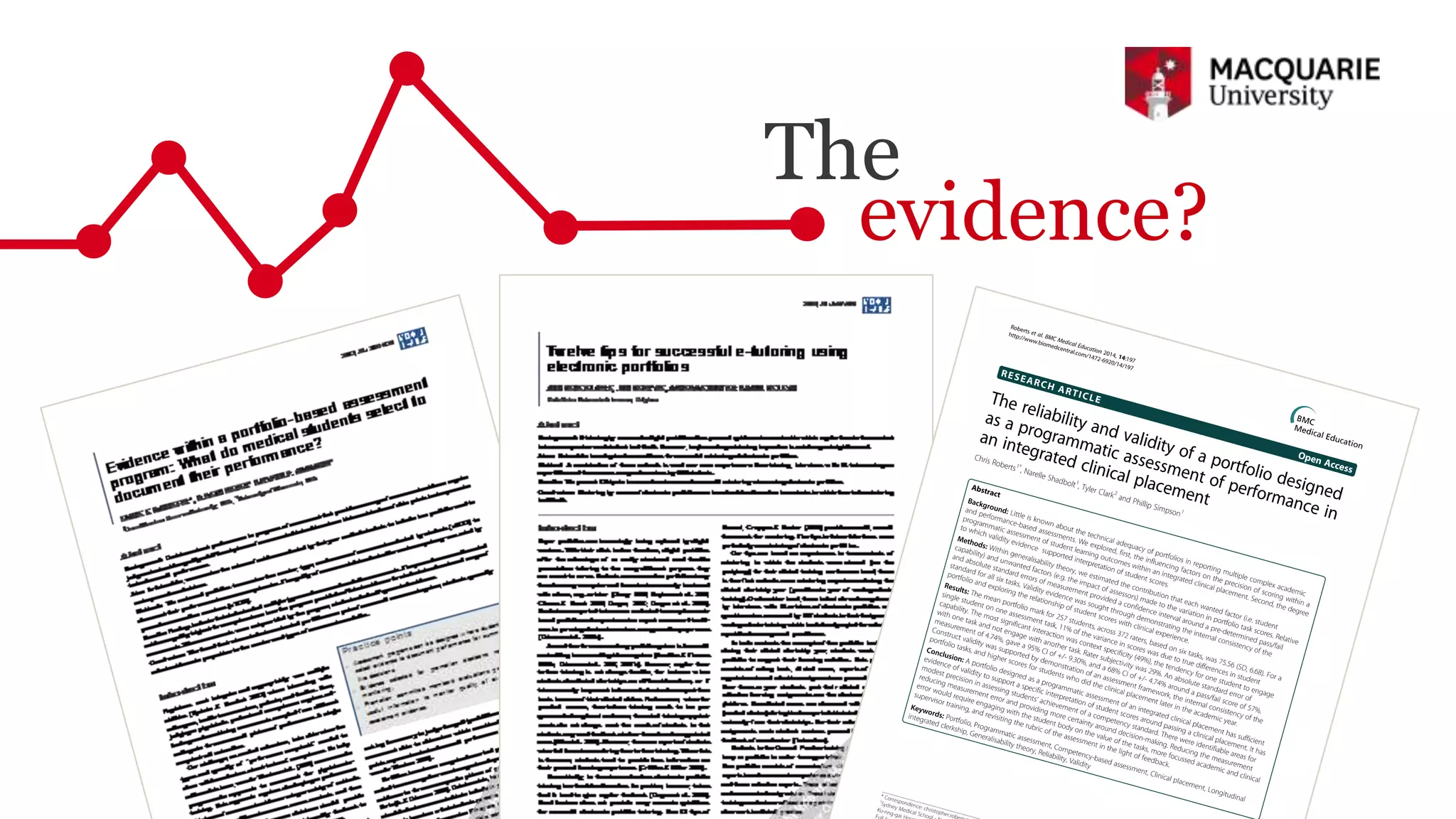
The
evidence?
7
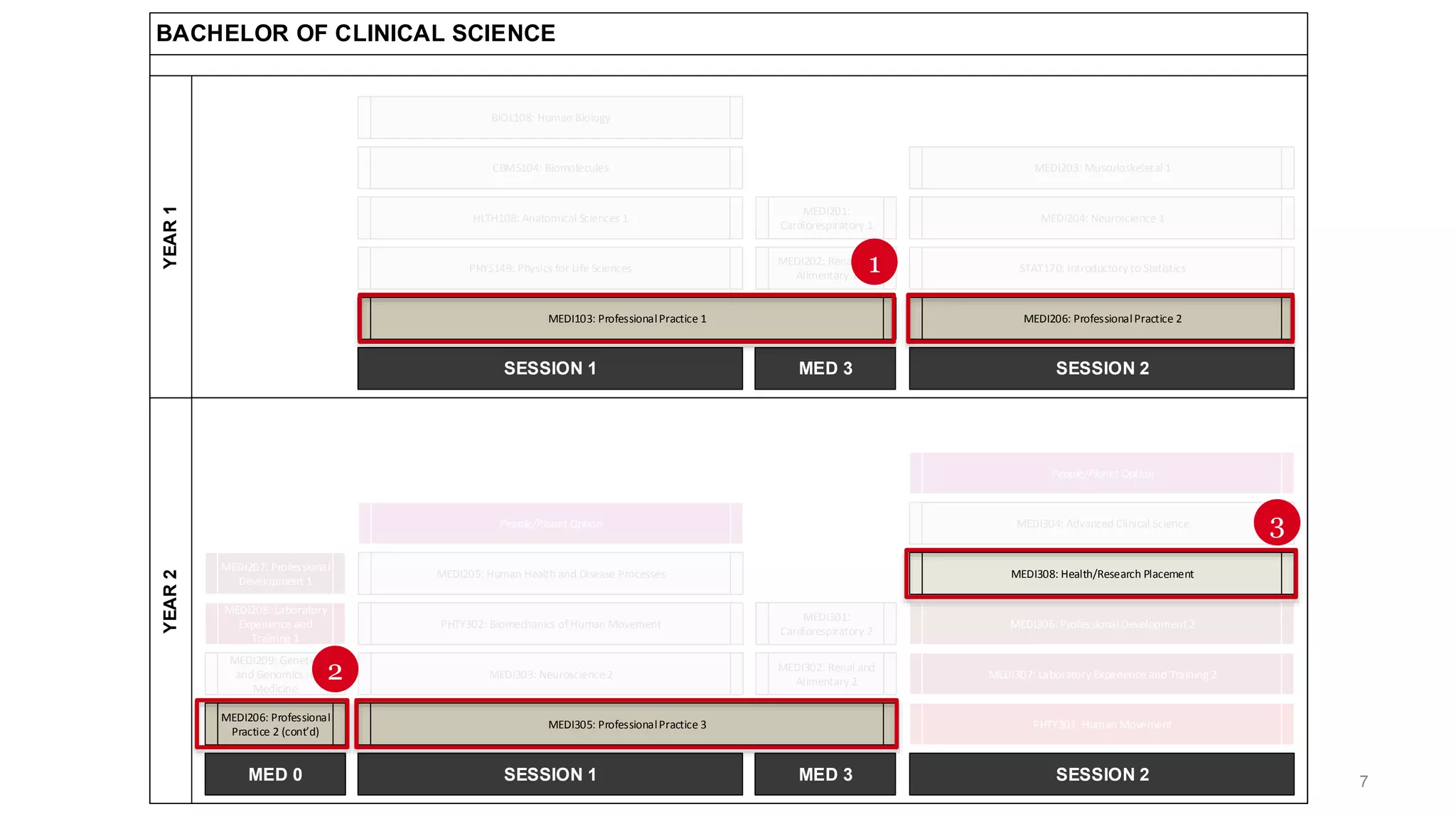
BACHELOR OF CLINICAL SCIENCE
YEAR2YEAR1
SESSION 2SESSION 1 MED 3
SESSION 2SESSION 1 MED 3MED 0
MEDI103: ProfessionalPractice 1
PHYS149: Physics for Life Sciences
HLTH108: Anatomical Sciences 1
CBMS104: Biomolecules
BIOL108: Human Biology
MEDI206: ProfessionalPractice 2
STAT170: Introductory to Statistics
MEDI204: Neuroscience 1
MEDI203: Musculoskeletal 1
People/Planet Option
MEDI305: ProfessionalPractice 3
MEDI303: Neuroscience 2
PHTY302: Biomechanics ofHuman Movement
MEDI205: Human Health and Disease Processes
PHTY301: Human Movement
MEDI307: Laboratory Experience and Training 2
MEDI306: ProfessionalDevelopment 2
MEDI308: Health/Research Placement
MEDI302: Renal and
Alimentary 2
MEDI301:
Cardiorespiratory 2
MEDI202: Renal and
Alimentary 1
MEDI201:
Cardiorespiratory 1
MEDI206: Professional
Practice 2 (cont’d)
MEDI209: Genetics
and Genomics in
Medicine
MEDI208: Laboratory
Experience and
Training 1
MEDI207: Professional
Development 1
MEDI304: Advanced Clinical Science
People/Planet Option
1
2
3
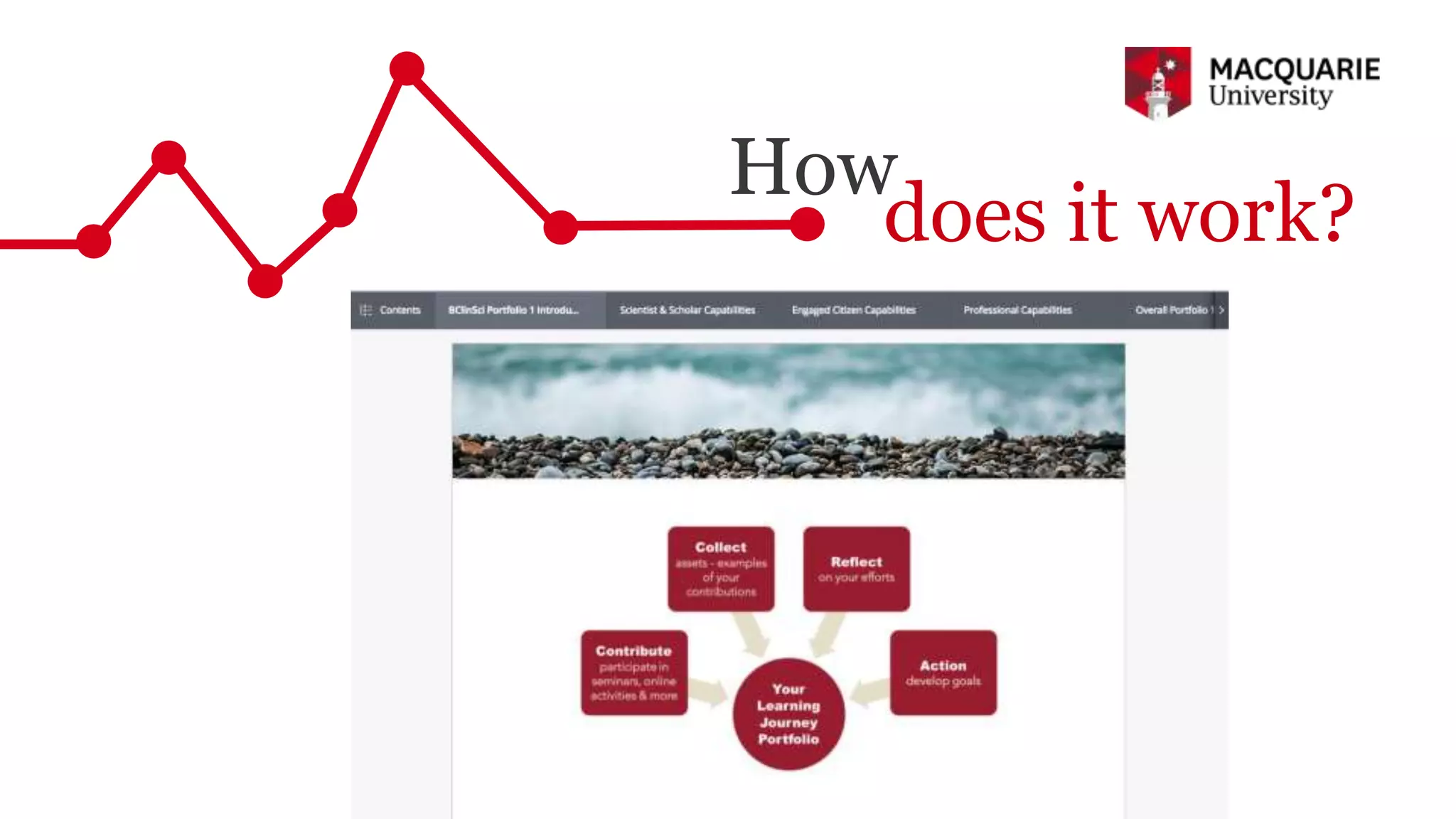
How
does it work?
Bachelor of Clinical Science
BIOL108
Human Biology
Essay
Reference List
Online Weekly
Quizzes x12
Writing Task
Final
Exam
CBMS104
Biomolecules
Workshop
Reports x4
Molecule Project
Report
Mid-semester Test
Final
Exam
HLTH108
Anatomical Science 1
Quizzes x6
Practical
Test 1
Practical
Test 2
Final
Exam
PHYS149
Physics for Life Science
Tutorial
Assignments x10
Lab Session
Mid-Semester
Exam
Final
Exam
MEDI103
Professional Practice 1
Written Video
Analysis
Group Project
Annotated
Bibliography
Portfolio
Assessment
MEDI201 -
Cardiorespiratory 1
Weekly Mini-
Exams x 4
Online Learning
Activities x5
Anatomy
Lab Test
MEDI202
Renal & Alimentary 1
Mini Exams x4
Online Learning
Activities x5
Anatomy
Lab Test
Assessed
evidence
Other
evidence
Implementing
the initiative
1.1 Describe the Portfolio Assessment
1.2 Access PebblePad
1.3 Navigate PebblePad
1.4 Upload a non-assessed asset/evidence into PebblePad
1.5 Define and Asset using the generic PebblePad templates
1.6 Make a start on Personal Statement & Week 2 Reflection
PebblePad Workshop 1
PebblePad Workshop 2
2.1 Upload an mQ assessed asset/evidence into PebblePad
2.2 Locate and assign a mQ Assessed Evidence template
Introduction
PebblePad, the personal learning space, is your private, secure online space where you can create
records of learning, experiences and achievements. Structured resources are on hand to prompt and
guide you and, they can be easily saved as your private assets/evidence where your experience and
reflections become a rich tapestry for showcasing or tracking your learning journey of knowledge, skills
and attributes. PebblePad+ is a private space however, you can easily share your assets/evidence for
assessment, peer-review, CPD or grading. Pebble+ Home is the starting point for all your interaction
with PebblePad. Here is a guide to navigating the Pebble+ Dashboard.
Navigation
1.! Pebble+ Dashboard
2.! Burger menu – so called because it looks like a burger. This menu opens as a side menu with
links to:
a.! Asset store
b.! Resources store
c.! Upload a file
d.! Start working on… Templates and workbooks
e.! Get creative – portfolios and pages
f.! Learning centre
3.! PebblePad Logo – returns you to the home page
4.! Pebble+ logo – returns you to the home page
5.! ATLAS – Takes you to the ATLAS Dashboard
6.! Asset Search - Opens a search tool in the sidebar where you can do a keyword search for
assets, resources, and uploaded files
7.! History - Opens a search tool in the sidebar where you can do a keyword search for assets,
sources, and uploaded files
of PebblePad – especially important if you are working on a computer that is
Uploading an Asset (your evidence)
To meet assessment, CPD or accreditation requirements you are expected to collect and have at call
evidence that supports the minimum requirements in your education or profession.
You can upload any kind of digital file into your Pebble+ Store. We know that you have lots of
interesting things (photos, scanned certificates, video clips, etc.) that you would like to use for many
reasons (evidencing skills, moments worth reflecting on) PebblePad have made it easy for you to access
the upload tool from lots of different places within PebblePad. To keep the process simple, we will only
illustrate two of the many options to upload.
1.! On the Pebble+ Dashboard click the Upload new tile
Accessing Feedback
Feedback on work submitted automatically or manually is available to students when it is released for
viewing. You can access feedback in a couple of different ways.
Option 1
1. Click on the What’s happening? tile on your dashboard.
2. PebblePad will present you with the latest up-to-date timeline of things you need to know e.g. if
any feedback has been left for you.
1
Tutorial Week 9 - Room Full of Errors Activity
Before we get into the steps needed to complete the Room Full of Errors resource in PebblePad, I’d like to
remind you that the most important step of all is to save your work. This applies to anything you do in any
system (inside or outside PebblePad) Remember to click the Save button as often as you are happy to lose
work i.e. if you can afford to lose 5 minutes’ worth of work click every 5 minutes, if you can’t afford to lose 5
minutes’ worth of work click save more often. OK let’s get started.
1.! Open PebblePad from within iLearn
2.! View your Resources store located under the burger menu
3.! Select the Room Full of Errors Activity from the list of templates
Technical
challenges?
Strengths
Making it
sustainable
Learning Designer
Health Professionals Academics
Keeping it
sustainable
Expanding the team
Building a
scalable solution
40
80
80
70
140
140
50
100
100
60
120 60
0 100 200 300 400 500 600
2016
2017
2018
Number of ePortfolio Users
Year
Bachelor of Clinical Science
Doctor of Physiotherapy
Macquarie University Hospital
Nursing
Masters Publich Health
Global Medical Doctor
The evaluation
process
Collecting data
early
Adapting &
providing
additional
support
End of unit
evaluation &
revision
Student
feedback
Joshua Jung
Bachelor of Clinical Science Student
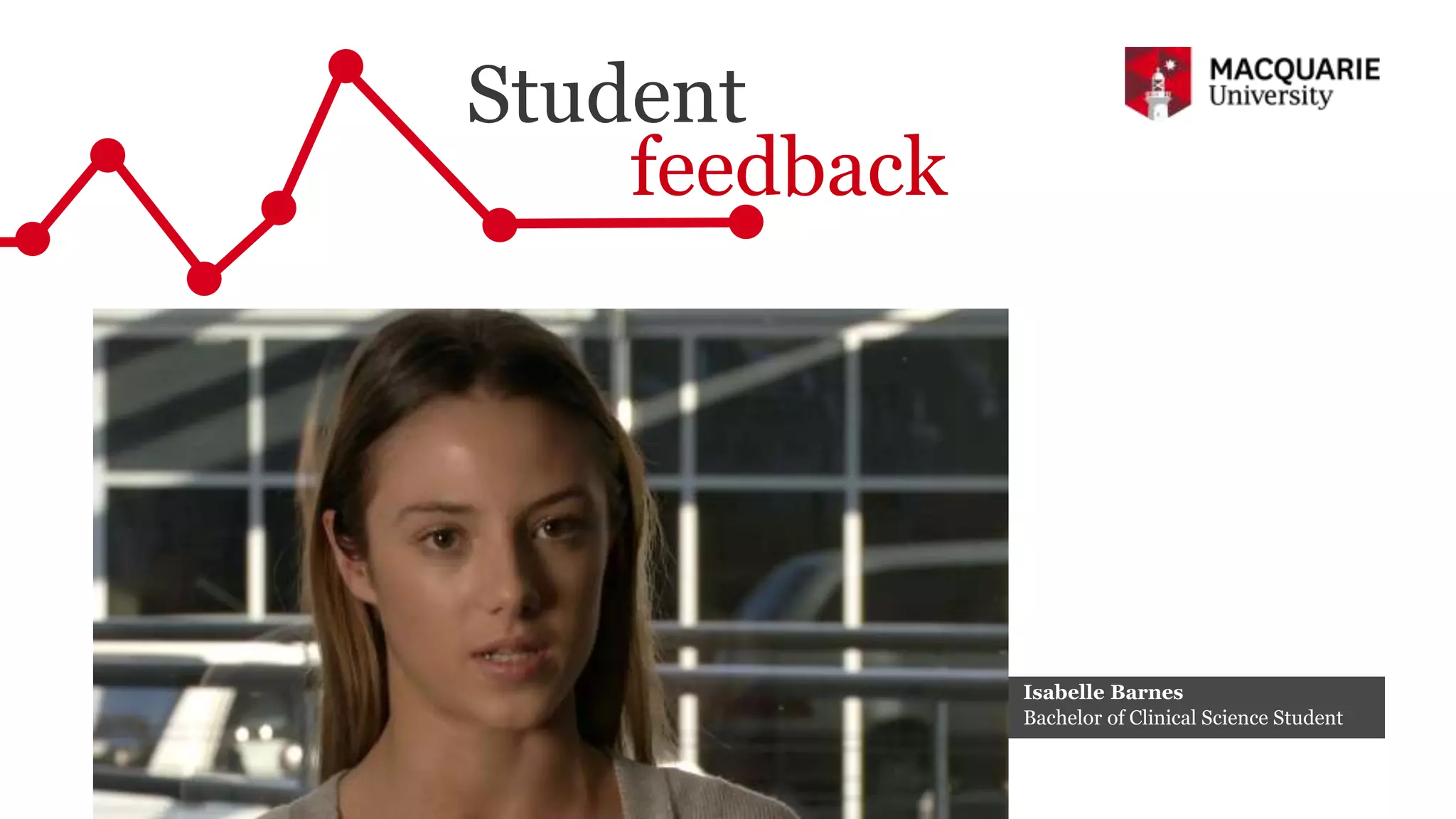
Student
feedback
Isabelle Barnes
Bachelor of Clinical Science Student
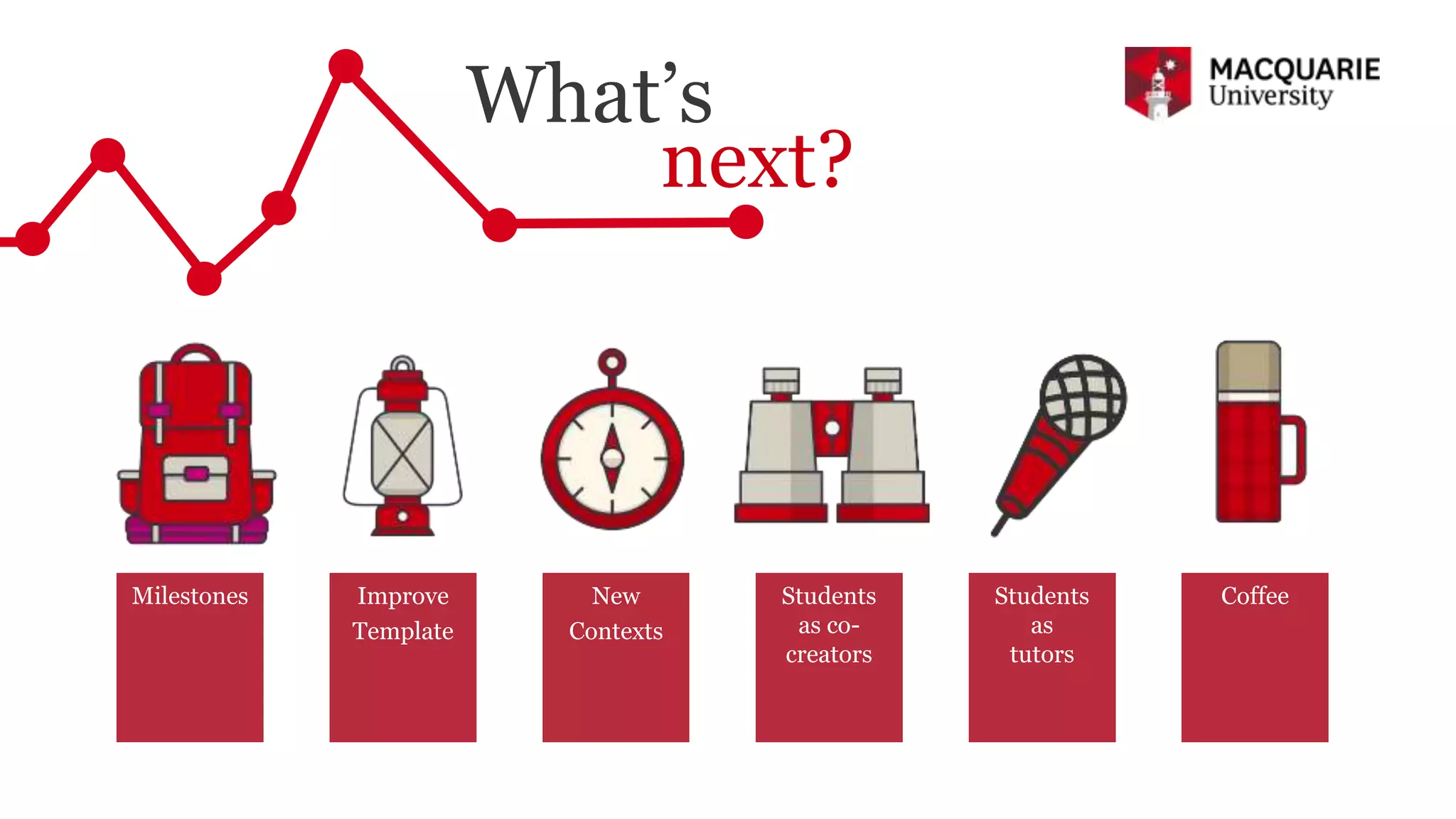
What’s
next?
Milestones Improve
Template
New
Contexts
Students
as co-
creators
CoffeeStudents
as
tutors
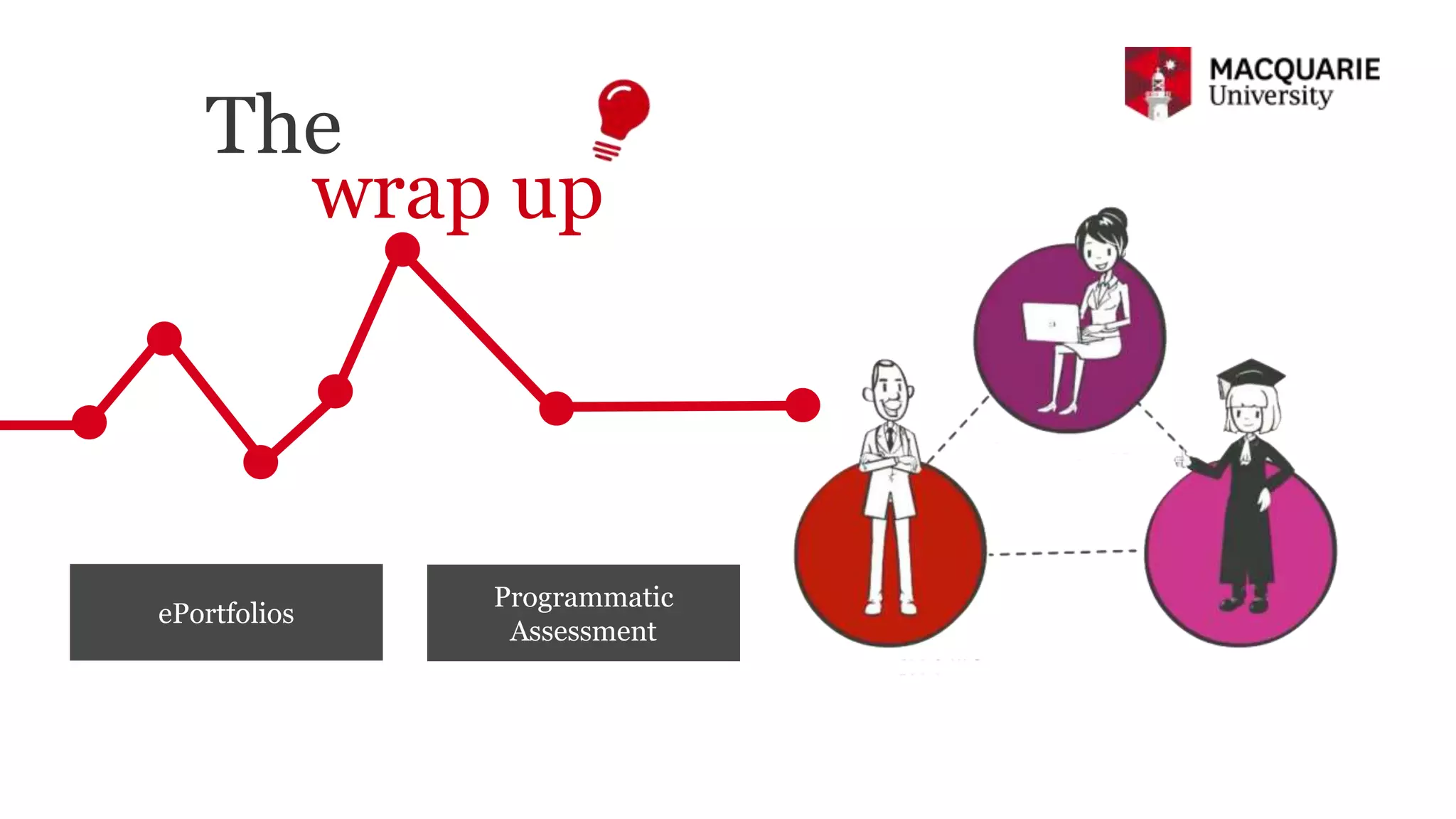
The
wrap up
ePortfolios
Programmatic
Assessment
Program level design using
e-Portfolios: Getting the big picture
THANK YOU FROM US
PANOS VLACHOPOULOS & SHERRIE LOVE
panos.vlachopoulos@mq.edu.au & sherrie.love@mq.edu.au

Program Level Design Using Eportfolios: Getting the Big Picture - Sherrie Love and Panos Vlachopoulos (Macquarie University)

  • 1.
    Program level designusing e-Portfolios: Getting the big picture PANOS VLACHOPOULOS & SHERRIE LOVE
  • 2.
    Program level designusing e-Portfolios: Getting the big picture
  • 3.
    Beginning with getting the assessmentright Programmatic Assessment ? Getting the big picture
  • 4.
  • 5.
    What does a graduatelook like? Scientist & Scholar Engaged Citizens Professionals
  • 6.
  • 7.
    7 BACHELOR OF CLINICALSCIENCE YEAR2YEAR1 SESSION 2SESSION 1 MED 3 SESSION 2SESSION 1 MED 3MED 0 MEDI103: ProfessionalPractice 1 PHYS149: Physics for Life Sciences HLTH108: Anatomical Sciences 1 CBMS104: Biomolecules BIOL108: Human Biology MEDI206: ProfessionalPractice 2 STAT170: Introductory to Statistics MEDI204: Neuroscience 1 MEDI203: Musculoskeletal 1 People/Planet Option MEDI305: ProfessionalPractice 3 MEDI303: Neuroscience 2 PHTY302: Biomechanics ofHuman Movement MEDI205: Human Health and Disease Processes PHTY301: Human Movement MEDI307: Laboratory Experience and Training 2 MEDI306: ProfessionalDevelopment 2 MEDI308: Health/Research Placement MEDI302: Renal and Alimentary 2 MEDI301: Cardiorespiratory 2 MEDI202: Renal and Alimentary 1 MEDI201: Cardiorespiratory 1 MEDI206: Professional Practice 2 (cont’d) MEDI209: Genetics and Genomics in Medicine MEDI208: Laboratory Experience and Training 1 MEDI207: Professional Development 1 MEDI304: Advanced Clinical Science People/Planet Option 1 2 3
  • 8.
  • 9.
    Bachelor of ClinicalScience BIOL108 Human Biology Essay Reference List Online Weekly Quizzes x12 Writing Task Final Exam CBMS104 Biomolecules Workshop Reports x4 Molecule Project Report Mid-semester Test Final Exam HLTH108 Anatomical Science 1 Quizzes x6 Practical Test 1 Practical Test 2 Final Exam PHYS149 Physics for Life Science Tutorial Assignments x10 Lab Session Mid-Semester Exam Final Exam MEDI103 Professional Practice 1 Written Video Analysis Group Project Annotated Bibliography Portfolio Assessment MEDI201 - Cardiorespiratory 1 Weekly Mini- Exams x 4 Online Learning Activities x5 Anatomy Lab Test MEDI202 Renal & Alimentary 1 Mini Exams x4 Online Learning Activities x5 Anatomy Lab Test Assessed evidence
  • 10.
  • 11.
    Implementing the initiative 1.1 Describethe Portfolio Assessment 1.2 Access PebblePad 1.3 Navigate PebblePad 1.4 Upload a non-assessed asset/evidence into PebblePad 1.5 Define and Asset using the generic PebblePad templates 1.6 Make a start on Personal Statement & Week 2 Reflection PebblePad Workshop 1 PebblePad Workshop 2 2.1 Upload an mQ assessed asset/evidence into PebblePad 2.2 Locate and assign a mQ Assessed Evidence template Introduction PebblePad, the personal learning space, is your private, secure online space where you can create records of learning, experiences and achievements. Structured resources are on hand to prompt and guide you and, they can be easily saved as your private assets/evidence where your experience and reflections become a rich tapestry for showcasing or tracking your learning journey of knowledge, skills and attributes. PebblePad+ is a private space however, you can easily share your assets/evidence for assessment, peer-review, CPD or grading. Pebble+ Home is the starting point for all your interaction with PebblePad. Here is a guide to navigating the Pebble+ Dashboard. Navigation 1.! Pebble+ Dashboard 2.! Burger menu – so called because it looks like a burger. This menu opens as a side menu with links to: a.! Asset store b.! Resources store c.! Upload a file d.! Start working on… Templates and workbooks e.! Get creative – portfolios and pages f.! Learning centre 3.! PebblePad Logo – returns you to the home page 4.! Pebble+ logo – returns you to the home page 5.! ATLAS – Takes you to the ATLAS Dashboard 6.! Asset Search - Opens a search tool in the sidebar where you can do a keyword search for assets, resources, and uploaded files 7.! History - Opens a search tool in the sidebar where you can do a keyword search for assets, sources, and uploaded files of PebblePad – especially important if you are working on a computer that is Uploading an Asset (your evidence) To meet assessment, CPD or accreditation requirements you are expected to collect and have at call evidence that supports the minimum requirements in your education or profession. You can upload any kind of digital file into your Pebble+ Store. We know that you have lots of interesting things (photos, scanned certificates, video clips, etc.) that you would like to use for many reasons (evidencing skills, moments worth reflecting on) PebblePad have made it easy for you to access the upload tool from lots of different places within PebblePad. To keep the process simple, we will only illustrate two of the many options to upload. 1.! On the Pebble+ Dashboard click the Upload new tile Accessing Feedback Feedback on work submitted automatically or manually is available to students when it is released for viewing. You can access feedback in a couple of different ways. Option 1 1. Click on the What’s happening? tile on your dashboard. 2. PebblePad will present you with the latest up-to-date timeline of things you need to know e.g. if any feedback has been left for you. 1 Tutorial Week 9 - Room Full of Errors Activity Before we get into the steps needed to complete the Room Full of Errors resource in PebblePad, I’d like to remind you that the most important step of all is to save your work. This applies to anything you do in any system (inside or outside PebblePad) Remember to click the Save button as often as you are happy to lose work i.e. if you can afford to lose 5 minutes’ worth of work click every 5 minutes, if you can’t afford to lose 5 minutes’ worth of work click save more often. OK let’s get started. 1.! Open PebblePad from within iLearn 2.! View your Resources store located under the burger menu 3.! Select the Room Full of Errors Activity from the list of templates
  • 12.
  • 13.
  • 14.
  • 15.
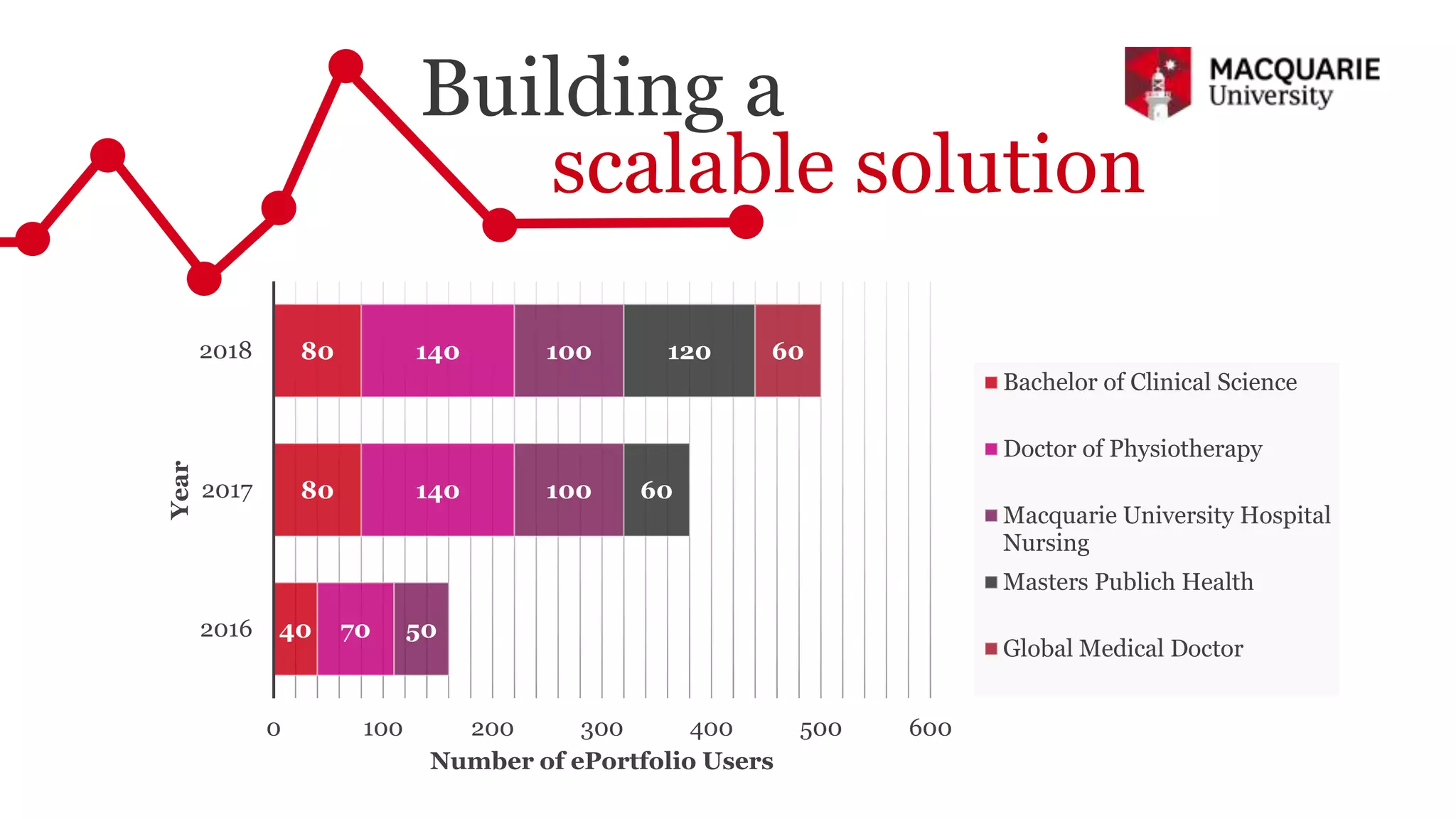
    Building a scalable solution 40 80 80 70 140 140 50 100 100 60 12060 0 100 200 300 400 500 600 2016 2017 2018 Number of ePortfolio Users Year Bachelor of Clinical Science Doctor of Physiotherapy Macquarie University Hospital Nursing Masters Publich Health Global Medical Doctor
  • 16.
    The evaluation process Collecting data early Adapting& providing additional support End of unit evaluation & revision
  • 17.
  • 18.
  • 19.
  • 20.
  • 21.
    Program level designusing e-Portfolios: Getting the big picture THANK YOU FROM US PANOS VLACHOPOULOS & SHERRIE LOVE panos.vlachopoulos@mq.edu.au & sherrie.love@mq.edu.au

Editor's Notes

  • #2 Sherrie: Hi, I’m Sherrie Love, Senior Learning Designer in the Faculty of Medicine & Health Sciences Panos: Hi, I’m Panos Vlachopoulos, Senior Teaching Fellow in Learning Innovation in the Faculty of Medicine & Health Sciences. Both: And we’re from Macquarie University where our campus is a short hop, skip or jump from Sydney.
  • #3 Panos: We are here today to make two important points. Program level design when it’s done properly can be one of the most effective ways to ensure the students get the big picture in their studies ePortfolios when implemented to support program level design can be one of the most effective assessments.
  • #4 Sherrie: Thank Panos. But how can we help students get the big picture. It’s really not an easy one to answer. Our view is that everything begins with getting the assessment right. This is what we call in this presentation programmatic assessment. Which we implemented to help students join the dots across a program of study.
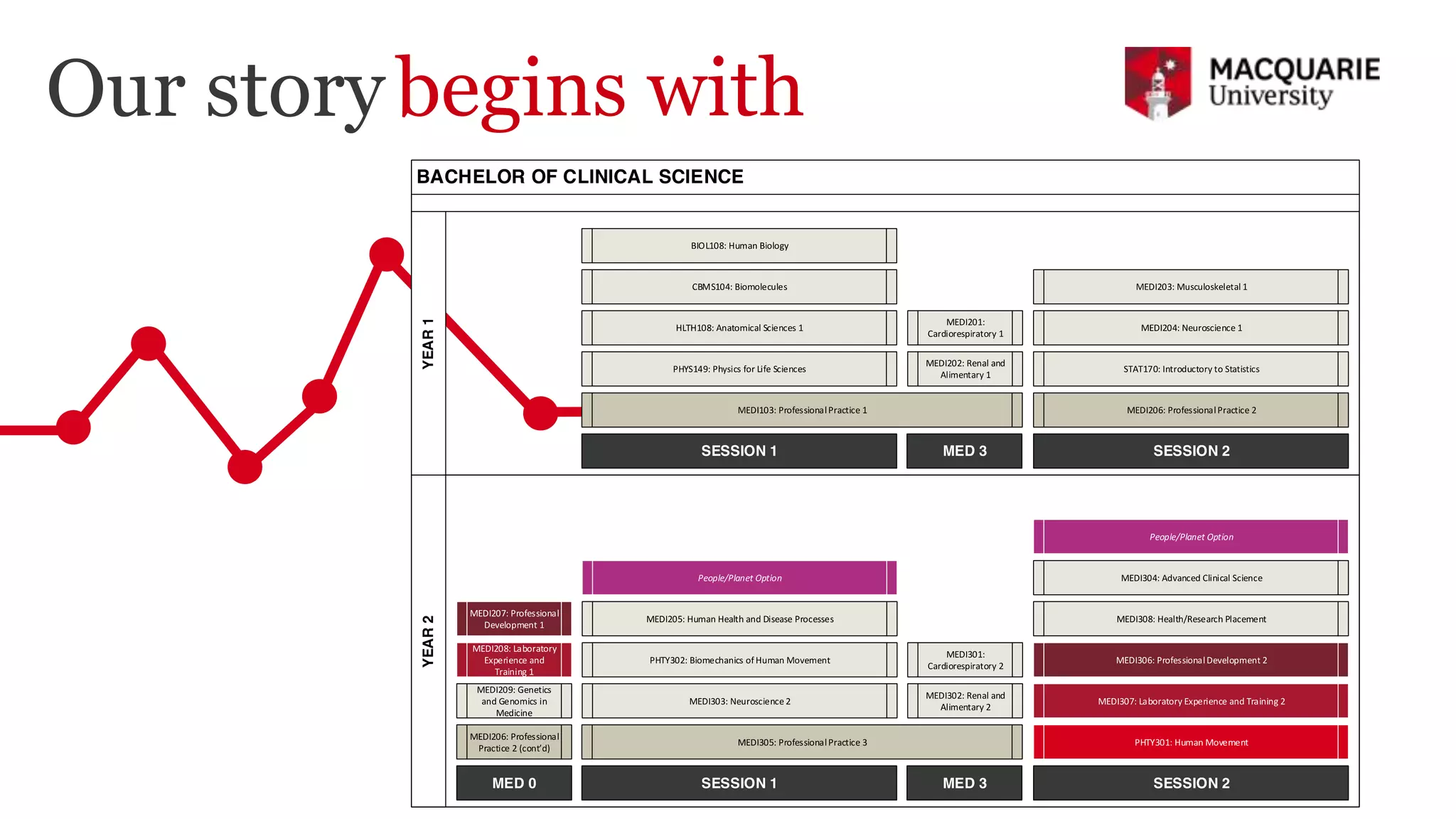
  • #5 Panos: Our story begins with an attempt to design develop & implement programmatic assessment using an ePortfolio tool in an undergraduate pre-clinical program at Macquarie university. Our major challenge was not the implementation of the electronic portfolio but getting the assessment right. Together with academics and medical practitioners we developed such an assessment framework using professional capabilities as our guide.
  • #6 Panos: But what will our graduate look like? Well some of them will end up being doctor’s others may choose a different healthcare career or follow their heart into research. Regardless of their choice we agreed as a faculty that our students will be competent scientist, & scholars, engaged citizens and professionals.
  • #7 Panos: But what is the evidence? How do students collect them and reflect on them? How do academics assess them and provide feedback? The use of an electronic portfolios appeared as a very good solution at the time. But not without challenges. [Introduce the three papers 1- what students select to report 2. What training they need 3. How valid and reliable is their assessment.
  • #8 Panos: One of the most common uses of electronic portfolios is the collection, reflection and presentation in the final year unit – capstone or similar. Other approaches include embedding the ePortfolio in every single unit. Our approach was to create a longitudinal stream of professional practice which houses the portfolio.
  • #9 Sherrie: How does it work? We provided our students with scaffolded workbooks that included the capability framework, training materials & templates to be used for collection of evidence from different learning experiences across the program.
  • #10 Sherrie: Talk about pulling in evidence from across the program and linking to capabilities.
  • #11 Sherrie: Highlight how assessed evidence is complimented by other evidence that isn’t assessed.
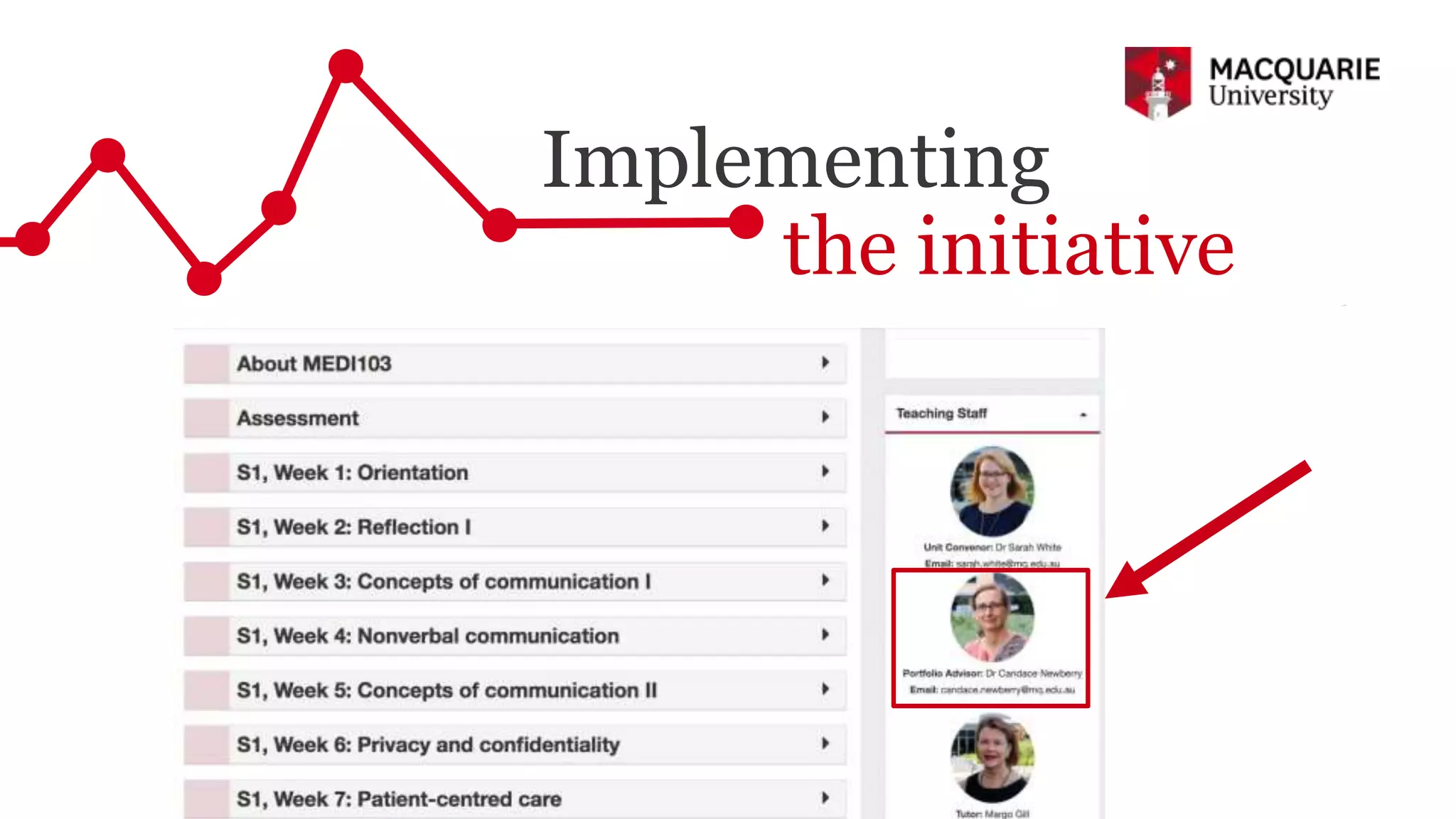
  • #12 Sherrie: How difficult was it to implement such an initiative? We supported learners in the task by running tailored training sessions and developing custom resources & guides. We trained their tutors to act as portfolio advisors and we hired an experienced GP to provide detailed feedback and support around professional development.
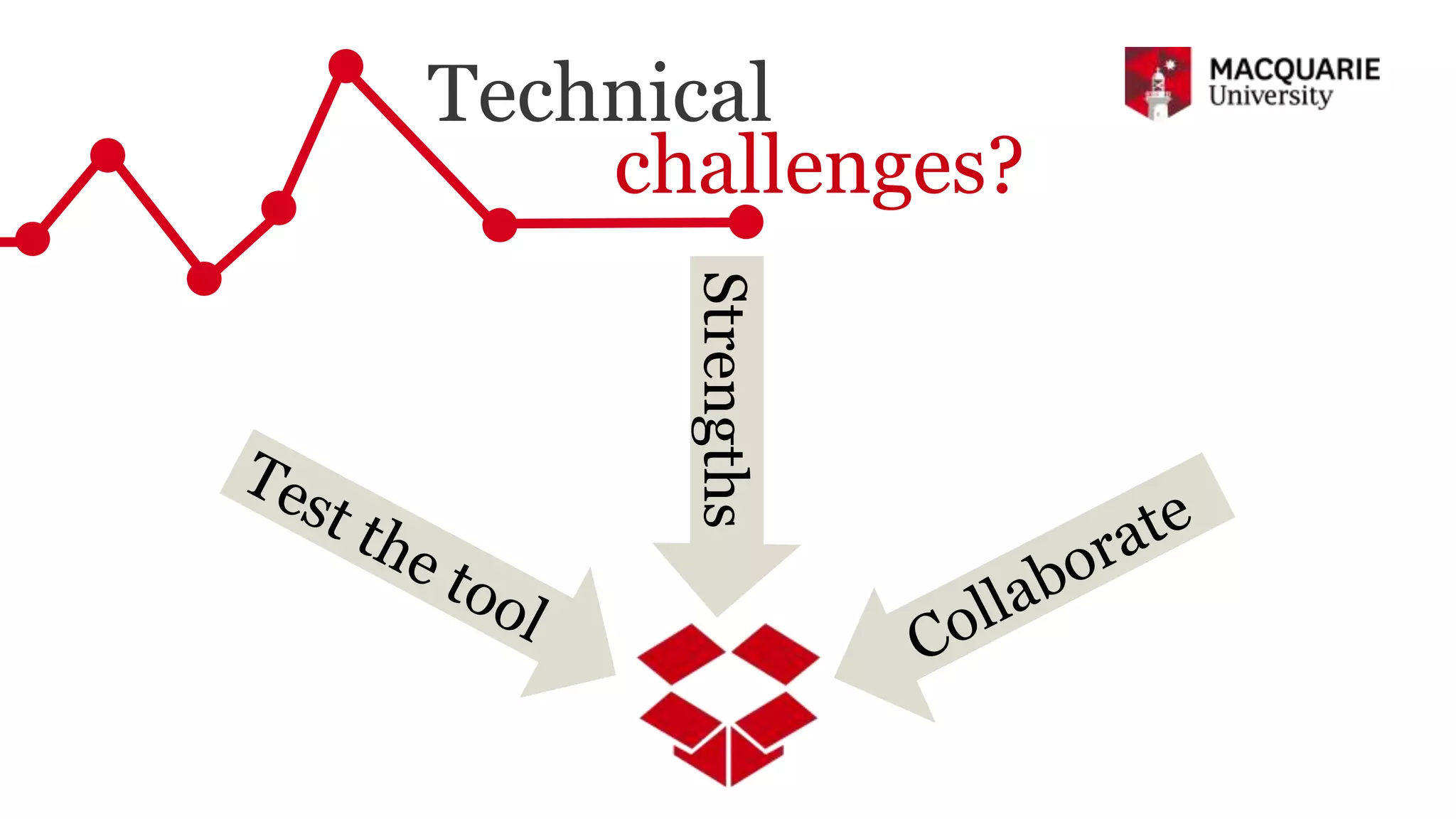
  • #13 Sherrie: But what about the technological challenges? Can an “out of the box tool” provide everything we need? The answer is no. Every single tool has its own limitations and strengths. Our approach was to test the tool, work with its strengths and collaborate with the provide to address its limitations. In that way we ensure fast progress with the development of our design without compromising our pedagogical principles.
  • #14 Sherrie: Add something here
  • #15 Sherrie: Add something here.
  • #16 Sherrie: Add something here.
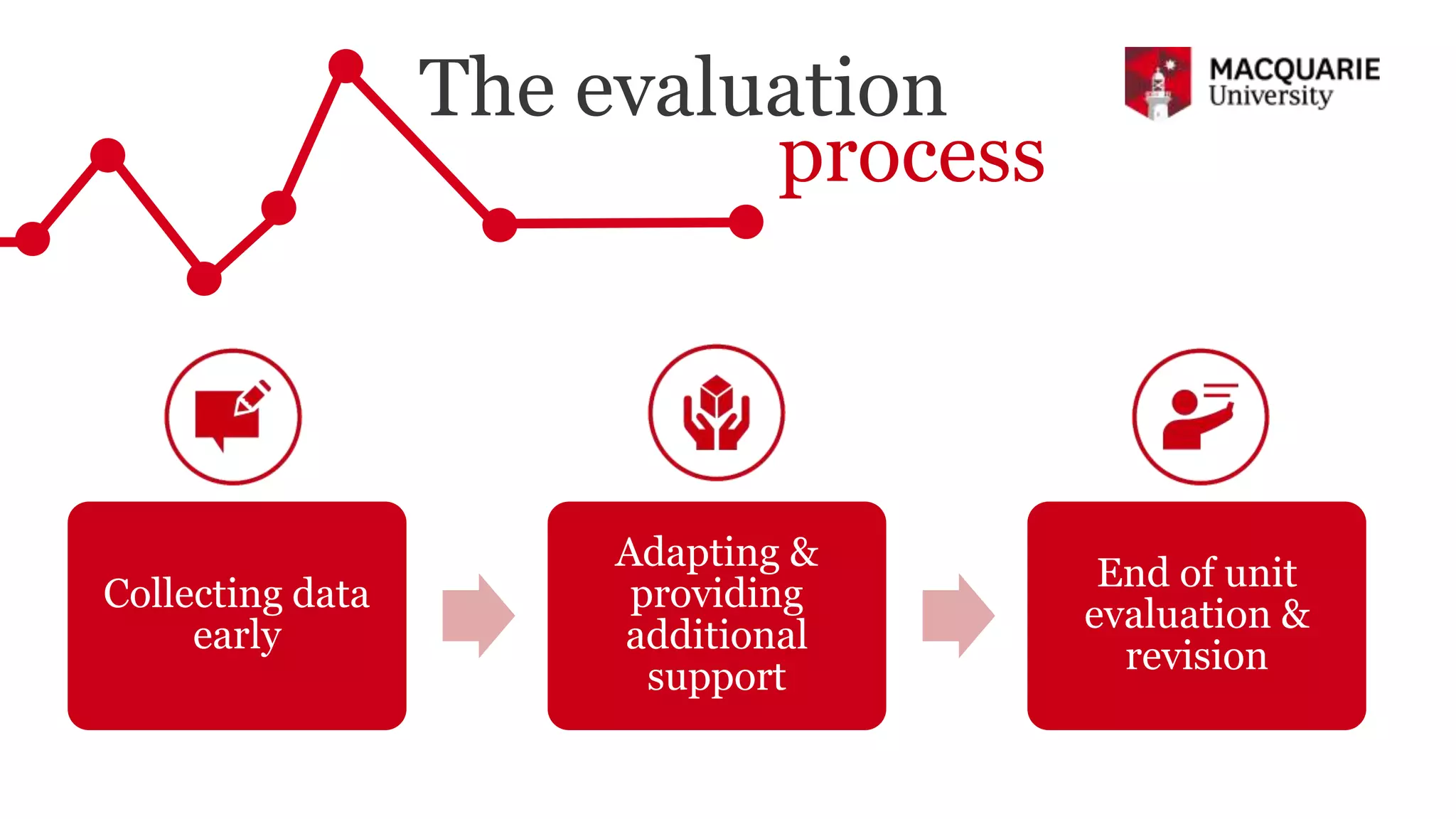
  • #17 Panos: Evaluation process – collecting data early, customising and running extra workshops and support. E.g. Socrative End of unit evaluation.
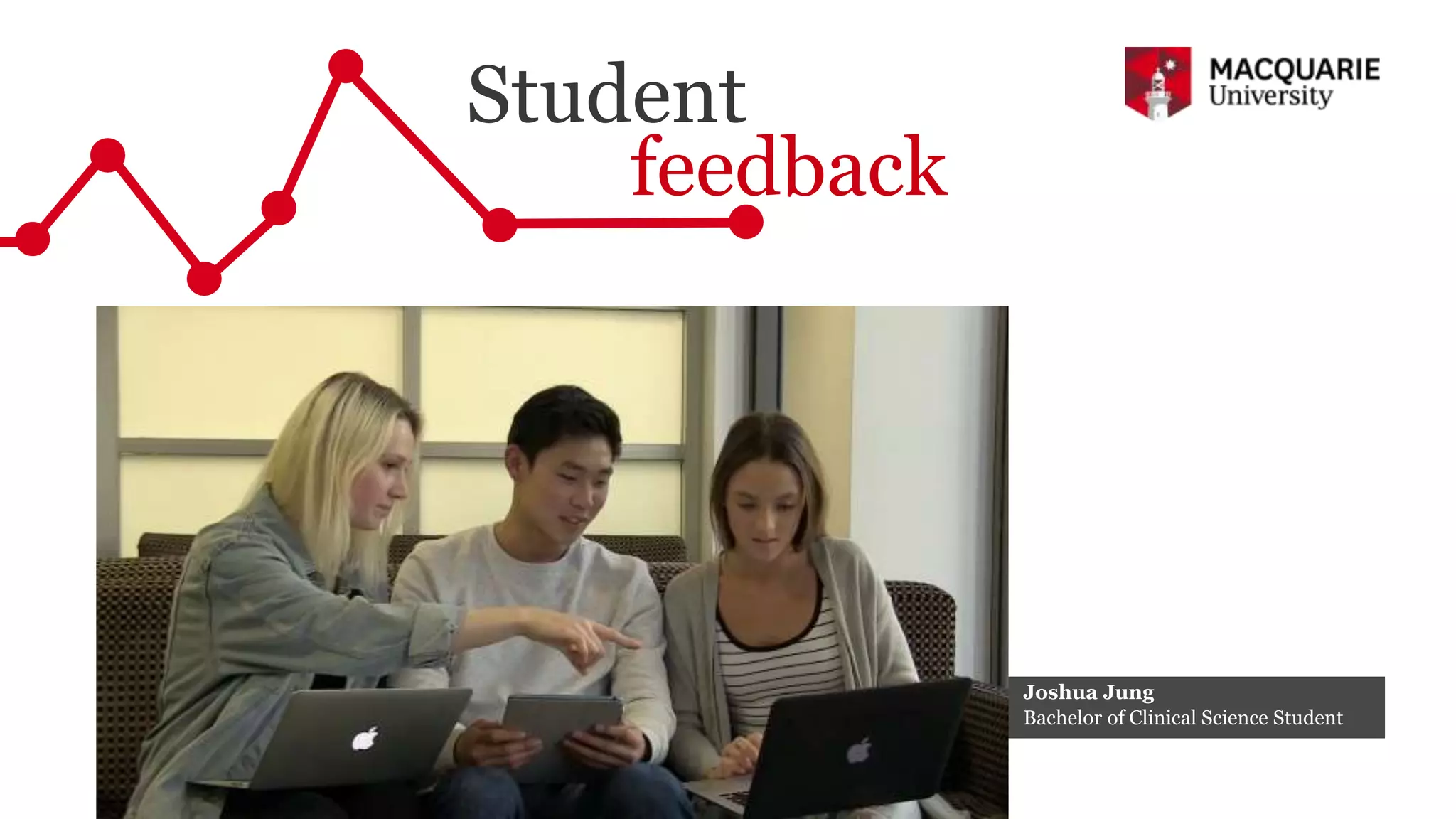
  • #18 Josh’s clip
  • #19 Isabell’s clip
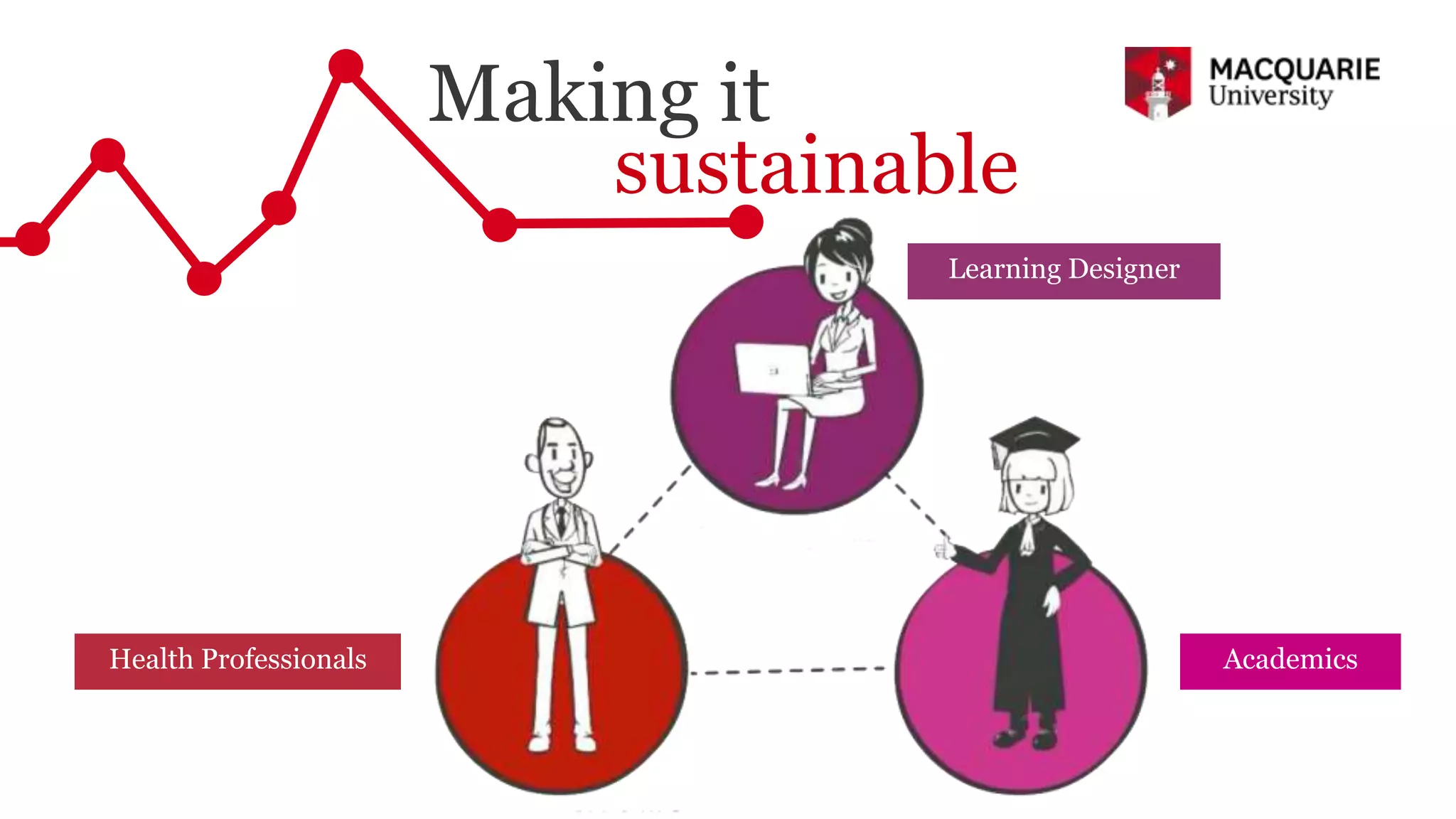
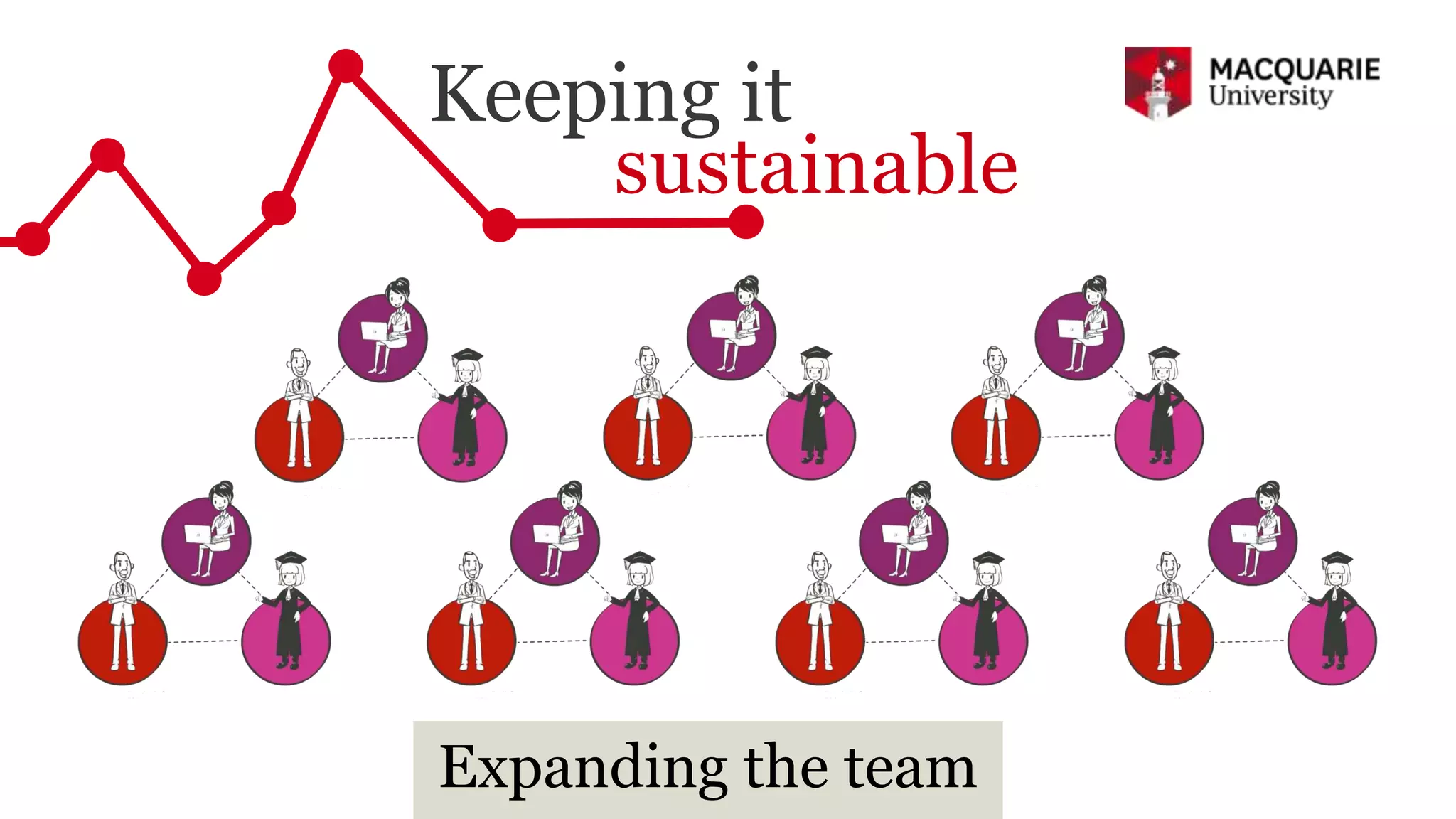
  • #20 Panos: Since we stated we improved the assessment process with the inclusion of milestones and changed the template to be more concise and economical. As we expand we need to be creative in the way we implement these templates in different contexts. Which is important for sustainability. We were surprised with the digital competency of our students to the level that we want to include them as designers in the next revision of our portfolio and as tutors for our new cohort of students.
  • #21 Panos: In the last 6 minutes and 40 seconds we advocated the use of electronic portfolios in programmatic assessment. We put pedagogy before technology. We were realistic about what technology can offer. We showed that success in achieving results comes from collaboration between academics, developers, designers, students & anyone else who has a good idea to offer.
  • #22 Both: Thanks