By Cassandra Ault
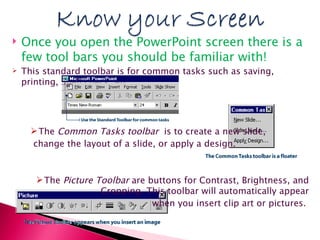
Once you open the PowerPoint screen there is a few tool bars you should be familiar with!  This standard toolbar is for common tasks such as saving, printing, Spell check, etc. The  Common Tasks toolbar   is to create a new slide, change the layout of a slide, or apply a design.  The  Picture Toolbar  are buttons for Contrast, Brightness, and Cropping. This toolbar will automatically appear when you insert clip art or pictures.
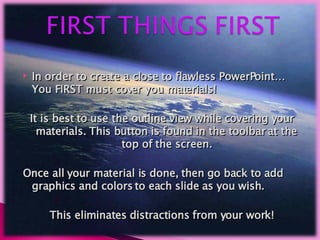
In order to create a close to flawless PowerPoint… You FIRST must cover you materials!  It is best to use the outline view while covering your materials. This button is found in the toolbar at the top of the screen. Once all your material is done, then go back to add graphics and colors to each slide as you wish. This eliminates distractions from your work!
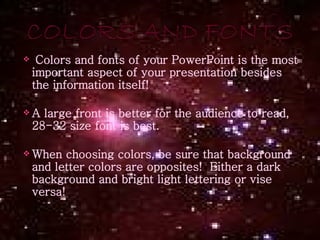
Colors and fonts of your PowerPoint is the most important aspect of your presentation besides the information itself!  A large front is better for the audience to read, 28-32 size font is best. When choosing colors, be sure that background and letter colors are opposites!  Either a dark background and bright light lettering or vise versa!
It is possible to do just  about anything you want on a PowerPoint. All you have to do is put your mind to it!  There are fonts, colors, pictures, layouts, video clips and more!  Creativity brings attention and focus to the information being presented! It is best to have creativity, but just remember that there is such thing as too much!
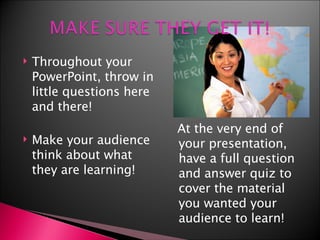
Throughout your PowerPoint, throw in little questions here and there! Make your audience think about what they are learning!  At the very end of your presentation, have a full question and answer quiz to cover the material you wanted your audience to learn!
While explaining your slides, you may want a blank screen to lesson distraction!  It is possible! For a black screen simply hit “B” for a white screen hit “C”. To return to your slide just re-hit the button
It is always best to have an extra of your last slide! This prevents your from exiting out of the slide show if you accidently click the button more than once! Instead, it will just click over to the next slide and no body will ever know!
 

Module 5

  • 1.
  • 2.
    Once you openthe PowerPoint screen there is a few tool bars you should be familiar with! This standard toolbar is for common tasks such as saving, printing, Spell check, etc. The Common Tasks toolbar is to create a new slide, change the layout of a slide, or apply a design. The Picture Toolbar are buttons for Contrast, Brightness, and Cropping. This toolbar will automatically appear when you insert clip art or pictures.
  • 3.
    In order tocreate a close to flawless PowerPoint… You FIRST must cover you materials! It is best to use the outline view while covering your materials. This button is found in the toolbar at the top of the screen. Once all your material is done, then go back to add graphics and colors to each slide as you wish. This eliminates distractions from your work!
  • 4.
    Colors and fontsof your PowerPoint is the most important aspect of your presentation besides the information itself! A large front is better for the audience to read, 28-32 size font is best. When choosing colors, be sure that background and letter colors are opposites! Either a dark background and bright light lettering or vise versa!
  • 5.
    It is possibleto do just about anything you want on a PowerPoint. All you have to do is put your mind to it! There are fonts, colors, pictures, layouts, video clips and more! Creativity brings attention and focus to the information being presented! It is best to have creativity, but just remember that there is such thing as too much!
  • 6.
    Throughout your PowerPoint,throw in little questions here and there! Make your audience think about what they are learning! At the very end of your presentation, have a full question and answer quiz to cover the material you wanted your audience to learn!
  • 7.
    While explaining yourslides, you may want a blank screen to lesson distraction! It is possible! For a black screen simply hit “B” for a white screen hit “C”. To return to your slide just re-hit the button
  • 8.
    It is alwaysbest to have an extra of your last slide! This prevents your from exiting out of the slide show if you accidently click the button more than once! Instead, it will just click over to the next slide and no body will ever know!
  • 9.