PowerPoint
Presentation
Powered by: Microsoft
What is Microsoft
PowerPoint
Presentation???
Microsoft PowerPoint
Presentation
• Microsoft PowerPoint is a
powerful presentation software
developed by Microsoft. It is a
standard component of the
company's Microsoft Office suite
software, and is bundled
together with Word, Excel and
other Office productivity tools
Microsoft PowerPoint
Presentation
• The program uses slides to
convey information rich in
multimedia and is used to
create complex business
presentations, simple
educational outlines and
much more.
Microsoft PowerPoint
Presentation
• PowerPoint allows users to
create media-rich presentations
constituted by a series of slides.
Since it’s fully integrated with
the other tools of the Microsoft
Office suite, the user can import
content created with Excel or
Word into PowerPoint, as well as
other media such as pictures,
audio, and video clips.
Why must we use
Microsoft
PowerPoint
Presentation?
• PowerPoint saves time and energy
—once the presentation has been
created, it is easy to update or
modify for other courses.
• It can even help reduce speaking
anxiety by drawing eyes away
from the speaker and towards a
screen
Making your presentation more interesting
through the use of multimedia can help to
improve the audience's focus.
PowerPoint allows you to use images,
audio and video to have a greater visual
impact.
• Microsoft PowerPoint is a widely
accepted file format where slides are used to
convey information. It is a standard
component of the Microsoft Office Suite and
is compatible with Google Slides, Keynote,
and other open-source presentation software.
Drawbacks of Microsoft
Power Point Presentation
Dependent on slides:
• If you consume too much time in preparing your
presentation and put a lot of information in slides
then you get little time for speaking to the
audience. So during the presentation, you
become dependent on slides and your own
speaking time with your audience becomes less.
This behaviour impacts badly on the audience and
your listeners will expect that you have no grip on
the topic that you are presenting.
Making changes:
• You cannot make changes to the slides while
presenting to the audience. You must be accurate
while preparing the slides so that you do not
make any mistakes in the slides. You must be
careful while making a presentation and don’t
skip any data that you want to put in..
Technical issues::
• If you have prepared your presentation on your
computer and presented with someone’s
computer, then you may face some issues. For
example, if you use some special fonts in your
slides and those fonts are not available on
another computer then your presentation does
not look interesting. Also, you may face problems
with VGA cards, HDMI cable or projector
connectivity issues like adaptor issues. If you
don’t have the skills of connecting your laptop
with a projector then it also creates a problem for
Changes not saved
automatically:
• One issue with this software is that changes are
not saved automatically, and you have to press
Ctrl + S every time you want to save changes. If
for some reason your computer is turned off, then
the unsaved changes will be gone, and your hard
work will be lost.
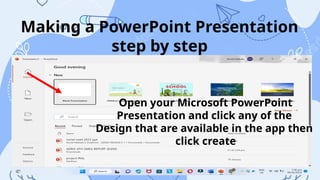
Making a PowerPoint Presentation
step by step
Open your Microsoft PowerPoint
Presentation and click any of the
Design that are available in the app then
click create
aking a PowerPoint Presentation
step by step
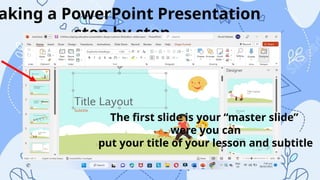
The first slide is your “master slide”
were you can
put your title of your lesson and subtitle
aking a PowerPoint Presentation
step by step
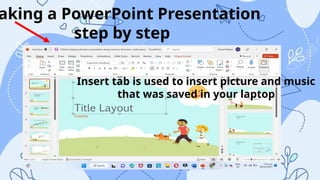
Insert tab is used to insert picture and music
that was saved in your laptop
aking a PowerPoint Presentation
step by step
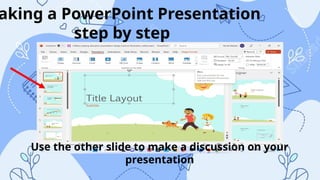
Use the other slide to make a discussion on your
presentation
aking a PowerPoint Presentation
step by step
Activity:
Show Me!
Make a simple presentation.
Use up to 5 slides.
Insert some videos, pictures or music
rocessing:
1. What were your thoughts on the activity?
2. What makes it simple or challenging?
3. How did you make your instructional materials
out of PowerPoint presentation?
4. Give an example of a situation where you used a
PowerPoint presentation to enhance learning in a
classroom setting and explain the environment
during that time.
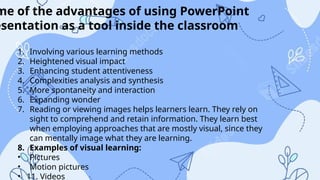
me of the advantages of using PowerPoint
esentation as a tool inside the classroom
1. Involving various learning methods
2. Heightened visual impact
3. Enhancing student attentiveness
4. Complexities analysis and synthesis
5. More spontaneity and interaction
6. Expanding wonder
7. Reading or viewing images helps learners learn. They rely on
sight to comprehend and retain information. They learn best
when employing approaches that are mostly visual, since they
can mentally image what they are learning.
8. Examples of visual learning:
• Pictures
• Motion pictures
• 11. Videos
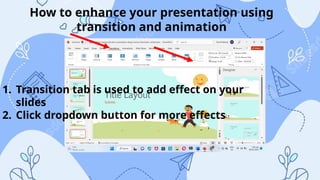
How to enhance your presentation using
transition and animation
1. Transition tab is used to add effect on your
slides
2. Click dropdown button for more effects
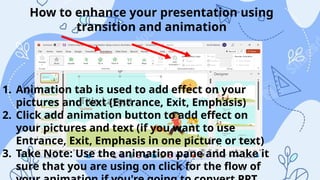
How to enhance your presentation using
transition and animation
1. Animation tab is used to add effect on your
pictures and text (Entrance, Exit, Emphasis)
2. Click add animation button to add effect on
your pictures and text (if you want to use
Entrance, Exit, Emphasis in one picture or text)
3. Take Note: Use the animation pane and make it
sure that you are using on click for the flow of
Activity 2:
Enhance Me!
Add animation and transition on your PowerPoint
Presentation
Converting PowerPoint Presentation into Video:

Inservice Training for teachers proposal

  • 1.
  • 2.
  • 3.
    Microsoft PowerPoint Presentation • MicrosoftPowerPoint is a powerful presentation software developed by Microsoft. It is a standard component of the company's Microsoft Office suite software, and is bundled together with Word, Excel and other Office productivity tools
  • 4.
    Microsoft PowerPoint Presentation • Theprogram uses slides to convey information rich in multimedia and is used to create complex business presentations, simple educational outlines and much more.
  • 5.
    Microsoft PowerPoint Presentation • PowerPointallows users to create media-rich presentations constituted by a series of slides. Since it’s fully integrated with the other tools of the Microsoft Office suite, the user can import content created with Excel or Word into PowerPoint, as well as other media such as pictures, audio, and video clips.
  • 6.
    Why must weuse Microsoft PowerPoint Presentation?
  • 7.
    • PowerPoint savestime and energy —once the presentation has been created, it is easy to update or modify for other courses.
  • 8.
    • It caneven help reduce speaking anxiety by drawing eyes away from the speaker and towards a screen
  • 9.
    Making your presentationmore interesting through the use of multimedia can help to improve the audience's focus. PowerPoint allows you to use images, audio and video to have a greater visual impact.
  • 10.
    • Microsoft PowerPointis a widely accepted file format where slides are used to convey information. It is a standard component of the Microsoft Office Suite and is compatible with Google Slides, Keynote, and other open-source presentation software.
  • 11.
    Drawbacks of Microsoft PowerPoint Presentation
  • 12.
    Dependent on slides: •If you consume too much time in preparing your presentation and put a lot of information in slides then you get little time for speaking to the audience. So during the presentation, you become dependent on slides and your own speaking time with your audience becomes less. This behaviour impacts badly on the audience and your listeners will expect that you have no grip on the topic that you are presenting.
  • 13.
    Making changes: • Youcannot make changes to the slides while presenting to the audience. You must be accurate while preparing the slides so that you do not make any mistakes in the slides. You must be careful while making a presentation and don’t skip any data that you want to put in..
  • 14.
    Technical issues:: • Ifyou have prepared your presentation on your computer and presented with someone’s computer, then you may face some issues. For example, if you use some special fonts in your slides and those fonts are not available on another computer then your presentation does not look interesting. Also, you may face problems with VGA cards, HDMI cable or projector connectivity issues like adaptor issues. If you don’t have the skills of connecting your laptop with a projector then it also creates a problem for
  • 15.
    Changes not saved automatically: •One issue with this software is that changes are not saved automatically, and you have to press Ctrl + S every time you want to save changes. If for some reason your computer is turned off, then the unsaved changes will be gone, and your hard work will be lost.
  • 16.
    Making a PowerPointPresentation step by step Open your Microsoft PowerPoint Presentation and click any of the Design that are available in the app then click create
  • 17.
    aking a PowerPointPresentation step by step The first slide is your “master slide” were you can put your title of your lesson and subtitle
  • 18.
    aking a PowerPointPresentation step by step Insert tab is used to insert picture and music that was saved in your laptop
  • 19.
    aking a PowerPointPresentation step by step Use the other slide to make a discussion on your presentation
  • 20.
    aking a PowerPointPresentation step by step Activity: Show Me! Make a simple presentation. Use up to 5 slides. Insert some videos, pictures or music
  • 21.
    rocessing: 1. What wereyour thoughts on the activity? 2. What makes it simple or challenging? 3. How did you make your instructional materials out of PowerPoint presentation? 4. Give an example of a situation where you used a PowerPoint presentation to enhance learning in a classroom setting and explain the environment during that time.
  • 22.
    me of theadvantages of using PowerPoint esentation as a tool inside the classroom 1. Involving various learning methods 2. Heightened visual impact 3. Enhancing student attentiveness 4. Complexities analysis and synthesis 5. More spontaneity and interaction 6. Expanding wonder 7. Reading or viewing images helps learners learn. They rely on sight to comprehend and retain information. They learn best when employing approaches that are mostly visual, since they can mentally image what they are learning. 8. Examples of visual learning: • Pictures • Motion pictures • 11. Videos
  • 23.
    How to enhanceyour presentation using transition and animation 1. Transition tab is used to add effect on your slides 2. Click dropdown button for more effects
  • 24.
    How to enhanceyour presentation using transition and animation 1. Animation tab is used to add effect on your pictures and text (Entrance, Exit, Emphasis) 2. Click add animation button to add effect on your pictures and text (if you want to use Entrance, Exit, Emphasis in one picture or text) 3. Take Note: Use the animation pane and make it sure that you are using on click for the flow of
  • 25.
    Activity 2: Enhance Me! Addanimation and transition on your PowerPoint Presentation
  • 26.