Chapter 2
First Java Programs
Fundamentals of Java
2
Objectives
 Discuss why Java is an important
programming language.
 Explain the Java virtual machine and byte
code.
 Choose a user interface style.
 Describe the structure of a simple Java
program.
Fundamentals of Java
3
Objectives (cont.)
 Write a simple program.
 Edit, compile, and run a program using a
Java development environment.
 Format a program to give a pleasing,
consistent appearance.
 Understand compile-time errors.
 Write a simple graphics program.
Fundamentals of Java
4
Vocabulary
 Applet
 Assignment operator
 Byte code
 DOS development environment
 Graphical user interface (GUI)
 Hacking
 Integrated development environment (IDE)
Fundamentals of Java
5
Vocabulary (cont.)
 Java virtual machine (JVM)
 Just-in-time compilation (JIT)
 Parameter
 Source code
 Statement
 Terminal I/O user interface
 Variable
Fundamentals of Java
6
Why Java?
 Java is:
– The world’s fastest growing programming
language
– Secure: Enables construction of virus-free,
tamper-free systems
– Robust: Supports development of programs
that do not overwrite memory
– Portable: Programs can be run on different
types of computers without change
Fundamentals of Java
7
Why Java? (cont.)
 Java is well-suited for distributed, network-
based applications.
 Java supports threads.
– A process that can run concurrently with other
processes
 Java resembles C++.
– Easy for C++ programmers to learn Java
 Java runs more slowly than other languages.
Fundamentals of Java
8
The Java Virtual Machine and
Byte Code
 The Java compiler translates Java source
code into Java byte code.
– A pseudo-machine language
 Byte code is executed by the Java Virtual
Machine (JVM).
– Interpreter: A program that behaves like a
computer
– Any computer with the JVM installed can execute
Java byte code (portability).
Fundamentals of Java
9
The Java Virtual Machine and
Byte Code (cont.)
 Some JVMs support just-in-time
compilation (JIT).
– Translate byte code instructions into machine
language when they are first encountered
 Java applets: Java programs that run in a
Web browser
– A JVM is incorporated into the browser.
Fundamentals of Java
10
Choosing a User Interface Style
 Two choices:
– Graphical user interface (GUI): Program
interacts with users via “windows” with graphical
components
– Terminal I/O user interface: Programs interact
with users via a command terminal
 MS-DOS console or Unix terminal
Fundamentals of Java
11
Choosing a User Interface Style
(cont.)
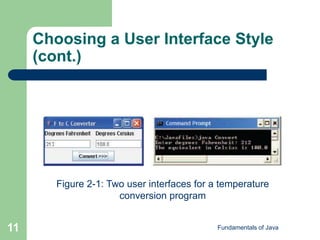
Figure 2-1: Two user interfaces for a temperature
conversion program
Fundamentals of Java
12
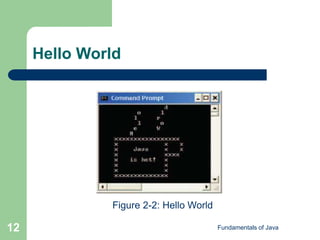
Hello World
Figure 2-2: Hello World
Fundamentals of Java
13
Hello World (cont.)
 A program is a sequence of instructions to
perform a task.
 Source code: The programming language
instructions for a program
Fundamentals of Java
14
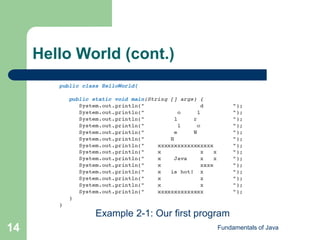
Hello World (cont.)
Example 2-1: Our first program
Fundamentals of Java
15
Hello World (cont.)
 System.out: An object that knows how to
display or print characters in a terminal
window
– println: The message being sent to the
System.out object
– Strings in quotation marks contain characters to
be printed.
 Parameters
Fundamentals of Java
16
Hello World (cont.)
 Semicolons (;) mark the end of each
statement.
– A “sentence” in a program
 A message may require zero, one, or
multiple parameters.
 Format for sending messages to objects:
– <name of object>.<name of
message>(<parameters>)
Fundamentals of Java
17
Hello World (cont.)
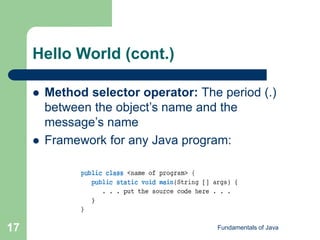
 Method selector operator: The period (.)
between the object’s name and the
message’s name
 Framework for any Java program:
Fundamentals of Java
18
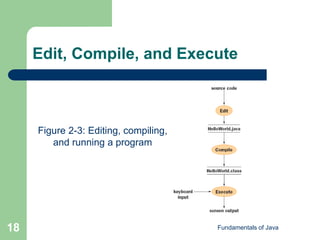
Edit, Compile, and Execute
Figure 2-3: Editing, compiling,
and running a program
Fundamentals of Java
19
Edit, Compile, and Execute (cont.)
 The file extension for a Java source code
file is .java.
 The file extension for a Java class file is
.class.
Fundamentals of Java
20
Development Environments
 Use UNIX or Linux using a standard text
editor with command-line activation of the
compiler and the JVM.
 DOS development environment:
– Use a text editor to write source code.
– Activate compiler and JVM from the command
line in a command or DOS Window.
Fundamentals of Java
21
Development Environments (cont.)
 Integrated development environment
(IDE): Combines an editor, Java compiler,
debugger, and JVM in one program
– Increases programmer productivity
– Usually costs money
– Examples: Metrowerks Code Warrior, Borland
JBuilder, BlueJ, and JGrasp
Fundamentals of Java
22
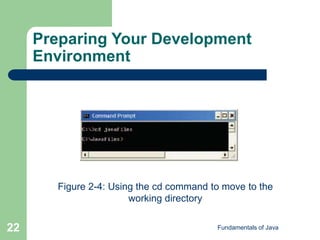
Preparing Your Development
Environment
Figure 2-4: Using the cd command to move to the
working directory
Fundamentals of Java
23
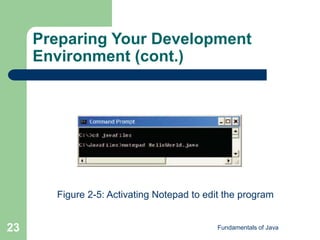
Preparing Your Development
Environment (cont.)
Figure 2-5: Activating Notepad to edit the program
Fundamentals of Java
24
Preparing Your Development
Environment (cont.)
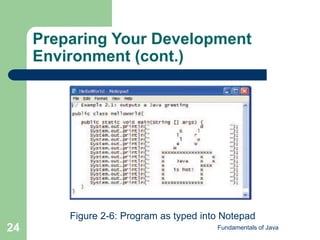
Figure 2-6: Program as typed into Notepad
Fundamentals of Java
25
Preparing Your Development
Environment (cont.)
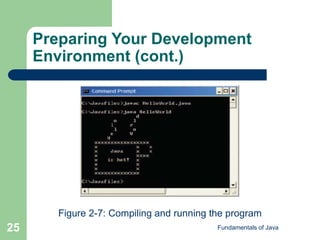
Figure 2-7: Compiling and running the program
Fundamentals of Java
26
Compile-Time Errors
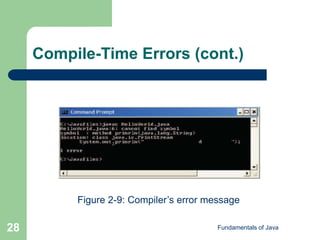
 Mistakes detected by the compiler
– Also called syntax errors
 Compiler displays errors in terminal window
– Indicates file and line number where error was
detected
– Indicates type of error detected
– May suggest solutions to error
Fundamentals of Java
27
Compile-Time Errors (cont.)
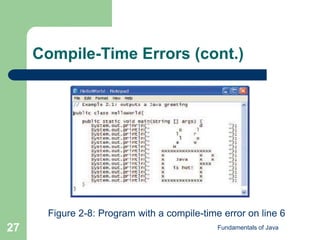
Figure 2-8: Program with a compile-time error on line 6
Fundamentals of Java
28
Compile-Time Errors (cont.)
Figure 2-9: Compiler’s error message
Fundamentals of Java
29
Readability
 The main factor affecting readability is layout.
– Spacing
– Indentation
 The compiler ignores layout.
 It is important for your code to be readable
by others.
– Your programs may be maintained by others.
Fundamentals of Java
30
Temperature Conversion
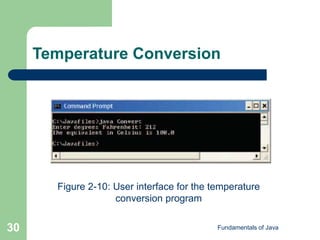
Figure 2-10: User interface for the temperature
conversion program
Fundamentals of Java
31
Temperature Conversion: The
Source Code
Fundamentals of Java
32
Temperature Conversion: The
Explanation
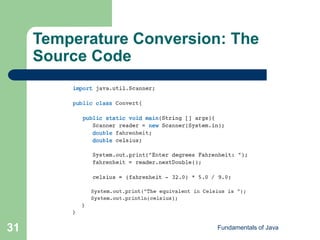
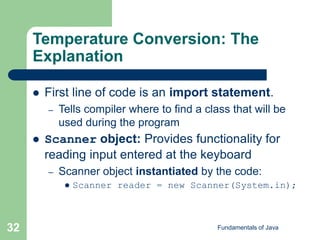
 First line of code is an import statement.
– Tells compiler where to find a class that will be
used during the program
 Scanner object: Provides functionality for
reading input entered at the keyboard
– Scanner object instantiated by the code:
 Scanner reader = new Scanner(System.in);
Fundamentals of Java
33
Temperature Conversion: The
Explanation (cont.)
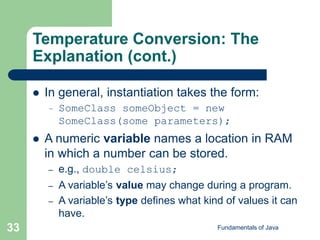
 In general, instantiation takes the form:
– SomeClass someObject = new
SomeClass(some parameters);
 A numeric variable names a location in RAM
in which a number can be stored.
– e.g., double celsius;
– A variable’s value may change during a program.
– A variable’s type defines what kind of values it can
have.
Fundamentals of Java
34
Temperature Conversion: The
Explanation (cont.)
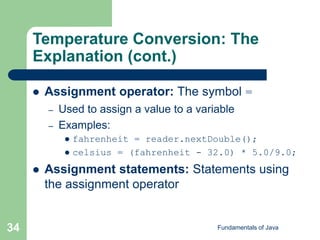
 Assignment operator: The symbol =
– Used to assign a value to a variable
– Examples:
 fahrenheit = reader.nextDouble();
 celsius = (fahrenheit - 32.0) * 5.0/9.0;
 Assignment statements: Statements using
the assignment operator
Fundamentals of Java
35
Temperature Conversion: The
Explanation (cont.)
 Mathematical operators:
– +: Addition
– -: Subtraction
– *: Multiplication
– /: Division
 System.out.println() can be used to
print values of variables.
– System.out.println(fahrenheit);
Fundamentals of Java
36
Temperature Conversion:
Variables and Objects
 Variables fahrenheit and celsius each
hold a single floating-point number.
 Variables reader and System.out hold
references to objects.
– References used to send messages to the
objects
Fundamentals of Java
37
Temperature Conversion:
Variables and Objects (cont.)
Figure 2-11: Variables
and objects used in the
conversion program
Fundamentals of Java
38
Graphics and GUIs: Windows
and Panels
 Standalone GUI applications run in windows.
– Containers for graphical components to be
displayed to the user
 Windows have numerous properties.
– Width and height
– Title bar
– Ability to be dragged or resized by the user
Fundamentals of Java
39
Graphics and GUIs: Windows
and Panels (cont.)
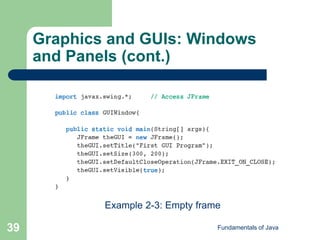
Example 2-3: Empty frame
Fundamentals of Java
40
Graphics and GUIs: Windows
and Panels (cont.)
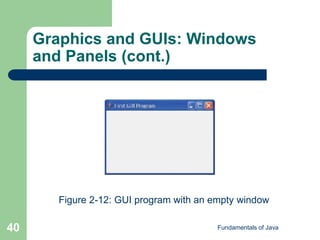
Figure 2-12: GUI program with an empty window
Fundamentals of Java
41
Graphics and GUIs: Windows
and Panels (cont.)
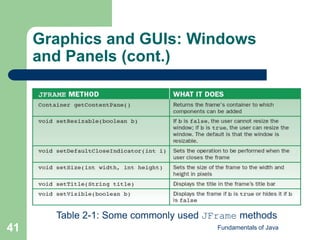
Table 2-1: Some commonly used JFrame methods
Fundamentals of Java
42
Panels and Colors
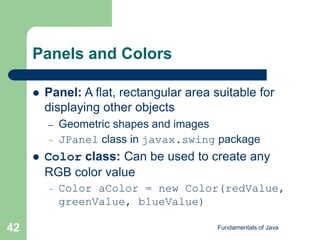
 Panel: A flat, rectangular area suitable for
displaying other objects
– Geometric shapes and images
– JPanel class in javax.swing package
 Color class: Can be used to create any
RGB color value
– Color aColor = new Color(redValue,
greenValue, blueValue)
Fundamentals of Java
43
Panels and Colors (cont.)
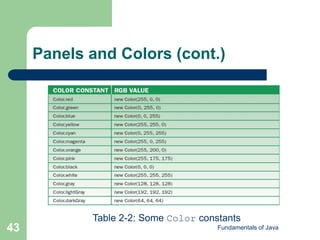
Table 2-2: Some Color constants
Fundamentals of Java
44
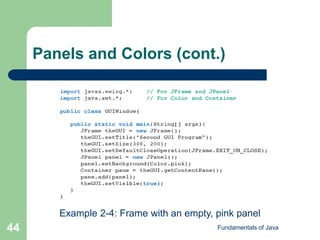
Panels and Colors (cont.)
Example 2-4: Frame with an empty, pink panel
Fundamentals of Java
45
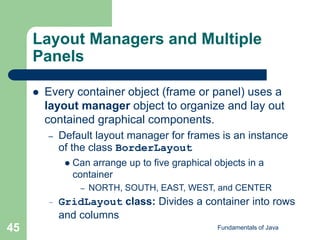
Layout Managers and Multiple
Panels
 Every container object (frame or panel) uses a
layout manager object to organize and lay out
contained graphical components.
– Default layout manager for frames is an instance
of the class BorderLayout
 Can arrange up to five graphical objects in a
container
– NORTH, SOUTH, EAST, WEST, and CENTER
– GridLayout class: Divides a container into rows
and columns
Fundamentals of Java
46
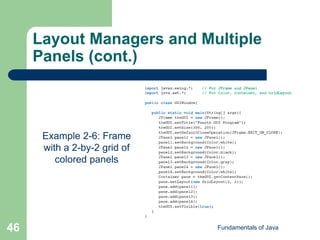
Layout Managers and Multiple
Panels (cont.)
Example 2-6: Frame
with a 2-by-2 grid of
colored panels
Fundamentals of Java
47
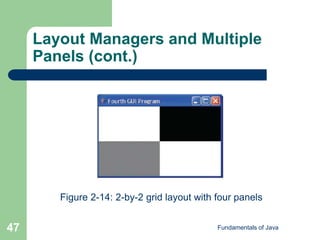
Layout Managers and Multiple
Panels (cont.)
Figure 2-14: 2-by-2 grid layout with four panels
Fundamentals of Java
48
Summary
 Java is the fastest growing programming
language in the world. It is secure, robust, and
portable.
 The Java compiler translates Java into a
pseudomachine language called Java byte
code. Byte code can be run on any computer
that has a Java virtual machine installed. The
Java virtual machine (JVM) is a program that
behaves like a computer—an interpreter.
Fundamentals of Java
49
Summary (cont.)
 Java programs include variables, arithmetic
expressions, statements, objects, messages,
and methods.
 Three basic steps in the coding process are
editing, compiling, and running a program
using a Java development environment.
Programmers should pay attention to a
program’s format to ensure readability.
Fundamentals of Java
50
Summary (cont.)
 Java programs accomplish many tasks by
sending messages to objects. Examples are
sending text to the terminal window for
output and receiving input data from the
keyboard.
 There are several user interface styles,
among them terminal based and graphical
based.

Ppt chapter02

  • 1.
    Chapter 2 First JavaPrograms Fundamentals of Java
  • 2.
    Fundamentals of Java 2 Objectives Discuss why Java is an important programming language.  Explain the Java virtual machine and byte code.  Choose a user interface style.  Describe the structure of a simple Java program.
  • 3.
    Fundamentals of Java 3 Objectives(cont.)  Write a simple program.  Edit, compile, and run a program using a Java development environment.  Format a program to give a pleasing, consistent appearance.  Understand compile-time errors.  Write a simple graphics program.
  • 4.
    Fundamentals of Java 4 Vocabulary Applet  Assignment operator  Byte code  DOS development environment  Graphical user interface (GUI)  Hacking  Integrated development environment (IDE)
  • 5.
    Fundamentals of Java 5 Vocabulary(cont.)  Java virtual machine (JVM)  Just-in-time compilation (JIT)  Parameter  Source code  Statement  Terminal I/O user interface  Variable
  • 6.
    Fundamentals of Java 6 WhyJava?  Java is: – The world’s fastest growing programming language – Secure: Enables construction of virus-free, tamper-free systems – Robust: Supports development of programs that do not overwrite memory – Portable: Programs can be run on different types of computers without change
  • 7.
    Fundamentals of Java 7 WhyJava? (cont.)  Java is well-suited for distributed, network- based applications.  Java supports threads. – A process that can run concurrently with other processes  Java resembles C++. – Easy for C++ programmers to learn Java  Java runs more slowly than other languages.
  • 8.
    Fundamentals of Java 8 TheJava Virtual Machine and Byte Code  The Java compiler translates Java source code into Java byte code. – A pseudo-machine language  Byte code is executed by the Java Virtual Machine (JVM). – Interpreter: A program that behaves like a computer – Any computer with the JVM installed can execute Java byte code (portability).
  • 9.
    Fundamentals of Java 9 TheJava Virtual Machine and Byte Code (cont.)  Some JVMs support just-in-time compilation (JIT). – Translate byte code instructions into machine language when they are first encountered  Java applets: Java programs that run in a Web browser – A JVM is incorporated into the browser.
  • 10.
    Fundamentals of Java 10 Choosinga User Interface Style  Two choices: – Graphical user interface (GUI): Program interacts with users via “windows” with graphical components – Terminal I/O user interface: Programs interact with users via a command terminal  MS-DOS console or Unix terminal
  • 11.
    Fundamentals of Java 11 Choosinga User Interface Style (cont.) Figure 2-1: Two user interfaces for a temperature conversion program
  • 12.
    Fundamentals of Java 12 HelloWorld Figure 2-2: Hello World
  • 13.
    Fundamentals of Java 13 HelloWorld (cont.)  A program is a sequence of instructions to perform a task.  Source code: The programming language instructions for a program
  • 14.
    Fundamentals of Java 14 HelloWorld (cont.) Example 2-1: Our first program
  • 15.
    Fundamentals of Java 15 HelloWorld (cont.)  System.out: An object that knows how to display or print characters in a terminal window – println: The message being sent to the System.out object – Strings in quotation marks contain characters to be printed.  Parameters
  • 16.
    Fundamentals of Java 16 HelloWorld (cont.)  Semicolons (;) mark the end of each statement. – A “sentence” in a program  A message may require zero, one, or multiple parameters.  Format for sending messages to objects: – <name of object>.<name of message>(<parameters>)
  • 17.
    Fundamentals of Java 17 HelloWorld (cont.)  Method selector operator: The period (.) between the object’s name and the message’s name  Framework for any Java program:
  • 18.
    Fundamentals of Java 18 Edit,Compile, and Execute Figure 2-3: Editing, compiling, and running a program
  • 19.
    Fundamentals of Java 19 Edit,Compile, and Execute (cont.)  The file extension for a Java source code file is .java.  The file extension for a Java class file is .class.
  • 20.
    Fundamentals of Java 20 DevelopmentEnvironments  Use UNIX or Linux using a standard text editor with command-line activation of the compiler and the JVM.  DOS development environment: – Use a text editor to write source code. – Activate compiler and JVM from the command line in a command or DOS Window.
  • 21.
    Fundamentals of Java 21 DevelopmentEnvironments (cont.)  Integrated development environment (IDE): Combines an editor, Java compiler, debugger, and JVM in one program – Increases programmer productivity – Usually costs money – Examples: Metrowerks Code Warrior, Borland JBuilder, BlueJ, and JGrasp
  • 22.
    Fundamentals of Java 22 PreparingYour Development Environment Figure 2-4: Using the cd command to move to the working directory
  • 23.
    Fundamentals of Java 23 PreparingYour Development Environment (cont.) Figure 2-5: Activating Notepad to edit the program
  • 24.
    Fundamentals of Java 24 PreparingYour Development Environment (cont.) Figure 2-6: Program as typed into Notepad
  • 25.
    Fundamentals of Java 25 PreparingYour Development Environment (cont.) Figure 2-7: Compiling and running the program
  • 26.
    Fundamentals of Java 26 Compile-TimeErrors  Mistakes detected by the compiler – Also called syntax errors  Compiler displays errors in terminal window – Indicates file and line number where error was detected – Indicates type of error detected – May suggest solutions to error
  • 27.
    Fundamentals of Java 27 Compile-TimeErrors (cont.) Figure 2-8: Program with a compile-time error on line 6
  • 28.
    Fundamentals of Java 28 Compile-TimeErrors (cont.) Figure 2-9: Compiler’s error message
  • 29.
    Fundamentals of Java 29 Readability The main factor affecting readability is layout. – Spacing – Indentation  The compiler ignores layout.  It is important for your code to be readable by others. – Your programs may be maintained by others.
  • 30.
    Fundamentals of Java 30 TemperatureConversion Figure 2-10: User interface for the temperature conversion program
  • 31.
    Fundamentals of Java 31 TemperatureConversion: The Source Code
  • 32.
    Fundamentals of Java 32 TemperatureConversion: The Explanation  First line of code is an import statement. – Tells compiler where to find a class that will be used during the program  Scanner object: Provides functionality for reading input entered at the keyboard – Scanner object instantiated by the code:  Scanner reader = new Scanner(System.in);
  • 33.
    Fundamentals of Java 33 TemperatureConversion: The Explanation (cont.)  In general, instantiation takes the form: – SomeClass someObject = new SomeClass(some parameters);  A numeric variable names a location in RAM in which a number can be stored. – e.g., double celsius; – A variable’s value may change during a program. – A variable’s type defines what kind of values it can have.
  • 34.
    Fundamentals of Java 34 TemperatureConversion: The Explanation (cont.)  Assignment operator: The symbol = – Used to assign a value to a variable – Examples:  fahrenheit = reader.nextDouble();  celsius = (fahrenheit - 32.0) * 5.0/9.0;  Assignment statements: Statements using the assignment operator
  • 35.
    Fundamentals of Java 35 TemperatureConversion: The Explanation (cont.)  Mathematical operators: – +: Addition – -: Subtraction – *: Multiplication – /: Division  System.out.println() can be used to print values of variables. – System.out.println(fahrenheit);
  • 36.
    Fundamentals of Java 36 TemperatureConversion: Variables and Objects  Variables fahrenheit and celsius each hold a single floating-point number.  Variables reader and System.out hold references to objects. – References used to send messages to the objects
  • 37.
    Fundamentals of Java 37 TemperatureConversion: Variables and Objects (cont.) Figure 2-11: Variables and objects used in the conversion program
  • 38.
    Fundamentals of Java 38 Graphicsand GUIs: Windows and Panels  Standalone GUI applications run in windows. – Containers for graphical components to be displayed to the user  Windows have numerous properties. – Width and height – Title bar – Ability to be dragged or resized by the user
  • 39.
    Fundamentals of Java 39 Graphicsand GUIs: Windows and Panels (cont.) Example 2-3: Empty frame
  • 40.
    Fundamentals of Java 40 Graphicsand GUIs: Windows and Panels (cont.) Figure 2-12: GUI program with an empty window
  • 41.
    Fundamentals of Java 41 Graphicsand GUIs: Windows and Panels (cont.) Table 2-1: Some commonly used JFrame methods
  • 42.
    Fundamentals of Java 42 Panelsand Colors  Panel: A flat, rectangular area suitable for displaying other objects – Geometric shapes and images – JPanel class in javax.swing package  Color class: Can be used to create any RGB color value – Color aColor = new Color(redValue, greenValue, blueValue)
  • 43.
    Fundamentals of Java 43 Panelsand Colors (cont.) Table 2-2: Some Color constants
  • 44.
    Fundamentals of Java 44 Panelsand Colors (cont.) Example 2-4: Frame with an empty, pink panel
  • 45.
    Fundamentals of Java 45 LayoutManagers and Multiple Panels  Every container object (frame or panel) uses a layout manager object to organize and lay out contained graphical components. – Default layout manager for frames is an instance of the class BorderLayout  Can arrange up to five graphical objects in a container – NORTH, SOUTH, EAST, WEST, and CENTER – GridLayout class: Divides a container into rows and columns
  • 46.
    Fundamentals of Java 46 LayoutManagers and Multiple Panels (cont.) Example 2-6: Frame with a 2-by-2 grid of colored panels
  • 47.
    Fundamentals of Java 47 LayoutManagers and Multiple Panels (cont.) Figure 2-14: 2-by-2 grid layout with four panels
  • 48.
    Fundamentals of Java 48 Summary Java is the fastest growing programming language in the world. It is secure, robust, and portable.  The Java compiler translates Java into a pseudomachine language called Java byte code. Byte code can be run on any computer that has a Java virtual machine installed. The Java virtual machine (JVM) is a program that behaves like a computer—an interpreter.
  • 49.
    Fundamentals of Java 49 Summary(cont.)  Java programs include variables, arithmetic expressions, statements, objects, messages, and methods.  Three basic steps in the coding process are editing, compiling, and running a program using a Java development environment. Programmers should pay attention to a program’s format to ensure readability.
  • 50.
    Fundamentals of Java 50 Summary(cont.)  Java programs accomplish many tasks by sending messages to objects. Examples are sending text to the terminal window for output and receiving input data from the keyboard.  There are several user interface styles, among them terminal based and graphical based.