Lesson 2:
First Java
Programs
Lesson 2:
First Java Programs
Objectives:
– Discuss why Java is an important
programming language.
– Explain the Java virtual machine and byte
code.
– Choose a user interface style.
– Describe the structure of a simple Java
program.
Lesson 2:
First Java Programs
Objectives:
– Write a simple program.
– Edit, compile, and run a program using a
Java development environment.
– Format a program to give a pleasing,
consistent appearance.
– Understand compile-time errors.
– Write a graphics program.
Lesson 2:
First Java Programs
- Applet
- Assignment operator
- Byte code
- DOS development environment
- Graphical user interface (GUI)
- Hacking
- Import statement
- Integrated development
environment (IDE)
- Interpreter
Vocabulary:
- Java virtual machine(JVM)
- Just-in-time compilation (JIT)
- Panel
- Panes
- Parameter
- Source code
- Statement
- Terminal I/O interface
- Variable
2.1 Why Java?
• Java is the fastest growing programming
language in the world.
• Java is a modern object-oriented
programming language.
• Java has benefited by learning from the
less desirable features of early object-
oriented programming languages.
2.1 Why Java?
Java is ideal for distributed, network-based
applications.
✓Secure: Virus-free, tamper-free
systems.
✓Robust: Supports development of
programs that do not overwrite memory.
✓Portable: Yields programs that can be
run on different computer types.
2.1 Why Java?
• Java is ideally suited to develop
distributed, network-based applications
because it:
– Enables the construction of virus-free,
tamper-free systems (security)
– Supports the development of programs that
do not overwrite memory (robust)
– Yields programs that can be run on different
types of computers without change (portable)
2.1 Why Java?
• Java supports advanced programming
concepts such as threads.
– A thread is a process that can run
concurrently with other processes.
• Java resembles C++, the world’s most
popular industrial strength programming
language.
• Java however, runs more slowly than most
modern programming languages because
it is interpreted.
2.2 The Java Virtual Machine
and Byte Code
• Java compilers translate Java into
pseudomachine language called java byte code.
• To run java byte code on a particular computer,
a Java virtual machine (JVM) must be
installed.
2.2 The Java Virtual Machine
and Byte Code
• A Java virtual machine is a program that
runs like a computer. It is called an
interpreter.
• Disadvantage:
– Runs more slowly than an actual computer
• To combat slower processing, some JVMs
translate code when first encountered. This is
known as just-in-time compilation (JIT).
2.2 The Java Virtual Machine
and Byte Code
• Advantages:
– Portability. Any computer can run an interpreter.
This makes byte code portable.
– Applets. Applets are small Java programs already translated
into byte code.
• Applets run in a JVM incorporated in a web browser
• Applets can be decorative (like animated characters on a web page.)
• Applets can be practical (like continuous streams of stock market
quotes.)
– Security. It is possible to limit the capabilities of a Java
program since it runs inside a virtual machine.
2.2 The Java Virtual Machine
and Byte Code
• Advantages:
- JVMs are getting faster.
• Using JIT (just-in-time) compilations, which translate
byte code into machine language.
2.3 Choosing a User Interface
Style
• There are two types of user interfaces
available to use to create Java programs.
– Graphical User Interface (GUI)
– Terminal I/O interface
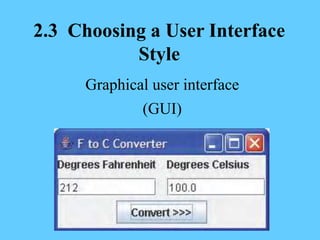
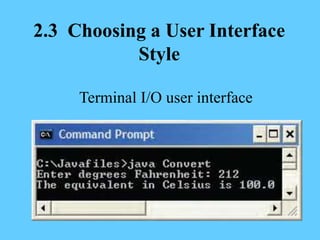
• Figure 2-1 illustrates both interfaces used
to create the same program.
2.3 Choosing a User Interface
Style
Graphical user interface
(GUI)
2.3 Choosing a User Interface
Style
Terminal I/O user interface
2.3 Choosing a User Interface
Style
• There are 3 reasons for beginning with
terminal I/O:
– It is easier to implement than a GUI
– There are programming situations that require
terminal I/O
– Terminal-oriented programs are similar in
structure to programs that process files of
sequentially organized data. (What is learned
here is easily transferred to that setting.)
2.4 HelloWorld
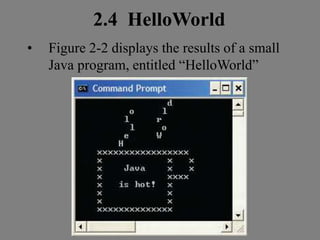
• Figure 2-2 displays the results of a small
Java program, entitled “HelloWorld”
2.4 HelloWorld
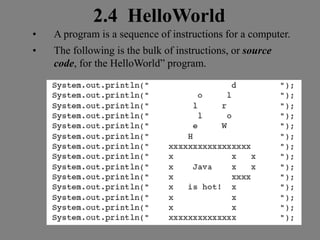
• A program is a sequence of instructions for a computer.
• The following is the bulk of instructions, or source
code, for the HelloWorld” program.
2.4 HelloWorld
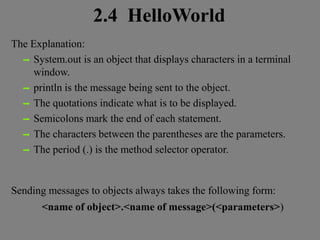
The Explanation:
➡ System.out is an object that displays characters in a terminal
window.
➡ println is the message being sent to the object.
➡ The quotations indicate what is to be displayed.
➡ Semicolons mark the end of each statement.
➡ The characters between the parentheses are the parameters.
➡ The period (.) is the method selector operator.
Sending messages to objects always takes the following form:
<name of object>.<name of message>(<parameters>)
2.4 HelloWorld
The Larger Framework:
The program must be embedded in several lines of code,
such as:
Program comments are in green, reserved words in blue,
and code in black.
2.5 Edit,
Compile, and Execute
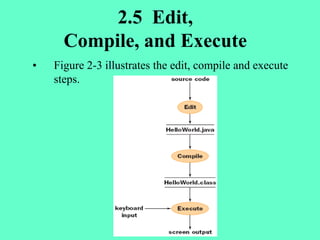
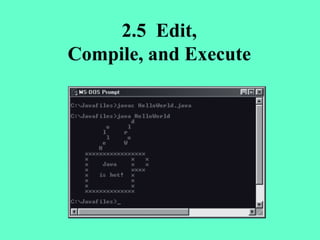
• Figure 2-3 illustrates the edit, compile and execute
steps.
2.5 Edit,
Compile, and Execute
✓ Edit
– The programmer uses a word processor or editor to enter
the source code.
– Save it as a text file with the extension .java.
✓ Compile
– The programmer invokes the Java language compiler.
– Translates the source code into Java byte code.
✓ Execute
– The programmer instructs the JVM to load the byte code
into memory and execute.
– The user and program can now interact.
2.5 Edit,
Compile, and Execute
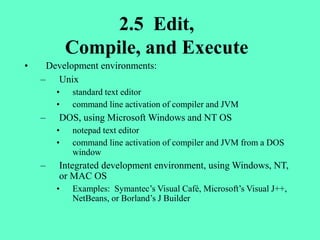
• Development environments:
– Unix
• standard text editor
• command line activation of compiler and JVM
– DOS, using Microsoft Windows and NT OS
• notepad text editor
• command line activation of compiler and JVM from a DOS
window
– Integrated development environment, using Windows, NT,
or MAC OS
• Examples: Symantec’s Visual Café, Microsoft’s Visual J++,
NetBeans, or Borland’s J Builder
2.5 Edit,
Compile, and Execute
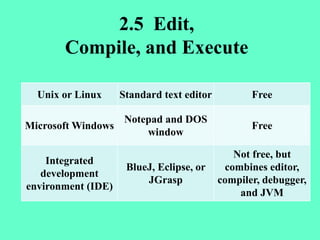
Unix or Linux Standard text editor Free
Microsoft Windows
Notepad and DOS
window
Free
Integrated
development
environment (IDE)
BlueJ, Eclipse, or
JGrasp
Not free, but
combines editor,
compiler, debugger,
and JVM
2.5 Edit,
Compile, and Execute
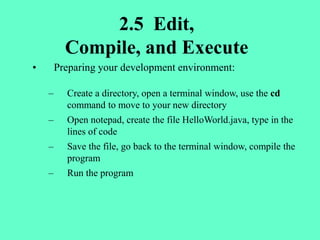
• Preparing your development environment:
– Create a directory, open a terminal window, use the cd
command to move to your new directory
– Open notepad, create the file HelloWorld.java, type in the
lines of code
– Save the file, go back to the terminal window, compile the
program
– Run the program
2.5 Edit,
Compile, and Execute
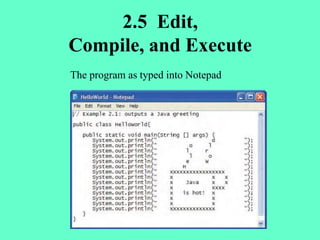
The program as typed into Notepad
2.5 Edit,
Compile, and Execute
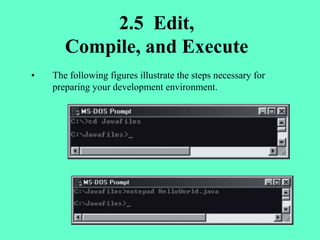
• The following figures illustrate the steps necessary for
preparing your development environment.
2.5 Edit,
Compile, and Execute
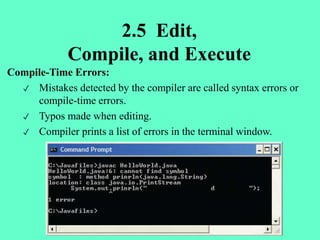
Compile-Time Errors:
✓ Mistakes detected by the compiler are called syntax errors or
compile-time errors.
✓ Typos made when editing.
✓ Compiler prints a list of errors in the terminal window.
2.5 Edit,
Compile, and Execute
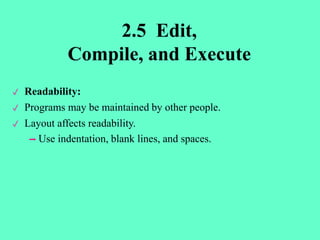
✓ Readability:
✓ Programs may be maintained by other people.
✓ Layout affects readability.
➡ Use indentation, blank lines, and spaces.
2.5 Edit,
Compile, and Execute
2.6 Temperature Conversion
★ View the program’s source code:
import java.util.Scanner;
public class Convert
{
public static void main (String [ ] args)
{
Scanner reader = new Scanner(System.in); // This allows the user
// to enter data from
// the keyboard
double fahrenheit; // The temperature in
// Fahrenheit
double celsius; // The temperature in
// Celsius
System.out.print(“Enter degrees Fahrenheit: ”);
fahrenheit = reader.readDouble();
celsius = (Fahrenheit – 32.0) * 5.0 / 9.0;
System.out.print(“The equivalent in Celsius is ”);
System.out.println(celsius);
}
2.6 Temperature Conversion
➡The following is an explanation of the program code:
✓ Import statement
✓ Instantiate or create an object
✓ Declare the variables
✓ Position the cursor after “Enter degrees Fahrenheit”
✓ Assignment operators
✓ Assignment statements are evaluated
✓ Print text (and position the cursor)
✓ Print the value of the variable
✓ Statement to prevent the terminal window from
disappearing from the display (optional, only needed
with certain development environments)
2.6 Temperature Conversion
➡ Temperature conversion program reads
user input and performs computations.
➡ The first line of code is an import
statement.
➡ Variables for Fahrenheit and Celsius.
➡ Assignment statements use an operator
such as *, /, +, and -.
2.6 Temperature Conversion
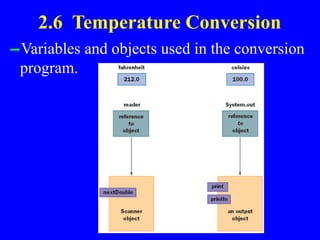
➡Variables and objects used in the conversion
program.
2.7 Graphics and GUIs:
Windows and Panels
➡ A Simple Application Window:
➡ Graphics and GUI programs in Java can be stand-alone
applications or applets.
➡ Consistent features:
✓ Title bar with controls (maximize, zoom, etc.)
✓ Width and height can be resized
➡ Code for application windows is in the class Jframe.
✓ JFrame responds to messages to set the title bar and
window size.
2.7 Graphics and GUIs:
Windows and Panels
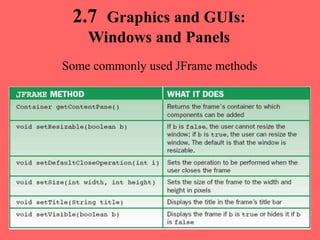
Some commonly used JFrame methods
2.7 Graphics and GUIs:
Windows and Panels
Panels and Colors:
➡A Jframe has a container or pane to fill with
objects.
➡A panel is a rectangle used to display objects
such a shapes and images.
➡Panes are panels that contain related objects such
as images and widgets.
➡Colors in most computer system use RGB.
✓ Red, green, blue
✓ Values 0-255
2.7 Graphics and GUIs:
Windows and Panels
Layout Managers and Multiple Panels:
➡Each container object uses a layout manager to control
panel placement.
➡BorderLayout class allows arrangement of up to five
objects.
✓ North, south, east, west, center
➡GridLayout uses rows and columns to arrange objects.
In this chapter, you learned:
➡Java is the fastest growing programming
language in the world. It is secure, robust,
and portable. It is also similar to C++, the
world’s most popular programming
language.
Summary
➡The Java compiler translates Java into a
pseudomachine language called Java byte
code. Byte code can be run on any computer
that has a Java virtual machine installed. The
Java virtual machine (JVM) is a program that
behaves like a computer—an interpreter.
➡Java programs include variables, arithmetic
expressions, statements, objects, messages,
and methods.
Summary
➡Three basic steps in the coding process are
editing, compiling, and running a program
using a Java development environment.
Programmers should pay attention to a
program’s format to ensure readability.
Summary
➡Java programs accomplish many tasks by
sending messages to objects. Examples are
sending text to the terminal window for
output and receiving input data from the
keyboard.
➡There are several user interface styles, among
them terminal based and graphical based.
Summary
THE
END

Java Chapter 2 Overview.ppt

  • 1.
  • 2.
    Lesson 2: First JavaPrograms Objectives: – Discuss why Java is an important programming language. – Explain the Java virtual machine and byte code. – Choose a user interface style. – Describe the structure of a simple Java program.
  • 3.
    Lesson 2: First JavaPrograms Objectives: – Write a simple program. – Edit, compile, and run a program using a Java development environment. – Format a program to give a pleasing, consistent appearance. – Understand compile-time errors. – Write a graphics program.
  • 4.
    Lesson 2: First JavaPrograms - Applet - Assignment operator - Byte code - DOS development environment - Graphical user interface (GUI) - Hacking - Import statement - Integrated development environment (IDE) - Interpreter Vocabulary: - Java virtual machine(JVM) - Just-in-time compilation (JIT) - Panel - Panes - Parameter - Source code - Statement - Terminal I/O interface - Variable
  • 5.
    2.1 Why Java? •Java is the fastest growing programming language in the world. • Java is a modern object-oriented programming language. • Java has benefited by learning from the less desirable features of early object- oriented programming languages.
  • 6.
    2.1 Why Java? Javais ideal for distributed, network-based applications. ✓Secure: Virus-free, tamper-free systems. ✓Robust: Supports development of programs that do not overwrite memory. ✓Portable: Yields programs that can be run on different computer types.
  • 7.
    2.1 Why Java? •Java is ideally suited to develop distributed, network-based applications because it: – Enables the construction of virus-free, tamper-free systems (security) – Supports the development of programs that do not overwrite memory (robust) – Yields programs that can be run on different types of computers without change (portable)
  • 8.
    2.1 Why Java? •Java supports advanced programming concepts such as threads. – A thread is a process that can run concurrently with other processes. • Java resembles C++, the world’s most popular industrial strength programming language. • Java however, runs more slowly than most modern programming languages because it is interpreted.
  • 9.
    2.2 The JavaVirtual Machine and Byte Code • Java compilers translate Java into pseudomachine language called java byte code. • To run java byte code on a particular computer, a Java virtual machine (JVM) must be installed.
  • 10.
    2.2 The JavaVirtual Machine and Byte Code • A Java virtual machine is a program that runs like a computer. It is called an interpreter. • Disadvantage: – Runs more slowly than an actual computer • To combat slower processing, some JVMs translate code when first encountered. This is known as just-in-time compilation (JIT).
  • 11.
    2.2 The JavaVirtual Machine and Byte Code • Advantages: – Portability. Any computer can run an interpreter. This makes byte code portable. – Applets. Applets are small Java programs already translated into byte code. • Applets run in a JVM incorporated in a web browser • Applets can be decorative (like animated characters on a web page.) • Applets can be practical (like continuous streams of stock market quotes.) – Security. It is possible to limit the capabilities of a Java program since it runs inside a virtual machine.
  • 12.
    2.2 The JavaVirtual Machine and Byte Code • Advantages: - JVMs are getting faster. • Using JIT (just-in-time) compilations, which translate byte code into machine language.
  • 13.
    2.3 Choosing aUser Interface Style • There are two types of user interfaces available to use to create Java programs. – Graphical User Interface (GUI) – Terminal I/O interface • Figure 2-1 illustrates both interfaces used to create the same program.
  • 14.
    2.3 Choosing aUser Interface Style Graphical user interface (GUI)
  • 15.
    2.3 Choosing aUser Interface Style Terminal I/O user interface
  • 16.
    2.3 Choosing aUser Interface Style • There are 3 reasons for beginning with terminal I/O: – It is easier to implement than a GUI – There are programming situations that require terminal I/O – Terminal-oriented programs are similar in structure to programs that process files of sequentially organized data. (What is learned here is easily transferred to that setting.)
  • 17.
    2.4 HelloWorld • Figure2-2 displays the results of a small Java program, entitled “HelloWorld”
  • 18.
    2.4 HelloWorld • Aprogram is a sequence of instructions for a computer. • The following is the bulk of instructions, or source code, for the HelloWorld” program.
  • 19.
    2.4 HelloWorld The Explanation: ➡System.out is an object that displays characters in a terminal window. ➡ println is the message being sent to the object. ➡ The quotations indicate what is to be displayed. ➡ Semicolons mark the end of each statement. ➡ The characters between the parentheses are the parameters. ➡ The period (.) is the method selector operator. Sending messages to objects always takes the following form: <name of object>.<name of message>(<parameters>)
  • 20.
    2.4 HelloWorld The LargerFramework: The program must be embedded in several lines of code, such as: Program comments are in green, reserved words in blue, and code in black.
  • 21.
    2.5 Edit, Compile, andExecute • Figure 2-3 illustrates the edit, compile and execute steps.
  • 22.
    2.5 Edit, Compile, andExecute ✓ Edit – The programmer uses a word processor or editor to enter the source code. – Save it as a text file with the extension .java. ✓ Compile – The programmer invokes the Java language compiler. – Translates the source code into Java byte code. ✓ Execute – The programmer instructs the JVM to load the byte code into memory and execute. – The user and program can now interact.
  • 23.
    2.5 Edit, Compile, andExecute • Development environments: – Unix • standard text editor • command line activation of compiler and JVM – DOS, using Microsoft Windows and NT OS • notepad text editor • command line activation of compiler and JVM from a DOS window – Integrated development environment, using Windows, NT, or MAC OS • Examples: Symantec’s Visual Café, Microsoft’s Visual J++, NetBeans, or Borland’s J Builder
  • 24.
    2.5 Edit, Compile, andExecute Unix or Linux Standard text editor Free Microsoft Windows Notepad and DOS window Free Integrated development environment (IDE) BlueJ, Eclipse, or JGrasp Not free, but combines editor, compiler, debugger, and JVM
  • 25.
    2.5 Edit, Compile, andExecute • Preparing your development environment: – Create a directory, open a terminal window, use the cd command to move to your new directory – Open notepad, create the file HelloWorld.java, type in the lines of code – Save the file, go back to the terminal window, compile the program – Run the program
  • 26.
    2.5 Edit, Compile, andExecute The program as typed into Notepad
  • 27.
    2.5 Edit, Compile, andExecute • The following figures illustrate the steps necessary for preparing your development environment.
  • 28.
    2.5 Edit, Compile, andExecute Compile-Time Errors: ✓ Mistakes detected by the compiler are called syntax errors or compile-time errors. ✓ Typos made when editing. ✓ Compiler prints a list of errors in the terminal window.
  • 29.
    2.5 Edit, Compile, andExecute ✓ Readability: ✓ Programs may be maintained by other people. ✓ Layout affects readability. ➡ Use indentation, blank lines, and spaces.
  • 30.
  • 31.
    2.6 Temperature Conversion ★View the program’s source code: import java.util.Scanner; public class Convert { public static void main (String [ ] args) { Scanner reader = new Scanner(System.in); // This allows the user // to enter data from // the keyboard double fahrenheit; // The temperature in // Fahrenheit double celsius; // The temperature in // Celsius System.out.print(“Enter degrees Fahrenheit: ”); fahrenheit = reader.readDouble(); celsius = (Fahrenheit – 32.0) * 5.0 / 9.0; System.out.print(“The equivalent in Celsius is ”); System.out.println(celsius); }
  • 32.
    2.6 Temperature Conversion ➡Thefollowing is an explanation of the program code: ✓ Import statement ✓ Instantiate or create an object ✓ Declare the variables ✓ Position the cursor after “Enter degrees Fahrenheit” ✓ Assignment operators ✓ Assignment statements are evaluated ✓ Print text (and position the cursor) ✓ Print the value of the variable ✓ Statement to prevent the terminal window from disappearing from the display (optional, only needed with certain development environments)
  • 33.
    2.6 Temperature Conversion ➡Temperature conversion program reads user input and performs computations. ➡ The first line of code is an import statement. ➡ Variables for Fahrenheit and Celsius. ➡ Assignment statements use an operator such as *, /, +, and -.
  • 34.
    2.6 Temperature Conversion ➡Variablesand objects used in the conversion program.
  • 35.
    2.7 Graphics andGUIs: Windows and Panels ➡ A Simple Application Window: ➡ Graphics and GUI programs in Java can be stand-alone applications or applets. ➡ Consistent features: ✓ Title bar with controls (maximize, zoom, etc.) ✓ Width and height can be resized ➡ Code for application windows is in the class Jframe. ✓ JFrame responds to messages to set the title bar and window size.
  • 36.
    2.7 Graphics andGUIs: Windows and Panels Some commonly used JFrame methods
  • 37.
    2.7 Graphics andGUIs: Windows and Panels Panels and Colors: ➡A Jframe has a container or pane to fill with objects. ➡A panel is a rectangle used to display objects such a shapes and images. ➡Panes are panels that contain related objects such as images and widgets. ➡Colors in most computer system use RGB. ✓ Red, green, blue ✓ Values 0-255
  • 38.
    2.7 Graphics andGUIs: Windows and Panels Layout Managers and Multiple Panels: ➡Each container object uses a layout manager to control panel placement. ➡BorderLayout class allows arrangement of up to five objects. ✓ North, south, east, west, center ➡GridLayout uses rows and columns to arrange objects.
  • 39.
    In this chapter,you learned: ➡Java is the fastest growing programming language in the world. It is secure, robust, and portable. It is also similar to C++, the world’s most popular programming language. Summary
  • 40.
    ➡The Java compilertranslates Java into a pseudomachine language called Java byte code. Byte code can be run on any computer that has a Java virtual machine installed. The Java virtual machine (JVM) is a program that behaves like a computer—an interpreter. ➡Java programs include variables, arithmetic expressions, statements, objects, messages, and methods. Summary
  • 41.
    ➡Three basic stepsin the coding process are editing, compiling, and running a program using a Java development environment. Programmers should pay attention to a program’s format to ensure readability. Summary
  • 42.
    ➡Java programs accomplishmany tasks by sending messages to objects. Examples are sending text to the terminal window for output and receiving input data from the keyboard. ➡There are several user interface styles, among them terminal based and graphical based. Summary
  • 43.