PowerPoint Dos and DontsOn the following slide you can watch a video available at http://www.youtube.com/watch?v=cagxPlVqrtM According to Don McMillan, here is a humorous & yet insightful viewpoint on how people (teachers included) should not be using PowerPoint.
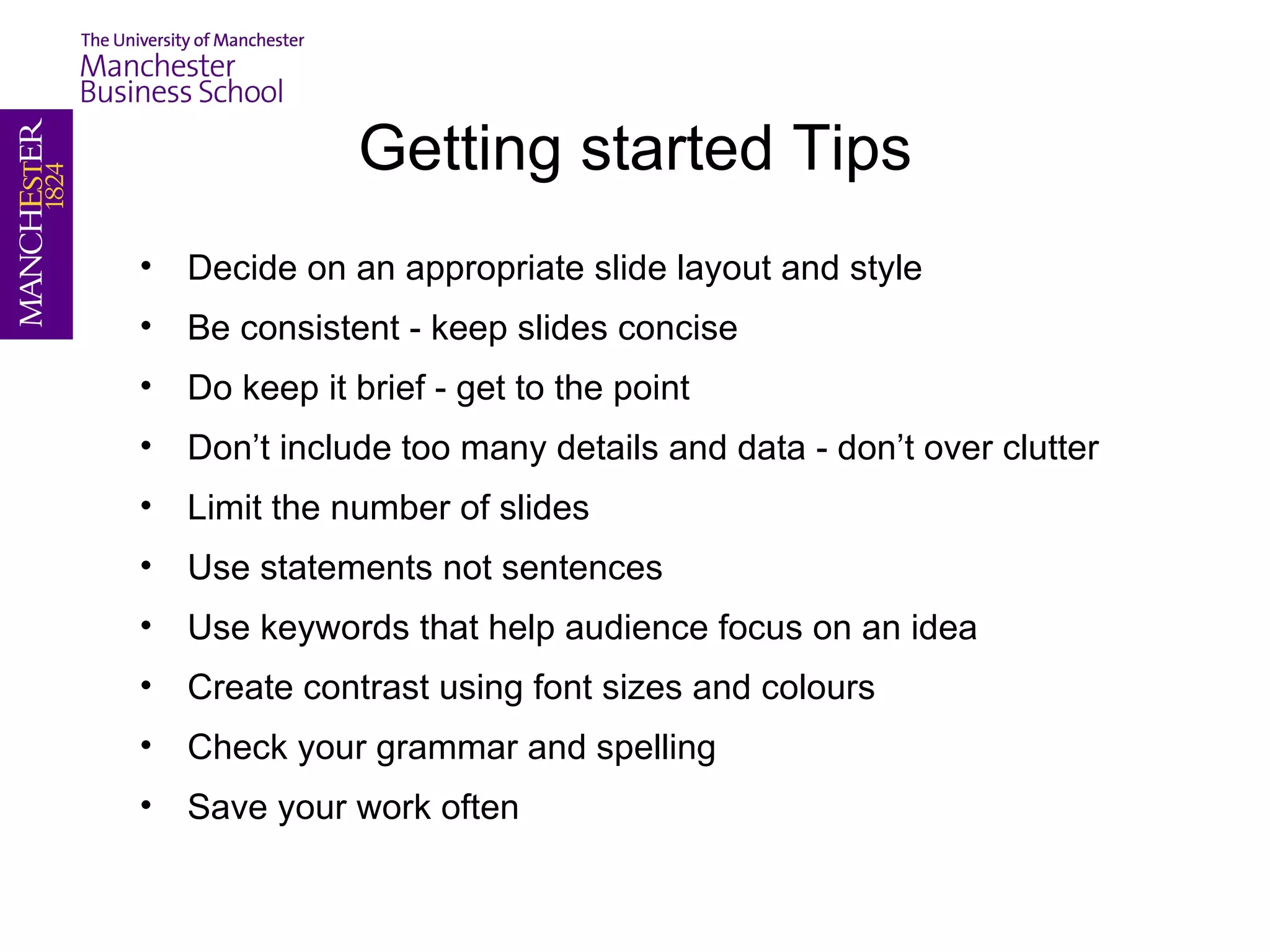
Getting started TipsDecide on an appropriate slide layout and styleBe consistent - keep slides conciseDo keep it brief - get to the pointDon’t include too many details and data - don’t over clutterLimit the number of slidesUse statements not sentencesUse keywords that help audience focus on an ideaCreate contrast using font sizes and coloursCheck your grammar and spellingSave your work often
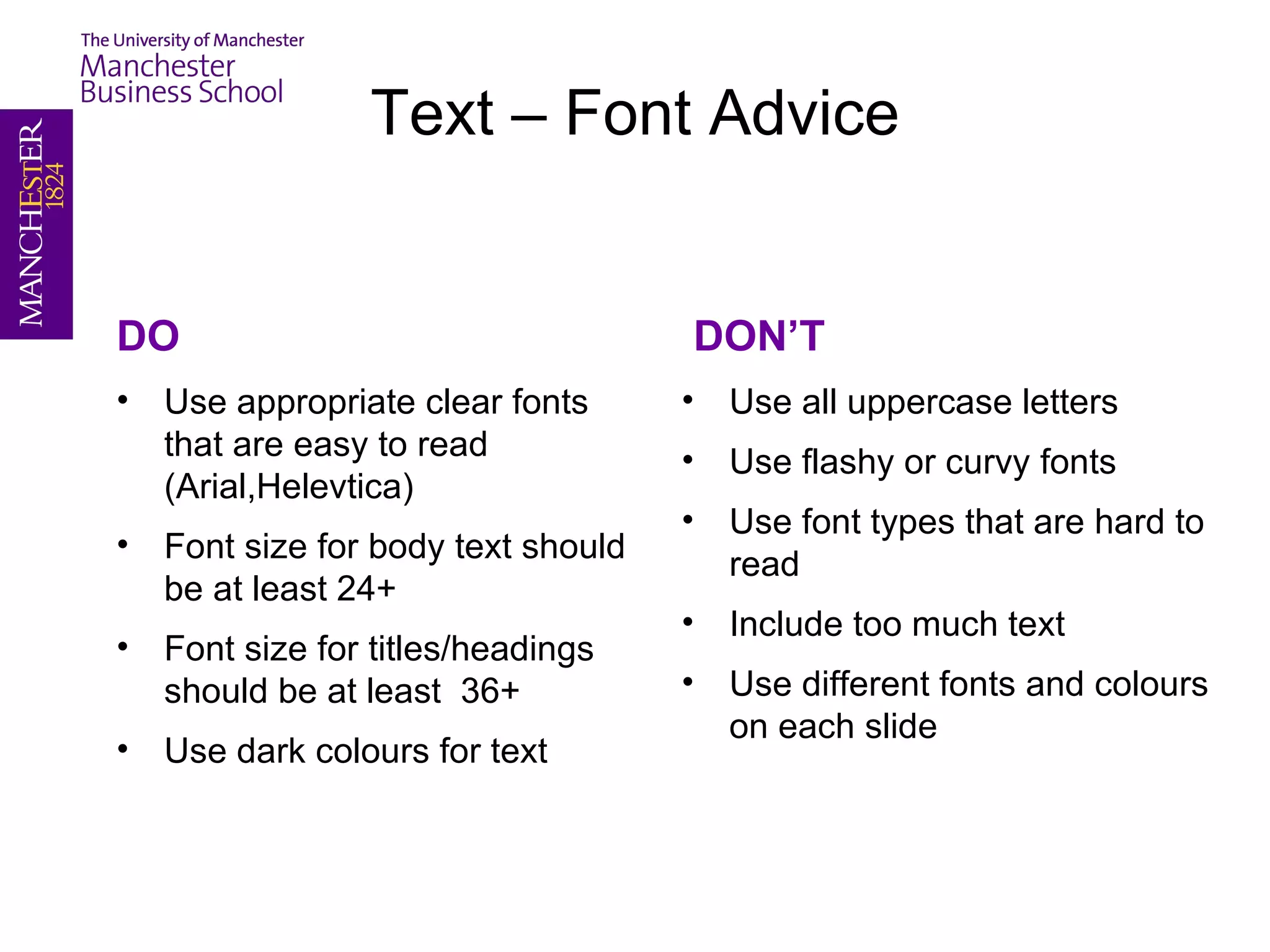
Text – Font AdviceDOUse appropriate clear fonts that are easy to read (Arial,Helevtica)Font size for body text should be at least 24+ Font size for titles/headings should be at least  36+Use dark colours for text DON’TUse all uppercase lettersUse flashy or curvy fontsUse font types that are hard to readInclude too much textUse different fonts and colours on each slide
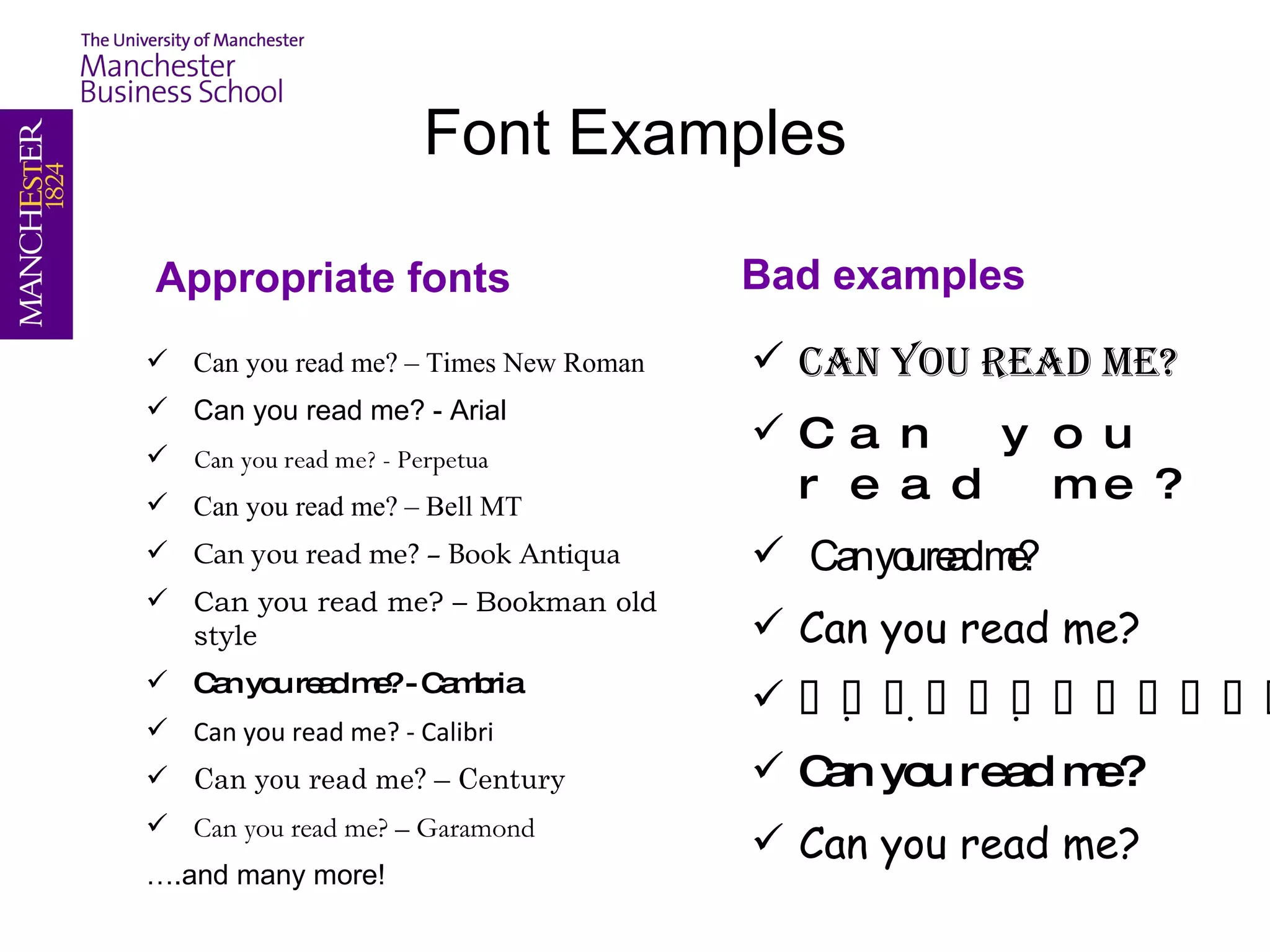
Font ExamplesBad examplesAppropriate fontsCan you read me?
Can you read me?
Can you read me?
Can you read me?
Can you read me?
Can you read me?
Can you read me?
Can you read me? – Times New Roman

Powerpoint Dos and Donts

  • 1.
    PowerPoint Dos andDontsOn the following slide you can watch a video available at http://www.youtube.com/watch?v=cagxPlVqrtM According to Don McMillan, here is a humorous & yet insightful viewpoint on how people (teachers included) should not be using PowerPoint.
  • 2.
    Getting started TipsDecideon an appropriate slide layout and styleBe consistent - keep slides conciseDo keep it brief - get to the pointDon’t include too many details and data - don’t over clutterLimit the number of slidesUse statements not sentencesUse keywords that help audience focus on an ideaCreate contrast using font sizes and coloursCheck your grammar and spellingSave your work often
  • 3.
    Text – FontAdviceDOUse appropriate clear fonts that are easy to read (Arial,Helevtica)Font size for body text should be at least 24+ Font size for titles/headings should be at least 36+Use dark colours for text DON’TUse all uppercase lettersUse flashy or curvy fontsUse font types that are hard to readInclude too much textUse different fonts and colours on each slide
  • 4.
  • 5.
  • 6.
  • 7.
  • 8.
  • 9.
  • 10.
  • 11.
    Can you readme? – Times New Roman
  • 12.
    Can you readme? - Arial
  • 13.
    Can you readme? - Perpetua
  • 14.
    Can you readme? – Bell MT
  • 15.
    Can you readme? – Book Antiqua
  • 16.
    Can you readme? – Bookman old style
  • 17.
    Can you readme? - Cambria
  • 18.
    Can you readme? - Calibri
  • 19.
    Can you readme? – Century
  • 20.
    Can you readme? – Garamond….and many more!
  • 21.
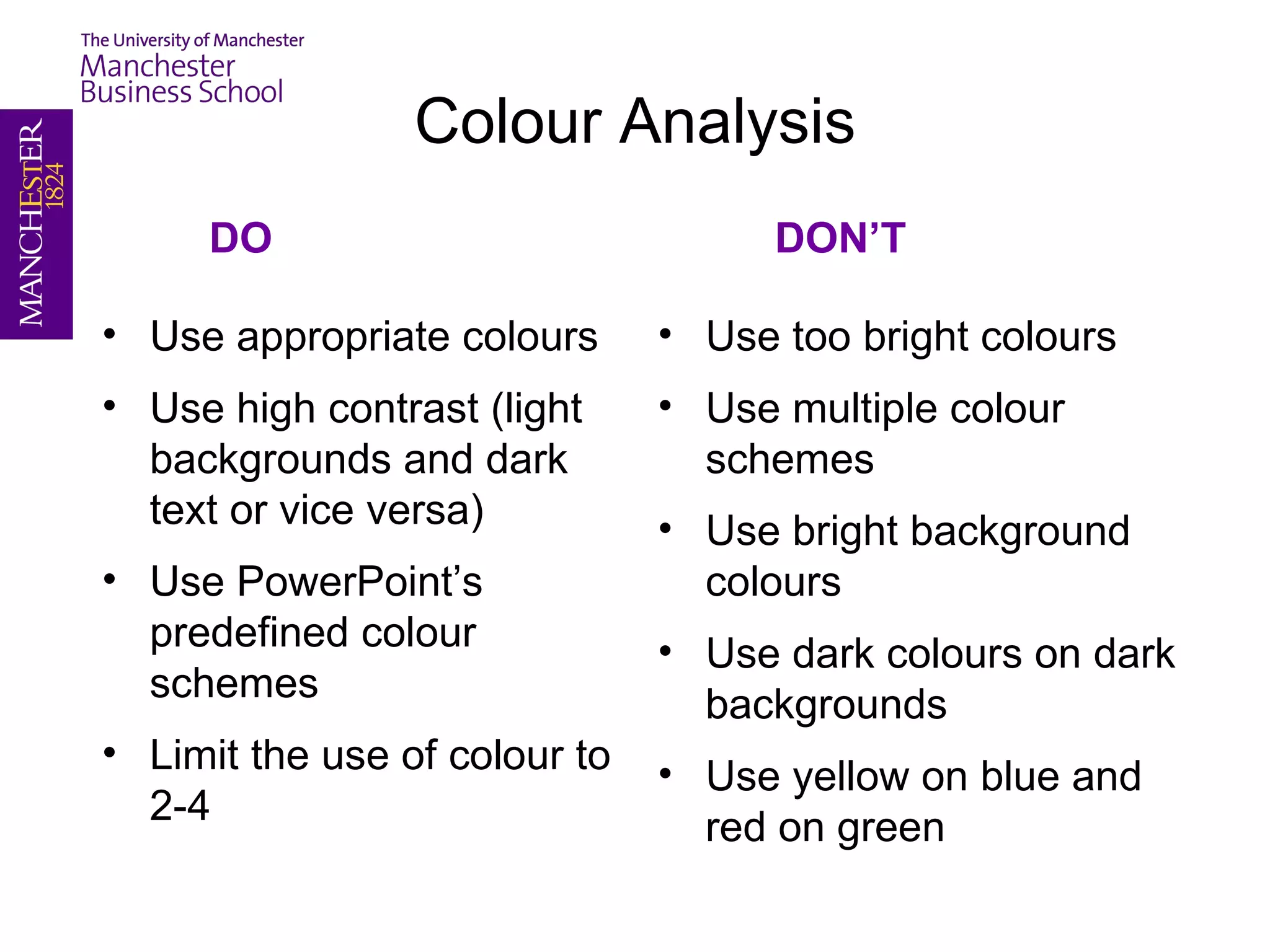
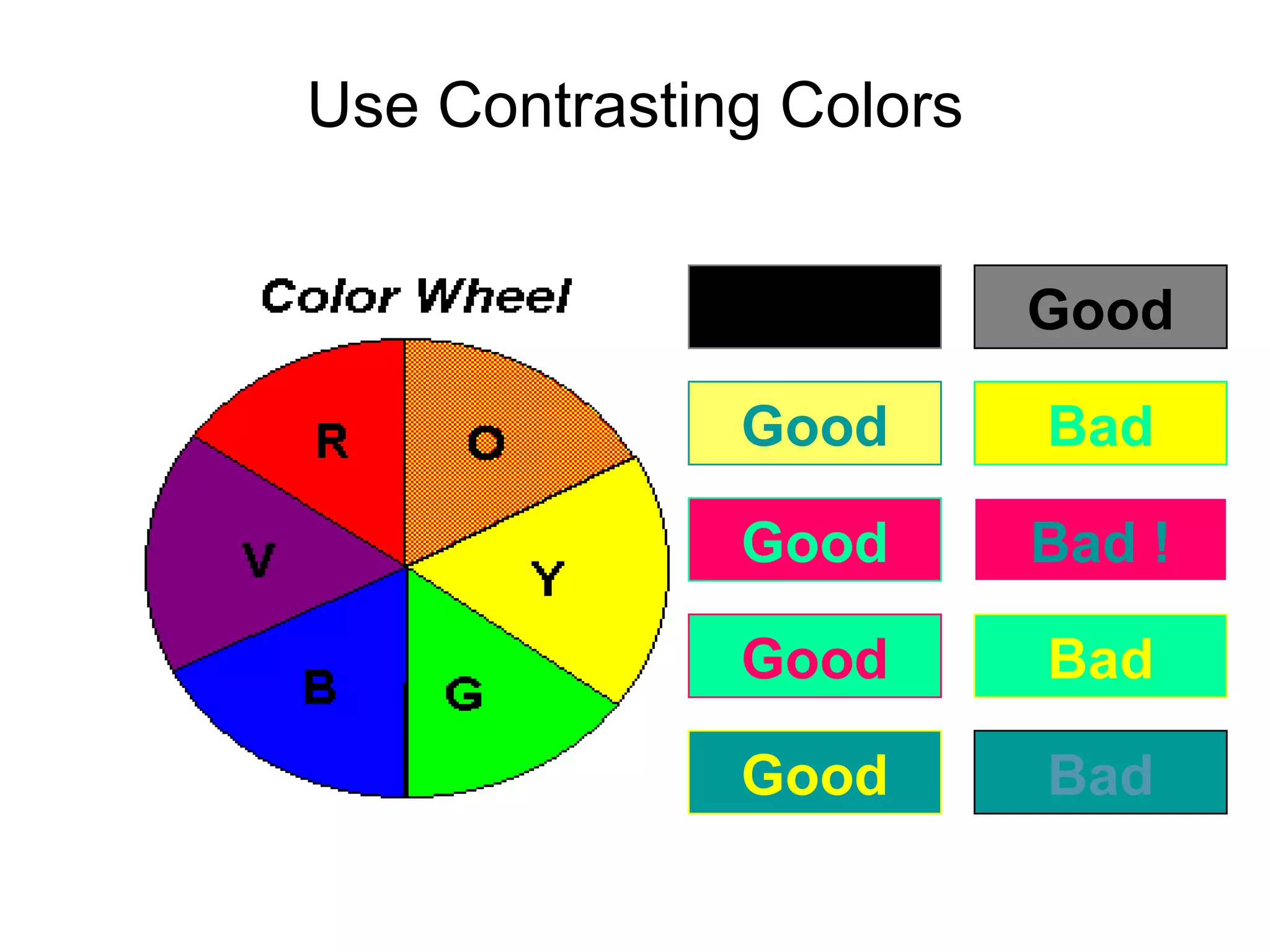
    Colour AnalysisDODON’TUse appropriatecolours Use high contrast (light backgrounds and dark text or vice versa)Use PowerPoint’s predefined colour schemesLimit the use of colour to 2-4Use too bright coloursUse multiple colour schemesUse bright background coloursUse dark colours on dark backgroundsUse yellow on blue and red on green
  • 22.
  • 23.
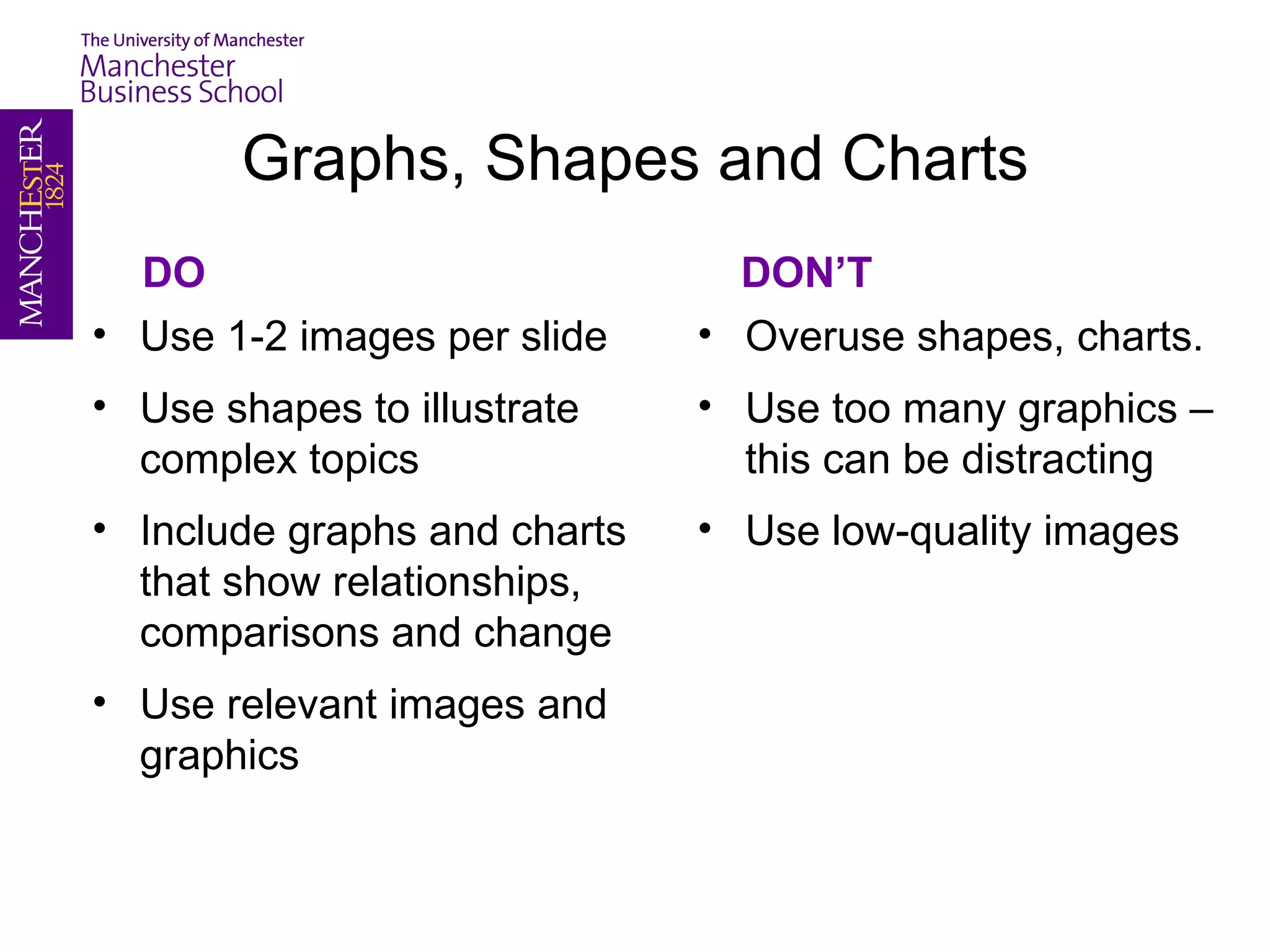
    Graphs, Shapes andChartsDODON’TUse 1-2 images per slideUse shapes to illustrate complex topicsInclude graphs and charts that show relationships, comparisons and changeUse relevant images and graphicsOveruse shapes, charts.Use too many graphics – this can be distractingUse low-quality images
  • 24.
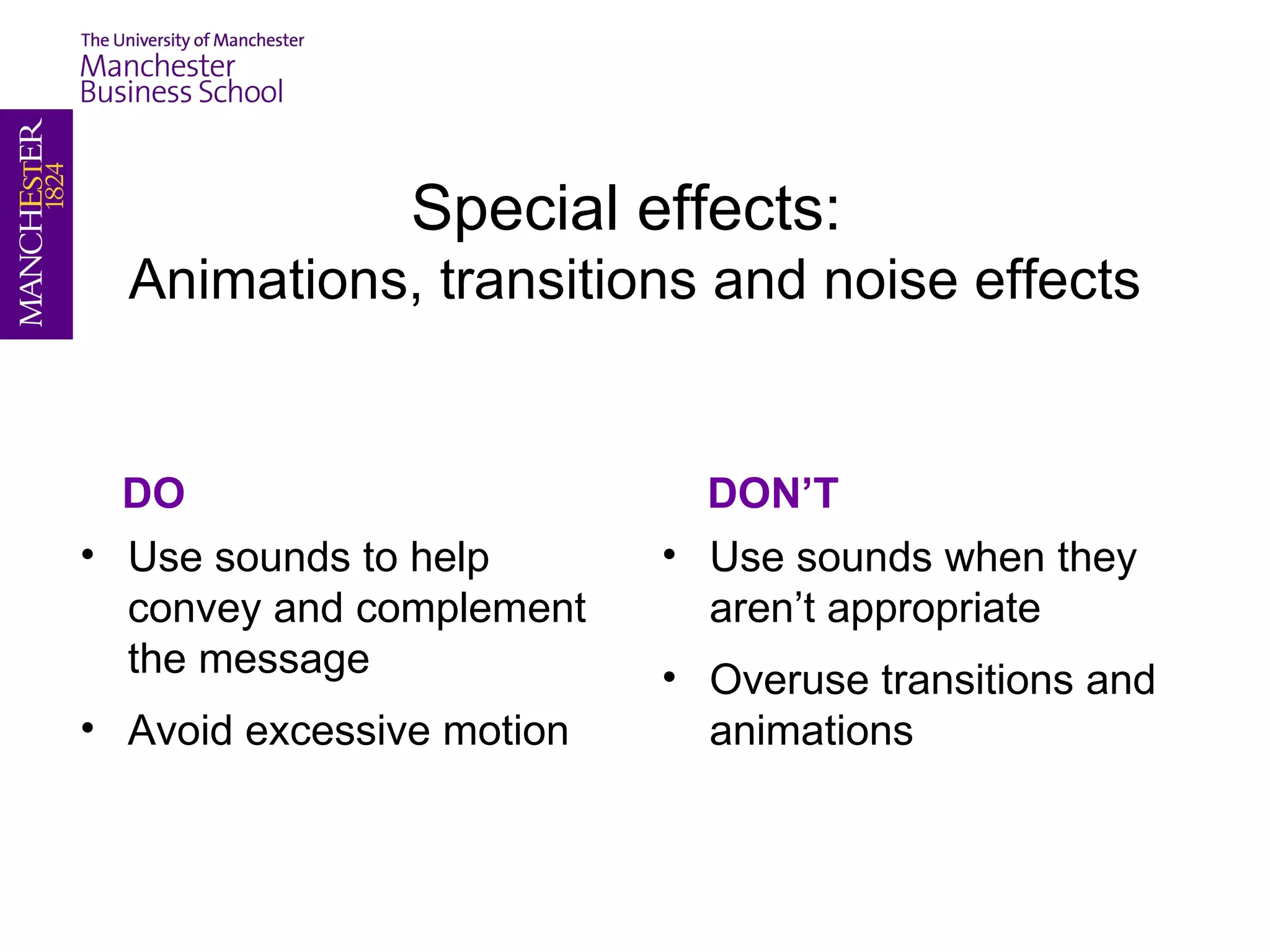
    Special effects: Animations,transitions and noise effectsDODON’TUse sounds to help convey and complement the messageAvoid excessive motionUse sounds when they aren’t appropriateOveruse transitions and animations
  • 25.
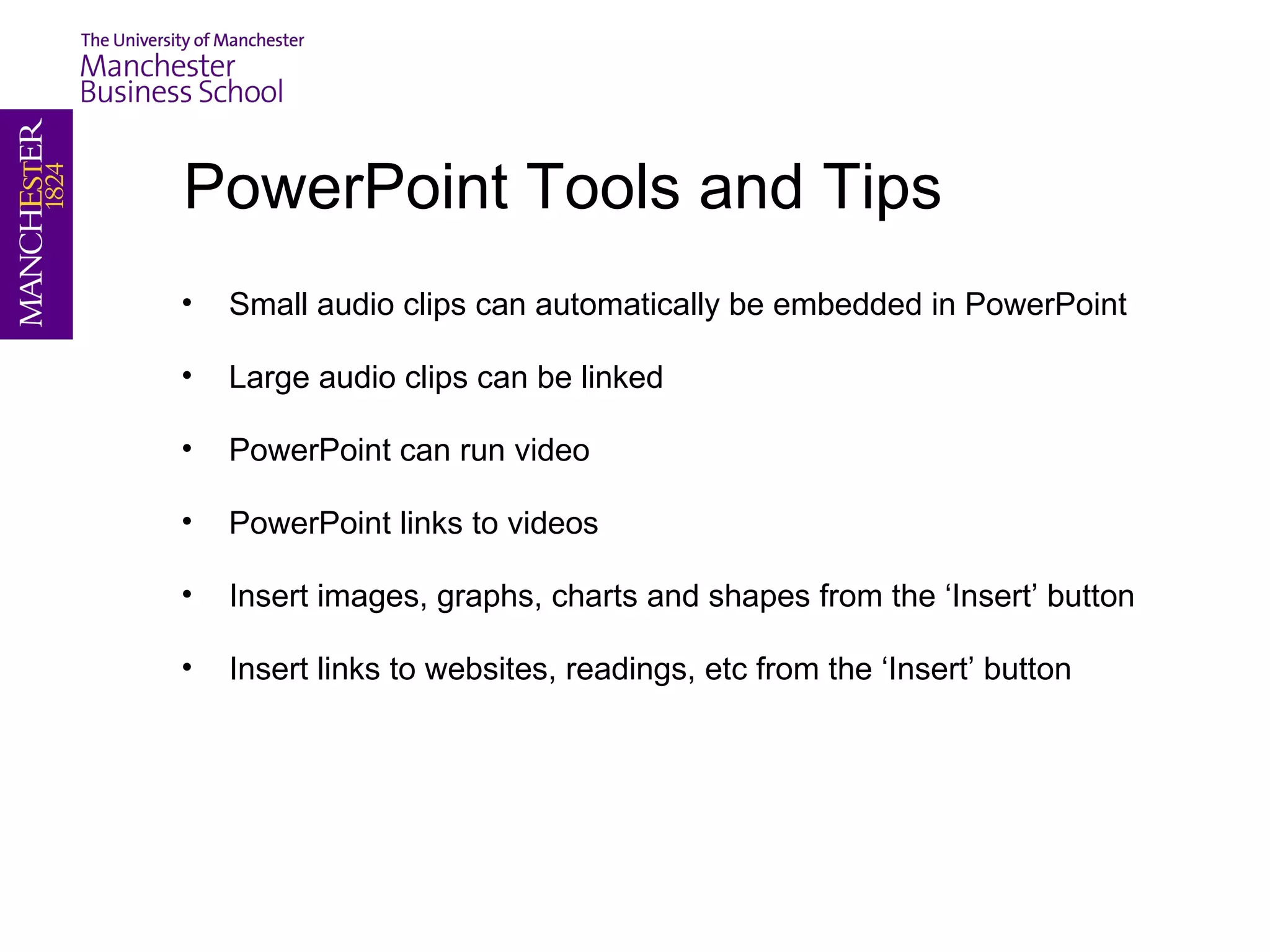
    PowerPoint Tools and TipsSmall audio clips can automatically be embedded in PowerPointLarge audio clips can be linkedPowerPoint can run videoPowerPoint links to videosInsert images, graphs, charts and shapes from the ‘Insert’ buttonInsert links to websites, readings, etc from the ‘Insert’ button
  • 26.
    Useful LinksGetting Startedwith Powerpoint :Video demonstrationsImprove your PowerPoint skills :Support Guide (.pdf)Presentations for the UoMMBS templates
  • 27.
    How can wehelp you?Please take a look at our eLearning intranet pages, subscribe to our mailing lists and keep an eye out for our quarterly MBS eLearning newsletter.We would value your feedback! Kind regards, MBS eLearning Teamhttp://intranet.mbs.ac.uk/elearning.aspx