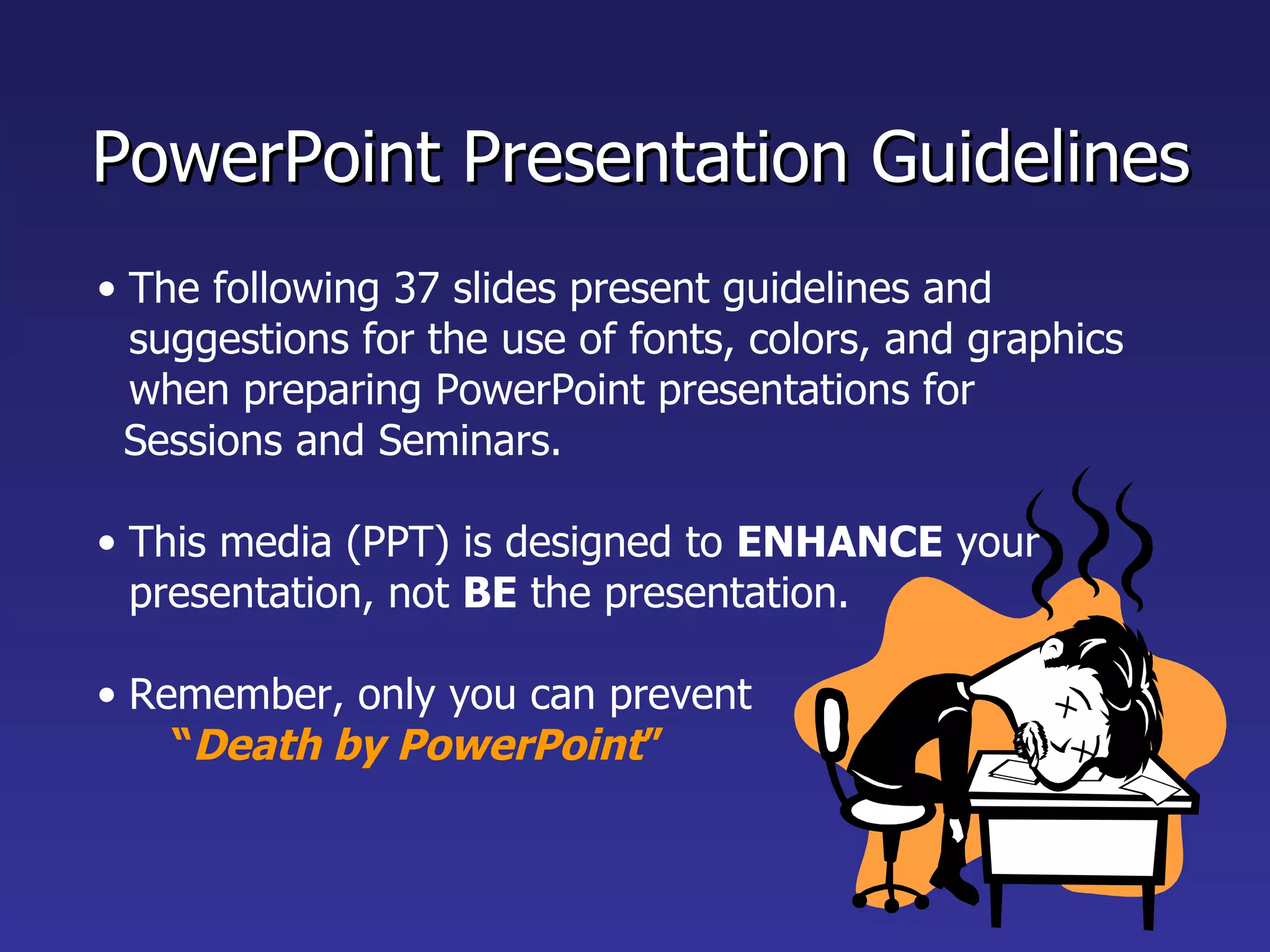
PowerPoint Presentation Guidelines The following 37 slides present guidelines and suggestions for the use of fonts, colors, and graphics when preparing PowerPoint presentations for  Sessions and Seminars. This media (PPT) is designed to  ENHANCE  your presentation, not  BE  the presentation. Remember, only you can prevent  “ Death by PowerPoint ”
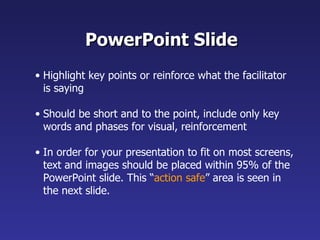
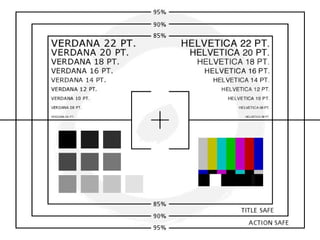
PowerPoint Slide Highlight key points or reinforce what the facilitator is saying Should be short and to the point, include only key words and phases for visual, reinforcement In order for your presentation to fit on most screens, text and images should be placed within 95% of the PowerPoint slide. This “ action safe ” area is seen in the next slide.
 
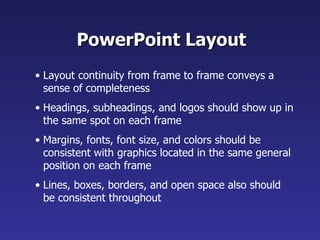
PowerPoint Layout Layout continuity from frame to frame conveys a sense of completeness Headings, subheadings, and logos should show up in the same spot on each frame Margins, fonts, font size, and colors should be consistent with graphics located in the same general position on each frame Lines, boxes, borders, and open space also should be consistent throughout
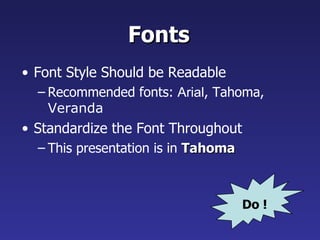
Fonts Font Style Should be Readable Recommended fonts:  Arial , Tahoma,  Veranda Standardize the Font Throughout This presentation is in  Tahoma Do !
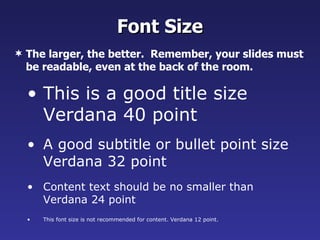
This is a good title size Verdana 40 point A good subtitle or bullet point size Verdana 32 point Content text should be no smaller than Verdana 24 point This font size is not recommended for content. Verdana 12 point. Font Size The larger, the better.  Remember, your slides must be readable, even at the back of the room.
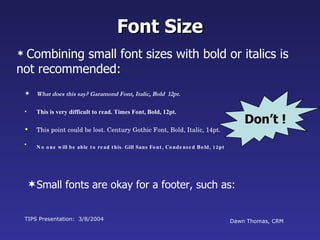
What does this say? Garamond Font, Italic, Bold  12pt. This is very difficult to read. Times Font, Bold, 12pt. This point could be lost. Century Gothic Font, Bold, Italic, 14pt. No one will be able to read this. Gill Sans Font, Condensed Bold, 12pt TIPS Presentation:  3/8/2004 Dawn Thomas, CRM Font Size Combining small font sizes with bold or italics is not recommended: Small fonts are okay for a footer, such as: Don’t !
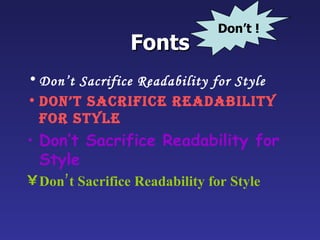
Fonts Don’t Sacrifice Readability for Style Don’t Sacrifice Readability for Style Don’t Sacrifice Readability for Style Don’t Sacrifice Readability for Style Don’t !
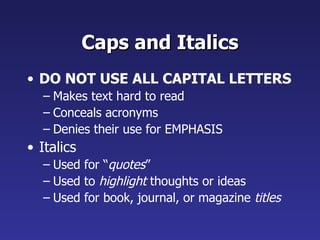
Caps and Italics DO NOT USE ALL CAPITAL LETTERS Makes text hard to read Conceals acronyms Denies their use for EMPHASIS Italics Used for “ quotes ” Used to  highlight  thoughts or ideas Used for book, journal, or magazine  titles
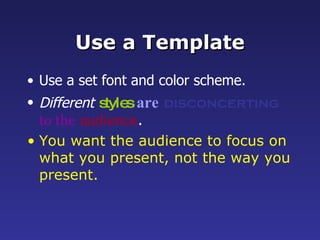
Use a Template Use a set font and color scheme. Different   styles   are   disconcerting   to the   audience . You want the audience to focus on what you present, not the way you present.
Use the Same  Background   on Each Slide Do !!
Don’t use multiple  backgrounds  in your presentation Changing the style is distracting Don’t!
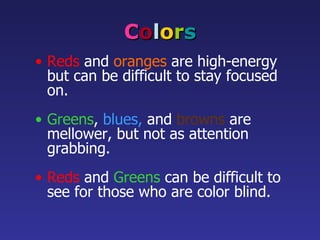
C o l o r s Reds   and   oranges   are high-energy but can be difficult to stay focused on. Greens ,   blues,   and   browns   are mellower, but not as attention grabbing. Reds  and  Greens  can be difficult to see for those who are color blind.
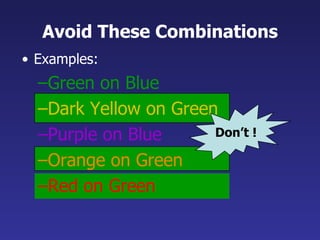
Avoid These Combinations Examples: Green on Blue Dark Yellow on Green Purple on Blue Orange on Green Red on Green Don’t !
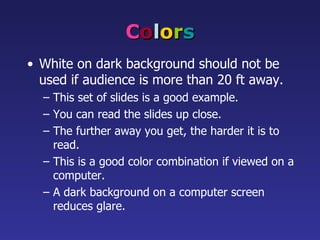
C o l o r s White on dark background should not be used if audience is more than 20 ft away. This set of slides is a good example. You can read the slides up close. The further away you get, the harder it is to read. This is a good color combination if viewed on a computer. A dark background on a computer screen reduces glare.
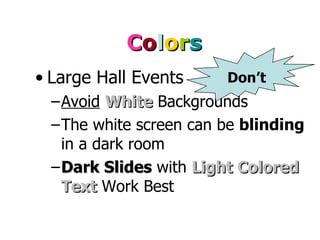
C o l o r s Large Hall Events Avoid   White  Backgrounds The white screen can be  blinding  in a dark room Dark Slides  with  Light   Colored Text  Work Best Don’t
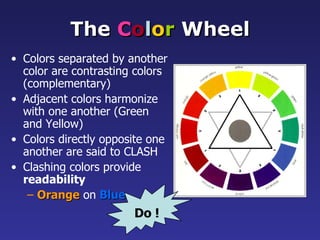
The  C o l o r  Wheel Colors separated by another color are contrasting colors (complementary) Adjacent colors harmonize with one another (Green and Yellow) Colors directly opposite one another are said to CLASH   Clashing colors provide  readability   Orange   on   Blue Do !
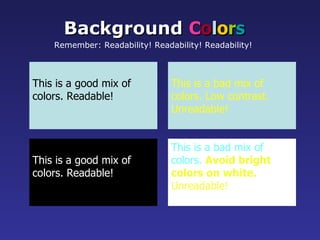
This is a good mix of colors. Readable! Background   C o l o r s Remember: Readability! Readability! Readability!   This is a bad mix of colors. Low contrast. Unreadable! This is a good mix of  colors. Readable! This is a bad mix of  colors.  Avoid bright colors on white. Unreadable!
Graphs and Charts Make sure the audience can read them!
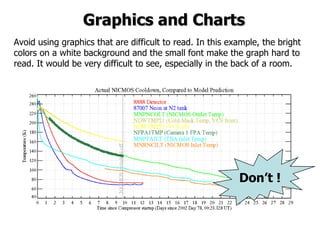
Avoid using graphics that are difficult to read. In this example, the bright colors on a white background and the small font make the graph hard to read. It would be very difficult to see, especially in the back of a room. 8 Graphics and Charts Don’t !
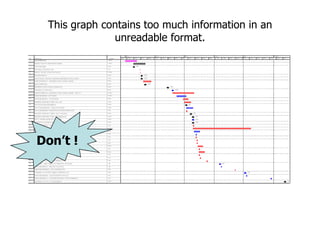
This graph contains too much information in an unreadable format. 10 Don’t !
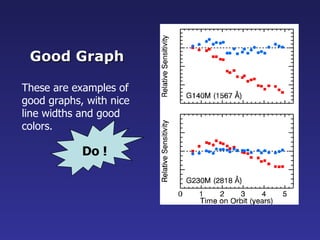
These are examples of good graphs, with nice line widths and good colors. Good Graph Do !
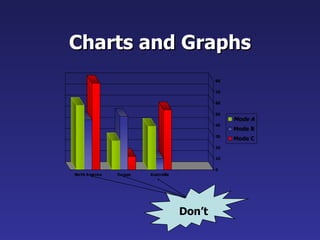
Charts and Graphs Don’t
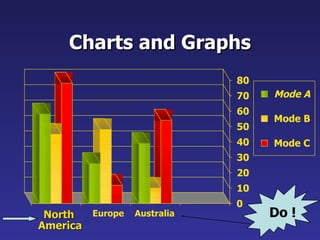
Charts and Graphs 0 10 20 30 40 50 60 70 80 North America Europe Australia Mode A Mode B Mode C Do !
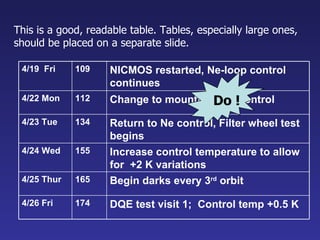
This is a good, readable table. Tables, especially large ones, should be placed on a separate slide. DQE test visit 1;  Control temp +0.5 K  174 4/26 Fri Begin darks every 3 rd  orbit 165 4/25 Thur Increase control temperature to allow for  +2 K variations 155 4/24 Wed Return to Ne control, Filter wheel test begins 134 4/23 Tue Change to mounting cup control 112 4/22 Mon NICMOS restarted, Ne-loop control continues 109 4/19  Fri Do !
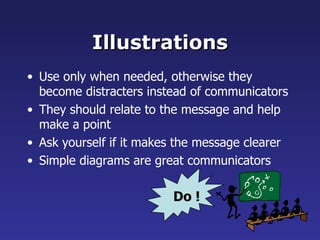
Illustrations Use only when needed, otherwise they become distracters instead of communicators They should relate to the message and help make a point Ask yourself if it makes the message clearer  Simple diagrams are great communicators Do !
Don’t !
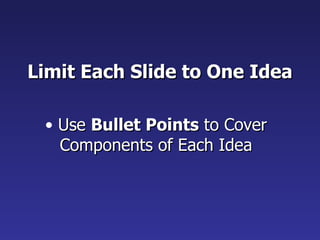
Limit Each Slide to One Idea Use  Bullet Points  to Cover Components of Each Idea
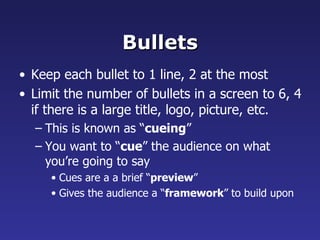
Bullets Keep each bullet to 1 line, 2 at the most Limit the number of bullets in a screen to 6, 4 if there is a large title, logo, picture, etc. This is known as “ cueing ” You want to “ cue ” the audience on what you’re going to say Cues are a a brief “ preview ” Gives the audience a “ framework ” to build upon
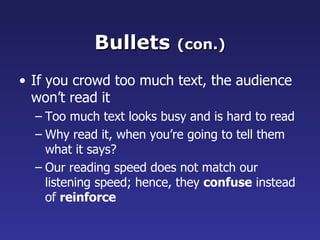
Bullets  (con.) If you crowd too much text, the audience won’t read it Too much text looks busy and is hard to read Why read it, when you’re going to tell them what it says? Our reading speed does not match our listening speed; hence, they  confuse  instead of  reinforce
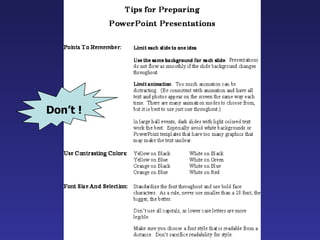
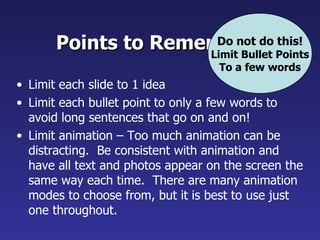
Points to Remember Limit each slide to 1 idea Limit each bullet point to only a few words to avoid long sentences that go on and on! Limit animation – Too much animation can be distracting.  Be consistent with animation and have all text and photos appear on the screen the same way each time.  There are many animation modes to choose from, but it is best to use just one throughout. Do not do this! Limit Bullet Points To a few words
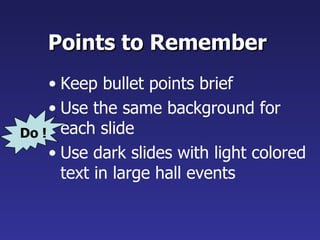
Points to Remember Keep bullet points brief Use the same background for each slide Use dark slides with light colored text in large hall events Do !
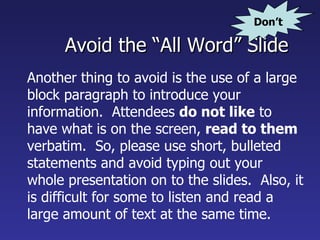
Avoid the “All Word” Slide Another thing to avoid is the use of a large block paragraph to introduce your information.  Attendees  do not like  to have what is on the screen,  read to them  verbatim.  So, please use short, bulleted statements and avoid typing out your whole presentation on to the slides.  Also, it is difficult for some to listen and read a large amount of text at the same time.   Don’t
To make a slide stand out, change the font, background, or add animation. Attention Grabber
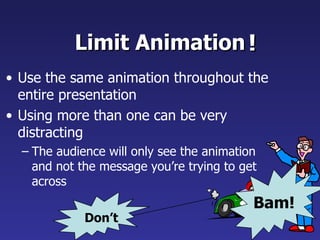
Limit Animation Use the same animation throughout the entire presentation Using more than one can be very distracting The audience will only see the animation and not the message you’re trying to get across   ! Bam! Don’t
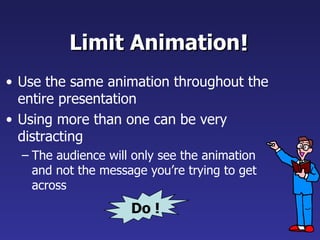
Limit Animation Use the same animation throughout the entire presentation Using more than one can be very distracting The audience will only see the animation and not the message you’re trying to get across   ! Do !
YOU Do not use the media to hide you The audience came to  SEE  you The media should  ENHANCE  the presentation, not  BE  the presentation If you’re only going to read from the slides, then just send them the slides! Remember, only you can prevent  “ Death by PowerPoint ”

Power pointguidelines

  • 1.
    PowerPoint Presentation GuidelinesThe following 37 slides present guidelines and suggestions for the use of fonts, colors, and graphics when preparing PowerPoint presentations for Sessions and Seminars. This media (PPT) is designed to ENHANCE your presentation, not BE the presentation. Remember, only you can prevent “ Death by PowerPoint ”
  • 2.
    PowerPoint Slide Highlightkey points or reinforce what the facilitator is saying Should be short and to the point, include only key words and phases for visual, reinforcement In order for your presentation to fit on most screens, text and images should be placed within 95% of the PowerPoint slide. This “ action safe ” area is seen in the next slide.
  • 3.
  • 4.
    PowerPoint Layout Layoutcontinuity from frame to frame conveys a sense of completeness Headings, subheadings, and logos should show up in the same spot on each frame Margins, fonts, font size, and colors should be consistent with graphics located in the same general position on each frame Lines, boxes, borders, and open space also should be consistent throughout
  • 5.
    Fonts Font StyleShould be Readable Recommended fonts: Arial , Tahoma, Veranda Standardize the Font Throughout This presentation is in Tahoma Do !
  • 6.
    This is agood title size Verdana 40 point A good subtitle or bullet point size Verdana 32 point Content text should be no smaller than Verdana 24 point This font size is not recommended for content. Verdana 12 point. Font Size The larger, the better. Remember, your slides must be readable, even at the back of the room.
  • 7.
    What does thissay? Garamond Font, Italic, Bold 12pt. This is very difficult to read. Times Font, Bold, 12pt. This point could be lost. Century Gothic Font, Bold, Italic, 14pt. No one will be able to read this. Gill Sans Font, Condensed Bold, 12pt TIPS Presentation: 3/8/2004 Dawn Thomas, CRM Font Size Combining small font sizes with bold or italics is not recommended: Small fonts are okay for a footer, such as: Don’t !
  • 8.
    Fonts Don’t SacrificeReadability for Style Don’t Sacrifice Readability for Style Don’t Sacrifice Readability for Style Don’t Sacrifice Readability for Style Don’t !
  • 9.
    Caps and ItalicsDO NOT USE ALL CAPITAL LETTERS Makes text hard to read Conceals acronyms Denies their use for EMPHASIS Italics Used for “ quotes ” Used to highlight thoughts or ideas Used for book, journal, or magazine titles
  • 10.
    Use a TemplateUse a set font and color scheme. Different styles are disconcerting to the audience . You want the audience to focus on what you present, not the way you present.
  • 11.
    Use the Same Background on Each Slide Do !!
  • 12.
    Don’t use multiple backgrounds in your presentation Changing the style is distracting Don’t!
  • 13.
    C o lo r s Reds and oranges are high-energy but can be difficult to stay focused on. Greens , blues, and browns are mellower, but not as attention grabbing. Reds and Greens can be difficult to see for those who are color blind.
  • 14.
    Avoid These CombinationsExamples: Green on Blue Dark Yellow on Green Purple on Blue Orange on Green Red on Green Don’t !
  • 15.
    C o lo r s White on dark background should not be used if audience is more than 20 ft away. This set of slides is a good example. You can read the slides up close. The further away you get, the harder it is to read. This is a good color combination if viewed on a computer. A dark background on a computer screen reduces glare.
  • 16.
    C o lo r s Large Hall Events Avoid White Backgrounds The white screen can be blinding in a dark room Dark Slides with Light Colored Text Work Best Don’t
  • 17.
    The Co l o r Wheel Colors separated by another color are contrasting colors (complementary) Adjacent colors harmonize with one another (Green and Yellow) Colors directly opposite one another are said to CLASH Clashing colors provide readability Orange on Blue Do !
  • 18.
    This is agood mix of colors. Readable! Background C o l o r s Remember: Readability! Readability! Readability! This is a bad mix of colors. Low contrast. Unreadable! This is a good mix of colors. Readable! This is a bad mix of colors. Avoid bright colors on white. Unreadable!
  • 19.
    Graphs and ChartsMake sure the audience can read them!
  • 20.
    Avoid using graphicsthat are difficult to read. In this example, the bright colors on a white background and the small font make the graph hard to read. It would be very difficult to see, especially in the back of a room. 8 Graphics and Charts Don’t !
  • 21.
    This graph containstoo much information in an unreadable format. 10 Don’t !
  • 22.
    These are examplesof good graphs, with nice line widths and good colors. Good Graph Do !
  • 23.
  • 24.
    Charts and Graphs0 10 20 30 40 50 60 70 80 North America Europe Australia Mode A Mode B Mode C Do !
  • 25.
    This is agood, readable table. Tables, especially large ones, should be placed on a separate slide. DQE test visit 1; Control temp +0.5 K 174 4/26 Fri Begin darks every 3 rd orbit 165 4/25 Thur Increase control temperature to allow for +2 K variations 155 4/24 Wed Return to Ne control, Filter wheel test begins 134 4/23 Tue Change to mounting cup control 112 4/22 Mon NICMOS restarted, Ne-loop control continues 109 4/19 Fri Do !
  • 26.
    Illustrations Use onlywhen needed, otherwise they become distracters instead of communicators They should relate to the message and help make a point Ask yourself if it makes the message clearer Simple diagrams are great communicators Do !
  • 27.
  • 28.
    Limit Each Slideto One Idea Use Bullet Points to Cover Components of Each Idea
  • 29.
    Bullets Keep eachbullet to 1 line, 2 at the most Limit the number of bullets in a screen to 6, 4 if there is a large title, logo, picture, etc. This is known as “ cueing ” You want to “ cue ” the audience on what you’re going to say Cues are a a brief “ preview ” Gives the audience a “ framework ” to build upon
  • 30.
    Bullets (con.)If you crowd too much text, the audience won’t read it Too much text looks busy and is hard to read Why read it, when you’re going to tell them what it says? Our reading speed does not match our listening speed; hence, they confuse instead of reinforce
  • 31.
    Points to RememberLimit each slide to 1 idea Limit each bullet point to only a few words to avoid long sentences that go on and on! Limit animation – Too much animation can be distracting. Be consistent with animation and have all text and photos appear on the screen the same way each time. There are many animation modes to choose from, but it is best to use just one throughout. Do not do this! Limit Bullet Points To a few words
  • 32.
    Points to RememberKeep bullet points brief Use the same background for each slide Use dark slides with light colored text in large hall events Do !
  • 33.
    Avoid the “AllWord” Slide Another thing to avoid is the use of a large block paragraph to introduce your information. Attendees do not like to have what is on the screen, read to them verbatim. So, please use short, bulleted statements and avoid typing out your whole presentation on to the slides. Also, it is difficult for some to listen and read a large amount of text at the same time. Don’t
  • 34.
    To make aslide stand out, change the font, background, or add animation. Attention Grabber
  • 35.
    Limit Animation Usethe same animation throughout the entire presentation Using more than one can be very distracting The audience will only see the animation and not the message you’re trying to get across ! Bam! Don’t
  • 36.
    Limit Animation Usethe same animation throughout the entire presentation Using more than one can be very distracting The audience will only see the animation and not the message you’re trying to get across ! Do !
  • 37.
    YOU Do notuse the media to hide you The audience came to SEE you The media should ENHANCE the presentation, not BE the presentation If you’re only going to read from the slides, then just send them the slides! Remember, only you can prevent “ Death by PowerPoint ”