Basic PowerPointBasic PowerPoint
Guidelines:Guidelines:
Tips for Creating GreatTips for Creating Great
PresentationsPresentations
Tips to be Covered…
Outline…
•Make your 1st
or 2nd
slide an outline of your
presentation
•Ex: previous slide
•Follow the order of your outline for the
rest of the presentation
•Only place main points on the outline slide
•Ex: Use the titles of each slide as main
points
Slide Structure – Good
•Use 1-2 slides per minute of your
presentation
•Write in point form, not complete sentences
•Include 4-5 points per slide
•Avoid wordiness: use key words and
phrases only
Slide Structure - Bad
•This page contains too many words for a
presentation slide. It is not written in point
form, making it difficult both for your
audience to read and for you to present
each point. Although there are exactly the
same number of points on this slide as the
previous slide, it looks much more
complicated. In short, your audience will
spend too much time trying to read this
paragraph instead of listening to you.
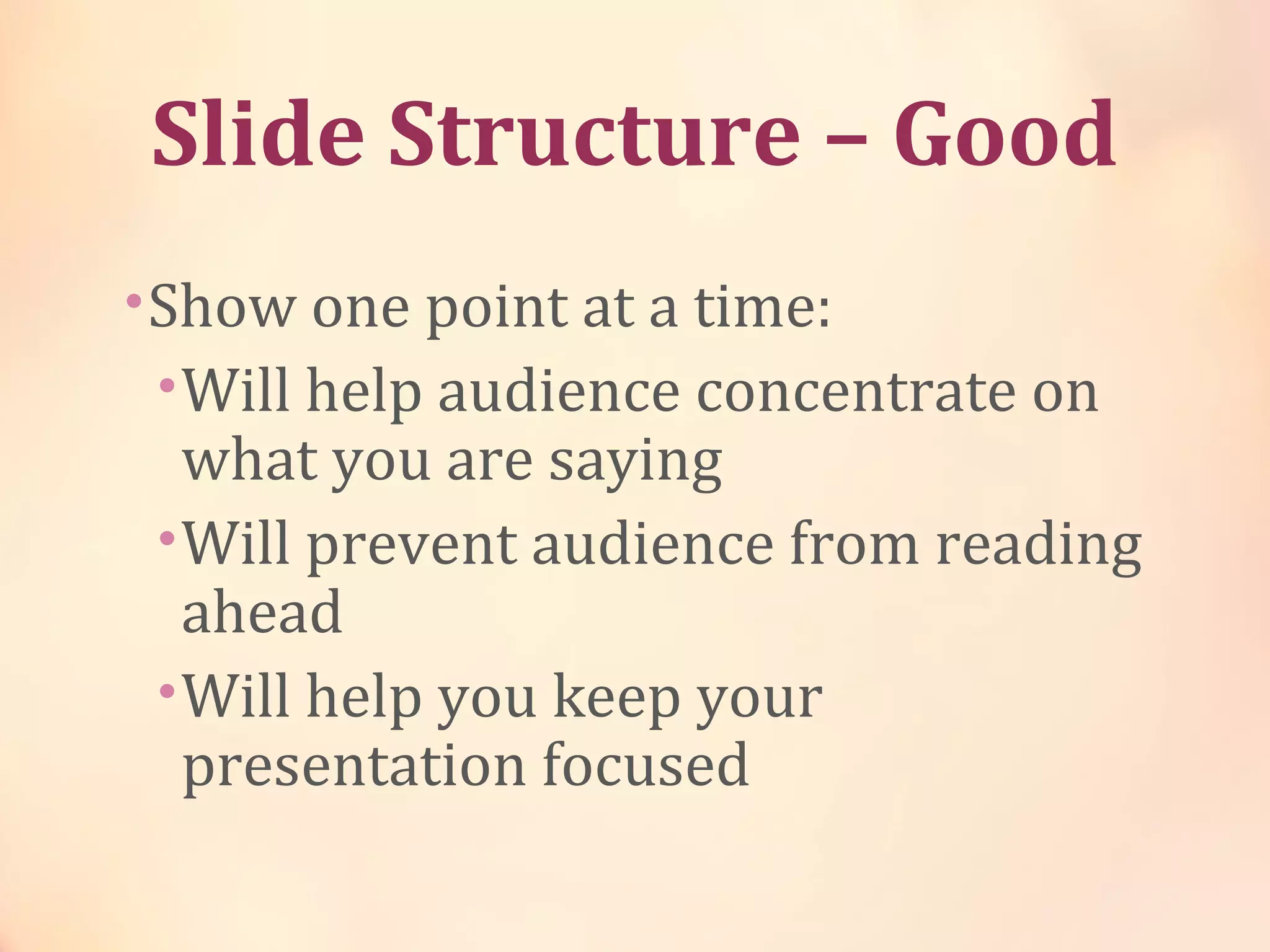
Slide Structure – Good
•Show one point at a time:
•Will help audience concentrate on
what you are saying
•Will prevent audience from reading
ahead
•Will help you keep your
presentation focused
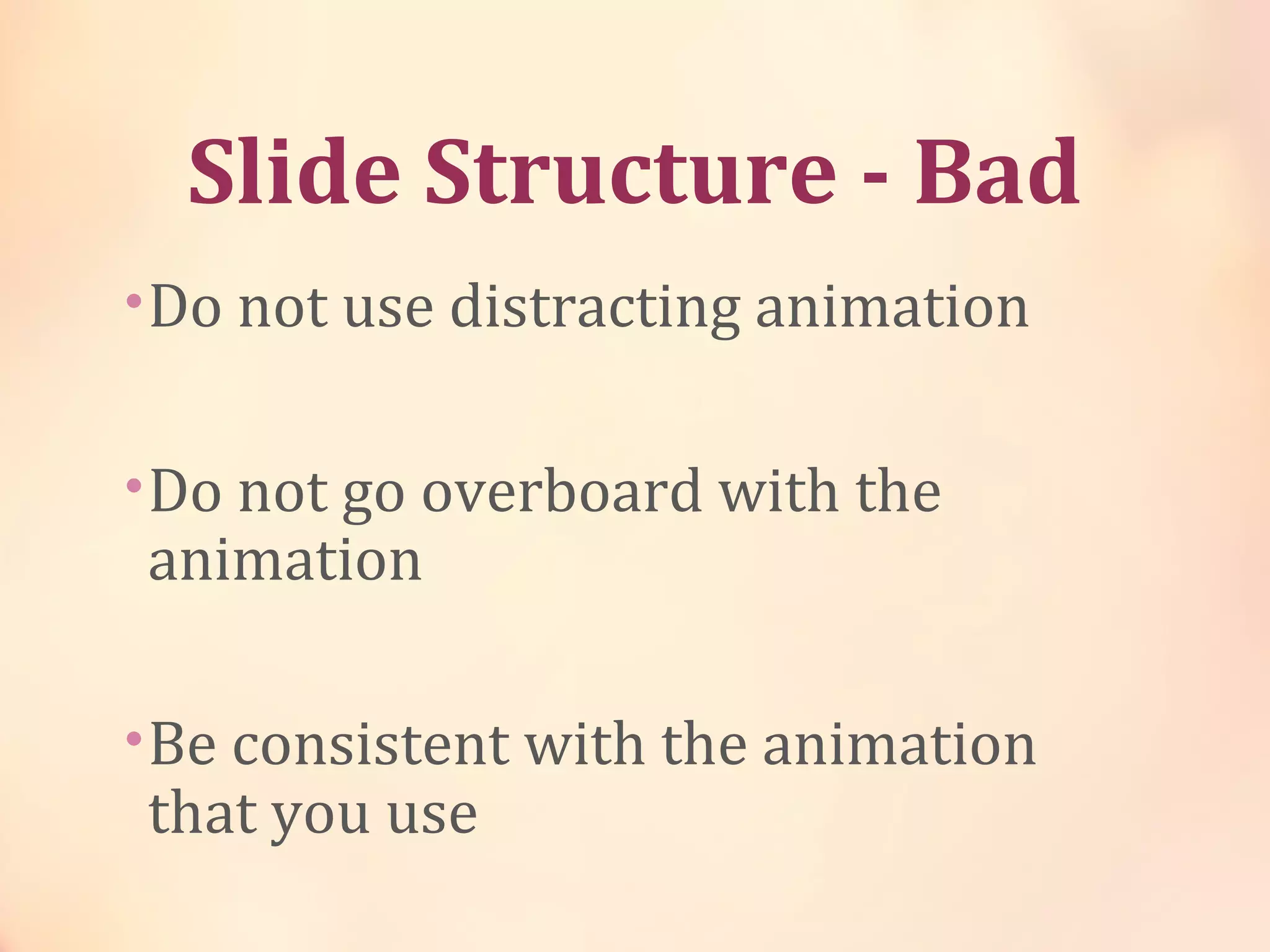
Slide Structure - Bad
•Do not use distracting animation
•Do not go overboard with the
animation
•Be consistent with the animation
that you use
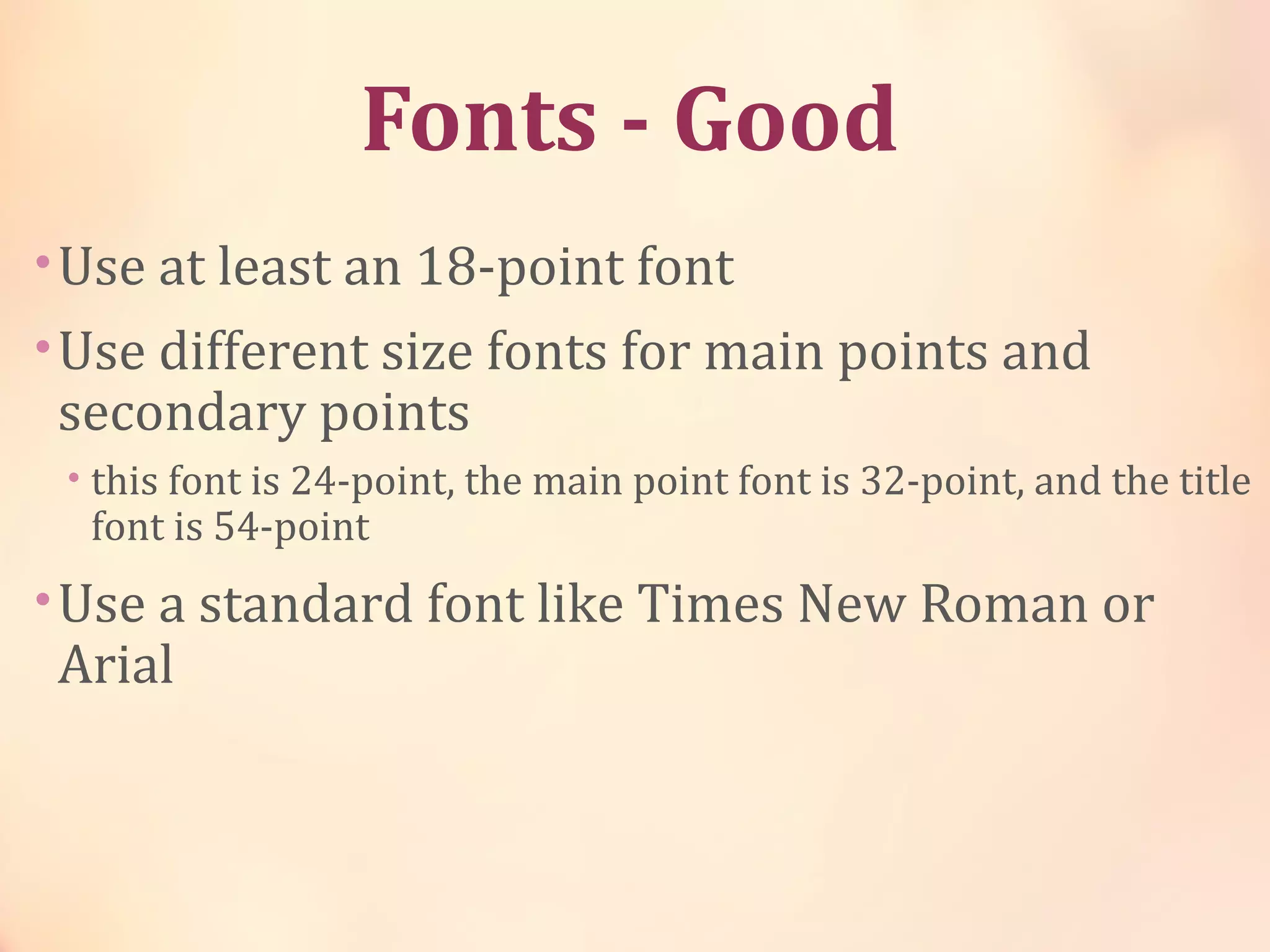
Fonts - Good
•Use at least an 18-point font
•Use different size fonts for main points and
secondary points
• this font is 24-point, the main point font is 32-point, and the title
font is 54-point
•Use a standard font like Times New Roman or
Arial
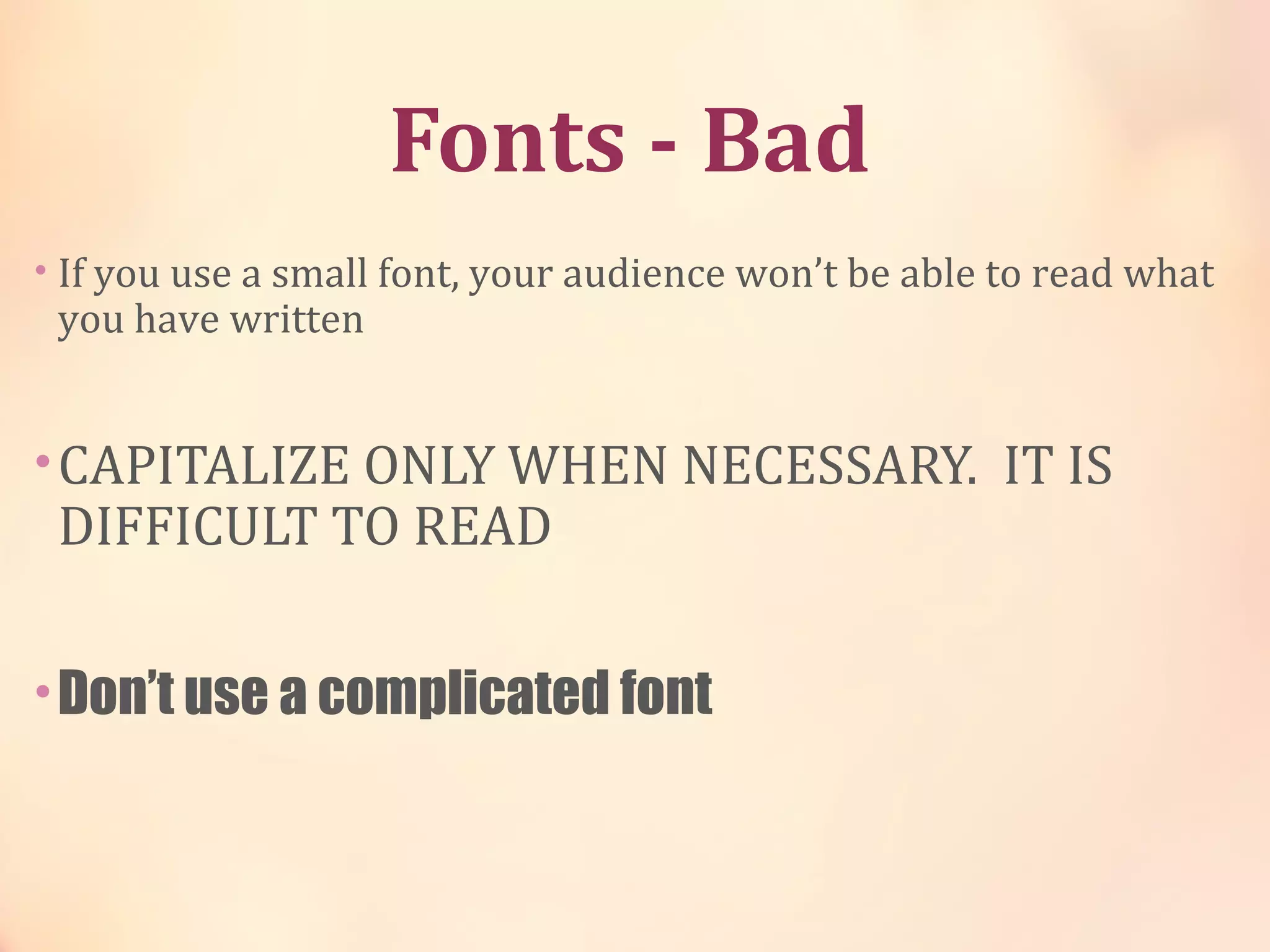
Fonts - Bad
• If you use a small font, your audience won’t be able to read what
you have written
•CAPITALIZE ONLY WHEN NECESSARY. IT IS
DIFFICULT TO READ
•Don’t use a complicated font
Colour - Good
•Use a colour of font that contrasts sharply
with the background
•Ex: blue font on white background
•Use colour to reinforce the logic of your
structure
•Ex: light blue title and dark blue text
•Use colour to emphasize a point
•But only use this occasionally
Colour - Bad
•Using a font colour that does not contrast
with the background colour is hard to read
•Using colour for decoration is distracting
and annoying.
•Using a different colour for each point is
unnecessary
•Using a different colour for secondary
points is also unnecessary
•Trying to be creative can also be bad
Background - Good
•Use backgrounds such as this one that are
attractive but simple
•Use backgrounds which are light
•Use the same background consistently
throughout your presentation
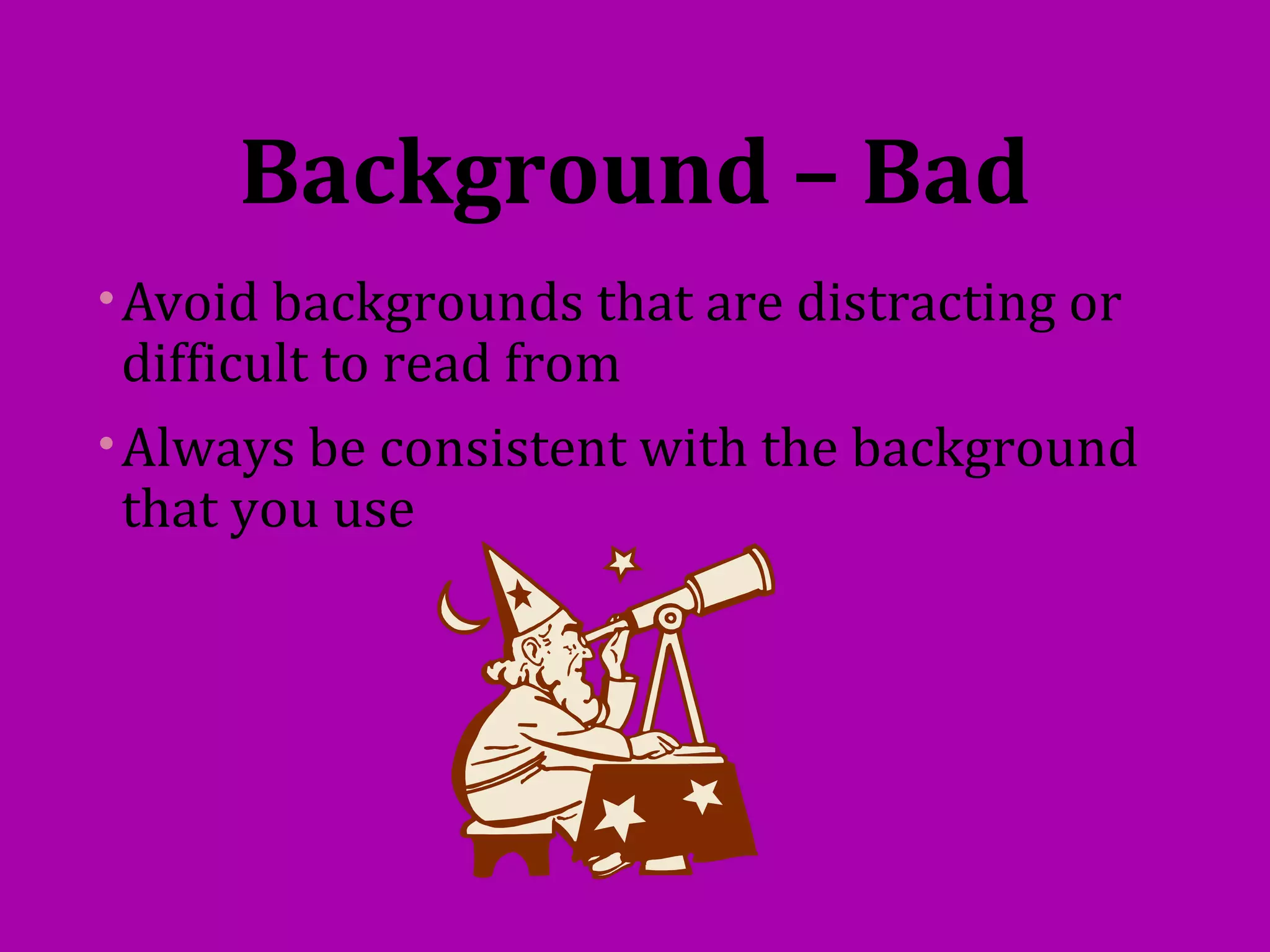
Background – Bad
•Avoid backgrounds that are distracting or
difficult to read from
•Always be consistent with the background
that you use
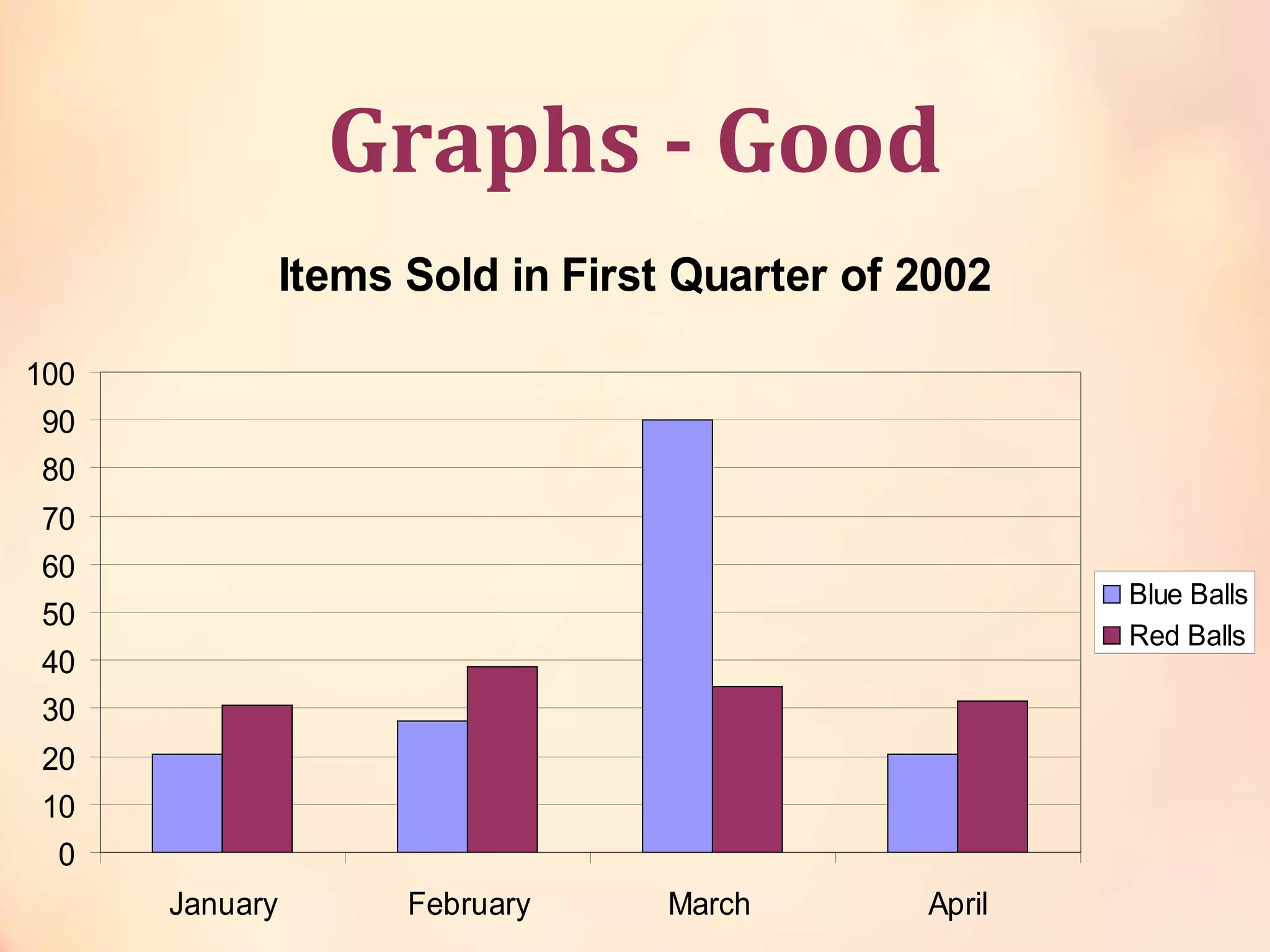
Graphs - Good
•Use graphs rather than just charts and
words
•Data in graphs is easier to comprehend &
retain than is raw data
•Trends are easier to visualize in graph
form
•Always title your graphs
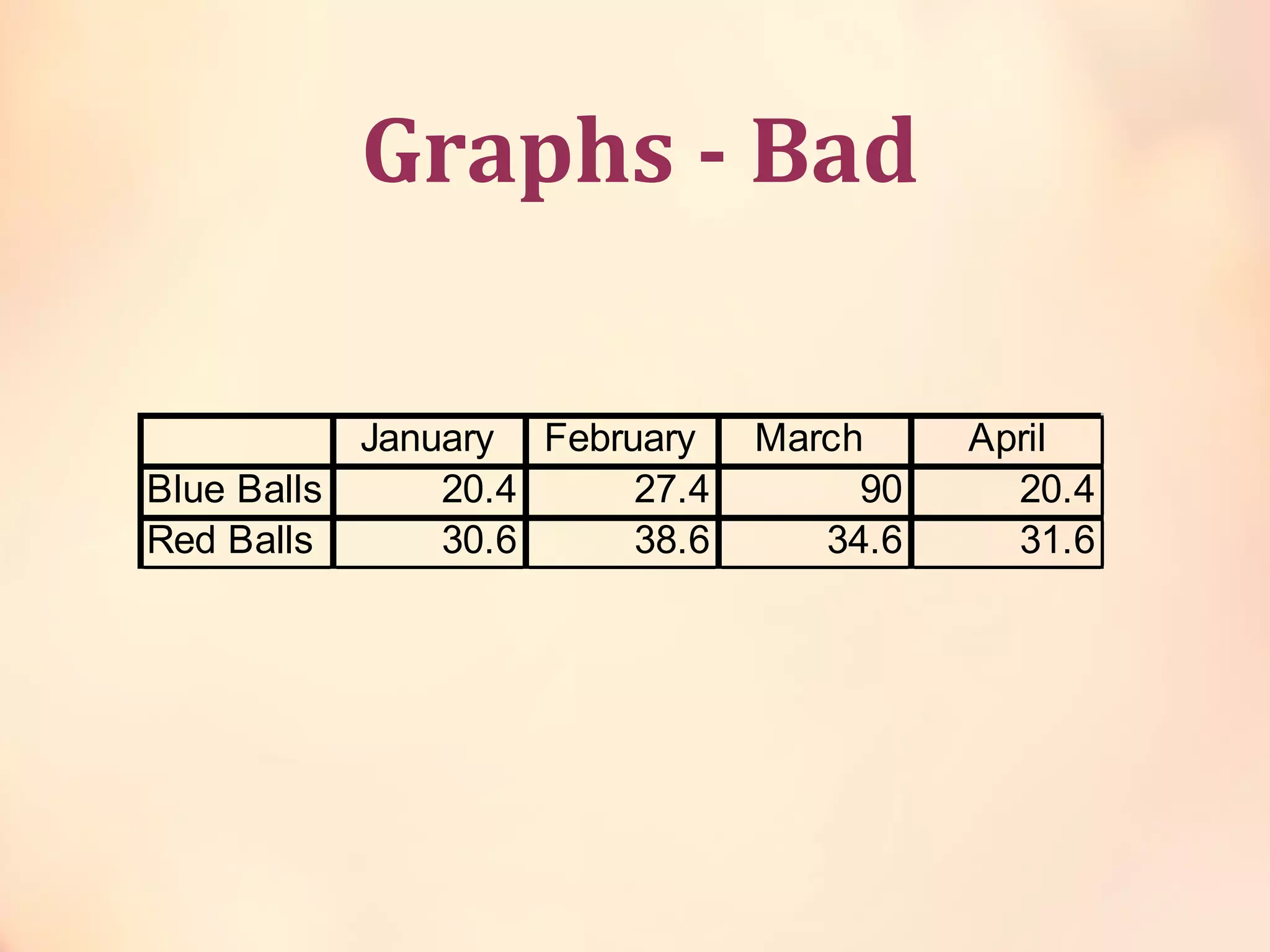
Graphs - Bad
January February March April
Blue Balls 20.4 27.4 90 20.4
Red Balls 30.6 38.6 34.6 31.6
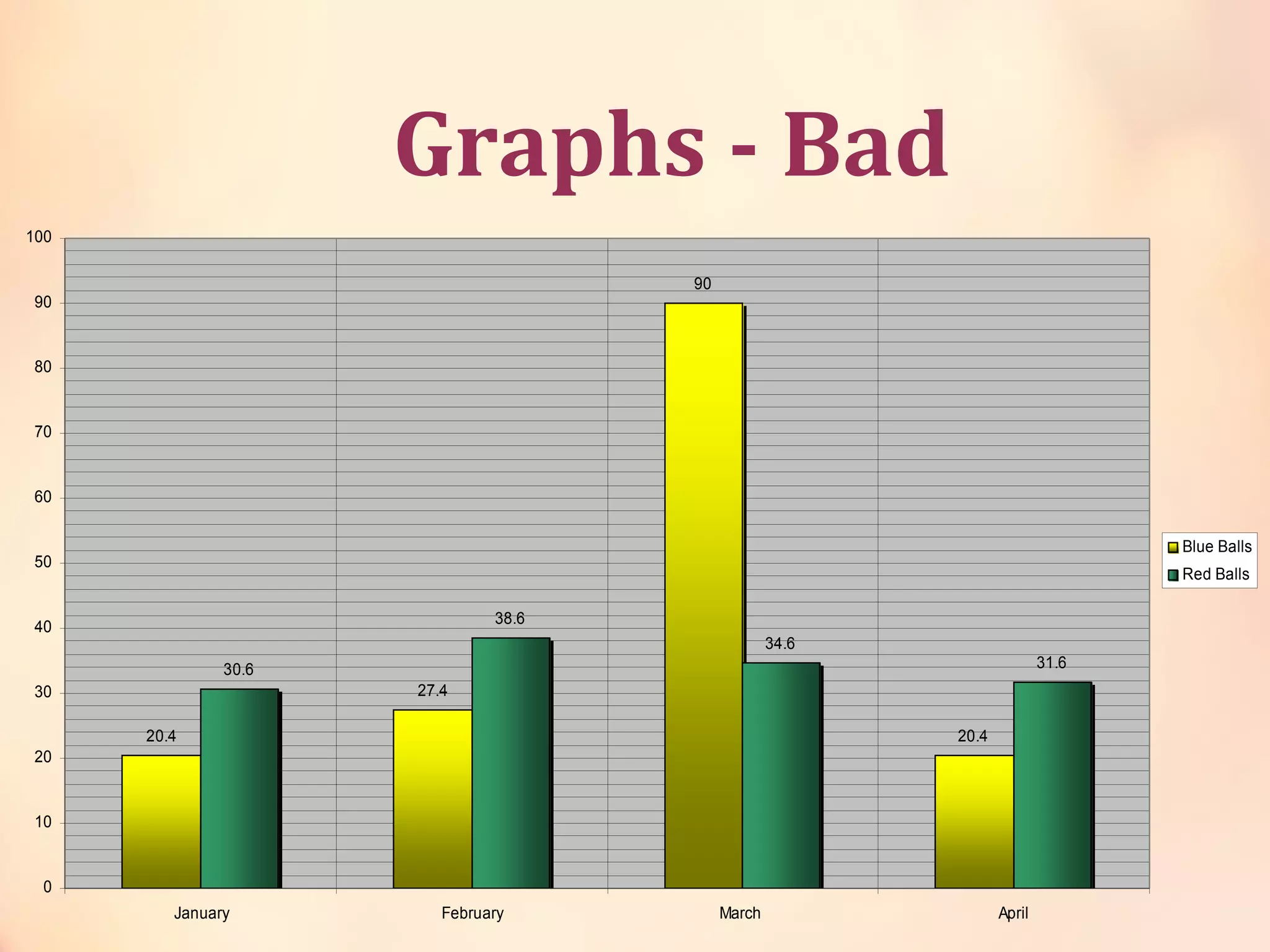
Graphs - Bad
20.4
27.4
90
20.4
30.6
38.6
34.6
31.6
0
10
20
30
40
50
60
70
80
90
100
January February March April
Blue Balls
Red Balls
Graphs - Bad
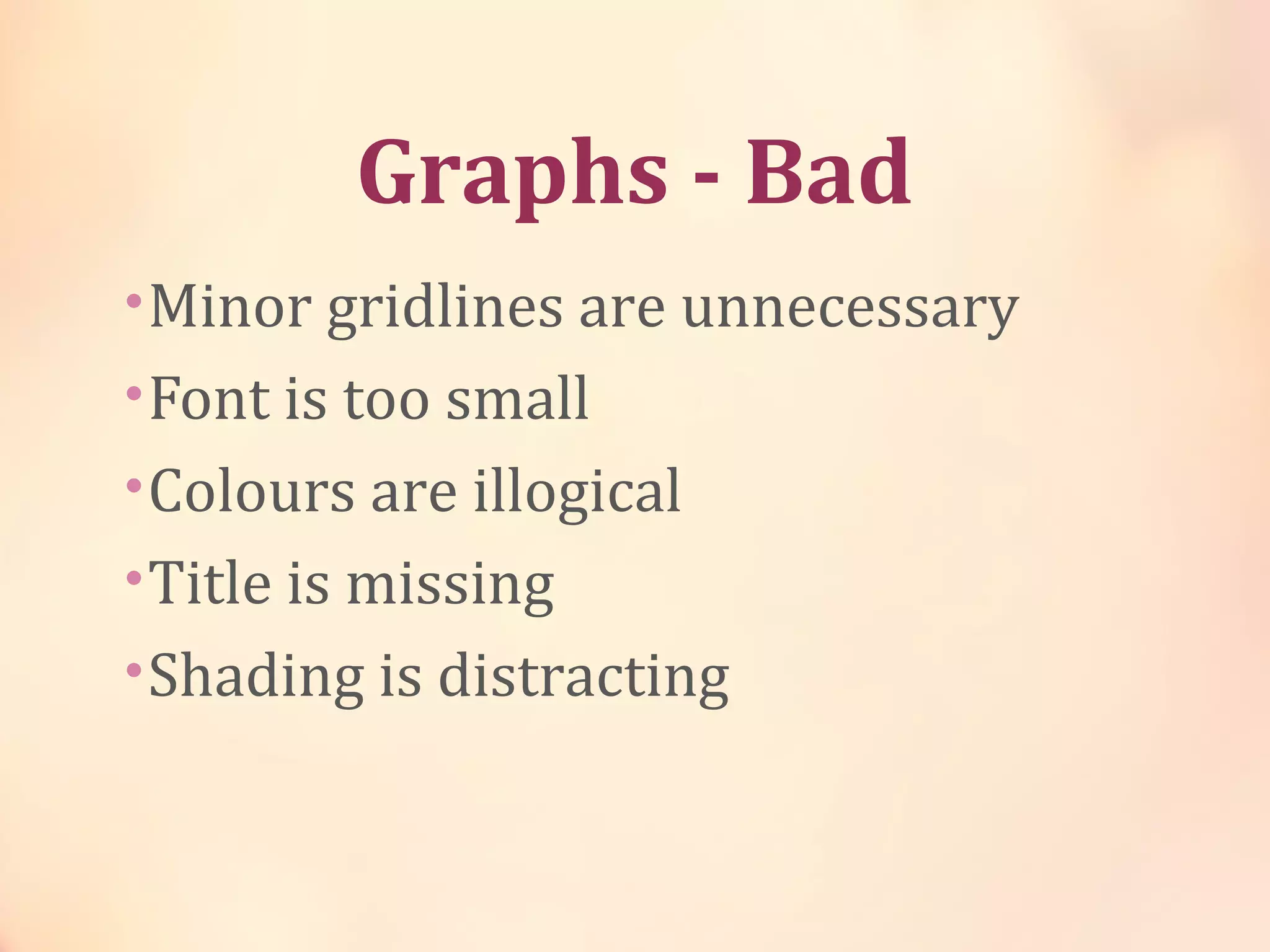
•Minor gridlines are unnecessary
•Font is too small
•Colours are illogical
•Title is missing
•Shading is distracting
Graphs - Good
Items Sold in First Quarter of 2002
0
10
20
30
40
50
60
70
80
90
100
January February March April
Blue Balls
Red Balls
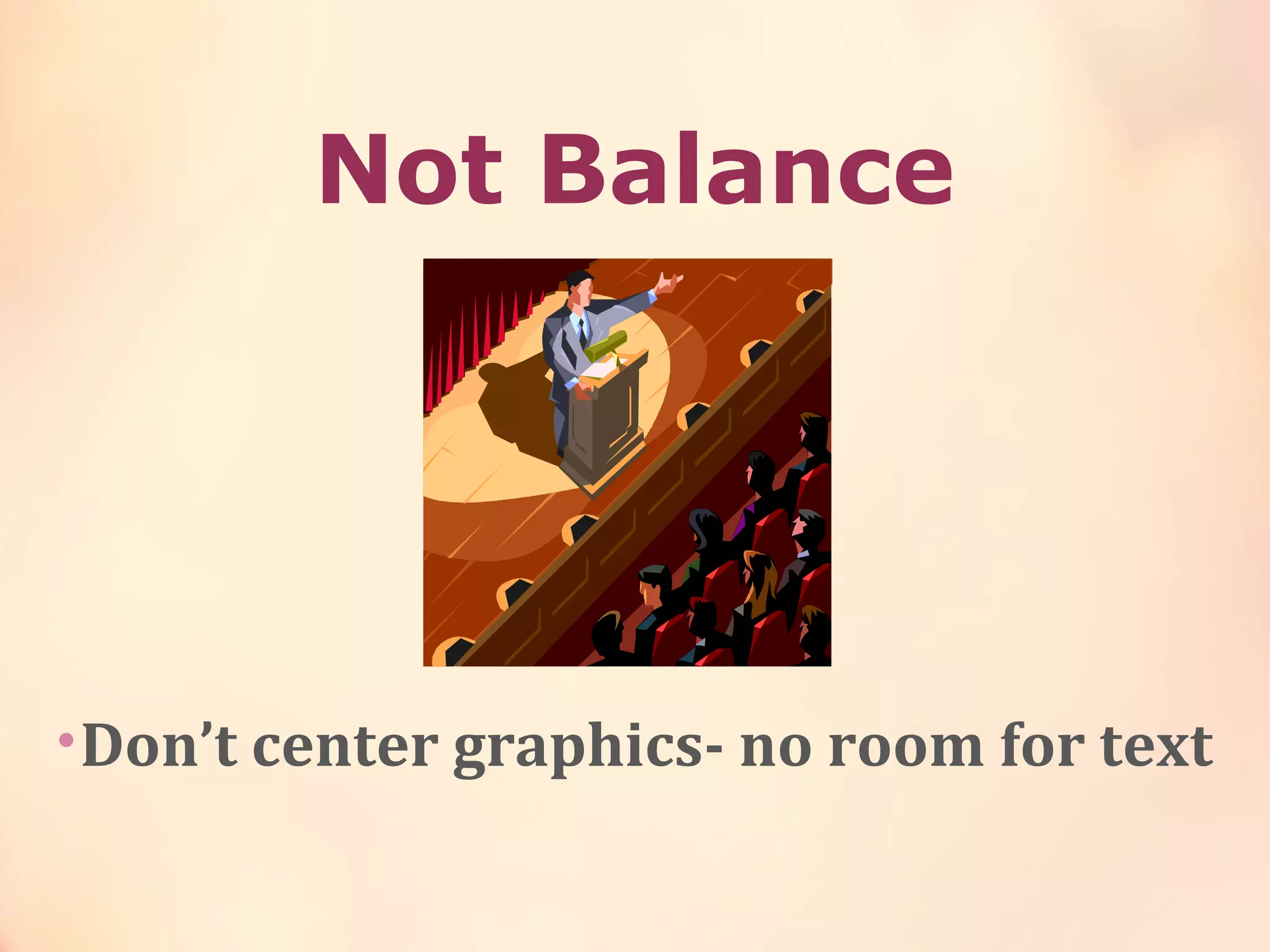
Not Balance
•Don’t center graphics- no room for text
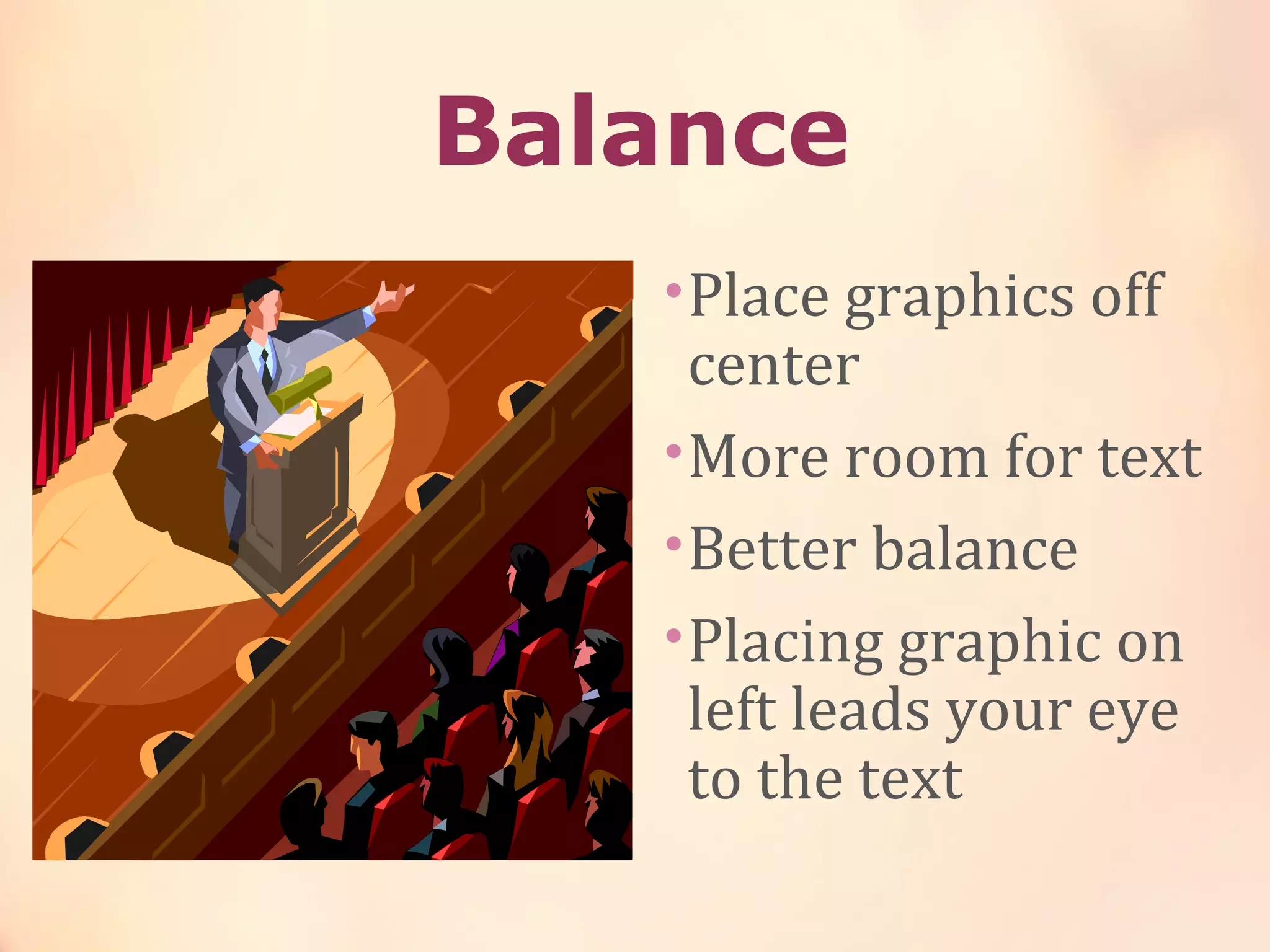
Balance
•Place graphics off
center
•More room for text
•Better balance
•Placing graphic on
left leads your eye
to the text
Spelling and Grammar
•Proof your slides for:
•speling mistakes
•the use of of repeated words
•grammatical errors you might have make
•If English is not your first language, please
have someone else check your presentation!
Conclusion
•Use an effective and strong closing
•Your audience is likely to remember your
last words
•Use a conclusion slide to:
•Summarize the main points of your
presentation
•Suggest future avenues of research
Questions?
•End your presentation with a simple
question slide to:
•Invite your audience to ask questions
•Provide a visual aid during question
period
•Avoid ending a presentation abruptly
Thank you for listening…

Prepared by: Nikki Rose D. Dapanas

Basic Guidelines For PowerPoint Presentation

  • 1.
    Basic PowerPointBasic PowerPoint Guidelines:Guidelines: Tipsfor Creating GreatTips for Creating Great PresentationsPresentations
  • 2.
    Tips to beCovered…
  • 3.
    Outline… •Make your 1st or2nd slide an outline of your presentation •Ex: previous slide •Follow the order of your outline for the rest of the presentation •Only place main points on the outline slide •Ex: Use the titles of each slide as main points
  • 4.
    Slide Structure –Good •Use 1-2 slides per minute of your presentation •Write in point form, not complete sentences •Include 4-5 points per slide •Avoid wordiness: use key words and phrases only
  • 5.
    Slide Structure -Bad •This page contains too many words for a presentation slide. It is not written in point form, making it difficult both for your audience to read and for you to present each point. Although there are exactly the same number of points on this slide as the previous slide, it looks much more complicated. In short, your audience will spend too much time trying to read this paragraph instead of listening to you.
  • 6.
    Slide Structure –Good •Show one point at a time: •Will help audience concentrate on what you are saying •Will prevent audience from reading ahead •Will help you keep your presentation focused
  • 7.
    Slide Structure -Bad •Do not use distracting animation •Do not go overboard with the animation •Be consistent with the animation that you use
  • 8.
    Fonts - Good •Useat least an 18-point font •Use different size fonts for main points and secondary points • this font is 24-point, the main point font is 32-point, and the title font is 54-point •Use a standard font like Times New Roman or Arial
  • 9.
    Fonts - Bad •If you use a small font, your audience won’t be able to read what you have written •CAPITALIZE ONLY WHEN NECESSARY. IT IS DIFFICULT TO READ •Don’t use a complicated font
  • 10.
    Colour - Good •Usea colour of font that contrasts sharply with the background •Ex: blue font on white background •Use colour to reinforce the logic of your structure •Ex: light blue title and dark blue text •Use colour to emphasize a point •But only use this occasionally
  • 11.
    Colour - Bad •Usinga font colour that does not contrast with the background colour is hard to read •Using colour for decoration is distracting and annoying. •Using a different colour for each point is unnecessary •Using a different colour for secondary points is also unnecessary •Trying to be creative can also be bad
  • 12.
    Background - Good •Usebackgrounds such as this one that are attractive but simple •Use backgrounds which are light •Use the same background consistently throughout your presentation
  • 13.
    Background – Bad •Avoidbackgrounds that are distracting or difficult to read from •Always be consistent with the background that you use
  • 14.
    Graphs - Good •Usegraphs rather than just charts and words •Data in graphs is easier to comprehend & retain than is raw data •Trends are easier to visualize in graph form •Always title your graphs
  • 15.
    Graphs - Bad JanuaryFebruary March April Blue Balls 20.4 27.4 90 20.4 Red Balls 30.6 38.6 34.6 31.6
  • 16.
  • 17.
    Graphs - Bad •Minorgridlines are unnecessary •Font is too small •Colours are illogical •Title is missing •Shading is distracting
  • 18.
    Graphs - Good ItemsSold in First Quarter of 2002 0 10 20 30 40 50 60 70 80 90 100 January February March April Blue Balls Red Balls
  • 19.
    Not Balance •Don’t centergraphics- no room for text
  • 20.
    Balance •Place graphics off center •Moreroom for text •Better balance •Placing graphic on left leads your eye to the text
  • 21.
    Spelling and Grammar •Proofyour slides for: •speling mistakes •the use of of repeated words •grammatical errors you might have make •If English is not your first language, please have someone else check your presentation!
  • 22.
    Conclusion •Use an effectiveand strong closing •Your audience is likely to remember your last words •Use a conclusion slide to: •Summarize the main points of your presentation •Suggest future avenues of research
  • 23.
    Questions? •End your presentationwith a simple question slide to: •Invite your audience to ask questions •Provide a visual aid during question period •Avoid ending a presentation abruptly
  • 24.
    Thank you forlistening…  Prepared by: Nikki Rose D. Dapanas