PowerPoint Brandy Thatcher, Instructional Graphic Designer  Instructional Innovation & Learning Resources Creating Well-Designed Conference and Meeting Presentations
Your Content comes First!!  PowerPoint is a tool.  Use it to:  Display supportive visuals Help audience follow along  Emphasize important points Help audience recall important information
 
General Design Guidelines Be Consistent choose an overall template/ background color scheme choose 1 font for body 1 font for headers If using outline form with numbers, letters, etc… choose one format and stick with it
General Design Guidelines Keep it Simple and Clear  – if it doesn’t support your main objectives –  you probably don’t need it . Consider Layout  – balance text and visuals,  utilize “white space”. Grab Their Attention  – create contrast & use visuals.
Choosing a Template/ Background Formatting Tips Using color  Using visuals effectively (images, animations, graphs, etc…) Resources
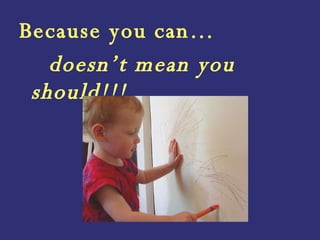
Because you can…  doesn’t mean you should!!!
Choosing a Template/ Background Background design should be subordinate to your content Background should be appropriate for  your audience Use 1 background throughout the presentation
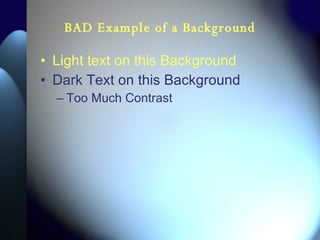
BAD Example of a Background Light text on this Background Dark Text on this Background Too Much Contrast
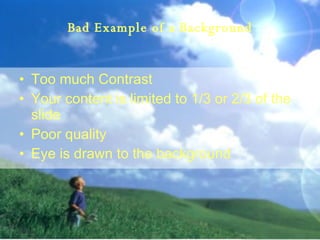
Bad Example of a Background Too much Contrast  Your content is limited to 1/3 or 2/3 of the slide Poor quality Eye is drawn to the background
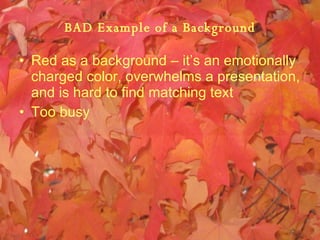
BAD Example of a Background Red as a background – it’s an emotionally charged color, overwhelms a presentation, and is hard to find matching text Too busy
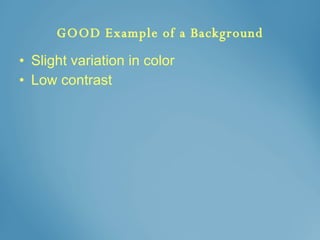
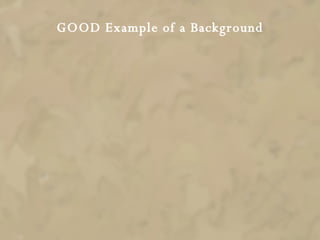
GOOD Example of a Background Slight variation in color Low contrast
GOOD Example of a Background
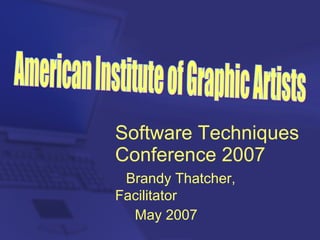
Software Techniques Conference 2007   Brandy Thatcher, Facilitator May 2007 American Institute of Graphic Artists
American Institute of Graphic Artists Software Techniques Conference 2007
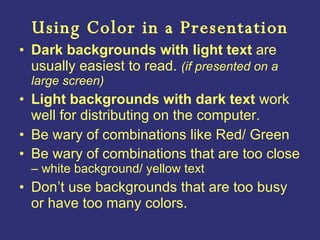
Using Color in a Presentation Dark backgrounds with light text  are usually easiest to read.  (if presented on a large screen)  Light backgrounds with dark text  work well for distributing on the computer.  Be wary of combinations like Red/ Green Be wary of combinations that are too close  – white background/ yellow text Don’t use backgrounds that are too busy or have too many colors.
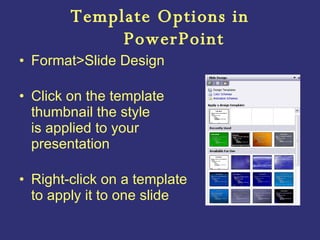
Template Options in PowerPoint Format>Slide Design Click on the template  thumbnail the style is applied to your presentation Right-click on a template to apply it to one slide
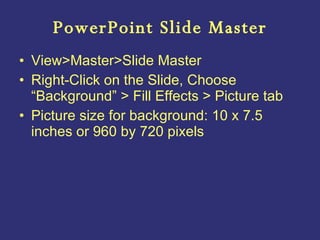
PowerPoint Slide Master View>Master>Slide Master Right-Click on the Slide, Choose “Background” > Fill Effects > Picture tab Picture size for background: 10 x 7.5 inches or 960 by 720 pixels
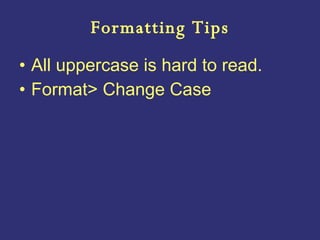
Formatting Tips All uppercase is hard to read. Format> Change Case
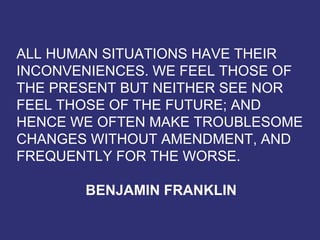
ALL HUMAN SITUATIONS HAVE THEIR INCONVENIENCES. WE FEEL THOSE OF THE PRESENT BUT NEITHER SEE NOR FEEL THOSE OF THE FUTURE; AND HENCE WE OFTEN MAKE TROUBLESOME CHANGES WITHOUT AMENDMENT, AND FREQUENTLY FOR THE WORSE.  BENJAMIN FRANKLIN
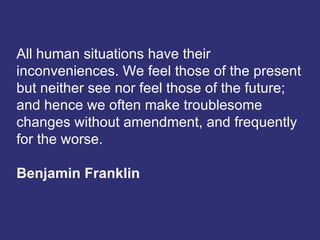
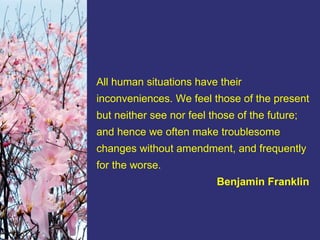
All human situations have their inconveniences. We feel those of the present but neither see nor feel those of the future; and hence we often make troublesome changes without amendment, and frequently for the worse.  Benjamin Franklin
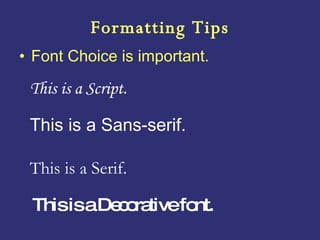
Formatting Tips Font Choice is important. This is a Script.   This is a Sans-serif. This is a Serif. This is a Decorative font.
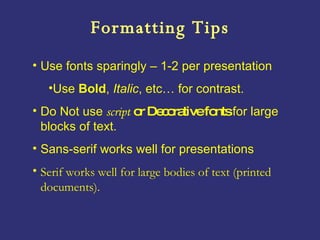
Formatting Tips Use fonts sparingly – 1-2 per presentation Use  Bold ,  Italic , etc… for contrast.  Do Not use   script  or Decorative fonts  for large blocks of text.  Sans-serif works well for presentations  Serif works well for large bodies of text (printed documents).
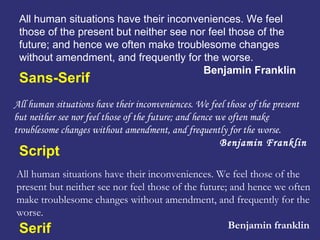
All human situations have their inconveniences. We feel those of the present but neither see nor feel those of the future; and hence we often make troublesome changes without amendment, and frequently for the worse.  Benjamin Franklin   All human situations have their inconveniences. We feel those of the present but neither see nor feel those of the future; and hence we often make troublesome changes without amendment, and frequently for the worse.  Benjamin Franklin   All human situations have their inconveniences. We feel those of the present but neither see nor feel those of the future; and hence we often make troublesome changes without amendment, and frequently for the worse.  Benjamin franklin   Sans-Serif Script Serif
 
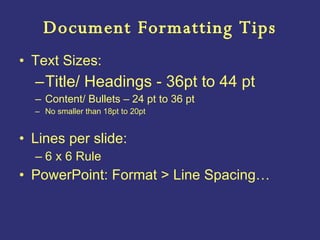
Document Formatting Tips Text Sizes:  Title/ Headings - 36pt to 44 pt Content/ Bullets – 24 pt to 36 pt No smaller than 18pt to 20pt Lines per slide: 6 x 6 Rule PowerPoint: Format > Line Spacing…
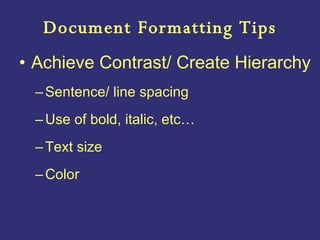
Document Formatting Tips Achieve Contrast/ Create Hierarchy Sentence/ line spacing Use of bold, italic, etc… Text size Color
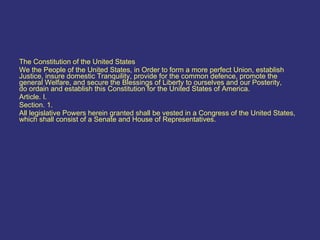
The Constitution of the United States We the People of the United States, in Order to form a more perfect Union, establish Justice, insure domestic Tranquility, provide for the common defence, promote the general Welfare, and secure the Blessings of Liberty to ourselves and our Posterity,  do ordain and establish this Constitution for the United States of America. Article. I. Section. 1. All legislative Powers herein granted shall be vested in a Congress of the United States, which shall consist of a Senate and House of Representatives.
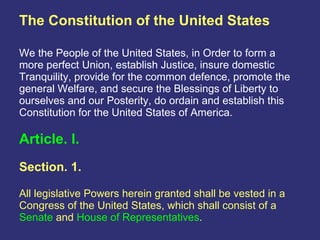
The Constitution of the United States We the People of the United States, in Order to form a more perfect Union, establish Justice, insure domestic Tranquility, provide for the common defence, promote the general Welfare, and secure the Blessings of Liberty to ourselves and our Posterity, do ordain and establish this Constitution for the United States of America. Article. I. Section. 1. All legislative Powers herein granted shall be vested in a Congress of the United States, which shall consist of a  Senate  and  House of Representatives .
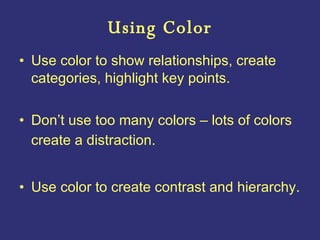
Using Color Use color to show relationships, create categories, highlight key points. Don’t use too many colors – lots of colors create a distraction.  Use color to create contrast and hierarchy.
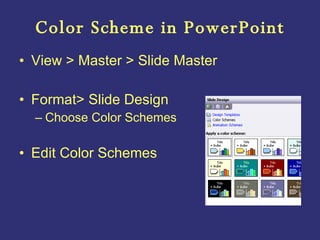
Color Scheme in PowerPoint View > Master > Slide Master Format> Slide Design Choose Color Schemes Edit Color Schemes
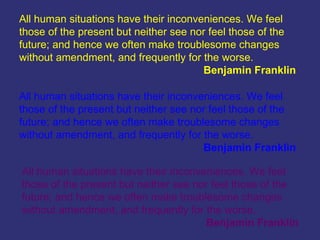
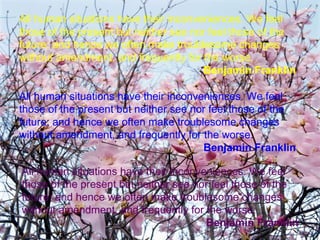
All human situations have their inconveniences. We feel those of the present but neither see nor feel those of the future; and hence we often make troublesome changes without amendment, and frequently for the worse.  Benjamin Franklin   All human situations have their inconveniences. We feel those of the present but neither see nor feel those of the future; and hence we often make troublesome changes without amendment, and frequently for the worse.  Benjamin Franklin   All human situations have their inconveniences. We feel those of the present but neither see nor feel those of the future; and hence we often make troublesome changes without amendment, and frequently for the worse.  Benjamin Franklin
All human situations have their inconveniences. We feel those of the present but neither see nor feel those of the future; and hence we often make troublesome changes without amendment, and frequently for the worse.  Benjamin Franklin
Using Visuals Effectively People grasp pictures more quickly than words.  People who visualize information tend to remember things better.  Give them a visual to associate with an important concept. Use a visual to condense complex information Use visuals to demonstrate a key concept If the visual is complicated or doesn’t clearly demonstrate a main point then it may be a distraction. Include labels, arrows, highlights to emphasize important parts of the visual Use visuals appropriately (Why am I using this?/ How does it enhance my information?)
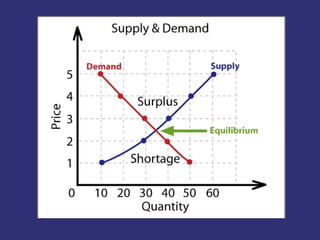
Examples Did you notice the animated frog on the last screen? Was it distracting? Did  it have anything to do with my content?  The next two slides are on the concept of supply and demand. Which is easier to understand – Having the students read a paragraph of text? Or explaining the graph to the students?
The supply-demand model is one of the fundamental concepts of economics.  The price level of a good essentially is determined by the point at which quantity supplied equals quantity demand. This point is called equilibrium. If the quantity supplied is greater than the quantity demanded, then there is a surplus of goods. If the quantity supplied is less  than the quantity demanded, the there  is a shortage of goods.
 
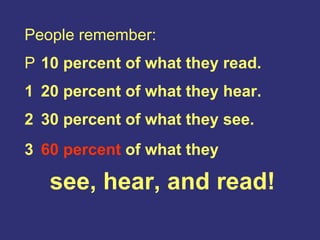
People remember: 􀂃  10 percent of what they read. 􀂃  20 percent of what they hear. 􀂃  30 percent of what they see. 􀂃  60 percent  of what they    see, hear, and read!
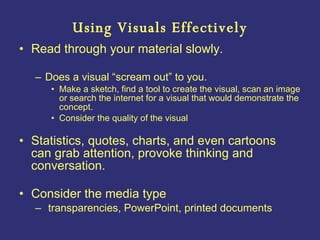
Using Visuals Effectively Read through your material slowly. Does a visual “scream out” to you.  Make a sketch, find a tool to create the visual, scan an image or search the internet for a visual that would demonstrate the concept.  Consider the quality of the visual Statistics, quotes, charts, and even cartoons  can grab attention, provoke thinking and conversation. Consider the media type transparencies, PowerPoint, printed documents
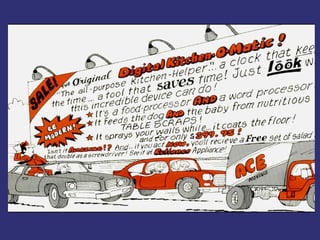
Using Clip Art Don’t let  “pretty”  or  “cool”  be your criterion for using it.  Be consistent with style Make sure it supports your content and your audience Don’t use too much Give your readers clues by using color, arrows, lines, labels, etc… Give Credit  Consider Quality
Using Animation Animated graphics (same rules for clip art apply) Animation in a presentation: Be Consistent! Keep it Simple Don’t use too many transitions/ effects Use one effect/ transition Apply a separate effect/ transition for emphasis
Resources Finding Images – Internet Search Engines  (Google Images) Be aware of copyright (Fair Use Act, Teach Act, Digital Rights Act) References:  12 Tips for Creating Better Documents -  http://www.microsoft.com/atwork/getworkdone/documents.mspx   Using Clip Art/Photos on Presentation Slides  http://www.communicateusingtechnology.com/articles/using_clip_art_photo.htm   Education World – ClipArt 101  http://www.educationworld.com/a_tech/tech/tech015.shtml
Resources Tips for giving better presentations -  http://www.thinkoutsidetheslide.com/  Articles & Tutorials from presentation experts  http://www.presentersuniversity.com/ PowerPoint Tips, Information & Techniques  http://www.ellenfinkelstein.com/powerpoint.html
PowerPoint Brandy Thatcher,  Instructional Graphic Designer  Instructional Innovation, Faculty Development & Learning Resources Room 239B  Phone: 309-694-5306 Email: bthatcher@icc.edu Creating Well-Designed Conference and Meeting Presentations

Power Point Creating Well Designed Presentations

  • 1.
    PowerPoint Brandy Thatcher,Instructional Graphic Designer Instructional Innovation & Learning Resources Creating Well-Designed Conference and Meeting Presentations
  • 2.
    Your Content comesFirst!! PowerPoint is a tool. Use it to: Display supportive visuals Help audience follow along Emphasize important points Help audience recall important information
  • 3.
  • 4.
    General Design GuidelinesBe Consistent choose an overall template/ background color scheme choose 1 font for body 1 font for headers If using outline form with numbers, letters, etc… choose one format and stick with it
  • 5.
    General Design GuidelinesKeep it Simple and Clear – if it doesn’t support your main objectives – you probably don’t need it . Consider Layout – balance text and visuals, utilize “white space”. Grab Their Attention – create contrast & use visuals.
  • 6.
    Choosing a Template/Background Formatting Tips Using color Using visuals effectively (images, animations, graphs, etc…) Resources
  • 7.
    Because you can… doesn’t mean you should!!!
  • 8.
    Choosing a Template/Background Background design should be subordinate to your content Background should be appropriate for your audience Use 1 background throughout the presentation
  • 9.
    BAD Example ofa Background Light text on this Background Dark Text on this Background Too Much Contrast
  • 10.
    Bad Example ofa Background Too much Contrast Your content is limited to 1/3 or 2/3 of the slide Poor quality Eye is drawn to the background
  • 11.
    BAD Example ofa Background Red as a background – it’s an emotionally charged color, overwhelms a presentation, and is hard to find matching text Too busy
  • 12.
    GOOD Example ofa Background Slight variation in color Low contrast
  • 13.
    GOOD Example ofa Background
  • 14.
    Software Techniques Conference2007 Brandy Thatcher, Facilitator May 2007 American Institute of Graphic Artists
  • 15.
    American Institute ofGraphic Artists Software Techniques Conference 2007
  • 16.
    American Institute ofGraphic Artists Software Techniques Conference 2007
  • 17.
    Using Color ina Presentation Dark backgrounds with light text are usually easiest to read. (if presented on a large screen) Light backgrounds with dark text work well for distributing on the computer. Be wary of combinations like Red/ Green Be wary of combinations that are too close – white background/ yellow text Don’t use backgrounds that are too busy or have too many colors.
  • 18.
    Template Options inPowerPoint Format>Slide Design Click on the template thumbnail the style is applied to your presentation Right-click on a template to apply it to one slide
  • 19.
    PowerPoint Slide MasterView>Master>Slide Master Right-Click on the Slide, Choose “Background” > Fill Effects > Picture tab Picture size for background: 10 x 7.5 inches or 960 by 720 pixels
  • 20.
    Formatting Tips Alluppercase is hard to read. Format> Change Case
  • 21.
    ALL HUMAN SITUATIONSHAVE THEIR INCONVENIENCES. WE FEEL THOSE OF THE PRESENT BUT NEITHER SEE NOR FEEL THOSE OF THE FUTURE; AND HENCE WE OFTEN MAKE TROUBLESOME CHANGES WITHOUT AMENDMENT, AND FREQUENTLY FOR THE WORSE. BENJAMIN FRANKLIN
  • 22.
    All human situationshave their inconveniences. We feel those of the present but neither see nor feel those of the future; and hence we often make troublesome changes without amendment, and frequently for the worse. Benjamin Franklin
  • 23.
    Formatting Tips FontChoice is important. This is a Script. This is a Sans-serif. This is a Serif. This is a Decorative font.
  • 24.
    Formatting Tips Usefonts sparingly – 1-2 per presentation Use Bold , Italic , etc… for contrast. Do Not use script or Decorative fonts for large blocks of text. Sans-serif works well for presentations Serif works well for large bodies of text (printed documents).
  • 25.
    All human situationshave their inconveniences. We feel those of the present but neither see nor feel those of the future; and hence we often make troublesome changes without amendment, and frequently for the worse. Benjamin Franklin All human situations have their inconveniences. We feel those of the present but neither see nor feel those of the future; and hence we often make troublesome changes without amendment, and frequently for the worse. Benjamin Franklin All human situations have their inconveniences. We feel those of the present but neither see nor feel those of the future; and hence we often make troublesome changes without amendment, and frequently for the worse. Benjamin franklin Sans-Serif Script Serif
  • 26.
  • 27.
    Document Formatting TipsText Sizes: Title/ Headings - 36pt to 44 pt Content/ Bullets – 24 pt to 36 pt No smaller than 18pt to 20pt Lines per slide: 6 x 6 Rule PowerPoint: Format > Line Spacing…
  • 28.
    Document Formatting TipsAchieve Contrast/ Create Hierarchy Sentence/ line spacing Use of bold, italic, etc… Text size Color
  • 29.
    The Constitution ofthe United States We the People of the United States, in Order to form a more perfect Union, establish Justice, insure domestic Tranquility, provide for the common defence, promote the general Welfare, and secure the Blessings of Liberty to ourselves and our Posterity, do ordain and establish this Constitution for the United States of America. Article. I. Section. 1. All legislative Powers herein granted shall be vested in a Congress of the United States, which shall consist of a Senate and House of Representatives.
  • 30.
    The Constitution ofthe United States We the People of the United States, in Order to form a more perfect Union, establish Justice, insure domestic Tranquility, provide for the common defence, promote the general Welfare, and secure the Blessings of Liberty to ourselves and our Posterity, do ordain and establish this Constitution for the United States of America. Article. I. Section. 1. All legislative Powers herein granted shall be vested in a Congress of the United States, which shall consist of a Senate and House of Representatives .
  • 31.
    Using Color Usecolor to show relationships, create categories, highlight key points. Don’t use too many colors – lots of colors create a distraction. Use color to create contrast and hierarchy.
  • 32.
    Color Scheme inPowerPoint View > Master > Slide Master Format> Slide Design Choose Color Schemes Edit Color Schemes
  • 33.
    All human situationshave their inconveniences. We feel those of the present but neither see nor feel those of the future; and hence we often make troublesome changes without amendment, and frequently for the worse. Benjamin Franklin All human situations have their inconveniences. We feel those of the present but neither see nor feel those of the future; and hence we often make troublesome changes without amendment, and frequently for the worse. Benjamin Franklin All human situations have their inconveniences. We feel those of the present but neither see nor feel those of the future; and hence we often make troublesome changes without amendment, and frequently for the worse. Benjamin Franklin
  • 34.
    All human situationshave their inconveniences. We feel those of the present but neither see nor feel those of the future; and hence we often make troublesome changes without amendment, and frequently for the worse. Benjamin Franklin All human situations have their inconveniences. We feel those of the present but neither see nor feel those of the future; and hence we often make troublesome changes without amendment, and frequently for the worse. Benjamin Franklin All human situations have their inconveniences. We feel those of the present but neither see nor feel those of the future; and hence we often make troublesome changes without amendment, and frequently for the worse. Benjamin Franklin
  • 35.
    All human situationshave their inconveniences. We feel those of the present but neither see nor feel those of the future; and hence we often make troublesome changes without amendment, and frequently for the worse. Benjamin Franklin
  • 36.
    Using Visuals EffectivelyPeople grasp pictures more quickly than words. People who visualize information tend to remember things better. Give them a visual to associate with an important concept. Use a visual to condense complex information Use visuals to demonstrate a key concept If the visual is complicated or doesn’t clearly demonstrate a main point then it may be a distraction. Include labels, arrows, highlights to emphasize important parts of the visual Use visuals appropriately (Why am I using this?/ How does it enhance my information?)
  • 37.
    Examples Did younotice the animated frog on the last screen? Was it distracting? Did it have anything to do with my content? The next two slides are on the concept of supply and demand. Which is easier to understand – Having the students read a paragraph of text? Or explaining the graph to the students?
  • 38.
    The supply-demand modelis one of the fundamental concepts of economics. The price level of a good essentially is determined by the point at which quantity supplied equals quantity demand. This point is called equilibrium. If the quantity supplied is greater than the quantity demanded, then there is a surplus of goods. If the quantity supplied is less than the quantity demanded, the there is a shortage of goods.
  • 39.
  • 40.
    People remember: 􀂃 10 percent of what they read. 􀂃 20 percent of what they hear. 􀂃 30 percent of what they see. 􀂃 60 percent of what they see, hear, and read!
  • 41.
    Using Visuals EffectivelyRead through your material slowly. Does a visual “scream out” to you. Make a sketch, find a tool to create the visual, scan an image or search the internet for a visual that would demonstrate the concept. Consider the quality of the visual Statistics, quotes, charts, and even cartoons can grab attention, provoke thinking and conversation. Consider the media type transparencies, PowerPoint, printed documents
  • 42.
    Using Clip ArtDon’t let “pretty” or “cool” be your criterion for using it. Be consistent with style Make sure it supports your content and your audience Don’t use too much Give your readers clues by using color, arrows, lines, labels, etc… Give Credit Consider Quality
  • 43.
    Using Animation Animatedgraphics (same rules for clip art apply) Animation in a presentation: Be Consistent! Keep it Simple Don’t use too many transitions/ effects Use one effect/ transition Apply a separate effect/ transition for emphasis
  • 44.
    Resources Finding Images– Internet Search Engines (Google Images) Be aware of copyright (Fair Use Act, Teach Act, Digital Rights Act) References: 12 Tips for Creating Better Documents - http://www.microsoft.com/atwork/getworkdone/documents.mspx Using Clip Art/Photos on Presentation Slides http://www.communicateusingtechnology.com/articles/using_clip_art_photo.htm Education World – ClipArt 101 http://www.educationworld.com/a_tech/tech/tech015.shtml
  • 45.
    Resources Tips forgiving better presentations - http://www.thinkoutsidetheslide.com/ Articles & Tutorials from presentation experts http://www.presentersuniversity.com/ PowerPoint Tips, Information & Techniques http://www.ellenfinkelstein.com/powerpoint.html
  • 46.
    PowerPoint Brandy Thatcher, Instructional Graphic Designer Instructional Innovation, Faculty Development & Learning Resources Room 239B Phone: 309-694-5306 Email: bthatcher@icc.edu Creating Well-Designed Conference and Meeting Presentations

Editor's Notes