PARETO DIAGRAM
OVERVIEW
BY TANMAY LATURKAR
PARETO DIAGRAM
• Pareto Analysis is a ranked comparison of
factors related to a quality problem.
• It is a combination of Bar chart and line graph,
where bar chart represents actual data in
descending order and line graph represents
cumulative data in ascending order
• The purpose of this diagram is to bifurcate the
major problems in a process from the trivial
ones
• This makes the user focus the efforts where
they can have highest potential of impact
• It works on the 80-20 Principle, meaning the
20% of the causes are leading to 80% of the
problems
• This was discovered by Italian economist
Vilfredo Pareto.
THE 80 20 PRINCIPLE WITH EXAMPLES
• The PARETO CHART follows the 80-20 Principle
• The principle states that 80% of the problems are due to 20% of the causes
• It helps in identifying the Vital Few from the Trivial Many
• Helps focusing on what really matters
• Examples-
• 20% of the car drivers cause 80% of accidents
• 80% of wealth belongs to 20% of population
• 20% of time spent on a task leads to 20% of customers
PARETO DIAGRAM
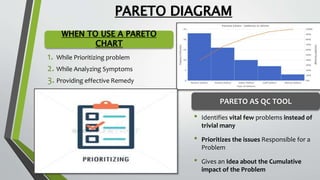
1. While Prioritizing problem
2. While Analyzing Symptoms
3. Providing effective Remedy
• Identifies vital few problems instead of
trivial many
• Prioritizes the issues Responsible for a
Problem
• Gives an Idea about the Cumulative
impact of the Problem
WHEN TO USE A PARETO
CHART
PARETO AS QC TOOL
HOW TO DRAW THE PARETO CHART ON
EXCEL
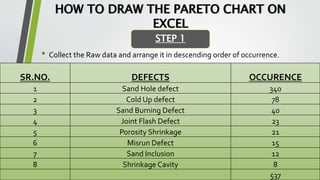
• Collect the Raw data and arrange it in descending order of occurrence.
STEP 1
SR.NO. DEFECTS OCCURENCE
1 Sand Hole defect 340
2 Cold Up defect 78
3 Sand Burning Defect 40
4 Joint Flash Defect 23
5 Porosity Shrinkage 21
6 Misrun Defect 15
7 Sand Inclusion 12
8 Shrinkage Cavity 8
537
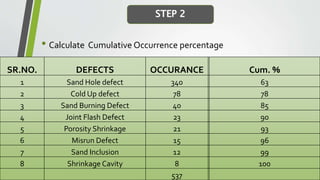
• Calculate Cumulative Occurrence percentage
STEP 2
SR.NO. DEFECTS OCCURANCE Cum. %
1 Sand Hole defect 340 63
2 Cold Up defect 78 78
3 Sand Burning Defect 40 85
4 Joint Flash Defect 23 90
5 Porosity Shrinkage 21 93
6 Misrun Defect 15 96
7 Sand Inclusion 12 99
8 Shrinkage Cavity 8 100
537
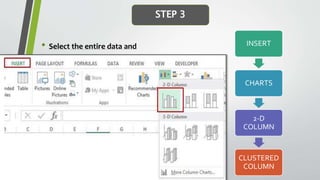
• Select the entire data and
STEP 3
INSERT
CHARTS
2-D
COLUMN
CLUSTERED
COLUMN
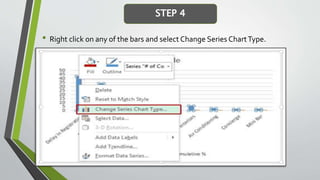
• Right click on any of the bars and select Change Series ChartType.
STEP 4
• In the Change ChartType dialogue box,
select Combo in the left pane.
• Make the following changes:
• # of Complaints:Clustered Column.
• Cumulative %: Line (also check the Secondary
Axis check box)
STEP 5
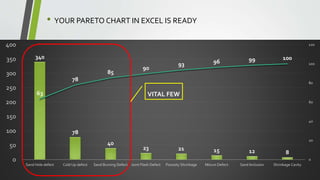
• YOUR PARETO CHART IN EXCEL IS READY
340
78
40
23 21 15 12 8
63
78
85
90
93 96 99 100
0
20
40
60
80
100
120
0
50
100
150
200
250
300
350
400
Sand Hole defect Cold Up defect Sand Burning Defect Joint Flash Defect Porosity Shrinkage Misrun Defect Sand Inclusion Shrinkage Cavity
VITAL FEW

Pareto Chart Overview

  • 1.
  • 2.
    PARETO DIAGRAM • ParetoAnalysis is a ranked comparison of factors related to a quality problem. • It is a combination of Bar chart and line graph, where bar chart represents actual data in descending order and line graph represents cumulative data in ascending order • The purpose of this diagram is to bifurcate the major problems in a process from the trivial ones • This makes the user focus the efforts where they can have highest potential of impact • It works on the 80-20 Principle, meaning the 20% of the causes are leading to 80% of the problems • This was discovered by Italian economist Vilfredo Pareto.
  • 3.
    THE 80 20PRINCIPLE WITH EXAMPLES • The PARETO CHART follows the 80-20 Principle • The principle states that 80% of the problems are due to 20% of the causes • It helps in identifying the Vital Few from the Trivial Many • Helps focusing on what really matters • Examples- • 20% of the car drivers cause 80% of accidents • 80% of wealth belongs to 20% of population • 20% of time spent on a task leads to 20% of customers
  • 4.
    PARETO DIAGRAM 1. WhilePrioritizing problem 2. While Analyzing Symptoms 3. Providing effective Remedy • Identifies vital few problems instead of trivial many • Prioritizes the issues Responsible for a Problem • Gives an Idea about the Cumulative impact of the Problem WHEN TO USE A PARETO CHART PARETO AS QC TOOL
  • 5.
    HOW TO DRAWTHE PARETO CHART ON EXCEL • Collect the Raw data and arrange it in descending order of occurrence. STEP 1 SR.NO. DEFECTS OCCURENCE 1 Sand Hole defect 340 2 Cold Up defect 78 3 Sand Burning Defect 40 4 Joint Flash Defect 23 5 Porosity Shrinkage 21 6 Misrun Defect 15 7 Sand Inclusion 12 8 Shrinkage Cavity 8 537
  • 6.
    • Calculate CumulativeOccurrence percentage STEP 2 SR.NO. DEFECTS OCCURANCE Cum. % 1 Sand Hole defect 340 63 2 Cold Up defect 78 78 3 Sand Burning Defect 40 85 4 Joint Flash Defect 23 90 5 Porosity Shrinkage 21 93 6 Misrun Defect 15 96 7 Sand Inclusion 12 99 8 Shrinkage Cavity 8 100 537
  • 7.
    • Select theentire data and STEP 3 INSERT CHARTS 2-D COLUMN CLUSTERED COLUMN
  • 8.
    • Right clickon any of the bars and select Change Series ChartType. STEP 4
  • 9.
    • In theChange ChartType dialogue box, select Combo in the left pane. • Make the following changes: • # of Complaints:Clustered Column. • Cumulative %: Line (also check the Secondary Axis check box) STEP 5
  • 10.
    • YOUR PARETOCHART IN EXCEL IS READY 340 78 40 23 21 15 12 8 63 78 85 90 93 96 99 100 0 20 40 60 80 100 120 0 50 100 150 200 250 300 350 400 Sand Hole defect Cold Up defect Sand Burning Defect Joint Flash Defect Porosity Shrinkage Misrun Defect Sand Inclusion Shrinkage Cavity VITAL FEW