Page 1 Planning LTE Network Deployments Introduction LTE
(Long Term Evolution) is the 4th Generation (4G) technology
comprising of Evolved UMTS Terrestrial Radio Access Network
(E-UTRAN) and Evolved Packet System (EPS) components.
LTE brings speeds up to 300 Mbps for roaming users needing
wireless access Internet. LTE is the next generation technology
of the popular and widely deployed 3G technology UMTS, and
is being developed by the 3rd Generation Partnership Project
(3GPP), a worldwide standards body comprising of service
providers, equipment manufacturers, and R&D institutions. As
the wireless access technology continues to evolve and become
more flexible, planning and predicting performance of such
networks becomes a challenging task. Often claims made in the
popular media about the speed, scalability and reliability of the
LTE networks are purely theoretical in nature, and the actual
performance of these networks depends upon a myriad of
factors. Understanding such factors and designing network
deployments to achieve the maximal performance out of the
given resources is indeed a critical task. In this lab exercise, we
will study how OPNET Modeler/Guru can be used as a planning
tool. We will use out-of-the-box reports, statistics, and other
software tools to understand the network performance and how
it relates to the LTE technology itself. Using planning
workflows, we will optimize network parameters to achieve
target objectives. The labs make use of OPNET Modeler/Guru,
the Wireless module, and the specialized LTE model to perform
this planning exercise. Lab 1: LTE Cell Planning Study
Overview In this lab, we will deploy an LTE cell in OPNET
Modeler/Guru and analyze how to determine and set the cell
range. You will understand how interference can affect cell
range. In the optional lab, we will study an “efficiency-based”
workflow, in which setting certain attributes in the simulations
and running them without the physical layer (efficiency mode)
speeds up the simulation considerably. Methodology • Use the
wireless network wizard to deploy an LTE network •
Understand how to find and set up the range of the LTE cell •
Understand how to speed up the LTE simulations for planning
studies intended for large networks (optional/take home lab)
Part I 1. Start OPNET Modeler/Guru. a. Double-click on the
OPNET Modeler/Guru icon on the desktop. 2. You will deploy a
single cell LTE network with a single end user in this scenario
using the Wireless Deployment Wizard. 3. Deploy a simple LTE
network with a single cell and a single end user using the
wizard. a. Choose the menu option Topology > Deploy Wireless
Network. Click Continue in the dialog box. Page 2 b. The option
“Use wizard to provide network specifications” should already
be selected. Click Next. c. Click on “Create network in current
subnet” and change the X coordinate to 0 as shown. Click Next.
d. In the dialog box, select LTE from the “Choose technology”
drop-down menu, and change the “PHY Profile” to “LTE 3 MHz
FDD” as shown. Click Next. e. Change the “Number of Cells”
to 1, and the “Cell Radius (km)” to 3.00 km as shown. Click
Next. Page 3 f. In the next dialog box, change the UE Count
per-cell to 1 and the UE Node Name Prefix to UE as shown.
Click Next. g. We will not deploy random mobility on the UE.
In the next dialog box, click on the cell below Trajectory
Information to highlight it. Then click on the button Delete
Row. Click Next. h. The summary should look like the figure
below. Click Finish. The single cell LTE network with 1 UE
will be deployed. Page 4 4. In this exercise, we will study how
to find and set up the range of the LTE cell. We will position
the UE close to the eNodeB, and then deploy a trajectory that
takes it away towards the cell edge. We will also deploy an
application on this user. a. Right-click on UE_0_1_1 and select
Edit Attributes. Click on the box Advanced in the bottom.
Change the attribute “x position” to 100 and “y position” to 0.
Change the trajectory attribute to tr1. Click OK to save changes.
b. Connect an external host: An external host will run FTP and
voice application services. Click on the object palette button ( ).
In the object palette window, under the group internet toolbox,
find ppp_wkstn node model. It appears on the right-hand pane
in the window. Click on the node to select it, and click beside
the EPC node in the project editor to place the node. Right-click
in the project editor to discontinue any more node placements.
Page 5 In the object palette window, scroll down and find the
link model PPP_DS3. Select it, and click on node_0 and EPC_0
to connect the nodes with the link. Right-click in the project
editor to discontinue any more actions. Click the button Close
to shut the object palette window. c. Deploy application profile:
In the project editor window, press Ctrl+Alt+A (or alternatively
click Protocols > Applications > Deploy Defined Applications).
d. In the dialog box that opens, deploy the FTP and voice
applications. UE_0_1_1 will be the source. To configure this,
select UE_0_1_1 in the left, and select the “No nodes assigned
yet” under Profile:”Cell_User” -> Source on the right. e. Click
the assignment button ( ). Both FTP and voice services are run
on node_0, so select node_0 on the left and select first “No
nodes assigned yet” under Tier: “Voice Destination”. f. Click
the assignment button ( ). Then, select “No nodes assigned yet”
under Tier: ‘FTP Server”. Click the assignment button ( ). The
end result is as shown in the next figure. Click OK to close the
window. g. Enable application delay tracking (used in step 6).
Right-click on UE_0_1_1, and select Edit Attributes. Go to
Application: Supported Profiles > Cell_User and set the
attribute Application Delay Tracking to Enabled as shown
below. Page 6 h. Disable multipath from the physical layer:
Right-click on UE_0_1_1, and select Edit Attributes. Navigate
to LTE > PHY and set Multipath Channel Model to Disabled.
Click OK to close the window. i. Click the running man icon to
run the simulation. Click the Run button in the dialog box. j.
When the simulation run is finished, click the Close button in
the DES execution window. 5. Analyze results. a. There are
some saved results panel templates in this scenario. In the
project editor, click the button “Hide/Show Graph Panels”.
There are seven panels. If they are not laid out neatly in a grid,
maximize the project window, and click DES > Panel
Operations > Arrange Panels > Tile. Finally, click DES > Panel
Operations > Panel Templates > Load With Latest Results. b.
The range of the LTE cell: We can say that as long as the user
continues to enjoy a good reception, the UE will be “in range”.
The results should show both voice and FTP applications
behaving well (voice MOS value is above 4, and FTP delays are
well under 1 second) even if the UE has moved away to about
5000 km, whereas we deployed a cell with 3 km “range”. c.
Link adaptation: The LTE eNodeB performs a strategy called
link adaptation to keep the receiver in good quality even as it is
moving away. Link adaptation is dynamic, and it basically
packs the same user data into more radio resources to improve
the quality of reception. LTE supports 29 link adaptation values
(also called Modulation and Coding Scheme or MCS index),
with 0 being the most conservative (for the farthest users), and
28 being the most aggressive. An aggressive MCS index
indicates that there is plenty of leeway to perform link
adaptation by reducing the MCS index of the UE. i. Quiz: What
are the MCS indexes of the UE for both the uplink and downlink
at 5000 km from the eNodeB? uplink downlink (Hint: The
uplink MCS index is identified by “Uplink MCS Index” and the
downlink MCS index is identified by “Best Operational
Wideband MCS Index”.) ii. Since the MCS indexes are still
high, it means that the range perceived by the users is much
higher than the original 3 km that we intended. d. One strategy
to define the cell range as follows: If a UE has good application
performance at a given distance from the eNodeB, and its MCS
indexes achieve a more conservative value, then that distance
shall be called the “cell range”. Page 7 e. What are the
attributes to adjust the cell range? By changing the transmission
powers on the UE and the eNodeB, we can change the LTE cell
range. f. What are the potential advantages and disadvantages of
limiting the transmission power to define the cell range? g. The
default transmission power: In step 3, the transmission power
was left to “Cell Size Based” in the wireless wizard. However
for the single cell scenario, we argued that it was too high. How
was the transmission power set automatically in the first place?
i. Answer: ? 6. A deeper examination of FTP delays: LTE
supports the application delay tracking of FTP application.
Application delay tracking tracks an application packet through
the entire network, right down to the byte range application
payload. This information can help understand low level details
that are not readily visible in DES statistics and reports. a.
Click on DES > Results > View Application Delay Tracking in
the project editor. b. Click on the op_models tab in the left. c.
Choose the file 1599_lab1-single_cell_baseline-DES-1.adt, and
click on the button Open. i. Users running the reference project
should select the file 1599_lab1_ref- single_cell_baseline-DES-
1.adt. d. Examine the contents of the ADT file in the graphical
window by progressively going into each transaction and each
message of the FTP application as shown. In particular, examine
the LTE link between the eNodeB and the UE in the message,
and click Show more precision at the bottom. First examine
transaction number 1 (the very first transaction), message 2, and
the last link between the eNodeB and the UE as shown in the
picture. Advantages Disadvantages Users can conserve their
battery by limiting transmission power Users may experience
worse performance as they move away Less interference for
neighboring cells eNodeB spends more radio resources to
maintain an acceptable quality for the “edge users” Page 8 e.
The higher layer application packet is chopped into smaller
segments by the LTE scheduler. f. LTE scheduler operates every
1 ms, as seen from the results. g. Within a single subframe, the
LTE scheduler may create 1 or more packets for the same UE
and pack them into a single MAC Protocol Data Unit (MPDU),
as is evident from the results. i. Quiz: At what time, the first
message was sent by the eNodeB and what time the last message
was sent? , ii. Quiz: Check the Duration column against
message 2. How much time was spent in order to deliver this
message? in LTE? How much of it is encountered iii. Quiz:
Check the Duration column against the entire transaction. How
much time was spent to complete this first transaction? By
looking at the FTP delays on the statistics, can you tell whether
the delays as shown by the ADT look similar? h. Now scroll
down and go to the very last transaction when the UE
(transaction 584). i. Quiz: The delay for the entire transaction is
now changed? Is this change expected? ii. Quiz: Check the
Duration for message 2. It is the first transaction? . Page 9
Quiz: Dig into the last LTE link of the message 2 of this
transaction. There are 2 entries as shown in the picture below.
What are the dropped packets? Answer: ? iv. Quiz: How did the
dropped packets get retransmitted and when? . How have the
delays . How has it changed since g. The default transmission
power: In step 3, the transmission power was left to “Cell Size
Based” in the wireless wizard. However for the single cell
scenario, we argued that it was too high. How was the
transmission power set automatically in the first place? i.
Answer: ? 1. Answer: ? v. Quiz: Compared to the very first
transaction, how have the number of segments changed? 1.
Answer: ? i. You may browse into this file more. When done,
click the button Close. Setting the eNodeB and UE
Transmission Powers for a 3 Km cell Range We will now adjust
the transmission powers at the UE and the eNodeB, and then
select an appropriate value that corresponds to a 3 Km cell
range. Switch to scenario single_cell_reduced_power. If you
choose to follow the reference project then go to step 8. 7.
Creating a parametric run: We will run multiple simulations by
changing the transmission power attribute of the eNodeB and
the UE. a. Right-click on the UE_0_1_1 node and select Edit
Attributes. If the UE icon is too small, click View > Show
Network Browser, and find the UE_0_1_1 node on the left hand
side. Right-click on the node there. b. Right-click against the
value cell of LTE>PHY>Maximum Transmission Power (W) and
select Promote Attribute To Higher Level. Click OK to close the
window. Page 10 c. Repeat steps a and b for eNodeB_1. d. Click
on the running man icon and navigate to Inputs/Object
Attributes. e. Click in the first row beneath the column
Attribute. In the window that opens, the second row is the
attribute for Maximum Transmission Power (W) of all nodes.
Add it as shown. Click OK to close the attribute add window. f.
In the original DES execution window, click in the cell below
the Value column and click the button Enter Multiple Values…
Enter the following values as shown. i. Quiz: The transmission
power is reduced from mW to mW. Click OK to close the
window. Click Run in the original DES execution window to
run the simulation. 6 DES simulations should be executed. 8.
Analyze Results: a. Click Close to shut the execution manager
window. Click the button “Hide/Show Graph Panels” and click
DES > Panel Operations > Panel Templates > Load With Latest
Results. b. Use the time controller feature to find the UE’s
application performance at the edge of the cell (3 Km). Move
the panels around so that the menu bar and the LTE network are
visible in the project editor. Click View > Show Time
Controller. Click on the button Configure and uncheck Start
modeling at time, if it is checked. Click OK to close the
configuration window. Move the sliding window using your
mouse, and stop when the UE is at approximately 3 Km. Check
the position of the thick green lines on the results. Page 11
Answer: Include the results from OPNET here c. FTP delays are
still sub-second, and MOS values for the voice are still above
4.0 for all values of transmission powers. For the last value (0.5
mW), we can observe that MOS values are very close to being
going under 4.0, and any further reduction in transmission
power would have that effect on the cell edge. d. MCS indexes:
For the last transmission power value (0.5 mW), the uplink
MCS index is 13, and the downlink MCS index is 12. These
values are acceptable at the cell edge. Answer: Include the
results from OPNET here e. Quiz: For a 3 Km cell range, can
we reduce the transmission power to 0.5 mW? Answer: ?.
Studying the Effects of Inter-cell Interference on Application
Performance 9. Switch to scenario multi_cell_interference. In
this scenario, there are three cells and one UE per cell. In Cell
1, Mobile_0_1_1 is running both FTP and Voice applications.
Mobile_0_1_1 is located nearby eNodeB_1 but it is also
assigned a trajectory. The trajectory is set such that
Mobile_0_1_1 will be moving away from eNodeB_1 towards the
cell boundary between eNodeB_1 and eNodeB_2. In this part of
the lab, we want to study the effects of inter-cell interference.
Therefore the UEs in other cells are assigned both uplink and
downlink IP traffic flows so that they can act as interferers. The
IP traffic flows are scalable. We will scale up the IP traffic in
each run to see the effect of increasing interference. In each
simulation run, the interference will also increase as
Mobile_0_1_1 moves away from eNodeB_1. Page 12 10. The
network model is completely setup. We only need to enter how
we want to scale up the IP traffic flows. a. Click on the running
man icon and navigate to Inputs > Global Attributes. b. On the
right, select the global attribute Traffic >Traffic Scaling Factor,
and click on Enter Multiple Values. Enter 4 values in this order:
1, 4, 10 and 50 (The base traffic is 10 Kbps). c. Click OK to
confirm. Make sure the settings look as shown below: d. Click
Run in the Configure/Run DES execution window to run the
simulations. Four simulations should be executed. 11. Analyze
Results: a. Click Close to shut the execution manager window.
Click the button “Hide/Show Graph Panels” and choose DES >
Panel Operations > Panel Templates > Load With Latest
Results. Answer: Include the results from OPNET here. b.
Notice that as interference traffic scales up, application
performance degrades and the UE’s MCS index becomes worse
with increasing traffic. Thus in the presence of interfering
sources, single cell based cell planning studies need to be
modified. In the present scenario, the cell radius estimate needs
to be adjusted and the transmission power needs to be scaled up
appropriately to account for the interfering traffic. c. The FTP
performance is acceptable for the first 3 values of traffic but
degrades very quickly for the last value. What can be done to
make things better? i. Take home exercise: First increase the
power of Mobile_0_1_1 to its default value of 0.0152 W. Then
increase the power of eNodeB_1 to its default value of 0.0334.
Increasing the power in the serving cell to combat interference
makes the application performance better. Similar to how it was
done in the second part, conduct a parametric study to find the
optimal power setting in this scenario. Page 13 Using the
Efficiency Mode to Speed Up Simulations (Take
Home/Optional) Running simulations that consider the entire
physical layer effects can be intensive with respect to
simulation speed and memory. There is an alternative way to
run simulations in LTE – called Efficiency Mode. In the
efficiency mode, random packet drop probability can be pre-
configured. The strategy for using efficiency mode for LTE
simulations is as follows: a) Configure an appropriate packet
drop probability, and b) configure appropriate MCS indexes on
the UEs. The link adaptation procedure in the physical layer can
compute MCS indexes automatically, but for the efficiency
mode, they should be pre-configured. Efficiency based
simulations can be the logical next step after the cell planning
exercise. Once you plan the cell and, through statistics,
understand how an “average UE” behaves, it is possible to
parameterize this average behavior as efficiency mode inputs
and run the simulations much faster while maintaining accuracy
at the cell level. 12. Switch to scenario multi_cell_phy, using a
scenario with physical layer effects. a. In this scenario, there
are seven cells and five UEs per cell. The UEs run a mixture of
voice and FTP applications. This scenario has already been
executed and the panels have been saved. b. Click the Hide >
Show Graph Panels button to activate the panels. Uplink and
Downlink BLER statistics have been collected for the center
cell, and they both converge to about 0.4 as shown in the
panels. Answer: Include the results from OPNET here. Also, the
MCS index statistics are collected for the UEs in the center cell
for both uplink and downlink. Answer: Include the results from
OPNET here. As shown, the node UE_0_1_1 achieves a high
MCS index of 28, since it is close to the eNodeB. The remaining
UEs achieve an MCS index of around 10 on the downlink and
16 on the uplink. Finally, we collect the load and throughput as
well as utilization statistics at eNodeB_1. Answer: Include the
results from OPNET here. The throughout (traffic received on
the uplink) is around 200 Kbps, while the load is around 1.2
Mbps on average. Correspondingly, the PUSCH utilization is
about 20% and the PDSCH utilization is around 60%. 13. In the
DES log, find out the number of events and the total time it
took to run this simulation. Choose DES > Open DES Log and
scroll to the right. Click in the last row under the Message
column to open the DES log as shown. Page 14 The simulation
executed 124.2 million events and took 6 minutes 40 seconds
for simulation time of 150 seconds. The memory consumed was
71.6 MB. Note: The time it takes on your machine may be
different depending upon the speed and set up of your machine.
14. Switch to scenario multi_cell_eff. We will configure this
scenario with appropriate input parameters so it gives us a
similar performance. We will only focus upon the center cell. a.
First, configure the simulation to run in the efficiency mode and
appropriate packet drop statistics. Right-click on the LTE
configuration node, and select Edit Attributes. Expand
Efficiency Attributes, and set the Mode to PHY Disabled. Set
the Initial MPDU Drop Probability to 0.4. i. Because subsequent
HARQ retransmissions increase the probability of detection of a
packet, we model this behavior by a parameter called
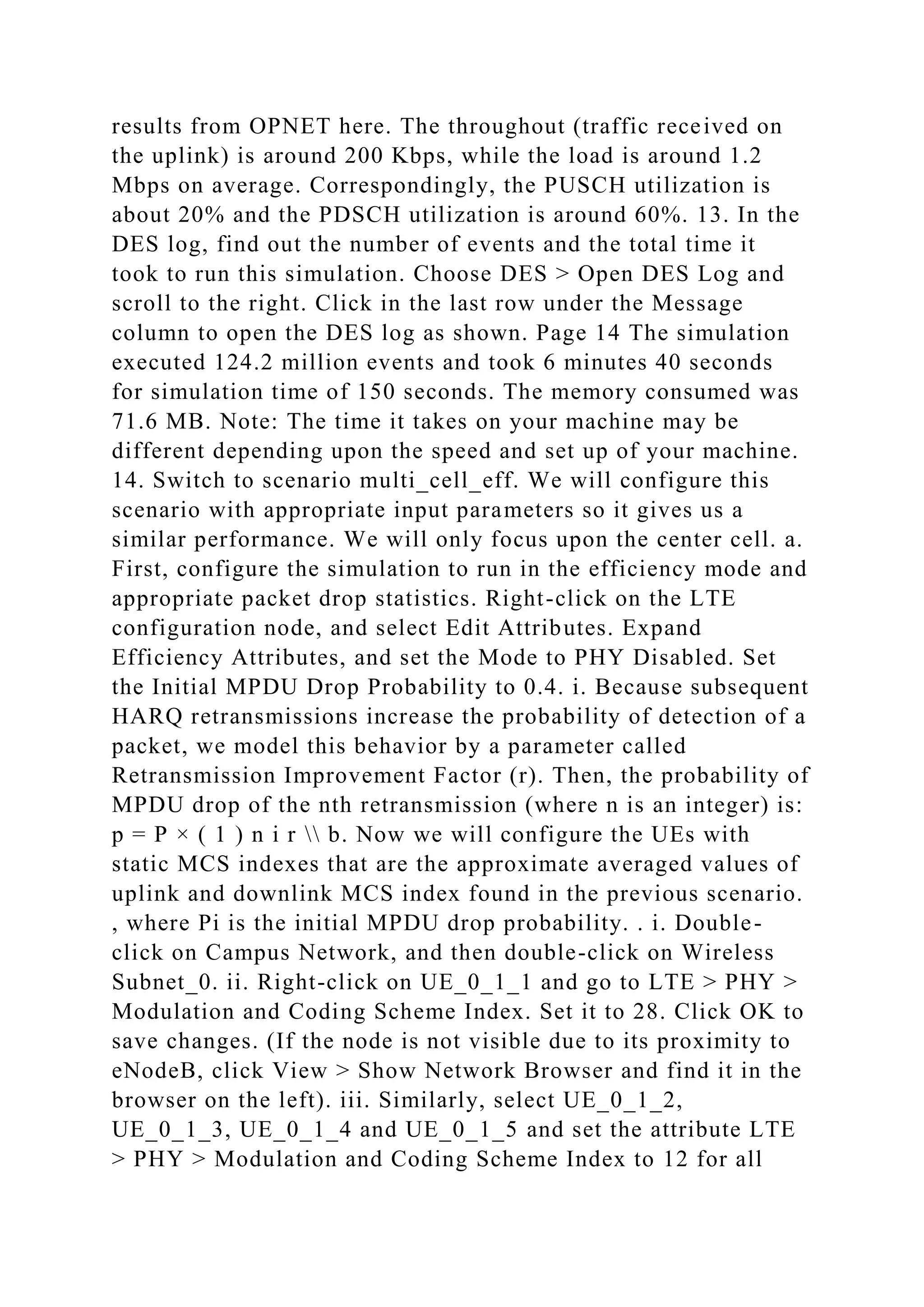
Retransmission Improvement Factor (r). Then, the probability of
MPDU drop of the nth retransmission (where n is an integer) is:
p = P × ( 1 ) n i r  b. Now we will configure the UEs with
static MCS indexes that are the approximate averaged values of
uplink and downlink MCS index found in the previous scenario.
, where Pi is the initial MPDU drop probability. . i. Double-
click on Campus Network, and then double-click on Wireless
Subnet_0. ii. Right-click on UE_0_1_1 and go to LTE > PHY >
Modulation and Coding Scheme Index. Set it to 28. Click OK to
save changes. (If the node is not visible due to its proximity to
eNodeB, click View > Show Network Browser and find it in the
browser on the left). iii. Similarly, select UE_0_1_2,
UE_0_1_3, UE_0_1_4 and UE_0_1_5 and set the attribute LTE
> PHY > Modulation and Coding Scheme Index to 12 for all
those UEs. Page 15 c. Click on the running man icon and
execute the simulation. When done, click on Hide > Show
Graph Panels and click DES > Panel Operations > Panel
Templates > Load With Latest Results. The channel utilization
statistics are similar (since we specified a single MCS index
instead of 2 separate MCS indexes for the uplink and downlink,
there are some differences). Answer: Include the results from
OPNET here. The load throughput statistics for the eNodeB_1
are also similar. Answer: Include the results from OPNET here.
Finally, the cell delays are also similar. Answer: Include the
results from OPNET here. d. Thus, the overall performance is
similar to what it was for the physical layer enabled case. Now
open the DES log by clicking DES > Open DES Log, and again
click in the row under Message, as shown, by scrolling to the
right. Compared to the physical layer, how does the speed and
memory behave for the efficiency level case? Total events Total
time Memory Physical layer 124.2 Million 71.6 MB No physical
layer 10.3 Million 62.8 MB Due to the higher order scale of a
simulation running the physical layer, the gap between
efficiency case and physical layer case will increase with larger
scenarios. Conclusion It is possible to rapidly deploy and
analyze LTE networks in OPNET Modeler/Guru. Answer:
Include your conclusions about this lab here. Submit a complete
report including all results.

Page 1 Planning LTE Network Deployments Introduction LTE (Long Term .docx

  • 1.
    Page 1 PlanningLTE Network Deployments Introduction LTE (Long Term Evolution) is the 4th Generation (4G) technology comprising of Evolved UMTS Terrestrial Radio Access Network (E-UTRAN) and Evolved Packet System (EPS) components. LTE brings speeds up to 300 Mbps for roaming users needing wireless access Internet. LTE is the next generation technology of the popular and widely deployed 3G technology UMTS, and is being developed by the 3rd Generation Partnership Project (3GPP), a worldwide standards body comprising of service providers, equipment manufacturers, and R&D institutions. As the wireless access technology continues to evolve and become more flexible, planning and predicting performance of such networks becomes a challenging task. Often claims made in the popular media about the speed, scalability and reliability of the LTE networks are purely theoretical in nature, and the actual performance of these networks depends upon a myriad of factors. Understanding such factors and designing network deployments to achieve the maximal performance out of the given resources is indeed a critical task. In this lab exercise, we will study how OPNET Modeler/Guru can be used as a planning tool. We will use out-of-the-box reports, statistics, and other software tools to understand the network performance and how it relates to the LTE technology itself. Using planning workflows, we will optimize network parameters to achieve target objectives. The labs make use of OPNET Modeler/Guru, the Wireless module, and the specialized LTE model to perform this planning exercise. Lab 1: LTE Cell Planning Study Overview In this lab, we will deploy an LTE cell in OPNET Modeler/Guru and analyze how to determine and set the cell range. You will understand how interference can affect cell range. In the optional lab, we will study an “efficiency-based” workflow, in which setting certain attributes in the simulations and running them without the physical layer (efficiency mode) speeds up the simulation considerably. Methodology • Use the wireless network wizard to deploy an LTE network •
  • 2.
    Understand how tofind and set up the range of the LTE cell • Understand how to speed up the LTE simulations for planning studies intended for large networks (optional/take home lab) Part I 1. Start OPNET Modeler/Guru. a. Double-click on the OPNET Modeler/Guru icon on the desktop. 2. You will deploy a single cell LTE network with a single end user in this scenario using the Wireless Deployment Wizard. 3. Deploy a simple LTE network with a single cell and a single end user using the wizard. a. Choose the menu option Topology > Deploy Wireless Network. Click Continue in the dialog box. Page 2 b. The option “Use wizard to provide network specifications” should already be selected. Click Next. c. Click on “Create network in current subnet” and change the X coordinate to 0 as shown. Click Next. d. In the dialog box, select LTE from the “Choose technology” drop-down menu, and change the “PHY Profile” to “LTE 3 MHz FDD” as shown. Click Next. e. Change the “Number of Cells” to 1, and the “Cell Radius (km)” to 3.00 km as shown. Click Next. Page 3 f. In the next dialog box, change the UE Count per-cell to 1 and the UE Node Name Prefix to UE as shown. Click Next. g. We will not deploy random mobility on the UE. In the next dialog box, click on the cell below Trajectory Information to highlight it. Then click on the button Delete Row. Click Next. h. The summary should look like the figure below. Click Finish. The single cell LTE network with 1 UE will be deployed. Page 4 4. In this exercise, we will study how to find and set up the range of the LTE cell. We will position the UE close to the eNodeB, and then deploy a trajectory that takes it away towards the cell edge. We will also deploy an application on this user. a. Right-click on UE_0_1_1 and select Edit Attributes. Click on the box Advanced in the bottom. Change the attribute “x position” to 100 and “y position” to 0. Change the trajectory attribute to tr1. Click OK to save changes. b. Connect an external host: An external host will run FTP and voice application services. Click on the object palette button ( ). In the object palette window, under the group internet toolbox,
  • 3.
    find ppp_wkstn nodemodel. It appears on the right-hand pane in the window. Click on the node to select it, and click beside the EPC node in the project editor to place the node. Right-click in the project editor to discontinue any more node placements. Page 5 In the object palette window, scroll down and find the link model PPP_DS3. Select it, and click on node_0 and EPC_0 to connect the nodes with the link. Right-click in the project editor to discontinue any more actions. Click the button Close to shut the object palette window. c. Deploy application profile: In the project editor window, press Ctrl+Alt+A (or alternatively click Protocols > Applications > Deploy Defined Applications). d. In the dialog box that opens, deploy the FTP and voice applications. UE_0_1_1 will be the source. To configure this, select UE_0_1_1 in the left, and select the “No nodes assigned yet” under Profile:”Cell_User” -> Source on the right. e. Click the assignment button ( ). Both FTP and voice services are run on node_0, so select node_0 on the left and select first “No nodes assigned yet” under Tier: “Voice Destination”. f. Click the assignment button ( ). Then, select “No nodes assigned yet” under Tier: ‘FTP Server”. Click the assignment button ( ). The end result is as shown in the next figure. Click OK to close the window. g. Enable application delay tracking (used in step 6). Right-click on UE_0_1_1, and select Edit Attributes. Go to Application: Supported Profiles > Cell_User and set the attribute Application Delay Tracking to Enabled as shown below. Page 6 h. Disable multipath from the physical layer: Right-click on UE_0_1_1, and select Edit Attributes. Navigate to LTE > PHY and set Multipath Channel Model to Disabled. Click OK to close the window. i. Click the running man icon to run the simulation. Click the Run button in the dialog box. j. When the simulation run is finished, click the Close button in the DES execution window. 5. Analyze results. a. There are some saved results panel templates in this scenario. In the project editor, click the button “Hide/Show Graph Panels”. There are seven panels. If they are not laid out neatly in a grid, maximize the project window, and click DES > Panel
  • 4.
    Operations > ArrangePanels > Tile. Finally, click DES > Panel Operations > Panel Templates > Load With Latest Results. b. The range of the LTE cell: We can say that as long as the user continues to enjoy a good reception, the UE will be “in range”. The results should show both voice and FTP applications behaving well (voice MOS value is above 4, and FTP delays are well under 1 second) even if the UE has moved away to about 5000 km, whereas we deployed a cell with 3 km “range”. c. Link adaptation: The LTE eNodeB performs a strategy called link adaptation to keep the receiver in good quality even as it is moving away. Link adaptation is dynamic, and it basically packs the same user data into more radio resources to improve the quality of reception. LTE supports 29 link adaptation values (also called Modulation and Coding Scheme or MCS index), with 0 being the most conservative (for the farthest users), and 28 being the most aggressive. An aggressive MCS index indicates that there is plenty of leeway to perform link adaptation by reducing the MCS index of the UE. i. Quiz: What are the MCS indexes of the UE for both the uplink and downlink at 5000 km from the eNodeB? uplink downlink (Hint: The uplink MCS index is identified by “Uplink MCS Index” and the downlink MCS index is identified by “Best Operational Wideband MCS Index”.) ii. Since the MCS indexes are still high, it means that the range perceived by the users is much higher than the original 3 km that we intended. d. One strategy to define the cell range as follows: If a UE has good application performance at a given distance from the eNodeB, and its MCS indexes achieve a more conservative value, then that distance shall be called the “cell range”. Page 7 e. What are the attributes to adjust the cell range? By changing the transmission powers on the UE and the eNodeB, we can change the LTE cell range. f. What are the potential advantages and disadvantages of limiting the transmission power to define the cell range? g. The default transmission power: In step 3, the transmission power was left to “Cell Size Based” in the wireless wizard. However for the single cell scenario, we argued that it was too high. How
  • 5.
    was the transmissionpower set automatically in the first place? i. Answer: ? 6. A deeper examination of FTP delays: LTE supports the application delay tracking of FTP application. Application delay tracking tracks an application packet through the entire network, right down to the byte range application payload. This information can help understand low level details that are not readily visible in DES statistics and reports. a. Click on DES > Results > View Application Delay Tracking in the project editor. b. Click on the op_models tab in the left. c. Choose the file 1599_lab1-single_cell_baseline-DES-1.adt, and click on the button Open. i. Users running the reference project should select the file 1599_lab1_ref- single_cell_baseline-DES- 1.adt. d. Examine the contents of the ADT file in the graphical window by progressively going into each transaction and each message of the FTP application as shown. In particular, examine the LTE link between the eNodeB and the UE in the message, and click Show more precision at the bottom. First examine transaction number 1 (the very first transaction), message 2, and the last link between the eNodeB and the UE as shown in the picture. Advantages Disadvantages Users can conserve their battery by limiting transmission power Users may experience worse performance as they move away Less interference for neighboring cells eNodeB spends more radio resources to maintain an acceptable quality for the “edge users” Page 8 e. The higher layer application packet is chopped into smaller segments by the LTE scheduler. f. LTE scheduler operates every 1 ms, as seen from the results. g. Within a single subframe, the LTE scheduler may create 1 or more packets for the same UE and pack them into a single MAC Protocol Data Unit (MPDU), as is evident from the results. i. Quiz: At what time, the first message was sent by the eNodeB and what time the last message was sent? , ii. Quiz: Check the Duration column against message 2. How much time was spent in order to deliver this message? in LTE? How much of it is encountered iii. Quiz: Check the Duration column against the entire transaction. How much time was spent to complete this first transaction? By
  • 6.
    looking at theFTP delays on the statistics, can you tell whether the delays as shown by the ADT look similar? h. Now scroll down and go to the very last transaction when the UE (transaction 584). i. Quiz: The delay for the entire transaction is now changed? Is this change expected? ii. Quiz: Check the Duration for message 2. It is the first transaction? . Page 9 Quiz: Dig into the last LTE link of the message 2 of this transaction. There are 2 entries as shown in the picture below. What are the dropped packets? Answer: ? iv. Quiz: How did the dropped packets get retransmitted and when? . How have the delays . How has it changed since g. The default transmission power: In step 3, the transmission power was left to “Cell Size Based” in the wireless wizard. However for the single cell scenario, we argued that it was too high. How was the transmission power set automatically in the first place? i. Answer: ? 1. Answer: ? v. Quiz: Compared to the very first transaction, how have the number of segments changed? 1. Answer: ? i. You may browse into this file more. When done, click the button Close. Setting the eNodeB and UE Transmission Powers for a 3 Km cell Range We will now adjust the transmission powers at the UE and the eNodeB, and then select an appropriate value that corresponds to a 3 Km cell range. Switch to scenario single_cell_reduced_power. If you choose to follow the reference project then go to step 8. 7. Creating a parametric run: We will run multiple simulations by changing the transmission power attribute of the eNodeB and the UE. a. Right-click on the UE_0_1_1 node and select Edit Attributes. If the UE icon is too small, click View > Show Network Browser, and find the UE_0_1_1 node on the left hand side. Right-click on the node there. b. Right-click against the value cell of LTE>PHY>Maximum Transmission Power (W) and select Promote Attribute To Higher Level. Click OK to close the window. Page 10 c. Repeat steps a and b for eNodeB_1. d. Click on the running man icon and navigate to Inputs/Object Attributes. e. Click in the first row beneath the column Attribute. In the window that opens, the second row is the
  • 7.
    attribute for MaximumTransmission Power (W) of all nodes. Add it as shown. Click OK to close the attribute add window. f. In the original DES execution window, click in the cell below the Value column and click the button Enter Multiple Values… Enter the following values as shown. i. Quiz: The transmission power is reduced from mW to mW. Click OK to close the window. Click Run in the original DES execution window to run the simulation. 6 DES simulations should be executed. 8. Analyze Results: a. Click Close to shut the execution manager window. Click the button “Hide/Show Graph Panels” and click DES > Panel Operations > Panel Templates > Load With Latest Results. b. Use the time controller feature to find the UE’s application performance at the edge of the cell (3 Km). Move the panels around so that the menu bar and the LTE network are visible in the project editor. Click View > Show Time Controller. Click on the button Configure and uncheck Start modeling at time, if it is checked. Click OK to close the configuration window. Move the sliding window using your mouse, and stop when the UE is at approximately 3 Km. Check the position of the thick green lines on the results. Page 11 Answer: Include the results from OPNET here c. FTP delays are still sub-second, and MOS values for the voice are still above 4.0 for all values of transmission powers. For the last value (0.5 mW), we can observe that MOS values are very close to being going under 4.0, and any further reduction in transmission power would have that effect on the cell edge. d. MCS indexes: For the last transmission power value (0.5 mW), the uplink MCS index is 13, and the downlink MCS index is 12. These values are acceptable at the cell edge. Answer: Include the results from OPNET here e. Quiz: For a 3 Km cell range, can we reduce the transmission power to 0.5 mW? Answer: ?. Studying the Effects of Inter-cell Interference on Application Performance 9. Switch to scenario multi_cell_interference. In this scenario, there are three cells and one UE per cell. In Cell 1, Mobile_0_1_1 is running both FTP and Voice applications. Mobile_0_1_1 is located nearby eNodeB_1 but it is also
  • 8.
    assigned a trajectory.The trajectory is set such that Mobile_0_1_1 will be moving away from eNodeB_1 towards the cell boundary between eNodeB_1 and eNodeB_2. In this part of the lab, we want to study the effects of inter-cell interference. Therefore the UEs in other cells are assigned both uplink and downlink IP traffic flows so that they can act as interferers. The IP traffic flows are scalable. We will scale up the IP traffic in each run to see the effect of increasing interference. In each simulation run, the interference will also increase as Mobile_0_1_1 moves away from eNodeB_1. Page 12 10. The network model is completely setup. We only need to enter how we want to scale up the IP traffic flows. a. Click on the running man icon and navigate to Inputs > Global Attributes. b. On the right, select the global attribute Traffic >Traffic Scaling Factor, and click on Enter Multiple Values. Enter 4 values in this order: 1, 4, 10 and 50 (The base traffic is 10 Kbps). c. Click OK to confirm. Make sure the settings look as shown below: d. Click Run in the Configure/Run DES execution window to run the simulations. Four simulations should be executed. 11. Analyze Results: a. Click Close to shut the execution manager window. Click the button “Hide/Show Graph Panels” and choose DES > Panel Operations > Panel Templates > Load With Latest Results. Answer: Include the results from OPNET here. b. Notice that as interference traffic scales up, application performance degrades and the UE’s MCS index becomes worse with increasing traffic. Thus in the presence of interfering sources, single cell based cell planning studies need to be modified. In the present scenario, the cell radius estimate needs to be adjusted and the transmission power needs to be scaled up appropriately to account for the interfering traffic. c. The FTP performance is acceptable for the first 3 values of traffic but degrades very quickly for the last value. What can be done to make things better? i. Take home exercise: First increase the power of Mobile_0_1_1 to its default value of 0.0152 W. Then increase the power of eNodeB_1 to its default value of 0.0334. Increasing the power in the serving cell to combat interference
  • 9.
    makes the applicationperformance better. Similar to how it was done in the second part, conduct a parametric study to find the optimal power setting in this scenario. Page 13 Using the Efficiency Mode to Speed Up Simulations (Take Home/Optional) Running simulations that consider the entire physical layer effects can be intensive with respect to simulation speed and memory. There is an alternative way to run simulations in LTE – called Efficiency Mode. In the efficiency mode, random packet drop probability can be pre- configured. The strategy for using efficiency mode for LTE simulations is as follows: a) Configure an appropriate packet drop probability, and b) configure appropriate MCS indexes on the UEs. The link adaptation procedure in the physical layer can compute MCS indexes automatically, but for the efficiency mode, they should be pre-configured. Efficiency based simulations can be the logical next step after the cell planning exercise. Once you plan the cell and, through statistics, understand how an “average UE” behaves, it is possible to parameterize this average behavior as efficiency mode inputs and run the simulations much faster while maintaining accuracy at the cell level. 12. Switch to scenario multi_cell_phy, using a scenario with physical layer effects. a. In this scenario, there are seven cells and five UEs per cell. The UEs run a mixture of voice and FTP applications. This scenario has already been executed and the panels have been saved. b. Click the Hide > Show Graph Panels button to activate the panels. Uplink and Downlink BLER statistics have been collected for the center cell, and they both converge to about 0.4 as shown in the panels. Answer: Include the results from OPNET here. Also, the MCS index statistics are collected for the UEs in the center cell for both uplink and downlink. Answer: Include the results from OPNET here. As shown, the node UE_0_1_1 achieves a high MCS index of 28, since it is close to the eNodeB. The remaining UEs achieve an MCS index of around 10 on the downlink and 16 on the uplink. Finally, we collect the load and throughput as well as utilization statistics at eNodeB_1. Answer: Include the
  • 10.
    results from OPNEThere. The throughout (traffic received on the uplink) is around 200 Kbps, while the load is around 1.2 Mbps on average. Correspondingly, the PUSCH utilization is about 20% and the PDSCH utilization is around 60%. 13. In the DES log, find out the number of events and the total time it took to run this simulation. Choose DES > Open DES Log and scroll to the right. Click in the last row under the Message column to open the DES log as shown. Page 14 The simulation executed 124.2 million events and took 6 minutes 40 seconds for simulation time of 150 seconds. The memory consumed was 71.6 MB. Note: The time it takes on your machine may be different depending upon the speed and set up of your machine. 14. Switch to scenario multi_cell_eff. We will configure this scenario with appropriate input parameters so it gives us a similar performance. We will only focus upon the center cell. a. First, configure the simulation to run in the efficiency mode and appropriate packet drop statistics. Right-click on the LTE configuration node, and select Edit Attributes. Expand Efficiency Attributes, and set the Mode to PHY Disabled. Set the Initial MPDU Drop Probability to 0.4. i. Because subsequent HARQ retransmissions increase the probability of detection of a packet, we model this behavior by a parameter called Retransmission Improvement Factor (r). Then, the probability of MPDU drop of the nth retransmission (where n is an integer) is: p = P × ( 1 ) n i r b. Now we will configure the UEs with static MCS indexes that are the approximate averaged values of uplink and downlink MCS index found in the previous scenario. , where Pi is the initial MPDU drop probability. . i. Double- click on Campus Network, and then double-click on Wireless Subnet_0. ii. Right-click on UE_0_1_1 and go to LTE > PHY > Modulation and Coding Scheme Index. Set it to 28. Click OK to save changes. (If the node is not visible due to its proximity to eNodeB, click View > Show Network Browser and find it in the browser on the left). iii. Similarly, select UE_0_1_2, UE_0_1_3, UE_0_1_4 and UE_0_1_5 and set the attribute LTE > PHY > Modulation and Coding Scheme Index to 12 for all
  • 11.
    those UEs. Page15 c. Click on the running man icon and execute the simulation. When done, click on Hide > Show Graph Panels and click DES > Panel Operations > Panel Templates > Load With Latest Results. The channel utilization statistics are similar (since we specified a single MCS index instead of 2 separate MCS indexes for the uplink and downlink, there are some differences). Answer: Include the results from OPNET here. The load throughput statistics for the eNodeB_1 are also similar. Answer: Include the results from OPNET here. Finally, the cell delays are also similar. Answer: Include the results from OPNET here. d. Thus, the overall performance is similar to what it was for the physical layer enabled case. Now open the DES log by clicking DES > Open DES Log, and again click in the row under Message, as shown, by scrolling to the right. Compared to the physical layer, how does the speed and memory behave for the efficiency level case? Total events Total time Memory Physical layer 124.2 Million 71.6 MB No physical layer 10.3 Million 62.8 MB Due to the higher order scale of a simulation running the physical layer, the gap between efficiency case and physical layer case will increase with larger scenarios. Conclusion It is possible to rapidly deploy and analyze LTE networks in OPNET Modeler/Guru. Answer: Include your conclusions about this lab here. Submit a complete report including all results.