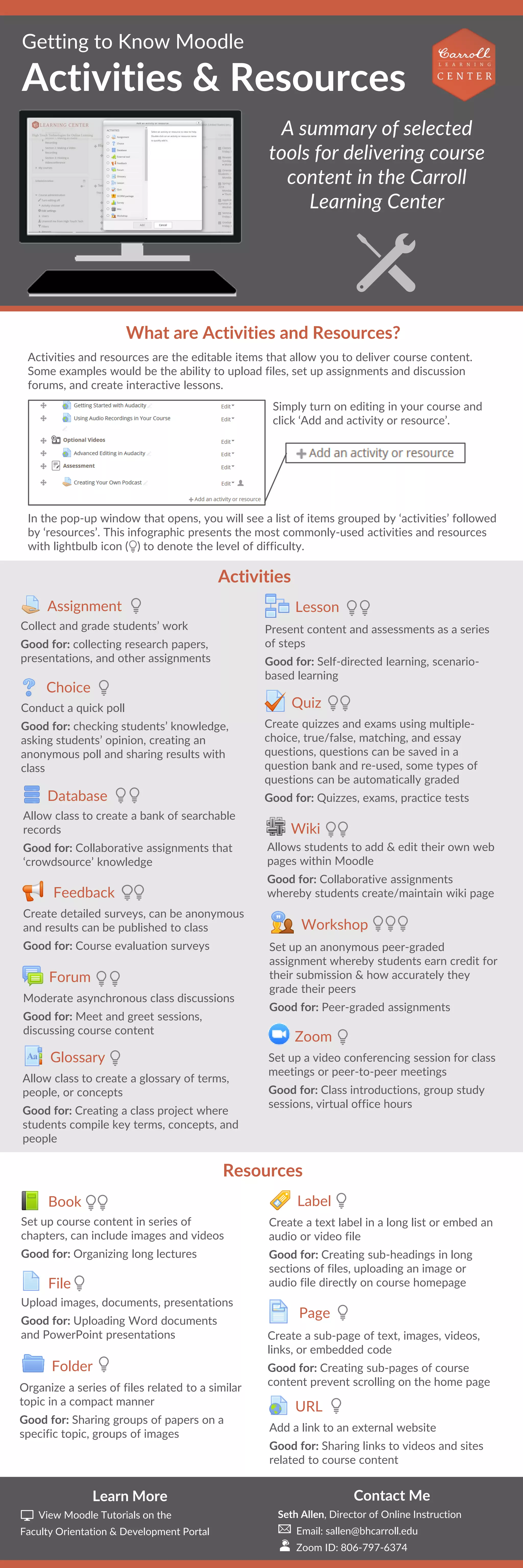
Activities and resources are the editable items that allow you to deliver course content.
Some examples would be the ability to upload files, set up assignments and discussion
forums, and create interactive lessons.
In the pop-up window that opens, you will see a list of items grouped by ‘activities’ followed
by ‘resources’. This infographic presents the most commonly-used activities and resources
with lightbulb icon ( ) to denote the level of difficulty.
Getting to Know Moodle
Activities & Resources
A summary of selected
tools for delivering course
content in the Carroll
Learning Center
What are Activities and Resources?
Assignment
Collect and grade students’ work
Good for: collecting research papers,
presentations, and other assignments
Choice
Conduct a quick poll
Good for: checking students’ knowledge,
asking students’ opinion, creating an
anonymous poll and sharing results with
class
Database
Allow class to create a bank of searchable
records
Good for: Collaborative assignments that
‘crowdsource’ knowledge
Feedback
Create detailed surveys, can be anonymous
and results can be published to class
Good for: Course evaluation surveys
Forum
Moderate asynchronous class discussions
Good for: Meet and greet sessions,
discussing course content
Glossary
Allow class to create a glossary of terms,
people, or concepts
Good for: Creating a class project where
students compile key terms, concepts, and
people
Lesson
Present content and assessments as a series
of steps
Good for: Self-directed learning, scenario-
based learning
Quiz
Create quizzes and exams using multiple-
choice, true/false, matching, and essay
questions, questions can be saved in a
question bank and re-used, some types of
questions can be automatically graded
Good for: Quizzes, exams, practice tests
Wiki
Allows students to add & edit their own web
pages within Moodle
Good for: Collaborative assignments
whereby students create/maintain wiki page
Workshop
Set up an anonymous peer-graded
assignment whereby students earn credit for
their submission & how accurately they
grade their peers
Good for: Peer-graded assignments
Zoom
Set up a video conferencing session for class
meetings or peer-to-peer meetings
Good for: Class introductions, group study
sessions, virtual office hours
Book
Set up course content in series of
chapters, can include images and videos
Good for: Organizing long lectures
File
Upload images, documents, presentations
Good for: Uploading Word documents
and PowerPoint presentations
Folder
Organize a series of files related to a similar
topic in a compact manner
Good for: Sharing groups of papers on a
specific topic, groups of images
Label
Create a text label in a long list or embed an
audio or video file
Good for: Creating sub-headings in long
sections of files, uploading an image or
audio file directly on course homepage
Page
Create a sub-page of text, images, videos,
links, or embedded code
Good for: Creating sub-pages of course
content prevent scrolling on the home page
URL
Add a link to an external website
Good for: Sharing links to videos and sites
related to course content
Activities
Resources
Learn More
View Moodle Tutorials on the
Faculty Orientation & Development Portal
Contact Me
Seth Allen, Director of Online Instruction
Email: sallen@bhcarroll.edu
Zoom ID: 806-797-6374
Simply turn on editing in your course and
click ‘Add and activity or resource’.

Moodle Activities & Resources

  • 1.
    Activities and resourcesare the editable items that allow you to deliver course content. Some examples would be the ability to upload files, set up assignments and discussion forums, and create interactive lessons. In the pop-up window that opens, you will see a list of items grouped by ‘activities’ followed by ‘resources’. This infographic presents the most commonly-used activities and resources with lightbulb icon ( ) to denote the level of difficulty. Getting to Know Moodle Activities & Resources A summary of selected tools for delivering course content in the Carroll Learning Center What are Activities and Resources? Assignment Collect and grade students’ work Good for: collecting research papers, presentations, and other assignments Choice Conduct a quick poll Good for: checking students’ knowledge, asking students’ opinion, creating an anonymous poll and sharing results with class Database Allow class to create a bank of searchable records Good for: Collaborative assignments that ‘crowdsource’ knowledge Feedback Create detailed surveys, can be anonymous and results can be published to class Good for: Course evaluation surveys Forum Moderate asynchronous class discussions Good for: Meet and greet sessions, discussing course content Glossary Allow class to create a glossary of terms, people, or concepts Good for: Creating a class project where students compile key terms, concepts, and people Lesson Present content and assessments as a series of steps Good for: Self-directed learning, scenario- based learning Quiz Create quizzes and exams using multiple- choice, true/false, matching, and essay questions, questions can be saved in a question bank and re-used, some types of questions can be automatically graded Good for: Quizzes, exams, practice tests Wiki Allows students to add & edit their own web pages within Moodle Good for: Collaborative assignments whereby students create/maintain wiki page Workshop Set up an anonymous peer-graded assignment whereby students earn credit for their submission & how accurately they grade their peers Good for: Peer-graded assignments Zoom Set up a video conferencing session for class meetings or peer-to-peer meetings Good for: Class introductions, group study sessions, virtual office hours Book Set up course content in series of chapters, can include images and videos Good for: Organizing long lectures File Upload images, documents, presentations Good for: Uploading Word documents and PowerPoint presentations Folder Organize a series of files related to a similar topic in a compact manner Good for: Sharing groups of papers on a specific topic, groups of images Label Create a text label in a long list or embed an audio or video file Good for: Creating sub-headings in long sections of files, uploading an image or audio file directly on course homepage Page Create a sub-page of text, images, videos, links, or embedded code Good for: Creating sub-pages of course content prevent scrolling on the home page URL Add a link to an external website Good for: Sharing links to videos and sites related to course content Activities Resources Learn More View Moodle Tutorials on the Faculty Orientation & Development Portal Contact Me Seth Allen, Director of Online Instruction Email: sallen@bhcarroll.edu Zoom ID: 806-797-6374 Simply turn on editing in your course and click ‘Add and activity or resource’.