Output for Picking List:
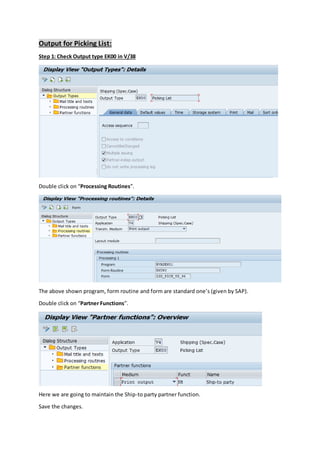
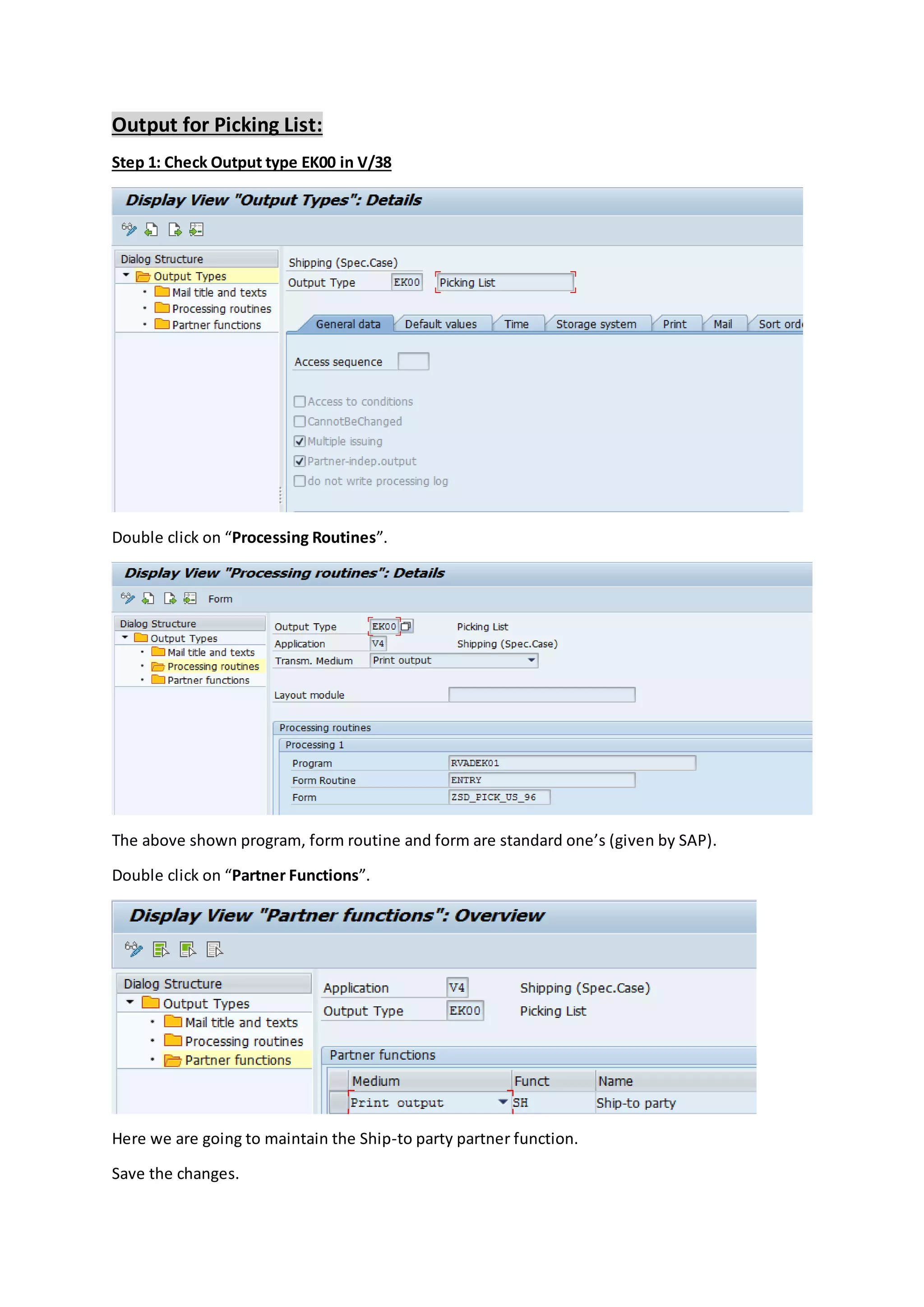
Step 1: Check Output type EK00 in V/38
Double click on “Processing Routines”.
The above shown program, form routine and form are standard one’s (given by SAP).
Double click on “Partner Functions”.
Here we are going to maintain the Ship-to party partner function.
Save the changes.
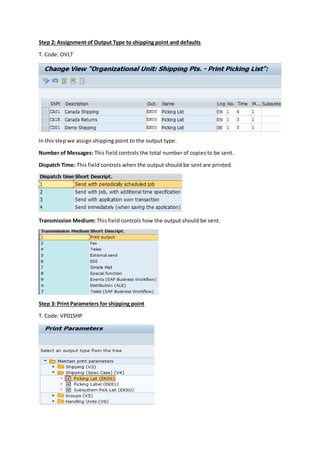
Step 2: Assignment of Output Type to shipping point and defaults
T. Code: OVLT
In this step we assign shipping point to the output type.
Number of Messages: This field controls the total number of copies to be sent.
Dispatch Time: This field controls when the output should be sent are printed.
Transmission Medium: This field controls how the output should be sent.
Step 3: Print Parameters for shipping point
T. Code: VP01SHP
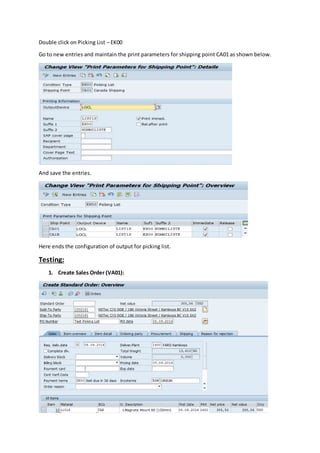
Double click on Picking List – EK00
Go to new entries and maintain the print parameters for shipping point CA01 as shown below.
And save the entries.
Here ends the configuration of output for picking list.
Testing:
1. Create Sales Order (VA01):
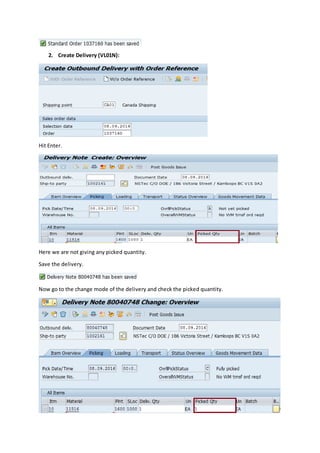
2. Create Delivery (VL01N):
Hit Enter.
Here we are not giving any picked quantity.
Save the delivery.
Now go to the change mode of the delivery and check the picked quantity.
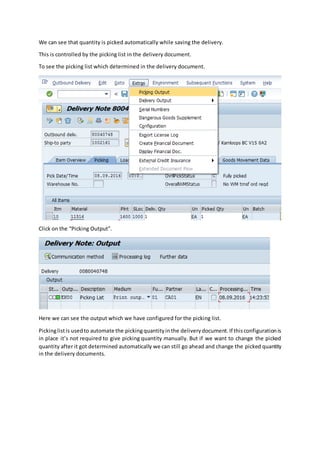
We can see that quantity is picked automatically while saving the delivery.
This is controlled by the picking list in the delivery document.
To see the picking list which determined in the delivery document.
Click on the “Picking Output”.
Here we can see the output which we have configured for the picking list.
Pickinglistis usedto automate the pickingquantityinthe deliverydocument.If thisconfigurationis
in place it’s not required to give picking quantity manually. But if we want to change the picked
quantity after it got determined automatically we can still go ahead and change the picked quantity
in the delivery documents.

Output for picking list

  • 1.
    Output for PickingList: Step 1: Check Output type EK00 in V/38 Double click on “Processing Routines”. The above shown program, form routine and form are standard one’s (given by SAP). Double click on “Partner Functions”. Here we are going to maintain the Ship-to party partner function. Save the changes.
  • 2.
    Step 2: Assignmentof Output Type to shipping point and defaults T. Code: OVLT In this step we assign shipping point to the output type. Number of Messages: This field controls the total number of copies to be sent. Dispatch Time: This field controls when the output should be sent are printed. Transmission Medium: This field controls how the output should be sent. Step 3: Print Parameters for shipping point T. Code: VP01SHP
  • 3.
    Double click onPicking List – EK00 Go to new entries and maintain the print parameters for shipping point CA01 as shown below. And save the entries. Here ends the configuration of output for picking list. Testing: 1. Create Sales Order (VA01):
  • 4.
    2. Create Delivery(VL01N): Hit Enter. Here we are not giving any picked quantity. Save the delivery. Now go to the change mode of the delivery and check the picked quantity.
  • 5.
    We can seethat quantity is picked automatically while saving the delivery. This is controlled by the picking list in the delivery document. To see the picking list which determined in the delivery document. Click on the “Picking Output”. Here we can see the output which we have configured for the picking list. Pickinglistis usedto automate the pickingquantityinthe deliverydocument.If thisconfigurationis in place it’s not required to give picking quantity manually. But if we want to change the picked quantity after it got determined automatically we can still go ahead and change the picked quantity in the delivery documents.