OptSus WP Chat
Duplicating Pages in WordPress
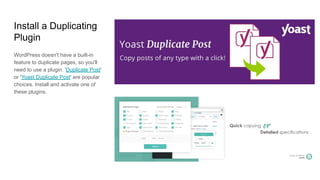
Install a Duplicating
Plugin
WordPress doesn't have a built-in
feature to duplicate pages, so you'll
need to use a plugin. 'Duplicate Post'
or 'Yoast Duplicate Post' are popular
choices. Install and activate one of
these plugins.
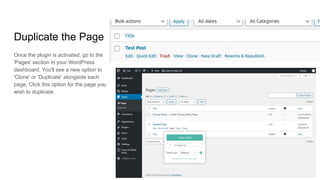
Duplicate the Page
Once the plugin is activated, go to the
'Pages' section in your WordPress
dashboard. You'll see a new option to
'Clone' or 'Duplicate' alongside each
page. Click this option for the page you
wish to duplicate.
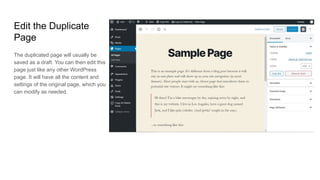
Edit the Duplicate
Page
The duplicated page will usually be
saved as a draft. You can then edit this
page just like any other WordPress
page. It will have all the content and
settings of the original page, which you
can modify as needed.
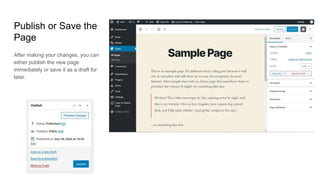
Publish or Save the
Page
After making your changes, you can
either publish the new page
immediately or save it as a draft for
later.
Duplicating Pages
in WordPress
This process allows you to quickly
create new pages based on existing
ones, saving time and maintaining
consistency across your site.
1. Install a Duplicating Plugin
2. Duplicate the Page
3. Edit the Duplicate Page
4. Publish or Save the Page
Some themes and website builders
may have other features available
to duplicate pages.
The plugins discussed here will
work with any WP website.
Editing Website Content in WordPress
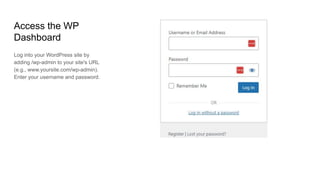
Access the WP
Dashboard
Log into your WordPress site by
adding /wp-admin to your site's URL
(e.g., www.yoursite.com/wp-admin).
Enter your username and password.
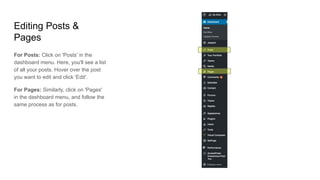
Editing Posts &
Pages
For Posts: Click on 'Posts' in the
dashboard menu. Here, you'll see a list
of all your posts. Hover over the post
you want to edit and click 'Edit'.
For Pages: Similarly, click on 'Pages'
in the dashboard menu, and follow the
same process as for posts.
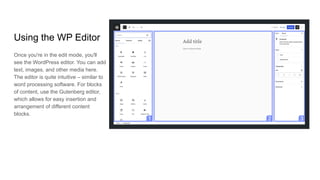
Using the WP Editor
Once you're in the edit mode, you'll
see the WordPress editor. You can add
text, images, and other media here.
The editor is quite intuitive – similar to
word processing software. For blocks
of content, use the Gutenberg editor,
which allows for easy insertion and
arrangement of different content
blocks.
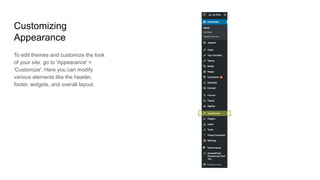
Customizing
Appearance
To edit themes and customize the look
of your site, go to 'Appearance' >
'Customize'. Here you can modify
various elements like the header,
footer, widgets, and overall layout.
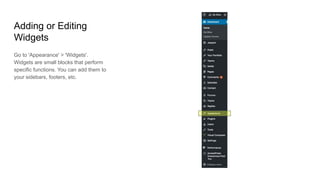
Adding or Editing
Widgets
Go to 'Appearance' > 'Widgets'.
Widgets are small blocks that perform
specific functions. You can add them to
your sidebars, footers, etc.
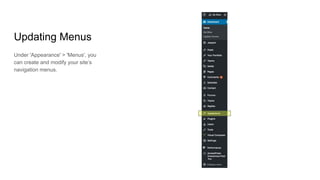
Updating Menus
Under 'Appearance' > 'Menus', you
can create and modify your site’s
navigation menus.
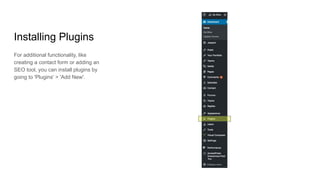
Installing Plugins
For additional functionality, like
creating a contact form or adding an
SEO tool, you can install plugins by
going to 'Plugins' > 'Add New'.
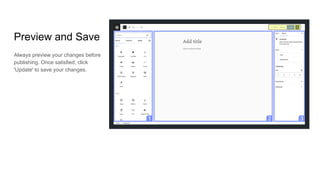
Preview and Save
Always preview your changes before
publishing. Once satisfied, click
'Update' to save your changes.
Editing Website
Content in
WordPress
Editing content on a WordPress website
can be done through the WordPress
dashboard, which provides a user-friendly
interface for making changes.
1. Access the WP Dashboard
2. Editing Posts & Pages
3. Using the WordPress Editor
4. Customizing Appearance
5. Adding or Editing Widgets
6. Updating Menus
7. Installing Plugins
8. Preview and Save
Share your topic ideas
OptSus.com/wpchat/

Duplicating and Editing Content in WordPress - OptSus WP Chat

  • 1.
  • 2.
  • 3.
    Install a Duplicating Plugin WordPressdoesn't have a built-in feature to duplicate pages, so you'll need to use a plugin. 'Duplicate Post' or 'Yoast Duplicate Post' are popular choices. Install and activate one of these plugins.
  • 4.
    Duplicate the Page Oncethe plugin is activated, go to the 'Pages' section in your WordPress dashboard. You'll see a new option to 'Clone' or 'Duplicate' alongside each page. Click this option for the page you wish to duplicate.
  • 5.
    Edit the Duplicate Page Theduplicated page will usually be saved as a draft. You can then edit this page just like any other WordPress page. It will have all the content and settings of the original page, which you can modify as needed.
  • 6.
    Publish or Savethe Page After making your changes, you can either publish the new page immediately or save it as a draft for later.
  • 7.
    Duplicating Pages in WordPress Thisprocess allows you to quickly create new pages based on existing ones, saving time and maintaining consistency across your site. 1. Install a Duplicating Plugin 2. Duplicate the Page 3. Edit the Duplicate Page 4. Publish or Save the Page Some themes and website builders may have other features available to duplicate pages. The plugins discussed here will work with any WP website.
  • 8.
  • 9.
    Access the WP Dashboard Loginto your WordPress site by adding /wp-admin to your site's URL (e.g., www.yoursite.com/wp-admin). Enter your username and password.
  • 10.
    Editing Posts & Pages ForPosts: Click on 'Posts' in the dashboard menu. Here, you'll see a list of all your posts. Hover over the post you want to edit and click 'Edit'. For Pages: Similarly, click on 'Pages' in the dashboard menu, and follow the same process as for posts.
  • 11.
    Using the WPEditor Once you're in the edit mode, you'll see the WordPress editor. You can add text, images, and other media here. The editor is quite intuitive – similar to word processing software. For blocks of content, use the Gutenberg editor, which allows for easy insertion and arrangement of different content blocks.
  • 12.
    Customizing Appearance To edit themesand customize the look of your site, go to 'Appearance' > 'Customize'. Here you can modify various elements like the header, footer, widgets, and overall layout.
  • 13.
    Adding or Editing Widgets Goto 'Appearance' > 'Widgets'. Widgets are small blocks that perform specific functions. You can add them to your sidebars, footers, etc.
  • 14.
    Updating Menus Under 'Appearance'> 'Menus', you can create and modify your site’s navigation menus.
  • 15.
    Installing Plugins For additionalfunctionality, like creating a contact form or adding an SEO tool, you can install plugins by going to 'Plugins' > 'Add New'.
  • 16.
    Preview and Save Alwayspreview your changes before publishing. Once satisfied, click 'Update' to save your changes.
  • 17.
    Editing Website Content in WordPress Editingcontent on a WordPress website can be done through the WordPress dashboard, which provides a user-friendly interface for making changes. 1. Access the WP Dashboard 2. Editing Posts & Pages 3. Using the WordPress Editor 4. Customizing Appearance 5. Adding or Editing Widgets 6. Updating Menus 7. Installing Plugins 8. Preview and Save
  • 18.
    Share your topicideas OptSus.com/wpchat/