Optimizing Linux Servers


Davor Guttierrez
dguttierrez@me.com
3 Gen d.o.o.
Agenda

●   What is optimization?
●   Performace (software / hardware)
●   Server optimization
●   Performace monitoring
●   System Monitoring Tools
●   Benchmark Tools
What is optimization?

●   Our server is slow
    ●   We have new very expensive server but ...
    ●   We have new Linux distribution but ...

●   What is slow in your server?
    ●   Too many services running, ...
    ●   Disk, I/O, ...
Performance


To boost performance of a server, we need
    just both its hardware and software
 components to make it operate efficiently.
Server optimization

Optimization can include fine tuning of
●   web servers (Apache, lighttpd, nginx etc),
●   disk I/O, block devices, RAID or different filesystems (including SCSI and SSD devices),
●   kernel,
●   network I/O, TCP/IP network stack,
●   firewall etc.

as well as
●   databases optimization – benchmarking and profiling, finding bottlenecks, settings optimization;
●   data storages tuning;
●   disk and memory usage optimization
Start here … with installation

●   Always make custom installation of server, don't use default
    settings and default install
●   Custom partitioning (your life will be easier)
●   Install only needed packages, never install whole group of
    packages – make minimal installation and then add
    packages
●   You don't need X Window and GNOME on your server
●   Console is 40x25 characters long and not 1024x768
Performance monitoring

●   Linux system administrators should be proficient in Linux
    performance monitoring and tuning.To identify system
    bottlenecks and come up with solutions to fix it, you should
    understand how various components of Linux works.
●   On a very high level, following are the four subsystems that
    needs to be monitored:
    –   CPU
    –   Network
    –   I/O
    –   Memory
CPU

●   You should understand the four critical performance
    metrics for CPU

    –   context switch,
    –   run queue,
    –   cpu utilization,
    –   load average.
Context Switch

●   When CPU switches from one process (or thread) to another, it
    is called as context switch
●   When a process switch happens, kernel stores the current
    state of the CPU (of a process or thread) in the memory
●   Kernel also retrieves the previously stored state (of a process
    or thread) from the memory and puts it in the CPU
●   Context switching is very essential for multitasking of the CPU
●   A higher level of context switching can cause performance
    issues
Run queue

●   Run queue indicates the total number of active
    processes in the current queue for CPU
●   When CPU is ready to execute a process, it picks it up
    from the run queue based on the priority of the process
●   Processes that are in sleep state, or i/o wait state are
    not in the run queue
●   A higher number of processes in the run queue can
    cause performance issues
CPU Utilization

●   This indicates how much of the CPU is currently
    getting used
●   This is fairly straight forward, and you can view the
    CPU utilization from the top command
●   100% CPU utilization means the system is fully
    loaded
●   A higher % of CPU utilization will cause performance
    issues
LOAD average
●   This indicates the average CPU load over a specific time period.
●   On Linux, load average is displayed for the last 1 minute, 5 minutes,
    and 15 minutes. This is helpful to see whether the overall load on the
    system is going up or down.
●   Load average of “0.25 1.20 1.90″ indicates that the load on the
    system is coming down. 0.25 is the load average in the last 1
    minute. 1.20 is the load average in the last 5 minutes. 1.90 is the
    load average in the last 15 minutes.
●   This load average is calculated by combining both the total number
    of process in the queue, and the total number of processes in the
    uninterruptable task status.
Disk I/O optimization
●   Linux currently ships with four different I/O schedulers. They are: deadline, noop,
    anticipatory, and cfq. There are many differences between these scheduling
    algorithms:
●   CFQ: This is the default algorithm in most Linux distributions. It attempts to distribute
    all I/O bandwidth evenly among all processes requesting I/O. It is ideal for most
    purposes.
●   NOOP: The noop algorithm attempts to use as little cpu as possible. It acts as a basic
    FIFO queue expecting the hardware controller to handle the performance operations
    of the requests.
●   Anticipatory: This algorithm attempts to reorder all disk I/O operations to optimize disk
    seeks. It is designed to increase performance on systems that have slow disks.
●   Deadline: This scheduling algorithm places I/O requests in a priority queue so each is
    guaranteed to be ran within a certain time. It is often used in real-time operating
    systems.
System scheduler … how to change

●   cat /sys/block/sda/queue/scheduler

●   change it with:

●   echo noop > /sys/block/sda/queue/scheduler
More about System scheduler

●   Changing schedulers on the fly allows you to test and
    benchmark the algorithms for your specific application
●   Once the change is issued, any current I/O operations will
    be executed before the new scheduler goes into effect, so
    the change will not be instant
●   Also remember that once one is set and performs to your
    liking, be sure to set the change to be applied on
    subsequent reboots
And a little bit more ...

●   It is often recommend to use noop or deadline on any
    SSD drive
●   There is usually no definitive answer to which algorithm to
    use
●   Benchmarking each one will be your best option
●   There are cases where cfq may not be the best scheduler
    for your system or application
●   An example is if you are running a raid disk array with a
    caching raid controller
I/O optimization

●   I/O wait is the amount of time CPU is waiting for I/O. If you
    see consistent high i/o wait on you system, it indicates a
    problem in the disk subsystem.
●   You should also monitor reads/second, and writes/second.
    This is measured in blocks. i.e number of blocks read/write
    per second. These are also referred as bi and bo (block in
    and block out).
●   tps indicates total transactions per seconds, which is sum
    of rtps (read transactions per second) and wtps (write
    transactions per seconds).
Disk I/O optimization

●   Filesystem to use:
    –   EXT2
    –   EXT3
    –   ReiserFS
    –   EXT4
    –   BTRFS

        Use FS options in fstab (noatime, ...)
Disk I/O optimization

●   RAID (software or hardware)

    –   RAID0
    –   RAID1
    –   RAID5
    –   RAID10
Disk optimization

●   Use benchmark programs like Bonnie++
●   Use hdparm
●   Upgrade BIOS of your server and Firmware of your disk
Network Tuning

●   A good understanding of TCP/IP concepts is helpful
    while analyzing any network issues.
●   For network interfaces, you should monitor total
    number of packets (and bytes) received/sent through
    the interface, number of packets dropped, etc.,
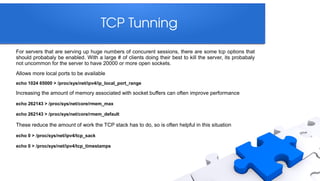
TCP Tunning
For servers that are serving up huge numbers of concurent sessions, there are some tcp options that
should probabaly be enabled. With a large # of clients doing their best to kill the server, its probabaly
not uncommon for the server to have 20000 or more open sockets.
Allows more local ports to be available
echo 1024 65000 > /proc/sys/net/ipv4/ip_local_port_range

Increasing the amount of memory associated with socket buffers can often improve performance

echo 262143 > /proc/sys/net/core/rmem_max

echo 262143 > /proc/sys/net/core/rmem_default

These reduce the amount of work the TCP stack has to do, so is often helpful in this situation

echo 0 > /proc/sys/net/ipv4/tcp_sack

echo 0 > /proc/sys/net/ipv4/tcp_timestamps
Memory Optimization

●   If you have 16 GB RAM installed on your system, you have 16
    GB of physical memory
●   Virtual memory = Swap space available on the disk + Physical
    memory. The virtual memory contains both user space and
    kernel space
●   Using either 32-bit or 64-bit system makes a big difference in
    how much memory a process can utilize
●   On a 32-bit system a process can only access a maximum of
    4GB virtual memory
●   On a 64-bit system there is no such limitation
More about Memory optimization ...
●   Unused RAM will be used as file system cache by the kernel
●   Linux system will swap when it needs more memory. i.e when it needs
    more memory than the physical memory
●   When it swaps, it writes the least used memory pages from the physical
    memory to the swap space on the disk
●   Lot of swapping can cause performance issues, as the disk is much
    slower than the physical memory, and it takes time to swap the memory
    pages from RAM to disk
Memory optimization :)

●   Use ECC RAM … yes it's expensive but it's faster
●   Use more swap space … application ...
●   Don't use swap partition, use swap file, …
●   Is everything OK with your swap?
    –   try memeat script ...
80/20

●   Remember the 80/20 rule

    80% of the performance improvement comes from
    tuning the application, and the rest 20% comes from
    tuning the infrastructure components.
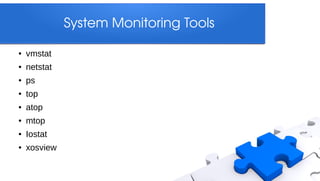
System Monitoring Tools

●   vmstat
●   netstat
●   ps
●   top
●   atop
●   mtop
●   Iostat
●   xosview
Kernel Tuning

●   Recompile your kernel
●   Exclude unneeded modules
●   Use RealTime kernel
●
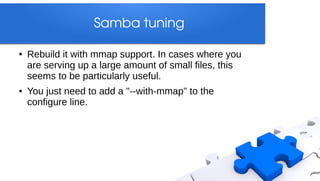
Samba tuning

●   Rebuild it with mmap support. In cases where you
    are serving up a large amount of small files, this
    seems to be particularly useful.
●   You just need to add a "--with-mmap" to the
    configure line.
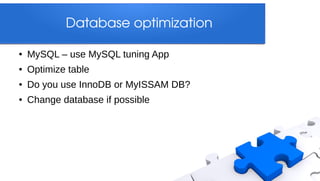
Database optimization

●   MySQL – use MySQL tuning App
●   Optimize table
●   Do you use InnoDB or MyISSAM DB?
●   Change database if possible
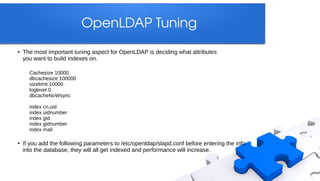
OpenLDAP Tuning
●   The most important tuning aspect for OpenLDAP is deciding what attributes
    you want to build indexes on.

      Cachesize 10000
      dbcachesize 100000
      sizelimit 10000
      loglevel 0
      dbcacheNoWsync

      index cn,uid
      index uidnumber
      index gid
      index gidnumber
      index mail

●   If you add the following parameters to /etc/openldap/slapd.conf before entering the info
    into the database, they will all get indexed and performance will increase.
Apache Tuning
Make sure you starting a ton of initial daemons if you want good benchmark scores.
Something like:
MinSpareServers 20
MaxSpareServers 80
StartServers 32


this can be higher if apache is recompiled
MaxClients 256
MaxRequestsPerChild 10000


Note: Starting a massive amount of httpd processes is really a benchmark hack. In most real world cases, setting
a high number for max servers, and a sane spare server setting will be more than adequate.
It's just the instant on load that benchmarks typically generate that the StartServers helps with.
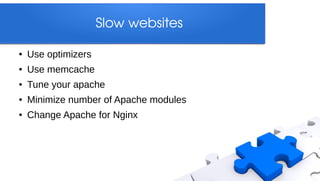
Slow websites

●   Use optimizers
●   Use memcache
●   Tune your apache
●   Minimize number of Apache modules
●   Change Apache for Nginx
Benchmark

●   A good set of benchmarking utilities are often very
    helpful in doing system tuning work. It is impossible
    to duplicate "real world" situations, but that isnt really
    the goal of a good benchmark.
●   A good benchmark typically tries to measure the
    performance of one particular thing very accurately.
●   If you understand what the benchmarks are doing,
    they can be very useful tools.
Benchmark Tools
●   bonnie++ - is a free file system benchmarking tool for Unix-like operating
               systems
●   DBench - is a tool to generate I/O workloads to either a filesystem or to a
            networked CIFS or NFS server
●   http_load - runs multiple http fetches in parallel, to test the throughput of a
                web server
●   dkftpbench - measuring how many simultaneous dialup users can be down
                 loading from an FTP site at the same time
●   tiobench - is a multi-threaded I/O benchmark
●   ttcp - is a utility program for measuring network throughput
●   netperf – network performance tester
Identify and solve performace issue

●   Understand the problem
    –   Half of the problem is solved when you clearly understand what
        the problem is.
●   Monitor and collect data
    –   After defining the problem clearly, monitor the system and try to
        collect as much data as possible on various subsystems
●   Eliminate and narrow down issues
    –   After having a list of potential issues, dive into each one of them
        and eliminate any non issues
●   Make one change at a time
    –   don’t try to make multiple changes at one time
TNX ...


●   E-mail: dguttierrez@me.com
●   Blog: www.d-mashina.net
●   CV: www.guttierrez.org

Optimizing Linux Servers

  • 1.
  • 2.
    Agenda ● What is optimization? ● Performace (software / hardware) ● Server optimization ● Performace monitoring ● System Monitoring Tools ● Benchmark Tools
  • 3.
    What is optimization? ● Our server is slow ● We have new very expensive server but ... ● We have new Linux distribution but ... ● What is slow in your server? ● Too many services running, ... ● Disk, I/O, ...
  • 4.
    Performance To boost performanceof a server, we need just both its hardware and software components to make it operate efficiently.
  • 5.
    Server optimization Optimization can includefine tuning of ● web servers (Apache, lighttpd, nginx etc), ● disk I/O, block devices, RAID or different filesystems (including SCSI and SSD devices), ● kernel, ● network I/O, TCP/IP network stack, ● firewall etc. as well as ● databases optimization – benchmarking and profiling, finding bottlenecks, settings optimization; ● data storages tuning; ● disk and memory usage optimization
  • 6.
    Start here … with installation ● Always make custom installation of server, don't use default settings and default install ● Custom partitioning (your life will be easier) ● Install only needed packages, never install whole group of packages – make minimal installation and then add packages ● You don't need X Window and GNOME on your server ● Console is 40x25 characters long and not 1024x768
  • 7.
    Performance monitoring ● Linux system administrators should be proficient in Linux performance monitoring and tuning.To identify system bottlenecks and come up with solutions to fix it, you should understand how various components of Linux works. ● On a very high level, following are the four subsystems that needs to be monitored: – CPU – Network – I/O – Memory
  • 8.
    CPU ● You should understand the four critical performance metrics for CPU – context switch, – run queue, – cpu utilization, – load average.
  • 9.
    Context Switch ● When CPU switches from one process (or thread) to another, it is called as context switch ● When a process switch happens, kernel stores the current state of the CPU (of a process or thread) in the memory ● Kernel also retrieves the previously stored state (of a process or thread) from the memory and puts it in the CPU ● Context switching is very essential for multitasking of the CPU ● A higher level of context switching can cause performance issues
  • 10.
    Run queue ● Run queue indicates the total number of active processes in the current queue for CPU ● When CPU is ready to execute a process, it picks it up from the run queue based on the priority of the process ● Processes that are in sleep state, or i/o wait state are not in the run queue ● A higher number of processes in the run queue can cause performance issues
  • 11.
    CPU Utilization ● This indicates how much of the CPU is currently getting used ● This is fairly straight forward, and you can view the CPU utilization from the top command ● 100% CPU utilization means the system is fully loaded ● A higher % of CPU utilization will cause performance issues
  • 12.
    LOAD average ● This indicates the average CPU load over a specific time period. ● On Linux, load average is displayed for the last 1 minute, 5 minutes, and 15 minutes. This is helpful to see whether the overall load on the system is going up or down. ● Load average of “0.25 1.20 1.90″ indicates that the load on the system is coming down. 0.25 is the load average in the last 1 minute. 1.20 is the load average in the last 5 minutes. 1.90 is the load average in the last 15 minutes. ● This load average is calculated by combining both the total number of process in the queue, and the total number of processes in the uninterruptable task status.
  • 13.
    Disk I/O optimization ● Linux currently ships with four different I/O schedulers. They are: deadline, noop, anticipatory, and cfq. There are many differences between these scheduling algorithms: ● CFQ: This is the default algorithm in most Linux distributions. It attempts to distribute all I/O bandwidth evenly among all processes requesting I/O. It is ideal for most purposes. ● NOOP: The noop algorithm attempts to use as little cpu as possible. It acts as a basic FIFO queue expecting the hardware controller to handle the performance operations of the requests. ● Anticipatory: This algorithm attempts to reorder all disk I/O operations to optimize disk seeks. It is designed to increase performance on systems that have slow disks. ● Deadline: This scheduling algorithm places I/O requests in a priority queue so each is guaranteed to be ran within a certain time. It is often used in real-time operating systems.
  • 14.
    System scheduler … how to change ● cat /sys/block/sda/queue/scheduler ● change it with: ● echo noop > /sys/block/sda/queue/scheduler
  • 15.
    More about System scheduler ● Changing schedulers on the fly allows you to test and benchmark the algorithms for your specific application ● Once the change is issued, any current I/O operations will be executed before the new scheduler goes into effect, so the change will not be instant ● Also remember that once one is set and performs to your liking, be sure to set the change to be applied on subsequent reboots
  • 16.
    And a little bit more ... ● It is often recommend to use noop or deadline on any SSD drive ● There is usually no definitive answer to which algorithm to use ● Benchmarking each one will be your best option ● There are cases where cfq may not be the best scheduler for your system or application ● An example is if you are running a raid disk array with a caching raid controller
  • 17.
    I/O optimization ● I/O wait is the amount of time CPU is waiting for I/O. If you see consistent high i/o wait on you system, it indicates a problem in the disk subsystem. ● You should also monitor reads/second, and writes/second. This is measured in blocks. i.e number of blocks read/write per second. These are also referred as bi and bo (block in and block out). ● tps indicates total transactions per seconds, which is sum of rtps (read transactions per second) and wtps (write transactions per seconds).
  • 18.
    Disk I/O optimization ● Filesystem to use: – EXT2 – EXT3 – ReiserFS – EXT4 – BTRFS Use FS options in fstab (noatime, ...)
  • 19.
    Disk I/O optimization ● RAID (software or hardware) – RAID0 – RAID1 – RAID5 – RAID10
  • 20.
    Disk optimization ● Use benchmark programs like Bonnie++ ● Use hdparm ● Upgrade BIOS of your server and Firmware of your disk
  • 21.
    Network Tuning ● A good understanding of TCP/IP concepts is helpful while analyzing any network issues. ● For network interfaces, you should monitor total number of packets (and bytes) received/sent through the interface, number of packets dropped, etc.,
  • 22.
    TCP Tunning For servers thatare serving up huge numbers of concurent sessions, there are some tcp options that should probabaly be enabled. With a large # of clients doing their best to kill the server, its probabaly not uncommon for the server to have 20000 or more open sockets. Allows more local ports to be available echo 1024 65000 > /proc/sys/net/ipv4/ip_local_port_range Increasing the amount of memory associated with socket buffers can often improve performance echo 262143 > /proc/sys/net/core/rmem_max echo 262143 > /proc/sys/net/core/rmem_default These reduce the amount of work the TCP stack has to do, so is often helpful in this situation echo 0 > /proc/sys/net/ipv4/tcp_sack echo 0 > /proc/sys/net/ipv4/tcp_timestamps
  • 23.
    Memory Optimization ● If you have 16 GB RAM installed on your system, you have 16 GB of physical memory ● Virtual memory = Swap space available on the disk + Physical memory. The virtual memory contains both user space and kernel space ● Using either 32-bit or 64-bit system makes a big difference in how much memory a process can utilize ● On a 32-bit system a process can only access a maximum of 4GB virtual memory ● On a 64-bit system there is no such limitation
  • 24.
    More about Memory optimization ... ● Unused RAM will be used as file system cache by the kernel ● Linux system will swap when it needs more memory. i.e when it needs more memory than the physical memory ● When it swaps, it writes the least used memory pages from the physical memory to the swap space on the disk ● Lot of swapping can cause performance issues, as the disk is much slower than the physical memory, and it takes time to swap the memory pages from RAM to disk
  • 25.
    Memory optimization :) ● Use ECC RAM … yes it's expensive but it's faster ● Use more swap space … application ... ● Don't use swap partition, use swap file, … ● Is everything OK with your swap? – try memeat script ...
  • 26.
    80/20 ● Remember the 80/20 rule 80% of the performance improvement comes from tuning the application, and the rest 20% comes from tuning the infrastructure components.
  • 27.
    System Monitoring Tools ● vmstat ● netstat ● ps ● top ● atop ● mtop ● Iostat ● xosview
  • 28.
    Kernel Tuning ● Recompile your kernel ● Exclude unneeded modules ● Use RealTime kernel ●
  • 29.
    Samba tuning ● Rebuild it with mmap support. In cases where you are serving up a large amount of small files, this seems to be particularly useful. ● You just need to add a "--with-mmap" to the configure line.
  • 30.
    Database optimization ● MySQL – use MySQL tuning App ● Optimize table ● Do you use InnoDB or MyISSAM DB? ● Change database if possible
  • 31.
    OpenLDAP Tuning ● The most important tuning aspect for OpenLDAP is deciding what attributes you want to build indexes on. Cachesize 10000 dbcachesize 100000 sizelimit 10000 loglevel 0 dbcacheNoWsync index cn,uid index uidnumber index gid index gidnumber index mail ● If you add the following parameters to /etc/openldap/slapd.conf before entering the info into the database, they will all get indexed and performance will increase.
  • 32.
    Apache Tuning Make sure youstarting a ton of initial daemons if you want good benchmark scores. Something like: MinSpareServers 20 MaxSpareServers 80 StartServers 32 this can be higher if apache is recompiled MaxClients 256 MaxRequestsPerChild 10000 Note: Starting a massive amount of httpd processes is really a benchmark hack. In most real world cases, setting a high number for max servers, and a sane spare server setting will be more than adequate. It's just the instant on load that benchmarks typically generate that the StartServers helps with.
  • 33.
    Slow websites ● Use optimizers ● Use memcache ● Tune your apache ● Minimize number of Apache modules ● Change Apache for Nginx
  • 34.
    Benchmark ● A good set of benchmarking utilities are often very helpful in doing system tuning work. It is impossible to duplicate "real world" situations, but that isnt really the goal of a good benchmark. ● A good benchmark typically tries to measure the performance of one particular thing very accurately. ● If you understand what the benchmarks are doing, they can be very useful tools.
  • 35.
    Benchmark Tools ● bonnie++ - is a free file system benchmarking tool for Unix-like operating systems ● DBench - is a tool to generate I/O workloads to either a filesystem or to a networked CIFS or NFS server ● http_load - runs multiple http fetches in parallel, to test the throughput of a web server ● dkftpbench - measuring how many simultaneous dialup users can be down loading from an FTP site at the same time ● tiobench - is a multi-threaded I/O benchmark ● ttcp - is a utility program for measuring network throughput ● netperf – network performance tester
  • 36.
    Identify and solve performace issue ● Understand the problem – Half of the problem is solved when you clearly understand what the problem is. ● Monitor and collect data – After defining the problem clearly, monitor the system and try to collect as much data as possible on various subsystems ● Eliminate and narrow down issues – After having a list of potential issues, dive into each one of them and eliminate any non issues ● Make one change at a time – don’t try to make multiple changes at one time
  • 37.
    TNX ... ● E-mail: dguttierrez@me.com ● Blog: www.d-mashina.net ● CV: www.guttierrez.org