Copyright © 2006 by The McGraw-Hill Companies, Inc. All rights reserved.
McGraw-Hill Technology Education
McGraw-Hill Technology Education Copyright © 2006 by The McGraw-Hill Companies, Inc. All rights reserved.
Information and Communication
Technology
Lecture-17-20
Course Instructor: Hafeez Ahmed
MNS University of Agriculture Multan
Operating System Basics
Copyright © 2006 by The McGraw-Hill Companies, Inc. All rights reserved.
McGraw-Hill Technology Education
Operating System
Basics
Operating System
• An OS is a SW program but different
from Word processing programs or other
SW programs on your computer
• OS is an example of system software,
means it controls HW of the computer
system and interacts with the user and
application SW
• OS provides with the tools (Commands)
that enables to interact with PC
• OS is the computer’s master control
program
7A-4
Functions of Operating Systems
• Provide a user interface- Displays the on-
screen elements with which you interact
• Run programs- Loads programs into the
computer’s memory so that you can use
them (Word processing and
spreadsheets etc.)
• Manage hardware devices- Coordinates
how programs work with HW and SW
• Organized file storage- Manages the way
information is stored on and retrieved
from the disks.
Types of Operating Systems
• OS can be organized into four major
types:
– 1. Real-time operating system
– 2. Single user/Single tasking OS
– 3. Single user/Multitasking OS
– 4. Multi user/Multitasking OS
Types of Operating Systems
• Real-time operating system (RTOS)
– Very fast, relatively small OS
– Built into a device- Embedded OS
– Respond quickly to user input
– It can support both Single & Multi-tasking
– Examples of the real-time operating
systems: Airline traffic control systems,
Command Control Systems, Airlines
reservation system, Heart Peacemaker,
Network Multimedia Systems, MP3 players
& Robot etc.
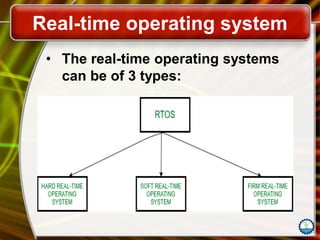
Real-time operating system
• The real-time operating systems
can be of 3 types:
Types of Operating Systems
• Real-time operating system
• RTOS are used in environments where
a large number of events, mostly
external to the computer system, must
be accepted and processed in a short
time or within certain deadlines.
• such applications are industrial control,
telephone switching equipment, flight
control, and real-time simulations.
Types of Operating Systems
• Advantages of RTOS:
– It works very fast.
– It is time saving, as it need not be
loaded from memory.
– Since it is very small, it occupies less
space in memory.
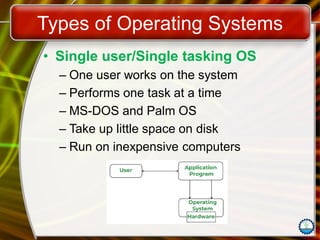
Types of Operating Systems
• Single user/Single tasking OS
– One user works on the system
– Performs one task at a time
– MS-DOS and Palm OS
– Take up little space on disk
– Run on inexpensive computers
Types of Operating Systems
• Advantages of Single user/Single
tasking OS:
• This operating system occupies less
space in memory.
Disadvantages
• It can perform only a single task at a
time.
Types of Operating Systems
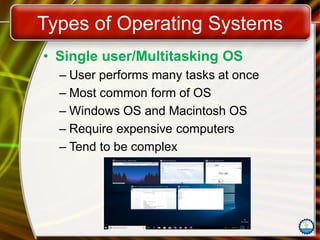
• Single user/Multitasking OS
– User performs many tasks at once
– Most common form of OS
– Windows OS and Macintosh OS
– Require expensive computers
– Tend to be complex
Types of Operating Systems
• Advantages of Single user/
Multitasking OS:
• It is time saving as it performs multiple
tasks at a time yielding high productivity.
• Disadvantages
• This operating system is highly complex
and occupies more space.
Types of Operating Systems
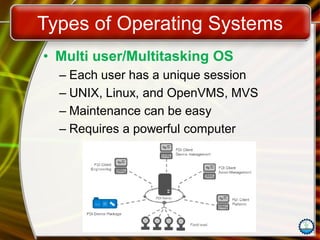
• Multi user/Multitasking OS
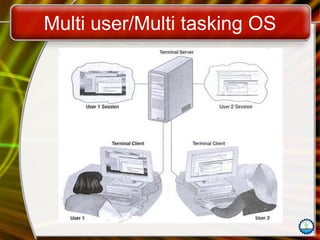
– Many users connect to one computer
– It is an operating system that permits
several users to utilize the programs that
are concurrently running on a single
network server.
– The single network server is termed as
"Terminal server".
– "Terminal client" is a software that
supports user sessions.
Types of Operating Systems
• Multi user/Multitasking OS
– Each user has a unique session
– UNIX, Linux, and OpenVMS, MVS
– Maintenance can be easy
– Requires a powerful computer
Multi user/Multi tasking OS
Types of Operating Systems
• Advantages of Multi user/Multitasking
OS
• It is highly productive as it performs
multiple tasks at a time.
• It is time saving as we don’t have to
make changes in many desktops,
instead can make changes only to the
server.
Types of Operating Systems
• Disadvantages
• If the connection to the server is broken,
user cannot perform any task on the
client as it is connected to that server.
Providing a User Interface
• User Interface (UI)
– How a user interacts with a computer
– UI works as a medium b/w human and
computer procedures.
– It enables seamless communication
through the visual representation of any
app, website, or device. It contains
elements like texts, colors, menus, buttons,
and videos – everything that is visible and
usable for users.
Providing a User Interface
• User Interface (UI)
• UI primarily carries out two tasks:
– Accepting user input.
– Showing the results.
• Require different skill sets
• Types of UIs:
– Graphical user interface (GUI)
– Command line interfaces (CLI)
– Web user interface, Natural language
interface, VR user interface etc. …
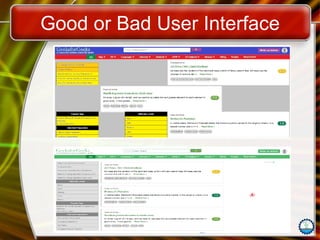
Good or Bad User Interface
Providing a User Interface
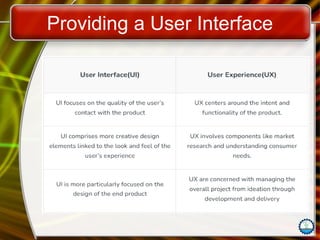
• Difference Between UI Design and UX
Design
• Though User Interface (UI) and User
Experience (UX) are closely related
concepts in the field of software
and website development, they differ in
the aspects of the overall user
interaction with a product.
Providing a User Interface
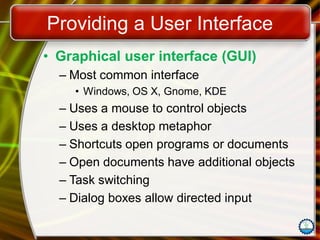
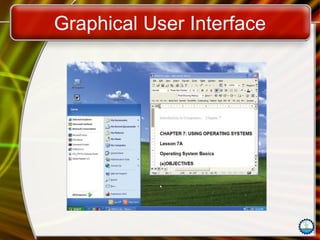
• Graphical user interface (GUI)
– Most common interface
• Windows, OS X, Gnome, KDE
– Uses a mouse to control objects
– Uses a desktop metaphor
– Shortcuts open programs or documents
– Open documents have additional objects
– Task switching
– Dialog boxes allow directed input
Graphical User Interface
Providing a User Interface
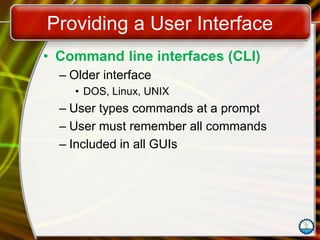
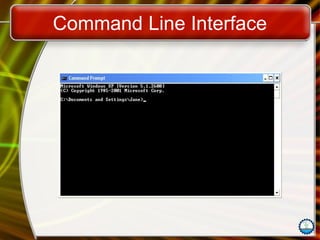
• Command line interfaces (CLI)
– Older interface
• DOS, Linux, UNIX
– User types commands at a prompt
– User must remember all commands
– Included in all GUIs
Command Line Interface
Running Programs
• The OS provides consistent interface
b/w application programs and user.
• Many other programs and other
computer resources supported e.g.
memory, printers etc.
• Programmers write computer program
with build-in instructions called “System
call” that requests services from the
OS, known as “Calls”
Running Programs
• Sharing Information
• Share information between programs
– Copy and paste
– Object Linking and Embedding
• Some applications use Clipboards-
temporary holding space (in computer’s
memory) for data that is being copied or
moved
Managing Hardware
• Programs need to access hardware
• When programs run, they need to use
the computer’s memory, monitor, disk
drives and other devices like printer etc.
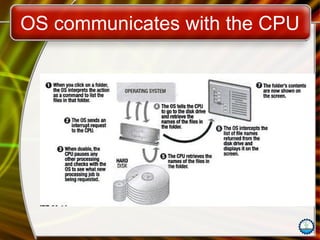
• Processing Interrupts
– The OS uses IRQs to help the CPU
coordinate processes
– CPU is stopped
– Hardware device is accessed
• Device drivers control the hardware
OS communicates with the CPU
Managing Hardware
• What is an Interrupt?
• The interrupt is a signal emitted by
hardware or software when a process or
an event needs immediate attention.
• It alerts the processor to a high-priority
process requiring interruption of the
current working process.
• In I/O devices one of the bus control
lines is dedicated for this purpose and is
called the Interrupt Service Routine
(ISR).
Managing Hardware
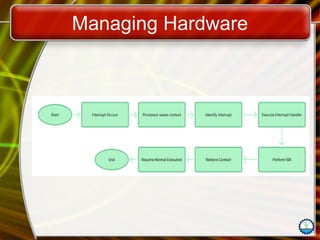
• Flowchart of Interrupt handling
Mechanism
– Step 1:- Any time that an interrupt is raised,
it may either be an I/O interrupt or a system
interrupt.
– Step 2:- The current state comprising
registers and the program counter (PC) is
then stored in order to conserve the state of
the process.
– Step 3:- The current interrupt and its
handler is identified through the interrupt
vector table in the processor.
Managing Hardware
– Step 4:- This control now shifts to the
interrupt handler, which is a function
located in the kernel space.
– Step 5:- Specific tasks are performed by
Interrupt Service Routine (ISR) which are
essential to manage interrupt.
– Step 6:- The status from the previous
session is retrieved so as to build on the
process from that point.
– Step 7:- The control is then shifted back to
the other process that was pending and the
normal process continues.
Managing Hardware
Organizing Files and Folders
• Organized storage
• Long file names
• Folders can be created and nested
• All storage devices work consistently
Enhancing an OS
• Utilities
– Provide services not included with OS
– Goes beyond the four functions
– Firewall, anti-virus and compression
– Prices vary
Enhancing an OS
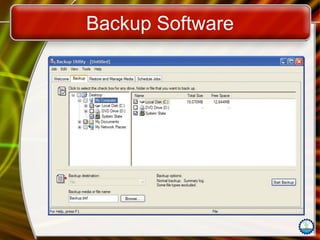
• Backup software
– Archives files onto removable media
– Ensures data integrity
– Most OS include a backup package
– Many third party packages exist
Backup Software
Enhancing an OS
• Anti-virus software
– Crucial utility
– Finds, blocks and removes viruses
– Must be updated regularly
– McAfee and Norton Anti-Virus
Enhancing an OS
• Firewall
– Crucial utility
– Protects your computer from intruders
– Makes computer invisible to hackers
– Zone Labs is a home firewall
– Cisco sells hardware firewalls
Enhancing an OS
• Intrusion detection
– Often part of a firewall package
– Announces attempts to breach security
– Snort is a Linux based package
Enhancing an OS
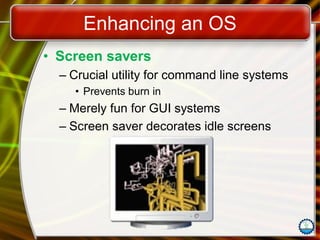
• Screen savers
– Crucial utility for command line systems
• Prevents burn in
– Merely fun for GUI systems
– Screen saver decorates idle screens
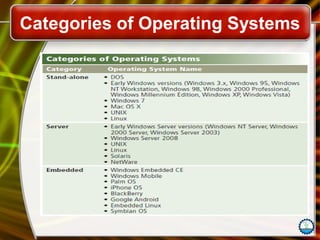
Categories of Operating Systems
Copyright © 2006 by The McGraw-Hill Companies, Inc. All rights reserved.
McGraw-Hill Technology Education
McGraw-Hill Technology Education Copyright © 2006 by The McGraw-Hill Companies, Inc. All rights reserved.
Survey of PC and Network
Operating Systems
Course Instructor: Hafeez Ahmed
MNS University of Agriculture Multan
7B-46
PC Operating Systems
• Microsoft Windows is the most popular
– Installed more than other OS combined
– Installed on about 95% of computers
– Apple and Linux represent the other 5%
7B-47
PC Operating Systems
• DOS
– Disk Operating System
– Single user single-tasking OS
– Command line interface
– 16-bit OS
– Powerful
– Fast
– Supports legacy applications
7B-48
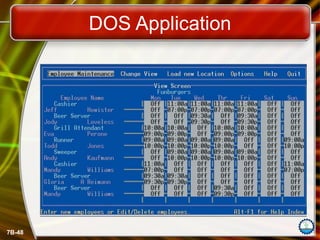
DOS Application
7B-49
PC Operating Systems
• Windows NT
– Designed for a powerful system
– 32-bit OS
– Very stable
– Windows NT Workstation
• Single user multi tasking OS
– Windows NT Server
• Multi user multi tasking OS
• Network operating system
7B-50
PC Operating Systems
• Windows 9x
– 95, 98, and Millennium Edition (Me)
– 32-bit OS
• Supported 16-bit programs well
– Very pretty not stable OS
– Still found in large corporations
– 95 introduced the Start button
– 98 introduced active desktop
– Me improved multimedia software
7B-51
PC Operating Systems
• Windows 2000
– Look of 9x with NT stability
– Optimized for office and developers
– Application software ran very well
– Entertainment software ran very poorly
7B-52
PC Operating Systems
• Windows XP
– Microsoft’s newest desktop product
– Different look from 2000
– Many different versions
– Digital multimedia support was enhanced
– Communications was enhanced
– Mobile computing became a priority
7B-53
PC Operating Systems
• UNIX
– Runs on all computer types
– 32- or 64-bit
– Very stable and fast
– Command-line interface
– Can cost thousands of dollars
7B-54
PC Operating Systems
• Linux
– Free or inexpensive version of UNIX
– 32-bit OS
– Very stable and fast
– Most flavors are open source
– X Windows GUI
• Command line interface is available
7B-55
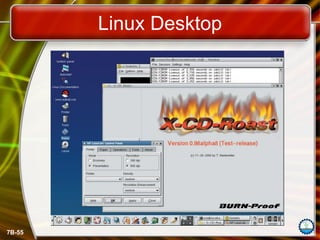
Linux Desktop
7B-56
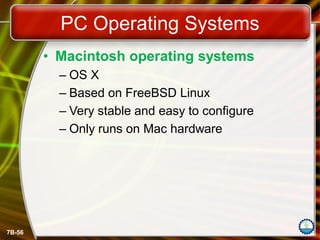
PC Operating Systems
• Macintosh operating systems
– OS X
– Based on FreeBSD Linux
– Very stable and easy to configure
– Only runs on Mac hardware
7B-57
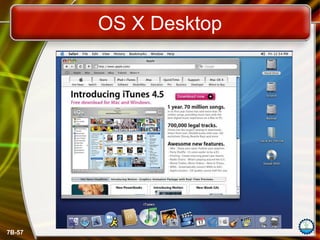
OS X Desktop
7B-58
NOS Features
• Network operating system
– Fast and stable
– Runs on servers
– Multi-user and multitasking OS
– 32- or 64-bit
7B-59
NOS Features
• File and print sharing
– Users access the same files
– Hundreds of users use a printer
– Different OS can interact
7B-60
NOS Features
• Data integrity
– Backups copies data onto tape
– RAID copies data onto other drives
• Redundant Array of Inexpensive Disks
• Relies on two or more hard drives
• May speed access to data
7B-61
NOS Features
• Data security
– Access to data can be restricted
– Access to server resources is controlled
– Audits can be kept
7B-62
Networking Operating Systems
• NT Server
– Same core as NT Workstation
– Security added
– Multi user capability added
– RAID support included
7B-63
Networking Operating Systems
• Windows 2000 Server
– Same technology as 2000 workstation
– Active Directory (AD)
• Central database of server resources
• Simplifies network management
– Distributed programs supported
– Server Standard Edition
– Advanced Server Edition
– Data Center Edition
7B-64
Networking Operating Systems
• Windows 2003 Server
– Designed to compete with UNIX
– XP like interface
– Better support for XP computers
– MS .NET framework supported
– Distributed programs are supported
– Server Standard Edition
– Data Center Edition
7B-65
Networking Operating Systems
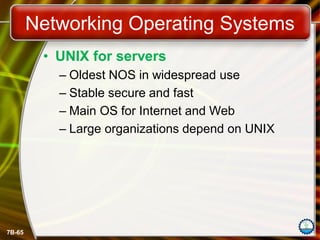
• UNIX for servers
– Oldest NOS in widespread use
– Stable secure and fast
– Main OS for Internet and Web
– Large organizations depend on UNIX
7B-66
Networking Operating Systems
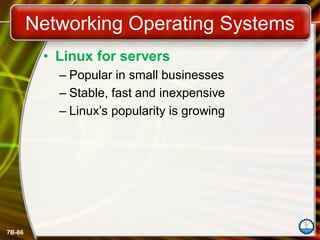
• Linux for servers
– Popular in small businesses
– Stable, fast and inexpensive
– Linux’s popularity is growing
7B-67
Embedded Operating Systems
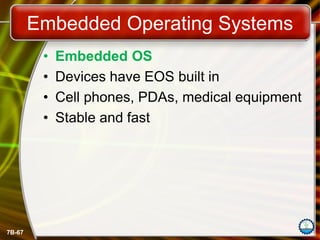
• Embedded OS
• Devices have EOS built in
• Cell phones, PDAs, medical equipment
• Stable and fast
7B-68
Embedded Operating Systems
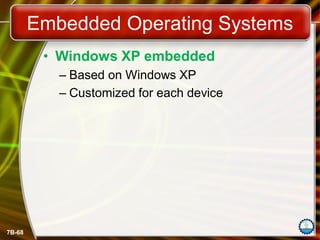
• Windows XP embedded
– Based on Windows XP
– Customized for each device
7B-69
Embedded Operating Systems
• Windows CE
– Not based on a desktop OS
– Customized for each device
– PDA and cell phones
– Microsoft Automotive will run in cars
7B-70
Embedded Operating Systems
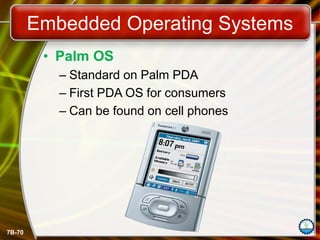
• Palm OS
– Standard on Palm PDA
– First PDA OS for consumers
– Can be found on cell phones
7B-71
Embedded Operating Systems
• Pocket PC
– Developed to compete with Palm
– Not customizable
– Interacts securely with business networks
– Can control PCs through PC
7B-72
Embedded Operating Systems
• Symbian
– Found in smart cell phones
– Games, Instant Messaging, Internet
– Full color display
Copyright © 2006 by The McGraw-Hill Companies, Inc. All rights reserved.
McGraw-Hill Technology Education
End of Lecture!
Queries?

ICT GE-309_Lecture-17-20.pdf presentation

  • 1.
    Copyright © 2006by The McGraw-Hill Companies, Inc. All rights reserved. McGraw-Hill Technology Education McGraw-Hill Technology Education Copyright © 2006 by The McGraw-Hill Companies, Inc. All rights reserved. Information and Communication Technology Lecture-17-20 Course Instructor: Hafeez Ahmed MNS University of Agriculture Multan Operating System Basics
  • 2.
    Copyright © 2006by The McGraw-Hill Companies, Inc. All rights reserved. McGraw-Hill Technology Education Operating System Basics
  • 3.
    Operating System • AnOS is a SW program but different from Word processing programs or other SW programs on your computer • OS is an example of system software, means it controls HW of the computer system and interacts with the user and application SW • OS provides with the tools (Commands) that enables to interact with PC • OS is the computer’s master control program
  • 4.
    7A-4 Functions of OperatingSystems • Provide a user interface- Displays the on- screen elements with which you interact • Run programs- Loads programs into the computer’s memory so that you can use them (Word processing and spreadsheets etc.) • Manage hardware devices- Coordinates how programs work with HW and SW • Organized file storage- Manages the way information is stored on and retrieved from the disks.
  • 5.
    Types of OperatingSystems • OS can be organized into four major types: – 1. Real-time operating system – 2. Single user/Single tasking OS – 3. Single user/Multitasking OS – 4. Multi user/Multitasking OS
  • 6.
    Types of OperatingSystems • Real-time operating system (RTOS) – Very fast, relatively small OS – Built into a device- Embedded OS – Respond quickly to user input – It can support both Single & Multi-tasking – Examples of the real-time operating systems: Airline traffic control systems, Command Control Systems, Airlines reservation system, Heart Peacemaker, Network Multimedia Systems, MP3 players & Robot etc.
  • 7.
    Real-time operating system •The real-time operating systems can be of 3 types:
  • 8.
    Types of OperatingSystems • Real-time operating system • RTOS are used in environments where a large number of events, mostly external to the computer system, must be accepted and processed in a short time or within certain deadlines. • such applications are industrial control, telephone switching equipment, flight control, and real-time simulations.
  • 9.
    Types of OperatingSystems • Advantages of RTOS: – It works very fast. – It is time saving, as it need not be loaded from memory. – Since it is very small, it occupies less space in memory.
  • 10.
    Types of OperatingSystems • Single user/Single tasking OS – One user works on the system – Performs one task at a time – MS-DOS and Palm OS – Take up little space on disk – Run on inexpensive computers
  • 11.
    Types of OperatingSystems • Advantages of Single user/Single tasking OS: • This operating system occupies less space in memory. Disadvantages • It can perform only a single task at a time.
  • 12.
    Types of OperatingSystems • Single user/Multitasking OS – User performs many tasks at once – Most common form of OS – Windows OS and Macintosh OS – Require expensive computers – Tend to be complex
  • 13.
    Types of OperatingSystems • Advantages of Single user/ Multitasking OS: • It is time saving as it performs multiple tasks at a time yielding high productivity. • Disadvantages • This operating system is highly complex and occupies more space.
  • 14.
    Types of OperatingSystems • Multi user/Multitasking OS – Many users connect to one computer – It is an operating system that permits several users to utilize the programs that are concurrently running on a single network server. – The single network server is termed as "Terminal server". – "Terminal client" is a software that supports user sessions.
  • 15.
    Types of OperatingSystems • Multi user/Multitasking OS – Each user has a unique session – UNIX, Linux, and OpenVMS, MVS – Maintenance can be easy – Requires a powerful computer
  • 16.
  • 17.
    Types of OperatingSystems • Advantages of Multi user/Multitasking OS • It is highly productive as it performs multiple tasks at a time. • It is time saving as we don’t have to make changes in many desktops, instead can make changes only to the server.
  • 18.
    Types of OperatingSystems • Disadvantages • If the connection to the server is broken, user cannot perform any task on the client as it is connected to that server.
  • 19.
    Providing a UserInterface • User Interface (UI) – How a user interacts with a computer – UI works as a medium b/w human and computer procedures. – It enables seamless communication through the visual representation of any app, website, or device. It contains elements like texts, colors, menus, buttons, and videos – everything that is visible and usable for users.
  • 20.
    Providing a UserInterface • User Interface (UI) • UI primarily carries out two tasks: – Accepting user input. – Showing the results. • Require different skill sets • Types of UIs: – Graphical user interface (GUI) – Command line interfaces (CLI) – Web user interface, Natural language interface, VR user interface etc. …
  • 21.
    Good or BadUser Interface
  • 22.
    Providing a UserInterface • Difference Between UI Design and UX Design • Though User Interface (UI) and User Experience (UX) are closely related concepts in the field of software and website development, they differ in the aspects of the overall user interaction with a product.
  • 23.
  • 24.
    Providing a UserInterface • Graphical user interface (GUI) – Most common interface • Windows, OS X, Gnome, KDE – Uses a mouse to control objects – Uses a desktop metaphor – Shortcuts open programs or documents – Open documents have additional objects – Task switching – Dialog boxes allow directed input
  • 25.
  • 26.
    Providing a UserInterface • Command line interfaces (CLI) – Older interface • DOS, Linux, UNIX – User types commands at a prompt – User must remember all commands – Included in all GUIs
  • 27.
  • 28.
    Running Programs • TheOS provides consistent interface b/w application programs and user. • Many other programs and other computer resources supported e.g. memory, printers etc. • Programmers write computer program with build-in instructions called “System call” that requests services from the OS, known as “Calls”
  • 29.
    Running Programs • SharingInformation • Share information between programs – Copy and paste – Object Linking and Embedding • Some applications use Clipboards- temporary holding space (in computer’s memory) for data that is being copied or moved
  • 30.
    Managing Hardware • Programsneed to access hardware • When programs run, they need to use the computer’s memory, monitor, disk drives and other devices like printer etc. • Processing Interrupts – The OS uses IRQs to help the CPU coordinate processes – CPU is stopped – Hardware device is accessed • Device drivers control the hardware
  • 31.
  • 32.
    Managing Hardware • Whatis an Interrupt? • The interrupt is a signal emitted by hardware or software when a process or an event needs immediate attention. • It alerts the processor to a high-priority process requiring interruption of the current working process. • In I/O devices one of the bus control lines is dedicated for this purpose and is called the Interrupt Service Routine (ISR).
  • 33.
    Managing Hardware • Flowchartof Interrupt handling Mechanism – Step 1:- Any time that an interrupt is raised, it may either be an I/O interrupt or a system interrupt. – Step 2:- The current state comprising registers and the program counter (PC) is then stored in order to conserve the state of the process. – Step 3:- The current interrupt and its handler is identified through the interrupt vector table in the processor.
  • 34.
    Managing Hardware – Step4:- This control now shifts to the interrupt handler, which is a function located in the kernel space. – Step 5:- Specific tasks are performed by Interrupt Service Routine (ISR) which are essential to manage interrupt. – Step 6:- The status from the previous session is retrieved so as to build on the process from that point. – Step 7:- The control is then shifted back to the other process that was pending and the normal process continues.
  • 35.
  • 36.
    Organizing Files andFolders • Organized storage • Long file names • Folders can be created and nested • All storage devices work consistently
  • 37.
    Enhancing an OS •Utilities – Provide services not included with OS – Goes beyond the four functions – Firewall, anti-virus and compression – Prices vary
  • 38.
    Enhancing an OS •Backup software – Archives files onto removable media – Ensures data integrity – Most OS include a backup package – Many third party packages exist
  • 39.
  • 40.
    Enhancing an OS •Anti-virus software – Crucial utility – Finds, blocks and removes viruses – Must be updated regularly – McAfee and Norton Anti-Virus
  • 41.
    Enhancing an OS •Firewall – Crucial utility – Protects your computer from intruders – Makes computer invisible to hackers – Zone Labs is a home firewall – Cisco sells hardware firewalls
  • 42.
    Enhancing an OS •Intrusion detection – Often part of a firewall package – Announces attempts to breach security – Snort is a Linux based package
  • 43.
    Enhancing an OS •Screen savers – Crucial utility for command line systems • Prevents burn in – Merely fun for GUI systems – Screen saver decorates idle screens
  • 44.
  • 45.
    Copyright © 2006by The McGraw-Hill Companies, Inc. All rights reserved. McGraw-Hill Technology Education McGraw-Hill Technology Education Copyright © 2006 by The McGraw-Hill Companies, Inc. All rights reserved. Survey of PC and Network Operating Systems Course Instructor: Hafeez Ahmed MNS University of Agriculture Multan
  • 46.
    7B-46 PC Operating Systems •Microsoft Windows is the most popular – Installed more than other OS combined – Installed on about 95% of computers – Apple and Linux represent the other 5%
  • 47.
    7B-47 PC Operating Systems •DOS – Disk Operating System – Single user single-tasking OS – Command line interface – 16-bit OS – Powerful – Fast – Supports legacy applications
  • 48.
  • 49.
    7B-49 PC Operating Systems •Windows NT – Designed for a powerful system – 32-bit OS – Very stable – Windows NT Workstation • Single user multi tasking OS – Windows NT Server • Multi user multi tasking OS • Network operating system
  • 50.
    7B-50 PC Operating Systems •Windows 9x – 95, 98, and Millennium Edition (Me) – 32-bit OS • Supported 16-bit programs well – Very pretty not stable OS – Still found in large corporations – 95 introduced the Start button – 98 introduced active desktop – Me improved multimedia software
  • 51.
    7B-51 PC Operating Systems •Windows 2000 – Look of 9x with NT stability – Optimized for office and developers – Application software ran very well – Entertainment software ran very poorly
  • 52.
    7B-52 PC Operating Systems •Windows XP – Microsoft’s newest desktop product – Different look from 2000 – Many different versions – Digital multimedia support was enhanced – Communications was enhanced – Mobile computing became a priority
  • 53.
    7B-53 PC Operating Systems •UNIX – Runs on all computer types – 32- or 64-bit – Very stable and fast – Command-line interface – Can cost thousands of dollars
  • 54.
    7B-54 PC Operating Systems •Linux – Free or inexpensive version of UNIX – 32-bit OS – Very stable and fast – Most flavors are open source – X Windows GUI • Command line interface is available
  • 55.
  • 56.
    7B-56 PC Operating Systems •Macintosh operating systems – OS X – Based on FreeBSD Linux – Very stable and easy to configure – Only runs on Mac hardware
  • 57.
  • 58.
    7B-58 NOS Features • Networkoperating system – Fast and stable – Runs on servers – Multi-user and multitasking OS – 32- or 64-bit
  • 59.
    7B-59 NOS Features • Fileand print sharing – Users access the same files – Hundreds of users use a printer – Different OS can interact
  • 60.
    7B-60 NOS Features • Dataintegrity – Backups copies data onto tape – RAID copies data onto other drives • Redundant Array of Inexpensive Disks • Relies on two or more hard drives • May speed access to data
  • 61.
    7B-61 NOS Features • Datasecurity – Access to data can be restricted – Access to server resources is controlled – Audits can be kept
  • 62.
    7B-62 Networking Operating Systems •NT Server – Same core as NT Workstation – Security added – Multi user capability added – RAID support included
  • 63.
    7B-63 Networking Operating Systems •Windows 2000 Server – Same technology as 2000 workstation – Active Directory (AD) • Central database of server resources • Simplifies network management – Distributed programs supported – Server Standard Edition – Advanced Server Edition – Data Center Edition
  • 64.
    7B-64 Networking Operating Systems •Windows 2003 Server – Designed to compete with UNIX – XP like interface – Better support for XP computers – MS .NET framework supported – Distributed programs are supported – Server Standard Edition – Data Center Edition
  • 65.
    7B-65 Networking Operating Systems •UNIX for servers – Oldest NOS in widespread use – Stable secure and fast – Main OS for Internet and Web – Large organizations depend on UNIX
  • 66.
    7B-66 Networking Operating Systems •Linux for servers – Popular in small businesses – Stable, fast and inexpensive – Linux’s popularity is growing
  • 67.
    7B-67 Embedded Operating Systems •Embedded OS • Devices have EOS built in • Cell phones, PDAs, medical equipment • Stable and fast
  • 68.
    7B-68 Embedded Operating Systems •Windows XP embedded – Based on Windows XP – Customized for each device
  • 69.
    7B-69 Embedded Operating Systems •Windows CE – Not based on a desktop OS – Customized for each device – PDA and cell phones – Microsoft Automotive will run in cars
  • 70.
    7B-70 Embedded Operating Systems •Palm OS – Standard on Palm PDA – First PDA OS for consumers – Can be found on cell phones
  • 71.
    7B-71 Embedded Operating Systems •Pocket PC – Developed to compete with Palm – Not customizable – Interacts securely with business networks – Can control PCs through PC
  • 72.
    7B-72 Embedded Operating Systems •Symbian – Found in smart cell phones – Games, Instant Messaging, Internet – Full color display
  • 73.
    Copyright © 2006by The McGraw-Hill Companies, Inc. All rights reserved. McGraw-Hill Technology Education End of Lecture! Queries?