Using NoodleToolsUsing NoodleTools
A complete citation, notecard, andA complete citation, notecard, and
outlining tooloutlining tool
START
About this TutorialAbout this Tutorial
 This tutorial will walk you through the stepsThis tutorial will walk you through the steps
of creating a project with NoodleTools.of creating a project with NoodleTools.
– To move on in the program, click the NEXTTo move on in the program, click the NEXT
button. If you need to go back, use thebutton. If you need to go back, use the
navigation in the bottom left corner to select anavigation in the bottom left corner to select a
slide.slide.
– After each section, you will have the option toAfter each section, you will have the option to
move ahead or return to the main menu.move ahead or return to the main menu.
NEXT
Choose a Topic BelowChoose a Topic Below
Starting a ProjectStarting a Project
Managing SourcesManaging Sources
Creating NotecardsCreating Notecards
From Notecards to OutlineFrom Notecards to Outline
Drafting Your PaperDrafting Your Paper
Starting a ProjectStarting a Project
NEXT
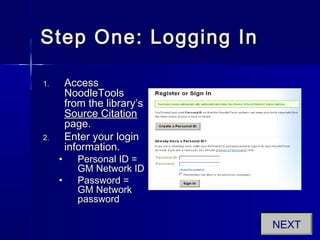
Step One: Logging InStep One: Logging In
1.1. AccessAccess
NoodleToolsNoodleTools
from the library’sfrom the library’s
Source CitationSource Citation
page.page.
2.2. Enter your loginEnter your login
information.information.
• Personal ID =Personal ID =
GM Network IDGM Network ID
• Password =Password =
GM NetworkGM Network
passwordpassword
NEXT
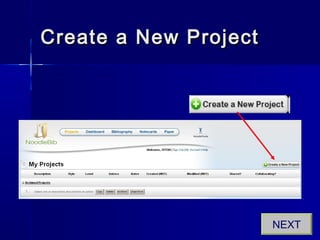
Create a New ProjectCreate a New Project
NEXT
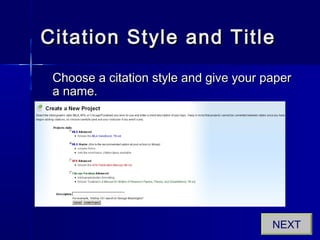
Citation Style and TitleCitation Style and Title
Choose a citation style and give your paperChoose a citation style and give your paper
a name.a name.
NEXT
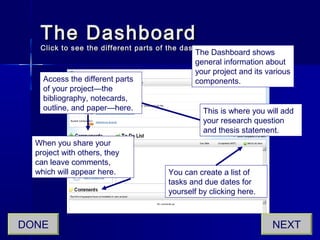
The DashboardThe Dashboard
Click to see the different parts of the dashboard.Click to see the different parts of the dashboard.
The Dashboard shows
general information about
your project and its various
components.
This is where you will add
your research question
and thesis statement.
Access the different parts
of your project—the
bibliography, notecards,
outline, and paper—here.
When you share your
project with others, they
can leave comments,
which will appear here. You can create a list of
tasks and due dates for
yourself by clicking here.
NEXTDONE
Managing SourcesManaging Sources
NEXT
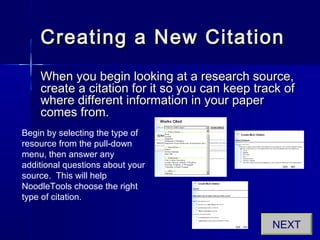
Creating a New CitationCreating a New Citation
When you begin looking at a research source,When you begin looking at a research source,
create a citation for it so you can keep track ofcreate a citation for it so you can keep track of
where different information in your paperwhere different information in your paper
comes from.comes from.
Begin by selecting the type of
resource from the pull-down
menu, then answer any
additional questions about your
source. This will help
NoodleTools choose the right
type of citation.
NEXT
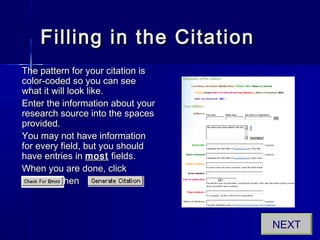
Filling in the CitationFilling in the Citation
The pattern for your citation isThe pattern for your citation is
color-coded so you can seecolor-coded so you can see
what it will look like.what it will look like.
Enter the information about yourEnter the information about your
research source into the spacesresearch source into the spaces
provided.provided.
You may not have informationYou may not have information
for every field, but you shouldfor every field, but you should
have entries inhave entries in mostmost fields.fields.
When you are done, clickWhen you are done, click
.. thenthen
NEXT
Adding AdditionalAdding Additional
InformationInformation
You can choose to add additional informationYou can choose to add additional information
about the research source in the “Annotation”about the research source in the “Annotation”
field.field.
This is required for an annotated bibliography,This is required for an annotated bibliography,
and can help you to keep track of the formatand can help you to keep track of the format
and general characteristics of each source inand general characteristics of each source in
case you want to refer to them later.case you want to refer to them later.
NEXTDONE
Creating NotecardsCreating Notecards
NEXT
What are notecards?What are notecards?
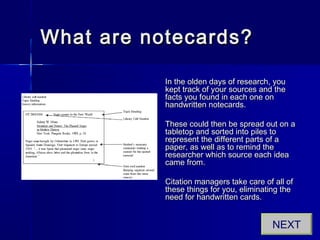
In the olden days of research, youIn the olden days of research, you
kept track of your sources and thekept track of your sources and the
facts you found in each one onfacts you found in each one on
handwritten notecards.handwritten notecards.
These could then be spread out on aThese could then be spread out on a
tabletop and sorted into piles totabletop and sorted into piles to
represent the different parts of arepresent the different parts of a
paper, as well as to remind thepaper, as well as to remind the
researcher which source each idearesearcher which source each idea
came from.came from.
Citation managers take care of all ofCitation managers take care of all of
these things for you, eliminating thethese things for you, eliminating the
need for handwritten cards.need for handwritten cards.
NEXT
Open a new NotecardOpen a new Notecard
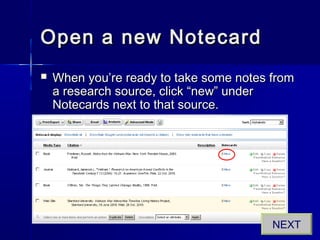
 When you’re ready to take some notes fromWhen you’re ready to take some notes from
a research source, click “new” undera research source, click “new” under
Notecards next to that source.Notecards next to that source.
NEXT
New NotecardNew Notecard
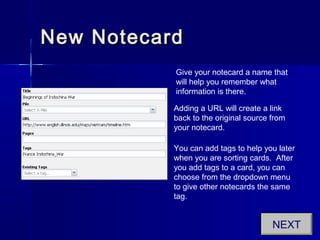
Give your notecard a name that
will help you remember what
information is there.
Adding a URL will create a link
back to the original source from
your notecard.
You can add tags to help you later
when you are sorting cards. After
you add tags to a card, you can
choose from the dropdown menu
to give other notecards the same
tag.
NEXT
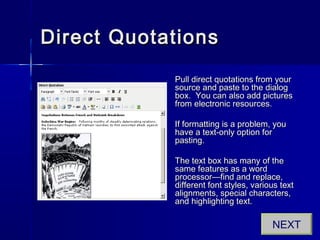
Direct QuotationsDirect Quotations
Pull direct quotations from yourPull direct quotations from your
source and paste to the dialogsource and paste to the dialog
box. You can also add picturesbox. You can also add pictures
from electronic resources.from electronic resources.
If formatting is a problem, youIf formatting is a problem, you
have a text-only option forhave a text-only option for
pasting.pasting.
The text box has many of theThe text box has many of the
same features as a wordsame features as a word
processor—find and replace,processor—find and replace,
different font styles, various textdifferent font styles, various text
alignments, special characters,alignments, special characters,
and highlighting text.and highlighting text.
NEXT
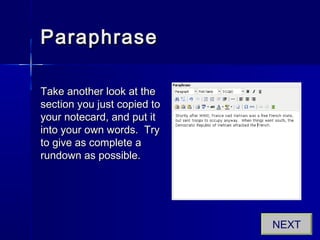
ParaphraseParaphrase
Take another look at theTake another look at the
section you just copied tosection you just copied to
your notecard, and put ityour notecard, and put it
into your own words. Tryinto your own words. Try
to give as complete ato give as complete a
rundown as possible.rundown as possible.
NEXT
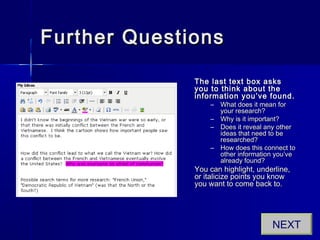
Further QuestionsFurther Questions
The last text box asksThe last text box asks
you to think about theyou to think about the
information you’ve found.information you’ve found.
– What does it mean forWhat does it mean for
your research?your research?
– Why is it important?Why is it important?
– Does it reveal any otherDoes it reveal any other
ideas that need to beideas that need to be
researched?researched?
– How does this connect toHow does this connect to
other information you’veother information you’ve
already found?already found?
You can highlight, underline,You can highlight, underline,
or italicize points you knowor italicize points you know
you want to come back to.you want to come back to.
NEXT
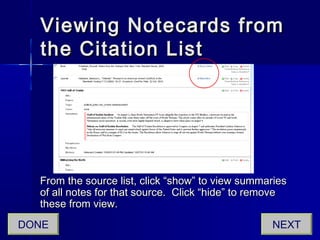
Viewing Notecards fromViewing Notecards from
the Citation Listthe Citation List
From the source list, click “show” to view summariesFrom the source list, click “show” to view summaries
of all notes for that source. Click “hide” to removeof all notes for that source. Click “hide” to remove
these from view.these from view.
NEXTDONE
From Notecards toFrom Notecards to
OutlineOutline
NEXT
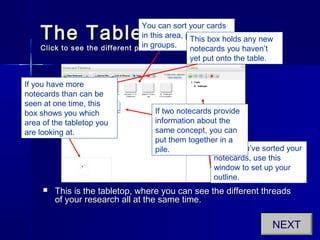
The TabletopThe Tabletop
Click to see the different parts of the tabletop.Click to see the different parts of the tabletop.
 This is the tabletop, where you can see the different threadsThis is the tabletop, where you can see the different threads
of your research all at the same time.of your research all at the same time.
NEXT
You can sort your cards
in this area, putting them
in groups.
When you’ve sorted your
notecards, use this
window to set up your
outline.
If two notecards provide
information about the
same concept, you can
put them together in a
pile.
This box holds any new
notecards you haven’t
yet put onto the table.
If you have more
notecards than can be
seen at one time, this
box shows you which
area of the tabletop you
are looking at.
Organizing NotecardsOrganizing Notecards
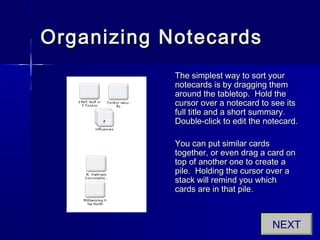
The simplest way to sort yourThe simplest way to sort your
notecards is by dragging themnotecards is by dragging them
around the tabletop. Hold thearound the tabletop. Hold the
cursor over a notecard to see itscursor over a notecard to see its
full title and a short summary.full title and a short summary.
Double-click to edit the notecard.Double-click to edit the notecard.
You can put similar cardsYou can put similar cards
together, or even drag a card ontogether, or even drag a card on
top of another one to create atop of another one to create a
pile. Holding the cursor over apile. Holding the cursor over a
stack will remind you whichstack will remind you which
cards are in that pile.cards are in that pile.
NEXT
Tagging NotecardsTagging Notecards
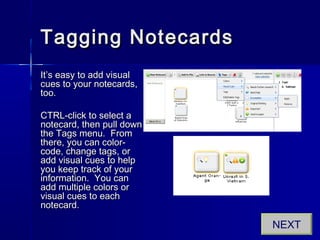
It’s easy to add visualIt’s easy to add visual
cues to your notecards,cues to your notecards,
too.too.
CTRL-click to select aCTRL-click to select a
notecard, then pull downnotecard, then pull down
the Tags menu. Fromthe Tags menu. From
there, you can color-there, you can color-
code, change tags, orcode, change tags, or
add visual cues to helpadd visual cues to help
you keep track of youryou keep track of your
information. You caninformation. You can
add multiple colors oradd multiple colors or
visual cues to eachvisual cues to each
notecard.notecard.
NEXT
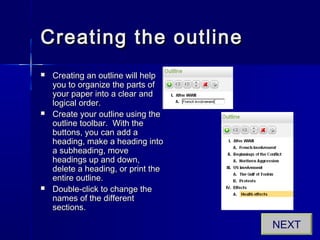
Creating the outlineCreating the outline
 Creating an outline will helpCreating an outline will help
you to organize the parts ofyou to organize the parts of
your paper into a clear andyour paper into a clear and
logical order.logical order.
 Create your outline using theCreate your outline using the
outline toolbar. With theoutline toolbar. With the
buttons, you can add abuttons, you can add a
heading, make a heading intoheading, make a heading into
a subheading, movea subheading, move
headings up and down,headings up and down,
delete a heading, or print thedelete a heading, or print the
entire outline.entire outline.
 Double-click to change theDouble-click to change the
names of the differentnames of the different
sections.sections.
NEXT
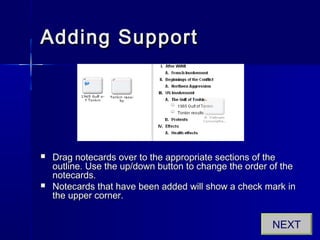
Adding SupportAdding Support
 Drag notecards over to the appropriate sections of theDrag notecards over to the appropriate sections of the
outline. Use the up/down button to change the order of theoutline. Use the up/down button to change the order of the
notecards.notecards.
 Notecards that have been added will show a check mark inNotecards that have been added will show a check mark in
the upper corner.the upper corner.
NEXT
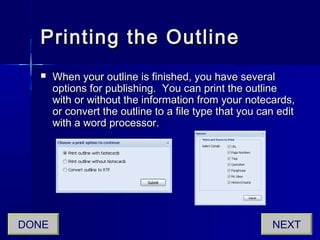
Printing the OutlinePrinting the Outline
 When your outline is finished, you have severalWhen your outline is finished, you have several
options for publishing. You can print the outlineoptions for publishing. You can print the outline
with or without the information from your notecards,with or without the information from your notecards,
or convert the outline to a file type that you can editor convert the outline to a file type that you can edit
with a word processor.with a word processor.
NEXTDONE
Drafting Your PaperDrafting Your Paper
NEXT
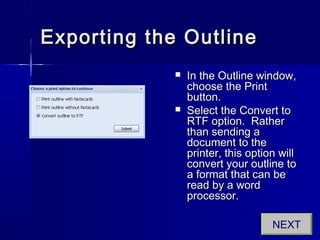
Exporting the OutlineExporting the Outline
 In the Outline window,In the Outline window,
choose the Printchoose the Print
button.button.
 Select the Convert toSelect the Convert to
RTF option. RatherRTF option. Rather
than sending athan sending a
document to thedocument to the
printer, this option willprinter, this option will
convert your outline toconvert your outline to
a format that can bea format that can be
read by a wordread by a word
processor.processor.
NEXT
Export OptionsExport Options
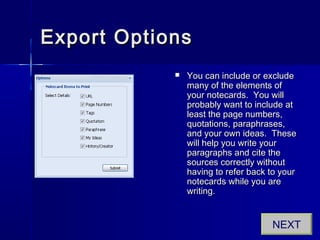
 You can include or excludeYou can include or exclude
many of the elements ofmany of the elements of
your notecards. You willyour notecards. You will
probably want to include atprobably want to include at
least the page numbers,least the page numbers,
quotations, paraphrases,quotations, paraphrases,
and your own ideas. Theseand your own ideas. These
will help you write yourwill help you write your
paragraphs and cite theparagraphs and cite the
sources correctly withoutsources correctly without
having to refer back to yourhaving to refer back to your
notecards while you arenotecards while you are
writing.writing.
NEXT
Open Your OutlineOpen Your Outline
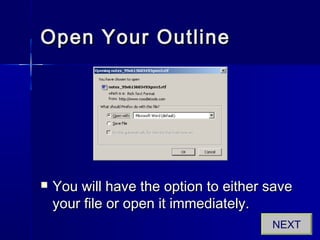
 You will have the option to either saveYou will have the option to either save
your file or open it immediately.your file or open it immediately.
NEXT
Now What?Now What?
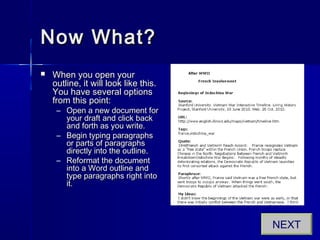
 When you open yourWhen you open your
outline, it will look like this.outline, it will look like this.
You have several optionsYou have several options
from this point:from this point:
– Open a new document forOpen a new document for
your draft and click backyour draft and click back
and forth as you write.and forth as you write.
– Begin typing paragraphsBegin typing paragraphs
or parts of paragraphsor parts of paragraphs
directly into the outline.directly into the outline.
– Reformat the documentReformat the document
into a Word outline andinto a Word outline and
type paragraphs right intotype paragraphs right into
it.it.
NEXT
TypingTyping
Straight IntoStraight Into
the Outlinethe Outline
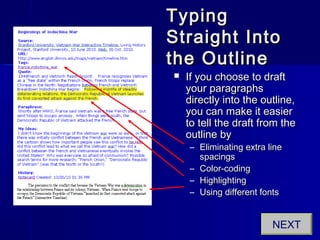
 If you choose to draftIf you choose to draft
your paragraphsyour paragraphs
directly into the outline,directly into the outline,
you can make it easieryou can make it easier
to tell the draft from theto tell the draft from the
outline byoutline by
– Eliminating extra lineEliminating extra line
spacingsspacings
– Color-codingColor-coding
– HighlightingHighlighting
– Using different fontsUsing different fonts
NEXT
Google DocsGoogle Docs
 One of the best places to put your draft is onOne of the best places to put your draft is on
Google Docs. You will need a Google account toGoogle Docs. You will need a Google account to
do this.do this.
 The advantages to using Google Docs for storingThe advantages to using Google Docs for storing
your files are:your files are:
– Files are accessible from any web-connected computer.Files are accessible from any web-connected computer.
– You only have one version of the file floating around—noYou only have one version of the file floating around—no
more figuring out which is the one you were working onmore figuring out which is the one you were working on
last time.last time.
– A full-featured, built-in word processor means you can editA full-featured, built-in word processor means you can edit
your file on a computer that doesn’t have Word, or openyour file on a computer that doesn’t have Word, or open
your file no matter what program or version you have.your file no matter what program or version you have.
NEXT
You’re Done!You’re Done!
Press to exit the tutorial.Press to exit the tutorial.

Noodle tools

  • 1.
    Using NoodleToolsUsing NoodleTools Acomplete citation, notecard, andA complete citation, notecard, and outlining tooloutlining tool START
  • 2.
    About this TutorialAboutthis Tutorial  This tutorial will walk you through the stepsThis tutorial will walk you through the steps of creating a project with NoodleTools.of creating a project with NoodleTools. – To move on in the program, click the NEXTTo move on in the program, click the NEXT button. If you need to go back, use thebutton. If you need to go back, use the navigation in the bottom left corner to select anavigation in the bottom left corner to select a slide.slide. – After each section, you will have the option toAfter each section, you will have the option to move ahead or return to the main menu.move ahead or return to the main menu. NEXT
  • 3.
    Choose a TopicBelowChoose a Topic Below Starting a ProjectStarting a Project Managing SourcesManaging Sources Creating NotecardsCreating Notecards From Notecards to OutlineFrom Notecards to Outline Drafting Your PaperDrafting Your Paper
  • 4.
  • 5.
    Step One: LoggingInStep One: Logging In 1.1. AccessAccess NoodleToolsNoodleTools from the library’sfrom the library’s Source CitationSource Citation page.page. 2.2. Enter your loginEnter your login information.information. • Personal ID =Personal ID = GM Network IDGM Network ID • Password =Password = GM NetworkGM Network passwordpassword NEXT
  • 6.
    Create a NewProjectCreate a New Project NEXT
  • 7.
    Citation Style andTitleCitation Style and Title Choose a citation style and give your paperChoose a citation style and give your paper a name.a name. NEXT
  • 8.
    The DashboardThe Dashboard Clickto see the different parts of the dashboard.Click to see the different parts of the dashboard. The Dashboard shows general information about your project and its various components. This is where you will add your research question and thesis statement. Access the different parts of your project—the bibliography, notecards, outline, and paper—here. When you share your project with others, they can leave comments, which will appear here. You can create a list of tasks and due dates for yourself by clicking here. NEXTDONE
  • 9.
  • 10.
    Creating a NewCitationCreating a New Citation When you begin looking at a research source,When you begin looking at a research source, create a citation for it so you can keep track ofcreate a citation for it so you can keep track of where different information in your paperwhere different information in your paper comes from.comes from. Begin by selecting the type of resource from the pull-down menu, then answer any additional questions about your source. This will help NoodleTools choose the right type of citation. NEXT
  • 11.
    Filling in theCitationFilling in the Citation The pattern for your citation isThe pattern for your citation is color-coded so you can seecolor-coded so you can see what it will look like.what it will look like. Enter the information about yourEnter the information about your research source into the spacesresearch source into the spaces provided.provided. You may not have informationYou may not have information for every field, but you shouldfor every field, but you should have entries inhave entries in mostmost fields.fields. When you are done, clickWhen you are done, click .. thenthen NEXT
  • 12.
    Adding AdditionalAdding Additional InformationInformation Youcan choose to add additional informationYou can choose to add additional information about the research source in the “Annotation”about the research source in the “Annotation” field.field. This is required for an annotated bibliography,This is required for an annotated bibliography, and can help you to keep track of the formatand can help you to keep track of the format and general characteristics of each source inand general characteristics of each source in case you want to refer to them later.case you want to refer to them later. NEXTDONE
  • 13.
  • 14.
    What are notecards?Whatare notecards? In the olden days of research, youIn the olden days of research, you kept track of your sources and thekept track of your sources and the facts you found in each one onfacts you found in each one on handwritten notecards.handwritten notecards. These could then be spread out on aThese could then be spread out on a tabletop and sorted into piles totabletop and sorted into piles to represent the different parts of arepresent the different parts of a paper, as well as to remind thepaper, as well as to remind the researcher which source each idearesearcher which source each idea came from.came from. Citation managers take care of all ofCitation managers take care of all of these things for you, eliminating thethese things for you, eliminating the need for handwritten cards.need for handwritten cards. NEXT
  • 15.
    Open a newNotecardOpen a new Notecard  When you’re ready to take some notes fromWhen you’re ready to take some notes from a research source, click “new” undera research source, click “new” under Notecards next to that source.Notecards next to that source. NEXT
  • 16.
    New NotecardNew Notecard Giveyour notecard a name that will help you remember what information is there. Adding a URL will create a link back to the original source from your notecard. You can add tags to help you later when you are sorting cards. After you add tags to a card, you can choose from the dropdown menu to give other notecards the same tag. NEXT
  • 17.
    Direct QuotationsDirect Quotations Pulldirect quotations from yourPull direct quotations from your source and paste to the dialogsource and paste to the dialog box. You can also add picturesbox. You can also add pictures from electronic resources.from electronic resources. If formatting is a problem, youIf formatting is a problem, you have a text-only option forhave a text-only option for pasting.pasting. The text box has many of theThe text box has many of the same features as a wordsame features as a word processor—find and replace,processor—find and replace, different font styles, various textdifferent font styles, various text alignments, special characters,alignments, special characters, and highlighting text.and highlighting text. NEXT
  • 18.
    ParaphraseParaphrase Take another lookat theTake another look at the section you just copied tosection you just copied to your notecard, and put ityour notecard, and put it into your own words. Tryinto your own words. Try to give as complete ato give as complete a rundown as possible.rundown as possible. NEXT
  • 19.
    Further QuestionsFurther Questions Thelast text box asksThe last text box asks you to think about theyou to think about the information you’ve found.information you’ve found. – What does it mean forWhat does it mean for your research?your research? – Why is it important?Why is it important? – Does it reveal any otherDoes it reveal any other ideas that need to beideas that need to be researched?researched? – How does this connect toHow does this connect to other information you’veother information you’ve already found?already found? You can highlight, underline,You can highlight, underline, or italicize points you knowor italicize points you know you want to come back to.you want to come back to. NEXT
  • 20.
    Viewing Notecards fromViewingNotecards from the Citation Listthe Citation List From the source list, click “show” to view summariesFrom the source list, click “show” to view summaries of all notes for that source. Click “hide” to removeof all notes for that source. Click “hide” to remove these from view.these from view. NEXTDONE
  • 21.
    From Notecards toFromNotecards to OutlineOutline NEXT
  • 22.
    The TabletopThe Tabletop Clickto see the different parts of the tabletop.Click to see the different parts of the tabletop.  This is the tabletop, where you can see the different threadsThis is the tabletop, where you can see the different threads of your research all at the same time.of your research all at the same time. NEXT You can sort your cards in this area, putting them in groups. When you’ve sorted your notecards, use this window to set up your outline. If two notecards provide information about the same concept, you can put them together in a pile. This box holds any new notecards you haven’t yet put onto the table. If you have more notecards than can be seen at one time, this box shows you which area of the tabletop you are looking at.
  • 23.
    Organizing NotecardsOrganizing Notecards Thesimplest way to sort yourThe simplest way to sort your notecards is by dragging themnotecards is by dragging them around the tabletop. Hold thearound the tabletop. Hold the cursor over a notecard to see itscursor over a notecard to see its full title and a short summary.full title and a short summary. Double-click to edit the notecard.Double-click to edit the notecard. You can put similar cardsYou can put similar cards together, or even drag a card ontogether, or even drag a card on top of another one to create atop of another one to create a pile. Holding the cursor over apile. Holding the cursor over a stack will remind you whichstack will remind you which cards are in that pile.cards are in that pile. NEXT
  • 24.
    Tagging NotecardsTagging Notecards It’seasy to add visualIt’s easy to add visual cues to your notecards,cues to your notecards, too.too. CTRL-click to select aCTRL-click to select a notecard, then pull downnotecard, then pull down the Tags menu. Fromthe Tags menu. From there, you can color-there, you can color- code, change tags, orcode, change tags, or add visual cues to helpadd visual cues to help you keep track of youryou keep track of your information. You caninformation. You can add multiple colors oradd multiple colors or visual cues to eachvisual cues to each notecard.notecard. NEXT
  • 25.
    Creating the outlineCreatingthe outline  Creating an outline will helpCreating an outline will help you to organize the parts ofyou to organize the parts of your paper into a clear andyour paper into a clear and logical order.logical order.  Create your outline using theCreate your outline using the outline toolbar. With theoutline toolbar. With the buttons, you can add abuttons, you can add a heading, make a heading intoheading, make a heading into a subheading, movea subheading, move headings up and down,headings up and down, delete a heading, or print thedelete a heading, or print the entire outline.entire outline.  Double-click to change theDouble-click to change the names of the differentnames of the different sections.sections. NEXT
  • 26.
    Adding SupportAdding Support Drag notecards over to the appropriate sections of theDrag notecards over to the appropriate sections of the outline. Use the up/down button to change the order of theoutline. Use the up/down button to change the order of the notecards.notecards.  Notecards that have been added will show a check mark inNotecards that have been added will show a check mark in the upper corner.the upper corner. NEXT
  • 27.
    Printing the OutlinePrintingthe Outline  When your outline is finished, you have severalWhen your outline is finished, you have several options for publishing. You can print the outlineoptions for publishing. You can print the outline with or without the information from your notecards,with or without the information from your notecards, or convert the outline to a file type that you can editor convert the outline to a file type that you can edit with a word processor.with a word processor. NEXTDONE
  • 28.
  • 29.
    Exporting the OutlineExportingthe Outline  In the Outline window,In the Outline window, choose the Printchoose the Print button.button.  Select the Convert toSelect the Convert to RTF option. RatherRTF option. Rather than sending athan sending a document to thedocument to the printer, this option willprinter, this option will convert your outline toconvert your outline to a format that can bea format that can be read by a wordread by a word processor.processor. NEXT
  • 30.
    Export OptionsExport Options You can include or excludeYou can include or exclude many of the elements ofmany of the elements of your notecards. You willyour notecards. You will probably want to include atprobably want to include at least the page numbers,least the page numbers, quotations, paraphrases,quotations, paraphrases, and your own ideas. Theseand your own ideas. These will help you write yourwill help you write your paragraphs and cite theparagraphs and cite the sources correctly withoutsources correctly without having to refer back to yourhaving to refer back to your notecards while you arenotecards while you are writing.writing. NEXT
  • 31.
    Open Your OutlineOpenYour Outline  You will have the option to either saveYou will have the option to either save your file or open it immediately.your file or open it immediately. NEXT
  • 32.
    Now What?Now What? When you open yourWhen you open your outline, it will look like this.outline, it will look like this. You have several optionsYou have several options from this point:from this point: – Open a new document forOpen a new document for your draft and click backyour draft and click back and forth as you write.and forth as you write. – Begin typing paragraphsBegin typing paragraphs or parts of paragraphsor parts of paragraphs directly into the outline.directly into the outline. – Reformat the documentReformat the document into a Word outline andinto a Word outline and type paragraphs right intotype paragraphs right into it.it. NEXT
  • 33.
    TypingTyping Straight IntoStraight Into theOutlinethe Outline  If you choose to draftIf you choose to draft your paragraphsyour paragraphs directly into the outline,directly into the outline, you can make it easieryou can make it easier to tell the draft from theto tell the draft from the outline byoutline by – Eliminating extra lineEliminating extra line spacingsspacings – Color-codingColor-coding – HighlightingHighlighting – Using different fontsUsing different fonts NEXT
  • 34.
    Google DocsGoogle Docs One of the best places to put your draft is onOne of the best places to put your draft is on Google Docs. You will need a Google account toGoogle Docs. You will need a Google account to do this.do this.  The advantages to using Google Docs for storingThe advantages to using Google Docs for storing your files are:your files are: – Files are accessible from any web-connected computer.Files are accessible from any web-connected computer. – You only have one version of the file floating around—noYou only have one version of the file floating around—no more figuring out which is the one you were working onmore figuring out which is the one you were working on last time.last time. – A full-featured, built-in word processor means you can editA full-featured, built-in word processor means you can edit your file on a computer that doesn’t have Word, or openyour file on a computer that doesn’t have Word, or open your file no matter what program or version you have.your file no matter what program or version you have. NEXT
  • 35.
    You’re Done!You’re Done! Pressto exit the tutorial.Press to exit the tutorial.