Windows 10
Beheer en uitrol
Ronny de Jong
Consultant @Inovativ | Microsoft MVP
@ronnydejong | ronnydejong.com
Agenda
• Windows 10 Approach
• Windows 10 Management
• Windows 10 Deployment
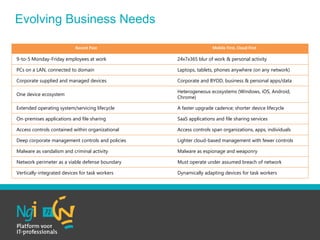
Recent Past Mobile First, Cloud First
9-to-5 Monday-Friday employees at work 24x7x365 blur of work & personal activity
PCs on a LAN, connected to domain Laptops, tablets, phones anywhere (on any network)
Corporate supplied and managed devices Corporate and BYOD, business & personal apps/data
One device ecosystem
Heterogeneous ecosystems (Windows, iOS, Android,
Chrome)
Extended operating system/servicing lifecycle A faster upgrade cadence; shorter device lifecycle
On-premises applications and file sharing SaaS applications and file sharing services
Access controls contained within organizational Access controls span organizations, apps, individuals
Deep corporate management controls and policies Lighter cloud-based management with fewer controls
Malware as vandalism and criminal activity Malware as espionage and weaponry
Network perimeter as a viable defense boundary Must operate under assumed breach of network
Vertically-integrated devices for task workers Dynamically adapting devices for task workers
Evolving Business Needs
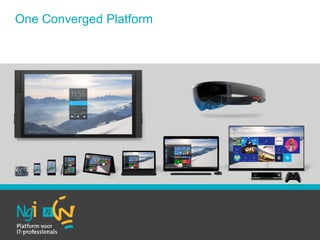
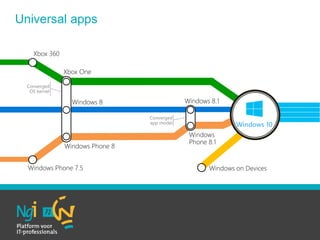
One Converged Platform
Windows 10
Converged
OS kernel
Converged
app model
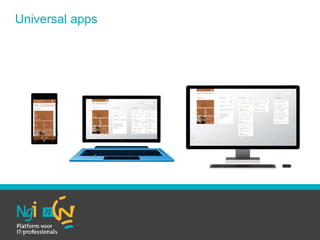
Universal apps
Universal apps
Windows 10 Management
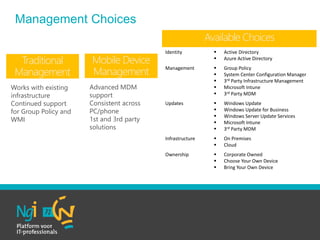
Management Choices
Works with existing
infrastructure
Continued support
for Group Policy and
WMI
Advanced MDM
support
Consistent across
PC/phone
1st and 3rd party
solutions
Mobile Device
Management
Traditional
Management
Available Choices
Identity  Active Directory
 Azure Active Directory
Management  Group Policy
 System Center Configuration Manager
 3rd Party Infrastructure Management
 Microsoft Intune
 3rd Party MDM
Updates  Windows Update
 Windows Update for Business
 Windows Server Update Services
 Microsoft Intune
 3rd Party MDM
Infrastructure  On Premises
 Cloud
Ownership  Corporate Owned
 Choose Your Own Device
 Bring Your Own Device
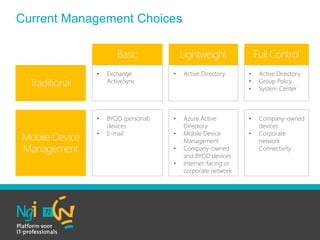
• Exchange
ActiveSync
• Active Directory • Active Directory
• Group Policy
• System Center
• BYOD (personal)
devices
• E-mail
• Azure Active
Directory
• Mobile Device
Management
• Company-owned
and BYOD devices
• Internet-facing or
corporate network
• Company-owned
devices
• Corporate
network
Connectivity
Basic Lightweight Full Control
Traditional
Mobile Device
Management
Current Management Choices
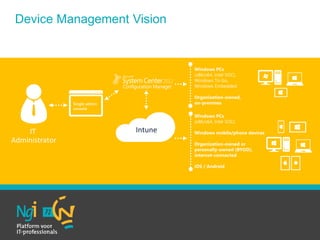
Single admin
console
Intune
Device Management Vision
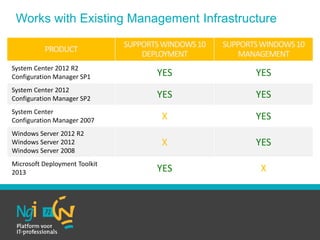
Works with Existing Management Infrastructure
PRODUCT
SUPPORTSWINDOWS10
DEPLOYMENT
SUPPORTSWINDOWS10
MANAGEMENT
System Center 2012 R2
Configuration Manager SP1 YES YES
System Center 2012
Configuration Manager SP2 YES YES
System Center
Configuration Manager 2007 X YES
Windows Server 2012 R2
Windows Server 2012
Windows Server 2008
X YES
Microsoft Deployment Toolkit
2013 YES X
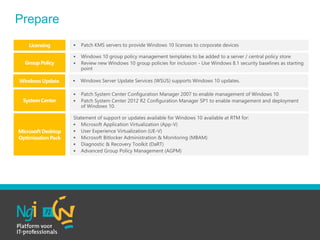
Licensing
Microsoft Desktop
OptimizationPack
Group Policy
System Center
Windows Update
Prepare
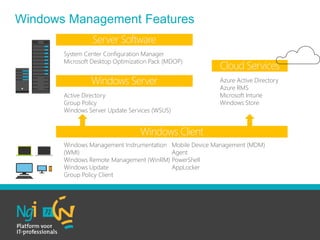
Windows Management Instrumentation
(WMI)
Windows Remote Management (WinRM)
Windows Update
Group Policy Client
Mobile Device Management (MDM)
Agent
PowerShell
AppLocker
Active Directory
Group Policy
Windows Server Update Services (WSUS)
System Center Configuration Manager
Microsoft Desktop Optimization Pack (MDOP)
Azure Active Directory
Azure RMS
Microsoft Intune
Windows Store
Server Software
Windows Server
Windows Client
Cloud Services
Windows Management Features
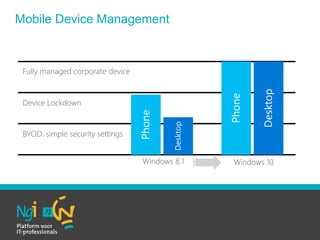
BYOD: simple security settings
Device Lockdown
Fully managed corporate device
Windows 8.1 Windows 10
Mobile Device Management
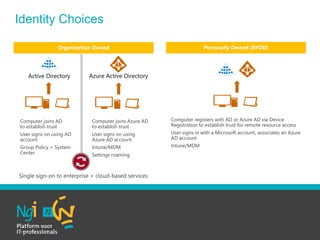
Computer joins AD
to establish trust
User signs on using AD
account
Group Policy + System
Center
Computer registers with AD or Azure AD via Device
Registration to establish trust for remote resource access
User signs in with a Microsoft account, associates an Azure
AD account
Intune/MDM
Computer joins Azure AD
to establish trust
User signs on using
Azure AD account
Intune/MDM
Settings roaming
Single sign-on to enterprise + cloud-based services
Organization Owned Personally Owned (BYOD)
Identity Choices
Demo
Manage your Windows 10 workspace
Windows 10 Deployment
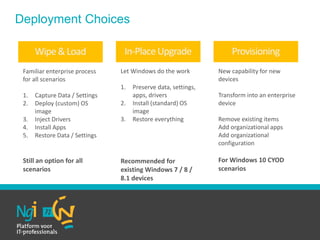
Familiar enterprise process
for all scenarios
1. Capture Data / Settings
2. Deploy (custom) OS
image
3. Inject Drivers
4. Install Apps
5. Restore Data / Settings
Still an option for all
scenarios
New capability for new
devices
Transform into an enterprise
device
Remove existing items
Add organizational apps
Add organizational
configuration
For Windows 10 CYOD
scenarios
Let Windows do the work
1. Preserve data, settings,
apps, drivers
2. Install (standard) OS
image
3. Restore everything
Recommended for
existing Windows 7 / 8 /
8.1 devices
In-PlaceUpgrade ProvisioningWipe&Load
Deployment Choices
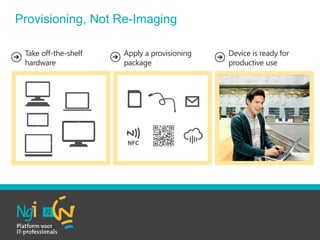
Take off-the-shelf
hardware
Apply a provisioning
package
Device is ready for
productive use
Provisioning, Not Re-Imaging
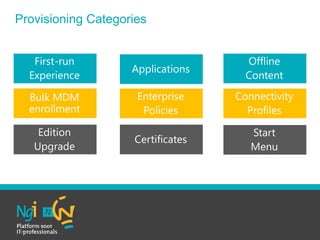
First-run
Experience
Bulk MDM
enrollment
Edition
Upgrade
Applications
Enterprise
Policies
Certificates
Offline
Content
Connectivity
Profiles
Start
Menu
Provisioning Categories
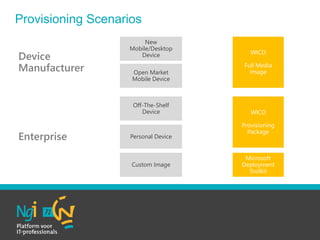
Enterprise
Device
Manufacturer
New
Mobile/Desktop
Device
Open Market
Mobile Device
Off-The-Shelf
Device
Personal Device
Custom Image
WICD
Full Media
Image
WICD
Provisioning
Package
Microsoft
Deployment
Toolkit
Provisioning Scenarios
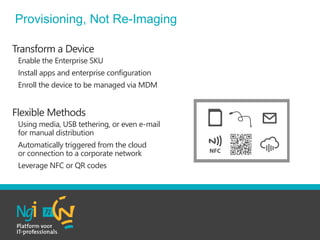
Transform a Device
• Enable the Enterprise SKU
• Install apps and enterprise configuration
• Enroll the device to be managed via MDM
Flexible Methods
• Using media, USB tethering, or even e-mail
for manual distribution
• Automatically triggered from the cloud
or connection to a corporate network
• Leverage NFC or QR codes
Provisioning, Not Re-Imaging
Demo
Create & apply provisioning package
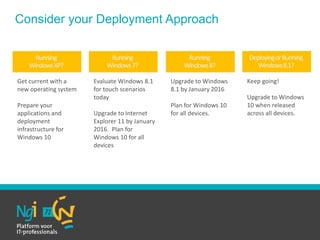
Upgrade to Windows
8.1 by January 2016
Plan for Windows 10
for all devices.
Running
Windows8?
Get current with a
new operating system
Prepare your
applications and
deployment
infrastructure for
Windows 10
Running
WindowsXP?
Evaluate Windows 8.1
for touch scenarios
today
Upgrade to Internet
Explorer 11 by January
2016. Plan for
Windows 10 for all
devices
Running
Windows7?
Keep going!
Upgrade to Windows
10 when released
across all devices.
DeployingorRunning
Windows8.1?
Consider your Deployment Approach
Q&A?

Ngn ngi windows 10 beheer

  • 1.
    Windows 10 Beheer enuitrol Ronny de Jong Consultant @Inovativ | Microsoft MVP @ronnydejong | ronnydejong.com
  • 2.
    Agenda • Windows 10Approach • Windows 10 Management • Windows 10 Deployment
  • 3.
    Recent Past MobileFirst, Cloud First 9-to-5 Monday-Friday employees at work 24x7x365 blur of work & personal activity PCs on a LAN, connected to domain Laptops, tablets, phones anywhere (on any network) Corporate supplied and managed devices Corporate and BYOD, business & personal apps/data One device ecosystem Heterogeneous ecosystems (Windows, iOS, Android, Chrome) Extended operating system/servicing lifecycle A faster upgrade cadence; shorter device lifecycle On-premises applications and file sharing SaaS applications and file sharing services Access controls contained within organizational Access controls span organizations, apps, individuals Deep corporate management controls and policies Lighter cloud-based management with fewer controls Malware as vandalism and criminal activity Malware as espionage and weaponry Network perimeter as a viable defense boundary Must operate under assumed breach of network Vertically-integrated devices for task workers Dynamically adapting devices for task workers Evolving Business Needs
  • 4.
    One Converged Platform OneConverged Platform
  • 5.
  • 6.
  • 7.
  • 8.
    Management Choices Works withexisting infrastructure Continued support for Group Policy and WMI Advanced MDM support Consistent across PC/phone 1st and 3rd party solutions Mobile Device Management Traditional Management Available Choices Identity  Active Directory  Azure Active Directory Management  Group Policy  System Center Configuration Manager  3rd Party Infrastructure Management  Microsoft Intune  3rd Party MDM Updates  Windows Update  Windows Update for Business  Windows Server Update Services  Microsoft Intune  3rd Party MDM Infrastructure  On Premises  Cloud Ownership  Corporate Owned  Choose Your Own Device  Bring Your Own Device
  • 9.
    • Exchange ActiveSync • ActiveDirectory • Active Directory • Group Policy • System Center • BYOD (personal) devices • E-mail • Azure Active Directory • Mobile Device Management • Company-owned and BYOD devices • Internet-facing or corporate network • Company-owned devices • Corporate network Connectivity Basic Lightweight Full Control Traditional Mobile Device Management Current Management Choices
  • 10.
  • 11.
    Works with ExistingManagement Infrastructure PRODUCT SUPPORTSWINDOWS10 DEPLOYMENT SUPPORTSWINDOWS10 MANAGEMENT System Center 2012 R2 Configuration Manager SP1 YES YES System Center 2012 Configuration Manager SP2 YES YES System Center Configuration Manager 2007 X YES Windows Server 2012 R2 Windows Server 2012 Windows Server 2008 X YES Microsoft Deployment Toolkit 2013 YES X
  • 12.
  • 13.
    Windows Management Instrumentation (WMI) WindowsRemote Management (WinRM) Windows Update Group Policy Client Mobile Device Management (MDM) Agent PowerShell AppLocker Active Directory Group Policy Windows Server Update Services (WSUS) System Center Configuration Manager Microsoft Desktop Optimization Pack (MDOP) Azure Active Directory Azure RMS Microsoft Intune Windows Store Server Software Windows Server Windows Client Cloud Services Windows Management Features
  • 14.
    BYOD: simple securitysettings Device Lockdown Fully managed corporate device Windows 8.1 Windows 10 Mobile Device Management
  • 15.
    Computer joins AD toestablish trust User signs on using AD account Group Policy + System Center Computer registers with AD or Azure AD via Device Registration to establish trust for remote resource access User signs in with a Microsoft account, associates an Azure AD account Intune/MDM Computer joins Azure AD to establish trust User signs on using Azure AD account Intune/MDM Settings roaming Single sign-on to enterprise + cloud-based services Organization Owned Personally Owned (BYOD) Identity Choices
  • 16.
  • 17.
  • 18.
    Familiar enterprise process forall scenarios 1. Capture Data / Settings 2. Deploy (custom) OS image 3. Inject Drivers 4. Install Apps 5. Restore Data / Settings Still an option for all scenarios New capability for new devices Transform into an enterprise device Remove existing items Add organizational apps Add organizational configuration For Windows 10 CYOD scenarios Let Windows do the work 1. Preserve data, settings, apps, drivers 2. Install (standard) OS image 3. Restore everything Recommended for existing Windows 7 / 8 / 8.1 devices In-PlaceUpgrade ProvisioningWipe&Load Deployment Choices
  • 19.
    Take off-the-shelf hardware Apply aprovisioning package Device is ready for productive use Provisioning, Not Re-Imaging
  • 20.
  • 21.
    Enterprise Device Manufacturer New Mobile/Desktop Device Open Market Mobile Device Off-The-Shelf Device PersonalDevice Custom Image WICD Full Media Image WICD Provisioning Package Microsoft Deployment Toolkit Provisioning Scenarios
  • 22.
    Transform a Device •Enable the Enterprise SKU • Install apps and enterprise configuration • Enroll the device to be managed via MDM Flexible Methods • Using media, USB tethering, or even e-mail for manual distribution • Automatically triggered from the cloud or connection to a corporate network • Leverage NFC or QR codes Provisioning, Not Re-Imaging
  • 23.
    Demo Create & applyprovisioning package
  • 24.
    Upgrade to Windows 8.1by January 2016 Plan for Windows 10 for all devices. Running Windows8? Get current with a new operating system Prepare your applications and deployment infrastructure for Windows 10 Running WindowsXP? Evaluate Windows 8.1 for touch scenarios today Upgrade to Internet Explorer 11 by January 2016. Plan for Windows 10 for all devices Running Windows7? Keep going! Upgrade to Windows 10 when released across all devices. DeployingorRunning Windows8.1? Consider your Deployment Approach
  • 25.