INTRODUCTION TO COMPUTERS
MODULE-1
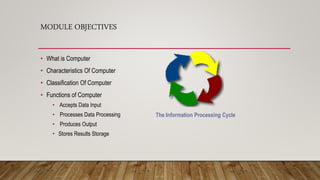
MODULE OBJECTIVES
• What is Computer
• Characteristics Of Computer
• Classification Of Computer
• Functions of Computer
• Accepts Data Input
• Processes Data Processing
• Produces Output
• Stores Results Storage
The Information Processing Cycle
COMPUTER PROCESSSING SPEEDS
• Speed
• Reliability
• Storage
Millisecond – thousandth of a second
Microsecond – millionth of a second
Nanosecond – billionth of a second
Picosecond – trillionth of a second
COMPUTER CLOCK SPEEDS
MIPS – million
instructions per
second
Megahertz (MHz) –
millions of cycles per
second
Gigahertz (GHz) –
billions of cycles per
second
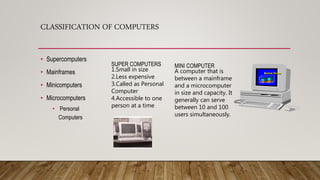
CLASSIFICATION OF COMPUTERS
• Supercomputers
• Mainframes
• Minicomputers
• Microcomputers
• Personal
Computers
SUPER COMPUTERS
1.Small in size
2.Less expensive
3.Called as Personal
Computer
4.Accessible to one
person at a time
MINI COMPUTER
A computer that is
between a mainframe
and a microcomputer
in size and capacity. It
generally can serve
between 10 and 100
users simultaneously.
Market Share
1 s t Q t r 2 n d Q t r
0
2 0
4 0
6 0
8 0
1 s t Q t r 2 n d Q t r
MAINFRAME COMPUTERS
• A mainframe is a large, powerful computer system
• Used by an organization to process high volumes of transactions, store large
databases, and serve as the hub of a corporate network.
• Uses:
• Transaction processing
• Preparing printed reports of many business transactions
• Real-time processing
• Transactions processed immediately
• Batch processing
• Processing months of data all at once
• Management information systems (MIS)
• Prepares reports for management
Located at a central site in the
organization
Programmed and operated by
computer professionals
Used primarily to automate
transactions and to prepare
management reports
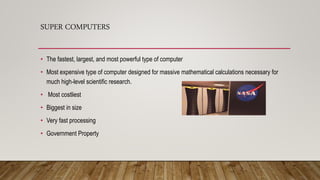
SUPER COMPUTERS
• The fastest, largest, and most powerful type of computer
• Most expensive type of computer designed for massive mathematical calculations necessary for
much high-level scientific research.
• Most costliest
• Biggest in size
• Very fast processing
• Government Property
PC-ARCHITECHTURE
MODULE-2
• Objective
• See the major components of a PC
• Understand the different connectors in a
PC
• Recognize the most common cards in a
PC
• Learn about jumpers and switches
THE VISIBLE PC
1.CPU
2.RAM
3.Motherboard
4.Power Supply
5.Hard Drive
6.CD-ROM Drive
7.Connectors
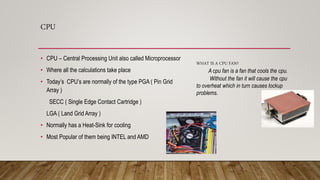
CPU
• CPU – Central Processing Unit also called Microprocessor
• Where all the calculations take place
• Today’s CPU’s are normally of the type PGA ( Pin Grid
Array )
SECC ( Single Edge Contact Cartridge )
LGA ( Land Grid Array )
• Normally has a Heat-Sink for cooling
• Most Popular of them being INTEL and AMD
WHAT IS A CPU FAN?
A cpu fan is a fan that cools the cpu.
Without the fan it will cause the cpu
to overheat which in turn causes lockup
problems.
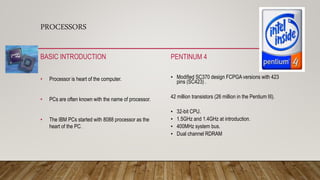
PROCESSORS
BASIC INTRODUCTION
• Processor is heart of the computer.
• PCs are often known with the name of processor.
• The IBM PCs started with 8088 processor as the
heart of the PC.
PENTINUM 4
• Modified SC370 design FCPGA versions with 423
pins (SC423) .
42 million transistors (26 million in the Pentium III).
• 32-bit CPU.
• 1.5GHz and 1.4GHz at introduction.
• 400MHz system bus.
• Dual channel RDRAM
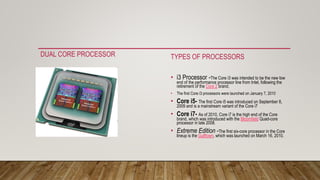
DUAL CORE PROCESSOR TYPES OF PROCESSORS
• i3 Processor -The Core i3 was intended to be the new low
end of the performance processor line from Intel, following the
retirement of the Core 2 brand.
• The first Core i3 processors were launched on January 7, 2010
• Core i5- The first Core i5 was introduced on September 8,
2009 and is a mainstream variant of the Core i7
• Core i7- As of 2010, Core i7 is the high end of the Core
brand, which was introduced with the Bloomfield Quad-core
processor in late 2008.
• Extreme Edition -The first six-core processor in the Core
lineup is the Gulftown, which was launched on March 16, 2010.
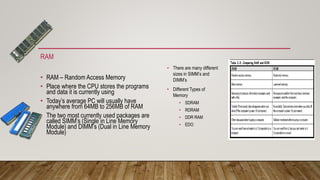
RAM
• RAM – Random Access Memory
• Place where the CPU stores the programs
and data it is currently using
• Today’s average PC will usually have
anywhere from 64MB to 256MB of RAM
• The two most currently used packages are
called SIMM’s (Single in Line Memory
Module) and DIMM’s (Dual in Line Memory
Module)
• There are many different
sizes in SIMM’s and
DIMM’s
• Different Types of
Memory
• SDRAM
• RDRAM
• DDR RAM
• EDO
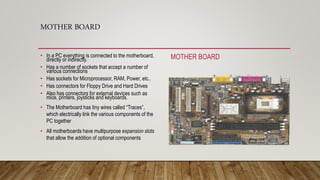
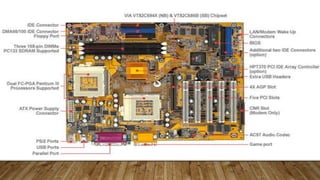
MOTHER BOARD
• In a PC everything is connected to the motherboard,
directly or indirectly.
• Has a number of sockets that accept a number of
various connections
• Has sockets for Microprocessor, RAM, Power, etc..
• Has connectors for Floppy Drive and Hard Drives
• Also has connectors for external devices such as
mice, printers, joysticks and keyboards.
• The Motherboard has tiny wires called “Traces”,
which electrically link the various components of the
PC together
• All motherboards have multipurpose expansion slots
that allow the addition of optional components
MOTHER BOARD
CONTI…
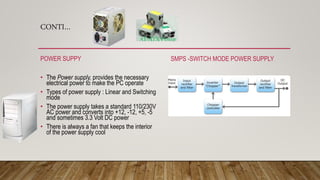
POWER SUPPY
• The Power supply, provides the necessary
electrical power to make the PC operate
• Types of power supply : Linear and Switching
mode
• The power supply takes a standard 110/230V
AC power and converts into +12, -12, +5, -5
and sometimes 3.3 Volt DC power
• There is always a fan that keeps the interior
of the power supply cool
SMPS -SWITCH MODE POWER SUPPLY
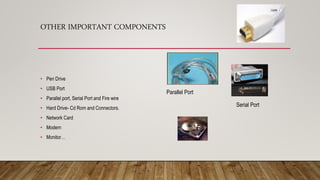
OTHER IMPORTANT COMPONENTS
• Pen Drive
• USB Port
• Parallel port, Serial Port and Fire wire
• Hard Drive- Cd Rom and Connectors.
• Network Card
• Modern
• Monitor…
Parallel Port
Serial Port
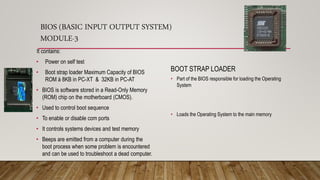
BIOS (BASIC INPUT OUTPUT SYSTEM)
MODULE-3
BOOT STRAP LOADER
• Part of the BIOS responsible for loading the Operating
System
• Loads the Operating System to the main memory
It contains:
• Power on self test
• Boot strap loader Maximum Capacity of BIOS
ROM à 8KB in PC-XT & 32KB in PC-AT
• BIOS is software stored in a Read-Only Memory
(ROM) chip on the motherboard (CMOS).
• Used to control boot sequence
• To enable or disable com ports
• It controls systems devices and test memory
• Beeps are emitted from a computer during the
boot process when some problem is encountered
and can be used to troubleshoot a dead computer.
TYPES OF ROM
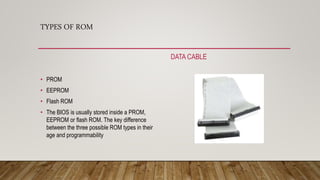
DATA CABLE
• PROM
• EEPROM
• Flash ROM
• The BIOS is usually stored inside a PROM,
EEPROM or flash ROM. The key difference
between the three possible ROM types in their
age and programmability
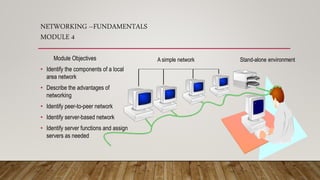
NETWORKING –FUNDAMENTALS
MODULE 4
Module Objectives
• Identify the components of a local
area network
• Describe the advantages of
networking
• Identify peer-to-peer network
• Identify server-based network
• Identify server functions and assign
servers as needed
Stand-alone environmentA simple network
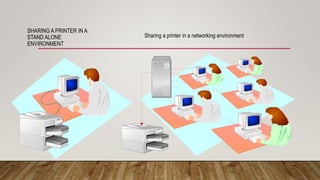
SHARING A PRINTER IN A
STAND ALONE
ENVIRONMENT
Sharing a printer in a networking environment
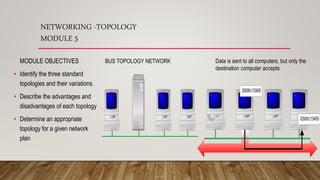
NETWORKING -TOPOLOGY
MODULE 5
MODULE OBJECTIVES
• Identify the three standard
topologies and their variations
• Describe the advantages and
disadvantages of each topology
• Determine an appropriate
topology for a given network
plan
BUS TOPOLOGY NETWORK Data is sent to all computers, but only the
destination computer accepts
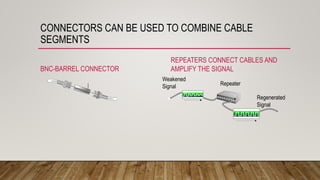
CONNECTORS CAN BE USED TO COMBINE CABLE
SEGMENTS
BNC-BARREL CONNECTOR
REPEATERS CONNECT CABLES AND
AMPLIFY THE SIGNAL
Weakened
Signal Repeater
Regenerated
Signal
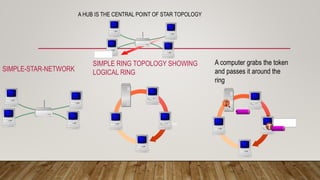
SIMPLE-STAR-NETWORK
SIMPLE RING TOPOLOGY SHOWING
LOGICAL RING
A computer grabs the token
and passes it around the
ring
A HUB IS THE CENTRAL POINT OF STAR TOPOLOGY
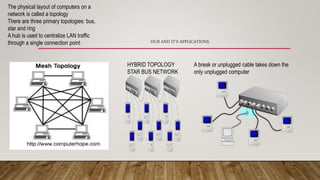
HYBRID TOPOLOGY
STAR BUS NETWORK
A break or unplugged cable takes down the
only unplugged computer
HUB AND IT’S APPLICATIONS
The physical layout of computers on a
network is called a topology
There are three primary topologies: bus,
star and ring
A hub is used to centralize LAN traffic
through a single connection point
NETWORKING -FUNDAMENTALS
MODULE 3
MODULE OBJECTIVES:
• Define terms related to cabling including
shielding, crosstalk, attenuation.
• Identify the primary types of network cabling.
• Distinguish between baseband and
broadband transmissions and identify
appropriate uses for each.
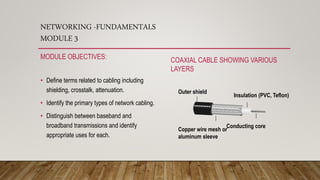
COAXIAL CABLE SHOWING VARIOUS
LAYERS
Outer shield
Insulation (PVC, Teflon)
Copper wire mesh or
aluminum sleeve
Conducting core
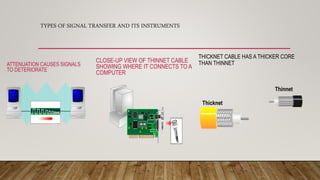
TYPES OF SIGNAL TRANSFER AND ITS INSTRUMENTS
ATTENUATION CAUSES SIGNALS
TO DETERIORATE
CLOSE-UP VIEW OF THINNET CABLE
SHOWING WHERE IT CONNECTS TO A
COMPUTER
THICKNET CABLE HAS A THICKER CORE
THAN THINNET
Thicknet
Thinnet
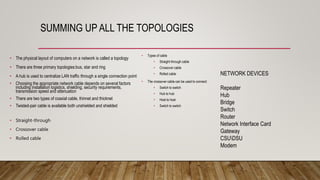
SUMMING UP ALL THE TOPOLOGIES
• The physical layout of computers on a network is called a topology
• There are three primary topologies:bus, star and ring
• A hub is used to centralize LAN traffic through a single connection point
• Choosing the appropriate network cable depends on several factors
including installation logistics, shielding, security requirements,
transmission speed and attenuation
• There are two types of coaxial cable, thinnet and thicknet
• Twisted-pair cable is available both unshielded and shielded
• Straight-through
• Crossover cable
• Rolled cable
• Types of cable
• Straight-through cable
• Crossover cable
• Rolled cable
• The crossover cable can be used to connect:
• Switch to switch
• Hub to hub
• Host to host
• Switch to switch
NETWORK DEVICES
Repeater
Hub
Bridge
Switch
Router
Network Interface Card
Gateway
CSUDSU
Modem
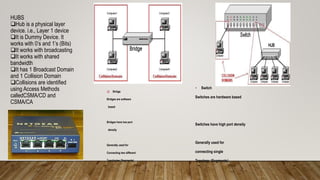
HUBS
Hub is a physical layer
device. i.e., Layer 1 device
It is Dummy Device. It
works with 0’s and 1’s (Bits)
It works with broadcasting
It works with shared
bandwidth
It has 1 Broadcast Domain
and 1 Collision Domain
Collisions are identified
using Access Methods
calledCSMA/CD and
CSMA/CA
 Bridge
Bridges are software
based
Bridges have low port
density
Generally used for
Connecting two different
Topologies (Segments)
• Switch
Switches are hardware based
Switches have high port density
Generally used for
connecting single
Topology (Segments)
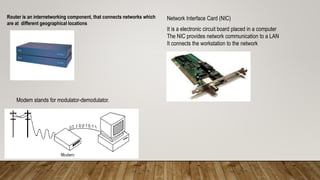
Router is an internetworking component, that connects networks which
are at different geographical locations
Network Interface Card (NIC)
It is a electronic circuit board placed in a computer
The NIC provides network communication to a LAN
It connects the workstation to the network
Modem stands for modulator-demodulator.
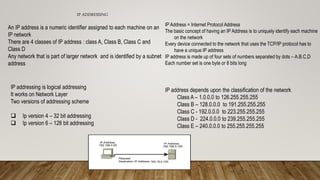
IP ADDRESSING
An IP address is a numeric identifier assigned to each machine on an
IP network
There are 4 classes of IP address : class A, Class B, Class C and
Class D
Any network that is part of larger network and is identified by a subnet
address
IP addressing is logical addressing
It works on Network Layer
Two versions of addressing scheme
 Ip version 4 – 32 bit addressing
 Ip version 6 – 128 bit addressing
IP Address = Internet Protocol Address
The basic concept of having an IP Address is to uniquely identify each machine
on the network
Every device connected to the network that uses the TCP/IP protocol has to
have a unique IP address
IP address is made up of four sets of numbers separated by dots – A.B.C.D
Each number set is one byte or 8 bits long
IP address depends upon the classification of the network
Class A – 1.0.0.0 to 126.255.255.255
Class B – 128.0.0.0 to 191.255.255.255
Class C - 192.0.0.0 to 223.255.255.255
Class D - 224.0.0.0 to 239.255.255.255
Class E – 240.0.0.0 to 255.255.255.255
THE END
SPECIAL THANKS TO:TECHNO SMART
ISO 9001:2015 REGISTERED INSTITUTE
C.E.O:P.CHARAN SAI BALAJI
MICROSOFT CIRTIFIED TRAINER:GAUTHAM KAMAT
DATE OF CERTIFICATION:13TH JUNE 2017
DONE BY
MR.PRAJWAL AMAR SINGH
RA1511004010205
UNDER THE SUPERVISION OF MRS.HANNAH PAULINE

Networking fundamentals

  • 1.
  • 2.
    MODULE OBJECTIVES • Whatis Computer • Characteristics Of Computer • Classification Of Computer • Functions of Computer • Accepts Data Input • Processes Data Processing • Produces Output • Stores Results Storage The Information Processing Cycle
  • 3.
    COMPUTER PROCESSSING SPEEDS •Speed • Reliability • Storage Millisecond – thousandth of a second Microsecond – millionth of a second Nanosecond – billionth of a second Picosecond – trillionth of a second COMPUTER CLOCK SPEEDS MIPS – million instructions per second Megahertz (MHz) – millions of cycles per second Gigahertz (GHz) – billions of cycles per second
  • 4.
    CLASSIFICATION OF COMPUTERS •Supercomputers • Mainframes • Minicomputers • Microcomputers • Personal Computers SUPER COMPUTERS 1.Small in size 2.Less expensive 3.Called as Personal Computer 4.Accessible to one person at a time MINI COMPUTER A computer that is between a mainframe and a microcomputer in size and capacity. It generally can serve between 10 and 100 users simultaneously. Market Share 1 s t Q t r 2 n d Q t r 0 2 0 4 0 6 0 8 0 1 s t Q t r 2 n d Q t r
  • 5.
    MAINFRAME COMPUTERS • Amainframe is a large, powerful computer system • Used by an organization to process high volumes of transactions, store large databases, and serve as the hub of a corporate network. • Uses: • Transaction processing • Preparing printed reports of many business transactions • Real-time processing • Transactions processed immediately • Batch processing • Processing months of data all at once • Management information systems (MIS) • Prepares reports for management Located at a central site in the organization Programmed and operated by computer professionals Used primarily to automate transactions and to prepare management reports
  • 6.
    SUPER COMPUTERS • Thefastest, largest, and most powerful type of computer • Most expensive type of computer designed for massive mathematical calculations necessary for much high-level scientific research. • Most costliest • Biggest in size • Very fast processing • Government Property
  • 7.
    PC-ARCHITECHTURE MODULE-2 • Objective • Seethe major components of a PC • Understand the different connectors in a PC • Recognize the most common cards in a PC • Learn about jumpers and switches THE VISIBLE PC 1.CPU 2.RAM 3.Motherboard 4.Power Supply 5.Hard Drive 6.CD-ROM Drive 7.Connectors
  • 8.
    CPU • CPU –Central Processing Unit also called Microprocessor • Where all the calculations take place • Today’s CPU’s are normally of the type PGA ( Pin Grid Array ) SECC ( Single Edge Contact Cartridge ) LGA ( Land Grid Array ) • Normally has a Heat-Sink for cooling • Most Popular of them being INTEL and AMD WHAT IS A CPU FAN? A cpu fan is a fan that cools the cpu. Without the fan it will cause the cpu to overheat which in turn causes lockup problems.
  • 9.
    PROCESSORS BASIC INTRODUCTION • Processoris heart of the computer. • PCs are often known with the name of processor. • The IBM PCs started with 8088 processor as the heart of the PC. PENTINUM 4 • Modified SC370 design FCPGA versions with 423 pins (SC423) . 42 million transistors (26 million in the Pentium III). • 32-bit CPU. • 1.5GHz and 1.4GHz at introduction. • 400MHz system bus. • Dual channel RDRAM
  • 10.
    DUAL CORE PROCESSORTYPES OF PROCESSORS • i3 Processor -The Core i3 was intended to be the new low end of the performance processor line from Intel, following the retirement of the Core 2 brand. • The first Core i3 processors were launched on January 7, 2010 • Core i5- The first Core i5 was introduced on September 8, 2009 and is a mainstream variant of the Core i7 • Core i7- As of 2010, Core i7 is the high end of the Core brand, which was introduced with the Bloomfield Quad-core processor in late 2008. • Extreme Edition -The first six-core processor in the Core lineup is the Gulftown, which was launched on March 16, 2010.
  • 11.
    RAM • RAM –Random Access Memory • Place where the CPU stores the programs and data it is currently using • Today’s average PC will usually have anywhere from 64MB to 256MB of RAM • The two most currently used packages are called SIMM’s (Single in Line Memory Module) and DIMM’s (Dual in Line Memory Module) • There are many different sizes in SIMM’s and DIMM’s • Different Types of Memory • SDRAM • RDRAM • DDR RAM • EDO
  • 12.
    MOTHER BOARD • Ina PC everything is connected to the motherboard, directly or indirectly. • Has a number of sockets that accept a number of various connections • Has sockets for Microprocessor, RAM, Power, etc.. • Has connectors for Floppy Drive and Hard Drives • Also has connectors for external devices such as mice, printers, joysticks and keyboards. • The Motherboard has tiny wires called “Traces”, which electrically link the various components of the PC together • All motherboards have multipurpose expansion slots that allow the addition of optional components MOTHER BOARD
  • 14.
    CONTI… POWER SUPPY • ThePower supply, provides the necessary electrical power to make the PC operate • Types of power supply : Linear and Switching mode • The power supply takes a standard 110/230V AC power and converts into +12, -12, +5, -5 and sometimes 3.3 Volt DC power • There is always a fan that keeps the interior of the power supply cool SMPS -SWITCH MODE POWER SUPPLY
  • 15.
    OTHER IMPORTANT COMPONENTS •Pen Drive • USB Port • Parallel port, Serial Port and Fire wire • Hard Drive- Cd Rom and Connectors. • Network Card • Modern • Monitor… Parallel Port Serial Port
  • 16.
    BIOS (BASIC INPUTOUTPUT SYSTEM) MODULE-3 BOOT STRAP LOADER • Part of the BIOS responsible for loading the Operating System • Loads the Operating System to the main memory It contains: • Power on self test • Boot strap loader Maximum Capacity of BIOS ROM à 8KB in PC-XT & 32KB in PC-AT • BIOS is software stored in a Read-Only Memory (ROM) chip on the motherboard (CMOS). • Used to control boot sequence • To enable or disable com ports • It controls systems devices and test memory • Beeps are emitted from a computer during the boot process when some problem is encountered and can be used to troubleshoot a dead computer.
  • 17.
    TYPES OF ROM DATACABLE • PROM • EEPROM • Flash ROM • The BIOS is usually stored inside a PROM, EEPROM or flash ROM. The key difference between the three possible ROM types in their age and programmability
  • 18.
    NETWORKING –FUNDAMENTALS MODULE 4 ModuleObjectives • Identify the components of a local area network • Describe the advantages of networking • Identify peer-to-peer network • Identify server-based network • Identify server functions and assign servers as needed Stand-alone environmentA simple network
  • 19.
    SHARING A PRINTERIN A STAND ALONE ENVIRONMENT Sharing a printer in a networking environment
  • 20.
    NETWORKING -TOPOLOGY MODULE 5 MODULEOBJECTIVES • Identify the three standard topologies and their variations • Describe the advantages and disadvantages of each topology • Determine an appropriate topology for a given network plan BUS TOPOLOGY NETWORK Data is sent to all computers, but only the destination computer accepts
  • 21.
    CONNECTORS CAN BEUSED TO COMBINE CABLE SEGMENTS BNC-BARREL CONNECTOR REPEATERS CONNECT CABLES AND AMPLIFY THE SIGNAL Weakened Signal Repeater Regenerated Signal
  • 22.
    SIMPLE-STAR-NETWORK SIMPLE RING TOPOLOGYSHOWING LOGICAL RING A computer grabs the token and passes it around the ring A HUB IS THE CENTRAL POINT OF STAR TOPOLOGY
  • 23.
    HYBRID TOPOLOGY STAR BUSNETWORK A break or unplugged cable takes down the only unplugged computer HUB AND IT’S APPLICATIONS The physical layout of computers on a network is called a topology There are three primary topologies: bus, star and ring A hub is used to centralize LAN traffic through a single connection point
  • 24.
    NETWORKING -FUNDAMENTALS MODULE 3 MODULEOBJECTIVES: • Define terms related to cabling including shielding, crosstalk, attenuation. • Identify the primary types of network cabling. • Distinguish between baseband and broadband transmissions and identify appropriate uses for each. COAXIAL CABLE SHOWING VARIOUS LAYERS Outer shield Insulation (PVC, Teflon) Copper wire mesh or aluminum sleeve Conducting core
  • 25.
    TYPES OF SIGNALTRANSFER AND ITS INSTRUMENTS ATTENUATION CAUSES SIGNALS TO DETERIORATE CLOSE-UP VIEW OF THINNET CABLE SHOWING WHERE IT CONNECTS TO A COMPUTER THICKNET CABLE HAS A THICKER CORE THAN THINNET Thicknet Thinnet
  • 26.
    SUMMING UP ALLTHE TOPOLOGIES • The physical layout of computers on a network is called a topology • There are three primary topologies:bus, star and ring • A hub is used to centralize LAN traffic through a single connection point • Choosing the appropriate network cable depends on several factors including installation logistics, shielding, security requirements, transmission speed and attenuation • There are two types of coaxial cable, thinnet and thicknet • Twisted-pair cable is available both unshielded and shielded • Straight-through • Crossover cable • Rolled cable • Types of cable • Straight-through cable • Crossover cable • Rolled cable • The crossover cable can be used to connect: • Switch to switch • Hub to hub • Host to host • Switch to switch NETWORK DEVICES Repeater Hub Bridge Switch Router Network Interface Card Gateway CSUDSU Modem
  • 27.
    HUBS Hub is aphysical layer device. i.e., Layer 1 device It is Dummy Device. It works with 0’s and 1’s (Bits) It works with broadcasting It works with shared bandwidth It has 1 Broadcast Domain and 1 Collision Domain Collisions are identified using Access Methods calledCSMA/CD and CSMA/CA  Bridge Bridges are software based Bridges have low port density Generally used for Connecting two different Topologies (Segments) • Switch Switches are hardware based Switches have high port density Generally used for connecting single Topology (Segments)
  • 28.
    Router is aninternetworking component, that connects networks which are at different geographical locations Network Interface Card (NIC) It is a electronic circuit board placed in a computer The NIC provides network communication to a LAN It connects the workstation to the network Modem stands for modulator-demodulator.
  • 29.
    IP ADDRESSING An IPaddress is a numeric identifier assigned to each machine on an IP network There are 4 classes of IP address : class A, Class B, Class C and Class D Any network that is part of larger network and is identified by a subnet address IP addressing is logical addressing It works on Network Layer Two versions of addressing scheme  Ip version 4 – 32 bit addressing  Ip version 6 – 128 bit addressing IP Address = Internet Protocol Address The basic concept of having an IP Address is to uniquely identify each machine on the network Every device connected to the network that uses the TCP/IP protocol has to have a unique IP address IP address is made up of four sets of numbers separated by dots – A.B.C.D Each number set is one byte or 8 bits long IP address depends upon the classification of the network Class A – 1.0.0.0 to 126.255.255.255 Class B – 128.0.0.0 to 191.255.255.255 Class C - 192.0.0.0 to 223.255.255.255 Class D - 224.0.0.0 to 239.255.255.255 Class E – 240.0.0.0 to 255.255.255.255
  • 30.
    THE END SPECIAL THANKSTO:TECHNO SMART ISO 9001:2015 REGISTERED INSTITUTE C.E.O:P.CHARAN SAI BALAJI MICROSOFT CIRTIFIED TRAINER:GAUTHAM KAMAT DATE OF CERTIFICATION:13TH JUNE 2017 DONE BY MR.PRAJWAL AMAR SINGH RA1511004010205 UNDER THE SUPERVISION OF MRS.HANNAH PAULINE