Module 1
Introduction to computer
hardware and software
Ms. Shridevi K
shridevikembhavi.blogspot.com
Topics
• Computer and Its background
• Generation of Computers
• Types of Computers
• Bits, Bytes and Words
• Inside the Computer
Computer
• Computer is probably man’s greatest invention.
• Powerful device to compute at lightning speed.
• Applications of Computer:
– Aviation
– Ticket Reservation
– Games
– Network technology(Internet)
– Medical Science
– Robots and Driverless cars
– Online Shopping etc.,
• A computer is a device that can automatically
performs set of instructions.
• The computer takes instructions as input,
processes and produces the result as the output.
• The processing is fast and accurate.
• Central Processing Unit(CPU) –brain of Computer
whose task is to process instructions.
• Computer-Binary device understand the
sequence of ‘0’ & ‘1’ called machine language.
• Machine language is difficult so human use
programming language.
Background
• Abacus
• Napier
• Pascal
• Leibniz
• Charles Babbage Father of Computers-
Difference Engine
• Analytical Engine
Computer Generations
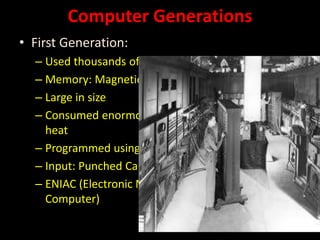
• First Generation:
– Used thousands of Vacuum Tubes
– Memory: Magnetic Drums
– Large in size
– Consumed enormous power and generated lot of
heat
– Programmed using machine language
– Input: Punched Cards ; Output: paper
– ENIAC (Electronic Numerical Integrator and
Computer)
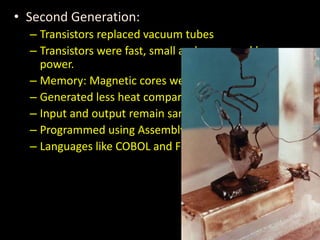
• Second Generation:
– Transistors replaced vacuum tubes
– Transistors were fast, small and consumed less
power.
– Memory: Magnetic cores were used.
– Generated less heat compared to first generation.
– Input and output remain same.
– Programmed using Assembly level language.
– Languages like COBOL and Fortran
• Third Generation:
– Replaced with integrated circuits.
– Small, cheaper and energy efficient.
– Boost up in Speed and efficiency.
– Magnetic disk was used for the storage.
– Input: Keyboard; Output: Monitor
– Operating system to control resources of computer.
– Programming Languages : BASIC, C, C++ and Java
• Fourth Generation:
– Microprocessor with VLSI(Very Large Scale Integration).
– Offered gigabytes of memory.
– High Speed, Network, operating systems.
– Graphical User Interface(GUI).
– Desktops, Laptop, Smartphone, Microwave ovens
• Fifth Generation:
– Speed, Size, Energy Consumption.
– Artificial Intelligence(AI)
– Parallel Processing
– Speech Recognition
– Neural Network
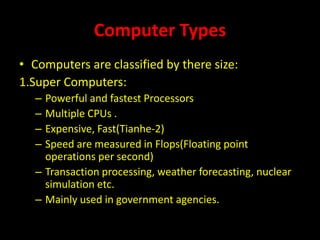
Computer Types
• Computers are classified by there size:
1.Super Computers:
– Powerful and fastest Processors
– Multiple CPUs .
– Expensive, Fast(Tianhe-2)
– Speed are measured in Flops(Floating point
operations per second)
– Transaction processing, weather forecasting, nuclear
simulation etc.
– Mainly used in government agencies.
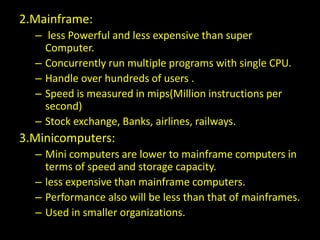
2.Mainframe:
– less Powerful and less expensive than super
Computer.
– Concurrently run multiple programs with single CPU.
– Handle over hundreds of users .
– Speed is measured in mips(Million instructions per
second)
– Stock exchange, Banks, airlines, railways.
3.Minicomputers:
– Mini computers are lower to mainframe computers in
terms of speed and storage capacity.
– less expensive than mainframe computers.
– Performance also will be less than that of mainframes.
– Used in smaller organizations.
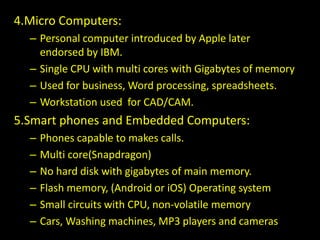
4.Micro Computers:
– Personal computer introduced by Apple later
endorsed by IBM.
– Single CPU with multi cores with Gigabytes of memory
– Used for business, Word processing, spreadsheets.
– Workstation used for CAD/CAM.
5.Smart phones and Embedded Computers:
– Phones capable to makes calls.
– Multi core(Snapdragon)
– No hard disk with gigabytes of main memory.
– Flash memory, (Android or iOS) Operating system
– Small circuits with CPU, non-volatile memory
– Cars, Washing machines, MP3 players and cameras
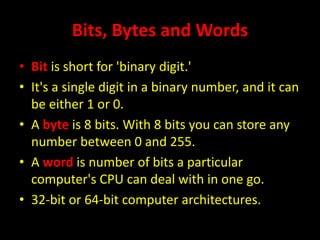
Bits, Bytes and Words
• Bit is short for 'binary digit.'
• It's a single digit in a binary number, and it can
be either 1 or 0.
• A byte is 8 bits. With 8 bits you can store any
number between 0 and 255.
• A word is number of bits a particular
computer's CPU can deal with in one go.
• 32-bit or 64-bit computer architectures.
• Bit = Binary digit = 0 or 1
• Byte = a sequence of 8 bits = 00000000,
00000001, ..., or 11111111
• Word = a sequence of N bits where N = 16, 32, 64
depending on the computer.
• Measuring Amount of Data/Memory Capacity
– 1 kilobyte = 1 KB = 1024 bytes
– 1 Megabyte = 1 MB = 1024 KB
– 1 Gigabyte = 1 GB = 1024 MB
– 1 Terabyte=1TB=1024 GB
– 1 Petabytes=1PB=1024 TB
Inside Computer
Central Processing Unit(CPU)
Arithmetic Logic Unit(ALU)-SuperCalculator
Control Unit(CU)
Special Registers
A Clock
Memory
Primary Memory
Secondary Memory
Primary Memory
Random Access Memory(SRAM, DRAM)
Read Only Memory(ROM)
PROM-Programmable Read Only memory
EPROM-Erasable Programmable Read Only memory
EEPROM- Electronic Erasable Programmable Read Only
memory)
Cache Memory(L1,L2,L3)
CPU Registers
Secondary Memory
Hard Disk(500 GB to 4TB)
Magnetic Tape(20TB)
CD-ROM(700MB less than 1GB)
DVD-ROM(4.7GB-8.5GB)
Blu-ray Disk(27GB-50GB)
Flash Memory(1GB-128GB)
Obsolete Floppy Disk(1.2-1.44MB)
Ports and Connectors
• A port is generally a specific place for being
physically connected to some other device,
usually with a socket or plug which we call
connectors. Types of ports:
– Universal Serial Bus
– Serial Port
– Parallel Port
– Video Graphic Array(VGA) Port
– RJ45 port(Registered Jack)
– PS/2 port(Personal System)
– High Definition Multimedia Interface (HDMI)
Connectors
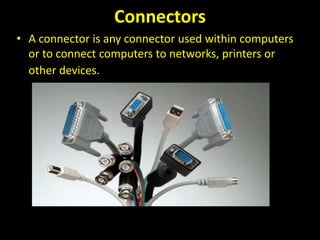
• A connector is any connector used within computers
or to connect computers to networks, printers or
other devices.
Many types of computer connectors
• PS/2 Connector:Used
for connecting
keyboard and mouse
on the modern PCs.
The PS/2 mouse
connector and port is
usually green in colour
to distinguish it from
the PS2 keyboard,
which is purple.
• Universal Serial Bus:
a protocol for
transferring data to
and from digital
devices.
• Four lines-data(2)
and power(2).
• Many digital cameras
and memory card
readers co
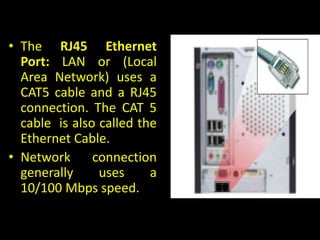
• The RJ45 Ethernet
Port: LAN or (Local
Area Network) uses a
CAT5 cable and a RJ45
connection. The CAT 5
cable is also called the
Ethernet Cable.
• Network connection
generally uses a
10/100 Mbps speed.
• Parallel Port :The
printer connects to
your computer with
a Parallel connector.
This connector has
25 pins.
• Parallel means the
device is capable of
receiving more than
one bit at a time.
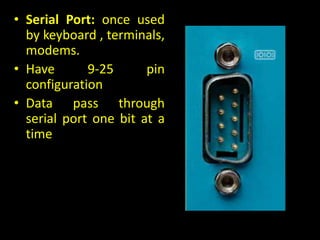
• Serial Port: once used
by keyboard , terminals,
modems.
• Have 9-25 pin
configuration
• Data pass through
serial port one bit at a
time
• Video Graphics
Array Port: 15-pin
port allows to
transfer of analog
video data to
monitor .
• Replaced by Digital
Video Interface
• High Definition
Multimedia Interface:
Transferring audio and
video data between
computers, projectors
and home theaters
Input Devices
• The devices that provide the input to the computer
with the help 0f various devices to perform the
operation
– Keyboard:
• Physical or touch screen
• QWERTY layout
• Represented as character.
• Unique values ASCII( American Standard Code for
Information Interchange)
– Pointing Devices:
• Optical(infrared or LED) and Wireless(radio
frequency)
– Scanner:
• Optical Character Recognition(ORC) & Magnetic Ink
Character Recognition( MICR)
Output Devices
• An output device is any piece of computer hardware
equipment used to communicate the results of data
processing carried out by an information processing
system (such as a computer) to the outside world.
– Monitor:
• CRT, LCD, LED
– Printers:
• Impact Printer: Dot-Matrix, Obsolete Daisy wheel, Line
• Non-impact Printer: Laser and Inkjet printers
– Plotters
Computers in Network
• A collection of computing devices that are
connected in various ways in order to
communicate and share resources.
• Usually, the connections between computers in
a network are made using physical wires or
cables.
• However, some connections are wireless, using
radio waves or infrared signals
Network Topology
• Different ways of connecting computers.
Mesh:
Advantages
fault tolerance
If one device/node in the
network fails, the rest of the
devices can work normally
without interruption.
Adding more devices in the
network does not affect the
rest of the devices.
Disadvantages
Time consuming and
difficult.
Cabling cost is high.
Bus:
Advantages
• single communication line,
simplicity.
• Easy to setup and extend.
• Less costly. Less cabling
needs.
Disadvantages
• single communication line for
data transmission makes it
easier for collision to occur
• If the single network cable
has a problem or
disconnection, the whole
network breaks.
• Difficult to identify a problem.
• Not efficient.
Star:
Advantages
• Easy to install.
• Easy to troubleshoot and detect problems
in the network.
• If one device fails, it does not affect the
other devices in the network.
• Easily add or remove devices.
• Centralized management and monitoring
through the central switch/hub.
Disadvantages
• It has a single point of failure(hub).
• Performance of the whole network
depends on the performance of the central
node.
Ring:
Advantages
• Ability to have fast
network throughput.
• Less packet collisions.
• High speed transfers.
• Token is used between
nodes thus making this
performing better than
bus topology
Disadvantage is the point of
failure, as a single node
can break the transmission
of data on the network.
Types of network
• LAN(Local area Network)
• WAN(Wide Area Network)
• MAN(Metropolitan area Network)
• CAN(Campus Area Network)
• PAN(Personal Area Network)
Network Hardware
• Network Interface Card
• Hub and Switch
• Bridge and Router
Software
• It is collection of instructions that drives the
computer or device to perform related group
of tasks.
• It consists of code, library and configuration
files.
• Two types:
– System Software
– Application Software
System Software
• It Helps to manage the hardware connected to
it.
• Types:
– Basic Input Output System(BIOS)
– Operating System
– Device Driver
– Compilers and associated programs
Application Software
• It can perform he specific task for the user.
This is also called “apps”.
• Types of software:
– Office Software
– Database Software
– Communication Software
– Entertainment Software
– Anti-virus software
– Special purpose software like CAD/CAM

21PSP13

  • 1.
    Module 1 Introduction tocomputer hardware and software Ms. Shridevi K shridevikembhavi.blogspot.com
  • 2.
    Topics • Computer andIts background • Generation of Computers • Types of Computers • Bits, Bytes and Words • Inside the Computer
  • 3.
    Computer • Computer isprobably man’s greatest invention. • Powerful device to compute at lightning speed. • Applications of Computer: – Aviation – Ticket Reservation – Games – Network technology(Internet) – Medical Science – Robots and Driverless cars – Online Shopping etc.,
  • 4.
    • A computeris a device that can automatically performs set of instructions. • The computer takes instructions as input, processes and produces the result as the output. • The processing is fast and accurate. • Central Processing Unit(CPU) –brain of Computer whose task is to process instructions. • Computer-Binary device understand the sequence of ‘0’ & ‘1’ called machine language. • Machine language is difficult so human use programming language.
  • 5.
    Background • Abacus • Napier •Pascal • Leibniz • Charles Babbage Father of Computers- Difference Engine • Analytical Engine
  • 6.
    Computer Generations • FirstGeneration: – Used thousands of Vacuum Tubes – Memory: Magnetic Drums – Large in size – Consumed enormous power and generated lot of heat – Programmed using machine language – Input: Punched Cards ; Output: paper – ENIAC (Electronic Numerical Integrator and Computer)
  • 7.
    • Second Generation: –Transistors replaced vacuum tubes – Transistors were fast, small and consumed less power. – Memory: Magnetic cores were used. – Generated less heat compared to first generation. – Input and output remain same. – Programmed using Assembly level language. – Languages like COBOL and Fortran
  • 8.
    • Third Generation: –Replaced with integrated circuits. – Small, cheaper and energy efficient. – Boost up in Speed and efficiency. – Magnetic disk was used for the storage. – Input: Keyboard; Output: Monitor – Operating system to control resources of computer. – Programming Languages : BASIC, C, C++ and Java
  • 9.
    • Fourth Generation: –Microprocessor with VLSI(Very Large Scale Integration). – Offered gigabytes of memory. – High Speed, Network, operating systems. – Graphical User Interface(GUI). – Desktops, Laptop, Smartphone, Microwave ovens • Fifth Generation: – Speed, Size, Energy Consumption. – Artificial Intelligence(AI) – Parallel Processing – Speech Recognition – Neural Network
  • 10.
    Computer Types • Computersare classified by there size: 1.Super Computers: – Powerful and fastest Processors – Multiple CPUs . – Expensive, Fast(Tianhe-2) – Speed are measured in Flops(Floating point operations per second) – Transaction processing, weather forecasting, nuclear simulation etc. – Mainly used in government agencies.
  • 11.
    2.Mainframe: – less Powerfuland less expensive than super Computer. – Concurrently run multiple programs with single CPU. – Handle over hundreds of users . – Speed is measured in mips(Million instructions per second) – Stock exchange, Banks, airlines, railways. 3.Minicomputers: – Mini computers are lower to mainframe computers in terms of speed and storage capacity. – less expensive than mainframe computers. – Performance also will be less than that of mainframes. – Used in smaller organizations.
  • 12.
    4.Micro Computers: – Personalcomputer introduced by Apple later endorsed by IBM. – Single CPU with multi cores with Gigabytes of memory – Used for business, Word processing, spreadsheets. – Workstation used for CAD/CAM. 5.Smart phones and Embedded Computers: – Phones capable to makes calls. – Multi core(Snapdragon) – No hard disk with gigabytes of main memory. – Flash memory, (Android or iOS) Operating system – Small circuits with CPU, non-volatile memory – Cars, Washing machines, MP3 players and cameras
  • 13.
    Bits, Bytes andWords • Bit is short for 'binary digit.' • It's a single digit in a binary number, and it can be either 1 or 0. • A byte is 8 bits. With 8 bits you can store any number between 0 and 255. • A word is number of bits a particular computer's CPU can deal with in one go. • 32-bit or 64-bit computer architectures.
  • 14.
    • Bit =Binary digit = 0 or 1 • Byte = a sequence of 8 bits = 00000000, 00000001, ..., or 11111111 • Word = a sequence of N bits where N = 16, 32, 64 depending on the computer. • Measuring Amount of Data/Memory Capacity – 1 kilobyte = 1 KB = 1024 bytes – 1 Megabyte = 1 MB = 1024 KB – 1 Gigabyte = 1 GB = 1024 MB – 1 Terabyte=1TB=1024 GB – 1 Petabytes=1PB=1024 TB
  • 15.
  • 16.
    Central Processing Unit(CPU) ArithmeticLogic Unit(ALU)-SuperCalculator Control Unit(CU) Special Registers A Clock Memory Primary Memory Secondary Memory Primary Memory Random Access Memory(SRAM, DRAM) Read Only Memory(ROM) PROM-Programmable Read Only memory EPROM-Erasable Programmable Read Only memory EEPROM- Electronic Erasable Programmable Read Only memory) Cache Memory(L1,L2,L3) CPU Registers
  • 17.
    Secondary Memory Hard Disk(500GB to 4TB) Magnetic Tape(20TB) CD-ROM(700MB less than 1GB) DVD-ROM(4.7GB-8.5GB) Blu-ray Disk(27GB-50GB) Flash Memory(1GB-128GB) Obsolete Floppy Disk(1.2-1.44MB)
  • 18.
    Ports and Connectors •A port is generally a specific place for being physically connected to some other device, usually with a socket or plug which we call connectors. Types of ports: – Universal Serial Bus – Serial Port – Parallel Port – Video Graphic Array(VGA) Port – RJ45 port(Registered Jack) – PS/2 port(Personal System) – High Definition Multimedia Interface (HDMI)
  • 20.
    Connectors • A connectoris any connector used within computers or to connect computers to networks, printers or other devices. Many types of computer connectors
  • 21.
    • PS/2 Connector:Used forconnecting keyboard and mouse on the modern PCs. The PS/2 mouse connector and port is usually green in colour to distinguish it from the PS2 keyboard, which is purple.
  • 22.
    • Universal SerialBus: a protocol for transferring data to and from digital devices. • Four lines-data(2) and power(2). • Many digital cameras and memory card readers co
  • 23.
    • The RJ45Ethernet Port: LAN or (Local Area Network) uses a CAT5 cable and a RJ45 connection. The CAT 5 cable is also called the Ethernet Cable. • Network connection generally uses a 10/100 Mbps speed.
  • 24.
    • Parallel Port:The printer connects to your computer with a Parallel connector. This connector has 25 pins. • Parallel means the device is capable of receiving more than one bit at a time.
  • 25.
    • Serial Port:once used by keyboard , terminals, modems. • Have 9-25 pin configuration • Data pass through serial port one bit at a time
  • 26.
    • Video Graphics ArrayPort: 15-pin port allows to transfer of analog video data to monitor . • Replaced by Digital Video Interface
  • 27.
    • High Definition MultimediaInterface: Transferring audio and video data between computers, projectors and home theaters
  • 28.
    Input Devices • Thedevices that provide the input to the computer with the help 0f various devices to perform the operation – Keyboard: • Physical or touch screen • QWERTY layout • Represented as character. • Unique values ASCII( American Standard Code for Information Interchange) – Pointing Devices: • Optical(infrared or LED) and Wireless(radio frequency) – Scanner: • Optical Character Recognition(ORC) & Magnetic Ink Character Recognition( MICR)
  • 29.
    Output Devices • Anoutput device is any piece of computer hardware equipment used to communicate the results of data processing carried out by an information processing system (such as a computer) to the outside world. – Monitor: • CRT, LCD, LED – Printers: • Impact Printer: Dot-Matrix, Obsolete Daisy wheel, Line • Non-impact Printer: Laser and Inkjet printers – Plotters
  • 30.
    Computers in Network •A collection of computing devices that are connected in various ways in order to communicate and share resources. • Usually, the connections between computers in a network are made using physical wires or cables. • However, some connections are wireless, using radio waves or infrared signals
  • 31.
    Network Topology • Differentways of connecting computers. Mesh: Advantages fault tolerance If one device/node in the network fails, the rest of the devices can work normally without interruption. Adding more devices in the network does not affect the rest of the devices. Disadvantages Time consuming and difficult. Cabling cost is high.
  • 32.
    Bus: Advantages • single communicationline, simplicity. • Easy to setup and extend. • Less costly. Less cabling needs. Disadvantages • single communication line for data transmission makes it easier for collision to occur • If the single network cable has a problem or disconnection, the whole network breaks. • Difficult to identify a problem. • Not efficient.
  • 33.
    Star: Advantages • Easy toinstall. • Easy to troubleshoot and detect problems in the network. • If one device fails, it does not affect the other devices in the network. • Easily add or remove devices. • Centralized management and monitoring through the central switch/hub. Disadvantages • It has a single point of failure(hub). • Performance of the whole network depends on the performance of the central node.
  • 34.
    Ring: Advantages • Ability tohave fast network throughput. • Less packet collisions. • High speed transfers. • Token is used between nodes thus making this performing better than bus topology Disadvantage is the point of failure, as a single node can break the transmission of data on the network.
  • 35.
    Types of network •LAN(Local area Network) • WAN(Wide Area Network) • MAN(Metropolitan area Network) • CAN(Campus Area Network) • PAN(Personal Area Network)
  • 36.
    Network Hardware • NetworkInterface Card • Hub and Switch • Bridge and Router
  • 38.
    Software • It iscollection of instructions that drives the computer or device to perform related group of tasks. • It consists of code, library and configuration files. • Two types: – System Software – Application Software
  • 39.
    System Software • ItHelps to manage the hardware connected to it. • Types: – Basic Input Output System(BIOS) – Operating System – Device Driver – Compilers and associated programs
  • 40.
    Application Software • Itcan perform he specific task for the user. This is also called “apps”. • Types of software: – Office Software – Database Software – Communication Software – Entertainment Software – Anti-virus software – Special purpose software like CAD/CAM