Power point Presentation on
NETWORK TOPOLOGY.
Present by: GAYATRI SONAWANE
WHAT IS NETWORK TOPOLOGY?
 Topology is derived from two Greek words topo and logy, where topo means
'place' and logy means 'study'. In computer networks, a topology is used to
explain how a network is physically connected and the logical flow of
information in the network. A topology mainly describes how devices are
connected and interact with each other using communication links.
COMPUTER NETWORKS, THERE ARE MAINLY TWO TYPES
OF TOPOLOGIES:
 Physical Topology: A physical topology describes the way in which the
computers or nodes are connected with each other in a computer network. It is
the arrangement of various elements(link, nodes, etc.), including the device
location and code installation of a computer network.
 Logical Topology: A logical topology describes the way, data flow from one
computer to another. It is bound to a network protocol and defines how data is
moved throughout the network and which path it takes.
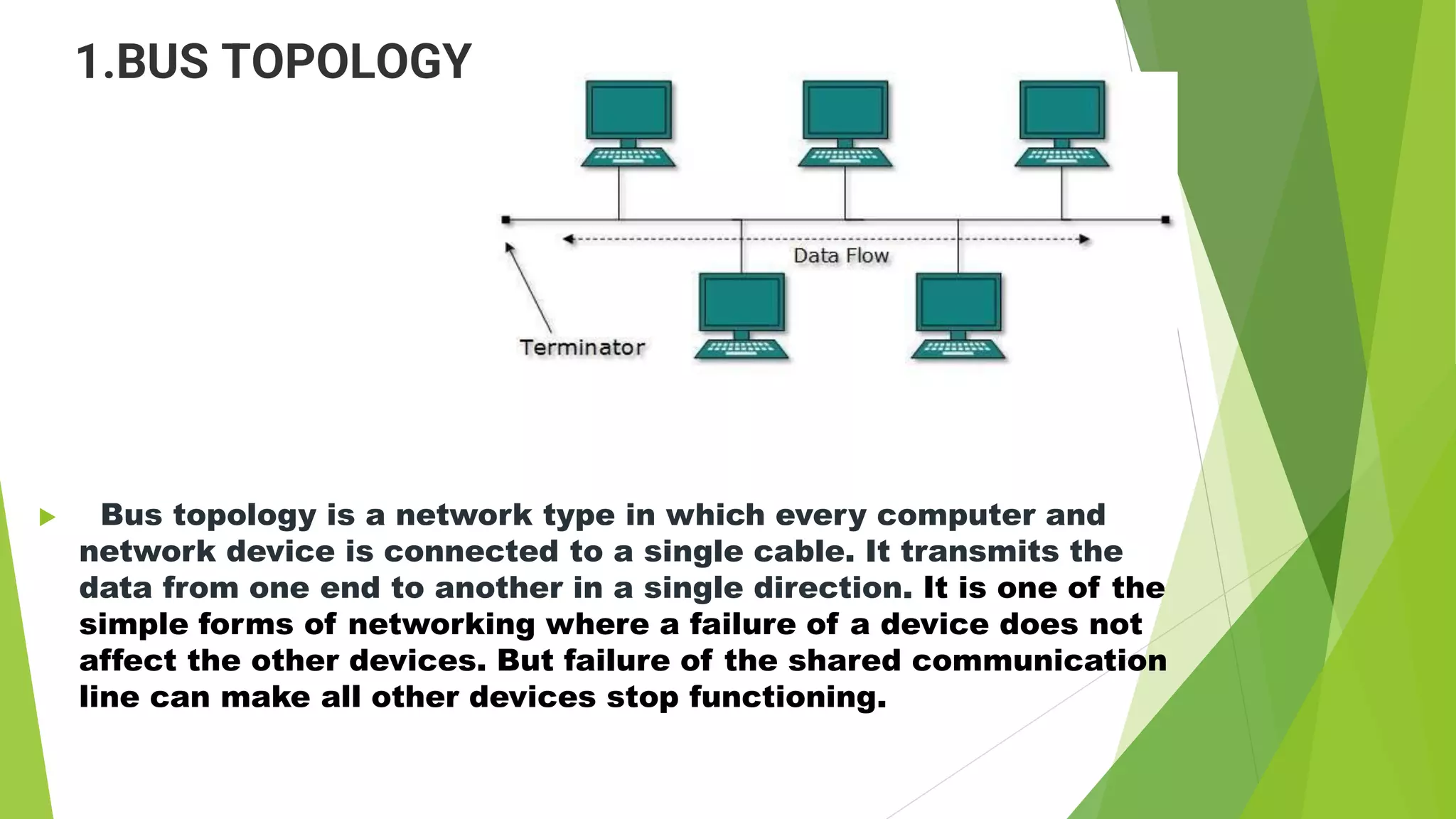
1.BUS TOPOLOGY
 Bus topology is a network type in which every computer and
network device is connected to a single cable. It transmits the
data from one end to another in a single direction. It is one of the
simple forms of networking where a failure of a device does not
affect the other devices. But failure of the shared communication
line can make all other devices stop functioning.
BUS TOPOLOGY
• Advantages of Bus topology:
• Low-cost cable: In bus topology, nodes are directly connected
to the cable without passing through a hub. Therefore, the
initial cost of installation is low.
• Moderate data speeds: Coaxial or twisted pair cables are mainly
used in bus-based networks that support upto 10 Mbps.
 Disadvantages of Bus topology:
• Extensive cabling: A bus topology is quite simpler, but still it
requires a lot of cabling.
• Difficult troubleshooting: It requires specialized test equipment
to determine the cable faults. If any fault occurs in the cable,
then it would disrupt the communication for all the nodes.
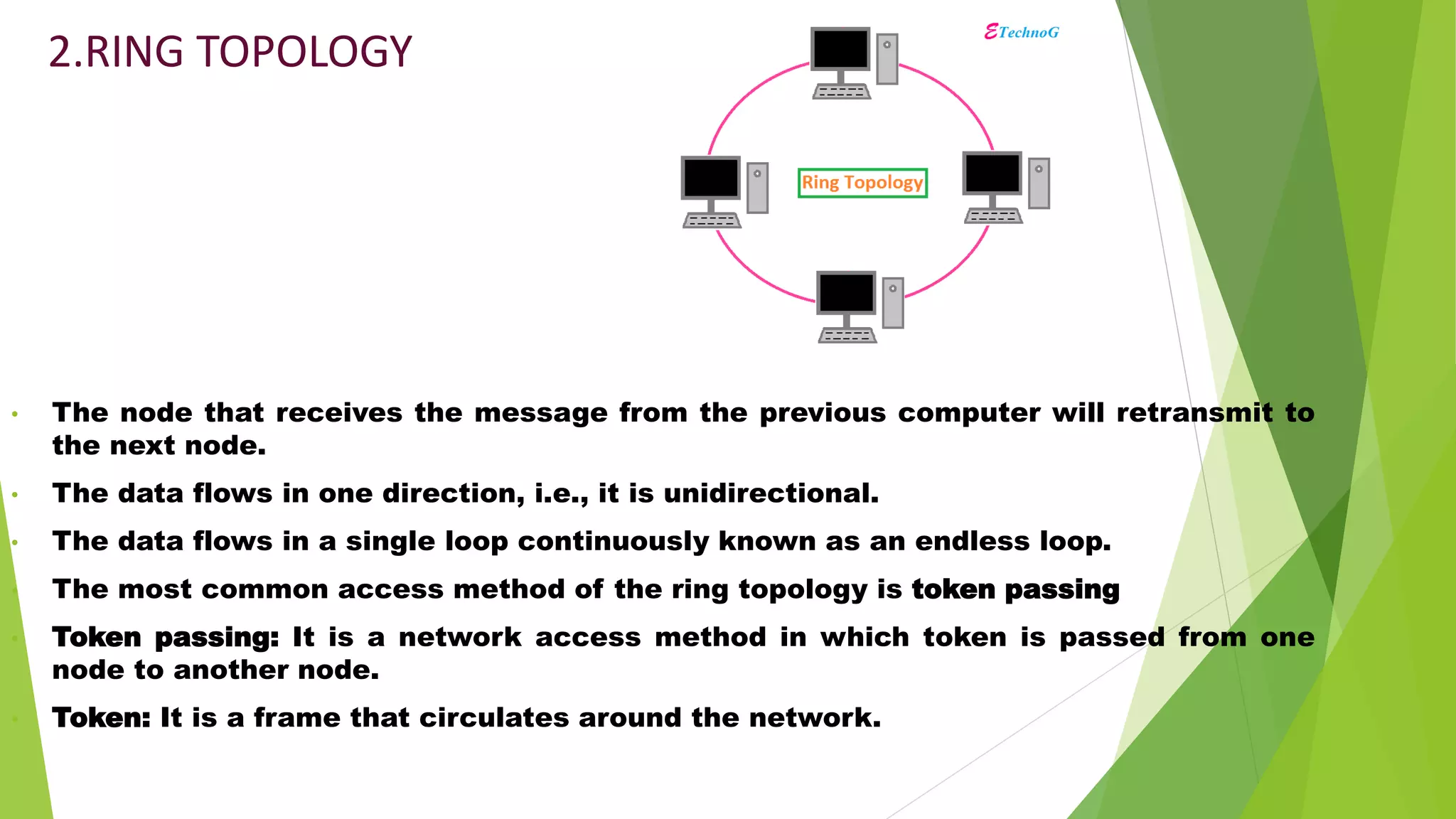
2.RING TOPOLOGY
• The node that receives the message from the previous computer will retransmit to
the next node.
• The data flows in one direction, i.e., it is unidirectional.
• The data flows in a single loop continuously known as an endless loop.
• The most common access method of the ring topology is token passing
• Token passing: It is a network access method in which token is passed from one
node to another node.
• Token: It is a frame that circulates around the network.
Ring topology
• Advantages of Ring topology:
• Cost: Twisted pair cabling is inexpensive and easily available.
Therefore, the installation cost is very low.
• Reliable: It is a more reliable network because the
communication system is not dependent on the single host
computer.
• Disadvantages of Ring topology:
• Failure: The breakdown in one station leads to the failure of the
overall network.
• Reconfiguration difficult: Adding new devices to the network
would slow down the network.
TREE TOPOLOGY
• Tree topology combines the characteristics of bus topology and
star topology.
• A tree topology is a type of structure in which all the computers
are connected with each other in hierarchical fashion.
• The top-most node in tree topology is known as a root node, and
all other nodes are the descendants of the root node.
• There is only one path exists between two nodes for the data
transmission. Thus, it forms a parent-child hierarchy.
Tree topology
 Advantages of Tree topology
• Error detection: Error detection and error correction are very
easy in a tree topology.
• Limited failure: The breakdown in one station does not affect
the entire network.
 Disadvantages of Tree topology
• Difficult troubleshooting: If any fault occurs in the node, then it
becomes difficult to troubleshoot the problem.
• High cost: Devices required for broadband transmission are very
costly.
STAR TOPOLOGY
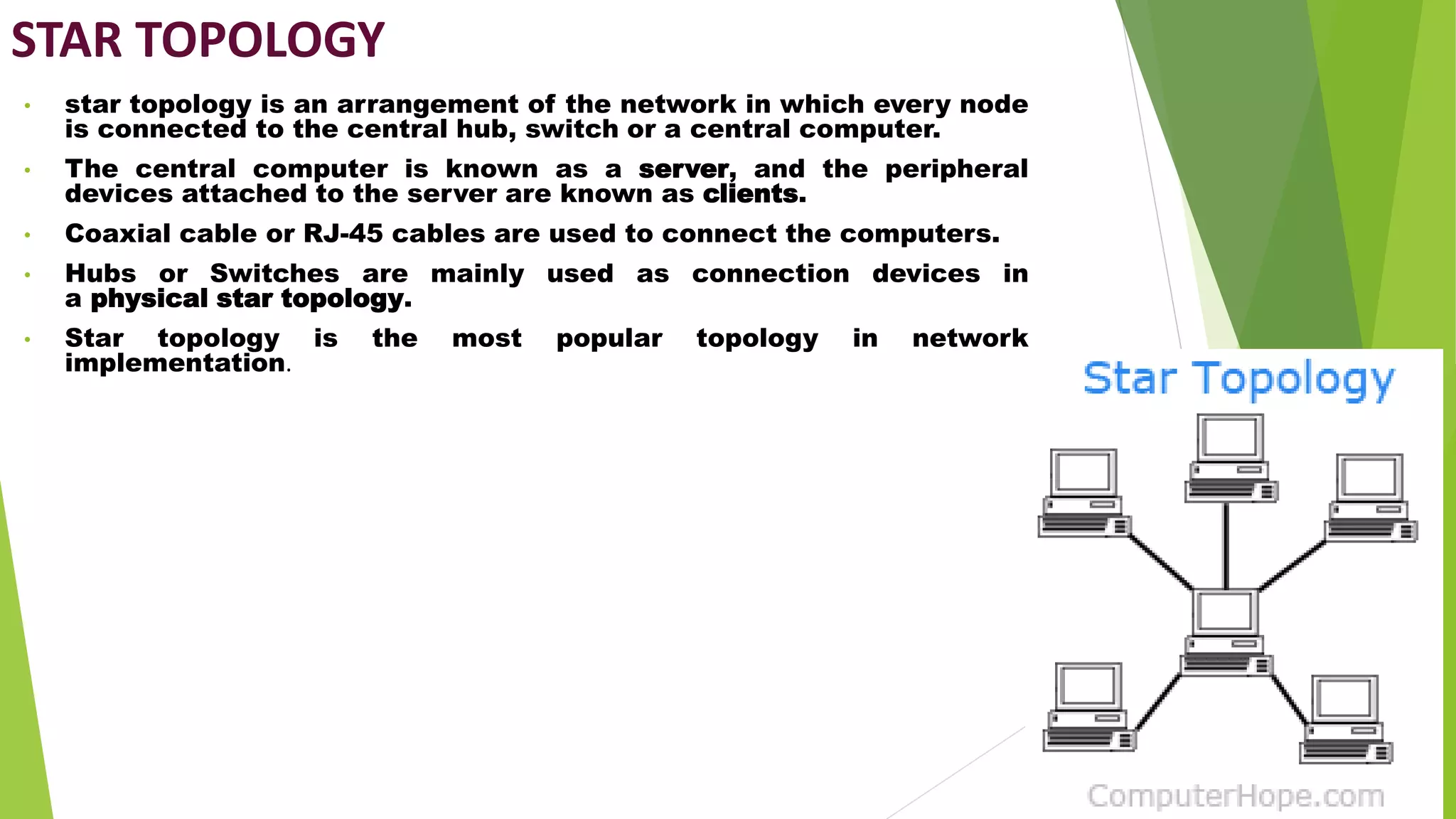
• star topology is an arrangement of the network in which every node
is connected to the central hub, switch or a central computer.
• The central computer is known as a server, and the peripheral
devices attached to the server are known as clients.
• Coaxial cable or RJ-45 cables are used to connect the computers.
• Hubs or Switches are mainly used as connection devices in
a physical star topology.
• Star topology is the most popular topology in network
implementation.
Star topology
 Advantages of Star topology
• Easily expandable: It is easily expandable as new stations can
be added to the open ports on the hub.
• Cost effective: Star topology networks are cost-effective as it
uses inexpensive coaxial cable
 Disadvantages of Star topology
• A Central point of failure: If the central hub or switch goes
down, then all the connected nodes will not be able to
communicate with each other.
• Cable: Sometimes cable routing becomes difficult when a
significant amount of routing is required.
MESH TOPOLOGY
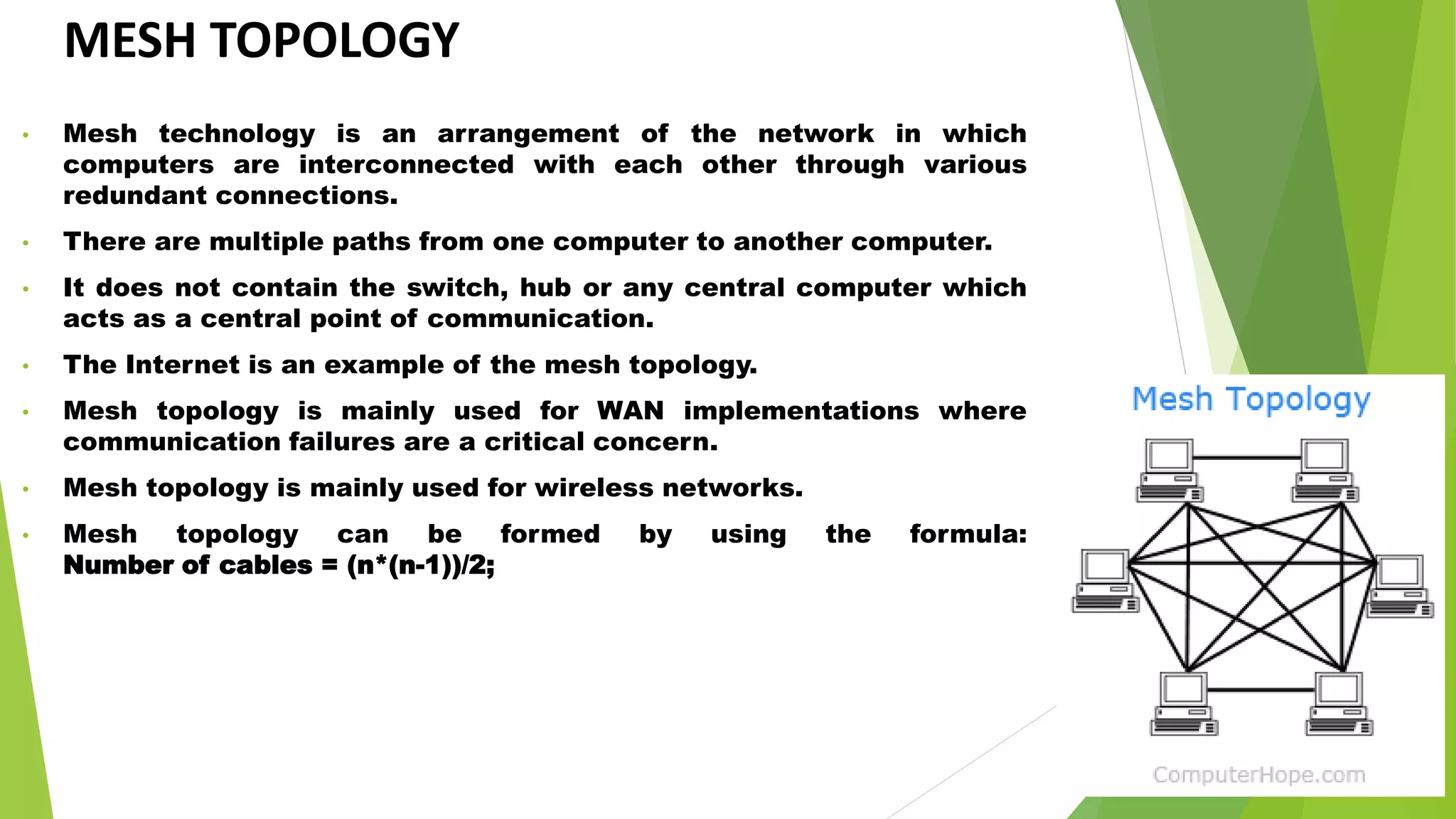
• Mesh technology is an arrangement of the network in which
computers are interconnected with each other through various
redundant connections.
• There are multiple paths from one computer to another computer.
• It does not contain the switch, hub or any central computer which
acts as a central point of communication.
• The Internet is an example of the mesh topology.
• Mesh topology is mainly used for WAN implementations where
communication failures are a critical concern.
• Mesh topology is mainly used for wireless networks.
• Mesh topology can be formed by using the formula:
Number of cables = (n*(n-1))/2;
MESH TOPOLOGY
 Advantages of Mesh topology:
 Reliable: The mesh topology networks are very reliable as if any
link breakdown will not affect the communication between
connected computers.
 Fast Communication: Communication is very fast between the
nodes.
 Disadvantages of Mesh topology
• Cost: A mesh topology contains a large number of connected
devices such as a router and more transmission media than
other topologies.
 Efficiency: In this topology, redundant connections are high that
reduces the efficiency of the network.
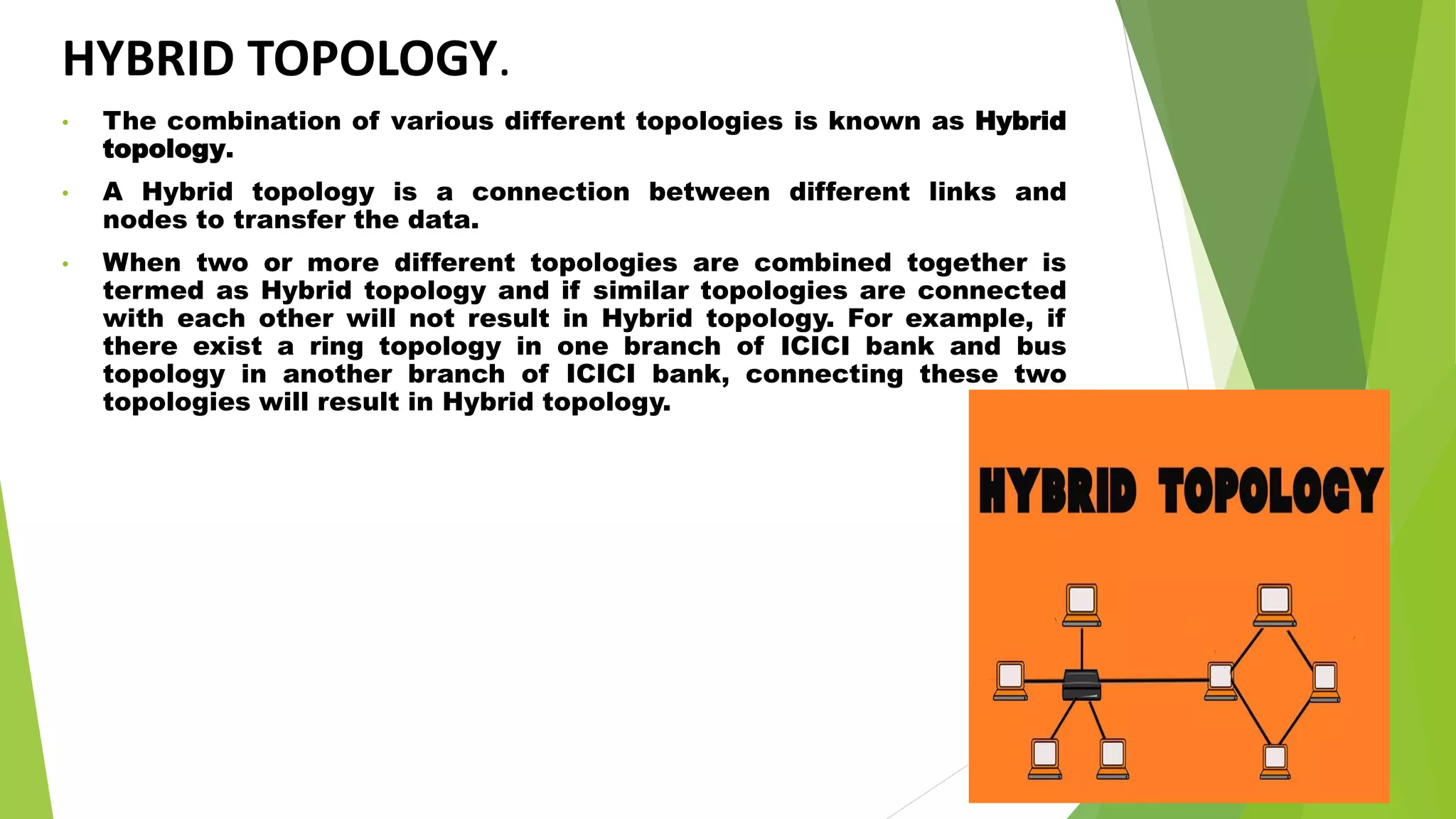
HYBRID TOPOLOGY.
• The combination of various different topologies is known as Hybrid
topology.
• A Hybrid topology is a connection between different links and
nodes to transfer the data.
• When two or more different topologies are combined together is
termed as Hybrid topology and if similar topologies are connected
with each other will not result in Hybrid topology. For example, if
there exist a ring topology in one branch of ICICI bank and bus
topology in another branch of ICICI bank, connecting these two
topologies will result in Hybrid topology.
HYBRID TOPOLOGY
 Advantages of Hybrid Topology
• Reliable: If a fault occurs in any part of the network will not affect
the functioning of the rest of the network.
• Scalable: Size of the network can be easily expanded by adding
new devices without affecting the functionality of the existing
network.
 Disadvantages of Hybrid topology
• Complex design: The major drawback of the Hybrid topology is the
design of the Hybrid network. It is very difficult to design the
architecture of the Hybrid network.
• Costly Hub: The Hubs used in the Hybrid topology are very
expensive as these hubs are different from usual Hubs used in other
topologies.
Packet Tracer
is a cross-platform visual simulation tool
designed by Cisco Systems that allows users to
create network topologies and imitate
modern computer networks. The software
allows users to simulate the configuration of
Cisco routers and switches using a simulated
command line interface. Packet Tracer makes
use of a drag and drop user interface, allowing
users to add and remove simulated network
devices as they see fit.
The main purpose of Cisco Packet Tracer is to
help students learn the principles of networking
with hands-on experience as well as develop
Cisco technology specific skills. Since the
protocols are implemented in software only
method, this tool cannot replace the hardware
Routers or Switches. Interestingly, this tool
does not only include Cisco products but also
many more networking devices.
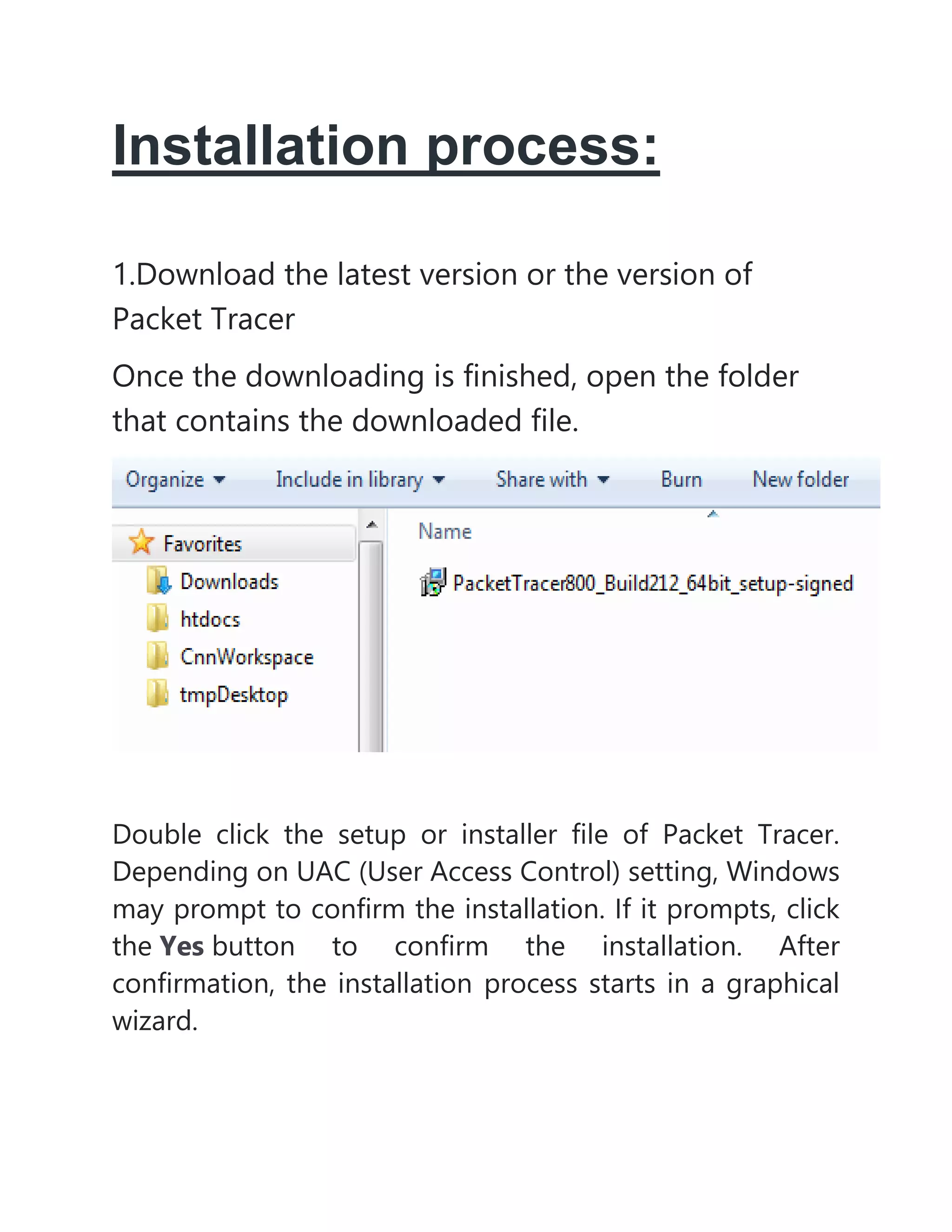
Installation process:
1.Download the latest version or the version of
Packet Tracer
Once the downloading is finished, open the folder
that contains the downloaded file.
Double click the setup or installer file of Packet Tracer.
Depending on UAC (User Access Control) setting, Windows
may prompt to confirm the installation. If it prompts, click
the Yes button to confirm the installation. After
confirmation, the installation process starts in a graphical
wizard.
The first screen of the installation wizard presents the
license agreement. Select the "I accept the
agreement" option and click the "Next" button.
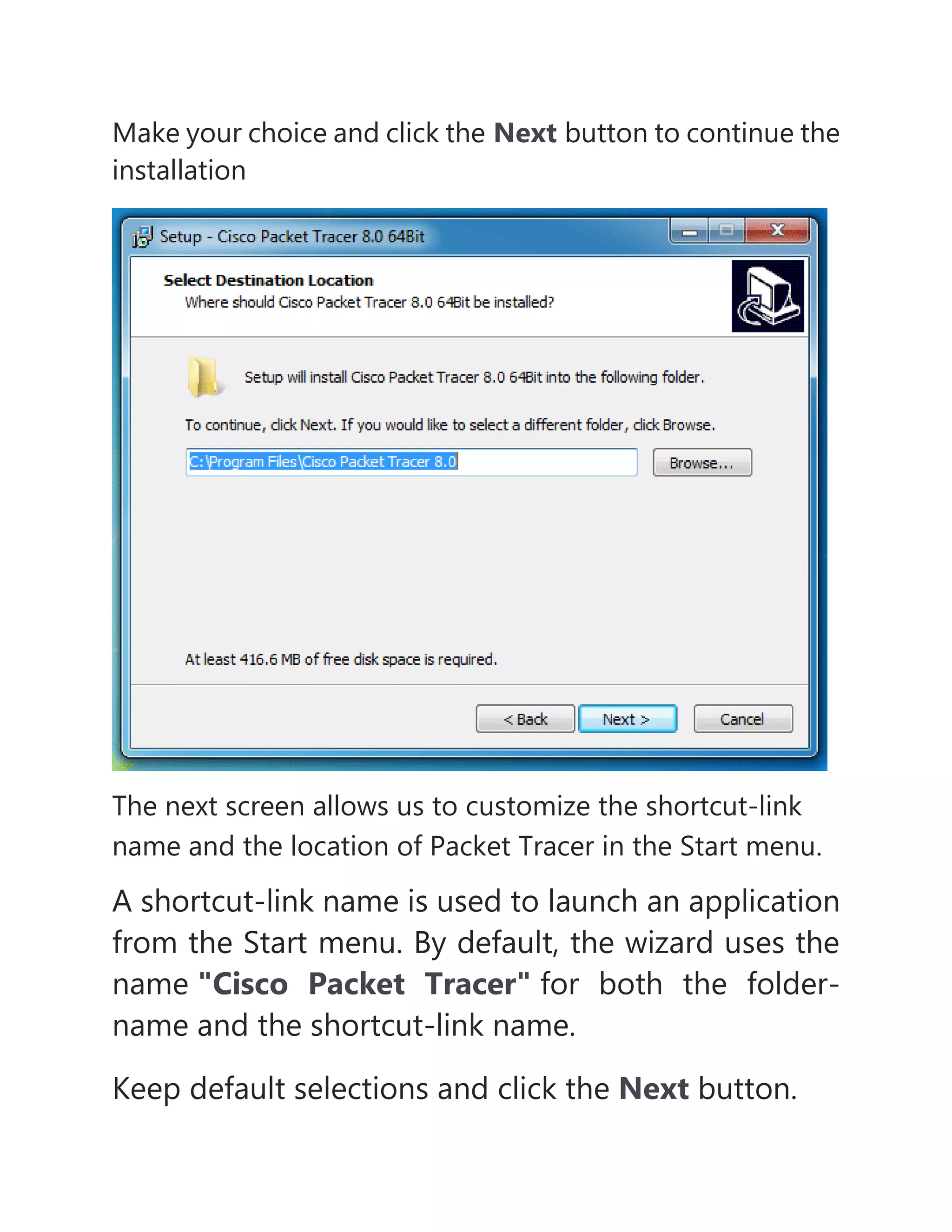
The next screen provides an option to customize the
installation directory. By default, Packet Tracer is installed in
the "Program File" folder of the Windows partition. If you
want to install Packet Tracer in another folder, click
the Browse button and select the folder in which you want
to install Packet Tracer.
Make your choice and click the Next button to continue the
installation
The next screen allows us to customize the shortcut-link
name and the location of Packet Tracer in the Start menu.
A shortcut-link name is used to launch an application
from the Start menu. By default, the wizard uses the
name "Cisco Packet Tracer" for both the folder-
name and the shortcut-link name.
Keep default selections and click the Next button.
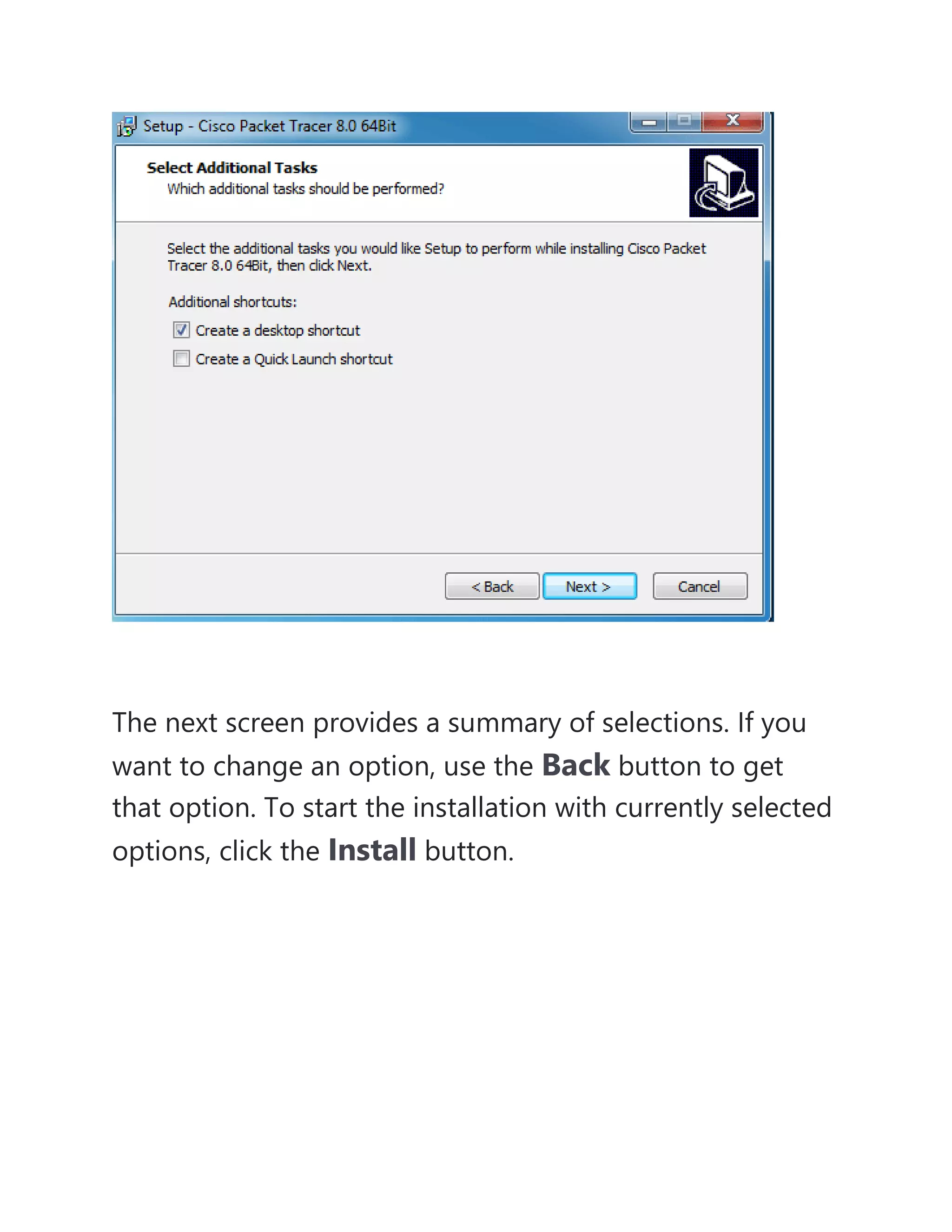
The next screen allows us to create two more shortcut links
to launch the Packet Tracer.
Create a desktop icon: - This option creates a shortcut link
on the Desktop.
Create a quick launch icon: - This option creates a shortcut
link in the Quick-Launch bar.
Make your choice and click the Next button.
The next screen provides a summary of selections. If you
want to change an option, use the Back button to get
that option. To start the installation with currently selected
options, click the Install button.
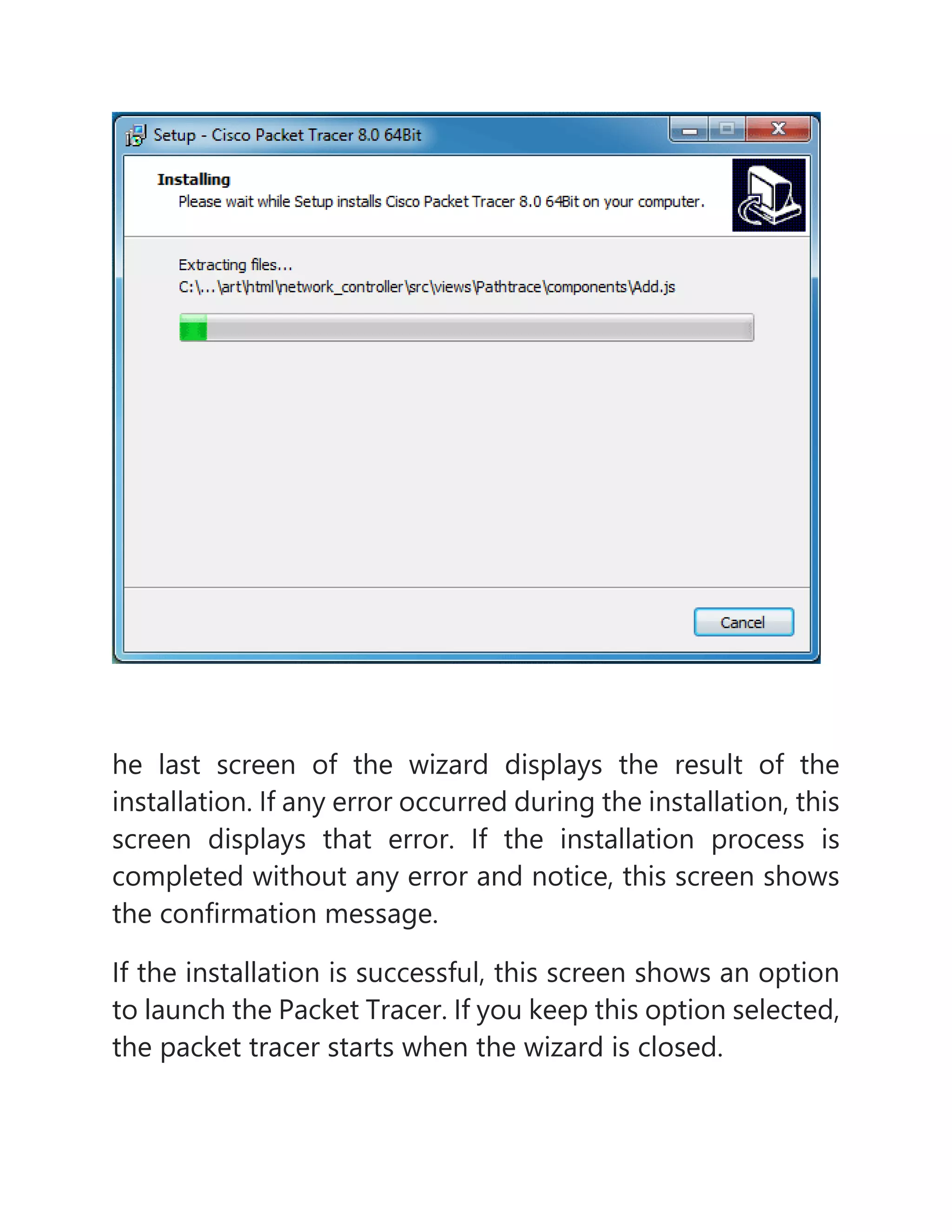
The wizard displays the real-time progress of the
installation.
he last screen of the wizard displays the result of the
installation. If any error occurred during the installation, this
screen displays that error. If the installation process is
completed without any error and notice, this screen shows
the confirmation message.
If the installation is successful, this screen shows an option
to launch the Packet Tracer. If you keep this option selected,
the packet tracer starts when the wizard is closed.
Click the Finish button to close the wizard.
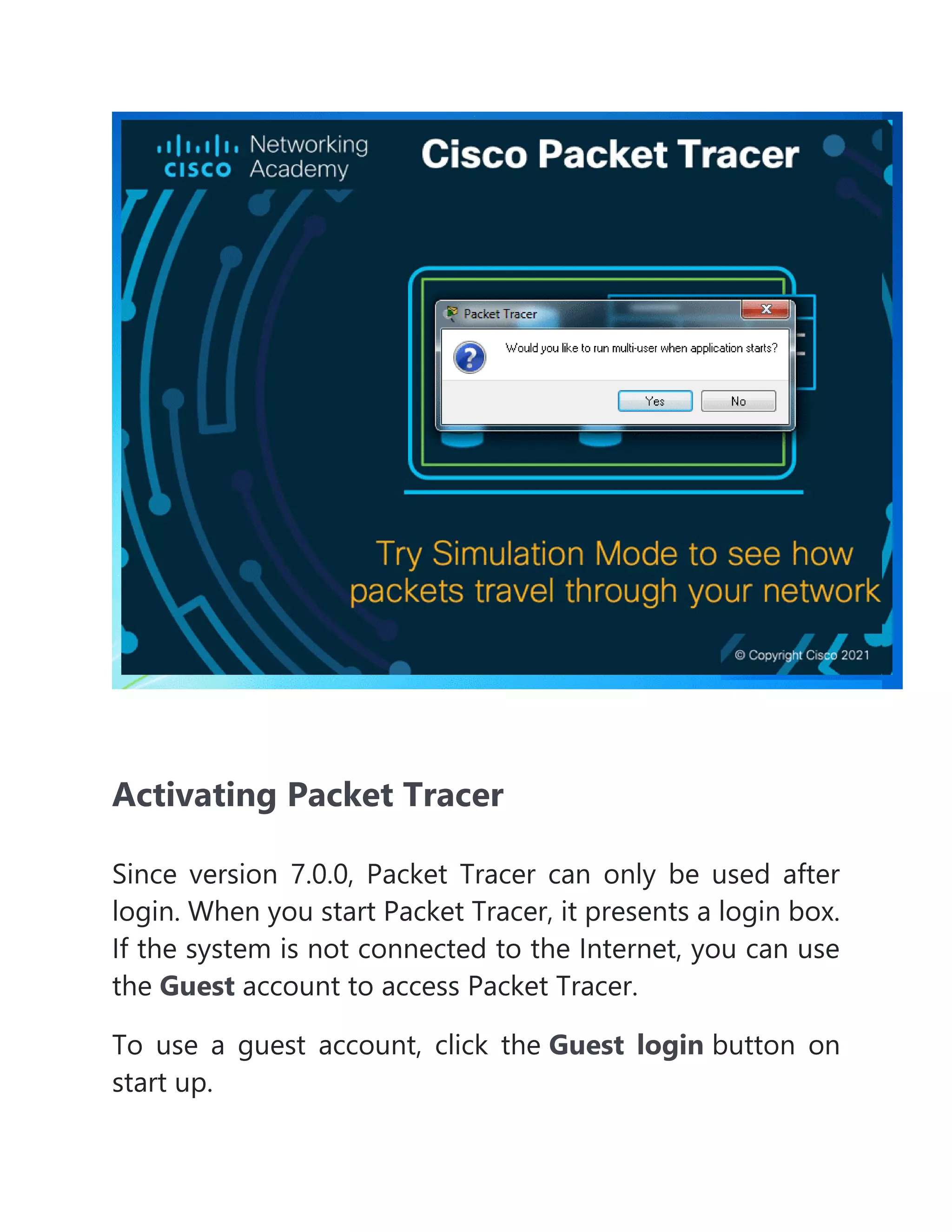
When Packet Tracer starts the first time, it asks the user to select
the mode in which it should start. Multi-user mode allows
multiple users to work simultaneously. If you don't want to share
or exchange your packet tracer instance, click the No button.
Activating Packet Tracer
Since version 7.0.0, Packet Tracer can only be used after
login. When you start Packet Tracer, it presents a login box.
If the system is not connected to the Internet, you can use
the Guest account to access Packet Tracer.
To use a guest account, click the Guest login button on
start up.
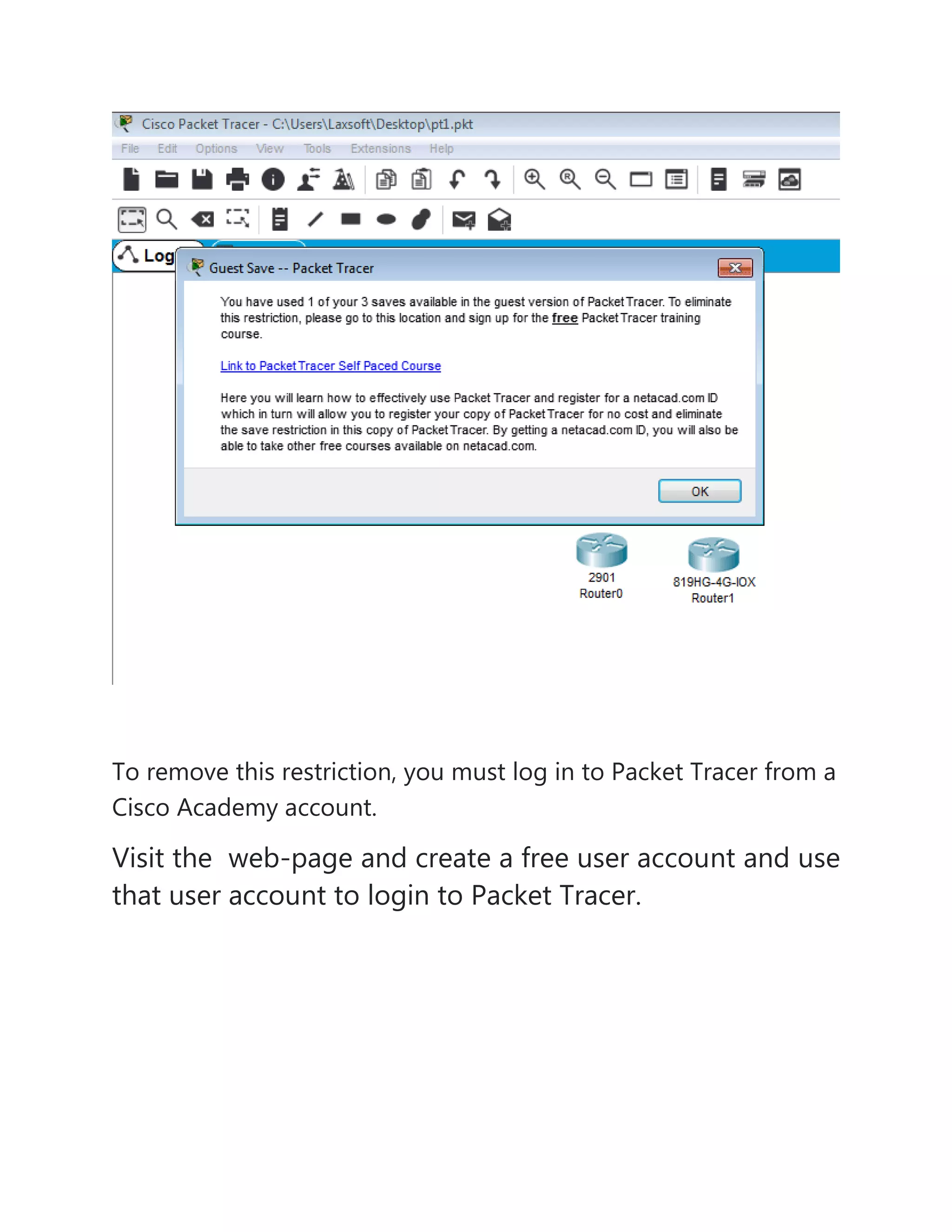
The guest account offers limited features. This account
allows you to save only 3 practice labs.
To remove this restriction, you must log in to Packet Tracer from a
Cisco Academy account.
Visit the web-page and create a free user account and use
that user account to login to Packet Tracer.
Upon successful authentication, Packet Tracer will be
activated and all restrictions will be removed.
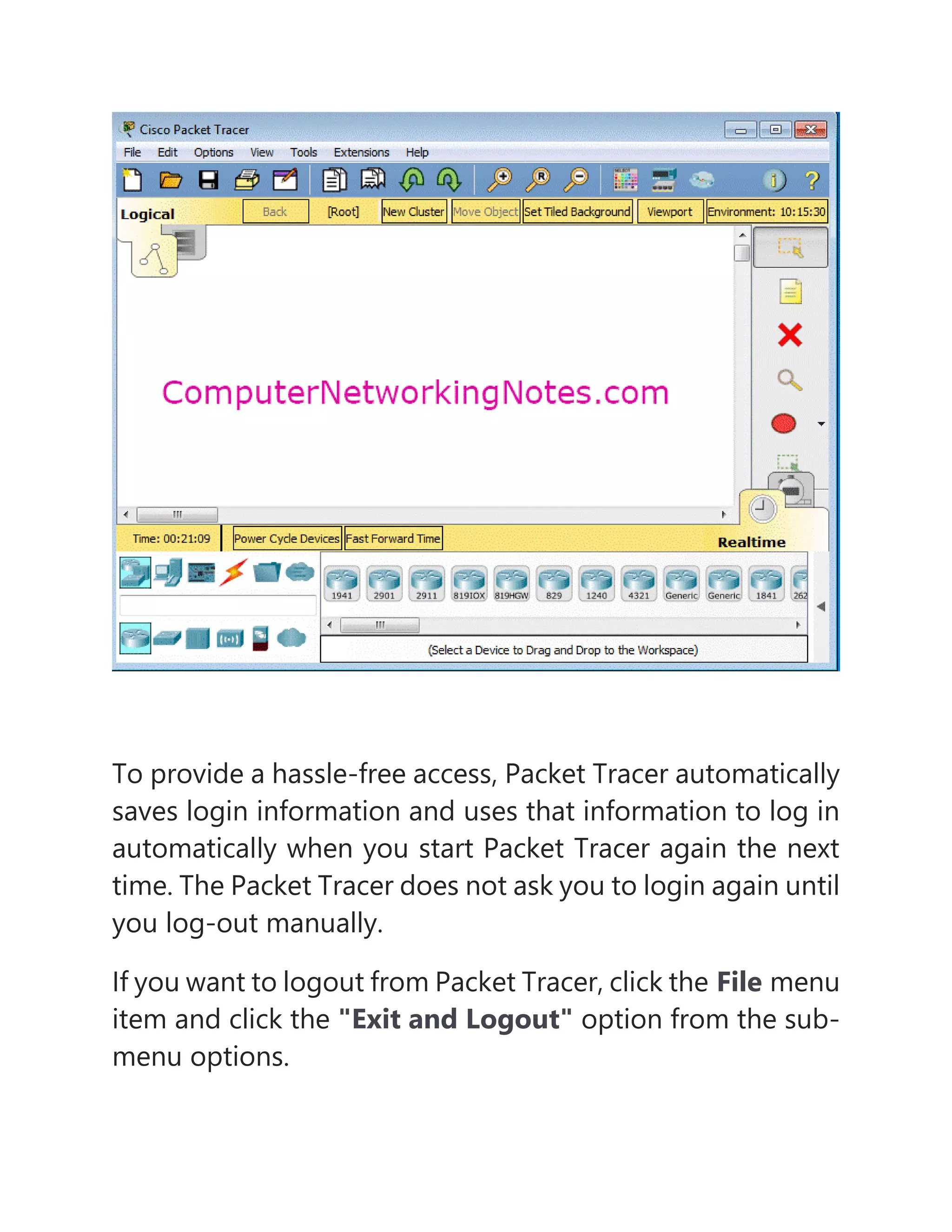
To provide a hassle-free access, Packet Tracer automatically
saves login information and uses that information to log in
automatically when you start Packet Tracer again the next
time. The Packet Tracer does not ask you to login again until
you log-out manually.
If you want to logout from Packet Tracer, click the File menu
item and click the "Exit and Logout" option from the sub-
menu options.
Once you are logged out, all restrictions will apply again.
You must log in again to use Packet Tracer without
restrictions.
Example
Peer-to-Peer
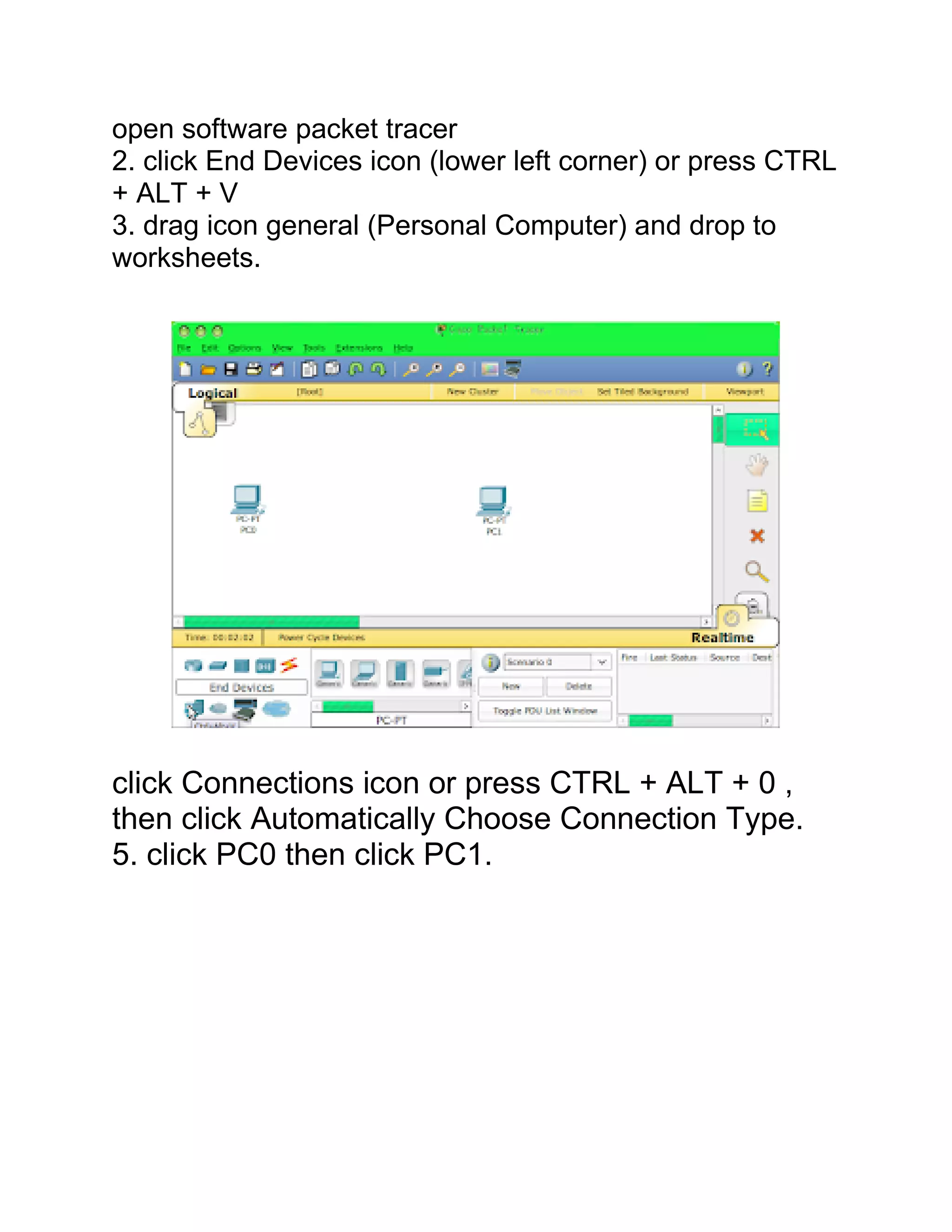
open software packet tracer
2. click End Devices icon (lower left corner) or press CTRL
+ ALT + V
3. drag icon general (Personal Computer) and drop to
worksheets.
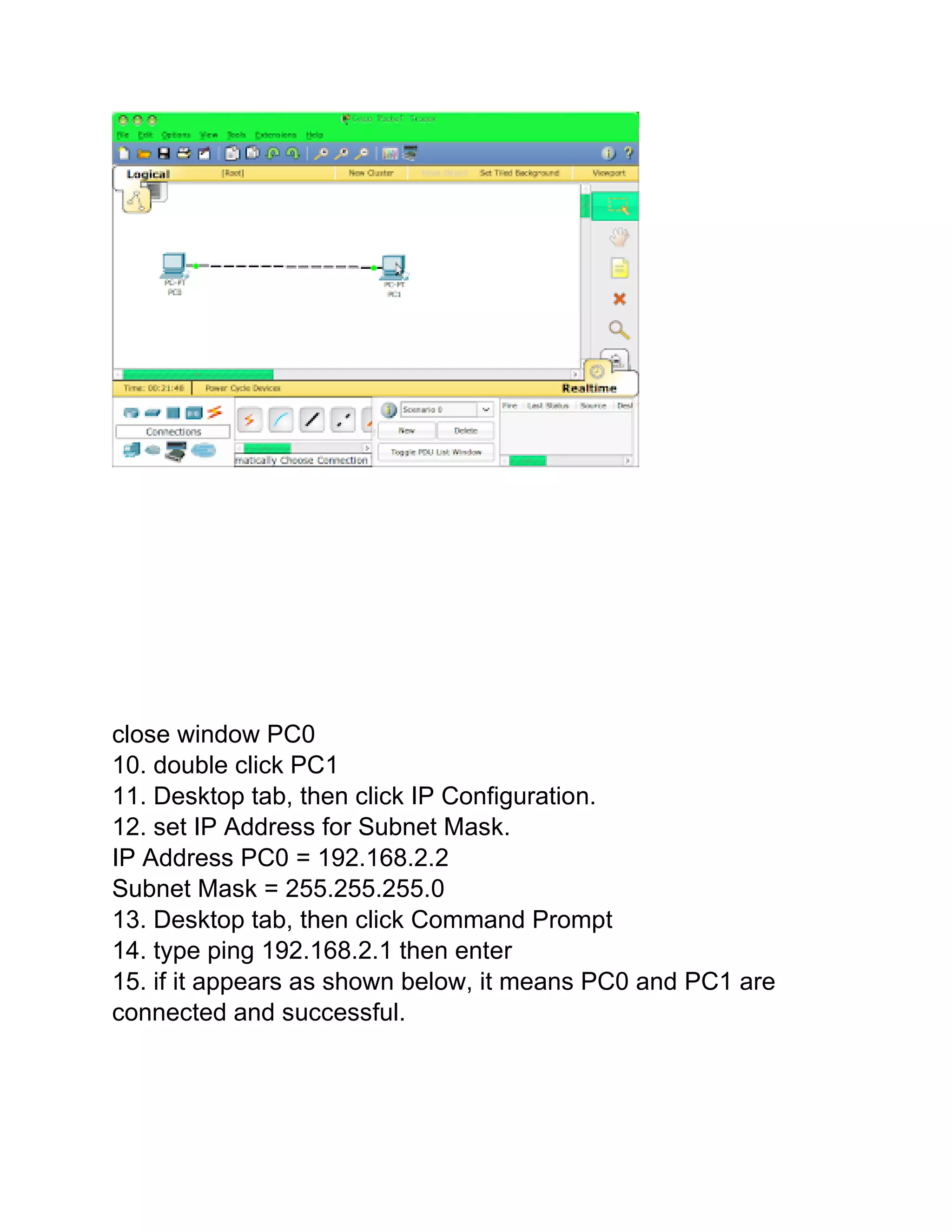
click Connections icon or press CTRL + ALT + 0 ,
then click Automatically Choose Connection Type.
5. click PC0 then click PC1.
6. double click PC0.
7. Desktop tab, then click IP Configuration.
8. set IP Address for Subnet Mask.
IP Address PC0 = 192.168.2.1
Subnet Mask = 255.255.255.0
close window PC0
10. double click PC1
11. Desktop tab, then click IP Configuration.
12. set IP Address for Subnet Mask.
IP Address PC0 = 192.168.2.2
Subnet Mask = 255.255.255.0
13. Desktop tab, then click Command Prompt
14. type ping 192.168.2.1 then enter
15. if it appears as shown below, it means PC0 and PC1 are
connected and successful.
Network topology

Network topology

  • 1.
    Power point Presentationon NETWORK TOPOLOGY. Present by: GAYATRI SONAWANE
  • 2.
    WHAT IS NETWORKTOPOLOGY?  Topology is derived from two Greek words topo and logy, where topo means 'place' and logy means 'study'. In computer networks, a topology is used to explain how a network is physically connected and the logical flow of information in the network. A topology mainly describes how devices are connected and interact with each other using communication links.
  • 3.
    COMPUTER NETWORKS, THEREARE MAINLY TWO TYPES OF TOPOLOGIES:  Physical Topology: A physical topology describes the way in which the computers or nodes are connected with each other in a computer network. It is the arrangement of various elements(link, nodes, etc.), including the device location and code installation of a computer network.  Logical Topology: A logical topology describes the way, data flow from one computer to another. It is bound to a network protocol and defines how data is moved throughout the network and which path it takes.
  • 5.
    1.BUS TOPOLOGY  Bustopology is a network type in which every computer and network device is connected to a single cable. It transmits the data from one end to another in a single direction. It is one of the simple forms of networking where a failure of a device does not affect the other devices. But failure of the shared communication line can make all other devices stop functioning.
  • 6.
    BUS TOPOLOGY • Advantagesof Bus topology: • Low-cost cable: In bus topology, nodes are directly connected to the cable without passing through a hub. Therefore, the initial cost of installation is low. • Moderate data speeds: Coaxial or twisted pair cables are mainly used in bus-based networks that support upto 10 Mbps.  Disadvantages of Bus topology: • Extensive cabling: A bus topology is quite simpler, but still it requires a lot of cabling. • Difficult troubleshooting: It requires specialized test equipment to determine the cable faults. If any fault occurs in the cable, then it would disrupt the communication for all the nodes.
  • 7.
    2.RING TOPOLOGY • Thenode that receives the message from the previous computer will retransmit to the next node. • The data flows in one direction, i.e., it is unidirectional. • The data flows in a single loop continuously known as an endless loop. • The most common access method of the ring topology is token passing • Token passing: It is a network access method in which token is passed from one node to another node. • Token: It is a frame that circulates around the network.
  • 8.
    Ring topology • Advantagesof Ring topology: • Cost: Twisted pair cabling is inexpensive and easily available. Therefore, the installation cost is very low. • Reliable: It is a more reliable network because the communication system is not dependent on the single host computer. • Disadvantages of Ring topology: • Failure: The breakdown in one station leads to the failure of the overall network. • Reconfiguration difficult: Adding new devices to the network would slow down the network.
  • 9.
    TREE TOPOLOGY • Treetopology combines the characteristics of bus topology and star topology. • A tree topology is a type of structure in which all the computers are connected with each other in hierarchical fashion. • The top-most node in tree topology is known as a root node, and all other nodes are the descendants of the root node. • There is only one path exists between two nodes for the data transmission. Thus, it forms a parent-child hierarchy.
  • 10.
    Tree topology  Advantagesof Tree topology • Error detection: Error detection and error correction are very easy in a tree topology. • Limited failure: The breakdown in one station does not affect the entire network.  Disadvantages of Tree topology • Difficult troubleshooting: If any fault occurs in the node, then it becomes difficult to troubleshoot the problem. • High cost: Devices required for broadband transmission are very costly.
  • 11.
    STAR TOPOLOGY • startopology is an arrangement of the network in which every node is connected to the central hub, switch or a central computer. • The central computer is known as a server, and the peripheral devices attached to the server are known as clients. • Coaxial cable or RJ-45 cables are used to connect the computers. • Hubs or Switches are mainly used as connection devices in a physical star topology. • Star topology is the most popular topology in network implementation.
  • 12.
    Star topology  Advantagesof Star topology • Easily expandable: It is easily expandable as new stations can be added to the open ports on the hub. • Cost effective: Star topology networks are cost-effective as it uses inexpensive coaxial cable  Disadvantages of Star topology • A Central point of failure: If the central hub or switch goes down, then all the connected nodes will not be able to communicate with each other. • Cable: Sometimes cable routing becomes difficult when a significant amount of routing is required.
  • 13.
    MESH TOPOLOGY • Meshtechnology is an arrangement of the network in which computers are interconnected with each other through various redundant connections. • There are multiple paths from one computer to another computer. • It does not contain the switch, hub or any central computer which acts as a central point of communication. • The Internet is an example of the mesh topology. • Mesh topology is mainly used for WAN implementations where communication failures are a critical concern. • Mesh topology is mainly used for wireless networks. • Mesh topology can be formed by using the formula: Number of cables = (n*(n-1))/2;
  • 14.
    MESH TOPOLOGY  Advantagesof Mesh topology:  Reliable: The mesh topology networks are very reliable as if any link breakdown will not affect the communication between connected computers.  Fast Communication: Communication is very fast between the nodes.  Disadvantages of Mesh topology • Cost: A mesh topology contains a large number of connected devices such as a router and more transmission media than other topologies.  Efficiency: In this topology, redundant connections are high that reduces the efficiency of the network.
  • 15.
    HYBRID TOPOLOGY. • Thecombination of various different topologies is known as Hybrid topology. • A Hybrid topology is a connection between different links and nodes to transfer the data. • When two or more different topologies are combined together is termed as Hybrid topology and if similar topologies are connected with each other will not result in Hybrid topology. For example, if there exist a ring topology in one branch of ICICI bank and bus topology in another branch of ICICI bank, connecting these two topologies will result in Hybrid topology.
  • 16.
    HYBRID TOPOLOGY  Advantagesof Hybrid Topology • Reliable: If a fault occurs in any part of the network will not affect the functioning of the rest of the network. • Scalable: Size of the network can be easily expanded by adding new devices without affecting the functionality of the existing network.  Disadvantages of Hybrid topology • Complex design: The major drawback of the Hybrid topology is the design of the Hybrid network. It is very difficult to design the architecture of the Hybrid network. • Costly Hub: The Hubs used in the Hybrid topology are very expensive as these hubs are different from usual Hubs used in other topologies.
  • 17.
    Packet Tracer is across-platform visual simulation tool designed by Cisco Systems that allows users to create network topologies and imitate modern computer networks. The software allows users to simulate the configuration of Cisco routers and switches using a simulated command line interface. Packet Tracer makes use of a drag and drop user interface, allowing users to add and remove simulated network devices as they see fit. The main purpose of Cisco Packet Tracer is to help students learn the principles of networking with hands-on experience as well as develop Cisco technology specific skills. Since the protocols are implemented in software only method, this tool cannot replace the hardware Routers or Switches. Interestingly, this tool does not only include Cisco products but also many more networking devices.
  • 18.
    Installation process: 1.Download thelatest version or the version of Packet Tracer Once the downloading is finished, open the folder that contains the downloaded file. Double click the setup or installer file of Packet Tracer. Depending on UAC (User Access Control) setting, Windows may prompt to confirm the installation. If it prompts, click the Yes button to confirm the installation. After confirmation, the installation process starts in a graphical wizard.
  • 19.
    The first screenof the installation wizard presents the license agreement. Select the "I accept the agreement" option and click the "Next" button. The next screen provides an option to customize the installation directory. By default, Packet Tracer is installed in the "Program File" folder of the Windows partition. If you want to install Packet Tracer in another folder, click the Browse button and select the folder in which you want to install Packet Tracer.
  • 20.
    Make your choiceand click the Next button to continue the installation The next screen allows us to customize the shortcut-link name and the location of Packet Tracer in the Start menu. A shortcut-link name is used to launch an application from the Start menu. By default, the wizard uses the name "Cisco Packet Tracer" for both the folder- name and the shortcut-link name. Keep default selections and click the Next button.
  • 21.
    The next screenallows us to create two more shortcut links to launch the Packet Tracer. Create a desktop icon: - This option creates a shortcut link on the Desktop. Create a quick launch icon: - This option creates a shortcut link in the Quick-Launch bar. Make your choice and click the Next button.
  • 22.
    The next screenprovides a summary of selections. If you want to change an option, use the Back button to get that option. To start the installation with currently selected options, click the Install button.
  • 23.
    The wizard displaysthe real-time progress of the installation.
  • 24.
    he last screenof the wizard displays the result of the installation. If any error occurred during the installation, this screen displays that error. If the installation process is completed without any error and notice, this screen shows the confirmation message. If the installation is successful, this screen shows an option to launch the Packet Tracer. If you keep this option selected, the packet tracer starts when the wizard is closed.
  • 25.
    Click the Finishbutton to close the wizard. When Packet Tracer starts the first time, it asks the user to select the mode in which it should start. Multi-user mode allows multiple users to work simultaneously. If you don't want to share or exchange your packet tracer instance, click the No button.
  • 26.
    Activating Packet Tracer Sinceversion 7.0.0, Packet Tracer can only be used after login. When you start Packet Tracer, it presents a login box. If the system is not connected to the Internet, you can use the Guest account to access Packet Tracer. To use a guest account, click the Guest login button on start up.
  • 27.
    The guest accountoffers limited features. This account allows you to save only 3 practice labs.
  • 28.
    To remove thisrestriction, you must log in to Packet Tracer from a Cisco Academy account. Visit the web-page and create a free user account and use that user account to login to Packet Tracer.
  • 29.
    Upon successful authentication,Packet Tracer will be activated and all restrictions will be removed.
  • 30.
    To provide ahassle-free access, Packet Tracer automatically saves login information and uses that information to log in automatically when you start Packet Tracer again the next time. The Packet Tracer does not ask you to login again until you log-out manually. If you want to logout from Packet Tracer, click the File menu item and click the "Exit and Logout" option from the sub- menu options.
  • 31.
    Once you arelogged out, all restrictions will apply again. You must log in again to use Packet Tracer without restrictions. Example Peer-to-Peer
  • 32.
    open software packettracer 2. click End Devices icon (lower left corner) or press CTRL + ALT + V 3. drag icon general (Personal Computer) and drop to worksheets. click Connections icon or press CTRL + ALT + 0 , then click Automatically Choose Connection Type. 5. click PC0 then click PC1.
  • 33.
    6. double clickPC0. 7. Desktop tab, then click IP Configuration. 8. set IP Address for Subnet Mask. IP Address PC0 = 192.168.2.1 Subnet Mask = 255.255.255.0
  • 34.
    close window PC0 10.double click PC1 11. Desktop tab, then click IP Configuration. 12. set IP Address for Subnet Mask. IP Address PC0 = 192.168.2.2 Subnet Mask = 255.255.255.0 13. Desktop tab, then click Command Prompt 14. type ping 192.168.2.1 then enter 15. if it appears as shown below, it means PC0 and PC1 are connected and successful.