Blogging Basics
with
WordPress.com


Melissa A. Venable, PhD
Education Writer/Blogger
Inside Online Learning | OnlineCollege.org
PDI Workshop | #NCDA2012
Objectives and Materials
• Create a blog site that includes an initial blog post.
• Practice basic administrative tasks in the dashboard.
• Review helpful resources for new bloggers.

You should have:
• WordPress.com account (i.e., login and password)
• Established blog site (i.e., address, title)
• Draft first blog post (.doc, .docx, .txt)
• Image file – optional (.jpg, .jpeg, .gif, .png)
Let’s get started!
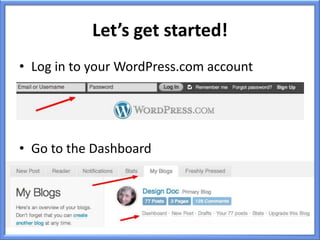
• Log in to your WordPress.com account


• Go to the Dashboard
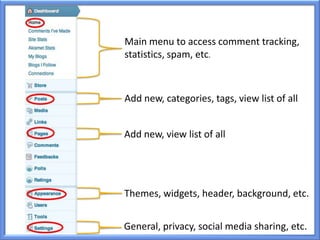
Main menu to access comment tracking,
statistics, spam, etc.


Add new, categories, tags, view list of all


Add new, view list of all


Themes, widgets, header, background, etc.


General, privacy, social media sharing, etc.
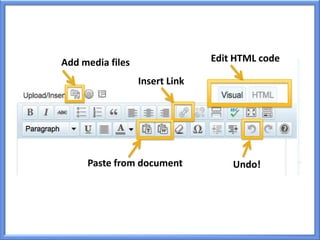
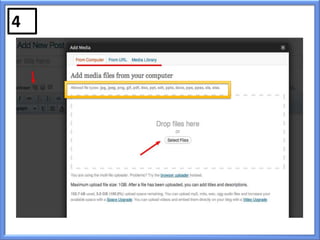
Add media files                 Edit HTML code

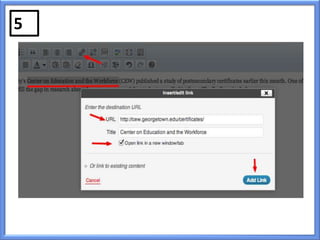
                  Insert Link


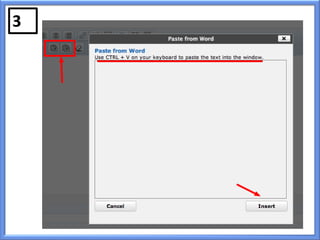
     Paste from document            Undo!
Creating a New Post
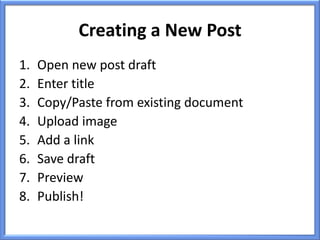
1.   Open new post draft
2.   Enter title
3.   Copy/Paste from existing document
4.   Upload image
5.   Add a link
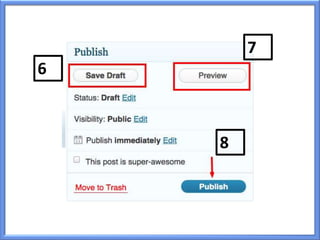
6.   Save draft
7.   Preview
8.   Publish!
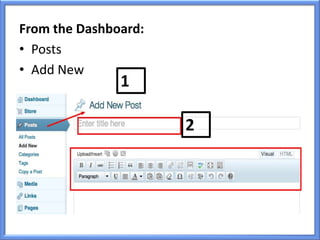
From the Dashboard:
• Posts
• Add New
               1

                      2
3
4
5
7
6


    8
How is it going so far?
Explore the Options
Settings
• General - blog title, email, time zone, …
• Reading – page display, # of posts, …

Appearance
• Themes – colors, columns, features, custom
  options, …
• Widgets – drag and drop to add to interface
  (Recent Posts, Search, Twitter, …)
Why WordPress?
• Free account options
• Easy and intuitive administrative side
• Future options - pro version, self-hosted
  version, custom options
• Blogging community
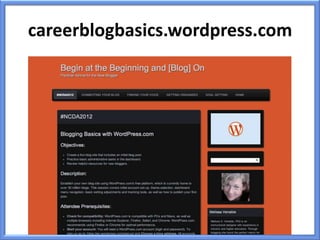
careerblogbasics.wordpress.com
Thank you!
Melissa A. Venable, PhD
melissa.venable@yahoo.com
@Melissa_Venable

Join me at Roundtable #4-2 on Friday:
  “Professional Development for the Career
  Services Blogger”

NCDA - PDI Tech Tools - Blogging Basics

  • 1.
    Blogging Basics with WordPress.com Melissa A.Venable, PhD Education Writer/Blogger Inside Online Learning | OnlineCollege.org PDI Workshop | #NCDA2012
  • 2.
    Objectives and Materials •Create a blog site that includes an initial blog post. • Practice basic administrative tasks in the dashboard. • Review helpful resources for new bloggers. You should have: • WordPress.com account (i.e., login and password) • Established blog site (i.e., address, title) • Draft first blog post (.doc, .docx, .txt) • Image file – optional (.jpg, .jpeg, .gif, .png)
  • 3.
    Let’s get started! •Log in to your WordPress.com account • Go to the Dashboard
  • 4.
    Main menu toaccess comment tracking, statistics, spam, etc. Add new, categories, tags, view list of all Add new, view list of all Themes, widgets, header, background, etc. General, privacy, social media sharing, etc.
  • 5.
    Add media files Edit HTML code Insert Link Paste from document Undo!
  • 6.
    Creating a NewPost 1. Open new post draft 2. Enter title 3. Copy/Paste from existing document 4. Upload image 5. Add a link 6. Save draft 7. Preview 8. Publish!
  • 7.
    From the Dashboard: •Posts • Add New 1 2
  • 8.
  • 9.
  • 10.
  • 11.
  • 12.
    How is itgoing so far?
  • 13.
    Explore the Options Settings •General - blog title, email, time zone, … • Reading – page display, # of posts, … Appearance • Themes – colors, columns, features, custom options, … • Widgets – drag and drop to add to interface (Recent Posts, Search, Twitter, …)
  • 14.
    Why WordPress? • Freeaccount options • Easy and intuitive administrative side • Future options - pro version, self-hosted version, custom options • Blogging community
  • 15.
  • 16.
    Thank you! Melissa A.Venable, PhD melissa.venable@yahoo.com @Melissa_Venable Join me at Roundtable #4-2 on Friday: “Professional Development for the Career Services Blogger”

Editor's Notes

  • #3 If you don’t have these things --- hang in there and follow along. These slides and info are available online!Different ways to get to the dashboardLocate the following: -Your document that you brought with you Your image, if you have one- A website, any will do, open in a separate tab, window, and minimize. We’ll be using these in a bit…
  • #4 Different ways to get to the dashboard
  • #5 Quick tour of some of the Dashboard menus you will likely need to use first, and more frequently moving forward.Go to Privacy – select: I would like my site to be private…. Save changes = if you don’t want the site to be ‘live’ while you are working on it this morning.
  • #6 This should look like a familiar set of tools – formatting, etc. Highlighted the ones we are going to use.
  • #8 - Initiate new post- Type in a draft title – you can change it later! – this will be part of your automated URL
  • #10 Upload/insert – Media – Polls - Forms