MUSIC MAGAZINE: FRONT PAGE
      IMPLEMENTATION
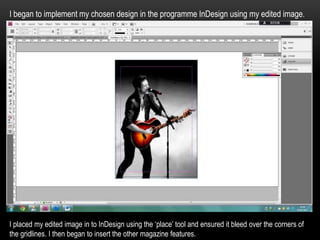
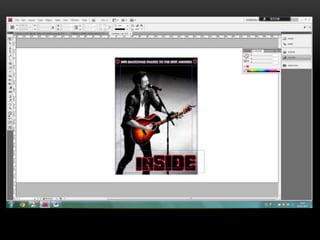
I began to implement my chosen design in the programme InDesign using my edited image.


I placed my edited image in to InDesign using the ‘place’ tool and ensured it bleed over the corners of
the gridlines. I then began to insert the other magazine features.
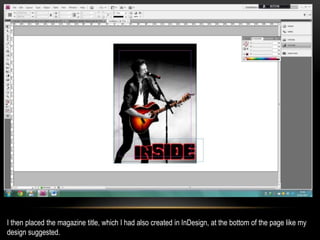
I then placed the magazine title, which I had also created in InDesign, at the bottom of the page like my
design suggested.
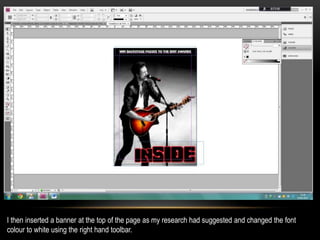
I then inserted a banner at the top of the page as my research had suggested and changed the font
colour to white using the right hand toolbar.
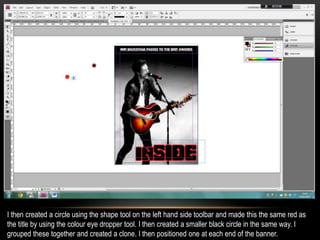
I then created a circle using the shape tool on the left hand side toolbar and made this the same red as
the title by using the colour eye dropper tool. I then created a smaller black circle in the same way. I
grouped these together and created a clone. I then positioned one at each end of the banner.
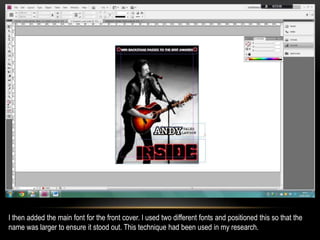
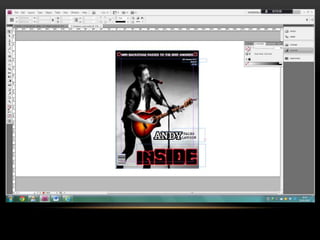
I then added the main font for the front cover. I used two different fonts and positioned this so that the
name was larger to ensure it stood out. This technique had been used in my research.
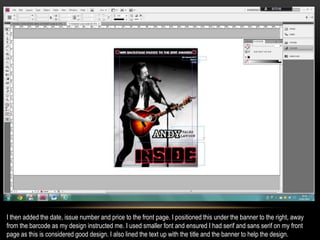
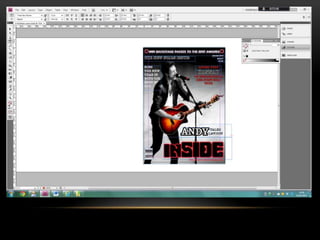
I then added the date, issue number and price to the front page. I positioned this under the banner to the right, away
from the barcode as my design instructed me. I used smaller font and ensured I had serif and sans serif on my front
page as this is considered good design. I also lined the text up with the title and the banner to help the design.
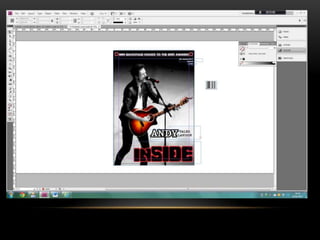
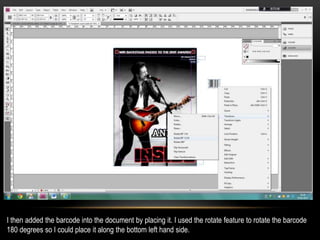
I then added the barcode into the document by placing it. I used the rotate feature to rotate the barcode
180 degrees so I could place it along the bottom left hand side.
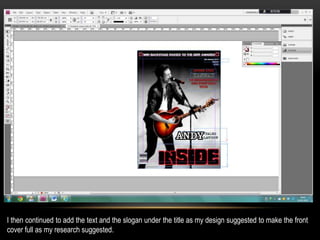
I then continued to add the text and the slogan under the title as my design suggested to make the front
cover full as my research suggested.
Music magazine implementation front page

Music magazine implementation front page

  • 1.
    MUSIC MAGAZINE: FRONTPAGE IMPLEMENTATION
  • 2.
    I began toimplement my chosen design in the programme InDesign using my edited image. I placed my edited image in to InDesign using the ‘place’ tool and ensured it bleed over the corners of the gridlines. I then began to insert the other magazine features.
  • 3.
    I then placedthe magazine title, which I had also created in InDesign, at the bottom of the page like my design suggested.
  • 4.
    I then inserteda banner at the top of the page as my research had suggested and changed the font colour to white using the right hand toolbar.
  • 5.
    I then createda circle using the shape tool on the left hand side toolbar and made this the same red as the title by using the colour eye dropper tool. I then created a smaller black circle in the same way. I grouped these together and created a clone. I then positioned one at each end of the banner.
  • 7.
    I then addedthe main font for the front cover. I used two different fonts and positioned this so that the name was larger to ensure it stood out. This technique had been used in my research.
  • 8.
    I then addedthe date, issue number and price to the front page. I positioned this under the banner to the right, away from the barcode as my design instructed me. I used smaller font and ensured I had serif and sans serif on my front page as this is considered good design. I also lined the text up with the title and the banner to help the design.
  • 10.
    I then addedthe barcode into the document by placing it. I used the rotate feature to rotate the barcode 180 degrees so I could place it along the bottom left hand side.
  • 12.
    I then continuedto add the text and the slogan under the title as my design suggested to make the front cover full as my research suggested.