Task 1: Create a Quiz from Scratch
MODULE 7: Advanced Quiz Options
Create a Quiz from Scratch
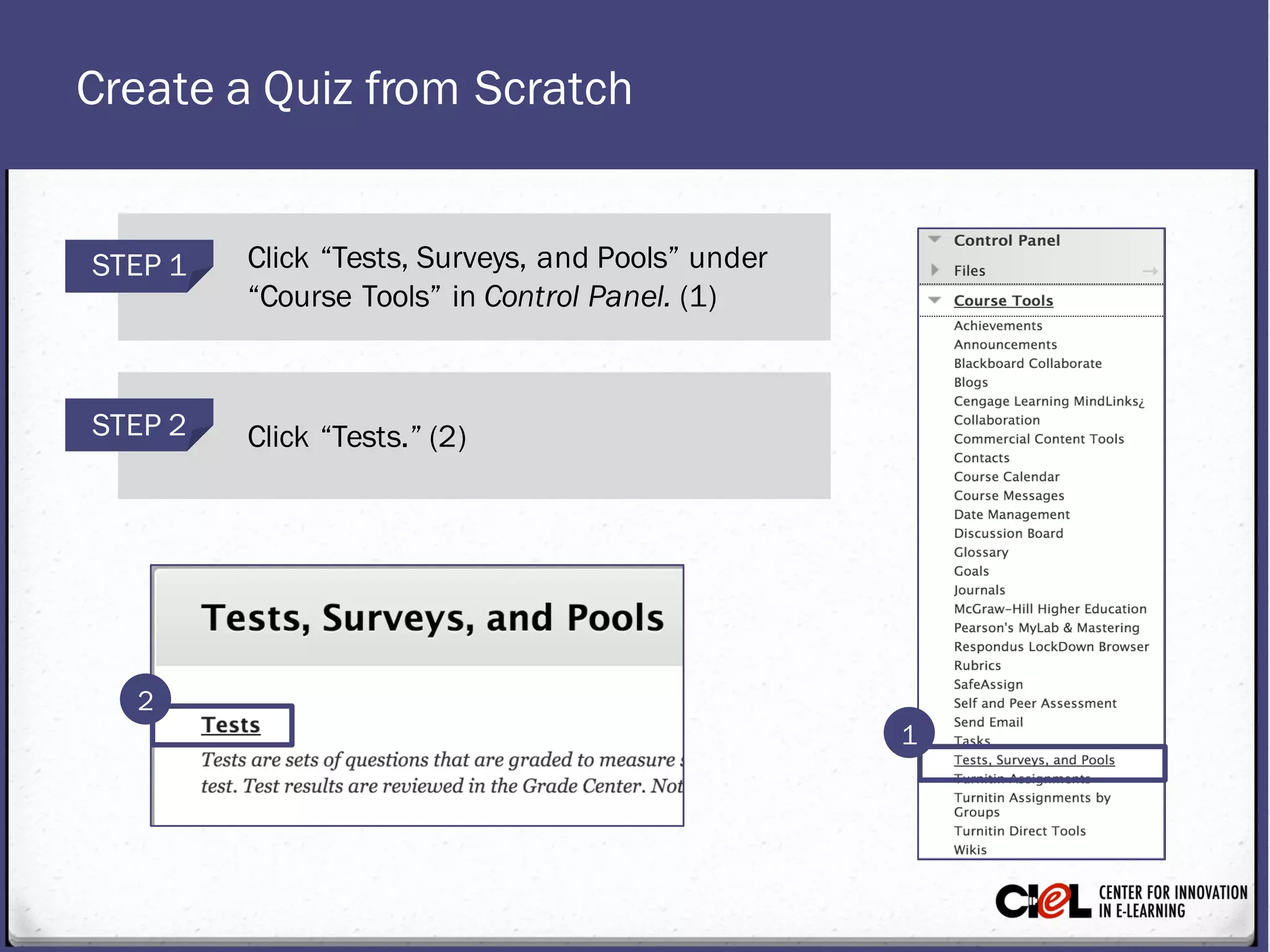
STEP 2 Click “Tests.” (2)
STEP 1 Click “Tests, Surveys, and Pools” under
“Course Tools” in Control Panel. (1)
1
2
Create a Quiz from Scratch
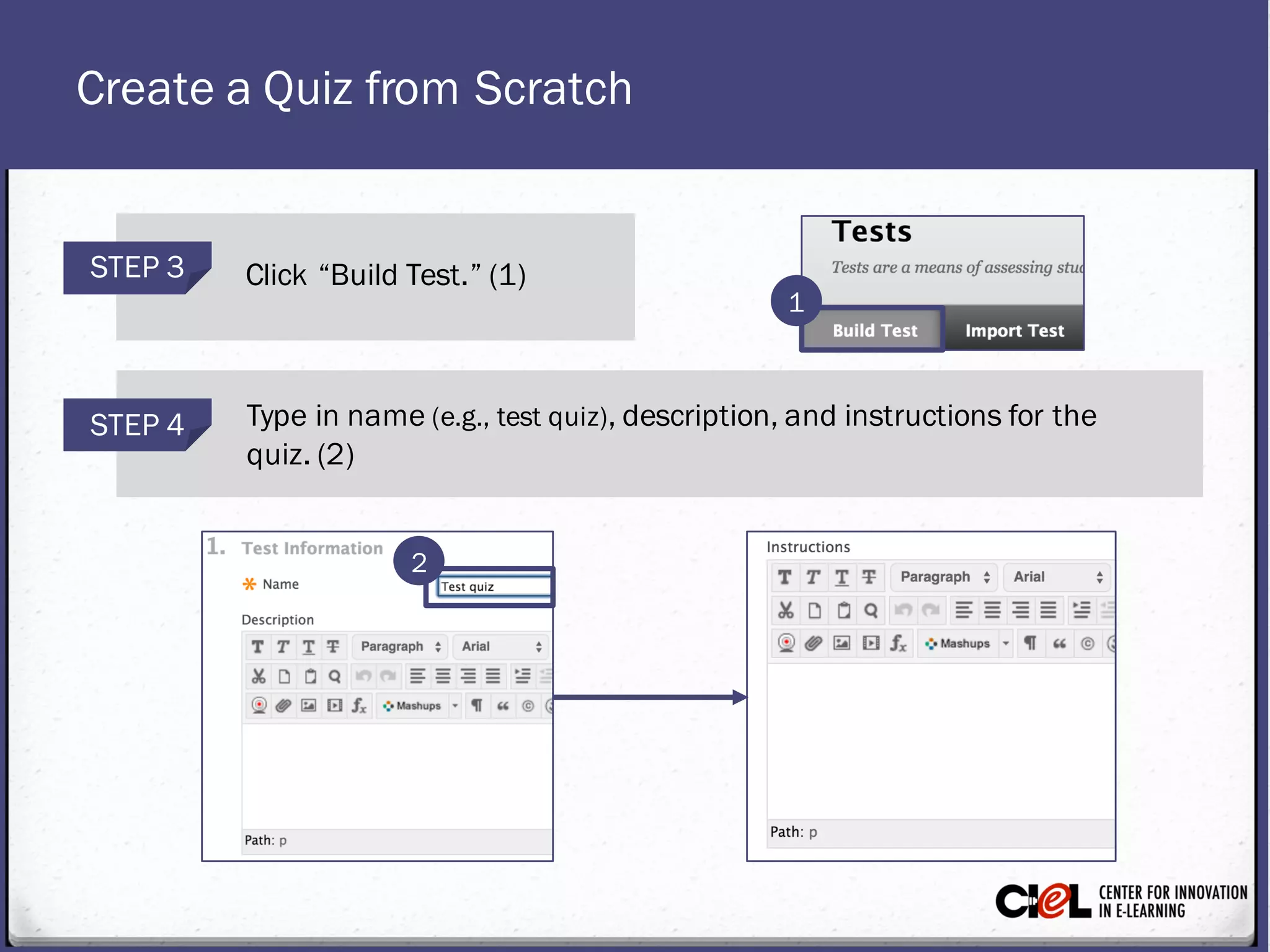
STEP 4 Type in name(e.g., test quiz), description, and instructionsfor the
quiz. (2)
STEP 3 Click “Build Test.” (1)
1
2
Create a Quiz from Scratch
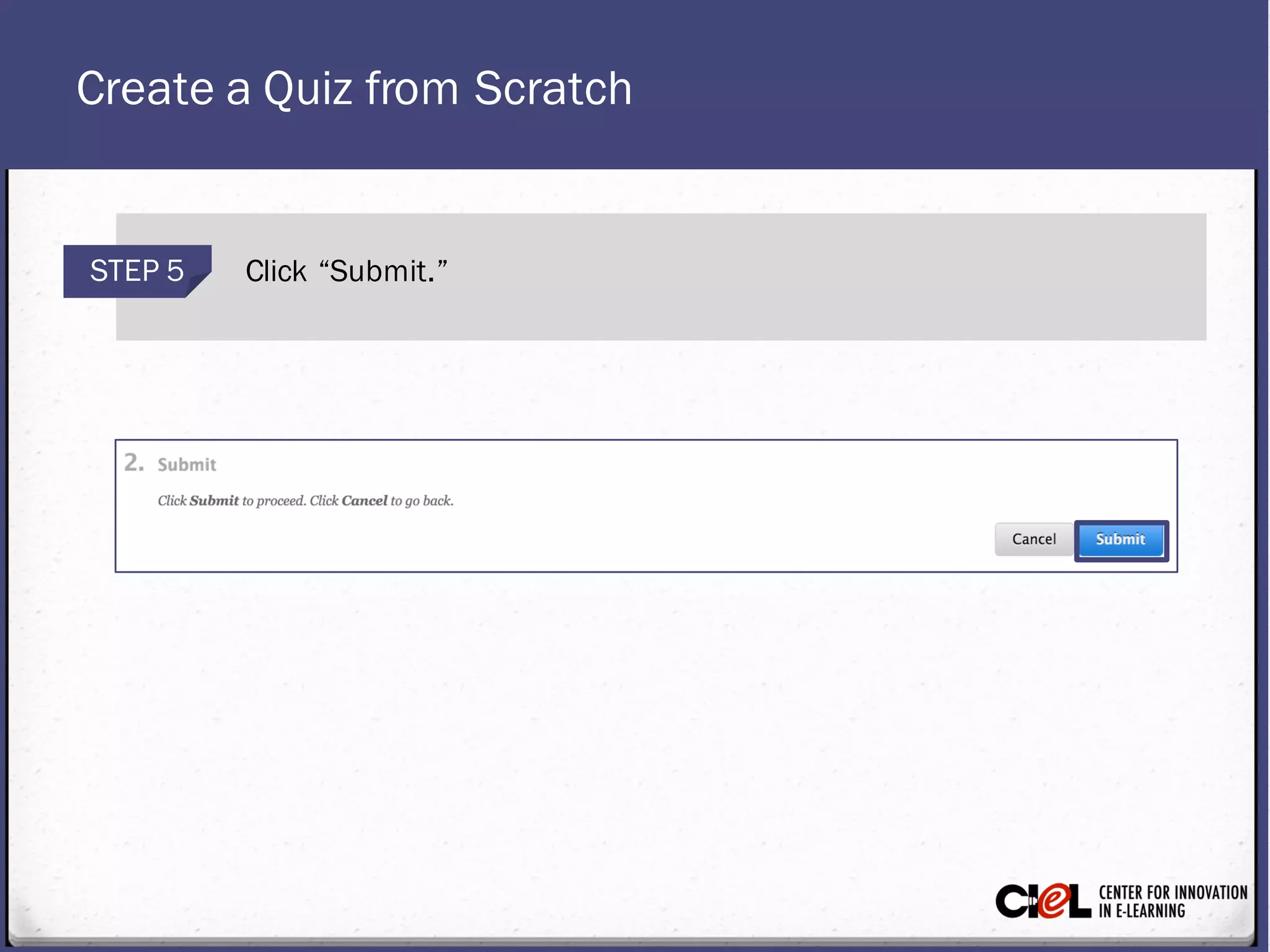
STEP 5 Click “Submit.”
Create a Quiz from Scratch
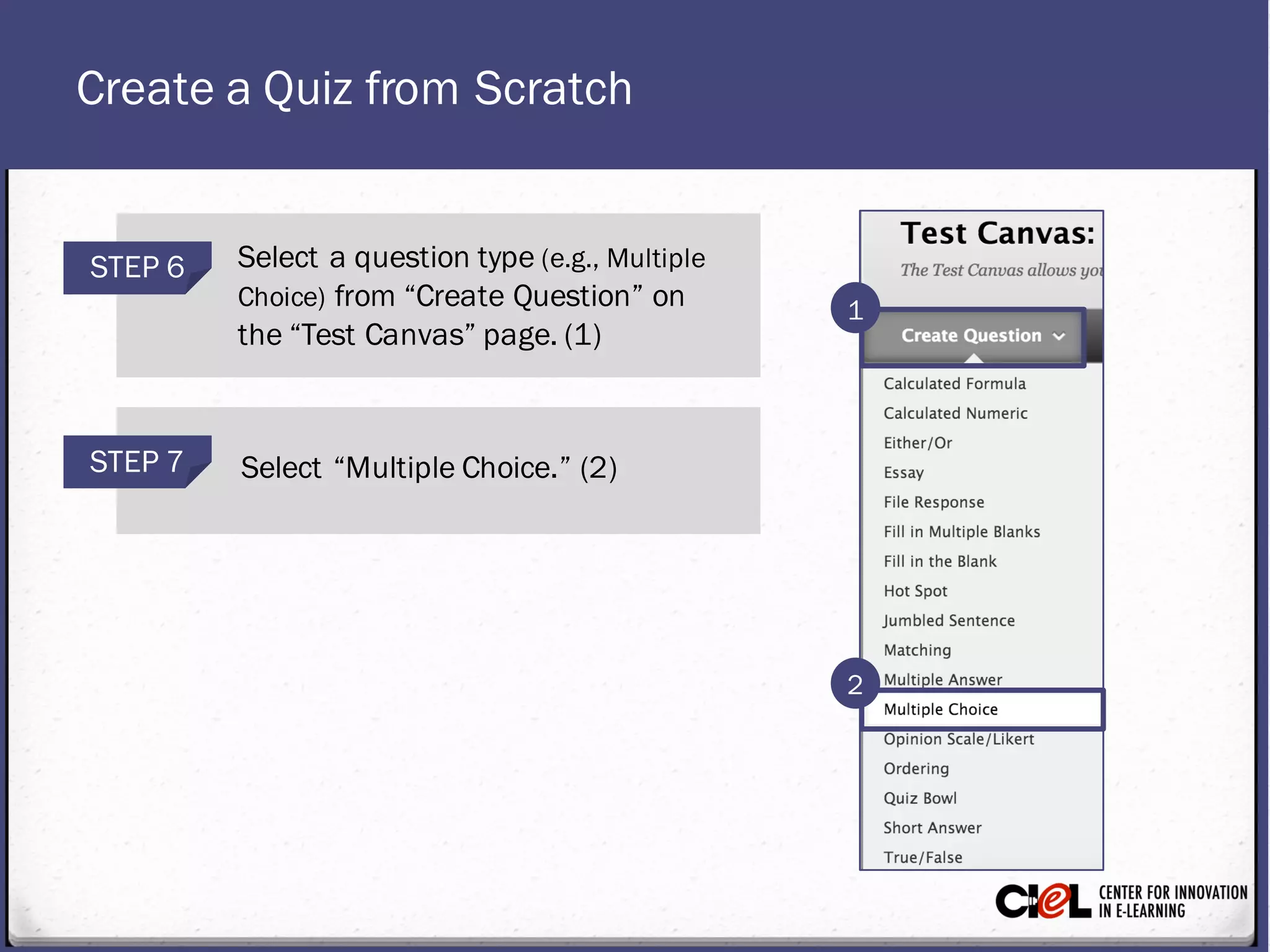
STEP 7 Select “MultipleChoice.” (2)
STEP 6 Select a question type (e.g., Multiple
Choice) from “Create Question” on
the “Test Canvas” page. (1)
2
1
Create a Quiz from Scratch
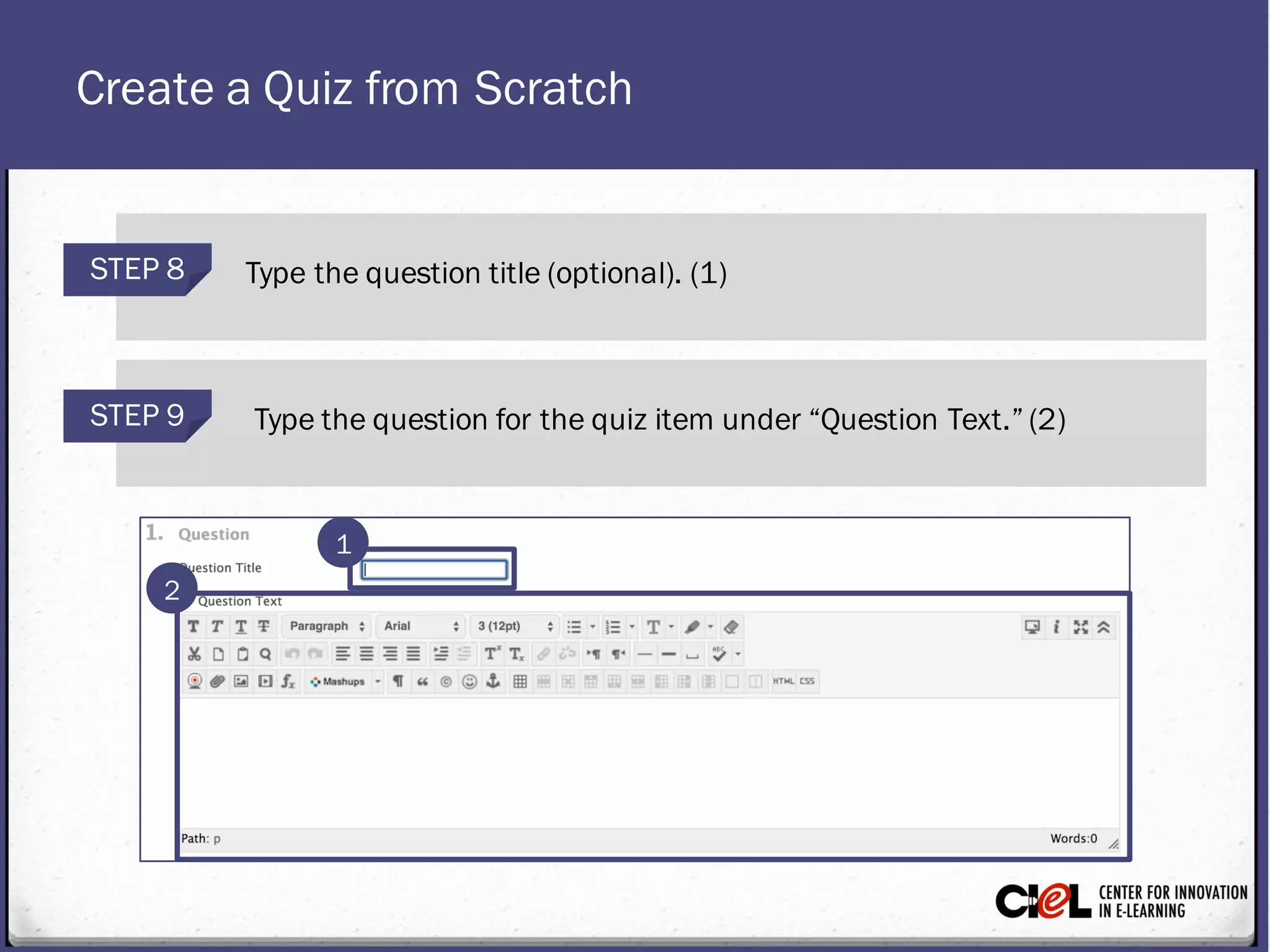
STEP 9 Type thequestion for the quiz item under “Question Text.” (2)
STEP 8 Type the question title (optional). (1)
1
2
Create a Quiz from Scratch
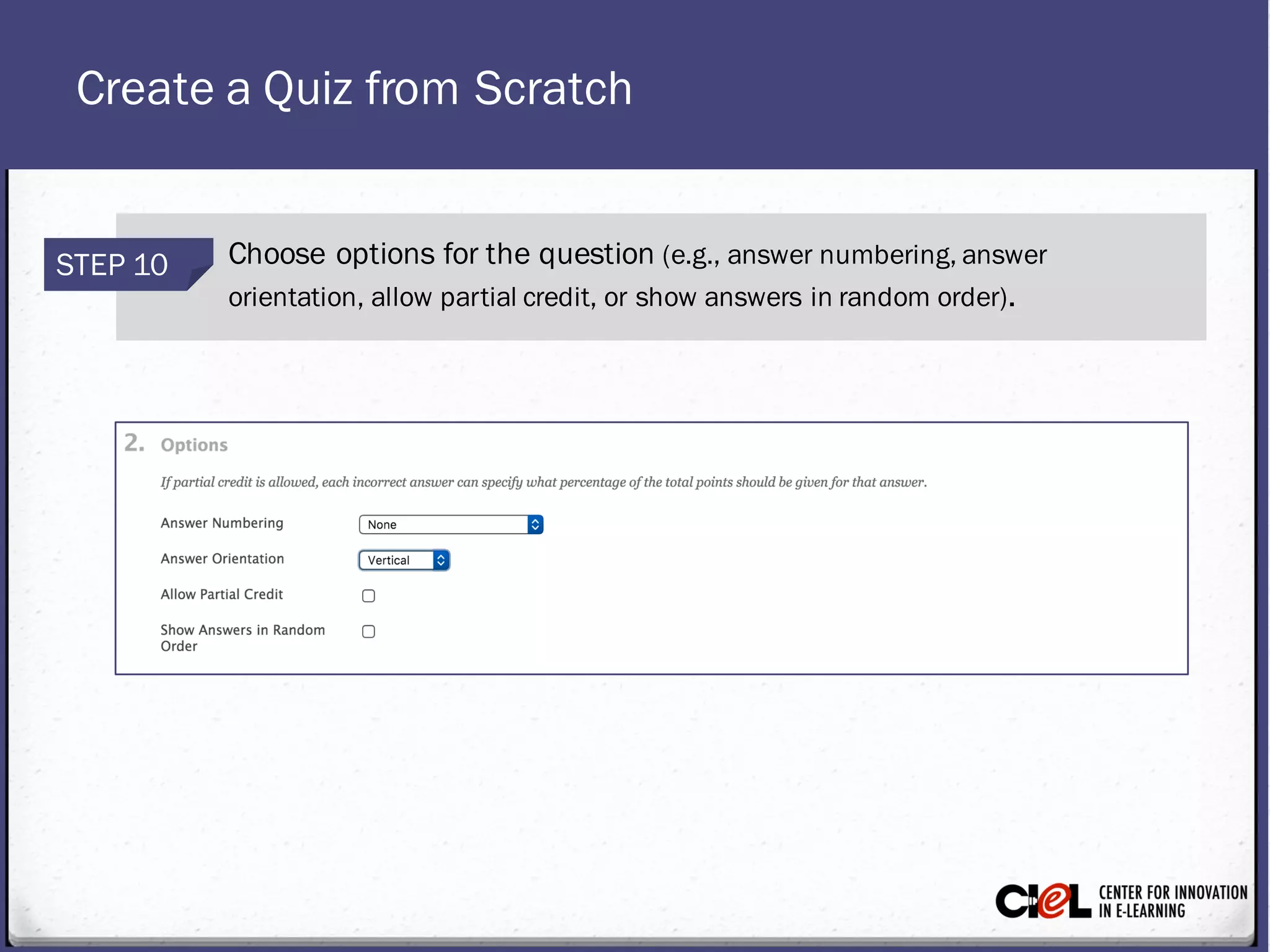
STEP 10 Choose options for the question (e.g., answer numbering, answer
orientation, allow partial credit, or show answers in random order).
Create a Quiz from Scratch
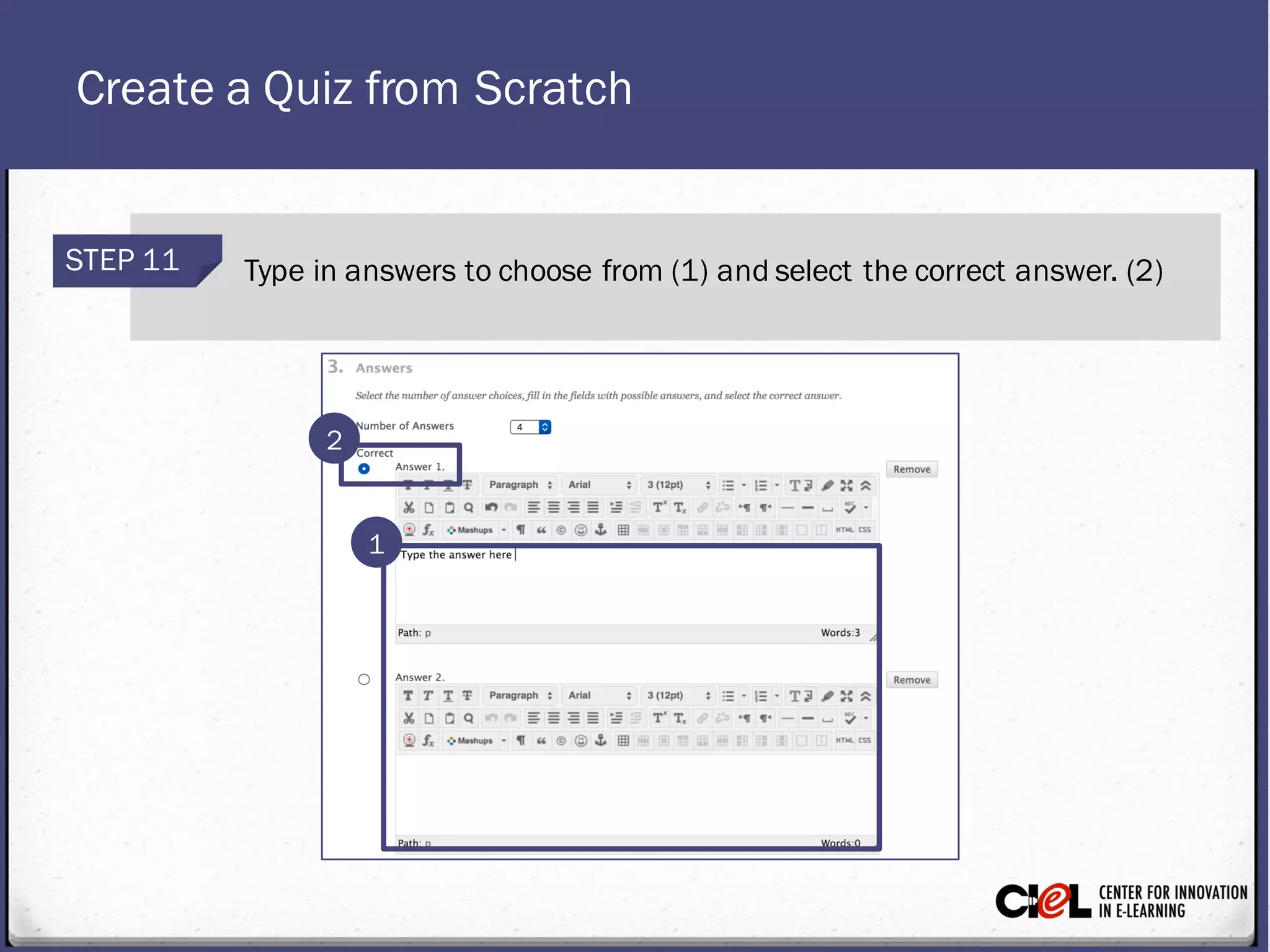
STEP 11 Type in answers to choose from (1) and select the correct answer. (2)
1
2
Create a Quiz from Scratch
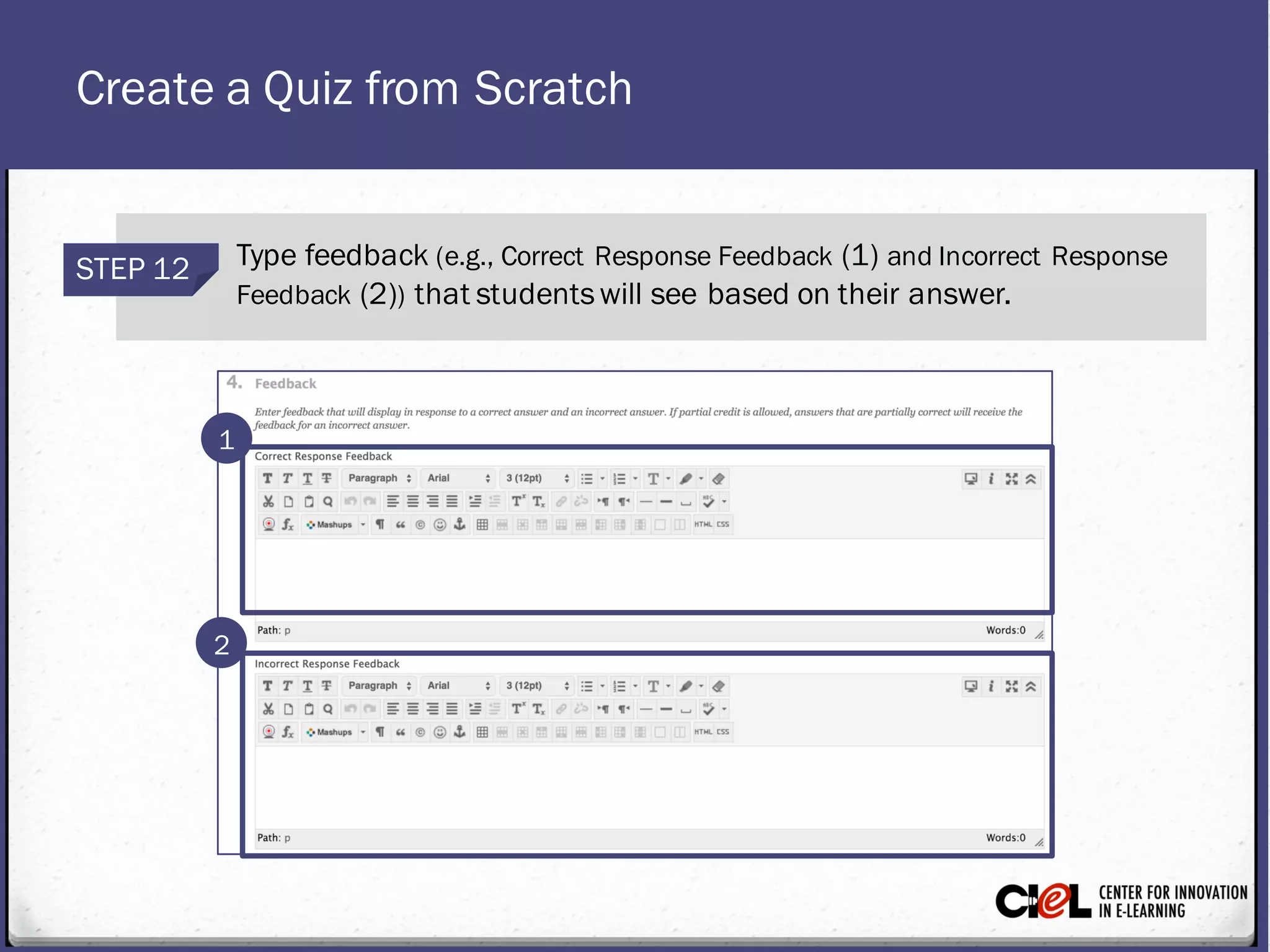
STEP 12 Type feedback (e.g., Correct Response Feedback (1) and Incorrect Response
Feedback (2)) that studentswill see based on their answer.
2
1
Create a Quiz from Scratch
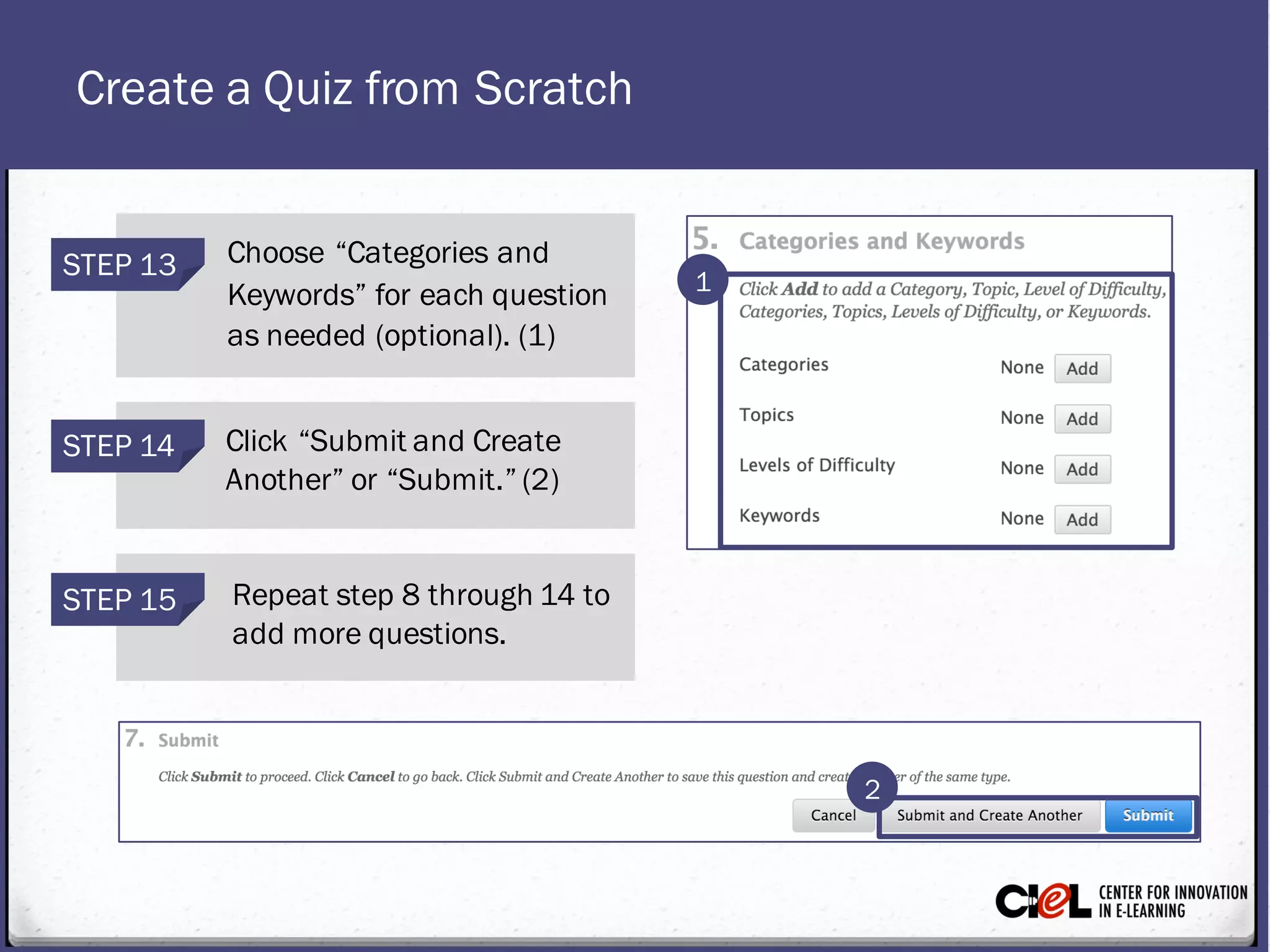
STEP 14 Click “Submit and Create
Another” or “Submit.” (2)
STEP 13 Choose “Categories and
Keywords” for each question
as needed (optional). (1)
STEP 15 Repeat step 8 through 14 to
add more questions.
1
2
*Note: AlternateOption to Create a Quiz
You can create a quiz from the “Assessment” menu bar
on the left panel. Click on the “Assessment” menu bar,
then click on “Assessment” action link on the top of the
content page and choose “Test.” The rest of the steps to
create a quiz are the same as the steps above.
From this task, you have learned how to create a quiz
under “Course Tools” in the Control Panel.
Review
Room 151, College of Education Building
(806) 742-0222
ciel.educ@ttu.edu

Module 7: Advanced Quiz Options Task 1

  • 1.
    Task 1: Createa Quiz from Scratch MODULE 7: Advanced Quiz Options
  • 2.
    Create a Quizfrom Scratch STEP 2 Click “Tests.” (2) STEP 1 Click “Tests, Surveys, and Pools” under “Course Tools” in Control Panel. (1) 1 2
  • 3.
    Create a Quizfrom Scratch STEP 4 Type in name(e.g., test quiz), description, and instructionsfor the quiz. (2) STEP 3 Click “Build Test.” (1) 1 2
  • 4.
    Create a Quizfrom Scratch STEP 5 Click “Submit.”
  • 5.
    Create a Quizfrom Scratch STEP 7 Select “MultipleChoice.” (2) STEP 6 Select a question type (e.g., Multiple Choice) from “Create Question” on the “Test Canvas” page. (1) 2 1
  • 6.
    Create a Quizfrom Scratch STEP 9 Type thequestion for the quiz item under “Question Text.” (2) STEP 8 Type the question title (optional). (1) 1 2
  • 7.
    Create a Quizfrom Scratch STEP 10 Choose options for the question (e.g., answer numbering, answer orientation, allow partial credit, or show answers in random order).
  • 8.
    Create a Quizfrom Scratch STEP 11 Type in answers to choose from (1) and select the correct answer. (2) 1 2
  • 9.
    Create a Quizfrom Scratch STEP 12 Type feedback (e.g., Correct Response Feedback (1) and Incorrect Response Feedback (2)) that studentswill see based on their answer. 2 1
  • 10.
    Create a Quizfrom Scratch STEP 14 Click “Submit and Create Another” or “Submit.” (2) STEP 13 Choose “Categories and Keywords” for each question as needed (optional). (1) STEP 15 Repeat step 8 through 14 to add more questions. 1 2
  • 11.
    *Note: AlternateOption toCreate a Quiz You can create a quiz from the “Assessment” menu bar on the left panel. Click on the “Assessment” menu bar, then click on “Assessment” action link on the top of the content page and choose “Test.” The rest of the steps to create a quiz are the same as the steps above.
  • 12.
    From this task,you have learned how to create a quiz under “Course Tools” in the Control Panel. Review
  • 13.
    Room 151, Collegeof Education Building (806) 742-0222 ciel.educ@ttu.edu