Task 2: Manage Assignment
Submission Schedules
MODULE 6: Assignment
Manage Assignment Submission Schedules
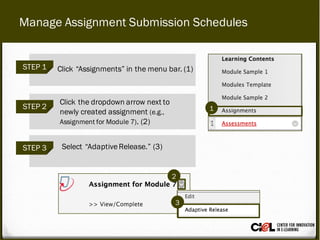
STEP 2
Click the dropdown arrow next to
newly created assignment (e.g.,
Assignment for Module 7). (2)
STEP 1 Click “Assignments” in the menu bar. (1)
STEP 3 Select “AdaptiveRelease.” (3)
2
3
1
Manage Assignment Submission Schedules
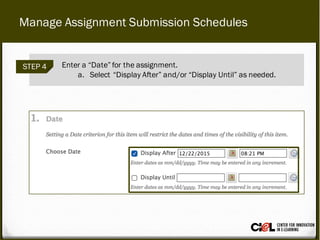
STEP 4 Enter a “Date” for the assignment.
a. Select “Display After” and/or “Display Until” as needed.
Manage Assignment Submission Schedules
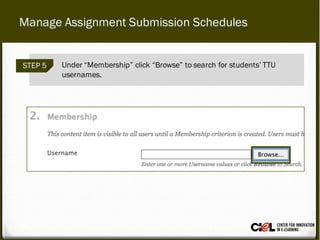
STEP 5 Under “Membership” click “Browse” to search for students’ TTU
usernames.
Manage Assignment Submission Schedules
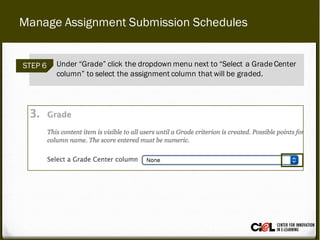
STEP 6 Under “Grade” click the dropdown menu next to “Select a GradeCenter
column” to select the assignment column that will be graded.
Manage Assignment Submission Schedules
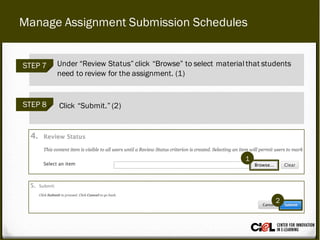
STEP 8 Click “Submit.” (2)
STEP 7 Under “Review Status” click “Browse” to select material that students
need to review for the assignment. (1)
1
2
Manage Assignment Submission Schedules
STEP 8 Click “Submit.” (2)
STEP 7 Under “Review Status” click “Browse” to select material that students
need to review for the assignment. (1)
1
2
If you want to set up an “Adaptive Release”
rule for an assignment for more than one
student or different groups of students on the
same schedule, you will follow the same steps
above. However, you have to separate multiple
usernames using commas (,).
Dig Deeper: Adaptive Release for Multiple Users
From this task, you have learned how to manage
assignment submission schedules using “Adaptive
Release.”
Review
Room 151, College of Education Building
(806) 742-0222
ciel.educ@ttu.edu

Module 6: Assignments Task 2

  • 1.
    Task 2: ManageAssignment Submission Schedules MODULE 6: Assignment
  • 2.
    Manage Assignment SubmissionSchedules STEP 2 Click the dropdown arrow next to newly created assignment (e.g., Assignment for Module 7). (2) STEP 1 Click “Assignments” in the menu bar. (1) STEP 3 Select “AdaptiveRelease.” (3) 2 3 1
  • 3.
    Manage Assignment SubmissionSchedules STEP 4 Enter a “Date” for the assignment. a. Select “Display After” and/or “Display Until” as needed.
  • 4.
    Manage Assignment SubmissionSchedules STEP 5 Under “Membership” click “Browse” to search for students’ TTU usernames.
  • 5.
    Manage Assignment SubmissionSchedules STEP 6 Under “Grade” click the dropdown menu next to “Select a GradeCenter column” to select the assignment column that will be graded.
  • 6.
    Manage Assignment SubmissionSchedules STEP 8 Click “Submit.” (2) STEP 7 Under “Review Status” click “Browse” to select material that students need to review for the assignment. (1) 1 2
  • 7.
    Manage Assignment SubmissionSchedules STEP 8 Click “Submit.” (2) STEP 7 Under “Review Status” click “Browse” to select material that students need to review for the assignment. (1) 1 2
  • 8.
    If you wantto set up an “Adaptive Release” rule for an assignment for more than one student or different groups of students on the same schedule, you will follow the same steps above. However, you have to separate multiple usernames using commas (,). Dig Deeper: Adaptive Release for Multiple Users
  • 9.
    From this task,you have learned how to manage assignment submission schedules using “Adaptive Release.” Review
  • 10.
    Room 151, Collegeof Education Building (806) 742-0222 ciel.educ@ttu.edu