KKEEMMEENNTTEERRIIAANN PPEELLAAJJAARRAANN MMAALLAAYYSSIIAA
SSeellff AAcccceessss LLeeaarrnniinngg MMoodduullee
PUSAT PERKEMBANGAN KURIKULUM
KEMENTERIAN PELAJARAN MALAYSIA
PUSAT PERKEMBANGAN KURIKULUM
KEMENTERIAN PELAJARAN MALAYSIA
IIICCCTTT LLLiiittteeerrraaacccyyy fffooorrr
SSSeeecccooonnndddaaarrryyy SSSccchhhoooooolll
PPPrrrooogggrrraaammmmmmeee
ICTL for secondary school - just basic V1.01 module
1
MODULE 1
INTRODUCTION TO PROGRAMMING
Curriculum Development Centre
Ministry of Education Malaysia
ICTL for secondary school - just basic V1.01 module
2
1. Name of Module: Introduction to programming
2. Learning Outcomes: The students should be able to :
a. Define programming ; and
b. State the main steps in programme
development.
3. Knowledge and Skills: a. Definition of programme ; and
b. Programming language.
4. Module Summary: At the end of the module, student should be able to:
a. Understand the definition of programming
language.
b. Understand the phases of Program
Development.
ICTL for secondary school - just basic V1.01 module
3
Introduction to programming
1. What is programming?
Programming refers to the act of instructing the computer to do something for us
with the help of programming language.
2. What is a programming language?
A Programming Language is a set of rules that provides a way of telling the
computer what operation to perform (according to Capron and Johnson,2004)
3. What programming languages are available?
Before looking at a specific programming language, we need to know the levels of
programming languages.
Language is said to be “lower” or “higher” depending on how close they are to the
language the computer itself uses or to the language people use (more English-like-
high).
These programming languages are generally divided into five levels or generations :-
a. Machine Language
b. Assembly Language
c. High-Level Language
d. Very High-Level Language
e. Natural Language
The following are the descriptions of each level of programming language :-
Level of language Descriptions
Machine Language
• Ultimately the computer understands
only binary number-strings of 0 and 1.
• Programs that are written in these 0
and 1s represent the “on” and “off”
electrical states of computer.
• All other languages must be translated
into machine language before
executing instructions.
Assembly Language
• This programming language is
considered very low level.
• This language use mnemonic codes,
abbreviations that are easy to
remember such as : A for add, C for
compare, MP for multiply and so on.
ICTL for secondary school - just basic V1.01 module
4
4. Examples of Programming Languages.
Examples of programming languages are :-
a. BASIC
b. COBOL
c. PASCAL
d. C
e. FORTRAN
f. VISUAL BASIC
g. C++
h. JAVA
High-Level Language
• For this language, programmers no
longer need to have detailed
knowledge of computer hardware to
produce a programme.
• This language is closer to human
language compare to the machine
language.
Very High-Level Language
• Often known as fourth generation
language (4 GLs).
• This programming language is an
improvement of high-level language.
Natural Language
• This programming language is also
called the fifth generation language.
• This language is similar to the “natural”
spoken or written English Language.
• The natural language translates human
instructions into code that the computer
can understand and execute.
ICTL for secondary school - just basic V1.01 module
5
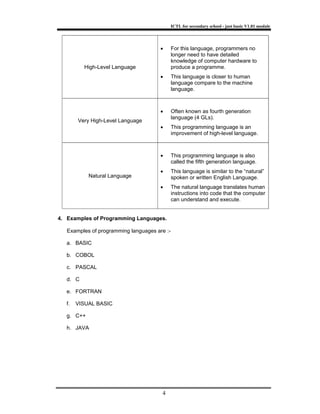
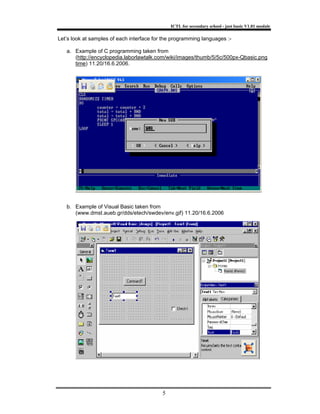
Let’s look at samples of each interface for the programming languages :-
a. Example of C programming taken from
(http://encyclopedia.laborlawtalk.com/wiki/images/thumb/5/5c/500px-Qbasic.png
time) 11.20/16.6.2006.
b. Example of Visual Basic taken from
(www.dmst.aueb.gr/dds/etech/swdev/env.gif) 11.20/16.6.2006
ICTL for secondary school - just basic V1.01 module
6
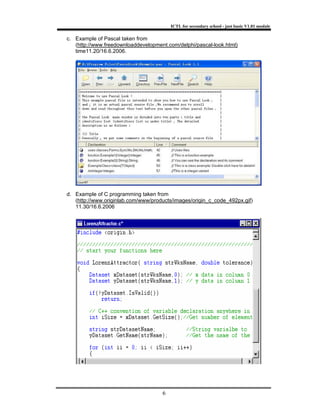
c. Example of Pascal taken from
(http://www.freedownloaddevelopment.com/delphi/pascal-look.html)
time11.20/16.6.2006.
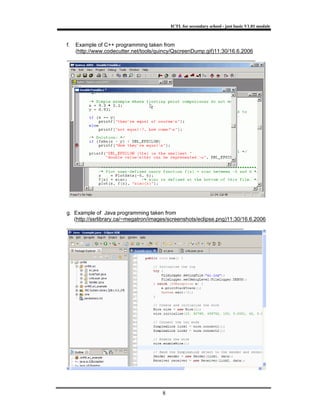
d. Example of C programming taken from
(http://www.originlab.com/www/products/images/origin_c_code_492px.gif)
11.30/16.6.2006
ICTL for secondary school - just basic V1.01 module
7
e. Example of Fortran programming taken from
(http://homepage.cs.uri.edu/faculty/wolfe/book/Readings/Reading13.htm)
11:30/16.6.2006
ICTL for secondary school - just basic V1.01 module
8
f. Example of C++ programming taken from
(http://www.codecutter.net/tools/quincy/QscreenDump.gif)11:30/16.6.2006
g. Example of Java programming taken from
(http://ssrlibrary.ca/~megatron/images/screenshots/eclipse.png)11:30/16.6.2006
ICTL for secondary school - just basic V1.01 module
9
The Program Development Life Cycle
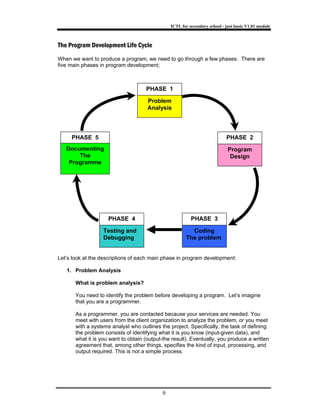
When we want to produce a program, we need to go through a few phases. There are
five main phases in program development;
Let’s look at the descriptions of each main phase in program development:
1. Problem Analysis
What is problem analysis?
You need to identify the problem before developing a program. Let’s imagine
that you are a programmer.
As a programmer, you are contacted because your services are needed. You
meet with users from the client organization to analyze the problem, or you meet
with a systems analyst who outlines the project. Specifically, the task of defining
the problem consists of identifying what it is you know (input-given data), and
what it is you want to obtain (output-the result). Eventually, you produce a written
agreement that, among other things, specifies the kind of input, processing, and
output required. This is not a simple process.
PHASE 1
Problem
Analysis
PHASE 2
PHASE 3PHASE 4
PHASE 5
Program
Design
Coding
The problem
Testing and
Debugging
Documenting
The
Programme
ICTL for secondary school - just basic V1.01 module
10
2. Program Design
In this phase, you will do the following tasks :-
• Plan the solution to the problem (think about how will you solve the problem)
• Choose the interface (think about how will your program look like)
3. Coding
So now you are ready to write the code of the program that you have planned.
You need to express your solution in a programming language.
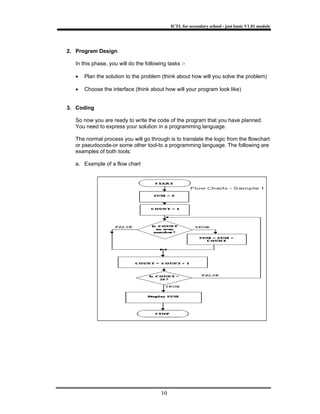
The normal process you will go through is to translate the logic from the flowchart
or pseudocode-or some other tool-to a programming language. The following are
examples of both tools:
a. Example of a flow chart
ICTL for secondary school - just basic V1.01 module
11
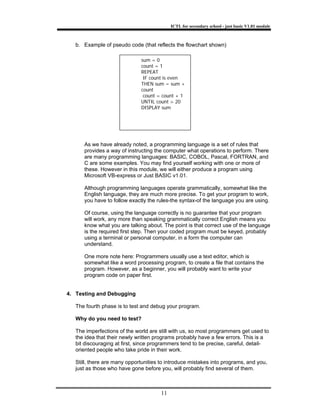
b. Example of pseudo code (that reflects the flowchart shown)
As we have already noted, a programming language is a set of rules that
provides a way of instructing the computer what operations to perform. There
are many programming languages: BASIC, COBOL, Pascal, FORTRAN, and
C are some examples. You may find yourself working with one or more of
these. However in this module, we will either produce a program using
Microsoft VB-express or Just BASIC v1.01.
Although programming languages operate grammatically, somewhat like the
English language, they are much more precise. To get your program to work,
you have to follow exactly the rules-the syntax-of the language you are using.
Of course, using the language correctly is no guarantee that your program
will work, any more than speaking grammatically correct English means you
know what you are talking about. The point is that correct use of the language
is the required first step. Then your coded program must be keyed, probably
using a terminal or personal computer, in a form the computer can
understand.
One more note here: Programmers usually use a text editor, which is
somewhat like a word processing program, to create a file that contains the
program. However, as a beginner, you will probably want to write your
program code on paper first.
4. Testing and Debugging
The fourth phase is to test and debug your program.
Why do you need to test?
The imperfections of the world are still with us, so most programmers get used to
the idea that their newly written programs probably have a few errors. This is a
bit discouraging at first, since programmers tend to be precise, careful, detail-
oriented people who take pride in their work.
Still, there are many opportunities to introduce mistakes into programs, and you,
just as those who have gone before you, will probably find several of them.
sum = 0
count = 1
REPEAT
IF count is even
THEN sum = sum +
count
count = count + 1
UNTIL count > 20
DISPLAY sum
ICTL for secondary school - just basic V1.01 module
12
Why debug?
You need to debug to improve your program. Debug is a term used extensively
in programming. “Debugging” means detecting, locating, and correcting bugs
(mistakes), usually done by running the program.
These bugs are logic errors, such as telling a computer to repeat an operation
but not telling it how to stop repeating. In this phase you run the program using
test data that you devise. You must plan the test data carefully to make sure you
test every part of the program.
How do you debug?
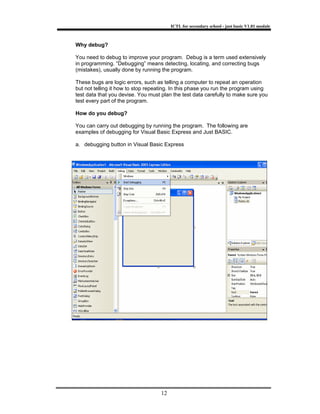
You can carry out debugging by running the program. The following are
examples of debugging for Visual Basic Express and Just BASIC.
a. debugging button in Visual Basic Express
ICTL for secondary school - just basic V1.01 module
13
b. debugging button in Just BASIC v1.01
5. Documentation
Documentation is important when programming. Documenting is an ongoing,
necessary process, although, as many programmers are, you may be eager to
pursue more exciting computer-centered activities.
What is documentation?
Documentation is a written detailed description of the programming cycle and
specific facts about the program. Typical program documentation materials
include the origin and nature of the problem, a brief narrative description of the
program, logic tools such as flowcharts and pseudocode, data-record
descriptions, program listings, and testing results.
Comments in the program itself are also considered an essential part of
documentation. Many programmers document as they code. In a broader sense,
program documentation can be part of the documentation for an entire system.
The wise programmer continues to document the program throughout its design,
development, and testing. Documentation is needed to supplement human
memory and to help organize program planning. Also, documentation is critical to
communicate with others who have an interest in the program, especially other
programmers who may be part of a programming team.
Written documentation is needed in computer industry so that those who come
after you can make any necessary modifications in the program or track down
any errors that you missed.
ICTL for secondary school - just basic V1.01 module
14
MODULE 2
PROGRAMMING JUST BASIC V1.01
(DEVELOPMENT)
Curriculum Development Centre
Ministry of Education Malaysia
ICTL for secondary school - just basic V1.01 module
15
1. Name of module: Programming Just BASIC V1.01 (Development)
2. Learning Outcomes: The students should be able to :
a. State the features of the programming tools.
b. Create object :-
• Button
• Textbox
c. Declare variables (eg. String)
3. Knowledge and Skills: Define programme and programming language.
4. Module Summary: At the end of the module, students should be able to
develop a simple programme.
ICTL for secondary school - just basic V1.01 module
16
1. What is Just BASIC v1.01?
Just BASIC v1.01 is a programming language for the Windows Operating System.
You can create various applications for your school or daily activities. It is widely
used in business, training and entertainment.
2. Why use Just BASIC v1.01?
Reasons for using Just BASIC v1.01 are :-
• Free download!
• Standalone Window programmes are royalty free.
• Full tutorial and various example of programmes are provided online.
• It has large online community.
• Uses syntax colouring editor.
• Easy to carry out debugging.
• Graphics including sprites and printing are provided in the programmes.
•
3. What will you produce using Just BASIC v1.01.
It is hoped that at the end of this lesson, you will be able to produce 2 simple
programmes that consist of greeting and basic mathematical calculation in a textbox.
In doing so, you will have the experience of using simple coding in just BASIC v1.01.
4. Getting started with just BASIC v1.01
Before we start to write a programme using Just Basic, we need to know the basic
elements, such as :-
i. print – an instruction for the computer to display information for the
user.
ii. Input - an instruction for the computer to get information from the
user.
iii. Notice one special thing about our string variable name. It ends with a $
(dollar sign). In BASIC, when you want to store characters in a variable,
you end the variable name with a $.
*** NOTE : When you see the apostrophe sign (‘) on the screen of the
programme, that is called internal documentation. Such documentation are
used as notes, or to explain about the coding you are using. It is called
internal as the notes are written together with the coding you are writing.
The internal documentation will be displayed green on the screen.
ICTL for secondary school - just basic V1.01 module
17
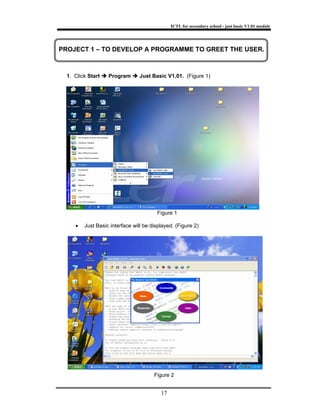
1. Click Start Program Just Basic V1.01. (Figure 1)
Figure 1
• Just Basic interface will be displayed. (Figure 2)
Figure 2
PROJECT 1 – TO DEVELOP A PROGRAMME TO GREET THE USER.
ICTL for secondary school - just basic V1.01 module
18
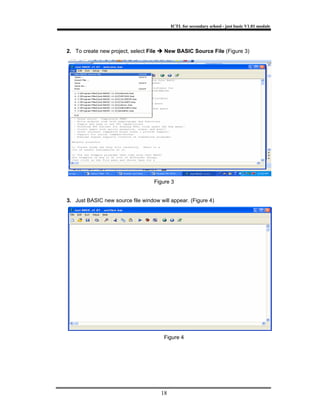
2. To create new project, select File New BASIC Source File (Figure 3)
Figure 3
3. Just BASIC new source file window will appear. (Figure 4)
Figure 4
ICTL for secondary school - just basic V1.01 module
19
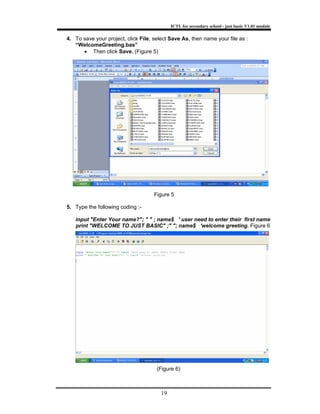
4. To save your project, click File, select Save As, then name your file as :
“WelcomeGreeting.bas”
• Then click Save. (Figure 5)
Figure 5
5. Type the following coding :-
input "Enter Your name?"; " " ; name$ ' user need to enter their first name
print "WELCOME TO JUST BASIC" ;" "; name$ 'welcome greeting. Figure 6
(Figure 6)
ICTL for secondary school - just basic V1.01 module
20
6. To save your project, click File and select Save. (Figure 7)
Figure 7
7. Then run the program, click or press Shift + F5.
The output will be shown as below. (Figure 8)
Figure 8
ICTL for secondary school - just basic V1.01 module
21
8. Key in your name then press ENTER.The output will be shown as below(Figure
9)
Figure 9
ICTL for secondary school - just basic V1.01 module
22
1. Click Start Program Just Basic V1.01 (Figure 1 & Figure 2)
• Just Basic V 1.01 will be displayed
Figure 1
Figure 2
PROJECT 2 – TO DEVELOP A PROGRAMME WHICH CAN
ADD 2 NUMBERS AND DISPLAY THE RESULT
ICTL for secondary school - just basic V1.01 module
23
2. To create new project, select File New BASIC Source File (Figure 3)
Figure 3
3. Just BASIC new source file window will appear. ( Figure 4)
Figure 4
ICTL for secondary school - just basic V1.01 module
24
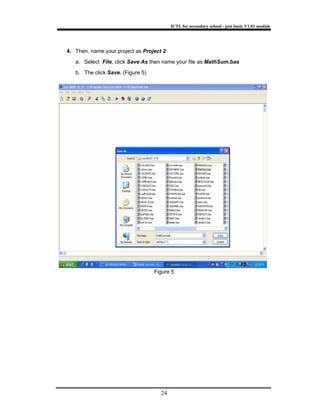
4. Then, name your project as Project 2
a. Select File, click Save As then name your file as MathSum.bas
b. The click Save. (Figure 5)
Figure 5
ICTL for secondary school - just basic V1.01 module
25
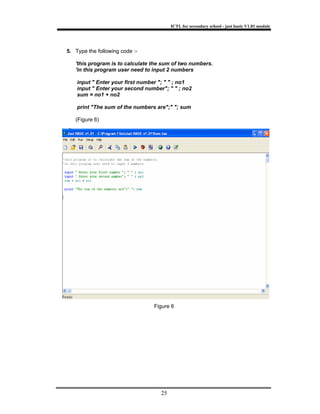
5. Type the following code :-
'this program is to calculate the sum of two numbers.
'in this program user need to input 2 numbers
input " Enter your first number "; " " ; no1
input " Enter your second number"; " " ; no2
sum = no1 + no2
print "The sum of the numbers are";" "; sum
(Figure 6)
Figure 6
ICTL for secondary school - just basic V1.01 module
26
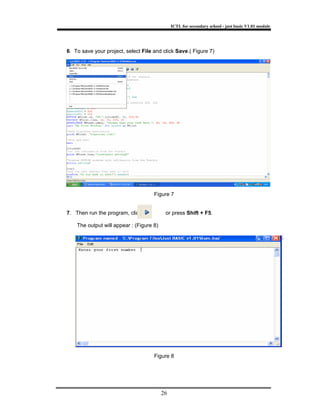
6. To save your project, select File and click Save.( Figure 7)
Figure 7
7. Then run the program, click or press Shift + F5.
The output will appear : (Figure 8)
Figure 8
ICTL for secondary school - just basic V1.01 module
27
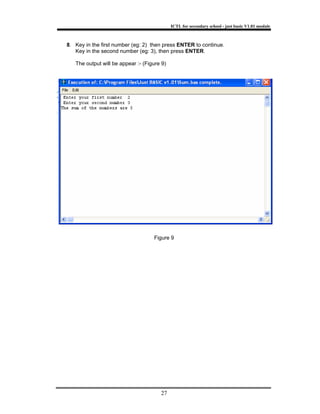
8. Key in the first number (eg: 2) then press ENTER to continue.
Key in the second number (eg: 3), then press ENTER.
The output will be appear :- (Figure 9)
Figure 9
ICTL for secondary school - just basic V1.01 module
28
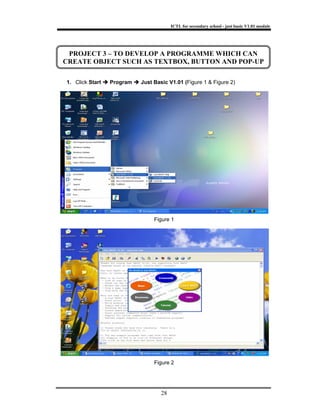
1. Click Start Program Just Basic V1.01 (Figure 1 & Figure 2)
• Just Basic V 1.01 will be displayed
Figure 1
Figure 2
PROJECT 3 – TO DEVELOP A PROGRAMME WHICH CAN
CREATE OBJECT SUCH AS TEXTBOX, BUTTON AND POP-UP
ICTL for secondary school - just basic V1.01 module
29
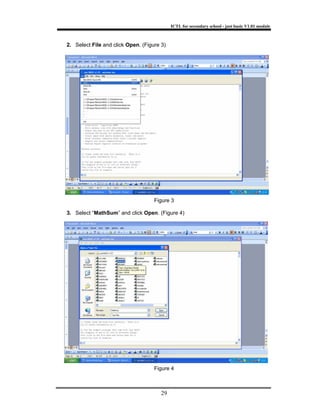
2. Select File and click Open. (Figure 3)
CONGRATULATIONS!!!
YOU HAVE CREATED A PROGRAM!
Figure 3
3. Select “MathSum” and click Open. (Figure 4)
Figure 4
ICTL for secondary school - just basic V1.01 module
30
4. Continue the coding by typing these code :- (Figure 5)
'Open windows with size of 300 X 100 in position 200, 150
WindowWidth = 300
WindowHeight = 100
UpperLeftX = 200
UpperLeftY = 150
BUTTON #first.ok, "OK!",[clickOK], UL, 220,35
TEXTBOX #first.line, 10, 35, 200, 25
STATICTEXT #first.label, "Please type your text here.", 10, 10, 150, 25
open "My First Window!" for window as #first
'Send trapclose instruction
print #first, "trapclose [out]"
'Stop and wait.
wait
[clickOK]
'Get the information from the Textbox
print #first.line,"!contents? aString$"
'Display NOTICE windows with information from the Textbox
notice aString$
[out]
'Ask the user whether they want to exit
confirm "Do you want to exit?"; answer$
'Don't want to exit
if answer$ <> "yes" then wait
close #first
end
Figure 5
ICTL for secondary school - just basic V1.01 module
31
5. To save your project, select File and click Save. (Figure 6)
Figure 6
6. Then run the program, click or press Shift + F5.
The output will appear as below :- (Figure 7)
Figure 7
ICTL for secondary school - just basic V1.01 module
32
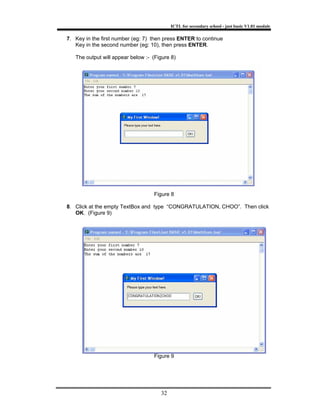
7. Key in the first number (eg: 7) then press ENTER to continue
Key in the second number (eg: 10), then press ENTER.
The output will appear below :- (Figure 8)
Figure 8
8. Click at the empty TextBox and type “CONGRATULATION, CHOO”. Then click
OK. (Figure 9)
Figure 9
ICTL for secondary school - just basic V1.01 module
33
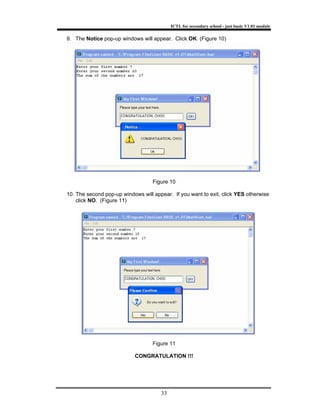
9. The Notice pop-up windows will appear. Click OK. (Figure 10)
Figure 10
10. The second pop-up windows will appear. If you want to exit, click YES otherwise
click NO. (Figure 11)
Figure 11
CONGRATULATION !!!

Module 1 2 just basic-

  • 1.
    KKEEMMEENNTTEERRIIAANN PPEELLAAJJAARRAANN MMAALLAAYYSSIIAA SSeellffAAcccceessss LLeeaarrnniinngg MMoodduullee PUSAT PERKEMBANGAN KURIKULUM KEMENTERIAN PELAJARAN MALAYSIA PUSAT PERKEMBANGAN KURIKULUM KEMENTERIAN PELAJARAN MALAYSIA IIICCCTTT LLLiiittteeerrraaacccyyy fffooorrr SSSeeecccooonnndddaaarrryyy SSSccchhhoooooolll PPPrrrooogggrrraaammmmmmeee
  • 2.
    ICTL for secondaryschool - just basic V1.01 module 1 MODULE 1 INTRODUCTION TO PROGRAMMING Curriculum Development Centre Ministry of Education Malaysia
  • 3.
    ICTL for secondaryschool - just basic V1.01 module 2 1. Name of Module: Introduction to programming 2. Learning Outcomes: The students should be able to : a. Define programming ; and b. State the main steps in programme development. 3. Knowledge and Skills: a. Definition of programme ; and b. Programming language. 4. Module Summary: At the end of the module, student should be able to: a. Understand the definition of programming language. b. Understand the phases of Program Development.
  • 4.
    ICTL for secondaryschool - just basic V1.01 module 3 Introduction to programming 1. What is programming? Programming refers to the act of instructing the computer to do something for us with the help of programming language. 2. What is a programming language? A Programming Language is a set of rules that provides a way of telling the computer what operation to perform (according to Capron and Johnson,2004) 3. What programming languages are available? Before looking at a specific programming language, we need to know the levels of programming languages. Language is said to be “lower” or “higher” depending on how close they are to the language the computer itself uses or to the language people use (more English-like- high). These programming languages are generally divided into five levels or generations :- a. Machine Language b. Assembly Language c. High-Level Language d. Very High-Level Language e. Natural Language The following are the descriptions of each level of programming language :- Level of language Descriptions Machine Language • Ultimately the computer understands only binary number-strings of 0 and 1. • Programs that are written in these 0 and 1s represent the “on” and “off” electrical states of computer. • All other languages must be translated into machine language before executing instructions. Assembly Language • This programming language is considered very low level. • This language use mnemonic codes, abbreviations that are easy to remember such as : A for add, C for compare, MP for multiply and so on.
  • 5.
    ICTL for secondaryschool - just basic V1.01 module 4 4. Examples of Programming Languages. Examples of programming languages are :- a. BASIC b. COBOL c. PASCAL d. C e. FORTRAN f. VISUAL BASIC g. C++ h. JAVA High-Level Language • For this language, programmers no longer need to have detailed knowledge of computer hardware to produce a programme. • This language is closer to human language compare to the machine language. Very High-Level Language • Often known as fourth generation language (4 GLs). • This programming language is an improvement of high-level language. Natural Language • This programming language is also called the fifth generation language. • This language is similar to the “natural” spoken or written English Language. • The natural language translates human instructions into code that the computer can understand and execute.
  • 6.
    ICTL for secondaryschool - just basic V1.01 module 5 Let’s look at samples of each interface for the programming languages :- a. Example of C programming taken from (http://encyclopedia.laborlawtalk.com/wiki/images/thumb/5/5c/500px-Qbasic.png time) 11.20/16.6.2006. b. Example of Visual Basic taken from (www.dmst.aueb.gr/dds/etech/swdev/env.gif) 11.20/16.6.2006
  • 7.
    ICTL for secondaryschool - just basic V1.01 module 6 c. Example of Pascal taken from (http://www.freedownloaddevelopment.com/delphi/pascal-look.html) time11.20/16.6.2006. d. Example of C programming taken from (http://www.originlab.com/www/products/images/origin_c_code_492px.gif) 11.30/16.6.2006
  • 8.
    ICTL for secondaryschool - just basic V1.01 module 7 e. Example of Fortran programming taken from (http://homepage.cs.uri.edu/faculty/wolfe/book/Readings/Reading13.htm) 11:30/16.6.2006
  • 9.
    ICTL for secondaryschool - just basic V1.01 module 8 f. Example of C++ programming taken from (http://www.codecutter.net/tools/quincy/QscreenDump.gif)11:30/16.6.2006 g. Example of Java programming taken from (http://ssrlibrary.ca/~megatron/images/screenshots/eclipse.png)11:30/16.6.2006
  • 10.
    ICTL for secondaryschool - just basic V1.01 module 9 The Program Development Life Cycle When we want to produce a program, we need to go through a few phases. There are five main phases in program development; Let’s look at the descriptions of each main phase in program development: 1. Problem Analysis What is problem analysis? You need to identify the problem before developing a program. Let’s imagine that you are a programmer. As a programmer, you are contacted because your services are needed. You meet with users from the client organization to analyze the problem, or you meet with a systems analyst who outlines the project. Specifically, the task of defining the problem consists of identifying what it is you know (input-given data), and what it is you want to obtain (output-the result). Eventually, you produce a written agreement that, among other things, specifies the kind of input, processing, and output required. This is not a simple process. PHASE 1 Problem Analysis PHASE 2 PHASE 3PHASE 4 PHASE 5 Program Design Coding The problem Testing and Debugging Documenting The Programme
  • 11.
    ICTL for secondaryschool - just basic V1.01 module 10 2. Program Design In this phase, you will do the following tasks :- • Plan the solution to the problem (think about how will you solve the problem) • Choose the interface (think about how will your program look like) 3. Coding So now you are ready to write the code of the program that you have planned. You need to express your solution in a programming language. The normal process you will go through is to translate the logic from the flowchart or pseudocode-or some other tool-to a programming language. The following are examples of both tools: a. Example of a flow chart
  • 12.
    ICTL for secondaryschool - just basic V1.01 module 11 b. Example of pseudo code (that reflects the flowchart shown) As we have already noted, a programming language is a set of rules that provides a way of instructing the computer what operations to perform. There are many programming languages: BASIC, COBOL, Pascal, FORTRAN, and C are some examples. You may find yourself working with one or more of these. However in this module, we will either produce a program using Microsoft VB-express or Just BASIC v1.01. Although programming languages operate grammatically, somewhat like the English language, they are much more precise. To get your program to work, you have to follow exactly the rules-the syntax-of the language you are using. Of course, using the language correctly is no guarantee that your program will work, any more than speaking grammatically correct English means you know what you are talking about. The point is that correct use of the language is the required first step. Then your coded program must be keyed, probably using a terminal or personal computer, in a form the computer can understand. One more note here: Programmers usually use a text editor, which is somewhat like a word processing program, to create a file that contains the program. However, as a beginner, you will probably want to write your program code on paper first. 4. Testing and Debugging The fourth phase is to test and debug your program. Why do you need to test? The imperfections of the world are still with us, so most programmers get used to the idea that their newly written programs probably have a few errors. This is a bit discouraging at first, since programmers tend to be precise, careful, detail- oriented people who take pride in their work. Still, there are many opportunities to introduce mistakes into programs, and you, just as those who have gone before you, will probably find several of them. sum = 0 count = 1 REPEAT IF count is even THEN sum = sum + count count = count + 1 UNTIL count > 20 DISPLAY sum
  • 13.
    ICTL for secondaryschool - just basic V1.01 module 12 Why debug? You need to debug to improve your program. Debug is a term used extensively in programming. “Debugging” means detecting, locating, and correcting bugs (mistakes), usually done by running the program. These bugs are logic errors, such as telling a computer to repeat an operation but not telling it how to stop repeating. In this phase you run the program using test data that you devise. You must plan the test data carefully to make sure you test every part of the program. How do you debug? You can carry out debugging by running the program. The following are examples of debugging for Visual Basic Express and Just BASIC. a. debugging button in Visual Basic Express
  • 14.
    ICTL for secondaryschool - just basic V1.01 module 13 b. debugging button in Just BASIC v1.01 5. Documentation Documentation is important when programming. Documenting is an ongoing, necessary process, although, as many programmers are, you may be eager to pursue more exciting computer-centered activities. What is documentation? Documentation is a written detailed description of the programming cycle and specific facts about the program. Typical program documentation materials include the origin and nature of the problem, a brief narrative description of the program, logic tools such as flowcharts and pseudocode, data-record descriptions, program listings, and testing results. Comments in the program itself are also considered an essential part of documentation. Many programmers document as they code. In a broader sense, program documentation can be part of the documentation for an entire system. The wise programmer continues to document the program throughout its design, development, and testing. Documentation is needed to supplement human memory and to help organize program planning. Also, documentation is critical to communicate with others who have an interest in the program, especially other programmers who may be part of a programming team. Written documentation is needed in computer industry so that those who come after you can make any necessary modifications in the program or track down any errors that you missed.
  • 15.
    ICTL for secondaryschool - just basic V1.01 module 14 MODULE 2 PROGRAMMING JUST BASIC V1.01 (DEVELOPMENT) Curriculum Development Centre Ministry of Education Malaysia
  • 16.
    ICTL for secondaryschool - just basic V1.01 module 15 1. Name of module: Programming Just BASIC V1.01 (Development) 2. Learning Outcomes: The students should be able to : a. State the features of the programming tools. b. Create object :- • Button • Textbox c. Declare variables (eg. String) 3. Knowledge and Skills: Define programme and programming language. 4. Module Summary: At the end of the module, students should be able to develop a simple programme.
  • 17.
    ICTL for secondaryschool - just basic V1.01 module 16 1. What is Just BASIC v1.01? Just BASIC v1.01 is a programming language for the Windows Operating System. You can create various applications for your school or daily activities. It is widely used in business, training and entertainment. 2. Why use Just BASIC v1.01? Reasons for using Just BASIC v1.01 are :- • Free download! • Standalone Window programmes are royalty free. • Full tutorial and various example of programmes are provided online. • It has large online community. • Uses syntax colouring editor. • Easy to carry out debugging. • Graphics including sprites and printing are provided in the programmes. • 3. What will you produce using Just BASIC v1.01. It is hoped that at the end of this lesson, you will be able to produce 2 simple programmes that consist of greeting and basic mathematical calculation in a textbox. In doing so, you will have the experience of using simple coding in just BASIC v1.01. 4. Getting started with just BASIC v1.01 Before we start to write a programme using Just Basic, we need to know the basic elements, such as :- i. print – an instruction for the computer to display information for the user. ii. Input - an instruction for the computer to get information from the user. iii. Notice one special thing about our string variable name. It ends with a $ (dollar sign). In BASIC, when you want to store characters in a variable, you end the variable name with a $. *** NOTE : When you see the apostrophe sign (‘) on the screen of the programme, that is called internal documentation. Such documentation are used as notes, or to explain about the coding you are using. It is called internal as the notes are written together with the coding you are writing. The internal documentation will be displayed green on the screen.
  • 18.
    ICTL for secondaryschool - just basic V1.01 module 17 1. Click Start Program Just Basic V1.01. (Figure 1) Figure 1 • Just Basic interface will be displayed. (Figure 2) Figure 2 PROJECT 1 – TO DEVELOP A PROGRAMME TO GREET THE USER.
  • 19.
    ICTL for secondaryschool - just basic V1.01 module 18 2. To create new project, select File New BASIC Source File (Figure 3) Figure 3 3. Just BASIC new source file window will appear. (Figure 4) Figure 4
  • 20.
    ICTL for secondaryschool - just basic V1.01 module 19 4. To save your project, click File, select Save As, then name your file as : “WelcomeGreeting.bas” • Then click Save. (Figure 5) Figure 5 5. Type the following coding :- input "Enter Your name?"; " " ; name$ ' user need to enter their first name print "WELCOME TO JUST BASIC" ;" "; name$ 'welcome greeting. Figure 6 (Figure 6)
  • 21.
    ICTL for secondaryschool - just basic V1.01 module 20 6. To save your project, click File and select Save. (Figure 7) Figure 7 7. Then run the program, click or press Shift + F5. The output will be shown as below. (Figure 8) Figure 8
  • 22.
    ICTL for secondaryschool - just basic V1.01 module 21 8. Key in your name then press ENTER.The output will be shown as below(Figure 9) Figure 9
  • 23.
    ICTL for secondaryschool - just basic V1.01 module 22 1. Click Start Program Just Basic V1.01 (Figure 1 & Figure 2) • Just Basic V 1.01 will be displayed Figure 1 Figure 2 PROJECT 2 – TO DEVELOP A PROGRAMME WHICH CAN ADD 2 NUMBERS AND DISPLAY THE RESULT
  • 24.
    ICTL for secondaryschool - just basic V1.01 module 23 2. To create new project, select File New BASIC Source File (Figure 3) Figure 3 3. Just BASIC new source file window will appear. ( Figure 4) Figure 4
  • 25.
    ICTL for secondaryschool - just basic V1.01 module 24 4. Then, name your project as Project 2 a. Select File, click Save As then name your file as MathSum.bas b. The click Save. (Figure 5) Figure 5
  • 26.
    ICTL for secondaryschool - just basic V1.01 module 25 5. Type the following code :- 'this program is to calculate the sum of two numbers. 'in this program user need to input 2 numbers input " Enter your first number "; " " ; no1 input " Enter your second number"; " " ; no2 sum = no1 + no2 print "The sum of the numbers are";" "; sum (Figure 6) Figure 6
  • 27.
    ICTL for secondaryschool - just basic V1.01 module 26 6. To save your project, select File and click Save.( Figure 7) Figure 7 7. Then run the program, click or press Shift + F5. The output will appear : (Figure 8) Figure 8
  • 28.
    ICTL for secondaryschool - just basic V1.01 module 27 8. Key in the first number (eg: 2) then press ENTER to continue. Key in the second number (eg: 3), then press ENTER. The output will be appear :- (Figure 9) Figure 9
  • 29.
    ICTL for secondaryschool - just basic V1.01 module 28 1. Click Start Program Just Basic V1.01 (Figure 1 & Figure 2) • Just Basic V 1.01 will be displayed Figure 1 Figure 2 PROJECT 3 – TO DEVELOP A PROGRAMME WHICH CAN CREATE OBJECT SUCH AS TEXTBOX, BUTTON AND POP-UP
  • 30.
    ICTL for secondaryschool - just basic V1.01 module 29 2. Select File and click Open. (Figure 3) CONGRATULATIONS!!! YOU HAVE CREATED A PROGRAM! Figure 3 3. Select “MathSum” and click Open. (Figure 4) Figure 4
  • 31.
    ICTL for secondaryschool - just basic V1.01 module 30 4. Continue the coding by typing these code :- (Figure 5) 'Open windows with size of 300 X 100 in position 200, 150 WindowWidth = 300 WindowHeight = 100 UpperLeftX = 200 UpperLeftY = 150 BUTTON #first.ok, "OK!",[clickOK], UL, 220,35 TEXTBOX #first.line, 10, 35, 200, 25 STATICTEXT #first.label, "Please type your text here.", 10, 10, 150, 25 open "My First Window!" for window as #first 'Send trapclose instruction print #first, "trapclose [out]" 'Stop and wait. wait [clickOK] 'Get the information from the Textbox print #first.line,"!contents? aString$" 'Display NOTICE windows with information from the Textbox notice aString$ [out] 'Ask the user whether they want to exit confirm "Do you want to exit?"; answer$ 'Don't want to exit if answer$ <> "yes" then wait close #first end Figure 5
  • 32.
    ICTL for secondaryschool - just basic V1.01 module 31 5. To save your project, select File and click Save. (Figure 6) Figure 6 6. Then run the program, click or press Shift + F5. The output will appear as below :- (Figure 7) Figure 7
  • 33.
    ICTL for secondaryschool - just basic V1.01 module 32 7. Key in the first number (eg: 7) then press ENTER to continue Key in the second number (eg: 10), then press ENTER. The output will appear below :- (Figure 8) Figure 8 8. Click at the empty TextBox and type “CONGRATULATION, CHOO”. Then click OK. (Figure 9) Figure 9
  • 34.
    ICTL for secondaryschool - just basic V1.01 module 33 9. The Notice pop-up windows will appear. Click OK. (Figure 10) Figure 10 10. The second pop-up windows will appear. If you want to exit, click YES otherwise click NO. (Figure 11) Figure 11 CONGRATULATION !!!