Mobile Design matters!
  - iOS and Android
    2012/07/25 by Light Lin
Chapter Matters
  Fundamental
  Icon
  Fonts
  Layout
  Image output
  Extendable button or image
Before we start…
  There is something…
Guideline is not a limitation!
iOS – Fundamental
   Update every year…
iOS – Fundamental


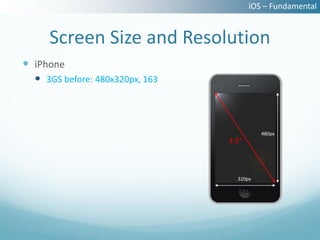
     Screen Size and Resolution
 iPhone
   3GS before: 480x320px, 163


                                           480px
                                 3.5”


                                   320px
iOS – Fundamental


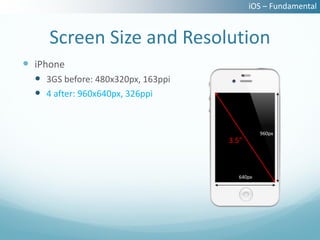
     Screen Size and Resolution
 iPhone
   3GS before: 480x320px, 163ppi
   4 after: 960x640px, 326ppi


                                              960px
                                    3.5”


                                      640px
iOS – Fundamental


     Screen Size and Resolution
 iPhone
   3GS before: 480x320px, 163ppi
   4 after: 960x640px, 326ppi
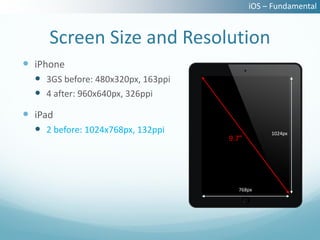
 iPad
   2 before: 1024x768px, 132ppi                1024px
                                    9.7”


                                      768px
iOS – Fundamental


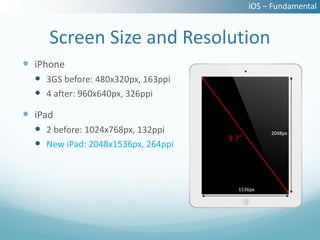
     Screen Size and Resolution
 iPhone
   3GS before: 480x320px, 163ppi
   4 after: 960x640px, 326ppi
 iPad
   2 before: 1024x768px, 132ppi                2048px
                                    9.7”
   New iPad: 2048x1536px, 264ppi


                                      1536px
iOS – Icon
Retina is critical, but what it is?...
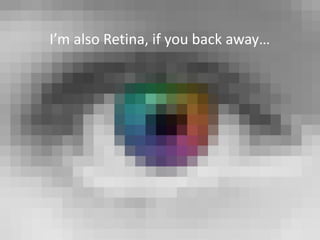
I’m also Retina, if you back away…
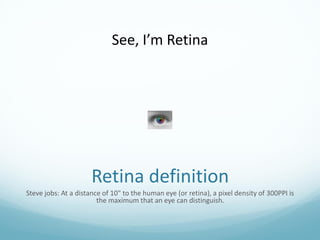
See, I’m Retina


                      Retina definition
Steve jobs: At a distance of 10" to the human eye (or retina), a pixel density of 300PPI is
                        the maximum that an eye can distinguish.
iOS – Icon


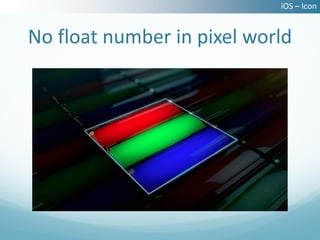
No float number in pixel world
iOS – Icon


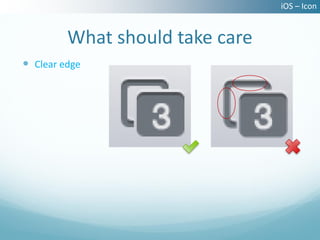
         What should take care
 Clear edge
iOS – Icon


         What should take care
 Clear edge
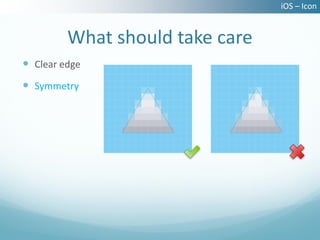
 Symmetry
iOS – Icon


          What should take care
 Clear edge
 Symmetry
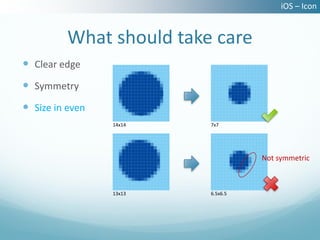
 Size in even
                 14x14    7x7


                                    Not symmetric


                 13x13    6.5x6.5
iOS – Icon


          What should take care
 Clear edge
 Symmetry
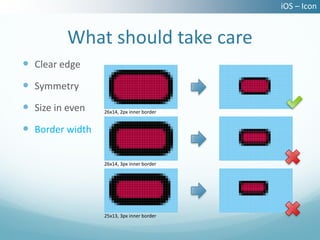
 Size in even   26x14, 2px inner border


 Border width

                 26x14, 3px inner border


                 25x13, 3px inner border
iOS – Icon


          What should take care
 Clear edge
 Symmetry
 Size in even
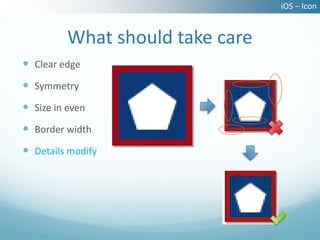
 Border width
 Details modify
iOS – Icon


               What tools to use
 Use shape layer in Photoshop
 Use Illustrator as assistant
iOS – Fonts
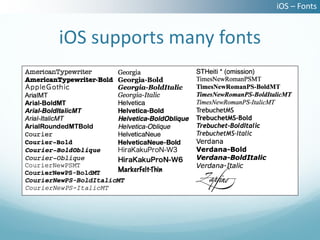
The default is Helvetica…
iOS – Fonts


iOS supports many fonts
iOS – Layout
Provide useful information…
iOS – Layout


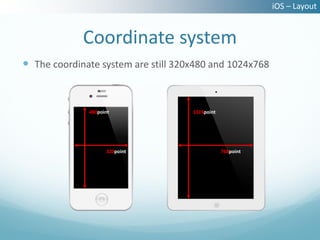
             Coordinate system
 The coordinate system are still 320x480 and 1024x768


              480point               1024point


                    320point                     768point
iOS – Layout


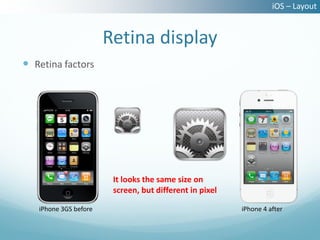
                       Retina display
 Retina factors


                        It looks the same size on
                        screen, but different in pixel

   iPhone 3GS before                                     iPhone 4 after
iOS – Layout


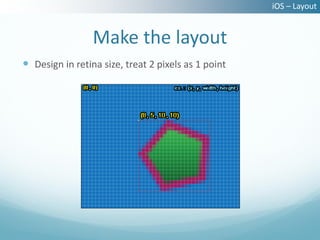
                 Make the layout
 Design in retina size, treat 2 pixels as 1 point
iOS – Layout


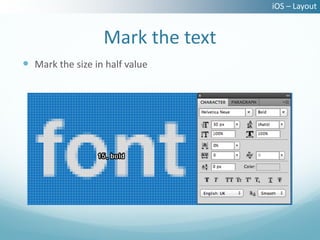
                  Mark the text
 Mark the size in half value
iOS – Layout


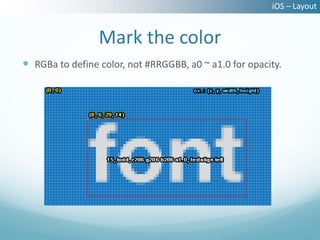
                 Mark the color
 RGBa to define color, not #RRGGBB, a0 ~ a1.0 for opacity.
iOS – Layout


                  Text attributes
 Font size
 Color (r0-255 g0-255 b0-255)
 Opacity (a0 ~ a1.0)
 Alignment (left/center/right)
 Normal, Bold, Italic
 Shadow color (r0-255 g0-255 b0-255)
 Shadow offset(x offset, y offset)
iOS – Layout


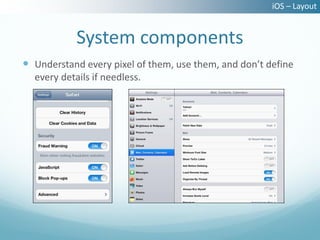
            System components
 Understand every pixel of them, use them, and don’t define
  every details if needless.
iOS – Layout


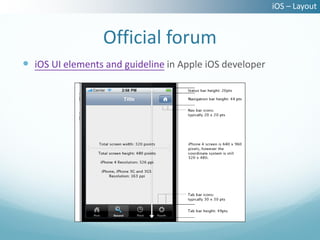
                 Official forum
 iOS UI elements and guideline in Apple iOS developer
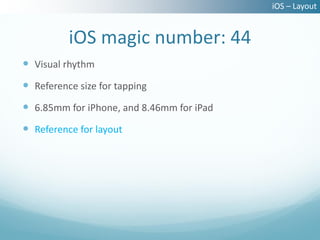
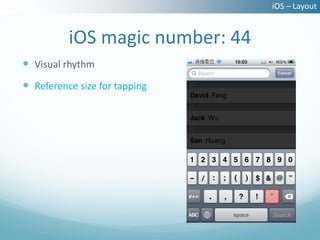
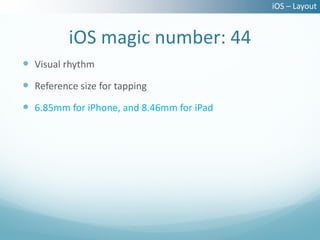
iOS magic number: 44
iOS – Layout


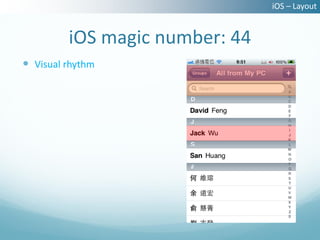
         iOS magic number: 44
 Visual rhythm
iOS – Layout


          iOS magic number: 44
 Visual rhythm
 Reference size for tapping
iOS – Layout


          iOS magic number: 44
 Visual rhythm
 Reference size for tapping
 6.85mm for iPhone, and 8.46mm for iPad
iOS – Layout


          iOS magic number: 44
 Visual rhythm
 Reference size for tapping
 6.85mm for iPhone, and 8.46mm for iPad
 Reference for layout
iOS – Image output
Fit the size might not be the best…
iOS – Image output


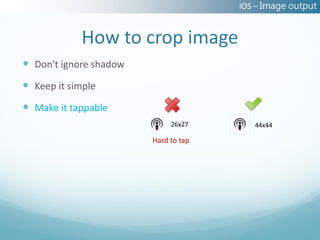
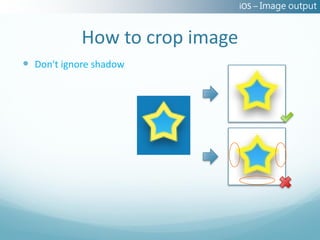
            How to crop image
 Don't ignore shadow
iOS – Image output


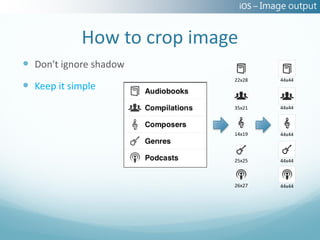
            How to crop image
 Don't ignore shadow
                            22x28        44x44
 Keep it simple
                            35x21        44x44


                            14x19        44x44


                            25x25        44x44


                            26x27        44x44
iOS – Image output


            How to crop image
 Don't ignore shadow
 Keep it simple
 Make it tappable
                             26x27       44x44

                        Hard to tap
iOS – Image output


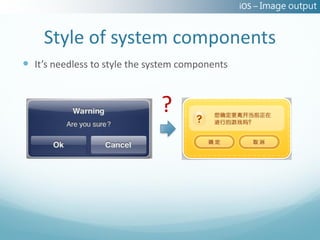
    Style of system components
 It’s needless to style the system components


                               ?
iOS – Image output


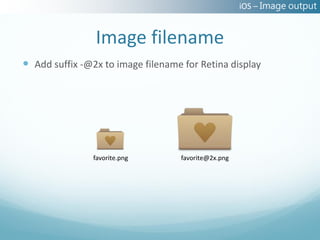
                Image filename
 Add suffix -@2x to image filename for Retina display


                favorite.png       favorite@2x.png
iOS – Image output


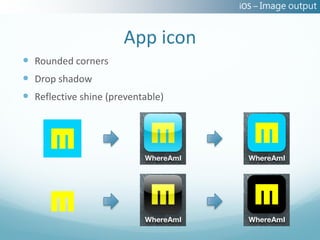
                      App icon
 Rounded corners
 Drop shadow
 Reflective shine (preventable)
iOS – Image output


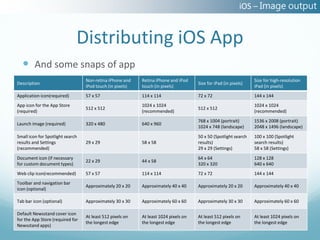
                              Distributing iOS App
   And some snaps of app
                                  Non-retina iPhone and    Retina iPhone and iPod                                Size for high-resolution
Description                                                                          Size for iPad (in pixels)
                                  iPod touch (in pixels)   touch (in pixels)                                     iPad (in pixels)
Application icon(required)        57 x 57                  114 x 114                 72 x 72                     144 x 144
App icon for the App Store                                 1024 x 1024                                           1024 x 1024
                                  512 x 512                                          512 x 512
(required)                                                 (recommended)                                         (recommended)
                                                                                     768 x 1004 (portrait)       1536 x 2008 (portrait)
Launch image (required)           320 x 480                640 x 960
                                                                                     1024 x 748 (landscape)      2048 x 1496 (landscape)
Small icon for Spotlight search                                                      50 x 50 (Spotlight search   100 x 100 (Spotlight
results and Settings              29 x 29                  58 x 58                   results)                    search results)
(recommended)                                                                        29 x 29 (Settings)          58 x 58 (Settings)
Document icon (if necessary                                                          64 x 64                     128 x 128
                                  22 x 29                  44 x 58
for custom document types)                                                           320 x 320                   640 x 640
Web clip icon(recommended)        57 x 57                  114 x 114                 72 x 72                     144 x 144
Toolbar and navigation bar
                                  Approximately 20 x 20    Approximately 40 x 40     Approximately 20 x 20       Approximately 40 x 40
icon (optional)

Tab bar icon (optional)           Approximately 30 x 30    Approximately 60 x 60     Approximately 30 x 30       Approximately 60 x 60

Default Newsstand cover icon
                                  At least 512 pixels on   At least 1024 pixels on   At least 512 pixels on      At least 1024 pixels on
for the App Store (required for
                                  the longest edge         the longest edge          the longest edge            the longest edge
Newsstand apps)
iOS – Extendable button or image
           Save your time…
iOS – Extendable button or image


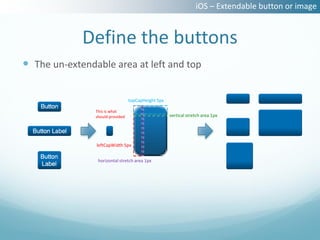
             Define the buttons
 The un-extendable area at left and top

                                  topCapHeight 5px

                This is what
                should provided                      vertical stretch area 1px


                leftCapWidth 5px


                 horizontal stretch area 1px
iOS – Extendable button or image


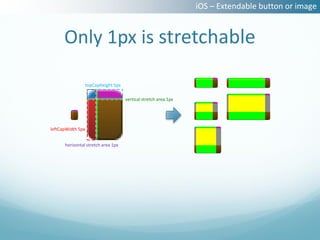
      Only 1px is stretchable

                   topCapHeight 5px

                                      vertical stretch area 1px


leftCapWidth 5px


      horizontal stretch area 1px
iOS – Extendable button or image


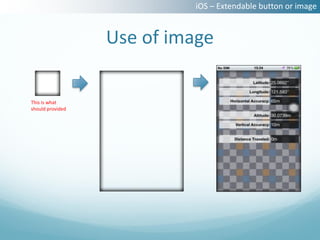
                  Use of image

This is what
should provided
iOS – Extendable button or image


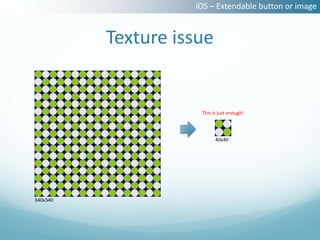
          Texture issue


                     This is just enough!


                           40x40


340x340
iOS – Summary
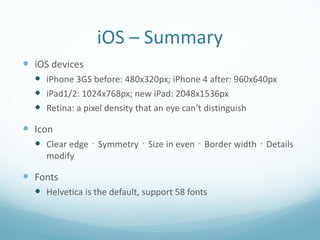
 iOS devices
   iPhone 3GS before: 480x320px; iPhone 4 after: 960x640px
   iPad1/2: 1024x768px; new iPad: 2048x1536px
   Retina: a pixel density that an eye can’t distinguish
 Icon
   Clear edge、Symmetry、Size in even、Border width、Details
     modify

 Fonts
   Helvetica is the default, support 58 fonts
iOS – Summary
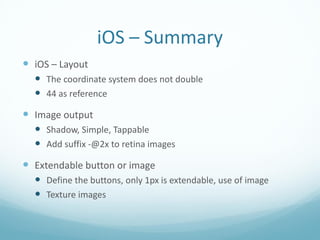
 iOS – Layout
   The coordinate system does not double
   44 as reference
 Image output
   Shadow, Simple, Tappable
   Add suffix -@2x to retina images
 Extendable button or image
   Define the buttons, only 1px is extendable, use of image
   Texture images
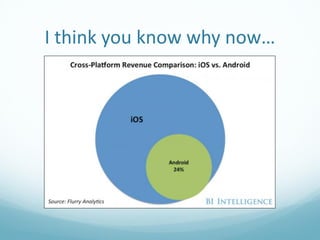
Why iOS earns more?
Android – Fundamental
   Lots of differences in versions…
Android – Fundamental


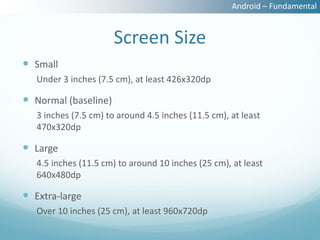
                       Screen Size
 Small
   Under 3 inches (7.5 cm), at least 426x320dp

 Normal (baseline)
   3 inches (7.5 cm) to around 4.5 inches (11.5 cm), at least
   470x320dp

 Large
   4.5 inches (11.5 cm) to around 10 inches (25 cm), at least
   640x480dp

 Extra-large
   Over 10 inches (25 cm), at least 960x720dp
Android – Fundamental


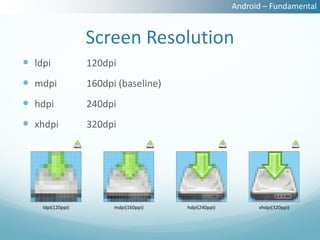
                   Screen Resolution
 ldpi             120dpi
 mdpi             160dpi (baseline)
 hdpi             240dpi
 xhdpi            320dpi


    ldpi(120ppi)         mdpi(160ppi)   hdpi(240ppi)         xhdpi(320ppi)
Android – Fundamental


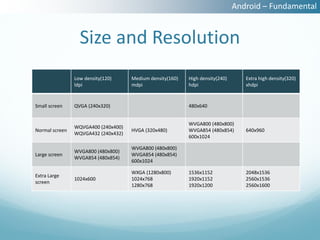
                  Size and Resolution
                Low density(120)     Medium density(160)   High density(240)      Extra high density(320)
                ldpi                 mdpi                  hdpi                   xhdpi


Small screen    QVGA (240x320)                             480x640


                                                           WVGA800 (480x800)
                WQVGA400 (240x400)
Normal screen                        HVGA (320x480)        WVGA854 (480x854)      640x960
                WQVGA432 (240x432)
                                                           600x1024

                                     WVGA800 (480x800)
                WVGA800 (480x800)
Large screen                         WVGA854 (480x854)
                WVGA854 (480x854)
                                     600x1024

                                     WXGA (1280x800)       1536x1152              2048x1536
Extra Large
                1024x600             1024x768              1920x1152              2560x1536
screen
                                     1280x768              1920x1200              2560x1600
Android – Icon
Flexibility and optimization…
Android – Icon


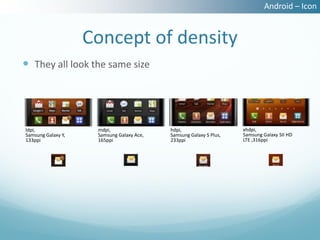
                    Concept of density
 They all look the same size


ldpi,                mdpi,                 hdpi,                    xhdpi,
Samsung Galaxy Y,    Samsung Galaxy Ace,   Samsung Galaxy S Plus,   Samsung Galaxy SII HD
133ppi               165ppi                233ppi                   LTE ,316ppi
Android – Icon


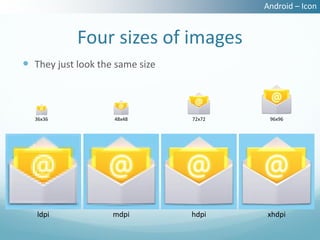
            Four sizes of images
 They just look the same size


  36x36             48x48        72x72    96x96


   ldpi             mdpi         hdpi    xhdpi
Android – Icon


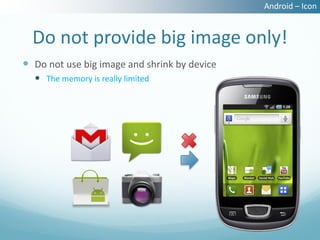
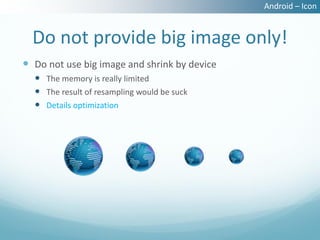
  Do not provide big image only!
 Do not use big image and shrink by device
   The memory is really limited
Android – Icon


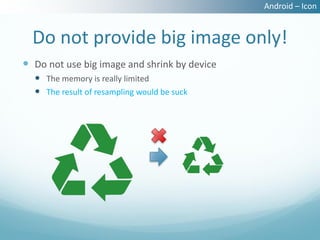
  Do not provide big image only!
 Do not use big image and shrink by device
   The memory is really limited
   The result of resampling would be suck
Android – Icon


  Do not provide big image only!
 Do not use big image and shrink by device
   The memory is really limited
   The result of resampling would be suck
   Details optimization
Android – Icon


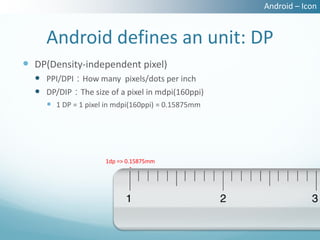
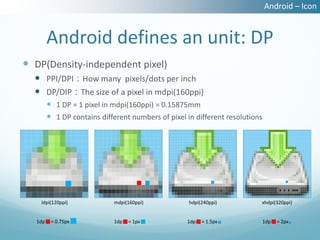
     Android defines an unit: DP
 DP(Density-independent pixel)
   PPI/DPI:How many pixels/dots per inch
   DP/DIP:The size of a pixel in mdpi(160ppi)
      1 DP = 1 pixel in mdpi(160ppi) = 0.15875mm


                     1dp => 0.15875mm
Android – Icon


      Android defines an unit: DP
 DP(Density-independent pixel)
   PPI/DPI:How many pixels/dots per inch
   DP/DIP:The size of a pixel in mdpi(160ppi)
       1 DP = 1 pixel in mdpi(160ppi) = 0.15875mm
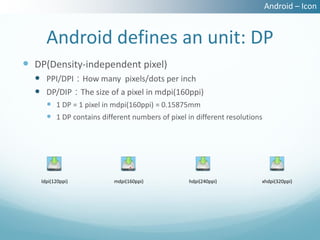
       1 DP contains different numbers of pixel in different resolutions


    ldpi(120ppi)          mdpi(160ppi)            hdpi(240ppi)          xhdpi(320ppi)
Android – Icon


      Android defines an unit: DP
 DP(Density-independent pixel)
   PPI/DPI:How many pixels/dots per inch
   DP/DIP:The size of a pixel in mdpi(160ppi)
       1 DP = 1 pixel in mdpi(160ppi) = 0.15875mm
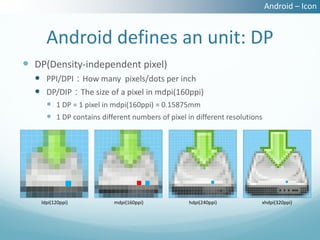
       1 DP contains different numbers of pixel in different resolutions


    ldpi(120ppi)          mdpi(160ppi)            hdpi(240ppi)          xhdpi(320ppi)
Android – Icon


         Android defines an unit: DP
 DP(Density-independent pixel)
   PPI/DPI:How many pixels/dots per inch
   DP/DIP:The size of a pixel in mdpi(160ppi)
          1 DP = 1 pixel in mdpi(160ppi) = 0.15875mm
          1 DP contains different numbers of pixel in different resolutions


    ldpi(120ppi)             mdpi(160ppi)            hdpi(240ppi)          xhdpi(320ppi)


   1dp    = 0.75px           1dp   = 1px            1dp   = 1.5px              1dp   = 2px
Android – Icon


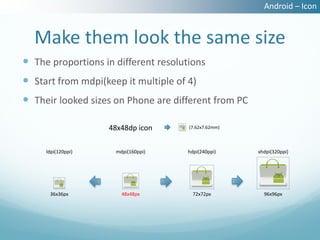
  Make them look the same size
 The proportions in different resolutions
 Start from mdpi(keep it multiple of 4)
 Their looked sizes on Phone are different from PC

                    48x48dp icon      (7.62x7.62mm)


     ldpi(120ppi)    mdpi(160ppi)     hdpi(240ppi)    xhdpi(320ppi)


      36x36px          48x48px          72x72px         96x96px
Android – Icon


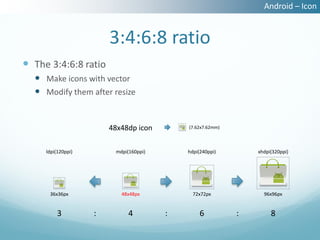
                        3:4:6:8 ratio
 The 3:4:6:8 ratio
   Make icons with vector
   Modify them after resize


                        48x48dp icon        (7.62x7.62mm)


     ldpi(120ppi)        mdpi(160ppi)       hdpi(240ppi)        xhdpi(320ppi)


      36x36px              48x48px            72x72px             96x96px


         3          :         4         :        6          :        8
Android – Icon


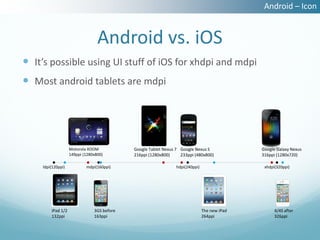
                                 Android vs. iOS
 It’s possible using UI stuff of iOS for xhdpi and mdpi
 Most android tablets are mdpi


                   Motorola XOOM            Google Tablet Nexus 7 Google Nexus S              Google Galaxy Nexus
                   149ppi (1280x800)        216ppi (1280x800)     233ppi (480x800)            316ppi (1280x720)

    ldpi(120ppi)           mdpi(160ppi)                         hdpi(240ppi)                   xhdpi(320ppi)


        iPad 1/2               3GS before                                      The new iPad         4/4S after
        132ppi                 163ppi                                          264ppi               326ppi
Android – Fonts
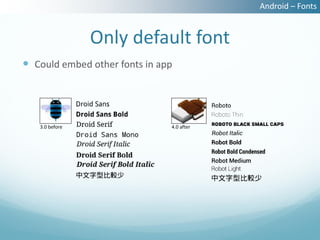
Droid Sans before 3.0; Roboto after 4.0…
Android – Fonts


                Only default font
 Could embed other fonts in app


   3.0 before                  4.0 after
Android – Layout
   Start from mdpi...
Android – Layout


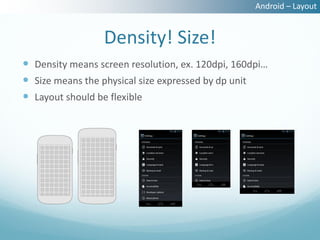
                 Density! Size!
 Density means screen resolution, ex. 120dpi, 160dpi…
 Size means the physical size expressed by dp unit
 Layout should be flexible
Android – Layout


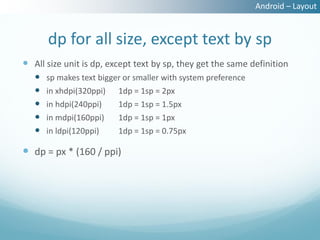
       dp for all size, except text by sp
 All size unit is dp, except text by sp, they get the same definition
      sp makes text bigger or smaller with system preference
      in xhdpi(320ppi) 1dp = 1sp = 2px
      in hdpi(240ppi)    1dp = 1sp = 1.5px
      in mdpi(160ppi)    1dp = 1sp = 1px
      in ldpi(120ppi)    1dp = 1sp = 0.75px

 dp = px * (160 / ppi)
Android – Layout


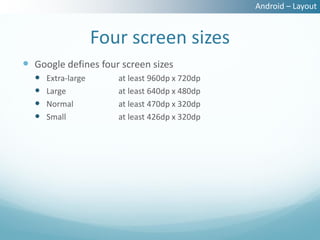
                    Four screen sizes
 Google defines four screen sizes
     Extra-large      at least 960dp x 720dp
     Large            at least 640dp x 480dp
     Normal           at least 470dp x 320dp
     Small            at least 426dp x 320dp
Android – Layout


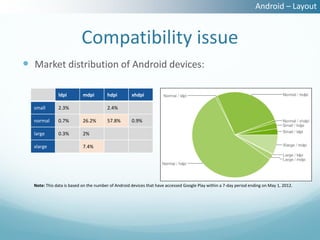
                          Compatibility issue
 Market distribution of Android devices:

              ldpi         mdpi        hdpi         xhdpi

  small       2.3%                     2.4%

  normal      0.7%         26.2%       57.8%        0.9%

  large       0.3%         2%

  xlarge                   7.4%


  Note: This data is based on the number of Android devices that have accessed Google Play within a 7-day period ending on May 1, 2012.
Android – Layout


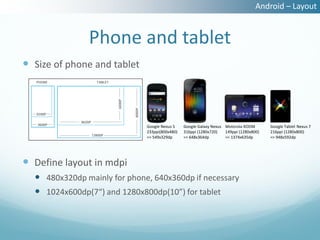
               Phone and tablet
 Size of phone and tablet


                              Google Nexus S    Google Galaxy Nexus Motorola XOOM       Google Tablet Nexus 7
                              233ppi(800x480)   316ppi (1280x720)   149ppi (1280x800)   216ppi (1280x800)
                              => 549x329dp      => 648x364dp        => 1374x635dp       => 948x592dp


 Define layout in mdpi
   480x320dp mainly for phone, 640x360dp if necessary
   1024x600dp(7“) and 1280x800dp(10”) for tablet
Android – Layout


         Mark layout of Android
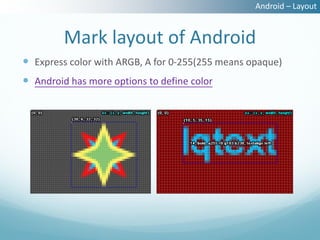
 Express color with ARGB, A for 0-255(255 means opaque)
 Android has more options to define color
Android – Layout


          Android’s 48dp theory
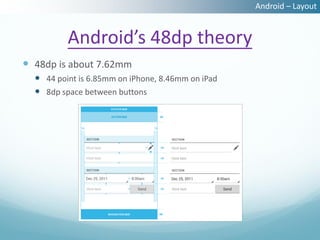
 48dp is about 7.62mm
   44 point is 6.85mm on iPhone, 8.46mm on iPad
   8dp space between buttons
Android – Layout


                             Themes
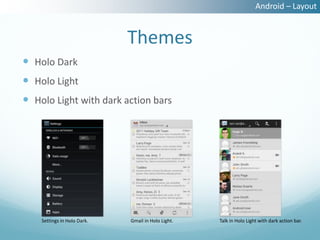
 Holo Dark
 Holo Light
 Holo Light with dark action bars


    Settings in Holo Dark.   Gmail in Holo Light.   Talk in Holo Light with dark action bar.
Android – Layout


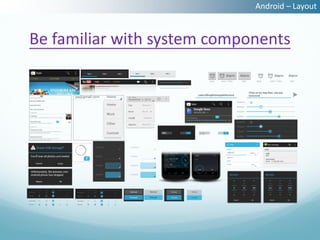
Be familiar with system components
Android – Layout


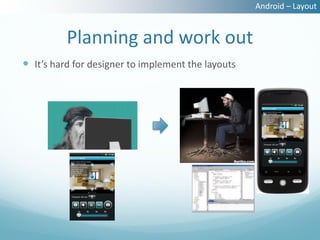
          Planning and work out
 It’s hard for designer to implement the layouts
Android – Layout


 Useful information from design
 The sufficient information designer provide, the efficient
  engineer implement
Android – Image output
     Four times per image…
Android – Image output


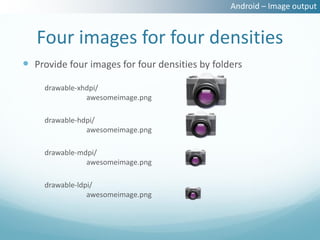
   Four images for four densities
 Provide four images for four densities by folders
     drawable-xhdpi/
                awesomeimage.png

     drawable-hdpi/
                awesomeimage.png

     drawable-mdpi/
                awesomeimage.png

     drawable-ldpi/
                 awesomeimage.png
Android – Image output


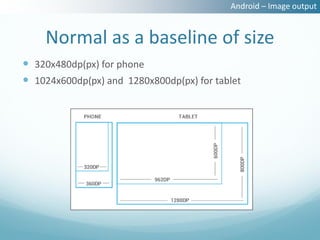
    Normal as a baseline of size
 320x480dp(px) for phone
 1024x600dp(px) and 1280x800dp(px) for tablet
Android – Image output


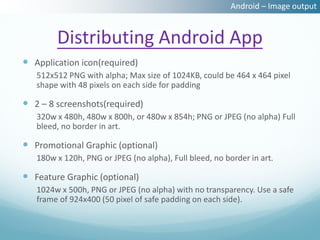
        Distributing Android App
 Application icon(required)
   512x512 PNG with alpha; Max size of 1024KB, could be 464 x 464 pixel
   shape with 48 pixels on each side for padding

 2 – 8 screenshots(required)
   320w x 480h, 480w x 800h, or 480w x 854h; PNG or JPEG (no alpha) Full
   bleed, no border in art.

 Promotional Graphic (optional)
   180w x 120h, PNG or JPEG (no alpha), Full bleed, no border in art.

 Feature Graphic (optional)
   1024w x 500h, PNG or JPEG (no alpha) with no transparency. Use a safe
   frame of 924x400 (50 pixel of safe padding on each side).
Android – Extendable button or
            image
         Do something smart…
Android – Extendable button or image


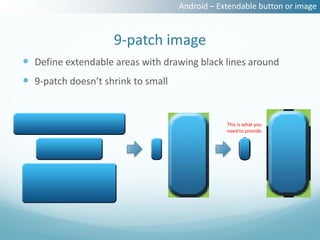
                    9‐patch image
 Define extendable areas with drawing black lines around
 9‐patch doesn’t shrink to small


                                                This is what you
                                                need to provide.
Android – Extendable button or image


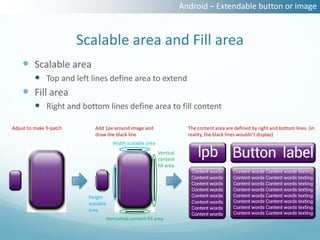
                         Scalable area and Fill area
     Scalable area
          Top and left lines define area to extend
     Fill area
          Right and bottom lines define area to fill content

Adjust to make 9‐patch        Add 1px around image and                    The content area are defined by right and bottom lines. (in
                              draw the black line                         reality, the black lines wouldn’t display)
                                      Width scalable area
                                                            Vertical
                                                            content
                                                            fill area


                           Height
                           scalable
                           area
                                  Horizontal content fill area
Android – Extendable button or image


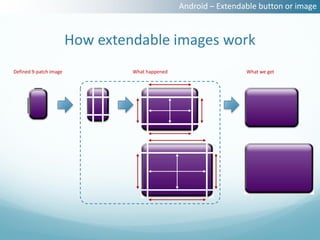
                        How extendable images work
Defined 9‐patch image            What happened                    What we get
Android – Summary
 Android devices
   Four densities: ldpi, mdpi, hdpi, xhdpi
   Four sizes: small, normal, large, extra-large
 Icon
   Make them look the same size
   3:4:6:8 ratio
 Fonts
   Only default font
   It’s able to embed other fonts
Android – Summary
 Layout
   Flexibility
   480x320dp for phone; 1024x600 and 1280x800 for tablet
   Be familiar with theme and system components

 Image output
   Four images for four densities

 Extendable button or image
   9-patch image
I think you know why now…
Conclusions and suggestions
           Finally…
The modification
of details
Habits and guideline for system
The limitation
and convenience
from screen
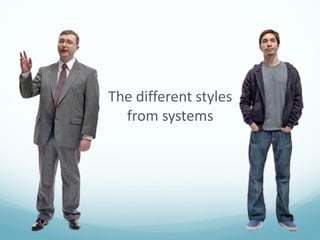
The different styles
  from systems
Layout flexibility and tolerance
Conclusions and suggestions


 The modification of details
 Habits and guideline for system
 The limitation and convenience from screen
 The different styles from systems
 Layout flexibility and tolerance
Appendix
   iOS Human Interface Guidelines
   Android User Interface Guidelines
   phone-size.com
   Helvetica的由來
Thanks for your time~
         Q&A?

Mobile design matters - iOS and Android - presentation version in eng

  • 1.
    Mobile Design matters! - iOS and Android 2012/07/25 by Light Lin
  • 2.
    Chapter Matters Fundamental  Icon  Fonts  Layout  Image output  Extendable button or image
  • 3.
    Before we start… There is something…
  • 4.
    Guideline is nota limitation!
  • 6.
    iOS – Fundamental Update every year…
  • 7.
    iOS – Fundamental Screen Size and Resolution  iPhone  3GS before: 480x320px, 163 480px 3.5” 320px
  • 8.
    iOS – Fundamental Screen Size and Resolution  iPhone  3GS before: 480x320px, 163ppi  4 after: 960x640px, 326ppi 960px 3.5” 640px
  • 9.
    iOS – Fundamental Screen Size and Resolution  iPhone  3GS before: 480x320px, 163ppi  4 after: 960x640px, 326ppi  iPad  2 before: 1024x768px, 132ppi 1024px 9.7” 768px
  • 10.
    iOS – Fundamental Screen Size and Resolution  iPhone  3GS before: 480x320px, 163ppi  4 after: 960x640px, 326ppi  iPad  2 before: 1024x768px, 132ppi 2048px 9.7”  New iPad: 2048x1536px, 264ppi 1536px
  • 11.
    iOS – Icon Retinais critical, but what it is?...
  • 12.
    I’m also Retina,if you back away…
  • 13.
    See, I’m Retina Retina definition Steve jobs: At a distance of 10" to the human eye (or retina), a pixel density of 300PPI is the maximum that an eye can distinguish.
  • 14.
    iOS – Icon Nofloat number in pixel world
  • 15.
    iOS – Icon What should take care  Clear edge
  • 16.
    iOS – Icon What should take care  Clear edge  Symmetry
  • 17.
    iOS – Icon What should take care  Clear edge  Symmetry  Size in even 14x14 7x7 Not symmetric 13x13 6.5x6.5
  • 18.
    iOS – Icon What should take care  Clear edge  Symmetry  Size in even 26x14, 2px inner border  Border width 26x14, 3px inner border 25x13, 3px inner border
  • 19.
    iOS – Icon What should take care  Clear edge  Symmetry  Size in even  Border width  Details modify
  • 20.
    iOS – Icon What tools to use  Use shape layer in Photoshop  Use Illustrator as assistant
  • 21.
    iOS – Fonts Thedefault is Helvetica…
  • 22.
    iOS – Fonts iOSsupports many fonts
  • 23.
    iOS – Layout Provideuseful information…
  • 24.
    iOS – Layout Coordinate system  The coordinate system are still 320x480 and 1024x768 480point 1024point 320point 768point
  • 25.
    iOS – Layout Retina display  Retina factors It looks the same size on screen, but different in pixel iPhone 3GS before iPhone 4 after
  • 26.
    iOS – Layout Make the layout  Design in retina size, treat 2 pixels as 1 point
  • 27.
    iOS – Layout Mark the text  Mark the size in half value
  • 28.
    iOS – Layout Mark the color  RGBa to define color, not #RRGGBB, a0 ~ a1.0 for opacity.
  • 29.
    iOS – Layout Text attributes  Font size  Color (r0-255 g0-255 b0-255)  Opacity (a0 ~ a1.0)  Alignment (left/center/right)  Normal, Bold, Italic  Shadow color (r0-255 g0-255 b0-255)  Shadow offset(x offset, y offset)
  • 30.
    iOS – Layout System components  Understand every pixel of them, use them, and don’t define every details if needless.
  • 31.
    iOS – Layout Official forum  iOS UI elements and guideline in Apple iOS developer
  • 32.
  • 33.
    iOS – Layout iOS magic number: 44  Visual rhythm
  • 34.
    iOS – Layout iOS magic number: 44  Visual rhythm  Reference size for tapping
  • 35.
    iOS – Layout iOS magic number: 44  Visual rhythm  Reference size for tapping  6.85mm for iPhone, and 8.46mm for iPad
  • 36.
    iOS – Layout iOS magic number: 44  Visual rhythm  Reference size for tapping  6.85mm for iPhone, and 8.46mm for iPad  Reference for layout
  • 37.
    iOS – Imageoutput Fit the size might not be the best…
  • 38.
    iOS – Imageoutput How to crop image  Don't ignore shadow
  • 39.
    iOS – Imageoutput How to crop image  Don't ignore shadow 22x28 44x44  Keep it simple 35x21 44x44 14x19 44x44 25x25 44x44 26x27 44x44
  • 40.
    iOS – Imageoutput How to crop image  Don't ignore shadow  Keep it simple  Make it tappable 26x27 44x44 Hard to tap
  • 41.
    iOS – Imageoutput Style of system components  It’s needless to style the system components ?
  • 42.
    iOS – Imageoutput Image filename  Add suffix -@2x to image filename for Retina display favorite.png favorite@2x.png
  • 43.
    iOS – Imageoutput App icon  Rounded corners  Drop shadow  Reflective shine (preventable)
  • 44.
    iOS – Imageoutput Distributing iOS App  And some snaps of app Non-retina iPhone and Retina iPhone and iPod Size for high-resolution Description Size for iPad (in pixels) iPod touch (in pixels) touch (in pixels) iPad (in pixels) Application icon(required) 57 x 57 114 x 114 72 x 72 144 x 144 App icon for the App Store 1024 x 1024 1024 x 1024 512 x 512 512 x 512 (required) (recommended) (recommended) 768 x 1004 (portrait) 1536 x 2008 (portrait) Launch image (required) 320 x 480 640 x 960 1024 x 748 (landscape) 2048 x 1496 (landscape) Small icon for Spotlight search 50 x 50 (Spotlight search 100 x 100 (Spotlight results and Settings 29 x 29 58 x 58 results) search results) (recommended) 29 x 29 (Settings) 58 x 58 (Settings) Document icon (if necessary 64 x 64 128 x 128 22 x 29 44 x 58 for custom document types) 320 x 320 640 x 640 Web clip icon(recommended) 57 x 57 114 x 114 72 x 72 144 x 144 Toolbar and navigation bar Approximately 20 x 20 Approximately 40 x 40 Approximately 20 x 20 Approximately 40 x 40 icon (optional) Tab bar icon (optional) Approximately 30 x 30 Approximately 60 x 60 Approximately 30 x 30 Approximately 60 x 60 Default Newsstand cover icon At least 512 pixels on At least 1024 pixels on At least 512 pixels on At least 1024 pixels on for the App Store (required for the longest edge the longest edge the longest edge the longest edge Newsstand apps)
  • 45.
    iOS – Extendablebutton or image Save your time…
  • 46.
    iOS – Extendablebutton or image Define the buttons  The un-extendable area at left and top topCapHeight 5px This is what should provided vertical stretch area 1px leftCapWidth 5px horizontal stretch area 1px
  • 47.
    iOS – Extendablebutton or image Only 1px is stretchable topCapHeight 5px vertical stretch area 1px leftCapWidth 5px horizontal stretch area 1px
  • 48.
    iOS – Extendablebutton or image Use of image This is what should provided
  • 49.
    iOS – Extendablebutton or image Texture issue This is just enough! 40x40 340x340
  • 50.
    iOS – Summary iOS devices  iPhone 3GS before: 480x320px; iPhone 4 after: 960x640px  iPad1/2: 1024x768px; new iPad: 2048x1536px  Retina: a pixel density that an eye can’t distinguish  Icon  Clear edge、Symmetry、Size in even、Border width、Details modify  Fonts  Helvetica is the default, support 58 fonts
  • 51.
    iOS – Summary iOS – Layout  The coordinate system does not double  44 as reference  Image output  Shadow, Simple, Tappable  Add suffix -@2x to retina images  Extendable button or image  Define the buttons, only 1px is extendable, use of image  Texture images
  • 52.
  • 54.
    Android – Fundamental Lots of differences in versions…
  • 55.
    Android – Fundamental Screen Size  Small Under 3 inches (7.5 cm), at least 426x320dp  Normal (baseline) 3 inches (7.5 cm) to around 4.5 inches (11.5 cm), at least 470x320dp  Large 4.5 inches (11.5 cm) to around 10 inches (25 cm), at least 640x480dp  Extra-large Over 10 inches (25 cm), at least 960x720dp
  • 56.
    Android – Fundamental Screen Resolution  ldpi 120dpi  mdpi 160dpi (baseline)  hdpi 240dpi  xhdpi 320dpi ldpi(120ppi) mdpi(160ppi) hdpi(240ppi) xhdpi(320ppi)
  • 57.
    Android – Fundamental Size and Resolution Low density(120) Medium density(160) High density(240) Extra high density(320) ldpi mdpi hdpi xhdpi Small screen QVGA (240x320) 480x640 WVGA800 (480x800) WQVGA400 (240x400) Normal screen HVGA (320x480) WVGA854 (480x854) 640x960 WQVGA432 (240x432) 600x1024 WVGA800 (480x800) WVGA800 (480x800) Large screen WVGA854 (480x854) WVGA854 (480x854) 600x1024 WXGA (1280x800) 1536x1152 2048x1536 Extra Large 1024x600 1024x768 1920x1152 2560x1536 screen 1280x768 1920x1200 2560x1600
  • 58.
    Android – Icon Flexibilityand optimization…
  • 59.
    Android – Icon Concept of density  They all look the same size ldpi, mdpi, hdpi, xhdpi, Samsung Galaxy Y, Samsung Galaxy Ace, Samsung Galaxy S Plus, Samsung Galaxy SII HD 133ppi 165ppi 233ppi LTE ,316ppi
  • 60.
    Android – Icon Four sizes of images  They just look the same size 36x36 48x48 72x72 96x96 ldpi mdpi hdpi xhdpi
  • 61.
    Android – Icon Do not provide big image only!  Do not use big image and shrink by device  The memory is really limited
  • 62.
    Android – Icon Do not provide big image only!  Do not use big image and shrink by device  The memory is really limited  The result of resampling would be suck
  • 63.
    Android – Icon Do not provide big image only!  Do not use big image and shrink by device  The memory is really limited  The result of resampling would be suck  Details optimization
  • 64.
    Android – Icon Android defines an unit: DP  DP(Density-independent pixel)  PPI/DPI:How many pixels/dots per inch  DP/DIP:The size of a pixel in mdpi(160ppi)  1 DP = 1 pixel in mdpi(160ppi) = 0.15875mm 1dp => 0.15875mm
  • 65.
    Android – Icon Android defines an unit: DP  DP(Density-independent pixel)  PPI/DPI:How many pixels/dots per inch  DP/DIP:The size of a pixel in mdpi(160ppi)  1 DP = 1 pixel in mdpi(160ppi) = 0.15875mm  1 DP contains different numbers of pixel in different resolutions ldpi(120ppi) mdpi(160ppi) hdpi(240ppi) xhdpi(320ppi)
  • 66.
    Android – Icon Android defines an unit: DP  DP(Density-independent pixel)  PPI/DPI:How many pixels/dots per inch  DP/DIP:The size of a pixel in mdpi(160ppi)  1 DP = 1 pixel in mdpi(160ppi) = 0.15875mm  1 DP contains different numbers of pixel in different resolutions ldpi(120ppi) mdpi(160ppi) hdpi(240ppi) xhdpi(320ppi)
  • 67.
    Android – Icon Android defines an unit: DP  DP(Density-independent pixel)  PPI/DPI:How many pixels/dots per inch  DP/DIP:The size of a pixel in mdpi(160ppi)  1 DP = 1 pixel in mdpi(160ppi) = 0.15875mm  1 DP contains different numbers of pixel in different resolutions ldpi(120ppi) mdpi(160ppi) hdpi(240ppi) xhdpi(320ppi) 1dp = 0.75px 1dp = 1px 1dp = 1.5px 1dp = 2px
  • 68.
    Android – Icon Make them look the same size  The proportions in different resolutions  Start from mdpi(keep it multiple of 4)  Their looked sizes on Phone are different from PC 48x48dp icon (7.62x7.62mm) ldpi(120ppi) mdpi(160ppi) hdpi(240ppi) xhdpi(320ppi) 36x36px 48x48px 72x72px 96x96px
  • 69.
    Android – Icon 3:4:6:8 ratio  The 3:4:6:8 ratio  Make icons with vector  Modify them after resize 48x48dp icon (7.62x7.62mm) ldpi(120ppi) mdpi(160ppi) hdpi(240ppi) xhdpi(320ppi) 36x36px 48x48px 72x72px 96x96px 3 : 4 : 6 : 8
  • 70.
    Android – Icon Android vs. iOS  It’s possible using UI stuff of iOS for xhdpi and mdpi  Most android tablets are mdpi Motorola XOOM Google Tablet Nexus 7 Google Nexus S Google Galaxy Nexus 149ppi (1280x800) 216ppi (1280x800) 233ppi (480x800) 316ppi (1280x720) ldpi(120ppi) mdpi(160ppi) hdpi(240ppi) xhdpi(320ppi) iPad 1/2 3GS before The new iPad 4/4S after 132ppi 163ppi 264ppi 326ppi
  • 71.
    Android – Fonts DroidSans before 3.0; Roboto after 4.0…
  • 72.
    Android – Fonts Only default font  Could embed other fonts in app 3.0 before 4.0 after
  • 73.
    Android – Layout Start from mdpi...
  • 74.
    Android – Layout Density! Size!  Density means screen resolution, ex. 120dpi, 160dpi…  Size means the physical size expressed by dp unit  Layout should be flexible
  • 75.
    Android – Layout dp for all size, except text by sp  All size unit is dp, except text by sp, they get the same definition  sp makes text bigger or smaller with system preference  in xhdpi(320ppi) 1dp = 1sp = 2px  in hdpi(240ppi) 1dp = 1sp = 1.5px  in mdpi(160ppi) 1dp = 1sp = 1px  in ldpi(120ppi) 1dp = 1sp = 0.75px  dp = px * (160 / ppi)
  • 76.
    Android – Layout Four screen sizes  Google defines four screen sizes  Extra-large at least 960dp x 720dp  Large at least 640dp x 480dp  Normal at least 470dp x 320dp  Small at least 426dp x 320dp
  • 77.
    Android – Layout Compatibility issue  Market distribution of Android devices: ldpi mdpi hdpi xhdpi small 2.3% 2.4% normal 0.7% 26.2% 57.8% 0.9% large 0.3% 2% xlarge 7.4% Note: This data is based on the number of Android devices that have accessed Google Play within a 7-day period ending on May 1, 2012.
  • 78.
    Android – Layout Phone and tablet  Size of phone and tablet Google Nexus S Google Galaxy Nexus Motorola XOOM Google Tablet Nexus 7 233ppi(800x480) 316ppi (1280x720) 149ppi (1280x800) 216ppi (1280x800) => 549x329dp => 648x364dp => 1374x635dp => 948x592dp  Define layout in mdpi  480x320dp mainly for phone, 640x360dp if necessary  1024x600dp(7“) and 1280x800dp(10”) for tablet
  • 79.
    Android – Layout Mark layout of Android  Express color with ARGB, A for 0-255(255 means opaque)  Android has more options to define color
  • 80.
    Android – Layout Android’s 48dp theory  48dp is about 7.62mm  44 point is 6.85mm on iPhone, 8.46mm on iPad  8dp space between buttons
  • 81.
    Android – Layout Themes  Holo Dark  Holo Light  Holo Light with dark action bars Settings in Holo Dark. Gmail in Holo Light. Talk in Holo Light with dark action bar.
  • 82.
    Android – Layout Befamiliar with system components
  • 83.
    Android – Layout Planning and work out  It’s hard for designer to implement the layouts
  • 84.
    Android – Layout Useful information from design  The sufficient information designer provide, the efficient engineer implement
  • 85.
    Android – Imageoutput Four times per image…
  • 86.
    Android – Imageoutput Four images for four densities  Provide four images for four densities by folders drawable-xhdpi/ awesomeimage.png drawable-hdpi/ awesomeimage.png drawable-mdpi/ awesomeimage.png drawable-ldpi/ awesomeimage.png
  • 87.
    Android – Imageoutput Normal as a baseline of size  320x480dp(px) for phone  1024x600dp(px) and 1280x800dp(px) for tablet
  • 88.
    Android – Imageoutput Distributing Android App  Application icon(required) 512x512 PNG with alpha; Max size of 1024KB, could be 464 x 464 pixel shape with 48 pixels on each side for padding  2 – 8 screenshots(required) 320w x 480h, 480w x 800h, or 480w x 854h; PNG or JPEG (no alpha) Full bleed, no border in art.  Promotional Graphic (optional) 180w x 120h, PNG or JPEG (no alpha), Full bleed, no border in art.  Feature Graphic (optional) 1024w x 500h, PNG or JPEG (no alpha) with no transparency. Use a safe frame of 924x400 (50 pixel of safe padding on each side).
  • 89.
    Android – Extendablebutton or image Do something smart…
  • 90.
    Android – Extendablebutton or image 9‐patch image  Define extendable areas with drawing black lines around  9‐patch doesn’t shrink to small This is what you need to provide.
  • 91.
    Android – Extendablebutton or image Scalable area and Fill area  Scalable area  Top and left lines define area to extend  Fill area  Right and bottom lines define area to fill content Adjust to make 9‐patch Add 1px around image and The content area are defined by right and bottom lines. (in draw the black line reality, the black lines wouldn’t display) Width scalable area Vertical content fill area Height scalable area Horizontal content fill area
  • 92.
    Android – Extendablebutton or image How extendable images work Defined 9‐patch image What happened What we get
  • 93.
    Android – Summary Android devices  Four densities: ldpi, mdpi, hdpi, xhdpi  Four sizes: small, normal, large, extra-large  Icon  Make them look the same size  3:4:6:8 ratio  Fonts  Only default font  It’s able to embed other fonts
  • 94.
    Android – Summary Layout  Flexibility  480x320dp for phone; 1024x600 and 1280x800 for tablet  Be familiar with theme and system components  Image output  Four images for four densities  Extendable button or image  9-patch image
  • 95.
    I think youknow why now…
  • 96.
  • 97.
  • 98.
  • 99.
  • 100.
  • 101.
  • 102.
    Conclusions and suggestions The modification of details  Habits and guideline for system  The limitation and convenience from screen  The different styles from systems  Layout flexibility and tolerance
  • 103.
    Appendix  iOS Human Interface Guidelines  Android User Interface Guidelines  phone-size.com  Helvetica的由來
  • 104.
    Thanks for yourtime~ Q&A?