i ng iO S UI
Beginn                            plicatio
                                           n
                                p
                    ic   e iOS a
           build a n
    How to

                               Presented by Jack River
Outline
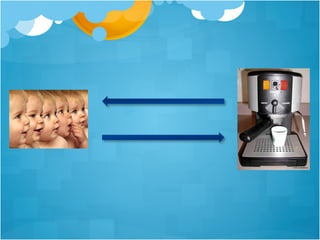
!   What is UI

!   What is different about a mobile device

!   Why is iOS so special

!   Some basic principles

!   UI design in action
What is UI?
!   User Interface


!   User Interface Design
What are The Goals?
What is UI Design?
!   The process of accomplishing the goals above

!   The act of balancing technical functionality and
    visual

!   To create a system that is not only operational
    but also usable and adaptable to CHANGING
    user needs
Mobile Device vs. PC?
        Mobile Device                                  PC
!   Smaller Screen                     !   Large Screen

!   Touch interfaces                   !   Mouse & Keyboard

!   Acceleration sensing               !   NO Acceleration sensing

!   Orientation awareness              !   NO Orientation awareness

!   Pervasive animation                !   Almost any animation is possible

!   Simulations of physical behavior   !   Few simulations of physical
                                           behavior
iOS?
!   A full design toolkit

!   Inherit & Customize

!   Gesture

!   Different devices:
   !   iPhone & iPod Touch
   !   iPad
   !   …
!   Full animation support and some preset animation
Some Basic Principles
!   MUST be functional

!   KISS

!   Be efficient

!   Focus on the big things

!   Be graphic

!   Show users how to use your app

!   Let users choose whatever they want
Don’t do it!
!   Ignoring performance

!   No interaction

!   No Feedback

!   Massive changes in one move

!   Without consistency
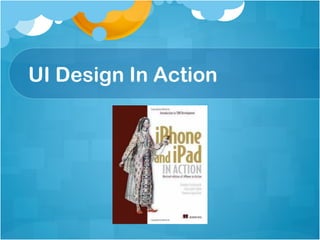
UI Design In Action
List
!   Screen Size
!   Device Orientation
!   Gesture
!   User Control
!   Animation
!   iPad
Screen Size
!   The comfortable minimum size of tappable UI
    elements is 44 x 44 points.

!   The quality of app artwork is very apparent.

!   The user’s focus is on the content.
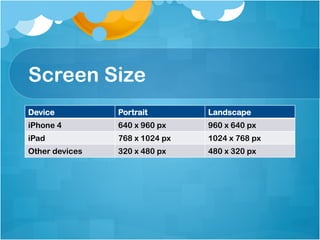
Screen Size
Device          Portrait        Landscape
iPhone 4        640 x 960 px    960 x 640 px
iPad            768 x 1024 px   1024 x 768 px
Other devices   320 x 480 px    480 x 320 px
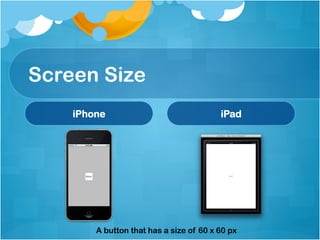
Screen Size
    iPhone                               iPad


        A button that has a size of 60 x 60 px
Device Orientation
!   Two orientations:
  !   Portrait
  !   Landscape
!   Different default orientations of your app:
  !   The orientation of Home screen on iPad
  !   The portrait orientation on other iOS devices
Gestures
!   Available gestures:
  !       Tap
  !       Drag
  !       Flick
  !       Swipe
  !       Double tap
  !       Pinch
  !       Touch and hold
  !       Shake
Goal of Gesture Design
How to Zoom In


Double Tap       Zoom Button
Let User Control
!   Two types:
  !   Suggest
  !   Warn
!   Ways to accomplish:
  !   Pop up
  !   Defaults can be changed easily
Let User Control
Animation
!   Communicate status

!   Provide useful feedback

!   Enhance the sense of direct manipulation

!   Help people visualize the results of their actions
But
!   Be aware of the performance


!   Be consistent
iPad Consideration
!   Use the screen size wisely

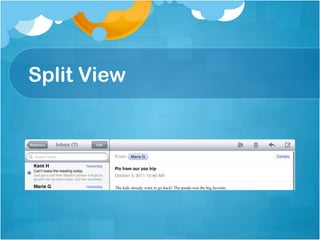
!   Use Split View

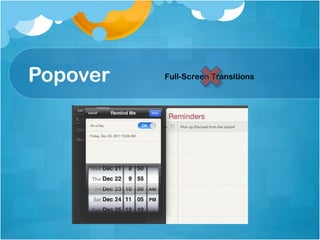
!   Use Popover

!   Reduce Full-Screen Transitions

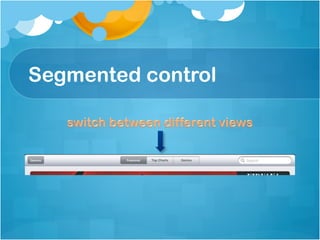
!   Use a segmented control in a toolbar
Split View
Popover   Full-Screen Transitions
Segmented control
Some iOS Paradigms
!   Controls should look tappable

!   App structure should be clean and easy to
    navigate

!   User feedback should be subtle, but clear
Reference
! http://www.ibm.com/developerworks/web/
  library/wa-interface/

! http://oleb.net/blog/2011/11/ios5-tech-talk-mark-
  kawano-on-ios-user-interface-design/

! http://developer.apple.com/library/ios/
  #DOCUMENTATION/UserExperience/
  Conceptual/MobileHIG/
The End
Finally…

Finally…Finally…

Finally…Finally…Finally…

Finally…Finally…Finally…Finally…

Finally…Finally…Finally…Finally…Finally…

Beginning iOS UI

  • 1.
    i ng iOS UI Beginn plicatio n p ic e iOS a build a n How to Presented by Jack River
  • 2.
    Outline !   Whatis UI !   What is different about a mobile device !   Why is iOS so special !   Some basic principles !   UI design in action
  • 3.
    What is UI? !  User Interface !   User Interface Design
  • 5.
  • 6.
    What is UIDesign? !   The process of accomplishing the goals above !   The act of balancing technical functionality and visual !   To create a system that is not only operational but also usable and adaptable to CHANGING user needs
  • 7.
    Mobile Device vs.PC? Mobile Device PC !   Smaller Screen !   Large Screen !   Touch interfaces !   Mouse & Keyboard !   Acceleration sensing !   NO Acceleration sensing !   Orientation awareness !   NO Orientation awareness !   Pervasive animation !   Almost any animation is possible !   Simulations of physical behavior !   Few simulations of physical behavior
  • 8.
    iOS? !   Afull design toolkit !   Inherit & Customize !   Gesture !   Different devices: !   iPhone & iPod Touch !   iPad !   … !   Full animation support and some preset animation
  • 9.
    Some Basic Principles !  MUST be functional !   KISS !   Be efficient !   Focus on the big things !   Be graphic !   Show users how to use your app !   Let users choose whatever they want
  • 10.
    Don’t do it! !  Ignoring performance !   No interaction !   No Feedback !   Massive changes in one move !   Without consistency
  • 11.
  • 12.
    List !   ScreenSize !   Device Orientation !   Gesture !   User Control !   Animation !   iPad
  • 13.
    Screen Size !  The comfortable minimum size of tappable UI elements is 44 x 44 points. !   The quality of app artwork is very apparent. !   The user’s focus is on the content.
  • 14.
    Screen Size Device Portrait Landscape iPhone 4 640 x 960 px 960 x 640 px iPad 768 x 1024 px 1024 x 768 px Other devices 320 x 480 px 480 x 320 px
  • 15.
    Screen Size iPhone iPad A button that has a size of 60 x 60 px
  • 16.
    Device Orientation !  Two orientations: !   Portrait !   Landscape !   Different default orientations of your app: !   The orientation of Home screen on iPad !   The portrait orientation on other iOS devices
  • 17.
    Gestures !   Availablegestures: !   Tap !   Drag !   Flick !   Swipe !   Double tap !   Pinch !   Touch and hold !   Shake
  • 18.
  • 19.
    How to ZoomIn Double Tap Zoom Button
  • 20.
    Let User Control !  Two types: !   Suggest !   Warn !   Ways to accomplish: !   Pop up !   Defaults can be changed easily
  • 21.
  • 22.
    Animation !   Communicatestatus !   Provide useful feedback !   Enhance the sense of direct manipulation !   Help people visualize the results of their actions
  • 23.
    But !   Beaware of the performance !   Be consistent
  • 24.
    iPad Consideration !  Use the screen size wisely !   Use Split View !   Use Popover !   Reduce Full-Screen Transitions !   Use a segmented control in a toolbar
  • 25.
  • 26.
    Popover Full-Screen Transitions
  • 27.
  • 28.
    Some iOS Paradigms !  Controls should look tappable !   App structure should be clean and easy to navigate !   User feedback should be subtle, but clear
  • 29.
    Reference ! http://www.ibm.com/developerworks/web/ library/wa-interface/ ! http://oleb.net/blog/2011/11/ios5-tech-talk-mark- kawano-on-ios-user-interface-design/ ! http://developer.apple.com/library/ios/ #DOCUMENTATION/UserExperience/ Conceptual/MobileHIG/
  • 30.