1. Construction Planning and Scheduling Using Microsoft Project Software
1.1. Introduction to Construction Project Management
Construction is the mobilization and utilization of capital and specialized personnel, materials, and
equipment to assemble materials and equipment on a specific site in accordance with drawings,
specifications, and contract documents prepared to serve the purposes of a client.
A project
It is a temporary endeavor undertaken to produce a unique product, service, or result undertaken to meet
unique goals and objectives, usually to bring about beneficial change or added value. This means that
 It is done only one time. If it is repetitive, it’s not a project.
 It should have definite starting and ending points (time), a budget (cost), a clearly defined scope-or
magnitude-of work to be done, and specific performance requirements that must be met.
 It is the achievement of objectives by identifying and utilizing human, technical and financial
resources or the process of planning and directing a project from its inception to its completion in a
given time, at a given cost and for a given end product.
Construction project is defined by the following characteristics:
 A defined goal or objective.
 Specific tasks to be performed.
 A defined beginning and end.
 Resources being consumed
Characteristics Construction Project:
 Component of a Certain Business
 Unique as each projects possess specific features either related to its product; or its production process
and technology; or its stakeholders; or its size, location and space
 Pre-Determined Objectives with respect to its product, scope and the Triple Constraints: Time
Frame (definite beginning and ending), Budget Limit and Expected or Set Quality
 Borrowed Resources
Construction Projects Require
A. Managing:-
i. Construction Planning, Design Services & Works Phases
ii. Time & Progresses including productivities;
iii.Cost & Cash Flows;
iv.Quality & Performances; and
v. Stakeholders and Organizational Behaviour
B. With:- Organization Resources
C. By:- Planning; Organizing and Coordinating, Implementing; Monitoring, Controlling and Evaluating
(1) Processes, (2) Resources & (3) Stakeholders
D. Within:- Quality, Time, Cost and Environmental Constraints
The Construction Projects Requirement stated above necessitate project management
Management
 It is the acts of getting people together to accomplish desired goals and objectives.
 It comprises planning, organizing, staffing, leading or directing, and controlling an organization (a group
of one or more people or entities) or effort for the purpose of accomplishing a goal. However, (Harold
Koontz) defined management, as it is the art of getting things done through and with people in
formally organized groups.
 It is the duty of a project manager to organize a project team of people and coordinate their efforts in a
common direction to bring a project to successful completion.
 Throughout the project management process there are four questions that must be addressed:
What must be done? When it must be done? Who will do it?
How? (How much it will cost? How it will be done? Who will do it? )
Project Management:
 It is defined as the application of various knowledge, skills and techniques on projects to ensure both the
pre-determined objectives and the intended purpose of the larger business are met. The art and science of
coordinating people, equipment, materials, money and schedules to complete a specified project on
time and within approved cost.
 It includes:
 Identifying, Recognizing and Articulating Needs / requirements
 Considering Stakeholders concerns, expectations, etc
 Dealing with the following six competing constraints: Scope, Quality, Schedule, Budget, Resources
and Risk.
 It is accomplished through 5 major process groups: Initiating, Planning, Executing, Monitoring &
Evaluation, and Closing.
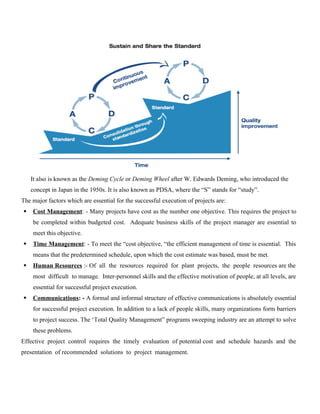
Plan, Do, Check and Act (PDCA) is an improvement cycle based on the scientific method of proposing
a change in a process, implementing the change, measuring the results, and taking appropriate action.
The PDCA cycle has four stages:
– Plan — determine goals for a process and needed changes to achieve them.
– Do — implement the changes.
– Check — evaluate the results in terms of performance
– Act — standardize and stabilize the change or begin the cycle again, depending on the results
It also is known as the Deming Cycle or Deming Wheel after W. Edwards Deming, who introduced the
concept in Japan in the 1950s. It is also known as PDSA, where the “S” stands for “study”.
The major factors which are essential for the successful execution of projects are:
 Cost Management: - Many projects have cost as the number one objective. This requires the project to
be completed within budgeted cost. Adequate business skills of the project manager are essential to
meet this objective.
 Time Management: - To meet the “cost objective, “the efficient management of time is essential. This
means that the predetermined schedule, upon which the cost estimate was based, must be met.
 Human Resources :- Of all the resources required for plant projects, the people resources are the
most difficult to manage. Inter-personnel skills and the effective motivation of people, at all levels, are
essential for successful project execution.
 Communications: - A formal and informal structure of effective communications is absolutely essential
for successful project execution. In addition to a lack of people skills, many organizations form barriers
to project success. The ‘Total Quality Management” programs sweeping industry are an attempt to solve
these problems.
Effective project control requires the timely evaluation of potential cost and schedule hazards and the
presentation of recommended solutions to project management.
1.2. General Planning and Scheduling concepts
A plan is a detailed action-oriented, experience and knowledge-based exercise which considers all elements
of strategy, scope, cost, time, resources, quality and risk for the project.
Planning
 It is a process of deciding what to do and how to do today for the future.
 It specifies a predetermined and committed future course of action, based on discussions and
decisions made on the current knowledge and estimation of future trends.
 It aims at formulation of a time-based plan of action for coordinating various activities and resources
to achieve specified objectives.
Scheduling
 It means putting the plan on a calendar time scale.
 It is the science of using mathematical calculations and logic to generate time effective sequence of task
considering any resource and cost constraints.
Schedule
 It is part of the Plan which lists
– a project's milestones
– tasks/activities, and deliverables, with start and finish dates.
 It is linked with resources, budgets and dependencies.
General planning process:
 Understanding the existing situation: Analyze the economic, political, social situations & other
environmental situations.
 Forecasting: what the future look like
 Establishing objectives: objectives specify the expected results & indicate the end points of what is to
be done
 Determining alternative courses of action
 Evaluating alternative courses of action: Examining strong & weak points and weighing in light of
premises & goals.
 Selecting a course of action: evaluation of alternative may show two or more actions are advisable and
the manager may decide to follow several courses rather than the one best course.
 Formulating derivative plans: Derivative plans are almost invariably required to support the
basic plan.
 Numbering plans by budgeting
 Implementing the plan: The manager must decide; who will do what? By what date will the tasks
be initiated and completed? What resource (both human & material) will be available for the
process? What reporting procedures are to be used? What type and degree of authority will be
granted to achieve these ends?
 Controlling and evaluating the results
2. Microsoft Project Software
Project management software has brought a new face and functionality to project management that
makes planning and tracking the complex projects we undertake a little more manageable.
Microsoft Project is a project management software program developed and sold by Microsoft, designed
to assist a project manager in developing
 A schedule
 Assigning resources to tasks
 Tracking progress
 Managing the budget, and
 Analyzing workloads.
Project creates budgets based on assignment work and resource rates. As resources are assigned to tasks and
assignment work estimated, the program calculates the cost, equal to the work times the rate, which rolls up
to the task level and then to any summary task, and finally to the project level.
MS Project for Construction Planning
 It create a schedule
 It can establish dependencies among tasks
 It can create constraints
 It can resolve resource conflicts, and
 It can also help in reviewing cost and schedule performance over the duration of the project.
 Identify potential problems, such as delays or cost overruns, early so that you can take corrective action
When working with Project, there are two levels of detail at which such settings apply
 Settings unique to the Project file
 Settings that apply to all Project files you work with in Project
2.1.THE BASICS OF CREATING YOUR CONSTRUCTION SCHEDULE
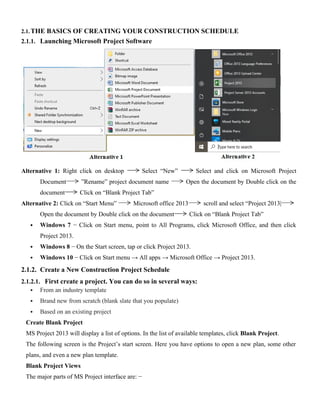
2.1.1. Launching Microsoft Project Software
Alternative 1: Right click on desktop Select “New” Select and click on Microsoft Project
Document ”Rename” project document name Open the document by Double click on the
document Click on “Blank Project Tab”
Alternative 2: Click on “Start Menu” Microsoft office 2013 scroll and select “Project 2013|
Open the document by Double click on the document Click on “Blank Project Tab”
 Windows 7 − Click on Start menu, point to All Programs, click Microsoft Office, and then click
Project 2013.
 Windows 8 − On the Start screen, tap or click Project 2013.
 Windows 10 − Click on Start menu → All apps → Microsoft Office → Project 2013.
2.1.2. Create a New Construction Project Schedule
2.1.2.1. First create a project. You can do so in several ways:
 From an industry template
 Brand new from scratch (blank slate that you populate)
 Based on an existing project
Create Blank Project
MS Project 2013 will display a list of options. In the list of available templates, click Blank Project.
The following screen is the Project’s start screen. Here you have options to open a new plan, some other
plans, and even a new plan template.
Blank Project Views
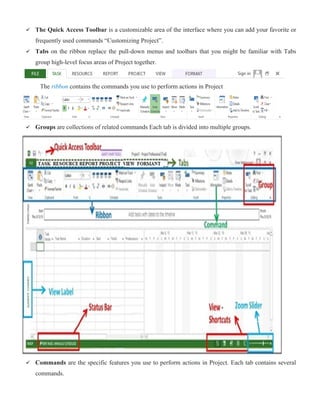
The major parts of MS Project interface are: −
 The Quick Access Toolbar is a customizable area of the interface where you can add your favorite or
frequently used commands “Customizing Project”.
 Tabs on the ribbon replace the pull-down menus and toolbars that you might be familiar with Tabs
group high-level focus areas of Project together.
The ribbon contains the commands you use to perform actions in Project
 Groups are collections of related commands Each tab is divided into multiple groups.
 Commands are the specific features you use to perform actions in Project. Each tab contains several
commands.
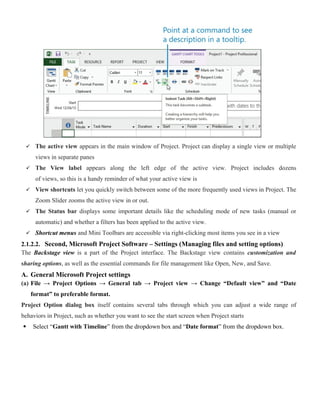
 The active view appears in the main window of Project. Project can display a single view or multiple
views in separate panes
 The View label appears along the left edge of the active view. Project includes dozens
of views, so this is a handy reminder of what your active view is
 View shortcuts let you quickly switch between some of the more frequently used views in Project. The
Zoom Slider zooms the active view in or out.
 The Status bar displays some important details like the scheduling mode of new tasks (manual or
automatic) and whether a filters has been applied to the active view.
 Shortcut menus and Mini Toolbars are accessible via right-clicking most items you see in a view
2.1.2.2. Second, Microsoft Project Software – Settings (Managing files and setting options)
The Backstage view is a part of the Project interface. The Backstage view contains customization and
sharing options, as well as the essential commands for file management like Open, New, and Save.
A. General Microsoft Project settings
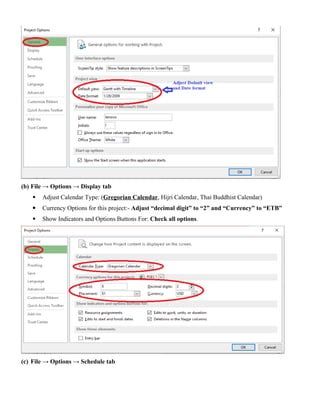
(a) File → Project Options → General tab → Project view → Change “Default view” and “Date
format” to preferable format.
Project Option dialog box itself contains several tabs through which you can adjust a wide range of
behaviors in Project, such as whether you want to see the start screen when Project starts
 Select “Gantt with Timeline” from the dropdown box and “Date format” from the dropdown box.
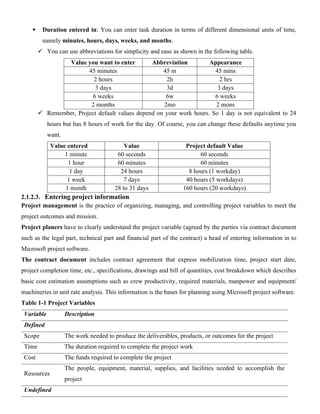
(b) File → Options → Display tab
 Adjust Calendar Type: (Gregorian Calendar, Hijri Calendar, Thai Buddhist Calendar)
 Currency Options for this project:- Adjust “decimal digit” to “2” and “Currency” to “ETB”
 Show Indicators and Options Buttons For: Check all options.
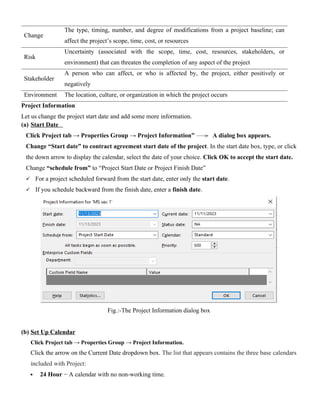
(c) File → Options → Schedule tab
 Calendar option: based on your project preference or company working environment
 Week start on: Choose either “Sunday” or “Monday”
 Fiscal Year start in: Choose either “September” or “January”
 Default Start Time: Choose either “7:00 AM” or “8:00 AM”
 Default End Time: Choose either “5:00 PM” or “”other”
 Hours per day: 8 hours or if other
 Hours per week: 40 hours or 39 hours (since on Friday morning session ends at 5:30 local time
and in the afternoon session starts 7:30) but the other working hours per day are 8 hours.
 Days per month: the average days per month is computed by deducting non-working days in the
year from 365 days and dividing the result by 12 months. Non-working days in the year can be
computed taking in to consideration such as holidays in a year, Sundays (365/7=52 days),
Saturdays (365/7=52 days), rainy seasons, festival in a company, etc.
Days per month= [365-Non working days in a year]/12
For example:
a. Calendar holidays in the year
 2016/01/01(Tue): Ethiopian New Year
 2016/01/16(Wed): Birth Day of Prophet Mohammed (MAULID)
 2016/01/17(Thu): Finding of the True cross (Meskel)
 2016/04/28(Sun): Ethiopian Christmas
 2016/05/11(Sat): Ethiopian Epiphany (Timqat)
 2016/06/23(Sat): Victory of Adwa Command Day
 2016/08/02(Wed): Id Al Faster(Ramadan)
 2016/08/23(Wed): International Labour Day
 2016/08/25(Fri): Good Friday
 2016/08/27(Sun): Ethiopian Patriots Command Day
 2016/09/20(Tue): Dawn Fall of the Dergue
 2016/10/10(Mon): Id Al Adha (Arefa)
The holidays in the year 2016 E.C is 8 days which do not align with Sundays and Saturdays. In this
project environment Saturdays and Sundays considered as non-working days.
S.No. Non-working days in the year Number of days
1 Holidays 8
2 Saturdays 52
3 Sundays 52
Total 112
Days per month= [365-Non working days in a year]/12= [365-112]/12=253 days/12 month
=21.08 days per month
 Show Assignment Units: Choose either “percentage” or “Decimal” from the dropdown box.
 Assignment Unit in “Percentage” indicates that One daily laborer working 8 hours per day is
considered as “100%”
 Assignment unit in “decimal” indicates that One daily laborer working 8 hours per day is
considered as “1”
 New Tasks Created: Choose either “Manually Scheduled” or “Auto Scheduled” from the
dropdown box.
 If you choose “Manually Scheduled” any new activity entered in the Microsoft project start date
and finish time is to be entered by the planner not by the software.
 In case of “Auto Scheduled” the software will generate start date taking the predecessor’s
finishing date or project start date when there is no predecessor.
 Auto Scheduled Tasks scheduled on: choose either “Project Start Date” or “Current Date” from
the dropdown box.
 Duration entered in: You can enter task duration in terms of different dimensional units of time,
namely minutes, hours, days, weeks, and months.
 You can use abbreviations for simplicity and ease as shown in the following table.
Value you want to enter Abbreviation Appearance
45 minutes 45 m 45 mins
2 hours 2h 2 hrs
3 days 3d 3 days
6 weeks 6w 6 weeks
2 months 2mo 2 mons
 Remember, Project default values depend on your work hours. So 1 day is not equivalent to 24
hours but has 8 hours of work for the day. Of course, you can change these defaults anytime you
want.
Value entered Value Project default Value
1 minute 60 seconds 60 seconds
1 hour 60 minutes 60 minutes
1 day 24 hours 8 hours (1 workday)
1 week 7 days 40 hours (5 workdays)
1 month 28 to 31 days 160 hours (20 workdays)
2.1.2.3. Entering project information
Project management is the practice of organizing, managing, and controlling project variables to meet the
project outcomes and mission.
Project planers have to clearly understand the project variable (agreed by the parties via contract document
such as the legal part, technical part and financial part of the contract) a head of entering information in to
Microsoft project software.
The contract document includes contract agreement that express mobilization time, project start date,
project completion time, etc., specifications, drawings and bill of quantities, cost breakdown which describes
basic cost estimation assumptions such as crew productivity, required materials, manpower and equipment/
machineries in unit rate analysis. This information is the bases for planning using Microsoft project software.
Table 1-1 Project Variables
Variable Description
Defined
Scope The work needed to produce the deliverables, products, or outcomes for the project
Time The duration required to complete the project work
Cost The funds required to complete the project
Resources
The people, equipment, material, supplies, and facilities needed to accomplish the
project
Undefined
Change
The type, timing, number, and degree of modifications from a project baseline; can
affect the project’s scope, time, cost, or resources
Risk
Uncertainty (associated with the scope, time, cost, resources, stakeholders, or
environment) that can threaten the completion of any aspect of the project
Stakeholder
A person who can affect, or who is affected by, the project, either positively or
negatively
Environment The location, culture, or organization in which the project occurs
Project Information
Let us change the project start date and add some more information.
(a) Start Date
Click Project tab → Properties Group → Project Information” A dialog box appears.
Change “Start date” to contract agreement start date of the project. In the start date box, type, or click
the down arrow to display the calendar, select the date of your choice. Click OK to accept the start date.
Change “schedule from” to “Project Start Date or Project Finish Date”
 For a project scheduled forward from the start date, enter only the start date.
 If you schedule backward from the finish date, enter a finish date.
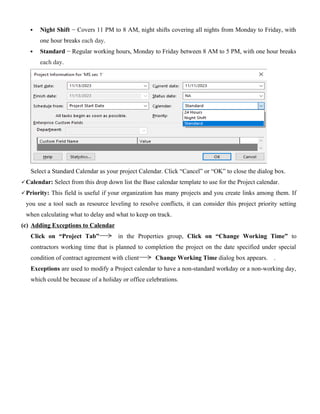
Fig.:-The Project Information dialog box
(b) Set Up Calendar
Click Project tab → Properties Group → Project Information.
Click the arrow on the Current Date dropdown box. The list that appears contains the three base calendars
included with Project:
 24 Hour − A calendar with no non-working time.
 Night Shift − Covers 11 PM to 8 AM, night shifts covering all nights from Monday to Friday, with
one hour breaks each day.
 Standard − Regular working hours, Monday to Friday between 8 AM to 5 PM, with one hour breaks
each day.
Select a Standard Calendar as your project Calendar. Click “Cancel” or “OK” to close the dialog box.
Calendar: Select from this drop down list the Base calendar template to use for the Project calendar.
Priority: This field is useful if your organization has many projects and you create links among them. If
you use a tool such as resource leveling to resolve conflicts, it can consider this project priority setting
when calculating what to delay and what to keep on track.
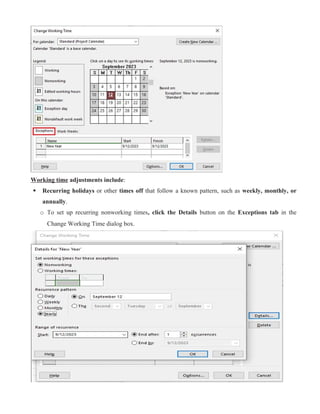
(c) Adding Exceptions to Calendar
Click on “Project Tab” in the Properties group, Click on “Change Working Time” to
contractors working time that is planned to completion the project on the date specified under special
condition of contract agreement with client Change Working Time dialog box appears. .
Exceptions are used to modify a Project calendar to have a non-standard workday or a non-working day,
which could be because of a holiday or office celebrations.
Working time adjustments include:
 Recurring holidays or other times off that follow a known pattern, such as weekly, monthly, or
annually.
o To set up recurring nonworking times, click the Details button on the Exceptions tab in the
Change Working Time dialog box.
 For example, holidays in colander of the country. Let take Ethiopian New Year which is celebrated
on September 12/2023 G.C once a year. In the Name field on the Exceptions tab in the lower portion
of the dialog box, type Ethiopian New Year, and then click in the Start field and type 9/12/2023,
and then click the Finish field or press the Right Arrow key
TIP: You can also select the date you want in the calendar above the Exceptions tab or from the
drop-down calendar in the Start field.
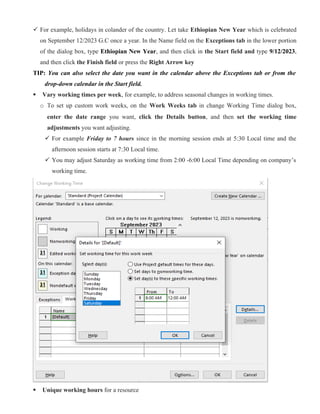
 Vary working times per week, for example, to address seasonal changes in working times.
o To set up custom work weeks, on the Work Weeks tab in change Working Time dialog box,
enter the date range you want, click the Details button, and then set the working time
adjustments you want adjusting.
 For example Friday to 7 hours since in the morning session ends at 5:30 Local time and the
afternoon session starts at 7:30 Local time.
 You may adjust Saturday as working time from 2:00 -6:00 Local Time depending on company’s
working time.
 Unique working hours for a resource
2.1.2.4. Add Schedule Tasks, Activities Duration And Planned Resource
Once your project is created, add tasks and activities to your project:
1. Go to the column titled, ‘Task Name’ and begin enter each field with the key work required to
complete your project.
Enter Task
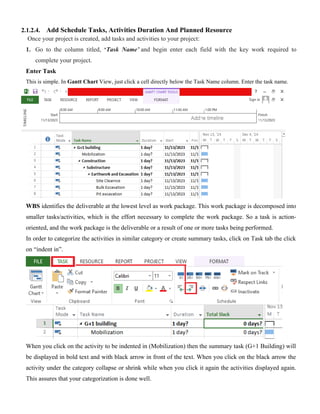
This is simple. In Gantt Chart View, just click a cell directly below the Task Name column. Enter the task name.
WBS identifies the deliverable at the lowest level as work package. This work package is decomposed into
smaller tasks/activities, which is the effort necessary to complete the work package. So a task is action-
oriented, and the work package is the deliverable or a result of one or more tasks being performed.
In order to categorize the activities in similar category or create summary tasks, click on Task tab the click
on “indent in”.
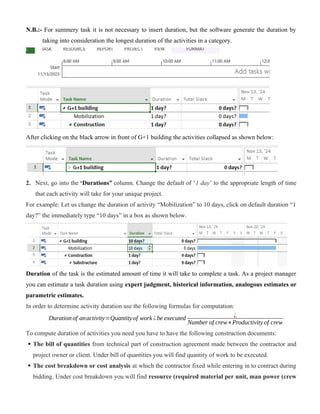
When you click on the activity to be indented in (Mobilization) then the summary task (G+1 Building) will
be displayed in bold text and with black arrow in front of the text. When you click on the black arrow the
activity under the category collapse or shrink while when you click it again the activities displayed again.
This assures that your categorization is done well.
N.B.:- For summery task it is not necessary to insert duration, but the software generate the duration by
taking into consideration the longest duration of the activities in a category.
After clicking on the black arrow in front of G+1 building the activities collapsed as shown below:
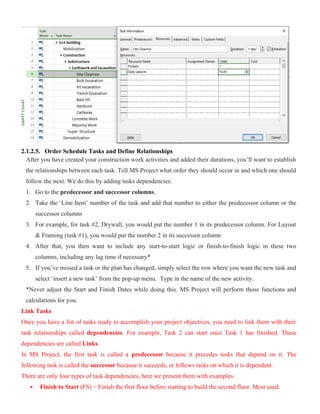
2. Next, go into the ‘Durations” column. Change the default of ‘1 day’ to the appropriate length of time
that each activity will take for your unique project.
For example: Let us change the duration of activity “Mobilization” to 10 days, click on default duration “1
day?” the immediately type “10 days” in a box as shown below.
Duration of the task is the estimated amount of time it will take to complete a task. As a project manager
you can estimate a task duration using expert judgment, historical information, analogous estimates or
parametric estimates.
In order to determine activity duration use the following formulas for computation:
Duration of anactivity=Quantityof work ¿be executed ¿
Number of crew∗Productivity of crew
To compute duration of activities you need you have to have the following construction documents:
 The bill of quantities from technical part of construction agreement made between the contractor and
project owner or client. Under bill of quantities you will find quantity of work to be executed.
 The cost breakdown or cost analysis at which the contractor fixed while entering in to contract during
bidding. Under cost breakdown you will find resource (required material per unit, man power (crew
formation) per day and machineries or equipment or tools) and crew productivity or output per
day.
For example: Let us compute duration and Assign resource for “site Clearance” and “Bulk excavation” (a)
Assume the work is done using labor intensive and (b) Assume the work is done using Machine intensive
(using machines/ equipment and labor)
(a) Assume the work is done using labor intensive. In this assumption we use standard established in
Mekelle unit rate computation.
1. Site clearance
Remember the unit rate computed in table shown below is based on assumptions that the output per day
executed using one crew (in combination of Manpower and Equipment)
In this labor intensive site clearance work the crew is one daily laborer working full time while one Forman
that devote only 10% of his/ her effort working time per day.
A crew is taken as Forman [0.1] and Daily Labor [1] with Productivity 10 m2
/ day
Activity Description: Site Clearance Out Put per day = 10 m2
A .MATERIAL B.MANPOWER C.EQUIPMENT
TYPE
UNIT
QTY.
RATE
(BIRR)
COST
PER SKILL NO U,F
DAILY
RATE
DAIL
Y
COST TYPE NO U,F
Rental
rate/hr
Daily
cost
UNIT (BIRR) (BIRR) (birr / hr ) (birr)
D.labor 1.00 1.00 90.00 90.00
Forman 1.00 0.10 222.75 22.28
TOTAL ' A' (BIRR) TOTAL 'B' (BIRR) 112.28 TOTAL 'C' (BIRR)
1.MATERIAL TOTAL" A”
2. MANPOWER TOTAL " B " 11.23 3. EQUIPMENT TOTAL " C"
DAILY OUTPUT DAILY OUTPUT
Direct Cost : “1” + “2” + “3” = 11.23
Profit 7% 0.79
Overhead 17% 1.91
Total cost 13.92
If the site clearance to be executed is 100 m2
using 10 number of crew (Forman [0.1] and Daily Labor [1])
the duration is
Duration =
Quantityof Work
Number of crew x Output per day
=
100m 2
10x 10m2 per day
=1 day
Therefore, the planned resource is Forman [1] and Daily Labor [10]
2. Bulk Excavation
Assume the work is done using Machine intensive (using machines/ equipment and labor)
In this labor intensive bulk excavation work the crew is one daily laborer working full time while one
Forman that devote only 10% of his/ her effort working time per day.
A crew is taken as Forman [0.1] and Daily Labor [1] with Productivity 1.5 m3
/ day
Activity Description: Site Clearance Out Put per day = 10 m2
A .MATERIAL B.MANPOWER C.EQUIPMENT
TYPE
UNIT
QTY.
RATE
(BIRR)
COST
PER SKILL NO U,F
DAILY
RATE
DAILY
COST TYPE NO U,F
Rental
rate/hr
Daily
cost
UNIT (BIRR) (BIRR) (birr / hr ) (birr)
D.labor 1.00 1.00 90.00 90.00
Forman 1.00 0.10 222.75 22.28
TOTAL ' A' (BIRR) TOTAL 'B' (BIRR) 112.28 TOTAL 'C' (BIRR)
1.MATERIAL TOTAL" A”
2. MANPOWER TOTAL " B " 74.85 3. EQUIPMENT TOTAL " C"
DAILY OUTPUT DAILY OUTPUT
Direct Cost : “1” + “2” + “3” = 74.85
Profit 7% 5.24
Overhead 17% 12.72
Total cost 17.96
a2) If the bulk excavation to be executed is 150 m3
using 10 number of crew (Forman [0.1] and Daily Labor
[1]) the duration is
Duration =
Quantityof Work
Number of crew x Output per day
=
150m3
10x 1.5m3 per day
=10 days
Thus, the planned resource is Forman [1] and Daily Labor [10]
Summary:
S.No.
Activity
Description
Unit
Quantity
#
crew
Output
per
day
Calculated
Duration
(in
days)
Estimated
Duration
(in
days)
Expected
Output
per
day
Resource per crew Planned resource
1 Site Clearance m2
100 10 10 1 1 10  Forman [0.1]
 Daily Labor[1]
 Forman [1]
 Daily Labor [10]
2 Bulk excavation m3
150 10 1.5 10 10 1.5  Forman [0.1]
 Daily Labor [1]
 Forman [1]
 Daily Labor [10]
(b) If the bulk excavation of normal soil (4200 m3
) is done using machinery and labor in combination
one crew ( one Dozer , one Earth work Forman with 50% efficiency per crew, one Data Collector, two
Unskilled Daily Laborer) can produce 960 m3 per day.
S.No.
Activity
Description
Unit
Quantity
#
crew
Output
per
day
Calculated
Duration
(in
days)
Estimated
Duration
(in
days)
Expected
Output
per
day
Resource per crew Planned resource
1 Bulk
Excavation
m3
4200 2 960 2.1875 2 1050
 Dozer [1]
 Earthwork Forman [0.5]
 Data Collector [1]
 Daily Labor [2]
 Dozer [2]
 Earthwork Forman [1]
 Data Collector [2]
 Daily Labor [4]
Therefore, planned resource to execute the activity with 2 days and 1050 expected daily output are
Dozer [2], Earthwork Forman [1], Data Collector [2], and Daily Labor [4]
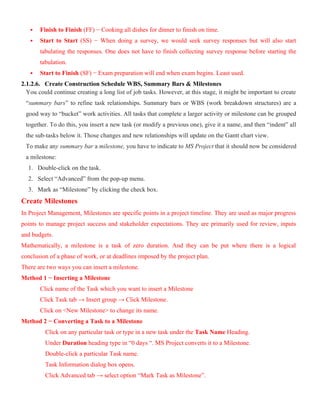
3. Next, go into the ‘Resource” column or double click on the column titled, “task name”. Add planned
resource required for each activity in project.
Go into the ‘Resource” column and click on “Site Clearance” row in the ‘Resource” column, then type
or add the planned resource (Forman [1], Daily Labor [10]).
Double click on the activity in consideration for example “Site Clearance” then “Task information dialog
box” appears. Type or assign the planned resource required (that is Forman [1], Daily Labor [10]
computed in the above example in site clearance work) by clicking on the resource box. In the resource
unit in this case is in “decimal” but it may be in “percent”. That is one resource expressed as 100%. When
you complete your data entry click “ok”.
2.1.2.5. Order Schedule Tasks and Define Relationships
After you have created your construction work activities and added their durations, you’ll want to establish
the relationships between each task. Tell MS Project what order they should occur in and which one should
follow the next. We do this by adding tasks dependencies:
1. Go to the predecessor and successor columns.
2. Take the ‘Line Item’ number of the task and add that number to either the predecessor column or the
successor columns
3. For example, for task #2, Drywall, you would put the number 1 in its predecessor column. For Layout
& Framing (task #1), you would put the number 2 in its successor column
4. After that, you then want to include any start-to-start logic or finish-to-finish logic in these two
columns, including any lag time if necessary*
5. If you’ve missed a task or the plan has changed, simply select the row where you want the new task and
select ‘insert a new task’ from the pop-up menu. Type in the name of the new activity.
*Never adjust the Start and Finish Dates while doing this. MS Project will perform those functions and
calculations for you.
Link Tasks
Once you have a list of tasks ready to accomplish your project objectives, you need to link them with their
task relationships called dependencies. For example, Task 2 can start once Task 1 has finished. These
dependencies are called Links.
In MS Project, the first task is called a predecessor because it precedes tasks that depend on it. The
following task is called the successor because it succeeds, or follows tasks on which it is dependent.
There are only four types of task dependencies, here we present them with examples.
 Finish to Start (FS) − Finish the first floor before starting to build the second floor. Most used.
 Finish to Finish (FF) − Cooking all dishes for dinner to finish on time.
 Start to Start (SS) − When doing a survey, we would seek survey responses but will also start
tabulating the responses. One does not have to finish collecting survey response before starting the
tabulation.
 Start to Finish (SF) − Exam preparation will end when exam begins. Least used.
2.1.2.6. Create Construction Schedule WBS, Summary Bars & Milestones
You could continue creating a long list of job tasks. However, at this stage, it might be important to create
“summary bars” to refine task relationships. Summary bars or WBS (work breakdown structures) are a
good way to “bucket” work activities. All tasks that complete a larger activity or milestone can be grouped
together. To do this, you insert a new task (or modify a previous one), give it a name, and then “indent” all
the sub-tasks below it. Those changes and new relationships will update on the Gantt chart view.
To make any summary bar a milestone, you have to indicate to MS Project that it should now be considered
a milestone:
1. Double-click on the task.
2. Select “Advanced” from the pop-up menu.
3. Mark as “Milestone” by clicking the check box.
Create Milestones
In Project Management, Milestones are specific points in a project timeline. They are used as major progress
points to manage project success and stakeholder expectations. They are primarily used for review, inputs
and budgets.
Mathematically, a milestone is a task of zero duration. And they can be put where there is a logical
conclusion of a phase of work, or at deadlines imposed by the project plan.
There are two ways you can insert a milestone.
Method 1 − Inserting a Milestone
Click name of the Task which you want to insert a Milestone
Click Task tab → Insert group → Click Milestone.
Click on <New Milestone> to change its name.
Method 2 − Converting a Task to a Milestone
Click on any particular task or type in a new task under the Task Name Heading.
Under Duration heading type in “0 days “. MS Project converts it to a Milestone.
Double-click a particular Task name.
Task Information dialog box opens.
Click Advanced tab → select option “Mark Task as Milestone”.
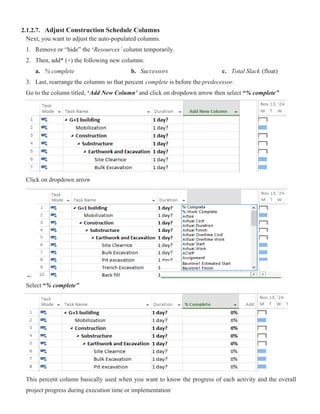
2.1.2.7. Adjust Construction Schedule Columns
Next, you want to adjust the auto-populated columns.
1. Remove or “hide” the ‘Resources’ column temporarily.
2. Then, add* (+) the following new columns:
a. % complete b. Successors c. Total Slack (float)
3. Last, rearrange the columns so that percent complete is before the predecessor.
Go to the column titled, ‘Add New Column’ and click on dropdown arrow then select “% complete”
Click on dropdown arrow
Select “% complete”
This percent column basically used when you want to know the progress of each activity and the overall
project progress during execution time or implementation
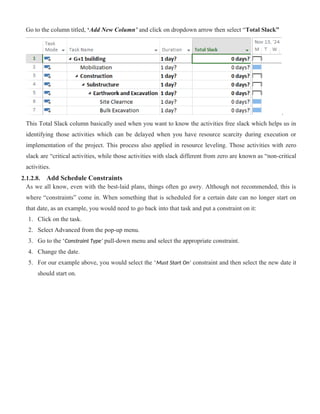
Go to the column titled, ‘Add New Column’ and click on dropdown arrow then select “Total Slack”
.
This Total Slack column basically used when you want to know the activities free slack which helps us in
identifying those activities which can be delayed when you have resource scarcity during execution or
implementation of the project. This process also applied in resource leveling. Those activities with zero
slack are “critical activities, while those activities with slack different from zero are known as “non-critical
activities.
2.1.2.8. Add Schedule Constraints
As we all know, even with the best-laid plans, things often go awry. Although not recommended, this is
where “constraints” come in. When something that is scheduled for a certain date can no longer start on
that date, as an example, you would need to go back into that task and put a constraint on it:
1. Click on the task.
2. Select Advanced from the pop-up menu.
3. Go to the ‘Constraint Type’ pull-down menu and select the appropriate constraint.
4. Change the date.
5. For our example above, you would select the ‘Must Start On’ constraint and then select the new date it
should start on.
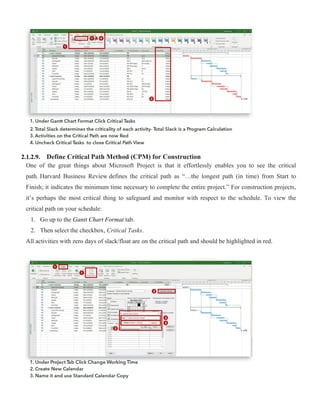
2.1.2.9. Define Critical Path Method (CPM) for Construction
One of the great things about Microsoft Project is that it effortlessly enables you to see the critical
path. Harvard Business Review defines the critical path as “…the longest path (in time) from Start to
Finish; it indicates the minimum time necessary to complete the entire project.” For construction projects,
it’s perhaps the most critical thing to safeguard and monitor with respect to the schedule. To view the
critical path on your schedule:
1. Go up to the Gantt Chart Format tab.
2. Then select the checkbox, Critical Tasks.
All activities with zero days of slack/float are on the critical path and should be highlighted in red.
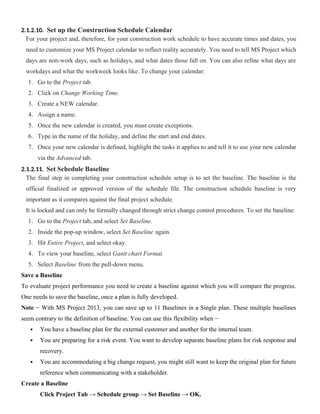
2.1.2.10. Set up the Construction Schedule Calendar
For your project and, therefore, for your construction work schedule to have accurate times and dates, you
need to customize your MS Project calendar to reflect reality accurately. You need to tell MS Project which
days are non-work days, such as holidays, and what dates those fall on. You can also refine what days are
workdays and what the workweek looks like. To change your calendar:
1. Go to the Project tab.
2. Click on Change Working Time.
3. Create a NEW calendar.
4. Assign a name.
5. Once the new calendar is created, you must create exceptions.
6. Type in the name of the holiday, and define the start and end dates.
7. Once your new calendar is defined, highlight the tasks it applies to and tell it to use your new calendar
via the Advanced tab.
2.1.2.11. Set Schedule Baseline
The final step in completing your construction schedule setup is to set the baseline. The baseline is the
official finalized or approved version of the schedule file. The construction schedule baseline is very
important as it compares against the final project schedule.
It is locked and can only be formally changed through strict change control procedures. To set the baseline:
1. Go to the Project tab, and select Set Baseline.
2. Inside the pop-up window, select Set Baseline again.
3. Hit Entire Project, and select okay.
4. To view your baseline, select Gantt chart Format.
5. Select Baseline from the pull-down menu.
Save a Baseline
To evaluate project performance you need to create a baseline against which you will compare the progress.
One needs to save the baseline, once a plan is fully developed.
Note − With MS Project 2013, you can save up to 11 Baselines in a Single plan. These multiple baselines
seem contrary to the definition of baseline. You can use this flexibility when −
 You have a baseline plan for the external customer and another for the internal team.
 You are preparing for a risk event. You want to develop separate baseline plans for risk response and
recovery.
 You are accommodating a big change request, you might still want to keep the original plan for future
reference when communicating with a stakeholder.
Create a Baseline
Click Project Tab → Schedule group → Set Baseline → OK.
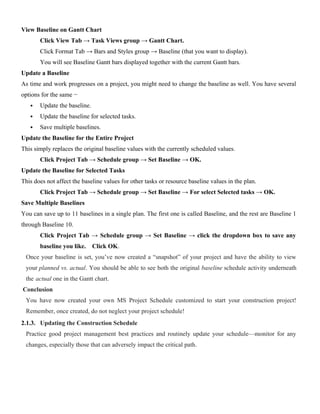
View Baseline on Gantt Chart
Click View Tab → Task Views group → Gantt Chart.
Click Format Tab → Bars and Styles group → Baseline (that you want to display).
You will see Baseline Gantt bars displayed together with the current Gantt bars.
Update a Baseline
As time and work progresses on a project, you might need to change the baseline as well. You have several
options for the same −
 Update the baseline.
 Update the baseline for selected tasks.
 Save multiple baselines.
Update the Baseline for the Entire Project
This simply replaces the original baseline values with the currently scheduled values.
Click Project Tab → Schedule group → Set Baseline → OK.
Update the Baseline for Selected Tasks
This does not affect the baseline values for other tasks or resource baseline values in the plan.
Click Project Tab → Schedule group → Set Baseline → For select Selected tasks → OK.
Save Multiple Baselines
You can save up to 11 baselines in a single plan. The first one is called Baseline, and the rest are Baseline 1
through Baseline 10.
Click Project Tab → Schedule group → Set Baseline → click the dropdown box to save any
baseline you like. Click OK.
Once your baseline is set, you’ve now created a “snapshot” of your project and have the ability to view
your planned vs. actual. You should be able to see both the original baseline schedule activity underneath
the actual one in the Gantt chart.
Conclusion
You have now created your own MS Project Schedule customized to start your construction project!
Remember, once created, do not neglect your project schedule!
2.1.3. Updating the Construction Schedule
Practice good project management best practices and routinely update your schedule—monitor for any
changes, especially those that can adversely impact the critical path.

Microsoft Project 2013 training manual for civil engineering.docx

  • 1.
    1. Construction Planningand Scheduling Using Microsoft Project Software 1.1. Introduction to Construction Project Management Construction is the mobilization and utilization of capital and specialized personnel, materials, and equipment to assemble materials and equipment on a specific site in accordance with drawings, specifications, and contract documents prepared to serve the purposes of a client. A project It is a temporary endeavor undertaken to produce a unique product, service, or result undertaken to meet unique goals and objectives, usually to bring about beneficial change or added value. This means that  It is done only one time. If it is repetitive, it’s not a project.  It should have definite starting and ending points (time), a budget (cost), a clearly defined scope-or magnitude-of work to be done, and specific performance requirements that must be met.  It is the achievement of objectives by identifying and utilizing human, technical and financial resources or the process of planning and directing a project from its inception to its completion in a given time, at a given cost and for a given end product. Construction project is defined by the following characteristics:  A defined goal or objective.  Specific tasks to be performed.  A defined beginning and end.  Resources being consumed Characteristics Construction Project:  Component of a Certain Business  Unique as each projects possess specific features either related to its product; or its production process and technology; or its stakeholders; or its size, location and space  Pre-Determined Objectives with respect to its product, scope and the Triple Constraints: Time Frame (definite beginning and ending), Budget Limit and Expected or Set Quality  Borrowed Resources Construction Projects Require A. Managing:- i. Construction Planning, Design Services & Works Phases ii. Time & Progresses including productivities; iii.Cost & Cash Flows; iv.Quality & Performances; and v. Stakeholders and Organizational Behaviour B. With:- Organization Resources
  • 2.
    C. By:- Planning;Organizing and Coordinating, Implementing; Monitoring, Controlling and Evaluating (1) Processes, (2) Resources & (3) Stakeholders D. Within:- Quality, Time, Cost and Environmental Constraints The Construction Projects Requirement stated above necessitate project management Management  It is the acts of getting people together to accomplish desired goals and objectives.  It comprises planning, organizing, staffing, leading or directing, and controlling an organization (a group of one or more people or entities) or effort for the purpose of accomplishing a goal. However, (Harold Koontz) defined management, as it is the art of getting things done through and with people in formally organized groups.  It is the duty of a project manager to organize a project team of people and coordinate their efforts in a common direction to bring a project to successful completion.  Throughout the project management process there are four questions that must be addressed: What must be done? When it must be done? Who will do it? How? (How much it will cost? How it will be done? Who will do it? ) Project Management:  It is defined as the application of various knowledge, skills and techniques on projects to ensure both the pre-determined objectives and the intended purpose of the larger business are met. The art and science of coordinating people, equipment, materials, money and schedules to complete a specified project on time and within approved cost.  It includes:  Identifying, Recognizing and Articulating Needs / requirements  Considering Stakeholders concerns, expectations, etc  Dealing with the following six competing constraints: Scope, Quality, Schedule, Budget, Resources and Risk.  It is accomplished through 5 major process groups: Initiating, Planning, Executing, Monitoring & Evaluation, and Closing. Plan, Do, Check and Act (PDCA) is an improvement cycle based on the scientific method of proposing a change in a process, implementing the change, measuring the results, and taking appropriate action. The PDCA cycle has four stages: – Plan — determine goals for a process and needed changes to achieve them. – Do — implement the changes. – Check — evaluate the results in terms of performance – Act — standardize and stabilize the change or begin the cycle again, depending on the results
  • 3.
    It also isknown as the Deming Cycle or Deming Wheel after W. Edwards Deming, who introduced the concept in Japan in the 1950s. It is also known as PDSA, where the “S” stands for “study”. The major factors which are essential for the successful execution of projects are:  Cost Management: - Many projects have cost as the number one objective. This requires the project to be completed within budgeted cost. Adequate business skills of the project manager are essential to meet this objective.  Time Management: - To meet the “cost objective, “the efficient management of time is essential. This means that the predetermined schedule, upon which the cost estimate was based, must be met.  Human Resources :- Of all the resources required for plant projects, the people resources are the most difficult to manage. Inter-personnel skills and the effective motivation of people, at all levels, are essential for successful project execution.  Communications: - A formal and informal structure of effective communications is absolutely essential for successful project execution. In addition to a lack of people skills, many organizations form barriers to project success. The ‘Total Quality Management” programs sweeping industry are an attempt to solve these problems. Effective project control requires the timely evaluation of potential cost and schedule hazards and the presentation of recommended solutions to project management.
  • 4.
    1.2. General Planningand Scheduling concepts A plan is a detailed action-oriented, experience and knowledge-based exercise which considers all elements of strategy, scope, cost, time, resources, quality and risk for the project. Planning  It is a process of deciding what to do and how to do today for the future.  It specifies a predetermined and committed future course of action, based on discussions and decisions made on the current knowledge and estimation of future trends.  It aims at formulation of a time-based plan of action for coordinating various activities and resources to achieve specified objectives. Scheduling  It means putting the plan on a calendar time scale.  It is the science of using mathematical calculations and logic to generate time effective sequence of task considering any resource and cost constraints. Schedule  It is part of the Plan which lists – a project's milestones – tasks/activities, and deliverables, with start and finish dates.  It is linked with resources, budgets and dependencies. General planning process:  Understanding the existing situation: Analyze the economic, political, social situations & other environmental situations.  Forecasting: what the future look like  Establishing objectives: objectives specify the expected results & indicate the end points of what is to be done  Determining alternative courses of action  Evaluating alternative courses of action: Examining strong & weak points and weighing in light of premises & goals.  Selecting a course of action: evaluation of alternative may show two or more actions are advisable and the manager may decide to follow several courses rather than the one best course.  Formulating derivative plans: Derivative plans are almost invariably required to support the basic plan.  Numbering plans by budgeting  Implementing the plan: The manager must decide; who will do what? By what date will the tasks be initiated and completed? What resource (both human & material) will be available for the
  • 5.
    process? What reportingprocedures are to be used? What type and degree of authority will be granted to achieve these ends?  Controlling and evaluating the results 2. Microsoft Project Software Project management software has brought a new face and functionality to project management that makes planning and tracking the complex projects we undertake a little more manageable. Microsoft Project is a project management software program developed and sold by Microsoft, designed to assist a project manager in developing  A schedule  Assigning resources to tasks  Tracking progress  Managing the budget, and  Analyzing workloads. Project creates budgets based on assignment work and resource rates. As resources are assigned to tasks and assignment work estimated, the program calculates the cost, equal to the work times the rate, which rolls up to the task level and then to any summary task, and finally to the project level. MS Project for Construction Planning  It create a schedule  It can establish dependencies among tasks  It can create constraints  It can resolve resource conflicts, and  It can also help in reviewing cost and schedule performance over the duration of the project.  Identify potential problems, such as delays or cost overruns, early so that you can take corrective action When working with Project, there are two levels of detail at which such settings apply  Settings unique to the Project file  Settings that apply to all Project files you work with in Project
  • 6.
    2.1.THE BASICS OFCREATING YOUR CONSTRUCTION SCHEDULE 2.1.1. Launching Microsoft Project Software Alternative 1: Right click on desktop Select “New” Select and click on Microsoft Project Document ”Rename” project document name Open the document by Double click on the document Click on “Blank Project Tab” Alternative 2: Click on “Start Menu” Microsoft office 2013 scroll and select “Project 2013| Open the document by Double click on the document Click on “Blank Project Tab”  Windows 7 − Click on Start menu, point to All Programs, click Microsoft Office, and then click Project 2013.  Windows 8 − On the Start screen, tap or click Project 2013.  Windows 10 − Click on Start menu → All apps → Microsoft Office → Project 2013. 2.1.2. Create a New Construction Project Schedule 2.1.2.1. First create a project. You can do so in several ways:  From an industry template  Brand new from scratch (blank slate that you populate)  Based on an existing project Create Blank Project MS Project 2013 will display a list of options. In the list of available templates, click Blank Project. The following screen is the Project’s start screen. Here you have options to open a new plan, some other plans, and even a new plan template. Blank Project Views The major parts of MS Project interface are: −
  • 7.
     The QuickAccess Toolbar is a customizable area of the interface where you can add your favorite or frequently used commands “Customizing Project”.  Tabs on the ribbon replace the pull-down menus and toolbars that you might be familiar with Tabs group high-level focus areas of Project together. The ribbon contains the commands you use to perform actions in Project  Groups are collections of related commands Each tab is divided into multiple groups.  Commands are the specific features you use to perform actions in Project. Each tab contains several commands.
  • 8.
     The activeview appears in the main window of Project. Project can display a single view or multiple views in separate panes  The View label appears along the left edge of the active view. Project includes dozens of views, so this is a handy reminder of what your active view is  View shortcuts let you quickly switch between some of the more frequently used views in Project. The Zoom Slider zooms the active view in or out.  The Status bar displays some important details like the scheduling mode of new tasks (manual or automatic) and whether a filters has been applied to the active view.  Shortcut menus and Mini Toolbars are accessible via right-clicking most items you see in a view 2.1.2.2. Second, Microsoft Project Software – Settings (Managing files and setting options) The Backstage view is a part of the Project interface. The Backstage view contains customization and sharing options, as well as the essential commands for file management like Open, New, and Save. A. General Microsoft Project settings (a) File → Project Options → General tab → Project view → Change “Default view” and “Date format” to preferable format. Project Option dialog box itself contains several tabs through which you can adjust a wide range of behaviors in Project, such as whether you want to see the start screen when Project starts  Select “Gantt with Timeline” from the dropdown box and “Date format” from the dropdown box.
  • 9.
    (b) File →Options → Display tab  Adjust Calendar Type: (Gregorian Calendar, Hijri Calendar, Thai Buddhist Calendar)  Currency Options for this project:- Adjust “decimal digit” to “2” and “Currency” to “ETB”  Show Indicators and Options Buttons For: Check all options. (c) File → Options → Schedule tab
  • 10.
     Calendar option:based on your project preference or company working environment  Week start on: Choose either “Sunday” or “Monday”  Fiscal Year start in: Choose either “September” or “January”  Default Start Time: Choose either “7:00 AM” or “8:00 AM”  Default End Time: Choose either “5:00 PM” or “”other”  Hours per day: 8 hours or if other  Hours per week: 40 hours or 39 hours (since on Friday morning session ends at 5:30 local time and in the afternoon session starts 7:30) but the other working hours per day are 8 hours.  Days per month: the average days per month is computed by deducting non-working days in the year from 365 days and dividing the result by 12 months. Non-working days in the year can be computed taking in to consideration such as holidays in a year, Sundays (365/7=52 days), Saturdays (365/7=52 days), rainy seasons, festival in a company, etc. Days per month= [365-Non working days in a year]/12 For example: a. Calendar holidays in the year  2016/01/01(Tue): Ethiopian New Year
  • 11.
     2016/01/16(Wed): BirthDay of Prophet Mohammed (MAULID)  2016/01/17(Thu): Finding of the True cross (Meskel)  2016/04/28(Sun): Ethiopian Christmas  2016/05/11(Sat): Ethiopian Epiphany (Timqat)  2016/06/23(Sat): Victory of Adwa Command Day  2016/08/02(Wed): Id Al Faster(Ramadan)  2016/08/23(Wed): International Labour Day  2016/08/25(Fri): Good Friday  2016/08/27(Sun): Ethiopian Patriots Command Day  2016/09/20(Tue): Dawn Fall of the Dergue  2016/10/10(Mon): Id Al Adha (Arefa) The holidays in the year 2016 E.C is 8 days which do not align with Sundays and Saturdays. In this project environment Saturdays and Sundays considered as non-working days. S.No. Non-working days in the year Number of days 1 Holidays 8 2 Saturdays 52 3 Sundays 52 Total 112 Days per month= [365-Non working days in a year]/12= [365-112]/12=253 days/12 month =21.08 days per month  Show Assignment Units: Choose either “percentage” or “Decimal” from the dropdown box.  Assignment Unit in “Percentage” indicates that One daily laborer working 8 hours per day is considered as “100%”  Assignment unit in “decimal” indicates that One daily laborer working 8 hours per day is considered as “1”  New Tasks Created: Choose either “Manually Scheduled” or “Auto Scheduled” from the dropdown box.  If you choose “Manually Scheduled” any new activity entered in the Microsoft project start date and finish time is to be entered by the planner not by the software.  In case of “Auto Scheduled” the software will generate start date taking the predecessor’s finishing date or project start date when there is no predecessor.  Auto Scheduled Tasks scheduled on: choose either “Project Start Date” or “Current Date” from the dropdown box.
  • 12.
     Duration enteredin: You can enter task duration in terms of different dimensional units of time, namely minutes, hours, days, weeks, and months.  You can use abbreviations for simplicity and ease as shown in the following table. Value you want to enter Abbreviation Appearance 45 minutes 45 m 45 mins 2 hours 2h 2 hrs 3 days 3d 3 days 6 weeks 6w 6 weeks 2 months 2mo 2 mons  Remember, Project default values depend on your work hours. So 1 day is not equivalent to 24 hours but has 8 hours of work for the day. Of course, you can change these defaults anytime you want. Value entered Value Project default Value 1 minute 60 seconds 60 seconds 1 hour 60 minutes 60 minutes 1 day 24 hours 8 hours (1 workday) 1 week 7 days 40 hours (5 workdays) 1 month 28 to 31 days 160 hours (20 workdays) 2.1.2.3. Entering project information Project management is the practice of organizing, managing, and controlling project variables to meet the project outcomes and mission. Project planers have to clearly understand the project variable (agreed by the parties via contract document such as the legal part, technical part and financial part of the contract) a head of entering information in to Microsoft project software. The contract document includes contract agreement that express mobilization time, project start date, project completion time, etc., specifications, drawings and bill of quantities, cost breakdown which describes basic cost estimation assumptions such as crew productivity, required materials, manpower and equipment/ machineries in unit rate analysis. This information is the bases for planning using Microsoft project software. Table 1-1 Project Variables Variable Description Defined Scope The work needed to produce the deliverables, products, or outcomes for the project Time The duration required to complete the project work Cost The funds required to complete the project Resources The people, equipment, material, supplies, and facilities needed to accomplish the project Undefined
  • 13.
    Change The type, timing,number, and degree of modifications from a project baseline; can affect the project’s scope, time, cost, or resources Risk Uncertainty (associated with the scope, time, cost, resources, stakeholders, or environment) that can threaten the completion of any aspect of the project Stakeholder A person who can affect, or who is affected by, the project, either positively or negatively Environment The location, culture, or organization in which the project occurs Project Information Let us change the project start date and add some more information. (a) Start Date Click Project tab → Properties Group → Project Information” A dialog box appears. Change “Start date” to contract agreement start date of the project. In the start date box, type, or click the down arrow to display the calendar, select the date of your choice. Click OK to accept the start date. Change “schedule from” to “Project Start Date or Project Finish Date”  For a project scheduled forward from the start date, enter only the start date.  If you schedule backward from the finish date, enter a finish date. Fig.:-The Project Information dialog box (b) Set Up Calendar Click Project tab → Properties Group → Project Information. Click the arrow on the Current Date dropdown box. The list that appears contains the three base calendars included with Project:  24 Hour − A calendar with no non-working time.
  • 14.
     Night Shift− Covers 11 PM to 8 AM, night shifts covering all nights from Monday to Friday, with one hour breaks each day.  Standard − Regular working hours, Monday to Friday between 8 AM to 5 PM, with one hour breaks each day. Select a Standard Calendar as your project Calendar. Click “Cancel” or “OK” to close the dialog box. Calendar: Select from this drop down list the Base calendar template to use for the Project calendar. Priority: This field is useful if your organization has many projects and you create links among them. If you use a tool such as resource leveling to resolve conflicts, it can consider this project priority setting when calculating what to delay and what to keep on track. (c) Adding Exceptions to Calendar Click on “Project Tab” in the Properties group, Click on “Change Working Time” to contractors working time that is planned to completion the project on the date specified under special condition of contract agreement with client Change Working Time dialog box appears. . Exceptions are used to modify a Project calendar to have a non-standard workday or a non-working day, which could be because of a holiday or office celebrations.
  • 15.
    Working time adjustmentsinclude:  Recurring holidays or other times off that follow a known pattern, such as weekly, monthly, or annually. o To set up recurring nonworking times, click the Details button on the Exceptions tab in the Change Working Time dialog box.
  • 16.
     For example,holidays in colander of the country. Let take Ethiopian New Year which is celebrated on September 12/2023 G.C once a year. In the Name field on the Exceptions tab in the lower portion of the dialog box, type Ethiopian New Year, and then click in the Start field and type 9/12/2023, and then click the Finish field or press the Right Arrow key TIP: You can also select the date you want in the calendar above the Exceptions tab or from the drop-down calendar in the Start field.  Vary working times per week, for example, to address seasonal changes in working times. o To set up custom work weeks, on the Work Weeks tab in change Working Time dialog box, enter the date range you want, click the Details button, and then set the working time adjustments you want adjusting.  For example Friday to 7 hours since in the morning session ends at 5:30 Local time and the afternoon session starts at 7:30 Local time.  You may adjust Saturday as working time from 2:00 -6:00 Local Time depending on company’s working time.  Unique working hours for a resource
  • 17.
    2.1.2.4. Add ScheduleTasks, Activities Duration And Planned Resource Once your project is created, add tasks and activities to your project: 1. Go to the column titled, ‘Task Name’ and begin enter each field with the key work required to complete your project. Enter Task This is simple. In Gantt Chart View, just click a cell directly below the Task Name column. Enter the task name. WBS identifies the deliverable at the lowest level as work package. This work package is decomposed into smaller tasks/activities, which is the effort necessary to complete the work package. So a task is action- oriented, and the work package is the deliverable or a result of one or more tasks being performed. In order to categorize the activities in similar category or create summary tasks, click on Task tab the click on “indent in”. When you click on the activity to be indented in (Mobilization) then the summary task (G+1 Building) will be displayed in bold text and with black arrow in front of the text. When you click on the black arrow the activity under the category collapse or shrink while when you click it again the activities displayed again. This assures that your categorization is done well.
  • 18.
    N.B.:- For summerytask it is not necessary to insert duration, but the software generate the duration by taking into consideration the longest duration of the activities in a category. After clicking on the black arrow in front of G+1 building the activities collapsed as shown below: 2. Next, go into the ‘Durations” column. Change the default of ‘1 day’ to the appropriate length of time that each activity will take for your unique project. For example: Let us change the duration of activity “Mobilization” to 10 days, click on default duration “1 day?” the immediately type “10 days” in a box as shown below. Duration of the task is the estimated amount of time it will take to complete a task. As a project manager you can estimate a task duration using expert judgment, historical information, analogous estimates or parametric estimates. In order to determine activity duration use the following formulas for computation: Duration of anactivity=Quantityof work ¿be executed ¿ Number of crew∗Productivity of crew To compute duration of activities you need you have to have the following construction documents:  The bill of quantities from technical part of construction agreement made between the contractor and project owner or client. Under bill of quantities you will find quantity of work to be executed.  The cost breakdown or cost analysis at which the contractor fixed while entering in to contract during bidding. Under cost breakdown you will find resource (required material per unit, man power (crew
  • 19.
    formation) per dayand machineries or equipment or tools) and crew productivity or output per day. For example: Let us compute duration and Assign resource for “site Clearance” and “Bulk excavation” (a) Assume the work is done using labor intensive and (b) Assume the work is done using Machine intensive (using machines/ equipment and labor) (a) Assume the work is done using labor intensive. In this assumption we use standard established in Mekelle unit rate computation. 1. Site clearance Remember the unit rate computed in table shown below is based on assumptions that the output per day executed using one crew (in combination of Manpower and Equipment) In this labor intensive site clearance work the crew is one daily laborer working full time while one Forman that devote only 10% of his/ her effort working time per day. A crew is taken as Forman [0.1] and Daily Labor [1] with Productivity 10 m2 / day Activity Description: Site Clearance Out Put per day = 10 m2 A .MATERIAL B.MANPOWER C.EQUIPMENT TYPE UNIT QTY. RATE (BIRR) COST PER SKILL NO U,F DAILY RATE DAIL Y COST TYPE NO U,F Rental rate/hr Daily cost UNIT (BIRR) (BIRR) (birr / hr ) (birr) D.labor 1.00 1.00 90.00 90.00 Forman 1.00 0.10 222.75 22.28 TOTAL ' A' (BIRR) TOTAL 'B' (BIRR) 112.28 TOTAL 'C' (BIRR) 1.MATERIAL TOTAL" A” 2. MANPOWER TOTAL " B " 11.23 3. EQUIPMENT TOTAL " C" DAILY OUTPUT DAILY OUTPUT Direct Cost : “1” + “2” + “3” = 11.23 Profit 7% 0.79 Overhead 17% 1.91 Total cost 13.92 If the site clearance to be executed is 100 m2 using 10 number of crew (Forman [0.1] and Daily Labor [1]) the duration is Duration = Quantityof Work Number of crew x Output per day = 100m 2 10x 10m2 per day =1 day Therefore, the planned resource is Forman [1] and Daily Labor [10] 2. Bulk Excavation Assume the work is done using Machine intensive (using machines/ equipment and labor) In this labor intensive bulk excavation work the crew is one daily laborer working full time while one Forman that devote only 10% of his/ her effort working time per day.
  • 20.
    A crew istaken as Forman [0.1] and Daily Labor [1] with Productivity 1.5 m3 / day Activity Description: Site Clearance Out Put per day = 10 m2 A .MATERIAL B.MANPOWER C.EQUIPMENT TYPE UNIT QTY. RATE (BIRR) COST PER SKILL NO U,F DAILY RATE DAILY COST TYPE NO U,F Rental rate/hr Daily cost UNIT (BIRR) (BIRR) (birr / hr ) (birr) D.labor 1.00 1.00 90.00 90.00 Forman 1.00 0.10 222.75 22.28 TOTAL ' A' (BIRR) TOTAL 'B' (BIRR) 112.28 TOTAL 'C' (BIRR) 1.MATERIAL TOTAL" A” 2. MANPOWER TOTAL " B " 74.85 3. EQUIPMENT TOTAL " C" DAILY OUTPUT DAILY OUTPUT Direct Cost : “1” + “2” + “3” = 74.85 Profit 7% 5.24 Overhead 17% 12.72 Total cost 17.96 a2) If the bulk excavation to be executed is 150 m3 using 10 number of crew (Forman [0.1] and Daily Labor [1]) the duration is Duration = Quantityof Work Number of crew x Output per day = 150m3 10x 1.5m3 per day =10 days Thus, the planned resource is Forman [1] and Daily Labor [10] Summary: S.No. Activity Description Unit Quantity # crew Output per day Calculated Duration (in days) Estimated Duration (in days) Expected Output per day Resource per crew Planned resource 1 Site Clearance m2 100 10 10 1 1 10  Forman [0.1]  Daily Labor[1]  Forman [1]  Daily Labor [10] 2 Bulk excavation m3 150 10 1.5 10 10 1.5  Forman [0.1]  Daily Labor [1]  Forman [1]  Daily Labor [10] (b) If the bulk excavation of normal soil (4200 m3 ) is done using machinery and labor in combination one crew ( one Dozer , one Earth work Forman with 50% efficiency per crew, one Data Collector, two Unskilled Daily Laborer) can produce 960 m3 per day.
  • 21.
    S.No. Activity Description Unit Quantity # crew Output per day Calculated Duration (in days) Estimated Duration (in days) Expected Output per day Resource per crewPlanned resource 1 Bulk Excavation m3 4200 2 960 2.1875 2 1050  Dozer [1]  Earthwork Forman [0.5]  Data Collector [1]  Daily Labor [2]  Dozer [2]  Earthwork Forman [1]  Data Collector [2]  Daily Labor [4] Therefore, planned resource to execute the activity with 2 days and 1050 expected daily output are Dozer [2], Earthwork Forman [1], Data Collector [2], and Daily Labor [4] 3. Next, go into the ‘Resource” column or double click on the column titled, “task name”. Add planned resource required for each activity in project. Go into the ‘Resource” column and click on “Site Clearance” row in the ‘Resource” column, then type or add the planned resource (Forman [1], Daily Labor [10]). Double click on the activity in consideration for example “Site Clearance” then “Task information dialog box” appears. Type or assign the planned resource required (that is Forman [1], Daily Labor [10] computed in the above example in site clearance work) by clicking on the resource box. In the resource unit in this case is in “decimal” but it may be in “percent”. That is one resource expressed as 100%. When you complete your data entry click “ok”.
  • 22.
    2.1.2.5. Order ScheduleTasks and Define Relationships After you have created your construction work activities and added their durations, you’ll want to establish the relationships between each task. Tell MS Project what order they should occur in and which one should follow the next. We do this by adding tasks dependencies: 1. Go to the predecessor and successor columns. 2. Take the ‘Line Item’ number of the task and add that number to either the predecessor column or the successor columns 3. For example, for task #2, Drywall, you would put the number 1 in its predecessor column. For Layout & Framing (task #1), you would put the number 2 in its successor column 4. After that, you then want to include any start-to-start logic or finish-to-finish logic in these two columns, including any lag time if necessary* 5. If you’ve missed a task or the plan has changed, simply select the row where you want the new task and select ‘insert a new task’ from the pop-up menu. Type in the name of the new activity. *Never adjust the Start and Finish Dates while doing this. MS Project will perform those functions and calculations for you. Link Tasks Once you have a list of tasks ready to accomplish your project objectives, you need to link them with their task relationships called dependencies. For example, Task 2 can start once Task 1 has finished. These dependencies are called Links. In MS Project, the first task is called a predecessor because it precedes tasks that depend on it. The following task is called the successor because it succeeds, or follows tasks on which it is dependent. There are only four types of task dependencies, here we present them with examples.  Finish to Start (FS) − Finish the first floor before starting to build the second floor. Most used.
  • 23.
     Finish toFinish (FF) − Cooking all dishes for dinner to finish on time.  Start to Start (SS) − When doing a survey, we would seek survey responses but will also start tabulating the responses. One does not have to finish collecting survey response before starting the tabulation.  Start to Finish (SF) − Exam preparation will end when exam begins. Least used. 2.1.2.6. Create Construction Schedule WBS, Summary Bars & Milestones You could continue creating a long list of job tasks. However, at this stage, it might be important to create “summary bars” to refine task relationships. Summary bars or WBS (work breakdown structures) are a good way to “bucket” work activities. All tasks that complete a larger activity or milestone can be grouped together. To do this, you insert a new task (or modify a previous one), give it a name, and then “indent” all the sub-tasks below it. Those changes and new relationships will update on the Gantt chart view. To make any summary bar a milestone, you have to indicate to MS Project that it should now be considered a milestone: 1. Double-click on the task. 2. Select “Advanced” from the pop-up menu. 3. Mark as “Milestone” by clicking the check box. Create Milestones In Project Management, Milestones are specific points in a project timeline. They are used as major progress points to manage project success and stakeholder expectations. They are primarily used for review, inputs and budgets. Mathematically, a milestone is a task of zero duration. And they can be put where there is a logical conclusion of a phase of work, or at deadlines imposed by the project plan. There are two ways you can insert a milestone. Method 1 − Inserting a Milestone Click name of the Task which you want to insert a Milestone Click Task tab → Insert group → Click Milestone. Click on <New Milestone> to change its name. Method 2 − Converting a Task to a Milestone Click on any particular task or type in a new task under the Task Name Heading. Under Duration heading type in “0 days “. MS Project converts it to a Milestone. Double-click a particular Task name. Task Information dialog box opens. Click Advanced tab → select option “Mark Task as Milestone”.
  • 24.
    2.1.2.7. Adjust ConstructionSchedule Columns Next, you want to adjust the auto-populated columns. 1. Remove or “hide” the ‘Resources’ column temporarily. 2. Then, add* (+) the following new columns: a. % complete b. Successors c. Total Slack (float) 3. Last, rearrange the columns so that percent complete is before the predecessor. Go to the column titled, ‘Add New Column’ and click on dropdown arrow then select “% complete” Click on dropdown arrow Select “% complete” This percent column basically used when you want to know the progress of each activity and the overall project progress during execution time or implementation
  • 25.
    Go to thecolumn titled, ‘Add New Column’ and click on dropdown arrow then select “Total Slack” . This Total Slack column basically used when you want to know the activities free slack which helps us in identifying those activities which can be delayed when you have resource scarcity during execution or implementation of the project. This process also applied in resource leveling. Those activities with zero slack are “critical activities, while those activities with slack different from zero are known as “non-critical activities. 2.1.2.8. Add Schedule Constraints As we all know, even with the best-laid plans, things often go awry. Although not recommended, this is where “constraints” come in. When something that is scheduled for a certain date can no longer start on that date, as an example, you would need to go back into that task and put a constraint on it: 1. Click on the task. 2. Select Advanced from the pop-up menu. 3. Go to the ‘Constraint Type’ pull-down menu and select the appropriate constraint. 4. Change the date. 5. For our example above, you would select the ‘Must Start On’ constraint and then select the new date it should start on.
  • 26.
    2.1.2.9. Define CriticalPath Method (CPM) for Construction One of the great things about Microsoft Project is that it effortlessly enables you to see the critical path. Harvard Business Review defines the critical path as “…the longest path (in time) from Start to Finish; it indicates the minimum time necessary to complete the entire project.” For construction projects, it’s perhaps the most critical thing to safeguard and monitor with respect to the schedule. To view the critical path on your schedule: 1. Go up to the Gantt Chart Format tab. 2. Then select the checkbox, Critical Tasks. All activities with zero days of slack/float are on the critical path and should be highlighted in red.
  • 27.
    2.1.2.10. Set upthe Construction Schedule Calendar For your project and, therefore, for your construction work schedule to have accurate times and dates, you need to customize your MS Project calendar to reflect reality accurately. You need to tell MS Project which days are non-work days, such as holidays, and what dates those fall on. You can also refine what days are workdays and what the workweek looks like. To change your calendar: 1. Go to the Project tab. 2. Click on Change Working Time. 3. Create a NEW calendar. 4. Assign a name. 5. Once the new calendar is created, you must create exceptions. 6. Type in the name of the holiday, and define the start and end dates. 7. Once your new calendar is defined, highlight the tasks it applies to and tell it to use your new calendar via the Advanced tab. 2.1.2.11. Set Schedule Baseline The final step in completing your construction schedule setup is to set the baseline. The baseline is the official finalized or approved version of the schedule file. The construction schedule baseline is very important as it compares against the final project schedule. It is locked and can only be formally changed through strict change control procedures. To set the baseline: 1. Go to the Project tab, and select Set Baseline. 2. Inside the pop-up window, select Set Baseline again. 3. Hit Entire Project, and select okay. 4. To view your baseline, select Gantt chart Format. 5. Select Baseline from the pull-down menu. Save a Baseline To evaluate project performance you need to create a baseline against which you will compare the progress. One needs to save the baseline, once a plan is fully developed. Note − With MS Project 2013, you can save up to 11 Baselines in a Single plan. These multiple baselines seem contrary to the definition of baseline. You can use this flexibility when −  You have a baseline plan for the external customer and another for the internal team.  You are preparing for a risk event. You want to develop separate baseline plans for risk response and recovery.  You are accommodating a big change request, you might still want to keep the original plan for future reference when communicating with a stakeholder. Create a Baseline Click Project Tab → Schedule group → Set Baseline → OK.
  • 28.
    View Baseline onGantt Chart Click View Tab → Task Views group → Gantt Chart. Click Format Tab → Bars and Styles group → Baseline (that you want to display). You will see Baseline Gantt bars displayed together with the current Gantt bars. Update a Baseline As time and work progresses on a project, you might need to change the baseline as well. You have several options for the same −  Update the baseline.  Update the baseline for selected tasks.  Save multiple baselines. Update the Baseline for the Entire Project This simply replaces the original baseline values with the currently scheduled values. Click Project Tab → Schedule group → Set Baseline → OK. Update the Baseline for Selected Tasks This does not affect the baseline values for other tasks or resource baseline values in the plan. Click Project Tab → Schedule group → Set Baseline → For select Selected tasks → OK. Save Multiple Baselines You can save up to 11 baselines in a single plan. The first one is called Baseline, and the rest are Baseline 1 through Baseline 10. Click Project Tab → Schedule group → Set Baseline → click the dropdown box to save any baseline you like. Click OK. Once your baseline is set, you’ve now created a “snapshot” of your project and have the ability to view your planned vs. actual. You should be able to see both the original baseline schedule activity underneath the actual one in the Gantt chart. Conclusion You have now created your own MS Project Schedule customized to start your construction project! Remember, once created, do not neglect your project schedule! 2.1.3. Updating the Construction Schedule Practice good project management best practices and routinely update your schedule—monitor for any changes, especially those that can adversely impact the critical path.