Microcontroller basics
Starting with Arduino
Exercise 1
•Working with Arduino IDE
•Basic electric components
•Your first program
•Digital input and output
•Analog input and output
•Interrupts
Arduino IDE
• Download from:
http://arduino.cc/en/Main/Software
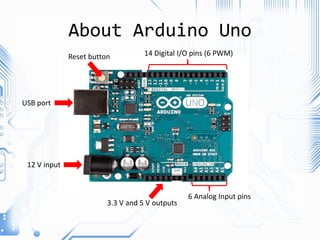
About Arduino Uno
Reset button 14 Digital I/O pins (6 PWM)
6 Analog Input pins
3.3 V and 5 V outputs
USB port
12 V input
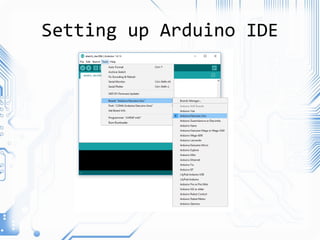
Setting up Arduino IDE
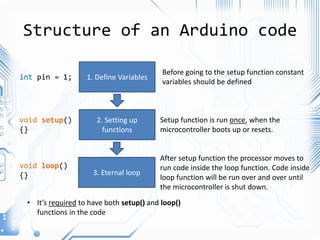
Structure of an Arduino code
1. Define Variables
2. Setting up
functions
3. Eternal loop
void setup()
{}
void loop()
{}
Setup function is run once, when the
microcontroller boots up or resets.
After setup function the processor moves to
run code inside the loop function. Code inside
loop function will be run over and over until
the microcontroller is shut down.
int pin = 1;
Before going to the setup function constant
variables should be defined
• It’s required to have both setup() and loop()
functions in the code
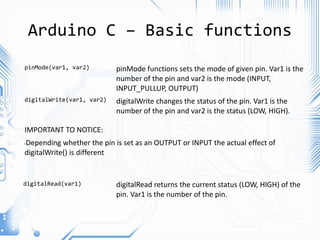
Arduino C – Basic functions
pinMode(var1, var2) pinMode functions sets the mode of given pin. Var1 is the
number of the pin and var2 is the mode (INPUT,
INPUT_PULLUP, OUTPUT)
digitalWrite changes the status of the pin. Var1 is the
number of the pin and var2 is the status (LOW, HIGH).
digitalWrite(var1, var2)
IMPORTANT TO NOTICE:
•Depending whether the pin is set as an OUTPUT or INPUT the actual effect of
digitalWrite() is different
digitalRead(var1) digitalRead returns the current status (LOW, HIGH) of the
pin. Var1 is the number of the pin.
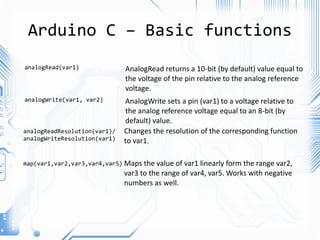
Arduino C – Basic functions
analogRead(var1) AnalogRead returns a 10-bit (by default) value equal to
the voltage of the pin relative to the analog reference
voltage.
AnalogWrite sets a pin (var1) to a voltage relative to
the analog reference voltage equal to an 8-bit (by
default) value.
analogWrite(var1, var2)
analogReadResolution(var1)/
analogWriteResolution(var1)
map(var1,var2,var3,var4,var5)
Changes the resolution of the corresponding function
to var1.
Maps the value of var1 linearly form the range var2,
var3 to the range of var4, var5. Works with negative
numbers as well.
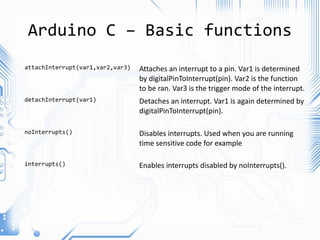
Arduino C – Basic functions
attachInterrupt(var1,var2,var3) Attaches an interrupt to a pin. Var1 is determined
by digitalPinToInterrupt(pin). Var2 is the function
to be ran. Var3 is the trigger mode of the interrupt.
Detaches an interrupt. Var1 is again determined by
digitalPinToInterrupt(pin).
detachInterrupt(var1)
Disables interrupts. Used when you are running
time sensitive code for example
noInterrupts()
Enables interrupts disabled by noInterrupts().
interrupts()
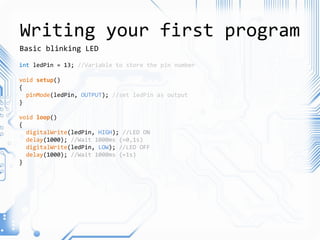
Writing your first program
int ledPin = 13; //Variable to store the pin number
void setup()
{
pinMode(ledPin, OUTPUT); //set ledPin as output
}
void loop()
{
digitalWrite(ledPin, HIGH); //LED ON
delay(1000); //Wait 1000ms (=0,1s)
digitalWrite(ledPin, LOW); //LED OFF
delay(1000); //Wait 1000ms (=1s)
}
Basic blinking LED
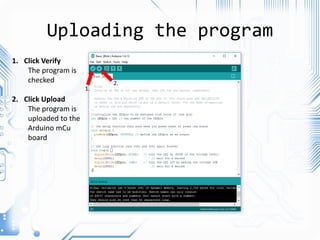
Uploading the program
1. Click Verify
The program is
checked
2. Click Upload
The program is
uploaded to the
Arduino mCu
board
1.
2.
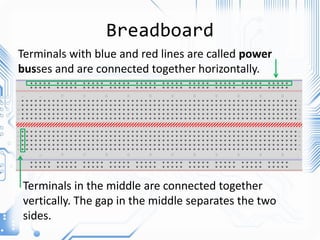
Breadboard
Terminals with blue and red lines are called power
busses and are connected together horizontally.
Terminals in the middle are connected together
vertically. The gap in the middle separates the two
sides.
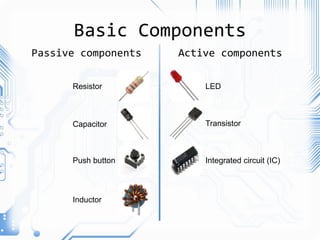
Basic Components
Resistor
Capacitor
LED
Push button
Inductor
Transistor
Integrated circuit (IC)
Passive components Active components
Example 1 – Push Button
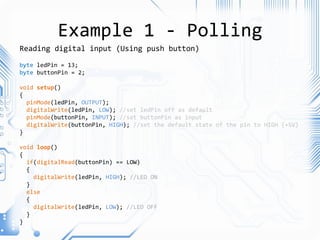
Reading digital input
Example 1 - Polling
byte ledPin = 13;
byte buttonPin = 2;
void setup()
{
pinMode(ledPin, OUTPUT);
digitalWrite(ledPin, LOW); //set ledPin off as default
pinMode(buttonPin, INPUT); //set buttonPin as input
digitalWrite(buttonPin, HIGH); //set the default state of the pin to HIGH (+5V)
}
void loop()
{
if(digitalRead(buttonPin) == LOW)
{
digitalWrite(ledPin, HIGH); //LED ON
}
else
{
digitalWrite(ledPin, LOW); //LED OFF
}
}
Reading digital input (Using push button)
Example 1 - Interrupt
byte ledPin = 13;
byte buttonPin = 2;
bool ledState = 0;
void switchLED()
{
ledState = !ledState;
digitalWrite(ledPin, ledState);
}
void setup()
{
pinMode(ledPin, OUTPUT);
digitalWrite(ledPin, LOW); //set ledPin off as default
pinMode(buttonPin, INPUT_PULLUP); //turn on the internal pullup
attachInterrupt(digitalPinToInterrupt(buttonPin), switchLED, CHANGE); //creates
the interrupt
}
void loop()
{
//waiting for interrupt
}
Using an interrupt for the same job
• Microcontrollers typically operate on low
voltages (0-5V). Even so you must be careful
when connecting devices.
• Know the electrical limits of the
microcontroller: Uno can handle max
5V/40mA per I/O pin
• Always double check the wiring! If you see
smoke it’s already too late!
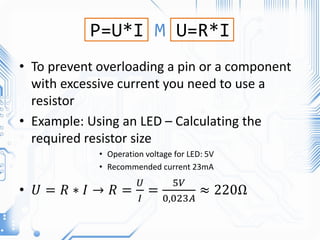
P=U*I M U=R*I
• To prevent overloading a pin or a component
with excessive current you need to use a
resistor
• Example: Using an LED – Calculating the
required resistor size
• Operation voltage for LED: 5V
• Recommended current 23mA
• 𝑈 = 𝑅 ∗ 𝐼 → 𝑅 =
𝑈
𝐼
=
5𝑉
0,023𝐴
≈ 220Ω
PWM (Pulse Width Modulation)
• Basic terms
• Duty cycle = Pulse Width / Wave Period
Duty cycle
• 100 %
• 75 %
• 50 %
• 25 %
• 0 %
←Ideal Square Wave
PWM Applications
• Servomotor angle control
• DC motor speed control
• LED Dimming
• Audio generation
• Digitally generating analog voltages (requires
filtering)
PWM with Uno
• Total of 6 pins with PWM capability (~ symbol)
• PWM frequency
– Pins 5 & 6: default: 980Hz ~1kHz
(62.5kHz base with 64 as prescaler)
– Pins 3,9,10,11: default 490Hz ~0.5kHz
(31.25 kHz base with 64 as prescaler)
• Can be adjusted (30Hz-62.5kHz) with setPwmFrequency();
http://playground.arduino.cc/Code/PwmFrequency
CAUTION: Affects the delay() millis() and Servo functions
Example 2 – Control PWM LED
Longer pin
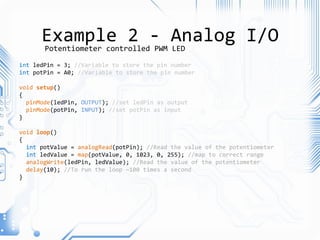
Using an analog input to control a PWM LED
Example 2 - Analog I/O
int ledPin = 3; //Variable to store the pin number
int potPin = A0; //Variable to store the pin number
void setup()
{
pinMode(ledPin, OUTPUT); //set ledPin as output
pinMode(potPin, INPUT); //set potPin as input
}
void loop()
{
int potValue = analogRead(potPin); //Read the value of the potentiometer
int ledValue = map(potValue, 0, 1023, 0, 255); //map to correct range
analogWrite(ledPin, ledValue); //Read the value of the potentiometer
delay(10); //To run the loop ~100 times a second
}
Potentiometer controlled PWM LED
In the next exercise
• USB communication
• Sensors

Microcontroller_basics_lesson1_2019 (1).pptx

  • 1.
  • 2.
    Exercise 1 •Working withArduino IDE •Basic electric components •Your first program •Digital input and output •Analog input and output •Interrupts
  • 3.
    Arduino IDE • Downloadfrom: http://arduino.cc/en/Main/Software
  • 4.
    About Arduino Uno Resetbutton 14 Digital I/O pins (6 PWM) 6 Analog Input pins 3.3 V and 5 V outputs USB port 12 V input
  • 5.
  • 6.
    Structure of anArduino code 1. Define Variables 2. Setting up functions 3. Eternal loop void setup() {} void loop() {} Setup function is run once, when the microcontroller boots up or resets. After setup function the processor moves to run code inside the loop function. Code inside loop function will be run over and over until the microcontroller is shut down. int pin = 1; Before going to the setup function constant variables should be defined • It’s required to have both setup() and loop() functions in the code
  • 7.
    Arduino C –Basic functions pinMode(var1, var2) pinMode functions sets the mode of given pin. Var1 is the number of the pin and var2 is the mode (INPUT, INPUT_PULLUP, OUTPUT) digitalWrite changes the status of the pin. Var1 is the number of the pin and var2 is the status (LOW, HIGH). digitalWrite(var1, var2) IMPORTANT TO NOTICE: •Depending whether the pin is set as an OUTPUT or INPUT the actual effect of digitalWrite() is different digitalRead(var1) digitalRead returns the current status (LOW, HIGH) of the pin. Var1 is the number of the pin.
  • 8.
    Arduino C –Basic functions analogRead(var1) AnalogRead returns a 10-bit (by default) value equal to the voltage of the pin relative to the analog reference voltage. AnalogWrite sets a pin (var1) to a voltage relative to the analog reference voltage equal to an 8-bit (by default) value. analogWrite(var1, var2) analogReadResolution(var1)/ analogWriteResolution(var1) map(var1,var2,var3,var4,var5) Changes the resolution of the corresponding function to var1. Maps the value of var1 linearly form the range var2, var3 to the range of var4, var5. Works with negative numbers as well.
  • 9.
    Arduino C –Basic functions attachInterrupt(var1,var2,var3) Attaches an interrupt to a pin. Var1 is determined by digitalPinToInterrupt(pin). Var2 is the function to be ran. Var3 is the trigger mode of the interrupt. Detaches an interrupt. Var1 is again determined by digitalPinToInterrupt(pin). detachInterrupt(var1) Disables interrupts. Used when you are running time sensitive code for example noInterrupts() Enables interrupts disabled by noInterrupts(). interrupts()
  • 10.
    Writing your firstprogram int ledPin = 13; //Variable to store the pin number void setup() { pinMode(ledPin, OUTPUT); //set ledPin as output } void loop() { digitalWrite(ledPin, HIGH); //LED ON delay(1000); //Wait 1000ms (=0,1s) digitalWrite(ledPin, LOW); //LED OFF delay(1000); //Wait 1000ms (=1s) } Basic blinking LED
  • 11.
    Uploading the program 1.Click Verify The program is checked 2. Click Upload The program is uploaded to the Arduino mCu board 1. 2.
  • 12.
    Breadboard Terminals with blueand red lines are called power busses and are connected together horizontally. Terminals in the middle are connected together vertically. The gap in the middle separates the two sides.
  • 13.
  • 14.
    Example 1 –Push Button Reading digital input
  • 15.
    Example 1 -Polling byte ledPin = 13; byte buttonPin = 2; void setup() { pinMode(ledPin, OUTPUT); digitalWrite(ledPin, LOW); //set ledPin off as default pinMode(buttonPin, INPUT); //set buttonPin as input digitalWrite(buttonPin, HIGH); //set the default state of the pin to HIGH (+5V) } void loop() { if(digitalRead(buttonPin) == LOW) { digitalWrite(ledPin, HIGH); //LED ON } else { digitalWrite(ledPin, LOW); //LED OFF } } Reading digital input (Using push button)
  • 16.
    Example 1 -Interrupt byte ledPin = 13; byte buttonPin = 2; bool ledState = 0; void switchLED() { ledState = !ledState; digitalWrite(ledPin, ledState); } void setup() { pinMode(ledPin, OUTPUT); digitalWrite(ledPin, LOW); //set ledPin off as default pinMode(buttonPin, INPUT_PULLUP); //turn on the internal pullup attachInterrupt(digitalPinToInterrupt(buttonPin), switchLED, CHANGE); //creates the interrupt } void loop() { //waiting for interrupt } Using an interrupt for the same job
  • 17.
    • Microcontrollers typicallyoperate on low voltages (0-5V). Even so you must be careful when connecting devices. • Know the electrical limits of the microcontroller: Uno can handle max 5V/40mA per I/O pin • Always double check the wiring! If you see smoke it’s already too late!
  • 18.
    P=U*I M U=R*I •To prevent overloading a pin or a component with excessive current you need to use a resistor • Example: Using an LED – Calculating the required resistor size • Operation voltage for LED: 5V • Recommended current 23mA • 𝑈 = 𝑅 ∗ 𝐼 → 𝑅 = 𝑈 𝐼 = 5𝑉 0,023𝐴 ≈ 220Ω
  • 20.
    PWM (Pulse WidthModulation) • Basic terms • Duty cycle = Pulse Width / Wave Period
  • 21.
    Duty cycle • 100% • 75 % • 50 % • 25 % • 0 % ←Ideal Square Wave
  • 22.
    PWM Applications • Servomotorangle control • DC motor speed control • LED Dimming • Audio generation • Digitally generating analog voltages (requires filtering)
  • 23.
    PWM with Uno •Total of 6 pins with PWM capability (~ symbol) • PWM frequency – Pins 5 & 6: default: 980Hz ~1kHz (62.5kHz base with 64 as prescaler) – Pins 3,9,10,11: default 490Hz ~0.5kHz (31.25 kHz base with 64 as prescaler) • Can be adjusted (30Hz-62.5kHz) with setPwmFrequency(); http://playground.arduino.cc/Code/PwmFrequency CAUTION: Affects the delay() millis() and Servo functions
  • 24.
    Example 2 –Control PWM LED Longer pin Using an analog input to control a PWM LED
  • 25.
    Example 2 -Analog I/O int ledPin = 3; //Variable to store the pin number int potPin = A0; //Variable to store the pin number void setup() { pinMode(ledPin, OUTPUT); //set ledPin as output pinMode(potPin, INPUT); //set potPin as input } void loop() { int potValue = analogRead(potPin); //Read the value of the potentiometer int ledValue = map(potValue, 0, 1023, 0, 255); //map to correct range analogWrite(ledPin, ledValue); //Read the value of the potentiometer delay(10); //To run the loop ~100 times a second } Potentiometer controlled PWM LED
  • 26.
    In the nextexercise • USB communication • Sensors

Editor's Notes

  • #5 Get its name Uno, meaning one in Italian, because it was first released at the same time as Arduino IDE version 1.0 Pin 13 is also assigned to the intregrated LED GND is ground, 5 Volt is and 5 volt output
  • #6 Remeber to all check that the port is correct! (COM4 for example)
  • #8 INPUT_PULLUP uses an internal pullup resistor: Unlike pinMode(INPUT), there is no pull-down resistor necessary. An internal  20K-ohm resistor is pulled to 5V. This configuration causes the input to  read HIGH when the switch is open, and LOW when it is closed. Explain about the need of a pull-up or pull-down resistor
  • #14 IC contains a lot of transistors.
  • #19 Ask the class, wha is calculated?
  • #20 Check resistor power-rating! These resistors are meant for signal processing (max.25 W)