Create, print, scan, and view the
scores of assessments in
Mastery Manager
Assessment
 create
 name
 key
Forms
 create
 print
 scan
 Results
 generate report
 types of reports
 Export scores to
Infinite Campus
 Assessment  create
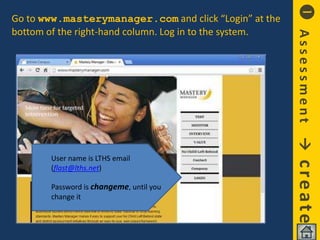
Go to www.masterymanager.com and click “Login” at the
bottom of the right-hand column. Log in to the system.
Assessmentcreate
User name is LTHS email
(flast@lths.net)
Password is changeme, until you
change it
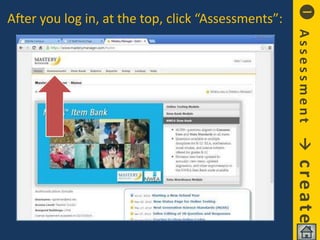
After you log in, at the top, click “Assessments”:
Assessmentcreate
Near the top, click “Create Assessment”:
Assessmentcreate
Fill out these sections:
Assessmentcreate
• Separate each field by a space
NamingConventionsAssessments
English LI Persuasive Writing Essay S2 14-15
Consumer Economics LIII Tax Form Terms Test SUM5 15-16
Trig/PreCalc Prep LIII Unit Circle Test S1 14-15
Leave all other options as they are. Scroll down
and click Save:
Assessmentcreate
You will now see Properties have been saved
near the top, along with a list of links:
Assessmentcreate
 Assessment  key
Now you’ll enter the answer key. In the list of links, click Answer
Key / Layout. Enter the correct single-letter answers in the
Answer column. If the answer is two letters, put the two letters
together like this: AC. IF the answer is either one letter or
another, put them together with a comma, like this: D,E.
When you’re done, click Save at the bottom of the screen.
Assessmentkey
 Forms  create
You’ve just created the assessment. Each
question is worth one point. (Click Weights if you
need to make some questions worth more than one point.)
Now you need to create and print the answer
forms. In the list of links, click Forms:
Formscreate
At the bottom of the page you’ll see:
You can preview the test form or print it (next).
Formscreate
To preview one form click Generate Forms to Preview
There may be a short delay before you see it.
Click Download PDF and you’ll see a sample form:
Formscreate
Image of sample form:
Notice that the student’s ID has been bubbled
in for you.
Formscreate
Please read this important information:
All answer forms that you create and use with
Mastery Manager must be originals printed
directly to a printer from the program. You must
always use an individually-printed answer sheet
for each student.
There is no way to print forms with blank Student
ID bubbles that the students bubble in themselves.
Also, each test must have its own unique answer
form that was printed on a printer. You must not
make copies of one test to use for another test.
Formscreate
 Forms  print
To print the actual answer forms for the test (you’ll
get one sheet per student), click Forms (on the top
list of links), then Generate Forms To Print. Be sure to
follow the instructions shown on the screen. Click
download PDF to download the set of test forms,
then print them. One form will print for each student.
Formsprint
MODIFYING A TEST INVALIDATES ITS PRINTED ANSWER FORMS
Printed test forms have QR codes on them. Those QR codes are
tied to the exact version of the test that existed when the forms
were printed. If you modify a test, it changes the version of the
test, breaking the connection between the test in Mastery
Manager and the QR code on the printed answer forms for that
test. When this connection is broken, the test forms are invalid.
Once you print a batch of test answer forms, if you modify the
test in Mastery Manager, that printed batch of test answer
forms won’t work. If you need to modify a test after you print
its test answer forms, you must discard the original printed
batch of test answer forms and print another batch of forms.
Formsprint
 Forms  scan
To scan forms, go to one of the scanning
stations throughout the building. Follow the
instructions on the scanning station.
You can scan any test, in any order, for any
teacher. You don’t have to separate them in
any way; just put in the whole batch. If the
tests are double-sided, the scanner will scan
both sides at once. (Be sure to select the
double sided option on the scanning screen;
instructions will be at the scanning station.)
Formsscan
 Results  generate report
HOW TO VIEW TEST SCORES
Click Assessments:
Resultsgeneratereport
You’ll see a list of your assessments appear.
Click on the one you want to look at:
Resultsgeneratereport
On the next screen, click Reports as indicated here
Resultsgeneratereport
On the next screen, click Generate Reports:
Resultsgeneratereport
 Results  types of reports
You’ll see a list of reports available:
Resultstypesofreports
At the top, Alphabetical Results gives you each student
and his or her score.
Resultstypesofreports
Item Analysis shows each test question and how it
was answered, along with test stats at the bottom:
Resultstypesofreports
Try clicking the other reports to see what they produce:
Resultstypesofreports
 Results  export scores
to Infinite Campus
ResultsexportscorestoIC
In the Export section, select “Gradebook”
Read the directions in the yellow box on the right, and
then click:
If you are using Google Chrome, the message below will pop up
each time you use the scanning station.
a) Check the box
b) Click Launch Application
Follow these 3 steps

Mastery Manager Training

  • 1.
    Create, print, scan,and view the scores of assessments in Mastery Manager
  • 2.
    Assessment  create  name key Forms  create  print  scan  Results  generate report  types of reports  Export scores to Infinite Campus
  • 3.
  • 4.
    Go to www.masterymanager.comand click “Login” at the bottom of the right-hand column. Log in to the system. Assessmentcreate User name is LTHS email (flast@lths.net) Password is changeme, until you change it
  • 5.
    After you login, at the top, click “Assessments”: Assessmentcreate
  • 6.
    Near the top,click “Create Assessment”: Assessmentcreate
  • 7.
    Fill out thesesections: Assessmentcreate
  • 8.
    • Separate eachfield by a space NamingConventionsAssessments English LI Persuasive Writing Essay S2 14-15 Consumer Economics LIII Tax Form Terms Test SUM5 15-16 Trig/PreCalc Prep LIII Unit Circle Test S1 14-15
  • 9.
    Leave all otheroptions as they are. Scroll down and click Save: Assessmentcreate
  • 10.
    You will nowsee Properties have been saved near the top, along with a list of links: Assessmentcreate
  • 11.
  • 12.
    Now you’ll enterthe answer key. In the list of links, click Answer Key / Layout. Enter the correct single-letter answers in the Answer column. If the answer is two letters, put the two letters together like this: AC. IF the answer is either one letter or another, put them together with a comma, like this: D,E. When you’re done, click Save at the bottom of the screen. Assessmentkey
  • 13.
  • 14.
    You’ve just createdthe assessment. Each question is worth one point. (Click Weights if you need to make some questions worth more than one point.) Now you need to create and print the answer forms. In the list of links, click Forms: Formscreate
  • 15.
    At the bottomof the page you’ll see: You can preview the test form or print it (next). Formscreate
  • 16.
    To preview oneform click Generate Forms to Preview There may be a short delay before you see it. Click Download PDF and you’ll see a sample form: Formscreate
  • 17.
    Image of sampleform: Notice that the student’s ID has been bubbled in for you. Formscreate
  • 18.
    Please read thisimportant information: All answer forms that you create and use with Mastery Manager must be originals printed directly to a printer from the program. You must always use an individually-printed answer sheet for each student. There is no way to print forms with blank Student ID bubbles that the students bubble in themselves. Also, each test must have its own unique answer form that was printed on a printer. You must not make copies of one test to use for another test. Formscreate
  • 19.
  • 20.
    To print theactual answer forms for the test (you’ll get one sheet per student), click Forms (on the top list of links), then Generate Forms To Print. Be sure to follow the instructions shown on the screen. Click download PDF to download the set of test forms, then print them. One form will print for each student. Formsprint
  • 21.
    MODIFYING A TESTINVALIDATES ITS PRINTED ANSWER FORMS Printed test forms have QR codes on them. Those QR codes are tied to the exact version of the test that existed when the forms were printed. If you modify a test, it changes the version of the test, breaking the connection between the test in Mastery Manager and the QR code on the printed answer forms for that test. When this connection is broken, the test forms are invalid. Once you print a batch of test answer forms, if you modify the test in Mastery Manager, that printed batch of test answer forms won’t work. If you need to modify a test after you print its test answer forms, you must discard the original printed batch of test answer forms and print another batch of forms. Formsprint
  • 22.
  • 23.
    To scan forms,go to one of the scanning stations throughout the building. Follow the instructions on the scanning station. You can scan any test, in any order, for any teacher. You don’t have to separate them in any way; just put in the whole batch. If the tests are double-sided, the scanner will scan both sides at once. (Be sure to select the double sided option on the scanning screen; instructions will be at the scanning station.) Formsscan
  • 24.
     Results generate report
  • 25.
    HOW TO VIEWTEST SCORES Click Assessments: Resultsgeneratereport
  • 26.
    You’ll see alist of your assessments appear. Click on the one you want to look at: Resultsgeneratereport
  • 27.
    On the nextscreen, click Reports as indicated here Resultsgeneratereport
  • 28.
    On the nextscreen, click Generate Reports: Resultsgeneratereport
  • 29.
     Results types of reports
  • 30.
    You’ll see alist of reports available: Resultstypesofreports
  • 31.
    At the top,Alphabetical Results gives you each student and his or her score. Resultstypesofreports
  • 32.
    Item Analysis showseach test question and how it was answered, along with test stats at the bottom: Resultstypesofreports
  • 33.
    Try clicking theother reports to see what they produce: Resultstypesofreports
  • 34.
     Results export scores to Infinite Campus
  • 35.
    ResultsexportscorestoIC In the Exportsection, select “Gradebook” Read the directions in the yellow box on the right, and then click: If you are using Google Chrome, the message below will pop up each time you use the scanning station. a) Check the box b) Click Launch Application Follow these 3 steps