
Noopur Gupta
Eclipse JDT/UI Committer
IBM India
noopur_gupta@in.ibm.com
1
Eclipse Summit India 2016 | Mastering your Eclipse IDE
2Eclipse Summit India 2016 | Mastering your Eclipse IDE
Eclipse provides a lot of powerful
features and capabilities.
 Tips and Tricks
 Java 8 Tooling
 Keyboard Shortcuts
Eclipse Summit India 2016 | Mastering your Eclipse IDE 3
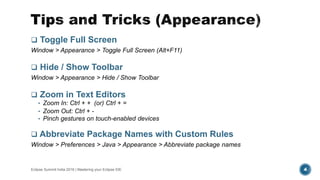
 Toggle Full Screen
Window > Appearance > Toggle Full Screen (Alt+F11)
 Hide / Show Toolbar
Window > Appearance > Hide / Show Toolbar
 Zoom in Text Editors
• Zoom In: Ctrl + + (or) Ctrl + =
• Zoom Out: Ctrl + -
• Pinch gestures on touch-enabled devices
 Abbreviate Package Names with Custom Rules
Window > Preferences > Java > Appearance > Abbreviate package names
Eclipse Summit India 2016 | Mastering your Eclipse IDE 4
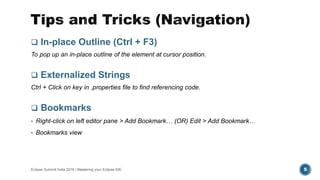
 In-place Outline (Ctrl + F3)
To pop up an in-place outline of the element at cursor position.
 Externalized Strings
Ctrl + Click on key in .properties file to find referencing code.
 Bookmarks
• Right-click on left editor pane > Add Bookmark… (OR) Edit > Add Bookmark…
• Bookmarks view
Eclipse Summit India 2016 | Mastering your Eclipse IDE 5
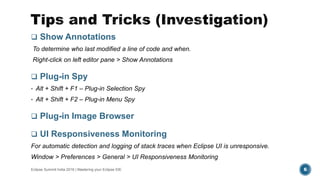
 Show Annotations
To determine who last modified a line of code and when.
Right-click on left editor pane > Show Annotations
 Plug-in Spy
• Alt + Shift + F1 – Plug-in Selection Spy
• Alt + Shift + F2 – Plug-in Menu Spy
 Plug-in Image Browser
 UI Responsiveness Monitoring
For automatic detection and logging of stack traces when Eclipse UI is unresponsive.
Window > Preferences > General > UI Responsiveness Monitoring
Eclipse Summit India 2016 | Mastering your Eclipse IDE 6
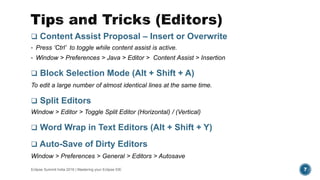
 Content Assist Proposal – Insert or Overwrite
• Press ‘Ctrl’ to toggle while content assist is active.
• Window > Preferences > Java > Editor > Content Assist > Insertion
 Block Selection Mode (Alt + Shift + A)
To edit a large number of almost identical lines at the same time.
 Split Editors
Window > Editor > Toggle Split Editor (Horizontal) / (Vertical)
 Word Wrap in Text Editors (Alt + Shift + Y)
 Auto-Save of Dirty Editors
Window > Preferences > General > Editors > Autosave
Eclipse Summit India 2016 | Mastering your Eclipse IDE 7
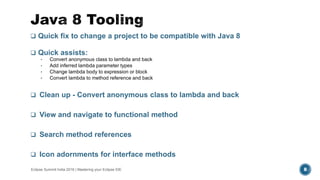
 Quick fix to change a project to be compatible with Java 8
 Quick assists:
• Convert anonymous class to lambda and back
• Add inferred lambda parameter types
• Change lambda body to expression or block
• Convert lambda to method reference and back
 Clean up - Convert anonymous class to lambda and back
 View and navigate to functional method
 Search method references
 Icon adornments for interface methods
Eclipse Summit India 2016 | Mastering your Eclipse IDE 8
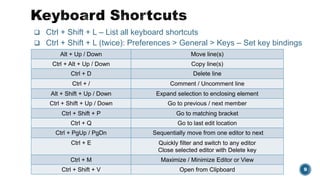
 Ctrl + Shift + L – List all keyboard shortcuts
 Ctrl + Shift + L (twice): Preferences > General > Keys – Set key bindings
Eclipse Summit India 2016 | Mastering your Eclipse IDE 9
Alt + Up / Down Move line(s)
Ctrl + Alt + Up / Down Copy line(s)
Ctrl + D Delete line
Ctrl + / Comment / Uncomment line
Alt + Shift + Up / Down Expand selection to enclosing element
Ctrl + Shift + Up / Down Go to previous / next member
Ctrl + Shift + P Go to matching bracket
Ctrl + Q Go to last edit location
Ctrl + PgUp / PgDn Sequentially move from one editor to next
Ctrl + E Quickly filter and switch to any editor
Close selected editor with Delete key
Ctrl + M Maximize / Minimize Editor or View
Ctrl + Shift + V Open from Clipboard
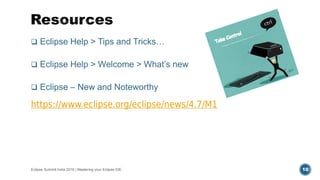
 Eclipse Help > Tips and Tricks…
 Eclipse Help > Welcome > What’s new
 Eclipse – New and Noteworthy
https://www.eclipse.org/eclipse/news/4.7/M1
Eclipse Summit India 2016 | Mastering your Eclipse IDE 10
Eclipse Summit India 2016 | Mastering your Eclipse IDE 11
#EclipseSummit
@noopur2507

Mastering your Eclipse IDE - Tips, Tricks, Java 8 tooling & More!

  • 1.
    Noopur Gupta Eclipse JDT/UICommitter IBM India noopur_gupta@in.ibm.com 1 Eclipse Summit India 2016 | Mastering your Eclipse IDE
  • 2.
    2Eclipse Summit India2016 | Mastering your Eclipse IDE Eclipse provides a lot of powerful features and capabilities.
  • 3.
     Tips andTricks  Java 8 Tooling  Keyboard Shortcuts Eclipse Summit India 2016 | Mastering your Eclipse IDE 3
  • 4.
     Toggle FullScreen Window > Appearance > Toggle Full Screen (Alt+F11)  Hide / Show Toolbar Window > Appearance > Hide / Show Toolbar  Zoom in Text Editors • Zoom In: Ctrl + + (or) Ctrl + = • Zoom Out: Ctrl + - • Pinch gestures on touch-enabled devices  Abbreviate Package Names with Custom Rules Window > Preferences > Java > Appearance > Abbreviate package names Eclipse Summit India 2016 | Mastering your Eclipse IDE 4
  • 5.
     In-place Outline(Ctrl + F3) To pop up an in-place outline of the element at cursor position.  Externalized Strings Ctrl + Click on key in .properties file to find referencing code.  Bookmarks • Right-click on left editor pane > Add Bookmark… (OR) Edit > Add Bookmark… • Bookmarks view Eclipse Summit India 2016 | Mastering your Eclipse IDE 5
  • 6.
     Show Annotations Todetermine who last modified a line of code and when. Right-click on left editor pane > Show Annotations  Plug-in Spy • Alt + Shift + F1 – Plug-in Selection Spy • Alt + Shift + F2 – Plug-in Menu Spy  Plug-in Image Browser  UI Responsiveness Monitoring For automatic detection and logging of stack traces when Eclipse UI is unresponsive. Window > Preferences > General > UI Responsiveness Monitoring Eclipse Summit India 2016 | Mastering your Eclipse IDE 6
  • 7.
     Content AssistProposal – Insert or Overwrite • Press ‘Ctrl’ to toggle while content assist is active. • Window > Preferences > Java > Editor > Content Assist > Insertion  Block Selection Mode (Alt + Shift + A) To edit a large number of almost identical lines at the same time.  Split Editors Window > Editor > Toggle Split Editor (Horizontal) / (Vertical)  Word Wrap in Text Editors (Alt + Shift + Y)  Auto-Save of Dirty Editors Window > Preferences > General > Editors > Autosave Eclipse Summit India 2016 | Mastering your Eclipse IDE 7
  • 8.
     Quick fixto change a project to be compatible with Java 8  Quick assists: • Convert anonymous class to lambda and back • Add inferred lambda parameter types • Change lambda body to expression or block • Convert lambda to method reference and back  Clean up - Convert anonymous class to lambda and back  View and navigate to functional method  Search method references  Icon adornments for interface methods Eclipse Summit India 2016 | Mastering your Eclipse IDE 8
  • 9.
     Ctrl +Shift + L – List all keyboard shortcuts  Ctrl + Shift + L (twice): Preferences > General > Keys – Set key bindings Eclipse Summit India 2016 | Mastering your Eclipse IDE 9 Alt + Up / Down Move line(s) Ctrl + Alt + Up / Down Copy line(s) Ctrl + D Delete line Ctrl + / Comment / Uncomment line Alt + Shift + Up / Down Expand selection to enclosing element Ctrl + Shift + Up / Down Go to previous / next member Ctrl + Shift + P Go to matching bracket Ctrl + Q Go to last edit location Ctrl + PgUp / PgDn Sequentially move from one editor to next Ctrl + E Quickly filter and switch to any editor Close selected editor with Delete key Ctrl + M Maximize / Minimize Editor or View Ctrl + Shift + V Open from Clipboard
  • 10.
     Eclipse Help> Tips and Tricks…  Eclipse Help > Welcome > What’s new  Eclipse – New and Noteworthy https://www.eclipse.org/eclipse/news/4.7/M1 Eclipse Summit India 2016 | Mastering your Eclipse IDE 10
  • 11.
    Eclipse Summit India2016 | Mastering your Eclipse IDE 11 #EclipseSummit @noopur2507