Eclipse workshop
Mar. 2016
• Miguel Pardal
– LEIC 2000
– Assistant Professor at Técnico Lisboa
– http://web.tecnico.ulisboa.pt/miguel.pardal
– Eclipse user since 2005
– Conditional fan 
Outline
• Introduction
– Concepts
– Techniques
• Hands-on
History
• Eclipse started out as proprietary technology
– Object Technology International (OTI)
– IBM’s goals:
• Reduce incompatible environments
• Increase reuse of common components
• Evolved from IBM VisualAge for
Smalltalk™ and for Java™
– Monolithic
http://wiki.eclipse.org/FAQ_Where_did_Eclipse_come_from%3F
History
• The Eclipse open source project was announced in November
2001 by a group of companies that formed the initial Eclipse
Consortium
– Eclipse Foundation since 2004
• Commercial-friendly open source license
– Wider audience and ecosystem
• Eclipse was designed from the ground up as an integration
platform for development tools
– Everything in Eclipse is a plug-in
– Uses SWT to bind to local platform GUI
– OSGi component model since 3.0
– Annual Simultaneous Release (…, Luna, Mars, Neon, …)
Install
• Simple:
– Download
– Unzip
– Run
• All configurations are file-based
– Workspace folder
• Settings
• Projects
– Project metadata files
• .project
• .classpath
CONCEPTS
Workbench
• Eclipse’s main window
– Menus and toolbars
– Views, editors, perspectives
View
• A view is a window that lets you examine
something
– Navigate a list or hierarchy of information
– Display properties for the active editor
• Modifications made in a view are saved
immediately
Editor
• Editors are used to edit or browse a
resource
– Rectangular area in the Workbench window
– Visual presentation might be text or a
diagram.
– Editors are launched by clicking on a resource
in a view
– Modifications made in an editor follow an
open-save-close lifecycle model
• * indicates unsaved data
Perspective
• A perspective is a set of views, editors, and
toolbars, along with their arrangement within the
Workbench window.
• As you perform a task, you may rearrange windows,
new views, and so on.
– Saved under the current perspective.
– Next time, switch to perspective
– Within a window, each perspective may have a
different set of views but all perspectives share
the same set of editors.
• Built-in Java or Debug perspectives
Java Project
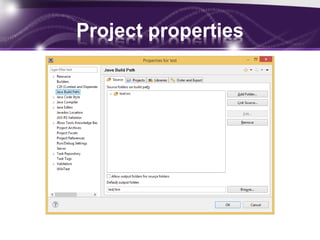
Project properties
Project properties
Auto-complete
• From the current context – project, class,
method, line, … what could complete it?
– CTRL+space
Auto-build
• Compilation is automatic in Eclipse
• Blessing
– string s = “Eclipse”;
• Curse
– String s = “Ecli
FACTORING TECHNIQUES
Factoring
• Create the application domain
• Create class
– Members
– Methods
• Generate methods
– Getters Setters
– toString
Create
Create class
Source menu
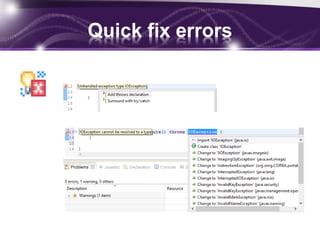
Quick fix errors
Quick fix warnings
Implicit class creation
– Write code as if the class already exists
• Write code referring to non-existing classes
– Use quick-fix to generate class
But beware…
• Quick-fix can become “quick-bug”
• Example
– Try-catch and ignore
• Worst solution
– Try-catch, print and continue
• As if nothing has happened… but it did!
– Think it through:
• Handle exception (try-catch)
• Or let someone else do it (throws)
Testing
• JUnit Class
• JUnit View
REFACTORING TECHNIQUES
Refactoring
• Refactoring is a process of software source code
transformation
– Should be performed when the code is working and
all of its tests are passing
– Does not involve rewriting or replacing large chunks
of code.
– Gradual, evolutionary process, intended to “preserve
the knowledge embedded in the existing code.”
• Examples
– Rename
– Extract method
Refactor menu
Conclusions
• Very useful tool
• Can increase productivity
– Code formatting
– Especially in refactoring
• But…
– Does NOT replace critical thought and design
– Can increase the production of all code
• Bugs included!
Shortcuts
Top 10
10. Shortcut to shortcuts
• Ctrl+Shift+L to see a full list of the
currently available key bindings
9. Open file / type
• Open file quickly without browsing:
Ctrl + Shift + R
• Open a type (class / interface):
Ctrl + Shift + T
8. Show properties
• Select project
Alt+Enter
• Select type/resource
Alt+Enter
7. Maximize editor
• Maximizes current editor
Ctrl + M
• You can also double-click editor tab
6. Editor navigation
• Jump to beginning / end of indentation. Twice to jump to beginning of line
– Home/End
• Jump to beginning / jump to end of source
– Ctrl+Home/End
• Jump one word to the left / one word to the right
– Ctrl+Arrow Right/Arrow Left
• Jump to previous / jump to next method
– Ctrl+Shift+Arrow Down/Arrow Up
• Jump to next / jump to previous compiler syntax warning or error
– Ctrl+./Ctrl+,
• Jump to last location edited
– Ctrl+q
• Jump to Line Number
– Ctrl+l
• Hide/show line numbers
– Ctrl+F10 and select 'Show Line Numbers'
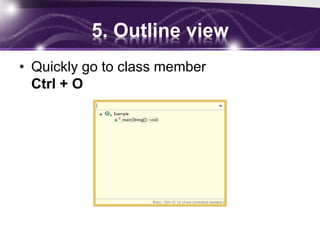
5. Outline view
• Quickly go to class member
Ctrl + O
4. Code formatting
• Ctrl + Shift + F for code formatting
• Ctrl + / for commenting, un commenting
lines and blocks
3. Organize imports
• Organize imports
Ctrl+Shift+O
• Go from:
– import java.util.*
• To:
– import java.util.Map;
– import java.util.Iterator;
2. Print line
• syso Ctrl+space
• syse Ctrl+space
1. Guess Exception
• throw new NPE Ctrl+space
– NullPointerException
• throw new IAE Ctrl+space
– IllegalArgumentException

Eclipse workshop presentation (March 2016)

  • 1.
  • 2.
    • Miguel Pardal –LEIC 2000 – Assistant Professor at Técnico Lisboa – http://web.tecnico.ulisboa.pt/miguel.pardal – Eclipse user since 2005 – Conditional fan 
  • 3.
  • 4.
    History • Eclipse startedout as proprietary technology – Object Technology International (OTI) – IBM’s goals: • Reduce incompatible environments • Increase reuse of common components • Evolved from IBM VisualAge for Smalltalk™ and for Java™ – Monolithic http://wiki.eclipse.org/FAQ_Where_did_Eclipse_come_from%3F
  • 5.
    History • The Eclipseopen source project was announced in November 2001 by a group of companies that formed the initial Eclipse Consortium – Eclipse Foundation since 2004 • Commercial-friendly open source license – Wider audience and ecosystem • Eclipse was designed from the ground up as an integration platform for development tools – Everything in Eclipse is a plug-in – Uses SWT to bind to local platform GUI – OSGi component model since 3.0 – Annual Simultaneous Release (…, Luna, Mars, Neon, …)
  • 6.
    Install • Simple: – Download –Unzip – Run • All configurations are file-based – Workspace folder • Settings • Projects – Project metadata files • .project • .classpath
  • 7.
  • 8.
    Workbench • Eclipse’s mainwindow – Menus and toolbars – Views, editors, perspectives
  • 9.
    View • A viewis a window that lets you examine something – Navigate a list or hierarchy of information – Display properties for the active editor • Modifications made in a view are saved immediately
  • 10.
    Editor • Editors areused to edit or browse a resource – Rectangular area in the Workbench window – Visual presentation might be text or a diagram. – Editors are launched by clicking on a resource in a view – Modifications made in an editor follow an open-save-close lifecycle model • * indicates unsaved data
  • 12.
    Perspective • A perspectiveis a set of views, editors, and toolbars, along with their arrangement within the Workbench window. • As you perform a task, you may rearrange windows, new views, and so on. – Saved under the current perspective. – Next time, switch to perspective – Within a window, each perspective may have a different set of views but all perspectives share the same set of editors. • Built-in Java or Debug perspectives
  • 15.
  • 16.
  • 17.
  • 18.
    Auto-complete • From thecurrent context – project, class, method, line, … what could complete it? – CTRL+space
  • 19.
    Auto-build • Compilation isautomatic in Eclipse • Blessing – string s = “Eclipse”; • Curse – String s = “Ecli
  • 20.
  • 21.
    Factoring • Create theapplication domain • Create class – Members – Methods • Generate methods – Getters Setters – toString
  • 22.
  • 23.
  • 24.
  • 25.
  • 26.
  • 27.
    Implicit class creation –Write code as if the class already exists • Write code referring to non-existing classes – Use quick-fix to generate class
  • 28.
    But beware… • Quick-fixcan become “quick-bug” • Example – Try-catch and ignore • Worst solution – Try-catch, print and continue • As if nothing has happened… but it did! – Think it through: • Handle exception (try-catch) • Or let someone else do it (throws)
  • 29.
  • 30.
  • 31.
    Refactoring • Refactoring isa process of software source code transformation – Should be performed when the code is working and all of its tests are passing – Does not involve rewriting or replacing large chunks of code. – Gradual, evolutionary process, intended to “preserve the knowledge embedded in the existing code.” • Examples – Rename – Extract method
  • 32.
  • 33.
    Conclusions • Very usefultool • Can increase productivity – Code formatting – Especially in refactoring • But… – Does NOT replace critical thought and design – Can increase the production of all code • Bugs included!
  • 34.
  • 35.
    10. Shortcut toshortcuts • Ctrl+Shift+L to see a full list of the currently available key bindings
  • 36.
    9. Open file/ type • Open file quickly without browsing: Ctrl + Shift + R • Open a type (class / interface): Ctrl + Shift + T
  • 37.
    8. Show properties •Select project Alt+Enter • Select type/resource Alt+Enter
  • 38.
    7. Maximize editor •Maximizes current editor Ctrl + M • You can also double-click editor tab
  • 39.
    6. Editor navigation •Jump to beginning / end of indentation. Twice to jump to beginning of line – Home/End • Jump to beginning / jump to end of source – Ctrl+Home/End • Jump one word to the left / one word to the right – Ctrl+Arrow Right/Arrow Left • Jump to previous / jump to next method – Ctrl+Shift+Arrow Down/Arrow Up • Jump to next / jump to previous compiler syntax warning or error – Ctrl+./Ctrl+, • Jump to last location edited – Ctrl+q • Jump to Line Number – Ctrl+l • Hide/show line numbers – Ctrl+F10 and select 'Show Line Numbers'
  • 40.
    5. Outline view •Quickly go to class member Ctrl + O
  • 41.
    4. Code formatting •Ctrl + Shift + F for code formatting • Ctrl + / for commenting, un commenting lines and blocks
  • 42.
    3. Organize imports •Organize imports Ctrl+Shift+O • Go from: – import java.util.* • To: – import java.util.Map; – import java.util.Iterator;
  • 43.
    2. Print line •syso Ctrl+space • syse Ctrl+space
  • 44.
    1. Guess Exception •throw new NPE Ctrl+space – NullPointerException • throw new IAE Ctrl+space – IllegalArgumentException