EclipseCon Europe 2015 | High productivity development with Eclipse and Java 8
1
Noopur Gupta
Eclipse JDT/UI Committer
IBM India
noopur_gupta@in.ibm.com
EclipseCon Europe 2015 | High productivity development with Eclipse and Java 8
2
EclipseCon Europe 2015 | High productivity development with Eclipse and Java 8
3
 Tips & Tricks for:
 Organization
 Navigation
 Coding
 Debugging
 Java 8
 Keyboard Shortcuts
Demo overview
EclipseCon Europe 2015 | High productivity development with Eclipse and Java 8
4
Demo
EclipseCon Europe 2015 | High productivity development with Eclipse and Java 8
5
 Working with multiple workspaces
o -data parameter for default workspace location
o Workspace name and location in title bar
 Abbreviate package names
 Share software items between Eclipse installations
o Import > From existing installation
o Export / Import > Installed software items to / from file
Organization
EclipseCon Europe 2015 | High productivity development with Eclipse and Java 8
6
 In-place outline (Ctrl + F3)
 Hovers (Java > Editor > Hovers)
o View Javadoc on hover in case of error/warning on identifier:
Ctrl + Shift + hover (or) Javadoc view
o View source on hover:
Shift + hover (or) Declaration view
o Expand vertical ruler icons on hover
 Externalized strings
o Ctrl + Click on key in .properties file to find referencing code
 Bookmarks
Navigation
EclipseCon Europe 2015 | High productivity development with Eclipse and Java 8
7
 Show Annotations
 Block Selection mode
 Content assist proposal – Insert or Overwrite
o Java > Editor > Content Assist
o Press ‘Ctrl’ to toggle while content assist is active
 Templates
 Formatter Off/On Tags
Coding
EclipseCon Europe 2015 | High productivity development with Eclipse and Java 8
8
 Smart step into selection (Ctrl + Alt + Click or Ctrl + F5)
 Step Filters
 Grouping breakpoints
 Print-points
Debugging
EclipseCon Europe 2015 | High productivity development with Eclipse and Java 8
9
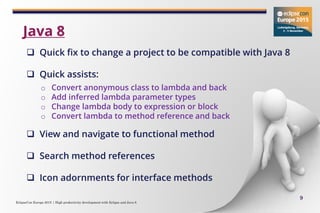
 Quick fix to change a project to be compatible with Java 8
 Quick assists:
o Convert anonymous class to lambda and back
o Add inferred lambda parameter types
o Change lambda body to expression or block
o Convert lambda to method reference and back
 View and navigate to functional method
 Search method references
 Icon adornments for interface methods
Java 8
EclipseCon Europe 2015 | High productivity development with Eclipse and Java 8
10
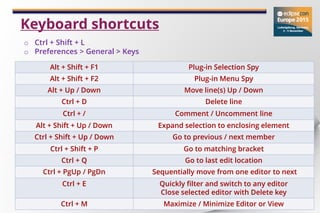
Keyboard shortcuts
Alt + Shift + F1 Plug-in Selection Spy
Alt + Shift + F2 Plug-in Menu Spy
Alt + Up / Down Move line(s) Up / Down
Ctrl + D Delete line
Ctrl + / Comment / Uncomment line
Alt + Shift + Up / Down Expand selection to enclosing element
Ctrl + Shift + Up / Down Go to previous / next member
Ctrl + Shift + P Go to matching bracket
Ctrl + Q Go to last edit location
Ctrl + PgUp / PgDn Sequentially move from one editor to next
Ctrl + E Quickly filter and switch to any editor
Close selected editor with Delete key
Ctrl + M Maximize / Minimize Editor or View
o Ctrl + Shift + L
o Preferences > General > Keys
EclipseCon Europe 2015 | High productivity development with Eclipse and Java 8
11
 Eclipse Help > Tips and Tricks…
 Eclipse Help > Welcome > What’s new
 Eclipse – New and Noteworthy
…
https://www.eclipse.org/eclipse/news/4.6
Last but not the least!
EclipseCon Europe 2015 | High productivity development with Eclipse and Java 8
14

High productivity development with Eclipse and Java 8

  • 1.
    EclipseCon Europe 2015| High productivity development with Eclipse and Java 8 1 Noopur Gupta Eclipse JDT/UI Committer IBM India noopur_gupta@in.ibm.com
  • 2.
    EclipseCon Europe 2015| High productivity development with Eclipse and Java 8 2
  • 3.
    EclipseCon Europe 2015| High productivity development with Eclipse and Java 8 3  Tips & Tricks for:  Organization  Navigation  Coding  Debugging  Java 8  Keyboard Shortcuts Demo overview
  • 4.
    EclipseCon Europe 2015| High productivity development with Eclipse and Java 8 4 Demo
  • 5.
    EclipseCon Europe 2015| High productivity development with Eclipse and Java 8 5  Working with multiple workspaces o -data parameter for default workspace location o Workspace name and location in title bar  Abbreviate package names  Share software items between Eclipse installations o Import > From existing installation o Export / Import > Installed software items to / from file Organization
  • 6.
    EclipseCon Europe 2015| High productivity development with Eclipse and Java 8 6  In-place outline (Ctrl + F3)  Hovers (Java > Editor > Hovers) o View Javadoc on hover in case of error/warning on identifier: Ctrl + Shift + hover (or) Javadoc view o View source on hover: Shift + hover (or) Declaration view o Expand vertical ruler icons on hover  Externalized strings o Ctrl + Click on key in .properties file to find referencing code  Bookmarks Navigation
  • 7.
    EclipseCon Europe 2015| High productivity development with Eclipse and Java 8 7  Show Annotations  Block Selection mode  Content assist proposal – Insert or Overwrite o Java > Editor > Content Assist o Press ‘Ctrl’ to toggle while content assist is active  Templates  Formatter Off/On Tags Coding
  • 8.
    EclipseCon Europe 2015| High productivity development with Eclipse and Java 8 8  Smart step into selection (Ctrl + Alt + Click or Ctrl + F5)  Step Filters  Grouping breakpoints  Print-points Debugging
  • 9.
    EclipseCon Europe 2015| High productivity development with Eclipse and Java 8 9  Quick fix to change a project to be compatible with Java 8  Quick assists: o Convert anonymous class to lambda and back o Add inferred lambda parameter types o Change lambda body to expression or block o Convert lambda to method reference and back  View and navigate to functional method  Search method references  Icon adornments for interface methods Java 8
  • 10.
    EclipseCon Europe 2015| High productivity development with Eclipse and Java 8 10 Keyboard shortcuts Alt + Shift + F1 Plug-in Selection Spy Alt + Shift + F2 Plug-in Menu Spy Alt + Up / Down Move line(s) Up / Down Ctrl + D Delete line Ctrl + / Comment / Uncomment line Alt + Shift + Up / Down Expand selection to enclosing element Ctrl + Shift + Up / Down Go to previous / next member Ctrl + Shift + P Go to matching bracket Ctrl + Q Go to last edit location Ctrl + PgUp / PgDn Sequentially move from one editor to next Ctrl + E Quickly filter and switch to any editor Close selected editor with Delete key Ctrl + M Maximize / Minimize Editor or View o Ctrl + Shift + L o Preferences > General > Keys
  • 11.
    EclipseCon Europe 2015| High productivity development with Eclipse and Java 8 11  Eclipse Help > Tips and Tricks…  Eclipse Help > Welcome > What’s new  Eclipse – New and Noteworthy … https://www.eclipse.org/eclipse/news/4.6 Last but not the least!
  • 13.
    EclipseCon Europe 2015| High productivity development with Eclipse and Java 8
  • 14.