MapInfo
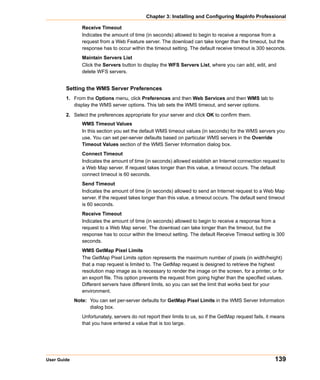
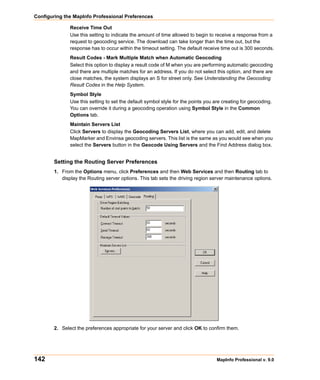
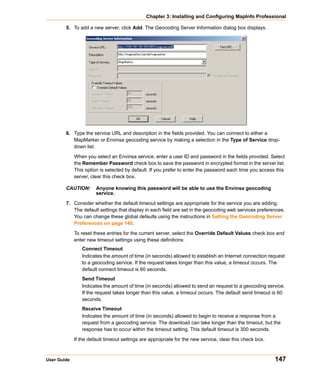
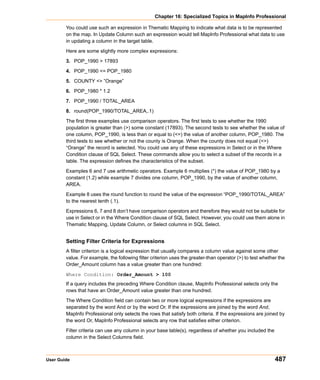
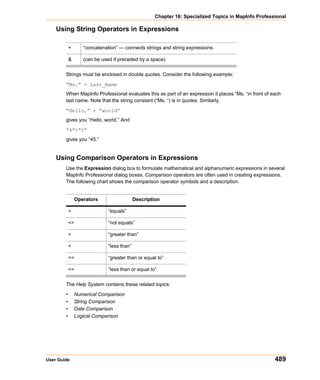
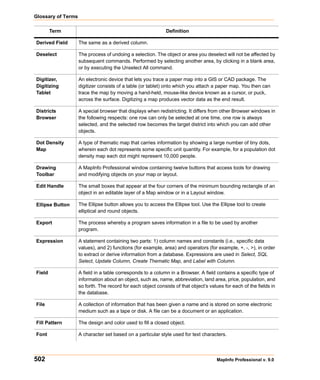
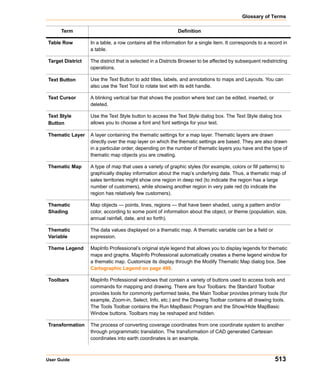
Professional
Version 9.0


USER GUIDE (ABRIDGED)
Information in this document is subject to change without notice and does not represent a commitment on the part of the vendor or its representatives. No part of this document
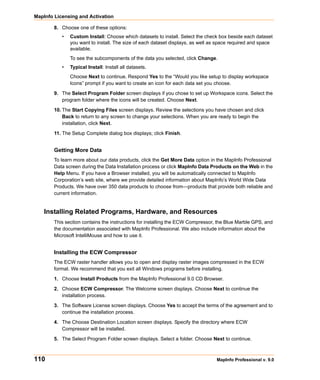
may be reproduced or transmitted in any form or by any means, electronic or mechanical, including photocopying, without the written permission of Pitney Bowes MapInfo
Corporation, One Global View, Troy, New York 12180-8399.
© 2007 Pitney Bowes MapInfo Corporation. All rights reserved. MapInfo, the MapInfo logo, MapBasic, and MapInfo Professional are trademarks of Pitney Bowes MapInfo
Corporation and/or its affiliates.
Corporate Headquarters:
Voice: (518) 285-6000
Fax: (518) 285-6070
Sales Info Hotline: (800) 327-8627
Government Sales Hotline: (800) 619-2333
Technical Support Hotline: (518) 285-7283
Technical Support Fax: (518) 285-6080
Contact information for all corporate offices is located at: http://www.mapinfo.com/contactus.
Adobe Acrobat® is a registered trademark of Adobe Systems Incorporated in the United States.
Products named herein may be trademarks of their respective manufacturers and are hereby recognized. Trademarked names are used editorially, to the benefit of the trademark
owner, with no intent to infringe on the trademark.
libtiff © 1988-1995 Sam Leffler, copyright © Silicon Graphics, Inc.
libgeotiff © 1995 Niles D. Ritter.
Portions © 1999 3D Graphics, Inc. All Rights Reserved.
HIL - Halo Image Library © 1993, Media Cybernetics Inc. Halo Imaging Library is a trademark of Media Cybernetics, Inc.
Portions thereof LEAD Technologies, Inc. © 1991-2003. All Rights Reserved.
Portions © 1993-2005 Ken Martin, Will Schroeder, Bill Lorensen. All Rights Reserved.
ECW by ER Mapper © 1993-2005
VM Grid by Northwood Technologies, Inc., a Marconi Company © 1995-2005.
Portions © 2003 Earth Resource Mapping, Ltd. All Rights Reserved.
MrSID, MrSID Decompressor and the MrSID logo are trademarks of LizardTech, Inc. used under license. Portions of this computer program are copyright © 1995-1998
LizardTech and/or the university of California or are protected by US patent nos. 5,710,835; 5,130,701; or 5,467,110 and are used under license. All rights reserved. MrSID is
protected under US and international patent & copyright treaties and foreign patent applications are pending. Unauthorized use or duplication prohibited.
Contains FME ® Objects; © 2006 Safe Software, Inc.
Crystal Reports ® is proprietary trademark of Crystal Decisions. All Rights Reserved.
Products named herein may be trademarks of their respective manufacturers and are hereby recognized. Trademarked names are used editorially, to the benefit of the trademark
owner, with no intent to infringe on the trademark.
Portions © Tele Atlas, Inc (GDT, Inc.)
September 2007
Table of Contents

 Chapter 1: Introduction . . . . . . . . . . . . . . . . . . . . . . . . . . . . . . . . . . . . . . . . . . . . . . 15
     What is MapInfo Professional? . . . . . . . . . . . . . . . . . . . . . . . . . . . . . . . . . . . . . . . . . . . .16
       Mapping at a Glance . . . . . . . . . . . . . . . . . . . . . . . . . . . . . . . . . . . . . . . . . . . . . . . . . . .16
       Reviewing the MapInfo Professional Features. . . . . . . . . . . . . . . . . . . . . . . . . . . . . . . .17
     Getting Support . . . . . . . . . . . . . . . . . . . . . . . . . . . . . . . . . . . . . . . . . . . . . . . . . . . . . . . . .19
       Using the Status Bar . . . . . . . . . . . . . . . . . . . . . . . . . . . . . . . . . . . . . . . . . . . . . . . . . . .19
       Using the Help System. . . . . . . . . . . . . . . . . . . . . . . . . . . . . . . . . . . . . . . . . . . . . . . . . .19
       Getting Technical Support . . . . . . . . . . . . . . . . . . . . . . . . . . . . . . . . . . . . . . . . . . . . . . .20
 Chapter 2: What’s New in MapInfo Professional 9.0 . . . . . . . . . . . . . . . . . . . . . . 21
     Before You Get Started. . . . . . . . . . . . . . . . . . . . . . . . . . . . . . . . . . . . . . . . . . . . . . . . . . .22
        Changes to the Installer . . . . . . . . . . . . . . . . . . . . . . . . . . . . . . . . . . . . . . . . . . . . . . . .22
        Licensing Support for MapInfo Professional . . . . . . . . . . . . . . . . . . . . . . . . . . . . . . . . .22
        MapBasic Available Free of Charge on the Web . . . . . . . . . . . . . . . . . . . . . . . . . . . . . .22
     Major Features and Enhancements. . . . . . . . . . . . . . . . . . . . . . . . . . . . . . . . . . . . . . . . .22
        Using Date- and Time-Based Data in Maps and Queries . . . . . . . . . . . . . . . . . . . . . . .23
        Curved Labels Improve the Look of Your Maps. . . . . . . . . . . . . . . . . . . . . . . . . . . . . . .31
        Using Universal Data Directly . . . . . . . . . . . . . . . . . . . . . . . . . . . . . . . . . . . . . . . . . . . .34
        Using Templates for Layouts . . . . . . . . . . . . . . . . . . . . . . . . . . . . . . . . . . . . . . . . . . . . .40
     Mapping – New Features and Enhancements . . . . . . . . . . . . . . . . . . . . . . . . . . . . . . . .55
        Setting a Global Label Font . . . . . . . . . . . . . . . . . . . . . . . . . . . . . . . . . . . . . . . . . . . . . .56
        Creating Multiple HotLinks in a Map . . . . . . . . . . . . . . . . . . . . . . . . . . . . . . . . . . . . . . .56
        Setting the New Default Layout Preferences . . . . . . . . . . . . . . . . . . . . . . . . . . . . . . . . .60
        New Prompt Prevents the Loss of Work when Closing Windows . . . . . . . . . . . . . . . . .61
        Improvements in Symbol Style Dialog Box and New Fonts . . . . . . . . . . . . . . . . . . . . . .62
     Tool Enhancement . . . . . . . . . . . . . . . . . . . . . . . . . . . . . . . . . . . . . . . . . . . . . . . . . . . . . .63
        Setting the Window Size with the Window Manager Tool . . . . . . . . . . . . . . . . . . . . . . .63
     Coordinate System and Datum Enhancements . . . . . . . . . . . . . . . . . . . . . . . . . . . . . . .63
        Updated Australian Victorian Coordinate System . . . . . . . . . . . . . . . . . . . . . . . . . . . . .64
        Updated Danish Coordinate System Entries . . . . . . . . . . . . . . . . . . . . . . . . . . . . . . . . .64
     Printing, Importing, and Exporting Enhancements . . . . . . . . . . . . . . . . . . . . . . . . . . . .65
        Exporting to GeoTIFF (*.tif) Format . . . . . . . . . . . . . . . . . . . . . . . . . . . . . . . . . . . . . . . .65
     Database Enhancements . . . . . . . . . . . . . . . . . . . . . . . . . . . . . . . . . . . . . . . . . . . . . . . . .69
        Using the Find Command in Remote Tables . . . . . . . . . . . . . . . . . . . . . . . . . . . . . . . . .69
        Using the Geocode Command in Remote Tables . . . . . . . . . . . . . . . . . . . . . . . . . . . . .70
Table of Contents

          New Find Selection Preferences for Copying/Pasting . . . . . . . . . . . . . . . . . . . . . . . . . . 70
          New Time and DateTime Data Type Support for Remote Databases . . . . . . . . . . . . . . 72
       Miscellaneous Enhancements . . . . . . . . . . . . . . . . . . . . . . . . . . . . . . . . . . . . . . . . . . . . . 74
          Envinsa Routing and Geocoding Constraints Change. . . . . . . . . . . . . . . . . . . . . . . . . . 74
          New TrueType Font Behavior . . . . . . . . . . . . . . . . . . . . . . . . . . . . . . . . . . . . . . . . . . . . 74
          Improved Character Set Conversion . . . . . . . . . . . . . . . . . . . . . . . . . . . . . . . . . . . . . . . 74
          MapBasic Help Available from MapBasic Window . . . . . . . . . . . . . . . . . . . . . . . . . . . . 75
       Data Enhancements . . . . . . . . . . . . . . . . . . . . . . . . . . . . . . . . . . . . . . . . . . . . . . . . . . . . . 76
          Installing the Free Data Locally . . . . . . . . . . . . . . . . . . . . . . . . . . . . . . . . . . . . . . . . . . . 77
          Data Updates and Additions . . . . . . . . . . . . . . . . . . . . . . . . . . . . . . . . . . . . . . . . . . . . . 77
    Chapter 3: Installing and Configuring MapInfo Professional . . . . . . . . . . . . . . . . 79
       System Requirements . . . . . . . . . . . . . . . . . . . . . . . . . . . . . . . . . . . . . . . . . . . . . . . . . . . 80
       MapInfo Professional and Operating System Support . . . . . . . . . . . . . . . . . . . . . . . . . 81
          Windows 2000 Support . . . . . . . . . . . . . . . . . . . . . . . . . . . . . . . . . . . . . . . . . . . . . . . . . 81
          Windows 2003 Server with Terminal Services/Citrix Support . . . . . . . . . . . . . . . . . . . . 82
       MapInfo Professional Database Connectivity and Support . . . . . . . . . . . . . . . . . . . . . 83
       Before You Install MapInfo Professional . . . . . . . . . . . . . . . . . . . . . . . . . . . . . . . . . . . . 84
          Navigating the MapInfo Professional CD Browser. . . . . . . . . . . . . . . . . . . . . . . . . . . . . 85
       Installing MapInfo Professional . . . . . . . . . . . . . . . . . . . . . . . . . . . . . . . . . . . . . . . . . . . . 85
          Typical Workstation Installation . . . . . . . . . . . . . . . . . . . . . . . . . . . . . . . . . . . . . . . . . . . 88
          Custom Workstation Installation . . . . . . . . . . . . . . . . . . . . . . . . . . . . . . . . . . . . . . . . . . 88
          Network Installation . . . . . . . . . . . . . . . . . . . . . . . . . . . . . . . . . . . . . . . . . . . . . . . . . . . . 90
          Setting Up Client Workstations . . . . . . . . . . . . . . . . . . . . . . . . . . . . . . . . . . . . . . . . . . . 92
       MapInfo Licensing and Activation. . . . . . . . . . . . . . . . . . . . . . . . . . . . . . . . . . . . . . . . . . 92
          Node-Locked Licenses . . . . . . . . . . . . . . . . . . . . . . . . . . . . . . . . . . . . . . . . . . . . . . . . . 92
          Concurrent Licenses . . . . . . . . . . . . . . . . . . . . . . . . . . . . . . . . . . . . . . . . . . . . . . . . . . 101
          Silent Installation Procedures for System Administrators . . . . . . . . . . . . . . . . . . . . . . 105
          Installing Data . . . . . . . . . . . . . . . . . . . . . . . . . . . . . . . . . . . . . . . . . . . . . . . . . . . . . . . 109
          Installing Related Programs, Hardware, and Resources . . . . . . . . . . . . . . . . . . . . . . . 110
          Troubleshooting your Installation . . . . . . . . . . . . . . . . . . . . . . . . . . . . . . . . . . . . . . . . . 112
       Modifying or Removing MapInfo Professional. . . . . . . . . . . . . . . . . . . . . . . . . . . . . . . 112
          Controlling Advanced System Settings . . . . . . . . . . . . . . . . . . . . . . . . . . . . . . . . . . . . 113
          Controlling the Location of Application Data Files During Installation . . . . . . . . . . . . . 114
          Removing MapInfo Professional from your System using Control Panel . . . . . . . . . . 115
       Configuring the MapInfo Professional Preferences . . . . . . . . . . . . . . . . . . . . . . . . . . 116
          Setting the Preferences . . . . . . . . . . . . . . . . . . . . . . . . . . . . . . . . . . . . . . . . . . . . . . . . 117
          Setting your System Preferences . . . . . . . . . . . . . . . . . . . . . . . . . . . . . . . . . . . . . . . . 118
          Setting your Map Window Preferences . . . . . . . . . . . . . . . . . . . . . . . . . . . . . . . . . . . . 120
          Setting your Layout Window Preferences . . . . . . . . . . . . . . . . . . . . . . . . . . . . . . . . . . 124
          Setting your Legend Window Preferences. . . . . . . . . . . . . . . . . . . . . . . . . . . . . . . . . . 125
          Setting the Startup Preferences . . . . . . . . . . . . . . . . . . . . . . . . . . . . . . . . . . . . . . . . . 126

4                                                                                                        MapInfo Professional v.9.0
Table of Contents

         Setting your Address Matching Preferences . . . . . . . . . . . . . . . . . . . . . . . . . . . . . . . .129
         Setting your Directory Preferences . . . . . . . . . . . . . . . . . . . . . . . . . . . . . . . . . . . . . . .129
         Setting your Output Setting Preferences . . . . . . . . . . . . . . . . . . . . . . . . . . . . . . . . . . .130
         Setting the Printer Preferences . . . . . . . . . . . . . . . . . . . . . . . . . . . . . . . . . . . . . . . . . .134
         Setting your Style Preferences. . . . . . . . . . . . . . . . . . . . . . . . . . . . . . . . . . . . . . . . . . .135
         Setting the Web Services Preferences . . . . . . . . . . . . . . . . . . . . . . . . . . . . . . . . . . . .136
         Setting up the Image Processing Preferences. . . . . . . . . . . . . . . . . . . . . . . . . . . . . . .144
         Setting up a Geocoding Server . . . . . . . . . . . . . . . . . . . . . . . . . . . . . . . . . . . . . . . . . .145
         Setting up the Routing Server . . . . . . . . . . . . . . . . . . . . . . . . . . . . . . . . . . . . . . . . . . .148
      Starting up and Leaving MapInfo Professional . . . . . . . . . . . . . . . . . . . . . . . . . . . . . .149
         Starting MapInfo Professional . . . . . . . . . . . . . . . . . . . . . . . . . . . . . . . . . . . . . . . . . . .149
         Exiting MapInfo Professional . . . . . . . . . . . . . . . . . . . . . . . . . . . . . . . . . . . . . . . . . . . .149
      File Format Types Supported. . . . . . . . . . . . . . . . . . . . . . . . . . . . . . . . . . . . . . . . . . . . .150
   Chapter 4: The Basics of MapInfo Professional . . . . . . . . . . . . . . . . . . . . . . . . . 153
      A Tour of the MapInfo Professional Desktop . . . . . . . . . . . . . . . . . . . . . . . . . . . . . . . .154
         Working with Toolbars . . . . . . . . . . . . . . . . . . . . . . . . . . . . . . . . . . . . . . . . . . . . . . . . .154
         Using Workspaces . . . . . . . . . . . . . . . . . . . . . . . . . . . . . . . . . . . . . . . . . . . . . . . . . . . .158
      Understanding Your Data in MapInfo Professional . . . . . . . . . . . . . . . . . . . . . . . . . . .160
         What is a Layer? . . . . . . . . . . . . . . . . . . . . . . . . . . . . . . . . . . . . . . . . . . . . . . . . . . . . .160
         Map Objects as Part of Layers. . . . . . . . . . . . . . . . . . . . . . . . . . . . . . . . . . . . . . . . . . .161
         Managing a Map’s Layers . . . . . . . . . . . . . . . . . . . . . . . . . . . . . . . . . . . . . . . . . . . . . .161
      Working with Layers in the Layer Control . . . . . . . . . . . . . . . . . . . . . . . . . . . . . . . . . .162
         Accessing Layer Control . . . . . . . . . . . . . . . . . . . . . . . . . . . . . . . . . . . . . . . . . . . . . . .162
         Adding a Layer to the Map . . . . . . . . . . . . . . . . . . . . . . . . . . . . . . . . . . . . . . . . . . . . . .163
         Reordering Layers . . . . . . . . . . . . . . . . . . . . . . . . . . . . . . . . . . . . . . . . . . . . . . . . . . . .163
         Positioning and Sizing Labels . . . . . . . . . . . . . . . . . . . . . . . . . . . . . . . . . . . . . . . . . . .164
         Setting the Zoom Layering . . . . . . . . . . . . . . . . . . . . . . . . . . . . . . . . . . . . . . . . . . . . . .165
         Displaying the Lines, Nodes, and Centroids . . . . . . . . . . . . . . . . . . . . . . . . . . . . . . . .166
         Understanding the Cosmetic Layer . . . . . . . . . . . . . . . . . . . . . . . . . . . . . . . . . . . . . . .166
         Making the Layers “Editable” . . . . . . . . . . . . . . . . . . . . . . . . . . . . . . . . . . . . . . . . . . . .167
         Getting Layer Information . . . . . . . . . . . . . . . . . . . . . . . . . . . . . . . . . . . . . . . . . . . . . .168
         Selecting Objects in a Layer . . . . . . . . . . . . . . . . . . . . . . . . . . . . . . . . . . . . . . . . . . . .169
      Working with Thematic Layers . . . . . . . . . . . . . . . . . . . . . . . . . . . . . . . . . . . . . . . . . . .169
         Ordering Thematic Layers . . . . . . . . . . . . . . . . . . . . . . . . . . . . . . . . . . . . . . . . . . . . . .170
         Displaying Thematic Layers . . . . . . . . . . . . . . . . . . . . . . . . . . . . . . . . . . . . . . . . . . . . .170
         Converting Objects into Region Objects . . . . . . . . . . . . . . . . . . . . . . . . . . . . . . . . . . .170
         Working with Raster and Grid Layers in Layer Control . . . . . . . . . . . . . . . . . . . . . . . .171
         Converting Grid Files to MapInfo Professional Grids (*.mig) . . . . . . . . . . . . . . . . . . .172
      Working with Seamless Layers . . . . . . . . . . . . . . . . . . . . . . . . . . . . . . . . . . . . . . . . . . .172
         Features Available with Seamless Layers . . . . . . . . . . . . . . . . . . . . . . . . . . . . . . . . .173


User Guide                                                                                                                         5
Table of Contents

       Data – Where MapInfo Professional Begins . . . . . . . . . . . . . . . . . . . . . . . . . . . . . . . . . 175
          What Is a Database and Other Basic Terminology . . . . . . . . . . . . . . . . . . . . . . . . . . . 176
          What Data Can I Use in MapInfo Professional? . . . . . . . . . . . . . . . . . . . . . . . . . . . . . 177
          Support for Raster Images. . . . . . . . . . . . . . . . . . . . . . . . . . . . . . . . . . . . . . . . . . . . . . 178
          Opening MapInfo Tables . . . . . . . . . . . . . . . . . . . . . . . . . . . . . . . . . . . . . . . . . . . . . . . 179
          Opening Data in Remote Tables . . . . . . . . . . . . . . . . . . . . . . . . . . . . . . . . . . . . . . . . . 182
       Reviewing the Windows in MapInfo Professional . . . . . . . . . . . . . . . . . . . . . . . . . . . . 183
          Displaying Data in a Map Window . . . . . . . . . . . . . . . . . . . . . . . . . . . . . . . . . . . . . . . . 184
          Displaying Data in a Browser Window . . . . . . . . . . . . . . . . . . . . . . . . . . . . . . . . . . . . . 186
          Changing a Record's Data, Font, and Style . . . . . . . . . . . . . . . . . . . . . . . . . . . . . . . . 187
          Displaying Data in a Graph Window . . . . . . . . . . . . . . . . . . . . . . . . . . . . . . . . . . . . . . 188
          Displaying Data in a Layout Window . . . . . . . . . . . . . . . . . . . . . . . . . . . . . . . . . . . . . 188
          Other Windows for Displaying Data . . . . . . . . . . . . . . . . . . . . . . . . . . . . . . . . . . . . . . . 189
       Saving, Closing, and Exporting Your Work . . . . . . . . . . . . . . . . . . . . . . . . . . . . . . . . . 190
          Saving a Workspace . . . . . . . . . . . . . . . . . . . . . . . . . . . . . . . . . . . . . . . . . . . . . . . . . . 190
          Saving a Table or a Copy of a Table . . . . . . . . . . . . . . . . . . . . . . . . . . . . . . . . . . . . . . 191
          Closing a Table . . . . . . . . . . . . . . . . . . . . . . . . . . . . . . . . . . . . . . . . . . . . . . . . . . . . . . 192
          Opening vs. Importing . . . . . . . . . . . . . . . . . . . . . . . . . . . . . . . . . . . . . . . . . . . . . . . . . 192
          Exporting Your Data to a New Format . . . . . . . . . . . . . . . . . . . . . . . . . . . . . . . . . . . . . 193
          .Importing and Exporting Data in AutoCAD Format . . . . . . . . . . . . . . . . . . . . . . . . . . 193
          Cropping Images . . . . . . . . . . . . . . . . . . . . . . . . . . . . . . . . . . . . . . . . . . . . . . . . . . . . . 194
          Exporting to ASCII Format . . . . . . . . . . . . . . . . . . . . . . . . . . . . . . . . . . . . . . . . . . . . . 194
          Exporting to dBase (*.DBF) Format . . . . . . . . . . . . . . . . . . . . . . . . . . . . . . . . . . . . . . 194
          Smoothing Map Images During Export . . . . . . . . . . . . . . . . . . . . . . . . . . . . . . . . . . . . 194
       Using the Tools in the Tool Manager . . . . . . . . . . . . . . . . . . . . . . . . . . . . . . . . . . . . . . 195
          What are the MapInfo Professional Tools? . . . . . . . . . . . . . . . . . . . . . . . . . . . . . . . . . 195
    Chapter 5: Putting Your Data on the Map. . . . . . . . . . . . . . . . . . . . . . . . . . . . . . . 199
       How Do I Get My Data on the Map?. . . . . . . . . . . . . . . . . . . . . . . . . . . . . . . . . . . . . . . . 200
          When Do I Geocode vs. Create Points? . . . . . . . . . . . . . . . . . . . . . . . . . . . . . . . . . . . 200
       Displaying your Data on a Map . . . . . . . . . . . . . . . . . . . . . . . . . . . . . . . . . . . . . . . . . . . 200
          Displaying your Excel (.XLS) Data . . . . . . . . . . . . . . . . . . . . . . . . . . . . . . . . . . . . . . . 201
          Displaying your Access (.MDB) Data . . . . . . . . . . . . . . . . . . . . . . . . . . . . . . . . . . . . . 202
          Displaying your Comma Delimited Data . . . . . . . . . . . . . . . . . . . . . . . . . . . . . . . . . . . 203
          Displaying your dBase Data . . . . . . . . . . . . . . . . . . . . . . . . . . . . . . . . . . . . . . . . . . . . 204
          Displaying your Lotus 1-2-3 Data. . . . . . . . . . . . . . . . . . . . . . . . . . . . . . . . . . . . . . . . . 204
          Displaying your ESRI Shapefile Data . . . . . . . . . . . . . . . . . . . . . . . . . . . . . . . . . . . . . 204
          Registering and Displaying your ASCII Data . . . . . . . . . . . . . . . . . . . . . . . . . . . . . . . 206
          Opening MapInfo Professional Grid Files . . . . . . . . . . . . . . . . . . . . . . . . . . . . . . . . . . 206
          Importing Graphic Files . . . . . . . . . . . . . . . . . . . . . . . . . . . . . . . . . . . . . . . . . . . . . . . . 207
          Importing and Displaying GML File Data . . . . . . . . . . . . . . . . . . . . . . . . . . . . . . . . . . 207
          Understanding MapInfo Professional’s Use of the Topography Layer. . . . . . . . . . . . . 208

6                                                                                                       MapInfo Professional v.9.0
Table of Contents

         Viewing a List of Open Tables . . . . . . . . . . . . . . . . . . . . . . . . . . . . . . . . . . . . . . . . . . .208
         Displaying Data Details using the Statistics Window . . . . . . . . . . . . . . . . . . . . . . . . .209
         Displaying Your Remote DBMS Data . . . . . . . . . . . . . . . . . . . . . . . . . . . . . . . . . . . . .210
         Displaying and Importing Data from a Web Map Service . . . . . . . . . . . . . . . . . . . . . .211
      Geocoding – Assigning Coordinates to Records . . . . . . . . . . . . . . . . . . . . . . . . . . . .211
         What Do I Need to Know Before Geocoding? . . . . . . . . . . . . . . . . . . . . . . . . . . . . . . .212
         Understanding the Geocoding Process . . . . . . . . . . . . . . . . . . . . . . . . . . . . . . . . . . . .213
         Modes of Geocoding . . . . . . . . . . . . . . . . . . . . . . . . . . . . . . . . . . . . . . . . . . . . . . . . . .214
         Methods of Geocoding . . . . . . . . . . . . . . . . . . . . . . . . . . . . . . . . . . . . . . . . . . . . . . . . .214
         Refining Your Geocoding Search . . . . . . . . . . . . . . . . . . . . . . . . . . . . . . . . . . . . . . . .215
         Finding an Exact Street Match . . . . . . . . . . . . . . . . . . . . . . . . . . . . . . . . . . . . . . . . . . .216
         Placing Geocoded Points. . . . . . . . . . . . . . . . . . . . . . . . . . . . . . . . . . . . . . . . . . . . . . .217
         Matching Street Names . . . . . . . . . . . . . . . . . . . . . . . . . . . . . . . . . . . . . . . . . . . . . . . .217
         Matching Address Numbers. . . . . . . . . . . . . . . . . . . . . . . . . . . . . . . . . . . . . . . . . . . . .218
         Matching to Region . . . . . . . . . . . . . . . . . . . . . . . . . . . . . . . . . . . . . . . . . . . . . . . . . . .219
         Selecting Records Not Geocoded . . . . . . . . . . . . . . . . . . . . . . . . . . . . . . . . . . . . . . . .220
         Locating Newly Geocoded Points . . . . . . . . . . . . . . . . . . . . . . . . . . . . . . . . . . . . . . . .221
         Result Codes . . . . . . . . . . . . . . . . . . . . . . . . . . . . . . . . . . . . . . . . . . . . . . . . . . . . . . . .221
         Ungeocoding a Table . . . . . . . . . . . . . . . . . . . . . . . . . . . . . . . . . . . . . . . . . . . . . . . . .222
      Putting Latitude/Longitude Coordinates on a Map . . . . . . . . . . . . . . . . . . . . . . . . . . .223
         Dispersing Points Located in the Same Place . . . . . . . . . . . . . . . . . . . . . . . . . . . . . . .224
         Creating Points for Intersections . . . . . . . . . . . . . . . . . . . . . . . . . . . . . . . . . . . . . . . . .224
         Geocoding Data using a Server . . . . . . . . . . . . . . . . . . . . . . . . . . . . . . . . . . . . . . . . . .224
      Displaying Your Data on the Map . . . . . . . . . . . . . . . . . . . . . . . . . . . . . . . . . . . . . . . . .225
         Finding Data on your Map . . . . . . . . . . . . . . . . . . . . . . . . . . . . . . . . . . . . . . . . . . . . . .226
      Printing Your Results . . . . . . . . . . . . . . . . . . . . . . . . . . . . . . . . . . . . . . . . . . . . . . . . . . .226
         Setting Up the Page . . . . . . . . . . . . . . . . . . . . . . . . . . . . . . . . . . . . . . . . . . . . . . . . . . .227
         Printing Your Map . . . . . . . . . . . . . . . . . . . . . . . . . . . . . . . . . . . . . . . . . . . . . . . . . . . .228
         Viewing and Printing Text . . . . . . . . . . . . . . . . . . . . . . . . . . . . . . . . . . . . . . . . . . . . . .229
         Troubleshooting Print Problems. . . . . . . . . . . . . . . . . . . . . . . . . . . . . . . . . . . . . . . . . .230
   Chapter 6: Understanding Your Data. . . . . . . . . . . . . . . . . . . . . . . . . . . . . . . . . . 233
      Working with MapInfo Tables. . . . . . . . . . . . . . . . . . . . . . . . . . . . . . . . . . . . . . . . . . . . .234
        Adding to a Table . . . . . . . . . . . . . . . . . . . . . . . . . . . . . . . . . . . . . . . . . . . . . . . . . . . . .234
        Updating a Table . . . . . . . . . . . . . . . . . . . . . . . . . . . . . . . . . . . . . . . . . . . . . . . . . . . . .235
        Appending Rows to a Table . . . . . . . . . . . . . . . . . . . . . . . . . . . . . . . . . . . . . . . . . . . . .236
        Appending One Table to Another. . . . . . . . . . . . . . . . . . . . . . . . . . . . . . . . . . . . . . . . .237
        Parsing Data from One Column to Multiple Columns . . . . . . . . . . . . . . . . . . . . . . . . .237
        Placing Graphic Information in Visible Columns . . . . . . . . . . . . . . . . . . . . . . . . . . . . .239
        Creating a New Table . . . . . . . . . . . . . . . . . . . . . . . . . . . . . . . . . . . . . . . . . . . . . . . . .240
        Editing a Table’s Structure . . . . . . . . . . . . . . . . . . . . . . . . . . . . . . . . . . . . . . . . . . . . .242
        Copying and Renaming a Table. . . . . . . . . . . . . . . . . . . . . . . . . . . . . . . . . . . . . . . . . .243

User Guide                                                                                                                           7
Table of Contents

          Deleting a Table. . . . . . . . . . . . . . . . . . . . . . . . . . . . . . . . . . . . . . . . . . . . . . . . . . . . . . 243
          Packing a Table . . . . . . . . . . . . . . . . . . . . . . . . . . . . . . . . . . . . . . . . . . . . . . . . . . . . . 243
          Collecting Data into the Table using Update Column . . . . . . . . . . . . . . . . . . . . . . . . . 244
          Browsing a Table . . . . . . . . . . . . . . . . . . . . . . . . . . . . . . . . . . . . . . . . . . . . . . . . . . . . . 245
       Creating a Report of your Data . . . . . . . . . . . . . . . . . . . . . . . . . . . . . . . . . . . . . . . . . . . 245
          Opening an Existing Report . . . . . . . . . . . . . . . . . . . . . . . . . . . . . . . . . . . . . . . . . . . . 246
          Saving a Report . . . . . . . . . . . . . . . . . . . . . . . . . . . . . . . . . . . . . . . . . . . . . . . . . . . . . 246
    Chapter 7: Accessing Remote Data . . . . . . . . . . . . . . . . . . . . . . . . . . . . . . . . . . . 247
       Understanding Remote Tables and Databases . . . . . . . . . . . . . . . . . . . . . . . . . . . . . . 248
         Supported Databases and Versions . . . . . . . . . . . . . . . . . . . . . . . . . . . . . . . . . . . . . . 248
         About Linked and Live DBMS Tables . . . . . . . . . . . . . . . . . . . . . . . . . . . . . . . . . . . . . 249
       Accessing Data in Remote Spatial Databases . . . . . . . . . . . . . . . . . . . . . . . . . . . . . . 251
         Storing Coordinate Values in a Remote Table. . . . . . . . . . . . . . . . . . . . . . . . . . . . . . . 251
         Creating a Spatial Index Column . . . . . . . . . . . . . . . . . . . . . . . . . . . . . . . . . . . . . . . . . 252
         Creating a MapInfo_MapCatalog . . . . . . . . . . . . . . . . . . . . . . . . . . . . . . . . . . . . . . . . . 252
         Making a Remote Table Mappable . . . . . . . . . . . . . . . . . . . . . . . . . . . . . . . . . . . . . . . 252
         Opening a Connection to an ODBC Data Source . . . . . . . . . . . . . . . . . . . . . . . . . . . . 253
         Opening a Connection to an Oracle Spatial Data Source . . . . . . . . . . . . . . . . . . . . . . 255
         Opening a Database Table from a Connection . . . . . . . . . . . . . . . . . . . . . . . . . . . . . . 256
         Refreshing Live and Linked Remote Tables . . . . . . . . . . . . . . . . . . . . . . . . . . . . . . . . 262
         Unlinking a Table from a Remote Database . . . . . . . . . . . . . . . . . . . . . . . . . . . . . . . . 262
         Saving a DBMS Table . . . . . . . . . . . . . . . . . . . . . . . . . . . . . . . . . . . . . . . . . . . . . . . . . 263
         Disconnecting from a Remote Database . . . . . . . . . . . . . . . . . . . . . . . . . . . . . . . . . . . 266
         Understanding OCI and ODBC Connectivity Error Messages. . . . . . . . . . . . . . . . . . . 266
         Working with Styles in DBMS Tables. . . . . . . . . . . . . . . . . . . . . . . . . . . . . . . . . . . . . . 267
         Converting Unsupported Geometries in Oracle, Informix, and SQL Server . . . . . . . . 267
         Supporting Oracle Spatial . . . . . . . . . . . . . . . . . . . . . . . . . . . . . . . . . . . . . . . . . . . . . . 269
         Creating Legends from/for a Live Table. . . . . . . . . . . . . . . . . . . . . . . . . . . . . . . . . . . . 271
    Chapter 8: Drawing and Editing Objects . . . . . . . . . . . . . . . . . . . . . . . . . . . . . . . 275
       Understanding the Drawing and Editing Tools . . . . . . . . . . . . . . . . . . . . . . . . . . . . . . 276
          Using the Drawing and Editing Commands . . . . . . . . . . . . . . . . . . . . . . . . . . . . . . . . . 276
          Adding Nodes to an Object (Overlay Nodes Command) . . . . . . . . . . . . . . . . . . . . . . . 277
       Drawing Objects . . . . . . . . . . . . . . . . . . . . . . . . . . . . . . . . . . . . . . . . . . . . . . . . . . . . . . . 278
          Specifying an Object's Geographic Attributes . . . . . . . . . . . . . . . . . . . . . . . . . . . . . . . 278
          Reverting to a Previous Version . . . . . . . . . . . . . . . . . . . . . . . . . . . . . . . . . . . . . . . . . 279
          Using the Ruler Window as You Draw. . . . . . . . . . . . . . . . . . . . . . . . . . . . . . . . . . . . . 279
          Object Styles . . . . . . . . . . . . . . . . . . . . . . . . . . . . . . . . . . . . . . . . . . . . . . . . . . . . . . . . 280
          Printing Fill Patterns. . . . . . . . . . . . . . . . . . . . . . . . . . . . . . . . . . . . . . . . . . . . . . . . . . . 280


8                                                                                                        MapInfo Professional v.9.0
Table of Contents

      Drawing Polygons and Polylines. . . . . . . . . . . . . . . . . . . . . . . . . . . . . . . . . . . . . . . . . .281
         Converting a Polyline to a Region . . . . . . . . . . . . . . . . . . . . . . . . . . . . . . . . . . . . . . . .282
         Converting Objects into Polyline Objects . . . . . . . . . . . . . . . . . . . . . . . . . . . . . . . . . .283
      Drawing Symbols . . . . . . . . . . . . . . . . . . . . . . . . . . . . . . . . . . . . . . . . . . . . . . . . . . . . . .284
         Changing a Symbol Style on a Map. . . . . . . . . . . . . . . . . . . . . . . . . . . . . . . . . . . . . . .284
         Supported Fonts for Symbols. . . . . . . . . . . . . . . . . . . . . . . . . . . . . . . . . . . . . . . . . . . .285
         Working with Custom Symbols . . . . . . . . . . . . . . . . . . . . . . . . . . . . . . . . . . . . . . . . . .285
      Working with Text on the Map . . . . . . . . . . . . . . . . . . . . . . . . . . . . . . . . . . . . . . . . . . .287
      Editing Objects . . . . . . . . . . . . . . . . . . . . . . . . . . . . . . . . . . . . . . . . . . . . . . . . . . . . . . . .288
         Positioning and Sizing your Map Objects. . . . . . . . . . . . . . . . . . . . . . . . . . . . . . . . . . .289
         Changing your Map Object Attributes . . . . . . . . . . . . . . . . . . . . . . . . . . . . . . . . . . . . .292
         Reshaping Map Objects. . . . . . . . . . . . . . . . . . . . . . . . . . . . . . . . . . . . . . . . . . . . . . . .293
         Using “Snap To” to Select Nodes and Centroids . . . . . . . . . . . . . . . . . . . . . . . . . . . . .295
         Setting Snap Preferences for a Visible Snap Area . . . . . . . . . . . . . . . . . . . . . . . . . . .296
         Autotracing Objects . . . . . . . . . . . . . . . . . . . . . . . . . . . . . . . . . . . . . . . . . . . . . . . . . . .297
         Smoothing and Unsmoothing Lines . . . . . . . . . . . . . . . . . . . . . . . . . . . . . . . . . . . . . . .298
         Converting Regions to Polylines . . . . . . . . . . . . . . . . . . . . . . . . . . . . . . . . . . . . . . . . .298
         Merging One Map into Another . . . . . . . . . . . . . . . . . . . . . . . . . . . . . . . . . . . . . . . . . .299
   Chapter 9: Selecting and Querying Data . . . . . . . . . . . . . . . . . . . . . . . . . . . . . . . 301
      Selecting Your Data in MapInfo Professional. . . . . . . . . . . . . . . . . . . . . . . . . . . . . . . .302
         Characteristics of Selections . . . . . . . . . . . . . . . . . . . . . . . . . . . . . . . . . . . . . . . . . . . .303
         Selecting from the Screen . . . . . . . . . . . . . . . . . . . . . . . . . . . . . . . . . . . . . . . . . . . . . .304
         Selecting Tools. . . . . . . . . . . . . . . . . . . . . . . . . . . . . . . . . . . . . . . . . . . . . . . . . . . . . . .305
         Unselecting Objects or Records. . . . . . . . . . . . . . . . . . . . . . . . . . . . . . . . . . . . . . . . . .309
      Querying Your Data in MapInfo Professional . . . . . . . . . . . . . . . . . . . . . . . . . . . . . . . .310
         Selecting and Using Queries . . . . . . . . . . . . . . . . . . . . . . . . . . . . . . . . . . . . . . . . . . . .310
         Making Queries using the Select Command . . . . . . . . . . . . . . . . . . . . . . . . . . . . . . . .313
         Making Queries using the SQL Select Command . . . . . . . . . . . . . . . . . . . . . . . . . . . .314
         Displaying Query Results Quickly . . . . . . . . . . . . . . . . . . . . . . . . . . . . . . . . . . . . . . . .315
         Creating Query Expressions . . . . . . . . . . . . . . . . . . . . . . . . . . . . . . . . . . . . . . . . . . . .316
         Using Select to Create Queries . . . . . . . . . . . . . . . . . . . . . . . . . . . . . . . . . . . . . . . . . .318
         Interactively Selecting Objects . . . . . . . . . . . . . . . . . . . . . . . . . . . . . . . . . . . . . . . . . . .320
         Using SQL Select to Query Data . . . . . . . . . . . . . . . . . . . . . . . . . . . . . . . . . . . . . . . . .321
         Saving Queries. . . . . . . . . . . . . . . . . . . . . . . . . . . . . . . . . . . . . . . . . . . . . . . . . . . . . . .325
         Using Templates for Queries . . . . . . . . . . . . . . . . . . . . . . . . . . . . . . . . . . . . . . . . . . . .326
         Deriving Columns. . . . . . . . . . . . . . . . . . . . . . . . . . . . . . . . . . . . . . . . . . . . . . . . . . . . .327
         Creating Column Aliases . . . . . . . . . . . . . . . . . . . . . . . . . . . . . . . . . . . . . . . . . . . . . . .327
         Aggregating Data . . . . . . . . . . . . . . . . . . . . . . . . . . . . . . . . . . . . . . . . . . . . . . . . . . . . .328
         Joining Tables Using SQL Select. . . . . . . . . . . . . . . . . . . . . . . . . . . . . . . . . . . . . . . . .330
         Joining Tables Geographically (Using Geographic Operators) . . . . . . . . . . . . . . . . . .332
         Joining Two or More Tables . . . . . . . . . . . . . . . . . . . . . . . . . . . . . . . . . . . . . . . . . . . .334

User Guide                                                                                                                           9
Table of Contents

            Finding Duplicate Values in a Column . . . . . . . . . . . . . . . . . . . . . . . . . . . . . . . . . . . . . 335
            Calculating the Distance to a Fixed Point . . . . . . . . . . . . . . . . . . . . . . . . . . . . . . . . . . 337
     Chapter 10: Creating Thematic Maps, Legends, and Other Maps . . . . . . . . . . . 339
        MapInfo Professional in Action . . . . . . . . . . . . . . . . . . . . . . . . . . . . . . . . . . . . . . . . . . . 340
        Using Thematic Mapping to Analyze Information . . . . . . . . . . . . . . . . . . . . . . . . . . . . 340
           Planning Your Thematic Map. . . . . . . . . . . . . . . . . . . . . . . . . . . . . . . . . . . . . . . . . . . . 341
           Methods of Thematic Mapping. . . . . . . . . . . . . . . . . . . . . . . . . . . . . . . . . . . . . . . . . . . 343
           Types of Thematic Maps . . . . . . . . . . . . . . . . . . . . . . . . . . . . . . . . . . . . . . . . . . . . . . . 344
           Ranged Maps . . . . . . . . . . . . . . . . . . . . . . . . . . . . . . . . . . . . . . . . . . . . . . . . . . . . . . . 345
           Bar Chart Maps . . . . . . . . . . . . . . . . . . . . . . . . . . . . . . . . . . . . . . . . . . . . . . . . . . . . . . 347
           Pie Chart Maps . . . . . . . . . . . . . . . . . . . . . . . . . . . . . . . . . . . . . . . . . . . . . . . . . . . . . . 348
           Graduated Symbol Maps . . . . . . . . . . . . . . . . . . . . . . . . . . . . . . . . . . . . . . . . . . . . . . 349
           Dot Density Maps . . . . . . . . . . . . . . . . . . . . . . . . . . . . . . . . . . . . . . . . . . . . . . . . . . . . 351
           Individual Value Maps . . . . . . . . . . . . . . . . . . . . . . . . . . . . . . . . . . . . . . . . . . . . . . . . . 353
           Grid Surface Maps . . . . . . . . . . . . . . . . . . . . . . . . . . . . . . . . . . . . . . . . . . . . . . . . . . . 355
        Creating a Thematic Map . . . . . . . . . . . . . . . . . . . . . . . . . . . . . . . . . . . . . . . . . . . . . . . . 355
           Step 1: Choosing a Type of Thematic Template . . . . . . . . . . . . . . . . . . . . . . . . . . . . . 355
           Step 2: Choosing Thematic Values . . . . . . . . . . . . . . . . . . . . . . . . . . . . . . . . . . . . . . . 357
           Step 3: Customizing Your Thematic Map . . . . . . . . . . . . . . . . . . . . . . . . . . . . . . . . . . 359
           Thematic Maps as Layers . . . . . . . . . . . . . . . . . . . . . . . . . . . . . . . . . . . . . . . . . . . . . . 360
        Changing the Display Parameters of a Map . . . . . . . . . . . . . . . . . . . . . . . . . . . . . . . . 361
           Changing a Map's Proportions. . . . . . . . . . . . . . . . . . . . . . . . . . . . . . . . . . . . . . . . . . . 361
        Working with Thematic Maps and Legends . . . . . . . . . . . . . . . . . . . . . . . . . . . . . . . . . 362
           Modifying a Thematic Map. . . . . . . . . . . . . . . . . . . . . . . . . . . . . . . . . . . . . . . . . . . . . . 362
           Using the Theme Templates . . . . . . . . . . . . . . . . . . . . . . . . . . . . . . . . . . . . . . . . . . . . 362
           Saving Your Thematic Settings . . . . . . . . . . . . . . . . . . . . . . . . . . . . . . . . . . . . . . . . . . 363
           Creating a Theme Legend . . . . . . . . . . . . . . . . . . . . . . . . . . . . . . . . . . . . . . . . . . . . . 364
        Updating Columns using Thematic Mapping . . . . . . . . . . . . . . . . . . . . . . . . . . . . . . . . 365
           Adding Temporary Columns . . . . . . . . . . . . . . . . . . . . . . . . . . . . . . . . . . . . . . . . . . . . 368
        Working with Legends . . . . . . . . . . . . . . . . . . . . . . . . . . . . . . . . . . . . . . . . . . . . . . . . . . 369
           Creating a Legend Window . . . . . . . . . . . . . . . . . . . . . . . . . . . . . . . . . . . . . . . . . . . . . 369
           What are Cartographic Legends? . . . . . . . . . . . . . . . . . . . . . . . . . . . . . . . . . . . . . . . . 371
           Customizing a Thematic Legend . . . . . . . . . . . . . . . . . . . . . . . . . . . . . . . . . . . . . . . . 371
           What are Thematic Legends? . . . . . . . . . . . . . . . . . . . . . . . . . . . . . . . . . . . . . . . . . . . 373
        Working with Grid Surface Maps. . . . . . . . . . . . . . . . . . . . . . . . . . . . . . . . . . . . . . . . . . 374
           Working with Grid Handlers . . . . . . . . . . . . . . . . . . . . . . . . . . . . . . . . . . . . . . . . . . . . . 375
     Chapter 11: Buffering and Working with Objects . . . . . . . . . . . . . . . . . . . . . . . . 377
        Buffering Your Data . . . . . . . . . . . . . . . . . . . . . . . . . . . . . . . . . . . . . . . . . . . . . . . . . . . . 378
          Understanding Buffers . . . . . . . . . . . . . . . . . . . . . . . . . . . . . . . . . . . . . . . . . . . . . . . . . 378
          Creating a Buffer . . . . . . . . . . . . . . . . . . . . . . . . . . . . . . . . . . . . . . . . . . . . . . . . . . . . . 378


10                                                                                                      MapInfo Professional v.9.0
Table of Contents

         Buffer Methods. . . . . . . . . . . . . . . . . . . . . . . . . . . . . . . . . . . . . . . . . . . . . . . . . . . . . . .382
         Types of Buffers . . . . . . . . . . . . . . . . . . . . . . . . . . . . . . . . . . . . . . . . . . . . . . . . . . . . . .383
      Editing Objects using the Set Target Model . . . . . . . . . . . . . . . . . . . . . . . . . . . . . . . . .385
         Aggregating and Disaggregating Data . . . . . . . . . . . . . . . . . . . . . . . . . . . . . . . . . . . . .387
         Clipping a Region of a Map . . . . . . . . . . . . . . . . . . . . . . . . . . . . . . . . . . . . . . . . . . . . .388
         Overview of Combining Map Objects . . . . . . . . . . . . . . . . . . . . . . . . . . . . . . . . . . . . .388
         Clearing a Target . . . . . . . . . . . . . . . . . . . . . . . . . . . . . . . . . . . . . . . . . . . . . . . . . . . .391
         Splitting Objects . . . . . . . . . . . . . . . . . . . . . . . . . . . . . . . . . . . . . . . . . . . . . . . . . . . . .392
      Creating Territories by Combining Objects . . . . . . . . . . . . . . . . . . . . . . . . . . . . . . . . .393
         Combining Selected Objects . . . . . . . . . . . . . . . . . . . . . . . . . . . . . . . . . . . . . . . . . . . .393
         Combining Objects Using Column . . . . . . . . . . . . . . . . . . . . . . . . . . . . . . . . . . . . . . .394
         Creating a Voronoi Polygon . . . . . . . . . . . . . . . . . . . . . . . . . . . . . . . . . . . . . . . . . . . .395
         Grouping Objects using Multipoint and Collection Object Types . . . . . . . . . . . . . . . . .396
      Creating and Manipulating Objects . . . . . . . . . . . . . . . . . . . . . . . . . . . . . . . . . . . . . . . .396
   Chapter 12: Stylizing Your Map for Presentations and Publishing . . . . . . . . . 397
      Changing a Map’s Style . . . . . . . . . . . . . . . . . . . . . . . . . . . . . . . . . . . . . . . . . . . . . . . . .398
         Changing a Region’s Style . . . . . . . . . . . . . . . . . . . . . . . . . . . . . . . . . . . . . . . . . . . . .398
         Changing a Line’s Style . . . . . . . . . . . . . . . . . . . . . . . . . . . . . . . . . . . . . . . . . . . . . . .399
         Changing a Symbol’s Style . . . . . . . . . . . . . . . . . . . . . . . . . . . . . . . . . . . . . . . . . . . . .400
         Changing the Text Style. . . . . . . . . . . . . . . . . . . . . . . . . . . . . . . . . . . . . . . . . . . . . . . .402
      Labeling Your Map . . . . . . . . . . . . . . . . . . . . . . . . . . . . . . . . . . . . . . . . . . . . . . . . . . . . .403
         Designing Your Labels . . . . . . . . . . . . . . . . . . . . . . . . . . . . . . . . . . . . . . . . . . . . . . . . .403
         Choosing the Label Content. . . . . . . . . . . . . . . . . . . . . . . . . . . . . . . . . . . . . . . . . . . . .404
         Using AutoLabeling . . . . . . . . . . . . . . . . . . . . . . . . . . . . . . . . . . . . . . . . . . . . . . . . . . .405
         Labeling Interactively . . . . . . . . . . . . . . . . . . . . . . . . . . . . . . . . . . . . . . . . . . . . . . . . . .410
         Using Text Objects as Labels . . . . . . . . . . . . . . . . . . . . . . . . . . . . . . . . . . . . . . . . . . .410
         Saving Labels. . . . . . . . . . . . . . . . . . . . . . . . . . . . . . . . . . . . . . . . . . . . . . . . . . . . . . . .411
      Working with Layouts . . . . . . . . . . . . . . . . . . . . . . . . . . . . . . . . . . . . . . . . . . . . . . . . . . .411
         What is a Layout Window?. . . . . . . . . . . . . . . . . . . . . . . . . . . . . . . . . . . . . . . . . . . . . .412
         Working in the Layout Window. . . . . . . . . . . . . . . . . . . . . . . . . . . . . . . . . . . . . . . . . . .413
         Before You Create a Layout. . . . . . . . . . . . . . . . . . . . . . . . . . . . . . . . . . . . . . . . . . . . .414
         Creating a Layout Window . . . . . . . . . . . . . . . . . . . . . . . . . . . . . . . . . . . . . . . . . . . . .416
         Using Legends in a Layout. . . . . . . . . . . . . . . . . . . . . . . . . . . . . . . . . . . . . . . . . . . . . .420
         Moving Frames in a Layout Window . . . . . . . . . . . . . . . . . . . . . . . . . . . . . . . . . . . . . .420
         Aligning Objects in a Layout Window. . . . . . . . . . . . . . . . . . . . . . . . . . . . . . . . . . . . . .420
         Setting the Map Scale for a Layout Window . . . . . . . . . . . . . . . . . . . . . . . . . . . . . . . .421
         Cloning a Map View . . . . . . . . . . . . . . . . . . . . . . . . . . . . . . . . . . . . . . . . . . . . . . . . . . .422
      Creating a Cartographic Legend . . . . . . . . . . . . . . . . . . . . . . . . . . . . . . . . . . . . . . . . . .422
         What is a Cartographic Legend? . . . . . . . . . . . . . . . . . . . . . . . . . . . . . . . . . . . . . . . . .423
      Printing and Exporting Your Results . . . . . . . . . . . . . . . . . . . . . . . . . . . . . . . . . . . . . .424
         Printing Your Project . . . . . . . . . . . . . . . . . . . . . . . . . . . . . . . . . . . . . . . . . . . . . . . . . .424

User Guide                                                                                                                         11
Table of Contents

            Exporting a Layout . . . . . . . . . . . . . . . . . . . . . . . . . . . . . . . . . . . . . . . . . . . . . . . . . . . . 425
            Save Window As Supports Raster Formats. . . . . . . . . . . . . . . . . . . . . . . . . . . . . . . . . 426
     Chapter 13: Registering Raster Images . . . . . . . . . . . . . . . . . . . . . . . . . . . . . . . . 429
        Working with Raster Images . . . . . . . . . . . . . . . . . . . . . . . . . . . . . . . . . . . . . . . . . . . . . 430
           Determining Map Coordinates . . . . . . . . . . . . . . . . . . . . . . . . . . . . . . . . . . . . . . . . . . 430
           An Introduction to Raster Image Registration . . . . . . . . . . . . . . . . . . . . . . . . . . . . . . . 430
           Understanding Raster Images in MapInfo Professional. . . . . . . . . . . . . . . . . . . . . . . . 431
           Raster Image Format Details . . . . . . . . . . . . . . . . . . . . . . . . . . . . . . . . . . . . . . . . . . . . 432
        Opening a Raster Image . . . . . . . . . . . . . . . . . . . . . . . . . . . . . . . . . . . . . . . . . . . . . . . . . 433
           Registering the Coordinates of a Raster Image. . . . . . . . . . . . . . . . . . . . . . . . . . . . . . 433
           Reprojecting a Raster Map . . . . . . . . . . . . . . . . . . . . . . . . . . . . . . . . . . . . . . . . . . . . . 434
           Transferring Vector Map Coordinates Directly to a Raster Map . . . . . . . . . . . . . . . . . 435
           Modifying Control Points for Raster Images . . . . . . . . . . . . . . . . . . . . . . . . . . . . . . . . 435
           Adjusting the Contrast or Brightness of a Raster Image . . . . . . . . . . . . . . . . . . . . . . . 437
           Adjusting the Translucency of a Raster Image . . . . . . . . . . . . . . . . . . . . . . . . . . . . . . 438
        Printing/Exporting Translucent Raster Images . . . . . . . . . . . . . . . . . . . . . . . . . . . . . . 438
     Chapter 14: Working with Coordinate Systems and Projections. . . . . . . . . . . . 439
        Working with Coordinate Systems . . . . . . . . . . . . . . . . . . . . . . . . . . . . . . . . . . . . . . . . 440
          Displaying Coordinates . . . . . . . . . . . . . . . . . . . . . . . . . . . . . . . . . . . . . . . . . . . . . . . . 440
          Elements of a Coordinate System . . . . . . . . . . . . . . . . . . . . . . . . . . . . . . . . . . . . . . . . 440
          Understanding Coordinate Systems . . . . . . . . . . . . . . . . . . . . . . . . . . . . . . . . . . . . . . 441
        Building Blocks of a Coordinate System . . . . . . . . . . . . . . . . . . . . . . . . . . . . . . . . . . . 445
          Coordinate Systems, Projections, and their Parameters . . . . . . . . . . . . . . . . . . . . . . . 445
          Projection Types . . . . . . . . . . . . . . . . . . . . . . . . . . . . . . . . . . . . . . . . . . . . . . . . . . . . . 446
          Datums . . . . . . . . . . . . . . . . . . . . . . . . . . . . . . . . . . . . . . . . . . . . . . . . . . . . . . . . . . . . 449
          Units. . . . . . . . . . . . . . . . . . . . . . . . . . . . . . . . . . . . . . . . . . . . . . . . . . . . . . . . . . . . . . . 450
          Coordinate System Origin . . . . . . . . . . . . . . . . . . . . . . . . . . . . . . . . . . . . . . . . . . . . . . 450
          Standard Parallels (Conic Projections) . . . . . . . . . . . . . . . . . . . . . . . . . . . . . . . . . . . . 451
          Oblique Azimuth (Hotine Oblique Mercator) . . . . . . . . . . . . . . . . . . . . . . . . . . . . . . . . 451
          Scale Factor (Transverse Mercator) . . . . . . . . . . . . . . . . . . . . . . . . . . . . . . . . . . . . . . 451
          False Easting and False Northing . . . . . . . . . . . . . . . . . . . . . . . . . . . . . . . . . . . . . . . . 451
          Range (Azimuthal Projections) . . . . . . . . . . . . . . . . . . . . . . . . . . . . . . . . . . . . . . . . . . 451
          About Polyconic Coordinate Systems . . . . . . . . . . . . . . . . . . . . . . . . . . . . . . . . . . . . . 452
          Examples of Projection Entries in the MAPINFOW.PRJ File. . . . . . . . . . . . . . . . . . . . 452
        Adding Projections to the MAPINFOW.PRJ File . . . . . . . . . . . . . . . . . . . . . . . . . . . . . 453
          Using the New Projection in a Coordinate System . . . . . . . . . . . . . . . . . . . . . . . . . . . 455
          Entering a New Coordinate System (Example) . . . . . . . . . . . . . . . . . . . . . . . . . . . . . . 455
        Understanding Precision in MapInfo Professional . . . . . . . . . . . . . . . . . . . . . . . . . . . 456
          What is Precision? . . . . . . . . . . . . . . . . . . . . . . . . . . . . . . . . . . . . . . . . . . . . . . . . . . . . 456


12                                                                                                           MapInfo Professional v.9.0
Table of Contents

      Understanding Affine Transformations . . . . . . . . . . . . . . . . . . . . . . . . . . . . . . . . . . . .456
         Description of an Affine Transformation. . . . . . . . . . . . . . . . . . . . . . . . . . . . . . . . . . . .457
      Using Earth and Non-Earth Maps . . . . . . . . . . . . . . . . . . . . . . . . . . . . . . . . . . . . . . . . .459
         Specifying Coordinates for a Non-Earth Map . . . . . . . . . . . . . . . . . . . . . . . . . . . . . . .459
   Chapter 15: Working with Web Services . . . . . . . . . . . . . . . . . . . . . . . . . . . . . . . 461
      Introduction to Web Services. . . . . . . . . . . . . . . . . . . . . . . . . . . . . . . . . . . . . . . . . . . . .462
          Accessing Web Services in MapInfo Professional . . . . . . . . . . . . . . . . . . . . . . . . . . .462
      Enhancing Map Data using a Web Map Service. . . . . . . . . . . . . . . . . . . . . . . . . . . . . .463
          How Does MapInfo Professional Use WMS Servers? . . . . . . . . . . . . . . . . . . . . . . . . .463
          Supported Image Formats for WMS . . . . . . . . . . . . . . . . . . . . . . . . . . . . . . . . . . . . . .464
          Understanding WMS Error Messages . . . . . . . . . . . . . . . . . . . . . . . . . . . . . . . . . . .465
      Enhancing Map Data using a Web Feature Service . . . . . . . . . . . . . . . . . . . . . . . . . . .466
          WFS Server Requirements . . . . . . . . . . . . . . . . . . . . . . . . . . . . . . . . . . . . . . . . . . . . .467
      Geocoding using a Geocoding Server . . . . . . . . . . . . . . . . . . . . . . . . . . . . . . . . . . . . .469
          What Are MapMarker and Envinsa Geocoding Services? . . . . . . . . . . . . . . . . . . . . . .470
          Geocoding a Single Address using a Geocoding Service . . . . . . . . . . . . . . . . . . . . . .471
          Understanding the Geocoding Result Codes. . . . . . . . . . . . . . . . . . . . . . . . . . . . . . . .471
      Creating Routing Distance and Time Buffers. . . . . . . . . . . . . . . . . . . . . . . . . . . . . . . .473
          How are Time and Distance Buffers Calculated? . . . . . . . . . . . . . . . . . . . . . . . . . . . .474
          Using Driving Region Buffers to Display Data . . . . . . . . . . . . . . . . . . . . . . . . . . . . . . .475
          Creating Time or Distance Buffers for Objects. . . . . . . . . . . . . . . . . . . . . . . . . . . . . . .475
      Accessing Envinsa Online Services at MapInfo. . . . . . . . . . . . . . . . . . . . . . . . . . . . . .476
   Chapter 16: Specialized Topics in MapInfo Professional . . . . . . . . . . . . . . . . . 477
      Embedding MapInfo Professional Maps . . . . . . . . . . . . . . . . . . . . . . . . . . . . . . . . . . . .478
         What You Should Know First . . . . . . . . . . . . . . . . . . . . . . . . . . . . . . . . . . . . . . . . . . . .478
         Menus and Commands Available While Using the MapInfo Map . . . . . . . . . . . . . . . .479
         Limitations of OLE . . . . . . . . . . . . . . . . . . . . . . . . . . . . . . . . . . . . . . . . . . . . . . . . . . . .479
         Working with Embedded Maps . . . . . . . . . . . . . . . . . . . . . . . . . . . . . . . . . . . . . . . . . .479
         Sharing Documents with Embedded Maps . . . . . . . . . . . . . . . . . . . . . . . . . . . . . . . . .479
         Using MapInfo Tables with Data Map . . . . . . . . . . . . . . . . . . . . . . . . . . . . . . . . . . . . .480
      Internet Connectivity and MapInfo Professional . . . . . . . . . . . . . . . . . . . . . . . . . . . . .480
         What Are Active Objects? . . . . . . . . . . . . . . . . . . . . . . . . . . . . . . . . . . . . . . . . . . . . . .481
         HTML Landing Pages . . . . . . . . . . . . . . . . . . . . . . . . . . . . . . . . . . . . . . . . . . . . . . . . .482
      Redistricting — Grouping Map Objects into Districts . . . . . . . . . . . . . . . . . . . . . . . . .482
         What is Redistricting and How Can I Use It? . . . . . . . . . . . . . . . . . . . . . . . . . . . . . . .482
         Using the Districts Browser . . . . . . . . . . . . . . . . . . . . . . . . . . . . . . . . . . . . . . . . . . . . .484
         Using Redistricting . . . . . . . . . . . . . . . . . . . . . . . . . . . . . . . . . . . . . . . . . . . . . . . . . . . .484
         Options in Redistricting . . . . . . . . . . . . . . . . . . . . . . . . . . . . . . . . . . . . . . . . . . . . . . . .485
      Creating Expressions . . . . . . . . . . . . . . . . . . . . . . . . . . . . . . . . . . . . . . . . . . . . . . . . . . .485
         Where Expressions Can Be Used . . . . . . . . . . . . . . . . . . . . . . . . . . . . . . . . . . . . . . . .486


User Guide                                                                                                                        13
Table of Contents

           Constructing Simple Expressions . . . . . . . . . . . . . . . . . . . . . . . . . . . . . . . . . . . . . . . . 486
           Using Mathematical Operators in Expressions . . . . . . . . . . . . . . . . . . . . . . . . . . . . . . 488
           Using String Operators in Expressions . . . . . . . . . . . . . . . . . . . . . . . . . . . . . . . . . . . . 489
           Using Comparison Operators in Expressions . . . . . . . . . . . . . . . . . . . . . . . . . . . . . . . 489
           Using Geographic Operators in Expressions. . . . . . . . . . . . . . . . . . . . . . . . . . . . . . . . 490
           Using Logical Operators in Expressions . . . . . . . . . . . . . . . . . . . . . . . . . . . . . . . . . . . 491
           Understanding Operator Precedence . . . . . . . . . . . . . . . . . . . . . . . . . . . . . . . . . . . . . 493
           Using Functions in Expressions. . . . . . . . . . . . . . . . . . . . . . . . . . . . . . . . . . . . . . . . . . 494
         Working with the MapBasic Window. . . . . . . . . . . . . . . . . . . . . . . . . . . . . . . . . . . . . . . 494
           Accessing the MapBasic Window . . . . . . . . . . . . . . . . . . . . . . . . . . . . . . . . . . . . . . . . 494
           Running a MapBasic Program . . . . . . . . . . . . . . . . . . . . . . . . . . . . . . . . . . . . . . . . . . 495
     Glossary of Terms . . . . . . . . . . . . . . . . . . . . . . . . . . . . . . . . . . . . . . . . . . . . . . . . . 497
     Appendix B: Directory of MapInfo Professional Shortcuts . . . . . . . . . . . . . . . . 517
         Shortcuts for File Menu Items . . . . . . . . . . . . . . . . . . . . . . . . . . . . . . . . . . . . . . . . . . . . 518
         Shortcuts for Edit Menu Items . . . . . . . . . . . . . . . . . . . . . . . . . . . . . . . . . . . . . . . . . . . . 518
         Shortcut to Tools Menu Items . . . . . . . . . . . . . . . . . . . . . . . . . . . . . . . . . . . . . . . . . . . . 518
         Shortcuts to Objects Menu Items . . . . . . . . . . . . . . . . . . . . . . . . . . . . . . . . . . . . . . . . . 519
         Shortcuts for Query Menu Items . . . . . . . . . . . . . . . . . . . . . . . . . . . . . . . . . . . . . . . . . . 519
         Shortcuts for Options Menu Items . . . . . . . . . . . . . . . . . . . . . . . . . . . . . . . . . . . . . . . . 519
         Shortcuts for Map Menu Items. . . . . . . . . . . . . . . . . . . . . . . . . . . . . . . . . . . . . . . . . . . . 520
         Shortcut for Layout Menu Item . . . . . . . . . . . . . . . . . . . . . . . . . . . . . . . . . . . . . . . . . . . 520
         Shortcuts for Window Menu Items . . . . . . . . . . . . . . . . . . . . . . . . . . . . . . . . . . . . . . . . 520
         Shortcuts by Keystroke . . . . . . . . . . . . . . . . . . . . . . . . . . . . . . . . . . . . . . . . . . . . . . . . . 521
     Appendix C: Elements of a Coordinate System . . . . . . . . . . . . . . . . . . . . . . . . . 523
         Projections and Their Parameters. . . . . . . . . . . . . . . . . . . . . . . . . . . . . . . . . . . . . . . . . 524
         Coordinate System Enhancements by Version . . . . . . . . . . . . . . . . . . . . . . . . . . . . . . 538
         For More Information on Projections . . . . . . . . . . . . . . . . . . . . . . . . . . . . . . . . . . . . . . 543
     Appendix D: Introductory Data Copyrights . . . . . . . . . . . . . . . . . . . . . . . . . . . . . 545
         Understanding your Introductory and Sample Data . . . . . . . . . . . . . . . . . . . . . . . . . . 546
         Africa . . . . . . . . . . . . . . . . . . . . . . . . . . . . . . . . . . . . . . . . . . . . . . . . . . . . . . . . . . . . . . . . 546
         Asia. . . . . . . . . . . . . . . . . . . . . . . . . . . . . . . . . . . . . . . . . . . . . . . . . . . . . . . . . . . . . . . . . . 546
         Europe . . . . . . . . . . . . . . . . . . . . . . . . . . . . . . . . . . . . . . . . . . . . . . . . . . . . . . . . . . . . . . . 547
         North America . . . . . . . . . . . . . . . . . . . . . . . . . . . . . . . . . . . . . . . . . . . . . . . . . . . . . . . . . 548
         World . . . . . . . . . . . . . . . . . . . . . . . . . . . . . . . . . . . . . . . . . . . . . . . . . . . . . . . . . . . . . . . . 550
     Index . . . . . . . . . . . . . . . . . . . . . . . . . . . . . . . . . . . . . . . . . . . . . . . . . . . . . . . . . . . . 551


14                                                                                                               MapInfo Professional v.9.0
Introduction
                                                                                                             1
Welcome to the MapInfo family of products! As the field of computer mapping
continues to expand, MapInfo leads the way with new products that are
designed to fulfill users’ computer mapping needs from the most basic to the
most specialized with MapMarker, our premier address matching product.

MapInfo Professional®, our flagship product, is a comprehensive computer
mapping tool that enables you to perform complex geographic analysis such as
redistricting, accessing your remote data, dragging and dropping map objects
into your applications, creating thematic maps that emphasize patterns in your
data, and much more.
This User Guide contains all of the information you need to learn about and be
productive using MapInfo Professional.


Sections in this Chapter:
         What is MapInfo Professional? . . . . . . . . . . . . . . . . . . . . . . . . . . . .16
         Getting Support . . . . . . . . . . . . . . . . . . . . . . . . . . . . . . . . . . . . . . . .19
What is MapInfo Professional?

What is MapInfo Professional?
       With MapInfo Professional, the power of computer mapping is at your complete disposal. You can
       display your data as points, as thematically shaded regions, as pie or bar charts, as districts, etc.
       You can perform geographic operations such as redistricting, combining and splitting objects, and
       buffering. You can also make queries against your data and access your remote data directly from
       MapInfo Professional.

       For example, MapInfo Professional can show which branch store is the closest to your biggest
       customers. It can calculate the distances between customers and stores; it can show you the
       customers who spent the most last year; it can color-code the store symbols by sales volume. What
       makes it all come together is a visual display of your data on the map.


     Mapping at a Glance
       Huge quantities of information are available today, far more than ever before. Data abounds in
       spreadsheets, sales records, and marketing files. Paper and disk store masses of information on
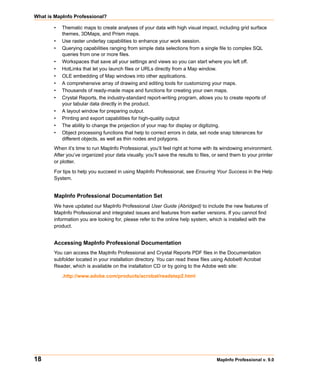
       customers, stores, personnel, equipment, and resources. Thematic maps and graphs show
       distribution of customers for a marketing campaign.

           Figure: Thematic Map Example


       Nearly all of it has a geographic component. An estimated 85 percent of all databases contain some
       sort of geographic information such as street addresses, cities, states, postal codes, or even
       telephone numbers with area codes and exchange numbers.

       Computer mapping can help you sort through all of this information, and using the geographic
       components in your data, display your results on a map. This lets you see patterns and relationships
       in the mass of information quickly and easily without having to pore over your database.


16                                                                                 MapInfo Professional v. 9.0
Chapter 1: Introduction

        Windows Compatibility
        MapInfo Professional is Windows XP Professional and Windows XP Home and Office compatible,
        so you will feel right at home with its windowing environment. It is designed to fit smoothly into your
        work environment, so it only changes the results you get, not the way you work.


        Using Your Own Data
        To begin with, you can use the data you already have, in the form it’s already in — spreadsheets
        such as Excel, databases such as Access 2000, popular CAD packages, and other GIS
        applications, to name just a few. If your data is on a remote database, you can access it directly from
        MapInfo Professional. If you have data that is not already online, you can create database files right
        inside the product, or use data supplied by MapInfo — such as census data.

        Similarly, you can use any of thousands of maps available from MapInfo, everything from street and
        highway maps to world maps. You can also create your own maps, either in MapInfo Professional or
        with a drawing package. You can diagram anything — floor plans, flow charts, even brain anatomy
        — can be treated as a map and entered into the product.
        After you’ve organized your data visually, you’ll save the results to files, or send them to any of the
        dozens of printers and plotters MapInfo Professional recognizes.

        If you have your data on hand and you can read a map, you’re just about ready to begin. Soon, we’ll
        show you an example of how easy it is to put MapInfo Professional’s power to work for you.

        But first, install MapInfo Professional following the instructions in Installing MapInfo Professional
        in Chapter 3 on page 85. If you are new to the product, or new to computer mapping, we suggest
        you refer to The Basics of MapInfo Professional in Chapter 4 on page 153 for an overview of
        basic mapping terms and concepts. Use the web-enabled tutorial to learn about its features, and
        become accustomed to the more common tasks and functions.

        For more product and service information, you can connect directly from MapInfo Professional to our
        forum (on the Help menu, click MapInfo on the Web), or, consult our World Wide Web site
        (http://www.mapinfo.com).


    Reviewing the MapInfo Professional Features
        MapInfo Professional gives you the processing power of databases (including powerful SQL
        queries) and the visual power of maps, plus charts and graphs. It’s an essential business tool for
        data analysis, sales, and presentations.

        Here is a look at some of the features MapInfo Professional offers:

        •    Direct opening of files created with dBASE or FoxBASE, delimited ASCII, comma delimited CSV
             files, ESRI® shapefiles, Lotus 1–2–3, Microsoft Excel, and Microsoft Access; importing of
             graphics files in a variety of formats; a function for creating database files from within the
             product.
        •    Multiple views of your data in Map, Browser, and Graph windows. Hot Views allow you to open
             multiple views of the same data and update them when you change any one view.
        •    Live ODBC access to remote database data such as Oracle and SQL Server.
        •    Seamless map layers that allow you to handle several map layers as if they were one layer.
        •    Cartographic legends, enabling you to create and customize legends for any map layer.

User Guide                                                                                                   17
What is MapInfo Professional?

       •   Thematic maps to create analyses of your data with high visual impact, including grid surface
           themes, 3DMaps, and Prism maps.
       •   Use raster underlay capabilities to enhance your work session.
       •   Querying capabilities ranging from simple data selections from a single file to complex SQL
           queries from one or more files.
       •   Workspaces that save all your settings and views so you can start where you left off.
       •   HotLinks that let you launch files or URLs directly from a Map window.
       •   OLE embedding of Map windows into other applications.
       •   A comprehensive array of drawing and editing tools for customizing your maps.
       •   Thousands of ready-made maps and functions for creating your own maps.
       •   Crystal Reports, the industry-standard report-writing program, allows you to create reports of
           your tabular data directly in the product.
       •   A layout window for preparing output.
       •   Printing and export capabilities for high-quality output
       •   The ability to change the projection of your map for display or digitizing.
       •   Object processing functions that help to correct errors in data, set node snap tolerances for
           different objects, as well as thin nodes and polygons.
       When it’s time to run MapInfo Professional, you’ll feel right at home with its windowing environment.
       After you’ve organized your data visually, you’ll save the results to files, or send them to your printer
       or plotter.

       For tips to help you succeed in using MapInfo Professional, see Ensuring Your Success in the Help
       System.


       MapInfo Professional Documentation Set
       We have updated our MapInfo Professional User Guide (Abridged) to include the new features of
       MapInfo Professional and integrated issues and features from earlier versions. If you cannot find
       information you are looking for, please refer to the online help system, which is installed with the
       product.


       Accessing MapInfo Professional Documentation
       You can access the MapInfo Professional and Crystal Reports PDF files in the Documentation
       subfolder located in your installation directory. You can read these files using Adobe® Acrobat
       Reader, which is available on the installation CD or by going to the Adobe web site:

           .http://www.adobe.com/products/acrobat/readstep2.html


18                                                                                   MapInfo Professional v. 9.0
Chapter 1: Introduction

Getting Support
        Here at MapInfo Corporation, we are committed to your success and we provide a wide range of
        support to assist you in getting the results you are working toward.


    Using the Status Bar
        The Status Bar along the lower edge of your window provides helpful information during your
        mapping session and allows you to make some changes directly in the Status Bar. On the Options
        menu, click Show/Hide Status Bar to control the display of the Status Bar.
        Note: Not all entries display in the Status Bar at all times. Entries display when a feature is active.
        •    Status Bar Help: For instantaneous answers to “What does that command do” simply move the
             cursor over the command. A brief description of the command displays in the left pane of the
             Status Bar along the lower edge of your screen.
        •    Zoom, Map Scale, Cursor Location: View any one of these settings in the Status Bar. You can
             change which one displays directly from the Status Bar. Click the arrow on the right side of the
             box to display a popup list of the three options. Click the setting you want to display. The Status
             Bar automatically updates. These display settings are also controlled in the Map Options dialog
             box (on the Map menu, click Options).
        •    Editable Layers: To keep track of which layer is currently editable, review the list of layers that
             display in the Status Bar. You can change the editable layer directly in the Status Bar. Click the
             arrow to the right of the box to display a popup list of the layers in the Map window. Click the
             layer you want to make editable. The Status Bar automatically updates, showing the new
             editable layer.
        •    Selectable Layers: The Status Bar indicates which layer the current selection is from. If there is
             nothing selected, the Status Bar reads: “Selecting: NONE.”
        •    Browser window Records: When viewing a table in a Browser, the record count displays in the
             Status Bar.
        •    Snap-to-Node: This S-key toggle feature is in use when SNAP displays in the Status Bar.
        •    Autotrace indicator: This T-key feature is in use when AUTOTRACE displays in the Status Bar.
        •    Autonode indicator: This N-key feature is in use when AUTONODE displays in the Status Bar.


    Using the Help System
        MapInfo Professional’s comprehensive Online Help system provides the information you need to
        learn and use the product more effectively. You can reach the information in several ways:

        •    Use the Help Contents screen to choose topics from “books”. Click a book to display its topics,
             choose a topic from the list.
        •    Use the Search feature to search on a specific word. Type the word you want to search for in the
             first field, select the matching word in the second, and then the topic in the third box. MapInfo
             Professional displays the topic in the pane on the right.
        •    Use the Index feature to find a topic quickly. Type the first few letters of the word you are looking
             for. The index entry that most closely matches your entry is highlighted. Click the index entry you
             want to display.
        •    Use the Favorites tab to collect and store topics you want to refer to frequently.


User Guide                                                                                                     19
Getting Support

        •   Context-Sensitive Feature: Press the F1 key to receive more information on any menu command
            or dialog box. The Help window for that item displays. Also click the Help button in the MapInfo
            Professional dialogs to display information on the current dialog box.
        •   Quick Access to the MapInfo publications web site: Click the underlined MapInfo Corporation
            name at the bottom of each topic page to go to the MapInfo web site. From here you have
            access to product information, upcoming events, tech tips, and a complete set of documentation.


     Getting Technical Support
        MapInfo Corporation offers a free support period on all new software purchases and upgrades, so
        you can be productive from the start. Once the free period ends, MapInfo Corporation offers a broad
        selection of extended support services for individual, business, and corporate users.

        Technical Support is here to help you, and your call is important. This section lists the information
        you need to provide when you call your local support center. It also explains some of the technical
        support procedures so that you will know what to expect about the handling and resolution of your
        particular issue.

        Please remember to include your serial number, partner number or contract number when
        contacting Technical Support.


        Technical Support Offerings
        To use Technical Support, you must register your product. This can be done very easily during
        installation or anytime during normal business hours by contacting Customer Service directly at 1-
        800-552-2511 Option 3.

        Full technical support for MapInfo Professional is provided for the currently shipping version plus the
        two previous versions.

        Extended support options are available at each of our technical support centers in the Americas,
        Europe/Middle East/Africa, and Asia-Pacific regions. See below for how to contact the office nearest
        you.

        •   For technical support contact information for your geography, see the Getting Technical Support
            topic in the Help System.


20                                                                                  MapInfo Professional v. 9.0
What’s New in MapInfo
Professional 9.0
                                                                                                          2
Thank you for upgrading to the most advanced computer mapping product in
the MapInfo family! As the field of computer mapping continues to expand,
MapInfo leads the way with new products that are designed to fulfill your
computer mapping needs from the most basic to the most specialized with
MapMarker, our premier address matching product and Envinsa, our enterprise-
wide location platform.
For more information about the bug fixes and corrections we have made to
MapInfo Professional in this release, you will soon be able to review the release
notes at:

    http://extranet.mapinfo.com/support/documentation/manuals.cfm


Sections in this Chapter:
         Before You Get Started . . . . . . . . . . . . . . . . . . . . . . . . . . . . . . . . . .22
         Major Features and Enhancements . . . . . . . . . . . . . . . . . . . . . . . .22
         Mapping – New Features and Enhancements . . . . . . . . . . . . . . . .55
         Tool Enhancement . . . . . . . . . . . . . . . . . . . . . . . . . . . . . . . . . . . . . .63
         Coordinate System and Datum Enhancements. . . . . . . . . . . . . . .63
         Printing, Importing, and Exporting Enhancements. . . . . . . . . . . .65
         Database Enhancements . . . . . . . . . . . . . . . . . . . . . . . . . . . . . . . . .69
         Miscellaneous Enhancements . . . . . . . . . . . . . . . . . . . . . . . . . . . .74
         Data Enhancements . . . . . . . . . . . . . . . . . . . . . . . . . . . . . . . . . . . . .76
Before You Get Started

Before You Get Started
        There are some big enhancements to the MapInfo Professional 9.0 functionality including support
        for curved labels, new time and date/time data types for crime analysis and other queries and
        thematic maps, and being able to open new data formats directly in the application.

        All of the data used in this documentation is available either from the data CD or from the trial data
        on the MapInfo web site. To retrieve the trial data, go to:

        www.mapinfo.com > Support and Training > Downloads > MapInfo Professional >
        MIProTrialData.exe

        and download this data to your computer. You must have Internet access to retrieve the trial data.


     Changes to the Installer
        In the past, if you wanted to add ODBC or Oracle Spatial support, you followed the Custom
        Workstation Installation instructions. We have changed the installation program to add the ODBC
        Connectivity and Oracle Spatial support by default. This should simplify the installation process and
        ensure a better product installation experience.

        You may notice that we have shipped two disks for MapInfo Professional this time. One is your
        familiar MapInfo Professional installation CD and the other is a data CD that contains new and
        updated data you can use to improve the accuracy of geocoding and enhance the look of your
        maps. For more information about this change see Data Enhancements on page 76.


     Licensing Support for MapInfo Professional
        We have added product licensing options to the MapInfo Professional product during this release.
        Please review the licensing documentation carefully in Installing and Configuring MapInfo
        Professional on page 79.


     MapBasic Available Free of Charge on the Web
        MapInfo has decided to make MapBasic, the powerful API you can use to extend MapInfo
        Professional available on the web. Go to www.mapinfo.com/proresources to obtain your free copy
        of MapBasic 9.0 and access other resources to enhance your use of MapInfo Professional.


Major Features and Enhancements
        We have created the following major features and enhancements in response to your requests and
        suggestions.

           •   Using Date- and Time-Based Data in Maps and Queries on page 23
           •   Curved Labels Improve the Look of Your Maps on page 31
           •   Using Universal Data Directly on page 34
           •   Using Templates for Layouts on page 40


22                                                                                  MapInfo Professional v. 9.0
Chapter 2: What’s New in MapInfo Professional 9.0

    Using Date- and Time-Based Data in Maps and Queries
        If you maintain time- or date/time-specific data, you may be interested in querying that information
        and displaying it visually in your MapInfo maps. We have added new Time and DateTime data types
        to allow you to display that data thematically and as part of a query analysis. You could use this new
        data type for many types of projects, such as to display crime information based on Date and Time
        or to post schedules based on resource availability on a particular date. Additionally if you use
        Access, Excel, dBase, and remote databases and you have not been able to use the date and time
        based information in the past, we are providing a way for you to use that information in MapInfo
        Professional. In the past, when you converted this type of information into a MapInfo format, the
        information either was interpreted incorrectly, it was truncated, or it did not translate at all.
        These new data types have been added in many places throughout MapInfo Professional and show
        up in the lists of your Query dialog boxes. However what is most important is that you understand
        how this data is now interpreted when bringing it into MapInfo format.


        Using the New Data Types
        You can convert existing fields with time or time/date information into the new format so you can use
        them for querying and thematic maps.

        To convert your data:

        1. Open the data you want to convert in MapInfo Professional.

        2. Chose Table > Maintenance > Table Structure and select the table for which you want to
           change the data type. The Modify Table Structure dialog box displays.


        3. To change the ArrivalTime field from a character field to a Time field, click the Type drop-down
           arrow and select the Time type.

        4. Click OK to save your change.


User Guide                                                                                                 23
Major Features and Enhancements

       Adding Time or DateTime Data Types to Existing Data
       If you have existing data and want to add Time or DateTime content to it, check the table below to
       ensure that the data is in a format that MapInfo Professional can recognize as Time or DateTime.


                                       Time and DateTime Data Formats
          Enter:            To Format for Time:                            To Format for DateTime:

        Date         Not Applicable.                        yyyyMMdd
                                                            Sets value to the specified Date at midnight.

        Time         HHmmssfff.                             HHmmssfff
                     Can also use the locale settings       Sets value to current date at specified Time. Can
                     for a Time string.                     also use the locale settings for Date and Time
                                                            strings separated by a space.

        DateTime     yyyyMMddHHmmssfff                      yyyyMMddHHmmssfff
                     Sets value to Time portion of
                     DateTime value.


       where:

          HH refers to hours, mm refers to minutes, ss refers to seconds, ff refers to fractions of seconds,
          yyyy refers to years, MM refers to month, dd refers to date


       Converting Existing Data to Time or DateTime Data Types
       If you have Time or DateTime data in your tables already, check to see if it is in the format you want
       by checking the Time and DateTime Data Formats. If you have a lot of data and it is not in the
       format you require for your tasks, you can use one of the MapBasic conversion functions to assist
       you with this process.


        Converting              Date                         Time                       DateTime

        String        Assumes the form              String can be in the       String can be in the form
                      yyyyMMdd or locale            form HHmmssfff or          yyyyMMddHHmmssfff or
                      settings for a date string    can use the locale         can use the locale settings
                      if Date format is "local"     settings for a Time        for Date and Time strings
                      or the U.S. form if Date      string. **                 separated by a space. ***
                      format is "US". *

        Number        Assumes the form              Assumes the form           Assumes the form
                      yyyyMMdd. If any              HHmmssfff. If any          yyyyMMddHHmmssfff. If
                      portion of the Date is        portion of the Time is     any portion of the DateTime
                      invalid the value is set to   invalid the value is set   is invalid the value is set to
                      null. May display this        to null and display this   null and display this error:
                      error: "Could not convert     error: "Could not          "Could not convert data."
                      data."                        convert data."


24                                                                                     MapInfo Professional v. 9.0
Chapter 2: What’s New in MapInfo Professional 9.0

         Converting               Date                       Time                      DateTime

         Date           No conversion                Sets value to null and   Sets value to the specified
                                                     display this error:      Date at midnight.
                                                     "Could not convert
                                                     data."

         Time           Sets value to null. May      No conversion            Sets value to current date at
                        display this error: "Could                            specified Time.
                        not convert data."

         DateTime       Sets value to Date           Sets value to Time       No conversion
                        portion of DateTime          portion of DateTime
                        value.                       value.


        Additional Notes for Converting a String
        * to a Date

        If the year is last in the current Date format, you can omit it and MapInfo Professional will assume
        the current year. If the data specifies a two-digit year, MapInfo Professional assigns the century
        based on the current Date Window. If the Date is invalid the value is set to null and MapInfo
        Professional may display this error: "Could not convert data."

        ** to a Time

        MapInfo Professional accepts both military and AM/PM forms. The data can specify the entire locale
        in AM or PM strings or use just the first character of each. The data may omit the milliseconds,
        seconds, and minutes if the lower-order portions are also omitted. If the Time is invalid the value is
        set to null and MapInfo Professional may display this error: "Could not convert data."

        *** to a DateTime

        The conversion rules for Date and Time apply for the respective portions of the string. If the data
        omits the Time portion, MapInfo Professional assumes midnight. If the DateTime is invalid the value
        is set to null and MapInfo Professional may display this error: "Could not convert data."

        Additional Notes for Converting a Number to a String
        # The conversion rules for Date and Time apply for the respective portions of the string. If the data
        omits the Time portion MapInfo Professional assumes the Time is midnight. If the DateTime is invalid
        the value is set to null and MapInfo Professional may display this error: "Could not convert data.".

        If you have a lot of data and it is not in the format you require for your tasks, you can use one of the
        MapBasic conversion functions to assist you with this process.


User Guide                                                                                                    25
Major Features and Enhancements

       Creating a DateTime Column from Two Separate Columns
       To create a DateTime column from a Date column and a Time column:

       1. Open your data in MapInfo Professional Browser window. We use CrimeActivity.TAB from the
          Introductory Data on your CD.

       2. Choose Table > Maintenance > Table Structure to display the Modify Table Structure dialog
          box.

       3. Click Add Field and type a Date_Time label in the Name field.

       4. Select Date/Time in the Type drop-down list and click OK.


       5. Select Table > Update Column to display the Update Column dialog box.

       6. Select the table name in the Table to Update drop-down list.

       7. Select the name of the new column you just created in the Column to Update drop-down list.

       8. Select the table name again in the Get Value from Table drop-down list.

       9. Click the Assist button to display the Expressions dialog box.

       10. Use the Column drop-down list to create the following expression and click OK:
          DateColumnName + TimeColumnName


26                                                                             MapInfo Professional v. 9.0
Chapter 2: What’s New in MapInfo Professional 9.0


             For more about using math expressions with Time and Date information, see Using
             the Arithmetic Operators with the New Data Types on page 29.

        11. Click OK to update the new column with the Date and Time information.


        Creating Thematic Maps using Time and Time/Date Data Types
        For ranged thematic maps, Time values will be able to be rounded by seconds, minutes, and hours.
        The default is seconds. When you select None, MapInfo Professional does not round the electing
        the seconds and displays a granularity of milliseconds.

        Note: If your data is on a remote database, you may be interested in the New Time and DateTime
              Data Type Support for Remote Databases on page 72.

        To create a thematic map using DateTime information:

        1. Open your data in MapInfo Professional Browser window. Use the appropriate background map
           to give your data perspective. Here we use the Great Britain data in the Introductory Data on the
           data CD.

        2. Choose Query > SQL Select to display the SQL Select dialog box.

        3. Place your cursor in the from Tables field and select the table name that contains the DateTime
           data in the from Tables drop-down list. For our example we used the CrimeActivity table.

        4. To find out the location of crimes between April 10, 2003 and April 10, 2004 and between the
           hours of 12 and 8 p.m., we entered this text in the where Condition box:
             Crime_Date between "04/10/2003" and "04/10/2004" And Crime_Time between
             "12:00:00 PM" and "08:00:00 PM"


User Guide                                                                                                27
Major Features and Enhancements


       5. Select the Browse Results and Find Results in Current Map Window check boxes to display
          the results.

       6. Click OK to create the query and display the results.


           We used the UKCrimeExample data to create this map. This data is available in the
           Introductory Data/World/Europe/UKCrimeExample folder of the Data CD that ships
           with MapInfo Professional.


28                                                                            MapInfo Professional v. 9.0
Chapter 2: What’s New in MapInfo Professional 9.0

        Using the Arithmetic Operators with the New Data Types
        You can use the addition and subtraction operators with the new data types as follows:


             Data type     Operator     Data type     Result                         Notes

         Time            minus (-)      Time        Number        The number represents the number of
                                                                  seconds between two times as a floating
                                                                  point number. The fractional part of the
                                                                  result represents milliseconds.

         Time            + or -         Number      Time          The number represents the seconds to
                                                                  add to the first Time. The Time wraps
                                                                  around midnight so that 11:59 PM + 120
                                                                  seconds equals 12:01 AM.

         DateTime        minus (-)      DateTime    Number        The number represents the number of
                                                                  days between two DateTimes as a floating
                                                                  point number. The fractional part of the
                                                                  result is the fractional portion of a day, as
                                                                  in today at noon minus today at midnight
                                                                  equals one half day.

         DateTime        + or -         Number      DateTime      The number represents the number of
                                                                  days to add to the first Time.


        Using the Comparison Operators with the New Data Types
        The comparison operators are =, <>, <, >, <=, >= and should all work as expected for the Time and
        DateTime values. For Time values, the smallest Time is "12:00:00.000 AM" while the largest Time is
        "11:59:59.999 PM".

        The "Between" operator works as expected for DateTime values. For Time values, we support wrap-
        around comparisons. For example:
              TimeValue Between "2:00 AM" And "10:00 PM" is true if the TimeValue is greater than or equal
              to "2:00 AM" and less than or equal to "10:00 PM"

              TimeValue Between "10:00 PM" And "2:00 AM" is true if the TimeValue is greater than or equal
              to "10:00 PM" and less than or equal to "11:59:59.999" or greater than or equal to "12:00 AM"
              and less than or equal to "2:00 AM"


        Using the Logical Operators with the New Data Types
        A Time or DateTime field with a value is true, while the same field with a null value indicates false.
        The behavior of the logical operators And, Or, and Not should follow logically from this.


User Guide                                                                                                  29
Major Features and Enhancements

       Interpreting Excel Data
       Using Excel you can format numeric cells as Dates and/or Times. In previous versions, MapInfo
       Professional supported Date fields with the format 'y' (year), 'm' (month), or 'd' (day). Time fields
       within the format 'h' (hour) or 's' (second) were treated as Float fields. Fields with Date and Time
       format codes were treated as a Date field and the Time information was ignored. Excel determines
       the meaning of the ’m’ format code as either ’month’ or ’minute’ based on the rest of the format code.
       With the introduction of these new data types:


                    Fields registered with                       Are Treated As...

        Date format but not Time format                     Date fields

        Time format but not Date format                     Time fields

        Date format and Time format                         DateTime fields


       Note: If you want to use both the Date and Time data from tables registered with earlier versions of
             MapInfo Professional, you can re-register the tables.


       Interpreting Microsoft Access Data
       Access data uses a DateTime type, but not separate Date or Time types. In the past, MapInfo
       Professional interpreted these fields as Date fields. With the introduction of these new data types,
       MapInfo Professional registers the Access DateTime type fields as DateTime fields.

       Note: The Date fields in any of your existing MapInfo Professional files are still treated as Date
             fields until you re-register them to use the new DateTime data type.

       When you save a MapInfo table to Access format, MapInfo Professional writes Date, Time, and
       DateTime fields as Access DateTime fields. The .tab file itself maintains the Date, Time, and
       DateTime types so when you reopen the file, the Date, Time, or DateTime data displays. If you
       attempt to open these .tab files using a non-MapInfo application, these fields display as DateTime.


       Interpreting dBase Data
       The dBase format supports Date fields but does not explicitly support Time or DateTime fields.
       Therefore, when you register an existing dBase file, there will be no Time or DateTime fields. When
       you save or export a MapInfo table with Time or DateTime fields to a dBase file, Time and DateTime
       fields are written out as character fields of length 9 and 17, respectively so that the data is written out
       in numeric formats.

       When you save a new MapInfo table to dBase format, the .tab file maintains the Time and DateTime
       types so that when you reopen it the data will displays as either Time or DateTime. If you attempt to
       open these .tab files using a non-MapInfo application, these fields display as character fields.

       Related topic in the Help System:

          •   Interpreting ASCII and CSV Data


30                                                                                    MapInfo Professional v. 9.0
Chapter 2: What’s New in MapInfo Professional 9.0

    Curved Labels Improve the Look of Your Maps
        You can improve the look of your arc and polyline labels by making these labels follow the curve of
        the line. Curved labels can display for any arc/polyline feature, such as streets, railroads, ferry lines,
        and rivers. This functionality is supported in the Map window and persists when you move the map
        to a Layout, however you cannot create curved labels in the Layout window itself.


             Here there are curved labels on the Streets, Railroads, and WaterRivers layers.


        Setting the Curved Label Option
        The curved label option gives you more control over the way your labels display.

        To display labels along a curve:

        1. Display the map you want to change the labels for.


        2. Click       to display the Layer Control dialog box.

        3. Highlight the layer that contains the labels you want to change and select the AutoLabel check
           box.

        4. Click the Labels button to display the Label Options dialog box.


User Guide                                                                                                     31
Major Features and Enhancements


       5. To ensure that the layer labels are visible, click the On button in the Visibility pane.

       6. Click the Curve labels along segments option to display the layer’s labels along the curve of
          the line. These labels are anti-aliased automatically to improve the display.
          Note: If you use Anchor Points to set the label’s position, when you select:

              Left, the curved labels are left-justified starting at the beginning of the arc/polyline

              Center, the curved labels are centered on the midpoint of the arc/polyline

              Right, the curved labels are right-justified at the end of the arc/polyline
              Note: The length of the polyline(s) affect how the label is positioned. The longer the
                    polyline(s), the more predictably the labels display.

       7. Click OK to save this option and OK again to display the new label(s).


       Editing Curved Labels
       All of the editable properties of curved labels are supported in the workspace.

       You can use the Label tool on the Main toolbar to move curved labels. Make sure you have already
       selected the Curve labels along segments option in the Label Options dialog box for the layer you
       want to change. In these instructions, we use the term line to mean polyline or arc segment.


       1. Click       on the Main toolbar to display the Layer Control dialog box.

       2. Highlight the layer you want to move the labels for in the list.

       3. Select the Selectable check box in this layer.

       4. Click OK to redisplay the Map window.


32                                                                                   MapInfo Professional v. 9.0
Chapter 2: What’s New in MapInfo Professional 9.0


        5. Click         on the Main toolbar.

        6. Click the line on which you want to reposition the label.

        7. Click the new location for the label until the label displays as you want it to.
             Note: If the segment you select does not have a label name associated with it in the data, no
                   label displays. If MapInfo Professional cannot edit the label, the Label tool beeps to
                   indicate an error.


        Understanding your Data and Curved Labels
        When you select curved autolabeling, MapInfo Professional attempts to create a curved label for
        every arc/polyline record in a map, just as it does for non-curved labels.

        For example, in street maps, the street can be made of several polylines or one long polyline. The
        length and number of the polylines, the rules that govern whether a curved label can be created, and
        the labeling options you choose, all affect which curved labels are created and where they display.

        Some polyline and arc segments in your layer data may not contain label name entries. When this
        occurs, MapInfo Professional cannot display labels for that segment.


        What to Expect from Curved Labels
        This feature is made up of complex algorithms that are designed to enhance the display of your
        polyline/arc features. There are several rules which determine whether MapInfo Professional can
        display a curved label.

        •    MapInfo Professional can only draw curved labels using TrueType fonts. If you select a non-
             TrueType font, MapInfo Professional substitutes a comparable TrueType font, so, the label you
             chose may display differently than you expect. Also, if you change a horizontal label using a non-
             TrueType to a curved label, the new label may display differently due to the font substitution.
        •    Part of the label string must fit along the polyline/arc that it is labelling. If it cannot fit, MapInfo
             Professional determines that the label is too long and throws it away
        •    MapInfo Professional cannot draw curved labels for polylines that are very jagged, however, it
             depends on the curvature of the line
        •    Labels that curve onto themselves are thrown away and do not display
        •    Curved labels follow the same rules for overlap detection, duplicate text, and partial segment
             labeling as non-curved labels. Each of these rules affect how and when MapInfo Professional
             displays the labels
        •    You cannot drag curved labels as you can other labels
        •    You can create curved labels with the Label tool at any point along a polyline/arc
        •    You can reposition the curved auto labels with the Label tool
        •    Curved and non-curved labels persist for layers in the workspace
        •    The Labeler utility does not support curved labels, so you cannot transfer curved labels to the
             Cosmetic layer
        •    The curved labels functionality supports double byte characters
        •    The Label Lines controls are disabled whenever you select the Curve labels along
             segments option
        •    You cannot underline curved labels

User Guide                                                                                                       33
Major Features and Enhancements

     Using Universal Data Directly
        Many of our customers who use AutoCAD®, Microstation Design®, ESRI ArcSDE® and Personal
        Geodatabase® data have asked us for a simpler and more direct way to open it. This new feature
        allows you to open and set the display properties of this data directly. By opening this data directly
        you avoid having to translate it separately and work with copies of the data in .tab format. This new
        functionality ensures that you will have more flexibility when working with your data.

        MapInfo and Safe Software, a third-party partner, have worked together to provide this more direct
        way to open and display universal data directly in MapInfo Professional.

        Using Safe Software’s Feature Manipulation Engine (FME), you can access this data directly:

        •   ESRI ArcSDE
        •   ESRI Personal Geodatabase (*.MDB)
        •   AutoCAD.DWG/DXF
        •   Microstation Design (*.DGN)
        •   ESRI ArcInfo Export (*.E00)
        •   USGS Spatial Data Transfer Standard (*.CATD.DDF)
        •   VPF NIMA/NGA (*.FT)
        Using the Open Universal Data feature of MapInfo Professional, you can open different types of data
        stored in a variety of locations and:

        •   Combine data from multiple sources into a single run and join data from incompatible systems
        •   Extend the use of legacy systems
        •   Exchange data between CAD-based systems and GIS systems
        •   Perform quality assurance tests on spatial data
        Additionally, if you have the FME Suite, which is available from Safe Software, you can use this
        feature to open almost 150 formats within MapInfo Professional. For more information about
        extending MapInfo Professional in this way, see Extending MapInfo Professional with FME Suite
        on page 39. This feature is based on the FME 2007 release.


        Opening Universal Data Directly
        The process for opening this data is the same regardless of the format.

        To open the universal data directly:

        1. Choose File > Open Universal Data to display the Specify Input Data Source dialog box.


            Use this dialog box to select the data you want to open and specify the name of the
            dataset you want to display.


34                                                                                  MapInfo Professional v. 9.0
Chapter 2: What’s New in MapInfo Professional 9.0

             Some formats are file-based and for others you need to specify a data source. Here, a dataset is
             defined as a set of data in the same format. Some data contains the coordinate system
             information in it and others do not. You may need to specify the coordinate system projection for
             the data you are attempting to open.


        2. Beside the Format drop-down list, click the          Ellipsis button to specify the data format you
           want to open. The Formats Gallery displays.


             From this dialog box you can select a format and import frequently used formats.
             Note: Personal Geodatabase and ArcSDE always display in the Formats Gallery but they may
                   be grayed out if you do not have the appropriate client DLL or applications installed. See
                   Setting the ArcSDE Data Options and Setting the ESRI Personal Geodatabase Data
                   Options in the Help System for these details.

             To obtain a free trial of the FME Suite and add more formats to this list, click More Formats.

             Highlight a format in this list and click OK to return to the Specify Input Data Source dialog box.

        3. Click the Ellipsis button beside the Dataset field to select the data you want to open.

             To open a folder of data, click the + button beside the Ellipsis button. The Select Source Files
             dialog box displays.


             If you select a folder in this dialog box, MapInfo Professional opens all of the data of the specified
             format it finds in this folder. If you select the Subfolders check box, MapInfo Professional also
             opens all of the data with the specified format in the subfolders as well. This data is merged
             together when you open it. To add:

             Directory-Based Formats: Click Add Folder to browse for a specific directory name. Check the
             Subfolders box to include all subfolders below that directory. Click OK. The new data appends
             to the original data.


User Guide                                                                                                      35
Major Features and Enhancements

          File-Based Formats: You can type directly in the Folder field, and use wildcards to include all
          files of a specific format. For example:
              *.dgn
          merges all the .dgn files on your C drive. Check Identical Schemas if the files have the same
          schema.
          •   Click Add Files to select individual files
          •   Ctrl+Left-click to select multiple files
          •   Click Remove to delete single or multiple files based on your selection
          Click OK. The new data appends to the original data. The Specify Data Input Source dialog box
          redisplays.

       4. If the coordinate system for the data you selected is unknown, you need to specify it in the
          Coordinate System field. Click the Ellipsis button beside the field to select the appropriate
          projection and click OK. If you do not specify the coordinate system here, you will be prompted
          later. For more about this feature, see Coordinate System Behavior and Universal Data on
          page 38.

       5. Click Settings to display the settings options for this file type. The options in these dialog boxes
          depend on the format you selected. To learn more about these settings, see the these topics in
          the Help System:

          Setting the AutoCAD Options

          Setting the ArcInfo Export File Options

          Setting the ArcSDE Data Options

          Setting the ESRI Personal Geodatabase Data Options

          Setting the Microstation Design File Options

          Setting the Vector Product Format Coverage Settings
          Note: The Spatial Data Transfer Standard data does not have settings options.
          It is possible that a style option s will not show. If it's the case it means that the layer(s) in
          question does (do) not have any geometry objects (only attributes).

       6. When you have completed your settings, click OK to open the data you selected.

          If you did not specify the coordinate system in step 4 and the coordinate system is unknown, the
          Choose Projection dialog box displays, allowing you to select the projection for the data you are
          opening. Select the appropriate projection for the data and click OK. The system defaults to your
          Table Projection setting in the Map Window Preference if you do not select a projection here.
          See Coordinate System Behavior and Universal Data on page 38 for more information. The
          Select Layers dialog box displays.


36                                                                                     MapInfo Professional v. 9.0
Chapter 2: What’s New in MapInfo Professional 9.0


             MapInfo
             Professional
             opens all
             layers with
             the Open
             check box
             selected.


                  Use this box to specify the layers to open and then specify the layer display options.

              To change the name of the layer, click it, type a new name in the File Name field and click Apply.
              Use the Check All and Uncheck All buttons to select or deselect the Open check box for all of
              the layers. Click the Back button to return to the Specify Input Data Source dialog box.

        7. Now you are ready to select the layers to which you will apply the new display options. All layers
           you select together will share the same display characteristics.
              •     To change the display options of all layers, click the layer name of the first layer, press the
                    Shift key, and click the layer name of the last layer
              •     To change the display options of some layers, click the layer name of the first layer, press the
                    Ctrl key, and click the other layers that require the same change
              •     To change the display options of one layer, click the layer name of the layer
        8. Once you have selected the layer(s), use the display buttons to make the changes you require. If
           the layer(s) you are changing contain:
              •     Point data, click the Symbol Style button to change the symbol options
              •     Line data, click the Line Style button to change the line options
              •     Region data, click the Region Style button to change the background options
              •     Text data, click the Text Style button to change the text options
              Note: If you want to open maps based on data that is thematically related, assign the same
                    styles to the layers that contain that information.

        9. Once you have completed your layer display options, consider the options that affect the whole
           data source. You can select from these options:
              •     Use color information from data
              •     Do not open empty layers
        10. Use the Directory field to specify the path to which you want to save the resulting data. Click the
            Ellipsis button beside the field to navigate to the appropriate directory.


User Guide                                                                                                        37
Major Features and Enhancements

       11. Select the viewing options from the Preferred View drop down box, as you would when opening
           any other data.

       12. When you have completed your selections, click OK to open the data according to the settings
           you have specified. A status bar displays to indicate the progress and the data displays.
       Note: For any terminology that might not be familiar to you, review the FME Suite Help System.

       Avoiding Out of Disk Space Errors when using Universal Data

       When you open universal data using this new feature, the data is stored locally temporarily so you
       can reopen it faster the next time you use MapInfo Professional. For example, the temporary file
       folder location for Windows XP is:

          C:Documents and Settings<user id>Local SettingsApplication Data
          MapInfoMapInfoProfessional900UniversalDataCache
       Note: Paths in this explanation are based on installations on Windows XP and Windows 2000
             operating systems. Vista operating system users need to consult their system documentation
             for the right path for their installation.

       If you find that you are opening large files with many layers using this feature, these files can get
       very large and may impact the performance of your system. If you see Out of Disk Space
       errors, you may want to delete these files to see if this data is the cause of the error. Whenever you
       delete temporary files, you will have to reopen that stored data to display it again.

       Coordinate System Behavior and Universal Data

       Some of the universal data you are working with contains coordinate system information and some
       do not. If you are opening Spatial Data Transfer Standard data and some of the ESRI data, the
       coordinate system information entry is handled for you. Coordinate system information for AutoCAD,
       Microstation Design and VPF data must be specified, although VPF data is usually in the
       Longitude/Latitude WGS 84 projection.


       Refreshing the Universal Data
       You can refresh the data from the original data source using the Universal Data Table Refresh
       command. This allows you to incorporate changes to the original data in your new MapInfo
       Professional map.

       To refresh the universal data:

       1. The data you want to refresh must be open in the Map window.

       2. Choose Table > Universal Data Table Refresh. The Select Tables dialog box displays.

       3. Highlight the table(s) you want to refresh in the list and click Select. A status bar displays to
          indicate the progress and the layers are refreshed.


38                                                                                  MapInfo Professional v. 9.0
Chapter 2: What’s New in MapInfo Professional 9.0

        Working with the FME Suite
        If you install the FME Suite from Safe Software, you can open even more formats from within
        MapInfo Professional. To extend MapInfo Professional to use these additional formats, use the FME
        Administrator tool that ships with the FME Suite. There are a couple of caveats to keep in mind:

        •    Make sure that the version of the FME Suite that you are using is the same version or later than
             the that which has been integrated with MapInfo Professional. This means you must have FME
             Suite 2007 or later. This works on a build number basis, so even a minor update to MapInfo
             Professional or FME Suite could result in discrepancies between the products and could prevent
             you from opening particular formats.
        •    MapInfo localizes the dialog boxes of the FME product that we use in MapInfo Professional.
             However, when you extend MapInfo Professional with the FME Suite, this functionality is
             effectively run from the FME Suite, using the FME Suite dialog boxes.
             For example, if you are running the Japanese version of MapInfo Professional and you install the
             English version of the FME Suite, the dialog boxes that display for this feature will be in English.
             If you revert to the MapInfo Professional implementation of this feature, the translated dialog
             boxes will display in Japanese.
        Note: Raster/grid formats and MapInfo TAB/MIF formats are not available when you extend
              MapInfo Professional with the FME Suite.

        Extending MapInfo Professional with FME Suite

        You must have a valid FME Suite License to extend MapInfo Professional to open additional data
        source formats.

        To open even more universal data source formats in MapInfo Professional:

        1. Choose Start > All Programs > FME > FME Administrator to display the FME Administrator
           dialog box.


        2. To extend MapInfo Professional, click Extend.

             If you have extended MapInfo Professional and want to return to MapInfo Professional Universal
             Data functionality only, click Revert. You might want to revert to MapInfo Professional if you have
             the Base FME Suite and you want to work with ArcSDE data.

        3. Click Close to close the FME Administrator.


User Guide                                                                                                    39
Major Features and Enhancements

     Using Templates for Layouts
       Producing professional quality maps for printing or other output can be done quickly and easily with
       MapInfo Professional’s Layout Templates feature.

       A layout template is a user-defined workspace that contains a Layout window with placeholders for
       maps, other windows, and additional elements in a specific arrangement for presentation. You can
       create a layout from one of the templates that MapInfo Professional comes with, or from a template
       that you create using Layout Templates.

       The Layout Templates feature provides a set of tool buttons that enable you to create, edit, and save
       layout templates. Configuration options enable you to keep layout templates organized and set the
       default layout template.

       You can create different layout templates to accommodate your map presentation needs. For
       example, if you frequently use a combination of a map, browser, and legend in your layouts, you can
       create a layout template that contains placeholders for each of those window types. You can then
       create different layouts based on the same template without having to create each layout manually.

       This section guides you through creating a layout template first and then shows you how to create a
       layout from a template.


       Accessing Template Creation Tools
       To access the tools you need to create a layout template:

       1. Close any open windows. You will be prompted to close open windows later if you do not close
          them now. No windows can be open when you create or edit a layout template because the
          windows would be written to the workspace when you save the layout template.

       2. Choose Tools > Layout Templates > Create New Template.

       3. The About Creating Templates dialog box displays on the screen.


          The About Creating Templates dialog provides important information about editing templates and
          enables you to control the display of the About Creating Templates dialog box.

          The Don’t show this dialog again check box is selected by default. Selecting the Don’t show
          this dialog again check box prevents the About Creating Templates dialog box from displaying
          every time you create a layout template.

       4. Click OK.


40                                                                                MapInfo Professional v. 9.0
Chapter 2: What’s New in MapInfo Professional 9.0

        The Template Tools toolbar displays on the screen.


        Creating Layout Templates
        A layout template enables you to create and save an arrangement of maps, browsers, graphs,
        legends, and additional elements for presentation. When you save the template, it is saved as a
        workspace so that you can retrieve it easily for future use.

        The tool buttons in Template Tools enable you to add placeholders for the different elements in the
        layout. These elements include the different types of MapInfo Professional windows (map, browser,
        graph, and legend), a scalebar, and text objects. You can control each element’s size and its position
        in the layout. Additional tool buttons enable you to save the layout template, and cancel the creation
        of the layout template without saving it.

        Each tool is described below:


                 Add Map–Adds a map frame to the                     Add Graph–Adds a graph frame to the
                 layout template.                                    layout template.


                 Add Browser–Adds a browser frame to                 Add Text–Adds a text object
                 the layout template.                                placeholder to the layout template.


                 Add Scalebar–Adds a scalebar frame                  Save Template–Use the Save
                 to the layout template.                             Template tool button to save the layout
                                                                     template as a workspace.

                 Add Legend–Adds a legend frame to                   Quit Template without saving–Use the
                 the layout template.                                Quit Template tool button to cancel the
                                                                     creation of the layout template.


        Adding Map Elements
        Adding maps, browsers, graphs, legends or scalebars to a layout template follows the same
        procedure.

        When you add a map element to the layout template, you are adding a frame that acts as a
        placeholder for that specific element, rather than adding the element itself. The tools enable you to
        specify which element you want the frame to represent in the template.


User Guide                                                                                                 41
Major Features and Enhancements

       Each map element’s frame has a color fill to help you distinguish between each map element. The
       window types are also labeled inside the frame. The color and fill for each map element is illustrated
       below:


       You can modify the borders of the placeholder frames, but you cannot modify the fill. Modifying the
       fill of the placeholder frames will produce an error when you use the template.

       You can modify the style of the placeholder labels (text objects), but you cannot modify the
       placeholder text itself. Modifying the placeholder text creates unexpected results when you use the
       template. The placeholder text does not appear when the template is used.

       To add any map element to a layout template:

       1. For the map element you want to add, click the corresponding tool button. For example, click the
          Add Map tool to add a map frame; click the Add Browser tool to add a browser frame, etc.

       2. Move your cursor over the Layout window. The cursor becomes a crosshair. Click on the Layout
          window at the desired position for the map element and hold down the mouse.

       3. Drag the mouse across the Layout window to create a frame.

       4. When the frame reaches the desired size, release the mouse. A frame that represents the map
          element you specified displays on the screen.

       5. Using the Select tool in the Main toolbar, adjust the size and position of the frame.


42                                                                                MapInfo Professional v. 9.0
Chapter 2: What’s New in MapInfo Professional 9.0

        Here is an example of a layout template with a map, browser, and legend added to the Layout
        window.


        Because you are working in the Layout window as you create the template, you can use any of the
        Layout menu commands to adjust frame position, bring windows to the front or back, or specify other
        Layout window options. Here is an example of the same layout template with the Map and Browser
        window positions adjusted and the Map window brought to the front.


        Adding Text
        The Add Text tool button enables you to add text object placeholders to your layout template. The
        text placeholder is a textual description of what the actual text should be. For example, the
        placeholder might say “Map Title” to prompt you that the text should be the title of the map. You can
        select text placeholders from a list of text categories, or you can define your own text placeholder.

        To add a text placeholder to a layout template:

        1. Click the Add Text tool button.

        2. Move your cursor over the Layout window. The cursor becomes a crosshair. Click on the Layout
           window at the desired position for the text. The Add Text to Map Template dialog box displays on
           the screen.

User Guide                                                                                                43
Major Features and Enhancements


       3. Select what you want the text placeholder to represent. Choose from the following text
          categories:
          •   Map Title–Indicates the map title text.
          •   Map Scale–Indicates the map scale.
          •   Print Date–Indicates the date that the map was printed.
          •   Print Time–Indicates the time that the map was printed.
          •   User Text Prompt–Indicates a user-defined text category. You can define a category of text.
              and create a placeholder in the layout template for it. This is useful if you have other text
              annotations that you use regularly, but that do not fall into any of the pre-defined categories.
          Click the button next to the text category you want to add, and then click Add.
          •   If you selected User Text Prompt, go to step 4
          •   If you selected any of the other categories, go to step 5.
       4. If you selected User Text Prompt, the Enter User Text Prompt Name dialog displays on the
          screen. Enter the text prompt you want to use in the box and click OK.

          Be sure that your user text prompt is meaningful in terms of the map presentations you are going
          to create with this template. There is a 200-character limit for user defined text.


       5. When you select a text category, the text placeholder immediately displays in the Layout window
          at the position you clicked.

       6. Using the Select tool on the Main toolbar, adjust the position of the text.

       7. Using the Text Style tool on the Drawing toolbar, you can adjust the size and other style features
          of the text.


44                                                                                 MapInfo Professional v. 9.0
Chapter 2: What’s New in MapInfo Professional 9.0

        Here is an example of our earlier layout template, except it now has a map title added to it.


        If you want to make the map title larger, using the Select tool from the Main toolbar, double-click on
        the map title placeholder. The Text Object dialog box displays on the screen. Click the Style button to
        change the size or other style elements of the text.

        Adding Drawn Objects
        You can also add drawn objects to a layout template using the tools on the Drawing toolbar.

        Drawn objects can be useful in a layout template if there is an object that you want to use in a
        number of layouts. The template enables you to draw the object and adjust its position once, and
        then reuse it as many times as you need to. You do not have to remember the object size, position,
        or style attributes because the object is part of the template.


        Saving Layout Templates
        Layout templates are saved as workspaces. To save a layout template:

        1. Click the Save Template tool. The Specify workspace file to save template as dialog box
           displays on the screen.

        2. In the Save in box, leave the folder as is. The layout template workspace must be saved to this
           location. If you try to save the workspace to another location, you will get an error.

        3. In the File name box, enter a filename for the layout template. The default filename is Layout.

        4. In the Save as type box, select the .wor workspace type. The default type is .wor.

        5. Click Save. A MapInfo dialog box displays on the screen. The dialog box asks you if you want to
           add a new entry to the list of print templates.

        6. Click Yes to add a new entry to the list of print templates. The Enter Description of Template
           dialog box displays on the screen.


User Guide                                                                                                  45
Major Features and Enhancements

       7. Enter a description for the template.This description identifies the layout template. The
          description of the layout template appears in template lists when you perform the following tasks:
          •   Configure layout templates.
          •   Create a layout from a template.
          Click No if you do not want to add a description of the layout template. The template will be
          saved as a workspace, but it will not appear in the Templates lists for configuration and for
          creating a layout from a template.

       8. Click OK. The layout template is created, and the Layout window and the Template Tools close.


       Stopping Work without Saving
       You may decide part way through your work on a layout template that you do not want to finish it.
       You can easily stop creating the template without saving it using the Quit Template without saving
       tool.

       To stop work on a layout template without saving it:

       1. Click the Quit Template without saving tool. A MapInfo dialog box displays on the screen. This
          dialog box asks you if you want to quit the layout template without saving it.

       2. Click Yes. The Layout window closes without saving the layout template.


       Editing Layout Templates
       Editing a layout template enables you to make changes to a layout template that you’ve already
       created. To edit a layout template:

       1. Close all open windows. No windows can be open when you create or edit a layout template
          because the windows would be written to the workspace when you save the layout template.

       2. Choose Tools > Layout Templates > Edit Template. The Edit Template dialog box displays on
          the screen.


       3. Click on the layout template you want to edit to highlight it.

       4. Click OK.

       5. The Layout window opens using the selected layout template. The Template Tools toolbar also
          displays on the screen.


46                                                                               MapInfo Professional v. 9.0
Chapter 2: What’s New in MapInfo Professional 9.0

        6. Make the desired changes.

        7. Click the Save Template tool button when you are finished.

        When you edit a layout template, you can use any of the Template tools to add additional windows, a
        scale bar, or text. You can also use any of the drawing tools on the Drawing toolbar to add drawn
        annotations to your layout such as geometric objects and additional text annotations. Finally, you
        also have all the Layout menu commands at your disposal to make final adjustments to the
        windows, create drop shadows, or change the zoom.

        You can modify the borders of the placeholder frames, but you cannot modify the fill. Modifying the
        fill of the placeholder frames will produce an error when you use the template.
        You can modify the style of the placeholder labels (text objects), but you cannot modify the
        placeholder text itself. Modifying the placeholder text creates unexpected results when you use the
        template.


        Configuring Layout Templates
        Configuring layout templates enables you to perform several tasks that help you manage and
        organize your layout templates.

        You can perform the following configuration tasks:

        •    Add a template.
        •    Remove a template.
        •    Reorder a template.
        •    Rename a template.
        •    Specify the default template.
        You will see any configuration changes the next time you create a layout from a layout template. The
        Create Layout from Template command in the Map menu displays the Configure Layout dialog box.
        The Templates list in the Configure Layout dialog box reflects any configuration changes you made.
        See Creating a Layout From a Template on page 52 for more information.
        To configure layout templates, choose Tools > Layout Templates > Configure Templates. The
        Configure Map Templates dialog box displays on the screen.


User Guide                                                                                               47
Major Features and Enhancements

       Adding Layout Templates
       Use the Add button to add a layout template to the Templates list. Adding a layout template is a
       good way to share templates with others. Once you add the layout template workspace to your
       Template directory, you can add it to the Templates list.To add a layout template:

       1. Click Add. The Select workspace file to add as new template dialog box displays on the screen.


       2. In the File name box, enter the name of the workspace file (*.wor) that you want to add to the
          Templates list.

       3. Click Open. The Setup for New Template dialog box displays on the screen.


       4. Enter a description of the layout template you are adding in the Description box. This
          description identifies the layout template.


48                                                                              MapInfo Professional v. 9.0
Chapter 2: What’s New in MapInfo Professional 9.0

        5. Click OK. The description of the layout template appears in the Templates list.


        6. Repeat this procedure for each layout template you want to add.

        7. Click Done in the Configure Map Templates dialog box when you are finished.

        The next time you create a layout from a template, the additional template(s) will also appear in the
        Template drop-down list in the Configure Layout dialog box.


        Removing Layout Templates
        Use the Remove button to remove a layout template from the Templates list.

        Note: Removing a template does not delete the layout template workspace; it only removes the
              layout template from the Templates list.

        To remove a layout template:

        1. Click on a layout template in the Templates list to highlight it.


        2. Click Remove.

        3. A MapInfo message dialog box displays on the screen. This dialog box asks you if you want to
           remove the selected layout template.


User Guide                                                                                                49
Major Features and Enhancements

       4. Click Yes. The template is removed from the Templates list.


       5. Repeat this procedure for each layout template you want to remove.

       6. Click Done in the Configure Map Templates dialog box when you are finished.

       The next time you create a layout from a template, the selected template(s) is also removed in the
       Template drop-down list of the Configure Layout dialog box.

       Reordering Layout Templates
       Use the Reorder button to change the order in which the layout templates appear in the Templates
       list.

       To change the order of layout templates:

       1. Click Reorder.

       2. The Reorder Map Templates dialog box displays on the screen.


       3. Click on a layout template in the Templates list to highlight it.


50                                                                              MapInfo Professional v. 9.0
Chapter 2: What’s New in MapInfo Professional 9.0

        4. Use the Up and Down buttons to move the selected layout template up or down in the
           Templates list. Each time you click either the Up or Down button, you move the selected
           template up or down one place in the Templates list.


             In this example, the Map Graph Legend template has been moved up several places in the
             Templates list using the Up button.

        5. Repeat this procedure for each layout template that you want to reorder.

        6. Click Done in the Reorder Map Templates dialog box when you are finished.

        7. Click Done in the Configure Map Templates dialog box when you are finished. The new layout
           template order appears in the Templates list of the Configure Map templates dialog box.


        The next time you create a layout from a template, the new template order will also be reflected in
        the Template drop-down list of the Configure Layout dialog box.

        Renaming Layout Templates
        Use the Rename button to change the description of a layout template.

        To rename a layout template:

        1. Click on a layout template in the Templates list to highlight it.

        2. Click Rename. The Enter new description for template dialog box displays on the screen. The
           description of the selected template is displayed in the Description box.

        3. Enter the new description text in the Description box.


User Guide                                                                                               51
Major Features and Enhancements

       4. Click OK. The new description of the selected layout template displays in the Templates list of
          the Configure Map Templates dialog box.


       5. Repeat this procedure for each layout template you want to rename.
       6. Click Done in the Configure Map Templates dialog box when you are finished.

       The next time you create a layout from a template, the new template name(s) will also be reflected in
       the Template drop-down list of the Configure Layout dialog box.

       Setting the Default Template
       Use the Set Default button to specify the default layout template. The default layout template is the
       layout template that is used when you create a layout from a template and do not specify a template.
       To set the default layout template:

       1. Click on a layout template in the Templates list to highlight it.

       2. Click Set Default.

       3. Click Done in the Configure Map Templates dialog box when you are finished.


       Exiting the Layout Templates Tool
       When you choose Tools > Layout Templates > Exit, the Layout Template tool closes and is no
       longer available from the Tools menu. To reload Layout Templates, choose Tools > Tool Manager.
       In the Tool Manager dialog box, select the Layout Templates Loaded check box, and click OK.


       Creating a Layout From a Template
       It is easy to put a layout together from a layout template. You can use one of the templates that
       come with MapInfo Professional, or you can use a template that you have created. To create a
       layout from a template:

       1. Open the windows you want to include in your layout.

       2. To activate the Map menu, make a Map window the active window. If your layout contains more
          than one Map window, the frontmost Map window will be map 1 in the layout. You will be
          prompted for maps 2, 3, and 4.

       3. Choose Map > Create Layout From Template. The Configure Layout dialog box displays on
          the screen. The Configure Layout dialog box enables you to specify the layout template to use,
          enter the map title text, if any, and specify settings that control how map 1 will look in the layout.


52                                                                                   MapInfo Professional v. 9.0
Chapter 2: What’s New in MapInfo Professional 9.0


        Note: The Template drop-down list will reflect any layout configuration changes you might have
              made prior to creating a layout. See Configuring Layout Templates on page 47.

        4. In the Template drop-down list, select the layout template you want to use. The default template
           is the first template in the list. You set the default template when you configure a layout template.
           See Setting the Default Template on page 52.

        5. Click the View Template button to open the selected layout template in a Layout window. For
           example, here is the Template Preview of a user-defined layout template: s that comes with
           MapInfo Professional: Standard Map (A4 Landscape).


             Viewing the template is an optional step, but looking at the template can help to remind you of
             what elements are in a particular layout template. If you change your layout template selection,
             you must click the View Templates button again to see the new layout template selection.

        6. If the layout template you selected has a Map Title text placeholder, enter the map title text in the
           Map Title box. This text will appear where the Map Title text placeholder is in the layout
           template.

        7. In the Map Scale drop-down list, select the map scale. You can choose from a number of
           different scale settings:
             •   Same zoom width as on map–The map will display in the layout at the same scale setting
                 that it does in the Map window. This is the default setting.
             •   1: 1000–One inch is equal to 1000 miles (or the distance units you have specified in the Map
                 Options dialog box).


User Guide                                                                                                   53
Major Features and Enhancements

          •   1: 2500–One inch is equal to 2500 miles (or the distance units you have specified in the Map
              Options dialog box).
          •   1: 5000–One inch is equal to 5000 miles (or the distance units you have specified in the Map
              Options dialog box).
          •   1: 10000–One inch is equal to 10000 miles (or the distance units you have specified in the
              Map Options dialog box).
          •   1: 25000–One inch is equal to 25000 miles (or the distance units you have specified in the
              Map Options dialog box).
          •   1: 50000–One inch is equal to 50000 miles (or the distance units you have specified in the
              Map Options dialog box).
          •   1: 100000–One inch is equal to 100000 miles (or the distance units you have specified in the
              Map Options dialog box).
          •   User Defined Scale–The map in the layout will display at the scale setting you specify. When
              you select User Defined Scale, you will be prompted for a scale setting after you click Next
              in the Configure Layout dialog box.
       8. In the Zoom Layers drop-down list, select the zoom layering you want in the layout. Choose one
          of the following zoom layering settings:
          •   Maintain Zoom Layering Settings–The map displays in the layout using the zoom layering
              settings of the layers in the Map window.
          •   Show Layers Currently Visible–The map displays in the layout showing the layers that are
              visible in the Map window.
          •   Turn all zoom layering off–The map displays in the layout using no zoom layering for any
              layer, regardless of the zoom layering settings of the layers in the Map window.
       9. If you want selected objects in the Map window to be highlighted in the layout, select the
          Highlight Current Selection on Layout check box. The highlighting is formed by objects drawn
          in the Cosmetic layer of the Map window.

       10. Click Next. MapInfo Professional creates a copy of the frontmost Map window and displays this
           copy in the Layout window. Using a copy enables MapInfo Professional to manipulate the map
           that appears in the layout without affecting the map in the Map window.

          If you chose a standard scale setting and have only one Map window frame in your layout
          template, you are finished. You can make final adjustments to your layout and then print it or
          save it to a file.

          If you elected to use your own scale setting or have more than one map in your layout template,
          go to step 11.

       11. If you selected the User Defined Scale option in step 7, the Enter Output Scale dialog box
           displays on the screen. Enter the desired scale and click OK.


54                                                                               MapInfo Professional v. 9.0
Chapter 2: What’s New in MapInfo Professional 9.0

        12. If you have more than one Map window frame in the layout template, the Select Mappers dialog
            box displays on the screen.


        13. Three Map drop-down lists enable you to select up to three additional Map windows to include in
            the layout. You can have a maximum of four Map windows in a layout template.The number of
            Map drop-down lists that are available corresponds to the number of Map window frames in the
            layout template. In the Select Mappers dialog box shown here, one additional map is needed to
            complete the layout. The Map windows available to choose from correspond to the Map windows
            you have open.

             Select the additional map or maps needed to complete your layout and click OK. The layout
             displays on the screen.


Mapping – New Features and Enhancements
        This section contains the new and enhanced Mapping features in MapInfo Professional 9.0.

             •   Setting a Global Label Font on page 56
             •   Creating Multiple HotLinks in a Map on page 56
             •   Setting the New Default Layout Preferences on page 60
             •   New Prompt Prevents the Loss of Work when Closing Windows on page 61
             •   Improvements in Symbol Style Dialog Box and New Fonts on page 62


User Guide                                                                                               55
Mapping – New Features and Enhancements

     Setting a Global Label Font
        Some of our customers have requested the ability to set the label preferences up front to make all of
        the maps they create look more uniform.

        We have added this Label preference to the Styles Preferences dialog box for your convenience.

        To set your global label font:

        1. Choose Options > Preferences > Styles to display the Styles Preferences dialog box.


        2. Click the Text button to display the Text Style dialog box. The options you select in this dialog
           box now also apply to labels.

        3. Click OK to save your label preference.


     Creating Multiple HotLinks in a Map
        Many users have asked us to allow more than one HotLink definition per map object. When a user
        clicks a map object with multiple HotLinks, a list of options are displayed, which allows your user to
        access different types of content for a single map object.

        For example:

        •   Your Web site
        •   Product or Service Documents
        •   Applications
        •   Flash Demonstrations
        •   Anything you can open with a mouse click or double-click
        For example, you could offer your customers access to your web site, product information, and a
        tutorial all from the same map object.


56                                                                                  MapInfo Professional v. 9.0
Chapter 2: What’s New in MapInfo Professional 9.0


        Adding More than One Hotlink
        To create more than one hotlink for a layer:


        1. With the Map window open, select            to display the Layer Control dialog box.

        2. Click the layer you want to add the hotlink to and click HotLink. The HotLink Options dialog box
           displays.


             The first time you open this dialog box, may be no column entries to display.


User Guide                                                                                              57
Mapping – New Features and Enhancements

              Note: The check box beside the Filename Expression indicates that the HotLink is active.
                    To disable the HotLink, clear the check box beside the Filename Expression.

       3. To edit a HotLink definition, select the definition in the list and use the fields and buttons in the
          Properties of selected hotlink definition section to set the values.
          Note: To edit a HotLink option, make another selection in this dialog box and click OK.
              Filename Expression
              Use this drop-down list to select a field in the selected layer's table. You can also select the
              Expression option to create an expression. We have created an example expression in the
              first column
              This option defaults to the first field in the table.
              File locations are relative to table location
              Use this check box to indicate whether the HotLink data you are specifying is in the relative
              path of the open .tab file. This check box is cleared by default.
              Activate HotLink on
              Use these buttons to indicate which map feature the user can click to activate a HotLink.
              Options include Labels, Objects, or Labels & Objects. The Labels option is selected by
              default.
              Note: When you select the same activation option for two different Filename Expressions, a
                    list of options displays for the user.
              Save options to table metadata
              Use this option to save the HotLink options you select in this dialog box to the metadata of
              the .tab file. This option is cleared by default.


       Accessing Multiple HotLinks
       To access these multiple HotLinks:

       1. Open the map.


       2. Select        from the Main toolbar menu.

       3. Click an area on the map with multiple HotLinks to see the list.


       Removing a HotLink from a Map
       There are two ways to remove a HotLink from a map. The Map window that contains the HotLinks
       you want to remove must be open to remove the HotLinks.

       To remove a HotLink from a map permanently:


       1. Choose         to display the Layer Control dialog box.

       2. Select the layer that contains the HotLink you want to remove permanently.
       3. Click HotLink to display the HotLink Options dialog box.


58                                                                                   MapInfo Professional v. 9.0
Chapter 2: What’s New in MapInfo Professional 9.0

        4. Highlight the HotLink you want to remove.

        5. Click Remove. There is no confirmation prompt for this action.

        6. Click OK to save this change.

        To disable a HotLink temporarily:

        1. Follow step 1through step 3 in the previous instructions to display the HotLink Options dialog
           box.

        2. Clear the check box beside the Filename Expression column of the HotLink you want to
           disable.
        3. Click OK to save this change.


        Changing the Display Order of HotLinks in a List
        If you have multiple HotLinks for a particular map feature, you may want to prioritize the order in
        which the HotLinks display.

        To reorder the list of HotLink entries for a particular layer:


        1. Choose          to display the Layer Control dialog box.

        2. Select the layer that contains the HotLink you want to remove permanently.
        3. Click HotLink to display the HotLink Options dialog box.

        4. Highlight the HotLink you want to move and use the Up and Down buttons to position the
           HotLink in the proper order.

        5. Click OK to save this change.


        Multiple HotLink Notes
        The following multiple HotLink behavior may not be obvious:

        •    If a HotLink definition has a Filename Expression value of none (that is, it is an empty string) the
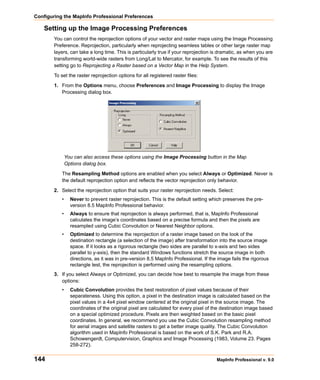
             Hotlink Options dialog box displays the Filename Expression as <undefined>.


        •    When you hover the        cursor over a map feature that contains a HotLink, MapInfo
             Professional displays a message in the Status bar describing the content of the HotLink. When
             there is more than one HotLink for that map feature or the activation attributes overlap, the
             phrase, Multiple active objects under cursor is displayed in the Status bar.


User Guide                                                                                                    59
Mapping – New Features and Enhancements

     Setting the New Default Layout Preferences
        We have added Layout preferences so you can set the options for Layout windows globally by
        default. You can change these options locally to meet the individual needs of your current Layout,
        but global preferences can assist you in presenting a unified look in your presentation map graphics.

        To set the global default preferences for Layout windows:

        1. Choose Options > Preferences > Layout Window to display the Layout Window Preferences
           dialog box.


            Use this dialog box to set the preferences for Layout windows. Completing the entries
            in this dialog box ensures that your layouts will have a uniform look and feel.

        2. Complete the selections in this dialog box and click OK to save your Layout window preferences.
               Show Rulers
               Select this check box to display rulers in your Layout window. Rulers can be useful to help
               you line up elements of your layout on the page. This option is selected by default.
               Show Page Breaks
               Select this check box to display the page breaks in your Layout window. Showing the page
               breaks ensures that the elements of your layout are consistent from page to page. This
               option is selected by default.
               Show Frame Contents
               The options in the Show frame contents box allow you to specify when the contents of frames
               display.
               Always
               Allows you to have the contents of a frame display all the time even when it is not active.
               For example, if you are changing the contents of a Map window that is also in the layout, you
               might want the Always option. That way you can see the effect of the layout as you make
               your changes. This option is selected by default.
               Only when Layout window is active
               Allows you to display the contents of a frame only when the Layout is the active window.
               Never
               Allows you to display only the file name and frame type, even when the Layout is the active
               window. For example, choose Never when you are resizing and repositioning frames. That
               way the contents of each frame will not redraw every time you make a change.


60                                                                                 MapInfo Professional v. 9.0
Chapter 2: What’s New in MapInfo Professional 9.0

               Prompt to Save Workspace Prior to Close
               When this check box is selected, MapInfo Professional prompts you to save before you close
               windows with layout changes. Clear this check box if you do not want to be prompted to save
               your changes. This option is selected by default to prevent accidental loss of information.
               Note: The prompt only displays if there are changes to the open Layout and Legend
                     windows or when the Layout and Legend windows are new.

        3. Click OK to save your preference.

        Once you set these preferences, MapInfo Professional sets these options automatically whenever
        you create a new Layout window. To reset these options for a particular layer locally, select Layout >
        Options to display the Layout Display Options dialog box. This dialog box also allows you to set
        height and width restrictions and an autoscroll option.


    New Prompt Prevents the Loss of Work when Closing Windows
        Some have you have raised issues about losing work when closing windows. When you use the
        Close All option, MapInfo Professional closes not only the window you are working in but also
        Layout and Legend windows that are open as well. When you close a Map window, MapInfo
        Professional closes the Legend and Layout windows associated with that map too.

        Note: The instructions for setting this prompt for Layout windows are described inSetting the New
              Default Layout Preferences on page 60 topic.

        To prevent the loss of work, we have added a new prompt option to the Layout Window Preferences
        and the Legend Window Preferences dialog boxes. This prompt allows you to choose to save the
        contents of the windows you are working in to a workspace before closing. You can also choose to
        discard these changes.
        To set the new prompt when you close Map windows with open Legend windows:

        1. Choose Options > Preferences > Legend Window to display the Legend Window Preferences
           dialog box.


        2. Select the Prompt Save Workspaces Prior to Close check box to display the prompt when
           closing all or closing map windows.

        3. Click OK to save your Legend window preferences.


User Guide                                                                                                 61
Mapping – New Features and Enhancements

       Using the New Save Workspace Prompt

       Once you have set these preferences and click the         button on the Standard tool bar or you
       select File > Close All while you are in a Layout or Legend window, this prompt displays:


       Here you can choose to save your current work or discard it. Click Save to save all of the work you
       have completed in all your open windows or Discard to lose all of the changes you have made since
       the last save.

       When close a Map window that has layouts and legends associated with it, this prompt displays:


       The same rules apply here. Click Save to save all of the work you have completed in all your open
       windows or Discard to lose all of the changes you have made since the last save. The prompt only
       displays if there are changes to the open Layout and Legend windows or these windows are new.


     Improvements in Symbol Style Dialog Box and New Fonts
       We have improved the Symbol Style dialog box by increasing the width of the Font drop-down list
       and by adding new Emergency Response fonts.

       Many users have indicated that the font names have been difficult to distinguish because the width
       of the Font drop-down list is too narrow.

       We have added new standard fonts prepared by the Office of Homeland Security for use in your
       MapInfo maps. These fonts were developed to standardize the way emergency circumstances and
       industries are depicted in maps. These TrueType fonts are listed using the format “ERS V# symbol
       type” for clarity. Specifically the new symbols are:

       •   ERS v2 Damage - Use these fonts to create your own symbols. These fonts include circles,
           squares, and rectangles of various complexity.
       •   ERS v2 Incidents - Use these fonts to show various hazardous circumstances such as fires,
           police activity, and other dangers.
       •   ERS v2 Infrastructures Stage 01 - 04 - Use these fonts to show various industrial environments
           including farms, factories, financial businesses etc. in a wide variety of complex frames to
           indicate severity


62                                                                               MapInfo Professional v. 9.0
Chapter 2: What’s New in MapInfo Professional 9.0

        •    ERS v2 Natural Events - Use these fonts to show areas of natural disasters such as hurricanes,
             tsunamis, volcanoes and other natural events
        •    ERS v2 Operations Stage 01 - 04 - Use these fonts to show various emergency circumstance
             symbols such as ambulances, biohazard, and Red Cross-type symbols in a wide variety of
             complex frames to indicate severity


Tool Enhancement

    Setting the Window Size with the Window Manager Tool
        You can now resize the open browser, map, layout, and graph windows in MapInfo Professional
        using the Window Manager tool. Remember you need to add the Window Manager tool to the Tool
        Manager list before using it. For specific instructions in using this new feature, see the Windows
        Manager Tool in the Help System.


Coordinate System and Datum Enhancements
        For the details of these projections, see the Custom Datums section in the Appendices.

        Added Bosnia-Herzegovina Coordinate Systems. We have added the following projections to the
        PRJ file:

             •   Bosnia-Herzegovina (Zone 5)
             •   Bosnia-Herzegovina (Zone 6)
             •   Bosnia-Herzegovina (Zone 7)
        Added Luxembourg Projections. We have added the following Luxembourg projection to the PRJ
        file:

             •   Luxembourg 1930 / Gaussp2169
        Added S-JTSK (KROVAK) Coordinate System. We have added a new S-JTSK projection to the
        .PRJ file to serve the Czech Republic and Slovakia. We have added using new Projection #32 and
        new Datum #1020:

        The last PRJ entry is using following parameters:

             Datum:1020 (S-JTSK datum with Ferro Prime meridian)

             Units:- meters

             Origin, Longitude: 42.5 degree (East of Ferro)

             Origin, Latitude: 49.5 degree

             Standard Parallel: 78.5 degree

             Azimuth: 30.28813972 degree


User Guide                                                                                              63
Coordinate System and Datum Enhancements

        Added Swedish Coordinate System. We have added the following projection to the PRJ file.

           •   ST 74
        Updated EPSG Aliases for Swedish Coordinate Systems. We have added two new EPSG
        aliases for Swedish coordinate systems to the PRJ file to maintain consistency with the latest update
        to MapXtreme:

           •   EPSG:2326
           •   EPSG:3152
        Updated Hong Kong EPSG Code. We have added the following EPSG code entry to the PRJ file:

           •   Hong Kong 1980 Grid Systemp2326


     Updated Australian Victorian Coordinate System
        We have added the following Australian bounded projections to the PRJ file:

           •   VIC VicGrid66 (AGD 66)
           •   VIC VicGrid94 (GDA 94)
           •   VIC AMG Zone 54 (AGD 66)
           •   VIC AMG Zone 55 (AGD 66)
           •   VIC MGA Zone 54 (GDA 94)
           •   VIC MGA Zone 55 (GDA 94)
           •   VIC Longitude/Latitude (AGD 66)
           •   VIC Longitude/Latitude (GDA 94)


     Updated Danish Coordinate System Entries
        We have added the following Danish projections to the PRJ file

           •   UTM Zone 32 Euref89p25832
           •   UTM Zone 33 Euref89p25833
           •   UTM Zone 32 (ED 50)p23032
           •   UTM Zone 33 (ED 50)p23033
           •   System 34 Jylland-Fynp34003
           •   System 34 Sjaellandp34005
           •   System 45 Bornholmp45001
           •   KP2000 Jylland-Fynp18401
           •   KP2000 Sjaellandp18402
           •   KP2000 Bornholmp18403


64                                                                                 MapInfo Professional v. 9.0
Chapter 2: What’s New in MapInfo Professional 9.0

Printing, Importing, and Exporting Enhancements

    Exporting to GeoTIFF (*.tif) Format
        MapInfo Professional includes the capability of exporting Map windows to GeoTIFF (*.tif) export
        format. GeoTIFF files are designed to connect a raster image to its location on the earth.
        Georeferencing information is written directly to the *.tif file so that it can be used in other
        applications.


        GeoTIFF Export Requirements
        This section explains the requirements for exporting maps to GeoTIFF format. Using GeoTIFF
        format has the following requirements:

        •    The window you are exporting is a Map window.
        •    The Map window’s projection contains an EPSG code. Projections that do not have an EPSG
             code are not supported.
        •    The Map window must not be rotated, or contain a raster image that causes a rotation.
        The sections that follow explain the requirements in more detail.

        Map Windows
        When you export a Map window to GeoTIFF format, the file is saved in the current projection of the
        Map window.

        You cannot use the Save Window As command to save the Map window to a different projection. To
        use a different projection, you must change the Map window projection before you use the Save
        Window As command.

        GeoTIFF is not available as an export format for other types of windows (Browser, Graph, Legend,
        Redistricter, 3DMap) or Map windows that use unsupported projections.

        Supported Projections
        For GeoTIFF export the Map window projection must have an EPSG code.

        You can see whether a projection has an EPSG code in the Choose Projection dialog box.


        The Choose Projection dialog box is available from the Map Options dialog box. With a Map window
        open, choose Map > Options. In the Map Options dialog box, click the Projection button.


User Guide                                                                                                 65
Printing, Importing, and Exporting Enhancements

       The MAPINFOW.PRJ file entries that use EPSG codes contain a “P###” code. For more
       information see the MapInfo Professional User Guide, Chapter 14: Working with Coordinate
       Systems and Projections.

       Image Rotation
       In Map windows that contain a raster or grid image, the image must not cause the map projection to
       rotate the coordinates if you wish to create a GeoTIFF for this Map window. Rotation can occur if the
       image is not registered precisely. To work around this, you can force Image Reprojection to be
       enabled by setting Map > Options > Image Processing > Reprojection Using > Always. If Image
       Processing is set to Always, then it is possible to use raster layers for GeoTIFF export


       GeoTIFF Export Procedure
       To export a Map window to a GeoTIFF format file, do the following:

       1. Open the desired layers in a Map window, if you do not have your map open already.

       2. Make the Map window active.

       3. Choose File > Save Window As. The Save Window As dialog box displays on the screen.


       4. In the Save in box, select the destination folder of the exported file.


66                                                                                  MapInfo Professional v. 9.0
Chapter 2: What’s New in MapInfo Professional 9.0

        5. In the Save as type drop-down list, click the arrow to see the file format choices. Select GeoTIFF
           (*.tif).


        6. In the File name box, enter a name for the exported file.

        Click Save and continue with the normal Save Window As process.

        Other Types of Windows
        If you attempt to export other types of windows to GeoTIFF format (for example, Browser, Graph,
        Legend, Redistricter, 3DMap), the GeoTIFF format will not be available as an export format in the
        Save as type drop-down list.

        Unsupported Projections
        If you attempt to export a Map window using a projection that is not supported by the GeoTIFF
        format, that is, a projection that does not have an EPSG code, the GeoTIFF format will not be
        available as an export format. In addition, the Save Window As dialog box displays the following
        message at the bottom of the dialog box:

        Note: GeoTIFF option not available when Current Map Projection does not have an EPSG code. In
              order to save to GeoTIFF, you’ll need to change your map projection to one that has an
              EPSG code.


User Guide                                                                                                 67
Printing, Importing, and Exporting Enhancements

       Raster and Grid Images
       If you attempt to export a Map window that contains a raster or grid image that causes a rotation in
       the Map window, the GeoTIFF format will not be available as an export format. In addition, the Save
       Window As dialog box displays the following message at the bottom of the dialog box:

       Note: GeoTIFF option not available when Map projection is rotated due to raster or grid images. Try
             turning on Image Reprojection (Map > Options > Image Processing > Reprojection >
             Always).


       To turn on Image Processing, do the following:

       1. Choose Map > Options. The Map Options dialog box displays on the screen.


68                                                                               MapInfo Professional v. 9.0
Chapter 2: What’s New in MapInfo Professional 9.0

        2. Click Image Processing. The Image Processing dialog box displays on the screen.


        3. Click Always, and then click OK.

        4. Click OK in the Map Options dialog box.

        5. Try saving the Map window to GeoTIFF format again.


Database Enhancements
        The following are the database enhancements for this version of MapInfo Professional:

             •   Using the Find Command in Remote Tables on page 69
             •   Using the Geocode Command in Remote Tables on page 70
             •   New Find Selection Preferences for Copying/Pasting on page 70
             •   New Time and DateTime Data Type Support for Remote Databases on page 72


    Using the Find Command in Remote Tables
        The Find command (Query > Find) is available for both live and linked remote tables, regardless of
        whether they are indexed. Neither the table nor a column in the table needs to be indexed for the
        Find command to be available.


        If the selected column in the search table does not have an index, an index will be created when you
        click OK in the Find dialog. For native tables and linked remote tables, this newly created index is
        permanent. For live remote tables and read-only native tables, the index is temporary.


User Guide                                                                                               69
Database Enhancements

     Using the Geocode Command in Remote Tables
        The Geocode command (Table > Geocode) is available for both live and linked remote tables,
        regardless of whether they are indexed. Neither the table nor a column in the table needs to be
        indexed for the Geocode command to be available.


        If the selected column in the search table does not have an index, an index will be created when you
        click OK in the Geocode dialog. For native tables and linked remote tables, this newly created index
        is permanent. For live remote tables and read-only native tables, the index is temporary.


        Additional Notes
        The Find and Geocode dialog boxes both contain the following design elements:

        •   Indexed tables and columns are shown with an asterisk at the end of their names in the Search
            Table and for Objects in Column drop-down lists. There is a reminder in each dialog box about
            what the asterisk means.
        •   The tables in the Search Table drop-down list are listed in alphabetical order.
        •   The width of the list boxes adjusts dynamically to fit the longest table or column name.


     New Find Selection Preferences for Copying/Pasting
        In the last release of MapInfo Professional, we added zoom functionality when performing a Query >
        Find Selection on a single object. We added this feature so MapInfo Professional would perform
        consistently with existing Query > Find Selection behavior for multiple objects. In speaking with
        users subsequently, we found that most of you were using this functionality to copy and paste a
        single object, and since the object was already in view, the additional zoom was not necessary. In
        fact, if you were doing multiple copy and paste operations, the new functionality was a hardship.

        Some customers objected to the Find Selection zoom functionality for multiple objects as well.
        Others wanted the option of zooming or not zooming in different situations, so we have created a
        Map window preference so you can set the functionality that works best for you.


70                                                                                MapInfo Professional v. 9.0
Chapter 2: What’s New in MapInfo Professional 9.0

        When we refer to Find Selection, we include all of these functions:

             •     Query > Select
             •     Query > SQL Select
             •     Query > Find Selection
             •     Copy/Paste
        To make Map Preferences easier to work with, we have created a tab system.

        To set your Find Selection options for Map windows:

        1. Choose Options > Preferences > Map Window > Editing tab to display the Editing Map
           Preferences dialog box.


                 Use the Find Selection Options to specify the behavior when you are performing a
                 Find Selection.

        2. Select the Zoom on Find Selection option to zoom to the selection each time you perform a
           Find Selection for single and multiple objects. Clear this check box to prevent zooming when
           performing a Find Selection.

        3. Select the Find Selection after Paste option to turn on the Find Selection feature in the Map
           window only after you Paste an object. If you have an active Browser, and the selection is in that
           Browser window, the browser still scrolls to the selection. Clear this check box to prevent
           zooming after pasting an object.

        4. Click OK to save your preferences and OK again to return to the Map window.


User Guide                                                                                                71
Database Enhancements

     New Time and DateTime Data Type Support for Remote Databases
       The new Time and DateTime data types (see Using Date- and Time-Based Data in Maps and
       Queries on page 23) address a long time issue with many remote databases. Because MapInfo
       Professional only had a date data type, and most remote databases and servers have Date and
       DateTime data types, data read from servers would often be truncated or lost in the process.

       With the addition of these new Time and DateTime data types, the server DATE, TIME, and
       DATETIME/TIMESTAMP match up with the MI Date, MI Time, and MI DateTime more closely. If you
       create a new table with DateTime or Time data in it, the .tab file (both live and linked) you create is
       marked as version 900 file.

       To preserve backward compatibility, when you open an existing live .tab file (linked .tab files are
       really native tables with a local table definition), the behavior depends on the version of the .tab file.
       If the tab file is marked as version 900 or later, MapInfo Professional treats the server DATE as MI
       Date, the server DATETIME or TIMESTAMP as MI DateTime, and server TIME (if any) as MI Time. If
       the version number is earlier than 900, MapInfo Professional matches the behavior of previous
       releases, that is, the server DATE and DATETIME or TIMESTAMP values are converted to MI Date
       and server TIME to MI Char. In addition the Informix DATETIME type is opened as MI Date but is
       marked read-only. This is true of live tables only because linked tables have already been defined.


       Handling Time and DateTime Data From Remote Databases
       When you download Date, Time, and DateTime data type information to MapInfo Professional, this
       is the results you can expect:


            MapInfo
          Professional                                     From Oracle           From MS           From MS
           Data Type              From Informix               (OCI)               Access          SQL Server

        DATE                 DATE                        DATE**

        TIME                 DATETIME HOUR TO
                             SECOND

        DATETIME             DATETIME YEAR TO            TIMESTAMP*          DATETIME*           DATETIME*
                             FRACTION


       *Backward compatibility depends upon the .tab file version as described above.

       **If you use ODBC, the Oracle DATE type is returned as TIMESTAMP. The driver issue causes an
       inconsistency with OCI.

       When you commit table data from MapInfo Professional to these remote database servers, MapInfo
       Professional updates the server table with the value that the user provides in the browser. MapInfo
       Professional may apply some restrictions during the input time.


72                                                                                   MapInfo Professional v. 9.0
Chapter 2: What’s New in MapInfo Professional 9.0

        Working with Time and DateTime Data on the Server
        When you create a new table or save a copy of a table with Date, Time, and DateTime data type
        information on a DBMS server, this is the results you can expect:


              In MapInfo                                                        To MS           To MS SQL
             Professional          To Informix             To Oracle            Access            Server

         DATE               DATE                      DATE                  DATETIME*         DATETIME*

         TIME               DATETIME YEAR TO          TIMESTAMP(3)*          DATETIME*        DATETIME*
                            FRACTION(3)*

         DATETIME           DATETIME YEAR TO          TIMESTAMP(3)           DATETIME         DATETIME
                            FRACTION(3)


        *The MapInfo Professional data type will be extended on the servers. When the same data returns to
        MapInfo Professional it becomes the data type identified on the server. This mismatch is caused by
        a mismatch between the data types in the server and MapInfo Professional.

        As you can see from the previous table, there may be conversion issues involved depending on the
        local type and the type of database server you are communicating with. To make the data type
        conversion clearer we have added some messages to inform you of the details of the conversion
        when you are creating a new table or saving a copy of a table data to a remote database. When you
        use the Create New Table or Save Copy of Table as dialog boxes, red messages display at the
        bottom of the dialog box to inform you of the Date, Time, and DateTime conversion details.

        If you create a new table with Date, Time, and DateTime data using MapBasic statement, the
        notification is a little different. If you use the Server Create Table statement, keep in mind that the
        statement only supports the types that are also supported by the server. Therefore, Time type is
        prohibited from this statement for Oracle, IBM Informix, MS SQL Server and Access servers and the
        Date type is prohibited for MS SQL Server and Access servers. You should replace unsupported
        types with DateTime to create a table that contains Time information on a column.

        If you create a copy using a MapBasic statement and the source table contains Time or Date type
        columns, these columns will be converted to DATETIME or TIMESTAMP depending on whether the
        server supports the data types or not and the parameters you pass in. You can control this behavior
        using the ConvertDateTime clause. If the source table does not contain Time or Date data type, this
        clause is not operational. If ConvertDateTime is set to ON (which is the default setting), Time or Date
        type columns will be converted to DATETIME or TIMESTAMP. If ConvertDateTime is set to OFF the
        conversion is not done and the operation will be cancelled if necessary. If ConvertDateTime is set to
        INTERACTIVE a dialog box will pop up to prompt the user and the operation will depend on the
        user's choice. If the user chooses to convert, then the operation will convert and continue; if the user
        chooses to cancel, the operation will be cancelled. The Time type requires conversion for all
        supported servers (Oracle, IBM Informix, MS SQL Server and Access) and the Date type requires
        conversion for MS SQL Server and Access database servers.

        Note: For MS SQL Server and Access database servers, this restriction could be an backward
              compatibility issue. In previous releases, we did the conversion without explaining it. In this
              release, we suggest you use the DateTime data type instead of Date data type. If you still use
              the Date data type, the conversion operation will fail.

User Guide                                                                                                   73
Miscellaneous Enhancements

Miscellaneous Enhancements
       The following changes are additional significant enhancements to the MapInfo Professional product:

          •   New Time and DateTime Data Type Support for Remote Databases on page 72
          •   Envinsa Routing and Geocoding Constraints Change on page 74
          •   New TrueType Font Behavior on page 74
          •   Improved Character Set Conversion on page 74
          •   MapBasic Help Available from MapBasic Window on page 75


     Envinsa Routing and Geocoding Constraints Change
       We have changed the way we limit the amount of information that is sent to servers based on
       upgrades to the Envinsa product. For example, you may notice that the Add button in the Create
       Driving Regions dialog box or the Geocode using Server dialog box is disabled if you have reached
       the limit on the number of request values (number of address batches, times, or distances) you have
       sent to the server. In the past, MapInfo Professional used to use the same limit for all servers but we
       found that the loads a server can handle vary widely. Newer versions of Envinsa allow the server to
       set limits on the server side, and MapInfo Professional will now use these limits. You may see some
       changes in behavior when you switch servers and the new server has different limits.
       Another difference you may see is that a particular quantity of address batches, times or distances
       may work for one server but not for another.

       These changes should improve the performance of your connection to the server in that MapInfo
       Professional is not sending more information to the server than it can handle.


     New TrueType Font Behavior
       Curved labels and other text display features are moving MapInfo Professional toward using only
       TrueType fonts. For all text display excluding curved and rotated labels, MapInfo Professional 9.0
       will honor the use of non-TrueType fonts, but we recommend the use of TrueType fonts wherever
       possible.

       When you use the Text Style dialog box, you may notice that only TrueType fonts display in the Font
       list by default. If you have used a non-TrueType font in an old workspace or table, this font appears
       in the Font list. If you use a non-TrueType font in an existing workspace or .tab file and begin using
       the curved labels feature, MapInfo Professional substitutes the font you are using with a TrueType
       font.


     Improved Character Set Conversion
       For many years, MapInfo Professional has supported the automatic conversion of characters from
       one character set (called a codepage in Windows) to another. Even though our internal code API
       allows for conversions from any two character sets, in all cases the conversion occurs between a
       character set associated with some data (a text file in MapBasic or a table) and the system character
       set, which is an internal value based on a Windows setting.


74                                                                                 MapInfo Professional v. 9.0
Chapter 2: What’s New in MapInfo Professional 9.0

        If characters in your data display incorrectly or display as an _ (underscore), your character set
        conversion routine or tables may be to blame.

        We have found that these Microsoft Windows conversion tables and routines more adequately meet
        our customers’ needs. Therefore, MapInfo Professional now relies on the character set conversion
        routines supplied by the Windows operating system. Most modern systems have all these internal
        tables already configured. If a situation occurs where those tables are not installed, you can easily
        install them, if you have administrative rights.

        See http://www.microsoft.com/resources/documentation/windows/xp/all/proddocs/en-
        us/int_pr_install_code_page.mspx?mfr=true for details.


    MapBasic Help Available from MapBasic Window
        If you use the MapBasic Window, you may be interested in looking up information about the
        functions and statements that you see there. There is a MapBasic section in the Help System that
        shows the purpose, syntax and examples of all MapBasic Language features.

        To access the MapBasic Language reference features available in the MapBasic window:

        •    Do one of the following:
             •     Select Help > MapInfo Professional Help Topics. When you select this option, you can
                   access the MapBasic Language Reference list of functions, statements, and clauses you can
                   use in the MapBasic window.
                 Figure: MapBasic Language Reference Help Topic


                 When you find a function or statement you think is particularly useful, you can save it to
                 the Favorites tab for later reference.
             •     Open the MapBasic window and select F1. The MapBasic Window topic displays:

             From this help topic you can access the Language Reference or learn more about working in the
             MapBasic window.


User Guide                                                                                                    75
Data Enhancements

Data Enhancements
       To provide more room for data in the future, we have decided to ship a separate data CD with
       MapInfo Professional.

       Here is the directory structure and data presentation for the introductory and sample data that is
       shipped with MapInfo Professional. We use the term Introductory Data to describe the data you can
       use to geocode locally and to enhance the maps you create in every session. The Sample Data
       folder provides examples of other types of data that are available from MapInfo Corporation.

       The Introductory_Data directory is structured as follows:

          NorthAmerica

          USA

          Canada

          Mexico
          World

          [files]

          Europe

          Asia

          Africa

          Australia

          World_WMS

          workspcs

       The Sample Data is designed to give you a taste of the other kinds of data products you have
       available to you. The SampleData directory is structured as follows:

          Geographic
              AirPhotoUSA
              StreetPro Samples
          Industry_Data
              Business Points
              Insurance
              TelcoData
              Weather
       We have added more industry-specific sample workspaces and updated the samples that ship with
       the MapInfo Professional application to enhance your maps and geocoding. To make space for this
       new data, we have removed the indexes from all of the data except the USZIPBDY.TAB,
       US_ZIPS.TAB, and the US_CNTY.TAB files. You need the indexes for these files to maximize your
       ability to geocode to ZIP code boundaries and centroids and county centroids.


76                                                                             MapInfo Professional v. 9.0
Chapter 2: What’s New in MapInfo Professional 9.0

    Installing the Free Data Locally
        To install the free data locally:

        •    Place the Data CD in the CD drive and follow the prompts that display according to the needs of
             your implementation of MapInfo Professional.

        CAUTION:       If you want to install this data in addition to your existing product data, you need
                       to specify a new directory to ensure that your current data is maintained.


    Data Updates and Additions
        The data updates and additions for this release include:

             •   Updated ZIP Code Point file to version April, 2007
             •   Updated ZIP Code Boundary file to version October 2005
             •   Added new version of telephone company data for Connecticut April, 2007 (Area Codes,
                 PSAP, RateCenters)
             •   Added Updated RiskInfo (Weather) data for Connecticut September, 2005
             •   Added Business Points sample data for Connecticut in workspaces, showing potential use
                 cases – January, 2006
             •   Added a sample of IDSS (Insurance Decision Solution Suite)
             •   Updated all StreetPro sample data – StreetPro US Version 10.0 January 2007
             •   Added StreetPro samples for Austria, Denmark, France, Ireland, Norway, Portugal, and
                 Switzerland
             •   Added sample crime data in the UKCrimeExample directory
             •   Crater_3d.wor and ElevationUS_3D.wor provide is a new 3D grid workspaces
             •   CurvedLabel.wor displays the new Curved Label feature


User Guide                                                                                               77
Data Enhancements


78                  MapInfo Professional v. 9.0
Installing and
Configuring MapInfo
                                                                                                       3
Professional

This chapter helps you install and set the basic preferences for MapInfo
Professional®. In addition, there are instructions for fixing problems that come
up as part of the installation process. We also cover starting and exiting the
product.


Sections in this Chapter:
         System Requirements . . . . . . . . . . . . . . . . . . . . . . . . . . . . . . . . . . .80
         MapInfo Professional and Operating System Support . . . . . . . . .81
         MapInfo Professional Database Connectivity and Support . . . . .83
         Before You Install MapInfo Professional . . . . . . . . . . . . . . . . . . . .84
         Installing MapInfo Professional . . . . . . . . . . . . . . . . . . . . . . . . . . .85
         MapInfo Licensing and Activation . . . . . . . . . . . . . . . . . . . . . . . . .92
         Modifying or Removing MapInfo Professional . . . . . . . . . . . . . .112
         Configuring the MapInfo Professional Preferences . . . . . . . . . .116
         Starting up and Leaving MapInfo Professional . . . . . . . . . . . . . .149
         File Format Types Supported . . . . . . . . . . . . . . . . . . . . . . . . . . . .150
System Requirements

System Requirements
        Below are the guidelines for minimum and recommended system requirements. Please note that
        hardware requirements do vary based on your use of the product and your system. In general, a
        higher processor speed, larger memory (RAM) and industry leading graphics cards provide a better
        user experience and result in better responses from MapInfo Professional. These are the minimum
        system requirements for MapInfo Professional 9.0:


                                  Minimum           Minimum Disk               Minimum               Minimum
     Operating Systems            Memory                Space                  Graphics              Monitor

Windows 2000                  128 MB of RAM       Application 103 MB       16- or 24-bit Color    800x600 Display
Professional SP 4             with a minimum
                                                  Data 450 MB
Windows Vista *               of a Pentium PC

Windows XP Professional       64 MB of RAM        Application 103 MB       16- or 24-bit Color 800x600 Display
SP 2                          with a minimum
                                                  Data 450 MB
                              of a Pentium PC
Windows XP Home SP 2

Windows 2000 Server SP4

Windows 2003 Server SP 1
with Terminal Services/
Citrix


        * MapInfo Professional is not currently Windows Vista certified.

        These are the recommended system requirements for MapInfo Professional 9.0:


                         Recommended          Recommended            Recommended                 Recommended
 Operating Systems          Memory             Disk Space              Graphics                     Monitor

Windows 2000            256/512 MB of       Fast EIDE 2 or SCSI    Mid to High 2D/3D         Greater than
Professional SP 4       RAM with a          Interface with 2GB     card with 128MB or        1024x768
                        minimum of a        or better              better                    resolution or
Windows XP
                        Pentium PC or                                                        better
Professional SP2                            Data 450 MB
                        better
Windows XP Home
SP2

Windows 2000 Server     Same, PLUS          Fast EIDE 2 or SCSI    Server: Same              Greater than
SP4                     memory              Interface with 2GB                               1024x768
                                                                   Client: Choose
                        sufficient to       or better                                        resolution or
Windows 2003 Server                                                based on
                        support each                                                         better
SP 1 with Terminal                          Data 450 MB            resolution/speed
                        connected user
Services/Citrix                                                    requirements


        Note: For Windows 2003 Server Users: Keep in mind that some of the options you choose for the
              server can limit the options available to the client system.


80                                                                                   MapInfo Professional v. 9.0
Chapter 3: Installing and Configuring MapInfo Professional

        MapInfo has exhaustively tested MapInfo Professional under the following Microsoft Windows
        Desktop Operating Systems:

        •    Windows 2000 Professional
        •    Window XP Home Edition
        •    Windows XP Professional
        MapInfo has exhaustively tested MapInfo Professional under the following Microsoft Windows
        Server Operating Systems:

        •    Windows 2003 Server
        •    Windows 2003 with Terminal Services with Citrix Meta Frame technology. To learn more about
             this installation option see Windows 2003 Server with Terminal Services/Citrix Support in
             Chapter 3 on page 82.
        MapInfo has performed Installation and validation testing on the following 64Bit Windows Operating
        System:

        •    Microsoft's 64-bit Windows XP Professional with 32 Bit compatibility mode.
        Note: There are no special installation instructions for installing MapInfo Professional on a 64-bit
              Windows Operating System. Please follow the instructions designed for your installation type
              (Typical Workstation Installation on page 88,Custom Workstation Installation on
              page 88 or Network Installation on page 90) presented in this chapter.


MapInfo Professional and Operating System Support
        This section provides additional detail on the operating system support for MapInfo Professional,
        including:

        •    Windows 2000 Support on page 81
        •    Windows 2003 Server with Terminal Services/Citrix Support on page 82


    Windows 2000 Support
        MapInfo Professional supports Windows 2000 (SP 4) features as described in the Application
        Specification for Microsoft Windows 2000 document (available at
        http://www.microsoft.com/WINDOWS2000/news/bulletins/appspec.asp).

        The key aspects of Windows 2000 support with regard to MapInfo Professional are:

        •    Supporting multiple users on a single machine, each having their own application settings.
        •    Supporting use of MapInfo Professional on a secure Windows 2000 computer (one where users
             have very limited access rights).
        •    Using an installer based on the Windows Installer Service.
        In order to support these requirements, we have changed the location of many application data files
        (for example, files containing information used by MapInfo Professional during execution (for
        example, the projection file, mapinfow.prj). The installer places the files under the current user's
        Application Data folder. Likewise, some registry entries have been moved from
        HKEY_LOCAL_MACHINE to locations under HKEY_CURRENT_USER. In both cases the current


User Guide                                                                                                  81
MapInfo Professional and Operating System Support

        user is guaranteed to have write access to the folder or registry key. Also, since the files and registry
        entries are stored in user specific locations, each user of the computer has their own application
        data files (e.g. each has their own copy of the preference file, mapinfow.prf).

        Note: The changes described above apply to all versions of Windows supported by MapInfo
              Professional. The exact location of the Application Data folder varies depending on the
              version of Windows:


                          OS                                  Application Data Folder Location

         Windows 2000 (SP 4)                     c:Documents and Settings<user name>Application Data

         Windows XP Professional (SP 2)          c:Documents and Settings<user name>Application Data

         Windows XP Home (SP 2)                  c:Documents and Settings<user name>Application Data


     Windows 2003 Server with Terminal Services/Citrix Support
        MapInfo Professional supports Windows 2003 Server with Terminal Services through Citrix to allow
        any member of the group Users to be able to use MapInfo Professional via a Terminal Services
        session. The Terminal Services feature is essential to the operation of the Citrix Access
        Infrastructure.

        We recommend that you consult with your Citrix administrator in the Citrix configuration guidelines
        PDF. That document includes both questions and answers about RAM and CPU requirements. This
        document is available by clicking this link.
        http://support.citrix.com/servlet/KbServlet/download/4257-102-
        11011/Load_Manager_Guide.pdf.
        We have tested MapInfo Professional with a standard install of Citrix v3.0 and Microsoft Terminal
        Services 2003. We verified the testing of MapInfo Professional on CITRIX v3.0. MapInfo
        Professional does not require any client side technology, however, Citrix requires the Citrix Client to
        be installed. We tested against Version 6.20.985 of the client.

        We have modified our installation process to ensure that MapInfo Professional operates successfully
        in a Terminal Services/Citrix environment. When the installer detects that the user is installing locally
        in a system running Windows 2003 Server with Terminal Services through Citrix, the installer adds
        the necessary files and components to that machine. Once the user connects for the first time to the
        Terminal Services/Citrix computer and runs MapInfo Professional, a user configuration process
        begins to copy the per-user files needed to run MapInfo Professional. This works in the same way
        for Windows 2003 Server/Citrix clients as any other MapInfo Professional windows client.

        During the installation process, if you decide that the default installation locations are not appropriate
        for your implementation, you can change these locations using the MODE.INI file. For more
        information about constructing a custom MODE.INI file, see Controlling the Location of
        Application Data Files During Installation on page 114.


82                                                                                    MapInfo Professional v. 9.0
Chapter 3: Installing and Configuring MapInfo Professional

        The recommended RAM amount is based on the general guidelines from Citrix and uses this
        formula:

        Amount of RAM required for the application x the number of concurrent
        users
        Our testing of MapInfo Professional running Citrix on a Pentium CPU suggests these guidelines:

        64MB of RAM X the number of concurrent users


        Installing MapInfo Professional on the Citrix Server
        Citrix users follow the Typical Workstation Installation instructions to install MapInfo Professional.

        Note: While we expect to work with ODBC and OCI technology on Citrix, we recommend that your
              Citrix administrator consult with database vendor documentation to configure their respective
              drivers on Citrix.


MapInfo Professional Database Connectivity and Support
        MapInfo Professional supports the following spatial database servers:

             •   SQL Server 2000/2005
             •   Informix 9.x
             •   Solaris 32-bit
             •   HPUX
             •   Oracle Spatial 10G, 9iR2, 9iR1
        Further, using ODBC drivers, you can access your data from MapInfo Professional using:

             •   Oracle ODBC Driver 9x
             •   SQL Server 2000/2005
             •   Informix 3.x
        You can also open tables of data from the following databases and make them mappable but only for
        point data:

             •   Oracle 9iR2
             •   Oracle 10G
             •   MS Access XP
             •   MS SQL Server 2000/2005
             •   Informix 9.4
        For more about working with remote database information, see Accessing Remote Data and Setting
        your Database Connection Preferences in the Help System.


User Guide                                                                                                 83
Before You Install MapInfo Professional

        A Note about SQL Server 2005 Support

        MapInfo Professional supports the changes in the MS SQL Server 2005 schema concept. Microsoft
        has enhanced SQL Server 2005 to use schemas to organize database objects into namespaces. In
        the past the schema was part of the owner/user construct, so when you deleted a user, you deleted
        the objects associated with that user.

        Using SQL Server 2005, objects are associated with a schema, which can be associated with many
        users and each user can be associated with many schemas.

        The old fully qualified name of a database object was:

           Server.Database.User.Object.

        The new fully qualified name of the object is:

           Server.Database.Schema.Object
        If you leave out the server and database name identifiers, MapInfo Professional uses the current
        server and database names. If you do not explicitly specify a schema for a user, the server assumes
        any unqualified object names are in the default schema. Therefore, if you are accessing a SQL
        Server 2005 database, you need to update any features/functions, tools, and test scripts accessing
        the objects, including the metadata in the MAPCATALOG, to use the new fully or partially qualified
        object name.

        To make this version of SQL Server work, you must have this 8.5.1 (or later) version of MapInfo
        Professional. There is a work around for MapInfo Professional 8.5 and earlier versions that
        accesses a server table with the form, Database.Owner.Object. Review the MapInfo Professional
        8.5 User Guide for these instructions.


Before You Install MapInfo Professional
        Before installing MapInfo Professional, record your serial number and access code in an easy-to-
        remember place, such as the title page of the User Guide or Supplement. You need a valid serial
        number and access code to complete an installation or an upgrade. Also, please complete the
        postage-paid registration card and return it to MapInfo Corporation. Additionally, you can register
        online by accessing the Contact Info option on the CD Browser.

        If the MapInfo Professional installer detects a current version of the product, 6.0 or earlier, or detects
        that the product had been installed at some time, the installer copies the MAPINFOW.WOR,
        STARTUP.WOR and MAPINFOW.PRF from the operating system's system directory to <user profile
        root>Application DataMapInfoMapInfo.

        Application data (appdata) files are the non-executable data files that MapInfo Professional uses
        during operation.

        To use a silent installation procedure, see Silent Installation Procedures for System
        Administrators on page 105.


84                                                                                    MapInfo Professional v. 9.0
Chapter 3: Installing and Configuring MapInfo Professional

    Navigating the MapInfo Professional CD Browser
        The initial screen of the MapInfo Professional CD Browser includes these options:

             •   Install Products: From this option you can install MapInfo Professional (including DBMS
                 support and translators), free data, access to the documentation, and Install Utilities,
                 including: ECW Compressor and GPS.
             •   What’s New: Display a list and description of new and enhanced features.
             •   Online Reference: MapInfo Professional provides the following online reference documents:
                 The MapInfo Professional Supplement, MapBasic Reference, Crystal Reports User’s Guide,
                 the MapInfo Professional Printing Guide, as well as the Adobe Acrobat Reader. The MapInfo
                 Professional and Crystal Reports documentation are copied into the Documentation
                 subfolder of your installation directory during the installation process.
             •   Run MapInfo Tutorial: From this option you can access the MapInfo Tutorial from the MapInfo
                 web site to learn more about the basic features of MapInfo Professional.
             •   Other Products: Display information about MapBasic, MapInfo Discovery, and MapInfo Pro
                 for SQL Server.
             •   Contact Information: Where ever you are, MapInfo is there to help you. Contact us at any of
                 these locations or visit us on the world wide web at www.mapinfo.com!
             •   Register Online: We have simplified the registration process. Simply click this entry and the
                 wizard walks you through the registration process quickly.
             •   Browse CD: From this option you can review the contents of the CD. There are additional
                 utilities that may be useful to you that are only available when you browse.
             •   Exit: From this option you can close the CD Browser application.


Installing MapInfo Professional
        CAUTION:       We strongly recommend that you exit from all Windows programs before
                       beginning the installation process. If you are upgrading from an earlier version
                       of MapInfo Professional, we recommend that you uninstall before upgrading.

        You must have Administrator rights to run the Installer on Windows XP.

        If your Windows Start menu does not have a MapInfo program folder, the installation process
        creates this folder. If your Windows Start menu already has a MapInfo program folder, this process
        creates a new MapInfo icon within that folder.

        MapInfo Professional provides its application data files to each user. Called a Per-User install, this
        functionality runs the first time you run MapInfo Professional or MapInfo Professional client on a
        machine, and each time the MapInfo Professional Installer is run thereafter. The application data
        files include, among others, the Pen Styles file, Custom Symbols files, Graph Support files, and
        Thematic Legend templates. These files allow different users to have custom settings.

        Note: The Installer requires that your TEMP variable be set to a valid directory.


User Guide                                                                                                  85
Installing MapInfo Professional

        To install MapInfo Professional:

        1. On the Launcher menu, click Install Products from the MapInfo Professional CD Browser.

        2. Click MapInfo Professional Installer. The Install Shield Wizard dialog box displays. Click Next
           to continue the process and display the License Information dialog box and accept the terms of
           the agreement.

        3. Click Next to continue. The Customer Information screen displays.


        4. Type your name, organization name, serial number, and access code in the corresponding fields.
           The serial number and access code are listed on the Product Activation Information Card in the
           product box and are used to activate your product. Click Next to continue.
        5. Do one of the following:
           •   If your organization purchased node-locked licenses, the third character of your serial
               number is "N". Skip step 5 and go to step 6. For more information, see Node-Locked
               Licenses on page 92.
           •   If your organization purchased concurrent licenses, the third character of your serial number
               is "S". In those cases, the License Server Name and Port dialog box displays on the screen.


86                                                                                MapInfo Professional v. 9.0
Chapter 3: Installing and Configuring MapInfo Professional


                 If you know the license server name and port number, enter them here. If you do not, you can
                 continue with the installation without filling in the license server name and port number. You
                 will have another opportunity to supply this information when you start MapInfo Professional.
                 For more information, see Concurrent Licenses on page 101. Click Next.

        6. Review the following installation types and determine which instructions are appropriate. Click
           one of the following and click Next to continue:
             •   Typical Workstation Installation. Click this option if you will be using MapInfo Professional
                 as a desktop application including remote database access and connectivity. See Typical
                 Workstation Installation on page 88 to continue these instructions.
             •   Custom Workstation Installation. Click this option to restrict the components that are
                 installed by the installation program. For example, you can prevent the installer from adding
                 the help system and tools. See Custom Workstation Installation on page 88 to continue
                 these instructions.
             •   Network Installation. Click this option if you are installing or upgrading to a MapInfo
                 Professional network product. See Network Installation on page 90 to continue these
                 instructions. These instructions are for network administrators only. After you install MapInfo
                 Professional on the network, follow the instructions for installing MapInfo Professional on
                 client equipment in Setting Up Client Workstations on page 92.


User Guide                                                                                                   87
Installing MapInfo Professional

     Typical Workstation Installation
        Choose this option to install MapInfo Professional program files, Online Help, Tools, Universal
        Translator, and Crystal Reports. The ArcLink translation utility is not installed with this option.

        CAUTION:      Make sure you have completed the directions in Installing MapInfo Professional
                      on page 85 before beginning these instructions.

        To continue installing MapInfo Professional on a workstation:

        1. In the Setup Type dialog box, click Typical Workstation Installation; the Destination Folder
           screen displays. If you have an earlier version (or versions) of MapInfo Professional installed and
           you do not want to overwrite that version, create a new directory name in the next step.

        2. Do one of the following:
           •   Click Next to accept the destination folder indicated
           •   Click Change to create a new path in the Change Current Destination Folder dialog box.
               Type the new path in the Folder name field and click OK to continue. Click Next to continue.
               The Ready to Install the Program screen displays. Review your selections to ensure that the
               path is correct before moving on. Click Back to make changes.

        3. Click Install to begin. A progress bar indicates the status of the process.

        4. When the InstallShield Wizard Complete screen displays, choose Finish to return to the Install
           Products screen.
        Note: When you open MapInfo Professional for the first time, the final installation and configuration
              process takes place automatically. See MapInfo Licensing and Activation on page 92
              before you begin using MapInfo Professional.


     Custom Workstation Installation
        Choose this installation type to select components and drivers within the MapInfo Professional
        installation program. This is particularly useful if you want to save disk space by not installing the
        Help System, the documentation, or the MapInfo Professional tools.

        CAUTION:      Make sure you have completed the directions in Installing MapInfo Professional
                      on page 85 before beginning these instructions.

        To continue installing using the custom workstation instructions:

        1. In the Setup Type dialog box, click Custom Workstation Installation; the Custom Setup dialog
           box displays. A feature description, and the space required for the feature and its sub-features
           displays in the Feature Description area.

        2. In the Custom Setup dialog box you decide what components are to be installed and the
           directory you want them to install to. Click the feature icon to select the feature for installation.

           The options for a Custom Setup include:
           •   MapInfo Program Files (which are required to run MapInfo Professional)
           •   Tools (which refer to the MapInfo Utility Tools, Crystal Reports etc.)
           •   Translators (such as ArcLink)


88                                                                                    MapInfo Professional v. 9.0
Chapter 3: Installing and Configuring MapInfo Professional

             •   Help Files
             •   Documentation
        3. To select a feature, click the Down Arrow beside it; a menu displays.


        4. For each feature you want to install, select one of the following:
           • This feature will be installed on local hard drive.
           • This feature, and all subfeatures, will be installed on local hard drive
           • This feature will not be available
             Note: For some features, there are additional options pertaining to the use of the feature from
                   the network. Choose the option that describes your systems implementation of this
                   feature.

             When you select the first or second options in the bullets described above, the feature installs on
             your local hard drive in the default folder. This path displays in the Install To: entry below the
             Custom Setup list pane. To specify another path, select Change button. When you do the
             Current Destination folder dialog box displays allowing you to choose a new path.

             To see if you have enough space on your hard drive or other mapped resources, click the Space
             button. The Disk Space Requirement dialog box displays the disk size, the amount of available
             space, and the amount of space the selected install would take.
             Note: To avoid installing a subfeature, select This feature will not be available.
        5. After you select all the custom options click Next to display the Ready to Install the Program
           dialog box.
        6. Click the Install button to begin the installation of MapInfo Professional with the features you
           selected. The Installing MapInfo Professional screen displays with a progress bar indicating the
           status.
        7. At the end of the installation, the prompt: “Would you like to check our web site for any current
           updates to our product?” displays. If you have an Internet connection, click Yes to access the
           MapInfo Corporation web site containing information about product updates.
        8. When the InstallShield Wizard Complete screen displays, choose Finish to return to the Install
           Products screen.
        Note: When you open MapInfo Professional for the first time, the final installation and configuration
              process takes place automatically.


        Setting up MDAC
        When installing MapInfo Professional, you can choose whether or not to install MDAC (Microsoft
        Data Access Components). Microsoft Data Access Components include various components:
        ActiveX Data Objects (ADO), OLE DB, and Open Database Connectivity (ODBC). If you are unsure


User Guide                                                                                                   89
Installing MapInfo Professional

        whether or not to install the MDAC, consult with your network administrator. This choice allows IT
        administrators to manually install their own replacement modules for the MDAC. You must have
        MDAC, or a replacement, to connect to any databases.


        Adding ODBC and OCI Drivers
        After you add the ODBC and OCI drivers as part of the Typical Installation process, you can use the
        instructions in Setting your Database Connection Preferences in the Help System to set your
        database connection preferences.

        You must have the OCI and ODBC drivers installed for MapInfo Professional to connect to remote
        databases. If you see the following messages, then you have installed the MapInfo DLLs for these
        features correctly but the drivers are missing:

        OCI (Oracle Call Interface)
        The MapInfo Oracle OCI Database driver (MIDLOCI.DLL) failed to load.
        This is most commonly caused by not having an installation of Oracle's OCI
        driver, which is necessary for the MapInfo Oracle OCI Database driver to
        load.
        To fix this issue, please install the Oracle OCI Database driver or rerun
        the MapInfo Professional Installer to remove the MapInfo Oracle OCI
        Database driver.
        Clicking "OK" will allow you to run MapInfo Professional without the
        ability to open Oracle tables through Oracle's Oracle Call Interface.
        If you need more information, please contact MapInfo Technical Support.

        ODBC (Open DataBase Connectivity)
        The MapInfo ODBC Database driver (MIDLODBC.DLL) failed to load.
        This is most commonly caused by an incomplete installation of MapInfo ODBC
        Connectivity Support. To fix this issue, please rerun the MapInfo
        Professional Installer to repair or remove the MapInfo ODBC Connectivity
        Support.
        Clicking "OK" will allow you to run MapInfo Professional without the
        ability to open remote database tables through ODBC.
        If you need more information, please contact MapInfo Technical Support.
        A combined message displays if you attempt to add both of these options and neither of them have
        access to the appropriate database drivers.


     Network Installation
        Installing MapInfo Professional 9.0 on a network involves two separate procedures:

        •   Installing the product on a network drive (presumably done by the Network Administrator).
        •   Setting up users with program manager icons, etc. (presumably done by the user).
        Make sure you have completed the directions in Installing MapInfo Professional on page 85
        before beginning these directions.

        Choose this installation ONLY if you are a Network Administrator and have full rights to the network.


90                                                                                 MapInfo Professional v. 9.0
Chapter 3: Installing and Configuring MapInfo Professional

        To continue installing MapInfo Professional 9.0 on a network:

        1. Click Network Installation; the Administrator Selection Screen displays.

             The options for a Network Setup include:
             •   MapInfo Professional Program Files
             •   Tools, Translators
             •   Help Files
             A feature description, and the space required for the feature, displays in the Feature Description
             area. Click the option icon to install it.

        2. When you select a feature, a menu displays allowing you to choose to install and/or run the
           feature and its subfeatures from various locations, including your local hard drive or from CD.
             •   If you select the hard drive option, the feature will be installed in the path indicated; on your
                 local hard drive in the folder indicated; to specify a different location, choose Change to
                 display the Current Destination folder screen.
             •   If you choose to install an option to your hard drive, the Space button is enabled; choose this
                 button to display the Disk Space Requirement dialog box.
             Note: You can choose to not install a feature by skipping it.

             See Installing MapInfo Professional on a Network Drive in the Help System for additional details.

        3. After the installation is complete, the prompt: “Would you like to check our web site for any
           current updates to our product?” displays. If you have an Internet connection, check Yes to be
           connected to the page of the MapInfo Corporation Web site containing information about product
           updates.

        4. When the InstallShield Wizard Complete screen displays, choose Finish to return to the Install
           Products screen.
        Note: When your users open MapInfo Professional for the first time, the final installation and
              configuration process takes place automatically. See MapInfo Licensing and Activation on
              page 92 for information on licensing.


        Installing MapInfo Professional on a Network Drive
        The procedure for installing MapInfo Professional on a network drive is the same as the regular
        installation procedure except for the following:

        •    Select Network Installation in the Setup Type screen.
        •    Continue as in a Workstation Installation, selecting features, destination locations, etc.
        The Network Installation alone does not install any files to the local hard drive.


User Guide                                                                                                      91
MapInfo Licensing and Activation

     Setting Up Client Workstations
        To permit a user to use this network installation of MapInfo Professional, run SETUP.EXE:

        1. Map a drive to the MapInfo Professional Install directory.

        2. Select Run from the Start menu.

        3. Run SETUP.EXE from [MapInfo install directory]AddClient. The MapInfo Professional Client
           Welcome screen displays.

        4. Click Next. The License Information screen displays.

        5. Click “I accept the terms of the license agreement” and select Next. The Customer
           Information screen displays with the network install values as the default.

        6. Modify for the current instance and select Next.

        7. Click Install to continue the installation.

        8. Click Finish to complete the client installation.

        9. Open MapInfo Professional and begin the product activation process. See MapInfo Licensing
           and Activation on page 92.


MapInfo Licensing and Activation
        This section describes the licenses available for MapInfo Professional and how to get started with
        the product according to the type of license your organization purchased.

        MapInfo has two licensing schemes:

        •   Node-locked
        •   Concurrent
        The serial number and access code that you enter during the installation indicates to MapInfo
        Professional what type of license you have. Depending on the license type, MapInfo Professional
        will guide you through activating the product (if your organization purchased node-locked licenses)
        or connecting to a license server (if your organization purchased concurrent licenses).


     Node-Locked Licenses
        Node-locked licenses enable you to run MapInfo Professional on a specific computer. If you
        purchased node-locked licenses, your installation of MapInfo Professional must be activated before
        you can use it. Activation is the process of acquiring a license from MapInfo. This section explains
        the activation options available for node-locked licenses.


        Product Activation
        MapInfo uses the serial number and access code you supplied during the installation to activate the
        product. If you need to refer to these numbers again, the serial number and access code are located
        on the product box and on the Product Activation Information Card.


92                                                                                MapInfo Professional v. 9.0
Chapter 3: Installing and Configuring MapInfo Professional

        To activate MapInfo Professional:

        1. Install MapInfo Professional, if you haven’t already, and start the product. When you start
           MapInfo Professional for the first time after installation, the Activation Wizard launches. The
           MapInfo Professional Activation dialog box displays on the screen.


        2. Select when you want to activate MapInfo Professional. Select one of the following:
             •   Activate Now–Select this option to start activation now.
             •   Activate Later–Select this options to start a 30-day courtesy period in which you can use
                 MapInfo Professional without activating the product.

        3. Click Next.

             If you selected Activate Now, go to step 4.

             If you selected Activate Later, the Activation Wizard closes and the courtesy period begins. The
             courtesy period enables you to use MapInfo Professional immediately and active the product at
             a time that is convenient for you. Each subsequent time you start MapInfo Professional, a dialog
             box displays informing you of the time remaining in the courtesy period and giving you the
             opportunity to activate the product.

             You must activate MapInfo Professional sometime during the courtesy period to avoid
             interrupting your work. When the courtesy period ends, you will not be able to use MapInfo
             Professional until you activate it.

        4. If you selected Activate Now, the Select Activation Method dialog box displays on the screen:


User Guide                                                                                                   93
MapInfo Licensing and Activation
               :


        5. Select one of the following activation methods:
           •       Automatic Activation– Select this option if you have an Internet connection. The Activation
                   Wizard will make a one-time connection with a MapInfo server. Using the serial number and
                   access code you provided during the installation, the Activation Wizard will retrieve one of the
                   licenses your organization purchased and associate it with your computer.
           •       Email Activation– Select this option if you do not have an Internet connection. The
                   Activation Wizard will guide you through the creation of an Activation Request file that you
                   must then email to MapInfo.

        6. Click Next.

           If you selected Email Activation, go to step 7.

           If you selected Automatic Activation, the Activation Wizard takes a few moments to transfer the
           activation credentials to MapInfo and perform the activation. A MapInfo Activation message
           displays on the screen to tell you that the activation was successful.

           Click OK. The Activation Wizard closes, and MapInfo Professional is ready to use. You are
           finished.

        7. If you selected Email Activation, the Verify Activation Credentials dialog box displays on the
           screen:


94                                                                                      MapInfo Professional v. 9.0
Chapter 3: Installing and Configuring MapInfo Professional


             Double-check that your serial number and access code are correct. Click Edit if you need to
             make any corrections.

        8. Click Next. The Specify location to save Activation Request file dialog box displays on the
           screen:


             Select a folder in which to save the Activation Request file. Click the Browse button to navigate
             to the desired location. Click OK. The path and filename of the Activation Request file appear in
             the box. The Activation Request contains your serial number and access code, plus information
             that identifies the computer you are activating on.

        9. Click Next. The Save this important Information dialog box displays on the screen.


User Guide                                                                                                 95
MapInfo Licensing and Activation


           This dialog box provides the information to send your Activation Request file to MapInfo. The full
           path and filename of the Activation Request file is displayed in the Activation Request File box.
           The email address to send the file, activation@mapinfo.com, is displayed in the Email address
           box.

           Take a few moments to write down the location of the Activation Request file and email address
           to send the Activation Request file.

        CAUTION:      Please do not edit the Activation Request file in any way. If you do, MapInfo may
                      not be able to process it and your activation will be delayed.

        10. Click OK. The Activation Wizard closes and the courtesy period automatically starts.

        11. Email your Activation Request to MapInfo at this address:

               activation@mapinfo.com

        You can finish email activation when you receive an Activation Response file from MapInfo. You
        should receive the Activation Response file within one business day.


        Finishing Email Activation
        When you receive the Activation Response file from MapInfo, you are ready to finish activating
        MapInfo Professional.

        To finish email activation:

        1. Copy the Activation Response file you received from MapInfo to an accessible folder on your
           computer and make note of the location.

        2. Open MapInfo Professional. If MapInfo Professional is already open, exit and restart the
           program. A dialog box displays asking you if you want to finish activating MapInfo Professional.

        3. Click Yes. The Process Email Activation Response dialog box displays on the screen.


96                                                                                MapInfo Professional v. 9.0
Chapter 3: Installing and Configuring MapInfo Professional

        4. Click Browse to navigate to the location of the Activation Response file. Click Open in the
           Locate Response file dialog box when you have located the file.

        5. The path and filename of the Activation Response file appear in the box.


        6. Click Next.

        7. A MapInfo Activation message displays on the screen to tell you that the activation was
           successful. Click OK. The MapInfo Professional Activation Wizard closes, and MapInfo
           Professional is activated and ready to use. You are finished.
        Note: Once you have seen the confirmation message stating that your product has been activated,
              you can delete the email response file from your system.

        To check the status of your activation, choose Help > About and review the contents of this dialog
        box.


        Using MapInfo Professional While You Wait
        While you are waiting for MapInfo to send you the Activation Response file, you can continue to use
        MapInfo Professional under the courtesy period. To ensure uninterrupted use of MapInfo
        Professional, we encourage you to activate before the courtesy period expires.

        Each time you open MapInfo Professional subsequent to initiating email activation, a dialog box
        displays asking if you want to finish activating MapInfo Professional. When you receive the
        Activation Response file from MapInfo you are ready to finish activation.


User Guide                                                                                                97
MapInfo Licensing and Activation


        To continue using MapInfo Professional under the courtesy period:

        1. Click No in the dialog box.

        2. A dialog box displays on the screen that provides information about the courtesy period and asks
           you how you would like to proceed.


98                                                                               MapInfo Professional v. 9.0
Chapter 3: Installing and Configuring MapInfo Professional

        Select one of the following:

             •   Use MapInfo Professional–Select this option if you have not received an Activation
                 Response file yet and you want to use MapInfo Professional under the courtesy period.
             •   Start Activation Over–Select this option if previous activation attempts have failed.

             If you selected Use MapInfo Professional, click Finish. The Activation Wizard closes and
             MapInfo Professional is ready to use under the courtesy period. You can finish the activation at a
             later time.

             If an earlier attempt to activate MapInfo Professional failed, and you selected Start Activation
             Over, click Next. The Activation Wizard restarts, giving you the opportunity to try the activation
             again.


        Transferring a Node-Locked License
        Node-locked licenses are associated with a particular computer. To use MapInfo Professional on a
        computer other than the one on which you have it activated, and without consuming another license,
        you can transfer your license from one computer to another. For example, you received a new
        computer at work and you want to run MapInfo Professional on the new computer instead of on the
        old one.

        Note: Your organization is limited to two license transfers per year, regardless of the number of
              licenses.

        Transferring Your License to Another Computer
        To transfer a node-locked license:

        1. Open MapInfo Professional.

        2. Choose Help > Licensing > Transfer license. The MapInfo Professional License Transfer
           dialog box displays on the screen.

        3. Click Yes. The Select Transfer Method dialog box displays on the screen.

             Select one of the following transfer methods:
             •   Automatic Transfer–Select this option if you have an Internet connection. Your license will
                 be automatically transferred to MapInfo. You can retrieve the license by activating MapInfo
                 Professional on another computer.
             •   Email Transfer–Select this option if you do not have an Internet connection. You will be
                 guided through the creation of a Transfer Request file, which you must then email to MapInfo.
        4. If you selected Email Transfer, go to step 6.

             If you selected Automatic Transfer, the License Transfer Wizard takes a few moments to
             transfer the license to MapInfo. When this process is finished, a message displays on the screen
             informing you that the transfer was successful.

        5. Click OK. MapInfo Professional closes and can no longer be run from this computer. The license
           is now available for you to activate MapInfo Professional on another computer.

        6. If you selected Email Transfer, the Save Transfer Request File dialog box displays on the
           screen.


User Guide                                                                                                   99
MapInfo Licensing and Activation


           Select a folder in which to save the Transfer Request file. Click the Browse button to navigate to
           the desired location. Click OK.

        7. Click Next. The Save this important information dialog box displays on the screen.


            This dialog box provides the information to send your Transfer Request file to MapInfo
            Customer Service.

           The full path and filename of the Transfer Request file is displayed in the Transfer Request File
           box. The email address to send the file, activation@mapinfo.com, is displayed in the Email
           address box.


100                                                                               MapInfo Professional v. 9.0
Chapter 3: Installing and Configuring MapInfo Professional

             Take a few moments to write down the location of the Transfer Request file and email address to
             send the Transfer Request file.

        CAUTION:       Please do not edit the Activation Request file in any way. If you do, MapInfo may
                       not be able to process it and your activation will be delayed.

        8. Click OK. MapInfo Professional closes and can no longer be run on this computer unless you
           activate it again.

        9. Email the Transfer Request file to MapInfo at the following address:

                activation@mapinfo.com
        10. MapInfo Customer Service will send you an email reply confirming that the transfer was
            successful. You should receive this confirmation within one business day.
        The license is now available for you to activate MapInfo Professional on another computer.

        Uninstall Transfer Options
        If you have a node-locked license and you uninstall MapInfo Professional, you have the option of
        transferring the license to MapInfo.

        If you intend to install MapInfo Professional on another computer, transfer the license to MapInfo so
        that the license is available. When you install MapInfo Professional on the desired computer, you will
        be prompted to activate the product.

        If you intend to reinstall MapInfo Professional on the same computer, do not transfer the license.
        When you reinstall, you can reuse the same license without activating.

        When you begin an uninstall of MapInfo Professional, the Transfer LIcense Now? dialog box
        displays on the screen:

        Do one of the following:

        •    Click Yes to transfer the license to MapInfo. The License Transfer Wizard will start and guide you
             through the transfer process. See Transferring Your License to Another Computer on
             page 99
        •    Click No to keep the license on this computer. The uninstall operation continues. When you
             reinstall MapInfo Professional, you can reuse the license without activating.


    Concurrent Licenses
        Concurrent licenses enable you to install MapInfo Professional on any number of computers. A
        license server, installed and maintained by your organization, limits the number of computers that
        can run MapInfo Professional at any given time to the number of concurrent licenses purchased by
        your organization.

        In the concurrent licensing scheme, you must connect to a license server on your network to check
        out a license before you can run MapInfo Professional. Checking out a license is the process of
        obtaining a license from the license server. You will need to supply the license server machine name
        and port number to connect to the license server. You can do this either during installation or the first
        time you run MapInfo Professional. After you have established a license server connection, the
        check out occurs automatically.


User Guide                                                                                                  101
MapInfo Licensing and Activation

        A license server administrator from your organization installs and maintains the license server. The
        license server administrator must also perform the following tasks:

        •   Activate the license server to make licenses available for check out.
        •   Inform users of the license server machine name and port number.


        Connecting to a License Server
        If your organization purchased concurrent licenses for MapInfo Professional, you will need to
        connect to a license server to run the product.

        To connect to the license server, MapInfo Professional must have the license server name and port
        number. Your license server administrator will provide you with this information.

        Connecting During Installation
        The installation program will ask you for the license server name and port number. If you know them
        at install time, enter them. When you start MapInfo Professional, you will be connected to the license
        server and a license will be checked out automatically.

        If you do not have this information at the time you install MapInfo Professional, the installation
        program will enable you to continue with the installation without filling in the license server name and
        port number. You will have another opportunity to connect to the server when you start MapInfo
        Professional.

        Connecting After Installation
        If you did not specify the license server name and port number during product installation, you will be
        prompted for that information when you start MapInfo Professional. You will also be prompted if
        MapInfo Professional cannot connect to a running license server using the server name and port
        number you provided at install.


102                                                                                  MapInfo Professional v. 9.0
Chapter 3: Installing and Configuring MapInfo Professional

        To connect to the license server after you install MapInfo Professional:

        1. Start MapInfo Professional. The Connect to License Server dialog box displays on the screen.


             If you have the license server name and port number, proceed with these instructions. If you do
             not, see Starting the Courtesy Period on page 103.

        2. Enter the license server name in the Server name box.

        3. Enter the port number in the Port number box.
        4. Click Connect. MapInfo Professional takes a few moments to connect to the license server and
           check out a license.

        When the license is checked out, the Connect to License Server dialog box closes. You are finished.
        MapInfo Professional is licensed and ready to use. After you successfully connect to your license
        server once, a license will be checked out automatically when you start MapInfo Professional.

        Starting the Courtesy Period
        If you do not have the license server name and port number, but you want to start using MapInfo
        Professional, you can start a 30-day courtesy period during which you can use MapInfo Professional
        without connecting to the license server.

        To use the courtesy period to run MapInfo Professional:
        1. Open MapInfo Professional. The Connect to License Server dialog box displays on the screen.

        2. Click Courtesy Period. A MapInfo Activation message displays telling you that the courtesy
           period started successfully.

        3. Click OK. MapInfo Professional is ready to use under the courtesy period.

        You can connect to the license server and check out a license when you receive the license server
        name and port number from your license server administrator.


User Guide                                                                                             103
MapInfo Licensing and Activation

        Connection Failures
        Failure to connect to the license server can occur for several reasons.

        First, although you may know the license server name and port number, the license server
        administrator may not have had an opportunity to install it yet. In this case, MapInfo Professional
        cannot find the license server you specified. To use MapInfo Professional, you can start the courtesy
        period, and then connect when you know that the license server has been installed and is running.
        Failures can also occur if the license server has been moved to a different computer. In this case,
        you were previously able to connect to the license server, but the license server was moved since
        the last time you used MapInfo Professional. MapInfo Professional is looking for the license server in
        its previous location. If MapInfo Professional cannot connect to the license server at startup, the
        Connect to License Server dialog will display on the screen. See Connecting After Installation on
        page 102 for information. See your license server administrator for the correct license server name.

        Finally, if all licenses have been checked out, you will not be able to run MapInfo Professional. You
        are able to connect to the license server, but you cannot check out a license because they are all in
        use. You will need to wait until a license becomes available before you can check out a license.


        Borrowing a Concurrent License
        Some concurrent licenses can be borrowed. Borrowed license enable you to use MapInfo
        Professional when your computer is not able to connect to your license server. For example, if you
        have MapInfo Professional installed on a laptop computer and you are going to be away from the
        office, you can borrow a license to use MapInfo Professional while you are away. Check with your
        license server administrator to find out if your concurrent license includes borrowing.

        When you borrow a license, be sure to specify a borrow period that gives you sufficient time to use
        MapInfo Professional before the license expires. If the license expires before you have an
        opportunity to return it, the license is automatically returned to the license server. MapInfo
        Professional is unusable until you can connect to your network again and check out a license.
        To borrow a license, the computer that you want to put the borrowed license on must have MapInfo
        Professional installed and be connected to the license server.

        To borrow a license:

        1. Open MapInfo Professional.

        2. Choose Help > Licensing > Borrow license. The Borrow MapInfo Professional License dialog
           box displays on the screen.

        3. Specify the number of days that you want to borrow the license. You can specify from one to 365
           days.

        4. Click Borrow License. After a few moments, MapInfo Activation message displays on the
           screen to tell you that the license was borrowed from the server successfully.

        5. Click OK.

        You can use MapInfo Professional on this computer while not connected to your network for the
        borrow period that you specified.


104                                                                                MapInfo Professional v. 9.0
Chapter 3: Installing and Configuring MapInfo Professional

        Returning a Borrowed License
        To return a borrowed license, you must reconnect the computer that is using the borrowed license to
        your network. If it is not connected, the Return borrowed license command will not be available.

        To return a borrowed license:

        1. Reconnect the computer to your network.

        2. Open MapInfo Professional. A dialog box displays to tell you on what date the borrowed license
           is going to expire.

        3. Click OK.
        4. Choose Help > Licensing > Return borrowed license. The Return borrowed license to license
           server dialog box displays on the screen.

        5. This dialog box explains how a license is returned. Click OK.

        6. A MapInfo Activation message displays on the screen to tell you that the license has been
           returned to the license server.

        7. Click OK.


    Silent Installation Procedures for System Administrators
        Silent installations allow you to repackage MapInfo Professional for deployment within your
        company so your users do not have to enter user- or company-specific information, path information,
        Oracle or ODBC DLLs, a serial number, or an access code.

        The MapInfo Professional installation setup.exe indicated in the steps below can be found on the
        installation CD (d:) in this directory:

             InstallMI_PRODISK1

        In general, the silent installation process goes like this:

        1. Place the installation CD in the target computer’s disk drive.

        2. From the command line on the target computer, type:
        "d:InstallMI_PRODISK1setup.exe /s /v"PARAMETERS"
             where PARAMETERS are the parameters you set to populate the msiexec.

             For example:
        "InstallMI_PRODISK1setup.exe /s /v"/qb
        INSTALLDIR="[PathTo]MapInfoOtherThanStandardProfessional 9.0"
        USERNAME="MyUser" COMPANYNAME="MyCompanyName"
        PIDKEY="MySerialNumber" ACCD="MyAccessCode""


User Guide                                                                                             105
MapInfo Licensing and Activation

        For concurrent licenses the parameters for the license server name and license server port number
        must also be included:

        1. Place the installation CD in the target computer’s disk drive.

        2. From the command line on the target computer, type:
        "d:InstallMI_PRODISK1setup.exe /s /v"PARAMETERS"
            where PARAMETERS are the parameters you set to populate the msiexec.

            For example:
        "InstallMI_PRODISK1setup.exe /s /v"/qb
        INSTALLDIR="[PathTo]MapInfoOtherThanStandardProfessional 9.0"
        USERNAME="MyUser" COMPANYNAME="MyCompanyName"
        PIDKEY="MySerialNumber" ACCD="MyAccessCode"
        LSNAME="MyLicenseServerName" LSPN="MyLicenseServerPortNumber""
        Look for the type of installation you want to perform from the options below and follow the
        corresponding instructions. In each of the install scenarios described below, the serial number and
        access code parameters are given in the following format:

        • PIDKEY=MI##############
        • ACCD=######
        Substitute the appropriate serial number and access code when you perform the silent install.


        Completely Silent Install
        To initiate a silent install:

        1. Place the installation CD in the target computer’s disk drive.

        2. From the command line on the target computer, type:
        "d:InstallMI_PRODISK1setup.exe" /s /v"/q PIDKEY=MI##############
        ACCD=######"
        For concurrent licenses, the license server name and port number parameters must be included:

        • LNAME="LicenseServerName"
        • LSPN="LicenseServerPortNumber"
        Substitute the appropriate license server name and port number when you perform the silent install.


        Silent Install with an Initial Dialog Box Only
        To initiate a silent install where a single dialog box displays to initiate the installation:

        1. Place the installation CD in the target computer’s disk drive.

        2. From the command line on the target computer, type:

        "d:InstallMI_PRODISK1setup.exe" /s /v "/qb PIDKEY=MI##############
        ACCD=######"


106                                                                                      MapInfo Professional v. 9.0
Chapter 3: Installing and Configuring MapInfo Professional

        For concurrent licenses, the license server name and port number parameters must be included:

        • LNAME="LicenseServerName"
        • LSPN="LicenseServerPortNumber"
        Substitute the appropriate license server name and port number when you perform the silent install.


        Silent Install with Progress Bar Only
        To initiate a silent install where the progress bar displays but users do not have to make entries:

        1. Place the installation CD in the target computer’s disk drive.

        2. From the command line on the target computer, type:
        "d:InstallMI_PRODISK1setup.exe" /s /v "/qb
        PIDKEY="MI##############" USERNAME="FRED" ACCD="######"
        COMPANYNAME="My Company" InstallDir="c:Program FilesMapInfo""
             where you substitute the user’s username for FRED, the organization’s name for My Company,
             and the installation directory path for the c:Program FilesMapInfo entry.

        There are three caveats with this process:

             •   The user is prompted to reboot, if necessary
             •   The developer must populate the registration info with specific info
             •   The developer must specify the installation directory
        Note: MIDLODBC.DLL or MIDLOCI.DLL are NOT installed using this case.

        For concurrent licenses, the license server name and port number parameters must be included:

        • LNAME="LicenseServerName"
        • LSPN="LicenseServerPortNumber"
        Substitute the appropriate license server name and port number when you perform the silent install.


        Silent Install that Installs the Oracle Library List Only
        To initiate a silent install that installs the Oracle DLL:

        1. Place the installation CD in the target computer’s disk drive.

        2. From the command line on the target computer, type:
        "d:InstallMI_PRODISK1setup.exe" /s /v "/q PIDKEY=MI##############
        ACCD=###### OCIDLL=TRUE"
        Note: MIDLODBC.DLL is NOT installed using this case.

        For concurrent licenses, the license server name and port number parameters must be included:

        • LNAME="LicenseServerName"
        • LSPN="LicenseServerPortNumber"
        Substitute the appropriate license server name and port number when you perform the silent install.


User Guide                                                                                                107
MapInfo Licensing and Activation

        Silent Install that Installs Both the Oracle and ODBC Library Lists
        To initiate a silent install that installs the Oracle and ODBC DLLs:

        1. Place the installation CD in the target computer’s disk drive.

        2. From the command line on the target computer, type:
        "d:InstallMI_PRODISK1setup.exe" /s /v "/q PIDKEY=MI##############
        ACCD=###### OCIDLL=TRUE ODBCDLL=TRUE"
        For concurrent licenses, the license server name and port number parameters must be included:

        • LNAME="LicenseServerName"
        • LSPN="LicenseServerPortNumber"
        Substitute the appropriate license server name and port number when you perform the silent install.


        Silent Install that Installs the ODBC Library List Only
        To initiate a silent install that installs the Oracle and ODBC DLLs:

        1. Place the installation CD in the target computer’s disk drive.

        2. From the command line on the target computer, type:
        "d:InstallMI_PRODISK1setup.exe" /s /v "/q PIDKEY=MI##############
        ACCD=###### ODBCDLL=TRUE"
        Note: The MIDLOCIDLL is NOT installed using this case.

        For concurrent licenses, the license server name and port number parameters must be included:

        • LNAME="LicenseServerName"
        • LSPN="LicenseServerPortNumber"
        Substitute the appropriate license server name and port number when you perform the silent install.


        Silent Install that Installs ArcLink
        To initiate a silent install that installs ArcLink:

        1. Place the installation CD in the target computer’s disk drive.

        2. From the command line on the target computer, type:
        "d:InstallMI_PRODISK1setup.exe" /s /v "/q PIDKEY=MI##############
        ACCD=###### ADDARC=TRUE"
        For concurrent licenses, the license server name and port number parameters must be included:

        • LNAME="LicenseServerName"
        • LSPN="LicenseServerPortNumber"
        Substitute the appropriate license server name and port number when you perform the silent install.


108                                                                              MapInfo Professional v. 9.0
Chapter 3: Installing and Configuring MapInfo Professional

        Silent Install with an Initial Dialog Box that Installs ArcLink
        To initiate a silent install with an initial dialog box that installs ArcLink:

        1. Place the installation CD in the target computer’s disk drive.

        2. From the command line on the target computer, type:
        "d:InstallMI_PRODISK1setup.exe" /s /v "/qb PIDKEY=MI##############
        ACCD=###### ADDARC=TRUE"
        This process runs the Smartupdate at end of installation. If you do not want the Smartupdate to run,
        type:

        set RUNSU = FALSE
        at the end of the command line.

        For concurrent licenses, the license server name and port number parameters must be included:

        • LNAME="LicenseServerName"
        • LSPN="LicenseServerPortNumber"
        Substitute the appropriate license server name and port number when you perform the silent install.


    Installing Data
        To help you get started, MapInfo provides you with some United States-based and world-wide maps
        you can use as a background to your data. Use these instructions to install this free data.

        To install the free data provided with MapInfo Professional:

        1. Choose Install Products from the CD Browser.

        2. Choose Free Data to display the MapInfo Professional Data screen. In this screen, you can also
           review the data specifications, access new data over the web and learn about what data is
           available from MapInfo Corporation.

        3. Choose Install Free Data. The Welcome screen displays.

        4. Choose Next to continue. The License Information screen displays.

        5. Choose Yes to accept the terms of the agreement and to continue the installation process. The
           Choose Destination Location screen displays.

        6. Select the product for which you will be installing the data and click Next to continue:
             •   MapInfo Professional
             •   MapInfo Run Time
        7. Specify the directory where the data will be installed. Use the Browse button to select a directory
           if necessary or accept the default directory. Click Next to continue.


User Guide                                                                                               109
MapInfo Licensing and Activation

        8. Choose one of these options:
           •   Custom Install: Choose which datasets to install. Select the check box beside each dataset
               you want to install. The size of each dataset displays, as well as space required and space
               available.
               To see the subcomponents of the data you selected, click Change.
           •   Typical Install: Install all datasets.
               Choose Next to continue. Respond Yes to the “Would you like setup to display workspace
               Icons” prompt if you want to create an icon for each data set you choose.

        9. The Select Program Folder screen displays if you chose to set up Workspace icons. Select the
           program folder where the icons will be created. Choose Next.
        10. The Start Copying Files screen displays. Review the selections you have chosen and click
            Back to return to any screen to change your selections. When you are ready to begin the
            installation, click Next.

        11. The Setup Complete dialog box displays; click Finish.


        Getting More Data
        To learn more about our data products, click the Get More Data option in the MapInfo Professional
        Data screen during the Data Installation process or click MapInfo Data Products on the Web in the
        Help Menu. If you have a Browser installed, you will be automatically connected to MapInfo
        Corporation’s web site, where we provide detailed information about MapInfo’s World Wide Data
        Products. We have over 350 data products to choose from—products that provide both reliable and
        current information.


    Installing Related Programs, Hardware, and Resources
        This section contains the instructions for installing the ECW Compressor, the Blue Marble GPS, and
        the documentation associated with MapInfo Professional. We also include information about the
        Microsoft IntelliMouse and how to use it.


        Installing the ECW Compressor
        The ECW raster handler allows you to open and display raster images compressed in the ECW
        format. We recommend that you exit all Windows programs before installing.

        1. Choose Install Products from the MapInfo Professional 9.0 CD Browser.

        2. Choose ECW Compressor. The Welcome screen displays. Choose Next to continue the
           installation process.

        3. The Software License screen displays. Choose Yes to accept the terms of the agreement and to
           continue the installation process.

        4. The Choose Destination Location screen displays. Specify the directory where ECW
           Compressor will be installed.

        5. The Select Program Folder screen displays. Select a folder. Choose Next to continue.


110                                                                             MapInfo Professional v. 9.0
Chapter 3: Installing and Configuring MapInfo Professional

        6. The Setup Complete screen displays: choose to display the ReadMe file and/or create a shortcut
           on your desktop. Choose Finish.


        Using the Microsoft IntelliMouse™ to Move Around the Windows
        MapInfo Professional 9.0 supports the Microsoft IntelliMouse™ as follows:

        Document Scrolling: In the Map, Layout, Browser, and MapBasic windows, hold down the Ctrl key
        and move the wheel to scroll the document vertically; the effect is the same as clicking on the arrow
        at the end of the scroll bar.
        Document Panning: In the Map and Browser windows, hold down the Wheel button on the
        IntelliMouse™ and move the mouse to pan the document. Release the button to end the panning.
        There are three panning speeds. The speed of the panning is based on the cursor’s distance from
        the starting point, indicated by the origin mark. In the Map window, the distance moved at each
        speed is a percentage of the zoom distance.

        For example, the amount to move at slow speed is. 005 * ZoomDistance, medium speed is. 01 *
        ZoomDistance, and super speed is .1 * ZoomDistance. In the Browser, the window is scrolled by 1,
        3, and 7 lines or columns for slow, medium and super speeds. When the cursor is within 15 pixels of
        the starting point, there is no panning.

        AutoScroll: In the Map and Browser windows, click and release the Wheel button to activate
        AutoScroll. When the mouse cursor is moved away from the starting point the document starts to
        scroll in whatever direction you move the mouse. When the cursor is returned to the starting point,
        scrolling stops. AutoScroll is turned off by any mouse click or key stroke. AutoScroll is also turned off
        when MapInfo Professional loses the focus, for example, when you Alt-Tab to another application.

        Zoom: In the Map and Layout windows, move the wheel forward to zoom in on the document. Roll
        back the mouse wheel to zoom out on the document. The wheel has a series of settings; each “click”
        is the same as one click with a zoom tool. The mouse wheel does not recenter the view. There are
        other keyboard commands that allow you to zoom in and out more precisely.


        Installing Global Positioning Software (GPS)
        To install Global Positioning Software from Blue Marble:

        1. From the CD menu, click Install Products and then Free Utilities.

        2. Click Install GPS Support. You will be prompted to exit all applications before installing. Choose
           OK.

        3. The MapInfo Special Edition dialog box displays. Choose OK.

        4. The Select Destination Location screen displays. Specify the directory where GPS will be
           installed.
        5. The Software License screen displays. Choose YES to accept the terms of the agreement and to
           continue the installation process.

        6. The Add to the Start Menu dialog box displays: click Yes to add a shortcut to the Start menu.

        7. The ReadMe displays; choose OK to exit the ReadMe.


User Guide                                                                                                  111
Modifying or Removing MapInfo Professional

       Installing the Online References
       MapInfo Professional 9.0 provides the following online reference documents: MapInfo Professional
       Supplement, MapBasic Reference Guide, Crystal Reports User’s Guide, ArcLink, and EasyLoader
       documentation, as well as the Adobe Acrobat Reader. These documents are installed in the
       Documentation subfolder of your installation directory.

       Note: If you have any questions about the use of the Acrobat Reader, contact Adobe support at
             www.Adobe.com.


   Troubleshooting your Installation
       The Installer must be run from a drive with a letter such as G: and not from an explicit UNC path. For
       example, you might have the MapInfo Professional CD in your computer as USERSPC. Other users
       may share this device as USERSPC; however, it would not contain a drive letter. The MapInfo
       Professional Installation program requires a drive letter.

       To remedy this situation, map your network drive to a specific drive letter:

       1. In Windows Explorer, right-click the shared directory or CD-ROM that contains the MapInfo
          Professional SETUP.EXE and select Map Network Drive.

       2. Choose a drive letter to map.

       3. Run the Installation Program again from the newly mapped drive letter.


Modifying or Removing MapInfo Professional
       Use the Program Maintenance feature of the CD Browser to modify, repair, or remove MapInfo
       Professional.

       To access Program Maintenance:

       1. Click Install Products from the MapInfo Professional CD Browser.

       2. Click MapInfo Professional. The Welcome screen displays. Choose Next. The Program
          Maintenance screen displays.

       3. Choose modify, repair, or remove MapInfo Professional based on your needs.
          •   Click Modify to display the Custom Setup dialog box.
          •   Click Repair to repair installation errors in the program.
          •   Click Remove to remove an existing copy of MapInfo Professional 9.0 from your system. The
              installer displays the Remove the Program dialog box. Click Remove to uninstall the
              product’s programs from your system.
          You can also access the Program Maintenance screen from the Start menu by clicking Control
          Panel and then Add/Remove Programs and finally MapInfo Professional.

          For information on node-locked license transfer options at uninstall, see Uninstall Transfer
          Options on page 101


112                                                                                   MapInfo Professional v. 9.0
Chapter 3: Installing and Configuring MapInfo Professional

    Controlling Advanced System Settings
        MapInfo Professional has some advanced system settings that cannot be configured through a
        dialog box. These settings allow you to control several low-level, technical aspects of how MapInfo
        Professional runs. Most users do not need to worry about these advanced settings.

        For example, MapInfo Professional has a Dynamic Data Exchange (DDE) time-out setting, which
        controls how long MapInfo Professional tries to communicate with other applications during DDE
        communications. If you run a MapBasic application, and that application encounters time-out errors
        during DDE, you may want to increase the DDE time-out setting. To modify one of MapInfo
        Professional’s advanced system settings (such as the DDE time-out setting), use this procedure.


        Modifying the Windows Registry
        MapInfo Professional stores system settings in the Windows registry. To edit the Windows 2000
        registry, use the REGEDT32 program.

        CAUTION:      Be very careful when editing the registry; damaging the registry can cause
                      serious problems in your operating system.

        For example, to set MapInfo Professional’s Dynamic Data Exchange (DDE) time-out setting, locate
        the following key in the registry:

        HKEY_LOCAL_MACHINESOFTWAREMapInfoMapInfoCommon
        Within that key, edit the DDeTimeout value. If there is no value by that name, create a new value of
        type string, and assign the name DDeTimeout to the value. Set the value’s data to be a number,
        representing the number of milliseconds (for example, enter 30000 to specify a time-out of 30
        seconds). For more on editing the registry, see the online help for REGEDIT or REGEDT32.


        Descriptions of Advanced Registry Settings
        This section describes advanced settings that are stored in the registry.

        DDeTimeout = number
        This setting controls MapInfo Professional’s time-out setting in DDE conversations where MapInfo
        Professional is the client (the application that initiates a conversation). The number represents
        milliseconds. The default value is 10,000 milliseconds (ten seconds). If you run a MapBasic
        application that attempts to initiate a DDE conversation, but the conversation fails because the
        server application does not respond within the time-out period, you may need to increase the
        DDeTimeout number.

        OffscreenBitmap = number
        The number is 0 (zero) or 1 (one). A value of 1 (the default) indicates that MapInfo Professional will
        process off-screen bitmaps when drawing a map. This means that if you cover a Map window, and
        then bring the Map window to the front again, the map redraws instantly. If you set this setting to
        zero, MapInfo Professional will not process off-screen bitmaps. This means that when you bring a
        Map window to the front, MapInfo Professional will redraw the map. If you are using a video driver
        that is problematic, and encounter video problems with Map windows, you may eliminate those
        problems by setting the OffscreenBitmap number to 0.


User Guide                                                                                               113
Modifying or Removing MapInfo Professional

       MaxFiles = number
       This setting must be an integer from 10 to 100, indicating how many files MapInfo Professional can
       open simultaneously. This setting does not limit the number of tables you can open, but it does limit
       the number of tables you can edit at one time (the number of tables that have unsaved edits). The
       default value is 29. If you need to work with more files simultaneously, set number to 100.

       MaxORACLETILES = number
       A value from 0 = unlimited tiles to infinity.


       Improving Performance for MapInfo Professional
       To improve MapInfo Professional’s performance, you can increase the speed of the processor in the
       machine. A video accelerator card will increase the speed of the redraw. It will not speed up the
       initial draw of the map, but all subsequent redraws will be faster. A faster disk cache will also
       improve performance, as will adding memory.


   Controlling the Location of Application Data Files During Installation
       By default, the setup program for MapInfo Professional installs application data files to locations that
       make sense for the typical user. After installing the product, the user is free to move one or more of
       the application data files to another predefined location and MapInfo Professional will find that file.
       For example, the administrator of a machine might move MAPINFOW.PEN from the per user area
       (its default location) into the install directory so all users on that machine will share the same set of
       pens. For IT personnel responsible for a large number of MapInfo Professional installs it is not
       practical to manually move application data files to realize the desired configuration.

       To solve this problem, create a setting file, MODE.INI, to specify the location of application data files
       prior to installing MapInfo Professional.
       1. Copy the installation files to a read-write location.

       2. Create a MODE.INI file in the root directory of the installer.


         Code          Description                                      Location

        1         per user, roaming         <Current User>Application Data

        2         per user, not roaming     <Current User>Local SettingsApplication Data

        3         per machine               <All Users>Application Data

        4         program directory         <Install Dir>


       3. Open MODE.INI into any text editor.

       4. Edit MODE.INI, modifying the code associated with the application data file/folder whose location
          you wish to change.

       5. Install MapInfo Professional.

       The following is a list of predefined locations for application data files supported by MapInfo
       Professional, and the corresponding numeric code to be used in MODE.INI.


114                                                                                  MapInfo Professional v. 9.0
Chapter 3: Installing and Configuring MapInfo Professional

        The following is a list of application data files/groups and their default locations:


                   Filename                Default Location

            MAPINFOW.CLR                per user, roaming

            MAPINFOW.PEN                per user, roaming

            MAPINFOW.FNT                per user, roaming

            MAPINFOW.ABB                program directory

            MAPINFOW.PRJ                program directory

            MAPINFOW.MNU                program directory

            CustSymb                    per user, roaming

            ThmTmplt                    per user, roaming

            GraphSupport                per machine


        MODE. INI File Example
        Create a text file with the following syntax:

        GraphSupport       = 3
        CustSymb = 1
        ThmTmplt = 1
        MAPINFOW.CLR       =   1
        MAPINFOW.FNT       =   1
        MAPINFOW.PEN       =   1
        MAPINFOW.ABB       =   4
        MAPINFOW.PRJ       =   4
        MAPINFOW.MNU       =   4


    Removing MapInfo Professional from your System using Control Panel
        Remove MapInfo Professional by accessing the CD Browser, Program Maintenance screen, or by
        choosing the Add/Remove Programs option in the Control Panel in Windows 2000 or Windows XP.

        •     For more information, see Removing MapInfo Professional from your System using the CD
              Browser in the Help System.


User Guide                                                                                            115
Configuring the MapInfo Professional Preferences

Configuring the MapInfo Professional Preferences
        Preferences allow you to change a number of default settings, enabling you to customize certain
        aspects of the program’s behavior. Preference files are stored on a per-user basis. As you gain
        experience with MapInfo Professional®, you will probably want to change some of these settings.
        This chapter discusses the various preferences and what they control.

        Here is a brief description of the preference categories:

        System Settings – Controls what information is copied to the clipboard, color defaults, aspect ratio,
        paper and layout units, the number of Undo objects permitted, how symbol types used prior to
        version 4.0 are drawn, and how MapInfo Professional handles 2-digit years.

        Map Window – Sets the default Map window options; moving duplicate nodes; snap tolerance; units
        for distance and area; display of scroll bars in the Map window; display of degrees in either decimal
        or degrees, minutes, seconds form; and the display of InfoTips.

        Layout Window - Sets the Layout window preferences to display Rulers, Page Breaks, and to
        determine the display options of frame contents.

        Legend Window – Sets the legend frame default settings.

        Startup – Controls whether the program saves the MAPINFOW.WOR upon exiting and loads it upon
        start up; whether queries are saved in workspaces; and the display of the Quick Start dialog box
        upon startup.

        Address Matching – Controls the house number placement when specifying street addresses.

        Directories – Specifies default directories for opening and saving tables, workspaces, MapBasic
        programs, import files, ODBC SQL queries, theme templates, graph support files, saved queries,
        new grids, and Crystal Report files. Also specifies the directories MapInfo Professional searches for
        tables without fully qualified paths referenced in workspaces or MapBasic programs.

        Output Settings – Controls the on-screen display of a raster file, the printer output, and exporting
        choices.

        Printer – Controls which printer information is used for all new windows. This printer can be the
        Windows default printer, or a printer you designate as your MapInfo Preferred printer. This choice
        can be overridden on a per window basis using either the Print or Page Setup dialog boxes.

        Styles – Sets the default object styles for region, line, symbol, and text objects.

        Web Services – Sets refresh, timeout values, server options and other default settings for Proxy
        Servers, WMS, WFS, Geocode Servers, and Drivetime server web services.

        Image Processing - Sets the rules for raster reprojection allowing you to choose whether
        reprojection is allowed, when, and allows you to select resampling options.


116                                                                                  MapInfo Professional v. 9.0
Chapter 3: Installing and Configuring MapInfo Professional

    Setting the Preferences
        To set a preference:

        1. On the Options menu, click Preferences to display the Preferences dialog box.


        2. Click one of the preference buttons to display the specified preferences dialog box.

        3. Set your preferences in that dialog box and click OK to save them and return to the Preferences
           dialog box.

        4. Click OK to close the Preferences dialog box.

        What follows in this section are details to assist you in setting your preferences.


User Guide                                                                                           117
Configuring the MapInfo Professional Preferences

    Setting your System Preferences
        Use the System Settings Preferences dialog box to control the default settings that affect how
        MapInfo Professional interacts with your system.

        To set your system settings preferences:

        1. On the Options menu, point to Preferences and click System Settings to display the System
           Settings Preferences dialog box.


        2. Select the appropriate system preferences for your implementation of MapInfo Professional.
           Click OK to save them.

           Setting the Units
           •   Paper and Layout Units — Specify the Paper and Layout Units used when you measure the
               size of objects in a Layout window and the size of paper in the Print dialog boxes. The
               default is set to inches. You can choose: inches, picas, points, millimeters, and centimeters.
           •   Distance Units — Specify the units that you want to use to indicate distance in the
               application by selecting US Survey feet, yards, rods, chains, miles, nautical miles,
               millimeters, centimeters, meters, or kilometers.
           •   Area Units —Specify the area units you want to use in the application by selecting square
               inches, square links, square feet, square yards, square rods, perches, square chains,
               rods, acres, square miles, square nautical miles, square millimeters, square
               centimeters, square meters, hectares, or square kilometers.
           Copying to the Clipboard
           •   Copy Text/Bitmap/Metafile to Clipboard — Click the Copy to Clipboard check boxes to
               specify whether to copy text, bitmap, and metafile items to the Clipboard. All three are copied
               to the Clipboard by default. Clear the appropriate check box(es) to prevent the item from
               being copied to the clipboard.


118                                                                                MapInfo Professional v. 9.0
Chapter 3: Installing and Configuring MapInfo Professional

             Setting the Undo Options
             •   Number of Objects — You can only undo the last action. Set this option to the number of
                 objects in the last action you want the system to undo. For example, if you moved 10 objects
                 at the same time and enter 10 in this field, MapInfo Professional restores all 10.
             Note: You cannot use the Undo capability for the following operations: Revert, Save, Save As,
                   or Modify Table, or any operations whose effects are primarily cosmetic.

                 The default is 10 objects. You can set it from 0 to 800. Setting the number of objects to 0
                 deactivates the system. After you use the Undo option, the system toggles to Redo.
             •   Memory Size for Undo — Type the number of bytes of memory you want to set aside for the
                 Undo feature. This entry is set to 1,000,000 bytes by default. You can enter up to 10,000,000
                 bytes into this field. Increasing this entry may result in slower response time.
             Setting the Color Defaults

             Select one of the Color Defaults preferences described below to control how MapInfo
             Professional shades thematic map layers.
             •   By default, Monitor Setting is selected. MapInfo Professional uses the color settings of the
                 monitor to shade the map when this option is selected.
             •   Click the Black & White radio button if you are using a color monitor and want to shade your
                 thematic map in gray-scale.
             •   Click the Color radio button if you are using a black and white monitor and want to print a
                 thematic map in color on a color printer.
             Display Pre-Version 4 Symbols using the True Type font — Select this check box to indicate
             how you want to draw symbols from early versions of MapInfo Professional (before 4.0). Select
             this check box to draw vector symbols with characters from the MapInfo Professional Symbols
             font. By default, vector symbols are drawn.

             Window Export and Clipboard Resolution — To set the image resolution for exporting and
             Clipboard purposes, type the resolution in this field. MapInfo Professional uses this preference
             whenever you copy windows to the Clipboard, export your work to metafile and raster formats
             and the Save Window As export process as well. If you do not set this resolution manually, the
             product assumes 96 DPI. The maximum setting for this field is 1200 DPI.

             Display Vertical Mapper grd files as — Use this option to determine how to display Vertical
             Mapper GRD files within MapInfo Professional. These options allow you to display your Vertical
             Mapper GRD maps as grid files and not as raster files. Vertical Mapper creates GRDTAB files
             that display using the raster handler. This preference contains a Grid option, so that Vertical
             Mapper grid files use the Info tool and displays file information in 3D windows.
             •   Click Grid to display GRD files as grid files and get the added support of the MapInfo
                 Professional toolbar features.
             •   Click Raster to display the GRD files as raster images.
             •   Click Default to treat the GRD files as rasters or grids depending on existence of the
                 Rasterstyle 6 1 code in the TAB file. If the code does not exist, the file opens as a raster file,
                 if the code does exist, the file opens as a grid file.


User Guide                                                                                                    119
Configuring the MapInfo Professional Preferences

           Date Window for 2 Digit Years — Select the appropriate Date Window for 2-Digit Years option
           for your purposes:
           •   Click the Turn date windowing off radio button to use the current century for all 2-digit
               years. This option is selected by default.
           •   Click the Set date window to radio button to refer to dates in both the current century and
               the previous century. You need to use this setting if your data uses dates in the 1900s.
               For example, if you type the number 30 in the Set date window field, 2-digit years from 00–
               29 are set in the 21st century (2000-2029), and 2-digit years from 30–99 are set in the 20th
               century (1930-1999).

           Setting the Aspect Ratio Adjustment
           •   Aspect Ratio Adjustment — Select the Aspect Ratio Adjustment options so that your map
               maintains the appropriate aspect ratio on your screen. Enter the dimensions of your screen in
               these fields.


    Setting your Map Window Preferences
        The Map window preferences control the default settings for any new Map window created in
        MapInfo Professional. You can override some of these preference settings for the current Map
        window in the Map Options dialog box (on the Map menu, click Options). These include the settings
        for resizing Map windows, specifying distance/area calculations, and displaying coordinates in
        degrees, minutes, seconds.

        To set the Map Window preferences:

        1. Choose Options > Preferences > Map Window to display the Map Preferences dialog box.


120                                                                               MapInfo Professional v. 9.0
Chapter 3: Installing and Configuring MapInfo Professional

        2. In the Display tab, select from these options:
        •    Set the When Resizing Map Window options to control the default behavior of Map windows
             when you resize them. Select one of these options:
             •   Click the Fit Map to New Window to draw the map to fit the resized window. You see the
                 same view of the map that you saw before you resized the window. This is the default setting.
             •   Click the Preserve Current Scale button to change the view of the map when the Map
                 window is resized. As you shrink or enlarge the window, you will see a smaller or larger area
                 of the map.
             This setting does not affect Map windows that are already open. To override the preference
             settings for the currently open Map window, make different selections in the Map Options dialog
             box.
        •    Select the Apply Clip Region Using settings to specify how you want the product to clip
             regions. Select one of these three choices:
             •   Windows Device Clipping (all objects) – The clipping is controlled by the Windows Device
                 Display. All objects (including points, labels, text, raster and grid images) will be clipped at the
                 Clip Region boundary. This is the default setting.
             •   Windows Device Clipping (no points, text) – Use this method to emulate the Erase
                 Outside clipping method. All objects are clipped using Erase Outside except points and
                 labels. Points and labels will be completely displayed only if the point or label point lies inside
                 the Clip Region object. Text objects, raster files, and grid files always display and are never
                 clipped.
             •  Erase Outside (no points, text) – This method uses the Erase Outside functionality. The
                Clip Region object is the Cutter object, and all other objects are Target objects for this
                operation. All objects are clipped using Erase Outside, excepts points and labels. In addition,
                points and labels will be completely displayed only if the point or label point lie inside the Clip
                Region object. Text objects always display and are never clipped.
        •    Other display options include
             •   Scrollbars — To display scrollbars, select the Scroll Bars check box. By default, MapInfo
                 Professional does not display scrollbars in Map windows.
             •   Autoscroll — To scroll the layout automatically, select the Autoscroll check box.
             •   Show InfoTips — To display one or two word tips when you cursor over a button, select the
                 InfoTips check box. By default, MapInfo Professional displays InfoTips. Clear the Show
                 InfoTips check box to deactivate their display.
             •   Show ToolTips in Layer Control Dialog — To display detailed layer information in the Layer
                 Control dialog box, select this check box. If you do not want to see this level of detail, clear
                 this check box.
             •   Automatic Raster Zoom Layering — To choose the default mode for automatic zoom
                 layering for raster layers, select this check box. Raster zoom layering is turned on by default.
             •   Automatic Grid Zoom Layering — To choose the default mode for automatic grid zoom
                 layering when adding a grid layer to the map, select this check box. Automatic Grid Zoom
                 Layering is turned off by default.
             •   Use Cartographic Scale — To display your maps in Cartographic Scale automatically.
                 When you make this change, the options that display in the Change View, Map Print Options
                 and Frame Object dialog boxes use the cartographic scale on which the selected map is
                 based and a scale indicator displays in the Status Bar.
             •   Draw Layers Under Themes — This option sets the default behavior for the Replace Layer
                 Style check box in both the Ranges and Individual Value Theme dialog boxes. Select this

User Guide                                                                                                      121
Configuring the MapInfo Professional Preferences

                check box to clear the Replace Layer Style check box by default. Clear this check box to
                select the Replace Layer Style check box by default.
            •   Automatically Open Default Theme — This option saves the theme to the table’s metadata
                so that the theme displays each time you open the table. This check box is cleared by
                default.
            •   Enable Hardware Acceleration for 3DMap Windows — Select this check box to use your
                video card acceleration capability to display 3DMaps. Clear the box to display the 3DMap
                without using your video card acceleration capability. Turning the acceleration off reduces
                performance, but it avoids failure with certain graphic adapters and drivers.
            •   Handler for New Grids — Select the output grid file format. By default, MapInfo Professional
                uses the MapInfo Professional handler (*.MIG). The available formats depend on which grid
                handlers are installed. When you change the grid file format, the file extension on the grid file
                name changes to reflect the selected format.
        3. In the Editing tab, select from these options:
        •   Set the Warn Prior to Loss options to display warning messages before you leave the currently
            open map window and lose cosmetic objects, map labels, and thematic layers you have created.
            After the warning, you can save these objects, labels and layers as part of a table or workspace.
            These boxes are selected by default.
            You can turn off the display of these warning messages by clearing the desired check boxes
            from the Warn Prior to Loss of group.
        •   Select the Move Duplicate Nodes in settings to specify whether MapInfo Professional will move
            duplicate nodes when you use the Reshape command (on the Edit menu, click Reshape) to edit
            objects that are adjacent to each other, such as regions. Select one of these options:
            •   Select the None of the Layers button to prohibit the product from moving duplicate nodes.
                This is the default setting
            •  Select the Same Layer button to move duplicate nodes that are in the same layer when one
               of the connected nodes is moved.
        •   Digitizing Options include:
            •   Display Snap Radius — Select this option to set the Snap Tolerance and Auto Node
                Tolerance to make the snap radius larger or smaller. If you clear the Display Snap Radius
                option, the radius does not display when the snap mode is turned on.
            Type the appropriate Snap Tolerance and Auto Node Tolerance settings to specify the default
            tolerance in pixels within which Snap to node and Auto Node features operate. You use these
            settings when you draw objects (click the S key to turn Snap to node on). The default is 5 pixels.
            Enter a smaller value to obtain a tighter tolerance, and avoid snapping to other objects’ nodes as
            you draw. Enter a larger value to obtain a looser tolerance, when you want to snap to a node
            even though you are relatively far away from it.

            For more information about Snap Tolerance, see Using “Snap To” to Select Nodes and Centroids
            in the Help System.
        •   Find Selection Options include:
            •   Zoom on Find Selection — Select this option to zoom to the selection each time you
                perform a Find Selection for single and multiple objects. Clear this check box to prevent
                zooming when performing a Find Selection.
            •   Find Selection after Paste — Select this option to turn on the Find Selection feature in the
                Map window only after you Paste an object. If you have an active Browser, and the selection


122                                                                                   MapInfo Professional v. 9.0
Chapter 3: Installing and Configuring MapInfo Professional

                 is in that Browser window, the browser still scrolls to the selection. Clear this check box to
                 prevent zooming after pasting an object.
        4. In the Projection tab, select from these options:
             •   Table Projection — To set the default projections for the current map, designate a default
                 table projection for creating new tables, importing GML 2.1, MIF, MBI, and IMG files, and for
                 Choose Projection options in dialog boxes.
             Note: You can override the table projection defaults by accessing the Choose Projection
                   button throughout MapInfo Professional except when you use the Universal Translator,
                   ArcLink, or when you import DXF files.
             •   Session Projection — To set the option to designate a default MapBasic projection for
                 returning coordinate values using a MapBasic window or Update Column. Compiled
                 MapBasic applications are not affected by this preference.
        •    To change the format in which coordinates display, select one of the options in the Display
             Coordinates group. You can select only one:
             •   Decimal Degrees — By default, MapInfo Professional displays coordinates in decimal
                 degrees. MapInfo Professional displays coordinates of objects in the Object Info dialog
                 boxes, and of the cursor location in the status bar if that display option is selected.
             •   Degrees, minutes, seconds — Choose this option to display your Map using the degree,
                 minute, seconds format.
             •   Military Grid Reference System — Choose this option to display your Map using the
                 Military Grid Reference System format. Coordinates are converted to the Military Grid
                 Reference System format using the World Geodetic System (WGS) of 1984 Ellipsoid.
                 To override this preference in individual maps, use the Map Options dialog box (on the Map
                 menu, click Options). Overrides to the default coordinate setting will be saved to your
                 workspace.

                 Selected in either the Map window preferences or the Map Options dialog boxes, the format
                 will display in the status bar, but not in the Object Info dialog boxes. If you display any Object
                 Info dialog box for an object on a map that uses the Military Grid Reference System, the
                 coordinates will be displayed in decimal degrees.

        5. Select the Distance/Area using settings to specify the default type of distance/area calculation
           that MapInfo Professional uses for new Map windows.
             •   Spherical — The Spherical calculations measure distance according to the curved surface of
                 the Earth. Spherical is the default. The data is first converted to Latitude/Longitude and then
                 a calculation is produced. Lat/Long data will always use spherical calculations.
             •   Cartesian — The Cartesian method performs calculations on data projected onto a flat
                 plane. Cartesian coordinates (x,y) define the position of a point in two-dimensional space by
                 its perpendicular projection onto two axes which are at right angles to each other. Long/Lat
                 projections cannot use Cartesian calculations.
             Note: To specify a calculation method for the currently active Map window, use the Map Options
                   dialog box (on the Map menu, click Options).

        6. Click OK to save these settings and return to the Preferences dialog box.

        7. Click OK to close the Preferences dialog box.


User Guide                                                                                                    123
Configuring the MapInfo Professional Preferences

        •   For more information, see Scrolling through a Map, Specifying Options in a Map, Changing the
            Default or Preference Setting for Calculations, Centering a Map Using Military Grid Reference
            System (MGRS) Coordinates, and Setting Default Clip Region Options topics in the Help
            System.


    Setting your Layout Window Preferences
        To set the global default preferences for Layout windows:

        1. Choose Options > Preferences > Layout Window to display the Layout Window Preferences
           dialog box.


            Use this dialog box to set the preferences for Layout windows. Completing the entries
            in this dialog box ensures that your layouts will have a uniform look and feel.

        2. Complete the selections in this dialog box and click OK to save your Layout window preferences.
               Show Rulers
               Select this check box to display rulers in your Layout window. Rulers can be useful to help
               you line up elements of your layout on the page. This option is selected by default.
               Show Page Breaks
               Select this check box to display the page breaks in your Layout window. Showing the page
               breaks ensures that the elements of your layout are consistent from page to page. This
               option is selected by default.
               Show Frame Contents
               The options in the Show frame contents box allow you to specify when the contents of frames
               display.
               Always
               Allows you to have the contents of a frame display all the time even when it is not active.
               For example, if you are changing the contents of a Map window that is also in the layout, you
               might want the Always option. That way you can see the effect of the layout as you make
               your changes. This option is selected by default.
               Only when Layout window is active
               Allows you to display the contents of a frame only when the Layout is the active window.


124                                                                                MapInfo Professional v. 9.0
Chapter 3: Installing and Configuring MapInfo Professional

                 Never
                 Allows you to display only the file name and frame type, even when the Layout is the active
                 window. For example, choose Never when you are resizing and repositioning frames. That
                 way the contents of each frame will not redraw every time you make a change.
                 Prompt to Save Workspace Prior to Close
                 When this check box is selected, MapInfo Professional prompts you to save before you close
                 windows with layout changes. Clear this check box if you do not want to be prompted to save
                 your changes. This option is selected by default to prevent accidental loss of information.
                 Note: The prompt only displays if there are changes to the open Layout and Legend
                       windows or when the Layout and Legend windows are new.

        3. Click OK to save your preference.

        Once you set these preferences, MapInfo Professional sets these options automatically whenever
        you create a new Layout window. To reset these options for a particular layer locally, select Layout >
        Options to display the Layout Display Options dialog box. This dialog box also allows you to set
        height and width restrictions and an autoscroll option.


    Setting your Legend Window Preferences
        These settings control the defaults for how titles are specified for all legend frames in the legend
        window, as well as the default text style attributes such as font and size. The settings correspond to
        the settings displayed in Step 2 of the legend wizard. MapInfo Professional uses these defaults if
        there are no metadata keys in the table on which the legend frame is based. If metadata keys are
        present, the metadata defaults override the settings in Step 2 of the wizard and the Legend
        Preferences.

        To set the Legend window preferences:

        1. On the Options menu, point to Preferences and click Legend Window to display the Legend
           window preferences.


        2. Use the options in this window to set the Legend Frame Defaults.
             •   To set the Title Pattern, type the text that you want to display at the top of each legend frame
                 in this box.


User Guide                                                                                                  125
Configuring the MapInfo Professional Preferences

                By default, the Title Pattern is “# Legend”, where ‘#’ is the name of the layer on which the
                frame is based. So, if the frame is based on the States layer, the default pattern title would be
                “States Legend.” You can change this pattern to “Legend of #” or simply “#.” To have no
                default pattern, leave the box blank.

                Choose a title pattern default that suits your needs. The # character can be used in any of the
                pattern text boxes as a shortcut key for the layer name.
            •   To set the Subtitle Pattern, type the subtitle text you want in this box. The entry in this box is
                blank by default, but you can set your own default title pattern for subtitles.
            •   To set the Style Name Pattern, type the text you want to display beside each symbol in this
                box. The default pattern is the ‘%’ character. The Style Name is the text that describes each
                symbol in a legend frame. The % character is used as a placeholder for the type of object the
                legend symbol corresponds to: point, line, or region.
                You can type in your own default Style Name Pattern, either using the % character or not.
                For example, in a legend frame based on the States layer, a Style Name Pattern that reads
                “% of #” will display as “Region of States” next to the symbol in the legend. The % character
                can only be used in the Style Name Pattern box.
            •   To set the Border Style, select this check box to place a border around the legend and select
                the appropriate style by clicking the Border Style button.
        3. To change the defaults of the style attributes for the titles, the style name, or the legend frame
           border, click the desired style box to display the corresponding style dialog box and make your
           changes.

        4. Click OK to save these settings and return to the Preferences dialog box.

        5. Click OK to close the Preferences dialog box.


        Text Box Size Limits
        MapInfo Layout or Mapper windows can contain a maximum of 2047 characters. Text object rotation
        is restricted to under 256 bytes. Y are restricted to 256 bytes.


    Setting the Startup Preferences
        In general, the Startup preferences control:

        •   How MapInfo Professional behaves when you startup
        •   The MAPINFOW.WOR workspace properties such as whether printer information and queries
            are saved to workspaces


126                                                                                   MapInfo Professional v. 9.0
Chapter 3: Installing and Configuring MapInfo Professional

        To set your startup preferences for MapInfo Professional:

        1. On the Options menu, point to Preferences and click Startup to display the startup
           preferences.
                 .


        2. Select the following boxes to enable the indicated functionality; clear the check box to disable
           this functionality. You may select all that apply.
             •       Save MAPINFOW.WOR when Exiting MapInfo — Select this check box to save your setup
                     to the MAPINFOW.WOR workspace when you exit MapInfo Professional. When you clear
                     this check box, MapInfo Professional does not save the MAPINFOW.WOR unless you save it
                     explicitly.
             •       Load MAPINFOW.WOR when Starting MapInfo — Select this check box to display
                     MAPINFOW.WOR when you enter MapInfo Professional.
             Note: To enable this check box, you must clear the Display Quick Start Dialog check box.
             •       Save Queries in Workspaces — Select this check box to save the queries you create
                     during a mapping session in the workspace. If you do not select this check box and the
                     selected map has only one layer based on a query, the query is not saved and the application
                     writes a map definition with an empty layer list. MapInfo Professional cannot support
                     subselects in queries. The operators Any and All are not supported in the MapXtreme 2004
                     versions of MapInfo SQL and, therefore, subselects are not supported either.
             Note: MapInfo Professional cannot map selections with Group Bys, so Group By clauses are
                   ignored. MapInfo Professional only translates the Order By clause.
             •       Save Printer Information into Workspaces — Select this check box to save the printer
                     information in the workspace.
                     This check box saves the printer name, paper orientation, paper size, and the number of
                     copies from your printer settings into the workspace. This also includes any overrides you
                     might have made to the default printer settings in the Printer preferences. We recommend
                     that you leave this preference on.
             •       Restore Printer Information to Workspaces — Select this check box to restore printer
                     information from a workspace. When you open the workspace, the printer name, paper
                     orientation, paper size, and the number of copies are restored. This is useful if you are


User Guide                                                                                                   127
Configuring the MapInfo Professional Preferences

                sharing workspaces with other MapInfo Professional (6.0 or later) users who are also using
                the same printers.
            Note: If this preference is turned off, or if the printer indicated is not available, the printer
                  settings for the workspace revert back to the default printer set in the Printer preferences.
            •   DBMS Connection — Select this check box to save a default DBMS Connection, specify a
                DBMS connection that will be opened each time you begin a MapInfo Professional session.
                Click Set to set this connection.
            •   Display Quick Start Dialog — Select this check box to display the Quick Start dialog box
                automatically when you start MapInfo Professional. This check box is selected by default.
                Clear the Display Quick Start Dialog check box to prevent it from displaying when you start
                subsequent MapInfo sessions.
        3. Click OK to save these settings and return to the Preferences dialog box.

        4. Click OK to close the Preferences dialog box.

        To set default DBMS Connections, see Setting up your Database Connection Preferences in the
        Help System.


        Creating a Startup Workspace
        STARTUP.WOR is the name you give to a workspace from which MapInfo Professional is run. You
        can create it so that MapInfo Professional automatically opens various tables and windows on
        startup. When you use STARTUP.WOR, MapInfo Professional performs the startup actions
        regardless of what you did in your previous MapInfo Professional session or how you have set
        preferences for MAPINFO.WOR.

        To create a workspace:

        1. Open the tables and windows you want in your workspace. Size and position them as you
           please.

        2. Choose File > Save Workspace.

        3. Name your workspace “Startup” and save the workspace into your “home” directory. By
           “home” directory we mean your private Windows directory.

        When you run MapInfo Professional, MapInfo Professional does the following in the order shown:

        •   If there is a STARTUP.WOR in the MapInfo Professional program directory, it is run.
        •   Then, if there is a STARTUP.WOR in your home directory it is run. (When there is a
            STARTUP.WOR in both the MapInfo Professional program directory and your home directory,
            both will= run.)
        •   Then, if any file names are given on the command line—or if you double-click a document,
            MapInfo Professional loads those files. MapInfo Professional support adding workspaces
            (.WOR), running applications (.APP), and opening databases (.TAB) on the command line.
        •   Only if MapInfo Professional did not add a workspace or run a program from the command line
            does it then check the AutoLoad preference and load MAPINFOW.WOR from the user's home
            directory. When the preference is set, and the file is found, it is loaded. Note that if we had a
            workspace or application on the command line, we skip the AutoLoad.
        •   Finally, if MapInfo Professional didn't load a workspace or run an application from the command
            line, and it didn't AutoLoad MAPINFOW.WOR, then MapInfo Professional shows the Tool
            palette.


128                                                                                 MapInfo Professional v. 9.0
Chapter 3: Installing and Configuring MapInfo Professional

    Setting your Address Matching Preferences
        Use the Address Matching preferences to specify the placement of the house number in addresses.
        The default setting is for house numbers to come before the street name.

        To set your address matching preferences:

        1. On the Options menu, point to Preferences and click Address Matching to display the
           Address Matching Preferences dialog box.

        2. Click OK to save this preference and return to the Preferences dialog box.

        3. Click OK to close the Preferences dialog box.


    Setting your Directory Preferences
        The Directory preferences control the directories in which MapInfo Professional looks for files.

        To set your directory preferences:

        1. On the Options menu, point to Preferences and click Directories to display the Directory
           Preferences dialog box settings.


        2. To set a preferred directory for each type of file, highlight the file dialog type and click the Modify
           button. The Choose Directory dialog box displays.

        3. Select the appropriate directory for the file type you highlighted and click OK.

        4. Repeat this process until you have specified all of the directories you need to.

        5. Click OK to save these settings and return to the Preferences dialog box.

        6. Click OK to close the Preferences dialog box.


User Guide                                                                                                   129
Configuring the MapInfo Professional Preferences

        Use this setting to specify the default directories that display in the File menu dialog boxes when you
        open or save different files. You can specify directories for:

            •   Tables
            •   Remote tables
            •   Workspaces
            •   MapBasic programs
            •   Import files
            •   DBMS SQL queries
            •   Theme templates
            •   Saved queries
            •   New grids
            •   Crystal Report files
            •   Graph support files
            •   Shapefile tables
        When you click Open, you can select an icon from the MapInfo Places Bar. Click the Workspace
        Directory icon to display the workspace directory you designated in this preference.

        Additionally, use this preference to search for raster and grid tables. If you open a *.tab file for a
        raster or grid image and the image file cannot be found an attempt is made to find the image in the
        same location as the .TAB. If the image file is not found, it will then use the Search Directories.

        Use the Search Directories for Tables and Workspaces to specify search paths that MapInfo will use
        to look for tables referenced in workspaces or MapBasic programs that do not have fully qualified
        paths.

        To search directories for tables and workspaces:

        1. To specify a search path, in Search Directories for Tables group, click Add.
            Note: You can use the Add and Remove buttons to add or remove paths from the list.
        2. Specify a drive and directory in the Choose Directory dialog box and click OK.

                You can set up to four paths. Use the Up and Down keys to change the search order.

        3. Click OK to save these settings and return to the Preferences dialog box.

        4. Click OK to close the Preferences dialog box.
        •   For more information see Choosing the Directories in the Place Bar in the Help System.


    Setting your Output Setting Preferences
        The Output Settings allow you to control raster and grid file color settings for on-screen display,
        printed output, and file export settings. In addition, you can also specify how you want to handle
        transparency in vector and raster files in both your printed output and exported files. Other printer
        settings enable you to specify an output method, map scaling, and whether to print a border around
        a Map window.


130                                                                                 MapInfo Professional v. 9.0
Chapter 3: Installing and Configuring MapInfo Professional

        You can override the settings in the Output settings preferences in the Advanced Printing dialog box.
        These preferences represent the default settings used in the Advanced Printing dialog box. These
        settings can then be saved in a workspace.

        Note: You can get additional printer advice in the MapInfo Professional Printing Guide in the
              Documentation subfolder of your installation directory.

        To set your output preferences:

        1. On the Options menu, point to Preferences and click Output Settings to display the Output
           Preferences dialog box.


        2. The Display tab sets the on-screen display options for raster or grid files. Click the appropriate
           output settings based on your output requirements.

             These entries explain the display settings, the printing options, and window export options in this
             dialog. Some of the options appear in more than one dialog so we have grouped all of the like
             explanations together.
             •   Display Raster in True Color When Possible — Click this check box to display your 24-bit
                 raster or grid file images in true color (make sure your display settings are set to greater than
                 256 colors). Clear this check box if you only want your images to display using 256 colors.
                 This box is checked by default.
             •   Dither Method — Dithering is a technique that blends pixels electronically to improve the
                 look of an image. Click a dither method when you are converting a 24-bit image to 256
                 colors.
                 Dithering creates the illusion of complex colors by using a pattern of finite (fixed) color dots.
                 For example, to create the color green using dithering, the color would consist of a pattern of
                 yellow and blue dots.

                 Halftone dithering calculates a series of half tone differences in color between high- contrast
                 elements in your image to create a smooth transition of color. This option is selected by
                 default for display, print, and export options.

                 Error diffusion dithering calculates an interim color between contrasting colors and shades
                 the surrounding pixels to blend evenly toward that interim color.


User Guide                                                                                                   131
Configuring the MapInfo Professional Preferences

           Note: You can select dither method options in the display, printing, and exporting sections of
                 this dialog box. The same definitions apply to each area.

        3. Click the Printing tab to set the printing options for Map windows, Layout windows and all other
           output file types. Select the appropriate printing settings based on your output requirements.
           Remember that resetting these printer options locally overrides these preferences.
           •   Output Method/Print Directly to Device — Click this option to print your image file directly
               from MapInfo Professional as you did when you were using MapInfo Professional 6.0 or
               earlier. This check box is checked by default.
           •   Output Method/Print Using Enhanced Metafile — Click this option to generate an
               enhanced metafile of your MapInfo Professional image before sending it to the printer. This
               setting takes advantage of current printer technology to shrink the spool size and print your
               file quicker without sacrificing quality.
           Note: You must use this setting if you are printing a map containing a translucent raster or grid
                 layer. If you do not use this setting, the image will not print translucently.
           •   Print Border for Map Window — Click this check box to print a black border around the
               image you are printing. Clear this check box to leave the image unbordered. This check box
               is checked by default.
           •   Internal Handling for Printing Transparent Vector Fills and Symbols — Special
               programming has been added to handle transparent fill patterns and bitmaps for vector
               images when printing or exporting. Click this check box to use this functionality or clear it to
               let the printer or Windows export functions to handle this. This check box is checked by
               default.
           •   Scale Patterns — Select this check box to match the non-transparent fill patterns in your
               print output to more closely match what you see on your screen. This check box is checked
               by default. Clear this check box to let the printer driver have exclusive control over rendering
               the pattern fills.
           Note: The Scale Patterns check box does not affect transparent fill patterns because
                 transparent fill patterns are always scaled.
           •   Use ROP Method to Display Transparent Raster — Click this check box to allow the
               internal ROP (Raster Overlay by Pixel) to manage the transparent pixel display and printing
               in raster images. Since the ROP Method is largely a display method, not all printers, plotters,
               and export programs can use it. We recommend that you either check with the printer
               manufacturer before using this setting or try a few test prints or exports to get the results you
               want. This check box is cleared by default.
               Using the ROP method may not produce problems unless you print the metafile.
           •   Print/Export Raster in True Color When Possible — Click this check box to print and
               export your 24-bit raster or grid file images in true color (make sure your printer settings are
               set to greater than 256 colors). Clear this check box if you are not working with a color
               printer. This check box is checked by default.
           Note: See the Dither Method setting above for details about this option.

        4. Click the Exporting tab settings to set the export options for Map windows, Layout windows and
           all other output file types. Select the appropriate window export settings based on your output
           requirements. Remember that resetting these options locally overrides these preferences.


132                                                                                  MapInfo Professional v. 9.0
Chapter 3: Installing and Configuring MapInfo Professional

             •   Export Border — Select this check box to include a black border on images you are
                 exporting. Clear this check box to export the image without a border. This check box is
                 checked by default.
             Note: The preference setting definitions for Internal Handling for Transparent Vector Fills and
                   Symbols, Use ROP Method to Display Transparent Raster, Print Raster in True Color
                   When Possible, and Dithering Methods are the same for export as for printing.
             •   Use Anti-Aliasing— Select this check box to apply the anti-aliasing options available in
                 MapInfo Professional.
        5. Click OK to save these settings and return to the Preferences dialog box.
        6. Click OK to close the Preferences dialog box.


        Understanding the Anti-Aliasing Export Preferences
        To give you more control over map images when exporting MapInfo Professional maps, you can use
        anti-aliasing methods. This is particularly important when you are saving maps created in MapInfo
        Professional for use in other Windows-based applications, in particular in slide presentations or for
        web pages.

        The benefits of anti-aliasing can include:

             •   Make your fonts look smoother
             •   Make jagged edges in maps look rounder
             •   Can make text can be easier to read (for some) because it looks more like printed type
             •   Make maps look more visually attractive
        We have added the ability to smooth images and text during the export process. You can use this
        capability with all types of windows such as Map windows, layouts, legends, and graphs.

        Note: You cannot anti-alias images you are exporting to .EMF or .WMF format, because these are
              not true raster formats.

        There are three smoothing options you can use to customize your raster image:

        1. Smooth using a Filter value. You can set a flag that selects one of six filters that allow you to
           choose the direction the filter is applied to the image from.

        2. Smooth using a Mask value. You can select a value that indicates the size of the area you want
           to smooth. For example, to create a 3x3 pixel mask value, you would enter a 3 in this field. This
           would limit the amount of change in the color of the pixels. Typically mask sizes would be 2-3
           pixels when exporting at screen resolution. If you are exporting at a higher resolution, a larger
           mask might be appropriate.

        3. Smooth using a Threshold value. You can select a threshold value to indicate which pixels to
           smooth. Each pixel in an image has a value based on its color. The smaller the pixel value, the
           darker the color. Select this option to smooth all of the pixels above the threshold you enter in
           this field. When you set this value to 0, MapInfo Professional will smooth all of the pixels.

        You must either set a global preference for these anti-aliasing options or set them locally during the
        export process (using the Advanced button).

        •    For more information, see Recommendations for Effective Pattern Scaling in the Help System.


User Guide                                                                                                 133
Configuring the MapInfo Professional Preferences

    Setting the Printer Preferences
        You can use the printer preferences to select a printer for MapInfo Professional output, which can be
        separate from your default Windows printer.

        Note: You can get additional printer advice in the MapInfo Professional Printing Guide, which is
              located in the Documentation subfolder of your installation directory.

        To set your printer preferences:

        1. On the Options menu, point to Preferences and click Printer to display the Printer Preferences
           dialog box.


        2. Complete your selections using these instructions.
           •   Windows Default — This entry displays the path to the default printer specified for your
               operating system. This button is selected by default.
           •   MapInfo Preferred — Click this button to select a different default printer when printing while
               using MapInfo Professional. This can be a printer or a plotter. After you select this option you
               can specify the size of the paper that is appropriate for this printer.
           •   Size — After you select a printer, this list prefills with the appropriate paper sizes available.
               Select the requested paper size from this drop-down list.
           •   Orientation — After you select a printer, you can specify the direction that the paper faces.
               Portrait indicates that the paper is taller than it is wide (as shown in the previous figure);
               landscape indicates that the paper is wider than it is tall.
           •   Network — Click this button to locate the printer or plotter on the network that you want to
               set as the default. This button only displays for users running under Windows 2000 and
               Windows XP Pro. The Connect to Printers dialog displays.
        3. To select a default printer, do one of the following:
           •   Select the path of the printer you want to use as your default and click OK,
           •   Double-click the printer in the list.
           Using either method the Printer Preferences window redisplays.

        4. Click OK to confirm your selections and set your MapInfo Professional default printer options.


134                                                                                   MapInfo Professional v. 9.0
Chapter 3: Installing and Configuring MapInfo Professional

             Note: If you selected Save Printer Information to Workspaces in the Startup preferences,
                   MapInfo Professional saves the printer information and settings to the workspace.

             To set this preference, make changes in the Startup Preferences dialog box.

        5. Click OK to save these settings and return to the Preferences dialog box.

        6. Click OK to close the Preferences dialog box.

        If you select the Windows Default printer, MapInfo will always use the printer that is currently set as
        the default in Windows. The settings for that printer will display in the MapInfo Preferred Printer
        Setup group. You will not, however, be able to change them in the Printer Preferences dialog box.
        To change the Windows default printer, go back to the Windows Control Panel.

        To use a printer other than the one indicated in the Printer preferences, choose either:

        •    On the File menu, click Print. You can change the printer you are using in the Print dialog box,
             overriding the default printer settings.
        •    On the File menu, click Page Setup. In the Page Setup dialog box, click the printer to display the
             Preferences dialog box for the default printer. Select a different printer in the Name drop-down
             list. This will override the default printer set in the Printer preferences.
        Note: The printer override applies only to the window you are currently printing. To change the
              default settings, go back to the printer preferences and specify a new default printer.
        •    For more information, see Selecting a Printer and Error Message Displays when Print Output is
             Too Large topics in the Help System.


    Setting your Style Preferences
        The Style preferences allow you to preset the look of your objects regions, text, and lines.

        To set the default style preferences:

        1. On the Options menu, point to Preferences and click Styles to display the Styles Preferences
           dialog box.


             When you set the text styles you are also setting the label styles.


User Guide                                                                                                135
Configuring the MapInfo Professional Preferences

            Complete your selections using these instructions.

            Default Object Styles — Click the Region, Symbol, Line, and Text buttons to set these style
            options. These selections will serve to create the default settings for these style elements.
            Note: Text styles apply to text objects and labels.

            Highlight Control — Click this button to specify the Line, Region, and Multipoint styles of
            selected and target objects, as well as highlighting specifications in the Map window.
            Additionally, specify the style of selected and target multipoint objects. The default settings are
            shown in the Style boxes of the Highlight Control group. click one of the boxes to display the
            corresponding style dialog box and change its settings.

            Symbol — Click this button to set the default symbol style for Query > Find tasks. In the Symbol
            Style dialog box, select the new symbol style and click OK to save them.

        2. Click OK to save these settings and return to the Preferences dialog box. Click OK to close the
           Preferences dialog box.
        •   For more information, see Changing the Find Symbol Style Locally and Inserting Styles into
            Tables in the Help System.


    Setting the Web Services Preferences
        The Web Services Preferences dialog box provides access to settings for the Web Feature Service
        and Web Map Service timeout values, GetMap pixel limits, and Proxy Server settings in MapInfo
        Professional. Additionally, you can set geocoding server and routing server options. These options
        allow you to control the web services preferences.

        Note: You can set per-server defaults based on particular WFS and WMS servers in the Override
              Timeout Values section of the Server Information dialog box.


136                                                                                  MapInfo Professional v. 9.0
Chapter 3: Installing and Configuring MapInfo Professional

        To access the Web Services Preferences dialog box:

        1. Choose Options > Preferences > Web Services to display the Web Services Preferences
           dialog box.


        2. Select the tab you want to set the options for and click OK to save the options you select.


        Setting the Proxy Server Preferences
        1. From the Options menu, click Preferences and then Web Services and then Proxy tab to
           display the proxy server options.

        2. Select the preferences appropriate for your server and click OK to confirm them.
               Use System Settings
               Click this option to use the LAN settings in the system registry. This is the default preference.
               You can review the current LAN settings by clicking Start > Control Panel > Internet
               Options > Connections Tab > LAN Settings.
               Use Direct Connection
               Click this option to override the system LAN settings and try to connect directly to the Internet
               (not through a proxy server).
               Use Proxy Server
               Click this option to set and use the proxy server settings to connect to the Internet.
               Settings
               Click this button to set the proxy server options. See Setting the Custom Proxy Server
               Preferences on page 143 for instructions on completing these settings.


User Guide                                                                                                 137
Configuring the MapInfo Professional Preferences

        Setting the WFS Server Preferences
        1. From the Options menu, click Preferences and then Web Services and then WFS tab to
           display the WFS server options. This tab sets the WFS refresh, timeout, and server options.


        2. Select the preferences appropriate for your server and click OK to confirm them.
               WFS Refresh
               You use the WFS Refresh option to retrieve updated GML information from the web feature
               service pertaining to the current layers.
               Update Mapper Filters with Current Mapper
               Select this check box to use the current filter settings to refresh the Map window. If you select
               this check box and the table has already been refreshed, the current bounds of the front-
               most map window are used. If the check box is cleared and the table is refreshed, the
               bounds of the map window (at the initial WFS request) are used.
           Note: The original map bounds are used, regardless of the current map window bounds.
               WFS Timeout Values
               In this section you set the default WFS timeout values (in seconds) for the WFS servers you
               use. You can set per-server defaults based on particular WFS servers in the Override
               Timeout Values section of the WFS Server Information dialog box.
               Connect Timeout
               Indicates the amount of time (in seconds) allowed to establish an Internet connection request
               to a Web Feature server. If the request takes longer than this value, a timeout occurs. The
               default connect timeout is 60 seconds.
               Send Timeout
               Indicates the amount of time (in seconds) allowed to send an Internet request to a Web
               Feature server. If the request takes longer than this value, a timeout occurs. The default send
               timeout is 60 seconds.


138                                                                                  MapInfo Professional v. 9.0
Chapter 3: Installing and Configuring MapInfo Professional

                Receive Timeout
                Indicates the amount of time (in seconds) allowed to begin to receive a response from a
                request from a Web Feature server. The download can take longer than the timeout, but the
                response has to occur within the timeout setting. The default receive timeout is 300 seconds.
                Maintain Servers List
                Click the Servers button to display the WFS Servers List, where you can add, edit, and
                delete WFS servers.


        Setting the WMS Server Preferences
        1. From the Options menu, click Preferences and then Web Services and then WMS tab to
           display the WMS server options. This tab sets the WMS timeout, and server options.

        2. Select the preferences appropriate for your server and click OK to confirm them.
                WMS Timeout Values
                In this section you set the default WMS timeout values (in seconds) for the WMS servers you
                use. You can set per-server defaults based on particular WMS servers in the Override
                Timeout Values section of the WMS Server Information dialog box.
                Connect Timeout
                Indicates the amount of time (in seconds) allowed establish an Internet connection request to
                a Web Map server. If request takes longer than this value, a timeout occurs. The default
                connect timeout is 60 seconds.
                Send Timeout
                Indicates the amount of time (in seconds) allowed to send an Internet request to a Web Map
                server. If the request takes longer than this value, a timeout occurs. The default send timeout
                is 60 seconds.
                Receive Timeout
                Indicates the amount of time (in seconds) allowed to begin to receive a response from a
                request to a Web Map server. The download can take longer than the timeout, but the
                response has to occur within the timeout setting. The default Receive Timeout setting is 300
                seconds.
                WMS GetMap Pixel Limits
                The GetMap Pixel Limits option represents the maximum number of pixels (in width/height)
                that a map request is limited to. The GetMap request is designed to retrieve the highest
                resolution map image as is necessary to render the image on the screen, for a printer, or for
                an export file. This option prevents the request from going higher than the specified values.
                Different servers have different limits, so you can set the limit that works best for your
                environment.
             Note: You can set per-server defaults for GetMap Pixel Limits in the WMS Server Information
                   dialog box.
                Unfortunately, servers do not report their limits to us, so if the GetMap request fails, it means
                that you have entered a value that is too large.


User Guide                                                                                                  139
Configuring the MapInfo Professional Preferences

               Typically, large GetMap requests occur when you are printing or exporting windows
               containing WMS images. This happens because printing and exporting occurs at larger sizes
               and/or higher resolutions than on-screen display requires.
           Note: You can also use this option to shorten the WMS map retrieval time, but remember that
                 the resulting image will display at a lower resolution.
               Max Width
               Max Width specifies the maximum number of pixels for a GetMap request in the X direction.
               Max Height
               Max Height represents the maximum number of pixels for a GetMap request in the Y
               direction.
               Maintain Servers List
               Click the Servers button to display the WMS Servers List, where you can add, edit, and
               delete WMS servers.


        Setting the Geocoding Server Preferences
        You can get more information about setting up a geocoding server in Setting up a Geocoding
        Server on page 145. A table must be open to enable the Geocode using Server menu item.

        To set the geocoding server preferences:

        1. From the Options menu, click Preferences and then Web Services and then Geocode tab to
           display the Geocoding server options. This tab sets the geocoding server timeout and
           maintenance options.


        2. Select the preferences appropriate for your server and click OK to confirm them.


140                                                                             MapInfo Professional v. 9.0
Chapter 3: Installing and Configuring MapInfo Professional

                Offset From Road
                Use this field to indicate the default distance the geocoded point should be from the road, if
                applicable.
                Offset From Corner
                Use this field to indicate the default distance the geocoded point should be from the corner, if
                applicable.
                Units
                Use this field to indicate the units for the previous entries.
                Dictionary
                Use this drop-down list to select the dictionary options you want the geocoder to use
                (Address or User). These libraries exist on the service. Not all dictionary types may exist on
                all services. There are a maximum of 5 options:

                Select All Dictionaries - Select this option to use both the user and address dictionaries.

                Address Dictionary Only - Select this option to use only the service’s address dictionary
                and not the user’s dictionary.

                User Dictionary Only - Select this option to use only the user’s address dictionary and not
                the service’s address dictionary

                Prefer Address over User - Select this option to use the service’s address dictionary before
                the user’s address dictionary.

                Prefer User over Address - Select this option to use the user’s address dictionary before
                the service’s address dictionary.
                Number of Addresses to Batch
                Use this option to specify how many addresses you want to send to the geocoding service at
                a time. The number of addresses you send at a time can affect performance. If you are using
                the EOLS, the batch size can also affect billing of geocoding transactions if you cancel a
                geocoding operation during processing.
                Default Timeout Values
                Use these timeout values to set the communication parameters for the geocoding service.
                You can override these defaults on a per-service basis locally by editing the service in the
                Services list and specifying the override.
             Note: When you set the time out values locally, you may want to keep in mind the size of your
                   request. The more complicated your request, the more time may be required for
                   connection/sending/receiving.
                Connect Time Out
                Use this setting to indicate the amount of time allowed establish an Internet connection to the
                geocoding service. If the request takes longer than this value, a timeout occurs. The default
                connect time out is 60 seconds.
                Send Time Out
                Use this setting to indicate the amount of time allowed to send an Internet request to the
                geocoding service. If the request takes longer than this value, a timeout occurs. The default
                send time out is 60 seconds.


User Guide                                                                                                 141
Configuring the MapInfo Professional Preferences

               Receive Time Out
               Use this setting to indicate the amount of time allowed to begin to receive a response from a
               request to geocoding service. The download can take longer than the time out, but the
               response has to occur within the timeout setting. The default receive time out is 300 seconds.
               Result Codes - Mark Multiple Match when Automatic Geocoding
               Select this option to display a result code of M when you are performing automatic geocoding
               and there are multiple matches for an address. If you do not select this option, and there are
               close matches, the system displays an S for street only. See Understanding the Geocoding
               Result Codes in the Help System.
               Symbol Style
               Use this setting to set the default symbol style for the points you are creating for geocoding.
               You can override it during a geocoding operation using Symbol Style in the Common
               Options tab.
               Maintain Servers List
               Click Servers to display the Geocoding Servers List, where you can add, edit, and delete
               MapMarker and Envinsa geocoding servers. This list is the same as you would see when you
               select the Servers button in the Geocode Using Servers and the Find Address dialog box.


        Setting the Routing Server Preferences
        1. From the Options menu, click Preferences and then Web Services and then Routing tab to
           display the Routing server options. This tab sets the driving region server maintenance options.


        2. Select the preferences appropriate for your server and click OK to confirm them.


142                                                                                 MapInfo Professional v. 9.0
Chapter 3: Installing and Configuring MapInfo Professional

               Maintain Servers List
               Click the Servers button to display the Routing Servers List, where you can add, edit, and
               delete Envinsa Drivetime servers.


        Setting the Custom Proxy Server Preferences
        You can configure MapInfo Professional for proxy server use. By default, MapInfo Professional uses
        your system LAN settings as the default proxy server settings. To set the Web Services Preferences
        to use a different proxy server, you must know the IP address and port number of the alternate proxy
        server to properly complete these entries.

        To set up your web service preferences to use a different proxy server than those provided in your
        system LAN settings:

        1. From the Options menu, click Preferences and then Web Services. The Web Services
           Preferences dialog box displays.

        2. In the Proxy Server Settings box, click the Use Proxy Server button and click the Settings
           button. The Web Services Proxy Settings dialog box displays.


             Use these options to configure the proxy server for your internet and intranet use.

        3. Enter the IP address of your computer and the port number in the fields provided. If you do not
           know this information, check the IP Config settings or consult your system administrator.
        4. To access local addresses without going through the proxy server, select the Bypass proxy
           server for local addresses check box.

        5. To exclude some non-local IP addresses from the proxy server, enter the IP addresses in the text
           area provided, using a semicolon to separate the addresses.

        6. Click OK to save your entries.

        As a result of these settings, you are prompted for a user name and password when you are
        attempting to access the Internet to use the Web Map Service or the Web Feature Service features.


User Guide                                                                                             143
Configuring the MapInfo Professional Preferences

    Setting up the Image Processing Preferences
        You can control the reprojection options of your vector and raster maps using the Image Processing
        Preference. Reprojection, particularly when reprojecting seamless tables or other large raster map
        layers, can take a long time. This is particularly true if your reprojection is dramatic, as when you are
        transforming world-wide rasters from Long/Lat to Mercator, for example. To see the results of this
        setting go to Reprojecting a Raster based on a Vector Map in the Help System.

        To set the raster reprojection options for all registered raster files:

        1. From the Options menu, choose Preferences and Image Processing to display the Image
           Processing dialog box.


               You can also access these options using the Image Processing button in the Map
               Options dialog box.

           The Resampling Method options are enabled when you select Always or Optimized. Never is
           the default reprojection option and reflects the vector reprojection only behavior.

        2. Select the reprojection option that suits your raster reprojection needs. Select:
           •     Never to prevent raster reprojection. This is the default setting which preserves the pre-
                 version 8.5 MapInfo Professional behavior.
           •     Always to ensure that reprojection is always performed, that is, MapInfo Professional
                 calculates the image’s coordinates based on a precise formula and then the pixels are
                 resampled using Cubic Convolution or Nearest Neighbor options.
           •     Optimized to determine the reprojection of a raster image based on the look of the
                 destination rectangle (a selection of the image) after transformation into the source image
                 space. If it looks as a rigorous rectangle (two sides are parallel to x-axis and two sides
                 parallel to y-axis), then the standard Windows functions stretch the source image in both
                 directions, as it was in pre-version 8.5 MapInfo Professional. If the image fails the rigorous
                 rectangle test, the reprojection is performed using the resampling options.
        3. If you select Always or Optimized, you can decide how best to resample the image from these
           options:
           •     Cubic Convolution provides the best restoration of pixel values because of their
                 separateness. Using this option, a pixel in the destination image is calculated based on the
                 pixel values in a 4x4 pixel window centered at the original pixel in the source image. The
                 coordinates of the original pixel are calculated for every pixel of the destination image based
                 on a special optimized procedure. Pixels are then weighted based on the basic pixel
                 coordinates. In general, we recommend you use the Cubic Convolution resampling method
                 for aerial images and satellite rasters to get a better image quality. The Cubic Convolution
                 algorithm used in MapInfo Professional is based on the work of S.K. Park and R.A.
                 Schowengerdt, Computervision, Graphics and Image Processing (1983, Volume 23. Pages
                 258-272).

144                                                                                   MapInfo Professional v. 9.0
Chapter 3: Installing and Configuring MapInfo Professional

             •   Nearest Neighbor replaces the pixel value in the reprojected image with the original pixel
                 value from the source image. This resampling method takes less time to render than the
                 Cubic Convolution method, but may be less precise. In general we recommend you use
                 Nearest Neighbor resampling for raster maps, grids, and scanned maps to get faster results.
             Note: When you are reprojecting 8-bit palette raster images, such as color .TIFF or .BMP
                   images, MapInfo Professional uses the Nearest neighbor resampling option without
                   regard to the resampling method you choose.

        4. After you have selected these options, click OK to save them.

             When you choose the Always or Optimized reprojection options, the reprojection process runs in
             the background, so there is nothing to see, but you can see the differences that the Cubic
             Convolution and Nearest Neighbor resampling options make in the way the raster displays.
        Note: The data used in this instruction set ships with the product. You can retrieve this data from
              the data CD.


    Setting up a Geocoding Server
        To use MapInfo Professional with a geocoding server, you need MapMarker Java Server 4.0 or later
        or Envinsa Server 4.0 or later. MapInfo Professional supports any geography that is supported by
        Envinsa currently. Envinsa supports MapMarker Java Server V2, V3, and V4. Keep in mind that any
        Envinsa server only supports the data that is installed.

        Before you can access a MapMarker or Envinsa geocoding service, you need to connect MapInfo
        Professional to its server. This process gives MapInfo Professional all the information it needs to
        access the geocoding service. You need to enter this information only once per service.

        To set up a geocoding server:

        1. Make sure that the table you want to geocode is open.

        2. From the Table menu, choose the Geocode Using Server option to display the Geocode using
           Server dialog box. If you have not added any geocoding servers yet, the Configure Service
           dialog box displays.


User Guide                                                                                              145
Configuring the MapInfo Professional Preferences

        3. Do one of the following:
           •     If you do not have a MapMarker or Envinsa geocoding server, you can use MapInfo's hosted
                 Envinsa Online Service to try this functionality. Click Activate to sign up for a geocoding
                 service near you. See Accessing Online Services at MapInfo in the Help System for more
                 instructions in signing on to this service.
           •     If you have a MapMarker or Envinsa geocoding server, click Next to display the Geocoding
                 Using Server dialog box.


               After you add geocoding servers to MapInfo Professional, this box displays your
               default server.

        4. Click Servers to display the Geocoding Servers List dialog box.


               This list is empty by default until you add a geocoding server either using the Servers
               button in the Geocode Using Server dialog box or in the geocoding web services
               preferences.
           Note: When you have entered a server that you will use most frequently, highlight it in the list.
                 Click Set Default. A check mark displays to indicate that the server you selected will
                 open by default.

146                                                                                  MapInfo Professional v. 9.0
Chapter 3: Installing and Configuring MapInfo Professional

        5. To add a new server, click Add. The Geocoding Server Information dialog box displays.


        6. Type the service URL and description in the fields provided. You can connect to either a
           MapMarker or Envinsa geocoding service by making a selection in the Type of Service drop-
           down list.

             When you select an Envinsa service, enter a user ID and password in the fields provided. Select
             the Remember Password check box to save the password in encrypted format in the server list.
             This option is selected by default. If you prefer to enter the password each time you access this
             server, clear this check box.

        CAUTION:       Anyone knowing this password will be able to use the Envinsa geocoding
                       service.

        7. Consider whether the default timeout settings are appropriate for the service you are adding.
           The default settings that display in each field are set in the geocoding web services preferences.
           You can change these global defaults using the instructions in Setting the Geocoding Server
           Preferences on page 140.

             To reset these entries for the current server, select the Override Default Values check box and
             enter new timeout settings using these definitions:
                Connect Timeout
                Indicates the amount of time (in seconds) allowed to establish an Internet connection request
                to a geocoding service. If the request takes longer than this value, a timeout occurs. The
                default connect timeout is 60 seconds.
                Send Timeout
                Indicates the amount of time (in seconds) allowed to send an request to a geocoding service.
                If the request takes longer than this value, a timeout occurs. The default send timeout is 60
                seconds.
                Receive Timeout
                Indicates the amount of time (in seconds) allowed to begin to receive a response from a
                request from a geocoding service. The download can take longer than the timeout, but the
                response has to occur within the timeout setting. This default timeout is 300 seconds.

             If the default timeout settings are appropriate for the new service, clear this check box.


User Guide                                                                                                147
Configuring the MapInfo Professional Preferences

        8. When you have completed these entries, click Test URL to ensure that the connection is made.
           When you click Test URL and MapInfo Professional can connect to the service, the Geocoding
           Server Details dialog box displays.

           If the URL is valid, the Engine Info list displays the service’s available, country data, the
           supported geocoding types (Street, Postcode, Geographic), and the version information. Click
           the column headings to sort the entries alphabetically. Click Close to return to the Geocoding
           Server Information dialog box.
           Note: If you select Test URL and no service connection is found, an error message displays.

        9. When all of these fields and options are complete, click OK to save the new geocoding server.


    Setting up the Routing Server
        Before you can access an Envinsa Drivetime service, you need to show MapInfo Professional where
        to find the Routing server it is housed on. This process gives MapInfo Professional all the
        information it needs to access the server. You need to enter this information only once per server. To
        set the routing server preferences, see Setting the Routing Server Preferences on page 142.

        To add a Routing server:

        1. From the Options menu, choose the Preferences option and then select Web Services. Click
           the Routing tab to set the web service preference options.

        2. To add a new routing server, click Servers to display the Routing Servers List dialog box.

        3. Click Add. The Routing Server Information dialog box displays.

           MapInfo Professional supports server-side and proxy server authentication. If you use a proxy
           server for Internet access and your routing server also requires user/password authentication,
           you authenticate with the proxy server first. As a result, the Connection dialog box displays twice
           -- once for the proxy server and once for the routing server.

        4. Type the server URL, the server description, the default user name and password in the fields
           provided. Click the check box to remember the password when you enter the correct user name.

        5. Consider whether the default timeout settings are appropriate for the server you are adding. The
           default settings display in each field. The options you select in this dialog box determine the
           Routing server’s default settings. To change these entries, select the Override Default Values
           check box and enter new timeout settings using the same definitions.
           Note: When you have entered a server that you will use most frequently, highlight it in the list.
                 Click Set Default. A check mark displays beside the server you selected.

        6. When you have completed these entries, click Test URL to ensure that the connection is
           available. The Routing Server Details dialog box displays.

           If the URL is valid, the Countries list displays the server’s available country data. Click Close to
           return to the Routing Server Information dialog box.
           Note: If you select Test URL and no server connection is found, an error message displays.

        7. When these fields and options are complete, click OK to save the new routing server.


148                                                                                 MapInfo Professional v. 9.0
Chapter 3: Installing and Configuring MapInfo Professional

Starting up and Leaving MapInfo Professional
        In this section we cover the very basics of starting MapInfo Professional, using the STARTUP.WOR,
        and exiting the program. Since opening a table is basic to getting started in using MapInfo
        Professional, we cover that topic here, as well.


    Starting MapInfo Professional
        Now that you have MapInfo Professional installed and have read a little about its power and
        functionality, you are ready to begin mapping and analyzing your data.

        To start MapInfo Professional:

        •    Do one of the following:
             •   Double-click the MapInfo Professional icon on your desktop. In a few seconds, MapInfo
                 Professional’s Quick Start dialog box displays.
             •   From the Start menu, select MapInfo Professional 9.0 (or MapInfo Professional 9.0
                 Client, if this is a network installation) from the Selected Program folder.
             Using either method the Quick Start dialog box displays.

             Here you can choose how you want to start your mapping session. The Quick Start dialog box
             displays every time you start MapInfo Professional, but you can change this behavior in the
             Startup preferences (On the Options menu, point to Preferences and click Startup) using
             instructions in Setting the Startup Preferences in the MapInfo Professional Help System. In the
             Startup Preferences dialog box, clear the Display Quick Start dialog box to deactivate the display
             of the Quick Start dialog box.


        If you are returning to MapInfo Professional, you can return to the previous mapping session by
        choosing Restore Previous Session or use last workspace. If this is your first look at MapInfo
        Professional, choose the Open a Table option to begin. The Open dialog box displays.


    Exiting MapInfo Professional
        To leave MapInfo Professional:

        •    On the File menu, click Exit. There is no confirmation message.

        CAUTION:       If you made changes to a table and did not save them a prompt appears asking
                       you if you want to save the changes. Unless you choose Save, the changes are
                       lost.


User Guide                                                                                                149
File Format Types Supported

       •   For more information, see Leaving MapInfo Professional using the MAPINGOW.WOR
           Workspace in the Help System.


File Format Types Supported
       You can open the following file types using the File > Open capability in MapInfo Professional:

       •   TAB: MapInfo .TAB files (*.tab)
       •   WOR: MapInfo workspace files (*.wor)
       •   MDB: Microsoft Access files (*.mdb)
       •   DBF: dBASE DBF files (*.dbf)
       •   TXT: Delimited ASCII files (*.txt)
       •   WKS: Lotus 1-2-3 files (*.wk1, *.wks, *.wk3, *.wk4)
       •   XLS: Microsoft Excel files (*.xls)
       •   SHP: ESRI Shapefiles (*.shp)
       •   Raster image files (*.bil, *.sid, *.gen, *.adf, *.img, *.ntf, *.ecw, *.url, *.tif, *.grc, *.bmp, *.gif, *.tga,
           *.jpg, *.pcx, *. jp2, *.j2k, *.png, *.psd, *.wmf, *.emf, *.map)
       •   Grid images (*.adf, *.flt, *.txt, *.asc, *.img, *.dem, *.dt0, *.dt1, *.dt2, *.mig, *.grd)
       •   CSV: Comma Delimited files (*.csv)
       Note: Grid Format Direct Support: The following grid handlers support direct read of DEM-USGS
             Text (.dem); GTOPO30 (.dem) and DTED levels 1, 2, 3 (.dt0, .dt1, .dt2). These grid handlers
             are read-only; they cannot be used to create grid files during the Create Grid Thematic
             interpolation process.

       Using the Universal Translator, you can import these file format types:

       •   DWG/DXF: AutoCAD
       •   E00: ESRI ArcInfo format
       •   SHP: ESRI Shapefile format
       •   MID/MIF: MapInfo file formats
       •   TAB: MapInfo .TAB files
       •   DGN: Microstation Design files
       •   CATD.DDF: Spatial Data Transfer Standard (SDTS)
       •   FT: Vector Product Format (VPF)
       You can import the following file types into MapInfo Professional using Table > Import:

       •   MIF: MapInfo Professional Interchange Format. MapInfo Professional’s data interchange format
           (ASCII file format).
       •   DXF: The graphic/data interchange format for AutoCAD and other CAD packages.
       •   MBI: MapInfo Professional Boundary Interchange format. An ASCII file for MapInfo DOS
           boundary files.
       •   MMI: MapInfo DOS MMI
       •   IMG: A file format for MapInfo Professional for DOS image files.
       •   GML: OS MasterMap format.
       •   GML/XML: Geographic Markup Language 2.1 (*.gml, *.xml)


150                                                                                        MapInfo Professional v. 9.0
Chapter 3: Installing and Configuring MapInfo Professional

        Note: You can download raster handlers for NIMA formats such as ADRG, CADRG, ASRP, CIB,
              USRP, and NITF formats from the MapInfo website or get them from the Installation CD.

        MapInfo Professional imports graphics and textual information from MapInfo Professional
        Interchange Format, DXF, MBI, and MMI files. MapInfo Professional imports only graphics from IMG.

        These are the Raster image file formats MapInfo Professional supports:

        •    MrSID: The MrSID raster handler allows you to open and display raster images compressed in
             the MrSID format.
        •    BMP -- Windows Bitmap. Windows format only: Monochrome: 8 Bit Color, 24 Bit Color
        •    GIF -- Graphics Interchange Format
        •    GIF89a Format (non-interlaced only): Monochrome, 8 Bit Color
        •    JPEG-2000 -- Joint Photographic Experts Group: MapInfo Professional supports creating
             JPEG 2000 files using Save Window As and viewing JPEG 2000 files using the LeadTools raster
             handler.
        •    JPEG -- Joint Photographic Experts Group
        •    JFIF V1.02 (JPEG File Interchange Format): 8 Bit Gray, 24 Bit Color, No Subsampling, 24 Bit
             Color, YUV422 Subsampling, 24 Bit Color, YUV411 Subsampling
        •    PCX -- ZSoft Paintbrush
        •    PCX File Format Version 5 (Paintbrush Version 3.0): Monochrome, 8 Bit Gray, 8 Bit Color, 24
             Bit Color
        •    SPOT -- Satellite Pour l'Observation de la Terre -- Spot Image Formats 1.5 and 4.0: 8 Bit
             Gray, Format 1.5, 8 Bit Gray, Format 4.0, 24 Bit Color, Format 1.5, 24 Bit Color, Format 4.0
        •    TGA -- Truevision TGA Truevision File Format Specification 2.0: 8 Bit Gray, 8 Bit Color, 24
             Bit Color
        •    TIFF -- Tagged Image File Format: TIFF Revision 5.0, Monochrome (Class B),
             Uncompressed, Monochrome (Class B), PackBits Compression, 8 Bit Gray (Class G),
             Uncompressed, 8 Bit Color (Class P), Uncompressed, 24 Bit Color (Class R), Uncompressed
        •    PNG – Portable Network Graphics Format
        •    PSD – Adobe Photoshop Version 3.0
        •    WMF – Windows Metafile: The raster handler will load a rasterized version of the WMF file.
        •    ECW – Enhanced Compression Wavlet by ER Mapper
        •    GRD/GRC – MapInfo Vertical Mapper: GRD files can be treated as either a grid or raster
             image. If the associated .TAB file contains a RasterStyle 6 entry, the file will be treated as a grid.
        •    ASRP – ARC Standard Raster Product to 1.2
        •    ADRG – ARC Digitized Raster Graphic
        •    CADRG- Compressed ARC Digitized Raster Graphic
        •    NITF – National Imagery Transmission Format (version 2.x)
        •    CIB – Controlled Image Base
        •    GIF – Graphics Interchange Format
        •    TIFF LZW– Tagged Information File Format LZW
        •    TIFF CCITT Group 4– Tagged Information File Format CCITT Group 4
        •    GeoTIFF


User Guide                                                                                                   151
File Format Types Supported


152                           MapInfo Professional v. 9.0
The Basics of MapInfo
Professional
                                                                                                 4
Now that you have installed MapInfo Professional®, you are probably anxious to
get mapping. But, if you are new to MapInfo Professional, take a few minutes to
read this chapter to familiarize yourself with the concepts, components, and
tools for successful computer mapping.


Sections in this Chapter:
         A Tour of the MapInfo Professional Desktop. . . . . . . . . . . . . . . .154
         Understanding Your Data in MapInfo Professional . . . . . . . . . . .160
         Working with Layers in the Layer Control . . . . . . . . . . . . . . . . . .162
         Working with Thematic Layers . . . . . . . . . . . . . . . . . . . . . . . . . . .169
         Working with Seamless Layers. . . . . . . . . . . . . . . . . . . . . . . . . . .172
         Data – Where MapInfo Professional Begins . . . . . . . . . . . . . . . .175
         Reviewing the Windows in MapInfo Professional . . . . . . . . . . . .183
         Saving, Closing, and Exporting Your Work . . . . . . . . . . . . . . . . .190
         Using the Tools in the Tool Manager . . . . . . . . . . . . . . . . . . . . . .195
A Tour of the MapInfo Professional Desktop

A Tour of the MapInfo Professional Desktop
        This section details the tools and commands that are available to you in the MapInfo Professional
        product. You may refer to these frequently as you familiarize yourself with MapInfo Professional.


    Working with Toolbars
        MapInfo Professional provides four toolbars of tool buttons and commands to give you tremendous
        mapping creativity at the click of a button.

        To reshape the toolbars, click and drag on their borders. Drag the title bar to move them. To dock a
        toolbar, drag it to the area directly underneath the Main menu bar. The toolbar changes shape and
        positions itself directly under the menu bar. You can easily change it back to the floating view by
        clicking the background area of the toolbar and dragging it away from its position. The toolbar retains
        the same shape as it had before you docked it.

        You can also dock and undock a toolbar from the Options menu.

        1. On the Options menu, click Toolbars, and in the Toolbar Options dialog box.

        2. Do one of the following:
           •   Select the Floating check box for each toolbar that you want to have float and be able to
               move around.
           •   Clear the Floating check box for each toolbar you want to dock.
           Note: To display or hide the toolbars, select or clear the Show check box. You can also choose
                 whether you want to display color buttons or larger buttons for each toolbar.

        3. Choose Save as Default to save your arrangement. To remove a toolbar from the screen, click
           its Ctrl box.


        Reviewing the Standard Toolbar
        The Standard toolbar contains tools for commonly performed menu functions from the File, Edit, and
        Window menus. It also contains tools for quick access to a Redistricting window and online Help.
        Many of these tools are familiar to you from working with Microsoft Windows.


               New Table                                             Open


               Open Workspace                                        Open WMS Table (Web Map Service)


               Open WFS Table (Web Feature Service)                  Save Table


                Save Workspace                                        Save Window


154                                                                                 MapInfo Professional v. 9.0
Chapter 4: The Basics of MapInfo Professional


              Print                                                 Cut


              Copy                                                  Paste


              Undo                                                  New Browser


              New Map Window                                        New Graph Window


               New Layout Window                                    New Redistricting Window


              Help                                                  Close All


        Reviewing the Main Toolbar
        The Main toolbar contains buttons for selecting objects, changing the view of the Map window,
        getting information about an object, and showing distances between objects. It also contains buttons
        that allow you to change layer attributes and open the Legend or Statistics window.


                  Select           Accesses the Select tool to select objects/records in a Map, Layout, or
                                   Browser window. Also acts as the default pointer/cursor tool.

                  Marquee          Accesses the Marquee Select tool so you can select and search for
                  Select           map objects within a given rectangle (marquee box).

                  Radius Select    Accesses the Radius Select tool so you can select and search for
                                   map objects within a circular region.

                  Polygon Select   Accesses the Polygon Select tool so you can select objects within a
                                   polygon.

                  Boundary         Accesses the Boundary Select tool so you can select and searches
                  Select           for map objects within a given region.

                  Unselect All     Accesses the Unselect All tool so you can clear all of your object and
                                   record selections. Performs the same operation as Unselect All.

                  Invert           Selects all objects or records not included in the current selection, and
                  Selection        cancels the current selection.

                  Zoom-in *        Accesses the Zoom-in tool to get a closer area view of a map or
                                   layout.


User Guide                                                                                               155
A Tour of the MapInfo Professional Desktop

                 Zoom-out *      Accesses the Zoom-out tool so you can get a wider area view of a
                                 map or layout.

                 Change View *   Accesses the Change View dialog box so you can specify settings for
                                 Map window width, map scale, resizing, and centering.

                 Graph Select    Accesses the Graph Select tool. As you click graph objects, such as a
                                 riser bar, pie slice, column, etc., this tool selects the corresponding
                                 records from the table.

                 Grabber *       Accesses the Grabber tool so you can reposition a map or layout
                                 within its window.

                 Info tool *     Accesses the Info tool so you can view the tabular data that is
                                 associated with a map object.

                 HotLink         Accesses the HotLink tool, so you can launch active objects such as
                                 files or URLs from your Map window.

                 Label           Accesses the Label tool so you can label objects with information from
                                 the related database.

                 Drag Map        Accesses the Drag Map Window button to drag an MapInfo
                 Window *        Professional map into an OLE container application.

                 Layer Control   Accesses the Layer Control dialog box so you can specify how the
                                 various tables in a Map window are layered and displayed.

                 Ruler           Accesses the Ruler tool to determine the distance between two points
                                 and the length of some path.

                 Legend          Accesses the Legend window for maps or graphs.


                 Statistics      Accesses the Statistics window to tally the sum and average of all
                                 numeric fields for the currently chosen objects or records.

                 Set Target      Sets the target district from the map during a Redistricting session.
                 District from
                 Map

                 Assign          Assigns selected objects to the target district during a Redistricting
                 Selected        session.
                 Objects

                 Clip Region     Redisplays the entire map.
                 On/Off

                 Set Clip        Isolates a map region for display.
                 Region


156                                                                              MapInfo Professional v. 9.0
Chapter 4: The Basics of MapInfo Professional

        * These tools are also available when you access your MapInfo .TAB map within a container
        application such as MS Word, PowerPoint, etc.


        Reviewing the Drawing Toolbar
        The Drawing toolbar contains tools and commands that are used to create and edit map objects. For
        more about how to use these buttons, see Drawing and Editing Objects in Chapter 8 on
        page 275.


                 Add Node      Accesses the Add Node tool, which allows you to add a node to regions,
                               lines, or polylines when you are in Reshape mode.

                 Arc           Accesses the Arc tool, which allows you to draw an arc the size and shape
                               of one quarter of an ellipse.

                 Ellipse       Accesses the Ellipse tool, which allows you to create elliptical and circular
                               objects.

                 Frame         Accesses the Frame tool, which allows you to create frames in the Layout
                               window to display maps, graphs, browsers, and legends.

                 Line          Accesses the Line tool, which allows you to draw straight lines.


                 Line Style    Accesses the Line Style dialog box where you can change the style, color,
                               and width of line objects.

                 Polygon       Accesses the Polygon tool, which allows you to draw polygons (a closed,
                               connected sequence of lines).

                 Polyline      Accesses the Polyline tool, which allows you to draw polylines (an open,
                               connected sequence of lines).

                 Rectangle     Accesses the Rectangle tool, which allows you to draw rectangles and
                               squares.

                 Region        Accesses the Region Style dialog box where you can change the fill
                 Style         pattern, color, and background, plus the border style, color, and width of
                               region objects.

                 Reshape       Toggles in and out of Reshape mode. Reshape allows you to edit regions,
                               polylines, lines, arcs, and points by moving, adding, and deleting nodes that
                               define them.

                 Rounded       Accesses the Rounded Rectangle tool, which allows you to draw rounded
                 Rectangle     rectangles and squares.

                 Symbol        Accesses the Symbol tool, which allows you to place point symbols on
                               your map like “push pins.”


User Guide                                                                                              157
A Tour of the MapInfo Professional Desktop

                  Symbol        Accesses the Symbol Style dialog box where you can change the style,
                  Style         color, and size of a symbol object.

                  Text          Accesses the Text tool, which allows you to add titles, labels, and
                                annotation to maps and layouts.

                  Text Style    Accesses the Text Style dialog box where you can change the font
                                typeface, size, style, color, and background of text objects.


        Reviewing the DBMS Toolbar
        The DBMS Toolbar contains buttons and commands that are used to access tables residing on a
        remote database. These options are only available if you have installed a relational database
        manager.


                  Open DBMS Table            Accesses the Open dialog box, which allows you to access a
                  Button                     remote database. If a connection has not been established, you
                                             are prompted to open one. This button is also found in the
                                             Open dialog box if DBMS is installed.

                  Make DBMS Table            Accesses the Make DBMS Table Mappable dialog box, which
                  Mappable Button            allows you make a table linked to a remote database mappable
                                             in MapInfo Professional.

                  Refresh DBMS Table         Accesses the Refresh DBMS Table dialog box, which allows
                  Button                     you to refresh a MapInfo Professional linked or live table with
                                             the most recent data residing on the remote database for that
                                             linked or live table.

                  Unlink DBMS Table          Accesses the Unlink DBMS Table dialog box, which allows you
                  Button                     to unlink a downloaded table from its remote database.

                  Change Symbol for a        Accesses the Change Symbol for a Mappable DBMS Table
                  Mappable DBMS              dialog box, and allows you to change the symbol style of a
                  Table Button               mappable DBMS table.

                  Disconnect DBMS            Accesses the Close DBMS Disconnection dialog box, where
                  Button                     you can close a connection to a remote database.


    Using Workspaces
        A workspace is a list of all the tables, windows, and settings you are using, stored in a file with the
        extension .WOR. Workspaces are a convenient way to return to a previously created map without
        having to open each table file individually. The workspace keeps track of the following elements:

        •   Map, Browser, Graph, 3DMap, and Layout windows, including their size and position
        •   Query tables created from base tables using either the Select or SQL Select statements (queries
            on queries will not be saved)

158                                                                                  MapInfo Professional v. 9.0
Chapter 4: The Basics of MapInfo Professional

        •    Graphs
        •    Thematic maps
        •    Legend windows
        •    Cosmetic objects
        •    Labels
        •    Styles for fonts, symbols, lines, and fill patterns used to display objects
        To view the contents in the workspace file, open the .WOR file in MapInfo Professional, a text editor
        or word processor.

        Note: When you save a workspace, you cannot save any references to selections or queries made
              by the Selection tools or the Query options.


        Opening a Workspace
        Any previously opened tables and windows will be left untouched when you open a workspace.
        However, to avoid cluttering up your screen with unnecessary windows, use the Close All command
        from the File menu before adding the workspace.

        When you exit MapInfo Professional, the MapInfo Professional workspace (MAPINFOW.WOR)
        stores the last session (unless you have set your preferences so that the workspace will not be
        written).If there are files you don't want added to your workspace, close them before exiting.

        To open a workspace:

        1. Choose File > Open. The Open dialog box displays.

        2. Choose Workspace (*.wor) from the Files of type drop-down list.

        3. Specify the name, directory and drive for the workspace you want to open.

        4. Click OK.
        When you exit MapInfo Professional, the MapInfo Professional workspace (MapInfo.wor) stores your
        last session. If there are files you don't want added to your workspace, make sure you close them
        before exiting.

        •    For more information, see Opening Multiple Workspaces in the Help System.


        How Renaming Tables Affects Workspaces
        When you change the name of a table listed in a workspace, you invalidate the workspace. Table
        names are stored in the workspace file, so if change it, the workspace cannot find it.

        For example, if you create a workspace called CUSTOMER.WOR that contains the STATES table. If
        you later rename the STATES table to AMERICA, MapInfo Professional will not be able to open the
        customer.wor workspace. It will try to open the STATES table and not be able to locate it.

        There are two ways to avoid this problem:

        •    Make any table name changes before you start to build workspaces.
        •    Open the workspace file in any text editor and manually change the table names.
        •    Open a workspace. Rename the table(s) using the Rename Table dialog box and immediately
             save the workspace.


User Guide                                                                                              159
Understanding Your Data in MapInfo Professional

       Saving Printer Information to a Workspace
       MapInfo Professional enables you to save your printer information to a workspace, and restore
       printer information from a workspace. These settings are located in the Startup preferences (on the
       Options menu, point to Preferences, and click Startup). To save printer information to a
       workspace, check the Save Printer Information to Workspaces check box. Subsequently, when
       you save your workspace, the printer name, paper orientation, paper size, and the number of copies
       are saved. When this preference is on, the printer settings are saved in a workspace file.

       Note: We recommend that you leave this preference on.

       To restore printer information from a workspace, check the Restore Printer Information to
       Workspaces box. When you open the workspace, the printer name, paper orientation, paper size,
       and the number of copies are restored. This is useful if you are sharing workspaces with other
       MapInfo Professional 6.0 or later users who are also using the same printers. You may want to leave
       it off if you want to send the workspace to someone who is using a different printer. If this preference
       is turned off, MapInfo Professional uses the default printer selected in the Printer preferences.

       Note: You can get additional printer advice in the MapInfo Professional Printing Guide, which is
             located in the Documentation subfolder of your installation directory.


Understanding Your Data in MapInfo Professional
       Computer maps are organized into layers. Think of the layers as transparencies that are stacked on
       top of one another. Each layer contains different aspects of the whole map.


   What is a Layer?
       In MapInfo Professional you begin by opening your table of data and displaying it in a Map window.
       Each table displays as a separate layer. Each layer contains the table plus any map objects, such as
       regions, points, lines, and text. Additionally, the layer contains style overrides and zoom layering
       characteristics that you can add to give the layer more or less prominence in the Map window.

           Figure: Map Layers Example


       Map layers form the building blocks of maps in MapInfo Professional. Once you have created your
       layers, you can customize them in a variety of ways, add and delete layers, or reorder them.


160                                                                                 MapInfo Professional v. 9.0
Chapter 4: The Basics of MapInfo Professional

        For example, one layer may contain state boundaries, a second layer may have symbols that
        represent capitals, a third layer might consist of text labels. By stacking these layers one on top of
        the other, you begin to build a complete map. You can display one, two, or many tables at a time.


    Map Objects as Part of Layers
        We mentioned earlier that maps in MapInfo Professional are made up of layers of map objects.
        There are five basic types of objects:

        •    Regions: closed objects that cover a given area. These include polygons, ellipses, and
             rectangles. For example, country boundaries, postal code boundaries, sales territories.
        •    Point objects: represent single locations of data. For example, customer locations, restaurants,
             parking meters. Points can also be combined into multipoint objects.
        •    Line objects: open objects that cover a given distance. These include lines, polylines, and arcs.
             Examples are streets, rivers, power lines.
        •    Text objects: text that describes a map or another object, such as labels and titles.
        •    Collection objects: combination of region, line, and multipoint objects.
        You can have each type of object in a separate layer (most common), or you can combine objects in
        the same layer. MapInfo Professional lets you create, edit, customize, and display these objects to
        make maps that meet your needs.

        For information about drawing and editing map objects, see Drawing and Editing Objects in
        Chapter 8 on page 275 and see Moving Map Objects in the Help System.


    Managing a Map’s Layers
        The key to controlling your map layers is the Layer Control dialog box. The dialog box shows all the
        layers that make up the current Map window and the status of the layer attributes. These attributes
        are: visible, editable, selectable, and auto label. The icons above each check box column represent
        the attributes. ToolTips display over the attribute icons when you move your cursor over them to help
        familiarize yourself with each icon. It is easy to change a layer’s, or multiple layers’, attributes using
        the check boxes.

        You also have options available to change the Display and Label settings; modify any thematic maps
        you have displayed; and reorder, add, or remove layers.

        •    For instructions on accessing the Layer Control dialog box, see Accessing Layer Control in the
             Help System.
        •    For instructions on changing layer order in the Layer Control dialog box, see Changing the Order
             of Contiguous Layers or Changing the Order of Random Layers topics in the Help System.


User Guide                                                                                                   161
Working with Layers in the Layer Control

Working with Layers in the Layer Control
        The Layer list has multi-select capabilities. To change the order of one or more contiguous layers,
        hold down the Shift key, select the layers, and drag them up or down. To change the order of one or
        more layers that are out of sequence, hold down the Ctrl key, select the layers, and drag them up or
        down.

        When you begin to drag the layers, the cursor will change shape to represent the number of layers
        being dragged. If you are dragging one layer, the cursor becomes an arrow icon with a single layer
        icon attached to the top. If you are dragging multiple layers, the arrow icon will display multiple layer
        icons at the top. If you select layers that cannot be dragged or if you are attempting to insert layers
        where they cannot be inserted, the cursor becomes a circle with a line through it.
        Note: A selection of layers that is out of sequence will become contiguous upon insertion.

        You can also use the Up or Down buttons to move one or more layers. You cannot reorder or
        remove the Cosmetic layer. It will always be the top layer.

        There is ToolTip associated with field entries in the Layer Control dialog box that allows you to view
        the whole name of the layer you hover over. This is to make it easier to identify the layers in your
        map. You can change the way ToolTips display in the using the Map Window Preferences. Select
        the Show ToolTips in Layer Control Dialog to display the ToolTip message or clear the check box
        to prevent ToolTips from showing in Layer Control. To access the Map Window Preferences dialog
        box, select Options > Preferences > Map Window.


    Accessing Layer Control
        To access the Layer Control dialog box:

        1. In the Map window, do one of the following:
           •   On the Map menu, click Layer Control

           •   Click the Layer Control button          in the Main toolbar.
           Use Layer Control to manipulate the layers and their attributes to determine the map display.


162                                                                                   MapInfo Professional v. 9.0
Chapter 4: The Basics of MapInfo Professional


                 1

                                                                                         3


                 2
                                                                                         4


             1 Select these boxes to display a layer. 2 Select these boxes to edit a layer.
             3 Select these boxes to label a layer automatically. 4 Select these boxes to make a
             layer selectable in the Map window.

        2. When you have completed your changes, click OK to display them on the map.


    Adding a Layer to the Map
        You can add one layer to the current Map window at a time or use the multiselect functionality to add
        layers simultaneously.

        Note: You can only add layers from tables that are open. If you want to add a layer and you do not
              see it in the list, make sure the table that contains that layer is open.
        •    For more information, see Adding a Layer to the Map and Adding Multiple Layers in the Help
             System.


    Reordering Layers
        Map layers display in the order that they are listed in the Layer Control dialog box, with the bottom
        layer drawn first and the top layer (which is always the Cosmetic Layer) drawn last. It is important to
        order your layers correctly.

        For example, you have a layer of customer points and a layer of census tracts. If the layers are
        incorrectly ordered in the Map window, MapInfo Professional might draw the customer points first
        and then display the census tract layer second. Your points would be obscured by the census tract
        layer. You can reorder how layers are displayed in a Map window two ways.

        •    For more about layers, see Reordering Layers, Changing the Order of Contiguous Layers and
             Changing the Order of Random Layers topics in the Help System.


User Guide                                                                                                163
Working with Layers in the Layer Control

        Layer order is also important when you use the Select tool. The Select tool selects objects from the
        topmost Selectable layer. If you have several objects at the same location, it is difficult to select the
        exact one you want. You can reorder your layers in Layer Control so that the layer you want to select
        from is the new topmost layer.

        MapInfo Professional does not allow you to control the front-to-back ordering of objects within a
        single map layer. If you are editing a table, and you draw a line on top of a circle, the line might
        appear in front of or behind the circle; you cannot control whether it is in the front or the back. You
        can, however, control the front-to-back ordering of objects in a Layout window.

        Note: If you need to control the ordering of objects (for example, you need to make sure that your
              lines display on top of your regions), put the different object types in separate layers. Put your
              line objects in one table, and put your region objects in another table. Then use the Layer
              Control dialog box to order the layers.
        •   For more information, see Removing a Layer from the Map and Changing a Layer’s Display
            Options in the Help System.


    Positioning and Sizing Labels
        Two features in the Map > Layer Control > Label button > Label Styles dialog box help you with
        label placement: Anchor Point and Offset.

        To label a map object using the Label tool:

        First, make sure that the layer containing the objects you want to label is selectable.

        1. Click the Label button in the Main toolbar.

        2. Click on an object with the Label tool to display a label for that object. MapInfo Professional
           labels the object with the values (from the column that you specified for that layer in the Label
           Options dialog box.

        3. To change label options, choose Map > Layer Control. The Layer Control dialog box displays.

        4. Press the Label button. The Label Options dialog box displays. Specify the desired label
           options, (Label Partial Objects, Allow Duplicate Text, Allow Overlapping Text, Styles, Position
           etc.)

        The anchor point is the label’s position relative to the map object. Click on one of the buttons in the
        Label Style dialog box to select an anchor point. You have nine choices.

        The anchor point is an ongoing attribute of the label. For example, if you anchor a point object’s label
        at Center Left and you increase the label’s font size, the text will grow to the left. This way, the text
        can never overwrite the point.

        The default anchor point varies with the type of map object you are labeling:

        •   Regions default to Center.
        •   Lines default to Below Center.
        •   Points default to Right.
        Label offset is how far away a label is from its anchor point. Specify the number of half spaces you
        want the label to be from the anchor point in the Label Offset box.


164                                                                                   MapInfo Professional v. 9.0
Chapter 4: The Basics of MapInfo Professional

        Label Size
        Label size does not change with zoom or scale changes. Labels display at the size you specify at all
        zoom levels as well as on printed output. Labels are never hidden behind other geographic objects
        because they are always the last objects drawn on the map.


    Setting the Zoom Layering
        Sometimes you want a map layer to display only at certain zoom levels. Zoom Layering controls the
        display of a map layer so that it displays only when the map’s zoom level falls within a preset
        distance.


        For example, you have a layer of streets and a layer of postal code boundaries. When you zoom out
        past 10 or so miles, the streets look like a black smudge in the window. This is because the zoom
        (window width) is too wide to show detailed street maps. Use Zoom Layering to tell MapInfo
        Professional to display the street layer only when the zoom is set to a distance that allows you to see
        the street detail properly, for instance, less than 5 miles.

        The first map doesn’t have zoom layering set for its street layer. At a zoom of 15 miles across, notice
        how difficult it is to see any detail. The second map has zoom layering set to display the streets
        when the zoom is less than five miles. Therefore, the streets layer does not display when the window
        is set at 15 miles.

        For more information, see Setting the Zoom Layering in the Help System.

        You can display different layers in the same Map window at different zoom levels. For example, you
        have a layer of streets, a layer of county boundaries, and a layer of state boundaries. You want the
        streets layer to be visible only when the zoom level is less than eight miles. You want the county


User Guide                                                                                                165
Working with Layers in the Layer Control

        boundary layer to display when the zoom level falls between 20 miles and 200 miles. You want the
        states boundary layer to be visible only when the zoom level is greater than 100 miles. You can set a
        different zoom level for every layer in your Map window.

        Note: When you add an object, a region, a line, or a polyline in the Map window and zoom out
              beyond where the zoom layer would permit you to see that feature, MapInfo Professional
              turns off zoom layering so you can continue to see what you are working on. When you
              complete the add process, a message displays asking you if you want to leave zoom layering
              off (so you will still be able to see the feature). If you click Cancel, MapInfo Professional
              cancels the zoom layering. If you click OK, you need to adjust your zoom settings to see this
              feature again.
        For more information, see Changing a Map’s Zoom Level in the Help System.


    Displaying the Lines, Nodes, and Centroids
        The Display Options dialog box allows you to display line directions, nodes, and object centroids.
        Select the Show Line Direction box when you want to show the direction in which line objects are
        drawn. Check the Show Nodes box to display the nodes in a layer.

        The Show Centroids box displays the centroids of each object in a layer. In MapInfo Professional, a
        region’s centroid does not represent its center of mass. Instead, the centroid represents the location
        used for automatic labeling, geocoding, and placement of thematic pie and bar charts. If you edit a
        map in Reshape mode, you can reposition region centroids by dragging them.

        See the Help System for these related topics:

        •   Changing a Layer’s Labeling Options
        •   Changing a Region’s Centroid
        •   Changing a Label’s Style
        •   Drawing Autolabels
        For instructions on inserting table-based style in the Layer Control dialog box, see Inserting Styles
        into Tables in the Help System.


    Understanding the Cosmetic Layer
        Every Map window in MapInfo Professional has a Cosmetic Layer. Think of the Cosmetic Layer as
        the blank transparency that lies on top of the other map layers (transparencies). It can store map
        titles and other graphic objects you create during a work session. The Cosmetic Layer is always the
        top layer of the map. You cannot remove or reorder the Cosmetic Layer.


166                                                                                 MapInfo Professional v. 9.0
Chapter 4: The Basics of MapInfo Professional

        You can only make the Cosmetic Layer editable or selectable. Other Layer Control options (labeling,
        zoom layering, display mode) are not available for the Cosmetic Layer. To select fill patterns, line
        types, symbols, and text font for the Cosmetic Layer, use the Line Style, Region Style, Symbol Style
        and Text Style commands from the Options menu. When the Cosmetic Layer is editable, you can
        access the style options from the Drawing Toolbar.

        The contents of the Cosmetic Layer are linked proportionally to the map. Map objects (except for
        symbols) and text in the Cosmetic Layer are proportionally linked to the zoom level of the map. If you
        draw objects in the Cosmetic Layer and then change the map’s zoom from 30 to 100 miles, the size
        of the objects will appear smaller.

        See these related topics in the Help System:

        •    Using the Cosmetic Layer
        •    Saving Cosmetic Layer Objects
        •    Saving Objects on the Cosmetic Layer
        •    Removing Cosmetic Objects
        •    Disabling the Save Cosmetic Objects Warning Dialog Box


    Making the Layers “Editable”
        To make changes to the graphic objects in a layer, you must make the layer editable. You can draw
        objects on that layer, add text, combine, or delete objects. You can only make one layer editable at a
        time.

        •    For specific instructions, see Making Layers Editable in the Help System.


        Making a Read-Only Table “Editable”
        If you are working with tables that were opened from Excel, Lotus, or ASCII files, you may have
        noticed that they come in as read-only tables. Because the files are not in native MapInfo
        Professional formats or standard DBF format, MapInfo Professional is unable to edit the tabular
        information contained in these tables.

        If you wish to modify the table information, you must save a copy of the table.

        •    For instructions on making read-only map layers editable, see Making Layers Editable in the
             Help System.


User Guide                                                                                               167
Working with Layers in the Layer Control

    Getting Layer Information
        You can use the Info tool to get information pertaining to the map layer.

        To get information about an object in a particular layer:

        1. Make sure the layer you want information about is the selectable layer.


        2. Click Info       in the Main toolbar and click the object you want information about.
           Note: If the information that displays is not what you were looking for, check to see that the
                 layer you are interested in getting data for is selected.

           Using either method, the Info Tool box displays.


           Note: Use the Ctrl key with the Info tool to toggle through all selectable layers and access
                 overlapping objects.

        When you click a map location using the Info tool where two or more selectable map objects
        overlap, the data tied to the objects on each layer display in the Info tool window. If you do not want
        the information for all layers to display, turn off Selectable for those layers in the Layer Control
        dialog box.

        You can also view an object’s label expression in an InfoTip when you use the Select, Info, or Label
        tools. InfoTips work very much like ToolTips. Using one of these tools, place your cursor over an
        object. An InfoTip displays the label expression for the object in the topmost selectable layer. To set
        InfoTips for a particular layer, adjust the Selectable attribute in the Layer Control dialog box so that
        the Tips display for the layer you want. InfoTips are active by default, but you can turn them off in the
        Map window preferences (on the Options menu, point to Preferences and click Map window).


168                                                                                   MapInfo Professional v. 9.0
Chapter 4: The Basics of MapInfo Professional

    Selecting Objects in a Layer
        If you only want to select objects for further analysis rather than edit the objects, make the layer
        selectable. More than one layer can be selectable at a time. If a layer is editable, it is also selectable.

        Many MapInfo Professional functions require that map objects be selected before performing the
        particular operation. To use the Select tool, Label tool or Info tool you must first make the layer
        selectable. Unlike the editable feature, more than one layer may be selectable at the same time. You
        may, however, only select from one layer at a time.

        The Select tool selects objects from the topmost Selectable layer. To select an object that is not in
        the top Selectable layer, you can turn off the Selectable option in Layer Control for every layer above
        the layer you want to select from. Using the multi-select functionality, you can do this in just a few
        steps. Select the layers, and select a Selectable check box for one of the layers. The Selectable
        attribute is cleared for the selected layers. As an alternative, you can leave all layers Selectable and
        use the Ctrl key in combination with the Select tool to cycle through each Selectable layer.

        Note: The instructions for making a layer editable are the same, except that you select the check
              box in the Editable column instead.
        •    For instructions on making objects in a layer selectable, see Selecting Objects in a Layer in the
             Help System.
        For example, if you want to find all customers who live within a fifty kilometers radius of Paris, make
        the Street layer selectable. If the map also includes a layer of hospitals (which you do not want to
        include in the radius search), turn off the Selectable option for the hospital layer.

        The Editable or Selectable options only apply to the Map window itself. You can always select
        objects using the Select or SQL Select commands regardless of whether a layer is selectable.


Working with Thematic Layers
        When you create a thematic map in MapInfo Professional, the thematic shading is added to your
        map as a separate layer. It is drawn on top of the layer, from which it gets the raw data.Separating a
        thematic layers from its base layer provides you with several important options:

        •    Graduated symbol thematic maps do not require that your base layer contain point objects.
             Instead, graduated symbol objects are built regardless of the map object type. Therefore, even if
             your base layer contains region or line objects, you will still be able to create a graduated
             symbols map.
        •    You can have multiple thematic layers per base layer. In some cases, you do not have to add
             another base layer to the map to create another thematic layer. You can display more than one
             thematic layer at a time, as well as perform bivariate thematic mapping.
        •    You can use Layer Control to turn the display on or off for a given thematic layer. The layer it is
             based on can continue to display. You can also set individual zoom layers on thematic maps.


User Guide                                                                                                   169
Working with Thematic Layers

   Ordering Thematic Layers
       To display thematic layers properly, they must be in a specific order. This is especially important
       when you want to display more than one thematic layer at a time. For example, you would want pie
       or bar charts for an area map to display on top of regions that are shaded in order to see them.

       The following lists the order of map layers from top to bottom (note that map layers are drawn from
       the bottom up):

       1. Pies, Bars, or Graduated Symbol thematic layer.

       2. Dot Density thematic layer.

       3. Ranged thematic layer – where Color or Size Attributes are applied.

       4. Ranged (or Individual Value) thematic layer – where All Attributes are applied.

       5. Major layer or base layer.

       6. Grid thematic layer.

       When you create a new thematic layer, MapInfo Professional automatically inserts it into its proper
       place.

       •   For more information, see Reordering Thematic Layers in the Help System.


   Displaying Thematic Layers
       You can turn the display on and off for thematic layers the same way you can for other map layers.
       All the display settings in Layer Control are also applicable to thematic layers, enabling you to set a
       zoom level for each thematic layer. You can also access the Modify Thematic Layer dialog box
       through Layer Control by clicking the Thematic button.

       Thematic layers are always drawn after their base layer. Therefore, they appear above their base
       layer in the Layer Control list, and are indented to distinguish them from other map layers.

       Thematic layers are displayed in the list with this naming convention:

       <Thematic type> with/by <variable-list>
       The type of thematic map is noted first, followed by the list of variables used to create the map. For
       example, a pie thematic layer that uses commuting data is listed this way:

       Pies with ComAlone, ComCarpool...
       The variable list is truncated if there is not enough room to display each variable used in your
       thematic analysis. For more information about thematic mapping, see Using Thematic Mapping to
       Analyze Information in Chapter 10 on page 340.


   Converting Objects into Region Objects
       When you convert a circle or ellipse into a region, the region contains 101 nodes. When you convert
       an arc into a region, the number of nodes depends on the starting and ending angle of the arc. If the
       arc spans 180 degrees (for example, the starting angle is zero and the ending angle is 180), a region
       based on the arc will contain 52 nodes; if the arc spans 90 degrees, a region based on the arc will
       contain 27 nodes; etc.

170                                                                                MapInfo Professional v. 9.0
Chapter 4: The Basics of MapInfo Professional

        If you perform extensive map editing, you may need to convert polylines to regions. If you cut or
        copy a group of selected nodes, MapInfo Professional treats the set of nodes as a polyline object,
        and places the polyline on the clipboard. If you then paste the object, MapInfo Professional places
        the polyline on your map. At this point, you may want to perform Convert to Regions, depending on
        whether you want the finished object to be a region.

        Convert to Regions also allows you to perform node-editing operations (for example, adding and
        moving nodes) on objects that ordinarily do not allow node editing. For example, MapInfo
        Professional does not allow you to add nodes to rectangle objects; however, if you convert a
        rectangle object to a region, you can then add nodes to the region.

        To convert objects into region objects:

        1. Make the Map window active.

        2. Choose the layer containing the objects and make it editable.

        3. Select one or more objects from the editable layer.

        4. Choose Objects > Convert to Regions.

             When you choose Convert to Regions, MapInfo Professional converts each of the selected
             objects into a region object. Each object is converted into a separate region; MapInfo
             Professional does not combine all selected objects into one region. To combine objects, use the
             Combine command.

             MapInfo Professional automatically assigns the current region style to each of the region objects.
             To specify a region style, choose Options > Region Style.

             Line, polyline, arc, ellipse, rectangle, and rounded rectangle objects may all be converted to
             regions. The Convert to Regions command does not affect point objects, text objects and
             region objects.
        •    For more information, see the Creating Regions from Polygonal Areas Enclosed by Polylines
             topic in the Help System.


    Working with Raster and Grid Layers in Layer Control
        A raster image is a type of computerized image that consists of row after row of tiny dots (pixels). If
        you have a scanner and scanner software, you can create a raster image by scanning a paper map.
        After you scan a map image and store the image in a file, you can display the file using MapInfo
        Professional.

        In contrast, vector images contain coordinate-based data structures represented by x and y
        coordinates (most of MapInfo Professional’s data is in vector format).

        The Help System contains these related topics:

        •    Displaying a Raster Image
        •    Registering the Coordinates of a Raster Image
        •    Working with Raster Images
        •    Changing the Display of a Raster Image


User Guide                                                                                                171
Working with Seamless Layers

   Converting Grid Files to MapInfo Professional Grids (*.mig)
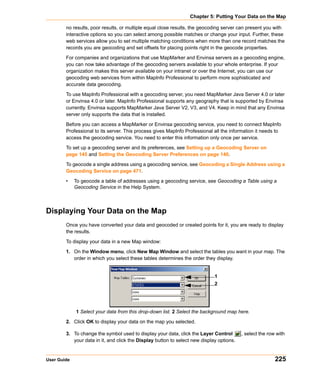
       The Grid Tools (Create MapInfo Grid from Table of Objects and Create MapInfo Grid from Other Grid
       Files) In MapInfo Professional allow you to convert Grid Files to MapInfo Professional Grids (*.mig).
       These tools convert any grid file for which there is a grid handler present with the output being in
       MapInfo Professional (*.mig) format. You can apply relief shading from a user-specifiable virtual light
       source and control the color inflection values. The color files are simple text files that you can edit to
       specify the color inflection values by specific value or as a percentage of the range of data values.
       You can open and display the new grid after the conversion.

       •   For specific instructions, see Converting Grid Files to MapInfo Professional Grids and Specifying
           Inflection Values with the MapInfo Professional Grid Converter in the Help System.


       Adjusting the Translucency of a Grid Thematic Map
       The Translucency slider control in the Modify Thematic Map dialog box allows you to control the
       percentage that layers show through raster images. A translucent image allows you to partially see
       through the image. Translucent images can be layered on top of other layers so that the lower layers
       are partially visible through the image.

       Note: The Grid Appearance dialog box allows you to specify color inflection distribution options for
             grid maps.
       •   For specific instructions, see Adjusting the Translucency of a Grid Thematic Map in the Help
           System.


Working with Seamless Layers
       Use or create a seamless map layer to treat a group of base tables as if they were one. A seamless
       layer allows you to change display attributes, apply or change labeling or use the Layer Control
       dialog box for an entire group of tables at once. You can also retrieve information using the Info tool,
       and select or browse any one of the layer’s base tables. A base table can be any regular MapInfo
       Professional table. Grid layers cannot be made seamless.

       This feature is especially useful when you want to display a vector or raster backdrop for your maps
       such as joining street or boundary maps. For example, you may have a seamless layer of county
       boundaries made up of several individual county tables.


172                                                                                  MapInfo Professional v. 9.0
Chapter 4: The Basics of MapInfo Professional

    Features Available with Seamless Layers
        Since a seamless layer is actually made up of several base tables, MapInfo Professional does treat
        it a little differently than a regular MapInfo Professional table. You can use the following MapInfo
        Professional features with a seamless map layer:

        •    Layer Control
             Use any of the functions except Thematic Mapping from the Layer control dialog box on your
             seamless layer. Add, Remove, or Reorder layers or set Display, Zoom Layering or Label options
             for the seamless layer (all base tables) at one time. However, you cannot make a seamless layer
             editable.
        •    Info Tool
             Retrieve information about a particular object in a base table.
        •    Select Tools
             Select objects from the seamless layer. You can only select a group of objects if they reside in
             the same base table. Press the Shift key while clicking the Select Tool to do so. If you attempt to
             select several objects that reside in different base tables, MapInfo Professional will only select
             objects in one base table. If you use the Marquee or Radius select tools and the selected area
             spreads across two different base tables, MapInfo Professional selects the table in either the
             center of the circle or polygon.
        •    Browse Table
             Display a Browser window of a particular seamless table. You are prompted to select a base
             table.


        Turning Seamless Layers On and Off
        If you need to edit the structure of your seamless layer, you’ll need to turn your seamless layer off.

        To turn your seamless layer off:

        1. Choose Options > Show MapBasic Window. The MapBasic Window displays.

        2. Type set table “tablename” seamless off. MapInfo Professional turns off the seamless layer.

        3. Display the table in a browser to view or edit its table structure. If you edit the table structure, you
           will need to recompile the seamless layer.

        MapInfo Professional turns off the seamless layer. Display the table in a browser to view or edit its
        table structure. Use the Seamless Table Manager to add or create seamless tables.

        To turn the seamless layer on:

        1. Choose Options > Show MapBasic Window. The MapBasic Window displays.

        2. Type set table “tablename” seamless on. MapInfo Professional turns the seamless layer on
           again.


        Opening a Seamless Map Layer
        MapInfo Professional includes sample seamless maps or you can create your own. Some of these
        data files are available on the MapInfo web site in the MapInfo Professional Tutorial data. We
        recommend you download this data for use with these examples.


User Guide                                                                                                    173
Working with Seamless Layers

       From the mapinfotutorialtut-usausadcseamless directory, choose dcmetrow. A seamless
       map layer of water areas in Washington DC displays. Notice at first glance that the seamless layer
       looks like any other MapInfo Professional table. However, the Dcmetrow seamless map layer is
       made up of the following base tables:

           •   vaarliw.tab (Arlington Virginia water areas)
           •   vaalexw.tab (Alexandria Virginia water areas)
           •   dcwashw.tab (Washington DC water areas)
       To display a sample seamless map:

       1. On the File menu, click Open.

       2. From the data directory, choose DCWATER.

           The following seamless map layer of water areas in Washington DC displays.


       The structure of each seamless layer includes the path name of each base table plus a description
       that defaults to the table name (alias). To view the table structure, turn the seamless layer off and
       display the seamless table in a browser. Refer to Turning Seamless Layers On and Off in the Help
       System.


       Characteristics of a Seamless Layer
       Since a seamless layer is actually made up of several base tables, MapInfo Professional does treat
       it a little differently than a regular MapInfo Professional table. You can use the following MapInfo
       Professional features with a seamless map layer:
       •   Layer Control. Use any of the functions except Thematic Mapping from the Layer Control dialog
           box on your seamless layer. Add, Remove, or Reorder layers or set Display, Zoom Layering or
           Label options for the seamless layer (all base tables) at one time. However, you cannot make a
           seamless layer editable.
       •   Info Tool. Retrieve information about a particular object in a base table.
       •   Select Tools. Select objects from the seamless layer. You can only select a group of objects if
           they reside in the same base table. Press the Shift key while clicking the Select Tool to do so. If
           you attempt to select several objects that reside in different base tables, MapInfo Professional


174                                                                                MapInfo Professional v. 9.0
Chapter 4: The Basics of MapInfo Professional

             will only select objects in one base table. If you use the Marquee or Radius select tools and the
             selected area spreads across two different base tables, MapInfo Professional selects the objects
             in the center of the circle or polygon.
        •    Browser Table. Display a Browser window of a particular seamless table. You will be prompted to
             select a base table.
        •    For more information, see Creating/Compiling a Seamless Layer in the Help System.
        •    For more about Seamless Layers in general, see the MapInfo Professional Help System.
        The Help System contains these related topics:

        •    Experimenting with a Seamless Layer
        •    Specifying Search Paths for Component Tables of a Seamless Layer
        •    Turning Seamless Layers On and Off


Data – Where MapInfo Professional Begins
        To use MapInfo Professional, you need to match the files that contain your information (data) and
        maps that come from MapInfo Professional or that you create yourself. MapInfo Professional
        organizes all its information, whether textual or graphic, in the form of tables; each table is a group of
        MapInfo Professional files that constitute either a map file or a database file.


             Emergency medical calls thematically shaded by type of call and time of call, with
             response zones shaded by number of calls.

        MapInfo Professional begins when you open tables, whether they are maps or data from a database.


User Guide                                                                                                   175
Data – Where MapInfo Professional Begins

   What Is a Database and Other Basic Terminology
       A database is a collection of information organized so that it can be readily accessed using a
       computer. Databases in MapInfo Professional are often referred to as tables.

       To understand MapInfo Professional, you need a basic understanding of database organization, in
       particular, three fundamental concepts: record, field, index, and query.


           LastName                 FirstName                  Address                     ZIPCode

        Fraser               Mark                       212 Hudson St              12205

        Donaldson            Eva                        459 Yates St               12208

        Espinosa             Kim                        200 Broadway               12180

        Smith                Charles                    1 Redbird Ln               12065

        Chang                Elizabeth                  53 Crescent Rd             12077


       To understand the database concepts we are about to discuss, consider the table above.

       Each row in the list contains information about one person. In database terms, each row is a record.
       Each different box of information (Last Name, First Name, etc.) within a record is called a field.
       Fields correspond to the columns so that the table shown above contains four different fields.

       Database fields are ordered (first, second, third, fourth, etc.), and the basic convention is that the
       first field displays as the first column in the database. The second field is in the column to the right of
       the first, and so on to the last field, which is displayed in the right most column.

       Since the data in a database isn’t usually in alphabetical order or postal code order or any other
       pattern which would make it easy for the computer to find the information, the computer needs a way
       to organize the information. A database uses an index to keep track of what information is where
       and what record it is tied to. Without indices it would be tedious to find anything in a database with
       hundreds of records, not to mention databases with thousands and tens of thousands of records.

       A database index works on the same principle as a book index. A book index is an alphabetical list
       of topics that appear in the book and the page number or address of the information. Database
       indices work in a similar way, except that they generally work behind the scenes. You don’t ever see
       them. But the computer constructs them and allows you to use them in your work. An index allows
       the computer to work with the records according to the order of items in the key field.
       MapInfo Professional requires fields to be indexed in order to use the Find command. Indices are
       also used to improve performance in SQL Select and joins.

       A query is just another word for a question. You query data to collect a particular type information
       from your database. For example, if you wanted to know how many customers live within a certain
       number of miles of your store, (and you had that kind of information in your database), you could
       query the database to find out that information. The result of the query is query data. You can think of
       query data as a subset of your data as in the example — a list of all the customers within 5 miles and
       none of the customers who live further away. MapInfo Professional has tools to help you query your
       data and display it on a map. For more about querying your data, see Selecting and Using Queries
       in Chapter 9 on page 310.

176                                                                                   MapInfo Professional v. 9.0
Chapter 4: The Basics of MapInfo Professional

    What Data Can I Use in MapInfo Professional?
        MapInfo Professional allows you to use data that was created in other file formats. When you bring
        data into MapInfo Professional for the first time, you need to specify its format. For example, if your
        data is in delimited ASCII format, choose Delimited ASCII from the File Format drop-down list.

        Data file choices include:

        •    Microsoft Access
        •    Microsoft Excel
        •    dBASE DBF
        •    ESRI ® shapefiles
        •    Raster Image
        •    Grid Images
        •    ASCII Delimited Text
        •    Lotus 1–2–3
        •    Remote Databases (Oracle, Informix, SQL Server, etc.)
        •    Workspace
        •    Comma Delimited CSV files
        When you choose a particular file format, the File Name box will only list files that have the
        appropriate extension. For example, if you choose dBASE DBF from the File Format drop-down
        list, MapInfo Professional will only list files that are in dBASE format.

        When you choose a file other than a MapInfo-formatted file type, MapInfo Professional creates a
        table structure for that data based on the type of file that it is.

        Note: During the .TAB file creation process, the original file is in no way altered. The file retains its
              original properties.

        When you open that table in future work sessions, MapInfo Professional will treat these files as if
        they were in MapInfo Professional’s native format. The next time you want to open the table, you
        should choose the .TAB format for the table. If you accidently attempt to open the file again with its
        original file format, MapInfo Professional prompts you with the message:

        Table definition already exists. Overwrite it?
        This message displays because MapInfo Professional has already created a table for that file. To
        use the file you have already created, press Cancel and open the associated .TAB file.

        Also keep in mind that MapInfo Professional supports long filenames and UNC paths. The UNC
        paths allow you to access your data without having to remember your drive mappings from one
        session to another.
        To display your table in the Map window, your data must contain X and Y coordinates. If it doesn’t
        already, you can add them using MapInfo Professional. Assigning these coordinates is called
        geocoding. More about geocoding follows later in this chapter and in Putting Your Data on the Map
        in Chapter 5 on page 199.

        The Help System contains these related topics:

        •    Displaying your Excel (.XLS) Data
        •    Displaying your Access (.MDB) Data
        •    Displaying your Comma Delimited Data

User Guide                                                                                                  177
Data – Where MapInfo Professional Begins

       •   Displaying your dBase Data
       •   Displaying your Lotus 1-2-3 Data
       •   Displaying your ESRI Shapefile Data
       •   Registering and Displaying your ASCII Data
       •   Importing and Displaying GML File Data
       •   Displaying Your Remote DBMS Data
       •   Displaying and Importing Data from a Web Map Service


   Support for Raster Images
       MapInfo Professional supports raster image display. Raster images are computerized pictures.
       These graphic images can be used as backgrounds for maps you create in MapInfo Professional
       and can serve as a reference for your displayed data.

       When you bring in a raster image to MapInfo Professional, you may need to register it (specify its
       map coordinates) so MapInfo Professional can display it properly. Choosing the Raster Image file
       format from the Open dialog box will bring you to the Image Registration dialog box where you can
       specify the appropriate map coordinates. Once you register the image, a process that creates a
       .TAB file for the image, you can open it as you would open any table in a Map window. Images that
       you purchase from MapInfo Professional will already be registered.
       If a raster image is georeferenced it will be automatically opened. If a raster image has an
       associated world file, you will be prompted to choose the projection. If you open a raster image that
       does not have any georeferencing data, you will be prompted to display or register the image.

       •   For a full discussion of raster image display, see Registering SPOT Images in the Help system.
       The MapInfo Professional raster handlers support:

       •   LeadTools to version 15
       •   MrSID SDK (3.2), to provide support for MG3 files
       •   Multi-threading; specifically for ECW and the Government handlers (ADRG, ASRP, CADRG, CIB,
           NITF)
       AirPhotoUSA provides raster images at different elevations for particular areas in the United States.
       The AirPhotoUSA map handler allows MapInfo Professional users to open and display the imagery
       contained in AirPhotoUSA Map files as a layer. These files are treated just like any other raster file in
       MapInfo Professional. The MAPINFOW.PRJ file contains AirPhotoUSA information.

       You can use the AirPhotoUSA Conterminous U.S. coordinate system without making any changes.
       However, if you want MapInfo Professional to recognize and give a name to that coordinate system,
       or to use it for other purposes, you must add it to the MAPINFOW.PRJ.


       Understanding the Files Associated with MapInfo Professional Tables
       When you open your data file, MapInfo Professional creates a table. This table consists of at least
       two separate files. The first file contains the structure of the data. The second file contains the raw
       data. All MapInfo Professional tables have the following two files:

       •   <SOMEFILE>.tab: This file describes the structure of your table. It is a small text file describing
           the format of the file containing your data.


178                                                                                  MapInfo Professional v. 9.0
Chapter 4: The Basics of MapInfo Professional

        •    <SOMEFILE>.DAT or <SOMEFILE>.WKS, .DBF, .XLS: These files contain your tabular data. If
             you are working with a dBASE/FoxBASE, delimited ASCII, Lotus 1–2–3, Microsoft Excel, or
             Microsoft Access file, your MapInfo Professional table will consist of a .TAB file and your data or
             spreadsheet file. For raster tables, the equivalent extension might be BMP, TIF, or GIF.
        Your data may also contain graphic objects. Once you assign X and Y coordinates to your data
        records, your table will also contain graphic objects. In Geocoding – Assigning Coordinates to
        Records in Chapter 5 on page 211, you will learn how to assign X and Y coordinates to your data
        records so you can display them on a map. If you already have graphic objects in your table, there
        are two more files associated with the table:

        •    <SOMEFILE>.MAP: This file describes the graphic objects.
        •    <SOMEFILE>.ID: This file is a cross reference file that links the data with the objects.
        For a Microsoft Access table, there will be a file SOMEFILE.AID associated with the table instead of
        SOMEFILE.ID. This file is a cross reference file that links the data with the objects for a Microsoft
        Access table.

        Your table may also include an index file. The index file allows you to search for map objects using
        the Find command. If you want to locate an address, city, or state using the Find command, those
        fields must be indexed in your table. The index is located in:

        •    <SOMEFILE>.IND


        Opening Your Data in MapInfo Professional
        You can open your Excel (.XLS), dBase (.DBF), Microsoft Access (.MDB), and ASCII (.TXT) in
        MapInfo Pro and display that data on a map. There are three steps to accomplishing this:

        1. Creating a copy of your data in MapInfo format.

        2. Creating points on a map using either coordinates in your data or by matching your data to a
           search file (see When Do I Geocode vs. Create Points? in Chapter 5 on page 200 for this
           process).

        3. Display your data on the map (see Displaying your Data on a Map in Chapter 5 on page 200
           to complete this process).

        If you are accessing your data remotely or use SpatialWare or other ODBC supported database
        product, see Understanding Remote Tables and Databases in Chapter 7 on page 248and
        Working with the MapBasic Window in the MapInfo Professional Help System for additional support.
        For more information about converting, displaying, and printing your data, see Understanding Your
        Data in Chapter 8 on page 273.


    Opening MapInfo Tables
        To work with the data in your database, you open the file or table that contains the data. MapInfo
        provides some free introductory data you can open as soon as you get MapInfo Professional.

        Note: When you open a table and select a new Preferred View from the drop-down list, MapInfo
              Professional remembers your selection and uses it the next time you open a table.
        •    For instructions on opening the free introductory data provided by MapInfo, see Opening the
             MapInfo Professional Introductory Data in the Help System.


User Guide                                                                                                 179
Data – Where MapInfo Professional Begins

       To open a local table:

       1. On the File menu, click Open. The Open dialog box displays.
           Note: If you are at the Quick Start dialog box (the first dialog box you see after starting MapInfo
                 Professional), choose the Open button. The Open dialog box displays.

       2. Navigate to the data file you want to open. Use the Files of type drop down to select the type
          appropriate for your data.

       3. Select the view you want of this data from the Preferred View drop-down list.
           •   Automatic – MapInfo Professional chooses the most appropriate view. If the data is
               mappable (i.e., graphic objects are attached to the data), for example, MapInfo Professional
               opens the table in a Map window. If you have a Map window displayed and the table you
               want to open is mappable, MapInfo Professional will automatically open the table in the
               current Map window. If the data is not mappable, MapInfo Professional will attempt to open
               the table in a Browser window. If the table cannot be mapped or browsed, MapInfo
               Professional opens the table using the No View option (no data is displayed).
           •   Browser – MapInfo Professional attempts to open the table in a Browser window.
           •   Current Mapper – MapInfo Professional attempts to add your data to the current Map
               window.
           •   New Mapper – MapInfo Professional attempts to open the table in a new Map window.
           •   No View – MapInfo Professional opens the table, but no data is displayed.
           Note: When you open a table and select an option in the Preferred View drop-down list,
                 MapInfo Professional remembers what you selected and uses the same option the next
                 time you open a table.

       4. Select the Create copy in MapInfo format for read/write to open it in native (.tab) format.
           Note: If you do not select the Create copy... check box, the file opens read-only.

       5. To open the file, do one of the following:
           •   Double click the file you want to open
           •   Click the file you want to open to highlight it in the list and click Open.
               Using either method, MapInfo Professional opens the data file.

       Note that although an MapInfo Professional table consists of two or more component files
       (STATES.tab, STATES.DAT, STATES.MAP etc.), only the .TAB file appears in the File Name box of
       the Open dialog box. It is the only component file you must open. For more about these other
       MapInfo file types, see Understanding the Files Associated with MapInfo Professional Tables
       in Chapter 4 on page 178.

       In MapInfo Professional you can work with a variety of table types. Some data tables are like the
       example table we just discussed. Further subdividing this class of tables are data tables that contain
       graphic objects (map objects) and data tables that do not (such as spreadsheets or external
       database tables). Raster tables are graphic images that you can display in a Map window. These
       computerized pictures do not have the same table structure of record, field, and index as data tables
       do, and therefore, will not be discussed in this chapter. For more on raster images, see Working with
       Raster Images in the MapInfo Professional Help System.


180                                                                                   MapInfo Professional v. 9.0
Chapter 4: The Basics of MapInfo Professional

        You can see what windows are currently open by reviewing the list at the bottom of the Window
        menu. If one of these “More Windows” windows is the active window, the check box displays beside
        the More Windows entry. To make another window active, click the entry in the Window list. The
        window you selected comes to the forefront of the MapInfo Professional screen. When you select
        the More Windows entry, the Select Window dialog box displays. To activate a window from this list,
        either double-click the entry in the Select Window list, or click the entry and click OK.


        A Note about the Preferred View Options
        Of the five Preferred View options, Automatic and No View will work on all tables, regardless of
        what kind of data they contain. MapInfo Professional attempts to open the table as specified for
        Browser, Current Mapper, and New Mapper.


        Of the five Preferred View options, Automatic and No View will work on all tables, regardless of
        what kind of data they contain. MapInfo Professional attempts to open the table as specified for
        Browser, Current Mapper, and New Mapper. If it cannot, it will open the table according to the
        following rules:

        •    If Current Mapper is selected, and there is no Map window displayed, MapInfo Professional will
             attempt to open the table in a new Map window.
        •    If Current Mapper or New Mapper is selected and the data is not mappable, MapInfo
             Professional will try to open the table in a Browser window.
        •    If the table cannot be mapped or browsed, MapInfo Professional will open the table using the No
             View option (no data is displayed).
        For more information, see Renaming a Table and Deleting a Table in the Help System.


User Guide                                                                                             181
Data – Where MapInfo Professional Begins

   Opening Data in Remote Tables
       MapInfo Professional also enables you to access remote database data through its ODBC
       connectivity support and the Oracle Spatial Object support. The MapInfo Professional ODBC
       connectivity support supplies many ODBC drivers that you can easily install. Oracle spatial
       databases enable you to store spatial objects with your conventional data in the same database.
       This enables you to read and write geographies in Oracle Spatial without the need for a middleware
       product such as MapInfo Professional’s SpatialWare, or SDE. You also gain better performance
       through the Oracle Call Interface (OCI). In addition, Oracle applications can use this same spatial or
       non-spatial data through other interfaces (ODBC, OCI, JDBC, PL/SQL, HTTP, IIOP, etc.) or use
       other spatial or non-spatial tools (MapInfo Professional, ArcView, Intergraph, Excel, Forte, Formida,
       etc.). For more about accessing remote data using ODBC connectivity, see Setting your Database
       Connection Preferences in the Help System.


       Using the MapInfo Places on Open Dialog Box
       The Open dialog box provides a quick way to look for maps you have created.


            1


           1 The Places box. Select the Workspaces Directory option in the Places box, to
           display the Workspace (.wor) type in the Files of Type list. If you select any other
           entry in the Places box, MapInfo (.tab) displays in the Files of type list.

       The Open dialog box provides many ways to quickly find the maps that you have created in a variety
       of locations in your system and network.

       Note: The Places box on the left side of the Open dialog box allows you to select a directory in
             which you may have your map and other MapInfo Professional tables and workspaces.

       When you select the Workspaces Directory option in the Places box, the Files of type drop-down
       list changes to Workspace (.wor) type. If you select any other entry in the Places box, MapInfo (.tab)
       displays in the Files of type list.


182                                                                               MapInfo Professional v. 9.0
Chapter 4: The Basics of MapInfo Professional

        •    For more information, see Opening MapInfo Professional Introductory Data in the Help System.


        Opening Special File Types
        There are additional file types that MapInfo Professional can read including rasters, grids, shape
        files. For details about working with raster images, see Displaying a Raster Image and Registering
        the Coordinates of a Raster Image in the MapInfo Professional Help System.

        Opening a Grid Layer
        A grid layer is a type of thematic map that displays data as continuous color gradations across the
        map. To produce this type of thematic map, you interpolate point data from the source table. In
        MapInfo Professional, a grid file from the data interpolation is generated and is displays as a raster
        image in a Map window.

        •    For more information, see Selecting Point Objects in Grid Files in the Help System.
        To open a grid layer:

        1. On the File menu, click Open to display the Open dialog box.

        2. Select Grid Image in the Files of type drop-down list.

        3. Navigate to the directory in which your grid image is located and click the file you want to open.

        4. Click Open to display the grid image.


Reviewing the Windows in MapInfo Professional
        MapInfo Professional allows you to display your data in many different windows and with different
        views at the same time. For instance, you can display the WORLD table of country boundaries in a
        Map window to view the geographic boundaries. At the same time you can display the tabular data
        of the WORLD table in a Browser window to see the country names, population, and other data in
        the file. If you make a change in either window, it is reflected in the other.


User Guide                                                                                                183
Reviewing the Windows in MapInfo Professional

       Only one view can be active at a time. To make a different window active, click its title bar. Notice
       that the menu bar changes depending on which window is active. For instance, when you are
       working in a Map window when you also have a Browser open, only the Map menu is available on
       the menu bar. Make the Browser active. The Browse menu replaces the Map menu.

       There are many different types of windows you can display your data in, depending upon what you
       need your data to communicate. This section covers the many ways you can display your data using
       MapInfo Pro. Each of these display methods: map, list, graph, and presentation give your
       information a different impact. How you display the information you have should depend upon what
       effect you want.

       Consider these options carefully before you select a display type.

       •   Map windows present information arranged as conventional maps, allowing you to visualize the
           geographic patterns of your data.
       •   Browser windows present information as tabular lists (just as conventional databases do),
           allowing you to fully examine tabular data.
       •   Graph windows present information arranged as graphs, allowing you to visualize and make
           comparisons of the purely numerical patterns.
       •   Layout windows present information in a polished and attractive way and can be embedded in
           other applications such as Microsoft Word or PowerPoint.


   Displaying Data in a Map Window
       You use Map windows to display the geographic objects from your table on a map. Map windows
       can display information from many tables at once, with each table a separate layer.


       Opening a Table in a Map Window
       You can create your maps or edit existing maps. You can open a Map window directly on the File
       menu, by clicking Open or by selecting New Map window from the Window menu.


184                                                                                MapInfo Professional v. 9.0
Chapter 4: The Basics of MapInfo Professional

        Getting Around in the Map Window
        There are a wide variety of tools that allow you to zoom, pan, and move objects around the Map
        window. Zooming allows you to look more closely or more widely at a particular geography. Panning
        allows you to move around a map left, right, up, and down. Moving selected objects in an editable
        layer is useful when you want to get your map right.

        You can zoom using the mouse wheel or using the keyboard. For more about zooming using the
        mouse wheel, see Using the Microsoft IntelliMouse to Move Around the Windows in the MapInfo
        Professional User Guide Help System.

        In addition to the usual zoom keys on your Main Toolbar (       ,    , and    ), you can use the + and -
        keys on the keyboard, to zoom in and out more precisely.

        •    When you press +, you zoom in by a factor of 2.
        •    When you press -, you zoom out by a factor of .5.
        You can pan in your Map window using the scroll bars or the Arrow keys Up, Down, Left, and
        Right.

        Further, you can move an object in an editable layer more precisely by selecting it and using the
        following key combinations.

        •    <CTRL + Arrow> - moves the editable, selected objects 1 pixel at a time
        •    <CTRL + Shift Arrow> - moves the editable, selected objects 10 pixels at a time
        Note: These tools also apply to the Layout window.


        Changing a Map's Zoom Level
        You change a map's zoom level by specifying certain parameters in the Change View dialog box.

        To change a map's zoom level do one of the following:

             •   Choose Map > Change View. The Change View dialog box displays.
             •   Click the Change View button on the Main toolbar. The Change View dialog box displays.
        The Change View dialog box allows you to set various parameters of the map including:

             •   Display the current zoom, scale or cursor position in the status bar (the default unit of
                 distance is miles which is specified in Map > Options).
             •   Change the zoom, scale, and the center point of the current map view.
             •   Behavior of the map when you resize the window.
             •   Resize the map to fit the new window, keeping the view the same.
             •   Set the map to preserve the current scale, so that resizing the window has the effect of letting
                 you see more or less of the map.
        The Help System contains the following related topics:

        •    Opening MapInfo Professional Introductory Data
        •    Setting Margins for a Map Window when Printing
        •    Editing Text in a Map or Layout


User Guide                                                                                                   185
Reviewing the Windows in MapInfo Professional

   Displaying Data in a Browser Window
       You use Browser windows to view and manipulate your data records in traditional row and column
       form, typically used in spreadsheets and databases. Each column contains information about that
       particular field, such as name, address, phone number, cable ID number, or order amount. Each row
       contains all information relating to a single record.

       •   For more information, see Displaying Data in a Browser Window in the Help System.


       About the Browser Format
       If you have ever worked with spreadsheets or databases, you are probably familiar with the Browser
       format. Each row of the table contains one record, and each column in the record contains
       information about a particular field (e.g. last name, street address, order number, price, and so
       forth). The name of the table appears in the Browser window’s title bar. Column titles appear directly
       below the Browser window title bar, appearing as headings. You select a row by single clicking the
       empty box appearing to the left of that row.

       The Status Bar appears at the bottom left of the MapInfo Professional window. This bar displays the
       range of records currently displayed within the Browser window out of the total number of records in
       the table.


       Opening a Table in a Browser Window
       You can edit records in your table, copy records, add new ones, or delete existing records. To open
       a Browser directly, on the Window menu, click New Browser Window.


       To create a report of your data, use the Crystal Reports functionality included in MapInfo
       Professional (on the Tools menu, click Crystal Reports).

       •   For more information, see Opening Multiple Browsers, Scrolling through a Table, and Using the
           Select Tool to Edit Browser Entries in the Help System.


186                                                                               MapInfo Professional v. 9.0
Chapter 4: The Basics of MapInfo Professional

        How a Browser Displays in a Layout
        A Browser window displays with the column headings at the very top of the frame. Immediately
        below, it displays the contents of the table, starting with the row and column at the upper-left corner
        of the table. It displays as many columns and rows as it can fit in the frame, regardless of how many
        are displayed in the table. When you resize the frame, the number of rows and columns displayed
        are adjusted accordingly. However, fields removed from the table with the Pick Fields command are
        not displayed in a table frame.

        The number of rows and columns that can be displayed in a frame depends on font size and column
        width. The frame displays Table text using the font style and size for that Browser window. When you
        want a different type style in the frame, you have to make the change in the Browser window using
        Options > Text Style dialog box. When you use smaller type, you can get more rows and columns
        in a frame.

        You can also manually adjust column width in a Browser window without affecting the underlying
        field size for the base table. You do this by clicking and dragging the short vertical bars separating
        the column names in the Browser window.

        The Help System contains the following related topics:

        •    Adding a New Row to a Browser
        •    Adding and Editing Text in a Browser
        •    Adding Fields to a Browser
        •    Choosing a Font for your Browser
        •    Creating a Default Browser View
        •    Preserving Column and Expression Settings in a Browser Window
        •    Removing Fields from a Browser
        •    Resizing a Browser’s Columns
        •    Setting Margins for a Browser Window when Printing
        •    Showing or Hiding a Browser’s Grid
        •    Using the HotLink Tool in a Browser Window


    Changing a Record's Data, Font, and Style
        The Info tool allows you to choose an object or row and see a window displaying information from
        the table about that object. Click another object with the Info tool and its information appears in the
        same window. Click the Ctrl-menu box [Close box] of the Info window to make it disappear.


        Mouse Wheel Support for Browser Window
        When you are working in the Browser window, you can use the mouse wheel to scroll through the
        records. Roll the mouse button down to scroll down the list, and roll the mouse button up to scroll up
        the list. You can use the Tab key to scroll right and the <Shift Tab> keys to scroll left in the Browser
        window.


User Guide                                                                                                 187
Reviewing the Windows in MapInfo Professional

   Displaying Data in a Graph Window
       The Graph window allows you to visualize statistical relationships in graph format. You can create
       many different kinds of graphs: 3D, bar, line, area, histogram, scatter, bubble, and pie graphs. You
       can also choose from a number of different graph templates.

       To display a table as a graph:

       1. From the File menu, click Open and select the table that you want to display as a graph.

       2. Choose Window > New Graph Window. The Create Graph Step 1 of 2 dialog box displays.

       3. Choose the chart type and the template for your graph.
       4. Click Next. The Create Graph Step 2 of 2 dialog box displays.

       5. Choose the field, or create an expression that contains the data values fields that you want used
          when creating your graph.
           Note: For more information about using the graph features of MapInfo Professional, see Graph
                 Help System available by selecting Help > MapInfo Graphing Help Topics.

       6. If you want labels for your graph, choose the column that the records are to be labeled with.

       7. Choose how you want your graph data organized in rows or series.

       8. Click OK to display a Graph window.

       After the graph displays you can invoke one of several editing dialog boxes to modify an extensive
       array of attributes. You can also move and resize objects within the graph window until the desired
       graph is achieved.

       The Help System contains these related topics:

       •   Editing a Graph
       •   Saving a Graph
       •   Saving a Graph Window as a Template File
       •   Setting Margins for a Graph Window when Printing
       •   When Should I use Label Axis Options?
       •   When Should I use Value Axis Options?


   Displaying Data in a Layout Window
       The Layout window allows you to combine Browsers, Map windows, Graph windows, and other
       graphic objects into one layout which can then be sent to a printer or plotter. You use this type of
       window to create presentation graphics. Layout windows have scroll bars at the right and at the
       bottom like Map windows and Browser windows.

       You can display rulers at the top and to the left to help you in positioning, sizing and aligning objects.

       The Zoom displayed in the status bar indicates the magnification factor that is currently applied to
       the Layout. When the zoom is 37.46%, then the Layout is being displayed 37.46% of its actual size.
       When the zoom is at 123%, then the Layout is being displayed at 123% of its actual size.


188                                                                                  MapInfo Professional v. 9.0
Chapter 4: The Basics of MapInfo Professional

        Opening a Map in a Layout Window
        To use a Layout window, on the Window menu, click New Layout Window.

        Note: MapInfo Professional has some excellent tools to assist you in moving around the Layout
              window. See Getting Around in the Map Window on page 185 for these details.

        The Help System contains these related topics:

        •    Sending Objects to the Back of a Layout
        •    Sending Objects to the Front of the Layout
        •    Printing a Layout
        •    Setting Printing Margins for a Layout
        •    How a Map Legend Displays in a Layout
        •    Printing a Legend in a Layout
        •    Changing a Map Scale in a Layout
        •    Moving a Map or a Layout
        •    For instructions in sending objects to the back of a layout, see the Displaying Data in the Layout
             topic in the Help System.
        •
        •    For instructions in sending objects to the front of a layout, see the Displaying Data in the Layout
             topic in the Help System.


    Other Windows for Displaying Data
        There are two other ways of displaying data that are used less often or can be used in conjunction
        with display options we have already reviewed.

        •    Legend Windows are the key boxes at the bottom of the map that explain what the map symbols
             mean. There are two different kinds of legend windows:
             a. The Thematic Legend window is automatically created and details the meaning of colors,
                symbols and styles on a thematic map. Display or hide this legend in the Options menu, by
                clicking the Show/Hide Theme Legend Window menu option.
             b. The Cartographic Legend displays legend frames for any map layer, not just thematic map
                layers. The legend window displays the legend, or key, to the cartographic data on your map.
                The legend frames can all be in one window, or can be split among several legend windows
                for the same map. Therefore, each map can have one or more cartographic legend windows
                containing the frames of your choice. Additionally, you can customize the text and style of the
                information presented. Modifications to the legend can be made through shortcut menus
                you access by right-clicking in the legend window or through the Legend menu. You can
                learn more about legends in Working with Legends in Chapter 10 on page 369.
        •    Redistricting Windows are allow you to create groupings of spatial information. This is a little
             more complex than these other options. For more information about redistricting windows, see
             Redistricting in the MapInfo Professional Help System.


User Guide                                                                                                 189
Saving, Closing, and Exporting Your Work

Saving, Closing, and Exporting Your Work
       Preserving your work is an important part of being productive. MapInfo Professional has a wide
       variety of ways you can save what you are working on, depending upon what needs to be saved and
       how you need to retrieve it.


   Saving a Workspace
       If you work with the same tables repeatedly, you know that opening each one individually every time
       you use it can be tedious. With MapInfo Professional’s workspace feature, you can automate this
       process so you can get back to the business of creating maps and analyzing data sooner.

       When you work with MapInfo Professional you generally use many different tables and windows. A
       Map window, for instance, is likely to be built of several layers. MapInfo Professional uses
       workspaces to save your work setup from session to session. Workspaces prevent you from having
       to reassemble all the pieces of your earlier setup from scratch. So, you don’t have to reopen tables,
       re-create maps or layouts, resize windows, or do anything else just to duplicate what was on your
       desktop the last time you were using MapInfo Professional.

       CAUTION:      Saving a workspace will not save edits you have made to tables in the
                     workspace.

       If you close a window or table and you have thematic maps, graphs, label settings or label edits, or
       cosmetic objects pending, MapInfo Professional will prompt you to save the session to a workspace.

       •   For more information, see Saving a Workspace and Saving a Map Window as a .TAB File in the
           Help System.
       For instructions on saving a Map window as a .TAB file, see the Help System.


       Saving Your Workspace as an XML-Based MWS File
       You can save the maps in your workspace out to an XML format for use with MapXtreme 2004
       applications. When saving a workspace to MWS format, only the map windows and legends are
       saved. All other windows are discarded as MapXtreme 2004 applications cannot read that
       information. Once your workspace is saved in this format, it can be opened with the Workspace
       Manager utility that is included in the MapXtreme 2004 installation or with an application developed
       using MapXtreme 2004. The file is valid XML you can view it using any XML viewer or editor. MWS
       files created with MapInfo Professional 7.8 or later can be validated using schemas supplied with
       MapXtreme 2004.

       Note: You will not be able to read files saved in MWS format in pre-8.0 versions of MapInfo
             Professional.

       You can set the visibility of a modifier theme without regard to its reference feature layer, so you can
       turn the visibility of the main reference layer off but still display the theme. In MapXtreme2004, the
       modifier themes (Dot Density, Ranges, Individual Value) are only drawn if the reference feature layer
       is visible. To ensure that modifiers marked as visible in MapInfo Professional display in tools like
       Workspace Manager, we force the visibility of the reference feature layer so that its modifier themes
       display.


190                                                                                 MapInfo Professional v. 9.0
Chapter 4: The Basics of MapInfo Professional

        •    For specific instructions, see Saving your Workspace as an XML-Based MWS File in the Help
             System.
        •    For more information, see Caveats for Saving Label Expressions to MWS and Caveats for
             Saving Thematic Expressions to MWS in the Help System.


    Saving a Table or a Copy of a Table
        To save changes to map objects or data, you must save the table. (On the File menu, click Save
        Table.) A dialog box displays asking you to choose which table you want to save.

        You can also save a copy of the table under a new name, using Save Copy As. This, in essence,
        creates a new table. This is helpful in several instances, as when you want to:

        •    Retain any changes while preserving the original table.
        •    Save a table with a temporary column (from Update Column).
        •    Create a new table before you make editing changes to the original table.
        •    Save spreadsheet files that you wish to modify in MapInfo Professional.
        •    Save a table in a different projection.
        To save a copy of the table:

        1. On the File menu, click Save Copy As. The Save Copy of Table dialog box displays.

        2. Choose the file to save and click OK.

        3. Give the file a new name.

        The original table remains unchanged and open for all further changes. The new table does not
        open immediately after its creation, but can be opened for use at any time. When choosing a name
        for your new table that begins with a number, MapInfo Professional adds an underscore to the
        beginning of the table name. For instance, your table 1STREETS.tab. will become 1STREETS.tab.

        Saving a copy of a raster table only saves a copy of the *.tab file, not the image. You cannot change
        the projection of a raster or grid table using Save Copy As. To do this go to the Table menu, point to
        Raster and click Modify Image Registration and click the Projection button. Then save the file
        from there.

        Since MapInfo Professional supports long filenames, it is easier to give the new table a name that is
        descriptive and at the same time distinguishes it from the original file.

        The Help System contains these related topics:

        •    Saving a Copy of your Table as a New Table
        •    Saving a Copy of Your Table as a New Table
        •    Tables you Cannot Update
        •    Choosing Ascending vs. Descending Sorts
        •    Column Name Syntax in the Order By Columns Field
        •    Rearranging a Table's Column Order


User Guide                                                                                               191
Saving, Closing, and Exporting Your Work

   Closing a Table
       Closing a table removes it from active use in your current session. Choose the Close command
       from the File menu to close tables. When you close a table, you automatically close all views of that
       table. If you close a table that is displayed in a Map window with other tables, MapInfo Professional
       removes that table from the window, but the Map window remains open.

       In addition, any subset tables of the original table (known as query tables) also close. You can use
       the Close command for any table, whether or not it is displayed in a window. Opening and closing
       tables is different from opening and closing windows in which you view your tables. You can open a
       table without opening any views of the data. Similarly, closing a window does not close the table (or
       tables) you are viewing in the window. They are still open and available for use. To close a window,
       click the Ctrl-menu box in the upper-left corner of any window and select Close.

       If you have made changes to a table but have not yet saved those changes, MapInfo Professional
       will ask you if you want to save them before closing the table. To save your changes, choose Save
       Table from the File menu.

       •   For more information, see Closing a Table, Closing All Open Tables, and Closing Multiple Tables
           in the Help System.


   Opening vs. Importing
       You must open a table before you can use it. The Open command activates a dialog box for opening
       tables, (opening a table is described below). Choose the appropriate table by double-clicking on it in
       the dialog box.

       Most programs require you to import files created in some other programs. MapInfo Professional
       allows you to work directly with files created in other programs. When you have a file in one of the
       following non-MapInfo Professional formats, you do not have to import it:

       •   dBase DBF
       •   Delimited ASCII
       •   Lotus 1-2-3
       •   Microsoft Access Database
       •   Microsoft Excel
       By not importing data you save time; opening a file is quicker than importing it. You also save disk
       space. When you import a file, you make a copy of it. Since MapInfo Professional works directly with
       files from other programs, it does not have to make a copy.

       When MapInfo Professional opens a file from some other program, it creates a file with a .TAB
       extension. This file describes the format of the file that actually contains the data. When you have
       opened a non-MapInfo Professional file, such as a Lotus file, in a previous session and attempt to
       open it again, the following prompt appears:

       Table definition already exists. Overwrite it?
       The table definition referred to is the .TAB file. It does not hurt anything if you continue. MapInfo
       Professional overwrites the .TAB file and opens the file.


192                                                                                  MapInfo Professional v. 9.0
Chapter 4: The Basics of MapInfo Professional

    Exporting Your Data to a New Format
        You can export your Map window to other file formats with the Save Window As command (on the
        File menu, click Save Window As). This enables you to use your map in another application, such
        as word processing, presentation, or computer publishing packages.


        Supported Export Formats
        You can save data in a number of formats in MapInfo Professional. Windows .bmp is the initial
        default. The Save Window to File dialog box sets the last-used format as the default. Formats
        include:
             •   Windows Bitmap (*.BMP)
             •   Windows Metafile (*.WMF)
             •   Windows Enhanced Metafile (*.EMF)
             •   JPEG File Interchange Format (*.JPG)
             •   JPEG 2000 (*.JP2)
             •   Portable Network Graphics Format (*PNG)
             •   Tagged Image File Format (*TIF)
             •   TIFF CMYK (*.TIF)
             •   TIFF CCITT Group 4 (*.tif)
             •   TIFF LZW (*.tif)
             •   Graphic Interchange Format (*.gif)
             •   Photoshop 3.0 (*.PSD)
             •   Comma Delimited Format (.CSV)
        •    See Understanding the Advanced Exporting Options in the MapInfo Professional Help System.
        •    For more information, see Understanding the Advanced Exporting Options and Setting your
             Output Setting Preferences in the Help System


    .Importing and Exporting Data in AutoCAD Format
        Because CAD packages represent drawings in non-earth coordinates, all drawings imported or
        exported between MapInfo Professional and CAD suffer some distortion. This comes from trying to
        display non-earth information on a spherical coordinate system (like the globe).Coordinate
        conversions are used to assign longitude/latitude coordinates to CAD drawings that were created
        using non-earth coordinates. Conversions near the equator are more exact than conversions at the
        extremes of the hemispheres. To minimize distortion, import and export with no coordinate
        conversions and avoid translating maps that cover large areas.

        •    For more information, see Importing DXF Attributes into MapInfo Professional and Importing
             Attributes with Nested Blocks in the Help System.
        •    For more information, see DXF Exporting Notes in the Help System.


User Guide                                                                                              193
Saving, Closing, and Exporting Your Work

   Cropping Images
       When MapInfo Professional exports a window, it does not clip objects that extend beyond the edges
       of the windows, but it does export information about where the clipping is.

       Other programs always honor the clipping of bitmap files. As for other formats, the behavior varies
       depending on the program that is used to display and print the file. Many programs, such as drawing
       programs, "explode" the file into individual objects. A file containing several country boundaries
       would explode into several polygon objects, one for each country. Programs like these usually ignore
       the clipping information that MapInfo Professional stores in the file.

       Other programs, such as word processing programs and spreadsheets, typically open files as one
       compound object, without trying to explode them into component objects. These programs usually
       honor the clipping information and clip the contents appropriately.
       For example, if you are exporting a Map window that displays part of Germany, but not all of it, the
       exported file contains the entire image of Germany. It also contains information about where MapInfo
       Professional clipped that image in its Map window. But when you open the exported window in your
       target application, a drawing package for example, the image of Germany may not be clipped.


   Exporting to ASCII Format
       MapInfo Professional also allows you to export your tabular data to a delimited ASCII file. This file
       can later be edited with a text editor or imported into another package. When you export to ASCII,
       MapInfo Professional displays the Delimited ASCII Information dialog box, where you choose your
       delimiter character. You can also choose to have the first row of the ASCII file become column titles.

       MapInfo Professional also displays a dialog box that you use to indicate the character set for the
       exported ASCII file. Different platforms use different character sets. MapInfo Professional must know
       the platform where you are going to use the exported file in order to provide the appropriate
       character set. No graphical data is exported to ASCII.


   Exporting to dBase (*.DBF) Format
       MapInfo Professional can export tabular data into dBASE DBF format. Exporting to DBF creates
       only the .DBF file. No graphical data is exported to dBASE. When you save your table in DBF
       format, you create a .DBF file, as well as some other files. These other files contain graphic
       information (for example, MapInfo Professional indices and other information that MapInfo
       Professional uses).

       MapInfo Professional also displays the dBASE DBF Information dialog box that you use to indicate
       the character set for the exported DBF file. Different platforms use different character sets. MapInfo
       Professional must know the platform where you are going to use the exported file in order to provide
       the appropriate character set.


   Smoothing Map Images During Export
       You can anti-alias a table during the export process to give you more control over your map images.
       This is particularly important when you are saving maps created in MapInfo Professional for use in
       other Windows-based applications, in particular in slide presentations or for web pages.


194                                                                               MapInfo Professional v. 9.0
Chapter 4: The Basics of MapInfo Professional

        Anti-aliasing allows you to smooth images in all types of windows such as Map windows, layouts,
        legends, and graphs.

        Note: You cannot anti-alias images you are exporting to .EMF or .WMF format, because these are
              not true raster formats.

        There are three smoothing options you can use to customize your raster image:

        1. Smooth using a Filter value. You can set a flag that selects one of six filters that allow you to
           choose the direction the filter is applied to the image from.

        2. Smooth using a Mask value. You can select a value that indicates the size of the area you want
           to smooth. For example, to create a 3x3 pixel mask value, you would enter a 3 in this field. This
           would limit the amount of change in the color of the pixels. Typically mask sizes would be 2-3
           pixels when exporting at screen resolution. If you are exporting at a higher resolution, a larger
           mask might be appropriate.

        3. Smooth using a Threshold value. You can select a threshold value to indicate which pixels to
           smooth. Each pixel in an image has a value based on its color. The smaller the pixel value, the
           darker the color. Select this option to smooth all of the pixels above the threshold you enter in
           this field. When you set this value to 0, MapInfo Professional will smooth all of the pixels.

        You must either set a global preference for these anti-aliasing options or set them locally during the
        export process (using the Advanced button).

        •    For specific instructions, see Smoothing Map Images During Export in the Help System.


Using the Tools in the Tool Manager
        MapInfo Professional contains many additional tools that simplify mapping tasks, convert MapInfo
        Professional files to different file formats and vice versa, automate tasks for working with DBMS
        tables, and more. The Tool Manager helps you run and manage these many utilities easily.

        Use the Tool Manger to run, add, edit, or remove tools from the currently registered list of tools in the
        Tools menu. You can also configure a tool to run automatically upon startup. If you performed a
        Custom installation, you may have elected to not install the tools. In this case when you open the
        Tool Manager dialog box, the list box will be empty (on the Tools menu, click Tool Manager).

        For information about using the tools in MapInfo Professional, see the MapInfo Professional Help
        System.


    What are the MapInfo Professional Tools?
        These tools are covered in more depth in the Help System.

        AutoLabeler – Use this tool to place text object style labels in the Cosmetic Layer of the active Map
        window.

        CoordSys Bounds Manager – Use this tool to check and set the coordinate system bounds for
        mappable MapInfo Professional base tables.


User Guide                                                                                                  195
Using the Tools in the Tool Manager

        Concentric Ring Buffer – Creates concentric ring buffers around one or more map objects. This
        tool also computes aggregated values for underlying data that occur within each ring. Therefore, it
        can be used to count how many customers occur within each ring and their total sales. You can
        graph the results. See Concentric Ring Buffer Tool in the Tools section of the Help System.

        Coordinate Extractor – Allows you to add two columns to an open table and updates each column
        with x and y coordinates in the table’s native projection. For objects other that points, the x and y
        coordinates will represent CentroidX and CentroidY locations. See Coordinate Extractor Tool in the
        Tools section of the Help System.

        Create Line by Length (Cogoline) – Draws lines in the Cosmetic Layer of a specific length and
        angle. You can also use DMS coordinates and create polylines with this tool. See Create Line by
        Length (COGOLine) Tool in the Tools section of the Help System.

        DBMS Catalog – Use this tool to create a MapInfo Professional MapCatalog table in a remote
        database. You need the catalog to download coordinate information to MapInfo Professional from a
        remote database. This tool should be used by a qualified DBA.

        DBMS Count Rows in Table – Allows you to optimize opening large tables (million or more rows)
        using the DBMS Live Access method (unlinked tables). This will update an entry for a table in the
        MapCatalog, correctly setting the number of rows for that table.

        Degree Converter – Converts a column of data containing DMS coordinates to Decimal Decimals
        and Decimal Degrees to degrees/minutes/seconds. See Degree Converter Tool in the Tools section
        of the Help System.

        Delete Duplicates – Use this tool to delete duplicate records from a table while retaining map
        objects. This tool does not change the original table in any way. See Delete Duplicates Tool in the
        Tools section of the Help System.

        Disperse Points – Disperses points located in the same position. Points can be dispersed
        systematically or can be used to calculate the distance from a selected object (or group of objects) to
        the closest or farthest object(s). You can also specify criteria to limit the results. See Disperse Points
        Tool in the Tools section of the Help System.

        Distance Calculator – The Distance Calculator tool (DistanceCalc.MBX) is used to calculate the
        distance from a selected object (or group of objects) to the closest or farthest object(s). You can also
        specify criteria to limit the results. See Distance Calculator Tool in the Tools section of the Help
        System.

        EasyLoader – EasyLoader is a Windows-only utility that is loaded using the Tool Manager.
        EasyLoader allows you to upload MapInfo Professional tab files to a remote database. Online help is
        available for using EasyLoader. See EasyLoader Tool in the Tools section of the Help System.

        GeoTracker Tool – This is a GPS tool to be used with MapInfo Professional, which supports up to
        12 com ports, sophisticated error message management for Disconnect and Reconnect features,
        and superior installation and help support features. See GeoTracker Tool in the Tools section of the
        Help System.

        Grid Maker – Draws a Graticule: a grid of latitude/longitude lines. See the Grid Maker Tool in the
        Tools section of the Help System.


196                                                                                   MapInfo Professional v. 9.0
Chapter 4: The Basics of MapInfo Professional

        Grid Tools – Use these tools to create a MapInfo Professional native grid file from a table of points,
        convert grids from any format that MapInfo Professional can read into MapInfo Professional grid
        format (.MIG), and display x, y, and z coordinates, and row and column, of the grid you selected.

        HTML Image Map – HTML Image Map allows you to create a web page based on any MapInfo
        Professional Map window that includes a layer of polygons. The resulting HTML page includes an
        Image Map (JPG or PNG) and applies a user designated title and copyright. See the HTML Image
        Map Tool in the Tools section of the Help System.

        Labeler – Transfer layer's labels into permanent text objects; label current selection; make individual
        labels created with the Label tool into permanent text objects. See the Labeler Tool in the Tools
        section of the Help System.
        Legend Manager – Takes control of how MapInfo Professional displays Legend windows. Includes
        the ability to have multiple Legend windows open, and to associate each legend with a specific Map
        window. See the Legend Manager Tool in the Tools section of the Help System.

        Link Utility for Google Earth – Use this tool to display your map data on Google Earth Maps. See
        the Link Utility for Google Earth™ in the Tools section of the Help System.

        Mapping Wizard Tool – Use this tool to open data, maps, perform analysis, and generate output
        using a wizard. This tool is set to load automatically when you start MapInfo Professional.

        MapX Geoset Tool – Allows you to read a MapX Geoset into a MapInfo Professional Map window,
        and write a MapX Geoset from the contents of the MapInfo Professional Map window. See the MapX
        Geoset Utility in the Tools section of the Help System.

        Named Views – Use this tool to save a Map window’s current zoom and center as a named view.
        Return to that view by selecting the view name from a dialog box.

        North Arrow – Add North Arrows of various styles and optionally add a Magnetic Declination arrow.
        A North Arrow can be added to a Map or Layout. You can either specify from the dialog box which
        corner to position the North Arrow, or use the toolbar button to drag a rectangle and place the North
        Arrow at the specified location. See the North Arrow Tool in the Tools section of the Help System.

        Overview – Use this tool to open a new Map window to provide an overview of another Map
        window.

        Register Vector – Use this tool to put control points into a vector image and reference points into a
        Map window and then performs an affine transformation to line them up.

        Rotate Labels – Use this tool to rotate all the labels in a map layer at once.

        Rotate Map Window – Use this tool to rotate the contents of the current Map window a specific
        number of degrees. It calculates and sets an Affine transformation for the Map window.

        Rotate Symbols – Use this tool to rotate all the symbols in a map layer at once.

        ScaleBar – Use this tool to create a custom distance scalebar to annotate a Map window. This tool
        can also be used in Layout windows.

        Seamless Table Manager – Use this tool to create and manage seamless map sheets.

        Search and Replace – Search a character column for a specific string and replace it with another
        string or to search and replace multiple column entries. See the Search and Replace Tool in the
        Tools section of the Help System.


User Guide                                                                                                197
Using the Tools in the Tool Manager

        Send to MapX Mobile – Use this tool to write a custom MapX geoset and associated .TAB files to
        create a user-defined subset of a map window’s background data for display on a mobile device.

        Set the Minimum Bounding Rectangle – Use this tool to set the Minimum Bounding Rectangle for
        ODBC live access based tables. See the Set the Minimum Bounding Rectangle Tool in the Tools
        section of the Help System.

        Shields – Use this tool to draw decorative frames around text objects.

        Spatialize SQLServer Table – Use this tool to accommodate spatial data in an existing SQL table.

        SpiderGraph – This tool draws lines between objects in a single table, or the objects from two tables
        based on a join. It then creates a new table of lines that connect the objects from the original table(s)
        based on matching column names. See the Spider Graph Tool in the Tools section of the Help
        System.

        Symbol Maker – Use this tool to create, edit, and delete MapInfo Professional symbols. These
        symbols become part of the standard MapInfo Professional symbol set.

        Synchronize Windows – This tool provides toolbar icons that allow you to automatically share
        changes made in one mapper window to all other mapper windows in a given MapInfo Professional
        session. See the Synchronize Windows Tool in the Tools section of the Help System.

        Table Manager – Use this tool to get information about all currently open tables, including table
        metadata.

        TOC Tool – Builds a seamless table of all the files listed in a TOC file. This utility will create one or
        more seamless tables, grouped by zone and resolution. See the TOC Tool in the Tools section of the
        Help System.

        Universal Translator – Import and export MapInfo Professional data to and from other popular
        mapping file formats. Provides a log file viewer to confirm log file changes. See the Universal
        Translator Utility in the Tools section of the Help System.

        Window Manager – Use this tool to assign the title of Map, Browser, Graph, Layout, and
        Redistricter window and the default table view. The Set Default View option allows you to select a
        layer from an open Map window and make the default zoom and center settings for the layer's base
        table match those of the Map window. The default center and zoom settings are written to the table's
        .MAP file. See the Window Manager Tool in the Tools section of the Help System.

        Workspace Packager – Use this tool to create a copy of a workspace in a new location or folder,
        and copies all the data referenced by the workspace to the same location. MapInfo Professional
        updates the internal references in the workspace and .TAB files to point only to the "packaged"
        copies of the data, so you can open the new workspace no matter where the folder is moved or
        copied, even if the folder is moved or copied to a different computer. See the Workspace Packager
        in the Tools section of the Help System.

        Workspace Resolver – Use this tool to find missing .TAB files while you are opening a workspace.
        See the Workspace Resolver in the Tools section of the Help System.

        •   Instructions for adding a tool to the Tool Manager, editing, and removing a tool from the Tool
            Manager are available in the Help System.


198                                                                                   MapInfo Professional v. 9.0
Putting Your Data on the
Map
                                                                                                          5
As we saw in Chapter 4: Data – Where MapInfo Professional Begins, you
can convert your existing data to a format that MapInfo Professional can use to
display it on a map. Now you’re getting somewhere! But how does MapInfo
Professional know where to put the information on a map? That is the subject of
this section of the User Guide.


Sections in this Chapter:
         How Do I Get My Data on the Map? . . . . . . . . . . . . . . . . . . . . . . .200
         Displaying your Data on a Map . . . . . . . . . . . . . . . . . . . . . . . . . . .200
         Geocoding – Assigning Coordinates to Records . . . . . . . . . . . .211
         Putting Latitude/Longitude Coordinates on a Map . . . . . . . . . . .223
         Displaying Your Data on the Map . . . . . . . . . . . . . . . . . . . . . . . . .225
         Printing Your Results . . . . . . . . . . . . . . . . . . . . . . . . . . . . . . . . . . .226
How Do I Get My Data on the Map?

How Do I Get My Data on the Map?
       There are three steps to putting your organization’s data on a map:

       •   Creating a MapInfo .tab file of your data
       •   Geocoding or creating points for the data
       •   Displaying your points on a map


   When Do I Geocode vs. Create Points?
       There are two processes that MapInfo Professional uses to identify and plot your data on a map.

       During Geocoding, MapInfo Professional reads data such as street data, postal code data, and other
       non-coordinate information from your database and matches it against street or postal code
       information on a MapInfo data table.

       During the Create Points process, MapInfo Professional reads X and Y coordinate data (such as
       longitude and latitude data from a Global Positioning System) and plots data using those
       coordinates. Use the appropriate process to the type of data you have collected.

           •   For more about the geocoding process, see Geocoding – Assigning Coordinates to
               Records on page 211
           •   For more about the create points process, see Putting Latitude/Longitude Coordinates on
               a Map on page 223.
       Note: If your data is in non-MapInfo format before you geocode or create points, you must convert
             it before using either of these processes.
       •   For more specific instructions on creating points, see Putting Longitude/Latitude Coordinates on
           a Map in the Help System.


Displaying your Data on a Map
       The first step in using your data in MapInfo Professional is to create that .tab file from your data. This
       process takes the data you have created (either a spreadsheet or database) and extracts the
       information into a .tab file that MapInfo Professional can use. Your data remains in tact as we go
       through this process. The process that MapInfo Professional uses depends upon the type of format
       your data is in. You can create a MapInfo table of the following data file format types:

       •   Microsoft Excel (.XLS)
       •   Microsoft Access (.MDB)
       •   d-Base (.DBF)
       •   Lotus 123 (.WKS, WK1)
       •   ASCII (.TXT)


200                                                                                  MapInfo Professional v. 9.0
Chapter 5: Putting Your Data on the Map

        •    Comma Delimited files (.CSV)
        •    RDBMS (Oracle, Informix, SQL Server)
        •    XML (Web Map Service)
        Note: The process for creating a .tab file from ASCII data is called “registering” instead of creating
              because we are actually making a series of pointers to the ASCII data. The process is
              different but your resulting files behave the same way.

        The Help System contains these related topics:

        •    Displaying your Excel (.XLS) Data
        •    Displaying your Access (.MDB) Data
        •    Displaying your Comma Delimited Data
        •    Displaying your dBase Data
        •    Displaying your Lotus 1-2-3 Data
        •    Displaying your ESRI Shapefile Data
        •    Displaying and Registering Your ASCII Data
        •    Importing and Displaying GML File Data
        •    Displaying Your Remote DBMS Data
        •    Displaying and Importing Data from a Web Map Service


    Displaying your Excel (.XLS) Data
        You can create a .tab file from an Excel file that is up to 64K in size.

        To create a .tab file from your Excel (.XLS) data:

        1. In MapInfo Professional on the File menu, click Open to display the Open dialog box.

        2. In the Files of Type list select (.XLS), navigate to your data, and click Open.

        3. Select the worksheet you want in your MapInfo data table. Make sure that this data includes
           either postal codes or longitude/latitude coordinate values.

             The default data range for an Excel file is the entire worksheet.
             •   If you select the Use Row Above Selected Range for Column Titles check box, the default
                 data range begins at A2 (row 2).
             •   If you clear the Use Row Above Selected Range for Column Titles check box, both the
                 Named Range and Current Value fields revert to their previous values on the Entire
                 Worksheet.
        4. Click OK to display the Set Field Properties dialog box.

             This dialog box allows you to reset the name, type and properties of any field (column) that you
             import from the Excel table. The top of the Set Field Properties window shows the Fields
             (column names) and Type (character, date, etc.) from the Excel spreadsheet. When you select
             one of these fields, the Field Information box entries at the bottom allow you to specify the field
             name, data type, number of characters (for character and decimal fields) or number of decimals
             (for decimal fields only).


User Guide                                                                                                 201
Displaying your Data on a Map


           Note: If you click Cancel, MapInfo Professional cancels the import operation.

       5. Click OK to convert the data to a MapInfo table (.tab) format. Now that you have converted your
          data, you can plot your data; see the next section to continue.
       •   For more information, see Default Range Options When Importing MS Excel Files and
           Controlling Treatment of Imported Excel Tables in the Help System.
       •   For more specific instructions on creating points, see Putting Longitude/Latitude Coordinates on
           a Map in the Help System.


   Displaying your Access (.MDB) Data
       To convert your Microsoft Access (.MDB) data into a MapInfo Professional table:

       1. Choose File > Open. The Open dialog box displays.

       2. Choose Microsoft Access Database from the Files of type menu. The Access databases
          (.mdb) for the specified location display.

       3. Choose an Access database to open. If security is turned on, you will be prompted to give user
          and password information to open the database.
       4. The Open Access Table dialog box displays the tables for the opened database.

       5. Choose an Access table or tables to open. The table or tables are opened in MapInfo
          Professional. (Please note that for a table name with a space such as Order Details can be
          saved in MapInfo Professional but subsequently will not be visible to MapInfo Professional.)

       After you open an Access table in MapInfo Professional for the first time, MapInfo Professional
       creates a definition for the table and gives it a .TAB extension. This enables you to it treat it like any
       other MapInfo Professional table. For example, to open this file you would now open it like any other
       MapInfo Professional table.

       Note: Even though the table has the .TAB extension in MapInfo Professional, your data is still in
             your original Access database table and is not a duplicate.


202                                                                                  MapInfo Professional v. 9.0
Chapter 5: Putting Your Data on the Map

        The Help System contains these related topics:

        •    Microsoft Access Table Specifications
        •    Creating an Access Table in MapInfo Professional
        •    Saving a MapInfo Professional Table as an Access Table
        •    Saving an Access Table as Another Access Table
        •    Limitations of Working Directly with Access Tables
        •    IFor more specific instructions on creating points, see Putting Longitude/Latitude Coordinates on
             a Map in the Help System.


    Displaying your Comma Delimited Data
        You can create native .tab files for comma delimited data in MapInfo Professional.


        Opening Comma Delimited Files in MapInfo Professional
        You can export tables to comma delimited .csv text files. You can open .csv files from our File >
        Open dialog box as well.

        To open a comma delimited file:

        1. From the File menu, click Open to display the Open dialog box.

        2. From the Files of type dialog box, select Comma delimited CSV (.csv).

        3. Navigate to the folder that contains the file you want to open and click it to select it.

        4. Click Open to display the Comma Delimited CSV Information dialog box.

             The Delimiter option buttons in this dialog box are disabled intentionally because commas are
             the only expected delimiters in this file format.

        5. Select the File Character Set for this file from the drop-down list and select the Use First Line
           for Column Titles check box if applicable.

        6. Click OK to open the file.

        Exporting to a Comma Delimited CSV Format
        When you export a file to a comma delimited (CSV) format, a Comma Delimited CSV Information
        dialog box displays. In this dialog box, you can select a new delimiter, choose the file character set,
        and choose to use the first column in the file for column headings. When you have made your
        selections, click OK.

        •    For more specific instructions on creating points, see Putting Longitude/Latitude Coordinates on
             a Map in the Help System.


User Guide                                                                                                203
Displaying your Data on a Map

   Displaying your dBase Data
       When you convert your data to a MapInfo Professional table, you do not in any way change the
       original data. MapInfo Professional simply creates a conversion table (.tab) of your data.

       To open your dBase (.DBF) data into a MapInfo Professional table:

       1. On the File menu, click Open to display the Open dialog box.

       2. In the Files of Type list, select the format (.DBF), navigate to your data, and click Open.

       3. Select the appropriate character set for your MapInfo data table. Windows U.S. and Western
          Europe (“ANSI”) is the default option.
       4. Click OK to convert your selected data to a MapInfo table (.tab) format.

       5. On the File menu, click Save Copy As to make an editable copy of your table. Then, on the File
          menu, click Close Table and close the original table. Finally open the editable copy.
       •   For more information, see Saving Data in DBF File Format in the Help System.


   Displaying your Lotus 1-2-3 Data
       To open your Lotus (.WKS, WK1) data into a MapInfo Professional:

       1. On the File menu, click Open to display the Open dialog box.

       2. In the Files of Type list, select the format (.WK1,.WKS), navigate to your data, and click Open.

       3. Choose the worksheet you want to convert to a MapInfo data table.
           Note: If there are column headings above each column in this worksheet, select the Use Row
                 Above Selected Range for Column Titles check box. Then, select Other from the drop-
                 down box and specify the cell range of the data you want to include in the MapInfo
                 Professional table.

       4. Click OK to convert your data to MapInfo Professional table format.


   Displaying your ESRI Shapefile Data
       One of the prominent graphical formats in our industry is the ESRI shapefile.

       To open a shapefile in MapInfo Professional:

       1. On the File menu, click Open to display the Open dialog box.
       2. Select ESRI shapefile in the Files of type drop-down list.

       3. Navigate to the file’s directory and click it to open it.

       4. Click Open to display the Please specify a TAB filename file. This dialog box saves the
          shapefile into a format that MapInfo Professional can read. The file has the same name as the
          file you selected but has a .tab extension.

       5. Click Save to display the Shapefile Information dialog box.


204                                                                               MapInfo Professional v. 9.0
Chapter 5: Putting Your Data on the Map


        6. Complete the entries in this dialog box and click OK to display the shapefile.
                File Character Set
                Select the character set appropriate for this file. The default option is Windows U.S. &
                Western Europe (ANSI), but make your selection based on your local settings.
                Projection
                Select the appropriate projection for this file by clicking this button, selecting the category
                and projection and clicking OK.
                Style
                Select any line or region style overrides that are necessary for this image by clicking the
                Style button. When you select this option, the appropriate style options dialog box displays.
                Make your changes and click OK to save them.
                Save Object Cache

                Select this check box to save the *.MAP file to hard drive. If you choose not to save the object
                cache, you will have to recreate the *.MAP file the next time you open the shapefile file.
                However, if you are going to save the shapefile as a *.tab file, you do not have to select the
                check box.
             Note: If after you open the shapefile in MapInfo Professional, you edit the file in ESRI ArcView
                   and save the file, the contents of the *.MAP and *.DAT files are recreated to retain these
                   edits even if you selected Save Object Cache before.


        •    For more information, see Working with Shapefules Containing M and Z Values in the Help
             System.


User Guide                                                                                                   205
Displaying your Data on a Map

   Registering and Displaying your ASCII Data
       When you are working with ASCII data in MapInfo Professional, you don’t actually create the table
       as you would in the other file formats we have discussed. MapInfo Professional registers your ASCII
       table by creating a MapInfo (.tab) file that points to the fields in the original file.

       Note: Registering your data using MapInfo does not change the original data in any way.

       If your delimited ASCII file has an extension other than .TXT (such as .ASC, .CSV, or .DAT, etc.),
       rename a copy of the file to <FILENAME>.TXT before you begin.

       To register your ASCII (.TXT) data:

       1. Open the data file using Wordpad/Notepad (on the Start menu, point to Programs and click
          Accessories) or another text editor. See whether you have column headings and what delimiter
          (character that separates each piece of data from the next) is used in the data file.

       2. In MapInfo Professional, open File menu and click Open to display the Open dialog box.

       3. In the Files of Type list, select the format (.TXT), navigate to your data, and click Open.


       4. Specify a tab delimiter or type the other delimiter in the field provided.
       5. Choose the character set your file is using from the File Character Set drop-down list.

           Select the Use First Line for Column Titles check box if you have column headings.

       6. Click OK to register your data in MapInfo Professional.

       7. On the File menu, click Save Copy As to make an editable copy of your table. Then, on the File
          menu, click Close Table and close the original table. Finally open the editable copy. You can
          only read information from these files.
       •   For more information, see Working With Spreadsheets and Editing Excel and Lotus
           Spreadsheets in the Help System.


   Opening MapInfo Professional Grid Files
       To open MapInfo Professional Grid Files:

       1. Choose File > Open to display the Open Table dialog box.

       2. Choose Grid Image (*.grd, *.mig), from the Files of Type list box.


206                                                                                    MapInfo Professional v. 9.0
Chapter 5: Putting Your Data on the Map

        3. Click the file you want to open and click the Open button.
             Note: There are some grid files in the introductory data provided on the MapInfo Professional
                   data CD.


    Importing Graphic Files
        To import a graphic file:

        1. Choose Table > Import to display the Import File dialog box. Specify the location, name, and
           format of the file you want to import.

        2. Click Import to display the Import into Table dialog box.

        3. Specify the name and new table format for the table you are creating.

        4. Click Save. The file is imported into the file you named with the specified format.


    Importing and Displaying GML File Data
        You can import OSGB MasterMap GML Files into MapInfo Professional. Each layer in the GML file
        is imported into a separate .TAB file. We provide support for some of the Topography features
        (OSGB version 2.0), Topographic Area, Lines and Points, Cartographic Symbols and Boundary
        Lines. Currently, we maintain support for these features and add support for Cartographic Text and
        Departed Features.

        Currently, we support the OSGB recommended styles by mapping the style definitions to existing
        MapInfo Professional styles. Where it is not possible to render complicated fill patterns, we use the
        simple dot screen that the OSGB recommended to us. You cannot change the OSGB style mapping
        to MapInfo styles.
        •    For more information, see Importing and Displaying GML File Data in the Help System.


        Importing and Displaying GML 2.1 Files
        You can import GML 2.1 files into MapInfo Professional directly. To import successfully, the XML
        must contain a reference to a valid schema that MapInfo Professional can read. For example, the
        schema location could be a path relative to the XML file:

        xsi:schemaLocation="http://www.mapinfo.com/wfs_XX .mi_usa.xsd"
        Or, it could be a URI:

        xsi:schemaLocation="http://www.lm.se/xml/namespace/abc
        http://www2.xxx.se/xml/scheman/abc.xsd"
        • For more specific instructions, see Importing and Displaying GML 2.1 Files in the Help System.


User Guide                                                                                              207
Displaying your Data on a Map

   Understanding MapInfo Professional’s Use of the Topography Layer
       OSGB MasterMap’s Topographic Layer contains nine themes including roads, tracks and paths,
       buildings, landforms, water, height, heritage, structures, and administrative boundaries. You can
       import these themes as TopographicArea, LandformArea, TopographicLine, TopograpicPoint,
       CartographicText, CartographicSymbols, BoundaryLines, and DepartedFeatures. The
       TopographicArea feature type contains two 'complexes', Topography and Landform, which contain
       different polygons of information. The Landform polygons overlap the Topography polygons (which
       represent land features like slopes and cliffs).

       We split the TopographicArea feature type output into two layers so it is possible to save them in
       different tables. The TopographicArea table contains only output whose areas defined in the OSGB
       user guide as being part of the Topography complex or Structuring Layer. There is a feature type in
       the GML Import dialog box called LandformArea, which allows the creation of the LandformArea
       table. See Importing and Displaying GML File Data on page 207 for a clearer picture of this
       process in action.


   Viewing a List of Open Tables
       You can view a list of open tables but you cannot add or remove tables from this list in any way. This
       list is view-only.

       Note: Hover over an entry in the Tables List to display the path of the open table.

       To view a list of open tables:

       1. From the Table menu, choose List Open Tables to display the Table List dialog box.

       2. Select the Group by Type check box to display the tables by format type. Click OK to close the
          dialog box.


208                                                                               MapInfo Professional v. 9.0
Chapter 5: Putting Your Data on the Map


                 You can expand or contract the groups using the + and - to see the file names of the
                 open tables.


    Displaying Data Details using the Statistics Window
        The Statistics window displays the details of a selected data record. This information must exist in
        the .TAB file’s metadata to display in the Statistics window. As the selection changes, the data is re-
        tallied, and the statistics window is updated automatically.

        To see the details of a data record:

        1. Open a .TAB file with statistical data in it.

        2. Select a geographical object in the Map window.

        3. Do one of the following:
             •     Select Options > Show Statistics Window

             •     Click
             To copy the contents of the Statistics window to the clipboard, press and hold the Ctrl key and
             press C. Go to the application you want to paste the Statistics data to and do one of the
             following:
             •     Right-click to display the shortcut men, click Paste.
             •     Hold down the Ctrl key and press Insert.


User Guide                                                                                                209
Displaying your Data on a Map

       You cannot select particular contents of the Statistics window.

       Note: When you want statistics for an entire table, use Query > Select All to select all records in a
             table.
           Figure: Statistics Window


   Displaying Your Remote DBMS Data
       The process for displaying spatialized data from Oracle, Informix, or SQL Server is different from the
       tables we have discussed so far. For more information about accessing remote data, see
       Understanding Remote Tables and Databases on page 248.


210                                                                               MapInfo Professional v. 9.0
Chapter 5: Putting Your Data on the Map

    Displaying and Importing Data from a Web Map Service
        A Web Map Service (WMS) is a technology that gives you a source for data over your Intranet or
        over the Internet. This innovation is based on a specification from the Open GIS Consortium (OGC)
        and allows you to use raster map images from servers that also comply with the specification. You
        must specify the coordinate system within your data request to ensure that the images you retrieve
        “sync up” or register with your other map data.

        This specification supports transparent pixel definition for image formats as well. This allows you to
        use the images you retrieve as overlays and not solely as the bottom layer of your map.

        WMS data may not exist for the geography you are looking for. Further, the data that is provided is
        determined by the WMS server.

        Note: You must have a working Internet connection to retrieve or use WMS data.
        •    For instructions on retrieving and displaying data from a Web Map Service, see Retrieving Map
             Data from Web Map Services in the Help System.


Geocoding – Assigning Coordinates to Records
        To display your data on a map, you must first assign X and Y coordinates to each record. One way
        that MapInfo Professional assigns these coordinates is by matching geographic information in your
        database table to geographic information in another table (referred to as a search table) that already
        has X and Y coordinates associated with it.

        For example, you want to assign X and Y coordinates to a customer record whose address is 127
        Winston Ave. MapInfo Professional reads that address and looks for a matching address in the
        search table, such as a StreetPro table. (This search table already has X and Y coordinates
        associated with its records.)

        When MapInfo Professional matches 127 Winston Ave in your table to 127 Winston Ave in the
        search table, it assigns the corresponding X and Y coordinates to your record. The geocoded point
        becomes part of your database. You can then view these points by displaying your table in a Map
        window.


User Guide                                                                                               211
Geocoding – Assigning Coordinates to Records


   What Do I Need to Know Before Geocoding?
       It is important to know your data and what you want to use it for before you select a method of
       geocoding. Ask yourself these questions:

       What kind of geographic information do I have in my database?
       Do you have street addresses, towns, cities, postal codes, states, countries? Do you have
       potentially ambiguous information? For example, if you have a database of customer street
       addresses, will you have 125 Main Street in Smithtown and a 125 Main Street in Nassau? If so, you
       may have to refine your search using town boundaries or postal codes.
       What kind of maps do I have to work with?
       You will need computerized maps that are at the level of detail that match your data. For example, if
       you want to geocode a database of customers in specific counties by street address, you will need
       maps of the desired counties that go to street level. A map of the United States that only goes to a
       county level would not work for you. You can purchase the appropriate maps for your geocoding
       application from MapInfo Professional or your reseller.
       How geographically accurate does the placement of my data have to be?
       Taking into account the first two questions, you must decide how accurate the geocoding must be. If
       you are trying to pinpoint the locations of cable wires, crime scenes, or fire hydrants, a high degree
       of accuracy is needed. In this case, you should geocode your data to street level.
       If, however, you are going to use your data to thematically shade postal code boundaries, town
       boundaries, county boundaries, state boundaries, or country boundaries, you may not need a high
       degree of accuracy.
       In this case, geocoding against boundary files such as USZIPBDY.tab, which we provide, would be
       sufficient for your needs. Since this file does not include point postal codes (postal codes assigned
       to a single building or company), the hit rate may not be as good as when you geocode by street.


212                                                                               MapInfo Professional v. 9.0
Chapter 5: Putting Your Data on the Map

    Understanding the Geocoding Process
        To assign X and Y coordinates to the records in your table, choose Geocode from the Table menu.
        MapInfo Professional displays the Geocode dialog box, where you enter the following information:

        •    The name of your table for which you want to assign X and Y coordinates.
        •    The column in your table that contains the geographic information that will be used for matching.
        •    The name of the search table containing the geographic information that will be used for
             matching.
        •    The search table column containing the geographic information for matching:


        The dialog box also offers you the option of geocoding your data in two modes: automatically or
        interactively. When you geocode a table automatically, MapInfo Professional geocodes exact
        matches only and ignores all other records. It is the faster method, since MapInfo Professional
        requires no user interaction once the geocoding process begins. When you geocode a table
        interactively, MapInfo Professional pauses when it fails to match a record and lets you select from a
        list of close matches. For more about the automatic and interactive geocoding modes, see Modes of
        Geocoding on page 214.

        Note: We recommend that you geocode your table automatically first and then go back and
              geocode interactively to match the remaining records.


        Not Getting Geocoding? Try this Example...
        The objective of geocoding is to place data from your database accurately on a map. Let us call your
        data the source table. You can think of the geographical coordinates on a map as a target table.

        To geocode a record:
        •    MapInfo has to match an address in the source table with a location on the target table
        Most of the problems in geocoding occur in trying to take the address data in the source file and
        match it to addresses in the target tables.


User Guide                                                                                              213
Geocoding – Assigning Coordinates to Records

   Modes of Geocoding
       MapInfo has two geocoding modes: automatic and interactive. The process MapInfo uses to match
       target addresses with source addresses is the same in both modes.

       Automatic mode matches addresses based on the choices in the Geocode dialog box.

       When Geocoding is in automatic mode, only exact matches are geocoded. When some of your data
       fails to match exactly (due, perhaps, to typographical errors), you need to geocode in Interactive
       mode to match the near misses by hand. It is generally best to do two passes through your table,
       with the first pass set on Automatic and the second pass set on Interactive. This approach takes less
       processing time.
       •   For instructions on geocoding in automatic mode, see Geocoding Automatically in the Help
           System.
       Interactive mode stops at each address that does not meet the geocode parameters and permits
       you to assist in the matching process. When you geocode interactively, you are not changing the
       data. You are merely redirecting MapInfo Professional to look for different information.

       •   For more information, see Geocoding Interactively in the Help System.
       In most cases, the best geocoding strategy is to geocode in automatic mode and then geocode in
       interactive mode to deal with the records MapInfo was unable to handle automatically.

       Manual mode. Automatic and interactive geocoding work well for databases with “clean” data.
       Sometimes, however, you know where a point should be on the map, but the location data does not
       allow for a match. Manual geocoding is the process of placing your data records on the map by
       clicking its location on the map. This method works best when you have a small table which contains
       data that you are very familiar with.

       •   For more information, see Geocoding Manually in the Help System.


   Methods of Geocoding
       In addition to geocoding automatically and manually, you have choices in how precise you want the
       geocoded record to be. Let’s look at the variety of ways you can geocode your table.


       Geocoding by Address
       Street addresses typically consist of two or three components:

       •   Street number
       •   Street name
       •   Apartment, Suite, Floor, Room number or some other piece of information. Many addresses do
           not have this component
       MapInfo has one procedure for dealing with the street number and another procedure for dealing
       with the street name. MapInfo deals with the third component, if present, as though it were a part of
       the street name.

       When you geocode your table with street addresses, MapInfo Professional matches the addresses
       in your table to the street names and address ranges in a street table, such as StreetPro (MapInfo’s
       premier streets data product) and assigns X and Y coordinates to your records. When you display


214                                                                               MapInfo Professional v. 9.0
Chapter 5: Putting Your Data on the Map

        your records, MapInfo Professional will spot the record at the location of the record’s address.
        MapInfo Professional places the record on the proper side of the street, offsets it from the side of the
        street to the specified distance, and insets it from the end of the street the specified percentage of
        the line. The Options dialog box controls these parameters. For more about setting the street offset
        in the Options dialog box, see Street Offset in the Help System.


        Geocoding by Boundary
        In computer mapping, the term boundary is used to designate enclosed regions or areas such as
        countries, cities, and postal codes. When you geocode your table with boundaries, MapInfo
        Professional matches the boundary name in your table with the boundary name in the search table.
        MapInfo Professional assigns the boundary centroid X and Y coordinates to your data records. The
        centroid of a boundary is its approximate center point.

        For example, you have a table of wholesale outlet stores. You want to assign X and Y coordinates to
        each record according to county. MapInfo Professional reads the county name from your table,
        matches it with the county name in the search table, and assigns the county centroid coordinates to
        each of your records. The outlet locations will display at the county centroid in a Map window.


        Geocoding by US_ZIPS.tab (Postal Code Centroid File)
        US_ZIPS.tab is a point file that is included with the base MapInfo Professional package. The file
        consists of postal code centroid points for every postal code in the United States. This file can be
        used to geocode any database that includes postal code information. This file includes point postal
        codes that are assigned to single buildings or companies.

        You can use any of the above methods to geocode your records, or you can use a combination of
        address and boundary geocoding to increase the potential for a successful match.


        Geocoding by Server
        If you have access to a geocoding server such as MapMarker or Envinsa Server, you can geocode
        using a more extensive data set.


    Refining Your Geocoding Search
        When geocoding, you might refer to objects whose names are used for other objects that do not
        interest you (for example, a city name that is common to two or more states). To eliminate this
        problem, refine your search by selecting another column (from, typically, another table). To further
        refine the search, specify the state for each city, rather than just the city name.

        If your area of interest isn't unique enough for MapInfo Professional to automatically determine the
        position or location, you will need to refine your geocode search by specifying a particular boundary
        that contains your area of interest. This will provide MapInfo Professional with geographic locations
        on where to position your points.


User Guide                                                                                                 215
Geocoding – Assigning Coordinates to Records

   Finding an Exact Street Match
       When MapInfo geocodes, it attempts to find an exact match between source and target street
       names. That means that the addresses must be the same, character for character. However,
       matching is not case sensitive; upper and lower case letters are successfully matched with one
       another. MapInfo does not get an exact match in many cases and uses a file of abbreviation
       equivalences to improve its “hit rate”. Once you understand the various ways in which a match can
       fail, you are in a better position to understand what you can do to improve things.

       The next table illustrates exact matching. The first column contains a street name from a target table
       and the second column contains the corresponding street name from a source table. The third
       column says why they do not match. The fourth column indicates whether the particular problem is
       one which can be corrected through using the abbreviation equivalence file. This table assumes that
       the addresses are the contents of a single column in a table. While the street number would often be
       in the same column, we don’t indicate street numbers here because they are handled differently
       than street names.


                                                                                               Correctable
                                                                                                  with
                                 Source                                                        Abbreviation
         Target Address          Address                        Comment                           File?

        LaSal St             LaSalle St          “LaSal” is the wrong spelling.               No

        La Salle St          LaSalle St          “La Salle” is the wrong spelling.            No

        LaSalle Ave          LaSalle St          “Ave” does not match “St”.                   No

        LaSalle Street       LaSalle St          “Street” does not match “St”.                Yes

        LaSalle Ave          LaSalle Av          “Ave” does not match “Av”.                   Yes

        LaSalle St.          LaSalle St          The target address has a period after        Yes
                                                 “St”. That period is not in the source
                                                 and causes the match to fail.

        LaSalle              LaSalle St          “St” is missing from target.                 No

        LaSalle St           LaSalle             Target has “St” and source does not.         No

        LaSalle St North     LaSalle St          Target has “North,” which is not in          No
                                                 source.

        LaSalle St North     LaSalle St N        Target has “North” instead of “N”.           Yes

        North LaSalle St     N LaSalle St        Target has “North” instead of “N”.           Yes

        North LaSalle St     LaSalle St          Target has “North,” which is not in          No
                                                 source.

        LaSalle St Apt 3     LaSalle St          Target has an apartment number which         Yes
                                                 does not match anything in the source.


216                                                                                  MapInfo Professional v. 9.0
Chapter 5: Putting Your Data on the Map

                                                                                                   Correctable
                                                                                                      with
                                    Source                                                         Abbreviation
             Target Address         Address                         Comment                           File?

            Tenth St            10th St             “Tenth” and “10th” do not match.             Yes

            10th Av             Tenth Av            “10th” and “Tenth” do not match.             Yes

            Saint John’s Lane   St John’s Lane      “Saint” and “St” do not match.               Yes


        MapInfo’s matching process is not case-sensitive; it does not care whether a letter is upper case or
        lower case. This means that MapInfo treats the following as the same: Main, MAIN, main, maIN.

        MapInfo Professional has a file called the Abbreviations File (MAPINFOW.ABB), which you can use
        to record acceptable alternate spellings for abbreviations. For example Av for Ave. or BL for Blvd.
        etc. Using this file increases your hit rate because there are more acceptable spellings for the same
        abbreviations.

        •     For more information, see Solving Problems with Abbreviations and Substitutions in the Help
              System.


    Placing Geocoded Points
        When you are geocoding to street level (by address), you can specify certain aspects of the resulting
        points’ position in relationship to the street. You can specify the offset of the point from the side of the
        street, and the inset of the point from the end of the street.

        •     For more information, see Street Offset in the Help System.


        Street Inset
        The street inset is the distance a geocoded point is set from the end of the street. You can specify a
        distance, or an inset can be a percentage of the length of the street. To avoid skewing the position of
        inset points, MapInfo Professional performs a proportional calculation that insets the points located
        at either end of the street the specified percentage or distance, but that decreases the inset as point
        locations approach the center. Points located at the center of the street remain in their original
        position.

        •     For more information, see Street Inset and Controlling How Much to Inset and Offset a Point
              when Geocoding in the Help System.


    Matching Street Names
        MapInfo begins by comparing the street address in the target table with the street addresses in the
        source table. When it finds an exact match, it may be finished or it may have to deal with region
        information, such as town, county, or postal code area.

        When MapInfo cannot match the street name for a particular row, it applies the abbreviation file to
        the target address. This file consists of pairs of items, such as “STREET ST” and “AVE AV”. When
        MapInfo finds “STREET” in a target address, it changes it into “ST”; similarly it changes “AVE” to


User Guide                                                                                                     217
Geocoding – Assigning Coordinates to Records

       “AV”. MapInfo doesn’t actually change your data in the target table. It substitutes abbreviations only
       for the purpose of making matches. The substitution is only effective during the matching process.
       The address in your table remains the same. It does not write the correct address form back to your
       table.

       Once MapInfo has made an abbreviation substitution it attempts to match the resulting street name
       against the street names in the source table. When it fails to find an exact match at this point it:

       •     In Automatic mode, it moves to the next row
       •     In Interactive mode, it presents you with the closest matches and you pick the best match.
             MapInfo Professional then moves on to the next row.
       At this point MapInfo will have done the best it can at identifying street names. The next step is to
       deal with address numbers for those addresses where it has matched a name.


   Matching Address Numbers
       Given that MapInfo has identified a street, it has to deal with street numbers. MapInfo stores address
       ranges with each street segment. MapInfo takes the street number from the target address and
       compares it to the ranges for each segment in the source table. For example, assume that we are
       trying to match “343 LaSalle St”. MapInfo stores the beginning and ending address for each
       segment, differentiating between left and right sides of the street, as follows:


               Name          FromLeft           ToLeft      FromRight          ToRight

           LaSalle St     269             331              268             330

           LaSalle St     333             375              332             374

           LaSalle St     377             401              376             400


       To match “343 LaSalle St” MapInfo Professional would scan the address ranges until it finds the one
       where “343” goes. Since 343 is between 333 and 375, the applications locates this address on that
       street segment (the middle one in the table). Once MapInfo Professional has matched an address
       number to a street segment it moves to the next row. When it fails to match a target street number to
       an address range on the appropriate street it:

       •     In Automatic mode, it moves to the next row
       •     In Interactive mode, it presents you with the closest matches and you pick the best match.
             MapInfo Professional then moves on to the next row.
       At this point MapInfo Professional has done the best it can at locating address numbers. Note that
       one of the options (on the Geocode Options dialog box) is to automatically pick the closest address
       range in cases where there is no exact match—Use The Closest Address Number. For example,
       you might have “412” as an address number, but no range which includes that number. However,
       there is a range which goes from 346 to 400. Since that is the range closest to 412, that is where
       MapInfo will geocode 412 if you have chosen this particular option. The next step is to deal with
       addresses which have been located on more than one street.


218                                                                                MapInfo Professional v. 9.0
Chapter 5: Putting Your Data on the Map

    Matching to Region
        When MapInfo is geocoding it checks to see how many occurrences of the target address exist. If
        there is more than one, MapInfo must decide which source address to use. If the user’s target table
        has a column with region data, MapInfo can refine geocoding within a boundary.

        For example, assume that you are geocoding a database of records in Cook county, Illinois. The
        address in the database reads 200 Washington St. Within the county of Cook, there are eight towns.
        Four of these towns have a Washington St. Three of the four have a 200 Washington St. MapInfo
        must now place the target address in the appropriate town. MapInfo uses region information to do
        this. MapInfo now matches a region designation for the target address against the region designator
        for the source addresses.
        When you originally set up your geocoding operation, you had an opportunity to specify a region
        (boundary) to use in refining your geocoding operation. This dialog box displays when you choose
        Refine Search with Table and using Boundary Name Column.

        If you specified a postal code table you enter the postal code and MapInfo Professional returns
        possible matches.


        You could use any one of several different region types, including county name, town name, and
        postal code. Since almost all addresses contain postal codes, this is the most reliable way to refine
        your search. When you set MapInfo to use postal codes to refine its address matching, MapInfo will
        match the postal code of the target address against the postal code of the various matching source
        addresses. When it finds the correct match, it is finished with the geocoding process. MapInfo can
        now get coordinate information from the source table and use it to place a point object into the target
        table.

        However, once MapInfo has completed this process, many addresses may be unmatched. You can
        match each one of them individually by geocoding in interactive mode. However, if you are working
        with a large database, you want to do as little of this as possible. There are other ways of improving
        MapInfo’s geocoding performance.

        In the Geocode Options dialog box, you can specify that MapInfo automatically pick a different
        boundary, providing there is only one, from the one you specify (Use A Match Found In A Different
        Boundary). You might have had MapInfo geocode addresses to Northtown. One particular address,

User Guide                                                                                                219
Geocoding – Assigning Coordinates to Records

       “223 Locust Ct.” is not in Northtown, but it is in Westville, and no place else. In this case, MapInfo
       would geocode “223 Locust Ct.” to Westville. However, if MapInfo had found a “223 Locust Ct.” in
       Westville and another one in Center Valley, it would not geocode the address to either town. It would
       leave “223 Locust Ct.” ungeocoded.

       For more information, see After Geocoding in the Help System. This section contains the following
       topics:

       •   Finding and Examining Ungeocoded Records
       •   Extracting Longitude and Latitude from a Geocoded Table
       •   Extracting Longitude and Latitude into a New Table
       •   Extracting Longitude and Latitude into the Original Table
       •   Extracting a Table in a Projection Other than Longitude/Latitude


   Selecting Records Not Geocoded


       Your geocoded table may have records that did not geocode, or you may have added new data to
       your table that have yet to be geocoded. There is a simple selection that can be performed to get a
       Browser list of the records not geocoded.

       1. Open your table if it is not open already, and on the Query menu, click Select.

       2. Fill in the Select dialog box. The expression used is “NOT OBJ.” This selects all of the records
          that are not objects, i.e., not geocoded. Click OK.


220                                                                               MapInfo Professional v. 9.0
Chapter 5: Putting Your Data on the Map


    Locating Newly Geocoded Points
        One of the most satisfying results of geocoding is seeing your points displayed correctly on the map.
        Depending on the settings of your map, newly geocoded points may or may not be visible
        immediately.

        Follow these steps to attempt to locate newly geocoded points on the map.

        1. Make sure that the Map window is active by clicking in its title bar.

        2. On the Map menu, click Layer Control. Make sure that the table you geocoded is listed in the
           Layer Control dialog box.

               If the layer you are looking for is not listed, click the Add button and add that layer.

        3. In the Layer Control dialog box move the geocoded table to the top, just below the Cosmetic
           layer, to ensure that the points are not obscured by any other layer.

        4. Make sure that the geocoded layer is set to visible. Click OK and exit Layer Control.

               If your points are still not visible, proceed to step 5.

        5. On the Map menu, click View Entire Layer. Select your table and click OK. This should put all of
           the points from your table in view. You may see that your points are on the map, but are not in the
           location you expected them to be. If they seem misplaced, see Ungeocoding Selected
           Records on page 222.

        6. If your points still do not display, on the Map menu, click Layer Control. Select the layer
           containing your geocoded points, and click Display.

        7. Select the Style Override check box and choose a symbol style that will stand out on your map.
           Click OK, and click OK again to exit Layer Control.

        After following these steps, if you have not found the points that you geocoded, try to select all of the
        ungeocoded records as described in the section Selecting Points Not Geocoded.


    Result Codes
        When you are using the result code option (in Geocode Options dialog box) MapInfo will generate a
        code for each record. These codes indicate the steps MapInfo Professional took to geocode the
        record, whether or not the geocoding was successful, and whether or not the match was exact. You


User Guide                                                                                                  221
Geocoding – Assigning Coordinates to Records

       can use return codes to diagnose MapInfo’s geocoding performance. It will help you spot “false
       positives” resulting from using various geocoding options and to analyze why some records have not
       been geocoded.


   Ungeocoding a Table
       Ungeocoding is the process of removing objects that have been attached to data records. There are
       times when it will be necessary to ungeocode an entire table or selected records in a table. For
       example, you have geocoded a database of customers using US_ZIPS.tab. Later, you want to
       geocode the database again, using street addresses instead of postal code centroids since the
       geocoding will be more precise. MapInfo Professional allows you to delete all graphic objects
       associated with this table. You can then geocode your database again, using more specific
       coordinates. Ungeocoding only selected records from your table is useful when the location
       information changes for a relatively small number of records, such as address changes in a
       geocoded list of customers.

       To ungeocode and remove one or more of the objects in a table:

       1. Make the table you are working with the editable layer of the active Map window.

       2. Select the object or objects.

       3. Click the Map window to make it active.

       4. Choose Edit > Clear Map Objects Only.

       To ungeocode an entire table:

       1. On the Table menu, point to Maintenance and click Table Structure. The Modify Table
          Structure dialog box displays.

       2. Clear the Table Is Mappable check box. Click OK.

       CAUTION:     This action will remove all graphic objects from your table. This action cannot be
                    undone. If you are unsure of losing your points, save a copy of the table first.

       3. A warning dialog box appears. If you are sure about removing all the objects, click OK.

              All graphic objects have been removed from your table.

       Make sure that you don’t ungeocode your source tables. Unless you have created a backup of that
       table, you will no longer be able to display that table as a map or use it for geocoding.


       Ungeocoding Selected Records
       To ungeocode and remove one or more of the objects in a table:

       1. Make the table you are working with the editable layer of the active Map window.

       2. Select the object or objects.

       3. Choose Edit > Clear Map Objects Only.


222                                                                             MapInfo Professional v. 9.0
Chapter 5: Putting Your Data on the Map

        For more information about trouble shooting your geocoding issues, see Resolving Geocoding
        Issues in the Help System. This section contains the following topics:

        •    Resolving Spelling Errors in your Data Records
        •    Resoving Incorrect Address Numbers in your Data Records
        •    Working with the Abbreviations File
        •    When an Input Address Finds More than One Location
        •    Solving Problems of Space-Delimited Simple Substitution
        •    Resolving Simple Truncation
        •    Resolving Space-Delimited Truncation
        •    Resolving Simple Substitution
        •    Handling Legitimate Spaces
        •    Handling Special Characters
        •    Resolving Alternate Street Names, Street Names have Changed
        •    Resolving Incorrect Address Ranges
        •    Geocoding Post Office Boxes
        •    Correcting Inaccurate Town Names
        •    Correcting Geocoding Errors using Result Codes
        •    Examples of Geocoding Result Codes


Putting Latitude/Longitude Coordinates on a Map
        You may have a file that already contains X and Y coordinates, but not the point objects themselves
        that you want to display in MapInfo Professional. While the geographic information exists in the
        table, MapInfo Professional needs to create points to represent these coordinates before displaying
        them in a Map window. The Create Points command under the Table menu allows you to create
        points for each record in your database that has X-Y coordinate information.

        Note: MapInfo Professional uses the coordinate fields in your table to create point objects. Records
              that already have graphic objects associated with them will be skipped during the Create
              Points operation.

        For example, you have a table showing transmitter tower locations that was created by recording
        coordinates using a global positioning system. You want to display the locations on a map in
        MapInfo Professional. The table already has X and Y coordinate information but MapInfo
        Professional cannot display this information until you create points for that coordinate data that
        MapInfo Professional can read.

        For more information, see the Putting Latitude/Longitude Coordinates on a Map in the Help System.
        This section also contains these topics:

        •    Creating Points from an Excel or Lotus Table
        •    Creating Points from a Longitude/Latitude
        •    Creating Points in a Projection
        For more about the Degree Converter tool, see the Tools section of the Help System.


User Guide                                                                                             223
Putting Latitude/Longitude Coordinates on a Map

    Dispersing Points Located in the Same Place
        Depending on how you have geocoded your table, you may have several points that are placed at
        the same location, making it difficult to tell if you are viewing one point or many. For example, if you
        geocode a table of students by census tract, and view the results on your map, it appears that there
        is one dot at the center of each tract when there actually may be several there. To see all of your
        data, you may want to disperse the points over a small area. There are three methods for dispersing
        points: the Disperse Points tool (a tool that comes with MapInfo Professional), equal dispersion, and
        dispersion to the right.

        •   For specific instructions, see the Dispersing Points Located in the Same Place in the Help
            System.


    Creating Points for Intersections
        Many people working with street files are often interested in information that is located at
        intersections. For some, their only concern is the intersections. In MapInfo Professional you can
        geocode to intersections in your street file with the Geocode command, but it would be easier to
        work with a table that contained only intersections. For example, a municipality is interested in
        tracking the types of traffic control devices at each street intersection. It would be beneficial for them
        to make an entire layer that contains the intersection of every street.

        •   For specific instructions, see Creating Points for Intersections in the Help System.


    Geocoding Data using a Server
        Using the MapMarker and Envinsa Web Services, you have more choices for geocoding. For
        example, you can choose to geocode your records by street address or by postal code centroid, or
        by geographic centroids. If you have geocoded some records and some did not geocode
        successfully, you can set fallback conditions to locate those records. If you geocode and there are


224                                                                                   MapInfo Professional v. 9.0
Chapter 5: Putting Your Data on the Map

        no results, poor results, or multiple equal close results, the geocoding server can present you with
        interactive options so you can select among possible matches or change your input. Further, these
        web services allow you to set multiple matching conditions when more than one record matches the
        records you are geocoding and set offsets for placing points right in the geocode properties.

        For companies and organizations that use MapMarker and Envinsa servers as a geocoding engine,
        you can now take advantage of the geocoding servers available to your whole enterprise. If your
        organization makes this server available on your intranet or over the Internet, you can use our
        geocoding web services from within MapInfo Professional to perform more sophisticated and
        accurate data geocoding.

        To use MapInfo Professional with a geocoding server, you need MapMarker Java Server 4.0 or later
        or Envinsa 4.0 or later. MapInfo Professional supports any geography that is supported by Envinsa
        currently. Envinsa supports MapMarker Java Server V2, V3, and V4. Keep in mind that any Envinsa
        server only supports the data that is installed.

        Before you can access a MapMarker or Envinsa geocoding service, you need to connect MapInfo
        Professional to its server. This process gives MapInfo Professional all the information it needs to
        access the geocoding service. You need to enter this information only once per service.

        To set up a geocoding server and its preferences, see Setting up a Geocoding Server on
        page 145 and Setting the Geocoding Server Preferences on page 140.

        To geocode a single address using a geocoding service, see Geocoding a Single Address using a
        Geocoding Service on page 471.

        •    To geocode a table of addresses using a geocoding service, see Geocoding a Table using a
             Geocoding Service in the Help System.


Displaying Your Data on the Map
        Once you have converted your data and geocoded or created points for it, you are ready to display
        the results.

        To display your data in a new Map window:

        1. On the Window menu, click New Map Window and select the tables you want in your map. The
           order in which you select these tables determines the order they display.


                                                                             1
                                                                             2


             1 Select your data from this drop-down list. 2 Select the background map here.

        2. Click OK to display your data on the map you selected.

        3. To change the symbol used to display your data, click the Layer Control        , select the row with
           your data in it, and click the Display button to select new display options.


User Guide                                                                                                225
Printing Your Results

        To display your data on an existing Map window:

        1. Open the .tab files or .WOR files you want to plot your converted data onto.

        2. Open the .tab files or .WOR files you just created and in the Preferred View drop-down box
           select the Current Mapper option.

        3. Click Open.


        After Displaying Your Data on the Map
        Now that your data is there to see, make it say something to your audience. The whole world of
        MapInfo Professional functionality is open to you. For details on analyzing your data, see Creating
        Thematic Maps, Legends, and Other Maps on page 339 or see Drawing and Editing Objects on
        page 275 for more about customizing your map.


    Finding Data on your Map
        The Find Selection in Current Map Window command allows you to search and display a
        selection in the currently active Map window. You can not search for the selection in other types of
        windows (Browser or Layout, for example) using this command. You can access this option by
        pressing the <Ctrl G>.

        The Find Selection in All Windows command allows you to locate the selection in all open
        windows (including a Browser window) that are currently open.

        To access Find Selection in Current Map Window:

        1. Perform the Query > Find or Query > Find Selection.

        2. Choose Query > Find Selection > In Current Map Window.
            Note: Choosing the In Current Map Window option shortens the search time.

        To access Find Selection in All Windows:

        1. Perform the Query > Find or Query > Find Selection.
        2. Choose Query > Find Selection > In All Windows.
        •   For more information, see Saving and Closing Query Tables in the Help System.


Printing Your Results
        Once you have created the perfect map or graph, you can easily print the individual windows. For
        presentation, use the Layout menu to bring together all views of your mapping session. Here, you
        can combine different types of windows to create an attractive and more informative presentation.
        On the Window menu, click New Layout Window to display a Layout window that you can use to
        arrange your maps, browse tables, graphs, legends, titles, logos, etc. See Working with Layouts
        on page 411, for tips and techniques about working in the Layout window.


226                                                                                MapInfo Professional v. 9.0
Chapter 5: Putting Your Data on the Map

    Setting Up the Page
        Before you print your map or layout, you will need to set up your page. In the Page Setup dialog box
        (on the File menu, click Page Setup), specify the paper size, orientation, and margins.


        For detailed printing instructions, see Printing your Map in the Help System. These topics are also in
        this section:

        •    Saving or Restoring Printer Information in Workspaces
        •    Advanced Printing Options
        •    Graph/Browser/3DMap Printing Options
        •    Overriding the Default Printer
        •    Printing Maps to PDF Files


User Guide                                                                                               227
Printing Your Results

    Printing Your Map
        When you have your page set up the way you want, you are ready to print.

        To print your map:

        1. On the File menu, click Print to display the Print dialog box. This dialog box allows you to
           specify printer properties, a page range for printing, and the number of copies to print.


           Note: You can override the default printer setting by selecting another print from the Name
                 drop-down list.

        2. If you need to change the size of the map, the orientation of your map or want to specify the
           scale or a custom width or height, click the Options button. If you are printing a map, the Map
           Print Options dialog box displays.
           Note: If you are printing a graph or a browser or a 3DMap, your options will be different. See
                 Graph/Browser/3DMap Printing Options in the Help System for more information.


        Note: The Map Window Preference setting Use Cartographic Scale affects the entries in this
              dialog box.

        3. Here you can specify the size of the map, how its contents will display, the scale, and its width
           and height. For details on the other print options, see Graph/Browser/3DMap Printing Options in
           the Help System. When you have completed your selections, click OK to continue.
           •   Map Size — Select the size of the map you are producing in this group; the options are
               Window Size, Fit to Page, and Custom. As you make selections, the Custom Scale, Custom
               Width and Custom Height entries change.

228                                                                               MapInfo Professional v. 9.0
Chapter 5: Putting Your Data on the Map

             •   Window Size — Click this button to print the map as it displays on your computer screen.
             •   Fit to Page — Click this button to fit the current map to the page size you have selected in
                 your preferences.
             •   Custom — Click this button to enter your own custom scale, width, and height entries in the
                 fields provided. Then, type the appropriate entries in the Custom Scale, Custom Width and
                 Height fields.
             •   Map Contents — Select an option in this group to determine the map contents you want to
                 print; the options are Same as Window and Centered on Window.
             •   Same as Window — Click this button to print the map contents as it appears in the Map
                 window, with the same proportions and content as you see.
             •   Centered on Window — Click this button to center as much of the current map that fits on
                 the page. When you select this option, the image may print on more than one page
                 depending upon fit. In general when you select this option, MapInfo Professional assumes
                 you want to select the Fit to Page radio button and selects this for you.
        4. If your map is particularly complex (a large map, 3D, or one with 10 or more colors) there are
           more options available using the Advanced button. The Advanced Printing Options dialog box
           displays. (See Advanced Printing Options in the Help System). When you have completed your
           selections, click OK to continue.

        5. After you complete your selections, click OK on the Print dialog box to print your results.


        Printing your Map to a PDF File
        MapInfo redistributes a third-party tool that allows you to print your MapInfo Professional maps to
        PDF files for sharing and distribution. When you install this utility, you can select it as a printer in
        your Windows Print menu.

        Any customer or co-worker who has Adobe® Reader® can view and print this PDF file. Click here to
        go to the Adobe Reader download page or retrieve it from the installation CD.

        •    For more information, see Printing your Map to a PDF File in the Help System.


    Viewing and Printing Text
        Text size is handled differently in maps and layouts. You should keep these differences in mind when
        printing maps and layouts containing text objects and when fine tuning text.


        Text Size in Layouts
        In the Layout, the point size of the text is specified relative to the actual size of the page (that is, the
        size in which it will print), just as it is in word processing and desktop publishing programs. When
        you zoom in and out on a Layout, the text will be larger or smaller on the screen, but its specified
        point size (as indicated in its attributes box) remains the same.

        The font and size of text objects in the Layout Window may not appear as they do on the printed
        page. There are several possible reasons for this: fonts available for screen display are not available
        for your printer, screen character width is different than printer character width, and screen resolution
        is different than printer resolution.


User Guide                                                                                                     229
Printing Your Results

        To find out the true size of a text object in the Layout Window, use the Select tool and click on the
        object. The edit handles indicate the object's true size.


        Text Size in Maps
        In maps, text size is specified relative to the screen. When you zoom in and out on a map, the size of
        the text on the screen and the specified point size of the text will change. If you zoom in, text will
        appear larger, as will all visible elements of the map. The point size of the text (as indicated in its
        attributes box) will be appropriate to the text being displayed on screen.


    Troubleshooting Print Problems
        Good first steps in troubleshooting a printing problem are to make sure you have downloaded and
        installed the latest patch for MapInfo Professional and are using the latest printer driver for your
        printer/operating system. You can get additional printer advice in the MapInfo Professional Printing
        Guide, which is located in the Documentation subfolder of your installation directory.

        When we discuss printer issues, we make the following assumptions about your print environment:

           •   The printer/plotter has been installed properly
           •   The printer/plotter drivers have been installed correctly
           •   The printer/plotter is connected to the computer or to the network properly
           •   There is sufficient memory (on the print device and on the computer) to print your files
        Any of these issues can affect your ability to print/plot your MapInfo Professional output. Our
        Technical Support professionals may be able to identify the these difficulties, but they are not within
        their control.

        Note: Whenever we use the terms print or printer we also mean plotter.
        When Printing a MapInfo Professional Object From Another Application
        When you embed a MapInfo map or graph in another application (such as Word or PowerPoint),
        click outside the map/graph before you use the Print or Print Preview commands. This allows the
        container application to take over previewing or printing properly. This is particularly true if you have
        just made changes to the map or graph you are printing.
        Working with Fill Patterns
        Note that fill patterns on the first row of the Region Style dialog box are Windows standard and tend
        to print faster. The other patterns are bitmaps MapInfo has created for your use. You might want to
        consider this when you are selecting fill patterns. See also Recommendations for Effective Pattern
        Scaling in the MapInfo Professional Help System for more information regarding scaling and printing
        fill patterns.
        Translucent Raster Maps/Grids and Windows 9X Don’t Mix
        You cannot print a translucent raster map or grid on Windows 9X platforms or export them to EMF or
        WMF file formats. You need to use a non-metafile (for example, .BMP or .GIF) format to export
        raster images on Windows 9X.

        Customers printing large images (such as destination page size D, E, or A0) no longer have the
        28,000 pixel limitation. If you experienced printer difficulties in the past due to this limitation, you
        should notice a significant improvement in your printed images.


230                                                                                     MapInfo Professional v. 9.0
Chapter 5: Putting Your Data on the Map

        Sometimes the Older Driver is Better
        When in doubt, if an older driver worked and the new one does not, go back to the older driver.
        Make Room for the Metafile
        Make sure you have plenty of temporary disk space, particularly if you are using the Print using the
        Enhanced Metafile option. The system is trying to create a layered bitmap locally on disk.
        Spool Locally, Print Globally
        Try spooling print jobs locally rather than at the plotter. This allows the computer to rasterize your
        output rather than the printer, which can be more efficient.
        •    For more print spooling instructions, see Troubleshooting Printing Problems in the Help System.
        Note: Speeding up the Printer: If your printer has Fast, Normal, Best print quality options, we
              suggest you select Fast to improve printer speed.


User Guide                                                                                                 231
Printing Your Results


232                     MapInfo Professional v. 9.0
Understanding Your Data
                                                                                                  6
You cannot work for long in MapInfo Professional® without wanting to add more
or enhance your own data in some way. This chapter teaches you how to get
the most from your MapInfo tables and how to create reports with your data.


Sections in this Chapter:
        Working with MapInfo Tables . . . . . . . . . . . . . . . . . . . . . . . . . . . .234
        Creating a Report of your Data . . . . . . . . . . . . . . . . . . . . . . . . . . .245
Working with MapInfo Tables

Working with MapInfo Tables
       After you have brought your data into MapInfo and created .tab files, you can manage them within
       MapInfo Professional. You can view any database table in MapInfo Professional, once you have
       converted it to MapInfo format. Additionally you can add or remove fields, change the order, name,
       type, width, or index of any field. You can also specify or determine the projection of the table from
       this dialog box. You can also check if the table is mappable (contains map objects). To make these
       types of changes, see Editing a Table’s Structure on page 242.

       Keep in mind that you can only view the structure of a spreadsheet or database file that you convert
       into MapInfo Professional’s table structure. See Displaying your Data on a Map in Chapter 5 on
       page 200 for these instructions.
       To view the structure of a table:

           •  On the Table menu, point to Maintenance and click Table Structure. The View/Modify Table
              Structure dialog box displays.
       •   For more information, see Accessing StreetPro Data in the Help System.


   Adding to a Table
       One important operation in maintaining tables is the ability to update the data contained in the table.
       MapInfo Professional’s Update Column feature allows you to:

           •   Add a temporary column or update an existing column with data from another table
           •   Update a table
           •   Place graphic information into visible columns


       Updating Information in a Subset of a Table
       Use Update Column to update information in a subset of a table. For example, you could marquee
       the southeast of the United States, then use Update Column to set the "sales rep" field to the name
       of your sales representative for the Selection table.

       You can update all the rows in a table or a selection of rows. To update a selection of rows you need
       to select the rows using Select, SQL Select, the Select tool, the Boundary Select tool, or the
       Radius Select tool, and then update the selection.


       Adding a Temporary Column using Update Column
       If you need to bring data from one table into another, you can use the Update Column command in
       MapInfo Professional. In fact to bring this data into the table, you can either add a temporary column
       or you can update an existing column. In both cases, use the Table menu to click Update Column
       to bring over the information.

       You have tremendous flexibility with how information is imported and what information is transferred.
       You can perform aggregate functions to transfer averages, minima, maxima, sums, weighted
       averages, and proportional sums. You can also create expressions to derive additional information
       from the data.


234                                                                                MapInfo Professional v. 9.0
Chapter 6: Understanding Your Data

        •    For specific instructions and an example, see Adding a Temporary Column using Update
             Column in the Help System.


        Geographic and Descriptive Joins
        A join allows you to join two tables. To do this, MapInfo Professional must know how to associate
        records in the two tables.

        For example, assume you are shading STATES by the values in SALES. Obviously, you want all
        Pennsylvania sales to be associated with Pennsylvania, all Maryland sales to be associated with
        Maryland, etc. MapInfo Professional has two ways of doing this:

        1. From a common descriptive field.

        2. Geographically/graphically.

        In this case, the most likely descriptive field contains the state name or an abbreviation for the state
        name. Thus the STATES table might have a field called Abbr, containing the abbreviation of the
        state name, and SALES might have a field called State, that contains the state abbreviation. MapInfo
        Professional matches the entries in these two fields so that information in the SALES State field is
        matched to the record having the same entry in the Abbr field of STATE, thus matching NY (sales)
        to NY (state), PA (sales) to PA (state), etc.

        However, if both tables contain graphic information, MapInfo Professional can also make a graphic
        match.

        For example, if you are a conservation official and you want to shade a map of COUNTIES
        according to the number of FIRES that occurred in the last year. Your FIRES database has been
        geocoded. In this case MapInfo Professional could examine the coordinates of each fire location and
        determine the county where the fire had occurred. That would allow MapInfo Professional to
        associate each fire record with the appropriate county.

        •    For more information, see Specifying a Join Based on Descriptive Criteria and Specifying a Join
             Based on Geographic Criteria in the Help System.


    Updating a Table
        For a quick visual way to update your table, select the objects in the Map window and use Update
        Column to update the table with the new value. This would be useful when you want to update a
        number of objects with the same value.

        To include the District column in the STATES table:

        1. Create the District column (on the Table menu, point to Maintenance and click Table Structure)
           in the States table.

        2. Add a field for Districts.

        3. Redisplay the STATES table in a Map window.

        4. Select the appropriate states with the Marquee tool (or other selection method).


User Guide                                                                                                 235
Working with MapInfo Tables

       5. On the Table menu, click Update Column and fill in the dialog box as illustrated in the next
          figure. Be sure to put the value in quotes so MapInfo Professional does not treat it as a new
          column name.


       6. Click OK. MapInfo Professional creates a query table of the southeastern states with the District
          column containing the value Southeast.

       7. Save the table to preserve the new information.


   Appending Rows to a Table
       Use the Append Rows to Table command to attach the records from one table to another. The two
       tables should have the same set of columns in the same order. To append data to another table:

       1. On the Table menu, click Append Rows to Table. The dialog box displays.

       2. Specify the table containing the records you want appended.

       3. Specify the table to which the records will be appended and click OK.

       If the corresponding columns do not have the same data type, a best fit is done to convert the data to
       the appropriate type. If the order of the columns is not the same between the two tables, use the
       Table Structure command to reorder the columns before using Append Rows to Table.

       Note: If tables are mappable, the bounds of the map in one table must be large enough to allow
             objects from the other table to fit within it. Otherwise, the objects will be distorted to the
             bounds of the Map window. Use the Check/Set CoordSys Bounds tool to alter the map
             bounds of the table if this occurs. See Using the Tools in the Tool Manager in Chapter 4
             on page 195 for more about the CoordSys Bounds tool.


236                                                                               MapInfo Professional v. 9.0
Chapter 6: Understanding Your Data

    Appending One Table to Another
        To append one table to another:

        1. Choose Table > Append Rows to Table. The Append Table dialog box displays.

        2. Choose the table you want to append from. Select a table in the Append Table drop down list.

        3. Choose the table you are appending to. Select a table in the To Table drop down list.

        4. Click OK. The status of the append operation displays.

        5. Click Stop to halt the append process.

        When the columns of the two tables are not ordered properly, so that columns with corresponding
        positions do not have corresponding data, use Modify Structure to change the order of the columns
        in one of the tables.

        You can use SQL Select to reorder the columns of one of the tables and then append the results.


    Parsing Data from One Column to Multiple Columns
        If you have imported data into MapInfo Professional from another format, there is always the chance
        that the data will not come in exactly the way you want it. In some instances, items that should
        appear in separate columns may be put together in one column. The following is a series of column
        updates that parses one column of full names (first, middle, and last) into three parts. It works even if
        there is no middle name, or if there is only a last name.

        To parse data from one column to multiple columns:

        1. On the File menu, click Open and open the table to be modified.

        2. Add three new columns to your table. On the Table menu, point to Maintenance and click Table
           Structure. Add two character columns of size 15. Call them FIRST and MIDDLE. Then add a
           character column called LAST of size 30.

        3. Put the full name into the column called LAST by choosing the Table menu, and clicking Update
           Column. Fill in the Update Column dialog box.


User Guide                                                                                                  237
Working with MapInfo Tables

          The column to update is LAST, and we get the Value from the column that has the full name in it.
          Remember we are only working with one table, so the Table to Update and Get Value From
          Table should be the same table. In the following example, the table is TABLE1 and the full name
          column is your_full_name_column. You should fill in your own values for these two items.

       4. To parse the first name out of the full name column, choose the Table menu and click Update
          Column. Fill in the Update Column dialog box.


          The Column to Update is: FIRST

          The Value is: left$(LAST, instr(1,LAST,” “))

       5. To parse the last name out of the full name column, on the Table menu, click Update Column.
          Fill in the Update Column dialog box.


          The Column to update is: LAST
          The Value is: Right$(LAST, Len(LAST)-Instr(1,LAST,” “)).

       6. To parse the middle name out of the full name column, on the Table menu, click Update
          Column. Fill in the Update Column dialog box.


238                                                                             MapInfo Professional v. 9.0
Chapter 6: Understanding Your Data


             Update the MIDDLE column with the Value: Left$(LAST, Instr(1,LAST,” “))

        7. Then update the LAST column again by returning to the Table menu, clicking Update Column,
           and filling in the dialog box.


             The Value is: Right$(LAST, Len(LAST)-Instr(1,LAST,” “))

        8. Click OK to update the column.


    Placing Graphic Information in Visible Columns
        Update Column is also useful to put graphic information into columns so that it is visible. Tables that
        contain map objects store the graphic information about these objects invisibly. Using Update
        Column, you can bring some of that information into a column so it can be viewed in a Browser.
        Update Column with CentroidX(Obj), CentroidY(Obj) uses the Session Projection Preferences (if
        set), otherwise it defaults to Longitude/Latitude. For example, you want to display the longitude and
        latitude coordinates of a table of radio station point locations in a Browser. In this example, you are
        only working with one table, RADIOLOC, but you still use Update Column as in the Add Temporary
        Column example.

        •    For more information, see Placing Geographic Information in Visible Columns in the Help
             System.


User Guide                                                                                                239
Working with MapInfo Tables

       Mouse Wheel Support for Browser Window
       When you are working in the Browser window, you can use the mouse wheel to scroll through the
       records. Roll the mouse button down to scroll down the list, and roll the mouse button up to scroll up
       the list. You can still use the Tab key to scroll right and the <Shift Tab> keys to scroll left in the
       Browser window.


       Adding a Row to a Table
       You can add a temporary row to an editable MapInfo table.

       To add a row:

       1. On the Window menu, click New Browser window.

       2. Choose an editable table from the drop-down list.

       3. Click OK to display the table in a Browser window.

       4. On the Edit menu, click New Row to add a row to the bottom of the table.

       5. Type the new data into each appropriate column of the new row.

       6. When you are finished adding rows, on the File menu, click Save Table to save the new data.
          The Save Table dialog box displays.

       7. Click Save to save the new row(s).


   Creating a New Table
       You can bring in data tables from several outside sources: dBASE, Excel, Access, Lotus 1–2–3,
       shapefiles, Grid, comma delimited, and delimited ASCII. You can also create your own database
       directly in MapInfo Professional. These databases can be opened and displayed as maps (providing
       they contain graphic objects), Browsers, or graphs.

       To create a table in MapInfo Professional:

       1. On the File menu, click New Table. The New Table dialog box displays.

       2. Choose one or more from the following:
          •   Open New Browser — Click this check box to display the new buffer in a new Browser
              window only.
          •   Open New Mapper — Click this check box to display the new buffer in a new Map window.
          •   Add to Current Mapper — Click this check box to display the new buffer in the current Map
              window.
       3. Do one of the following and click OK:
          •   To create a new table and new table structure, click Create New.
          •   To create a new table based on the structure of an existing table, click Using Table and
              select from the list of open tables.


240                                                                               MapInfo Professional v. 9.0
Chapter 6: Understanding Your Data

        4. Choose OK. The New Table Structure dialog box displays.


                 If you selected Create New, this dialog is empty. You can remove a field by
                 highlighting it and clicking the Remove Field button.

        5. Choose Add Field to begin adding new fields to the database’s structure. Give the field a name,
           type, width, and specify whether the field will be indexed.

        6. Continue to add fields until you have the structure you want.

        7. Use the Up and Down buttons to reorder the fields. Keep in mind that the order of fields in this
           dialog box (top to bottom) will actually display as columns (left to right) in the Browser window.

        8. Choose Create. The Create New Table dialog box displays.

        9. Specify a location for the new table in the Save in box.
        10. Enter a name for the table in the File Name box.

        11. Specify the file type in the Save as type drop-down list in one of these formats:
             •     MapInfo (*.tab)
             •     dBASE DBF (*.tab)
             •     Microsoft Access (*.tab)
        12. Click Save. If you chose either of the MapInfo Professional formats, MapInfo Professional
            creates your table. If you chose dBASE DBF, proceed to step 12. If you chose dBASE DBF, the
            dBASE DBF Information dialog box displays, asking you to specify a file character set. Choose
            the one appropriate for your language and click OK.

        13. Click Save in the Create New Table dialog box. MapInfo Professional creates the new table.
             Note: Do not use “Districts” as a name for your base tables. MapInfo Professional uses
                   “Districts” internally as a system table when beginning a redistricting session.
        •    For more information, see Naming a File and Opening Multiple Tables in the Help System.


User Guide                                                                                               241
Working with MapInfo Tables

       Creating a New Table by Combining Objects Using Column
       If you want to make a new map of the U.S. based on areas such as Midwest, Pacific Coast,
       Northeast, etc., you could combine all of the state data and create new objects where some common
       data value is the key to which the new map object states will belong.

       To do this, you could draw a rectangle somewhere on the States map. Select some states around
       the rectangle and specify them as the target. Select the rectangle and do a split operation. The new
       objects will be created and each split object will have its same state initials. Then, use Combine
       Objects Using Column and specify the state initials fields as the grouping value. The states will be
       re-created.

       The Combine Objects Using Column feature gives you the option of creating a new table for the
       newly combined objects:
       1. Choose Table > Combine Objects using Column to display the Combine Objects using
          Column dialog box.

       2. Choose the objects from the table you want to combine.

       3. Choose the column you want the objects to be grouped by.

       4. Choose New In the Store results in table drop-down list.

       5. Press the Next button to display the New Table dialog box.

       6. Press the Create button to display the New/Modify Table Structure dialog box.

       7. Press the Create button to display the Create New Table dialog box.

       8. Press Save and a new table is created.


   Editing a Table’s Structure
       You can make changes to the structure of your table directly in MapInfo Professional. You can add or
       remove fields, change the order, name, type, width, or index of any field. You can also specify or
       determine the projection of the table from this dialog box. You can also check if the table is
       mappable (contains map objects).

       The Table is Mappable option in the Modify Table Structure dialog box allows you to modify a table
       so you can map it or, when left cleared, it will ungeocode your table.

       To change the structure of the table:

       1. Choose Table > Maintenance > Table Structure. The View/Modify Table Structure dialog box
          displays.

       2. Click the View/Modify Table drop-down list, a list of available tables displays.

       3. Choose the table you want to modify.

       4. Click OK.


242                                                                               MapInfo Professional v. 9.0
Chapter 6: Understanding Your Data

        The Modify Table Structure dialog box displays for editable tables and allows you to change the
        structure of a table. The View Table Structure dialog box displays for read-only tables and is only for
        viewing the table's structure.

        Note: Keep in mind that you can only view the structure of a file that you bring into MapInfo
              Professional.


    Copying and Renaming a Table
        Because a MapInfo Professional table consists of two or more component files (STATES.tab,
        STATES.DAT, STATES.MAP, etc.), all of these files for a particular table must be in the same
        directory. If you move any of the component files to a different directory, you must move all of them.
        When you want to back up a table to diskette, you must back up all of the component files.

        Because each table has at least two files associated with it, you cannot change one file name
        without changing all the other associated file names. Otherwise, MapInfo Professional would not
        know where to find all the files that constitute the table.

        •    For more specific instructions, see Copying and Renaming a Table in the Help System.


    Deleting a Table
        Deleting a table allows you to remove the .tab file and all component files associated with the table.

        To delete a table:

        1. On the Table menu, point to Maintenance and click Delete Table.

        2. Choose the table to delete and click OK. A message displays to inform you that the table will be
           permanently deleted and the operation cannot be undone.

        3. Click OK and MapInfo Professional deletes the table.

        Deleting a raster table only deletes the *.tab file. Deleting a grid file removes both the *.tab and grid
        file.


    Packing a Table
        Packing a table allows you to compress tables to take up less disk space. You can choose to pack
        only tabular data or graphic objects or both. Packing tabular data removes deleted records. When
        you pack a table, MapInfo Professional requires that you have twice as much free space as the table
        takes up to handle a copy of the database as a scratch file.

        To pack a table:

        1. On the Table menu, point to Maintenance and click Pack Table. The Pack Table dialog box
           displays.

        2. Choose a table from the Pack Table drop-down list.

        3. Click the appropriate radio button to specify the type(s) of data.


User Guide                                                                                                  243
Working with MapInfo Tables

       4. Click OK.
       Note: Packing a table can corrupt customized labels saved to a workspace. If you are going to be
             working with customized labels, pack the table before you create the labels.


   Collecting Data into the Table using Update Column
       MapInfo Professional provides a number of powerful aggregating functions that allow you to derive
       new information. These features are available in Update Column when you specify two tables in the
       Update Column dialog box. The aggregate expressions include Average, Count, Minimum,
       Maximum, Sum, Weighted Average, Proportion Sum, Proportion Average, and Proportion
       Weighted Average. Each is defined in the next table.


            Aggregate Expressions                                  Description

           Average                     Calculates the average of the values for all records in a group.

           Count                       Counts the number of records in a group.

           Minimum                     Finds the lowest value for all records in a group.

           Maximum                     Finds the highest value for all records in a group.

           Sum                         Calculates the sum of the values for all records in a group.

           Weighted Average            Gives more weight to one value over another when averaging.

           Proportion Sum              A sum calculation that is adjusted based on how much of one object
                                       is within another object.

           Proportion Average          An average calculation that is adjusted based on how much of one
                                       object is within another object.

           Proportion Weighted         A weighted average calculation that is adjusted based on how much
           Average                     of one object is within another object.


       Note that average, count, min, max, sum, and weighted average operate on data values only. The
       proportion functions take geographic relationships into account.

       Note: To find instructions for using the Update Column feature, see Adding a Temporary Column
             using Update Column on page 234.
       •     For more examples, see Collecting Data into the Table using Update Column in the Help
             System.


244                                                                                MapInfo Professional v. 9.0
Chapter 6: Understanding Your Data

    Browsing a Table
        There are times when viewing the tabular data in a table is necessary. In MapInfo Professional, this
        is called browsing the table.

        To browse a table:

        1. On the Window menu, click New Browser Window.

        2. Choose the table you wish to browse and click OK.

        The Browser shows the fields of the data table (column headings) and the records of data (rows).

        A Browse menu item gives you further functionality. On the Browse menu, click Pick Fields to
        display only the columns of data you want to see. If you wish to show information that is only implicit
        in the base table, in the Pick Fields dialog box choose Expression from the Fields in Table list. For
        more on expressions see Deriving Columns in Chapter 9 on page 327, or Creating Query
        Expressions in Chapter 9 on page 316.

        To show or hide the Browser window grid, on the Browse menu, click Options.

        To add new records to the Browser:

        1. On the Edit menu, click New Row to add a row (or use Ctrl-E).

        2. Enter text directly into each field. As you type, press Tab or Shift-Tab to move from field to field.

        3. You must remember to save the new information to the base table before exiting the program.

        The square box to the left of each record in the Browser window is the select box. Click it to select
        the record in the Browser window. If the Map window for the table is open, the record is selected as
        well. To add records to the selection, Shift and drag to select consecutive records, or Shift-Click
        non-consecutive records.

        Selecting records creates a subset of the table that you can browse, map, or graph, just like the full
        table. More on selecting is found later in Chapter 9: Selecting and Querying Data. You can also
        create a report of your tabular data using the Crystal Reports functionality included with MapInfo
        Professional. The Crystal Reports User Guide, which is located in the Documentation subfolder of
        your installation directory to help you get the most out of this powerful report writing program.


Creating a Report of your Data
        MapInfo Professional includes the full report-writing functionality of Crystal Reports. Crystal Reports
        enables you to create reports of your tabular data. The Crystal Reports User Guide is included
        online so that you can get the most from this program.

        To create a report and print it:

        1. On the Tools menu, point to Crystal Reports and click New Report. The New Report dialog box
           displays. It lists all the open tables.

        2. Click the table you want to create a report for, and click Report. The Crystal Reports user
           interface displays.


User Guide                                                                                                 245
Creating a Report of your Data

        3. In Crystal Reports, Choose Report > Report Expert to display the Create Report Expert dialog
           box. The Report Expert walks you through the selection of data, fields, fields to sort by, fields to
           total, and styles for your report. Click Preview Sample to see a sample of your report on the
           screen.

        4. On the File menu, click Print to print your report.
        Note: Tables with columns containing underscores, temporary column, do not display in the default
              Crystal Report. Use the Expert Wizard to access columns containing these elements.


    Opening an Existing Report
        To open an existing report:

        1. Choose Tools > Open Report. The Choose Crystal Report dialog box displays.

        2. Select the report from the dialog box.


    Saving a Report
        When you save a report, an .rpt extension is assigned to the report. The report is assigned the
        default name: (tablename) report.rpt. You may rename the report using the Crystal Reports Save As
        feature.

        All .rpt files are saved in the directory specified in Options> Preferences > Directories > Crystal
        Report files.


246                                                                                 MapInfo Professional v. 9.0
Accessing Remote Data
                                                                                      7
When your data is remote, whether it is a remote Excel file or an Oracle table,
the issue of retrieving it gets more complex. This chapter addresses the special
circumstances that surround remote data access for use with MapInfo
Professional®.


Sections in this Chapter:
         Understanding Remote Tables and Databases . . . . . . . . . . . . . .248
         Accessing Data in Remote Spatial Databases. . . . . . . . . . . . . . .251


    •   For information in using Oracle Workspaces, see Using Oracle
        Workspace Tables in MapInfo Professional in the Help System.
Understanding Remote Tables and Databases

Understanding Remote Tables and Databases
       Not all of the data you may need to work with is local. Sometimes you need to graph or display
       spatially data that is on several different computers in different locations. And this data can be in
       different formats and configurations. What MapInfo Professional has to do is synchronize all of that
       data to ensure that it displays properly on a map.

       To access data that is located on a remote Oracle or other SQL Server based DBMS systems, your
       system requires:

           •   A database management system such as Oracle, MS Access, Informix, etc.
           •   Network support required by your DBMS (Oracle-SQL*NET; MS Access-none required)
       If these resources are not in place, you will not be able to access the remote data from MapInfo
       Professional. If you try to connect to this data, warning messages display to explain that you do not
       have the required DLLs.


   Supported Databases and Versions
       MapInfo Professional supports the following spatial database servers:

       •   SQL Server 2000/2005
       •   Informix 9.x
           •   Solaris 32-bit
           • HPUX
       •   Oracle Spatial 10G, 9iR2, 9iR1
       Further, using ODBC drivers, you can access your data from MapInfo Professional using:

           •   Oracle ODBC Driver 9x
           •   SQL Server 2000/2005*
           •   Informix 3.x
       To make your database work more productive, MapInfo Professional provides an interface for
       opening remote tables in EasyLoader. This utility gives you the ability to save tables to a remote
       database using Save Copy As and to create new tables on remote databases. Additionally it gives
       you the means to create a new table from existing tables. EasyLoader is available on the MapInfo
       web site. You can also open tables of data from the following databases and make them mappable
       but only for point data:

       •   Oracle 9iR2
       •   Oracle 10G
       •   MS Access XP
       •   MS SQL Server 2000/2005*
       •   Informix 9.4


248                                                                               MapInfo Professional v. 9.0
Chapter 7: Accessing Remote Data

    About Linked and Live DBMS Tables
        A linked table is a MapInfo Professional table that is downloaded from a remote database and
        retains links to its remote database table. The remote database table is known as a DBMS table.
        When MapInfo Professional downloads a table, it copies the entire contents of the table to the local
        machine. Any changes you make to the copy can be committed to the server table at any time. We
        often recommend that you use linked tables rather than live tables to improve performance.

        Note: If you are linking to a large table, it will significantly slow down the performance of your
              system.

        You can perform most operations on a linked table that you do for a regular MapInfo Professional
        table. For instance, you can view, edit, copy, and save a linked table just as you could a regular
        MapInfo Professional table. However, there are some things you can’t do to a linked table. For
        instance, you can’t pack a linked table. You can’t modify the table structure of a linked.

        You can download tables from a relational database management system such as Oracle, Informix,
        or Access. These downloaded tables can be used stand-alone or remain linked to the original server
        database. You can refresh these linked tables to rerun queries on a regular basis using the refresh
        button or menu button. After editing in MapInfo Professional, the data in a linked table is saved to the
        relational database management system in a manner that resolves any multi-editing conflicts.

        A linked table may use one style for all objects within a table, or contain different styles for each row,
        called per row styles. There are two requirements for setting up per row styles:

        •    A row must exist in the DBMS table
        •    You must set up a map catalog entry to activate the row style.
        Note: Setting up a per row styles is optional.


        DBMS Drivers
        Before you can access an SQL database, you must have the appropriate DBMS driver for the type
        of database, and set up a DBMS data source for the data. The DBMS drivers were installed during
        MapInfo Professional installation, or afterwards, using the DBMS Administrator in your Windows
        Control Panel. You can install additional DBMS drivers at anytime using the DBMS Administrator. A
        DBMS driver is a dynamic–link library (.DLL) file that MapInfo Professional uses to connect to an
        SQL database. Each type of SQL database requires a different DBMS driver.


        Linked Tables and Metadata
        MapInfo Professional stores information about a linked table in the TAB file’s metadata, which is not
        displayed on the map. MapInfo Professional uses metadata to manage transactions between
        MapInfo Professional and the server database. Two of the most important kinds of information
        stored in the metadata include the connection string and the query you build from the DBMS Table
        Wizard, or Expert dialog box.

        •    For more information, see Resolving Editing Conflicts when Saving a Linked Table in the Help
             System.


User Guide                                                                                                   249
Understanding Remote Tables and Databases

       About Live Access Tables
       You can access remote data as a live access table using MapInfo Professional. It is called a live
       access because there is no local copy of the data, that is, all operations against the data go directly
       to the server. This differs from linked tables, which download a snapshot from the remote database
       into a native MapInfo Professional table.

       You can perform most operations on a live access table that you do for a regular MapInfo
       Professional table. For example, you can view, edit, copy, and save a live access layer just as you
       can a regular MapInfo Professional table. However, you cannot pack or modify a live access table’s
       structure.

       You can create live access tables with or without a cache. The cache is a memory cache, which
       contains only the rows that are in the map display for that window. This optimizes certain operations
       such as ToolTips, labeling, etc. on the map. The cache is automatically updated when the view of the
       map changes, (for example, zooming or panning).

       When the live access table is creating a new Map window, the initial view is determined by the entry
       in the MapInfo_MapCatalog table. The columns DB_X_LL_DB_X_UR_DB_Y_UR describe a
       rectangular area that is the initial map display. If the live access table is being added as a layer to an
       existing Map window, the layer will be fit to that Map window.

       MapInfo Professional stores information about a live access table in a TAB file. This information is
       known as metadata. MapInfo Professional uses metadata to store information about the live access
       table that is needed to manage transactions between MapInfo Professional and the server
       database. Two of the most important kinds of information stored in the metadata include the
       connection string and the query you build from the DBMS Table Wizard, or Expert dialog box.

       Limitations in Creating a Live Table
       This is a list of known problems/issues with live access:

          •   Every table must have a single unique key column.
          •   FastEdit is not supported.
          •   With MS Access if the key is character, it will not display rows where the key value is less
              than the full column width for example, if the key is char(5) the value ‘aaaa’ will look like a
              deleted row.
          •   Changes made by another user are not visible until the data is refreshed from the server. In
              addition, if cache is on another user’s updates may not appear until the cache is invalidated
              by a pan or zooming out.
          •   There will be a problem if a client-side join (through the SQL Select menu item or MapBasic)
              is performed against two or more SpatialWare tables that are stored in different coordinate
              systems. This is inefficient (it is better to do the join in the SQL statement that defines the
              table).

       Limitations of Live Access to Remote DBMS Tables
       Using live access tables to determine the number of rows is not appropriate for all tables. It works
       best on large tables, where the number of rows remains stable; that is, new insertions or deletions in
       the table do not occur on a regular basis.


250                                                                                  MapInfo Professional v. 9.0
Chapter 7: Accessing Remote Data

        If the total number of rows stored in the MapCatalog is out of sync with the actual number of rows in
        the table, problems occur. The map will always include all of the map objects, but other things may
        not work correctly. For example:

             •   The row count displayed in the Browser will be incorrect.
             •   The MapBasic statement to fetch last will not return the correct row.
        Thematic maps, particularly ranged thematic maps, may be wrong.

        •    For more information, see Improving Live Access Performance in the Help System.


Accessing Data in Remote Spatial Databases
        To use your RDBMS tables with MapInfo Professional most effectively, you need to set them up so
        that you can store coordinates or more complex spatial data and then retrieve them. This will also
        allow you to geocode your remote table and assign coordinates to each record in the table.

        There are four prerequisites for storing and retrieving spatial objects in a DBMS table:

             •   Coordinate values for the objects must be stored in columns of the remote table as numbers,
                 or as a spatial column if the database supports it, such as SpatialWare, or Oracle Spatial.
                 See Storing Coordinate Values in a Remote Table for these instructions.
             •   A spatial index column may be included to increase performance on queries against the
                 coordinates. See Creating a Spatial Index Column for these instructions.
             •   You must create a special table on the DBMS system known as the MapInfo_MapCatalog.
                 (MapInfo Professional creates this automatically when you use the EasyLoader.) You create
                 only one catalog per database. See Creating a MapInfo_MapCatalog for these instructions.
             •   You must supply information about mappable tables to the MapInfo MapCatalog using the
                 Make Table Mappable command. (This is for tables the EasyLoader does not upload.) See
                 Making a Remote Table Mappable for these instructions.


    Storing Coordinate Values in a Remote Table
        The coordinate values for the spatial data must be stored in columns of the remote table. This is a
        data creation task and can be done at any time. Possible methods for adding the spatial columns
        include:

             •   There may already be existing coordinate data.
             •   Use the EasyLoader application to upload a MapInfo Professional table to a database
                 supported by MapInfo Professional.
             •   Make a remote table mappable in order to geocode. See Making a Remote Table Mappable
                 in this chapter.
             •   Add coordinate values to a MapInfo Professional table, export it to a text file, and import it to
                 your database.
        For more information on how to use the EasyLoader tool, please view the Tools section of the Help
        System.


User Guide                                                                                                   251
Accessing Data in Remote Spatial Databases

   Creating a Spatial Index Column
       To increase performance on queries against the coordinates, a spatial index column can be
       included. This is a data creation task and can be done at any time.


   Creating a MapInfo_MapCatalog
       Use EasyLoader to create a MapInfo_MapCatalog. MapInfo Professional stores information about
       where the spatial columns are located in a special table on the DBMS known as the
       MapInfo_MapCatalog. There must be one catalog per database. The application EasyLoader can be
       used to create this catalog for each database: Oracle 9, Informix, SQL Server, and MS Access.
       These applications will need to be customized for any other DBMS, or you can follow the procedure
       for manually creating a map catalog. This is a one-time only task per database and is required
       before any tables on that database can be mapped in MapInfo Professional.

       These related topics are in the Help System:

       •   Creating a MapInfo_MapCatalog Automatically
       •   Creating a MapInfo Map Catalog Manually
       •   Spatial Index Types
       •   Updating Spatial Bounds in the MapInfo MapCatalog


   Making a Remote Table Mappable
       MapInfo Professional holds catalog information about mappable tables from the Make Table
       Mappable command. Creating the entry for a table is a once-per-table task and is required before
       this specific table can be mapped in MapInfo Professional.

       The Make DBMS Table Mappable command makes a remote SQL database table (DBMS table)
       mappable in MapInfo Professional. Any MapInfo Professional table may be displayed in a Browser,
       but only a mappable table may have graphical objects attached. Only mappable tables can display in
       Map windows. Use the Make Table Mappable command only for tables that you cannot upload with
       EasyLoader.

       In the Make DBMS Table Mappable command provide MapInfo Professional with the following
       information from the remote database table so that the table can be mapped in MapInfo
       Professional:

           •   The column(s) containing the spatial data to map the table (not applicable to relational Oracle
               SDO)
           •   The projection used by the remote database table
           •   The spatial index column from the remote database table (used by MapInfo Professional to
               speed access of the spatial data and improve performance)
           •   The symbol to use for objects
           •   Per row styles, if your table is set up for it, and the MapInfo_ MapCatalog has the appropriate
               column structure
           •   Object type for Spatial databases
           •   Table Bounds (control the extent of the bounding rectangle for the Map window)


252                                                                                MapInfo Professional v. 9.0
Chapter 7: Accessing Remote Data

        MapInfo Professional takes this information and stores it in a table called the MapInfo_MapCatalog.
        Every time you use a DBMS table MapInfo Professional checks the catalog to see if the table is
        mappable. As a result, you only have to make a DBMS table mappable once. It will always remain
        mappable. However, one spatial index column entry per table is allowed in the Map Catalog.
        Therefore, only one spatial column can be mappable at a time. If the table has more than one spatial
        column and you want to map another spatial column, you must drop the spatial column currently in
        the Map Catalog and make the table mappable using the new column.

        Once you have the prerequisites in place you are ready to connect to your datasources and the
        database tables you want to work with. If you are not familiar with the details of your remote
        database type, discuss your needs with your database administrator to find out the basic information
        required to connect to your database.

        •    For more information, see Making a DBMS Table Mappable and Changing the Symbol Style in a
             Mappable DBMS Table in the Help System.
        The Help System contains these additional related topics:

        •    Understanding Per Row Object Styles
        •    Making a DBMS Table Mappable for Geocoding
        •    Changing the Symbol Style in a Mappable DBMS Table


    Opening a Connection to an ODBC Data Source
        A data source is the location of a specific database. For example, CUSTOMERS could be the name
        of the data source that provides access to one or more Oracle tables located in a specific directory
        on a specific network drive. Once connected to the CUSTOMERS data source, you could download
        information from any of the Oracle tables into a MapInfo Professional linked table or use the
        information directly by opening the table as live access. You could have several data sources, each
        providing access to different databases in different locations.

        Open Database Connectivity is a standard for accessing disparate database systems. It is the oil
        that moves the wheels of inter-database communication. MapInfo is committed to making this
        important interface work for your organization.

        Before you can download a DBMS table, you must connect to the specific data source where the
        data to be downloaded resides.

        To connect to a new data source through ODBC:

        1. Choose File > Open DBMS Connection. One of the following happens:
             •   If you installed the Oracle Spatial (OCI) and ODBC support, this dialog displays. Choose
                 whether to create an ODBC or Oracle connection and click New. When you select Oracle
                 Spatial, a different process occurs, see Opening a Connection to an Oracle Spatial Data
                 Source on page 255 for these instructions. When you select ODBC, the Select Data Source
                 dialog box displays.


User Guide                                                                                             253
Accessing Data in Remote Spatial Databases


           •     If the ODBC driver is the only one installed, the Select Data Source dialog displays.


       2. Click New to display the Create New Data Source dialog box.


               From this wizard dialog box you select a driver and choose a name for the connection.
               You can add multiple data sources, each one associating a driver with data you want
               to access using the driver. You need to give each data source a name that uniquely
               identifies that data source.


254                                                                                 MapInfo Professional v. 9.0
Chapter 7: Accessing Remote Data

        3. Select the appropriate driver for this database connection from the list and click Next to display
           the next dialog box.

             To enter the driver-specific keywords for the database you are connecting to, click the Advanced
             button. We recommend you leave the Verify this connection check box selected. Click OK to
             continue.


        4. Do one of the following and click Next to continue:
             •   Type the name you want to use to identify this connection in this field or
             •   Click the Browse button to identify the location of the connection and save it.
             For example, If you create a data source for an Oracle database that contains customer tables,
             you might name the data source, "CUSTOMERS".

        5. Once you have set up your data source, MapInfo Professional displays the data source names in
           the Select Data Source dialog box, for easy selection.


    Opening a Connection to an Oracle Spatial Data Source
        You can only connect to an Oracle database or the Oracle instant client on the machine if you have
        the Oracle client installed and the OCI driver.

        To connect to a new data source using the OCI:

        1. Choose File > Open DBMS Connection. If you installed the Oracle Spatial (OCI) driver, the
           Open DBMS Connection dialog displays.


        2. Choose Oracle Spatial and click New. The MapInfo Oracle Connect dialog box displays.


User Guide                                                                                               255
Accessing Data in Remote Spatial Databases


           You may need to speak to your Oracle Database Administrator to get this information.

       3. Type your user name and password for the Oracle server connection in the fields provided. Type
          the name of the server on which your tables are located in the Server Name field. Click OK to
          continue.

       4. To access the tables on the selected server, select File > Open and click arrow beside the Files
          of type drop-down list. Scroll to the bottom of the list to find the connection you created. For
          more details about opening a table from this server, see Opening a Database Table from a
          Connection.


   Opening a Database Table from a Connection
       Once you have opened a connection to a database, the connection is available each time you select
       File > Open and click the Files of Type drop-down list. From there you can open live or linked tables
       located on that server through the connection you have created.

       To open a particular table based on the data source connection:

       1. Choose File > Open to display the Open dialog box.

       2. From the Files of type drop-down list, select the database connection you created in Opening a
          Connection to an ODBC Data Source on page 253.


256                                                                               MapInfo Professional v. 9.0
Chapter 7: Accessing Remote Data


                                                                                    1


                 1 This list displays the remote tables available on the selected data source.
                 Connections you add to the Files of type drop-down list appear at the bottom of the
                 list and contain a sequential number that indicates the order in which the connection
                 was added.
             Note: If you do not see the table you are looking for in the list, click the Filter Tables button and
                   check the filter options to see if your view is restricted. Check the Owner drop-down list
                   too to see if there are other schemas on the server you selected that may contain the
                   table you are looking for.

        3. Select the table in the list you want to open and click Open. The Open DBMS Table Options
           dialog box displays.


                 Use this dialog box to select the type of view you want of your remote data.
             •     Click the Standard Mode to open particular rows or columns of the selected table. The
                   instructions in this description assume you are opening the table using Standard Mode.


User Guide                                                                                                   257
Accessing Data in Remote Spatial Databases

           •     Click the Expert Mode to create a SQL Query to open particular rows or columns of the
                 selected table.
       4. Click the Column Filter button to specify the columns to download. The Column Picker dialog
          box displays.


               An asterisk (*) appears in the Selected list when you first open this dialog box. If you
               leave the asterisk, MapInfo Professional retrieves all the columns in the table from the
               remote database.

           a. To move the columns you want to display from the table from the Available group to the
              Selected group using the arrow buttons. The single arrow keys move one selected column at
              a time. The double arrow buttons move all the columns at once from one list to the other.
           b. To change the order of the selected columns in the Selected list, highlight the column you
              want to move and click the Up and Down buttons until the column is positioned correctly.
           c. Click OK to complete your selections.
       Note: If the table is mappable, the Available list also displays an additional column called OBJECT,
             which refers to the spatial column. You can select it to download point objects from the table.
             If the table is spatialized, MapInfo Professional downloads lines, points, and polygons
             depending on what the table contains.

       5. Click the Row Filter button to select the row data that you want MapInfo Professional to
          download.


258                                                                                   MapInfo Professional v. 9.0
Chapter 7: Accessing Remote Data


                 Leave this dialog box as it is to retrieve all of the rows pertaining to the columns you
                 selected.

             a. Select the column, operator, and value entries that match the data you want to retrieve from
                the selected table.
             Note: This is the same as specifying the WHERE clause in a SQL query.

             b. In the Column list, choose the column(s) from which you want to filter rows.
             c. If you are filtering rows for one column, select a column, operator, and value. If filtering rows
                on more than one column, select a column from the next drop-down list. This also activates
                the next row of fields for data entry.
             d. Choose how you would like to filter the rows using the Operator and Value boxes. See Notes
                for Completing the Row Picker Query in the Help System for assistance in completing these
                entries the way you want them.
             Click OK when you have finished filtering the rows.

        6. When you have completed your Standard Mode selections, do one of the following:
             •     To open a linked table, click Download data (Linked Table) to download the data and create
                   a linked table. Clear the box for live access.
             •     To open a live access table, click Live Access and choose whether to click the Cache check
                   box.
                   Select the Cache check box to keep attributes and objects that have been read in memory. If
                   you perform an operation such as zooming in they do not need to be fetched from the
                   database (since MapInfo Professional looks in memory for a record you may not see the
                   latest updates). If you select the Cache check box, another user’s updates may not appear
                   until the cache is invalidated by a pan or zoom out operation.

                   Clear the Cache check box, to retrieve all of the data from the database whenever it is
                   needed. This option provides the most current data but it is be less efficient.

        7. Click OK to retrieve the data you selected and save it to the table name you specified.
        •    For more information, see Opening a DBMS Table from the Open Table Dialog Box and Notes
             for Completing the Row Picker Query in the Help System.


User Guide                                                                                                   259
Accessing Data in Remote Spatial Databases

       Creating a New DBMS Table
       To create a new DBMS table:

       1. Choose File > New Table. The New Table dialog box displays.

       2. Specify how you want the table opened, (Browser, Mapper, Current Mapper).

       3. Specify whether you want the table structure to be based on an existing table or you want
          MapInfo Professional to create a new table structure.

       4. Press the Create button. The New Table Structure dialog box displays.

       5. Specify the field name, field type, number of characters (width), and whether or not the field is to
          be indexed for each field in your new database.

           You also indicate whether the table is mappable by associating graphic objects with records and,
           if so, whether the map is to be an earth or a non-earth map.

           If you are using the structure from another mappable table, then MapInfo Professional sets the
           new table projection to the projection of the source table. Collectively, this information is the
           structure of your database.

       6. Press the Create button to display the Create New Table dialog box.

       7. Select a DBMS database from the Save as type: drop-down list. The DBMS connection controls
          display, (Owner: box and Filter Tables: button).

       8. Specify a file name and press the Save button. The New DBMS Table Options dialog box
          displays.

           This dialog box has three tabs, General, Spatial, and Styles. However, If you cleared the Make
           Table Mappable check box in step 4 then the DBMS Table Options dialog box will only have the
           General tab. Press the Help button to display specific information corresponding to the tab you
           are currently in.

           Follow the instructions listed below, depending upon the tabs that display.

       9. Click the General tab and complete the appropriate selections.
              TAB file location
              Displays the name and path of the .tab file that will be created. You can manually type a
              filename or use the Save As dialog box (via Browse button) to choose a filename. MapInfo
              Professional uses the last directory where you saved a DBMS .tab when constructing the
              default filename full path. If this directory does not exist, then the Remote Tables preference
              directory is used. The filename part of the default path is based on the name of the specified
              DBMS table name.
              Browse button
              Displays the Save As dialog box so the user can choose a .tab filename. Initialized with the
              text in the .tab filename edit box.
              Download Data (Linked Table)/Live Access/Cache buttons
              Download Data
              When the Download Data (Linked Table button is selected) you have a linked table.
              Unchecked provides Live Access. MapInfo Professional will remember the last used settings
              and continue to use them until you change the settings.

260                                                                                MapInfo Professional v. 9.0
Chapter 7: Accessing Remote Data

                Cache
                When the Cache check box is selected, you are using the local buffer. Access time to data is
                faster but you don’t get the most current version.
                When the Cache check box is cleared, you are always reading the remote data, which is the
                most recent version.
             Note: The Cache check box should only be enable if the Live option is selected. Refresh
                   occurs when you zoom, pan, or pack.
                Key Column:
                Allows you to specify a key column for the new table. Without a key column a DBMS table
                cannot be open as live access and can only be opened read only as Linked.
                If the Key Column check box is selected, then the corresponding combo box is enabled. You
                can either choose a column that was specified in the New Table Structure dialog box or
                specify a new column by typing into the combo box’s edit control.
                By default the Key Column check box is selected and a new column is specified. The default
                name of the new column depends on the DBMS connection: MI_PRINX for Oracle Spatial,
                SW_MEMBER for all others.

        10. Click the Spatial tab and specify the index type and coordinate column selections.
                Index Type:
                This setting determines the type of spatial indexing used on the table. Types MapInfo
                (MICODE) and XY are always available. Server specific types may also be listed. The index
                type selection affects the state of the other three controls in this tab.
                Index Column:
                This control is used to specify the primary spatial index column. It's always available, except
                when the index type is XY.
                X Coordinate:
                This control is used to specify the X or latitude column in the database. It's only available for
                MapInfo (MICODE) or XY types. You can either choose a float column that was specified in
                the New Table Structure dialog box or specify a new column by typing into the combo box’s
                edit control.
                Y Coordinate:
                This control is used to specify the Y or longitude column in the database. It's only available
                for MapInfo (MICODE) or XY types. You can either choose a float column that was specified
                in the New Table Structure dialog box or specify a new column by typing into the combo box’s
                edit control.

        11. Click the Styles tab and complete the appropriate selections.
                Per Row Style
                Check the Per Row Style box to enable per row symbology. The style info for each object is
                maintained in a character column of the table. If unchecked, then the style of all objects in the
                table is determined by the default object styles (maintained in the Map Catalog). If Per Row
                Style is checked, then the Style Column combo box is enabled. By default Per Row Style is
                checked and a new column named MI_STYLE is specified.


User Guide                                                                                                  261
Accessing Data in Remote Spatial Databases

               Style Column:
               You can either choose a character column that was specified in the New Table Structure
               dialog box or specify a new column by typing into the combo box’s edit control.
               Default Object Styles:
               Symbol/Line/Region
               The default object styles are used when Per Row Style is not turned on for a table, or the
               style info for a particular object does not exist (the style column for that row is empty). The
               default style info specified here is entered into the map catalog. The default symbol, line and
               region settings within MapInfo Professional are used to initialize these controls.

       12. Press OK to open the DBMS table according to your specifications above.


   Refreshing Live and Linked Remote Tables

       When you open a remote table as a “Live” table, MapInfo Professional enables the Refresh
       toolbar button so you can refresh the data in that table. This same functionality is available for linked
       remote database tables.

       You can refresh a MapInfo Professional linked table with the most recent data residing on the remote
       database for that linked table.

       To refresh a linked or live table:

       1. Do one of the following:
           •   Use the Refresh DBMS Table button on the DBMS toolbar
           •   On the Table menu, point to Maintenance and click Refresh DBMS Table.
           Using either method, the Refresh Table dialog box displays.

       2. Choose the name of the table to be refreshed from the refresh table list.
       3. Choose OK. The specified table is refreshed.


   Unlinking a Table from a Remote Database
       You can unlink a table from its remote database with the Unlink DBMS Table command. Unlinking a
       table removes the link to the remote database. This command does not work if edits are pending on
       the linked table. You must first update any pending edits with the Save Table command. The table
       linkage is removed. Fields that were marked non-editable are now editable. The end product is a
       normal MapInfo Professional base table.

       To unlink a table:

       1. On the Table menu, point to Maintenance and click Unlink DBMS Table. The Unlink Table
          dialog box displays.

       2. Choose the name of the table to be unlinked from the Unlink table list.

       3. Choose OK. The specified table is unlinked.


262                                                                                  MapInfo Professional v. 9.0
Chapter 7: Accessing Remote Data

    Saving a DBMS Table
        You save changes to an MapInfo Professional linked or live table the same way you save a regular
        MapInfo Professional table, with the Save Table command.

        Saving a linked or live table results saves the records on the remote database. But before MapInfo
        Professional allows records from a linked or live table to be updated, it evaluates the records in a
        process called conflict resolution.

        If MapInfo Professional finds conflicts between the data on the remote database and any records in
        the linked table since it was downloaded, the Resolve Conflicts dialog box automatically appears.
        Use this dialog box to resolve conflicts.
        •    For more information, see Saving Changes Made to a DBMS Table in the Help System.


        Conflict Resolution for Linked or Live Tables
        Because the records in a remote table are from a remote database, it is possible that other users
        may have changed or deleted them on the remote database since the table was downloaded into
        MapInfo Professional. As a result, conflicts may exist between the data residing on the remote
        database and the new data that you want to upload to the remote database.

        When saving a remote table, if MapInfo Professional finds conflicts between the data on the remote
        database and any records in the remote table since it was downloaded, the Resolve Conflicts dialog
        box automatically displays. Use this dialog box to resolve conflicts as explained in the next table.

        This process will be invoked whenever an attempt to save a remote table detects a conflict in an
        update. The dialog box allows the user to choose which fields from the conflicting records will be
        used to update the database. Three instances of the record being updated must be considered:
             •   The original server state of the record (the record as it appeared when initially extracted from
                 the database).
             •   The current local state of the record (the record as it appears in the session of MapInfo
                 Professional making the update, possibly after editing by the user).
             •   The current server state of the record (the record as it appears in the database at the time of
                 the update).
        A conflict exists when the original state of the record does not match the server state. This implies
        that another user has updated this database since it was extracted by MapInfo Professional.

        The Conflict Resolution dialog box displays once for each conflicting record. At any point in this
        process, you may choose to leave this interactive mode and have the rest of the conflicts resolved
        automatically. In that case, you can use all local values or all server values to resolve the conflicts in
        the records.

        For each conflict found during a commit, a modal dialog box displays. This box will display enough
        information for you to decide which data values to use to update the row in question.


User Guide                                                                                                   263
Accessing Data in Remote Spatial Databases


                          Type of conflict                           Default resolution

        Value changed on server, local value unchanged          Use server value

        Value changed on server, local value changed            Use local value


           Click OK to save the selected values to update this record.
              Column
              Shows the name of the column in the record that has data which is in conflict and needs to be
              resolved. If the column name is too long and does not fit into the list box, a truncated
              representation will be shown instead. Its full value displays in the Column field.
              Original DBMS
              Shows the original data as it appeared when extracted from the database. If the original data
              is too long and does not fit into the list box, a truncated representation will be shown instead.
              Its full value can be displayed in the Original field.
              Current MapInfo Professional
              Shows the data as it appears in the MapInfo Professional linked table you are trying to save.
              The MapInfo Professional field will be blank if the record has been deleted from the MapInfo
              Professional database. If the data from the MapInfo Professional linked table is too long and
              does not fit into the list box, a truncated representation will be shown instead. Its full value
              can be displayed in the MapInfo Professional field.


264                                                                                 MapInfo Professional v. 9.0
Chapter 7: Accessing Remote Data

             Current DBMS
             Shows data as it appears in the remote database at the time of the update. (This data might
             have been changed by another user since it was downloaded into an MapInfo Professional
             linked table.) The Current field will be blank if the record has been deleted on the remote
             database, after being downloaded into an MapInfo Professional linked table. If the current
             data from the remote database is too long and does not fit into the list box, a truncated
             representation will be shown instead. Its full value can be displayed in the Current field.
             Current MapInfo Professional
             Select this check box to update the remote database with the value from the MapInfo
             Professional linked table.
             If the current record on the database or the MapInfo Professional record was deleted, then
             this check box is not available. Instead, you must use the MapInfo Professional or Current
             button.
             Current DBMS
             Select to retain the current value on the remote database. If the current record on the
             database or the MapInfo Professional record was deleted, then this check box is not
             available. Instead, you must use the MapInfo Professional or Current button.
             MI Pro button
             This button selects all the MapInfo Professional values. If the record you are trying to resolve
             was deleted from the MapInfo Professional database, selecting the MI Pro button will delete
             the record from the remote database. If the record you are trying to resolve was deleted from
             the remote database, selecting the MI Pro button will insert the new record into the remote
             database.
             Current button
             This button selects all the current DBMS values. If the record you are trying to resolve was
             deleted from the MapInfo Professional database, selecting the Current button will ignore the
             deletion and retain the current record in the remote database. If the record you are trying to
             resolve was deleted from the remote database, selecting the MI Pro button will insert the
             new record into the remote database.
             Column
             Shows the full name of the column highlighted in the list box.
             Original DBMS
             Shows the full value of the original data highlighted in the list box.
             Current MI Pro
             Shows the full value of the MapInfo Professional data highlighted in the list box.
             Current DBMS
             Shows the full value of the current remote database data highlighted in the list box.
             Stop Commit
             The Stop Commit button terminates the entire update. A second dialog box confirms that
             this is what you really want.


User Guide                                                                                              265
Accessing Data in Remote Spatial Databases

               Automatic
               The Automatic button causes the interactive conflict resolution to end. A dialog box displays
               to allow you to select the automatic conflict-resolution modes you want to use for the
               remainder of this update. You can select one two automatic modes from the dialog box. You
               can accept MapInfo Professional values, or the values currently residing on the remote
               database.
       •   For more information, see Saving a Copy of a Table to a DBMS Table in the Help System.


   Disconnecting from a Remote Database
       Disconnecting from a remote database server is a simple operation.

       To disconnect from a remote database server:

       1. From the DBMS Toolbar, do one of the following:

           •   Click the DBMS Disconnect         button.
           •   On the File menu, click Close DBMS Connection.
           Both operations display the Close DBMS Connection dialog box. The Connection list displays
           all the open connections.

       2. Select the connection(s) you want to close and click OK. The selected connection(s) close.


   Understanding OCI and ODBC Connectivity Error Messages
       You must have the OCI and ODBC support installed for MapInfo Professional to connect to remote
       databases. If you see the following messages, then you have installed the MapInfo DLLs for these
       features correctly but the drivers are missing:


       OCI (Oracle Call Interface)
       The MapInfo Oracle OCI Database driver (MIDLOCI.DLL) failed to load.
       This is most commonly caused by not having an installation of Oracle's OCI
       client, which is necessary for the MapInfo Oracle OCI Database driver to
       load.
       To fix this issue, please install the Oracle OCI Database driver or rerun
       the MapInfo Professional Installer to remove the MapInfo Oracle OCI
       Database client.
       Clicking "OK" will allow you to run MapInfo Professional without the
       ability to open Oracle tables through Oracle's Oracle Call Interface.
       If you need more information, please contact MapInfo Technical Support.


       ODBC (Open DataBase Connectivity)
       The MapInfo ODBC Database driver (MIDLODBC.DLL) failed to load.
       This is most commonly caused by an incomplete installation of MapInfo ODBC
       Connectivity Support. To fix this issue, please rerun the MapInfo
       Professional Installer to repair or remove the MapInfo ODBC Connectivity
       Support.
       Clicking "OK" will allow you to run MapInfo Professional without the
       ability to open remote database tables through ODBC.

266                                                                               MapInfo Professional v. 9.0
Chapter 7: Accessing Remote Data

        If you need more information, please contact MapInfo Technical Support.
        A combined message displays if you attempt to add both of these options and neither of them have
        access to the appropriate database drivers.


    Working with Styles in DBMS Tables

        Using Per Row Styles for DBMS Table Layers
        Per Row Styles allows the use of different object styles on a remote database. You can modify the
        styles of individual objects or groups of objects and save them to a DBMS table. To use Per Row
        Styles, the DBMS table must be set up correctly, and your MapInfo MapCatalog must have the
        appropriate structure:

        •    The MapCatalog must contain columns that support the use of styles. They are:
             RENDITIONTYPE, RENDITIONCOLUMN, and RENDITIONTABLE.
        •    The map table itself must have a character column wide enough to store the complete style
             string. Style strings vary in width. We recommend a minimum of 50 characters be provided. If
             you plan to use custom symbols, which use much longer strings, allow 200 characters.
        •    The entry for the table in the MapCatalog must be set correctly. This means that the
             RENDITIONTYPE is 1, and the RENDITIONCOLUMN contains the name of the column that will
             contain the style string. This entry is set by EasyLoader if the MapCatalog contains the new
             columns, or it may be set using the Make Table Mappable function.


        Changing the Symbol Style in a Mappable DBMS Table
        The Change DBMS Table Symbol command allows you to change the symbol attributes for the point
        objects in a mappable DBMS table.

        1. On the Table menu, point to Maintenance and click Change DBMS Table Symbol. The Select
           DBMS Table is displayed. The dialog box only displays mappable DBMS tables.

        2. Select a DBMS table to display the Change Table Object Style dialog box. Use the dialog box to
           specify new style attributes for the objects in the selected table.

        3. You must close, reopen, and refresh the linked table for the style change to take effect.


    Converting Unsupported Geometries in Oracle, Informix, and SQL Server
        Some times when you are creating a Map in MapInfo Professional and you are storing the results in
        Oracle, Informix, or SQL Server, you create maps which use geometries that are not supported by
        these DBMS engines. Oracle does not support arcs, ellipses, rectangles, and rounded rectangles.
        Informix and SQL Server do not support arcs, ellipses, and rounded rectangles.

        Note: If you have created a map you do not want to lose but cannot save to the DBMS of your
              choice due to unsupported geometries, you can use the Save As command and save the
              map without the unsupported geometries.


User Guide                                                                                             267
Accessing Data in Remote Spatial Databases

       Oracle Geometry Conversion Behavior
       If you try to save a map with unsupported spatial geometry types in Oracle, these are the results:

       •   Spatial Geometry Types with All Unsupported Objects: If you have created a map that might
           contain all of the unsupported objects and you are trying to save to Oracle, this message
           displays:
              Table has unsupported objects (rounded rectangles, rectangles,
              ellipses or arcs). Convert to regions and/or polylines?

           Click Yes to convert the unsupported objects to regions or polylines; you would select No to
           decline to convert the unsupported objects. If you decline, you cannot save the map you have
           created to the Oracle database. A confirmation message explains that the operation is canceled.
       •   Spatial Geometry types with Region Objects Only: If you have created a map that contains
           region objects only and you are trying to save to Oracle, this message displays:
              Table has unsupported objects (rounded rectangles, rectangles, or
              ellipses). Convert to regions?

           Click Yes to convert the unsupported objects to regions; you would select No to decline to
           convert the unsupported objects. If you decline, you cannot save the map you have created to
           the Oracle database.
       •   For Spatial Geometry types with Line Objects Only: If you have created a map that contains
           line objects only and you are trying to save to Oracle, this message displays:
           Arc is an unsupported object. Convert to polylines?

           Click Yes to convert the unsupported objects to polylines; you would select No to decline to
           convert the unsupported objects. If you decline, you cannot save the map you have created to
           the Oracle database.


       Informix and SQL Server Geometry Conversion Behavior
       If you try to save a map with unsupported spatial geometry types in Informix or SQL Server, these
       are the results:

       •   Spatial Geometry Types with All Unsupported Objects: If you have created a map that might
           contain all of the unsupported objects and you are trying to save to Informix or SQL Server, this
           message displays:
              Table has unsupported objects (rounded rectangles, ellipses or
              arcs). Convert to regions and/or polylines?

           Click Yes to convert the unsupported objects to regions or polylines; you would select No to
           decline to convert the unsupported objects. If you decline, you cannot save the map you have
           created to the Informix or SQL Server database.
       •   Spatial Geometry types with Region Objects Only: If you have created a map that contains
           region objects only and you are trying to save to Informix or SQL Server, this message displays:
              Table has unsupported objects (rounded rectangles or ellipses).
              Convert to regions?


268                                                                               MapInfo Professional v. 9.0
Chapter 7: Accessing Remote Data

              Click Yes to convert the unsupported objects to regions; you would select No to decline to
              convert the unsupported objects. If you decline, you cannot save the map you have created to
              the Informix or SQL Server database.
        •     For Spatial Geometry types with Line Objects Only: If you have created a map that contains
              line objects only and you are trying to save to Informix or SQL Server, this message displays:
                  Arc is an unsupported object. Convert to polylines?

              Click Yes to convert the unsupported objects to polylines; you would select No to decline to
              convert the unsupported objects. If you decline, you cannot save the map you have created to
              the Informix or SQL Server database.


    Supporting Oracle Spatial
        Oracle Spatial is an implementation of a spatial database from Oracle Corporation. You can install it
        in addition to the MapInfo Professional ODBC Connectivity component. Although it has some
        similarities to the previous Oracle SDO relational implementation, it is significantly different. Oracle
        Spatial maintains the Oracle SDO implementation via a relational schema. However, MapInfo
        Professional does not support the Oracle SDO relational schema via the Oracle Call Interface (OCI).
        MapInfo Professional does support simultaneous connections to Oracle Spatial through the OCI and
        to other databases through ODBC.

        The Multipoint and Collection object types are translated into the Spatial Objects Oracle
        MULTIPOINT and COLLECTION, respectively, via Oracle OCI and vice versa. However, Oracle's
        COLLECTION object is broader in scope than MapInfo Professional’s Collection, which only allows
        one REGION, one polyline and one multipoint. Therefore, conversion from MapInfo Professional
        object to Oracle objects and the conversion from Oracle objects to MapInfo Professional objects
        may not be a one-to-one translation.

        The following table shows the relationship between MapInfo Professional objects and Oracle
        objects.


                Oracle Spatial Objects                  MapInfo Professional Objects

            MULTIPOINT                      Multipoint

            COLLECTION                       Collection

            Point (cluster)                 Multipoint

            Line String                      Polyline

            Multiple Line String

            Polygon                          REGION

            Multiple Polygons


        The table indicates how Oracle Spatial objects are translated into MapInfo Professional objects. All
        point elements in an Oracle COLLECTION will be translated into one multipoint in a MapInfo
        Professional Collection; all Oracle Line objects (including single and multiple) will be translated into

User Guide                                                                                                 269
Accessing Data in Remote Spatial Databases

       one MapInfo Professional polyline; and all Oracle Polygons (including single and multiple) will be
       translated into one MapInfo Professional REGION. Therefore, when an Oracle COLLECTION is
       modified and then saved back into Oracle Server by using MapInfo Professional, the original
       structure of the Oracle COLLECTION object may be changed if it is more complicated than the
       MapInfo Professional Collection.


       Oracle Spatial Requirements
       To connect to Oracle Spatial within MapInfo Professional, you must have the Oracle Spatial or
       Oracle 9i and 9i release 2, or 10G client installed. See your Oracle documentation for detailed
       information.


       Primary Key used for New Table Creation or When Saving a Remote Copy
       An Unique key ensures that an entry does not match any other entry from a different record. If a
       record does not contain any value, no error is reported. A Primary key requires that every record
       contains a unique value in that field. By making these values Primary keys, we enforce that every
       record has a value in this field.


       Primary Key Auto-Increment for Oracle Databases
       The Primary auto-increment feature manages the Primary key value for you. When you add a new
       record to a remote Oracle table, MapInfo Professional locks the table, checks for the highest value of
       the Primary key of the table, increments it by one (1), and then puts that value in the Primary key
       field. Informix and SQL Server users do not require this feature as the server-side software manages
       the Primary key automatically.

       Use the Auto Key check box in the Open DBMS Table Option dialog box to enable this feature.
       When you select the Auto Key check box, the Primary key field is uneditable and the Unique key is
       automatically incremented. If you do not select this check box, the Primary key field remains
       editable, which supports backwards compatibility.
       To access this feature:

       1. From the File menu, click Open and select an Oracle database from the Files of Type drop-
          down list. Click OK to display the Open DBMS Table Options dialog box.

       2. Select the Auto Key option to increment the Primary key of the selected table automatically for
          any new records.

       3. Click OK to continue.


       Oracle Object Map Verification Supporting Object/Map Validation
       The Check Regions command enables you to remove region line segments that intersect each
       other. You can also think of this as nodes within a single polygon of a region where the polygon
       intersects itself, as when a node has more than 2 line segments emanating from it.

       These cases can be broken down into two other instances.

       •   If a polygon has 2 looped sections, and the path traced by the nodes of the polygon follow a
           cursive figure 8 pattern, then we call this a Figure 8 polygon.


270                                                                               MapInfo Professional v. 9.0
Chapter 7: Accessing Remote Data

        •    If the same 2 looped polygon can trace its path as a cursive capital letter B, then we call this a
             Bow Tie polygon.
        We think of Figure 8 as worse than Bow Tie because the area of a Figure 8 is always incorrect, while
        the area of a Bow Tie can be correct and accurate. Both Figure 8's and Bow Ties are detected.


        Supporting SpatialWare
        SpatialWare is a MapInfo Corporation product that helps users store, access, manage, and
        manipulate spatial data as a standard part of their business data. You can query both spatial and
        non-spatial data within a single SQL Server query using SpatialWare. All of the strengths of SQL
        Server as a relational database are extended to spatial data using SpatialWare. Spatial data may for
        example be directly managed and edited by many different users simultaneously.


        Bound Objects in SpatialWare Spatial Queries
        For both linked and live access tables, spatial objects in SpatialWare and Oracle Spatial queries are
        now submitted as a bound (binary) object. This change has been made for all implementations of
        SpatialWare: Oracle, Informix, and Oracle Spatial. Previously, a string was generated for the object.
        Because of the limitations on the string size, polygon complexity was also limited. Submitting spatial
        objects as bound objects removes this limitation. The string describing the spatial object will be
        stored in the .tab files and reconstructed into a bound object when the table is opened. The SW
        SPW lib will be used to construct the bound object from the SpatialWare string.


    Creating Legends from/for a Live Table
        You can retrieve unique styles from the table using the Create Legend wizard. You can retrieve
        styles from the map catalog, if performance is your primary concern, but if you prefer a more visually
        descriptive and appealing graphical representation of the unique map styles in your live table, you
        can create legends from a live table instead.


        When are unique map styles available for a live table?
        In general, remote databases have no consistent way of storing styles for geographic data. MapInfo
        Professional gives you two different ways of associating styles with geographic data for remote
        databases. The first way is to specify a common style for a database table in the map catalog, which
        is used for all records in that database table. The second way is to have an additional column for the
        database table that specifies a style for each record in that table. (MapInfo Professional uses the
        map catalog to keep track of the style column for a database table.) Unique map styles are available
        for a database table when it has this designated style column.

        To see this functionality:

        1. Open a remote DBMS connection and select a live table for display.

        2. From the Map menu, click Create Legend to display the Create Legend Step 1 of 3 dialog box.

        3. Select a layer to create a legend from and click Next to display the Create Legend Step 2 of 3
           dialog box. For purposes of this demonstration, click Next to display the Create Legend Step 3 of
           3 dialog box.


User Guide                                                                                                  271
Accessing Data in Remote Spatial Databases

       4. In the Styles from box, there are three options. The first option, map catalog, provides the
          existing support and is still the default for live tables.
           •   Select map catalog to retrieve the default styles for the selected legend frame from the map
               catalog. Use this option when you are concerned with performance. Retrieving map styles
               from live tables on a remote database can take a long time, but retrieving a default style from
               the map catalog can be significantly faster. Remember that styles in the map catalog may not
               be as visually descriptive as the other options. This is the default option for live tables, but is
               disabled for other types of tables.
           •   Select Unique Map Styles to retrieve all unique object styles for the live access table.
               MapInfo Professional retrieves all unique map styles from the database table for a more
               visually appealing legend. For extremely large tables, this option can take longer than the
               first option. This option is selected by default when the legend frame is not a live access
               table.
           •   Select Unique Values in a Column of the Selected Table to retrieve the styles associated
               with the values saved in a particular column in the database table for a more visually
               appealing legend. For extremely large tables, this option can take longer than the first option.
       5. Then click the Save Frame Setting to Metadata check box to preserve the choice you made in
          this dialog box. When you re-open this dialog box the settings from the metadata are used as
          default values instead of the system set default values. There is legend metadata for the Styles
          from radio buttons that we preserve.
           •   File Data Source — Displays all file DSNs (data source names) and subdirectories
               contained within the directory displayed in the Look In box. Double-clicking a DSN connects
               to the data source.
           •   Look In — Displays the current directory in which the subdirectories and file DSNs display.
               Click the Down Arrow to the right of the text box to display the entire path.
           •   DSN Name — Displays the file DSN name selected in the File Data Sources list, or you can
               enter a new file DSN name.
           •   New — Adds a new file data source. If you click this button, the Create New Data Source
               dialog box appears with a list of drivers. Choose the driver for which you are adding a file
               DSN. After you click Next, you may specify the keywords for the file DSN. See Opening a
               Connection to an ODBC Data Source on page 253, for instructions on creating a new data
               source.
       6. If your connection type is Oracle Spatial, the MapInfo Professional Oracle Connect dialog box
          displays.


       7. Enter the server name, user name, and password, and then click OK.

           When you have chosen or created a connection the Open DBMS dialog box displays. It contains
           a list of tables for that connection, which displays in the Tables field. The directory path of the
           database connection or the database name also displays. This field is not present for data
           sources that do not provide this information.

272                                                                                   MapInfo Professional v. 9.0
Chapter 7: Accessing Remote Data


        8. Click the name of the table you want to download to highlight it.

        9. As an optional step, use the Filter button to select which types of tables to list. The default
           shows Tables, View, and Synonyms, and hides System tables.

        10. Click Open. The Open DBMS Table Options dialog box displays.

             For data sources that make use of owners, such as Oracle, the Owner field is activated. It allows
             you to list tables owned by different users.
        •    See Troubleshooting DBMS Table Issues in the Help System.


User Guide                                                                                                   273
Accessing Data in Remote Spatial Databases


274                                          MapInfo Professional v. 9.0
Drawing and Editing
Objects
                                                                                                              8
The drawing and editing capabilities in MapInfo Professional® allow you to
create and customize an unlimited variety of objects for your maps. Easy-to-use
drawing tools and commands are accessible from the Drawing Toolbar. You can
also display nodes, line directions and centroids to give you better control when
editing objects.


In this Chapter:
         Understanding the Drawing and Editing Tools . . . . . . . . . . . . . .276
         Drawing Objects . . . . . . . . . . . . . . . . . . . . . . . . . . . . . . . . . . . . . . .278
         Drawing Polygons and Polylines . . . . . . . . . . . . . . . . . . . . . . . . .281
         Drawing Symbols . . . . . . . . . . . . . . . . . . . . . . . . . . . . . . . . . . . . . .284
         Working with Text on the Map. . . . . . . . . . . . . . . . . . . . . . . . . . . .287
         Editing Objects . . . . . . . . . . . . . . . . . . . . . . . . . . . . . . . . . . . . . . . .288
Understanding the Drawing and Editing Tools

Understanding the Drawing and Editing Tools
       MapInfo Professional has a complete set of drawing tools and editing commands. These tools allow
       you to draw and modify objects on your map. You can also use these tools to customize the colors,
       fill patterns, line types, symbols, and text on your map.

       However, these tools and commands give you more than the ability to modify your map. You can
       draw a variety of objects that you can use to perform powerful geographic analyses. For example,
       you can draw circles, polygons, and other bounded objects. You can then search for records within
       those boundaries.
       Note: You can only draw and edit objects on a map when the layer the object is on is editable.

       We have covered making a layer editable in depth elsewhere in this User Guide. See Making the
       Layers “Editable” on page 167.

       Note: We have increased the size of the allowed objects in MapInfo Professional. That is, we have
             increased the number of nodes permitted per object for regions, polylines, and multipoints
             and we have increased the number of polygons allowed in a multipolygon region and
             increase the number of polylines in a multiple segment polyline.
       •    For more general information, see Understanding the Drawing and Editing Tools in the Help
            System.


   Using the Drawing and Editing Commands
       There are nine drawing tools, each located in the Drawing toolbar, which you can review in
       Reviewing the Drawing Toolbar on page 157. The Drawing toolbar contains six additional buttons
       to aid you in drawing and editing.


                    Tool
           Icon    Button                                      Description

                  Reshape      Toggle in and out of Reshape mode with this button when you want to add,
                               delete, or move nodes in an editable layer (also available on the Edit menu).

                  Add Node     The Add Node button allows you to put additional nodes on an object for
                               more precise editing.

                  Line Style   Displays the Line Style dialog box where you can change the color, width,
                               and type of selected line objects or set new defaults for future objects.

                  Region       Displays the Region Style dialog box where you can change the fill pattern
                  Style        and border of selected region objects or set new defaults for future objects.


276                                                                                MapInfo Professional v. 9.0
Chapter 8: Drawing and Editing Objects

                      Tool
             Icon    Button                                       Description

                    Symbol       Displays the Symbol Style dialog box where you can change the symbol
                    Style        type, color, and size of selected objects or set new defaults for future
                                 objects.

                    Text Style   Displays the Text Style dialog box where you can change the font, size,
                                 color, and attributes of selected text or set new defaults for future text and
                                 labels.


        Adding a Node
        Nodes can be added only to lines, polylines, and regions.

        The maximum number of nodes for regions and polylines is 1,048,572 nodes for a single polygon
        region or polyline. The limit drops by seven nodes for every two additional polygons.

        To add a node :

        1. Choose Drawing Toolbar > Add Node button.

        2. Move the cursor to the point on the segment where you want to add a node.

        3. Click to add the node. Press the Backspace key to delete the last node added.

        4. Choose Edit > New Row, a new row is added to the bottom of the table.


    Adding Nodes to an Object (Overlay Nodes Command)
        To add nodes to an existing object:

        1. Select one or more objects in the editable map layer of the active Map window. These are the
           objects to which you want to add nodes.

        2. Choose Objects > Set Target. The objects you selected in Step 1 appear in a different style to
           indicate that they are the editing targets.

        3. Select one or more objects from any layer of the active Map window. Presumably, these are
           objects that intersect your target object(s).

        4. Choose Objects > Overlay Nodes.

        MapInfo Professional adds nodes, if appropriate, to the target object(s).
        When you choose Overlay Nodes, MapInfo Professional adds nodes to the current target objects.
        MapInfo Professional calculates all points where the target objects intersect the currently selected
        objects; MapInfo Professional then adds nodes to the target objects at the points of intersection
        unless the target objects already have nodes at those locations. If the target objects do not intersect
        the selected objects, MapInfo Professional does not add any nodes.


User Guide                                                                                                   277
Drawing Objects

       If you use Overlay Nodes to add nodes to a line, MapInfo Professional converts the line to a
       polyline. If you use Overlay Nodes to add nodes to an ellipse, rectangle or rounded rectangle
       object, MapInfo Professional converts the object to a region. Overlay Nodes does not affect text or
       point objects, and you may not use point or text objects to add nodes to other objects.


Drawing Objects
       Drawing objects in MapInfo Professional is easy. Once you have made the layer editable, choose
       the appropriate tool. Using the shape tools, you can draw arcs, ellipses, circles, lines, rectangles,
       and rounded rectangles on your map. You can either draw the object directly on the Cosmetic Layer
       (and save it to another or new layer later) or make a map layer editable and draw the objects there.

       Once you have drawn the object, you can move the object, delete it, copy it to the Clipboard, or
       paste it to another Map window.

       Also, you can delete the last node of the object by pressing the Backspace key. If there is only one
       node left in the object, it will not be deleted.


   Specifying an Object's Geographic Attributes
       If the selected object is editable (resides in an editable layer) then you can specify attributes for the
       object by accessing that Objects Attributes dialog box.

       Note: If the object is not editable then you can only access a read-only dialog box.

       To specify an object's geographical attributes:

       1. Choose Map > Layer Control. The Layer Control dialog box displays.

       2. Select the layer containing the map object.

       3. Check the Editable box.

       4. Click OK.

       5. Select the map object.

       6. Do one of the following:
          •   Choose Edit > Get Info.
          •   Double-click the map object with the Select tool.
          The Object Attributes dialog box displays.

       7. Type in attributes as appropriate.

       8. Click OK.

       Use the Help search option to locate information for a specific map object (for example, Arcs, Points,
       Polygons etc.).


278                                                                                  MapInfo Professional v. 9.0
Chapter 8: Drawing and Editing Objects

    Reverting to a Previous Version
        Use Revert Table in the File menu to access a previous version of a table when you have made
        changes that you do not want to make permanent and haven't saved yet. Revert Table replaces the
        selected table currently in memory with the last version saved.

        To revert to a previous version:

        1. Choose File > Revert Table to display the Revert Table dialog box. Here you can choose the
           table to revert to (that is, return to its previous state).

        2. Once you have chosen a table to revert, MapInfo Professional prompts you on whether you wish
           to discard the changes you have made in the table.

        3. Click Discard. MapInfo Professional discards the changes you have made to the table.
           However, if you have second thoughts, click Cancel.
        •    For instructions on drawing specific objects such as lines, polylines, squares, etc, see Drawing
             Objects in the Help System.


    Using the Ruler Window as You Draw
        The Ruler window will show the distance of line segments as you draw, as well as the cumulative
        distance of the drawn object. If necessary, a rubber-banding line displays to show what points are
        being used to computer the distance. The Ruler window also displays what type of calculation is
        used to compute the distance: Spherical or Cartesian. The type of calculation depends on the
        projection of the map.

        The following drawing tools will display a rubber-banding line:

             •   Arc
             •   Ellipse
             •   Rectangle
             •   Rounded Rectangle
        You can also use the Ruler window with the Marquee Select and Radius Select tools. Just click the
        Ruler tool to display the Ruler window.

        If the Ruler window is not active, the drawing and selection tools noted above do not display
        distance. The rubber-banding line does not display.

        •    For more instructions, see the Measuring the Distance between Two Points topic in the Help
             System.


User Guide                                                                                               279
Drawing Objects

   Object Styles
       MapInfo Professional draws objects using the default color, fill pattern, line type, symbol, and text
       settings for the layer you are drawing on. The default style can be set in the Styles Preferences
       dialog box.

       To change the style of an existing object:

       1. On the Map menu, click Layer Control and make the layer editable.

       2. Select the object and choose the appropriate style command from the Options menu.

           The style commands are also available on the Drawing Toolbar. These commands also set the
           styles for any subsequent objects to be drawn on the layer.

       3. Save your changes.

       For closed shapes such as circles and squares, you can change the fill pattern and color, the style
       and color of the border, and the line width of the border. For arcs and lines, you can change the type
       of line, its color, and the width of the line. In addition, you can use interleaved line styles to create the
       appearance of intersections for overlapping intersections and lines within a single layer. Interleaved
       line styles are available for use with lines of the same style and color (they can be different widths).
       Interleaved line styles are not available for solid lines or borders.

       Any edits to an object’s default settings will be applied during the entire work session until you make
       new changes. To save the settings, you must save the table where the object resides.

       You can also change the display of an object in Layer Control. In the Layer Control dialog box, click
       the Display button to bring up the Display Options dialog box. Click the Style Override check box to
       activate the Style Override button. Click the Style button to bring up the appropriate style dialog
       box.

       Note: The settings you specify through the Display Options dialog box are temporary unless you
             save the table to a workspace.
       •   For more information, see Using Interleaved Line Styles in the Help System.


   Printing Fill Patterns
       When it comes to printing objects, some fill patterns print faster than others. In general, the fill
       patterns on the top row of the pattern list in the Pattern drop-down list print the fastest. The
       difference in printing speed varies from printer to printer. The fill patterns on the top row are also the
       ones most likely to plot correctly on pen plotters, although results depend on which plotter driver you
       use. For more coaching on printing fill patterns, review the MapInfo Professional Printer Guide,
       which is located in the Documentation subfolder of your installation directory. To review the list of fill
       patterns available in the MapInfo Professional product, see Fill Patterns Used in MapInfo
       Professional in the MapInfo Professional Help System.


280                                                                                     MapInfo Professional v. 9.0
Chapter 8: Drawing and Editing Objects

Drawing Polygons and Polylines
        Drawing polygons is different than drawing other shapes because you are creating a region on
        which you can perform other editing and analysis.

        For instance, you want to create school districts for your map. You have a street map of your town to
        guide you in defining the school district boundaries.

        To create a polygon:

        1. Choose the Polygon tool. The tool becomes a cross hair.
        2. Click a starting point for the polygon.

        3. Continue to click to add segments to the polygon.

        4. When you are ready to complete the object, double-click the last end point.

             You can delete the last node by pressing the Backspace key.
             Note: If there is only one node left in the object it will not be deleted.

        You can then use the Combine command to combine this region with another, reshape the region,
        etc.

        Polylines are made up of multiple line segments that are treated as one object. Unlike lines created
        with the Line tool, you can smooth polylines into a continuous curve using the Smooth command.
        Again, you can delete the last node by pressing the Backspace key.

        Note: If there is only one node left in the object it will not be deleted.


        Drawing Orthogonal Polygons
        You can draw orthogonal (right angle) polygon line segments when you press the Ctrl key. Using
        this key you can draw the polygon at 45 degree increments relative to the slope of the last line
        segment. This functionality works for Add Line, Add Polyline, the Ruler Tool, Custom Polyline and
        Custom Polygon tools, and the Add Polygon operations.

        This functionality is useful when you want to draw perpendicular lines at an angle rather than
        horizontal to the map.

        Note: Snap and Autotrace functionality must be turned off to use this feature, because when these
              features are activated, the Ctrl and Shift keys have other purposes. The Shift and Ctrl keys
              also do not operate when you are using the Polygon Select tool.

        To see this functionality:
        1. From the File menu, click Open and select a map to display.

        2. Make a layer editable using the Layer Control dialog box.

        3. Select the Polygon tool from the Drawing toolbar.
        Note: This works with any of the Line, Polyline, the Ruler Tool, Custom Polyline and Custom
              Polygon tools as well, we are just using the Polygon tool as an example.


User Guide                                                                                               281
Drawing Polygons and Polylines

       4. Click and draw a single line in any direction other than horizontal following these directions:
          •   To draw the next segment perpendicular to the last segment, press Ctrl while dragging the
              cursor.
          •   To draw the next segment perpendicular to horizontal, press Shift while dragging the cursor.


       Tracing Polylines and Polygons
       When you are drawing a new polyline or polygon, you can use Autotrace to trace nodes from
       existing polylines or polygons. The Autotrace tool is only in effect when you are using a
       polygeometric tool (Add Polyline, Add Polygon, or Select Polygon) and Snap is on.
       To trace the nodes of an existing polyline or polygon:

       1. Press the S key to activate Snap Mode.

       2. Press the T key to activate Autotrace.

       3. Click on the first node of the polyline/polygon you want to trace.

       4. Move the mouse to another node of the same object. Follow the procedure below for the type of
          object you are tracing:
          •   Polyline: Hold down the Shift key or the Ctrl key and click.
          •   Polygon: Hold down the Shift key for the shorter set of nodes or the Ctrl key for the longer
              set of nodes and click.
          Pressing the Shift or Ctrl keys highlights the trace path. Click to automatically trace the
          segments between the nodes and add them to the polyline/polygon you are drawing.

       5. Continue until you have traced the entire polygon/polyline and right-click to end.
       Note: Autotrace only one object at a time; clicking nodes in different objects will produce a straight
             line between the two nodes.


   Converting a Polyline to a Region
       To convert a polyline into a region:

       1. Make the Map window active.

       2. Open Layer Control and make the layer that contains the polyline editable.

       3. Select the polylines you want to convert to a region.

       4. On the Objects menu, click Enclose. The Create Region Objects From Enclosed Areas dialog
          box displays.

       5. Click OK to convert the polyline you selected to a region.

       You can also convert regions to polylines. For these instructions, see Converting Regions to
       Polylines on page 298.


282                                                                                MapInfo Professional v. 9.0
Chapter 8: Drawing and Editing Objects

        Splitting Polylines at Nodes
        A single-section polyline can be split into two polylines at a selected node.

        To split a single-section polyline:

        1. From an editable layer, select a single-section polyline

        2. Click the Reshape button from the Drawing tools.

        3. Select one node (other than the first or last node).

        4. Select the Objects menu, then Polyline Split at Node

        5. If a layer is not a cosmetic layer or if the polyline is in the Layout window, the Data
           Disaggregation dialog box will appear. Here the user can specify how data is disaggregated.

        6. After selecting the data disaggregation method, click OK. The selected polyline will be split at the
           node into two polylines.

        Error messages display under the following conditions:

             •   You did not select a node of the polyline.
             •   You selected a beginning or ending node of the polyline.
             •   You selected more than one node of the polyline.
             •   The object that you selected is not a polyline object.
             •   You attempted to split a multi-segmented polyline (only single-section polylines can be split).
             Notice the difference in the way the angle draws between the Ctrl and Shift created polygons in
             the next figure.


    Converting Objects into Polyline Objects
        If a region contains lakes or islands, and you convert that region to a polyline, the polyline has
        multiple sections. Each lake or island comprises one section of the polyline. When you convert a
        circle or ellipse into a polyline, the polyline contains 102 nodes. When you convert an arc into an
        ellipse, the number of nodes depends on the starting and ending angle of the arc. If the arc spans
        180 degrees (for example, the starting angle is zero and the ending angle is 180), a polyline based
        on the arc will contain 52 nodes; if the arc spans 90 degrees, a polyline based on the arc will contain
        26 nodes; etc.

        The Help System contains these related topics:

        •    Displaying Distance while Drawing Objects
        •    Displaying Distance, Length, Perimeter, and Area Calculations
        •    Specifying Distance, Length, Perimeter, and Area Calculations for a Particular Map


User Guide                                                                                                 283
Drawing Symbols

Drawing Symbols
       Symbols on your maps make your map more expressive and easier to understand. This section
       explains how to change a style currently used by MapInfo Professional and create your own custom
       symbols. We also discuss in detail the rules governing symbols.

       To draw symbols, make the layer you want to draw the symbols to editable and choose the Symbol
       tool. Place the cursor where you want the symbol to be and click. The symbol displays using the
       default symbol style settings.

       The Help System contains these related topics:

       •   Adding Point Symbols to your Map
       •   Specifying Symbol Styles of Point Objects
       •   Changing the Location of Point Symbols


   Changing a Symbol Style on a Map
       To change a symbol’s style on a map:

       1. Select the symbol with an appropriate selection tool.

       2. Do one of the following:
           •   Click the Symbol Style button
           •   On the Options menu, click Symbol Style
               Using either method, the Symbol Style dialog box displays.
           Note: The options in the Symbol Style dialog box may be different depending upon the size and
                 complexity of the image.
           Here you can change the symbol, font, color, and size, as well as create background effects and
           bold face for symbols.

           Select the Display at Actual Size check box to see the symbol you selected at the size it was
           originally created.

           Click the Reload button to refresh the list of custom symbols stored in the Application Data
           CUSTSYMB directory. Select this button if you added a new custom symbol and do not see the
           symbol(s) in the list.

           Click the Full View button to display the entire view of custom symbol in a separate window. This
           button displays only when you select the Custom Symbols font type. You use this button when
           the preview is too large to display completely in the sample area.

       3. Make the desired changes, and click OK.

           The symbol displays with the style changes you specified. These settings also apply to any
           subsequent symbols you draw until you change the settings.


284                                                                               MapInfo Professional v. 9.0
Chapter 8: Drawing and Editing Objects

    Supported Fonts for Symbols
        You have many options when drawing symbols. We support a number of TrueType fonts that carry
        their own symbol sets. We have also organized a number of symbol fonts around different industries,
        such as real estate and transportation, making it easy for you to find the symbols you need. MapInfo
        Professional supports the following fonts:

             •   MapInfo Cartographic
             •   MapInfo Transportation
             •   MapInfo Real Estate
             •   MapInfo Miscellaneous
             •   MapInfo 3.0 Compatible Symbols (vector symbols, available as a True Type font in MapInfo
                 Professional): the 36 shapes from the MapInfo symbol set
             •   MapInfo Oil & Gas
             •   MapInfo Weather
             •   MapInfo Arrows
             •   Installed font symbols: symbols available from the installed fonts that offer a symbol set
             •   Custom symbols: from here you can access user-created bitmap symbols which you have
                 saved to the CUSTSYMB directory. This directory is created during MapInfo Professional
                 installation. See Working with Custom Symbols (page 285) for more about this process.
        The MapInfo Symbols font is a TrueType font. When you use these symbols, the Background and
        Effects options in the Symbol Style dialog box are unavailable.


    Working with Custom Symbols
        You can create and use your own custom bitmaps as symbols in MapInfo Professional. To access
        these custom symbols, place them in the CUSTSYMB directory and select them from the Custom
        Symbols option in the Font list of the Symbol Style dialog box (Options > Symbol Style). All of the
        custom symbols in MapInfo Professional are stored in the CUSTSYMB directory. If you cannot find
        this directory, there are a couple of places you could check. The location of this file depends largely
        on the administration of your computer, the version of MapInfo Professional you use, and the
        location of your installation directory.

        Usually, this directory is located in Program FilesMapInfoProfessional (or one of its subdirectories)
        or in Documents and Settingsuser’s login directoryApplications DataMapInfoMapInfoversion
        number. If you cannot find this directory, click Start and Search and search for CUSTSYMB on
        your system.

        Note: If you add custom symbols while you are working in MapInfo Professional, open the Symbol
              Style dialog box and click the Reload button to ensure that the new symbol(s) you have
              added display. Otherwise, you have to exit MapInfo Professional and re-enter it to get the
              new symbols to display in the Custom Symbols list.


User Guide                                                                                                    285
Drawing Symbols

       When you change the style of a custom symbol, the Effects options in the Symbol Style dialog box
       change. You can either show a background or apply a color.

           •   Show Background displays the custom symbol with the background color with which it was
               created.
           •   Apply Color replaces all non-white pixels with a color you choose from the color palette.
           •   Display at Actual Size shows the symbol at its actual size.
       When you are creating extended custom symbols we recommend you check the Show
       Background check box if you do not require transparency. This setting improves performance
       significantly during exporting and Drag and Drop operations.

       MapInfo Professional ships with custom symbols that you can use to enhance your maps.

       The Help System contains the following related topics:

       •   Understanding the Custom Symbol Types
       •   Understanding the Custom Symbol Sizes, Shape, and Color Rules
       •   Adding User-Defined Custom Symbols


       Creating a Custom Symbol
       To create a custom symbol:

       1. Create your own custom symbol and save it as a bitmap.

       2. Place the bitmap in the directory you have assigned for symbols.

       3. Restart MapInfo Professional if it is running.

       4. Open your map and choose Map > Layer Control to display the Layer Control dialog box.

       5. Make the map layer where you want to place the symbol editable.

       6. Choose Options > Symbol Style to display the Symbol Style dialog box.

       7. Click the Font drop-down menu and choose Custom Symbols.

       8. You must click the Reload button to view the newly added custom symbol.

       9. Select your custom symbol and choose OK.

       10. Click on the map using the Symbol tool to display your custom symbol.
       Note: The bitmap file has to be 256 color and under 128k in size. Bitmaps should also be the same
             dimension in x and y.
       •   For more information, see Finding the Custom Symbol Directory in the Help System.


286                                                                              MapInfo Professional v. 9.0
Chapter 8: Drawing and Editing Objects

        Displaying Overlapping Symbols
        When point objects display at the same coordinate, you can miss the significance of their proximity
        because the data overlaps each other, preventing you from making the connection.

        The Dispersed Groups symbol font gives you a way to display symbols that represent different
        organizations, events, or services that occupy the same coordinate location without overlapping
        each other. When you zoom out from the coordinate point, these symbols display around the
        coordinate point side by side. This font is installed when you install MapInfo Professional.

        This symbol style is useful in several industries:

             •   Crime mapping: See multiple incidents at the same address and for traffic incident analysis
             •   Insurance: See multiple policy holders, policies, claims, or inspection requirements at the
                 same address
             •   Wireless telecom: See multiple assets on the same mast/tower
             •   Health care: See multiple incidents at the same address
             •  Retail: See multiple attributes of a retail store, for example what internal franchised
                departments it contains or specific services that it offers.
        •    For specific instructions, see Displaying Overlapping Symbols in the Help System.


Working with Text on the Map
        Although the labeling feature takes care of most of your text needs, you will still need to create text
        objects with the Text tool to annotate your map or layout (for example, map titles and subtitles).
        Unlike labels, text objects have no connection to data.

        To create text, make sure the layer you want to draw the text to is editable and choose the Text tool.
        The cursor changes to an I-beam. Place the cursor where you want the text to be and type in the text
        you want.

        To enter text onto a map:

        1. Click the Text button in the Drawing toolbar. The cursor turns into an I-beam when moved over
           the active window.

        2. Click the cursor at the place on the map, layout, or data displayed in the Browser window where
           you want to enter the text. A blinking cursor appears. In a Browser, press Tab to move to the next
           cell.

        3. Type the desired text. The text will appear at the blinking cursor as you type.

        4. When you want to move to a new line of text press Enter.

        5. When you are finished entering text, press Esc or click the Select button in the Main toolbar and
           click the mouse somewhere else on the Map or Layout.
        Note: The font used is the current font, as indicated in Options > Text Style.


User Guide                                                                                                 287
Editing Objects

        To change the style of the text:

        1. Select the text with the Select tool.

        2. Do one of the following:
           •   Click the Text Style button in the Drawing toolbar
           •   Choose Options > Text Style
           Using either method, the Text Style dialog box displays where you can change the font, the size,
           color and create various effects such as haloing or drop shadows.

           These settings will remain in effect for any text you subsequently draw on the map until you
           change them.

        3. To save changes, on the File menu, click Save. To save objects drawn to the Cosmetic Layer, on
           the Map menu, click Save Cosmetic Objects.


Editing Objects
        In all likelihood, you will need to change or edit some of the objects you have drawn or mapped. To
        begin this process, you need to make the layer that you want to change editable (on the Map menu,
        click Layer Control).

        To edit an object:

        1. Select the object with the Select tool.

           If the object is a line, edit handles appear at either endpoint.

           If the object is a boundary or region, edit handles appear at the outer corners of the object.

        2. Drag the object to a new position or change its line style, fill pattern, or symbol.

        3. On the File menu, click Save to save your changes.

        To delete an object:

        1. Click the object with the Select tool.

        2. Do one of the following:
           •   On the Edit menu, click Clear or on the Edit menu, click Cut.
           •   Press the Delete key.
           Using either method, MapInfo Professional deletes the object. To view an object’s nodes,
           centroids, and line direction when editing and drawing, set the conditions in the (Layer Control)
           Display Options dialog box.


288                                                                                  MapInfo Professional v. 9.0
Chapter 8: Drawing and Editing Objects

    Positioning and Sizing your Map Objects
        To move an object to a new location, make the object’s layer editable and click the object to select it.
        Hold down the mouse button for at least one second until the cursor turns into a four-headed arrow.
        Drag the object to its new location and release the button. The object maintains its shape.

        To move an object (in an editable layer) one pixel at a time, click it and press and hold the Ctrl key
        and press the Arrow button corresponding to the direction you want the object to move. To move the
        object 10 pixels at a time, press and hold the Ctrl and Shift keys and press the Arrow button
        corresponding to the direction you want the object to move.

        Also, if you click the on the fifth edit handle (rotate handle) and hold down the mouse button, you can
        rotate the highlighted box to the desired angle. A rubber banding box is drawn representing the
        bounds of the rotated object. If you press and hold Shift key while the rubber banding box is being
        drawn, the rotation will be limited to 45 degree increments.


        Moving Objects on the Map
        You can move selected objects within its editable map layer easily.

        To move an object on the map:

        1. Click your map to make it active.

        2. Make the layer where the object is located editable (on the Map menu, click Layer Control).

        3. Select the object(s) using the Select tool.

             If you select more than one object at a time to move, the objects move in the same way. Take
             care to ensure that you do not move an object off the map or off land by mistake.
             Note: When you move the objects, you move them all at once, maintaining their positions
                   relative to one another.

        4. Do one or all of the following:
             •   To move the selected object(s) using the mouse, hold down the mouse button and drag the
                 object to its new location
             •   To move the selected object(s) one screen pixel at a time, press and hold the Ctrl key and
                 press the Arrow key in the direction you want the object(s) to move
             •   To move the selected object(s) 10 screen pixels at a time, press and hold the Ctrl and Shift
                 keys and press the Arrow key in the direction you want the object(s) to move
             Note: Since the moves are made in screen pixels, the zoom level affects how far the object is
                   moved.


        Offsetting Objects on the Map
        The Offset feature makes a copy of the object(s) you select from the original source object(s) and
        saves them in the original data file.

        You can both move and offset the objects you select using this process. The difference between
        these two operations is whether MapInfo Professional makes a copy of the data (as in the case of
        copy) or simply moves the objects and stores the new value in the original table.


User Guide                                                                                                 289
Editing Objects

        To move/offset selected objects on the map:

        1. Click your map to make it active.

        2. Make sure a layer is editable (on the Map menu, click Layer Control).

           The offset/move functionality is available when any layer is editable, not just when the objects
           you want to move or offset are in the editable layer. However, you can only move an object within
           its editable layer. Copy is always permitted as long as a layer is editable.

        3. Select the object(s) using the Select tool.

        4. On the Objects menu, click Offset to display the Offset Objects dialog box.


        5. To move your selected objects, enter or select from the following options and click OK to apply
           the changes. To copy your selected objects to offset them, enter or select from the following
           options and click Next. Then go to step 6.
           •   Angle — To offset your selected object at an angle, type the angle (in degrees) in this field.
               The new object is created based on the original object and is offset in the direction of the
               angle you specified, measured from the positive X-axis. If you enter a positive angle, the
               object is offset counterclockwise; if you enter a negative angle, the object is offset clockwise.
           •   Distance/Units — To set the offset distance and units, type the distance and select the units
               in the Distance box. The list of units is as follows: inches, links, feet, U.S. Survey feet, yards,
               rods, chains, miles, nautical miles, millimeters, centimeters, meters, and kilometers.
           Note: MapInfo Professional takes the default units from the map window in which you've
                 selected the object.
           •   Create Copy — Click this option to create a copy of the selected object(s) in the data. When
               you complete this process, MapInfo Professional saves the copy to the editable layer.
           •   Move Objects — Click this option to move the object without creating a copy in the data. You
               can only move an object within its own editable layer. When you move objects, the Data
               Aggregation dialog box does not display, since you are only moving the data within the layer.


290                                                                                   MapInfo Professional v. 9.0
Chapter 8: Drawing and Editing Objects

             •   Copy or Move Distance Using — The option you select in this box depends largely upon
                 the projection of your source map. If your map has a latitude/longitude projection, MapInfo
                 Professional enables the Spherical type only. If you are working with a non-Earth projection,
                 MapInfo Professional enables the Cartesian type only.
                 When you click Spherical, MapInfo Professional calculates the copy/move distance by
                 mapping the data into a Latitude/Longitude On Earth projection.

                 When you click Cartesian, MapInfo Professional calculates the copy/move distance by
                 considering the data to be projected to a flat surface and distances are measured using
                 Cartesian distance calculations.

        6. The Data Aggregation dialog box displays if one of these conditions are true:
             •   You clicked the Create Copy option
             •   You selected objects in a different table from the table associated with the editable layer
             •   The editable layer is not the cosmetic layer and has no text associated with the geographical
                 objects in it
             You may notice that the only controls available to you in this dialog box are Blank, Value, and
             No Data.

             Type a value you will remember in the Value field of this dialog box. For more information about
             data aggregation, see Aggregating and Disaggregating Data in Chapter 11 on page 387.

        7. Click OK to copy the data and offset the objects you selected.


        Rotating Objects on the Map
        To rotate an object or objects by a specific angle, use the Rotate Objects tool, which is available
        whenever you have selected an object(s) in an editable layer in a Map or Layout window.

        To rotate an object or objects in a Map or Layout window:

        1. On your editable layer, select the object(s) you want to rotate.

        2. On the Objects menu, click Rotate to display the Rotate Objects dialog box.

                                                                         1


        3. In this dialog box, you specify the angle and the anchor point of the rotation. Type the rotation
           angle in the Rotation field.
        Note: The rotation angle can be positive (counter clockwise) or negative (clockwise).


User Guide                                                                                                 291
Editing Objects

        4. Determine the anchor point by doing one of the following:
            •   Accept the default anchor point of the selected object(s) by leaving the X and Y coordinates
                that display in these field as they are
            Note: The default anchor point varies depending upon how many objects you have selected
                  and the kind of objects they are. See Understanding an Object’s Default Anchor Point
                  on page 292 for more about default anchor points.
            •   Type new entries in the X and Y coordinate fields to select a new anchor point
            •   Click the Pick from Map button and click the anchor point you want on the Map or Layout
                window. Click the mouse button only once to establish this point.
            Note: When the Pick from Map button is disabled, you can select locations directly from the
                  open map. If a map is not open, you can select another tool (like the Select tool) and use
                  that tool instead of the Pick from Map functionality.

            To return to the default anchor point, click the Reset Anchor button.

        5. Decide whether or not you want to lock the anchor point. Click the Lock Anchor Point Position
           check box to lock the anchor point.

            When you lock the anchor point, you ensure that the anchor point will not be recalculated when
            you return to the Map or Layout window. If you do not lock the anchor point, MapInfo
            Professional recalculates the anchor point in the based on the rotated selection. Once the
            objects are rotated, they may have a different anchor point.
            Note: You cannot maintain an anchor point lock when you change the selection from the Map
                  window to the Layout window or from the Layout to the Map window.

        6. When you have completed these entries or selections, click OK to rotate your object(s).

        Understanding an Object’s Default Anchor Point
        When rotating objects in an editable layer, the default anchor varies depending upon how many
        objects you are rotating and the kind of objects you select. If you select:

        •   A single object (not a polyline), the default anchor point is the object's centroid
        •   A single polyline or several objects, the default anchor point is the center of the polyline’s or the
            selected objects minimum bounding rectangle (MBR)
        •   Multiple objects, the default anchor point is the center of the MBR of the selected objects


    Changing your Map Object Attributes
        When you double-click a region, line, point or text object with the Select tool, MapInfo Professional
        displays an Object Attribute dialog box. This dialog box gives you the object’s size, its position, and
        other information specific to the object.

        For example, if you double-click a region, MapInfo Professional displays the perimeter, centroid, and
        area. It also shows the type of distance calculation that was used to obtain these values.


292                                                                                   MapInfo Professional v. 9.0
Chapter 8: Drawing and Editing Objects


        If the layer is Selectable but not editable, you can only view these attributes. If the layer is also
        editable, then you can change these attributes by typing new values into the text boxes of the dialog
        box. The illustration above shows the Object Attribute dialog box for a region object in an editable
        layer. You can also access this dialog box on the Edit menu (click Get Info).

        Changing an object’s size and position with the Object Attribute dialog box gives you much greater
        control over its exact size and position than you have through drawing it on the screen. For example,
        you have a list of ten radio towers and their X and Y coordinates. You could geocode these points
        using the Create Points command. However, if you bring up the Points Object Attribute dialog box
        and type the new X and Y coordinates, you can create ten points with the Symbol tool and then
        individually place them in the correct location.

        You can also use the Text Object Attribute dialog box to change the point’s actual text. For example,
        you have typed the title “World Population” on a Map window. You want to fix your typographical
        error. Bring up the Object Attribute dialog box for the text object. You can correct your error in the
        box that displays the text.

        •    For more information, see Changing Attributes for Multiple Layers in the Help System.


    Reshaping Map Objects
        You can reshape regions, polylines, lines, arcs and points. A region is an object created with the
        Polygon tool. You cannot reshape objects created with the Rectangle tool, the Rounded Rectangle
        tool, or the Ellipse tool.

        To reshape an object:

        1. Select an object with the Select tool.

        2. Do one of the following:
             •   On the Edit menu, click Reshape
             •   Use the Reshape button on the Drawing toolbar.
             You are now in Reshape mode. MapInfo Professional draws nodes at every juncture where two
             polyline or polygon line segments meet.


User Guide                                                                                               293
Editing Objects

        3. To reshape the object, move the nodes, add nodes, or delete nodes from the object.

           To move a node, click it and, while holding down the mouse button, drag the node to the desired
           location. The line segments connected to the node are moved to a new position.

           To add a node, click the Add Node tool from the Drawing Toolbar, position the cursor where you
           want to add the node, and click the mouse button. MapInfo Professional adds a node. You can
           move this node or delete it, just as you would any node.

           To delete a node, position the cursor over the node, click it, and press the Delete key. To delete
           the last node when creating a polyline or polygon, click the Backspace key.

        The Reshape command is very useful when you are creating sales territories or other merged
        boundaries. For example, you are merging postal code boundaries together to create school
        districts. Some postal code boundaries fall into more than one school district. Use the Reshape
        command to reshape the school district to incorporate a section of a postal code boundary.


        Selecting Multiple Nodes
        Reshape mode allows you to easily select nodes of an existing object and copy and paste them,
        drag them to reshape the object, delete them, etc. To trace an existing object, we recommend that
        you use the autotrace feature, which is explained in the next section, Snap to Nodes. The following
        illustrations show how to copy the border between Kentucky and Indiana.


                                                  1


                                                  2


            1 Select the object. Click Reshape mode to display the nodes. 2 Select the nodes you
            want to copy.


                                                   3


                                                   4


            3 Choose Copy and Paste to display the new objects with edit handles.
            4 Click and drag the object to move to another location.


294                                                                                MapInfo Professional v. 9.0
Chapter 8: Drawing and Editing Objects

        To reshape an object (such as the state of Kentucky):

        1. Select Kentucky to enable Reshape mode.

        2. Select the first node with the Select tool. Shift-click the last node to be copied. MapInfo
           Professional selects all nodes between following the shortest route. (To select all nodes except
           those between the shortest distance, use Ctrl-click with the Select tool.)

        3. On the Edit menu, click Copy to copy the nodes to the clipboard.

        4. Paste the duplicate nodes onto the map. On the File menu, click Paste. The object you copied is
           drawn on top of the original object as a polyline.

        5. To move the polyline click it and drag the polyline to a new location.


    Using “Snap To” to Select Nodes and Centroids
        You can use nodes to reshape an object and align objects with each another. MapInfo Professional
        refers to this process as snapping to a node. In the Map window, regions, polylines, lines, arcs and
        rectangles all have nodes that can be attached (or snapped) to each other. When the Snap mode is
        enabled, MapInfo Professional searches for nodes and centroids as you move around a window.
        MapInfo Professional automatically snaps the cursor to a node or centroid when the cursor comes
        within the snap tolerance of the node. The crosshairs display when the node is “snapped to”.

        Note: You can also use the snap to capability to snap to visible centroids in region objects.

        To toggle Snap to Nodes, press the S key. The Status Bar displays with the word “SNAP” when Snap
        mode is activated. When you activate the Snap mode, a circle displays around your cursor showing
        the size of the tolerance of the Snap mode in pixels. The S key acts like a toggle on/off switch. You
        can set the snap tolerance in pixels in the Map Window Preferences dialog box. The Snap
        Tolerance field allows you to specify a tolerance. If you set the snap tolerance to 3 pixels, whenever
        you move the cursor within 3 pixels of a node, the cursor will snap to the node.

        Snap mode works in the Map Window and Layout window (but not raster layers). It works with all
        MapInfo Professional tools in the Main and Drawing toolbars except Pan, Drag Map, and Text tool.
        Additionally, snap mode works on object types, including regions, points, multipoints, collection
        objects, lines and polylines, rectangles, and arcs. It is not available for text objects, ellipses, and
        rounded rectangles. You set the Snap in one window at a time and can save it with your workspace.

        Snap to Nodes applies to all selectable layers—this is useful if you are drawing an object in one
        layer and want to attach it to an object in another layer. If you do not want to snap to objects in
        certain layers, make those layers unselectable.


        Snap and Thin Settings Saved in Metadata
        The Snap and Thin settings remove self-intersections and overlaps in your data based on values
        you establish. When you complete your selections and entries in the Set Values for Node Snap &
        Thinning dialog box, MapInfo Professional saves these values to the table’s metadata. This allows
        the Snap and Thin changes to be retrieved after the table is saved or you have left MapInfo
        Professional.


User Guide                                                                                                295
Editing Objects

    Setting Snap Preferences for a Visible Snap Area
        The Map Window Preferences dialog box has a Display Snap Radius check box that controls
        whether or not the snap radius displays when Snap mode is on. The snap tolerance (in pixels) can
        also be selected.

           •   From the Options menu, select Preferences, then Map Window to display the Map Window
               Preferences dialog box.


        Under the Snap Options section, you can change the snap tolerance to make the snap radius larger
        or smaller (measured in pixels). If you clear Display Snap Radius, the radius will not be displayed
        when snap mode is turned on. Remember to click OK to save your preferences.


        Move Duplicate Nodes
        In most maps, nodes of various objects are usually connected, especially for adjoining streets and
        boundaries that share a common border. Using the Move Duplicate Nodes Option under Map
        Window Preferences, you can specify where MapInfo Professional looks for connected nodes in
        order to move them in unison. Choose the None of the Layers button to turn the option off. Choose
        the Same Layer button so that connected nodes in the same layer are moved when one of them is
        moved.


296                                                                              MapInfo Professional v. 9.0
Chapter 8: Drawing and Editing Objects

    Autotracing Objects
        You can trace the nodes of an object, for example, the Yucatan in Mexico using the Polyline or
        Polygon tools. This makes it easier to digitize objects that share a border because you don't have to
        re-digitize the shared border. You can also use this feature to trace an existing polygon/polyline
        network, for example, a street, a county, or some other polyline or boundary. A Status Bar entry
        displays showing that this mode is enabled.

        To trace a border:

        1. Open a Map layer you want to trace a polygon or polyline on.

        2. Make the layer editable.

        3. Press the S key to turn on the Snap process and the T key to turn on the Autotrace functionality.


        4. Select the Polygon          or Polyline      tool from the Drawing toolbar and select the first
           node you want to trace.

        5. Drag the mouse along the nodes of the line or object you want to trace.


        The rules that apply to AutoTrace are:

             •   To enable the AutoTrace mode, you must be using a “poly” tool such as Add Polygon or
                 Add Polyline
             •   You must press S to enable the Snap feature to use the AutoTrace feature
        You can use the Shift/Ctrl key functionality for this mode. When you AutoTrace a polygon, the path
        contains the least number of nodes necessary to complete the AutoTrace, which is similar to the
        Shift key behavior. If you want to trace the longer path, press the Ctrl key to override default
        AutoTrace direction. When you are autotracing a closed polyline, the trace line never crosses the
        start and end points of the polyline (so the Ctrl key has no effect).


User Guide                                                                                              297
Editing Objects


               AutoTrace entry in Status Bar.


    Smoothing and Unsmoothing Lines
        You can use the Smooth command to convert polyline angles into polyline curves.

        To smooth a polyline angle into a polyline curve:

           •     Click a polyline with the Select tool and on the Objects menu, click Smooth. MapInfo
                 Professional smooths the line so that it appears to be one continuous line with curves instead
                 of angles.
           •     To undo the process choose either the Undo Smooth command or on the Objects menu,
                 click Unsmooth.
        Both the Smooth and Unsmooth commands can be used only on polylines. A polyline is a line drawn
        with the Polyline tool. Smooth and Unsmooth do not work with objects drawn with the Line tool. If
        you attempt to smooth or unsmooth any object besides a polyline, MapInfo Professional displays a
        warning message.


    Converting Regions to Polylines
        You may find it necessary, on occasion, to change an object into a polyline or a polyline into a region
        during an editing session. You can do so simply by selecting the object and on the Objects menu,
        click Convert to Region or Convert to Polyline.
        For instance, you select a group of nodes that you want to copy and paste elsewhere on your map.
        MapInfo Professional treats the group as a polyline and copies it to the clipboard. After you paste the
        polyline on your map, you can convert it to a region on the Objects menu, click Convert to Region.


298                                                                                  MapInfo Professional v. 9.0
Chapter 8: Drawing and Editing Objects

        If you want to create a buffer zone within one mile of a boundary, meaning you want a zone that
        extends one mile from the boundary to the outside and to the inside, you must first convert the
        region to a polyline and then create the buffer. If you first create the buffer on the region, you will
        include too much territory in the buffer (the entire region in the buffer plus the one mile buffer that
        extends outside of the region).

        Converting objects to polylines and regions allows you to perform node-editing operations on objects
        that ordinarily do not allow node editing. For example, you cannot add nodes to a rectangle object. If,
        however, you first convert the rectangle into a polyline or region, you can then add nodes to the
        object.

        The Help System contains these related topics:

        •    Editing Street Maps (StreetPro)
        •    Adding a Segment to an Existing Street
        •    Adding a New Street
        •    Renaming a Street
        •    Editing Street Colors


    Merging One Map into Another
        There are two ways to merge layers from one Map window to another:

        1. You can use the Drag Map Window functionality to drag the layers of an existing Map window
           onto the another Map window. To see this method, see Merging Maps using the Drag Map
           Window Tool in the Help System.

        2. You can copy the map layers you want from one map to the other in the Layer Control dialog
           box. To see this method, see Merging Maps from Layer Control in the Help System.

        When you merge the layers from the source map on top of the destination map, the destination map
        settings take precedence. This means that the clip regions and coordinate systems, for example, are
        based on the settings in the destination map. If the destination map does not allow raster
        reprojection and the source map has a raster layer, the coordinate system of destination map could
        change.

        Consider this example of a vector map and a raster map. Many times you want to add detail to a
        map by merging it with another open map. You can think of the map you are dragging or copying
        layers from as the source map.


User Guide                                                                                                  299
Editing Objects

            Figure: Alaska Raster Map (Source Map)


        You can think of the map that you are dragging or copying the layers to as the destination map.

            Figure: Alaska Vector Map (Destination Map)


        Note: MapInfo Professional does not copy the Cosmetic layer objects or thematic layers from a
              source map to the new window, so any symbols or features you have created there do not
              merge.
        •   For more information, see Merging Maps using the Drag Map Window Tool and Merging Maps
            from Layer Control in the Help System.


300                                                                              MapInfo Professional v. 9.0
Selecting and Querying
Data
                                                                                        9
This chapter presents the ins and outs of selecting records from tables. As you
use MapInfo Professional® you will find yourself selecting records quite often.
This chapter covers an overview of selecting and querying methods using tools
from the Main toolbar.


In this Chapter:
         Selecting Your Data in MapInfo Professional . . . . . . . . . . . . . . .302
         Querying Your Data in MapInfo Professional . . . . . . . . . . . . . . .310
Selecting Your Data in MapInfo Professional

Selecting Your Data in MapInfo Professional
        While MapInfo Professional allows you to attach data to objects on a map, its true analytical power is
        its ability to group and organize data. Once your data is broken down into logical groups, you can
        analyze it based on one or more variables.


        For example, you have a basket of fruit. You want to organize the fruit into different categories,
        based on one or more variables:

           •   Put all the apples into one group
           •   Put all the citrus fruit into one group (oranges, lemons, grapefruit)
           •   Put all the fruit that begins with a vowel into one group (oranges, apples, apricots)
        There are many different ways that you could group the fruit. Some fruit would fall into more than
        one category (oranges are citrus fruit and also begin with a vowel). You could also use more than
        one variable to group your fruit — put all the citrus fruit that begins with a vowel into one group.

        MapInfo Professional can retrieve information or even individual records from within your data. We
        refer to the record or records that are retrieved this way as selections. A selection is a subset of data
        that has been collected based on one or more variables.

        For example, you have a table of customer records. You could create a subset of all customers who
        live within a 50 mile radius of Prague. Or, you could create a subset of all customers who purchased
        over $1000 of merchandise. Or, you could create a subset of all customers whose last name begins
        with the letter “B”.

        The statements above used to create these subsets are known as queries. A query is just another
        word for a question — which of my customers spent more than $1,000? Which of my customers
        lives within 50 miles of Prague?


302                                                                                    MapInfo Professional v. 9.0
Chapter 9: Selecting and Querying Data

        As with the fruit example, there are many different ways to group your data. Some data records will
        obviously fall into more than one category. You could also use more than one variable to group your
        data. Which of my customers lives within 50 miles of Prague and purchased over $1000 of
        merchandise? This section gives you some examples and some practical applications of “selecting”
        in MapInfo Professional.


    Characteristics of Selections
        Selections are temporary tables. When you make a selection, MapInfo Professional creates this
        temporary table (called a selection) to store the records you’ve selected.


        You can perform many of the tasks with a selection table that you can perform with a permanent
        (base) table such as:

             •   View it in a Browser, a Map window (if it has graphic objects), a Graph or a Layout window.
             •   Cut and copy it into the clipboard and paste it into another table, or even into another
                 application.
             •   Use it to edit a table. If you want to edit only certain records in a table, you can get those
                 records into a selection and then edit that selection.
             •   Make a further selection from it.
        To convert selections into permanent tables, on the File menu, click Save Copy As. Once you’ve
        saved the temporary selection table as a permanent table, you can treat the new table like any other
        table. Selection tables are totally dependent on the table from which they were created. If you close
        a base table, all associated selection tables are deleted.


        Selection Commands and Tool Descriptions
        MapInfo Professional gives you a number of commands and tools for making selections. They fall
        into two categories:

             •   Selecting from the screen: Select tool, Radius Select tool, Boundary Select tool, Polygon
                 Select tool, Marquee Select tool, Invert Selection tool, Select All command. To select records
                 with the tools, click or encircle the associated graphic objects. To select records from a layer
                 at the same time, on the Query menu, click Select All.
             •   Selecting with queries: Select, SQL Select. When you select records with either of these
                 methods, you create a logical expression that MapInfo Professional uses to select the

User Guide                                                                                                    303
Selecting Your Data in MapInfo Professional

               records. For example, the expression SALES > 20000 means that MapInfo Professional will
               select only those records with sales higher than $20,000. We discuss Select and SQL Select
               in more detail in Using Select to Create Queries on page 318 and Using SQL Select to
               Query Data on page 321).
        1. Choose Table > Import to display the Import File dialog box. Choose OS MasterMap (*.gml)
           from the Files of type: drop-down list and navigate to its location.

        2. Select a GML file to import. Click Open. The GML Import dialog box displays.


    Selecting from the Screen
        To select objects from the screen, the layer that contains the objects must be Selectable. To make a
        layer Selectable, on the Map menu, click Layer Control and select the Selectable check box for
        that layer.

        When you select map objects in a Selectable layer, MapInfo Professional highlights the objects
        using the settings defined in the Highlight Control section of the Preferences dialog box (Options
        menu). When you select map objects in an Editable layer, MapInfo Professional places edit handles
        (small squares) around the extents of the object you selected.

        If you have more than one Selectable layer in a Map window, MapInfo Professional selects objects
        from the topmost Selectable layer.

        For example, you have a Selectable layer of county boundaries and a Selectable layer of state
        boundaries. If the county boundaries are in the topmost layer in the Map window, MapInfo
        Professional selects objects from the county layer. If the state boundaries are in the topmost layer in
        the Map window, MapInfo Professional selects objects from the states layer. When you use the
        Select tool, MapInfo Professional also displays InfoTips for the topmost Selectable layer. As you
        move your cursor over the objects, InfoTips display the object’s label expression. You can turn off the
        InfoTips in the Map window Preferences (on the Options menu, point to Preferences and click Map
        window).

        Likewise, if you perform a boundary search, the boundary object that you want to search should be
        in the topmost layer.

        For example, you have a layer of postal code boundaries and a layer of state boundaries. If you want
        to select all objects that fall within a postal code boundary, the postal code layer should be the
        topmost boundary layer. If you want to select all objects that fall within a given state, the state layer
        should be the topmost boundary layer. You can reorder the layers by selecting the Map menu, and
        clicking Layer Control.

        You can select objects from tables other than the topmost table, by holding down the Ctrl key when
        you are selecting an object. For example, say you have three selectable layers, such as STATES,
        COUNTIES, and CITIES. If you want to select objects in the STATES table, but it is the bottom layer
        in the Map window, do the following:

        1. Hold down the Ctrl key and click the map with the Select tool. You are now in the second layer.

        2. Hold down the Ctrl key and click the map again with the Select tool. You are now selecting
           objects from the third layer, the STATES layer.


304                                                                                   MapInfo Professional v. 9.0
Chapter 9: Selecting and Querying Data

        Selecting a Single Object from a Map or Layout
        Making selections is a basic MapInfo Professional operation, using the Select tool is only one way of
        making selections.

        The tool must be active before you can use it; activate the tool by clicking on it. The tool's icon is
        highlighted in the Main toolbar and the cursor becomes a pointer. If you are editing records in a
        browser, the cursor becomes an I-beam.

        To select a single object from a map or layout:

        1. Click the Select button in the Main toolbar.

        2. Click the object.

        The layer where the object is located has to be selectable in the Map window. When an object is
        selected it is highlighted according to the settings you specified in Options > Preferences.

        •    When the layer is editable, the selected object is surrounded by edit handles and is colored and
             patterned as it was originally defined.
        •    When you select another object, the first object is unselected.
        •    To select a number of objects from a map or layout, hold the Shift key down and click the desired
             objects with the Select tool.


    Selecting Tools
        MapInfo Professional includes several tools on the Main toolbar to allow you to choose records for
        further viewing and analysis, including the Select tool, Radius Select tool, Marquee Select tool,
        Polygon Select tool, Boundary Select tool, and Invert Selection tool. Each tool is discussed in the
        next section.


        Using the Select Tool
        Use the Select tool to select objects one at a time or to select all objects that are generally in the
        same area of the Map window. You select an object by clicking it using the mouse.

        To select an object using the Select tool:

        1. Make the layer that you want to select objects from Selectable (on the Map menu, click Layer
           Control).

        2. Choose the Select button from the Main toolbar.

        3. Click an object in the Map window. If that object’s layer is selectable, MapInfo Professional
           highlights the object. If the layer is editable, MapInfo Professional puts edit handles around the
           extents of the object. If the layer is neither editable nor selectable, MapInfo Professional does not
           allow you to select the object.

        4. On the Window menu, click New Browser Window to display selected records in a Browser.
           Choose Selection from the list of tables. MapInfo Professional creates a Browser of the new
           temporary table. To select records from the Browser, simply click each record with the Select
           tool.


User Guide                                                                                                  305
Selecting Your Data in MapInfo Professional

        To select multiple objects individually:

        1. Click the first object to select it.

        2. Hold down the Shift key and click another object. MapInfo Professional selects that object, too. If
           you select a second object without holding down the Shift key, MapInfo Professional unselects
           the first object and selects the second object.
        •   For additional instructions, see Selecting the Next Selectable Object Beneath the Current Object
            in the Help System.


        Using the Unselect All Tool
        Use the Unselect All to deselect all of the selected objects. You use this most often when you have
        selected too many objects and want to start over.

        To select an object using the Select tool:

        •   Choose the Unselect All button from the Main toolbar.

        Deselecting Objects and Removing Objects from the Selection
        To deselect an object or remove it from the selection:

        •   Hold the Shift key down and then click the object. When you click, the object is removed from
            the selection set.
        To deselect all objects:

        •   Choose Query > Unselect All or click someplace on the map where there are no objects.
        •   For additional information, see Moving Selected Objects and Rotating Selected Objects in the
            Help System.


        Using the Radius Select Tool
        The Radius Select tool is used to select all objects that fall within a given radius. For example, you
        have a table of blood donors and a table of blood donation sites. Using the Radius Select tool, you
        could create a temporary list of blood donors that live within a one-half-mile radius of each blood
        donation site.

        The Radius Select tool selects all objects whose centroid falls within the circle. The object doesn’t
        have to be completely bounded by the circle.


306                                                                                 MapInfo Professional v. 9.0
Chapter 9: Selecting and Querying Data


        To select objects within a radius:

        1. Make the layer you want to select objects from selectable (on the Map menu, click Layer
           Control).

        2. Choose the Radius Select tool from the Main toolbar. The cursor becomes a hand when moved
           over the Map window.

        3. Click a place on the map that you would like to use as the center point of your radius search. For
           example, if you want to select all the fire hydrants that fall within two miles of a fire station, click
           the fire station and use that as the center point.

        4. Hold down the mouse button and drag the mouse away from the center point. MapInfo
           Professional draws a circle around the point and reports the radius of the circle in the Status Bar
           (lower left corner of the screen).

        5. When you have the desired radius release the mouse button. MapInfo Professional highlights all
           map objects that fall within that circle.

        6. To see a list of all the records that fall within that circle, choose New Browser Window from the
           Window menu. Choose Selection from the list of tables. MapInfo Professional creates a
           Browser of the new selection table.


        Using the Marquee Select Tool
        The Marquee Select tool is used to select objects within a rectangle. By clicking and dragging using
        the Marquee tool, you create a dotted rectangle, or marquee box around objects you want to select.
        All Selectable objects in the topmost Selectable layer will be included in the marquee box.

        Note: To select objects from another layer, you must turn off selectable in Layer Control for the
              upper layers. Only objects from one layer at a time are selected.


User Guide                                                                                                    307
Selecting Your Data in MapInfo Professional

        To select objects within a rectangle:

        1. Make the layer that you want to select objects from Selectable (click Layer Control).

        2. Choose the Marquee Select tool from the Main toolbar. The cursor becomes a hand when
           moved over the Map window.

        3. Click a place on the map outside of the area you want to include in the marquee box.

        4. Hold down the mouse button and drag the mouse to form a dotted rectangle around the points
           you want to select.

        5. When you have reached the desired rectangle size release the mouse button. MapInfo
           Professional highlights all map objects that fall within that rectangle.

        6. To see a list of all the selected records, on the Window menu, click New Browser Window.
           Choose Selection from the list of tables. MapInfo Professional creates a Browser of the new
           selection table.

        Adding Objects to the Selection Set
        Use the Shift key with the Marquee Select tool when you wish to add newly selected objects to the
        previous selection.


        Using the Polygon Select Tool
        The Polygon Select tool selects map objects within a polygon that you draw on a map.

        To select objects with the Polygon Select tool:

        1. Make the layer that you want to select from Selectable (on the Map menu, click Layer Control).

        2. Choose the Polygon Select tool from the Main toolbar. The cursor becomes a pointing hand
           when moved over the Map window.

        3. Click the map location at which you want to place the first end point of the polygon. Move the
           cursor over your map in any direction. MapInfo Professional draws a line from the point where
           you clicked to the cursor.

        4. Click to create another endpoint. Continue to move the cursor and click until you have the
           desired number of sides to your polygon.

        5. To close the polygon, make your last click as close as possible to the first click. MapInfo
           Professional closes the polygon and selects the objects that are within it.
        Note: Press Shift while using the Polygon Select tool to add newly selected objects to the
              previous selection.


        Using the Boundary Select Tool
        If you want to select objects that fall within a given region or boundary, use the Boundary Select tool.
        When you use this tool, MapInfo Professional selects all objects within any boundary on the map,
        such as state or county boundaries, police precincts, or sales territories.


308                                                                                  MapInfo Professional v. 9.0
Chapter 9: Selecting and Querying Data

        For example, you have a layer of states and a layer of retailers. Using the Boundary Select tool, you
        could click a state and create a temporary list of all the retailers in that state.

        To select objects within a region:

        1. Make the layer that you want to select objects from Selectable (click Layer Control).

        2. Choose the Boundary Select tool from the Main toolbar. The cursor becomes a cross hair when
           moved over the Map window.

        3. Click within a boundary object. MapInfo Professional selects all objects that fall within that
           boundary.

        4. To see a list of all the records that fall within that boundary, on the Window menu, click New
           Browser Window. Choose Selection from the list of tables. MapInfo Professional creates a
           Browser of the new selection table.


        Using the Invert Selection Tool
        The Invert Selection tool is a convenient way to select many objects at once. You simply select the
        few objects that you don’t want, and then invert the selection to select all the objects you do want.

        1. Make the map layer that you want to select from Selectable (on the Map menu, click Layer
           Control).

        2. Make the Select tool active, and click one or two map objects.

        3. Click the Invert Selection tool. MapInfo Professional selects all the objects that are not part of
           the current selection, and cancels the current selection. You can also find Invert Selection in the
           Query menu.


    Unselecting Objects or Records
        You may choose to:

        •    Unselect one object or record from a group of selected objects or records.
        •    Unselect a group of selected objects or records.
        •    Unselect all selected objects.
        To cancel the selection of one object or record from a group of selected objects or records, hold
        down the Shift key and click the object or record with the Select tool. When you click it, the selection
        is cancelled.

        To cancel the selection of all selected objects, you can either click the Map window where there are
        no objects or choose the Unselect All command from the Query menu.


User Guide                                                                                                  309
Querying Your Data in MapInfo Professional

Querying Your Data in MapInfo Professional
        A query is a mathematical question that you pose to your database to collect information. In MapInfo
        Professional, there are two query builders available under the Query menu, Select and SQL Select.

               Figure: SQL Query to Determine Homes Affected by Airport Noise Pollution


        In the case of Select, you can pose a question of a single table. For example,

           •     Which of my customers spent more than $20,000?
           •     Which of my customers live in Vermont?
        In the case of SQL Select, you can ask your question from one or several table(s) of information and
        perform these tasks:

           •     Derive new columns – columns that calculate new values based on the contents of your
                 existing columns.
           •     Aggregate your data so that you see only a listing of subtotals instead of seeing your entire
                 table.
           •     Combine two or more tables into one results table.
           •     Show only the columns and rows that interest you.


    Selecting and Using Queries
        Select allows you to query a table. It allows you to select records and objects from a table according
        to their attributes. You can use it to highlight objects in a Map or Browser window that meet certain
        criteria. You can also create a results table that you can browse, map, or graph like any other table.


310                                                                                  MapInfo Professional v. 9.0
Chapter 9: Selecting and Querying Data

        For instance, by formulating queries with Select, you can ask MapInfo Professional to:

             •   Show only postal code regions where the average household income is above $65,000.
             •   Show only postal code regions where the median age is 42.
             •   Show only the postal code regions where the household income is above $65,000 and the
                 median age is 42.
             •   Show only records for all orders received in July or September.
             •   Show cities of over 100,000 people in Texas, California and Florida.
        When you are working in a Browser, MapInfo Professional highlights the records meeting the criteria
        of the query. When you are working in a Map window, the graphic objects of the chosen records are
        highlighted. When you are working in both windows, the objects in both are highlighted. In all cases,
        MapInfo Professional automatically creates a working table called Selection that contains the results
        of the query. You can browse, map, or graph this table like any other table. The table can also be
        saved as a separate table with Save Copy As.


        Finding an Object or Street Address
        To find an object or street address:

        Your tables must be mappable and indexed. If you need to set up these components, see File >
        New Table (Import) or Table > Maintenance > Table Structure.

        1. Choose Query > Find, a Find dialog box displays.

        2. Click the Search table drop-down list and choose a table from which to search.

        3. Click the for objects in column drop-down list and choose the column containing the location
           information of the objects you are looking for.

             You now have the option of refining the search. Use this option when you are trying to find an
             object or address whose name is not unique and is used for other objects or locations.

             For example, when you are searching for the town of Ipswich in Great Britain, do you want
             Ipswich in Suffolk county or Ipswich in Essex county. Refining the search by county allows you to
             specify the county for each town, rather than just the town name.
             •   Optional - Click the Refine search with table drop-down list and choose a refining table (the
                 table must contain regions, such as states, counties, census tracts etc.).
             •   Optional - Click the using boundary name column drop-down list and choose your refining
                 column, the column containing the name of the boundary.
        4. Check the Find in Front Window Only check box when you want the Find operation executed
           only in the Front Window. When this check box is unchecked, the Find operation is executed in
           all windows. When checked, if features are found, they will be marked with a symbol in a Map
           Window. If the Browser window is the active window, it will be scrolled so the record appears in
           the Browser view.

             When you have finished defining where to look for your search data and selecting between the
             front most map and all maps then specify what data to look for.


User Guide                                                                                               311
Querying Your Data in MapInfo Professional

        5. Click OK. The Find dialog box displays. This dialog box allows you to specify what data to look
           for.

           The name of the column that you specified in the first Find dialog box is listed to the left of the list
           box (for example, Street). When locating a street address, type in "# Name", such as "30 Elm St"
           or "1045 Templar Blvd." What you type in depends on geocoding preferences specified in
           Options > Preferences > Address Matching.
           Note: MapInfo Professional comes with a text file called MAPINFOW.ABB [MapInfo
                 Professional Abbreviations], that contains a list of common street abbreviations, such as
                 "St" for "Street" and "Blvd." for "Boulevard," and so forth. These help MapInfo
                 Professional to obtain exact matches. To familiarize yourself with the MAPINFOW.ABB
                 file, you can take a look at its contents in the Notepad Text Editor.

        6. Type the name of the object or address you are searching for in this box. If you have used the
           Refine option in the first dialog box, a second column name is listed (for example, ZIP).

        7. Type the name of the refining boundary in this box. If MapInfo Professional cannot find an exact
           match for the object you specified, it lists possible matches.

        8. Click Up or Down to move to other pages and choose a specific entry from the list.

        9. Click OK and the find is initiated.

           You can also use the Find command to locate street intersections. When you type in the name of
           the object to be found in the second Find dialog box (enter object name to find), separate the two
           items by a double ampersand (&&). For example, to find the intersection of Congress Street and
           Christie Street, type "Congress Street && Christie Street."


        Finding and Displaying a Selected Object
        When you create a query or a SQL query, you may want to see the results of that query visually on
        the map.

        To find and display a selected object:

        1. Do one of the following:
           •   From the Query menu, select Select to display the Select dialog box
           •   From the Query menu, select SQL Select to display the SQL Select dialog box
           The Find Results in Current Map Window check box displays in both dialog boxes.


        2. Create your query and verify that it is correct, selecting the open table that you want to query.


312                                                                                    MapInfo Professional v. 9.0
Chapter 9: Selecting and Querying Data

        3. Select the Find Results in Current Map Window check box to display the results upon
           completion.

        4. Click OK to display the results.
             Figure: Query Results of Urban Population > Rural Population


        •    For more information, see Selecting All Objects from a Table in the Help System.


    Making Queries using the Select Command
        MapInfo Professional has two commands for selecting objects through querying: Select and SQL
        Select. Select is simpler and SQL Select is more powerful.

        To make a query:

        1. Choose Query > Select. The Select dialog box displays.

        2. Click on the Select records from table drop-down list and choose the table from which to select
           the records.

        3. Type your query expression in the that satisfy box, or click the Assist button to display the
           Expression dialog box which helps you write an expression.

        4. Type a name in the Store Results in table box for the temporary table that stores the results of
           your query or choose selection (the default). If Selection is chosen, MapInfo Professional
           automatically names the table Query 1, Query 2 etc.

        5. To sort the query by the value in some column (optional) click the Sort results by column drop-
           down list and choose the column containing the value you want to sort with.


User Guide                                                                                                 313
Querying Your Data in MapInfo Professional

        6. Click OK. A Browser window of your query results displays if the Browse Results box is
           checked.

        You can use Select to highlight objects in a map or a table that meet certain criteria and create a
        results table that you can browse, map, or graph like any other table.

        •   When you are working in a Browser window, the records meeting the criteria of the query are
            highlighted.
        •   When you are working in a map, the graphic objects of the chosen records are highlighted.
        •   When you are working with both a Map window and a Browser window, the objects and the
            records are highlighted.
        In all cases, a working table is automatically created called Query 3. This table contains the results
        of the query. You can map, or graph this table like any other table. The table can also be saved as a
        separate table with Save Copy As.

        •   For more information, see Saving Queries and Loading Templates in the Help System.


    Making Queries using the SQL Select Command
        To create a query using SQL Select:

        1. Open the table you wish to query, if you haven't already done so. The table that you query is
           known as the base table. If you use SQL Select to perform a query on the World table, the World
           table is your base table.

        2. Choose Query > SQL Select. Fill in the portions of the SQL Select dialog box that meet your
           needs. When you click OK, MapInfo Professional performs the query.

            MapInfo Professional extracts data from your base table, stores the query results in a special,
            temporary table, known as the results table. The results table contains only the rows and
            columns that meet your criteria. The default name of the results table is Selection (although you
            can specify a different results table name in the Into Table Named field in the SQL Select dialog
            box).
        3. Open a Map window and/or a Browser window if you want to see the query results. By default,
           MapInfo Professional displays the results table in a Browser window automatically (unless you
           clear the Browse Results check box in the SQL Select dialog box).

            If your results table is called Selection (the default name), the Browser window shows a different
            table name, such as Query1 or Query2. This is because the moment you Browse the Selection
            table, MapInfo Professional takes a "snapshot" of the table, and names the snapshot Queryn
            (where n is a number, one or greater). MapInfo Professional takes the snapshot because
            "Selection" is a special table name; Selection dynamically changes every time you select or de-
            select rows.

            In the SQL Select dialog box, you can enter a different name for your results table (e.g. you can
            name your results table My_Query). This prevents MapInfo Professional from renaming your
            results table Queryn.

        4. MapInfo Professional automatically selects all rows in the results table. Thus, after you perform
           SQL Select, you can perform operations on the entire set of selected rows. For example, you
           could apply a different fill color to all selected rows (by choosing Options > Region Style), or
           you could cut or copy all selected rows.

314                                                                                 MapInfo Professional v. 9.0
Chapter 9: Selecting and Querying Data

        5. Usually, any alterations you make to the results table are automatically applied to your original
           (base) table. For example, if you use SQL Select to select some of the rows from the Orders
           table, and then you delete some of the rows from your results table, MapInfo Professional
           deletes the corresponding rows from your base table (Orders). However, if your query produces
           subtotals, you can alter the results table without affecting the base table.

        6. Choose File > Save As if you want to make a permanent copy of the results table. If you do not
           perform Save As, the results table will be deleted when you exit MapInfo Professional.

        For more information, see the following topics in the Help System:

        •    Using the SQL Select Dialog Box’s Where Condition Field
        •    Updating a SQL Select Query Table
        •    Using the SQL Select Dialog Box’s Select Columns Field Templates


    Displaying Query Results Quickly
        When you create a query or a SQL query, you can display the results visually on the map.

        To find and display the results of a query automatically:

        1. Do one of the following:
             •     From the Query menu, select Select to display the Select dialog box
             •     From the Query menu, select SQL Select to display the SQL Select dialog box


                 The Find Results in Current Map Window check box displays in both dialog boxes. If
                 there are no open Map windows, this check box is disabled. You cannot save this
                 check box setting to a template. This option is cleared by default.

        2. Create your query and verify that it is correct, selecting the open table that you want to query.

        3. Select the Find Results in Current Map Window check box to display the results. Click OK.
        •    For more information, see Choosing Which Columns Appear in the Results Table and Creating
             Statistical Calculations in the Help System.


User Guide                                                                                               315
Querying Your Data in MapInfo Professional

    Creating Query Expressions
        To perform a Select query, you must create an expression. An expression is a logical statement that
        is used to ask your question. For example, you have a table of apartments for rent. If you want to
        create a temporary table of all apartments that cost less than $800 a month, you could use the
        expression:

        •   RENT < 800
        where RENT is the name of a numeric column that contains the per month rent rate.

        MapInfo Professional searches the apartment table for all records that satisfy this condition and puts
        those records in a temporary table that you can map, browse, graph or carry out additional queries.

        You can also perform mathematical operations on your data. For example, you want to create a
        temporary table of all apartments that have a total cost of less than $800. Total cost is equal to the
        sum of the rent and the monthly utilities.

        You could use the expression:

        •   RENT + UTILITIES < 800
        You are telling MapInfo Professional to add the number in the RENT column and the number in the
        UTILITIES column and then compare that number to 800.

        For more information, see Creating Expressions on page 485 for details in creating a variety of
        expressions.


        Specifying an Expression
        There are two ways of creating an expression. The first method is to type in the expression directly.
        When you are creating very simple expressions, this method is usually faster. The second method is
        to press the Assist button in the Select dialog box and build your expression using the pop ups in
        the Expression dialog box. This method is particularly useful when you are just learning how to build
        expressions or when you are building very complex expressions.

        To specify an expression:

        1. Choose Query > Select. The Select dialog box displays.

        2. Click the Assist button. The Expression dialog box displays.


        3. Type your expression directly into this box, or choose from the drop down list selections to create
           an expression.

        4. Click Verify to verify that your expression is valid.

        5. Click OK to return to the Select dialog box.

316                                                                                 MapInfo Professional v. 9.0
Chapter 9: Selecting and Querying Data

        6. Click OK to run the expression.

        The Expression dialog box gives you three drop-down lists that you can use to build your
        expression: columns, operators, and functions.


        Columns
        This pop up lists every column in the table from which you are selecting. If the table contains derived
        columns from previous queries, those columns will also be listed.


        Operators
        This pop up contains mathematical and logical operation symbols. The mathematical operators in
        this pop up include addition, subtraction, multiplication, division, greater than, less than, and equal
        signs. You can use these symbols to create mathematical formulas. For example, from your table of
        sales representatives you want to select those sales representatives who, on the average, gross
        more than $2000 per month. Gross sales is computed by adding together sales and commission.

        You have two columns in your table: TOTAL_SALES, which is total sales for the year for each
        representative and COMMISSION, which is total commission for the year for each representative.
        You could build the following expression:

        •    (TOTAL_SALES + COMMISSION) / 12 < 2000
        This expression tells MapInfo Professional to add the number in the TOTAL_SALES column with the
        number in the COMMISSION column. However, this gives you gross sales for the year. We want
        average gross sales for the month. Therefore, we divide the sum by 12, which will give us a monthly
        average. We then compare that figure with 2000.

        The Operators pop up also includes logical operators conjunctions AND, NOT, OR and LIKE. The
        LIKE operator can be used with two wildcard characters: ‘%’ and ‘_’. The ‘%’ character matches zero
        or more characters. The ‘_’ character matches only one character.


        Functions
        This pop up contains mathematical functions that take one or more parameters and return a value.
        You use functions to perform basic mathematical functions on the data in that column. For example:

        •    abs(<number>)
        takes the absolute value of the numbers in the specified column.

        For example, a meteorologist wants to select all days where the temperature in her city was more
        than 10 degrees warmer or cooler than the national average. She has a column in her table,
        AVG_DIFF, that contains the difference between the national average and city average.

        She could create the following expression:

        •    AVG_DIFF < –10 Or AVG_DIFF > 10
        This expression tells MapInfo Professional to select all records that have an average difference less
        than -10 or greater than +10. However, she could also create the following expression:

        •    abs(AVG_DIFF) > 10


User Guide                                                                                                317
Querying Your Data in MapInfo Professional

        This expression tells MapInfo Professional to select all records where the absolute value of the
        average difference is greater than ten.

        The Functions pop up contains many other functions, including area, perimeter, sin, cos, and date-
        related functions. For a complete list of functions, see Chapter 16: Creating Expressions.


        Verify
        This button reviews the expression you have created and verifies that it is valid. This is particularly
        helpful if you are new to writing expressions.


    Using Select to Create Queries
        In general the process for selecting objects using Select is:

        1. On the Query menu, click Select to display the Select dialog box.

                                                                              1


                                                                              2

                                                                              3

                                                                              4


            1 Select the table from which to select records.
            2 Create the expression to select records.
            3 Choose a storage place for results.
            4 Choose column for sorting.

        2. To see a list of the records you have selected, select the Browse Results check box. MapInfo
           Professional creates a Browser of the new selection table.

        3. To display the query results in the currently active Map window, select Find Results in Current
           Map Window. If there are no open Map windows, this check box is disabled. You cannot save
           this check box setting to a template. This option is cleared by default.

        4. Click OK to begin the query.

        MapInfo Professional names the table Query1. It will name the next temporary selection table
        Query2. You can override MapInfo Professional’s default name and give the selection a descriptive
        name. Type the new name into the Store Results in Table box. The table can also be saved as a
        separate table with Save Copy As.


318                                                                                  MapInfo Professional v. 9.0
Chapter 9: Selecting and Querying Data

        Example: Selecting
        MapInfo Professional makes finding information and locations easy. You can use the Select feature
        to create subset databases. As an example, we use the WORLD table to select countries with a
        literacy rate greater than 90%.

        1. Open the WORLD.tab table.

        2. On the Query menu, click Select to display the Select dialog box.


        3. Complete the Select dialog box:
             •   Select Records from Table — From the Select records from table drop-down list, choose
                 World.
             •   Assist — Click the Assist button to display the Expression dialog box.


        4. Complete the Expression dialog box as shown in the figure:
             From the Columns drop-down list, choose Literacy.

             From the Operators drop-down list, choose > (the greater than sign).

             Type 90.

             Click Verify to confirm the syntax of your expression. Click OK to close the Verify dialog box.

        5. Click OK to close the Expression dialog box. The Select dialog box redisplays.

        6. Select the Browse Results check box.

        7. Click OK. MapInfo Professional creates a Browser that contains the selections. Notice that the
           selections display in both the World map and Browser.


User Guide                                                                                                319
Querying Your Data in MapInfo Professional


        Making a New Table Using a Subset of a File
        Many of the data sets that are used with MapInfo Professional include more objects and information
        than necessary for some projects. In many cases it is easier to work with a subset of the complete
        data product. For example, if you were tracking crime statistics for a county by census tract, you
        would not need the census tracts for the entire state.

        There are two ways to create a new table that will contain a subset of the records from an existing
        file. You can interactively select the objects representing the records you would like to put in the new
        table using one of the select tools. Or, you can use the SQL Select command to choose a subset of
        objects based on an SQL function. For an example using the SQL Select command, see Example 1
        — Computing Population Density Using Area on page 322. Saving the resulting table is the
        same procedure, whether you choose the objects interactively or use an SQL select statement.

        Note: Many of the queries on the following pages can be done either by using the SQL Select
              command or through the simpler Select command. Because SQL Select is more versatile
              and more commonly used, the SQL Select dialog box is used in the following examples.


    Interactively Selecting Objects
        1. On the File menu, click Open and open the table in a Map window.

        2. Select the objects that will make up the subset with the Select tool, Radius Search Selector
           tool, or Polygon Search Selector tool. Shift-click to select multiple objects.


320                                                                                  MapInfo Professional v. 9.0
Chapter 9: Selecting and Querying Data


        3. On the File menu, click Save Copy As and save the Selection table. The table can be saved
           with any filename.


    Using SQL Select to Query Data
        A selection is a subset of data rows in a table, chosen based on the contents of one or more
        columns from the table. You create selections by formulating questions, or queries, about your data.
        How many customers live in the state of Idaho? Which police precinct has the highest rate of violent
        crime? MapInfo Professional stores the results of these questions in temporary tables called query
        tables.

        In the first part of this chapter, we discussed selections and query tables as a result of using Query
        Select command. We now turn our attention to an extremely powerful and useful feature in MapInfo
        Professional, querying by SQL Select.

        While MapInfo Professional’s Select command lets you formulate sophisticated queries, SQL Select
        goes even further. The records in the query table generated by the Select command don’t have any
        information in them that isn’t contained in the records of the base table. They are, in fact, the same
        records. They have been arranged so that they can be viewed together.

        With SQL Select you can create query tables containing information that was only implicit in the
        base table(s).

        The SQL Select dialog box is one of the most elaborate ones in MapInfo Professional. But don’t be
        intimidated. Once you learn what each box is used for, it is fairly simple to create powerful selection
        statements. You can type directly into the boxes or you can use the pop up menus on the right to
        enter items into the boxes.


User Guide                                                                                                321
Querying Your Data in MapInfo Professional

        The easiest way to describe the dialog box is to walk you through an example, step-by-step. This
        example uses data from the WORLD table included in MapInfo Professional, so you can try out this
        SQL Select exercise yourself. We have included a brief description of the parts of the dialog box with
        each step. A complete description of each box is given after the example.

        Note: Expanding the text controls is no guarantee that the resulting query can be handled by
              MapInfo Professional. You can still receive the Query too complex error when adding
              larger queries.


        Example 1 — Computing Population Density Using Area
        In this example, we’ll use the world map to create a table of all the countries that have a population
        density of over 500 people per square mile.

        The following formula computes population density:

        •   POPULATION / AREA
        While the WORLD table has a population column (pop_1994), it does not include a column for
        country area. However, since the WORLD table has graphic objects associated with the records,
        MapInfo Professional can compute the total area for each country.

        Open the WORLD.tab table, and maximize its display by clicking the window’s maximize button. On
        the Query menu, click SQL Select to display the SQL Select dialog box.

        To complete the SQL Select dialog box:

        1. In the From Tables box, choose WORLD from the Tables drop-down list.

            You can specify more than one table in an SQL statement. This example uses only one table,
            WORLD.

        2. You should fill in the From Tables box before you fill in the Select Columns box. MapInfo
           Professional uses the tables in the From Tables box to generate the list of columns in the
           Columns drop-down list.

        3. Place your cursor in the Select Columns box and delete the asterisk (*). In this example, we will
           specify a list of columns to be included in the resulting query table, instead of including all
           columns.
            Note: An asterisk (*) in the Select Columns box means by default that all columns would be
                  queried.

            Remember, the query table is the temporary table that MapInfo Professional creates to store the
            results of the query.

        4. Select Country from the Columns drop-down list.

        5. Select pop_1994 from the Columns drop-down list.

            Now, we need to compute population density. Remember, population density is computed by
            dividing population by area. There is no Area column in the table. However, there is a function,
            Area, which will compute the area of any mappable object. Since the WORLD table is mappable,
            MapInfo Professional can compute the area of each country and, therefore, the population
            density of each country.

        6. Select the division sign (/) from the Operators list.

322                                                                                 MapInfo Professional v. 9.0
Chapter 9: Selecting and Querying Data

        7. Select Area from the Functions popup.

             This creates a derived column. A derived column is a column that contains the results of
             calculations performed on another column or columns. When MapInfo Professional creates the
             query table, it will include two columns: the Country column and the pop_1994/Area(obj, “sq
             mi”) column, which is our population density column. MapInfo Professional includes a units
             statement with all geographic functions. If you wanted MapInfo Professional to return the area in
             square kilometers, you would change “sq mi” to “sq km.”

             Now, we need to build an expression that selects only those countries whose population density
             is over 500 people per square mile.

        8. Tab to the Where Condition box and select pop_1994 from the Columns drop-down list.

        9. Select the division sign (/) from the Operators drop-down list.

        10. Select Area from the Functions pop up.

        11. Select the greater than sign (>) from the Operators drop-down list.

        12. Type the number 500.

             We have now built the expression “Select all countries whose population density
             (pop_1994/Area(obj, “sq mi”)) is more than (>) 500 people per square mile.”

        13. Leave the Group by Columns box blank.

        14. Tab to the Order by Columns box and select Country from the Columns list.

             The Order by Columns box allows you to specify the order the records in the query table will
             display. By selecting Country, MapInfo Professional will list the records in alphabetical order,
             according to country name.

        15. Tab to the Into Table Named box and type DENSITY.

             By default, MapInfo Professional names the query table Query1. Subsequent query tables will be
             named Query2, Query3, and so on. You can change the name of the query table by typing in a
             new table name in the Into Table Named box. MapInfo Professional will name the query table
             DENSITY.

        16. Click Verify. MapInfo Professional checks the syntax of your SQL statement. If there are any
            errors in your statement, MapInfo Professional gives you an error message telling you what the
            error is and which box contains the error.

        17. Select the Browse Results check box to create a Browser of the query table. If you do not select
            Browse Results, MapInfo Professional still creates the temporary query table but doesn’t display
            it. If you wanted to display the table after the face, choose the Browse option in the Window
            menu and select DENSITY from the drop-down list.

        18. To display the query results in the currently active Map window, select Find Results in Current
            Map Window. If there are no open Map windows, this check box is disabled. You cannot save
            this check box setting to a template. This option is cleared by default.


User Guide                                                                                                323
Querying Your Data in MapInfo Professional


        19. Click OK to create the following table.

           The first column contains the country name. The second column contains the population density.
           Note that the countries are listed in alphabetical order (Order By: Country) and the population
           density for each country listed is over 500 people per square mile (pop_1994/ Area(obj, “sq mi”)
           > 500).


324                                                                              MapInfo Professional v. 9.0
Chapter 9: Selecting and Querying Data

        Example 2 — Computing Population Density with SQL
        To set up an SQL Select statement that selects only those states with a high population density, do
        the following:

        1. On the File menu, click Open Table and open the STATES table in a Map window.

        2. On the Query menu, click SQL Select and fill in the SQL Select dialog box.


             This creates a new table, HIDENSTY, that contains only those states with a relatively high
             population density (population divided by total area). The asterisk (*) in the Select Columns box
             transfers all of the columns in the STATES table to the HIDENSTY table.

        3. On the File menu, click Save Copy As and save the Selection table. The table can be saved
           with any filename.

        For additional examples, see the following Help System topics:

        •    Examples of Group by Columns
        •    Example - Using the Group by Columns Field to Subtotal the Results Table
        •    Example - Using the Order by Columns Field to Sort the Results Table


    Saving Queries
        Any query created using the Select or SQL Select commands can be saved as an MapInfo
        Professional query table. Query tables consist of a .tab file and a .QRY file. After you have executed
        a Select or SQL Select statement, on the File menu, click Save Query to save the query as a table.
        When you open this table, the tables on which the query is based are re-opened and the query is re-
        executed.

        Note: Queries made against other queries cannot be saved as a table or in a workspace.


User Guide                                                                                               325
Querying Your Data in MapInfo Professional

        Saving Queries to Workspaces
        You can also save queries in workspaces. When you open a workspace that contains a query, the
        query will execute and any windows created by the query will redisplay. Unlike saving a query as a
        table, a separate .tab file is not created when you save a query to a workspace.

        Note: To save queries to a workspace, the Save Queries in Workspaces check box must be
              selected in the Startup preferences. MapInfo Professional selects this check box by default.


        Activating Save Query when Using a Workspace
        To activate the Save Query option when using a workspace, you must activate the Save Queries in
        Workspaces option in the Startup Preferences dialog box.

        1. Choose Options > Preferences > Startup. The Startup Preferences dialog box displays.

        2. Check the Save Queries in Workspaces option (default setting).

        3. Click OK.

        If you selected this option and open a workspace, the associated queries are regenerated. A
        separate MapInfo Professional table (.tab) file for the queries is not created.

        Note: Only queries created using the SQL Select or Select commands are saved in a workspace.


    Using Templates for Queries
        Query templates enable you to save Select or SQL Select statements as templates and reload them.
        This saves you the trouble of having to rebuild a query each time you want to use it. Both the Select
        and SQL Select dialog boxes have Load Template and Save Template options to enable you to do
        this easily. Query templates are useful for re-creating a query with an updated version of the table
        used in the original query, or for executing a query on a table that has the same fields as the table on
        which the query statement was created.


        Loading a Template
        You can load any saved query template.

        To load a query template:

        1. In the Select or SQL Select dialog boxes, lick the Load Template button. The Load Dialog From
           Query File dialog box displays. It lists the .QRY files.

        2. Select the .QRY file you want to use, and click Open. The Select or SQL Select dialog box
           displays with the values from the template already filled in. Simply execute your query to create
           the query browser.


        Renaming a Template
        Rename a template by selecting and clicking the template name; enter a new name up to 64
        characters.


326                                                                                  MapInfo Professional v. 9.0
Chapter 9: Selecting and Querying Data

        Saving a Template
        After you have finished writing your Select or SQL Select query, you can save the query as a
        template.

        To save a query as a template:

        1. In the Select or SQL Select dialog boxes, click the Save Template button to save the query to a
           template, or query file. The Save Dialog to Query File displays.

        2. Give the query file a name, select a folder, and click Save. Query files are saved with a .QRY
           extension and are saved in the directory specified in the Directories preferences.
        Note: The query does not need to be complete or syntactically correct to save it to a template.


        Deleting a Template
        To delete a template:

        •    Select the template name and press the Delete key. A dialog box displays prompting you to
             confirm or cancel the operation. If no templates of the given type exist, a button to restore a
             default template displays.


    Deriving Columns
        A derived column is a column in a query table whose contents are created by applying an
        expression to the values of columns already existing in some base table. In the example above,
        population density was a derived column. By default, the Select Columns box contains an asterisk
        (*), indicating that all of the columns in the base table are to be included in the query table. If you
        don’t want all of those columns, you should delete the asterisk and list only those columns that you
        want to use. You aren’t limited to creating one derived column. You can create as many derived
        columns as you want. Note that the more derived columns you create, the longer it will take MapInfo
        Professional to execute the query.
        You can also created derived columns based on the aggregate functions count, sum, avg, wtavg,
        max, and min. For example:

        •    sum(Population)
        would give you the population for the entire world.

        •    sum(Area(obj), “sq mi”)
        would give you the area for the entire world.


    Creating Column Aliases
        When MapInfo Professional creates a derived column, it uses the expression itself as the name for
        that derived column, which can be awkward. You can, however, specify an alias for the column. For
        example, the population density column in our DENSITY Browser was titled:

        •    Population / Area(obj, “sq mi”)
        To rename the column, add the new name to the Select Columns box when listing the columns.


User Guide                                                                                                 327
Querying Your Data in MapInfo Professional

        The alias must follow the expression. It must also be separated from the expression by a blank
        space and enclosed in quotes. For example:

        •     Country, Population / Area(obj, “sq mi”) “POP_DENSITY”
        When MapInfo Professional creates the temporary query table, the population density column will
        now be named POP_DENSITY.

        You can use aliases to rename any column in a table, not just derived columns. For example, if each
        country in your table is a separate sales territory for your corporation, you might want to rename the
        Country column “TERRITORY”. The procedure is identical:

        •     Country “TERRITORY”, Population / Area(obj, “sq mi”) “POP_DENSITY”
        For another example, see Example — Computing Total World Population Density in the Help
        System.


    Aggregating Data
        When you aggregate data, you perform a mathematical operation on all of a column’s values in all of
        the records in your table. Unlike the Select command, which only allows you to perform
        mathematical functions on individual records, SQL allows you to aggregate (or summarize) data
        across records.

        MapInfo Professional looks for each unique set of data values in the specified column or columns
        and creates one row for each such unique set. When you aggregate data, you need to specify:

        •     How the records will be grouped.
        •     How the data will be aggregated (summarized).
        For example, you have a table of sales representatives and their sales figures for the past three
        months:


              SALES_REP         MONTH          SALES

            John              May           1200

            Cathy             May          900

            Julie             May           1100

            John              June          900

            Cathy             June         1400

            Julie             June          600

            John              July          1200

            Cathy             July         700

            Julie             July          1000


328                                                                                MapInfo Professional v. 9.0
Chapter 9: Selecting and Querying Data

        MapInfo Professional could also compute the total sales for each representative by specifying in the
        SQL Select dialog box:

        •     Select Columns: SALES_REP, sum(SALES)
        •     Group by Columns: SALES_REP


                    SALES_REP             sum(SALES)

            John                   3300

            Cathy                  3000

            Julie                  2700


        or MapInfo Professional could compute the average sales for each representative:

        •     Select Columns: SALES_REP, avg(SALES)
        •     Group by Columns: SALES_REP


                    SALES_REP             avg(SALES)

            John                   1100

            Cathy                  1000

            Julie                  900


        or MapInfo Professional could compute the total sales for each month:

        •     Select Columns: MONTH, sum(SALES)
        •     Group by Columns: MONTH

                     MONTH                sum(SALES)

            May                    3200

            June                   2900

            July                   2900


User Guide                                                                                             329
Querying Your Data in MapInfo Professional

        MapInfo Professional has six aggregate functions:

           •   Count(*): counts the number of records in a group. It takes * as its argument because it
               applies to the record as a whole, and not to any particular field in the record.
           •   Sum (expression): calculates the sum of the values in <expression> for all group records.
           •   Average (expression): calculates the average of the values in <expression> for all the
               records in a group.
           •   WtAvg (expression): calculates the weighted average of the values in <expression> for all
               the records in a group.
           •   Max (expression): finds the highest value in <expression> for all records in a group.
           •   Min (expression): finds the lowest value in <expression> for all records in a group.
        For more about grouping and ordering your data, see the Help System.


    Joining Tables Using SQL Select
        When performing an SQL Select operation with multiple tables, MapInfo Professional needs to join
        information from the records in the various tables. You may have a map table containing only graphic
        objects and their names and a table of statistical data for some geographic region. You want to
        display the statistical data on the map table. You could use SQL Select to create a query table in
        which your statistical data and map data are joined in one table.

        Whenever you are working with multiple tables, you must put a statement in the Where Condition
        telling MapInfo Professional how to match up the rows in the different tables. For example, you have
        the WORLD table that contains countries and a table of economic statistics (Eco_Stats), also broken
        down by country.
        You want to create a query table that contains both sets of data:

           •   Select Columns: * (an asterisk indicates include all columns in the query table)
           •   From Tables: World, Eco_Stats
           •   Where Condition: World.Country = Eco_Stats.Country
        The two columns that you want to match do not have to have the same name. For example, you
        have a table of international customers (Int_Cust) that contains a sales territory column
        (TERRITORY). This column contains continent names, since your company breaks up its sales
        territories according to continent. If you wanted to temporarily join the two tables:

           •   Select Columns: *
           •   From Tables: World, Int_Cust
           •   Where Condition: World.Continent = Int_Cust.TERRITORY


330                                                                               MapInfo Professional v. 9.0
Chapter 9: Selecting and Querying Data


        For an example, see Example — Total Population and Area by Continent in the Help System.


        Using the Where Condition
        The order of fields used in the Join does not matter. Either of the following syntaxes is acceptable:

        Select * from A,B where A.field1 = B.field1
        Select * from A,B where B.field1 = A.field1
        However, keep in mind that when you switch the order of geographic operands, the geographic
        operator must also change. The following statements will produce identical results:

        Select * from states, cities where states.obj contains cities.obj
        Select * from states, cities where cities.obj within states.obj

        Order of Clauses
        The order in which Join clauses are performed does not matter. For example, each of the following
        are valid clauses:

        Select * from Us_custg,States,City_125
        where States.state = City_125.state and States.state = Us_custg.state and
        Us_custg.order_amt > 10000
        Select * from Us_custg,States,City_125
        where States.state = City_125.state and States.state = City_125.state and
        Us_custg.order_amt > 10000
        Select * from Us_custg,States,City_125
        where Us_custg.state = States.state and Us_custg.order_amt > 10000 and
        States.state = City_125.state
        Note: Some of the data used in this example is from the MapInfo Professional Tutorial, which is
              only available from the MapInfo web site, www.mapinfo.com/miprotutorial.


User Guide                                                                                               331
Querying Your Data in MapInfo Professional

        Error Handling
        If an invalid Where condition that uses an OR as a logical operator is detected, MapInfo Professional
        will indicate an error has occurred. Usually this error will display whenever MapInfo Professional
        cannot find a join between two tables. For example, if you have specified the following incorrect
        condition:
        Select * from A,B where A.field1 = B.field1                   or A.field1 = B.field2
        This error message displays:

        No join specified between A and B. Invalid join condition in Where clause


    Joining Tables Geographically (Using Geographic Operators)
        When two tables have graphic objects, MapInfo Professional can join the tables based on the spatial
        relationship between those objects. Thus, even if your tables do not share a common column, you
        may be able to join the tables.

        Geographic operators allow you to select objects on the basis of their spatial relationship to some
        other object. MapInfo Professional has a special column name you use with geographical operators:
        "obj" or "object". This column name refers to the graphic objects that are attached to your table.

        The geographic operators go between the objects being specified. Select the geographic operators
        from the Operators drop-down list.

        The following table lists the geographic operators:


                                Object A Contains Object B if B's centroid is anywhere within A's
              Contains          boundary.

                                Object A Contains Entire Object B if B's boundary is entirely within A's
           Contains Entire      boundary.

                Within          Object A is Within Object B if its centroid is inside B's boundary.

                                Object A is Entirely Within Object B if A's boundary is entirely within
           Entirely Within      B's boundary.

                                Object A Intersects Object B if they have at least one point in
              Intersects        common or if one of them is entirely within the other.


        The difference between Contains and Within on the one hand, and Contains Entire and Entirely
        Within on the other, hinges on how the geographic comparison is made. For Contains and Within,
        the comparison is based on object centroids. For Contains Entirely and Entirely Within, the
        comparisons are based on the whole object.


332                                                                                 MapInfo Professional v. 9.0
Chapter 9: Selecting and Querying Data

        The following graphic illustrates this point:


         Object A contains Object B         Object A contains Object B      Object A contains Entire
         Object B within Object A           Object B within Object A        Object B
                                                                            Object B entirely Within
                                                                            Object A
                                                                            Object A intersects Object B
                                                                            Object B intersects Object A


        In each case, object A contains object B because the centroid of object B is inside the boundary of
        object A. However, in the cases at the left and in the middle, part of object B is outside the boundary
        of object A. Only in the case to the right is all of object B inside object A. Only in this case could we
        assert "object A Contains Entire Object B" or "Object B Entirely Within Object A." Further, if A
        contains entire B, then A contains B, and If A is entirely within B then A is within B.

        MapInfo Professional can perform a simple Contains or Within comparison more rapidly than a
        Contains Entire or Entirely Within. Therefore, unless you are absolutely sure that objects are
        completely inside other objects, you should use Contains and Within rather than Contains Entire
        or Entirely Within.

        Geographic operators provide a way of joining tables. When there are no columns in the tables on
        which you can base your join, you can use a geographical operator to specify the join (in the Where
        Condition field). If you want to perform a query that involves both a Cities table and a States table,
        you can join the tables using either of the following expressions:

        1. Cities.obj within States.obj

        2. States.obj contains Cities.obj

        In either case, MapInfo Professional finds the cities within each state and then associates a row for a
        city with the row for the state that contains it. In the same SQL Select query, you could also use
        aggregate functions to count the number of cities per state or to summarize city-based data on a
        statewide basis.

        When you have a table of counties and one of customers, where counties are polygons and
        customers are points, you could specify a geographic join using either of the following geographic
        expressions:

        1. Customer.obj within County.obj

        2. County.obj contains Customer.obj

User Guide                                                                                                  333
Querying Your Data in MapInfo Professional

        Geographic operators are particularly useful in conjunction with subselects.

        Additional related help topics:

           •   Joining Tables by the Order of the Rows
           •   Performing Subselects


    Joining Two or More Tables
        Typically, you store your information in several different tables. You have your own data files, and
        you may also have various databases of statistical information that you purchased from MapInfo
        Professional. SQL Select allows you to create relational joins so that you can bring information from
        these various tables together into a single results table.

        When you want to join two tables, you must determine whether one of the columns in the first table
        contains values that match one of the columns in the second table. Imagine that you have a table of
        counties that has demographic information--the population of people in various age ranges, ethnic
        groups, and occupational categories in each county. You may also have a database containing
        information about customer orders. You want to examine these two tables and see if certain kinds of
        orders come from counties having certain demographic characteristics. Perhaps you want to select
        counties according to combinations of orders and demographic characteristics. To do this you have
        to be able to join the two tables.

        Suppose the counties table contains the name of the county. Similarly, one of the columns in the
        order table contains the name of the county in which the order originated. Thus, these two tables
        have one field in common, the county name. MapInfo Professional can use that common field to join
        the two tables.


         CountyName         Pop_1980      Pop_1990             Order #      Customer        County

         Foster             23,789        27,135             478001         Francis        Foster

         Williamette        35,456        34,846             478002         James          Foster

         Mason              147,101       151,201            478003         Wickwire       Mason


        Counties Table Orders Table
        Within the SQL Select dialog box, you use the Where Condition field to tell MapInfo Professional
        how to join the two tables. The SQL Select dialog box might look like this:

           Select Columns: *
           From Tables: Counties, Orders
           Where Condition: Counties.CountyName = Orders.County
        The order of the table names (in the From Tables field) is important. If both tables contain map
        objects, the results table will only retain the map objects from the first table listed in the From Tables
        field. Furthermore, when the query is complete, MapInfo Professional automatically selects some or
        all of the rows from whichever table is listed first in the From Tables field. Thus, in the preceding


334                                                                                    MapInfo Professional v. 9.0
Chapter 9: Selecting and Querying Data

        example, MapInfo Professional will select some or all of the rows from the Counties table. The
        results table will also include data copied from the Orders table, but the Orders table will not be
        selected per se.

        When you join two tables, the number of rows in the results table depends on how well the two
        tables match up. Suppose you have an Orders table with 10,000 rows, and you join the Orders table
        to the States table, which has fifty rows. The results table may contain as many as 10,000 rows.
        However, if some of the rows in the Orders table fail to match any of the rows in the States table, the
        results table will contain fewer than 10,000 rows. Thus, if 400 of the rows in the Orders table do not
        have a state name (perhaps due to data-entry errors), and if the relational join relies on the state
        name, the results table may only contain 9,600 rows.
        You can use Update Column to modify the results of an SQL Select multi-table join. When you want
        to update a column in one table with information from another table, you can:

        1. Join the tables with SQL Select.

        2. Use Update Column on Selection. The update automatically takes effect in the appropriate base
           table.
        •    For more information, see Performing Outer Joins and Using the Instr Function to Find Data in
             the Help System.


    Finding Duplicate Values in a Column
        Often data is entered into tables by many different users. Sometimes data is repeated, or there is
        common information in several different records. This section explains how to find all rows in a table
        that, for a given column, share a value with another row. This is accomplished by performing two
        SQL Select statements.

        The first SQL Select statement produces a query table with two columns. The first column is a list of
        all unique values in the data column and the second column lists the number of times that each
        unique value occurs. The second SQL statement compares each data column value with all rows in
        the Query table where the count is greater than one.

        In the next example, there is a table EMPLOYEE that has two columns Id_Num and Name.


User Guide                                                                                                335
Querying Your Data in MapInfo Professional

        To find the duplicate values, perform the two SQL Selects, modifying them where indicated.

        1. On the Query menu, click SQL Select and fill in the SQL Select dialog box.


           Substitute the name of your data column for ID_Num and the name of your table for
           EMPLOYEE. The number 1 in the Group By Columns box will group the row by ID_Num (the first
           column). The 2 Desc in the Order by Columns box will arrange the records in descending order
           based on the values in the count(*) field (the second column).

           This SQL Select statement returns a query table with two columns. The first column contains
           every identification number possessed by at least one employee. The second column contains
           the number of employees that have that identification number. The rows are sorted by the
           number of employees that have each id number (i.e., the count).

        2. On the Query menu, click SQL Select and fill in the dialog box.


        Also, change EMPLOYEE to the name of your table and ID_Num to the name of your data column.

336                                                                             MapInfo Professional v. 9.0
Chapter 9: Selecting and Querying Data

        In the example, the SQL statement returns a query table containing all of the rows from EMPLOYEE
        with duplicated data column values. The where condition selects all rows from EMPLOYEE that
        have an identification number that is the same as one of the ID numbers in the Count_By_ID query
        table. This sub-select finds all identification numbers that occur more than once.


    Calculating the Distance to a Fixed Point
        In MapInfo Professional it is possible to calculate the distance from one point to another. This
        example shows how to calculate the distance from a fixed point to every point in a geocoded table
        and store the result in another table.
        1. Determine the location of the fixed point. To find the position of a symbol on the map,
           double-click the symbol with the Select tool. In this example, the X value is -101.697209 and the
           Y value is 35.550036.

        2. On the Query menu, click SQL Select and fill in the SQL Select dialog box, substituting your X
           and Y values for the values mentioned above

             As in the previous SQL query, replace EMPLOYEE with the name of your table, and ID_Num
             with the name of the relevant column from your table.


        3. Click OK. The resulting query table contains last names and first names plus a new column
           called DISTANCE which records the distance between the fixed location (-101.697209,
           36.550036) and the point associated with each row of the table.

        4. To save the results in a permanent table, on the File menu, click Save Copy As, and save the
           CUSTDIST table.

        For instructions on entering SQL queries using the Expert button, see the Help System.


User Guide                                                                                             337
Querying Your Data in MapInfo Professional


338                                          MapInfo Professional v. 9.0
Creating Thematic Maps,
Legends, and Other
                                                                                                       10
Maps

Thematic mapping is a powerful way to analyze and visualize your data. You
give graphic form to your data so that you can see it on a map. Patterns and
trends that are almost impossible to detect in lists of data reveal themselves
clearly when you use thematic shading to display the data on a map.
You can create thematic maps with MapInfo Professional® using the following
methods: ranges of values, graduated symbols, dot density, individual values,
bar and pie charts and continuous grid. There are also several variations on and
options within these methods, such as bivariate thematic mapping and inflection
point, that give you even more ways to analyze your data.


In this Chapter:
         MapInfo Professional in Action. . . . . . . . . . . . . . . . . . . . . . . . . . .340
         Using Thematic Mapping to Analyze Information . . . . . . . . . . . .340
         Types of Thematic Maps . . . . . . . . . . . . . . . . . . . . . . . . . . . . . . . .344
         Working with Thematic Maps and Legends. . . . . . . . . . . . . . . . .362
         Updating Columns using Thematic Mapping . . . . . . . . . . . . . . .365
         Working with Legends . . . . . . . . . . . . . . . . . . . . . . . . . . . . . . . . . .369
         Working with Grid Surface Maps . . . . . . . . . . . . . . . . . . . . . . . . .374
    For clarification of the uses of thematic maps in MapInfo Professional, see
    MapInfo in Action in the Help System.

    The Help System also contains these related topics:

    •   Bivariate Thematic Mapping
    •   Working with 3D and Prism Maps
MapInfo Professional in Action

MapInfo Professional in Action
        Since you have all the tools you need to make effective and useful maps, it is time to talk about what
        makes a map effective and useful. Whatever you need your map to say, whether it is to convey
        information, calculate distances between health care providers and their patients, or get a count of
        the number of customers that live within a given radius of an outlet location, MapInfo Professional
        can help you do that. By making selections from your table, you can extract information from sets
        and subsets of your data or see patterns and distributions, getting answers to such questions as:
        Which of my customers bought more than $5000 of equipment? Which of my customers is located
        within a 200 mile radius of my warehouse? Which of my customers bought more than $5000 of
        equipment and is located within a 200 mile radius of my warehouse? For more on selecting, see
        Selecting Your Data in MapInfo Professional in Chapter 9 on page 302, and Querying Your
        Data in MapInfo Professional in Chapter 9 on page 310.

        MapInfo Professional refers to this grouping of like information as thematic mapping.

        •   For an example, see Can You Give Me an Example in the Help System.


Using Thematic Mapping to Analyze Information
        Thematic mapping is the process of enhancing your map according to a particular theme. At the
        cornerstone of the theme is the data in your table. Themes represent your data with shades of color,
        fill patterns, symbols, bar and pie charts, and grids.

        With MapInfo Professional, you create different thematic maps by assigning these colors, patterns,
        or symbols to map objects according to specific values in your table. MapInfo Professional’s bar and
        pie charts allow you to make data comparisons for each record. Grids allow you to see continuous
        change of your data across an area.

        The Thematic Map feature uses a wizard made up of a series of three dialog boxes to help you
        choose the type of thematic map you want, the table(s) and fields that will be used to construct the
        map, and a variety of options to customize your map.


340                                                                                MapInfo Professional v. 9.0
Chapter 10: Creating Thematic Maps, Legends, and Other Maps

        MapInfo Professional’s thematic templates make it easy to start constructing a theme. Just choose a
        template that represents the type of thematic map you want. The templates are fully customizable
        and can be saved as new templates for future thematic mapping needs. More than 40 templates
        ship with MapInfo Professional.

             Figure: Comparison of Senior Population to Total U.S. Population


    Planning Your Thematic Map
        Before you create a thematic map, it is important to know about the elements that make up a
        thematic map and how to put them together. This section will discuss thematic variables, where you
        can obtain your data, using data from the same table or another table, and the arrangement and
        display of thematic layers.


        What is a Thematic Variable
        The data that you display on your thematic map is called the thematic variable. Depending on the
        type of thematic analysis you are performing, your map can show one or more thematic variables.
        Ranges of values, grid shading, graduated symbols, dot density, and individual values maps all
        examine one variable. With bar or pie charts, you can display more than one thematic variable at a
        time.

        A thematic variable can also be an expression. Choose Expression from the field list in place of a
        data field to construct a statement that derives information from the data in your table(s). Although
        an expression can be made up of more than one variable (for example, POP_1990 – POP_1980),
        for purposes of thematic mapping, a complete expression is equivalent to one thematic variable.
        See Querying Your Data in MapInfo Professional in Chapter 9 on page 310, and Creating
        Expressions in the MapInfo Professional User Guide, which is located in the Documentation
        subfolder of your installation directory, for more detailed information.

        You can also create bivariate thematic maps, where one map object, such as a symbol, represents
        two different pieces of data. The symbol color, for example, can represent one thematic variable,
        and the symbol size can represent another.


User Guide                                                                                               341
Using Thematic Mapping to Analyze Information

       Where to Obtain the Data
       Before you begin your thematic map, you need to decide what information you want to display and
       locate where that information resides. It can either be in the table on which you are basing the map,
       or it can be in another table.

       If the data is in the same table on which you are basing the map, choose the desired field directly in
       the Field list box in the Thematic – Step 2 of 3 dialog box.

       If the data is in another table, you must first bring the data into the table on which you’re basing the
       thematic map. This requires creating a temporary column using Update Column.

       Each situation is described in the next few sections.


       Using Data from the Same Table
       If you are using data from the same table, choose the table and field on which you want to base your
       thematic map in the Thematic – Step 2 of 3 dialog box.

       For example, you have a table of parking meters that contains the location of the parking meter and
       the last time the parking meter was emptied. Using Individual Values you want to shade the parking
       meter symbols according to the last time each meter was emptied. MapInfo Professional will assign
       a color to each time. In Step 2 of 3, choose the parking meter table as your table, and choose the
       field that contains the time each meter was emptied.


       Using Data from a Different Table
       The Join feature within the Thematic – Step 2 of 3 dialog box enables you to use data from other
       open tables to create a thematic map. Choose Join in the Field list box to display the Update
       Column dialog box where you can create a temporary column in the base table.

       The temporary column can contain data taken directly from the other table, or you can aggregate the
       data to create derived information for the temporary column.

       For example, you have two tables: a table of county boundaries and a table of police stations. You
       want to shade the table of county boundaries according to the number of police stations in each
       county.

       To do this, all the information you want to use must be in the county table. Therefore, you must add
       police station data to this table.

       Using Update Column, you create a temporary column in the county boundaries table that will store
       the police station information. To create this column, the two tables must have a link so that MapInfo
       Professional can access the data that goes into the temporary column. The link can either be a
       matching field (like county name), or you can make the link geographically (police stations contained
       within counties).

       An example later in this chapter explains more about Update Column.

       •   For details on how thematic mapping works, see Methods of Thematic Mapping in the Help
           System.


342                                                                                 MapInfo Professional v. 9.0
Chapter 10: Creating Thematic Maps, Legends, and Other Maps

    Methods of Thematic Mapping
        When you create a thematic map in MapInfo Professional, the thematic shading is added to your
        map as a separate layer. It is drawn on top of the base map layer.


        Separating Thematic Layers
        Separating thematic layers from the base map layer provides you with several important options:

        •    Graduated symbol thematic maps do not require that your base map contain point objects.
             Instead, graduated symbol objects are built regardless of the map object type. Therefore, even if
             your base map contains region or line objects, you will still be able to create a graduated
             symbols map.
        •    You can have multiple thematic layers per base map layer. In some cases, you do not have to
             add another base layer to the map to create another thematic layer. You can display more than
             one thematic layer at a time, as well as perform bivariate thematic mapping.
        •    You can use Layer Control to turn the display on or off for a given thematic layer. The layer it is
             based on can continue to display. You can also set individual zoom layers on thematic maps.


        Ordering of Thematic Layers
        To display thematic layers properly, they must be in a specific order. This is especially important
        when you want to display more than one thematic layer at a time. For example, you would want pie
        or bar charts for an area map to display on top of regions that are shaded in order to see them.

        The following lists the order of map layers from top to bottom (note that map layers are drawn from
        the bottom up):

        1. Pies, Bars, or Graduated Symbol thematic layer.

        2. Dot Density thematic layer.

        3. Ranged thematic layer – where Color or Size Attributes are applied.

        4. Ranged (or Individual Value) thematic layer – where All Attributes are applied.

        5. Major layer or base layer.

        6. Grid thematic layer.

        When you create a new thematic layer, MapInfo Professional automatically inserts it into its proper
        place.


        Displaying Thematic Layers
        You can turn the display on and off for thematic layers the same way you can for other map layers.
        All the display settings in Layer Control are also applicable to thematic layers, enabling you to set a
        zoom level for each thematic layer. You can also access the Modify Thematic Layer dialog box
        through Layer Control by clicking the Thematic button.


User Guide                                                                                                 343
Using Thematic Mapping to Analyze Information

               Figure: Layer Control (Showing Thematic Layer above Base Map)


       Thematic layers are displayed in the list with this naming convention:

           <Thematic type> with/by <variable-list>
       The type of thematic map is noted first, followed by the list of variables used to create the map. For
       example, a pie thematic layer that uses commuting data is listed this way:

           Pies with ComAlone, ComCarpool...

       The variable list is truncated if there is not enough room to display each variable in your analysis.


   Types of Thematic Maps
       With MapInfo Professional you can create seven types of thematic maps:

           •     Ranges
           •     Bar Charts
           •     Pie Charts
           •     Granulated
           •     Dot Density
           •     Individual
           •     Grid
       Each has its own purpose and unique attributes. For example, using Ranges of Values, you could
       thematically shade a map of the world according to population density. You could shade the
       countries with graduated shades of red, the darkest red representing the most densely populated
       countries, and the palest red representing the least densely populated countries. At a glance you
       can see the distribution of the world’s population.

       You are not limited to representing numeric values with thematic mapping. Nominal values also may
       be shaded thematically. For example, you have a table of underground cables. Those cables that
       haven’t been serviced in the past six months are labeled priority status. Using Individual Values, you
       can shade the cables according to their repair status. All records with the same value will be shaded
       the same. See the individual sections later in this chapter for more information on each type of
       thematic map. They offer general information on the methods available for creating thematic maps.
       For more information on any of these methods and options, see Thematic Mapping in the Online
       Help.

344                                                                                MapInfo Professional v. 9.0
Chapter 10: Creating Thematic Maps, Legends, and Other Maps

    Ranged Maps
        When you create a ranged thematic map, MapInfo Professional groups all records into ranges and
        assigns each record’s object the color, symbol, or line for its corresponding range. For example, if
        you wanted to visualize the population of the world by growth rate, you would shade countries
        according to their reported growth rate amounts.

        With the Ranged map feature, MapInfo Professional groups the growth rate amounts into ranges.
        For example, in the next table, all countries that had growth rates between zero and one percent are
        grouped into one range. Countries that had growth rates between one and 2.2 are grouped in a
        separate range. Countries that have rates between 2.2 and 3.1 are in a third range, and those
        countries reporting greater than 3.1 are in a fourth range.
             Figure: Ranged Map


        All records are assigned to a range and then assigned a color based on that range. For example, the
        countries with the higher growth rates are shaded in red. The other ranges are shaded in lighter
        shades of red to light green and finally darker green. When you display the map, the colors make it
        readily apparent which locations have the highest growth rate in relation to their neighbors.

        Ranges are also useful when the size of the region is not directly related to the magnitude of the
        data values. In our population density example in this section, we see that countries that are small in
        size can be very densely populated, and countries that are large in size may not be densely
        populated. Differences like these are more readily apparent when the regions are shaded in this
        manner.


        Types of Ranged Values
        MapInfo Professional can create ranges automatically using five methods: Equal Count, Equal
        Ranges, Natural Break (Standard Deviation), Quantile, and Custom. To set ranges manually, use
        Custom.

        Equal Count has the same number of records in each range. If you want MapInfo Professional to
        group 100 records into 4 ranges using Equal Count, MapInfo Professional computes the ranges so
        that approximately 25 records fall into each range, depending on the rounding factor you set.


User Guide                                                                                                345
Using Thematic Mapping to Analyze Information

       When using Equal Count (or any other range method), it’s important to watch out for any extreme
       data values that might affect your thematic map (in statistics, these values are referred to as
       outliers). For example, if you tell MapInfo Professional to shade according to Equal Count with this
       database:


        John               5000             Andrea           7000

        Penny              6000             Kyle             5500

        Miguel             4500             Angela           7500

        Linda              5000             Elroy            6000

        Ben                100              Mark             7000


       Ben and Miguel are grouped in the same range (since they have the two lowest values). This may
       not produce the results you want since the value for Ben is so much lower than any of the other
       values.

       Equal Ranges divides records across ranges of equal size. For example, you have a field in your
       table with data values ranging from 1 to 100. You want to create a thematic map with four equal size
       ranges. MapInfo Professional produces ranges 1–25, 25–50, 50–75, and 75–100. (Since ranges use
       “=>” and “<=”, they need to overlap.)

       Keep in mind that MapInfo Professional may create ranges with no data records, depending on the
       distribution of your data. For example, if you tell MapInfo Professional to shade the following
       database according to Equal Ranges:


        John          100           Andrea           90

        Penny         6             Kyle             1

        Miguel        4             Angela           92

        Linda         95            Elroy            89

        Ben           10            Mark             10

       MapInfo Professional creates four ranges (1–25, 25–50, 50–75, and 75–100). Notice, however, that
       only two of those ranges (1–25 and 75–100) actually contain records.

       Natural Break and Quantile are two ways to show data that is not evenly distributed.

       Natural Break creates ranges according to an algorithm that uses the average of each range to
       distribute the data more evenly across the ranges. It distributes the values so that the average of
       each range is as close as possible to each of the range values in that range. This ensures that the
       ranges are well-represented by their averages, and that data values within each of the ranges are
       fairly close together. MapInfo Professional bases its Natural Break algorithm on the procedure
       described by Jenks and Caspall in their article "Error on Choroplethic Maps: Definition,
       Measurement, Reduction" from the Annals of American Geographers, June, 1971.


346                                                                               MapInfo Professional v. 9.0
Chapter 10: Creating Thematic Maps, Legends, and Other Maps

        Quantiling enables you to build ranges that determine the distribution of a thematic variable across
        a segment of your data. For example, you can quantile state population by urban population to
        illustrate how urban population is distributed across the United States. Your legend will not indicate
        that you have used Quantile to build your ranges. You can customize the legend so that it shows
        which field you used to quantile the table.

        When you create ranges using Standard Deviation, the middle range breaks at the mean of your
        values, and the ranges above and below the middle range are one standard deviation above or
        below the mean. You can also define your own ranges using Custom.

        The Help System contains the following related topics:

        •    Creating a Map by a Range of Values
        •    Customizing a Range Map
        •    Customizing the Ranges of a Range Map
        •    Customizing the Styles of a Range Map
        •    Customizing Range Styles and Inflection Points
        •    Customizing the Legend of a Range Map
        •    Modifying a Thematic Map


    Bar Chart Maps
        Unlike thematic maps for single variables such as ranges of values or graduated symbols, a
        thematic bar chart map allows you to examine more than one variable per record at a time. A bar
        chart is built for every map object at the centroid of the object, enabling you to analyze the thematic
        variables in a particular chart by comparing the height of the bars. You can also examine the same
        variable across all the charts in your map.

        You can customize the color of each bar, create a frame around each chart, and fill the empty space
        inside the frame with a pattern or color. In addition, you can change the bar chart’s orientation, such
        as displaying horizontal bars instead of vertical (the default). You can also control where to display
        the chart: over the object’s centroid (the default) or any of eight other locations.
        You can also change the type of bar chart. In our example, you can create a multi-bar chart, where
        each thematic variable has its own bar, or a stacked bar chart with each thematic variable on top of
        one another, or a graduated bar chart, where the bars are graduated in size based on some value.
        You can also scale the bars in a multi-bar chart independently from one another. To show negative
        values in a bar chart map, the bars extend in the opposite direction to the chart’s orientation. Note
        that negative values do not display in stacked bar charts.


User Guide                                                                                                347
Using Thematic Mapping to Analyze Information

           Figure: Bar Chart Map


       The Help System contains the following related topics:

       •   Creating a Bar Chart Map
       •   Customizing Bar Chart Styles on your Map
       •   Customizing the Legend of a Bar Chart
       •   Modifying a Thematic Map


   Pie Chart Maps
       Thematic maps using pie charts enables you to examine more than one variable per record at a
       time. Like comparing the height of the bars in bar charts, in pie charts you compare the wedges in a
       single pie, or examine a particular wedge across all pies. Pie charts enable you to compare parts of
       a whole.

       Both pie and bar charts are particularly useful for analyzing demographic data. For example, you
       have a table of demographic information for the United States. Your table shows the populations of
       several major demographic groups. Using pie charts, you can show the population of each
       demographic group, and see what fraction of the pie it makes up in each pie. This enables you to
       see the distribution of demographic groups on a per state basis, or across the entire United States.
       You can also look at one demographic group and see how the population of the group varies in
       different states. For best results, use no more than four to six pie wedges per pie chart in your
       analysis.

348                                                                              MapInfo Professional v. 9.0
Chapter 10: Creating Thematic Maps, Legends, and Other Maps


        You can customize the color of each pie wedge as well as the borders of the wedges and the whole
        pie. You can also specify the angle at which you want to place the first pie wedge, and whether the
        variables go in a clockwise or counterclockwise direction. Like bar charts, you can also change the
        pie’s orientation. The default is to place the pie over the centroid of the object.

        You can choose from graduated pies or half pies. Graduated pies graduate the size of the pies
        according to the sum of their components. Half pies distribute your data across half a pie instead.

        The Help System contains the following related topics:

        •    Creating a Pie Chart
        •    Customizing a Pie Chart
        •    Customizing the Legend of a Pie Chart
        •    Modifying a Thematic Map


    Graduated Symbol Maps
        Graduated symbol maps use symbols to represent different values. You can use graduated symbols
        regardless of the type of map object with which you are working.

        For instance, use graduated symbols to show the number of housing units by city. When you select
        the graduated symbols option, MapInfo Professional varies the size of each symbol according to the
        value in the sales order field.

        You can also represent how much interest each customer has expressed in a given product by
        assigning a symbol whose size is proportional to the customer’s interest.

        Graduated symbols maps work best when you use numeric data. If you are working with a layer of
        restaurants, it makes no sense to create graduated symbols based on the type of cuisine each
        restaurant serves. However, graduated symbols are appropriate when you want to show the number
        of hamburgers sold at 20 different fast food restaurants.


User Guide                                                                                              349
Using Thematic Mapping to Analyze Information

           Figure: Graduated Symbol Map


       There are three attributes you can customize on a graduated symbols map: the color, type, and size
       of the symbol. To change the symbol’s attributes in Thematic Step 3 of 3, choose Customize
       Settings and click the symbol icon in the Customize Graduated Symbols dialog box to access the
       Symbol Style dialog box. The default symbol is a red circle.

           Figure: Customize Graduated Symbols


       In the Customize Graduated Symbols dialog box, the size of the symbol in the Symbol box is the
       size for the value listed in the at Value box. All values between the high value and zero have
       interpolated point sizes. If you want the symbols at the low end to be larger, increase the point size.


350                                                                                MapInfo Professional v. 9.0
Chapter 10: Creating Thematic Maps, Legends, and Other Maps

        You can also display symbols for negative data values. To change it, click Options in the Customize
        Graduated Symbols dialog box. There is a separate symbol picker so that you can make this symbol
        as distinct from the symbol for positive values as you want. When you click the icon a different
        Symbol Style dialog box displays, enabling you to choose a different symbol type, change the color
        or the size, or change any combination of the three attributes. The default symbol for negative
        values is a blue circle, and all values between zero and the low value (a negative number) also have
        interpolated point sizes.

        The Help System contains the following related topics:

        •    Creating a Graduated Symbols Map
        •    Customizing a Graduated Symbols Map
        •    Customizing the Styles of a Graduated Symbols Map
        •    Customizing the Legend of a Graduated Symbols Map
        •    Modifying a Thematic Map


    Dot Density Maps
        Dot density maps use dots to represent the data value associated with a boundary or region. The
        total number of dots in a region represents that region’s data value. If you have 10,000 senior
        citizens in a county, and each dot represents 100 senior citizens, there would be 100 dots in the
        county boundary.

        Dot density is particularly useful for showing raw data where one dot represents a large number of
        something: population, number of fast food restaurants, number of distributors who carry a brand of
        soda, etc.

        For example, if you have a table of age demographics broken down into postal codes, you could use
        the dot density option to show the concentration of small children in each postal code boundary.


                                                                                                 1


             1 Rensselaer County


User Guide                                                                                             351
Using Thematic Mapping to Analyze Information

       There are three customizing options for dot density maps. You can specify the value of one dot. For
       example, you have a table of population statistics, broken down by county. There are 10,000 pre-
       school students in Rensselaer County, New York. If you display Rensselaer County according to the
       number of pre-school students using the dot density method, each dot could represent 200 students.
       In that case, there would be 50 dots in Rensselaer County. You can specify the number of units each
       dot represents using the Customize Dot Density Settings dialog box.

       When you increase the value each dot represents, you decrease the number of dots that display on
       the map. You could modify your dot density map so that one dot represents 400 students. In that
       case, there would only be 25 dots in Rensselaer County.

       A second option is to change the size of the dots according to your needs, either large or small. If
       you are working with large populations, or large counts of something, make the dot size smaller so
       that the distribution of dots is easier to see.

       Conversely, if your working with a small data set, making the dot size larger might illustrate your
       analysis more clearly.

       Note: Distribution of dots is random within the region. If you shade states according to population,
             the dots for New York are spread out throughout the state; they are not concentrated in New
             York City, where the majority of the state’s population lives.

       Thirdly, in the Customize Dot Density Settings dialog box, change the color of the dot to either red or
       black to add more variety to the final map. In this dialog box, you can select Circle or Square dot
       thematics and specify the dot density width (in pixels) of the square or circle. In general, squares
       look clearer at small sizes. At larger sizes, it may be more appropriate to use circles. You can create
       multiple dot density maps on the same layer by varying these options.

       In the Creating a Thematic Map - Step 3 of 3 dialog box, select the Customize Settings button to
       display the Customize Dot Density Setting dialog box. Here you can change the number of units that
       each dot represents, and also select the dot shape (square or circle) size, and color. You can specify
       a circle size from 2 to 25 pixels in width. For a square, the size can range from 1 to 25 pixels.

           Figure: Customize Dot Density Settings


       More Dot Density Choices for Thematic Maps
       For thematic maps, you can select Circle or Square dot thematics and specify the dot density width
       (in pixels) of the square or circle. In general, squares look clearer at small sizes. At larger sizes, it
       may be more appropriate to use circles.


352                                                                                  MapInfo Professional v. 9.0
Chapter 10: Creating Thematic Maps, Legends, and Other Maps

        In the Creating a Thematic Map - Step 3 of 3 dialog box, select the Customize Settings button to
        display the Customize Dot Density Setting dialog box. Here you can change the number of units that
        each dot represents, and also select the dot shape (square or circle) size, and color. You can specify
        a circle size from 2 to 25 pixels in width. For a square, the size can range from 1 to 25 pixels.

        The Help System contains the following related topics:

        •    Creating a Dot Density Map
        •    Customizing a Dot Density Map
        •    Customizing the Styles of a Dot Density Map
        •    Customizing the Legend of a Dot Density Map
        •    Modifying a Thematic Map


    Individual Value Maps
        Individual Value maps show points, lines, or boundaries that are shaded by individual values
        contained in a particular field. You can use both numerical and nominal values in individual values
        maps. MapInfo Professional gives each unique value its own color or symbol. When an individual
        values map uses symbol types, the symbols are taken from the base table.

        For example, a soft drink distributor maintains a table of the supermarkets that buy soft drinks from
        him. Each supermarket sells the distributor’s brand of soft drink for a different price. If the distributor
        shades the supermarket points by price, using individual values, all stores that sell the soft drink for
        49 cents are shaded one color, all stores that sell the soft drink for 51 cents are shaded another
        color, and so on. Each unique value is assigned its own color. The distributor is able to see the price
        distribution among the supermarkets and can determine where he should increase his sales volume,
        based on the price.


User Guide                                                                                                    353
Using Thematic Mapping to Analyze Information

       If you are shading your points, lines or boundaries using nominal data, you can shade only by
       individual values. Nominal data is either non-numerical data (name, type of cuisine served, or brand
       of automobile sold) or numeric data where the numbers represent non-numeric data like an ID
       number. Dates are considered numeric data and can be used in both ranged and individual values
       maps.

       For example, you have the results from a consumer survey. One question on the survey reads “What
       is your favorite Sunday afternoon activity?” The possible responses are:

       1. Sleeping

       2. Watching TV
       3. Taking a drive

       4. Reading

       5. Playing or watching sports

       6. Visiting museums or art galleries

       7. Going to the movies

       You want to shade each consumer point with the response for the favorite Sunday activity. The
       SUNDAY column of your table contains the number that corresponds to the consumer’s favorite
       activity. However, the numbers in this column do not represent quantitative values. Going to the
       movies is not greater than Playing or watching sports even though 7 > 5. When numbers are used
       as names instead of values, you must shade your objects by individual values. The numbers are
       only used to reference the pastimes so color can be assigned to them.

       The Help System contains the following related topics:

       •   Creating an Individual Values Map
       •   Customizing an Individual Values Map
       •   Customizing the Styles of an Individual Values Map
       •   Customizing the Legend of an Individual Values Map
       •   Custom Sort Order for Individual Value Thematic Legends
       •   Modifying a Thematic Map


       Important Notes:
       When you are creating and merging theme templates:

       •   MapInfo Professional saves the custom label order only when the option to Save Individual
           Value categories is selected in the Save Theme to a Template dialog box. This implies that
           when you create a theme based on a template, MapInfo Professional applies the custom label
           order only when the thematic expression creates the same categories as those in the template.
       •   When you are merging theme templates, the custom label order from the source template is
           applied to the current theme only when the option to Merge Individual categories is selected in
           the Merge a Template to a Theme dialog box and the template and current theme have the same
           number of categories.
       •   Saving a Template - The entry for theme templates in the Options > Preferences > Directories
           dialog box allows you to designate the directory where theme templates reside.


354                                                                              MapInfo Professional v. 9.0
Chapter 10: Creating Thematic Maps, Legends, and Other Maps

        •    For more information, see Saving Individual Categories in a Theme Template for an Existing
             Thematic Map and Saving Individual Categories in a Theme Template when Creating a
             Thematic Map in the Help System.


    Grid Surface Maps
        A grid surface theme is a continuous raster grid produced by an interpolation of point data. MapInfo
        Professional takes a data column or expression from a table and passes those centroids and their
        data values to an interpolator. The interpolator produces a raster grid file, which appears as a raster
        table in a Map window.

        Grid mapping displays data as continuous color gradations across the map. This type of thematic
        map is produced by an interpolation of point data from the source table. A grid file is generated from
        the data interpolation and displayed as a raster image in a Map window.

        The Help System contains these related topics:

        •    Working with Grid Thematic Layers
        •    Spreading Inflections by Equal Cell Count
        •    Modifying a Thematic Map


Creating a Thematic Map
        There are many kinds of thematic maps, but the process for creating each type of map is the same.
        In this section, we cover the creation of thematic maps in general terms. You can find more specific
        instructions for creating specific types of thematic maps in the Help System.


    Step 1: Choosing a Type of Thematic Template
        Templates allow you to make a thematic map based on values and settings. In our default types, you
        can alter these settings and/or save them as a new template you can use again. When you first
        create a thematic map, you select a template that you can modify to suit your requirements. You
        cannot create a theme without using an existing theme template.

        Template Sort by Name
        Displays available templates in alphabetical order according to their name.
        Template Sort by Time
        Displays available templates according to the time they were created or last modified.
        Preview Legend Sample (Template Type)
        Displays a sample legend for the template type.
        Use Customized Legend Text
        Displays customized text for the legend. If enabled, the template has custom titles or range labels.
        Check to use the custom text.
        Cancel Button
        Cancels the options dialog box and returns to the map.


User Guide                                                                                                355
Creating a Thematic Map

       Next Button
       Continue to next step.
       Range Template
       Displays your data according to the ranges you set. Ranges are shaded with colors and/or patterns.
       Choose from templates displayed as shaded lines, points or regions. Ranged thematic maps allow
       you to illustrate data values across points, lines and regions. They are used to show a relationship
       between the data values and geographical area (e.g. sales figures, household income) or to present
       ratio information such as population density (population divided by area). Ratio information can be
       shown in other types of thematic maps when you choose Expression in Step 2.
       Bar Chart Template
       Displays a bar chart of your thematic variables for each record in your table. Use bar charts to
       analyze multiple variables per record on the map. Make comparisons between the size of the bars in
       each chart to obtain information about a record in the table set, or compare one bar in all the bar
       charts to draw conclusions about a variable across all of the records, or compare the height of the
       bar charts to obtain information about the entire table. To indicate a negative value in a bar chart,
       bars extend in the direction opposite to the charts orientation. Negative values do not display in
       stacked bar charts.
       Pie Chart Template
       Displays a pie chart of your thematic variables for each record in your table. Pie charts are multi-
       variable. Use pie charts on the map to analyze more than one variable at a time. You can compare
       the size of the pie wedges in each chart to obtain information about a record in the table, or compare
       one pie wedge in all of the pie charts to draw conclusions about a variable across all the records, or
       compare the diameter of the pie charts to obtain information about the entire data set.
       Graduated Template
       Displays a symbol for each record in your table, the size of which is directly proportional to your data
       values. A graduated symbol map shows data points with specific numerical values. It is useful for
       illustrating quantitative information, such as high-to-low rankings. The size of the symbols is
       proportional to the data values of the points. Points that have larger data values appear larger, and
       points that have smaller data values appear smaller.
       •   For instructions on creating a Graduated Symbols thematic map, see Creating a Graduated
           Symbols Thematic Map in the Help System.
       Dot Density Template
       Displays the data values as dots on your map, where each dot is equal to a number, and the total
       number of dots in a region is proportional to the data value for that region. A dot density map allows
       you to examine raw counts of data (e.g. population). Each dot represents a number of units. That
       number, multiplied by the total number of dots in the region, equals the data value for that region.
       •   For instructions on creating a Dot Density thematic map, see Creating a Dot Density Thematic
           Map in the Help System.
       Individual Values Template
       Shades records according to individual data values. Individual value templates are multi-variable.
       Choose from shaded lines, points or regions. A thematic map that draws map objects according to
       individual values is useful when you want to emphasize categorical differences in the data rather
       than show quantitative information (e.g. types of stores in a given area, zoning classifications in a
       given area etc.).


356                                                                                 MapInfo Professional v. 9.0
Chapter 10: Creating Thematic Maps, Legends, and Other Maps

        •    For instructions on creating a Individual Values thematic map, see Creating an Individual Values
             Thematic Map in the Help System.
        Grid Template
        Grid mapping displays data as continuous color gradations across the map. This type of thematic is
        produced by an interpolation of point data from the source table. A grid file is generated from the
        data interpolation and displayed as a raster image in a Map window.


    Step 2: Choosing Thematic Values
        Choose the map layer on which you want to base the map, and the field or expression from which
        you want to obtain the data values (thematic variable).

        A thematic variable can be the data value that is associated with the graphic objects (regions, lines,
        and points) displayed in your map, such as the values in a column like Pop_1990, Buy_Power, or
        Median Age.

        You can also obtain your thematic variable from another table using Table > Update Column. Update
        Column creates a temporary column in your base table where you can aggregate or calculate
        information about your data.

        You can also use an expression for your thematic variable. For example, you could use the following
        expression to display population density:

             Pop_1990/Area(obj, "sq mi")
        You can access the Expression dialog box in Step 2 of creating a thematic map. See the Help topics,
        Using Expressions in a Thematic Map and Creating Expressions for more information.

        Your map may have more than one variable, depending on the thematic method you choose. Pie
        and Bar chart maps contain more than one variable; the other five types of thematic maps contain
        one variable. Depending on your choice of a one-variable or multi-variable thematic map, one of two
        Create Thematic Map- Step 2 of 3 dialog boxes displays.


        One-Variable Thematic Maps
        Ranged, graduated symbol, dot density, individual value, and grid thematic maps examine one
        variable. The Create Thematic Map - Step 2 of 3 dialog box that displays for these kinds of maps
        asks you to choose only a table and one field or expression.

        1. Choose a table from the Table drop-down list. The drop-down list displays the tables that are
           mapped in the active Map window.
        2. Choose the table on which you want to base the map.

             If you have objects selected in the Map window, the Selection from TABLE item also displays in
             the list. This enables you to create a thematic map based on the selected items without having to
             map the selection. You can also base your thematic map on a mapped query table.

        3. Choose a field from the Field drop-down list. The drop-down list displays all the numeric fields in
           the table you selected from the Table list. Choose the field or expression that contains the data
           values.


User Guide                                                                                               357
Creating a Thematic Map

       4. Select the Ignore Zeroes or Blanks check box to ignore zero values and blank values in the
          table. Because you are creating a thematic map based on one field in a table, any zero or blank
          values in that field will cause the whole record to be ignored. If you are creating a grid map, you
          can choose a table of regions to clip the grid against.

       5. Choose Next to go on to Step 3 - Customizing Your Thematic Map.


       Multi-Variable Thematic Maps
       Pie and Bar Chart thematic maps allow you to analyze more than one variable at a time. In the
       Create Thematic Map - Step 2 of 3 dialog box, you choose the fields or expressions you want to use
       as the variables, and list them in an order that best suits your analysis. You can use up to 8 variables
       in a bar or pie chart thematic map.

       To create a multi-variable thematic map in the Create Thematic Map - Step 2 of 3 dialog box:

       1. Choose the table on which you want to base the map from the Table drop-down list. The drop-
          down list displays the tables that are mapped in the active Map window.

          If you have objects selected in the Map window, the Selection from TABLE item also displays in
          the list. This enables you to create a thematic map based on the selected items without having to
          map the selection.

          Fields from TABLE displays all the numeric fields in the table you selected from the Table list.

       2. Choose the field, or create an expression that contains the data values.

          Fields for Pie/Bar Chart indicates the fields or expressions you have chosen for your pie or bar
          chart thematic map. The order of the variables in the Field for the Pie/Bar Chart list is the order
          in which the variables appear in the legend.
          •   For bar chart thematic maps, the order in which the variables display in the legend is the
              order in which the bars display from left to right on the map.
          •   For pie chart maps, the first variable in the legend corresponds to the pie wedge that begins
              at the angle specified in the Customize Pie Style dialog box.
       3. To display the Customize Pie Style dialog box, click Styles in the Create Thematic Map - Step 3
          of 3 dialog box.
          •   Click Up to move the selected field or expression up one place in the Fields for Pie/Bar
              Chart list. Up is unavailable when the selected item is the first item in the list.
          •   Click Down to move the selected field or expression down one place in the Fields for
              Pie/Bar Chart list. Down is unavailable when the selected item is the last item in the list.
          •   Click the Right Arrow button to move the selected field in the Fields from TABLE list to the
              Fields for Pie/Bar Chart list.
          •   Click the Left Arrow button to move the selected field in the Fields for Pie/Bar Chart list to
              the Fields from TABLE list.
       4. Choose Next to go on to Step 3.


358                                                                                 MapInfo Professional v. 9.0
Chapter 10: Creating Thematic Maps, Legends, and Other Maps

    Step 3: Customizing Your Thematic Map
        The last step allows you to customize your thematic map, or create the map based on the default
        settings. You can also preview the map's legend before you display the map, and change the
        legend's label order. Use these features:

        Preview Legend Sample (Thematic Map)
        Displays a sample legend of the thematic map you are creating.
        Customize
        The buttons in the Customize group enable you to change the default settings of particular aspects
        of your thematic map. For more information see the Help topic, Modifying A Thematic Map.
        Settings
        Allows you to customize settings on a ranged map. This option is available for ranged and grid
        maps.
        Styles
        Enables you to customize style attributes such as color and size. This option is available for ranged,
        pie, bar, and individual value maps.
        Legend
        Enables you to customize your legend. This option is available for all types of thematic maps. For
        instructions on this process, see the Customizing the Legend of a Thematic Map topic in the Help
        System.
        Number of Columns
        Use this field to indicate the number of columns in which you want the legend entries to display.
        Legend Label Order
        Determines the order in which range and value labels (for ranged and individual values maps) and
        field labels (for all other thematic maps) appear in the legend. If you are creating a ranged map, the
        order you specify is also shown in the Customize Range Styles dialog box. Use these entries to
        indicate whether the legend entries should display in Ascending or Descending or alphabetical
        order. Click Custom to select a custom label order and to enable the Order button.
        Order
        Use this button to display the Customize Legend Label Order dialog box. Here you can click an entry
        in the list and use the Move Up and Move Down buttons to properly position the label entries until
        they are in the order you want. Click OK to save the custom order.
        Associate Theme with Table
        The options you select in this group determine the default theme display for the current map.
        Save As Default Theme View
        Use this check box to save this theme to the map’s metadata so that the theme you have chosen
        displays each time you open the map.
             Note: To ensure that this feature works, you must set the Automatically Open Default Theme
                   option in the Map Window Preferences dialog box.
        Remove Default Theme View
        Use this check box to remove the saved default theme from the map’s metadata.


User Guide                                                                                               359
Creating a Thematic Map

       Template
       The buttons in the Templates group enable you to specify a name for a template, save the thematic
       map as a template, and when modifying an existing theme merge the thematic map with another
       template.
       Save As
       Displays the Save Theme to a Template dialog box. Type a unique name or select an existing name
       and overwrite it. If you overwrite an existing template, you are prompted to confirm this action.
       Merge
       The Merge button is enabled only when you are modifying an existing theme, not when you are
       creating a thematic map.
       When you click OK a thematic map is created based on either the default or customized settings.


       Customizing the Legend of a Thematic Map
       To customize the legend for a thematic map, choose the Legend button in the Create Thematic Map
       - Step 3 of 3 dialog box. It displays the Customize Legend dialog box where you can customize the
       legend's title, subtitle, fonts, or range labels. You can also specify if you want to display a legend for
       this thematic layer.

       •   For more information, see Customizing the Legend of a Thematic Map, Showing or Hiding a
           Legend, and Deleting a Frame from a Legend in the Help System.


       Saving a Theme to a Map Window
       To save a thematic map to a Map window’s table, you must select the Automatically Open Default
       Theme check box in the Map Window Preferences dialog box.

       •   For more information, see Saving a Theme to a Map Window in the Help System.


   Thematic Maps as Layers
       If you have created a thematic map, it will be listed in Map > Layer Control as a separate layer.
       Thematic layer names are indented and display above their corresponding data layers in the layer
       list. You can modify the attributes of the thematic map through Layer Control.

       Note: A Grid thematic layer will not be indented in the Layer Control dialog box; a grid thematic
             layer is a read-only layer.

       To modify the attributes of a thematic Map:
       1. Choose Map > Layer Control. The Layer Control dialog box displays.

       2. Choose the thematic layer.

       3. Click the Thematic button at the side of the Layer Control dialog box. The Modify Thematic
          Layer dialog box displays.


360                                                                                  MapInfo Professional v. 9.0
Chapter 10: Creating Thematic Maps, Legends, and Other Maps

        4. Change the thematic settings, style, or legends from this dialog box.
             Note: The availability of certain dialog boxes depends on the type of thematic map you are
                   altering.

             For a full discussion of altering thematic maps, see Modifying a Thematic Map on page 362.


Changing the Display Parameters of a Map

    Changing a Map's Proportions
        When you want to change the proportions of a map, resize the original Map window. MapInfo
        Professional automatically transmits that change to the layout frame. You cannot change a map's
        proportions by moving the edges of the frame over the map. MapInfo Professional simply resizes the
        map, preserving its view.


        Changing Your View of a Map
        You change a map's zoom level by specifying certain parameters in the Change View dialog box.o
        change a map's zoom level do one of the following:

        •    Choose Map > Change View. The Change View dialog box displays.
        •    Click the Change View button on the Main toolbar. The Change View dialog box displays.
        The Change View dialog box allows you to set various parameters of the map including:

        •    Display the current zoom, scale or cursor position in the status bar (the default unit of distance is
             miles which is specified in Map > Options).
        •    Change the zoom, scale, and the center point of the current map view.
        •    Behavior of the map when you resize the window.
        •    Resize the map to fit the new window, keeping the view the same.
        •    Set the map to preserve the current scale, so that resizing the window has the effect of letting
             you see more or less of the map.


        Resetting the Map Scale
        You can use a frame's Frame Object dialog box to size the map so that it has a specific scale. For
        example, when you want one inch to equal 50 miles, type 50 into the Scale box, the map is rescaled
        so that one inch on the Layout page equals 50 miles.

        This example assumes the map distance units are in miles and the Layout paper units are in inches.

        To reset the map scale:

        1. Click the layout, making it the active window.

        2. Double-click the map frame to bring up the Object Frame dialog box.

        3. Set the map scale to the desired value.


User Guide                                                                                                   361
Working with Thematic Maps and Legends

Working with Thematic Maps and Legends
       This section covers changing and saving thematic map information and thematic legends.


   Modifying a Thematic Map
       Once you create your theme, it is likely that you will want to change something about it. MapInfo
       Professional provides two ways to reach the Modify Thematic Map dialog box where you can
       customize a variety of settings, styles, and legend components.
       To modify a thematic map, do one of the following:

       •   On the Map menu, click Modify Thematic Map
       •   Double-click the theme’s legend frame within the legend window to display the dialog box.
       When you are modifying a map, a quick way to change a number of settings at once is to change the
       template of the current theme.

       To merge a template into your current map:

       1. On the Map menu, click Modify Thematic Map to display the Modify Thematic Map dialog box.

       2. In the Modify Thematic Map dialog box, click the Merge button in the Templates group. The
          Merge a Template into the Current Theme dialog box displays with a list of the same type
          templates as your theme (all range of values templates, for example.)

       3. Choose the new template and click OK to return to the Modify Thematic Map dialog box.

       4. Click OK again to display the map with the new thematic template. The settings in this template
          will be applied to your theme.

       The Merge feature is only available once you have created the thematic map.


   Using the Theme Templates
       You can use the theme templates for region ranges, region individual values, point ranges, and grid
       elevations. Some of the new region range templates are sequential (variations on a particular color
       to show intensity), and some are color diverging (starting with one color and moving to other
       complementary colors) and each has its purpose. Sequential templates are helpful when you are
       showing a progression of data, that is, when the data is straight forward. An example might be
       population.


362                                                                              MapInfo Professional v. 9.0
Chapter 10: Creating Thematic Maps, Legends, and Other Maps

             Figure: Sequential Template Example


        Diverging templates are useful when showing data that diverges more dramatically. An example
        might be world literacy rates:

             Figure: Divergent Theme Example


             The areas in green are areas we do not have data for.


    Saving Your Thematic Settings
        MapInfo Professional provides a way to save your themes and the templates from which you created
        them.


        Saving Thematic Map Layers
        To save your thematic maps, on the File menu, click Save Workspace. A workspace is a listing of
        all the tables and settings used in a map. When you open the workspace, MapInfo Professional
        opens the tables and re-creates the thematic map. If you close a table or Map window without saving


User Guide                                                                                            363
Working with Thematic Maps and Legends

       your session to a workspace, MapInfo Professional displays the Save Map Objects dialog box and
       prompts you to do so. The dialog box indicates what types of objects will be lost (for example,
       thematic layers, label layers) if you do not save your session to a workspace. You can turn off the
       warning prompt in Map Window preferences.


       Saving Thematic Templates
       Every thematic map begins with a template from which you can then customize for your particular
       needs. These settings can be saved for future use. In the Create Thematic Map – Step 3 of 3,
       choose the Save As button in the Template group box. The Save Theme to a Template dialog box
       displays. To save your new settings to the existing template, click OK. To retain both the new and the
       original template, type a different name into the Name field. To recover any template that ships with
       MapInfo Professional, copy it from the THMTMPLT directory on the product CD. Templates have
       the extension .THM. In MapInfo Professional files are stored on a per-user basis.

       For individual value themes you can also save the actual categories in a theme template. For
       example, if you choose to build an individual value theme on a table to show land usage, you can
       assign a different region style to each type of land usage (commercial, forest, residential, farm land
       etc.). You may then want to take those same assignments and apply them to another table. You can
       do this by storing the category in a template, it will be associated appropriately when the template is
       applied to the second table.

       To save individual categories in a theme template when creating a new thematic map or for an
       existing thematic map, from the Modify Thematic Map dialog box press the Save As button and
       specify a template Name. Check the Save Individual Value Categories box and click OK. A
       template is saved that can be used to apply the stored individual categories to a second table. When
       you choose Map menu and click Create Thematic Map the template's name will appear in the
       Template Name field of the Create Thematic Map - Step 1 of 3 dialog box.


   Creating a Theme Legend
       To create a theme legend:

       1. Display a thematic layer.

       2. Choose Map > Create Legend. The Create Legend Step 1 of 3 dialog box displays.

       3. Proceed to the Create Legend Step 3 of 3 dialog box.

          Only title/subtitles can be set for theme frames. If a theme layer is selected, the title/subtitle
          currently set for the thematic legend displays; you may edit these.

          The other options are not available. Changing a theme legend's title/subtitle affects all
          occurrences of the thematic legend. Additionally, fonts designated in Step 2 of 3 are not be
          applied to thematic legends.


364                                                                                  MapInfo Professional v. 9.0
Chapter 10: Creating Thematic Maps, Legends, and Other Maps

        Using Theme Legends in the Cartographic Legend Window
        To use a theme legend in the Cartographic Legend window:

        1. Make a thematic map the active Map window and choose Map > Create Legend. The Create
           Legend Step 1 of 3 dialog box displays.

        2. Select the thematic layer as one of the legend frames you want to include in the legend. Select
           any other layers you want to include. Click Next. The Create Legend Step 2 of 3 dialog box
           displays.

        3. Fill in the Legend Properties and Legend Frame defaults. Click Next. The Create Legend Step 3
           of 3 dialog box displays.

        4. Select the theme frame to edit the title and subtitle(s). Click Finish when you are ready to display
           the legend.

        Only title/subtitles can be set for theme frames. If a theme layer is selected, the title/subtitle currently
        set for the thematic legend displays; you may edit these. The other options are not available.
        Changing a theme legend's title/subtitle affects all occurrences of the thematic legend. Additionally,
        fonts designated in Step 2 of 3 will not be applied to thematic legends.


Updating Columns using Thematic Mapping
        As explained earlier in this chapter, you can use data from another table to construct your thematic
        map using Update Column. Update Column creates a temporary column in your base table and
        automatically inserts data into it for your map. This data can be a field taken directly from another
        table, or aggregated from other data.

        For example, you have a table of U.S. state boundaries and a table of U.S. city point locations. Using
        ranges of values you want to shade the STATES table according to the percentage of each state’s
        population living in urban areas. For MapInfo Professional to calculate this percentage, the
        population for the cities must be in the STATES table.

        Note: Some of the files used in this example may be from the MapInfo Professional Tutorial data
              and is only available from the MapInfo web site, www.mapinfo.com/miprotutorial.

        To create a temporary column using Update Column:

        1. Open the base table (STATES.tab) and the city table (CITY_125.tab).

        2. On the Map menu, click Create Thematic Map. Create Thematic Map Step 1 of 3 displays.


User Guide                                                                                                     365
Updating Columns using Thematic Mapping


       3. Choose Ranges and select a template name from the list. This is the style of the thematic map
          you are creating. Click Next to display the Create Thematic Map Step 2 of 3 dialog box.

       4. Choose STATES, since this is the table you want to shade and in the Field drop-down list,
          choose Join. The Update Column for Thematic dialog box displays.


          Table to Update is already set to STATES and Column to Update is automatically set to Add new
          temporary column.

       5. Select the CITY_125 in the Get Value From Table box. If that is the only other table open,
          MapInfo Professional automatically displays its title in the list box.
          Note: When you create a temporary column for a thematic map, the field must be a numeric
                field. This is true for all thematic maps except individual values.

          Since in our example, we are looking for the percentage of the population living in urban areas in
          the United States, we need to calculate the total of the CITY_125 population; that is, we must
          calculate the total of the population of each city in a each state. We need to put that sum into the
          temporary column.


366                                                                                MapInfo Professional v. 9.0
Chapter 10: Creating Thematic Maps, Legends, and Other Maps

        6. In the Calculate box choose Sum. In the of box, choose Tot_pop.

             To put the data from the CITY_125 table into the temporary column of the STATES table, there
             must be a link between the two tables that MapInfo Professional can use to access the data.
             MapInfo Professional can often make this link automatically. In this example, both our tables
             have a State field.

        7. Click Join to display the Specify Join dialog box.


             When you choose Join in the Update Column for Thematic dialog box, you can see that MapInfo
             Professional has already set up the Specify Join dialog box with the STATE fields from both
             tables. If the join were not calculated automatically it would be necessary to specify the matching
             fields or geographic join.

        8. Choose OK. MapInfo Professional calculates the sum and returns you to the Thematic – Step 2
           of 3 dialog box. The Field list box displays the temporary column you created: SumOfTot_pop.

             However, before we create the map, we still need to calculate the percentage of the total
             population of each state that is urban. That information does not exist as a field in the table, so
             you must build an expression to generate it.

        9. In the Field drop-down list, select Expression. The Expression dialog box displays.


             The expression SumOfTot_pop/Pop_1990 * 100 will give you the answer as a percent.
        10. In the Type an expression box, type:

             SumOfTot_pop/Pop_1990*100

        11. Choose Verify to ensure that your syntax is correct, and then choose OK. The Create Thematic
            – Step 2 of 3 dialog box redisplays showing the expression you created. Choose Next to go on to
            the Create Thematic Map Step 3 of 3 dialog box.


User Guide                                                                                                  367
Updating Columns using Thematic Mapping


       12. Click the Ranges button and choose either Equal Count or Equal Ranges to customize the
           ranges, whichever gives you the best representation of your data. Use Round By to round to a
           decimal place or whole number. Customize the styles to best illustrate your analysis by clicking
           the Styles button. Customize your legend by clicking the Legend button.

       13. Click OK to display your map in a Map window.


       For details about using point or line objects to represent thematic variables, see Bivariate Thematic
       Mapping in the MapInfo Professional Help System.


   Adding Temporary Columns
       Use Update Column to add temporary columns to a table by using data from another table.

       To add a temporary column:

       1. Open at least two tables.

       2. Choose Table > Update Column. The Update Column dialog box displays.

       3. Choose the table to which the temporary column will be added in the Table to Update list.


368                                                                               MapInfo Professional v. 9.0
Chapter 10: Creating Thematic Maps, Legends, and Other Maps

        4. Choose the table from which MapInfo Professional will retrieve the update information in the Get
           Value from Table list.

        5. To add a temporary column, select the Add new temporary column option from the Column to
           Update list.

             If necessary, specify the information MapInfo Professional will need to associate the data (join) in
             the two tables by using their common tabular or graphic data.

        6. Choose how to produce the column data by specifying how to calculate the information based on
           columns and expressions at the Calculate and of lists.

        7. Select the Browse Results check box to display the table with its new temporary column in
           browser format.

        8. Click OK. The temporary column is added based on the specified information.

             When you make changes to the data table, the new temporary column is automatically updated.

             To save the table with its new temporary columns, use File > Save As. If the temporary columns
             are added to a table in a workspace, the changes are automatically saved when you save the
             workspace.

        The Help System contains the following topics about Bivariate Thematic Mapping:

        •    Types of Bivariate Maps
        •    Creating a Transparent Bivariate Layer (Ranged Theme)
        •    Creating a Transparent Bivariate Layer (Individual Value Theme
        •    Setting the Default Behavior of the Replace Layer Style Check Box
        •    Example of Bivariate Thematic Mapping
        •    Using an Inflection Point to Show Distinction
        •    Example of an Inflection Point Map
        •    Controlling the Number of Inflection Values
        •    Applying Rounding Factors to Inflection Values
        •    Spreading Inflections by Equal Cell Count


Working with Legends
        Legends are an important part of making your map understandable to your audience. In MapInfo
        Professional, you can create two kinds of legends: cartographic and theme legends. Theme legends
        are those associated with thematic maps. Cartographic legends enable you to create a legend for
        any map layer(s) in your Map window. The combination of the two types makes it possible to provide
        cartographic data for all of your map layers.


    Creating a Legend Window
        You can create a Legend window based on layers in the active Map window.

        •    The first dialog box allows you to select the layers that will appear in the legend window
        •    The second dialog box allows you to set options for each frame in the legend window


User Guide                                                                                                  369
Working with Legends

       •   The third dialog box allows you to create attribute driven legends, save frame settings to
           metadata, create the Legend with joined information.
       To create a legend window:

       1. Choose Map > Create Legend. The Create Legend - Step 1 of 3 dialog box displays.

           The primary function of this step is to choose the layers that will contribute to the legend. The
           legend will have one frame for each layer that appears in the destination list box "Legend
           Frames". By default, all layers that can contribute to the legend will appear in the “Legend
           Frames” list box. The frames will be drawn in the order which they appear in the list, so Up and
           Down buttons are provided for reordering.
           By default, all layers are selected and appear in the Legend Frames list box. If you want to
           choose specific layers for the cartographic legend you are creating use the Remove button to
           move the layer name to the Layers list box. Any layer you move to the Layers list box will not be
           included in the legend.
           Note: A layer must contain style attributes to appear in the list box; therefore raster layers are
                 not included in the list box.

       2. Complete the Create Legend - Step 1 of 3 dialog box selecting the layers that will contribute to
          the legend. Press the dialog box’s Help button for specific dialog box field information.

       3. Do one of the following:
           •   Choose Finish and a legend is created using one frame for each layer listed in the Legend
               Frame List box.
           •   Choose Next to display the Create Legend - Step 2 of 3 dialog box.
       4. Specify the legend properties and legend frame defaults. Press the dialog box’s Help button for
          specific dialog box field information.

       5. Do one of the following:
           •   Click Finish to display the legend.
           •   Choose Next to display the Create Legend - Step 3 of 3 dialog box.
           You can create legends based on unique map styles, or by unique values in an attribute column.
           Text descriptions can be generated from attribute columns and/or expressions. Additionally, the
           process by which the legend was generated can be saved to the map table metadata as a
           default that will be invoked when the legend is next created. The metadata defaults are used to
           initialize the Create Legend Step - 3 of 3 dialog box. Override metadata defaults and select your
           own settings in the dialog box and save your changes by writing them to the map table metadata

       6. Complete the Create Legend - Step 3 of 3 dialog box attributes for each Legend Frame. Click
          Finish to display the legend.
       •   For more specific information, see Creating a Legend Window and Modifying the Legend
           Window Properties in the Help System.
       You can save the Legend window to the map table metadata as a default that will be invoked when
       the legend is next created. The metadata defaults are used to initialize the Create Legend Step 3
       dialog box. To override metadata defaults, select your own settings in the dialog box and save your
       changes by writing them to the map table metadata.


370                                                                                MapInfo Professional v. 9.0
Chapter 10: Creating Thematic Maps, Legends, and Other Maps

    What are Cartographic Legends?
        Cartographic legends display cartographic data for a map layer. A legend is created for each layer in
        your Map window that you choose to include in the legend. Cartographic legends can be displayed
        in a layout, expanding MapInfo Professional’s presentation capabilities. You can create a legend for
        an individual layer, giving it particular emphasis, or you can place legends for several layers in one
        legend window. You can also customize many elements of the cartographic legend and the legend
        window, including the window title, legend frame borders, and the legend title and subtitle.

        Here is a brief description of how to create a cartographic legend:

        1. On the Map menu, click Create Legend. The Create Legend – Step 1 of 3 dialog box displays.
        2. Select the layers you want to use in the legend and click Next. The Create Legend – Step 2 of 3
           dialog box displays.

        3. Specify the legend properties and legend frame defaults and click Finish or click Next to select
           and set attributes for each legend frame.
             •   If you click Finish, your legend displays.
             •   If you click Next, the Create Legend – Step 3 of 3 dialog box displays.
        4. Specify the legend frames and give titles to them in the fields provided and click Finish to display
           your legend. For more details on the options available in the cartographic legend feature, see
           Creating a Cartographic Legend on page 422 or see About Cartographic Legends in the Help
           System.


    Customizing a Thematic Legend
        To customize the legend for a thematic map, choose the Legend button in the Create Thematic Map
        - Step 3 of 3 dialog box. It displays the Customize Legend dialog box where you can customize the
        legend's title, subtitle, fonts, or range labels. You can also specify if you want to display a legend for
        this thematic layer.

        To customize a legend:

        1. Choose File > Open.

        2. Choose the map tables with which you want to work.

        3. Choose Map > Create Thematic Map to display the Create Thematic Map - Step 1 of 3 dialog
           box.

        4. Choose one of the thematic style buttons and choose Next. The Create Thematic Map - Step 2
           of 3 dialog box displays.

        5. Choose the table on which you want to base the shading, and choose the fields or expressions
           containing the data values. Different prompts display depending on what type of thematic map
           you selected.

        6. Choose Next. The Create Thematic Map - Step 3 of 3 dialog box displays.

        7. Choose Legend to display the Customize Legend dialog box.

        8. Choose the items you want to customize and make the desired changes.


User Guide                                                                                                   371
Working with Legends

       •   For specific instructions, see Customizing a Thematic Legend and Displaying or Hiding a
           Floating Thematic Legend in the Help System.


       Selecting the Sample Size for a Cartographic Legend Window
       You can control the sample legend sizes that appear in Cartographic Legend windows. This feature
       does not affect Thematic Legend windows. When creating Legends, the Create Legend window -
       Step 2 of 3 dialog box allows you to select a Small or Large Style Sample Size. When adding
       frames to a Legend window, the style sample size is indicated. The default is Large.


       To change the style sample size of an existing Cartographic Legend window:

       1. From the Legend menu, select Refresh to display the Refresh Legend window.

       2. Select Refresh Style Sample Size and select either Small or Large.

       3. Click OK to refresh the legend.


       You can also change the default value for style sample size shown in Create Legend - Step 2 of 3.
       In the Legend Preferences window (Options > Preferences > Legends), select either Small or
       Large Style Sample Size. The initial default is Large. After changing the preferences, you can
       Refresh Styles through the user interface.


372                                                                            MapInfo Professional v. 9.0
Chapter 10: Creating Thematic Maps, Legends, and Other Maps


        •    For more information, see Metadata Support for Cartographic Legends in the Help System.


    What are Thematic Legends?
        Theme legends are created automatically when you create a thematic map. They provide a key of
        the colors, symbols, and styles used in the map. Their display is controlled via the Show/Hide
        Theme Legend Window command in the Options menu. Use the appropriate command in the Map
        menu to modify them (on the Map menu, click Modify Thematic Map), or simply double-click the
        legend to display the Modify Thematic Map dialog box. If a theme legend is part of a cartographic
        legend, and you click it to modify it, the Modify Thematic Map dialog box displays. Click the Legend
        button to modify the legend. For more on theme legends and thematic mapping, see Using
        Thematic Mapping to Analyze Information in Chapter 10 on page 340.


        Aligning Thematic Legends and Legend Frames
        You can align frames in a thematic legend and align titles within frames in a thematic legend.
        Additionally you can align titles and labels in both cartographic and thematic frames in the same
        way.

        The Help System contains these related topics:

        •    Selecting Column Alignment Options within a Legend Window
        •    Changing the Number of Columns in a Legend Frame
        •    Selecting Thematic Legend Swatch Sizes
        •    Selecting a Custom Sort Order for Individual Value Thematic Legends
        •    Creating Custom Labels for Legends


        Important Notes for Creating and Merging Theme Templates:
        When you are creating and merging theme templates:

        •    MapInfo Professional saves the custom label order only when the option to Save Individual
             Value categories is selected in the Save Theme to a Template dialog box. This implies that
             when you create a theme based on a template, MapInfo Professional applies the custom label
             order only when the thematic expression creates the same categories as those in the template.


User Guide                                                                                             373
Working with Grid Surface Maps

       •   When you are merging theme templates, the custom label order from the source template is
           applied to the current theme only when the option to Merge Individual categories is selected in
           the Merge a Template to a Theme dialog box and the template and current theme have the same
           number of categories.
       •   For more information, see Creating Custom Labels for Legends in the Help System.


Working with Grid Surface Maps
       The thematic maps we have discussed are based on vector layers. MapInfo Professional takes
       thematic mapping to a new level with a method that displays data as continuous color gradations
       across the map. This type of thematic mapping, known as grid mapping or surface theme mapping,
       is produced by an interpolating point data from the source table. MapInfo Professional generates a
       grid file from the data interpolation and displays it as a raster image in a Map window.

       Grid theme maps are appropriate analytical tools in traditional GIS environments and other
       industries where the data points have measured values that reflect those locations. For example,
       use grid shading to illustrate temperature changes, snowfall amounts, or change in elevation.

       The next figure shows the light to dark gradual transition across the United States, which represents
       low to high average annual temperatures. The continuous shading allows you to derive
       measurements at places other than where measurements were taken.

           Figure: Grid Surface Thematic Map


       Grid Image Files
       Grid mapping produces a file type called a grid image. When you create a grid thematic map using
       MapInfo Professional’s grid handler, MapInfo Professional generates a default file name of
       tablename_fieldname with the extension .MIG (for example, USELEV_ELEVFEET.MIG). In the Step
       2 of 3 dialog box MapInfo Professional displays the path and the root file name, where you can
       change it as necessary.


374                                                                               MapInfo Professional v. 9.0
Chapter 10: Creating Thematic Maps, Legends, and Other Maps

        MapInfo Professional contains one read/write grid handler and a Grid Engine tool kit that shows you
        how to create your own. Once you have written a grid engine, you place this file in your MapInfo
        Professional application directory and set the preference in the Map Window dialog box. Specifically,
        to set the default grid writeable handler, go to the Map window preferences and specify your grid
        handler file. The available handler formats depend on what grid handlers have been installed.
        Changing the default grid handler will change the default file extension of the grid file name.

        Grid files are stored by default in the data directory specified as a preference. Grid files can be
        opened from the File menu, click Open command like other MapInfo Professional supported file
        types.

        When you open a table that has a grid filename associated with it, MapInfo Professional searches
        for the file if it cannot find it immediately. For example, the search capability can simplify opening
        tables if your .tab file refers to an image that resides on a CD-ROM drive, and different letters are
        used to designate the CD-ROM drive on different systems.

        MapInfo Professional uses the following search order:

        1. Search for the file where specified by the FILE tag in the .tab file.

        2. Search for the file in the same directory as the .tab file.

        3. Search for the file in the Table Search path specified in the Directories preferences.

        MapInfo Professional either opens the table as though it found the file in the specified location, or it
        will report an error because the file could not be found in any location.


    Working with Grid Handlers
        In addition to the MapInfo Professional read/write grid handler (*.MIG) we also supply READ-ONLY
        grid handlers to support the direct opening of the following grid file formats:

        •    DEM–USGS ASCII(*.DEM)
        •    DTED–levels 1, 2, and 3 (*.DT0, *.DT1, *.DT2)
        •    GTOPO30 (*.DEM)
        •    MapInfo Vertical Mapper (*.GRD, *.GRC)
        You can open these grid file types directly from the Open dialog box. You will see the file extensions
        listed next to the Grid Image file type in the Files of Type drop-down list in the bottom of the dialog
        box. Because the handlers are read-only, they cannot be used to create grid files during the thematic
        mapping process.

        If the relief shading option is enabled (Create Thematic Map Step 3 of 3 > Styles > Grid
        Appearance), a separate file will be created to store the hill shade information. The hillshade file is
        stored in the same location as the grid file and has the same base name as the grid but with the
        extension “.MIH”. If the grid file is read-only, for example, it’s located on a CD, the .MIH files will be
        created in the same location as the .tab file. The .tab file will contain a new metadata key, for
        example:

        "GridHillshade File" = "d:tmpAntiochSouth.MIH"


User Guide                                                                                                   375
Working with Grid Surface Maps

       Vertical Mapper Grid Handler
       MapInfo Professional also includes the Vertical Mapper Grid handler to enable users who have not
       purchased the full Vertical Mapper add-on product to open, view, and print Vertical Mapper Grid
       (*.GRD, *.GRC) format files.

       The Vertical Mapper Grid files can also be opened directly in MapInfo Professional. The *.GRD or
       *.GRC extension is listed with the other Grid Image formats in the Files of Type drop-down list.

       Currently, grids using the Vertical Mapper handler cannot be modified in the Modify Thematic Map
       dialog box. They are read-only. They must be created or modified in the Vertical Mapper source
       application, which is available from MapInfo. In addition, you cannot create .GRD or .GRC files in
       MapInfo Professional, however, you can convert *.GRD files to *.MIG files with Gridtools.MBX.

       The Help System contains these related topics:

       •   Creating Custom Read/Write Grid Handlers
       •   IDW Interpolator
       •   TIN Interpolator
       •   Grid Appearance
       •   Inflection Methods
       •   Relief Shading
       •   Grid Translucency
       •   Final Adjustments
       •   Zoom Layering


376                                                                             MapInfo Professional v. 9.0
Buffering and Working
with Objects
                                                                                                          11
Two of the most important features in MapInfo Professional are buffers and the
tools we provide to work with objects. Buffers allow you to create grouping areas
around objects, lines and regions, which is important for providing a visual
analysis. You can edit an manipulate objects in a wide variety of ways. The Set
Target editing model allows you to apply a wide range of editing operations to an
object or a series of objects. Using MapInfo Professional you can also create
territories and create objects. This chapter covers these topics and discusses
the advanced topics of enclosing, checking, and cleaning objects.


In this Chapter:
         Buffering Your Data . . . . . . . . . . . . . . . . . . . . . . . . . . . . . . . . . . . .378
         Editing Objects using the Set Target Model . . . . . . . . . . . . . . . .385
         Creating Territories by Combining Objects . . . . . . . . . . . . . . . . .393
         Creating and Manipulating Objects . . . . . . . . . . . . . . . . . . . . . . .396
Buffering Your Data

Buffering Your Data
        If you would like to search for all underground cable wires that are buried within 440 yards of
        Interstate 490 or you would like to contact all families with pre-school age children who live within
        five miles of a proposed school district, buffering is the tool for you.


    Understanding Buffers
        A buffer is a region that surrounds a line object, another region, symbol, or any other object in a Map
        window. For example, you can create a buffer region that surrounds Interstate 90 by 440 yards on
        either side. You can create a buffer region that surrounds the proposed school district by five miles
        on all borders. Both the 440 yards and five miles are their respective regions’ buffer radii. The buffer
        table is then joined to data associated with the original buffered objects.

        Note: The maximum buffer resolution is 500 segments per circle. This affects the entry you can
              make in the Smoothness field of the Buffer Objects dialog box.


    Creating a Buffer
        To buffer objects:

        1. Select the objects that you want to buffer. Make sure there is an editable layer in the Map
           window. The output buffered objects will be placed in that layer.
           Note: There are certain table variables that you need to be aware of that will determine the
                 aggregation method used in joining the table of buffers to data associated with the
                 original objects. See Table Variables for this information.

        2. On the Objects menu, click Buffer. The Buffer Objects dialog box displays.


378                                                                                  MapInfo Professional v. 9.0
Chapter 11: Buffering and Working with Objects

        3. Select appropriate buffer radius, segments per circle, distance type calculation to use, and buffer
           method as described.
             •   Radius — The radius is the width of the buffer you want to create around the object you
                 selected. The Value and the From Column radio buttons give you different ways to specify
                 that width.
             •   Value — Type a value into this field if the radius of the buffer you want to create is a specific
                 distance. Examples might include 10 feet, 20 kilometers, 50 chains.
             •   From Column — Select this radio button if the buffer you want to create is specified in a
                 particular column or is to be calculated by an expression. Then select the column or choose
                 Expression from the drop-down list.
                 If you select Expression, the Expression dialog box displays. Specify the expression you
                 want MapInfo Professional to use to calculate the buffer radius and click OK to return to the
                 Buffer Objects dialog box.
             •   Units — Select the units for the buffer from this drop-down list. Options include: inches, links,
                 feet, US Survey feet, yards, rods, chains, miles, nautical miles, millimeters, centimeters,
                 meters, kilometers.
             •   Smoothness — Type the number of segments per circle that determines the resolution of
                 the curves in the buffer polygon. You can enter a number between 3 and 100. The default
                 value is 12 segments per circle.
                 The more segments you enter, the smoother the curve. The fewer segments, the more
                 jagged the curve. More segments produce a smoother curve; fewer segments make a more
                 jagged curve.
             Note: Creating a buffer is time consuming. The higher the smoothness (more segments), the
                   longer it takes to create a buffer.
             •   One buffer of all objects — Select this option to create one buffer for all of the objects you
                 have selected. For example, if you are buffering Pennsylvania, New York and New
                 Hampshire, one buffer will be created for all three of these objects.
             •   One buffer for each object — Select this option to create one buffer for each object you
                 have selected. For example, if you are buffering Pennsylvania, New York and New
                 Hampshire, each object will have a separate buffer.
             •   Buffer Width Distance using Spherical — Select this option if you want the buffer to take
                 into account the curvature of the Earth. Using this method, MapInfo Professional converts the
                 data to Latitude/Longitude and then creates a mathematical calculation of the buffer. You
                 cannot use this method for non-Earth projections.
             •   Buffer Width Distance using Cartesian — Select this option if you want the buffer to be
                 calculated as if the map is on a flat plane. Cartesian coordinates are a pair of numbers, (x, y),
                 defining the position of a point in a two-dimensional space by its perpendicular projection
                 onto two axes which are at right angles to each other. If you are using a Latitude/Longitude
                 projection, this option is disabled.
        4. When you have completed your entries and selections in this dialog box, press the Next button.
           The standard Data Aggregation dialog box displays.
        Note: If the editable layer is the Cosmetic layer, the Data Aggregation dialog box will not display
              because there is no data in the layer to aggregate. The OK button displays in place of the
              Next button. Press OK to begin the buffer operation.


User Guide                                                                                                   379
Buffering Your Data


        5. Highlight each of the columns to complete the fields in this dialog box.
           •   No Change — Select this option to keep the value for the selected column in the target row
               unchanged. This option only displays when you combine objects into a target object.
           •   Blank — Select this option to store blank values in the selected column(s). To store blank
               values in all displayed columns, select the No Data check box. Only choose the Blank option
               to blank out individual columns.
           •   Value — Select this option to store the value that displays in the edit field in the new row.
               When you select this option, enter an appropriate value in the field.
           •   No Data — Check this check box if you want no data aggregated to any column.
        6. After setting the appropriate data aggregation parameters, click OK. MapInfo Professional
           calculates the buffer according to the parameters you set and creates the new objects in the
           editable layer. The original objects remain unchanged. Once MapInfo Professional has created
           the buffer region, it puts it in the editable layer.


380                                                                                   MapInfo Professional v. 9.0
Chapter 11: Buffering and Working with Objects

        Table Variables
        If the table containing the selected table and the editable table are either the same table, or contain
        the exact same table structure (same number of columns with each column in both tables having the
        same name and data type), then the Sum and Average radio buttons do not display. The data is
        taken from the current selection, and the results are placed in the editable layer.

        If the table containing the selection objects and the editable table are different, and the table
        structures are different, then the Sum and Average radio buttons are displayed. In this case, the data
        aggregation for the editable destination table column is initially blank, and you needs to select the
        column from the input selection table to derive the data from.


        Saving your Buffer as a New Layer
        You can create a buffer and save it as a new table (layer) or as part of another layer in your map.
        See Saving your Voronoi Polygon as a New Layer in the Help System. This process is also similar to
        the Combine Using Column process, except that there is no “Group By” functionality for buffers.

        Note: The table must be mappable to use this feature.

        To create the buffer as a distinct layer:

        1. To create a selection to buffer, select the object in the map. This step is not required if you want
           to buffer all objects in a particular table.

        2. On the Table menu, click Buffer. The Table Buffer dialog box displays.


        3. Do one of the following:
             •   To buffer the selected object, leave the Selection object selected in the Buffer objects in
                 table drop-down list box.
             •   To buffer objects from a particular table, select the table in the Buffer objects in table drop-
                 down list box.
        4. Select the type of table you want to place the buffer into from the Store results in Table drop-
           down list box. Select one of the following:
             •   New table — allows you to save the buffer in a new table
             •   <tablenames> — allows you to save the buffer in one of the currently open tables
             After you make this selection, click Next to continue.
             Note: You cannot save a buffer to the Cosmetic Layer.

        5. Do one of the following:
             •   If you chose the New table option, go to Saving a Buffer to a New Table in the Help System.
             •   If you chose <tablenames>, go to Saving a Buffer to an Existing Table in the Help System.


User Guide                                                                                                  381
Buffering Your Data

        Buffer Radius
        The buffer radius determines the dimensions of the buffer region. For example, if you want to create
        a region that covers an area one mile on either side of a freeway, set your buffer radius to 1 mile. If
        you choose to use a field from the table or an expression, MapInfo Professional will calculate the
        radius of the buffer based on that value.

        You can set the radius to be a constant value or you can choose a data value from the table to be
        used as the radius. For example, to create buffers around major cities that reflect the size of their
        population, choose the population field as the value.

        You can go even further to calculate the buffer radius using an expression. For instance, you want to
        create buffers around cities showing the population density. Since you do not have a field containing
        population density, you will need to write an expression that can calculate density from population
        and area. This is no different than writing an expression for thematic mapping or query selection.


        Buffering - Setting the Number of Segments per Circle
        The number of segments per circle determines the level of detail in the buffer region. The more
        segments per circle, the higher the level of detail. The default level is 12 segments per circle.


        Buffer Width Distance
        MapInfo Professional’s buffering feature calculates the buffer width to create a buffer that is some
        measured distance from the outline of the object. This distance is calculated using either the
        Spherical or Cartesian method.

        Spherical calculations measure distance according to the curved surface of the Earth. This means
        that the distance from the boundary of the original object to the boundary of the new buffered object
        may vary from node to node.

        Cartesian calculations measure distance on data that has been projected onto a flat, X-Y plane. This
        produces buffers that are exact in width, as long as the data is not in a Latitude/Longitude projection.

        The availability of the Spherical and Cartesian buttons depends on the type of calculation that is
        appropriate to the table’s projection. The Cartesian button will not be available if the table is in a
        Latitude/Longitude projection. Conversely, the Spherical button will not be available if the table is in
        a Non-Earth projection.


    Buffer Methods
        You can create a single buffer to include all selected objects, or create individual buffers for each
        object. There are two ways you can buffer multiple objects at the same time. The first method is to
        create one buffer for all objects. Buffers are produced around each input object, and the resulting
        buffer objects are combined into a single output object.

        The more powerful method is to create one buffer for each object. For example, you have a layer of
        satellite offices. You would like to create a five-mile radius buffer around every satellite office symbol.
        You select all office symbols (with either the Select All command or Select tool), on the Objects
        menu, click Buffer, and select the option to create one buffer for each object. MapInfo Professional


382                                                                                    MapInfo Professional v. 9.0
Chapter 11: Buffering and Working with Objects

        creates five mile buffer polygons around each point. With this method, MapInfo Professional
        considers the resulting buffers as individual region objects and does not combine them into one.
        Once you create a buffer region, you can search for objects within it, as with any other boundary.


        About Buffer Calculations
        Buffer functionality uses a Width setting to create a Buffer that is some measured distance from the
        outline of the object. Using Latitude/Longitude data, the perfect buffer width, as defined in native
        Latitude/Longitude decimal degrees, may change on different portions of an object. This is because
        the width is provided is some flat measurement unit, (for example, miles, meters), and the decimal
        degree to measurement transformation will vary depending on the location on the earth. For
        example, a mile spans a larger number of latitude degrees as you move toward the poles of the
        earth and away from the equator.

        MapInfo Professional calculates a native decimal degree width (converting from the input
        measurement unit) for one location in the object, typically the center of the bounding box. Thus, the
        measured On Earth (Spherical) distance from the boundary of the original input object to the
        boundary of the new buffered object may vary slightly from node to node. On small objects the
        distance may be negligible. On objects that span a large distance, such as the United States, the
        distance variation may be measurable.

        In MapInfo Professional, you can produce Cartesian calculated buffers. Using this option, the data is
        considered to be in a flat-projected coordinate system, and the measured buffer widths are
        calculated using Cartesian distances. This produces exact buffers (as measured by the Cartesian
        Distance functions) as long as the data in not in a Latitude/Longitude projection.


    Types of Buffers
        There are two basic types of buffers that we support in MapInfo Professional.

        •    Concentric ring buffers allow you to create circles around map object(s) or point(s) and
             compute aggregated values for underlying data that occur within each ring. You would use
             concentric ring buffers to determine the number of customers within a certain radius of a store or
             other location.
        •    Convex hull buffers create a region object that represents a polygon based on the nodes from
             the input object. You can think of the convex hull polygon as an operator which places a rubber
             band around all of the points. It will consist of the minimum number of points so that all points lie
             on or inside the polygon. With convex hull buffers, no inside angle is greater than 180 degrees.
        For specific instructions, see Specifying Buffer Calculations in the Help System.


        Concentric Ring Buffers
        In the Creating a Buffer on page 378, you learned how to create a buffer around one or more
        objects. Concentric ring buffers allow you to create multiple buffers of different width (radii) around
        an object or a set of selected objects. The Concentric Ring Buffer tool can assist you in creating this
        type of buffer.

        •    For specific access instructions, see Concentric Ring Buffer Tool in the Help System.


User Guide                                                                                                   383
Buffering Your Data

        To create concentric ring buffers:

        1. In the Map window, select the object(s) you want to place buffers around.

        2. On the Tools menu, point to Concentric Ring Buffers and click Create Ring Buffers. The
           Concentric Ring Buffers dialog box displays.


        3. To add a ring, specify the radius in the Radius field and click Add Ring. Continue this until you
           have added all of the rings you want from the smallest to largest.

        4. Select the units of each radius in the Units drop-down list.

        5. To set the smoothness of the ring buffer, type a number between 3 and 100 in the Smoothness
           field. The larger the number, the smoother and less jagged the curves of the ring.

        6. Type the table name and select the path in which you want to store this buffer information.
           MapInfo Professional stores the concentric ring buffer information into this table including the
           columns containing the ring number, radius value, radius units, area, and area units for each
           ring.

        7. When you have finished the buffer settings, click OK.

        Use the Modify Ring and Delete Ring buttons to change the ring settings, or click Clear All to start all
        over and create new concentric rings. To change the style of a buffer ring, select it in the Buffer Radii
        list, and use the style buttons to change the fill pattern and line style for the buffer. You can also
        collect data within each buffer ring using the Calculate Ring Statistics button.


        Convex Hull Buffers
        The Convex Hull command provides another means of creating a polygon around a selected object
        or objects. Convex Hull is similar to creating a buffer in several ways. Like a buffer, the Convex Hull
        command always creates an object from the input objects, and it will place the result objects into the
        editable layer. In addition, you have a choice to create one convex hull object from all of the input
        objects, or to create one convex hull object for each input object.

        The resulting region object(s) are based on the nodes from the input object. The Convex Hull
        operation can be thought of as an operator that places a rubber band around all of the points. It
        consists of a minimal set of points such that all other points lie on or inside the polygon. Since the


384                                                                                   MapInfo Professional v. 9.0
Chapter 11: Buffering and Working with Objects

        polygon is convex, no interior angles are greater than 180 degrees. No attribute data is aggregated
        in this operation. To use Convex Hull, a Map window must be active, it must have an editable layer,
        and objects in the editable layer must be selected.

        To create convex hull objects:

        1. On the Objects menu, click Convex Hull. The Create Convex Hull dialog box displays.


        2. Select the type of convex hull objects you want to create. You have two options:
             •   One output object for all input objects button is the default setting. It creates one convex
                 hull object around all of the selected objects.
             •   One output object for each input object button creates a convex hull object around each
                 selected object.
        3. Click OK. Your map redisplays. The convex hull object(s) is displayed over the input objects. If
           you want to save this data, save the editable table. The convex hull object is selected when it
           displays.

        4. To change the fill of the convex hull object, do one of the following:
             •   Double-click it to display the Region Object dialog box. Click the Style icon at the bottom of
                 the dialog box to display the Region Style dialog box. Make any changes you like and click
                 OK.
             •   Select the convex hull object, if it is not already, and on the Options menu, click Region
                 Style. The Region Style dialog box displays. Make the changes you want and click OK.


Editing Objects using the Set Target Model
        With MapInfo Professional’s advanced set target editing functionality, you can combine, split, erase
        map objects, and overlay nodes using a “Set Target – Apply Action” editing model. This model
        allows you to use objects from the same table or another table to create new objects. Sophisticated
        data aggregation methods allow you to calculate new data values that match the new objects.

        The Set Target editing model in MapInfo Professional allows you to set a map object as the target for
        editing, then create a modifying object that will act as the cookie cutter that overlays the target and
        performs the editing action on the target. Set Target is located under the Objects menu.


User Guide                                                                                                 385
Editing Objects using the Set Target Model

            Figure: Buffered retail locations showing market penetration


        The Set Target model for editing map objects can be broadly described as a three-step process:

        1. Set the object you want to edit as the target.

        2. Choose and select another object or objects to act as the modifying object for the editing
           operation. You can also create a new object.

        3. Perform the edit operation (combine, split, erase, erase outside, or overlay nodes).

        A new object (or objects) is created in place of the target object.

        The following table describes valid cutter/target objects for supported object processing operations:


                                                          Split, Erase, Erase
          Object Type          Overlay Nodes                    Outside                      Combine

                                                                                                     Other
                             Cutter        Target         Cutter      Target        Target         non-target

         Closed            X           X              X              X          X              X

         Linear            X           X                             X          X              X

         Text

         Points                                                      X          X              X

         Multipoints                                                 X          X              X

         Collections                                                 X          X              X


386                                                                                   MapInfo Professional v. 9.0
Chapter 11: Buffering and Working with Objects

        You are not limited to working with map objects in the same layer. While the target objects must be in
        the Editable layer, you can choose the modifying objects from another layer.

        The set target process is essentially the same whether you want to combine objects or create new
        objects by splitting objects or erasing portions of objects. Each operation is discussed individually in
        this chapter.

        In addition to creating new map objects, the Set Target model allows you to control how the data
        associated with the target object will be transferred to the new object or objects. The next section
        discusses a number of data aggregation and disaggregation methods that give you tremendous
        flexibility with editing map objects.

        •    For specific instructions, see Setting a Map Object as a Target in the Help System.


        Understanding Object Size
        Many customers use the contouring process to create signal coverage maps, which requires large
        object sizes to create highly detailed coverage areas. To accommodate this need, we have
        increased the limit on number of nodes and the number of polygons or polylines that can be stored
        in objects.

        Theoretically, the size of an object is only limited by the amount of memory in the system, but for
        practical reasons, a limit is imposed to work within limits of file size and most system memory limits.
        Currently, the object size limit is 1,073,741,823 bytes in memory. This limit is imposed so that an
        object of this size can be saved into a MAP file. All MapInfo Professional files have a theoretical limit
        of 2GB, but due to header size and other required Map file contents, the actual size limit has to be
        somewhat less.

        The node limit is 134,217,724 nodes in any object. This is the actual number of nodes that can fit
        into this 2GB memory size limit. It will be difficult to reach this node limit because memory allocation
        may prohibit it. It may not be possible to create a Map this size on a computer being used to
        accommodate an object this size; the program may throw an error when you try it.

        Keep these notes in mind:

             •   For regions, the theoretical maximum number of polygons in a multi-polygon region or
                 collection is 20,648,881 polygons that can fit into the size limit for all objects given above.
             •   For polyline objects, the theoretical maximum number of segments in a multi-segment
                 polyline is 24,403,223 that can fit into the size limit for all objects given above.
             •   For multipoint objects, the theoretical maximum number of nodes is 134,217,724 that can fit
                 into the size limit for all objects given above.


    Aggregating and Disaggregating Data
        If you have data attached to map objects that will be edited, you can proportion the data for each
        field to match the new object(s). This is called data aggregation or disaggregation, depending on
        whether you are combining or splitting objects. MapInfo Professional calculates new data values for
        the object depending on how you specify the aggregation or disaggregation.


User Guide                                                                                                    387
Editing Objects using the Set Target Model

        When combining objects, you can choose from several methods of data aggregation, including:

            •   Sum – adds the field values from the original objects to create a total for the field in the new
                object.
            •   Average – averages the field values from the original objects.
            •   Weighted average – gives more weight to one value over another when averaging. You can
                choose a numeric field in your table as the weighting factor or choose area (where the
                weighted average is based on the relative geographic area of the regions to be combined).
            •   Value – stores a specific value in the field of the new object.
            •   No Change – maintains the value of the target object in the new object.
        When splitting or erasing portions of a map object, you can choose from:

            •   Blank – removes the original value of the target object.
            •   Value – maintains the original value of the target object.
            •   Area proportion – removes a portion of the original value based on the size of the new
                object.
        With any of the editing operations under Set Target, you can elect not to bring over any data at all by
        choosing the No Data check box. You might do this, for instance, if you are only editing map objects
        for presentation purposes and do not need any data associated with the objects.

        The Data Aggregation (or Disaggregation) dialog box displays after you have set the target,
        chosen the modifying object, and chosen an editing operation. In these dialog boxes, you must
        specify how you want the data calculated for each field. Once you are satisfied with the aggregation
        method, you can carry out the editing operation.


    Clipping a Region of a Map
        You can use Map > Set Clip Region to isolate a region of a map for display and/or printing. The
        clipped region may be a pre-defined map region, such as a state, or you can use a drawing tool to
        define a region. Use the Select tool to select a pre-defined region or a region that you defined.
        Thematic maps and seamless layers, labels, and points displayed on the map will be included in the
        clipped region.

        •   For specific instructions, see Clipping a Region of a Map and Setting Clip Region Options on the
            Fly in the Help System.
        To toggle between the map and the clipped region, you may find it useful to use the Clip Region On
        /Off command.

        Note: To clip a raster image, use an object created in the cosmetic layer, or an object from an
              existing vector layer.
        •   For specific instructions, see Saving a Clipped Region of a Map in the Help System.


    Overview of Combining Map Objects
        When you choose Combine, MapInfo Professional performs two operations:

        1. MapInfo Professional geographically combines the selected objects. The new object represents
           the geographic union of the original objects. Therefore, if you select two adjacent region objects


388                                                                                  MapInfo Professional v. 9.0
Chapter 11: Buffering and Working with Objects

             and choose Combine, MapInfo Professional combines the regions into a single object, and the
             border between the regions disappears.

        2. MapInfo Professional performs data aggregation. Data aggregation is a process where MapInfo
           Professional calculates what the column values for the new object should be, based on sums or
           averages of the values of the original objects.

        Perhaps you have a table of sales territories, and the table contains demographic information about
        the number of households per territory. Using the Combine command, you can combine two of the
        sales territories into one, large territory. In the same operation, MapInfo Professional also can
        calculate the number of households in the new territory by adding the values from each of the
        original territories.


        Combining Objects with Set Target
        The Combine operation can work in conjunction with the target feature of MapInfo Professional’s
        Edit menu. Before you choose Combine, you can select one map object, and designate that object
        as the editing target. You can then select additional map objects and choose Combine to combine
        the selected objects with the target. If you set a target before you choose Combine, the Combine
        operation is more flexible, allowing you to combine objects from different tables.

        You should assign a target object if one of the objects you are combining is more important than any
        of the other objects. For example, if you want to add small, unnamed islands to an existing
        "mainland" region, you should make the mainland region the target object. If you designate the
        mainland region as the target, MapInfo Professional is able to retain the mainland region's name
        after the objects are combined.

        Using Combine with Set Target allows the mainland region to retain its name after the objects are
        combined. You can only set one object as the target at a time when using Combine with Set Target.
        The modifying object can consist of more than one object.

        Keep in mind that the Objects Combine command works with selected map objects. To apply the
        combine operation to an entire table, use Select All in the Query menu. To combine into groups
        rather than objects, or output to a separate table, use Combine Objects Using Column in the Table
        menu.

        To combine map objects using Set Target:

        1. Select one object in an editable layer to be the target object.

        2. On the Objects menu, click Set Target. The object displays in a different style to indicate that it
           is the target object.

        3. Select (or create and select) one or more map objects from any layer in the Map window. This is
           the modifying object.

        4. On the Objects menu, click Combine. The Data Aggregation dialog box displays.


User Guide                                                                                               389
Editing Objects using the Set Target Model

        5. Choose the appropriate aggregation method (or No Data) for each field in the Destination list.
           See the definitions for these methods in Aggregating and Disaggregating Data on page 387.
           Note: To select more than one field in the Data Aggregation dialog box at a time, use these
                 keystrokes:
           •   Shift-click to apply the same method to consecutive fields
           •   Ctrl-click for non-consecutive fields.
           When you have chosen the aggregation methods for each field, click OK.


        6. Select one or more columns by clicking in the list at the top of the Data Aggregation dialog box.

        7. Choose a data aggregation method: Blank, No Change, Value, Sum, Average, or Weighted
           Average. (Depending on whether you specified an editing target, some of these aggregation
           methods may not be available.) MapInfo Professional updates the column list in the upper half of
           the dialog box to show the chosen method.
           •   For example, if you choose Average, you are telling MapInfo Professional to calculate the
               average of the column values of all the selected objects. This average is stored in the column
               of the new row.
           •   Aggregation methods are described below.
        8. Repeat steps 6 and 7 for all columns in your table and click OK.
           •   To simplify this process, select multiple columns at one time by Shift-clicking and/or Ctrl-
               clicking in the list of columns. If you select multiple columns, and then choose an aggregation
               method, MapInfo Professional applies that method to all selected columns.


390                                                                                MapInfo Professional v. 9.0
Chapter 11: Buffering and Working with Objects

        If your table contains a large number of columns, it can be time-consuming to specify aggregation
        methods for all columns. However, MapInfo Professional remembers your aggregation methods for
        the remainder of your session; thus, the next time you choose Combine, you do not need to
        respecify all aggregation options.

        MapInfo Professional computes the new object and displays it as a single object. Use the Info tool to
        view the aggregated data (if any) associated with the object.

        •    For more information, see Combining Points, Linear, and Closed Objects into a Single Object
             and Specifying Collection Object Attributes in the Help System.


        Default Data Aggregation Methods
        When the Data Aggregation dialog box first appears, MapInfo Professional automatically assigns a
        default aggregation method to every column in the table. For numeric columns (Integer, Small
        Integer, Float, or Decimal), MapInfo Professional assigns Sum as the default aggregation method.
        For all other types of columns, MapInfo Professional assigns Value as the default method.

        You could simply choose OK, without changing any of the default aggregation methods. However,
        there is no guarantee that the default aggregation methods will produce meaningful results. By
        default, MapInfo Professional uses the Sum method for all numeric columns; however, depending on
        your data, it may not make sense to total all of your columns.

        For example, perhaps your table contains demographic information, such as median income
        statistics. If two adjacent regions have different median income values ($30,000 and $35,000), and
        you combine the two regions, it does not make sense to total the two values; instead, you should
        choose Average or Weighted Average as the aggregation method.


    Clearing a Target
        If you do not want to edit an object after it has been set as the target, use Clear Target. The object
        will no longer be highlighted or marked for editing. An object will also be cleared as a target
        automatically if it has been deleted or modified by Combine, Erase, Erase Outside, Split, Overlay
        Nodes, or if you have chosen a new target.

        To clear a target:

        •    Choose Objects > Clear Target.


        Combining Objects with Different Table Structures
        If the tables you are combining have the same table structure, the process we have discussed in
        Combining Objects with Set Target on page 389 works perfectly. When you are working with two
        tables with different table structures, the Data Disaggregation options are slightly different. When the
        input table has a different table structure from the output table, the Data Disaggregation dialog box
        displays a Column Name field to accommodate the table structure.


User Guide                                                                                                 391
Editing Objects using the Set Target Model


                                                                              1


            1 Column Name field

        The Area Proportion radio button is active if the selected field is numeric. Also the Value entry field
        is enabled when you select the Value radio button and the drop-down list contains “none”.


    Splitting Objects
        Splitting Objects allows you to divide the target object into smaller objects, using another object as a
        cutter. You can also combine objects into territories using redistricting. For more about the
        redistricting process, see Redistricting — Grouping Map Objects into Districts in the MapInfo
        Professional Help System. For example, you might use Split to separate a large territory into smaller
        units.

        You can split either closed objects (regions, ellipses, rectangles, or rounded rectangles) or open
        objects (polylines, lines and arcs) using the Split command. You cannot use Split on points or text
        objects or to cut objects that are not in editable layers.

        •   For specific instructions, see Splitting Objects in the Help System.

        Proportioning Associated Data after Using Split
        After using Objects > Split, you may want to proportion (disaggregate) the associated data. Data
        disaggregation splits the data associated with a map object into smaller parts to match the new map
        objects. For instance, you may want to split a state into regions and have the data previously
        associated with the entire state proportioned for each new region. When you initiate the Split
        command, a Data Disaggregation dialog box appears that allows you to specify how the data will be
        proportioned.


        Splitting Map Objects Using a Polyline
        You can split multipoints and collections, as well as closed objects (regions, ellipses, rectangles, and
        rounded rectangles), and linear objects (polylines, lines and arcs) using the Polyline Split command.

        As mentioned previously, splitting objects requires that the cutter be a closed object. With Split Using
        Polyline, the polyline cutter will first be transformed into a region suitable for the cutter operation.
        The region created will be displayed for acceptance. The polyline(s) used as the cutter must be


392                                                                                  MapInfo Professional v. 9.0
Chapter 11: Buffering and Working with Objects

        contiguous and non-branching. In general, if the cutter polylines were to be combined, the result
        would be a one single section polyline. If the cutters are not polylines, and are not contiguous and
        non-branching, then an error will occur, and the operation will be cancelled.

        Note: You cannot use Polyline Split on text objects or to cut objects that are not in editable layers.
        •    For specific instructions, see Splitting MapObjects Using a Polyline in the Help System.


Creating Territories by Combining Objects
        Creating territories is one of the most common tasks performed with MapInfo Professional. Most
        people create territories by combining two or more smaller regions to create a larger one. Police
        departments combine postal code boundaries to create precinct boundaries. Sales managers
        combine county boundaries or state boundaries to create sales territories. Political analysts combine
        census tract boundaries to create voting districts.

        Remember, when you are combining regions, you are also combining the data associated with the
        regions. If you combine regions without somehow aggregating the data associated with the regions,
        that data will be lost. For some applications, you might not want to save your data. For example, you
        are merging census tract boundaries to create school districts. The census tract data is of no interest
        to you; you merely want the boundaries. There is no reason to aggregate the data, but you would
        want to apportion the demographic data. For most tasks, you’ll want to save the data associated with
        the regions.

        MapInfo Professional gives you three methods for combining regions.

        1. The first method, Combine, works with objects that are selected.

        2. The second method, Combine Objects Using Column, is used to combine objects into groups
           based on a specified column.

        3. The third method, Redistricting, is covered in Redistricting — Grouping Map Objects into
           Districts.

        Most frequently, the Combine Regions options are your easiest and quickest options for combining
        regions and creating territories.


    Combining Selected Objects
        When you choose to combine objects, MapInfo Professional performs two operations:

             •   MapInfo Professional geographically combines the selected objects. The new object
                 represents the geographical union of the original objects and the border between the regions
                 disappears.
             •   MapInfo Professional performs data aggregation. As described earlier in this chapter, data
                 aggregation is a process where MapInfo Professional calculates what the column values for
                 the new object should be, based on sums or averages of the original objects.
        Your setup of the Layer Control dialog box depends on whether you want to copy the result object
        to another layer (and, thus, save the original objects) or combine the objects in the original layer
        (and, thus, lose the original objects).


User Guide                                                                                                393
Creating Territories by Combining Objects

        If you want to copy the result object, make the region’s layer Selectable and another layer Editable.
        Specify a target object, then select the objects using any selection method and on the Objects
        menu, click Combine. This will display the Data Aggregation dialog box where you tell MapInfo
        Professional how to combine the data. Fill in this dialog box and click OK to combine the objects to
        combine the objects’ data. This method was discussed earlier in this chapter.

        If you want to combine objects in the original layer, make sure that the layer is editable, select the
        objects in the layer, and on the Objects menu, click Combine. Do not set a target. The Data
        Aggregation dialog box displays. After the operation is complete, a new object will be added to the
        layer, and the original objects will be deleted.


    Combining Objects Using Column
        Combine Objects Using Column allows you to modify geographic data to create new map objects
        that contain data about the group. This feature is similar to redistricting in that it groups objects
        together, but goes beyond redistricting to combine a copy of the relevant objects while leaving the
        original objects untouched.

        To access Combine Objects Using Column:

        1. On the Table menu, click Combine Objects Using Column.

           For example, you have a layer of states. You want to combine the state boundaries to create
           sales territories. The data record associated with each state looks like this:


           SALES_REP                 STATE            CUSTOMERS             AVG_SALES

         Benita               West Virginia         1782                 24231.4

         Benita               Ohio                  121                  33265.0


           •   SALES_REP: Sales representative assigned to that state
           •   CUSTOMERS: Number of customers per state
           •   AVG_SALES: Average spent per customer
           You would like to aggregate the data in the following manner:
           •   SALES_REP: Combine all records that list Benita as the sales representative
           •   CUSTOMERS Sum up the number of customers in the sales territory
           •   AVG_SALES: Average the amount spent per customer in the sales territory
           When performing a Combine Objects Using Column operation, you must specify which column
           contains the grouping information. In the preceding example, the grouping information is located
           in the SALES_REP column. We want to combine all of Benita’s individual territories into one
           large territory.

        2. Choose the appropriate column from the Group Objects by Column popup. In our example, you
           would choose the SALES_REP column from the Group Objects By Column popup. MapInfo
           Professional combines all records that have common data in the column. In other words,
           MapInfo Professional combines all records that have the same sales representative.


394                                                                                 MapInfo Professional v. 9.0
Chapter 11: Buffering and Working with Objects


        3. Specify the table and the grouping column.
             •   If you chose <New> from the Store results in table drop-down list to create a new table for
                 the combined objects, a series of dialog boxes prompt you to create the new table.
             •   If you specified an existing table, you need to specify how to combine the data. To aggregate
                 your data, click Next to display the Data Aggregation dialog box.


        4. Once you have completed both dialog boxes, press OK. MapInfo Professional combines the
           records based on the column specified in the Group Objects By Column list. MapInfo
           Professional also aggregates the data and combines any objects associated with the records.
        •    For specific instructions, see Combining Object Using Column in the Help System.


    Creating a Voronoi Polygon
        The Voronoi polygon is a partition of space into cells. Voronoi takes points and produces regions
        (cells) as output where each cell contains exactly one point. Each cell is an area in which the
        contained points are closer to the enclosed site than to any others. Use Voronoi to generate these
        polygons from a designated set of points. It is useful for dividing areas of responsibilities for field
        offices or possibly postal zones. It ultimately gives you the areas that are closest to your point of
        interest. You can create a Voronoi polygon within the same layer, or select points from one layer and
        place the Voronoi polygon in another layer.

        •    For specific instructions and additional related topics, see Creating a Voronoi Polygon in the
             Help System.


User Guide                                                                                                395
Creating and Manipulating Objects

    Grouping Objects using Multipoint and Collection Object Types
        The Multipoint and Collection object types allow you to group multiple objects into a single object.
        One way to create multipoints and collections is by using the Combine command (on the Objects
        menu, click Combine). These object types aid in the translation and live access of other GIS data
        formats, such as ArcView Shape Files, and are more compatible with GIS standards. This is
        particularly useful for sharing maps with others using different software.

        A Multipoint object consists of a number of points that have been grouped into a single object. The
        Multipoint object displays in a Browser window as a single record, and all the points within the object
        have the same symbol. One method you can use to create a multipoint object is to select a group of
        point objects and combine them.
        A Collection object consists of multipoint objects, zero or one polyline objects, and zero or one
        region objects that have been grouped into a single object.

        MapInfo Professional automatically converts homogeneous Collection objects to a more specific
        type, for example, a Collection object that contains only polylines is automatically converted to a
        multi-polyline object.

        •   For specific instructions and additional related topics, see Grouping Objects using Multipoint and
            Collection Object Types in the Help System.


Creating and Manipulating Objects
        The operations in this section do not make use of a target object to perform analysis or data
        aggregation. These tasks use selections to create new objects so that you can perform further
        mapping operations on those objects. The results of the operation are placed in the editable layer.
        The original objects remain unchanged.

        See the Help System for related topics including:

            •   Enclosing Objects
            •   Checking Regions
            •   Cleaning Objects
            •   Snapping Nodes and Thinning Objects
            •   Disaggregating Objects
            •   Erasing Objects
            •   Adding Nodes to an Object
            •   Displaying and Selecting an Object's Nodes
            •   Moving an Object's Nodes
            •   Copying and Pasting an Object's Nodes
            •   Deleting an Object’s Nodes
            •   Checking Regions/Tables for Incorrect Data


396                                                                                 MapInfo Professional v. 9.0
Stylizing Your Map for
Presentations and
                                                                                                         12
Publishing

Most of us do not get to make maps solely for our own use. We use the maps
we create in MapInfo Professional® to create presentations, to publish them on
the web, or to include as part of another document. This chapter will help you
create presentation quality maps and prepare you for printing and exporting
your work.


Sections in this Chapter:
        Changing a Map’s Style . . . . . . . . . . . . . . . . . . . . . . . . . . . . . . . . .398
        Labeling Your Map . . . . . . . . . . . . . . . . . . . . . . . . . . . . . . . . . . . . .403
        Working with Layouts . . . . . . . . . . . . . . . . . . . . . . . . . . . . . . . . . .411
        Creating a Cartographic Legend. . . . . . . . . . . . . . . . . . . . . . . . . .422
        Printing and Exporting Your Results . . . . . . . . . . . . . . . . . . . . . .424
Changing a Map’s Style

Changing a Map’s Style
       Changing the look of the map is an important part of making it more effective. In this section, we
       review how to change the way your map looks one piece at a time. For a more comprehensive
       change in your map’s appearance, see Create Thematic Maps in the Help System.


   Changing a Region’s Style
       To change the style of a region:

       1. Do one of the following:
           •   To change the style of one region, click the region and on the Options menu, click Region
               Style from the main menu.

           •   To change the style of all regions in the same layer, click     to display the Layer Control
               dialog box, highlight the layer you want to change and click Display.
           Using either method the Region Style dialog box displays.


       2. Make the region changes you want to see in your map window in this dialog box and click OK to
          save them. If you opened Layer Control, click the OK button in that dialog box as well to see the
          results.
               Fill
               These are the fill options you have in the Region Style dialog box.
               Pattern
               Choose a palette for patterns. If you do not want to use a pattern, choose the letter N, for
               none; the foreground and background color are disabled. If you choose the solid black
               pattern, the background color is disabled.


398                                                                                  MapInfo Professional v. 9.0
Chapter 12: Stylizing Your Map for Presentations and Publishing

                 Color
                 Choose a color for the object(s)’ foreground. The Sample box displays the pattern using the
                 foreground color you chose. The foreground color is applied to the part of the pattern that
                 displays as black. Therefore, to make the object a solid color, choose the solid black pattern
                 in the Fill Pattern palette and a color from the Foreground Color palette. The color you chose
                 displays in the Sample box as a solid-colored region.
                 Background Color
                 Select the check box to display a background color; clear for a “transparent” background.
                 Choose a color for the object’s background. The background color is applied to the part of the
                 pattern that displays as white. Background color is grayed if you chose the solid pattern.
                 Border
                 These are the border options you have in the Region Style dialog box.
                 Style
                 Choose the border line style.
                 Color
                 Choose the border line color.
             Note: For more information, see Creating Custom Colors in the Help System.
                 Width
                 Choose the border line width. In the Pixels field, enter a number from 1-7, each number
                 represents a line width in pixels. In the Points field, select or enter a point size.
                 Sample
                 Displays the sample of the pattern and color selections you have made.


    Changing a Line’s Style
        To change the style of a line:

        1. Do one of the following to display the Line Style dialog box:
             •   To change the style of one line, click the line and on the Options menu, click Line Style from
                 the Main menu.

             •   To change the style of all lines in the same layer, click    to display the Layer Control
                 dialog box, highlight the layer you want to change and click Display.


        2. Make the line style changes you want to see in your map window in this dialog box and click OK
           to save them. If you opened this dialog box from Layer Control, click the OK button in that dialog
           box as well to see the results.

User Guide                                                                                                399
Changing a Map’s Style

               Style
               Select the new line style from the drop-down list.
               Color
               Choose a color for the line from this drop-down list. The Sample box displays the pattern
               using the color and line style you select.
               Width (in Pixels and Points)
               Choose the line width from one of these drop-down lists. In the Pixels field, select a width of
               the line in pixels. In the Points field, select a point size from the drop-down list, or enter a
               point size.
               Interleaved
               If you select a line style that uses multiple passes to create it, MapInfo Professional enables
               the Interleaved check box. Keep in mind these notes:
           •   The Interleaved option is not enabled for solid lines
           •   The Interleaved option is not activated for borders
           •   The Interleaved option is not appropriate for all multiple pass lines


   Changing a Symbol’s Style
       To change the style of a symbol:

       1. Do one of the following:
           •   To change the style of one symbol, click the symbol and on the Options menu, click Symbol
               Style from the main menu.

           •   To change the style of all symbols in the same layer, click       to display the Layer Control
               dialog box, highlight the layer the symbol displays in and click Display.
           Using either method the Symbol Style dialog box displays.


       2. Complete your selections and entries in this dialog box and click OK. If you opened this dialog
          box from Layer Control, click the OK button in that dialog box as well to see the results.


400                                                                                    MapInfo Professional v. 9.0
Chapter 12: Stylizing Your Map for Presentations and Publishing

                 Font
                 Choose a font from the drop-down list. In addition to the symbol sets provided by MapInfo,
                 the list displays any fonts installed on Windows. The Custom Symbols category lists those
                 bitmaps you have created and saved to the CUSTSYMB directory.
                 Size
                 Choose a size or type a different point size. The maximum size is 240 points.
                 Symbol
                 Choose a symbol type from the symbol palette.
                 Color
                 Choose a color from this list for the symbol.
                 Reload
                 Click this button when you have added your own custom symbols to update the list. If you
                 restarted MapInfo Professional since adding the new custom symbols you do not need to
                 select the Reload button.
                 Full View
                 Click this button to display large images in a separate window.
                 Rotation Angle
                 Specify number of degrees the symbol should be rotated; 0-360.
                 Background
                 In this box, you can specify a background. Select one of these:
             •   None: Click this option to display no background.
             •   Halo: Click this option to display the symbol with a white border outline.
             •   Border: Click this option to display the symbol with a black border outline.
                 Effects
                 In this box, you can specify special effects for the symbol. Not all of these options display all
                 the time. You can select one or more of these:
             •   Bold: Click this check box to draw the symbol in boldface.
             •   Drop Shadow: Click this check box to draw a drop shadow under the symbol.
             •   Show Background: Click this check box to display the custom bitmap symbol with the
                 background with which it was created.
             •   Apply Color: Click this check box to replace all non-white bitmap pixels with the color you
                 select from the Color palette.
             •   Display at Actual Size: Click this check box to display the image at the actual size.
                 Sample
                 When you select a symbol style, it displays in this box to show you a sample of the symbol
                 using the designated selections.


User Guide                                                                                                   401
Changing a Map’s Style

   Changing the Text Style
       To change the style of text:

       1. Do one of the following:
           •   To change the style of one text entry, click the text and on the Options menu, click Text Style
               from the main menu.

           •   To change the style of all text entries in the same layer, click      to display the Layer
               Control dialog box, highlight the layer the text entries display in and click Display.
           Using either method the Text Style dialog box displays.


       2. Make your selections and entries in this dialog box and click OK. If you opened this dialog box
          from Layer Control, click the OK button in that dialog box as well to see the results.
               Font
               Choose a font from the Font drop-down list.
               Size
               Choose a point size from the Point Size drop-down list.
               Text Color
               Display the color palette; choose a text color.
               Background
               In this box, you can specify background options for the selected text. You can select only one
               of these options:
               None — Set no specific background for the selected text.
               Halo — Display the text outlined in a designated color.
               Box — Surround the text with a box in a designated color.
               Color — Display the color palette; select a color to halo or box the text.
               Effects
               In this box, you can specify special effects for the selected text. Not all of these options
               display all the time. You can select one or more of these:
               Bold — Select this check box to display text in boldface.
               Italic — Select this check box to display text in italic.


402                                                                                  MapInfo Professional v. 9.0
Chapter 12: Stylizing Your Map for Presentations and Publishing

                 Underline — Select this check box to display text underlined.
                 All Caps — Select this check box to display text in all upper case letters.
                 Shadow — Select this check box to display a grey “drop” shadow under the text.
                 Expanded — Select this check box to insert double spaces between each letter in the text.
                 Sample
                 The results of the options you choose show in this box.


Labeling Your Map
        The labeling features in MapInfo Professional® make it easier for you to display, edit, and save
        labels. You can specify whether to display labels automatically when you display the map or display
        the map without labels. You can edit automatic labels, use the customizing options to make your
        labels unique, and create individual labels with the Label tool. Haloing and positioning options
        enable you to get the precise look you want for your labels.


    Designing Your Labels
        The design of the label feature in MapInfo Professional is important for understanding how to create
        and manipulate labels on your map. Most important among the design elements are the following:

             •   Labels are not drawn to the Cosmetic layer.
             •   Labels are attributes of geographic objects in the map layer. The text is based on data
                 associated with that object.
             •   Labels are always selectable and editable.
             •   Labels are saved to a workspace.
        Labels are attributes of geographic objects in the map layer. They are not drawn to the Cosmetic
        layer and they are not Cosmetic objects. Their drawn location is based on the location of the
        geographic object’s centroid and additional information such as anchor point and offset controlled in
        the Label Options dialog box.

        As attributes, labels are dynamically connected to their map objects. If the layer is closed or is made
        invisible, the labels no longer display. If the data or geographic information changes, the labels
        change. If you create an expression for your labels and change the expression, the current labels
        are dynamically replaced with new ones.

        Labels are always selectable and editable, so you do not have to make the map layer editable or
        selectable to work with them. And, since labels are not Cosmetic objects, you do not have to
        remember to make the Cosmetic layer selectable or editable to label your map. They are already
        part of the map layer.

        Saving labels is easy. Because labels are attributes of the map object, you do not have to remember
        to save them to a separate table. Any label edits you have pending, or changes you have made to
        the Label Options settings, are easily saved to a workspace.

        You can label your map automatically through Layer Control, in the Label Options dialog box. All
        global settings for labels are controlled in the Label Options dialog box.

User Guide                                                                                                 403
Labeling Your Map

   Choosing the Label Content
       When you label your map automatically, or interactively using the Label tool, the content of the
       labels is determined by the data associated with the geographic object. You can obtain the labels
       from the columns in your table, or the derived result of an expression using the column information.
       If the column information or an expression does not suit your needs, you can edit the label content or
       type in new text. See Editing Labels on page 410 for more information.

       Text you create yourself using the Text tool is a text object and behaves like other objects you draw
       on your map such as squares and circles. Although labels are no longer text objects, text objects are
       still useful for additional map annotation such as titles. For information on text objects, see Working
       with Text on the Map in Chapter 8 on page 287.
       The Autolabeler tool, available from the Tool Manager (on the Tools menu, click Tool Manager),
       creates labels as text objects in the Cosmetic Layer. This application may be useful if you need to
       create labels that can be transferred to a permanent table. In addition, you can create text objects
       and convert labels into text objects using another tool from the Tool Manager set, the Labeler tool,
       which is explained later in this chapter.


       Labeling with a Column
       The content of labels is controlled in the Label with drop down list in the Label Options dialog box.
       You can label an object with any column from its associated table. For example, you can label the
       STATES table with the state name, abbreviation, 1990 population, or any other field in the STATES
       table. Simply choose a column from the list, and the objects in that layer will be labeled with the
       information contained in that column.


       Labeling with Expressions
       You can also label objects with an expression. Select Expression from the drop-down list in the
       Label Options dialog box. Create the expression in the Expression dialog box. You can type the
       expression directly or use the drop-down lists to create it. For example, you want to label the
       countries of Africa with their name and population density on two lines. Your table contains the
       country names and population figures for each country. To figure the population density, divide
       population by each country’s area. You can let MapInfo Professional calculate the area of each
       country using the Area function in the Expression dialog box. To create the expression, in Layer
       Control, highlight the Africa table and choose the Label button. Select Expression from the Label
       with drop-down list in the Label Options dialog box. The Expression dialog box displays. Using the
       drop-down lists, create the following expression:

           Country + Chr$(13) + POPULATION / Area(Object, “sq mi”)

       The Chr$(13) function adds a carriage return to the first line. Using the Label tool, click a country.
       MapInfo Professional labels it with the result of the expression.

       •   For instructions and examples of this topic, see Creating Labels using Expressions in the Help
           System.


404                                                                                 MapInfo Professional v. 9.0
Chapter 12: Stylizing Your Map for Presentations and Publishing

        Saving Labels to a Workspace
        Both automatic and interactive labels are saved as part of a workspace.

        To save your objects:

        1. Choose File > Save Workspace. The Save Workspace dialog box displays. The Save
           Workspace dialog box allows you to save information about the tables and windows used in your
           current session.

        2. Select the drive, folder, and file where you want the workspace saved.

        3. Type a name for your workspace.
        4. Click Save.


        Packing a Table with Customized Labels
        Note that packing a table that contains customized labels can corrupt the labels. For example, you
        delete one or more rows from your table and save the table. Then you create a map with customized
        labels and save the labels to a workspace. You pack the table to purge the deleted rows. Since the
        Pack command closes the Map window, you’ll need to reload the workspace. When you do so, your
        labels are corrupted.

        This problem occurs most often when the deleted rows are located near the top of the Browser. To
        avoid the problem, pack the table before you create the labels.


    Using AutoLabeling
        In addition to label content, you control the position, display and look of automatic labels in Layer
        Control. The settings in the Label Options dialog box allow you to set conditions for displaying
        labels, in what style they will display, and in what position for all the objects in the layer.


        Controlling Label Display
        The Auto Label attribute in Layer Control is off by default for all map layers.

        To activate labels for a layer(s):

             •   Select the layer or layers in the Layer Control dialog box and select the Auto Label check
                 box for each layer. When you return to your map, labels display for all layers you selected.
        You can easily turn the display of automatic labels on or off. In Layer Control, clear the Auto Label
        check box to turn labeling off. Any settings you have specified in the Label Options dialog box will be
        deactivated. You can also go into the Label Options dialog box and click Off in the Visibility group.
        Either way, when you go back to your map, the labels no longer display. These settings also apply to
        labels you have edited.

        To make changes to the labels of a selected layer:

        1. Select a layer in the Layer Control dialog box and select the Label button. The Label Options
           dialog box displays.


User Guide                                                                                                405
Labeling Your Map


       2. Select the appropriate options for your new labels and click OK to save them.

          Visibility — Use these options to indicate whether this label should display.

          Click On to display the labels for this layer.

          Click Off to hide the labels for this layer.

          Display within Range — You can also display labels within a specified zoom range, much the
          same way that you display map layers within a certain zoom range. Select a layer, click Label,
          and in the Label Options dialog box, click the Display within range button. This activates the
          Min. and Max zoom boxes. Fill in the minimum and maximum zoom distances in the appropriate
          boxes.

          When labeling a dense table of streets such as a StreetPro Display layer, only a few of the
          streets will be labeled when the map is zoomed out.

          The check boxes on the right side of the Visibility group control which labels display and
          determine how they appear on the map.

          Allow Duplicate Text — Select the Allow Duplicate Text check box to allow duplicate labels for
          different objects to display, for example, Portland, OR and Portland, ME. This option is also used
          with street maps to label street segments individually.

          Allow Overlapping Text — Select the Allow Overlapping Text check box to allow labels to be
          drawn on top of each other. Some labels do not display because they overlap labels that are
          have been given higher priority on the map.

          Label Partial Objects — Select the Label Partial Objects check box to label polylines and
          objects whose centroids are not visible in the Map window.

          Maximum Labels — To specify the maximum number of labels you want to display on your
          map, type the number in the Maximum labels box.


406                                                                              MapInfo Professional v. 9.0
Chapter 12: Stylizing Your Map for Presentations and Publishing

              Styles — In this box, select the styles for the Labels and Lines in the selected layer.

              No — No line displays extending to the label.

              Simple — Create a callout by using a simple line that connects the label to the object’s centroid.
              Label lines display after you move the label from where it was originally created.

              Arrow — Create a callout by using an arrow and line that connects the label to the object’s
              centroid. Label lines display after you move the label from where it was originally created.

              Position — Use the Anchor Point and Offset options to specify the label’s placement. The
              anchor point is the label’s position relative to the map object. Click one of the buttons to select an
              anchor point. The next table describes each of the nine anchor point buttons.


             Anchor Point
               Button                Position                                Description

                              Top Left              Places the label above and to the left of the anchor point.


                              Top Center            Centers the label directly above the anchor point.


                              Top Right             Places the label above and to the right of the anchor point.


                              Left                  Places the label directly to the left of the anchor point.


                              Center                Centers the label at the anchor point.


                              Right                 Places the label directly to the right of the anchor point.


                              Below Left            Places the label below and to the left of the anchor point.


                              Below Center          Centers the label directly below the anchor point.


                              Below Right           Places the label below and to the right of the anchor point.


              The anchor point is an ongoing attribute of the label. For example, if you anchor a point object’s
              label at Center Left and you increase the label’s font size, the text will grow to the left. This way,
              the text can never overwrite the point.

              The default anchor point varies with the type of map object you are labeling:
              •   Regions default to Center.
              •   Lines default to Above Center.
              •   Points default to Right.
                  Horizontal label
                  Select this option to display all labels horizontally.

User Guide                                                                                                        407
Labeling Your Map

              Rotate label with segment
              Select this option to run the label text parallel to the line segment. Using this option, a
              horizontal polyline would display parallel horizontal labels and a vertical polyline would
              display vertical street labels.
              Curve labels along segments
              Select this option to display the label along the curve of the polyline or arc segment.
              Label Offset
              Designate number of points (a measurement of text size) label should be placed from the
              anchor point.

           If you are working with a layer that has line objects such as a street map, check the Rotate Label
           with Line or Curve labels along segments box to position the labels along the lines.

           Label offset is how far away a label is from its anchor point. Specify the number of points you
           want the label to be from the anchor point in the Label Offset box.

           The label’s anchor point and offset move a label with respect to its current location and the
           current zoom. Whenever you want to make minor adjustments to the label’s position, you should
           use these two options.

           You can also select and drag a label to move it, but this is not recommended because you are
           actually moving the label location on the map. If you drag a label a few pixels, the distance you
           move it is in the current map units, regardless of the zoom. For example, if you are displaying a
           map of the United States and drag New York state’s label a few pixels, at that zoom, the label
           looks fine. However, if the Map Units distance is in miles and you zoom in on New York state, the
           label will display much farther away than at the previous zoom.
           Note: Affecting Label Priority: Labels display following the order of records in the table. To
                 change the order of priority for displaying labels, save a copy of the table, sorted in order
                 of priority -- most important record first -- and use that table for labeling instead of the
                 original.

       In a table sorted alphabetically by street (like the StreetPro Display layer) this often means that
       streets with names beginning with A, B, or C are almost the only labeled streets on your map.
       Labeling effectively gives a small side street like “Aberdeen Street” priority over “State Highway 177”
       or other major roads that might actually be useful in navigating or orienting a viewer. This will be
       true for any dense StreetPro Display layer.

       •   See Set Font Anti-Aliasing Options for Labels for more information in the Help System.


       Creating Call Outs
       Callouts are labels with lines pointing to the objects they are labeling. They are very useful when
       there are many labels in a relatively small area. For example, if you are labeling a map of Europe,
       where there are many small countries that are relatively close together, you can use callouts to
       make the labels easier to read.

       1. Choose Map > Layer Control to display the Layer Control dialog box.

       2. Make the Cosmetic Layer editable. Choose OK.

       3. Click the Text button in the Drawing toolbar.


408                                                                                 MapInfo Professional v. 9.0
Chapter 12: Stylizing Your Map for Presentations and Publishing

        4. Position the Text tool where you want the arrow or line to point and type the text you want as the
           call-out.

        5. Double-click the text with the Select tool. The Text Object Attribute dialog box displays.

        6. Choose Simple Line or Arrow Line.
             Note: Arrow Line has an arrow at one end of the line. A Simple Line does not.

        7. Click OK.

        8. Select the text object and position it where you please. A line is drawn from the new position of
           the text object to its original position.
        Note: You can double-click the text and set the label line in the Text Object dialog box.


        Label Styles
        The Text Style dialog box gives you a number of choices for label and text object styles. You can
        also change the styles of multiple selected labels at a time.

        To make style changes for all the labels, click the Style button in the Label Options dialog box to
        display the Text Style dialog box.

        To change the styles of a selected label or labels, select the label(s) and either on the Options
        menu, click Text Style, or click the Text Style button in the Drawing toolbar to display the Text Style
        dialog box. If you change the styles of multiple labels at once, hold down the Shift key as you select
        each label.

        Make the style changes you want. When you return to the map, the selected labels display with the
        style changes you specified. The available styles are explained in the next table.


             Option                                                Description

         Bold              Uses bold text to create the label.

         Italic            Uses italic text to create the label.

         Underline         Places a line underneath the text.

         All Caps          TEXT DISPLAYS IN ALL CAPITAL LETTERS.

         Shadow            Creates a shadow behind the text. (not shown)

         Expanded          A space is placed between each character in the label
                           o r t e x t o b j e c t.


        There are also three background options.

             •    Click None to have no background.
             •    Choose Halo to create a halo effect around the text. This puts the text into relief from
                  whatever it covers (for example, part of a region, or a street, etc.).
             •    Click Box to create a background box behind the text.


User Guide                                                                                                   409
Labeling Your Map

       When you choose either the Box or Halo backgrounds, the Color list is activated. Click it to display
       a palette of colors for the halo or the background. The color you choose corresponds to the button
       that is currently activated. The color displays in the box and in the Sample. Click OK to accept a
       color.


   Labeling Interactively
       Although you will probably do most of your labeling automatically, you will need interactive labeling
       to edit and create individual labels.


       Editing Labels
       It is very easy to edit individual labels, either those you have displayed automatically or those you
       have created interactively with the Label tool. Using the Select tool, double-click the label. The Label
       Style dialog box displays. The changes you make in Label Style dialog box apply only to the selected
       label. Changes you want to apply to all the labels must be done through Layer Control in the Label
       Options dialog box.
           .


       The Label Style dialog box allows you to make changes to the text, position, and angle of the labels.
       You can also make changes to callouts, add, or delete them.

       To change the label content, simply type the new label text into the Text box. The other controls in
       this dialog box work the same way as in the Label Options dialog box.

       Moving a selected label is the same as moving other objects; simply drag them with the mouse. If
       you move a label that has a callout, the line will reappear automatically after you move the label.

       You can also rotate the label manually about its anchor point. When you select the label, use the
       rotation edit handle that appears to the lower right of the label.

       •   For more information, see Moving Labels You Created Manually in the Help System.


   Using Text Objects as Labels
       While labels in MapInfo Professional are attributes of the map layer, text objects look like labels but
       behave like other annotations you draw on the map. They are stored in the Cosmetic layer, and you
       can save them to a table.

410                                                                                 MapInfo Professional v. 9.0
Chapter 12: Stylizing Your Map for Presentations and Publishing

        The Labeler tool in the MapInfo Professional Tool Manager helps you use text objects to perform
        several common labeling tasks:

             •   Convert labels into text objects, so that they can be saved in a permanent table.
             •   Create labels for only the currently-selected objects.
             •   Draw text objects one at a time using the Text Label button. This allows you to create
                 multiple annotations for a single map feature, which is something you cannot do using labels.


        Creating Labels with the Labeler Tool
        Use the Labeler tool to create individual labels. First, make sure that the layer containing the objects
        you want to label is selectable. Click the Labeler tool to activate it, and click a map object. MapInfo
        Professional labels the object with the column or expression you specified for that layer in the Map
        menu, point to Layer Control and click Label Options dialog box. Remember that InfoTips are
        active for the Labeler tool, so you can view the object’s label before you actually label the object.

        •    For more information about the Labeler tool, see the Tools section of the Help System.


    Saving Labels
        Whenever you manually edit automatic labels (including deleting using the Edit menu, and click
        Clear or press the Delete key), change the settings on automatic labels, or create labels with the
        Label tool, you will need to save your map to a workspace to have them display in your next session.

        For example, label settings are deactivated by default. You check the Auto label attribute in Layer
        Control to display automatic labels on your map and do not save the change when you close the
        table. The next time you display your map, the labels do not display because the settings go back to
        the defaults. As with the other Layer Control options, label settings are temporary unless you save
        the table to a workspace.

        Manually edited labels and labels created with the Label tool behave differently. These are edits to
        the table, not temporary settings. If you close a window or a table and you have label edits pending,
        MapInfo Professional will specifically prompt you to save the session to a workspace.

        This also applies to labels you have deleted using the Edit menu, click Clear or press the Delete
        key. You may not have any labels visible on your map, but because deleting a label is an editing
        operation, MapInfo Professional will ask you if you want to save the edits to a workspace.

        •    For more information, see Removing Labels in the Help System.


Working with Layouts
        Once you have created the perfect map, MapInfo Professional® gives you the tools you need to
        create high-quality presentations or output. Using the Layout window, you can create and customize
        a page layout that shows off your maps, browsers and graphs.


User Guide                                                                                                 411
Working with Layouts

   What is a Layout Window?
       MapInfo Professional’s Layout window is a page layout feature that allows you to combine your Map,
       Browser and Graph windows on a page and arrange them for output. You can add any currently
       open window to the layout and move and resize it to find the best look to show off your work. Add
       text such as titles and labels to pull the entire presentation together.
           .


       While you can print individual Map, Browser, and Graph windows directly without the Layout window
       (on the File menu, click Print), you can only print a thematic legend by first adding it to a Layout
       window. You can also print the data contained in the Info tool, statistics and message windows from
       the Layout Window.

       The Layout window is available as soon as you open MapInfo Professional. On the Window menu,
       click New Layout window to access it. When the Layout window is active, MapInfo Professional puts
       a Layout menu on the menu bar, allowing access to a number of layout features.

       When you add your windows to the Layout window, MapInfo Professional places them inside layout
       frames. Using frames to hold your maps and browsers allows you to resize and reposition your
       windows with ease. The contents of the frame match the contents of the corresponding Map,
       Browser or Graph window.

       The Layout window provides dynamic linking between it and a parent window. For instance, if you
       change the zoom in a Map window, that map will be updated in the Layout window once you make
       the Layout window active again.

       The rest of this chapter is devoted to learning how best to create a layout, move around in the
       Layout window, and customize your layout using a variety of options.


412                                                                              MapInfo Professional v. 9.0
Chapter 12: Stylizing Your Map for Presentations and Publishing

    Working in the Layout Window
        The Layout window functionality includes a number of options to help make it easier to design and
        create your layouts.Adding a Maximized Window to a Layout

        You can put a maximized Map window into a frame in a Layout. The frame object’s dimensions are
        created according to the Map window’s size instead of the page layout size. MapInfo Professional
        also allows the map’s image to completely fill the frame, preserving the map’s center and zoom
        settings. If you double-click on the frame, you will notice that the Frame Object dialog box has a
        check box: Fill Frame with Contents. This allows the map image to fill the entire frame. The box is
        checked by default for all Map windows in frames.


        Aligning Objects in the Layout Window
        To align one or more objects in the Layout window:

        1. Do one of the following:
             •   Choose one object
             •   Hold down the Shift key and click several objects
             •   In the File menu, click Select All to select all of the objects in the Layout
        2. Choose Layout > Align Objects. The Align Objects dialog box displays. Use the dialog box's
           drop-down lists to specify your vertical and horizontal settings.

        3. Choose the desired horizontal and vertical settings.

        4. Click OK. The selected objects align according to the settings you specified.
        Note: Your alignment settings are saved from one use to the next within a session. Be sure to
              check both the vertical and horizontal settings before you click OK.


        Getting Around in the Layout Window
        The Layout window includes a rule along the top and left side of the window to assist you when
        resizing and positioning frames. To hide the rule, on the Layout menu, click Options. The Layout
        Display Options dialog box displays. Clear the Show Rules check box.

        If you are creating a multi-page layout, MapInfo Professional displays the page breaks by default. If
        you wish to turn off the page breaks, clear the Show Page Breaks box in the Options dialog box.


        Controlling Zoom Level
        MapInfo Professional displays the Layout window at a zoom level that is a fraction of the actual size
        of the printed layout. The zoom level is represented as a percent of actual size in the lower left
        corner of the status bar.

        In order to better position or resize layout objects, you may want to change the zoom level of the
        Layout window to see more detail. Keep in mind that you are changing the overall zoom of the
        Layout window, not the zoom of individual windows in frames. (If you want to change the zoom level
        on a frame containing a Map window, change the zoom for the Map window itself.)


User Guide                                                                                              413
Working with Layouts

       There are four ways to change the zoom level of the Layout window:

       •   Use the Zoom-in and Zoom-out tools. These tools work exactly as they do in the Map window.
           You can click the Layout window with the tools or draw a marquee box around the areas of the
           Layout window.
       •   On the Layout menu, click Change Zoom to set the zoom. You can set the zoom anywhere
           between 6.3% and 800%.
       •   Use the number keys (1–8) on your keyboard to set the zoom level. As the numbers increase,
           the zoom increases geometrically. For example, press 1 to get a zoom of 6.3%, press 2 to get a
           zoom of 12.5%, and press 3 to get a zoom of 25%. (Remember to use the number keypad, and
           make sure Num Lock is on.)
       •   Use the View commands in the Layout menu: View Actual Size, View Entire Layout, Previous
           View.


       Ordering Overlapping Objects
       You may add enough windows to the Layout window to cause objects to overlap one another. In the
       Layout window all objects are ordered from front to back. Think of them as being stacked in the
       Layout. When you draw a new object, it is automatically the front most object, even if it is not
       overlapping any other objects in the layout.

       In order to display your objects properly, you may need to bring an object forward in front of other
       objects.

       You can use the Bring to Front and Send to Back commands to change the order of objects. Click an
       object with the Select tool. Choose the Bring to Front option to move the object into the foreground.
       Choose the Send to Back object to move the object into the background.

       When you select an object using the Ctrl key along with the Select tool, MapInfo Professional
       selects the object one layer down. Selecting again chooses the next layer.


   Before You Create a Layout
       The first step in generating quality output is creating good Map windows. MapInfo Professional is set
       up to do a great deal of on-screen data entry, object editing, geocoding, and geographic analysis.
       There are many windows available to work with that can be easily arranged on the screen. When
       you prepare any MapInfo Professional window for output using a Layout window, you must change
       the way you think of using MapInfo Professional.

       For example, in a MapInfo Professional session, if you want two views of a map, you may simply use
       the Grabber tool and shift to a different location, and then return via Map menu (click Previous
       View). To get two views of the same map for a Layout, you must have two separate Map windows.
       There are many techniques that can be used to prepare the windows to make output easier.


414                                                                                MapInfo Professional v. 9.0
Chapter 12: Stylizing Your Map for Presentations and Publishing

        Creating Multiple Views of the Same Map
        One very popular way to display maps is to have a detailed map with an inset of an overview map
        representing the general area. For example, government planners have a detailed flood plain map
        thematically shaded for an area around a major city. They want to include an inset map showing the
        location of that city in relation to the entire region. We can simulate this exercise with the
        WORLD.tab table included with MapInfo Professional.

        Note: Some of the files described in this example may refer to MapInfo Professional Tutorial data,
              which is available on the MapInfo web site, www.mapinfo.com/miprotutorial.

        To create multiple views of the same map:
        1. Open the WORLD.tab and WORLDCAP.tab tables from the MapInfo/Data/World directory. The
           tables display in a Map window.

        2. Choose the area you want to show in detail and zoom in on it. The Map window contains the
           detailed view.


        3. As stated previously, there must be a separate Map window for each view you want to include in
           a layout. Instead of re-opening the tables to re-create the Map window, on the Map menu, click
           Clone View to create a duplicate Map window.

        4. A new Map window displays. Zoom out on this map to create the overview map.


User Guide                                                                                            415
Working with Layouts


           The new Map window is independent of the original Map window. You may add or
           remove layers without changing the original map.


       Getting Labels Right for your Layout Window
       There are many considerations in getting labels to look good on your maps. As with changing views
       of the map, there is a significant difference between using labels in a MapInfo Professional session
       and using them in a layout. Labeling in a MapInfo Professional session is best handled using the
       Auto Label check box in Layer Control.

       When you create a map to place in a Layout window, you usually need to spend more time making
       your labels look aesthetically pleasing. It is also more likely that you will want to save these labels to
       a separate layer. With the default labeling, label styles can be changed; however, customized labels
       are not saved in their own layer for future use or editing. To create labels that can be easily saved,
       use Autolabel.mbx or Labeler.mbx. These MapBasic applications allow you to create labels that can
       be saved to a separate layer for future use.

       •   For instructions on using the AutoLabeler tool, see the Tools section of the Help System.


   Creating a Layout Window
       Creating a layout involves adding your Map, Legend, Graph, and Browser windows to the Layout
       window, positioning these items where you want them, and adding any annotations such as text and
       titles so that your final layout presents the message you want to send.

       You bring your windows into the Layout window by adding them to placeholders, or frames. A frame
       is a graphic object through which you can view a window. Each frame may contain the contents of
       one Map, Graph, Browser, or Legend window.

       First, decide what you want to put in the Layout window. You can choose whether you want to
       display all, some, or none of your open windows.


416                                                                                  MapInfo Professional v. 9.0
Chapter 12: Stylizing Your Map for Presentations and Publishing

        To create a Layout window:

        1. Choose Window > New Layout Window.

             When no windows are open, MapInfo Professional creates a blank Layout. When there are
             windows open, MapInfo Professional displays the New Layout Window dialog box.

        2. Choose one of the options.


                 Situation                                             Description

         One Frame for            MapInfo Professional places a single open frame in the center of the layout.
         Window                   You select the contents of this frame through the drop-down menu that lists
                                  all open windows.

                                  If you choose a Map or Graph window from this list and there is an active
                                  map legend, MapInfo Professional automatically places the legend in the
                                  layout. You can reposition or delete this legend from the layout. Legends are
                                  posit
Mapinfo
Mapinfo
Mapinfo
Mapinfo
Mapinfo
Mapinfo
Mapinfo
Mapinfo
Mapinfo
Mapinfo
Mapinfo
Mapinfo
Mapinfo
Mapinfo
Mapinfo
Mapinfo
Mapinfo
Mapinfo
Mapinfo
Mapinfo
Mapinfo
Mapinfo
Mapinfo
Mapinfo
Mapinfo
Mapinfo
Mapinfo
Mapinfo
Mapinfo
Mapinfo
Mapinfo
Mapinfo
Mapinfo
Mapinfo
Mapinfo
Mapinfo
Mapinfo
Mapinfo
Mapinfo
Mapinfo
Mapinfo
Mapinfo
Mapinfo
Mapinfo
Mapinfo
Mapinfo
Mapinfo
Mapinfo
Mapinfo
Mapinfo
Mapinfo
Mapinfo
Mapinfo
Mapinfo
Mapinfo
Mapinfo
Mapinfo
Mapinfo
Mapinfo
Mapinfo
Mapinfo
Mapinfo
Mapinfo
Mapinfo
Mapinfo
Mapinfo
Mapinfo
Mapinfo
Mapinfo
Mapinfo
Mapinfo
Mapinfo
Mapinfo
Mapinfo
Mapinfo
Mapinfo
Mapinfo
Mapinfo
Mapinfo
Mapinfo
Mapinfo
Mapinfo
Mapinfo
Mapinfo
Mapinfo
Mapinfo
Mapinfo
Mapinfo
Mapinfo
Mapinfo
Mapinfo
Mapinfo
Mapinfo
Mapinfo
Mapinfo
Mapinfo
Mapinfo
Mapinfo
Mapinfo
Mapinfo
Mapinfo
Mapinfo
Mapinfo
Mapinfo
Mapinfo
Mapinfo
Mapinfo
Mapinfo
Mapinfo
Mapinfo
Mapinfo
Mapinfo
Mapinfo
Mapinfo
Mapinfo
Mapinfo
Mapinfo
Mapinfo
Mapinfo
Mapinfo
Mapinfo
Mapinfo
Mapinfo
Mapinfo
Mapinfo
Mapinfo
Mapinfo
Mapinfo
Mapinfo
Mapinfo
Mapinfo
Mapinfo
Mapinfo
Mapinfo
Mapinfo
Mapinfo
Mapinfo
Mapinfo
Mapinfo
Mapinfo
Mapinfo
Mapinfo
Mapinfo
Mapinfo
Mapinfo
Mapinfo
Mapinfo
Mapinfo
Mapinfo
Mapinfo
Mapinfo

Mapinfo

  • 1.
  • 2.
    Information in thisdocument is subject to change without notice and does not represent a commitment on the part of the vendor or its representatives. No part of this document may be reproduced or transmitted in any form or by any means, electronic or mechanical, including photocopying, without the written permission of Pitney Bowes MapInfo Corporation, One Global View, Troy, New York 12180-8399. © 2007 Pitney Bowes MapInfo Corporation. All rights reserved. MapInfo, the MapInfo logo, MapBasic, and MapInfo Professional are trademarks of Pitney Bowes MapInfo Corporation and/or its affiliates. Corporate Headquarters: Voice: (518) 285-6000 Fax: (518) 285-6070 Sales Info Hotline: (800) 327-8627 Government Sales Hotline: (800) 619-2333 Technical Support Hotline: (518) 285-7283 Technical Support Fax: (518) 285-6080 Contact information for all corporate offices is located at: http://www.mapinfo.com/contactus. Adobe Acrobat® is a registered trademark of Adobe Systems Incorporated in the United States. Products named herein may be trademarks of their respective manufacturers and are hereby recognized. Trademarked names are used editorially, to the benefit of the trademark owner, with no intent to infringe on the trademark. libtiff © 1988-1995 Sam Leffler, copyright © Silicon Graphics, Inc. libgeotiff © 1995 Niles D. Ritter. Portions © 1999 3D Graphics, Inc. All Rights Reserved. HIL - Halo Image Library © 1993, Media Cybernetics Inc. Halo Imaging Library is a trademark of Media Cybernetics, Inc. Portions thereof LEAD Technologies, Inc. © 1991-2003. All Rights Reserved. Portions © 1993-2005 Ken Martin, Will Schroeder, Bill Lorensen. All Rights Reserved. ECW by ER Mapper © 1993-2005 VM Grid by Northwood Technologies, Inc., a Marconi Company © 1995-2005. Portions © 2003 Earth Resource Mapping, Ltd. All Rights Reserved. MrSID, MrSID Decompressor and the MrSID logo are trademarks of LizardTech, Inc. used under license. Portions of this computer program are copyright © 1995-1998 LizardTech and/or the university of California or are protected by US patent nos. 5,710,835; 5,130,701; or 5,467,110 and are used under license. All rights reserved. MrSID is protected under US and international patent & copyright treaties and foreign patent applications are pending. Unauthorized use or duplication prohibited. Contains FME ® Objects; © 2006 Safe Software, Inc. Crystal Reports ® is proprietary trademark of Crystal Decisions. All Rights Reserved. Products named herein may be trademarks of their respective manufacturers and are hereby recognized. Trademarked names are used editorially, to the benefit of the trademark owner, with no intent to infringe on the trademark. Portions © Tele Atlas, Inc (GDT, Inc.) September 2007
  • 3.
    Table of Contents Chapter 1: Introduction . . . . . . . . . . . . . . . . . . . . . . . . . . . . . . . . . . . . . . . . . . . . . . 15 What is MapInfo Professional? . . . . . . . . . . . . . . . . . . . . . . . . . . . . . . . . . . . . . . . . . . . .16 Mapping at a Glance . . . . . . . . . . . . . . . . . . . . . . . . . . . . . . . . . . . . . . . . . . . . . . . . . . .16 Reviewing the MapInfo Professional Features. . . . . . . . . . . . . . . . . . . . . . . . . . . . . . . .17 Getting Support . . . . . . . . . . . . . . . . . . . . . . . . . . . . . . . . . . . . . . . . . . . . . . . . . . . . . . . . .19 Using the Status Bar . . . . . . . . . . . . . . . . . . . . . . . . . . . . . . . . . . . . . . . . . . . . . . . . . . .19 Using the Help System. . . . . . . . . . . . . . . . . . . . . . . . . . . . . . . . . . . . . . . . . . . . . . . . . .19 Getting Technical Support . . . . . . . . . . . . . . . . . . . . . . . . . . . . . . . . . . . . . . . . . . . . . . .20 Chapter 2: What’s New in MapInfo Professional 9.0 . . . . . . . . . . . . . . . . . . . . . . 21 Before You Get Started. . . . . . . . . . . . . . . . . . . . . . . . . . . . . . . . . . . . . . . . . . . . . . . . . . .22 Changes to the Installer . . . . . . . . . . . . . . . . . . . . . . . . . . . . . . . . . . . . . . . . . . . . . . . .22 Licensing Support for MapInfo Professional . . . . . . . . . . . . . . . . . . . . . . . . . . . . . . . . .22 MapBasic Available Free of Charge on the Web . . . . . . . . . . . . . . . . . . . . . . . . . . . . . .22 Major Features and Enhancements. . . . . . . . . . . . . . . . . . . . . . . . . . . . . . . . . . . . . . . . .22 Using Date- and Time-Based Data in Maps and Queries . . . . . . . . . . . . . . . . . . . . . . .23 Curved Labels Improve the Look of Your Maps. . . . . . . . . . . . . . . . . . . . . . . . . . . . . . .31 Using Universal Data Directly . . . . . . . . . . . . . . . . . . . . . . . . . . . . . . . . . . . . . . . . . . . .34 Using Templates for Layouts . . . . . . . . . . . . . . . . . . . . . . . . . . . . . . . . . . . . . . . . . . . . .40 Mapping – New Features and Enhancements . . . . . . . . . . . . . . . . . . . . . . . . . . . . . . . .55 Setting a Global Label Font . . . . . . . . . . . . . . . . . . . . . . . . . . . . . . . . . . . . . . . . . . . . . .56 Creating Multiple HotLinks in a Map . . . . . . . . . . . . . . . . . . . . . . . . . . . . . . . . . . . . . . .56 Setting the New Default Layout Preferences . . . . . . . . . . . . . . . . . . . . . . . . . . . . . . . . .60 New Prompt Prevents the Loss of Work when Closing Windows . . . . . . . . . . . . . . . . .61 Improvements in Symbol Style Dialog Box and New Fonts . . . . . . . . . . . . . . . . . . . . . .62 Tool Enhancement . . . . . . . . . . . . . . . . . . . . . . . . . . . . . . . . . . . . . . . . . . . . . . . . . . . . . .63 Setting the Window Size with the Window Manager Tool . . . . . . . . . . . . . . . . . . . . . . .63 Coordinate System and Datum Enhancements . . . . . . . . . . . . . . . . . . . . . . . . . . . . . . .63 Updated Australian Victorian Coordinate System . . . . . . . . . . . . . . . . . . . . . . . . . . . . .64 Updated Danish Coordinate System Entries . . . . . . . . . . . . . . . . . . . . . . . . . . . . . . . . .64 Printing, Importing, and Exporting Enhancements . . . . . . . . . . . . . . . . . . . . . . . . . . . .65 Exporting to GeoTIFF (*.tif) Format . . . . . . . . . . . . . . . . . . . . . . . . . . . . . . . . . . . . . . . .65 Database Enhancements . . . . . . . . . . . . . . . . . . . . . . . . . . . . . . . . . . . . . . . . . . . . . . . . .69 Using the Find Command in Remote Tables . . . . . . . . . . . . . . . . . . . . . . . . . . . . . . . . .69 Using the Geocode Command in Remote Tables . . . . . . . . . . . . . . . . . . . . . . . . . . . . .70
  • 4.
    Table of Contents New Find Selection Preferences for Copying/Pasting . . . . . . . . . . . . . . . . . . . . . . . . . . 70 New Time and DateTime Data Type Support for Remote Databases . . . . . . . . . . . . . . 72 Miscellaneous Enhancements . . . . . . . . . . . . . . . . . . . . . . . . . . . . . . . . . . . . . . . . . . . . . 74 Envinsa Routing and Geocoding Constraints Change. . . . . . . . . . . . . . . . . . . . . . . . . . 74 New TrueType Font Behavior . . . . . . . . . . . . . . . . . . . . . . . . . . . . . . . . . . . . . . . . . . . . 74 Improved Character Set Conversion . . . . . . . . . . . . . . . . . . . . . . . . . . . . . . . . . . . . . . . 74 MapBasic Help Available from MapBasic Window . . . . . . . . . . . . . . . . . . . . . . . . . . . . 75 Data Enhancements . . . . . . . . . . . . . . . . . . . . . . . . . . . . . . . . . . . . . . . . . . . . . . . . . . . . . 76 Installing the Free Data Locally . . . . . . . . . . . . . . . . . . . . . . . . . . . . . . . . . . . . . . . . . . . 77 Data Updates and Additions . . . . . . . . . . . . . . . . . . . . . . . . . . . . . . . . . . . . . . . . . . . . . 77 Chapter 3: Installing and Configuring MapInfo Professional . . . . . . . . . . . . . . . . 79 System Requirements . . . . . . . . . . . . . . . . . . . . . . . . . . . . . . . . . . . . . . . . . . . . . . . . . . . 80 MapInfo Professional and Operating System Support . . . . . . . . . . . . . . . . . . . . . . . . . 81 Windows 2000 Support . . . . . . . . . . . . . . . . . . . . . . . . . . . . . . . . . . . . . . . . . . . . . . . . . 81 Windows 2003 Server with Terminal Services/Citrix Support . . . . . . . . . . . . . . . . . . . . 82 MapInfo Professional Database Connectivity and Support . . . . . . . . . . . . . . . . . . . . . 83 Before You Install MapInfo Professional . . . . . . . . . . . . . . . . . . . . . . . . . . . . . . . . . . . . 84 Navigating the MapInfo Professional CD Browser. . . . . . . . . . . . . . . . . . . . . . . . . . . . . 85 Installing MapInfo Professional . . . . . . . . . . . . . . . . . . . . . . . . . . . . . . . . . . . . . . . . . . . . 85 Typical Workstation Installation . . . . . . . . . . . . . . . . . . . . . . . . . . . . . . . . . . . . . . . . . . . 88 Custom Workstation Installation . . . . . . . . . . . . . . . . . . . . . . . . . . . . . . . . . . . . . . . . . . 88 Network Installation . . . . . . . . . . . . . . . . . . . . . . . . . . . . . . . . . . . . . . . . . . . . . . . . . . . . 90 Setting Up Client Workstations . . . . . . . . . . . . . . . . . . . . . . . . . . . . . . . . . . . . . . . . . . . 92 MapInfo Licensing and Activation. . . . . . . . . . . . . . . . . . . . . . . . . . . . . . . . . . . . . . . . . . 92 Node-Locked Licenses . . . . . . . . . . . . . . . . . . . . . . . . . . . . . . . . . . . . . . . . . . . . . . . . . 92 Concurrent Licenses . . . . . . . . . . . . . . . . . . . . . . . . . . . . . . . . . . . . . . . . . . . . . . . . . . 101 Silent Installation Procedures for System Administrators . . . . . . . . . . . . . . . . . . . . . . 105 Installing Data . . . . . . . . . . . . . . . . . . . . . . . . . . . . . . . . . . . . . . . . . . . . . . . . . . . . . . . 109 Installing Related Programs, Hardware, and Resources . . . . . . . . . . . . . . . . . . . . . . . 110 Troubleshooting your Installation . . . . . . . . . . . . . . . . . . . . . . . . . . . . . . . . . . . . . . . . . 112 Modifying or Removing MapInfo Professional. . . . . . . . . . . . . . . . . . . . . . . . . . . . . . . 112 Controlling Advanced System Settings . . . . . . . . . . . . . . . . . . . . . . . . . . . . . . . . . . . . 113 Controlling the Location of Application Data Files During Installation . . . . . . . . . . . . . 114 Removing MapInfo Professional from your System using Control Panel . . . . . . . . . . 115 Configuring the MapInfo Professional Preferences . . . . . . . . . . . . . . . . . . . . . . . . . . 116 Setting the Preferences . . . . . . . . . . . . . . . . . . . . . . . . . . . . . . . . . . . . . . . . . . . . . . . . 117 Setting your System Preferences . . . . . . . . . . . . . . . . . . . . . . . . . . . . . . . . . . . . . . . . 118 Setting your Map Window Preferences . . . . . . . . . . . . . . . . . . . . . . . . . . . . . . . . . . . . 120 Setting your Layout Window Preferences . . . . . . . . . . . . . . . . . . . . . . . . . . . . . . . . . . 124 Setting your Legend Window Preferences. . . . . . . . . . . . . . . . . . . . . . . . . . . . . . . . . . 125 Setting the Startup Preferences . . . . . . . . . . . . . . . . . . . . . . . . . . . . . . . . . . . . . . . . . 126 4 MapInfo Professional v.9.0
  • 5.
    Table of Contents Setting your Address Matching Preferences . . . . . . . . . . . . . . . . . . . . . . . . . . . . . . . .129 Setting your Directory Preferences . . . . . . . . . . . . . . . . . . . . . . . . . . . . . . . . . . . . . . .129 Setting your Output Setting Preferences . . . . . . . . . . . . . . . . . . . . . . . . . . . . . . . . . . .130 Setting the Printer Preferences . . . . . . . . . . . . . . . . . . . . . . . . . . . . . . . . . . . . . . . . . .134 Setting your Style Preferences. . . . . . . . . . . . . . . . . . . . . . . . . . . . . . . . . . . . . . . . . . .135 Setting the Web Services Preferences . . . . . . . . . . . . . . . . . . . . . . . . . . . . . . . . . . . .136 Setting up the Image Processing Preferences. . . . . . . . . . . . . . . . . . . . . . . . . . . . . . .144 Setting up a Geocoding Server . . . . . . . . . . . . . . . . . . . . . . . . . . . . . . . . . . . . . . . . . .145 Setting up the Routing Server . . . . . . . . . . . . . . . . . . . . . . . . . . . . . . . . . . . . . . . . . . .148 Starting up and Leaving MapInfo Professional . . . . . . . . . . . . . . . . . . . . . . . . . . . . . .149 Starting MapInfo Professional . . . . . . . . . . . . . . . . . . . . . . . . . . . . . . . . . . . . . . . . . . .149 Exiting MapInfo Professional . . . . . . . . . . . . . . . . . . . . . . . . . . . . . . . . . . . . . . . . . . . .149 File Format Types Supported. . . . . . . . . . . . . . . . . . . . . . . . . . . . . . . . . . . . . . . . . . . . .150 Chapter 4: The Basics of MapInfo Professional . . . . . . . . . . . . . . . . . . . . . . . . . 153 A Tour of the MapInfo Professional Desktop . . . . . . . . . . . . . . . . . . . . . . . . . . . . . . . .154 Working with Toolbars . . . . . . . . . . . . . . . . . . . . . . . . . . . . . . . . . . . . . . . . . . . . . . . . .154 Using Workspaces . . . . . . . . . . . . . . . . . . . . . . . . . . . . . . . . . . . . . . . . . . . . . . . . . . . .158 Understanding Your Data in MapInfo Professional . . . . . . . . . . . . . . . . . . . . . . . . . . .160 What is a Layer? . . . . . . . . . . . . . . . . . . . . . . . . . . . . . . . . . . . . . . . . . . . . . . . . . . . . .160 Map Objects as Part of Layers. . . . . . . . . . . . . . . . . . . . . . . . . . . . . . . . . . . . . . . . . . .161 Managing a Map’s Layers . . . . . . . . . . . . . . . . . . . . . . . . . . . . . . . . . . . . . . . . . . . . . .161 Working with Layers in the Layer Control . . . . . . . . . . . . . . . . . . . . . . . . . . . . . . . . . .162 Accessing Layer Control . . . . . . . . . . . . . . . . . . . . . . . . . . . . . . . . . . . . . . . . . . . . . . .162 Adding a Layer to the Map . . . . . . . . . . . . . . . . . . . . . . . . . . . . . . . . . . . . . . . . . . . . . .163 Reordering Layers . . . . . . . . . . . . . . . . . . . . . . . . . . . . . . . . . . . . . . . . . . . . . . . . . . . .163 Positioning and Sizing Labels . . . . . . . . . . . . . . . . . . . . . . . . . . . . . . . . . . . . . . . . . . .164 Setting the Zoom Layering . . . . . . . . . . . . . . . . . . . . . . . . . . . . . . . . . . . . . . . . . . . . . .165 Displaying the Lines, Nodes, and Centroids . . . . . . . . . . . . . . . . . . . . . . . . . . . . . . . .166 Understanding the Cosmetic Layer . . . . . . . . . . . . . . . . . . . . . . . . . . . . . . . . . . . . . . .166 Making the Layers “Editable” . . . . . . . . . . . . . . . . . . . . . . . . . . . . . . . . . . . . . . . . . . . .167 Getting Layer Information . . . . . . . . . . . . . . . . . . . . . . . . . . . . . . . . . . . . . . . . . . . . . .168 Selecting Objects in a Layer . . . . . . . . . . . . . . . . . . . . . . . . . . . . . . . . . . . . . . . . . . . .169 Working with Thematic Layers . . . . . . . . . . . . . . . . . . . . . . . . . . . . . . . . . . . . . . . . . . .169 Ordering Thematic Layers . . . . . . . . . . . . . . . . . . . . . . . . . . . . . . . . . . . . . . . . . . . . . .170 Displaying Thematic Layers . . . . . . . . . . . . . . . . . . . . . . . . . . . . . . . . . . . . . . . . . . . . .170 Converting Objects into Region Objects . . . . . . . . . . . . . . . . . . . . . . . . . . . . . . . . . . .170 Working with Raster and Grid Layers in Layer Control . . . . . . . . . . . . . . . . . . . . . . . .171 Converting Grid Files to MapInfo Professional Grids (*.mig) . . . . . . . . . . . . . . . . . . .172 Working with Seamless Layers . . . . . . . . . . . . . . . . . . . . . . . . . . . . . . . . . . . . . . . . . . .172 Features Available with Seamless Layers . . . . . . . . . . . . . . . . . . . . . . . . . . . . . . . . .173 User Guide 5
  • 6.
    Table of Contents Data – Where MapInfo Professional Begins . . . . . . . . . . . . . . . . . . . . . . . . . . . . . . . . . 175 What Is a Database and Other Basic Terminology . . . . . . . . . . . . . . . . . . . . . . . . . . . 176 What Data Can I Use in MapInfo Professional? . . . . . . . . . . . . . . . . . . . . . . . . . . . . . 177 Support for Raster Images. . . . . . . . . . . . . . . . . . . . . . . . . . . . . . . . . . . . . . . . . . . . . . 178 Opening MapInfo Tables . . . . . . . . . . . . . . . . . . . . . . . . . . . . . . . . . . . . . . . . . . . . . . . 179 Opening Data in Remote Tables . . . . . . . . . . . . . . . . . . . . . . . . . . . . . . . . . . . . . . . . . 182 Reviewing the Windows in MapInfo Professional . . . . . . . . . . . . . . . . . . . . . . . . . . . . 183 Displaying Data in a Map Window . . . . . . . . . . . . . . . . . . . . . . . . . . . . . . . . . . . . . . . . 184 Displaying Data in a Browser Window . . . . . . . . . . . . . . . . . . . . . . . . . . . . . . . . . . . . . 186 Changing a Record's Data, Font, and Style . . . . . . . . . . . . . . . . . . . . . . . . . . . . . . . . 187 Displaying Data in a Graph Window . . . . . . . . . . . . . . . . . . . . . . . . . . . . . . . . . . . . . . 188 Displaying Data in a Layout Window . . . . . . . . . . . . . . . . . . . . . . . . . . . . . . . . . . . . . 188 Other Windows for Displaying Data . . . . . . . . . . . . . . . . . . . . . . . . . . . . . . . . . . . . . . . 189 Saving, Closing, and Exporting Your Work . . . . . . . . . . . . . . . . . . . . . . . . . . . . . . . . . 190 Saving a Workspace . . . . . . . . . . . . . . . . . . . . . . . . . . . . . . . . . . . . . . . . . . . . . . . . . . 190 Saving a Table or a Copy of a Table . . . . . . . . . . . . . . . . . . . . . . . . . . . . . . . . . . . . . . 191 Closing a Table . . . . . . . . . . . . . . . . . . . . . . . . . . . . . . . . . . . . . . . . . . . . . . . . . . . . . . 192 Opening vs. Importing . . . . . . . . . . . . . . . . . . . . . . . . . . . . . . . . . . . . . . . . . . . . . . . . . 192 Exporting Your Data to a New Format . . . . . . . . . . . . . . . . . . . . . . . . . . . . . . . . . . . . . 193 .Importing and Exporting Data in AutoCAD Format . . . . . . . . . . . . . . . . . . . . . . . . . . 193 Cropping Images . . . . . . . . . . . . . . . . . . . . . . . . . . . . . . . . . . . . . . . . . . . . . . . . . . . . . 194 Exporting to ASCII Format . . . . . . . . . . . . . . . . . . . . . . . . . . . . . . . . . . . . . . . . . . . . . 194 Exporting to dBase (*.DBF) Format . . . . . . . . . . . . . . . . . . . . . . . . . . . . . . . . . . . . . . 194 Smoothing Map Images During Export . . . . . . . . . . . . . . . . . . . . . . . . . . . . . . . . . . . . 194 Using the Tools in the Tool Manager . . . . . . . . . . . . . . . . . . . . . . . . . . . . . . . . . . . . . . 195 What are the MapInfo Professional Tools? . . . . . . . . . . . . . . . . . . . . . . . . . . . . . . . . . 195 Chapter 5: Putting Your Data on the Map. . . . . . . . . . . . . . . . . . . . . . . . . . . . . . . 199 How Do I Get My Data on the Map?. . . . . . . . . . . . . . . . . . . . . . . . . . . . . . . . . . . . . . . . 200 When Do I Geocode vs. Create Points? . . . . . . . . . . . . . . . . . . . . . . . . . . . . . . . . . . . 200 Displaying your Data on a Map . . . . . . . . . . . . . . . . . . . . . . . . . . . . . . . . . . . . . . . . . . . 200 Displaying your Excel (.XLS) Data . . . . . . . . . . . . . . . . . . . . . . . . . . . . . . . . . . . . . . . 201 Displaying your Access (.MDB) Data . . . . . . . . . . . . . . . . . . . . . . . . . . . . . . . . . . . . . 202 Displaying your Comma Delimited Data . . . . . . . . . . . . . . . . . . . . . . . . . . . . . . . . . . . 203 Displaying your dBase Data . . . . . . . . . . . . . . . . . . . . . . . . . . . . . . . . . . . . . . . . . . . . 204 Displaying your Lotus 1-2-3 Data. . . . . . . . . . . . . . . . . . . . . . . . . . . . . . . . . . . . . . . . . 204 Displaying your ESRI Shapefile Data . . . . . . . . . . . . . . . . . . . . . . . . . . . . . . . . . . . . . 204 Registering and Displaying your ASCII Data . . . . . . . . . . . . . . . . . . . . . . . . . . . . . . . 206 Opening MapInfo Professional Grid Files . . . . . . . . . . . . . . . . . . . . . . . . . . . . . . . . . . 206 Importing Graphic Files . . . . . . . . . . . . . . . . . . . . . . . . . . . . . . . . . . . . . . . . . . . . . . . . 207 Importing and Displaying GML File Data . . . . . . . . . . . . . . . . . . . . . . . . . . . . . . . . . . 207 Understanding MapInfo Professional’s Use of the Topography Layer. . . . . . . . . . . . . 208 6 MapInfo Professional v.9.0
  • 7.
    Table of Contents Viewing a List of Open Tables . . . . . . . . . . . . . . . . . . . . . . . . . . . . . . . . . . . . . . . . . . .208 Displaying Data Details using the Statistics Window . . . . . . . . . . . . . . . . . . . . . . . . .209 Displaying Your Remote DBMS Data . . . . . . . . . . . . . . . . . . . . . . . . . . . . . . . . . . . . .210 Displaying and Importing Data from a Web Map Service . . . . . . . . . . . . . . . . . . . . . .211 Geocoding – Assigning Coordinates to Records . . . . . . . . . . . . . . . . . . . . . . . . . . . .211 What Do I Need to Know Before Geocoding? . . . . . . . . . . . . . . . . . . . . . . . . . . . . . . .212 Understanding the Geocoding Process . . . . . . . . . . . . . . . . . . . . . . . . . . . . . . . . . . . .213 Modes of Geocoding . . . . . . . . . . . . . . . . . . . . . . . . . . . . . . . . . . . . . . . . . . . . . . . . . .214 Methods of Geocoding . . . . . . . . . . . . . . . . . . . . . . . . . . . . . . . . . . . . . . . . . . . . . . . . .214 Refining Your Geocoding Search . . . . . . . . . . . . . . . . . . . . . . . . . . . . . . . . . . . . . . . .215 Finding an Exact Street Match . . . . . . . . . . . . . . . . . . . . . . . . . . . . . . . . . . . . . . . . . . .216 Placing Geocoded Points. . . . . . . . . . . . . . . . . . . . . . . . . . . . . . . . . . . . . . . . . . . . . . .217 Matching Street Names . . . . . . . . . . . . . . . . . . . . . . . . . . . . . . . . . . . . . . . . . . . . . . . .217 Matching Address Numbers. . . . . . . . . . . . . . . . . . . . . . . . . . . . . . . . . . . . . . . . . . . . .218 Matching to Region . . . . . . . . . . . . . . . . . . . . . . . . . . . . . . . . . . . . . . . . . . . . . . . . . . .219 Selecting Records Not Geocoded . . . . . . . . . . . . . . . . . . . . . . . . . . . . . . . . . . . . . . . .220 Locating Newly Geocoded Points . . . . . . . . . . . . . . . . . . . . . . . . . . . . . . . . . . . . . . . .221 Result Codes . . . . . . . . . . . . . . . . . . . . . . . . . . . . . . . . . . . . . . . . . . . . . . . . . . . . . . . .221 Ungeocoding a Table . . . . . . . . . . . . . . . . . . . . . . . . . . . . . . . . . . . . . . . . . . . . . . . . .222 Putting Latitude/Longitude Coordinates on a Map . . . . . . . . . . . . . . . . . . . . . . . . . . .223 Dispersing Points Located in the Same Place . . . . . . . . . . . . . . . . . . . . . . . . . . . . . . .224 Creating Points for Intersections . . . . . . . . . . . . . . . . . . . . . . . . . . . . . . . . . . . . . . . . .224 Geocoding Data using a Server . . . . . . . . . . . . . . . . . . . . . . . . . . . . . . . . . . . . . . . . . .224 Displaying Your Data on the Map . . . . . . . . . . . . . . . . . . . . . . . . . . . . . . . . . . . . . . . . .225 Finding Data on your Map . . . . . . . . . . . . . . . . . . . . . . . . . . . . . . . . . . . . . . . . . . . . . .226 Printing Your Results . . . . . . . . . . . . . . . . . . . . . . . . . . . . . . . . . . . . . . . . . . . . . . . . . . .226 Setting Up the Page . . . . . . . . . . . . . . . . . . . . . . . . . . . . . . . . . . . . . . . . . . . . . . . . . . .227 Printing Your Map . . . . . . . . . . . . . . . . . . . . . . . . . . . . . . . . . . . . . . . . . . . . . . . . . . . .228 Viewing and Printing Text . . . . . . . . . . . . . . . . . . . . . . . . . . . . . . . . . . . . . . . . . . . . . .229 Troubleshooting Print Problems. . . . . . . . . . . . . . . . . . . . . . . . . . . . . . . . . . . . . . . . . .230 Chapter 6: Understanding Your Data. . . . . . . . . . . . . . . . . . . . . . . . . . . . . . . . . . 233 Working with MapInfo Tables. . . . . . . . . . . . . . . . . . . . . . . . . . . . . . . . . . . . . . . . . . . . .234 Adding to a Table . . . . . . . . . . . . . . . . . . . . . . . . . . . . . . . . . . . . . . . . . . . . . . . . . . . . .234 Updating a Table . . . . . . . . . . . . . . . . . . . . . . . . . . . . . . . . . . . . . . . . . . . . . . . . . . . . .235 Appending Rows to a Table . . . . . . . . . . . . . . . . . . . . . . . . . . . . . . . . . . . . . . . . . . . . .236 Appending One Table to Another. . . . . . . . . . . . . . . . . . . . . . . . . . . . . . . . . . . . . . . . .237 Parsing Data from One Column to Multiple Columns . . . . . . . . . . . . . . . . . . . . . . . . .237 Placing Graphic Information in Visible Columns . . . . . . . . . . . . . . . . . . . . . . . . . . . . .239 Creating a New Table . . . . . . . . . . . . . . . . . . . . . . . . . . . . . . . . . . . . . . . . . . . . . . . . .240 Editing a Table’s Structure . . . . . . . . . . . . . . . . . . . . . . . . . . . . . . . . . . . . . . . . . . . . .242 Copying and Renaming a Table. . . . . . . . . . . . . . . . . . . . . . . . . . . . . . . . . . . . . . . . . .243 User Guide 7
  • 8.
    Table of Contents Deleting a Table. . . . . . . . . . . . . . . . . . . . . . . . . . . . . . . . . . . . . . . . . . . . . . . . . . . . . . 243 Packing a Table . . . . . . . . . . . . . . . . . . . . . . . . . . . . . . . . . . . . . . . . . . . . . . . . . . . . . 243 Collecting Data into the Table using Update Column . . . . . . . . . . . . . . . . . . . . . . . . . 244 Browsing a Table . . . . . . . . . . . . . . . . . . . . . . . . . . . . . . . . . . . . . . . . . . . . . . . . . . . . . 245 Creating a Report of your Data . . . . . . . . . . . . . . . . . . . . . . . . . . . . . . . . . . . . . . . . . . . 245 Opening an Existing Report . . . . . . . . . . . . . . . . . . . . . . . . . . . . . . . . . . . . . . . . . . . . 246 Saving a Report . . . . . . . . . . . . . . . . . . . . . . . . . . . . . . . . . . . . . . . . . . . . . . . . . . . . . 246 Chapter 7: Accessing Remote Data . . . . . . . . . . . . . . . . . . . . . . . . . . . . . . . . . . . 247 Understanding Remote Tables and Databases . . . . . . . . . . . . . . . . . . . . . . . . . . . . . . 248 Supported Databases and Versions . . . . . . . . . . . . . . . . . . . . . . . . . . . . . . . . . . . . . . 248 About Linked and Live DBMS Tables . . . . . . . . . . . . . . . . . . . . . . . . . . . . . . . . . . . . . 249 Accessing Data in Remote Spatial Databases . . . . . . . . . . . . . . . . . . . . . . . . . . . . . . 251 Storing Coordinate Values in a Remote Table. . . . . . . . . . . . . . . . . . . . . . . . . . . . . . . 251 Creating a Spatial Index Column . . . . . . . . . . . . . . . . . . . . . . . . . . . . . . . . . . . . . . . . . 252 Creating a MapInfo_MapCatalog . . . . . . . . . . . . . . . . . . . . . . . . . . . . . . . . . . . . . . . . . 252 Making a Remote Table Mappable . . . . . . . . . . . . . . . . . . . . . . . . . . . . . . . . . . . . . . . 252 Opening a Connection to an ODBC Data Source . . . . . . . . . . . . . . . . . . . . . . . . . . . . 253 Opening a Connection to an Oracle Spatial Data Source . . . . . . . . . . . . . . . . . . . . . . 255 Opening a Database Table from a Connection . . . . . . . . . . . . . . . . . . . . . . . . . . . . . . 256 Refreshing Live and Linked Remote Tables . . . . . . . . . . . . . . . . . . . . . . . . . . . . . . . . 262 Unlinking a Table from a Remote Database . . . . . . . . . . . . . . . . . . . . . . . . . . . . . . . . 262 Saving a DBMS Table . . . . . . . . . . . . . . . . . . . . . . . . . . . . . . . . . . . . . . . . . . . . . . . . . 263 Disconnecting from a Remote Database . . . . . . . . . . . . . . . . . . . . . . . . . . . . . . . . . . . 266 Understanding OCI and ODBC Connectivity Error Messages. . . . . . . . . . . . . . . . . . . 266 Working with Styles in DBMS Tables. . . . . . . . . . . . . . . . . . . . . . . . . . . . . . . . . . . . . . 267 Converting Unsupported Geometries in Oracle, Informix, and SQL Server . . . . . . . . 267 Supporting Oracle Spatial . . . . . . . . . . . . . . . . . . . . . . . . . . . . . . . . . . . . . . . . . . . . . . 269 Creating Legends from/for a Live Table. . . . . . . . . . . . . . . . . . . . . . . . . . . . . . . . . . . . 271 Chapter 8: Drawing and Editing Objects . . . . . . . . . . . . . . . . . . . . . . . . . . . . . . . 275 Understanding the Drawing and Editing Tools . . . . . . . . . . . . . . . . . . . . . . . . . . . . . . 276 Using the Drawing and Editing Commands . . . . . . . . . . . . . . . . . . . . . . . . . . . . . . . . . 276 Adding Nodes to an Object (Overlay Nodes Command) . . . . . . . . . . . . . . . . . . . . . . . 277 Drawing Objects . . . . . . . . . . . . . . . . . . . . . . . . . . . . . . . . . . . . . . . . . . . . . . . . . . . . . . . 278 Specifying an Object's Geographic Attributes . . . . . . . . . . . . . . . . . . . . . . . . . . . . . . . 278 Reverting to a Previous Version . . . . . . . . . . . . . . . . . . . . . . . . . . . . . . . . . . . . . . . . . 279 Using the Ruler Window as You Draw. . . . . . . . . . . . . . . . . . . . . . . . . . . . . . . . . . . . . 279 Object Styles . . . . . . . . . . . . . . . . . . . . . . . . . . . . . . . . . . . . . . . . . . . . . . . . . . . . . . . . 280 Printing Fill Patterns. . . . . . . . . . . . . . . . . . . . . . . . . . . . . . . . . . . . . . . . . . . . . . . . . . . 280 8 MapInfo Professional v.9.0
  • 9.
    Table of Contents Drawing Polygons and Polylines. . . . . . . . . . . . . . . . . . . . . . . . . . . . . . . . . . . . . . . . . .281 Converting a Polyline to a Region . . . . . . . . . . . . . . . . . . . . . . . . . . . . . . . . . . . . . . . .282 Converting Objects into Polyline Objects . . . . . . . . . . . . . . . . . . . . . . . . . . . . . . . . . .283 Drawing Symbols . . . . . . . . . . . . . . . . . . . . . . . . . . . . . . . . . . . . . . . . . . . . . . . . . . . . . .284 Changing a Symbol Style on a Map. . . . . . . . . . . . . . . . . . . . . . . . . . . . . . . . . . . . . . .284 Supported Fonts for Symbols. . . . . . . . . . . . . . . . . . . . . . . . . . . . . . . . . . . . . . . . . . . .285 Working with Custom Symbols . . . . . . . . . . . . . . . . . . . . . . . . . . . . . . . . . . . . . . . . . .285 Working with Text on the Map . . . . . . . . . . . . . . . . . . . . . . . . . . . . . . . . . . . . . . . . . . .287 Editing Objects . . . . . . . . . . . . . . . . . . . . . . . . . . . . . . . . . . . . . . . . . . . . . . . . . . . . . . . .288 Positioning and Sizing your Map Objects. . . . . . . . . . . . . . . . . . . . . . . . . . . . . . . . . . .289 Changing your Map Object Attributes . . . . . . . . . . . . . . . . . . . . . . . . . . . . . . . . . . . . .292 Reshaping Map Objects. . . . . . . . . . . . . . . . . . . . . . . . . . . . . . . . . . . . . . . . . . . . . . . .293 Using “Snap To” to Select Nodes and Centroids . . . . . . . . . . . . . . . . . . . . . . . . . . . . .295 Setting Snap Preferences for a Visible Snap Area . . . . . . . . . . . . . . . . . . . . . . . . . . .296 Autotracing Objects . . . . . . . . . . . . . . . . . . . . . . . . . . . . . . . . . . . . . . . . . . . . . . . . . . .297 Smoothing and Unsmoothing Lines . . . . . . . . . . . . . . . . . . . . . . . . . . . . . . . . . . . . . . .298 Converting Regions to Polylines . . . . . . . . . . . . . . . . . . . . . . . . . . . . . . . . . . . . . . . . .298 Merging One Map into Another . . . . . . . . . . . . . . . . . . . . . . . . . . . . . . . . . . . . . . . . . .299 Chapter 9: Selecting and Querying Data . . . . . . . . . . . . . . . . . . . . . . . . . . . . . . . 301 Selecting Your Data in MapInfo Professional. . . . . . . . . . . . . . . . . . . . . . . . . . . . . . . .302 Characteristics of Selections . . . . . . . . . . . . . . . . . . . . . . . . . . . . . . . . . . . . . . . . . . . .303 Selecting from the Screen . . . . . . . . . . . . . . . . . . . . . . . . . . . . . . . . . . . . . . . . . . . . . .304 Selecting Tools. . . . . . . . . . . . . . . . . . . . . . . . . . . . . . . . . . . . . . . . . . . . . . . . . . . . . . .305 Unselecting Objects or Records. . . . . . . . . . . . . . . . . . . . . . . . . . . . . . . . . . . . . . . . . .309 Querying Your Data in MapInfo Professional . . . . . . . . . . . . . . . . . . . . . . . . . . . . . . . .310 Selecting and Using Queries . . . . . . . . . . . . . . . . . . . . . . . . . . . . . . . . . . . . . . . . . . . .310 Making Queries using the Select Command . . . . . . . . . . . . . . . . . . . . . . . . . . . . . . . .313 Making Queries using the SQL Select Command . . . . . . . . . . . . . . . . . . . . . . . . . . . .314 Displaying Query Results Quickly . . . . . . . . . . . . . . . . . . . . . . . . . . . . . . . . . . . . . . . .315 Creating Query Expressions . . . . . . . . . . . . . . . . . . . . . . . . . . . . . . . . . . . . . . . . . . . .316 Using Select to Create Queries . . . . . . . . . . . . . . . . . . . . . . . . . . . . . . . . . . . . . . . . . .318 Interactively Selecting Objects . . . . . . . . . . . . . . . . . . . . . . . . . . . . . . . . . . . . . . . . . . .320 Using SQL Select to Query Data . . . . . . . . . . . . . . . . . . . . . . . . . . . . . . . . . . . . . . . . .321 Saving Queries. . . . . . . . . . . . . . . . . . . . . . . . . . . . . . . . . . . . . . . . . . . . . . . . . . . . . . .325 Using Templates for Queries . . . . . . . . . . . . . . . . . . . . . . . . . . . . . . . . . . . . . . . . . . . .326 Deriving Columns. . . . . . . . . . . . . . . . . . . . . . . . . . . . . . . . . . . . . . . . . . . . . . . . . . . . .327 Creating Column Aliases . . . . . . . . . . . . . . . . . . . . . . . . . . . . . . . . . . . . . . . . . . . . . . .327 Aggregating Data . . . . . . . . . . . . . . . . . . . . . . . . . . . . . . . . . . . . . . . . . . . . . . . . . . . . .328 Joining Tables Using SQL Select. . . . . . . . . . . . . . . . . . . . . . . . . . . . . . . . . . . . . . . . .330 Joining Tables Geographically (Using Geographic Operators) . . . . . . . . . . . . . . . . . .332 Joining Two or More Tables . . . . . . . . . . . . . . . . . . . . . . . . . . . . . . . . . . . . . . . . . . . .334 User Guide 9
  • 10.
    Table of Contents Finding Duplicate Values in a Column . . . . . . . . . . . . . . . . . . . . . . . . . . . . . . . . . . . . . 335 Calculating the Distance to a Fixed Point . . . . . . . . . . . . . . . . . . . . . . . . . . . . . . . . . . 337 Chapter 10: Creating Thematic Maps, Legends, and Other Maps . . . . . . . . . . . 339 MapInfo Professional in Action . . . . . . . . . . . . . . . . . . . . . . . . . . . . . . . . . . . . . . . . . . . 340 Using Thematic Mapping to Analyze Information . . . . . . . . . . . . . . . . . . . . . . . . . . . . 340 Planning Your Thematic Map. . . . . . . . . . . . . . . . . . . . . . . . . . . . . . . . . . . . . . . . . . . . 341 Methods of Thematic Mapping. . . . . . . . . . . . . . . . . . . . . . . . . . . . . . . . . . . . . . . . . . . 343 Types of Thematic Maps . . . . . . . . . . . . . . . . . . . . . . . . . . . . . . . . . . . . . . . . . . . . . . . 344 Ranged Maps . . . . . . . . . . . . . . . . . . . . . . . . . . . . . . . . . . . . . . . . . . . . . . . . . . . . . . . 345 Bar Chart Maps . . . . . . . . . . . . . . . . . . . . . . . . . . . . . . . . . . . . . . . . . . . . . . . . . . . . . . 347 Pie Chart Maps . . . . . . . . . . . . . . . . . . . . . . . . . . . . . . . . . . . . . . . . . . . . . . . . . . . . . . 348 Graduated Symbol Maps . . . . . . . . . . . . . . . . . . . . . . . . . . . . . . . . . . . . . . . . . . . . . . 349 Dot Density Maps . . . . . . . . . . . . . . . . . . . . . . . . . . . . . . . . . . . . . . . . . . . . . . . . . . . . 351 Individual Value Maps . . . . . . . . . . . . . . . . . . . . . . . . . . . . . . . . . . . . . . . . . . . . . . . . . 353 Grid Surface Maps . . . . . . . . . . . . . . . . . . . . . . . . . . . . . . . . . . . . . . . . . . . . . . . . . . . 355 Creating a Thematic Map . . . . . . . . . . . . . . . . . . . . . . . . . . . . . . . . . . . . . . . . . . . . . . . . 355 Step 1: Choosing a Type of Thematic Template . . . . . . . . . . . . . . . . . . . . . . . . . . . . . 355 Step 2: Choosing Thematic Values . . . . . . . . . . . . . . . . . . . . . . . . . . . . . . . . . . . . . . . 357 Step 3: Customizing Your Thematic Map . . . . . . . . . . . . . . . . . . . . . . . . . . . . . . . . . . 359 Thematic Maps as Layers . . . . . . . . . . . . . . . . . . . . . . . . . . . . . . . . . . . . . . . . . . . . . . 360 Changing the Display Parameters of a Map . . . . . . . . . . . . . . . . . . . . . . . . . . . . . . . . 361 Changing a Map's Proportions. . . . . . . . . . . . . . . . . . . . . . . . . . . . . . . . . . . . . . . . . . . 361 Working with Thematic Maps and Legends . . . . . . . . . . . . . . . . . . . . . . . . . . . . . . . . . 362 Modifying a Thematic Map. . . . . . . . . . . . . . . . . . . . . . . . . . . . . . . . . . . . . . . . . . . . . . 362 Using the Theme Templates . . . . . . . . . . . . . . . . . . . . . . . . . . . . . . . . . . . . . . . . . . . . 362 Saving Your Thematic Settings . . . . . . . . . . . . . . . . . . . . . . . . . . . . . . . . . . . . . . . . . . 363 Creating a Theme Legend . . . . . . . . . . . . . . . . . . . . . . . . . . . . . . . . . . . . . . . . . . . . . 364 Updating Columns using Thematic Mapping . . . . . . . . . . . . . . . . . . . . . . . . . . . . . . . . 365 Adding Temporary Columns . . . . . . . . . . . . . . . . . . . . . . . . . . . . . . . . . . . . . . . . . . . . 368 Working with Legends . . . . . . . . . . . . . . . . . . . . . . . . . . . . . . . . . . . . . . . . . . . . . . . . . . 369 Creating a Legend Window . . . . . . . . . . . . . . . . . . . . . . . . . . . . . . . . . . . . . . . . . . . . . 369 What are Cartographic Legends? . . . . . . . . . . . . . . . . . . . . . . . . . . . . . . . . . . . . . . . . 371 Customizing a Thematic Legend . . . . . . . . . . . . . . . . . . . . . . . . . . . . . . . . . . . . . . . . 371 What are Thematic Legends? . . . . . . . . . . . . . . . . . . . . . . . . . . . . . . . . . . . . . . . . . . . 373 Working with Grid Surface Maps. . . . . . . . . . . . . . . . . . . . . . . . . . . . . . . . . . . . . . . . . . 374 Working with Grid Handlers . . . . . . . . . . . . . . . . . . . . . . . . . . . . . . . . . . . . . . . . . . . . . 375 Chapter 11: Buffering and Working with Objects . . . . . . . . . . . . . . . . . . . . . . . . 377 Buffering Your Data . . . . . . . . . . . . . . . . . . . . . . . . . . . . . . . . . . . . . . . . . . . . . . . . . . . . 378 Understanding Buffers . . . . . . . . . . . . . . . . . . . . . . . . . . . . . . . . . . . . . . . . . . . . . . . . . 378 Creating a Buffer . . . . . . . . . . . . . . . . . . . . . . . . . . . . . . . . . . . . . . . . . . . . . . . . . . . . . 378 10 MapInfo Professional v.9.0
  • 11.
    Table of Contents Buffer Methods. . . . . . . . . . . . . . . . . . . . . . . . . . . . . . . . . . . . . . . . . . . . . . . . . . . . . . .382 Types of Buffers . . . . . . . . . . . . . . . . . . . . . . . . . . . . . . . . . . . . . . . . . . . . . . . . . . . . . .383 Editing Objects using the Set Target Model . . . . . . . . . . . . . . . . . . . . . . . . . . . . . . . . .385 Aggregating and Disaggregating Data . . . . . . . . . . . . . . . . . . . . . . . . . . . . . . . . . . . . .387 Clipping a Region of a Map . . . . . . . . . . . . . . . . . . . . . . . . . . . . . . . . . . . . . . . . . . . . .388 Overview of Combining Map Objects . . . . . . . . . . . . . . . . . . . . . . . . . . . . . . . . . . . . .388 Clearing a Target . . . . . . . . . . . . . . . . . . . . . . . . . . . . . . . . . . . . . . . . . . . . . . . . . . . .391 Splitting Objects . . . . . . . . . . . . . . . . . . . . . . . . . . . . . . . . . . . . . . . . . . . . . . . . . . . . .392 Creating Territories by Combining Objects . . . . . . . . . . . . . . . . . . . . . . . . . . . . . . . . .393 Combining Selected Objects . . . . . . . . . . . . . . . . . . . . . . . . . . . . . . . . . . . . . . . . . . . .393 Combining Objects Using Column . . . . . . . . . . . . . . . . . . . . . . . . . . . . . . . . . . . . . . .394 Creating a Voronoi Polygon . . . . . . . . . . . . . . . . . . . . . . . . . . . . . . . . . . . . . . . . . . . .395 Grouping Objects using Multipoint and Collection Object Types . . . . . . . . . . . . . . . . .396 Creating and Manipulating Objects . . . . . . . . . . . . . . . . . . . . . . . . . . . . . . . . . . . . . . . .396 Chapter 12: Stylizing Your Map for Presentations and Publishing . . . . . . . . . 397 Changing a Map’s Style . . . . . . . . . . . . . . . . . . . . . . . . . . . . . . . . . . . . . . . . . . . . . . . . .398 Changing a Region’s Style . . . . . . . . . . . . . . . . . . . . . . . . . . . . . . . . . . . . . . . . . . . . .398 Changing a Line’s Style . . . . . . . . . . . . . . . . . . . . . . . . . . . . . . . . . . . . . . . . . . . . . . .399 Changing a Symbol’s Style . . . . . . . . . . . . . . . . . . . . . . . . . . . . . . . . . . . . . . . . . . . . .400 Changing the Text Style. . . . . . . . . . . . . . . . . . . . . . . . . . . . . . . . . . . . . . . . . . . . . . . .402 Labeling Your Map . . . . . . . . . . . . . . . . . . . . . . . . . . . . . . . . . . . . . . . . . . . . . . . . . . . . .403 Designing Your Labels . . . . . . . . . . . . . . . . . . . . . . . . . . . . . . . . . . . . . . . . . . . . . . . . .403 Choosing the Label Content. . . . . . . . . . . . . . . . . . . . . . . . . . . . . . . . . . . . . . . . . . . . .404 Using AutoLabeling . . . . . . . . . . . . . . . . . . . . . . . . . . . . . . . . . . . . . . . . . . . . . . . . . . .405 Labeling Interactively . . . . . . . . . . . . . . . . . . . . . . . . . . . . . . . . . . . . . . . . . . . . . . . . . .410 Using Text Objects as Labels . . . . . . . . . . . . . . . . . . . . . . . . . . . . . . . . . . . . . . . . . . .410 Saving Labels. . . . . . . . . . . . . . . . . . . . . . . . . . . . . . . . . . . . . . . . . . . . . . . . . . . . . . . .411 Working with Layouts . . . . . . . . . . . . . . . . . . . . . . . . . . . . . . . . . . . . . . . . . . . . . . . . . . .411 What is a Layout Window?. . . . . . . . . . . . . . . . . . . . . . . . . . . . . . . . . . . . . . . . . . . . . .412 Working in the Layout Window. . . . . . . . . . . . . . . . . . . . . . . . . . . . . . . . . . . . . . . . . . .413 Before You Create a Layout. . . . . . . . . . . . . . . . . . . . . . . . . . . . . . . . . . . . . . . . . . . . .414 Creating a Layout Window . . . . . . . . . . . . . . . . . . . . . . . . . . . . . . . . . . . . . . . . . . . . .416 Using Legends in a Layout. . . . . . . . . . . . . . . . . . . . . . . . . . . . . . . . . . . . . . . . . . . . . .420 Moving Frames in a Layout Window . . . . . . . . . . . . . . . . . . . . . . . . . . . . . . . . . . . . . .420 Aligning Objects in a Layout Window. . . . . . . . . . . . . . . . . . . . . . . . . . . . . . . . . . . . . .420 Setting the Map Scale for a Layout Window . . . . . . . . . . . . . . . . . . . . . . . . . . . . . . . .421 Cloning a Map View . . . . . . . . . . . . . . . . . . . . . . . . . . . . . . . . . . . . . . . . . . . . . . . . . . .422 Creating a Cartographic Legend . . . . . . . . . . . . . . . . . . . . . . . . . . . . . . . . . . . . . . . . . .422 What is a Cartographic Legend? . . . . . . . . . . . . . . . . . . . . . . . . . . . . . . . . . . . . . . . . .423 Printing and Exporting Your Results . . . . . . . . . . . . . . . . . . . . . . . . . . . . . . . . . . . . . .424 Printing Your Project . . . . . . . . . . . . . . . . . . . . . . . . . . . . . . . . . . . . . . . . . . . . . . . . . .424 User Guide 11
  • 12.
    Table of Contents Exporting a Layout . . . . . . . . . . . . . . . . . . . . . . . . . . . . . . . . . . . . . . . . . . . . . . . . . . . . 425 Save Window As Supports Raster Formats. . . . . . . . . . . . . . . . . . . . . . . . . . . . . . . . . 426 Chapter 13: Registering Raster Images . . . . . . . . . . . . . . . . . . . . . . . . . . . . . . . . 429 Working with Raster Images . . . . . . . . . . . . . . . . . . . . . . . . . . . . . . . . . . . . . . . . . . . . . 430 Determining Map Coordinates . . . . . . . . . . . . . . . . . . . . . . . . . . . . . . . . . . . . . . . . . . 430 An Introduction to Raster Image Registration . . . . . . . . . . . . . . . . . . . . . . . . . . . . . . . 430 Understanding Raster Images in MapInfo Professional. . . . . . . . . . . . . . . . . . . . . . . . 431 Raster Image Format Details . . . . . . . . . . . . . . . . . . . . . . . . . . . . . . . . . . . . . . . . . . . . 432 Opening a Raster Image . . . . . . . . . . . . . . . . . . . . . . . . . . . . . . . . . . . . . . . . . . . . . . . . . 433 Registering the Coordinates of a Raster Image. . . . . . . . . . . . . . . . . . . . . . . . . . . . . . 433 Reprojecting a Raster Map . . . . . . . . . . . . . . . . . . . . . . . . . . . . . . . . . . . . . . . . . . . . . 434 Transferring Vector Map Coordinates Directly to a Raster Map . . . . . . . . . . . . . . . . . 435 Modifying Control Points for Raster Images . . . . . . . . . . . . . . . . . . . . . . . . . . . . . . . . 435 Adjusting the Contrast or Brightness of a Raster Image . . . . . . . . . . . . . . . . . . . . . . . 437 Adjusting the Translucency of a Raster Image . . . . . . . . . . . . . . . . . . . . . . . . . . . . . . 438 Printing/Exporting Translucent Raster Images . . . . . . . . . . . . . . . . . . . . . . . . . . . . . . 438 Chapter 14: Working with Coordinate Systems and Projections. . . . . . . . . . . . 439 Working with Coordinate Systems . . . . . . . . . . . . . . . . . . . . . . . . . . . . . . . . . . . . . . . . 440 Displaying Coordinates . . . . . . . . . . . . . . . . . . . . . . . . . . . . . . . . . . . . . . . . . . . . . . . . 440 Elements of a Coordinate System . . . . . . . . . . . . . . . . . . . . . . . . . . . . . . . . . . . . . . . . 440 Understanding Coordinate Systems . . . . . . . . . . . . . . . . . . . . . . . . . . . . . . . . . . . . . . 441 Building Blocks of a Coordinate System . . . . . . . . . . . . . . . . . . . . . . . . . . . . . . . . . . . 445 Coordinate Systems, Projections, and their Parameters . . . . . . . . . . . . . . . . . . . . . . . 445 Projection Types . . . . . . . . . . . . . . . . . . . . . . . . . . . . . . . . . . . . . . . . . . . . . . . . . . . . . 446 Datums . . . . . . . . . . . . . . . . . . . . . . . . . . . . . . . . . . . . . . . . . . . . . . . . . . . . . . . . . . . . 449 Units. . . . . . . . . . . . . . . . . . . . . . . . . . . . . . . . . . . . . . . . . . . . . . . . . . . . . . . . . . . . . . . 450 Coordinate System Origin . . . . . . . . . . . . . . . . . . . . . . . . . . . . . . . . . . . . . . . . . . . . . . 450 Standard Parallels (Conic Projections) . . . . . . . . . . . . . . . . . . . . . . . . . . . . . . . . . . . . 451 Oblique Azimuth (Hotine Oblique Mercator) . . . . . . . . . . . . . . . . . . . . . . . . . . . . . . . . 451 Scale Factor (Transverse Mercator) . . . . . . . . . . . . . . . . . . . . . . . . . . . . . . . . . . . . . . 451 False Easting and False Northing . . . . . . . . . . . . . . . . . . . . . . . . . . . . . . . . . . . . . . . . 451 Range (Azimuthal Projections) . . . . . . . . . . . . . . . . . . . . . . . . . . . . . . . . . . . . . . . . . . 451 About Polyconic Coordinate Systems . . . . . . . . . . . . . . . . . . . . . . . . . . . . . . . . . . . . . 452 Examples of Projection Entries in the MAPINFOW.PRJ File. . . . . . . . . . . . . . . . . . . . 452 Adding Projections to the MAPINFOW.PRJ File . . . . . . . . . . . . . . . . . . . . . . . . . . . . . 453 Using the New Projection in a Coordinate System . . . . . . . . . . . . . . . . . . . . . . . . . . . 455 Entering a New Coordinate System (Example) . . . . . . . . . . . . . . . . . . . . . . . . . . . . . . 455 Understanding Precision in MapInfo Professional . . . . . . . . . . . . . . . . . . . . . . . . . . . 456 What is Precision? . . . . . . . . . . . . . . . . . . . . . . . . . . . . . . . . . . . . . . . . . . . . . . . . . . . . 456 12 MapInfo Professional v.9.0
  • 13.
    Table of Contents Understanding Affine Transformations . . . . . . . . . . . . . . . . . . . . . . . . . . . . . . . . . . . .456 Description of an Affine Transformation. . . . . . . . . . . . . . . . . . . . . . . . . . . . . . . . . . . .457 Using Earth and Non-Earth Maps . . . . . . . . . . . . . . . . . . . . . . . . . . . . . . . . . . . . . . . . .459 Specifying Coordinates for a Non-Earth Map . . . . . . . . . . . . . . . . . . . . . . . . . . . . . . .459 Chapter 15: Working with Web Services . . . . . . . . . . . . . . . . . . . . . . . . . . . . . . . 461 Introduction to Web Services. . . . . . . . . . . . . . . . . . . . . . . . . . . . . . . . . . . . . . . . . . . . .462 Accessing Web Services in MapInfo Professional . . . . . . . . . . . . . . . . . . . . . . . . . . .462 Enhancing Map Data using a Web Map Service. . . . . . . . . . . . . . . . . . . . . . . . . . . . . .463 How Does MapInfo Professional Use WMS Servers? . . . . . . . . . . . . . . . . . . . . . . . . .463 Supported Image Formats for WMS . . . . . . . . . . . . . . . . . . . . . . . . . . . . . . . . . . . . . .464 Understanding WMS Error Messages . . . . . . . . . . . . . . . . . . . . . . . . . . . . . . . . . . .465 Enhancing Map Data using a Web Feature Service . . . . . . . . . . . . . . . . . . . . . . . . . . .466 WFS Server Requirements . . . . . . . . . . . . . . . . . . . . . . . . . . . . . . . . . . . . . . . . . . . . .467 Geocoding using a Geocoding Server . . . . . . . . . . . . . . . . . . . . . . . . . . . . . . . . . . . . .469 What Are MapMarker and Envinsa Geocoding Services? . . . . . . . . . . . . . . . . . . . . . .470 Geocoding a Single Address using a Geocoding Service . . . . . . . . . . . . . . . . . . . . . .471 Understanding the Geocoding Result Codes. . . . . . . . . . . . . . . . . . . . . . . . . . . . . . . .471 Creating Routing Distance and Time Buffers. . . . . . . . . . . . . . . . . . . . . . . . . . . . . . . .473 How are Time and Distance Buffers Calculated? . . . . . . . . . . . . . . . . . . . . . . . . . . . .474 Using Driving Region Buffers to Display Data . . . . . . . . . . . . . . . . . . . . . . . . . . . . . . .475 Creating Time or Distance Buffers for Objects. . . . . . . . . . . . . . . . . . . . . . . . . . . . . . .475 Accessing Envinsa Online Services at MapInfo. . . . . . . . . . . . . . . . . . . . . . . . . . . . . .476 Chapter 16: Specialized Topics in MapInfo Professional . . . . . . . . . . . . . . . . . 477 Embedding MapInfo Professional Maps . . . . . . . . . . . . . . . . . . . . . . . . . . . . . . . . . . . .478 What You Should Know First . . . . . . . . . . . . . . . . . . . . . . . . . . . . . . . . . . . . . . . . . . . .478 Menus and Commands Available While Using the MapInfo Map . . . . . . . . . . . . . . . .479 Limitations of OLE . . . . . . . . . . . . . . . . . . . . . . . . . . . . . . . . . . . . . . . . . . . . . . . . . . . .479 Working with Embedded Maps . . . . . . . . . . . . . . . . . . . . . . . . . . . . . . . . . . . . . . . . . .479 Sharing Documents with Embedded Maps . . . . . . . . . . . . . . . . . . . . . . . . . . . . . . . . .479 Using MapInfo Tables with Data Map . . . . . . . . . . . . . . . . . . . . . . . . . . . . . . . . . . . . .480 Internet Connectivity and MapInfo Professional . . . . . . . . . . . . . . . . . . . . . . . . . . . . .480 What Are Active Objects? . . . . . . . . . . . . . . . . . . . . . . . . . . . . . . . . . . . . . . . . . . . . . .481 HTML Landing Pages . . . . . . . . . . . . . . . . . . . . . . . . . . . . . . . . . . . . . . . . . . . . . . . . .482 Redistricting — Grouping Map Objects into Districts . . . . . . . . . . . . . . . . . . . . . . . . .482 What is Redistricting and How Can I Use It? . . . . . . . . . . . . . . . . . . . . . . . . . . . . . . .482 Using the Districts Browser . . . . . . . . . . . . . . . . . . . . . . . . . . . . . . . . . . . . . . . . . . . . .484 Using Redistricting . . . . . . . . . . . . . . . . . . . . . . . . . . . . . . . . . . . . . . . . . . . . . . . . . . . .484 Options in Redistricting . . . . . . . . . . . . . . . . . . . . . . . . . . . . . . . . . . . . . . . . . . . . . . . .485 Creating Expressions . . . . . . . . . . . . . . . . . . . . . . . . . . . . . . . . . . . . . . . . . . . . . . . . . . .485 Where Expressions Can Be Used . . . . . . . . . . . . . . . . . . . . . . . . . . . . . . . . . . . . . . . .486 User Guide 13
  • 14.
    Table of Contents Constructing Simple Expressions . . . . . . . . . . . . . . . . . . . . . . . . . . . . . . . . . . . . . . . . 486 Using Mathematical Operators in Expressions . . . . . . . . . . . . . . . . . . . . . . . . . . . . . . 488 Using String Operators in Expressions . . . . . . . . . . . . . . . . . . . . . . . . . . . . . . . . . . . . 489 Using Comparison Operators in Expressions . . . . . . . . . . . . . . . . . . . . . . . . . . . . . . . 489 Using Geographic Operators in Expressions. . . . . . . . . . . . . . . . . . . . . . . . . . . . . . . . 490 Using Logical Operators in Expressions . . . . . . . . . . . . . . . . . . . . . . . . . . . . . . . . . . . 491 Understanding Operator Precedence . . . . . . . . . . . . . . . . . . . . . . . . . . . . . . . . . . . . . 493 Using Functions in Expressions. . . . . . . . . . . . . . . . . . . . . . . . . . . . . . . . . . . . . . . . . . 494 Working with the MapBasic Window. . . . . . . . . . . . . . . . . . . . . . . . . . . . . . . . . . . . . . . 494 Accessing the MapBasic Window . . . . . . . . . . . . . . . . . . . . . . . . . . . . . . . . . . . . . . . . 494 Running a MapBasic Program . . . . . . . . . . . . . . . . . . . . . . . . . . . . . . . . . . . . . . . . . . 495 Glossary of Terms . . . . . . . . . . . . . . . . . . . . . . . . . . . . . . . . . . . . . . . . . . . . . . . . . 497 Appendix B: Directory of MapInfo Professional Shortcuts . . . . . . . . . . . . . . . . 517 Shortcuts for File Menu Items . . . . . . . . . . . . . . . . . . . . . . . . . . . . . . . . . . . . . . . . . . . . 518 Shortcuts for Edit Menu Items . . . . . . . . . . . . . . . . . . . . . . . . . . . . . . . . . . . . . . . . . . . . 518 Shortcut to Tools Menu Items . . . . . . . . . . . . . . . . . . . . . . . . . . . . . . . . . . . . . . . . . . . . 518 Shortcuts to Objects Menu Items . . . . . . . . . . . . . . . . . . . . . . . . . . . . . . . . . . . . . . . . . 519 Shortcuts for Query Menu Items . . . . . . . . . . . . . . . . . . . . . . . . . . . . . . . . . . . . . . . . . . 519 Shortcuts for Options Menu Items . . . . . . . . . . . . . . . . . . . . . . . . . . . . . . . . . . . . . . . . 519 Shortcuts for Map Menu Items. . . . . . . . . . . . . . . . . . . . . . . . . . . . . . . . . . . . . . . . . . . . 520 Shortcut for Layout Menu Item . . . . . . . . . . . . . . . . . . . . . . . . . . . . . . . . . . . . . . . . . . . 520 Shortcuts for Window Menu Items . . . . . . . . . . . . . . . . . . . . . . . . . . . . . . . . . . . . . . . . 520 Shortcuts by Keystroke . . . . . . . . . . . . . . . . . . . . . . . . . . . . . . . . . . . . . . . . . . . . . . . . . 521 Appendix C: Elements of a Coordinate System . . . . . . . . . . . . . . . . . . . . . . . . . 523 Projections and Their Parameters. . . . . . . . . . . . . . . . . . . . . . . . . . . . . . . . . . . . . . . . . 524 Coordinate System Enhancements by Version . . . . . . . . . . . . . . . . . . . . . . . . . . . . . . 538 For More Information on Projections . . . . . . . . . . . . . . . . . . . . . . . . . . . . . . . . . . . . . . 543 Appendix D: Introductory Data Copyrights . . . . . . . . . . . . . . . . . . . . . . . . . . . . . 545 Understanding your Introductory and Sample Data . . . . . . . . . . . . . . . . . . . . . . . . . . 546 Africa . . . . . . . . . . . . . . . . . . . . . . . . . . . . . . . . . . . . . . . . . . . . . . . . . . . . . . . . . . . . . . . . 546 Asia. . . . . . . . . . . . . . . . . . . . . . . . . . . . . . . . . . . . . . . . . . . . . . . . . . . . . . . . . . . . . . . . . . 546 Europe . . . . . . . . . . . . . . . . . . . . . . . . . . . . . . . . . . . . . . . . . . . . . . . . . . . . . . . . . . . . . . . 547 North America . . . . . . . . . . . . . . . . . . . . . . . . . . . . . . . . . . . . . . . . . . . . . . . . . . . . . . . . . 548 World . . . . . . . . . . . . . . . . . . . . . . . . . . . . . . . . . . . . . . . . . . . . . . . . . . . . . . . . . . . . . . . . 550 Index . . . . . . . . . . . . . . . . . . . . . . . . . . . . . . . . . . . . . . . . . . . . . . . . . . . . . . . . . . . . 551 14 MapInfo Professional v.9.0
  • 15.
    Introduction 1 Welcome to the MapInfo family of products! As the field of computer mapping continues to expand, MapInfo leads the way with new products that are designed to fulfill users’ computer mapping needs from the most basic to the most specialized with MapMarker, our premier address matching product. MapInfo Professional®, our flagship product, is a comprehensive computer mapping tool that enables you to perform complex geographic analysis such as redistricting, accessing your remote data, dragging and dropping map objects into your applications, creating thematic maps that emphasize patterns in your data, and much more. This User Guide contains all of the information you need to learn about and be productive using MapInfo Professional. Sections in this Chapter: What is MapInfo Professional? . . . . . . . . . . . . . . . . . . . . . . . . . . . .16 Getting Support . . . . . . . . . . . . . . . . . . . . . . . . . . . . . . . . . . . . . . . .19
  • 16.
    What is MapInfoProfessional? What is MapInfo Professional? With MapInfo Professional, the power of computer mapping is at your complete disposal. You can display your data as points, as thematically shaded regions, as pie or bar charts, as districts, etc. You can perform geographic operations such as redistricting, combining and splitting objects, and buffering. You can also make queries against your data and access your remote data directly from MapInfo Professional. For example, MapInfo Professional can show which branch store is the closest to your biggest customers. It can calculate the distances between customers and stores; it can show you the customers who spent the most last year; it can color-code the store symbols by sales volume. What makes it all come together is a visual display of your data on the map. Mapping at a Glance Huge quantities of information are available today, far more than ever before. Data abounds in spreadsheets, sales records, and marketing files. Paper and disk store masses of information on customers, stores, personnel, equipment, and resources. Thematic maps and graphs show distribution of customers for a marketing campaign. Figure: Thematic Map Example Nearly all of it has a geographic component. An estimated 85 percent of all databases contain some sort of geographic information such as street addresses, cities, states, postal codes, or even telephone numbers with area codes and exchange numbers. Computer mapping can help you sort through all of this information, and using the geographic components in your data, display your results on a map. This lets you see patterns and relationships in the mass of information quickly and easily without having to pore over your database. 16 MapInfo Professional v. 9.0
  • 17.
    Chapter 1: Introduction Windows Compatibility MapInfo Professional is Windows XP Professional and Windows XP Home and Office compatible, so you will feel right at home with its windowing environment. It is designed to fit smoothly into your work environment, so it only changes the results you get, not the way you work. Using Your Own Data To begin with, you can use the data you already have, in the form it’s already in — spreadsheets such as Excel, databases such as Access 2000, popular CAD packages, and other GIS applications, to name just a few. If your data is on a remote database, you can access it directly from MapInfo Professional. If you have data that is not already online, you can create database files right inside the product, or use data supplied by MapInfo — such as census data. Similarly, you can use any of thousands of maps available from MapInfo, everything from street and highway maps to world maps. You can also create your own maps, either in MapInfo Professional or with a drawing package. You can diagram anything — floor plans, flow charts, even brain anatomy — can be treated as a map and entered into the product. After you’ve organized your data visually, you’ll save the results to files, or send them to any of the dozens of printers and plotters MapInfo Professional recognizes. If you have your data on hand and you can read a map, you’re just about ready to begin. Soon, we’ll show you an example of how easy it is to put MapInfo Professional’s power to work for you. But first, install MapInfo Professional following the instructions in Installing MapInfo Professional in Chapter 3 on page 85. If you are new to the product, or new to computer mapping, we suggest you refer to The Basics of MapInfo Professional in Chapter 4 on page 153 for an overview of basic mapping terms and concepts. Use the web-enabled tutorial to learn about its features, and become accustomed to the more common tasks and functions. For more product and service information, you can connect directly from MapInfo Professional to our forum (on the Help menu, click MapInfo on the Web), or, consult our World Wide Web site (http://www.mapinfo.com). Reviewing the MapInfo Professional Features MapInfo Professional gives you the processing power of databases (including powerful SQL queries) and the visual power of maps, plus charts and graphs. It’s an essential business tool for data analysis, sales, and presentations. Here is a look at some of the features MapInfo Professional offers: • Direct opening of files created with dBASE or FoxBASE, delimited ASCII, comma delimited CSV files, ESRI® shapefiles, Lotus 1–2–3, Microsoft Excel, and Microsoft Access; importing of graphics files in a variety of formats; a function for creating database files from within the product. • Multiple views of your data in Map, Browser, and Graph windows. Hot Views allow you to open multiple views of the same data and update them when you change any one view. • Live ODBC access to remote database data such as Oracle and SQL Server. • Seamless map layers that allow you to handle several map layers as if they were one layer. • Cartographic legends, enabling you to create and customize legends for any map layer. User Guide 17
  • 18.
    What is MapInfoProfessional? • Thematic maps to create analyses of your data with high visual impact, including grid surface themes, 3DMaps, and Prism maps. • Use raster underlay capabilities to enhance your work session. • Querying capabilities ranging from simple data selections from a single file to complex SQL queries from one or more files. • Workspaces that save all your settings and views so you can start where you left off. • HotLinks that let you launch files or URLs directly from a Map window. • OLE embedding of Map windows into other applications. • A comprehensive array of drawing and editing tools for customizing your maps. • Thousands of ready-made maps and functions for creating your own maps. • Crystal Reports, the industry-standard report-writing program, allows you to create reports of your tabular data directly in the product. • A layout window for preparing output. • Printing and export capabilities for high-quality output • The ability to change the projection of your map for display or digitizing. • Object processing functions that help to correct errors in data, set node snap tolerances for different objects, as well as thin nodes and polygons. When it’s time to run MapInfo Professional, you’ll feel right at home with its windowing environment. After you’ve organized your data visually, you’ll save the results to files, or send them to your printer or plotter. For tips to help you succeed in using MapInfo Professional, see Ensuring Your Success in the Help System. MapInfo Professional Documentation Set We have updated our MapInfo Professional User Guide (Abridged) to include the new features of MapInfo Professional and integrated issues and features from earlier versions. If you cannot find information you are looking for, please refer to the online help system, which is installed with the product. Accessing MapInfo Professional Documentation You can access the MapInfo Professional and Crystal Reports PDF files in the Documentation subfolder located in your installation directory. You can read these files using Adobe® Acrobat Reader, which is available on the installation CD or by going to the Adobe web site: .http://www.adobe.com/products/acrobat/readstep2.html 18 MapInfo Professional v. 9.0
  • 19.
    Chapter 1: Introduction GettingSupport Here at MapInfo Corporation, we are committed to your success and we provide a wide range of support to assist you in getting the results you are working toward. Using the Status Bar The Status Bar along the lower edge of your window provides helpful information during your mapping session and allows you to make some changes directly in the Status Bar. On the Options menu, click Show/Hide Status Bar to control the display of the Status Bar. Note: Not all entries display in the Status Bar at all times. Entries display when a feature is active. • Status Bar Help: For instantaneous answers to “What does that command do” simply move the cursor over the command. A brief description of the command displays in the left pane of the Status Bar along the lower edge of your screen. • Zoom, Map Scale, Cursor Location: View any one of these settings in the Status Bar. You can change which one displays directly from the Status Bar. Click the arrow on the right side of the box to display a popup list of the three options. Click the setting you want to display. The Status Bar automatically updates. These display settings are also controlled in the Map Options dialog box (on the Map menu, click Options). • Editable Layers: To keep track of which layer is currently editable, review the list of layers that display in the Status Bar. You can change the editable layer directly in the Status Bar. Click the arrow to the right of the box to display a popup list of the layers in the Map window. Click the layer you want to make editable. The Status Bar automatically updates, showing the new editable layer. • Selectable Layers: The Status Bar indicates which layer the current selection is from. If there is nothing selected, the Status Bar reads: “Selecting: NONE.” • Browser window Records: When viewing a table in a Browser, the record count displays in the Status Bar. • Snap-to-Node: This S-key toggle feature is in use when SNAP displays in the Status Bar. • Autotrace indicator: This T-key feature is in use when AUTOTRACE displays in the Status Bar. • Autonode indicator: This N-key feature is in use when AUTONODE displays in the Status Bar. Using the Help System MapInfo Professional’s comprehensive Online Help system provides the information you need to learn and use the product more effectively. You can reach the information in several ways: • Use the Help Contents screen to choose topics from “books”. Click a book to display its topics, choose a topic from the list. • Use the Search feature to search on a specific word. Type the word you want to search for in the first field, select the matching word in the second, and then the topic in the third box. MapInfo Professional displays the topic in the pane on the right. • Use the Index feature to find a topic quickly. Type the first few letters of the word you are looking for. The index entry that most closely matches your entry is highlighted. Click the index entry you want to display. • Use the Favorites tab to collect and store topics you want to refer to frequently. User Guide 19
  • 20.
    Getting Support • Context-Sensitive Feature: Press the F1 key to receive more information on any menu command or dialog box. The Help window for that item displays. Also click the Help button in the MapInfo Professional dialogs to display information on the current dialog box. • Quick Access to the MapInfo publications web site: Click the underlined MapInfo Corporation name at the bottom of each topic page to go to the MapInfo web site. From here you have access to product information, upcoming events, tech tips, and a complete set of documentation. Getting Technical Support MapInfo Corporation offers a free support period on all new software purchases and upgrades, so you can be productive from the start. Once the free period ends, MapInfo Corporation offers a broad selection of extended support services for individual, business, and corporate users. Technical Support is here to help you, and your call is important. This section lists the information you need to provide when you call your local support center. It also explains some of the technical support procedures so that you will know what to expect about the handling and resolution of your particular issue. Please remember to include your serial number, partner number or contract number when contacting Technical Support. Technical Support Offerings To use Technical Support, you must register your product. This can be done very easily during installation or anytime during normal business hours by contacting Customer Service directly at 1- 800-552-2511 Option 3. Full technical support for MapInfo Professional is provided for the currently shipping version plus the two previous versions. Extended support options are available at each of our technical support centers in the Americas, Europe/Middle East/Africa, and Asia-Pacific regions. See below for how to contact the office nearest you. • For technical support contact information for your geography, see the Getting Technical Support topic in the Help System. 20 MapInfo Professional v. 9.0
  • 21.
    What’s New inMapInfo Professional 9.0 2 Thank you for upgrading to the most advanced computer mapping product in the MapInfo family! As the field of computer mapping continues to expand, MapInfo leads the way with new products that are designed to fulfill your computer mapping needs from the most basic to the most specialized with MapMarker, our premier address matching product and Envinsa, our enterprise- wide location platform. For more information about the bug fixes and corrections we have made to MapInfo Professional in this release, you will soon be able to review the release notes at: http://extranet.mapinfo.com/support/documentation/manuals.cfm Sections in this Chapter: Before You Get Started . . . . . . . . . . . . . . . . . . . . . . . . . . . . . . . . . .22 Major Features and Enhancements . . . . . . . . . . . . . . . . . . . . . . . .22 Mapping – New Features and Enhancements . . . . . . . . . . . . . . . .55 Tool Enhancement . . . . . . . . . . . . . . . . . . . . . . . . . . . . . . . . . . . . . .63 Coordinate System and Datum Enhancements. . . . . . . . . . . . . . .63 Printing, Importing, and Exporting Enhancements. . . . . . . . . . . .65 Database Enhancements . . . . . . . . . . . . . . . . . . . . . . . . . . . . . . . . .69 Miscellaneous Enhancements . . . . . . . . . . . . . . . . . . . . . . . . . . . .74 Data Enhancements . . . . . . . . . . . . . . . . . . . . . . . . . . . . . . . . . . . . .76
  • 22.
    Before You GetStarted Before You Get Started There are some big enhancements to the MapInfo Professional 9.0 functionality including support for curved labels, new time and date/time data types for crime analysis and other queries and thematic maps, and being able to open new data formats directly in the application. All of the data used in this documentation is available either from the data CD or from the trial data on the MapInfo web site. To retrieve the trial data, go to: www.mapinfo.com > Support and Training > Downloads > MapInfo Professional > MIProTrialData.exe and download this data to your computer. You must have Internet access to retrieve the trial data. Changes to the Installer In the past, if you wanted to add ODBC or Oracle Spatial support, you followed the Custom Workstation Installation instructions. We have changed the installation program to add the ODBC Connectivity and Oracle Spatial support by default. This should simplify the installation process and ensure a better product installation experience. You may notice that we have shipped two disks for MapInfo Professional this time. One is your familiar MapInfo Professional installation CD and the other is a data CD that contains new and updated data you can use to improve the accuracy of geocoding and enhance the look of your maps. For more information about this change see Data Enhancements on page 76. Licensing Support for MapInfo Professional We have added product licensing options to the MapInfo Professional product during this release. Please review the licensing documentation carefully in Installing and Configuring MapInfo Professional on page 79. MapBasic Available Free of Charge on the Web MapInfo has decided to make MapBasic, the powerful API you can use to extend MapInfo Professional available on the web. Go to www.mapinfo.com/proresources to obtain your free copy of MapBasic 9.0 and access other resources to enhance your use of MapInfo Professional. Major Features and Enhancements We have created the following major features and enhancements in response to your requests and suggestions. • Using Date- and Time-Based Data in Maps and Queries on page 23 • Curved Labels Improve the Look of Your Maps on page 31 • Using Universal Data Directly on page 34 • Using Templates for Layouts on page 40 22 MapInfo Professional v. 9.0
  • 23.
    Chapter 2: What’sNew in MapInfo Professional 9.0 Using Date- and Time-Based Data in Maps and Queries If you maintain time- or date/time-specific data, you may be interested in querying that information and displaying it visually in your MapInfo maps. We have added new Time and DateTime data types to allow you to display that data thematically and as part of a query analysis. You could use this new data type for many types of projects, such as to display crime information based on Date and Time or to post schedules based on resource availability on a particular date. Additionally if you use Access, Excel, dBase, and remote databases and you have not been able to use the date and time based information in the past, we are providing a way for you to use that information in MapInfo Professional. In the past, when you converted this type of information into a MapInfo format, the information either was interpreted incorrectly, it was truncated, or it did not translate at all. These new data types have been added in many places throughout MapInfo Professional and show up in the lists of your Query dialog boxes. However what is most important is that you understand how this data is now interpreted when bringing it into MapInfo format. Using the New Data Types You can convert existing fields with time or time/date information into the new format so you can use them for querying and thematic maps. To convert your data: 1. Open the data you want to convert in MapInfo Professional. 2. Chose Table > Maintenance > Table Structure and select the table for which you want to change the data type. The Modify Table Structure dialog box displays. 3. To change the ArrivalTime field from a character field to a Time field, click the Type drop-down arrow and select the Time type. 4. Click OK to save your change. User Guide 23
  • 24.
    Major Features andEnhancements Adding Time or DateTime Data Types to Existing Data If you have existing data and want to add Time or DateTime content to it, check the table below to ensure that the data is in a format that MapInfo Professional can recognize as Time or DateTime. Time and DateTime Data Formats Enter: To Format for Time: To Format for DateTime: Date Not Applicable. yyyyMMdd Sets value to the specified Date at midnight. Time HHmmssfff. HHmmssfff Can also use the locale settings Sets value to current date at specified Time. Can for a Time string. also use the locale settings for Date and Time strings separated by a space. DateTime yyyyMMddHHmmssfff yyyyMMddHHmmssfff Sets value to Time portion of DateTime value. where: HH refers to hours, mm refers to minutes, ss refers to seconds, ff refers to fractions of seconds, yyyy refers to years, MM refers to month, dd refers to date Converting Existing Data to Time or DateTime Data Types If you have Time or DateTime data in your tables already, check to see if it is in the format you want by checking the Time and DateTime Data Formats. If you have a lot of data and it is not in the format you require for your tasks, you can use one of the MapBasic conversion functions to assist you with this process. Converting Date Time DateTime String Assumes the form String can be in the String can be in the form yyyyMMdd or locale form HHmmssfff or yyyyMMddHHmmssfff or settings for a date string can use the locale can use the locale settings if Date format is "local" settings for a Time for Date and Time strings or the U.S. form if Date string. ** separated by a space. *** format is "US". * Number Assumes the form Assumes the form Assumes the form yyyyMMdd. If any HHmmssfff. If any yyyyMMddHHmmssfff. If portion of the Date is portion of the Time is any portion of the DateTime invalid the value is set to invalid the value is set is invalid the value is set to null. May display this to null and display this null and display this error: error: "Could not convert error: "Could not "Could not convert data." data." convert data." 24 MapInfo Professional v. 9.0
  • 25.
    Chapter 2: What’sNew in MapInfo Professional 9.0 Converting Date Time DateTime Date No conversion Sets value to null and Sets value to the specified display this error: Date at midnight. "Could not convert data." Time Sets value to null. May No conversion Sets value to current date at display this error: "Could specified Time. not convert data." DateTime Sets value to Date Sets value to Time No conversion portion of DateTime portion of DateTime value. value. Additional Notes for Converting a String * to a Date If the year is last in the current Date format, you can omit it and MapInfo Professional will assume the current year. If the data specifies a two-digit year, MapInfo Professional assigns the century based on the current Date Window. If the Date is invalid the value is set to null and MapInfo Professional may display this error: "Could not convert data." ** to a Time MapInfo Professional accepts both military and AM/PM forms. The data can specify the entire locale in AM or PM strings or use just the first character of each. The data may omit the milliseconds, seconds, and minutes if the lower-order portions are also omitted. If the Time is invalid the value is set to null and MapInfo Professional may display this error: "Could not convert data." *** to a DateTime The conversion rules for Date and Time apply for the respective portions of the string. If the data omits the Time portion, MapInfo Professional assumes midnight. If the DateTime is invalid the value is set to null and MapInfo Professional may display this error: "Could not convert data." Additional Notes for Converting a Number to a String # The conversion rules for Date and Time apply for the respective portions of the string. If the data omits the Time portion MapInfo Professional assumes the Time is midnight. If the DateTime is invalid the value is set to null and MapInfo Professional may display this error: "Could not convert data.". If you have a lot of data and it is not in the format you require for your tasks, you can use one of the MapBasic conversion functions to assist you with this process. User Guide 25
  • 26.
    Major Features andEnhancements Creating a DateTime Column from Two Separate Columns To create a DateTime column from a Date column and a Time column: 1. Open your data in MapInfo Professional Browser window. We use CrimeActivity.TAB from the Introductory Data on your CD. 2. Choose Table > Maintenance > Table Structure to display the Modify Table Structure dialog box. 3. Click Add Field and type a Date_Time label in the Name field. 4. Select Date/Time in the Type drop-down list and click OK. 5. Select Table > Update Column to display the Update Column dialog box. 6. Select the table name in the Table to Update drop-down list. 7. Select the name of the new column you just created in the Column to Update drop-down list. 8. Select the table name again in the Get Value from Table drop-down list. 9. Click the Assist button to display the Expressions dialog box. 10. Use the Column drop-down list to create the following expression and click OK: DateColumnName + TimeColumnName 26 MapInfo Professional v. 9.0
  • 27.
    Chapter 2: What’sNew in MapInfo Professional 9.0 For more about using math expressions with Time and Date information, see Using the Arithmetic Operators with the New Data Types on page 29. 11. Click OK to update the new column with the Date and Time information. Creating Thematic Maps using Time and Time/Date Data Types For ranged thematic maps, Time values will be able to be rounded by seconds, minutes, and hours. The default is seconds. When you select None, MapInfo Professional does not round the electing the seconds and displays a granularity of milliseconds. Note: If your data is on a remote database, you may be interested in the New Time and DateTime Data Type Support for Remote Databases on page 72. To create a thematic map using DateTime information: 1. Open your data in MapInfo Professional Browser window. Use the appropriate background map to give your data perspective. Here we use the Great Britain data in the Introductory Data on the data CD. 2. Choose Query > SQL Select to display the SQL Select dialog box. 3. Place your cursor in the from Tables field and select the table name that contains the DateTime data in the from Tables drop-down list. For our example we used the CrimeActivity table. 4. To find out the location of crimes between April 10, 2003 and April 10, 2004 and between the hours of 12 and 8 p.m., we entered this text in the where Condition box: Crime_Date between "04/10/2003" and "04/10/2004" And Crime_Time between "12:00:00 PM" and "08:00:00 PM" User Guide 27
  • 28.
    Major Features andEnhancements 5. Select the Browse Results and Find Results in Current Map Window check boxes to display the results. 6. Click OK to create the query and display the results. We used the UKCrimeExample data to create this map. This data is available in the Introductory Data/World/Europe/UKCrimeExample folder of the Data CD that ships with MapInfo Professional. 28 MapInfo Professional v. 9.0
  • 29.
    Chapter 2: What’sNew in MapInfo Professional 9.0 Using the Arithmetic Operators with the New Data Types You can use the addition and subtraction operators with the new data types as follows: Data type Operator Data type Result Notes Time minus (-) Time Number The number represents the number of seconds between two times as a floating point number. The fractional part of the result represents milliseconds. Time + or - Number Time The number represents the seconds to add to the first Time. The Time wraps around midnight so that 11:59 PM + 120 seconds equals 12:01 AM. DateTime minus (-) DateTime Number The number represents the number of days between two DateTimes as a floating point number. The fractional part of the result is the fractional portion of a day, as in today at noon minus today at midnight equals one half day. DateTime + or - Number DateTime The number represents the number of days to add to the first Time. Using the Comparison Operators with the New Data Types The comparison operators are =, <>, <, >, <=, >= and should all work as expected for the Time and DateTime values. For Time values, the smallest Time is "12:00:00.000 AM" while the largest Time is "11:59:59.999 PM". The "Between" operator works as expected for DateTime values. For Time values, we support wrap- around comparisons. For example: TimeValue Between "2:00 AM" And "10:00 PM" is true if the TimeValue is greater than or equal to "2:00 AM" and less than or equal to "10:00 PM" TimeValue Between "10:00 PM" And "2:00 AM" is true if the TimeValue is greater than or equal to "10:00 PM" and less than or equal to "11:59:59.999" or greater than or equal to "12:00 AM" and less than or equal to "2:00 AM" Using the Logical Operators with the New Data Types A Time or DateTime field with a value is true, while the same field with a null value indicates false. The behavior of the logical operators And, Or, and Not should follow logically from this. User Guide 29
  • 30.
    Major Features andEnhancements Interpreting Excel Data Using Excel you can format numeric cells as Dates and/or Times. In previous versions, MapInfo Professional supported Date fields with the format 'y' (year), 'm' (month), or 'd' (day). Time fields within the format 'h' (hour) or 's' (second) were treated as Float fields. Fields with Date and Time format codes were treated as a Date field and the Time information was ignored. Excel determines the meaning of the ’m’ format code as either ’month’ or ’minute’ based on the rest of the format code. With the introduction of these new data types: Fields registered with Are Treated As... Date format but not Time format Date fields Time format but not Date format Time fields Date format and Time format DateTime fields Note: If you want to use both the Date and Time data from tables registered with earlier versions of MapInfo Professional, you can re-register the tables. Interpreting Microsoft Access Data Access data uses a DateTime type, but not separate Date or Time types. In the past, MapInfo Professional interpreted these fields as Date fields. With the introduction of these new data types, MapInfo Professional registers the Access DateTime type fields as DateTime fields. Note: The Date fields in any of your existing MapInfo Professional files are still treated as Date fields until you re-register them to use the new DateTime data type. When you save a MapInfo table to Access format, MapInfo Professional writes Date, Time, and DateTime fields as Access DateTime fields. The .tab file itself maintains the Date, Time, and DateTime types so when you reopen the file, the Date, Time, or DateTime data displays. If you attempt to open these .tab files using a non-MapInfo application, these fields display as DateTime. Interpreting dBase Data The dBase format supports Date fields but does not explicitly support Time or DateTime fields. Therefore, when you register an existing dBase file, there will be no Time or DateTime fields. When you save or export a MapInfo table with Time or DateTime fields to a dBase file, Time and DateTime fields are written out as character fields of length 9 and 17, respectively so that the data is written out in numeric formats. When you save a new MapInfo table to dBase format, the .tab file maintains the Time and DateTime types so that when you reopen it the data will displays as either Time or DateTime. If you attempt to open these .tab files using a non-MapInfo application, these fields display as character fields. Related topic in the Help System: • Interpreting ASCII and CSV Data 30 MapInfo Professional v. 9.0
  • 31.
    Chapter 2: What’sNew in MapInfo Professional 9.0 Curved Labels Improve the Look of Your Maps You can improve the look of your arc and polyline labels by making these labels follow the curve of the line. Curved labels can display for any arc/polyline feature, such as streets, railroads, ferry lines, and rivers. This functionality is supported in the Map window and persists when you move the map to a Layout, however you cannot create curved labels in the Layout window itself. Here there are curved labels on the Streets, Railroads, and WaterRivers layers. Setting the Curved Label Option The curved label option gives you more control over the way your labels display. To display labels along a curve: 1. Display the map you want to change the labels for. 2. Click to display the Layer Control dialog box. 3. Highlight the layer that contains the labels you want to change and select the AutoLabel check box. 4. Click the Labels button to display the Label Options dialog box. User Guide 31
  • 32.
    Major Features andEnhancements 5. To ensure that the layer labels are visible, click the On button in the Visibility pane. 6. Click the Curve labels along segments option to display the layer’s labels along the curve of the line. These labels are anti-aliased automatically to improve the display. Note: If you use Anchor Points to set the label’s position, when you select: Left, the curved labels are left-justified starting at the beginning of the arc/polyline Center, the curved labels are centered on the midpoint of the arc/polyline Right, the curved labels are right-justified at the end of the arc/polyline Note: The length of the polyline(s) affect how the label is positioned. The longer the polyline(s), the more predictably the labels display. 7. Click OK to save this option and OK again to display the new label(s). Editing Curved Labels All of the editable properties of curved labels are supported in the workspace. You can use the Label tool on the Main toolbar to move curved labels. Make sure you have already selected the Curve labels along segments option in the Label Options dialog box for the layer you want to change. In these instructions, we use the term line to mean polyline or arc segment. 1. Click on the Main toolbar to display the Layer Control dialog box. 2. Highlight the layer you want to move the labels for in the list. 3. Select the Selectable check box in this layer. 4. Click OK to redisplay the Map window. 32 MapInfo Professional v. 9.0
  • 33.
    Chapter 2: What’sNew in MapInfo Professional 9.0 5. Click on the Main toolbar. 6. Click the line on which you want to reposition the label. 7. Click the new location for the label until the label displays as you want it to. Note: If the segment you select does not have a label name associated with it in the data, no label displays. If MapInfo Professional cannot edit the label, the Label tool beeps to indicate an error. Understanding your Data and Curved Labels When you select curved autolabeling, MapInfo Professional attempts to create a curved label for every arc/polyline record in a map, just as it does for non-curved labels. For example, in street maps, the street can be made of several polylines or one long polyline. The length and number of the polylines, the rules that govern whether a curved label can be created, and the labeling options you choose, all affect which curved labels are created and where they display. Some polyline and arc segments in your layer data may not contain label name entries. When this occurs, MapInfo Professional cannot display labels for that segment. What to Expect from Curved Labels This feature is made up of complex algorithms that are designed to enhance the display of your polyline/arc features. There are several rules which determine whether MapInfo Professional can display a curved label. • MapInfo Professional can only draw curved labels using TrueType fonts. If you select a non- TrueType font, MapInfo Professional substitutes a comparable TrueType font, so, the label you chose may display differently than you expect. Also, if you change a horizontal label using a non- TrueType to a curved label, the new label may display differently due to the font substitution. • Part of the label string must fit along the polyline/arc that it is labelling. If it cannot fit, MapInfo Professional determines that the label is too long and throws it away • MapInfo Professional cannot draw curved labels for polylines that are very jagged, however, it depends on the curvature of the line • Labels that curve onto themselves are thrown away and do not display • Curved labels follow the same rules for overlap detection, duplicate text, and partial segment labeling as non-curved labels. Each of these rules affect how and when MapInfo Professional displays the labels • You cannot drag curved labels as you can other labels • You can create curved labels with the Label tool at any point along a polyline/arc • You can reposition the curved auto labels with the Label tool • Curved and non-curved labels persist for layers in the workspace • The Labeler utility does not support curved labels, so you cannot transfer curved labels to the Cosmetic layer • The curved labels functionality supports double byte characters • The Label Lines controls are disabled whenever you select the Curve labels along segments option • You cannot underline curved labels User Guide 33
  • 34.
    Major Features andEnhancements Using Universal Data Directly Many of our customers who use AutoCAD®, Microstation Design®, ESRI ArcSDE® and Personal Geodatabase® data have asked us for a simpler and more direct way to open it. This new feature allows you to open and set the display properties of this data directly. By opening this data directly you avoid having to translate it separately and work with copies of the data in .tab format. This new functionality ensures that you will have more flexibility when working with your data. MapInfo and Safe Software, a third-party partner, have worked together to provide this more direct way to open and display universal data directly in MapInfo Professional. Using Safe Software’s Feature Manipulation Engine (FME), you can access this data directly: • ESRI ArcSDE • ESRI Personal Geodatabase (*.MDB) • AutoCAD.DWG/DXF • Microstation Design (*.DGN) • ESRI ArcInfo Export (*.E00) • USGS Spatial Data Transfer Standard (*.CATD.DDF) • VPF NIMA/NGA (*.FT) Using the Open Universal Data feature of MapInfo Professional, you can open different types of data stored in a variety of locations and: • Combine data from multiple sources into a single run and join data from incompatible systems • Extend the use of legacy systems • Exchange data between CAD-based systems and GIS systems • Perform quality assurance tests on spatial data Additionally, if you have the FME Suite, which is available from Safe Software, you can use this feature to open almost 150 formats within MapInfo Professional. For more information about extending MapInfo Professional in this way, see Extending MapInfo Professional with FME Suite on page 39. This feature is based on the FME 2007 release. Opening Universal Data Directly The process for opening this data is the same regardless of the format. To open the universal data directly: 1. Choose File > Open Universal Data to display the Specify Input Data Source dialog box. Use this dialog box to select the data you want to open and specify the name of the dataset you want to display. 34 MapInfo Professional v. 9.0
  • 35.
    Chapter 2: What’sNew in MapInfo Professional 9.0 Some formats are file-based and for others you need to specify a data source. Here, a dataset is defined as a set of data in the same format. Some data contains the coordinate system information in it and others do not. You may need to specify the coordinate system projection for the data you are attempting to open. 2. Beside the Format drop-down list, click the Ellipsis button to specify the data format you want to open. The Formats Gallery displays. From this dialog box you can select a format and import frequently used formats. Note: Personal Geodatabase and ArcSDE always display in the Formats Gallery but they may be grayed out if you do not have the appropriate client DLL or applications installed. See Setting the ArcSDE Data Options and Setting the ESRI Personal Geodatabase Data Options in the Help System for these details. To obtain a free trial of the FME Suite and add more formats to this list, click More Formats. Highlight a format in this list and click OK to return to the Specify Input Data Source dialog box. 3. Click the Ellipsis button beside the Dataset field to select the data you want to open. To open a folder of data, click the + button beside the Ellipsis button. The Select Source Files dialog box displays. If you select a folder in this dialog box, MapInfo Professional opens all of the data of the specified format it finds in this folder. If you select the Subfolders check box, MapInfo Professional also opens all of the data with the specified format in the subfolders as well. This data is merged together when you open it. To add: Directory-Based Formats: Click Add Folder to browse for a specific directory name. Check the Subfolders box to include all subfolders below that directory. Click OK. The new data appends to the original data. User Guide 35
  • 36.
    Major Features andEnhancements File-Based Formats: You can type directly in the Folder field, and use wildcards to include all files of a specific format. For example: *.dgn merges all the .dgn files on your C drive. Check Identical Schemas if the files have the same schema. • Click Add Files to select individual files • Ctrl+Left-click to select multiple files • Click Remove to delete single or multiple files based on your selection Click OK. The new data appends to the original data. The Specify Data Input Source dialog box redisplays. 4. If the coordinate system for the data you selected is unknown, you need to specify it in the Coordinate System field. Click the Ellipsis button beside the field to select the appropriate projection and click OK. If you do not specify the coordinate system here, you will be prompted later. For more about this feature, see Coordinate System Behavior and Universal Data on page 38. 5. Click Settings to display the settings options for this file type. The options in these dialog boxes depend on the format you selected. To learn more about these settings, see the these topics in the Help System: Setting the AutoCAD Options Setting the ArcInfo Export File Options Setting the ArcSDE Data Options Setting the ESRI Personal Geodatabase Data Options Setting the Microstation Design File Options Setting the Vector Product Format Coverage Settings Note: The Spatial Data Transfer Standard data does not have settings options. It is possible that a style option s will not show. If it's the case it means that the layer(s) in question does (do) not have any geometry objects (only attributes). 6. When you have completed your settings, click OK to open the data you selected. If you did not specify the coordinate system in step 4 and the coordinate system is unknown, the Choose Projection dialog box displays, allowing you to select the projection for the data you are opening. Select the appropriate projection for the data and click OK. The system defaults to your Table Projection setting in the Map Window Preference if you do not select a projection here. See Coordinate System Behavior and Universal Data on page 38 for more information. The Select Layers dialog box displays. 36 MapInfo Professional v. 9.0
  • 37.
    Chapter 2: What’sNew in MapInfo Professional 9.0 MapInfo Professional opens all layers with the Open check box selected. Use this box to specify the layers to open and then specify the layer display options. To change the name of the layer, click it, type a new name in the File Name field and click Apply. Use the Check All and Uncheck All buttons to select or deselect the Open check box for all of the layers. Click the Back button to return to the Specify Input Data Source dialog box. 7. Now you are ready to select the layers to which you will apply the new display options. All layers you select together will share the same display characteristics. • To change the display options of all layers, click the layer name of the first layer, press the Shift key, and click the layer name of the last layer • To change the display options of some layers, click the layer name of the first layer, press the Ctrl key, and click the other layers that require the same change • To change the display options of one layer, click the layer name of the layer 8. Once you have selected the layer(s), use the display buttons to make the changes you require. If the layer(s) you are changing contain: • Point data, click the Symbol Style button to change the symbol options • Line data, click the Line Style button to change the line options • Region data, click the Region Style button to change the background options • Text data, click the Text Style button to change the text options Note: If you want to open maps based on data that is thematically related, assign the same styles to the layers that contain that information. 9. Once you have completed your layer display options, consider the options that affect the whole data source. You can select from these options: • Use color information from data • Do not open empty layers 10. Use the Directory field to specify the path to which you want to save the resulting data. Click the Ellipsis button beside the field to navigate to the appropriate directory. User Guide 37
  • 38.
    Major Features andEnhancements 11. Select the viewing options from the Preferred View drop down box, as you would when opening any other data. 12. When you have completed your selections, click OK to open the data according to the settings you have specified. A status bar displays to indicate the progress and the data displays. Note: For any terminology that might not be familiar to you, review the FME Suite Help System. Avoiding Out of Disk Space Errors when using Universal Data When you open universal data using this new feature, the data is stored locally temporarily so you can reopen it faster the next time you use MapInfo Professional. For example, the temporary file folder location for Windows XP is: C:Documents and Settings<user id>Local SettingsApplication Data MapInfoMapInfoProfessional900UniversalDataCache Note: Paths in this explanation are based on installations on Windows XP and Windows 2000 operating systems. Vista operating system users need to consult their system documentation for the right path for their installation. If you find that you are opening large files with many layers using this feature, these files can get very large and may impact the performance of your system. If you see Out of Disk Space errors, you may want to delete these files to see if this data is the cause of the error. Whenever you delete temporary files, you will have to reopen that stored data to display it again. Coordinate System Behavior and Universal Data Some of the universal data you are working with contains coordinate system information and some do not. If you are opening Spatial Data Transfer Standard data and some of the ESRI data, the coordinate system information entry is handled for you. Coordinate system information for AutoCAD, Microstation Design and VPF data must be specified, although VPF data is usually in the Longitude/Latitude WGS 84 projection. Refreshing the Universal Data You can refresh the data from the original data source using the Universal Data Table Refresh command. This allows you to incorporate changes to the original data in your new MapInfo Professional map. To refresh the universal data: 1. The data you want to refresh must be open in the Map window. 2. Choose Table > Universal Data Table Refresh. The Select Tables dialog box displays. 3. Highlight the table(s) you want to refresh in the list and click Select. A status bar displays to indicate the progress and the layers are refreshed. 38 MapInfo Professional v. 9.0
  • 39.
    Chapter 2: What’sNew in MapInfo Professional 9.0 Working with the FME Suite If you install the FME Suite from Safe Software, you can open even more formats from within MapInfo Professional. To extend MapInfo Professional to use these additional formats, use the FME Administrator tool that ships with the FME Suite. There are a couple of caveats to keep in mind: • Make sure that the version of the FME Suite that you are using is the same version or later than the that which has been integrated with MapInfo Professional. This means you must have FME Suite 2007 or later. This works on a build number basis, so even a minor update to MapInfo Professional or FME Suite could result in discrepancies between the products and could prevent you from opening particular formats. • MapInfo localizes the dialog boxes of the FME product that we use in MapInfo Professional. However, when you extend MapInfo Professional with the FME Suite, this functionality is effectively run from the FME Suite, using the FME Suite dialog boxes. For example, if you are running the Japanese version of MapInfo Professional and you install the English version of the FME Suite, the dialog boxes that display for this feature will be in English. If you revert to the MapInfo Professional implementation of this feature, the translated dialog boxes will display in Japanese. Note: Raster/grid formats and MapInfo TAB/MIF formats are not available when you extend MapInfo Professional with the FME Suite. Extending MapInfo Professional with FME Suite You must have a valid FME Suite License to extend MapInfo Professional to open additional data source formats. To open even more universal data source formats in MapInfo Professional: 1. Choose Start > All Programs > FME > FME Administrator to display the FME Administrator dialog box. 2. To extend MapInfo Professional, click Extend. If you have extended MapInfo Professional and want to return to MapInfo Professional Universal Data functionality only, click Revert. You might want to revert to MapInfo Professional if you have the Base FME Suite and you want to work with ArcSDE data. 3. Click Close to close the FME Administrator. User Guide 39
  • 40.
    Major Features andEnhancements Using Templates for Layouts Producing professional quality maps for printing or other output can be done quickly and easily with MapInfo Professional’s Layout Templates feature. A layout template is a user-defined workspace that contains a Layout window with placeholders for maps, other windows, and additional elements in a specific arrangement for presentation. You can create a layout from one of the templates that MapInfo Professional comes with, or from a template that you create using Layout Templates. The Layout Templates feature provides a set of tool buttons that enable you to create, edit, and save layout templates. Configuration options enable you to keep layout templates organized and set the default layout template. You can create different layout templates to accommodate your map presentation needs. For example, if you frequently use a combination of a map, browser, and legend in your layouts, you can create a layout template that contains placeholders for each of those window types. You can then create different layouts based on the same template without having to create each layout manually. This section guides you through creating a layout template first and then shows you how to create a layout from a template. Accessing Template Creation Tools To access the tools you need to create a layout template: 1. Close any open windows. You will be prompted to close open windows later if you do not close them now. No windows can be open when you create or edit a layout template because the windows would be written to the workspace when you save the layout template. 2. Choose Tools > Layout Templates > Create New Template. 3. The About Creating Templates dialog box displays on the screen. The About Creating Templates dialog provides important information about editing templates and enables you to control the display of the About Creating Templates dialog box. The Don’t show this dialog again check box is selected by default. Selecting the Don’t show this dialog again check box prevents the About Creating Templates dialog box from displaying every time you create a layout template. 4. Click OK. 40 MapInfo Professional v. 9.0
  • 41.
    Chapter 2: What’sNew in MapInfo Professional 9.0 The Template Tools toolbar displays on the screen. Creating Layout Templates A layout template enables you to create and save an arrangement of maps, browsers, graphs, legends, and additional elements for presentation. When you save the template, it is saved as a workspace so that you can retrieve it easily for future use. The tool buttons in Template Tools enable you to add placeholders for the different elements in the layout. These elements include the different types of MapInfo Professional windows (map, browser, graph, and legend), a scalebar, and text objects. You can control each element’s size and its position in the layout. Additional tool buttons enable you to save the layout template, and cancel the creation of the layout template without saving it. Each tool is described below: Add Map–Adds a map frame to the Add Graph–Adds a graph frame to the layout template. layout template. Add Browser–Adds a browser frame to Add Text–Adds a text object the layout template. placeholder to the layout template. Add Scalebar–Adds a scalebar frame Save Template–Use the Save to the layout template. Template tool button to save the layout template as a workspace. Add Legend–Adds a legend frame to Quit Template without saving–Use the the layout template. Quit Template tool button to cancel the creation of the layout template. Adding Map Elements Adding maps, browsers, graphs, legends or scalebars to a layout template follows the same procedure. When you add a map element to the layout template, you are adding a frame that acts as a placeholder for that specific element, rather than adding the element itself. The tools enable you to specify which element you want the frame to represent in the template. User Guide 41
  • 42.
    Major Features andEnhancements Each map element’s frame has a color fill to help you distinguish between each map element. The window types are also labeled inside the frame. The color and fill for each map element is illustrated below: You can modify the borders of the placeholder frames, but you cannot modify the fill. Modifying the fill of the placeholder frames will produce an error when you use the template. You can modify the style of the placeholder labels (text objects), but you cannot modify the placeholder text itself. Modifying the placeholder text creates unexpected results when you use the template. The placeholder text does not appear when the template is used. To add any map element to a layout template: 1. For the map element you want to add, click the corresponding tool button. For example, click the Add Map tool to add a map frame; click the Add Browser tool to add a browser frame, etc. 2. Move your cursor over the Layout window. The cursor becomes a crosshair. Click on the Layout window at the desired position for the map element and hold down the mouse. 3. Drag the mouse across the Layout window to create a frame. 4. When the frame reaches the desired size, release the mouse. A frame that represents the map element you specified displays on the screen. 5. Using the Select tool in the Main toolbar, adjust the size and position of the frame. 42 MapInfo Professional v. 9.0
  • 43.
    Chapter 2: What’sNew in MapInfo Professional 9.0 Here is an example of a layout template with a map, browser, and legend added to the Layout window. Because you are working in the Layout window as you create the template, you can use any of the Layout menu commands to adjust frame position, bring windows to the front or back, or specify other Layout window options. Here is an example of the same layout template with the Map and Browser window positions adjusted and the Map window brought to the front. Adding Text The Add Text tool button enables you to add text object placeholders to your layout template. The text placeholder is a textual description of what the actual text should be. For example, the placeholder might say “Map Title” to prompt you that the text should be the title of the map. You can select text placeholders from a list of text categories, or you can define your own text placeholder. To add a text placeholder to a layout template: 1. Click the Add Text tool button. 2. Move your cursor over the Layout window. The cursor becomes a crosshair. Click on the Layout window at the desired position for the text. The Add Text to Map Template dialog box displays on the screen. User Guide 43
  • 44.
    Major Features andEnhancements 3. Select what you want the text placeholder to represent. Choose from the following text categories: • Map Title–Indicates the map title text. • Map Scale–Indicates the map scale. • Print Date–Indicates the date that the map was printed. • Print Time–Indicates the time that the map was printed. • User Text Prompt–Indicates a user-defined text category. You can define a category of text. and create a placeholder in the layout template for it. This is useful if you have other text annotations that you use regularly, but that do not fall into any of the pre-defined categories. Click the button next to the text category you want to add, and then click Add. • If you selected User Text Prompt, go to step 4 • If you selected any of the other categories, go to step 5. 4. If you selected User Text Prompt, the Enter User Text Prompt Name dialog displays on the screen. Enter the text prompt you want to use in the box and click OK. Be sure that your user text prompt is meaningful in terms of the map presentations you are going to create with this template. There is a 200-character limit for user defined text. 5. When you select a text category, the text placeholder immediately displays in the Layout window at the position you clicked. 6. Using the Select tool on the Main toolbar, adjust the position of the text. 7. Using the Text Style tool on the Drawing toolbar, you can adjust the size and other style features of the text. 44 MapInfo Professional v. 9.0
  • 45.
    Chapter 2: What’sNew in MapInfo Professional 9.0 Here is an example of our earlier layout template, except it now has a map title added to it. If you want to make the map title larger, using the Select tool from the Main toolbar, double-click on the map title placeholder. The Text Object dialog box displays on the screen. Click the Style button to change the size or other style elements of the text. Adding Drawn Objects You can also add drawn objects to a layout template using the tools on the Drawing toolbar. Drawn objects can be useful in a layout template if there is an object that you want to use in a number of layouts. The template enables you to draw the object and adjust its position once, and then reuse it as many times as you need to. You do not have to remember the object size, position, or style attributes because the object is part of the template. Saving Layout Templates Layout templates are saved as workspaces. To save a layout template: 1. Click the Save Template tool. The Specify workspace file to save template as dialog box displays on the screen. 2. In the Save in box, leave the folder as is. The layout template workspace must be saved to this location. If you try to save the workspace to another location, you will get an error. 3. In the File name box, enter a filename for the layout template. The default filename is Layout. 4. In the Save as type box, select the .wor workspace type. The default type is .wor. 5. Click Save. A MapInfo dialog box displays on the screen. The dialog box asks you if you want to add a new entry to the list of print templates. 6. Click Yes to add a new entry to the list of print templates. The Enter Description of Template dialog box displays on the screen. User Guide 45
  • 46.
    Major Features andEnhancements 7. Enter a description for the template.This description identifies the layout template. The description of the layout template appears in template lists when you perform the following tasks: • Configure layout templates. • Create a layout from a template. Click No if you do not want to add a description of the layout template. The template will be saved as a workspace, but it will not appear in the Templates lists for configuration and for creating a layout from a template. 8. Click OK. The layout template is created, and the Layout window and the Template Tools close. Stopping Work without Saving You may decide part way through your work on a layout template that you do not want to finish it. You can easily stop creating the template without saving it using the Quit Template without saving tool. To stop work on a layout template without saving it: 1. Click the Quit Template without saving tool. A MapInfo dialog box displays on the screen. This dialog box asks you if you want to quit the layout template without saving it. 2. Click Yes. The Layout window closes without saving the layout template. Editing Layout Templates Editing a layout template enables you to make changes to a layout template that you’ve already created. To edit a layout template: 1. Close all open windows. No windows can be open when you create or edit a layout template because the windows would be written to the workspace when you save the layout template. 2. Choose Tools > Layout Templates > Edit Template. The Edit Template dialog box displays on the screen. 3. Click on the layout template you want to edit to highlight it. 4. Click OK. 5. The Layout window opens using the selected layout template. The Template Tools toolbar also displays on the screen. 46 MapInfo Professional v. 9.0
  • 47.
    Chapter 2: What’sNew in MapInfo Professional 9.0 6. Make the desired changes. 7. Click the Save Template tool button when you are finished. When you edit a layout template, you can use any of the Template tools to add additional windows, a scale bar, or text. You can also use any of the drawing tools on the Drawing toolbar to add drawn annotations to your layout such as geometric objects and additional text annotations. Finally, you also have all the Layout menu commands at your disposal to make final adjustments to the windows, create drop shadows, or change the zoom. You can modify the borders of the placeholder frames, but you cannot modify the fill. Modifying the fill of the placeholder frames will produce an error when you use the template. You can modify the style of the placeholder labels (text objects), but you cannot modify the placeholder text itself. Modifying the placeholder text creates unexpected results when you use the template. Configuring Layout Templates Configuring layout templates enables you to perform several tasks that help you manage and organize your layout templates. You can perform the following configuration tasks: • Add a template. • Remove a template. • Reorder a template. • Rename a template. • Specify the default template. You will see any configuration changes the next time you create a layout from a layout template. The Create Layout from Template command in the Map menu displays the Configure Layout dialog box. The Templates list in the Configure Layout dialog box reflects any configuration changes you made. See Creating a Layout From a Template on page 52 for more information. To configure layout templates, choose Tools > Layout Templates > Configure Templates. The Configure Map Templates dialog box displays on the screen. User Guide 47
  • 48.
    Major Features andEnhancements Adding Layout Templates Use the Add button to add a layout template to the Templates list. Adding a layout template is a good way to share templates with others. Once you add the layout template workspace to your Template directory, you can add it to the Templates list.To add a layout template: 1. Click Add. The Select workspace file to add as new template dialog box displays on the screen. 2. In the File name box, enter the name of the workspace file (*.wor) that you want to add to the Templates list. 3. Click Open. The Setup for New Template dialog box displays on the screen. 4. Enter a description of the layout template you are adding in the Description box. This description identifies the layout template. 48 MapInfo Professional v. 9.0
  • 49.
    Chapter 2: What’sNew in MapInfo Professional 9.0 5. Click OK. The description of the layout template appears in the Templates list. 6. Repeat this procedure for each layout template you want to add. 7. Click Done in the Configure Map Templates dialog box when you are finished. The next time you create a layout from a template, the additional template(s) will also appear in the Template drop-down list in the Configure Layout dialog box. Removing Layout Templates Use the Remove button to remove a layout template from the Templates list. Note: Removing a template does not delete the layout template workspace; it only removes the layout template from the Templates list. To remove a layout template: 1. Click on a layout template in the Templates list to highlight it. 2. Click Remove. 3. A MapInfo message dialog box displays on the screen. This dialog box asks you if you want to remove the selected layout template. User Guide 49
  • 50.
    Major Features andEnhancements 4. Click Yes. The template is removed from the Templates list. 5. Repeat this procedure for each layout template you want to remove. 6. Click Done in the Configure Map Templates dialog box when you are finished. The next time you create a layout from a template, the selected template(s) is also removed in the Template drop-down list of the Configure Layout dialog box. Reordering Layout Templates Use the Reorder button to change the order in which the layout templates appear in the Templates list. To change the order of layout templates: 1. Click Reorder. 2. The Reorder Map Templates dialog box displays on the screen. 3. Click on a layout template in the Templates list to highlight it. 50 MapInfo Professional v. 9.0
  • 51.
    Chapter 2: What’sNew in MapInfo Professional 9.0 4. Use the Up and Down buttons to move the selected layout template up or down in the Templates list. Each time you click either the Up or Down button, you move the selected template up or down one place in the Templates list. In this example, the Map Graph Legend template has been moved up several places in the Templates list using the Up button. 5. Repeat this procedure for each layout template that you want to reorder. 6. Click Done in the Reorder Map Templates dialog box when you are finished. 7. Click Done in the Configure Map Templates dialog box when you are finished. The new layout template order appears in the Templates list of the Configure Map templates dialog box. The next time you create a layout from a template, the new template order will also be reflected in the Template drop-down list of the Configure Layout dialog box. Renaming Layout Templates Use the Rename button to change the description of a layout template. To rename a layout template: 1. Click on a layout template in the Templates list to highlight it. 2. Click Rename. The Enter new description for template dialog box displays on the screen. The description of the selected template is displayed in the Description box. 3. Enter the new description text in the Description box. User Guide 51
  • 52.
    Major Features andEnhancements 4. Click OK. The new description of the selected layout template displays in the Templates list of the Configure Map Templates dialog box. 5. Repeat this procedure for each layout template you want to rename. 6. Click Done in the Configure Map Templates dialog box when you are finished. The next time you create a layout from a template, the new template name(s) will also be reflected in the Template drop-down list of the Configure Layout dialog box. Setting the Default Template Use the Set Default button to specify the default layout template. The default layout template is the layout template that is used when you create a layout from a template and do not specify a template. To set the default layout template: 1. Click on a layout template in the Templates list to highlight it. 2. Click Set Default. 3. Click Done in the Configure Map Templates dialog box when you are finished. Exiting the Layout Templates Tool When you choose Tools > Layout Templates > Exit, the Layout Template tool closes and is no longer available from the Tools menu. To reload Layout Templates, choose Tools > Tool Manager. In the Tool Manager dialog box, select the Layout Templates Loaded check box, and click OK. Creating a Layout From a Template It is easy to put a layout together from a layout template. You can use one of the templates that come with MapInfo Professional, or you can use a template that you have created. To create a layout from a template: 1. Open the windows you want to include in your layout. 2. To activate the Map menu, make a Map window the active window. If your layout contains more than one Map window, the frontmost Map window will be map 1 in the layout. You will be prompted for maps 2, 3, and 4. 3. Choose Map > Create Layout From Template. The Configure Layout dialog box displays on the screen. The Configure Layout dialog box enables you to specify the layout template to use, enter the map title text, if any, and specify settings that control how map 1 will look in the layout. 52 MapInfo Professional v. 9.0
  • 53.
    Chapter 2: What’sNew in MapInfo Professional 9.0 Note: The Template drop-down list will reflect any layout configuration changes you might have made prior to creating a layout. See Configuring Layout Templates on page 47. 4. In the Template drop-down list, select the layout template you want to use. The default template is the first template in the list. You set the default template when you configure a layout template. See Setting the Default Template on page 52. 5. Click the View Template button to open the selected layout template in a Layout window. For example, here is the Template Preview of a user-defined layout template: s that comes with MapInfo Professional: Standard Map (A4 Landscape). Viewing the template is an optional step, but looking at the template can help to remind you of what elements are in a particular layout template. If you change your layout template selection, you must click the View Templates button again to see the new layout template selection. 6. If the layout template you selected has a Map Title text placeholder, enter the map title text in the Map Title box. This text will appear where the Map Title text placeholder is in the layout template. 7. In the Map Scale drop-down list, select the map scale. You can choose from a number of different scale settings: • Same zoom width as on map–The map will display in the layout at the same scale setting that it does in the Map window. This is the default setting. • 1: 1000–One inch is equal to 1000 miles (or the distance units you have specified in the Map Options dialog box). User Guide 53
  • 54.
    Major Features andEnhancements • 1: 2500–One inch is equal to 2500 miles (or the distance units you have specified in the Map Options dialog box). • 1: 5000–One inch is equal to 5000 miles (or the distance units you have specified in the Map Options dialog box). • 1: 10000–One inch is equal to 10000 miles (or the distance units you have specified in the Map Options dialog box). • 1: 25000–One inch is equal to 25000 miles (or the distance units you have specified in the Map Options dialog box). • 1: 50000–One inch is equal to 50000 miles (or the distance units you have specified in the Map Options dialog box). • 1: 100000–One inch is equal to 100000 miles (or the distance units you have specified in the Map Options dialog box). • User Defined Scale–The map in the layout will display at the scale setting you specify. When you select User Defined Scale, you will be prompted for a scale setting after you click Next in the Configure Layout dialog box. 8. In the Zoom Layers drop-down list, select the zoom layering you want in the layout. Choose one of the following zoom layering settings: • Maintain Zoom Layering Settings–The map displays in the layout using the zoom layering settings of the layers in the Map window. • Show Layers Currently Visible–The map displays in the layout showing the layers that are visible in the Map window. • Turn all zoom layering off–The map displays in the layout using no zoom layering for any layer, regardless of the zoom layering settings of the layers in the Map window. 9. If you want selected objects in the Map window to be highlighted in the layout, select the Highlight Current Selection on Layout check box. The highlighting is formed by objects drawn in the Cosmetic layer of the Map window. 10. Click Next. MapInfo Professional creates a copy of the frontmost Map window and displays this copy in the Layout window. Using a copy enables MapInfo Professional to manipulate the map that appears in the layout without affecting the map in the Map window. If you chose a standard scale setting and have only one Map window frame in your layout template, you are finished. You can make final adjustments to your layout and then print it or save it to a file. If you elected to use your own scale setting or have more than one map in your layout template, go to step 11. 11. If you selected the User Defined Scale option in step 7, the Enter Output Scale dialog box displays on the screen. Enter the desired scale and click OK. 54 MapInfo Professional v. 9.0
  • 55.
    Chapter 2: What’sNew in MapInfo Professional 9.0 12. If you have more than one Map window frame in the layout template, the Select Mappers dialog box displays on the screen. 13. Three Map drop-down lists enable you to select up to three additional Map windows to include in the layout. You can have a maximum of four Map windows in a layout template.The number of Map drop-down lists that are available corresponds to the number of Map window frames in the layout template. In the Select Mappers dialog box shown here, one additional map is needed to complete the layout. The Map windows available to choose from correspond to the Map windows you have open. Select the additional map or maps needed to complete your layout and click OK. The layout displays on the screen. Mapping – New Features and Enhancements This section contains the new and enhanced Mapping features in MapInfo Professional 9.0. • Setting a Global Label Font on page 56 • Creating Multiple HotLinks in a Map on page 56 • Setting the New Default Layout Preferences on page 60 • New Prompt Prevents the Loss of Work when Closing Windows on page 61 • Improvements in Symbol Style Dialog Box and New Fonts on page 62 User Guide 55
  • 56.
    Mapping – NewFeatures and Enhancements Setting a Global Label Font Some of our customers have requested the ability to set the label preferences up front to make all of the maps they create look more uniform. We have added this Label preference to the Styles Preferences dialog box for your convenience. To set your global label font: 1. Choose Options > Preferences > Styles to display the Styles Preferences dialog box. 2. Click the Text button to display the Text Style dialog box. The options you select in this dialog box now also apply to labels. 3. Click OK to save your label preference. Creating Multiple HotLinks in a Map Many users have asked us to allow more than one HotLink definition per map object. When a user clicks a map object with multiple HotLinks, a list of options are displayed, which allows your user to access different types of content for a single map object. For example: • Your Web site • Product or Service Documents • Applications • Flash Demonstrations • Anything you can open with a mouse click or double-click For example, you could offer your customers access to your web site, product information, and a tutorial all from the same map object. 56 MapInfo Professional v. 9.0
  • 57.
    Chapter 2: What’sNew in MapInfo Professional 9.0 Adding More than One Hotlink To create more than one hotlink for a layer: 1. With the Map window open, select to display the Layer Control dialog box. 2. Click the layer you want to add the hotlink to and click HotLink. The HotLink Options dialog box displays. The first time you open this dialog box, may be no column entries to display. User Guide 57
  • 58.
    Mapping – NewFeatures and Enhancements Note: The check box beside the Filename Expression indicates that the HotLink is active. To disable the HotLink, clear the check box beside the Filename Expression. 3. To edit a HotLink definition, select the definition in the list and use the fields and buttons in the Properties of selected hotlink definition section to set the values. Note: To edit a HotLink option, make another selection in this dialog box and click OK. Filename Expression Use this drop-down list to select a field in the selected layer's table. You can also select the Expression option to create an expression. We have created an example expression in the first column This option defaults to the first field in the table. File locations are relative to table location Use this check box to indicate whether the HotLink data you are specifying is in the relative path of the open .tab file. This check box is cleared by default. Activate HotLink on Use these buttons to indicate which map feature the user can click to activate a HotLink. Options include Labels, Objects, or Labels & Objects. The Labels option is selected by default. Note: When you select the same activation option for two different Filename Expressions, a list of options displays for the user. Save options to table metadata Use this option to save the HotLink options you select in this dialog box to the metadata of the .tab file. This option is cleared by default. Accessing Multiple HotLinks To access these multiple HotLinks: 1. Open the map. 2. Select from the Main toolbar menu. 3. Click an area on the map with multiple HotLinks to see the list. Removing a HotLink from a Map There are two ways to remove a HotLink from a map. The Map window that contains the HotLinks you want to remove must be open to remove the HotLinks. To remove a HotLink from a map permanently: 1. Choose to display the Layer Control dialog box. 2. Select the layer that contains the HotLink you want to remove permanently. 3. Click HotLink to display the HotLink Options dialog box. 58 MapInfo Professional v. 9.0
  • 59.
    Chapter 2: What’sNew in MapInfo Professional 9.0 4. Highlight the HotLink you want to remove. 5. Click Remove. There is no confirmation prompt for this action. 6. Click OK to save this change. To disable a HotLink temporarily: 1. Follow step 1through step 3 in the previous instructions to display the HotLink Options dialog box. 2. Clear the check box beside the Filename Expression column of the HotLink you want to disable. 3. Click OK to save this change. Changing the Display Order of HotLinks in a List If you have multiple HotLinks for a particular map feature, you may want to prioritize the order in which the HotLinks display. To reorder the list of HotLink entries for a particular layer: 1. Choose to display the Layer Control dialog box. 2. Select the layer that contains the HotLink you want to remove permanently. 3. Click HotLink to display the HotLink Options dialog box. 4. Highlight the HotLink you want to move and use the Up and Down buttons to position the HotLink in the proper order. 5. Click OK to save this change. Multiple HotLink Notes The following multiple HotLink behavior may not be obvious: • If a HotLink definition has a Filename Expression value of none (that is, it is an empty string) the Hotlink Options dialog box displays the Filename Expression as <undefined>. • When you hover the cursor over a map feature that contains a HotLink, MapInfo Professional displays a message in the Status bar describing the content of the HotLink. When there is more than one HotLink for that map feature or the activation attributes overlap, the phrase, Multiple active objects under cursor is displayed in the Status bar. User Guide 59
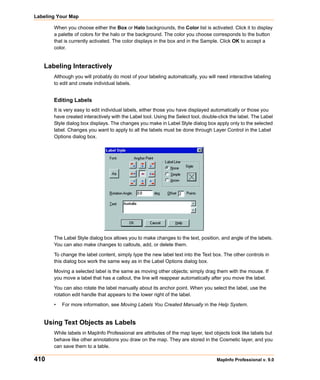
  • 60.
    Mapping – NewFeatures and Enhancements Setting the New Default Layout Preferences We have added Layout preferences so you can set the options for Layout windows globally by default. You can change these options locally to meet the individual needs of your current Layout, but global preferences can assist you in presenting a unified look in your presentation map graphics. To set the global default preferences for Layout windows: 1. Choose Options > Preferences > Layout Window to display the Layout Window Preferences dialog box. Use this dialog box to set the preferences for Layout windows. Completing the entries in this dialog box ensures that your layouts will have a uniform look and feel. 2. Complete the selections in this dialog box and click OK to save your Layout window preferences. Show Rulers Select this check box to display rulers in your Layout window. Rulers can be useful to help you line up elements of your layout on the page. This option is selected by default. Show Page Breaks Select this check box to display the page breaks in your Layout window. Showing the page breaks ensures that the elements of your layout are consistent from page to page. This option is selected by default. Show Frame Contents The options in the Show frame contents box allow you to specify when the contents of frames display. Always Allows you to have the contents of a frame display all the time even when it is not active. For example, if you are changing the contents of a Map window that is also in the layout, you might want the Always option. That way you can see the effect of the layout as you make your changes. This option is selected by default. Only when Layout window is active Allows you to display the contents of a frame only when the Layout is the active window. Never Allows you to display only the file name and frame type, even when the Layout is the active window. For example, choose Never when you are resizing and repositioning frames. That way the contents of each frame will not redraw every time you make a change. 60 MapInfo Professional v. 9.0
  • 61.
    Chapter 2: What’sNew in MapInfo Professional 9.0 Prompt to Save Workspace Prior to Close When this check box is selected, MapInfo Professional prompts you to save before you close windows with layout changes. Clear this check box if you do not want to be prompted to save your changes. This option is selected by default to prevent accidental loss of information. Note: The prompt only displays if there are changes to the open Layout and Legend windows or when the Layout and Legend windows are new. 3. Click OK to save your preference. Once you set these preferences, MapInfo Professional sets these options automatically whenever you create a new Layout window. To reset these options for a particular layer locally, select Layout > Options to display the Layout Display Options dialog box. This dialog box also allows you to set height and width restrictions and an autoscroll option. New Prompt Prevents the Loss of Work when Closing Windows Some have you have raised issues about losing work when closing windows. When you use the Close All option, MapInfo Professional closes not only the window you are working in but also Layout and Legend windows that are open as well. When you close a Map window, MapInfo Professional closes the Legend and Layout windows associated with that map too. Note: The instructions for setting this prompt for Layout windows are described inSetting the New Default Layout Preferences on page 60 topic. To prevent the loss of work, we have added a new prompt option to the Layout Window Preferences and the Legend Window Preferences dialog boxes. This prompt allows you to choose to save the contents of the windows you are working in to a workspace before closing. You can also choose to discard these changes. To set the new prompt when you close Map windows with open Legend windows: 1. Choose Options > Preferences > Legend Window to display the Legend Window Preferences dialog box. 2. Select the Prompt Save Workspaces Prior to Close check box to display the prompt when closing all or closing map windows. 3. Click OK to save your Legend window preferences. User Guide 61
  • 62.
    Mapping – NewFeatures and Enhancements Using the New Save Workspace Prompt Once you have set these preferences and click the button on the Standard tool bar or you select File > Close All while you are in a Layout or Legend window, this prompt displays: Here you can choose to save your current work or discard it. Click Save to save all of the work you have completed in all your open windows or Discard to lose all of the changes you have made since the last save. When close a Map window that has layouts and legends associated with it, this prompt displays: The same rules apply here. Click Save to save all of the work you have completed in all your open windows or Discard to lose all of the changes you have made since the last save. The prompt only displays if there are changes to the open Layout and Legend windows or these windows are new. Improvements in Symbol Style Dialog Box and New Fonts We have improved the Symbol Style dialog box by increasing the width of the Font drop-down list and by adding new Emergency Response fonts. Many users have indicated that the font names have been difficult to distinguish because the width of the Font drop-down list is too narrow. We have added new standard fonts prepared by the Office of Homeland Security for use in your MapInfo maps. These fonts were developed to standardize the way emergency circumstances and industries are depicted in maps. These TrueType fonts are listed using the format “ERS V# symbol type” for clarity. Specifically the new symbols are: • ERS v2 Damage - Use these fonts to create your own symbols. These fonts include circles, squares, and rectangles of various complexity. • ERS v2 Incidents - Use these fonts to show various hazardous circumstances such as fires, police activity, and other dangers. • ERS v2 Infrastructures Stage 01 - 04 - Use these fonts to show various industrial environments including farms, factories, financial businesses etc. in a wide variety of complex frames to indicate severity 62 MapInfo Professional v. 9.0
  • 63.
    Chapter 2: What’sNew in MapInfo Professional 9.0 • ERS v2 Natural Events - Use these fonts to show areas of natural disasters such as hurricanes, tsunamis, volcanoes and other natural events • ERS v2 Operations Stage 01 - 04 - Use these fonts to show various emergency circumstance symbols such as ambulances, biohazard, and Red Cross-type symbols in a wide variety of complex frames to indicate severity Tool Enhancement Setting the Window Size with the Window Manager Tool You can now resize the open browser, map, layout, and graph windows in MapInfo Professional using the Window Manager tool. Remember you need to add the Window Manager tool to the Tool Manager list before using it. For specific instructions in using this new feature, see the Windows Manager Tool in the Help System. Coordinate System and Datum Enhancements For the details of these projections, see the Custom Datums section in the Appendices. Added Bosnia-Herzegovina Coordinate Systems. We have added the following projections to the PRJ file: • Bosnia-Herzegovina (Zone 5) • Bosnia-Herzegovina (Zone 6) • Bosnia-Herzegovina (Zone 7) Added Luxembourg Projections. We have added the following Luxembourg projection to the PRJ file: • Luxembourg 1930 / Gaussp2169 Added S-JTSK (KROVAK) Coordinate System. We have added a new S-JTSK projection to the .PRJ file to serve the Czech Republic and Slovakia. We have added using new Projection #32 and new Datum #1020: The last PRJ entry is using following parameters: Datum:1020 (S-JTSK datum with Ferro Prime meridian) Units:- meters Origin, Longitude: 42.5 degree (East of Ferro) Origin, Latitude: 49.5 degree Standard Parallel: 78.5 degree Azimuth: 30.28813972 degree User Guide 63
  • 64.
    Coordinate System andDatum Enhancements Added Swedish Coordinate System. We have added the following projection to the PRJ file. • ST 74 Updated EPSG Aliases for Swedish Coordinate Systems. We have added two new EPSG aliases for Swedish coordinate systems to the PRJ file to maintain consistency with the latest update to MapXtreme: • EPSG:2326 • EPSG:3152 Updated Hong Kong EPSG Code. We have added the following EPSG code entry to the PRJ file: • Hong Kong 1980 Grid Systemp2326 Updated Australian Victorian Coordinate System We have added the following Australian bounded projections to the PRJ file: • VIC VicGrid66 (AGD 66) • VIC VicGrid94 (GDA 94) • VIC AMG Zone 54 (AGD 66) • VIC AMG Zone 55 (AGD 66) • VIC MGA Zone 54 (GDA 94) • VIC MGA Zone 55 (GDA 94) • VIC Longitude/Latitude (AGD 66) • VIC Longitude/Latitude (GDA 94) Updated Danish Coordinate System Entries We have added the following Danish projections to the PRJ file • UTM Zone 32 Euref89p25832 • UTM Zone 33 Euref89p25833 • UTM Zone 32 (ED 50)p23032 • UTM Zone 33 (ED 50)p23033 • System 34 Jylland-Fynp34003 • System 34 Sjaellandp34005 • System 45 Bornholmp45001 • KP2000 Jylland-Fynp18401 • KP2000 Sjaellandp18402 • KP2000 Bornholmp18403 64 MapInfo Professional v. 9.0
  • 65.
    Chapter 2: What’sNew in MapInfo Professional 9.0 Printing, Importing, and Exporting Enhancements Exporting to GeoTIFF (*.tif) Format MapInfo Professional includes the capability of exporting Map windows to GeoTIFF (*.tif) export format. GeoTIFF files are designed to connect a raster image to its location on the earth. Georeferencing information is written directly to the *.tif file so that it can be used in other applications. GeoTIFF Export Requirements This section explains the requirements for exporting maps to GeoTIFF format. Using GeoTIFF format has the following requirements: • The window you are exporting is a Map window. • The Map window’s projection contains an EPSG code. Projections that do not have an EPSG code are not supported. • The Map window must not be rotated, or contain a raster image that causes a rotation. The sections that follow explain the requirements in more detail. Map Windows When you export a Map window to GeoTIFF format, the file is saved in the current projection of the Map window. You cannot use the Save Window As command to save the Map window to a different projection. To use a different projection, you must change the Map window projection before you use the Save Window As command. GeoTIFF is not available as an export format for other types of windows (Browser, Graph, Legend, Redistricter, 3DMap) or Map windows that use unsupported projections. Supported Projections For GeoTIFF export the Map window projection must have an EPSG code. You can see whether a projection has an EPSG code in the Choose Projection dialog box. The Choose Projection dialog box is available from the Map Options dialog box. With a Map window open, choose Map > Options. In the Map Options dialog box, click the Projection button. User Guide 65
  • 66.
    Printing, Importing, andExporting Enhancements The MAPINFOW.PRJ file entries that use EPSG codes contain a “P###” code. For more information see the MapInfo Professional User Guide, Chapter 14: Working with Coordinate Systems and Projections. Image Rotation In Map windows that contain a raster or grid image, the image must not cause the map projection to rotate the coordinates if you wish to create a GeoTIFF for this Map window. Rotation can occur if the image is not registered precisely. To work around this, you can force Image Reprojection to be enabled by setting Map > Options > Image Processing > Reprojection Using > Always. If Image Processing is set to Always, then it is possible to use raster layers for GeoTIFF export GeoTIFF Export Procedure To export a Map window to a GeoTIFF format file, do the following: 1. Open the desired layers in a Map window, if you do not have your map open already. 2. Make the Map window active. 3. Choose File > Save Window As. The Save Window As dialog box displays on the screen. 4. In the Save in box, select the destination folder of the exported file. 66 MapInfo Professional v. 9.0
  • 67.
    Chapter 2: What’sNew in MapInfo Professional 9.0 5. In the Save as type drop-down list, click the arrow to see the file format choices. Select GeoTIFF (*.tif). 6. In the File name box, enter a name for the exported file. Click Save and continue with the normal Save Window As process. Other Types of Windows If you attempt to export other types of windows to GeoTIFF format (for example, Browser, Graph, Legend, Redistricter, 3DMap), the GeoTIFF format will not be available as an export format in the Save as type drop-down list. Unsupported Projections If you attempt to export a Map window using a projection that is not supported by the GeoTIFF format, that is, a projection that does not have an EPSG code, the GeoTIFF format will not be available as an export format. In addition, the Save Window As dialog box displays the following message at the bottom of the dialog box: Note: GeoTIFF option not available when Current Map Projection does not have an EPSG code. In order to save to GeoTIFF, you’ll need to change your map projection to one that has an EPSG code. User Guide 67
  • 68.
    Printing, Importing, andExporting Enhancements Raster and Grid Images If you attempt to export a Map window that contains a raster or grid image that causes a rotation in the Map window, the GeoTIFF format will not be available as an export format. In addition, the Save Window As dialog box displays the following message at the bottom of the dialog box: Note: GeoTIFF option not available when Map projection is rotated due to raster or grid images. Try turning on Image Reprojection (Map > Options > Image Processing > Reprojection > Always). To turn on Image Processing, do the following: 1. Choose Map > Options. The Map Options dialog box displays on the screen. 68 MapInfo Professional v. 9.0
  • 69.
    Chapter 2: What’sNew in MapInfo Professional 9.0 2. Click Image Processing. The Image Processing dialog box displays on the screen. 3. Click Always, and then click OK. 4. Click OK in the Map Options dialog box. 5. Try saving the Map window to GeoTIFF format again. Database Enhancements The following are the database enhancements for this version of MapInfo Professional: • Using the Find Command in Remote Tables on page 69 • Using the Geocode Command in Remote Tables on page 70 • New Find Selection Preferences for Copying/Pasting on page 70 • New Time and DateTime Data Type Support for Remote Databases on page 72 Using the Find Command in Remote Tables The Find command (Query > Find) is available for both live and linked remote tables, regardless of whether they are indexed. Neither the table nor a column in the table needs to be indexed for the Find command to be available. If the selected column in the search table does not have an index, an index will be created when you click OK in the Find dialog. For native tables and linked remote tables, this newly created index is permanent. For live remote tables and read-only native tables, the index is temporary. User Guide 69
  • 70.
    Database Enhancements Using the Geocode Command in Remote Tables The Geocode command (Table > Geocode) is available for both live and linked remote tables, regardless of whether they are indexed. Neither the table nor a column in the table needs to be indexed for the Geocode command to be available. If the selected column in the search table does not have an index, an index will be created when you click OK in the Geocode dialog. For native tables and linked remote tables, this newly created index is permanent. For live remote tables and read-only native tables, the index is temporary. Additional Notes The Find and Geocode dialog boxes both contain the following design elements: • Indexed tables and columns are shown with an asterisk at the end of their names in the Search Table and for Objects in Column drop-down lists. There is a reminder in each dialog box about what the asterisk means. • The tables in the Search Table drop-down list are listed in alphabetical order. • The width of the list boxes adjusts dynamically to fit the longest table or column name. New Find Selection Preferences for Copying/Pasting In the last release of MapInfo Professional, we added zoom functionality when performing a Query > Find Selection on a single object. We added this feature so MapInfo Professional would perform consistently with existing Query > Find Selection behavior for multiple objects. In speaking with users subsequently, we found that most of you were using this functionality to copy and paste a single object, and since the object was already in view, the additional zoom was not necessary. In fact, if you were doing multiple copy and paste operations, the new functionality was a hardship. Some customers objected to the Find Selection zoom functionality for multiple objects as well. Others wanted the option of zooming or not zooming in different situations, so we have created a Map window preference so you can set the functionality that works best for you. 70 MapInfo Professional v. 9.0
  • 71.
    Chapter 2: What’sNew in MapInfo Professional 9.0 When we refer to Find Selection, we include all of these functions: • Query > Select • Query > SQL Select • Query > Find Selection • Copy/Paste To make Map Preferences easier to work with, we have created a tab system. To set your Find Selection options for Map windows: 1. Choose Options > Preferences > Map Window > Editing tab to display the Editing Map Preferences dialog box. Use the Find Selection Options to specify the behavior when you are performing a Find Selection. 2. Select the Zoom on Find Selection option to zoom to the selection each time you perform a Find Selection for single and multiple objects. Clear this check box to prevent zooming when performing a Find Selection. 3. Select the Find Selection after Paste option to turn on the Find Selection feature in the Map window only after you Paste an object. If you have an active Browser, and the selection is in that Browser window, the browser still scrolls to the selection. Clear this check box to prevent zooming after pasting an object. 4. Click OK to save your preferences and OK again to return to the Map window. User Guide 71
  • 72.
    Database Enhancements New Time and DateTime Data Type Support for Remote Databases The new Time and DateTime data types (see Using Date- and Time-Based Data in Maps and Queries on page 23) address a long time issue with many remote databases. Because MapInfo Professional only had a date data type, and most remote databases and servers have Date and DateTime data types, data read from servers would often be truncated or lost in the process. With the addition of these new Time and DateTime data types, the server DATE, TIME, and DATETIME/TIMESTAMP match up with the MI Date, MI Time, and MI DateTime more closely. If you create a new table with DateTime or Time data in it, the .tab file (both live and linked) you create is marked as version 900 file. To preserve backward compatibility, when you open an existing live .tab file (linked .tab files are really native tables with a local table definition), the behavior depends on the version of the .tab file. If the tab file is marked as version 900 or later, MapInfo Professional treats the server DATE as MI Date, the server DATETIME or TIMESTAMP as MI DateTime, and server TIME (if any) as MI Time. If the version number is earlier than 900, MapInfo Professional matches the behavior of previous releases, that is, the server DATE and DATETIME or TIMESTAMP values are converted to MI Date and server TIME to MI Char. In addition the Informix DATETIME type is opened as MI Date but is marked read-only. This is true of live tables only because linked tables have already been defined. Handling Time and DateTime Data From Remote Databases When you download Date, Time, and DateTime data type information to MapInfo Professional, this is the results you can expect: MapInfo Professional From Oracle From MS From MS Data Type From Informix (OCI) Access SQL Server DATE DATE DATE** TIME DATETIME HOUR TO SECOND DATETIME DATETIME YEAR TO TIMESTAMP* DATETIME* DATETIME* FRACTION *Backward compatibility depends upon the .tab file version as described above. **If you use ODBC, the Oracle DATE type is returned as TIMESTAMP. The driver issue causes an inconsistency with OCI. When you commit table data from MapInfo Professional to these remote database servers, MapInfo Professional updates the server table with the value that the user provides in the browser. MapInfo Professional may apply some restrictions during the input time. 72 MapInfo Professional v. 9.0
  • 73.
    Chapter 2: What’sNew in MapInfo Professional 9.0 Working with Time and DateTime Data on the Server When you create a new table or save a copy of a table with Date, Time, and DateTime data type information on a DBMS server, this is the results you can expect: In MapInfo To MS To MS SQL Professional To Informix To Oracle Access Server DATE DATE DATE DATETIME* DATETIME* TIME DATETIME YEAR TO TIMESTAMP(3)* DATETIME* DATETIME* FRACTION(3)* DATETIME DATETIME YEAR TO TIMESTAMP(3) DATETIME DATETIME FRACTION(3) *The MapInfo Professional data type will be extended on the servers. When the same data returns to MapInfo Professional it becomes the data type identified on the server. This mismatch is caused by a mismatch between the data types in the server and MapInfo Professional. As you can see from the previous table, there may be conversion issues involved depending on the local type and the type of database server you are communicating with. To make the data type conversion clearer we have added some messages to inform you of the details of the conversion when you are creating a new table or saving a copy of a table data to a remote database. When you use the Create New Table or Save Copy of Table as dialog boxes, red messages display at the bottom of the dialog box to inform you of the Date, Time, and DateTime conversion details. If you create a new table with Date, Time, and DateTime data using MapBasic statement, the notification is a little different. If you use the Server Create Table statement, keep in mind that the statement only supports the types that are also supported by the server. Therefore, Time type is prohibited from this statement for Oracle, IBM Informix, MS SQL Server and Access servers and the Date type is prohibited for MS SQL Server and Access servers. You should replace unsupported types with DateTime to create a table that contains Time information on a column. If you create a copy using a MapBasic statement and the source table contains Time or Date type columns, these columns will be converted to DATETIME or TIMESTAMP depending on whether the server supports the data types or not and the parameters you pass in. You can control this behavior using the ConvertDateTime clause. If the source table does not contain Time or Date data type, this clause is not operational. If ConvertDateTime is set to ON (which is the default setting), Time or Date type columns will be converted to DATETIME or TIMESTAMP. If ConvertDateTime is set to OFF the conversion is not done and the operation will be cancelled if necessary. If ConvertDateTime is set to INTERACTIVE a dialog box will pop up to prompt the user and the operation will depend on the user's choice. If the user chooses to convert, then the operation will convert and continue; if the user chooses to cancel, the operation will be cancelled. The Time type requires conversion for all supported servers (Oracle, IBM Informix, MS SQL Server and Access) and the Date type requires conversion for MS SQL Server and Access database servers. Note: For MS SQL Server and Access database servers, this restriction could be an backward compatibility issue. In previous releases, we did the conversion without explaining it. In this release, we suggest you use the DateTime data type instead of Date data type. If you still use the Date data type, the conversion operation will fail. User Guide 73
  • 74.
    Miscellaneous Enhancements Miscellaneous Enhancements The following changes are additional significant enhancements to the MapInfo Professional product: • New Time and DateTime Data Type Support for Remote Databases on page 72 • Envinsa Routing and Geocoding Constraints Change on page 74 • New TrueType Font Behavior on page 74 • Improved Character Set Conversion on page 74 • MapBasic Help Available from MapBasic Window on page 75 Envinsa Routing and Geocoding Constraints Change We have changed the way we limit the amount of information that is sent to servers based on upgrades to the Envinsa product. For example, you may notice that the Add button in the Create Driving Regions dialog box or the Geocode using Server dialog box is disabled if you have reached the limit on the number of request values (number of address batches, times, or distances) you have sent to the server. In the past, MapInfo Professional used to use the same limit for all servers but we found that the loads a server can handle vary widely. Newer versions of Envinsa allow the server to set limits on the server side, and MapInfo Professional will now use these limits. You may see some changes in behavior when you switch servers and the new server has different limits. Another difference you may see is that a particular quantity of address batches, times or distances may work for one server but not for another. These changes should improve the performance of your connection to the server in that MapInfo Professional is not sending more information to the server than it can handle. New TrueType Font Behavior Curved labels and other text display features are moving MapInfo Professional toward using only TrueType fonts. For all text display excluding curved and rotated labels, MapInfo Professional 9.0 will honor the use of non-TrueType fonts, but we recommend the use of TrueType fonts wherever possible. When you use the Text Style dialog box, you may notice that only TrueType fonts display in the Font list by default. If you have used a non-TrueType font in an old workspace or table, this font appears in the Font list. If you use a non-TrueType font in an existing workspace or .tab file and begin using the curved labels feature, MapInfo Professional substitutes the font you are using with a TrueType font. Improved Character Set Conversion For many years, MapInfo Professional has supported the automatic conversion of characters from one character set (called a codepage in Windows) to another. Even though our internal code API allows for conversions from any two character sets, in all cases the conversion occurs between a character set associated with some data (a text file in MapBasic or a table) and the system character set, which is an internal value based on a Windows setting. 74 MapInfo Professional v. 9.0
  • 75.
    Chapter 2: What’sNew in MapInfo Professional 9.0 If characters in your data display incorrectly or display as an _ (underscore), your character set conversion routine or tables may be to blame. We have found that these Microsoft Windows conversion tables and routines more adequately meet our customers’ needs. Therefore, MapInfo Professional now relies on the character set conversion routines supplied by the Windows operating system. Most modern systems have all these internal tables already configured. If a situation occurs where those tables are not installed, you can easily install them, if you have administrative rights. See http://www.microsoft.com/resources/documentation/windows/xp/all/proddocs/en- us/int_pr_install_code_page.mspx?mfr=true for details. MapBasic Help Available from MapBasic Window If you use the MapBasic Window, you may be interested in looking up information about the functions and statements that you see there. There is a MapBasic section in the Help System that shows the purpose, syntax and examples of all MapBasic Language features. To access the MapBasic Language reference features available in the MapBasic window: • Do one of the following: • Select Help > MapInfo Professional Help Topics. When you select this option, you can access the MapBasic Language Reference list of functions, statements, and clauses you can use in the MapBasic window. Figure: MapBasic Language Reference Help Topic When you find a function or statement you think is particularly useful, you can save it to the Favorites tab for later reference. • Open the MapBasic window and select F1. The MapBasic Window topic displays: From this help topic you can access the Language Reference or learn more about working in the MapBasic window. User Guide 75
  • 76.
    Data Enhancements Data Enhancements To provide more room for data in the future, we have decided to ship a separate data CD with MapInfo Professional. Here is the directory structure and data presentation for the introductory and sample data that is shipped with MapInfo Professional. We use the term Introductory Data to describe the data you can use to geocode locally and to enhance the maps you create in every session. The Sample Data folder provides examples of other types of data that are available from MapInfo Corporation. The Introductory_Data directory is structured as follows: NorthAmerica USA Canada Mexico World [files] Europe Asia Africa Australia World_WMS workspcs The Sample Data is designed to give you a taste of the other kinds of data products you have available to you. The SampleData directory is structured as follows: Geographic AirPhotoUSA StreetPro Samples Industry_Data Business Points Insurance TelcoData Weather We have added more industry-specific sample workspaces and updated the samples that ship with the MapInfo Professional application to enhance your maps and geocoding. To make space for this new data, we have removed the indexes from all of the data except the USZIPBDY.TAB, US_ZIPS.TAB, and the US_CNTY.TAB files. You need the indexes for these files to maximize your ability to geocode to ZIP code boundaries and centroids and county centroids. 76 MapInfo Professional v. 9.0
  • 77.
    Chapter 2: What’sNew in MapInfo Professional 9.0 Installing the Free Data Locally To install the free data locally: • Place the Data CD in the CD drive and follow the prompts that display according to the needs of your implementation of MapInfo Professional. CAUTION: If you want to install this data in addition to your existing product data, you need to specify a new directory to ensure that your current data is maintained. Data Updates and Additions The data updates and additions for this release include: • Updated ZIP Code Point file to version April, 2007 • Updated ZIP Code Boundary file to version October 2005 • Added new version of telephone company data for Connecticut April, 2007 (Area Codes, PSAP, RateCenters) • Added Updated RiskInfo (Weather) data for Connecticut September, 2005 • Added Business Points sample data for Connecticut in workspaces, showing potential use cases – January, 2006 • Added a sample of IDSS (Insurance Decision Solution Suite) • Updated all StreetPro sample data – StreetPro US Version 10.0 January 2007 • Added StreetPro samples for Austria, Denmark, France, Ireland, Norway, Portugal, and Switzerland • Added sample crime data in the UKCrimeExample directory • Crater_3d.wor and ElevationUS_3D.wor provide is a new 3D grid workspaces • CurvedLabel.wor displays the new Curved Label feature User Guide 77
  • 78.
    Data Enhancements 78 MapInfo Professional v. 9.0
  • 79.
    Installing and Configuring MapInfo 3 Professional This chapter helps you install and set the basic preferences for MapInfo Professional®. In addition, there are instructions for fixing problems that come up as part of the installation process. We also cover starting and exiting the product. Sections in this Chapter: System Requirements . . . . . . . . . . . . . . . . . . . . . . . . . . . . . . . . . . .80 MapInfo Professional and Operating System Support . . . . . . . . .81 MapInfo Professional Database Connectivity and Support . . . . .83 Before You Install MapInfo Professional . . . . . . . . . . . . . . . . . . . .84 Installing MapInfo Professional . . . . . . . . . . . . . . . . . . . . . . . . . . .85 MapInfo Licensing and Activation . . . . . . . . . . . . . . . . . . . . . . . . .92 Modifying or Removing MapInfo Professional . . . . . . . . . . . . . .112 Configuring the MapInfo Professional Preferences . . . . . . . . . .116 Starting up and Leaving MapInfo Professional . . . . . . . . . . . . . .149 File Format Types Supported . . . . . . . . . . . . . . . . . . . . . . . . . . . .150
  • 80.
    System Requirements System Requirements Below are the guidelines for minimum and recommended system requirements. Please note that hardware requirements do vary based on your use of the product and your system. In general, a higher processor speed, larger memory (RAM) and industry leading graphics cards provide a better user experience and result in better responses from MapInfo Professional. These are the minimum system requirements for MapInfo Professional 9.0: Minimum Minimum Disk Minimum Minimum Operating Systems Memory Space Graphics Monitor Windows 2000 128 MB of RAM Application 103 MB 16- or 24-bit Color 800x600 Display Professional SP 4 with a minimum Data 450 MB Windows Vista * of a Pentium PC Windows XP Professional 64 MB of RAM Application 103 MB 16- or 24-bit Color 800x600 Display SP 2 with a minimum Data 450 MB of a Pentium PC Windows XP Home SP 2 Windows 2000 Server SP4 Windows 2003 Server SP 1 with Terminal Services/ Citrix * MapInfo Professional is not currently Windows Vista certified. These are the recommended system requirements for MapInfo Professional 9.0: Recommended Recommended Recommended Recommended Operating Systems Memory Disk Space Graphics Monitor Windows 2000 256/512 MB of Fast EIDE 2 or SCSI Mid to High 2D/3D Greater than Professional SP 4 RAM with a Interface with 2GB card with 128MB or 1024x768 minimum of a or better better resolution or Windows XP Pentium PC or better Professional SP2 Data 450 MB better Windows XP Home SP2 Windows 2000 Server Same, PLUS Fast EIDE 2 or SCSI Server: Same Greater than SP4 memory Interface with 2GB 1024x768 Client: Choose sufficient to or better resolution or Windows 2003 Server based on support each better SP 1 with Terminal Data 450 MB resolution/speed connected user Services/Citrix requirements Note: For Windows 2003 Server Users: Keep in mind that some of the options you choose for the server can limit the options available to the client system. 80 MapInfo Professional v. 9.0
  • 81.
    Chapter 3: Installingand Configuring MapInfo Professional MapInfo has exhaustively tested MapInfo Professional under the following Microsoft Windows Desktop Operating Systems: • Windows 2000 Professional • Window XP Home Edition • Windows XP Professional MapInfo has exhaustively tested MapInfo Professional under the following Microsoft Windows Server Operating Systems: • Windows 2003 Server • Windows 2003 with Terminal Services with Citrix Meta Frame technology. To learn more about this installation option see Windows 2003 Server with Terminal Services/Citrix Support in Chapter 3 on page 82. MapInfo has performed Installation and validation testing on the following 64Bit Windows Operating System: • Microsoft's 64-bit Windows XP Professional with 32 Bit compatibility mode. Note: There are no special installation instructions for installing MapInfo Professional on a 64-bit Windows Operating System. Please follow the instructions designed for your installation type (Typical Workstation Installation on page 88,Custom Workstation Installation on page 88 or Network Installation on page 90) presented in this chapter. MapInfo Professional and Operating System Support This section provides additional detail on the operating system support for MapInfo Professional, including: • Windows 2000 Support on page 81 • Windows 2003 Server with Terminal Services/Citrix Support on page 82 Windows 2000 Support MapInfo Professional supports Windows 2000 (SP 4) features as described in the Application Specification for Microsoft Windows 2000 document (available at http://www.microsoft.com/WINDOWS2000/news/bulletins/appspec.asp). The key aspects of Windows 2000 support with regard to MapInfo Professional are: • Supporting multiple users on a single machine, each having their own application settings. • Supporting use of MapInfo Professional on a secure Windows 2000 computer (one where users have very limited access rights). • Using an installer based on the Windows Installer Service. In order to support these requirements, we have changed the location of many application data files (for example, files containing information used by MapInfo Professional during execution (for example, the projection file, mapinfow.prj). The installer places the files under the current user's Application Data folder. Likewise, some registry entries have been moved from HKEY_LOCAL_MACHINE to locations under HKEY_CURRENT_USER. In both cases the current User Guide 81
  • 82.
    MapInfo Professional andOperating System Support user is guaranteed to have write access to the folder or registry key. Also, since the files and registry entries are stored in user specific locations, each user of the computer has their own application data files (e.g. each has their own copy of the preference file, mapinfow.prf). Note: The changes described above apply to all versions of Windows supported by MapInfo Professional. The exact location of the Application Data folder varies depending on the version of Windows: OS Application Data Folder Location Windows 2000 (SP 4) c:Documents and Settings<user name>Application Data Windows XP Professional (SP 2) c:Documents and Settings<user name>Application Data Windows XP Home (SP 2) c:Documents and Settings<user name>Application Data Windows 2003 Server with Terminal Services/Citrix Support MapInfo Professional supports Windows 2003 Server with Terminal Services through Citrix to allow any member of the group Users to be able to use MapInfo Professional via a Terminal Services session. The Terminal Services feature is essential to the operation of the Citrix Access Infrastructure. We recommend that you consult with your Citrix administrator in the Citrix configuration guidelines PDF. That document includes both questions and answers about RAM and CPU requirements. This document is available by clicking this link. http://support.citrix.com/servlet/KbServlet/download/4257-102- 11011/Load_Manager_Guide.pdf. We have tested MapInfo Professional with a standard install of Citrix v3.0 and Microsoft Terminal Services 2003. We verified the testing of MapInfo Professional on CITRIX v3.0. MapInfo Professional does not require any client side technology, however, Citrix requires the Citrix Client to be installed. We tested against Version 6.20.985 of the client. We have modified our installation process to ensure that MapInfo Professional operates successfully in a Terminal Services/Citrix environment. When the installer detects that the user is installing locally in a system running Windows 2003 Server with Terminal Services through Citrix, the installer adds the necessary files and components to that machine. Once the user connects for the first time to the Terminal Services/Citrix computer and runs MapInfo Professional, a user configuration process begins to copy the per-user files needed to run MapInfo Professional. This works in the same way for Windows 2003 Server/Citrix clients as any other MapInfo Professional windows client. During the installation process, if you decide that the default installation locations are not appropriate for your implementation, you can change these locations using the MODE.INI file. For more information about constructing a custom MODE.INI file, see Controlling the Location of Application Data Files During Installation on page 114. 82 MapInfo Professional v. 9.0
  • 83.
    Chapter 3: Installingand Configuring MapInfo Professional The recommended RAM amount is based on the general guidelines from Citrix and uses this formula: Amount of RAM required for the application x the number of concurrent users Our testing of MapInfo Professional running Citrix on a Pentium CPU suggests these guidelines: 64MB of RAM X the number of concurrent users Installing MapInfo Professional on the Citrix Server Citrix users follow the Typical Workstation Installation instructions to install MapInfo Professional. Note: While we expect to work with ODBC and OCI technology on Citrix, we recommend that your Citrix administrator consult with database vendor documentation to configure their respective drivers on Citrix. MapInfo Professional Database Connectivity and Support MapInfo Professional supports the following spatial database servers: • SQL Server 2000/2005 • Informix 9.x • Solaris 32-bit • HPUX • Oracle Spatial 10G, 9iR2, 9iR1 Further, using ODBC drivers, you can access your data from MapInfo Professional using: • Oracle ODBC Driver 9x • SQL Server 2000/2005 • Informix 3.x You can also open tables of data from the following databases and make them mappable but only for point data: • Oracle 9iR2 • Oracle 10G • MS Access XP • MS SQL Server 2000/2005 • Informix 9.4 For more about working with remote database information, see Accessing Remote Data and Setting your Database Connection Preferences in the Help System. User Guide 83
  • 84.
    Before You InstallMapInfo Professional A Note about SQL Server 2005 Support MapInfo Professional supports the changes in the MS SQL Server 2005 schema concept. Microsoft has enhanced SQL Server 2005 to use schemas to organize database objects into namespaces. In the past the schema was part of the owner/user construct, so when you deleted a user, you deleted the objects associated with that user. Using SQL Server 2005, objects are associated with a schema, which can be associated with many users and each user can be associated with many schemas. The old fully qualified name of a database object was: Server.Database.User.Object. The new fully qualified name of the object is: Server.Database.Schema.Object If you leave out the server and database name identifiers, MapInfo Professional uses the current server and database names. If you do not explicitly specify a schema for a user, the server assumes any unqualified object names are in the default schema. Therefore, if you are accessing a SQL Server 2005 database, you need to update any features/functions, tools, and test scripts accessing the objects, including the metadata in the MAPCATALOG, to use the new fully or partially qualified object name. To make this version of SQL Server work, you must have this 8.5.1 (or later) version of MapInfo Professional. There is a work around for MapInfo Professional 8.5 and earlier versions that accesses a server table with the form, Database.Owner.Object. Review the MapInfo Professional 8.5 User Guide for these instructions. Before You Install MapInfo Professional Before installing MapInfo Professional, record your serial number and access code in an easy-to- remember place, such as the title page of the User Guide or Supplement. You need a valid serial number and access code to complete an installation or an upgrade. Also, please complete the postage-paid registration card and return it to MapInfo Corporation. Additionally, you can register online by accessing the Contact Info option on the CD Browser. If the MapInfo Professional installer detects a current version of the product, 6.0 or earlier, or detects that the product had been installed at some time, the installer copies the MAPINFOW.WOR, STARTUP.WOR and MAPINFOW.PRF from the operating system's system directory to <user profile root>Application DataMapInfoMapInfo. Application data (appdata) files are the non-executable data files that MapInfo Professional uses during operation. To use a silent installation procedure, see Silent Installation Procedures for System Administrators on page 105. 84 MapInfo Professional v. 9.0
  • 85.
    Chapter 3: Installingand Configuring MapInfo Professional Navigating the MapInfo Professional CD Browser The initial screen of the MapInfo Professional CD Browser includes these options: • Install Products: From this option you can install MapInfo Professional (including DBMS support and translators), free data, access to the documentation, and Install Utilities, including: ECW Compressor and GPS. • What’s New: Display a list and description of new and enhanced features. • Online Reference: MapInfo Professional provides the following online reference documents: The MapInfo Professional Supplement, MapBasic Reference, Crystal Reports User’s Guide, the MapInfo Professional Printing Guide, as well as the Adobe Acrobat Reader. The MapInfo Professional and Crystal Reports documentation are copied into the Documentation subfolder of your installation directory during the installation process. • Run MapInfo Tutorial: From this option you can access the MapInfo Tutorial from the MapInfo web site to learn more about the basic features of MapInfo Professional. • Other Products: Display information about MapBasic, MapInfo Discovery, and MapInfo Pro for SQL Server. • Contact Information: Where ever you are, MapInfo is there to help you. Contact us at any of these locations or visit us on the world wide web at www.mapinfo.com! • Register Online: We have simplified the registration process. Simply click this entry and the wizard walks you through the registration process quickly. • Browse CD: From this option you can review the contents of the CD. There are additional utilities that may be useful to you that are only available when you browse. • Exit: From this option you can close the CD Browser application. Installing MapInfo Professional CAUTION: We strongly recommend that you exit from all Windows programs before beginning the installation process. If you are upgrading from an earlier version of MapInfo Professional, we recommend that you uninstall before upgrading. You must have Administrator rights to run the Installer on Windows XP. If your Windows Start menu does not have a MapInfo program folder, the installation process creates this folder. If your Windows Start menu already has a MapInfo program folder, this process creates a new MapInfo icon within that folder. MapInfo Professional provides its application data files to each user. Called a Per-User install, this functionality runs the first time you run MapInfo Professional or MapInfo Professional client on a machine, and each time the MapInfo Professional Installer is run thereafter. The application data files include, among others, the Pen Styles file, Custom Symbols files, Graph Support files, and Thematic Legend templates. These files allow different users to have custom settings. Note: The Installer requires that your TEMP variable be set to a valid directory. User Guide 85
  • 86.
    Installing MapInfo Professional To install MapInfo Professional: 1. On the Launcher menu, click Install Products from the MapInfo Professional CD Browser. 2. Click MapInfo Professional Installer. The Install Shield Wizard dialog box displays. Click Next to continue the process and display the License Information dialog box and accept the terms of the agreement. 3. Click Next to continue. The Customer Information screen displays. 4. Type your name, organization name, serial number, and access code in the corresponding fields. The serial number and access code are listed on the Product Activation Information Card in the product box and are used to activate your product. Click Next to continue. 5. Do one of the following: • If your organization purchased node-locked licenses, the third character of your serial number is "N". Skip step 5 and go to step 6. For more information, see Node-Locked Licenses on page 92. • If your organization purchased concurrent licenses, the third character of your serial number is "S". In those cases, the License Server Name and Port dialog box displays on the screen. 86 MapInfo Professional v. 9.0
  • 87.
    Chapter 3: Installingand Configuring MapInfo Professional If you know the license server name and port number, enter them here. If you do not, you can continue with the installation without filling in the license server name and port number. You will have another opportunity to supply this information when you start MapInfo Professional. For more information, see Concurrent Licenses on page 101. Click Next. 6. Review the following installation types and determine which instructions are appropriate. Click one of the following and click Next to continue: • Typical Workstation Installation. Click this option if you will be using MapInfo Professional as a desktop application including remote database access and connectivity. See Typical Workstation Installation on page 88 to continue these instructions. • Custom Workstation Installation. Click this option to restrict the components that are installed by the installation program. For example, you can prevent the installer from adding the help system and tools. See Custom Workstation Installation on page 88 to continue these instructions. • Network Installation. Click this option if you are installing or upgrading to a MapInfo Professional network product. See Network Installation on page 90 to continue these instructions. These instructions are for network administrators only. After you install MapInfo Professional on the network, follow the instructions for installing MapInfo Professional on client equipment in Setting Up Client Workstations on page 92. User Guide 87
  • 88.
    Installing MapInfo Professional Typical Workstation Installation Choose this option to install MapInfo Professional program files, Online Help, Tools, Universal Translator, and Crystal Reports. The ArcLink translation utility is not installed with this option. CAUTION: Make sure you have completed the directions in Installing MapInfo Professional on page 85 before beginning these instructions. To continue installing MapInfo Professional on a workstation: 1. In the Setup Type dialog box, click Typical Workstation Installation; the Destination Folder screen displays. If you have an earlier version (or versions) of MapInfo Professional installed and you do not want to overwrite that version, create a new directory name in the next step. 2. Do one of the following: • Click Next to accept the destination folder indicated • Click Change to create a new path in the Change Current Destination Folder dialog box. Type the new path in the Folder name field and click OK to continue. Click Next to continue. The Ready to Install the Program screen displays. Review your selections to ensure that the path is correct before moving on. Click Back to make changes. 3. Click Install to begin. A progress bar indicates the status of the process. 4. When the InstallShield Wizard Complete screen displays, choose Finish to return to the Install Products screen. Note: When you open MapInfo Professional for the first time, the final installation and configuration process takes place automatically. See MapInfo Licensing and Activation on page 92 before you begin using MapInfo Professional. Custom Workstation Installation Choose this installation type to select components and drivers within the MapInfo Professional installation program. This is particularly useful if you want to save disk space by not installing the Help System, the documentation, or the MapInfo Professional tools. CAUTION: Make sure you have completed the directions in Installing MapInfo Professional on page 85 before beginning these instructions. To continue installing using the custom workstation instructions: 1. In the Setup Type dialog box, click Custom Workstation Installation; the Custom Setup dialog box displays. A feature description, and the space required for the feature and its sub-features displays in the Feature Description area. 2. In the Custom Setup dialog box you decide what components are to be installed and the directory you want them to install to. Click the feature icon to select the feature for installation. The options for a Custom Setup include: • MapInfo Program Files (which are required to run MapInfo Professional) • Tools (which refer to the MapInfo Utility Tools, Crystal Reports etc.) • Translators (such as ArcLink) 88 MapInfo Professional v. 9.0
  • 89.
    Chapter 3: Installingand Configuring MapInfo Professional • Help Files • Documentation 3. To select a feature, click the Down Arrow beside it; a menu displays. 4. For each feature you want to install, select one of the following: • This feature will be installed on local hard drive. • This feature, and all subfeatures, will be installed on local hard drive • This feature will not be available Note: For some features, there are additional options pertaining to the use of the feature from the network. Choose the option that describes your systems implementation of this feature. When you select the first or second options in the bullets described above, the feature installs on your local hard drive in the default folder. This path displays in the Install To: entry below the Custom Setup list pane. To specify another path, select Change button. When you do the Current Destination folder dialog box displays allowing you to choose a new path. To see if you have enough space on your hard drive or other mapped resources, click the Space button. The Disk Space Requirement dialog box displays the disk size, the amount of available space, and the amount of space the selected install would take. Note: To avoid installing a subfeature, select This feature will not be available. 5. After you select all the custom options click Next to display the Ready to Install the Program dialog box. 6. Click the Install button to begin the installation of MapInfo Professional with the features you selected. The Installing MapInfo Professional screen displays with a progress bar indicating the status. 7. At the end of the installation, the prompt: “Would you like to check our web site for any current updates to our product?” displays. If you have an Internet connection, click Yes to access the MapInfo Corporation web site containing information about product updates. 8. When the InstallShield Wizard Complete screen displays, choose Finish to return to the Install Products screen. Note: When you open MapInfo Professional for the first time, the final installation and configuration process takes place automatically. Setting up MDAC When installing MapInfo Professional, you can choose whether or not to install MDAC (Microsoft Data Access Components). Microsoft Data Access Components include various components: ActiveX Data Objects (ADO), OLE DB, and Open Database Connectivity (ODBC). If you are unsure User Guide 89
  • 90.
    Installing MapInfo Professional whether or not to install the MDAC, consult with your network administrator. This choice allows IT administrators to manually install their own replacement modules for the MDAC. You must have MDAC, or a replacement, to connect to any databases. Adding ODBC and OCI Drivers After you add the ODBC and OCI drivers as part of the Typical Installation process, you can use the instructions in Setting your Database Connection Preferences in the Help System to set your database connection preferences. You must have the OCI and ODBC drivers installed for MapInfo Professional to connect to remote databases. If you see the following messages, then you have installed the MapInfo DLLs for these features correctly but the drivers are missing: OCI (Oracle Call Interface) The MapInfo Oracle OCI Database driver (MIDLOCI.DLL) failed to load. This is most commonly caused by not having an installation of Oracle's OCI driver, which is necessary for the MapInfo Oracle OCI Database driver to load. To fix this issue, please install the Oracle OCI Database driver or rerun the MapInfo Professional Installer to remove the MapInfo Oracle OCI Database driver. Clicking "OK" will allow you to run MapInfo Professional without the ability to open Oracle tables through Oracle's Oracle Call Interface. If you need more information, please contact MapInfo Technical Support. ODBC (Open DataBase Connectivity) The MapInfo ODBC Database driver (MIDLODBC.DLL) failed to load. This is most commonly caused by an incomplete installation of MapInfo ODBC Connectivity Support. To fix this issue, please rerun the MapInfo Professional Installer to repair or remove the MapInfo ODBC Connectivity Support. Clicking "OK" will allow you to run MapInfo Professional without the ability to open remote database tables through ODBC. If you need more information, please contact MapInfo Technical Support. A combined message displays if you attempt to add both of these options and neither of them have access to the appropriate database drivers. Network Installation Installing MapInfo Professional 9.0 on a network involves two separate procedures: • Installing the product on a network drive (presumably done by the Network Administrator). • Setting up users with program manager icons, etc. (presumably done by the user). Make sure you have completed the directions in Installing MapInfo Professional on page 85 before beginning these directions. Choose this installation ONLY if you are a Network Administrator and have full rights to the network. 90 MapInfo Professional v. 9.0
  • 91.
    Chapter 3: Installingand Configuring MapInfo Professional To continue installing MapInfo Professional 9.0 on a network: 1. Click Network Installation; the Administrator Selection Screen displays. The options for a Network Setup include: • MapInfo Professional Program Files • Tools, Translators • Help Files A feature description, and the space required for the feature, displays in the Feature Description area. Click the option icon to install it. 2. When you select a feature, a menu displays allowing you to choose to install and/or run the feature and its subfeatures from various locations, including your local hard drive or from CD. • If you select the hard drive option, the feature will be installed in the path indicated; on your local hard drive in the folder indicated; to specify a different location, choose Change to display the Current Destination folder screen. • If you choose to install an option to your hard drive, the Space button is enabled; choose this button to display the Disk Space Requirement dialog box. Note: You can choose to not install a feature by skipping it. See Installing MapInfo Professional on a Network Drive in the Help System for additional details. 3. After the installation is complete, the prompt: “Would you like to check our web site for any current updates to our product?” displays. If you have an Internet connection, check Yes to be connected to the page of the MapInfo Corporation Web site containing information about product updates. 4. When the InstallShield Wizard Complete screen displays, choose Finish to return to the Install Products screen. Note: When your users open MapInfo Professional for the first time, the final installation and configuration process takes place automatically. See MapInfo Licensing and Activation on page 92 for information on licensing. Installing MapInfo Professional on a Network Drive The procedure for installing MapInfo Professional on a network drive is the same as the regular installation procedure except for the following: • Select Network Installation in the Setup Type screen. • Continue as in a Workstation Installation, selecting features, destination locations, etc. The Network Installation alone does not install any files to the local hard drive. User Guide 91
  • 92.
    MapInfo Licensing andActivation Setting Up Client Workstations To permit a user to use this network installation of MapInfo Professional, run SETUP.EXE: 1. Map a drive to the MapInfo Professional Install directory. 2. Select Run from the Start menu. 3. Run SETUP.EXE from [MapInfo install directory]AddClient. The MapInfo Professional Client Welcome screen displays. 4. Click Next. The License Information screen displays. 5. Click “I accept the terms of the license agreement” and select Next. The Customer Information screen displays with the network install values as the default. 6. Modify for the current instance and select Next. 7. Click Install to continue the installation. 8. Click Finish to complete the client installation. 9. Open MapInfo Professional and begin the product activation process. See MapInfo Licensing and Activation on page 92. MapInfo Licensing and Activation This section describes the licenses available for MapInfo Professional and how to get started with the product according to the type of license your organization purchased. MapInfo has two licensing schemes: • Node-locked • Concurrent The serial number and access code that you enter during the installation indicates to MapInfo Professional what type of license you have. Depending on the license type, MapInfo Professional will guide you through activating the product (if your organization purchased node-locked licenses) or connecting to a license server (if your organization purchased concurrent licenses). Node-Locked Licenses Node-locked licenses enable you to run MapInfo Professional on a specific computer. If you purchased node-locked licenses, your installation of MapInfo Professional must be activated before you can use it. Activation is the process of acquiring a license from MapInfo. This section explains the activation options available for node-locked licenses. Product Activation MapInfo uses the serial number and access code you supplied during the installation to activate the product. If you need to refer to these numbers again, the serial number and access code are located on the product box and on the Product Activation Information Card. 92 MapInfo Professional v. 9.0
  • 93.
    Chapter 3: Installingand Configuring MapInfo Professional To activate MapInfo Professional: 1. Install MapInfo Professional, if you haven’t already, and start the product. When you start MapInfo Professional for the first time after installation, the Activation Wizard launches. The MapInfo Professional Activation dialog box displays on the screen. 2. Select when you want to activate MapInfo Professional. Select one of the following: • Activate Now–Select this option to start activation now. • Activate Later–Select this options to start a 30-day courtesy period in which you can use MapInfo Professional without activating the product. 3. Click Next. If you selected Activate Now, go to step 4. If you selected Activate Later, the Activation Wizard closes and the courtesy period begins. The courtesy period enables you to use MapInfo Professional immediately and active the product at a time that is convenient for you. Each subsequent time you start MapInfo Professional, a dialog box displays informing you of the time remaining in the courtesy period and giving you the opportunity to activate the product. You must activate MapInfo Professional sometime during the courtesy period to avoid interrupting your work. When the courtesy period ends, you will not be able to use MapInfo Professional until you activate it. 4. If you selected Activate Now, the Select Activation Method dialog box displays on the screen: User Guide 93
  • 94.
    MapInfo Licensing andActivation : 5. Select one of the following activation methods: • Automatic Activation– Select this option if you have an Internet connection. The Activation Wizard will make a one-time connection with a MapInfo server. Using the serial number and access code you provided during the installation, the Activation Wizard will retrieve one of the licenses your organization purchased and associate it with your computer. • Email Activation– Select this option if you do not have an Internet connection. The Activation Wizard will guide you through the creation of an Activation Request file that you must then email to MapInfo. 6. Click Next. If you selected Email Activation, go to step 7. If you selected Automatic Activation, the Activation Wizard takes a few moments to transfer the activation credentials to MapInfo and perform the activation. A MapInfo Activation message displays on the screen to tell you that the activation was successful. Click OK. The Activation Wizard closes, and MapInfo Professional is ready to use. You are finished. 7. If you selected Email Activation, the Verify Activation Credentials dialog box displays on the screen: 94 MapInfo Professional v. 9.0
  • 95.
    Chapter 3: Installingand Configuring MapInfo Professional Double-check that your serial number and access code are correct. Click Edit if you need to make any corrections. 8. Click Next. The Specify location to save Activation Request file dialog box displays on the screen: Select a folder in which to save the Activation Request file. Click the Browse button to navigate to the desired location. Click OK. The path and filename of the Activation Request file appear in the box. The Activation Request contains your serial number and access code, plus information that identifies the computer you are activating on. 9. Click Next. The Save this important Information dialog box displays on the screen. User Guide 95
  • 96.
    MapInfo Licensing andActivation This dialog box provides the information to send your Activation Request file to MapInfo. The full path and filename of the Activation Request file is displayed in the Activation Request File box. The email address to send the file, activation@mapinfo.com, is displayed in the Email address box. Take a few moments to write down the location of the Activation Request file and email address to send the Activation Request file. CAUTION: Please do not edit the Activation Request file in any way. If you do, MapInfo may not be able to process it and your activation will be delayed. 10. Click OK. The Activation Wizard closes and the courtesy period automatically starts. 11. Email your Activation Request to MapInfo at this address: activation@mapinfo.com You can finish email activation when you receive an Activation Response file from MapInfo. You should receive the Activation Response file within one business day. Finishing Email Activation When you receive the Activation Response file from MapInfo, you are ready to finish activating MapInfo Professional. To finish email activation: 1. Copy the Activation Response file you received from MapInfo to an accessible folder on your computer and make note of the location. 2. Open MapInfo Professional. If MapInfo Professional is already open, exit and restart the program. A dialog box displays asking you if you want to finish activating MapInfo Professional. 3. Click Yes. The Process Email Activation Response dialog box displays on the screen. 96 MapInfo Professional v. 9.0
  • 97.
    Chapter 3: Installingand Configuring MapInfo Professional 4. Click Browse to navigate to the location of the Activation Response file. Click Open in the Locate Response file dialog box when you have located the file. 5. The path and filename of the Activation Response file appear in the box. 6. Click Next. 7. A MapInfo Activation message displays on the screen to tell you that the activation was successful. Click OK. The MapInfo Professional Activation Wizard closes, and MapInfo Professional is activated and ready to use. You are finished. Note: Once you have seen the confirmation message stating that your product has been activated, you can delete the email response file from your system. To check the status of your activation, choose Help > About and review the contents of this dialog box. Using MapInfo Professional While You Wait While you are waiting for MapInfo to send you the Activation Response file, you can continue to use MapInfo Professional under the courtesy period. To ensure uninterrupted use of MapInfo Professional, we encourage you to activate before the courtesy period expires. Each time you open MapInfo Professional subsequent to initiating email activation, a dialog box displays asking if you want to finish activating MapInfo Professional. When you receive the Activation Response file from MapInfo you are ready to finish activation. User Guide 97
  • 98.
    MapInfo Licensing andActivation To continue using MapInfo Professional under the courtesy period: 1. Click No in the dialog box. 2. A dialog box displays on the screen that provides information about the courtesy period and asks you how you would like to proceed. 98 MapInfo Professional v. 9.0
  • 99.
    Chapter 3: Installingand Configuring MapInfo Professional Select one of the following: • Use MapInfo Professional–Select this option if you have not received an Activation Response file yet and you want to use MapInfo Professional under the courtesy period. • Start Activation Over–Select this option if previous activation attempts have failed. If you selected Use MapInfo Professional, click Finish. The Activation Wizard closes and MapInfo Professional is ready to use under the courtesy period. You can finish the activation at a later time. If an earlier attempt to activate MapInfo Professional failed, and you selected Start Activation Over, click Next. The Activation Wizard restarts, giving you the opportunity to try the activation again. Transferring a Node-Locked License Node-locked licenses are associated with a particular computer. To use MapInfo Professional on a computer other than the one on which you have it activated, and without consuming another license, you can transfer your license from one computer to another. For example, you received a new computer at work and you want to run MapInfo Professional on the new computer instead of on the old one. Note: Your organization is limited to two license transfers per year, regardless of the number of licenses. Transferring Your License to Another Computer To transfer a node-locked license: 1. Open MapInfo Professional. 2. Choose Help > Licensing > Transfer license. The MapInfo Professional License Transfer dialog box displays on the screen. 3. Click Yes. The Select Transfer Method dialog box displays on the screen. Select one of the following transfer methods: • Automatic Transfer–Select this option if you have an Internet connection. Your license will be automatically transferred to MapInfo. You can retrieve the license by activating MapInfo Professional on another computer. • Email Transfer–Select this option if you do not have an Internet connection. You will be guided through the creation of a Transfer Request file, which you must then email to MapInfo. 4. If you selected Email Transfer, go to step 6. If you selected Automatic Transfer, the License Transfer Wizard takes a few moments to transfer the license to MapInfo. When this process is finished, a message displays on the screen informing you that the transfer was successful. 5. Click OK. MapInfo Professional closes and can no longer be run from this computer. The license is now available for you to activate MapInfo Professional on another computer. 6. If you selected Email Transfer, the Save Transfer Request File dialog box displays on the screen. User Guide 99
  • 100.
    MapInfo Licensing andActivation Select a folder in which to save the Transfer Request file. Click the Browse button to navigate to the desired location. Click OK. 7. Click Next. The Save this important information dialog box displays on the screen. This dialog box provides the information to send your Transfer Request file to MapInfo Customer Service. The full path and filename of the Transfer Request file is displayed in the Transfer Request File box. The email address to send the file, activation@mapinfo.com, is displayed in the Email address box. 100 MapInfo Professional v. 9.0
  • 101.
    Chapter 3: Installingand Configuring MapInfo Professional Take a few moments to write down the location of the Transfer Request file and email address to send the Transfer Request file. CAUTION: Please do not edit the Activation Request file in any way. If you do, MapInfo may not be able to process it and your activation will be delayed. 8. Click OK. MapInfo Professional closes and can no longer be run on this computer unless you activate it again. 9. Email the Transfer Request file to MapInfo at the following address: activation@mapinfo.com 10. MapInfo Customer Service will send you an email reply confirming that the transfer was successful. You should receive this confirmation within one business day. The license is now available for you to activate MapInfo Professional on another computer. Uninstall Transfer Options If you have a node-locked license and you uninstall MapInfo Professional, you have the option of transferring the license to MapInfo. If you intend to install MapInfo Professional on another computer, transfer the license to MapInfo so that the license is available. When you install MapInfo Professional on the desired computer, you will be prompted to activate the product. If you intend to reinstall MapInfo Professional on the same computer, do not transfer the license. When you reinstall, you can reuse the same license without activating. When you begin an uninstall of MapInfo Professional, the Transfer LIcense Now? dialog box displays on the screen: Do one of the following: • Click Yes to transfer the license to MapInfo. The License Transfer Wizard will start and guide you through the transfer process. See Transferring Your License to Another Computer on page 99 • Click No to keep the license on this computer. The uninstall operation continues. When you reinstall MapInfo Professional, you can reuse the license without activating. Concurrent Licenses Concurrent licenses enable you to install MapInfo Professional on any number of computers. A license server, installed and maintained by your organization, limits the number of computers that can run MapInfo Professional at any given time to the number of concurrent licenses purchased by your organization. In the concurrent licensing scheme, you must connect to a license server on your network to check out a license before you can run MapInfo Professional. Checking out a license is the process of obtaining a license from the license server. You will need to supply the license server machine name and port number to connect to the license server. You can do this either during installation or the first time you run MapInfo Professional. After you have established a license server connection, the check out occurs automatically. User Guide 101
  • 102.
    MapInfo Licensing andActivation A license server administrator from your organization installs and maintains the license server. The license server administrator must also perform the following tasks: • Activate the license server to make licenses available for check out. • Inform users of the license server machine name and port number. Connecting to a License Server If your organization purchased concurrent licenses for MapInfo Professional, you will need to connect to a license server to run the product. To connect to the license server, MapInfo Professional must have the license server name and port number. Your license server administrator will provide you with this information. Connecting During Installation The installation program will ask you for the license server name and port number. If you know them at install time, enter them. When you start MapInfo Professional, you will be connected to the license server and a license will be checked out automatically. If you do not have this information at the time you install MapInfo Professional, the installation program will enable you to continue with the installation without filling in the license server name and port number. You will have another opportunity to connect to the server when you start MapInfo Professional. Connecting After Installation If you did not specify the license server name and port number during product installation, you will be prompted for that information when you start MapInfo Professional. You will also be prompted if MapInfo Professional cannot connect to a running license server using the server name and port number you provided at install. 102 MapInfo Professional v. 9.0
  • 103.
    Chapter 3: Installingand Configuring MapInfo Professional To connect to the license server after you install MapInfo Professional: 1. Start MapInfo Professional. The Connect to License Server dialog box displays on the screen. If you have the license server name and port number, proceed with these instructions. If you do not, see Starting the Courtesy Period on page 103. 2. Enter the license server name in the Server name box. 3. Enter the port number in the Port number box. 4. Click Connect. MapInfo Professional takes a few moments to connect to the license server and check out a license. When the license is checked out, the Connect to License Server dialog box closes. You are finished. MapInfo Professional is licensed and ready to use. After you successfully connect to your license server once, a license will be checked out automatically when you start MapInfo Professional. Starting the Courtesy Period If you do not have the license server name and port number, but you want to start using MapInfo Professional, you can start a 30-day courtesy period during which you can use MapInfo Professional without connecting to the license server. To use the courtesy period to run MapInfo Professional: 1. Open MapInfo Professional. The Connect to License Server dialog box displays on the screen. 2. Click Courtesy Period. A MapInfo Activation message displays telling you that the courtesy period started successfully. 3. Click OK. MapInfo Professional is ready to use under the courtesy period. You can connect to the license server and check out a license when you receive the license server name and port number from your license server administrator. User Guide 103
  • 104.
    MapInfo Licensing andActivation Connection Failures Failure to connect to the license server can occur for several reasons. First, although you may know the license server name and port number, the license server administrator may not have had an opportunity to install it yet. In this case, MapInfo Professional cannot find the license server you specified. To use MapInfo Professional, you can start the courtesy period, and then connect when you know that the license server has been installed and is running. Failures can also occur if the license server has been moved to a different computer. In this case, you were previously able to connect to the license server, but the license server was moved since the last time you used MapInfo Professional. MapInfo Professional is looking for the license server in its previous location. If MapInfo Professional cannot connect to the license server at startup, the Connect to License Server dialog will display on the screen. See Connecting After Installation on page 102 for information. See your license server administrator for the correct license server name. Finally, if all licenses have been checked out, you will not be able to run MapInfo Professional. You are able to connect to the license server, but you cannot check out a license because they are all in use. You will need to wait until a license becomes available before you can check out a license. Borrowing a Concurrent License Some concurrent licenses can be borrowed. Borrowed license enable you to use MapInfo Professional when your computer is not able to connect to your license server. For example, if you have MapInfo Professional installed on a laptop computer and you are going to be away from the office, you can borrow a license to use MapInfo Professional while you are away. Check with your license server administrator to find out if your concurrent license includes borrowing. When you borrow a license, be sure to specify a borrow period that gives you sufficient time to use MapInfo Professional before the license expires. If the license expires before you have an opportunity to return it, the license is automatically returned to the license server. MapInfo Professional is unusable until you can connect to your network again and check out a license. To borrow a license, the computer that you want to put the borrowed license on must have MapInfo Professional installed and be connected to the license server. To borrow a license: 1. Open MapInfo Professional. 2. Choose Help > Licensing > Borrow license. The Borrow MapInfo Professional License dialog box displays on the screen. 3. Specify the number of days that you want to borrow the license. You can specify from one to 365 days. 4. Click Borrow License. After a few moments, MapInfo Activation message displays on the screen to tell you that the license was borrowed from the server successfully. 5. Click OK. You can use MapInfo Professional on this computer while not connected to your network for the borrow period that you specified. 104 MapInfo Professional v. 9.0
  • 105.
    Chapter 3: Installingand Configuring MapInfo Professional Returning a Borrowed License To return a borrowed license, you must reconnect the computer that is using the borrowed license to your network. If it is not connected, the Return borrowed license command will not be available. To return a borrowed license: 1. Reconnect the computer to your network. 2. Open MapInfo Professional. A dialog box displays to tell you on what date the borrowed license is going to expire. 3. Click OK. 4. Choose Help > Licensing > Return borrowed license. The Return borrowed license to license server dialog box displays on the screen. 5. This dialog box explains how a license is returned. Click OK. 6. A MapInfo Activation message displays on the screen to tell you that the license has been returned to the license server. 7. Click OK. Silent Installation Procedures for System Administrators Silent installations allow you to repackage MapInfo Professional for deployment within your company so your users do not have to enter user- or company-specific information, path information, Oracle or ODBC DLLs, a serial number, or an access code. The MapInfo Professional installation setup.exe indicated in the steps below can be found on the installation CD (d:) in this directory: InstallMI_PRODISK1 In general, the silent installation process goes like this: 1. Place the installation CD in the target computer’s disk drive. 2. From the command line on the target computer, type: "d:InstallMI_PRODISK1setup.exe /s /v"PARAMETERS" where PARAMETERS are the parameters you set to populate the msiexec. For example: "InstallMI_PRODISK1setup.exe /s /v"/qb INSTALLDIR="[PathTo]MapInfoOtherThanStandardProfessional 9.0" USERNAME="MyUser" COMPANYNAME="MyCompanyName" PIDKEY="MySerialNumber" ACCD="MyAccessCode"" User Guide 105
  • 106.
    MapInfo Licensing andActivation For concurrent licenses the parameters for the license server name and license server port number must also be included: 1. Place the installation CD in the target computer’s disk drive. 2. From the command line on the target computer, type: "d:InstallMI_PRODISK1setup.exe /s /v"PARAMETERS" where PARAMETERS are the parameters you set to populate the msiexec. For example: "InstallMI_PRODISK1setup.exe /s /v"/qb INSTALLDIR="[PathTo]MapInfoOtherThanStandardProfessional 9.0" USERNAME="MyUser" COMPANYNAME="MyCompanyName" PIDKEY="MySerialNumber" ACCD="MyAccessCode" LSNAME="MyLicenseServerName" LSPN="MyLicenseServerPortNumber"" Look for the type of installation you want to perform from the options below and follow the corresponding instructions. In each of the install scenarios described below, the serial number and access code parameters are given in the following format: • PIDKEY=MI############## • ACCD=###### Substitute the appropriate serial number and access code when you perform the silent install. Completely Silent Install To initiate a silent install: 1. Place the installation CD in the target computer’s disk drive. 2. From the command line on the target computer, type: "d:InstallMI_PRODISK1setup.exe" /s /v"/q PIDKEY=MI############## ACCD=######" For concurrent licenses, the license server name and port number parameters must be included: • LNAME="LicenseServerName" • LSPN="LicenseServerPortNumber" Substitute the appropriate license server name and port number when you perform the silent install. Silent Install with an Initial Dialog Box Only To initiate a silent install where a single dialog box displays to initiate the installation: 1. Place the installation CD in the target computer’s disk drive. 2. From the command line on the target computer, type: "d:InstallMI_PRODISK1setup.exe" /s /v "/qb PIDKEY=MI############## ACCD=######" 106 MapInfo Professional v. 9.0
  • 107.
    Chapter 3: Installingand Configuring MapInfo Professional For concurrent licenses, the license server name and port number parameters must be included: • LNAME="LicenseServerName" • LSPN="LicenseServerPortNumber" Substitute the appropriate license server name and port number when you perform the silent install. Silent Install with Progress Bar Only To initiate a silent install where the progress bar displays but users do not have to make entries: 1. Place the installation CD in the target computer’s disk drive. 2. From the command line on the target computer, type: "d:InstallMI_PRODISK1setup.exe" /s /v "/qb PIDKEY="MI##############" USERNAME="FRED" ACCD="######" COMPANYNAME="My Company" InstallDir="c:Program FilesMapInfo"" where you substitute the user’s username for FRED, the organization’s name for My Company, and the installation directory path for the c:Program FilesMapInfo entry. There are three caveats with this process: • The user is prompted to reboot, if necessary • The developer must populate the registration info with specific info • The developer must specify the installation directory Note: MIDLODBC.DLL or MIDLOCI.DLL are NOT installed using this case. For concurrent licenses, the license server name and port number parameters must be included: • LNAME="LicenseServerName" • LSPN="LicenseServerPortNumber" Substitute the appropriate license server name and port number when you perform the silent install. Silent Install that Installs the Oracle Library List Only To initiate a silent install that installs the Oracle DLL: 1. Place the installation CD in the target computer’s disk drive. 2. From the command line on the target computer, type: "d:InstallMI_PRODISK1setup.exe" /s /v "/q PIDKEY=MI############## ACCD=###### OCIDLL=TRUE" Note: MIDLODBC.DLL is NOT installed using this case. For concurrent licenses, the license server name and port number parameters must be included: • LNAME="LicenseServerName" • LSPN="LicenseServerPortNumber" Substitute the appropriate license server name and port number when you perform the silent install. User Guide 107
  • 108.
    MapInfo Licensing andActivation Silent Install that Installs Both the Oracle and ODBC Library Lists To initiate a silent install that installs the Oracle and ODBC DLLs: 1. Place the installation CD in the target computer’s disk drive. 2. From the command line on the target computer, type: "d:InstallMI_PRODISK1setup.exe" /s /v "/q PIDKEY=MI############## ACCD=###### OCIDLL=TRUE ODBCDLL=TRUE" For concurrent licenses, the license server name and port number parameters must be included: • LNAME="LicenseServerName" • LSPN="LicenseServerPortNumber" Substitute the appropriate license server name and port number when you perform the silent install. Silent Install that Installs the ODBC Library List Only To initiate a silent install that installs the Oracle and ODBC DLLs: 1. Place the installation CD in the target computer’s disk drive. 2. From the command line on the target computer, type: "d:InstallMI_PRODISK1setup.exe" /s /v "/q PIDKEY=MI############## ACCD=###### ODBCDLL=TRUE" Note: The MIDLOCIDLL is NOT installed using this case. For concurrent licenses, the license server name and port number parameters must be included: • LNAME="LicenseServerName" • LSPN="LicenseServerPortNumber" Substitute the appropriate license server name and port number when you perform the silent install. Silent Install that Installs ArcLink To initiate a silent install that installs ArcLink: 1. Place the installation CD in the target computer’s disk drive. 2. From the command line on the target computer, type: "d:InstallMI_PRODISK1setup.exe" /s /v "/q PIDKEY=MI############## ACCD=###### ADDARC=TRUE" For concurrent licenses, the license server name and port number parameters must be included: • LNAME="LicenseServerName" • LSPN="LicenseServerPortNumber" Substitute the appropriate license server name and port number when you perform the silent install. 108 MapInfo Professional v. 9.0
  • 109.
    Chapter 3: Installingand Configuring MapInfo Professional Silent Install with an Initial Dialog Box that Installs ArcLink To initiate a silent install with an initial dialog box that installs ArcLink: 1. Place the installation CD in the target computer’s disk drive. 2. From the command line on the target computer, type: "d:InstallMI_PRODISK1setup.exe" /s /v "/qb PIDKEY=MI############## ACCD=###### ADDARC=TRUE" This process runs the Smartupdate at end of installation. If you do not want the Smartupdate to run, type: set RUNSU = FALSE at the end of the command line. For concurrent licenses, the license server name and port number parameters must be included: • LNAME="LicenseServerName" • LSPN="LicenseServerPortNumber" Substitute the appropriate license server name and port number when you perform the silent install. Installing Data To help you get started, MapInfo provides you with some United States-based and world-wide maps you can use as a background to your data. Use these instructions to install this free data. To install the free data provided with MapInfo Professional: 1. Choose Install Products from the CD Browser. 2. Choose Free Data to display the MapInfo Professional Data screen. In this screen, you can also review the data specifications, access new data over the web and learn about what data is available from MapInfo Corporation. 3. Choose Install Free Data. The Welcome screen displays. 4. Choose Next to continue. The License Information screen displays. 5. Choose Yes to accept the terms of the agreement and to continue the installation process. The Choose Destination Location screen displays. 6. Select the product for which you will be installing the data and click Next to continue: • MapInfo Professional • MapInfo Run Time 7. Specify the directory where the data will be installed. Use the Browse button to select a directory if necessary or accept the default directory. Click Next to continue. User Guide 109
  • 110.
    MapInfo Licensing andActivation 8. Choose one of these options: • Custom Install: Choose which datasets to install. Select the check box beside each dataset you want to install. The size of each dataset displays, as well as space required and space available. To see the subcomponents of the data you selected, click Change. • Typical Install: Install all datasets. Choose Next to continue. Respond Yes to the “Would you like setup to display workspace Icons” prompt if you want to create an icon for each data set you choose. 9. The Select Program Folder screen displays if you chose to set up Workspace icons. Select the program folder where the icons will be created. Choose Next. 10. The Start Copying Files screen displays. Review the selections you have chosen and click Back to return to any screen to change your selections. When you are ready to begin the installation, click Next. 11. The Setup Complete dialog box displays; click Finish. Getting More Data To learn more about our data products, click the Get More Data option in the MapInfo Professional Data screen during the Data Installation process or click MapInfo Data Products on the Web in the Help Menu. If you have a Browser installed, you will be automatically connected to MapInfo Corporation’s web site, where we provide detailed information about MapInfo’s World Wide Data Products. We have over 350 data products to choose from—products that provide both reliable and current information. Installing Related Programs, Hardware, and Resources This section contains the instructions for installing the ECW Compressor, the Blue Marble GPS, and the documentation associated with MapInfo Professional. We also include information about the Microsoft IntelliMouse and how to use it. Installing the ECW Compressor The ECW raster handler allows you to open and display raster images compressed in the ECW format. We recommend that you exit all Windows programs before installing. 1. Choose Install Products from the MapInfo Professional 9.0 CD Browser. 2. Choose ECW Compressor. The Welcome screen displays. Choose Next to continue the installation process. 3. The Software License screen displays. Choose Yes to accept the terms of the agreement and to continue the installation process. 4. The Choose Destination Location screen displays. Specify the directory where ECW Compressor will be installed. 5. The Select Program Folder screen displays. Select a folder. Choose Next to continue. 110 MapInfo Professional v. 9.0
  • 111.
    Chapter 3: Installingand Configuring MapInfo Professional 6. The Setup Complete screen displays: choose to display the ReadMe file and/or create a shortcut on your desktop. Choose Finish. Using the Microsoft IntelliMouse™ to Move Around the Windows MapInfo Professional 9.0 supports the Microsoft IntelliMouse™ as follows: Document Scrolling: In the Map, Layout, Browser, and MapBasic windows, hold down the Ctrl key and move the wheel to scroll the document vertically; the effect is the same as clicking on the arrow at the end of the scroll bar. Document Panning: In the Map and Browser windows, hold down the Wheel button on the IntelliMouse™ and move the mouse to pan the document. Release the button to end the panning. There are three panning speeds. The speed of the panning is based on the cursor’s distance from the starting point, indicated by the origin mark. In the Map window, the distance moved at each speed is a percentage of the zoom distance. For example, the amount to move at slow speed is. 005 * ZoomDistance, medium speed is. 01 * ZoomDistance, and super speed is .1 * ZoomDistance. In the Browser, the window is scrolled by 1, 3, and 7 lines or columns for slow, medium and super speeds. When the cursor is within 15 pixels of the starting point, there is no panning. AutoScroll: In the Map and Browser windows, click and release the Wheel button to activate AutoScroll. When the mouse cursor is moved away from the starting point the document starts to scroll in whatever direction you move the mouse. When the cursor is returned to the starting point, scrolling stops. AutoScroll is turned off by any mouse click or key stroke. AutoScroll is also turned off when MapInfo Professional loses the focus, for example, when you Alt-Tab to another application. Zoom: In the Map and Layout windows, move the wheel forward to zoom in on the document. Roll back the mouse wheel to zoom out on the document. The wheel has a series of settings; each “click” is the same as one click with a zoom tool. The mouse wheel does not recenter the view. There are other keyboard commands that allow you to zoom in and out more precisely. Installing Global Positioning Software (GPS) To install Global Positioning Software from Blue Marble: 1. From the CD menu, click Install Products and then Free Utilities. 2. Click Install GPS Support. You will be prompted to exit all applications before installing. Choose OK. 3. The MapInfo Special Edition dialog box displays. Choose OK. 4. The Select Destination Location screen displays. Specify the directory where GPS will be installed. 5. The Software License screen displays. Choose YES to accept the terms of the agreement and to continue the installation process. 6. The Add to the Start Menu dialog box displays: click Yes to add a shortcut to the Start menu. 7. The ReadMe displays; choose OK to exit the ReadMe. User Guide 111
  • 112.
    Modifying or RemovingMapInfo Professional Installing the Online References MapInfo Professional 9.0 provides the following online reference documents: MapInfo Professional Supplement, MapBasic Reference Guide, Crystal Reports User’s Guide, ArcLink, and EasyLoader documentation, as well as the Adobe Acrobat Reader. These documents are installed in the Documentation subfolder of your installation directory. Note: If you have any questions about the use of the Acrobat Reader, contact Adobe support at www.Adobe.com. Troubleshooting your Installation The Installer must be run from a drive with a letter such as G: and not from an explicit UNC path. For example, you might have the MapInfo Professional CD in your computer as USERSPC. Other users may share this device as USERSPC; however, it would not contain a drive letter. The MapInfo Professional Installation program requires a drive letter. To remedy this situation, map your network drive to a specific drive letter: 1. In Windows Explorer, right-click the shared directory or CD-ROM that contains the MapInfo Professional SETUP.EXE and select Map Network Drive. 2. Choose a drive letter to map. 3. Run the Installation Program again from the newly mapped drive letter. Modifying or Removing MapInfo Professional Use the Program Maintenance feature of the CD Browser to modify, repair, or remove MapInfo Professional. To access Program Maintenance: 1. Click Install Products from the MapInfo Professional CD Browser. 2. Click MapInfo Professional. The Welcome screen displays. Choose Next. The Program Maintenance screen displays. 3. Choose modify, repair, or remove MapInfo Professional based on your needs. • Click Modify to display the Custom Setup dialog box. • Click Repair to repair installation errors in the program. • Click Remove to remove an existing copy of MapInfo Professional 9.0 from your system. The installer displays the Remove the Program dialog box. Click Remove to uninstall the product’s programs from your system. You can also access the Program Maintenance screen from the Start menu by clicking Control Panel and then Add/Remove Programs and finally MapInfo Professional. For information on node-locked license transfer options at uninstall, see Uninstall Transfer Options on page 101 112 MapInfo Professional v. 9.0
  • 113.
    Chapter 3: Installingand Configuring MapInfo Professional Controlling Advanced System Settings MapInfo Professional has some advanced system settings that cannot be configured through a dialog box. These settings allow you to control several low-level, technical aspects of how MapInfo Professional runs. Most users do not need to worry about these advanced settings. For example, MapInfo Professional has a Dynamic Data Exchange (DDE) time-out setting, which controls how long MapInfo Professional tries to communicate with other applications during DDE communications. If you run a MapBasic application, and that application encounters time-out errors during DDE, you may want to increase the DDE time-out setting. To modify one of MapInfo Professional’s advanced system settings (such as the DDE time-out setting), use this procedure. Modifying the Windows Registry MapInfo Professional stores system settings in the Windows registry. To edit the Windows 2000 registry, use the REGEDT32 program. CAUTION: Be very careful when editing the registry; damaging the registry can cause serious problems in your operating system. For example, to set MapInfo Professional’s Dynamic Data Exchange (DDE) time-out setting, locate the following key in the registry: HKEY_LOCAL_MACHINESOFTWAREMapInfoMapInfoCommon Within that key, edit the DDeTimeout value. If there is no value by that name, create a new value of type string, and assign the name DDeTimeout to the value. Set the value’s data to be a number, representing the number of milliseconds (for example, enter 30000 to specify a time-out of 30 seconds). For more on editing the registry, see the online help for REGEDIT or REGEDT32. Descriptions of Advanced Registry Settings This section describes advanced settings that are stored in the registry. DDeTimeout = number This setting controls MapInfo Professional’s time-out setting in DDE conversations where MapInfo Professional is the client (the application that initiates a conversation). The number represents milliseconds. The default value is 10,000 milliseconds (ten seconds). If you run a MapBasic application that attempts to initiate a DDE conversation, but the conversation fails because the server application does not respond within the time-out period, you may need to increase the DDeTimeout number. OffscreenBitmap = number The number is 0 (zero) or 1 (one). A value of 1 (the default) indicates that MapInfo Professional will process off-screen bitmaps when drawing a map. This means that if you cover a Map window, and then bring the Map window to the front again, the map redraws instantly. If you set this setting to zero, MapInfo Professional will not process off-screen bitmaps. This means that when you bring a Map window to the front, MapInfo Professional will redraw the map. If you are using a video driver that is problematic, and encounter video problems with Map windows, you may eliminate those problems by setting the OffscreenBitmap number to 0. User Guide 113
  • 114.
    Modifying or RemovingMapInfo Professional MaxFiles = number This setting must be an integer from 10 to 100, indicating how many files MapInfo Professional can open simultaneously. This setting does not limit the number of tables you can open, but it does limit the number of tables you can edit at one time (the number of tables that have unsaved edits). The default value is 29. If you need to work with more files simultaneously, set number to 100. MaxORACLETILES = number A value from 0 = unlimited tiles to infinity. Improving Performance for MapInfo Professional To improve MapInfo Professional’s performance, you can increase the speed of the processor in the machine. A video accelerator card will increase the speed of the redraw. It will not speed up the initial draw of the map, but all subsequent redraws will be faster. A faster disk cache will also improve performance, as will adding memory. Controlling the Location of Application Data Files During Installation By default, the setup program for MapInfo Professional installs application data files to locations that make sense for the typical user. After installing the product, the user is free to move one or more of the application data files to another predefined location and MapInfo Professional will find that file. For example, the administrator of a machine might move MAPINFOW.PEN from the per user area (its default location) into the install directory so all users on that machine will share the same set of pens. For IT personnel responsible for a large number of MapInfo Professional installs it is not practical to manually move application data files to realize the desired configuration. To solve this problem, create a setting file, MODE.INI, to specify the location of application data files prior to installing MapInfo Professional. 1. Copy the installation files to a read-write location. 2. Create a MODE.INI file in the root directory of the installer. Code Description Location 1 per user, roaming <Current User>Application Data 2 per user, not roaming <Current User>Local SettingsApplication Data 3 per machine <All Users>Application Data 4 program directory <Install Dir> 3. Open MODE.INI into any text editor. 4. Edit MODE.INI, modifying the code associated with the application data file/folder whose location you wish to change. 5. Install MapInfo Professional. The following is a list of predefined locations for application data files supported by MapInfo Professional, and the corresponding numeric code to be used in MODE.INI. 114 MapInfo Professional v. 9.0
  • 115.
    Chapter 3: Installingand Configuring MapInfo Professional The following is a list of application data files/groups and their default locations: Filename Default Location MAPINFOW.CLR per user, roaming MAPINFOW.PEN per user, roaming MAPINFOW.FNT per user, roaming MAPINFOW.ABB program directory MAPINFOW.PRJ program directory MAPINFOW.MNU program directory CustSymb per user, roaming ThmTmplt per user, roaming GraphSupport per machine MODE. INI File Example Create a text file with the following syntax: GraphSupport = 3 CustSymb = 1 ThmTmplt = 1 MAPINFOW.CLR = 1 MAPINFOW.FNT = 1 MAPINFOW.PEN = 1 MAPINFOW.ABB = 4 MAPINFOW.PRJ = 4 MAPINFOW.MNU = 4 Removing MapInfo Professional from your System using Control Panel Remove MapInfo Professional by accessing the CD Browser, Program Maintenance screen, or by choosing the Add/Remove Programs option in the Control Panel in Windows 2000 or Windows XP. • For more information, see Removing MapInfo Professional from your System using the CD Browser in the Help System. User Guide 115
  • 116.
    Configuring the MapInfoProfessional Preferences Configuring the MapInfo Professional Preferences Preferences allow you to change a number of default settings, enabling you to customize certain aspects of the program’s behavior. Preference files are stored on a per-user basis. As you gain experience with MapInfo Professional®, you will probably want to change some of these settings. This chapter discusses the various preferences and what they control. Here is a brief description of the preference categories: System Settings – Controls what information is copied to the clipboard, color defaults, aspect ratio, paper and layout units, the number of Undo objects permitted, how symbol types used prior to version 4.0 are drawn, and how MapInfo Professional handles 2-digit years. Map Window – Sets the default Map window options; moving duplicate nodes; snap tolerance; units for distance and area; display of scroll bars in the Map window; display of degrees in either decimal or degrees, minutes, seconds form; and the display of InfoTips. Layout Window - Sets the Layout window preferences to display Rulers, Page Breaks, and to determine the display options of frame contents. Legend Window – Sets the legend frame default settings. Startup – Controls whether the program saves the MAPINFOW.WOR upon exiting and loads it upon start up; whether queries are saved in workspaces; and the display of the Quick Start dialog box upon startup. Address Matching – Controls the house number placement when specifying street addresses. Directories – Specifies default directories for opening and saving tables, workspaces, MapBasic programs, import files, ODBC SQL queries, theme templates, graph support files, saved queries, new grids, and Crystal Report files. Also specifies the directories MapInfo Professional searches for tables without fully qualified paths referenced in workspaces or MapBasic programs. Output Settings – Controls the on-screen display of a raster file, the printer output, and exporting choices. Printer – Controls which printer information is used for all new windows. This printer can be the Windows default printer, or a printer you designate as your MapInfo Preferred printer. This choice can be overridden on a per window basis using either the Print or Page Setup dialog boxes. Styles – Sets the default object styles for region, line, symbol, and text objects. Web Services – Sets refresh, timeout values, server options and other default settings for Proxy Servers, WMS, WFS, Geocode Servers, and Drivetime server web services. Image Processing - Sets the rules for raster reprojection allowing you to choose whether reprojection is allowed, when, and allows you to select resampling options. 116 MapInfo Professional v. 9.0
  • 117.
    Chapter 3: Installingand Configuring MapInfo Professional Setting the Preferences To set a preference: 1. On the Options menu, click Preferences to display the Preferences dialog box. 2. Click one of the preference buttons to display the specified preferences dialog box. 3. Set your preferences in that dialog box and click OK to save them and return to the Preferences dialog box. 4. Click OK to close the Preferences dialog box. What follows in this section are details to assist you in setting your preferences. User Guide 117
  • 118.
    Configuring the MapInfoProfessional Preferences Setting your System Preferences Use the System Settings Preferences dialog box to control the default settings that affect how MapInfo Professional interacts with your system. To set your system settings preferences: 1. On the Options menu, point to Preferences and click System Settings to display the System Settings Preferences dialog box. 2. Select the appropriate system preferences for your implementation of MapInfo Professional. Click OK to save them. Setting the Units • Paper and Layout Units — Specify the Paper and Layout Units used when you measure the size of objects in a Layout window and the size of paper in the Print dialog boxes. The default is set to inches. You can choose: inches, picas, points, millimeters, and centimeters. • Distance Units — Specify the units that you want to use to indicate distance in the application by selecting US Survey feet, yards, rods, chains, miles, nautical miles, millimeters, centimeters, meters, or kilometers. • Area Units —Specify the area units you want to use in the application by selecting square inches, square links, square feet, square yards, square rods, perches, square chains, rods, acres, square miles, square nautical miles, square millimeters, square centimeters, square meters, hectares, or square kilometers. Copying to the Clipboard • Copy Text/Bitmap/Metafile to Clipboard — Click the Copy to Clipboard check boxes to specify whether to copy text, bitmap, and metafile items to the Clipboard. All three are copied to the Clipboard by default. Clear the appropriate check box(es) to prevent the item from being copied to the clipboard. 118 MapInfo Professional v. 9.0
  • 119.
    Chapter 3: Installingand Configuring MapInfo Professional Setting the Undo Options • Number of Objects — You can only undo the last action. Set this option to the number of objects in the last action you want the system to undo. For example, if you moved 10 objects at the same time and enter 10 in this field, MapInfo Professional restores all 10. Note: You cannot use the Undo capability for the following operations: Revert, Save, Save As, or Modify Table, or any operations whose effects are primarily cosmetic. The default is 10 objects. You can set it from 0 to 800. Setting the number of objects to 0 deactivates the system. After you use the Undo option, the system toggles to Redo. • Memory Size for Undo — Type the number of bytes of memory you want to set aside for the Undo feature. This entry is set to 1,000,000 bytes by default. You can enter up to 10,000,000 bytes into this field. Increasing this entry may result in slower response time. Setting the Color Defaults Select one of the Color Defaults preferences described below to control how MapInfo Professional shades thematic map layers. • By default, Monitor Setting is selected. MapInfo Professional uses the color settings of the monitor to shade the map when this option is selected. • Click the Black & White radio button if you are using a color monitor and want to shade your thematic map in gray-scale. • Click the Color radio button if you are using a black and white monitor and want to print a thematic map in color on a color printer. Display Pre-Version 4 Symbols using the True Type font — Select this check box to indicate how you want to draw symbols from early versions of MapInfo Professional (before 4.0). Select this check box to draw vector symbols with characters from the MapInfo Professional Symbols font. By default, vector symbols are drawn. Window Export and Clipboard Resolution — To set the image resolution for exporting and Clipboard purposes, type the resolution in this field. MapInfo Professional uses this preference whenever you copy windows to the Clipboard, export your work to metafile and raster formats and the Save Window As export process as well. If you do not set this resolution manually, the product assumes 96 DPI. The maximum setting for this field is 1200 DPI. Display Vertical Mapper grd files as — Use this option to determine how to display Vertical Mapper GRD files within MapInfo Professional. These options allow you to display your Vertical Mapper GRD maps as grid files and not as raster files. Vertical Mapper creates GRDTAB files that display using the raster handler. This preference contains a Grid option, so that Vertical Mapper grid files use the Info tool and displays file information in 3D windows. • Click Grid to display GRD files as grid files and get the added support of the MapInfo Professional toolbar features. • Click Raster to display the GRD files as raster images. • Click Default to treat the GRD files as rasters or grids depending on existence of the Rasterstyle 6 1 code in the TAB file. If the code does not exist, the file opens as a raster file, if the code does exist, the file opens as a grid file. User Guide 119
  • 120.
    Configuring the MapInfoProfessional Preferences Date Window for 2 Digit Years — Select the appropriate Date Window for 2-Digit Years option for your purposes: • Click the Turn date windowing off radio button to use the current century for all 2-digit years. This option is selected by default. • Click the Set date window to radio button to refer to dates in both the current century and the previous century. You need to use this setting if your data uses dates in the 1900s. For example, if you type the number 30 in the Set date window field, 2-digit years from 00– 29 are set in the 21st century (2000-2029), and 2-digit years from 30–99 are set in the 20th century (1930-1999). Setting the Aspect Ratio Adjustment • Aspect Ratio Adjustment — Select the Aspect Ratio Adjustment options so that your map maintains the appropriate aspect ratio on your screen. Enter the dimensions of your screen in these fields. Setting your Map Window Preferences The Map window preferences control the default settings for any new Map window created in MapInfo Professional. You can override some of these preference settings for the current Map window in the Map Options dialog box (on the Map menu, click Options). These include the settings for resizing Map windows, specifying distance/area calculations, and displaying coordinates in degrees, minutes, seconds. To set the Map Window preferences: 1. Choose Options > Preferences > Map Window to display the Map Preferences dialog box. 120 MapInfo Professional v. 9.0
  • 121.
    Chapter 3: Installingand Configuring MapInfo Professional 2. In the Display tab, select from these options: • Set the When Resizing Map Window options to control the default behavior of Map windows when you resize them. Select one of these options: • Click the Fit Map to New Window to draw the map to fit the resized window. You see the same view of the map that you saw before you resized the window. This is the default setting. • Click the Preserve Current Scale button to change the view of the map when the Map window is resized. As you shrink or enlarge the window, you will see a smaller or larger area of the map. This setting does not affect Map windows that are already open. To override the preference settings for the currently open Map window, make different selections in the Map Options dialog box. • Select the Apply Clip Region Using settings to specify how you want the product to clip regions. Select one of these three choices: • Windows Device Clipping (all objects) – The clipping is controlled by the Windows Device Display. All objects (including points, labels, text, raster and grid images) will be clipped at the Clip Region boundary. This is the default setting. • Windows Device Clipping (no points, text) – Use this method to emulate the Erase Outside clipping method. All objects are clipped using Erase Outside except points and labels. Points and labels will be completely displayed only if the point or label point lies inside the Clip Region object. Text objects, raster files, and grid files always display and are never clipped. • Erase Outside (no points, text) – This method uses the Erase Outside functionality. The Clip Region object is the Cutter object, and all other objects are Target objects for this operation. All objects are clipped using Erase Outside, excepts points and labels. In addition, points and labels will be completely displayed only if the point or label point lie inside the Clip Region object. Text objects always display and are never clipped. • Other display options include • Scrollbars — To display scrollbars, select the Scroll Bars check box. By default, MapInfo Professional does not display scrollbars in Map windows. • Autoscroll — To scroll the layout automatically, select the Autoscroll check box. • Show InfoTips — To display one or two word tips when you cursor over a button, select the InfoTips check box. By default, MapInfo Professional displays InfoTips. Clear the Show InfoTips check box to deactivate their display. • Show ToolTips in Layer Control Dialog — To display detailed layer information in the Layer Control dialog box, select this check box. If you do not want to see this level of detail, clear this check box. • Automatic Raster Zoom Layering — To choose the default mode for automatic zoom layering for raster layers, select this check box. Raster zoom layering is turned on by default. • Automatic Grid Zoom Layering — To choose the default mode for automatic grid zoom layering when adding a grid layer to the map, select this check box. Automatic Grid Zoom Layering is turned off by default. • Use Cartographic Scale — To display your maps in Cartographic Scale automatically. When you make this change, the options that display in the Change View, Map Print Options and Frame Object dialog boxes use the cartographic scale on which the selected map is based and a scale indicator displays in the Status Bar. • Draw Layers Under Themes — This option sets the default behavior for the Replace Layer Style check box in both the Ranges and Individual Value Theme dialog boxes. Select this User Guide 121
  • 122.
    Configuring the MapInfoProfessional Preferences check box to clear the Replace Layer Style check box by default. Clear this check box to select the Replace Layer Style check box by default. • Automatically Open Default Theme — This option saves the theme to the table’s metadata so that the theme displays each time you open the table. This check box is cleared by default. • Enable Hardware Acceleration for 3DMap Windows — Select this check box to use your video card acceleration capability to display 3DMaps. Clear the box to display the 3DMap without using your video card acceleration capability. Turning the acceleration off reduces performance, but it avoids failure with certain graphic adapters and drivers. • Handler for New Grids — Select the output grid file format. By default, MapInfo Professional uses the MapInfo Professional handler (*.MIG). The available formats depend on which grid handlers are installed. When you change the grid file format, the file extension on the grid file name changes to reflect the selected format. 3. In the Editing tab, select from these options: • Set the Warn Prior to Loss options to display warning messages before you leave the currently open map window and lose cosmetic objects, map labels, and thematic layers you have created. After the warning, you can save these objects, labels and layers as part of a table or workspace. These boxes are selected by default. You can turn off the display of these warning messages by clearing the desired check boxes from the Warn Prior to Loss of group. • Select the Move Duplicate Nodes in settings to specify whether MapInfo Professional will move duplicate nodes when you use the Reshape command (on the Edit menu, click Reshape) to edit objects that are adjacent to each other, such as regions. Select one of these options: • Select the None of the Layers button to prohibit the product from moving duplicate nodes. This is the default setting • Select the Same Layer button to move duplicate nodes that are in the same layer when one of the connected nodes is moved. • Digitizing Options include: • Display Snap Radius — Select this option to set the Snap Tolerance and Auto Node Tolerance to make the snap radius larger or smaller. If you clear the Display Snap Radius option, the radius does not display when the snap mode is turned on. Type the appropriate Snap Tolerance and Auto Node Tolerance settings to specify the default tolerance in pixels within which Snap to node and Auto Node features operate. You use these settings when you draw objects (click the S key to turn Snap to node on). The default is 5 pixels. Enter a smaller value to obtain a tighter tolerance, and avoid snapping to other objects’ nodes as you draw. Enter a larger value to obtain a looser tolerance, when you want to snap to a node even though you are relatively far away from it. For more information about Snap Tolerance, see Using “Snap To” to Select Nodes and Centroids in the Help System. • Find Selection Options include: • Zoom on Find Selection — Select this option to zoom to the selection each time you perform a Find Selection for single and multiple objects. Clear this check box to prevent zooming when performing a Find Selection. • Find Selection after Paste — Select this option to turn on the Find Selection feature in the Map window only after you Paste an object. If you have an active Browser, and the selection 122 MapInfo Professional v. 9.0
  • 123.
    Chapter 3: Installingand Configuring MapInfo Professional is in that Browser window, the browser still scrolls to the selection. Clear this check box to prevent zooming after pasting an object. 4. In the Projection tab, select from these options: • Table Projection — To set the default projections for the current map, designate a default table projection for creating new tables, importing GML 2.1, MIF, MBI, and IMG files, and for Choose Projection options in dialog boxes. Note: You can override the table projection defaults by accessing the Choose Projection button throughout MapInfo Professional except when you use the Universal Translator, ArcLink, or when you import DXF files. • Session Projection — To set the option to designate a default MapBasic projection for returning coordinate values using a MapBasic window or Update Column. Compiled MapBasic applications are not affected by this preference. • To change the format in which coordinates display, select one of the options in the Display Coordinates group. You can select only one: • Decimal Degrees — By default, MapInfo Professional displays coordinates in decimal degrees. MapInfo Professional displays coordinates of objects in the Object Info dialog boxes, and of the cursor location in the status bar if that display option is selected. • Degrees, minutes, seconds — Choose this option to display your Map using the degree, minute, seconds format. • Military Grid Reference System — Choose this option to display your Map using the Military Grid Reference System format. Coordinates are converted to the Military Grid Reference System format using the World Geodetic System (WGS) of 1984 Ellipsoid. To override this preference in individual maps, use the Map Options dialog box (on the Map menu, click Options). Overrides to the default coordinate setting will be saved to your workspace. Selected in either the Map window preferences or the Map Options dialog boxes, the format will display in the status bar, but not in the Object Info dialog boxes. If you display any Object Info dialog box for an object on a map that uses the Military Grid Reference System, the coordinates will be displayed in decimal degrees. 5. Select the Distance/Area using settings to specify the default type of distance/area calculation that MapInfo Professional uses for new Map windows. • Spherical — The Spherical calculations measure distance according to the curved surface of the Earth. Spherical is the default. The data is first converted to Latitude/Longitude and then a calculation is produced. Lat/Long data will always use spherical calculations. • Cartesian — The Cartesian method performs calculations on data projected onto a flat plane. Cartesian coordinates (x,y) define the position of a point in two-dimensional space by its perpendicular projection onto two axes which are at right angles to each other. Long/Lat projections cannot use Cartesian calculations. Note: To specify a calculation method for the currently active Map window, use the Map Options dialog box (on the Map menu, click Options). 6. Click OK to save these settings and return to the Preferences dialog box. 7. Click OK to close the Preferences dialog box. User Guide 123
  • 124.
    Configuring the MapInfoProfessional Preferences • For more information, see Scrolling through a Map, Specifying Options in a Map, Changing the Default or Preference Setting for Calculations, Centering a Map Using Military Grid Reference System (MGRS) Coordinates, and Setting Default Clip Region Options topics in the Help System. Setting your Layout Window Preferences To set the global default preferences for Layout windows: 1. Choose Options > Preferences > Layout Window to display the Layout Window Preferences dialog box. Use this dialog box to set the preferences for Layout windows. Completing the entries in this dialog box ensures that your layouts will have a uniform look and feel. 2. Complete the selections in this dialog box and click OK to save your Layout window preferences. Show Rulers Select this check box to display rulers in your Layout window. Rulers can be useful to help you line up elements of your layout on the page. This option is selected by default. Show Page Breaks Select this check box to display the page breaks in your Layout window. Showing the page breaks ensures that the elements of your layout are consistent from page to page. This option is selected by default. Show Frame Contents The options in the Show frame contents box allow you to specify when the contents of frames display. Always Allows you to have the contents of a frame display all the time even when it is not active. For example, if you are changing the contents of a Map window that is also in the layout, you might want the Always option. That way you can see the effect of the layout as you make your changes. This option is selected by default. Only when Layout window is active Allows you to display the contents of a frame only when the Layout is the active window. 124 MapInfo Professional v. 9.0
  • 125.
    Chapter 3: Installingand Configuring MapInfo Professional Never Allows you to display only the file name and frame type, even when the Layout is the active window. For example, choose Never when you are resizing and repositioning frames. That way the contents of each frame will not redraw every time you make a change. Prompt to Save Workspace Prior to Close When this check box is selected, MapInfo Professional prompts you to save before you close windows with layout changes. Clear this check box if you do not want to be prompted to save your changes. This option is selected by default to prevent accidental loss of information. Note: The prompt only displays if there are changes to the open Layout and Legend windows or when the Layout and Legend windows are new. 3. Click OK to save your preference. Once you set these preferences, MapInfo Professional sets these options automatically whenever you create a new Layout window. To reset these options for a particular layer locally, select Layout > Options to display the Layout Display Options dialog box. This dialog box also allows you to set height and width restrictions and an autoscroll option. Setting your Legend Window Preferences These settings control the defaults for how titles are specified for all legend frames in the legend window, as well as the default text style attributes such as font and size. The settings correspond to the settings displayed in Step 2 of the legend wizard. MapInfo Professional uses these defaults if there are no metadata keys in the table on which the legend frame is based. If metadata keys are present, the metadata defaults override the settings in Step 2 of the wizard and the Legend Preferences. To set the Legend window preferences: 1. On the Options menu, point to Preferences and click Legend Window to display the Legend window preferences. 2. Use the options in this window to set the Legend Frame Defaults. • To set the Title Pattern, type the text that you want to display at the top of each legend frame in this box. User Guide 125
  • 126.
    Configuring the MapInfoProfessional Preferences By default, the Title Pattern is “# Legend”, where ‘#’ is the name of the layer on which the frame is based. So, if the frame is based on the States layer, the default pattern title would be “States Legend.” You can change this pattern to “Legend of #” or simply “#.” To have no default pattern, leave the box blank. Choose a title pattern default that suits your needs. The # character can be used in any of the pattern text boxes as a shortcut key for the layer name. • To set the Subtitle Pattern, type the subtitle text you want in this box. The entry in this box is blank by default, but you can set your own default title pattern for subtitles. • To set the Style Name Pattern, type the text you want to display beside each symbol in this box. The default pattern is the ‘%’ character. The Style Name is the text that describes each symbol in a legend frame. The % character is used as a placeholder for the type of object the legend symbol corresponds to: point, line, or region. You can type in your own default Style Name Pattern, either using the % character or not. For example, in a legend frame based on the States layer, a Style Name Pattern that reads “% of #” will display as “Region of States” next to the symbol in the legend. The % character can only be used in the Style Name Pattern box. • To set the Border Style, select this check box to place a border around the legend and select the appropriate style by clicking the Border Style button. 3. To change the defaults of the style attributes for the titles, the style name, or the legend frame border, click the desired style box to display the corresponding style dialog box and make your changes. 4. Click OK to save these settings and return to the Preferences dialog box. 5. Click OK to close the Preferences dialog box. Text Box Size Limits MapInfo Layout or Mapper windows can contain a maximum of 2047 characters. Text object rotation is restricted to under 256 bytes. Y are restricted to 256 bytes. Setting the Startup Preferences In general, the Startup preferences control: • How MapInfo Professional behaves when you startup • The MAPINFOW.WOR workspace properties such as whether printer information and queries are saved to workspaces 126 MapInfo Professional v. 9.0
  • 127.
    Chapter 3: Installingand Configuring MapInfo Professional To set your startup preferences for MapInfo Professional: 1. On the Options menu, point to Preferences and click Startup to display the startup preferences. . 2. Select the following boxes to enable the indicated functionality; clear the check box to disable this functionality. You may select all that apply. • Save MAPINFOW.WOR when Exiting MapInfo — Select this check box to save your setup to the MAPINFOW.WOR workspace when you exit MapInfo Professional. When you clear this check box, MapInfo Professional does not save the MAPINFOW.WOR unless you save it explicitly. • Load MAPINFOW.WOR when Starting MapInfo — Select this check box to display MAPINFOW.WOR when you enter MapInfo Professional. Note: To enable this check box, you must clear the Display Quick Start Dialog check box. • Save Queries in Workspaces — Select this check box to save the queries you create during a mapping session in the workspace. If you do not select this check box and the selected map has only one layer based on a query, the query is not saved and the application writes a map definition with an empty layer list. MapInfo Professional cannot support subselects in queries. The operators Any and All are not supported in the MapXtreme 2004 versions of MapInfo SQL and, therefore, subselects are not supported either. Note: MapInfo Professional cannot map selections with Group Bys, so Group By clauses are ignored. MapInfo Professional only translates the Order By clause. • Save Printer Information into Workspaces — Select this check box to save the printer information in the workspace. This check box saves the printer name, paper orientation, paper size, and the number of copies from your printer settings into the workspace. This also includes any overrides you might have made to the default printer settings in the Printer preferences. We recommend that you leave this preference on. • Restore Printer Information to Workspaces — Select this check box to restore printer information from a workspace. When you open the workspace, the printer name, paper orientation, paper size, and the number of copies are restored. This is useful if you are User Guide 127
  • 128.
    Configuring the MapInfoProfessional Preferences sharing workspaces with other MapInfo Professional (6.0 or later) users who are also using the same printers. Note: If this preference is turned off, or if the printer indicated is not available, the printer settings for the workspace revert back to the default printer set in the Printer preferences. • DBMS Connection — Select this check box to save a default DBMS Connection, specify a DBMS connection that will be opened each time you begin a MapInfo Professional session. Click Set to set this connection. • Display Quick Start Dialog — Select this check box to display the Quick Start dialog box automatically when you start MapInfo Professional. This check box is selected by default. Clear the Display Quick Start Dialog check box to prevent it from displaying when you start subsequent MapInfo sessions. 3. Click OK to save these settings and return to the Preferences dialog box. 4. Click OK to close the Preferences dialog box. To set default DBMS Connections, see Setting up your Database Connection Preferences in the Help System. Creating a Startup Workspace STARTUP.WOR is the name you give to a workspace from which MapInfo Professional is run. You can create it so that MapInfo Professional automatically opens various tables and windows on startup. When you use STARTUP.WOR, MapInfo Professional performs the startup actions regardless of what you did in your previous MapInfo Professional session or how you have set preferences for MAPINFO.WOR. To create a workspace: 1. Open the tables and windows you want in your workspace. Size and position them as you please. 2. Choose File > Save Workspace. 3. Name your workspace “Startup” and save the workspace into your “home” directory. By “home” directory we mean your private Windows directory. When you run MapInfo Professional, MapInfo Professional does the following in the order shown: • If there is a STARTUP.WOR in the MapInfo Professional program directory, it is run. • Then, if there is a STARTUP.WOR in your home directory it is run. (When there is a STARTUP.WOR in both the MapInfo Professional program directory and your home directory, both will= run.) • Then, if any file names are given on the command line—or if you double-click a document, MapInfo Professional loads those files. MapInfo Professional support adding workspaces (.WOR), running applications (.APP), and opening databases (.TAB) on the command line. • Only if MapInfo Professional did not add a workspace or run a program from the command line does it then check the AutoLoad preference and load MAPINFOW.WOR from the user's home directory. When the preference is set, and the file is found, it is loaded. Note that if we had a workspace or application on the command line, we skip the AutoLoad. • Finally, if MapInfo Professional didn't load a workspace or run an application from the command line, and it didn't AutoLoad MAPINFOW.WOR, then MapInfo Professional shows the Tool palette. 128 MapInfo Professional v. 9.0
  • 129.
    Chapter 3: Installingand Configuring MapInfo Professional Setting your Address Matching Preferences Use the Address Matching preferences to specify the placement of the house number in addresses. The default setting is for house numbers to come before the street name. To set your address matching preferences: 1. On the Options menu, point to Preferences and click Address Matching to display the Address Matching Preferences dialog box. 2. Click OK to save this preference and return to the Preferences dialog box. 3. Click OK to close the Preferences dialog box. Setting your Directory Preferences The Directory preferences control the directories in which MapInfo Professional looks for files. To set your directory preferences: 1. On the Options menu, point to Preferences and click Directories to display the Directory Preferences dialog box settings. 2. To set a preferred directory for each type of file, highlight the file dialog type and click the Modify button. The Choose Directory dialog box displays. 3. Select the appropriate directory for the file type you highlighted and click OK. 4. Repeat this process until you have specified all of the directories you need to. 5. Click OK to save these settings and return to the Preferences dialog box. 6. Click OK to close the Preferences dialog box. User Guide 129
  • 130.
    Configuring the MapInfoProfessional Preferences Use this setting to specify the default directories that display in the File menu dialog boxes when you open or save different files. You can specify directories for: • Tables • Remote tables • Workspaces • MapBasic programs • Import files • DBMS SQL queries • Theme templates • Saved queries • New grids • Crystal Report files • Graph support files • Shapefile tables When you click Open, you can select an icon from the MapInfo Places Bar. Click the Workspace Directory icon to display the workspace directory you designated in this preference. Additionally, use this preference to search for raster and grid tables. If you open a *.tab file for a raster or grid image and the image file cannot be found an attempt is made to find the image in the same location as the .TAB. If the image file is not found, it will then use the Search Directories. Use the Search Directories for Tables and Workspaces to specify search paths that MapInfo will use to look for tables referenced in workspaces or MapBasic programs that do not have fully qualified paths. To search directories for tables and workspaces: 1. To specify a search path, in Search Directories for Tables group, click Add. Note: You can use the Add and Remove buttons to add or remove paths from the list. 2. Specify a drive and directory in the Choose Directory dialog box and click OK. You can set up to four paths. Use the Up and Down keys to change the search order. 3. Click OK to save these settings and return to the Preferences dialog box. 4. Click OK to close the Preferences dialog box. • For more information see Choosing the Directories in the Place Bar in the Help System. Setting your Output Setting Preferences The Output Settings allow you to control raster and grid file color settings for on-screen display, printed output, and file export settings. In addition, you can also specify how you want to handle transparency in vector and raster files in both your printed output and exported files. Other printer settings enable you to specify an output method, map scaling, and whether to print a border around a Map window. 130 MapInfo Professional v. 9.0
  • 131.
    Chapter 3: Installingand Configuring MapInfo Professional You can override the settings in the Output settings preferences in the Advanced Printing dialog box. These preferences represent the default settings used in the Advanced Printing dialog box. These settings can then be saved in a workspace. Note: You can get additional printer advice in the MapInfo Professional Printing Guide in the Documentation subfolder of your installation directory. To set your output preferences: 1. On the Options menu, point to Preferences and click Output Settings to display the Output Preferences dialog box. 2. The Display tab sets the on-screen display options for raster or grid files. Click the appropriate output settings based on your output requirements. These entries explain the display settings, the printing options, and window export options in this dialog. Some of the options appear in more than one dialog so we have grouped all of the like explanations together. • Display Raster in True Color When Possible — Click this check box to display your 24-bit raster or grid file images in true color (make sure your display settings are set to greater than 256 colors). Clear this check box if you only want your images to display using 256 colors. This box is checked by default. • Dither Method — Dithering is a technique that blends pixels electronically to improve the look of an image. Click a dither method when you are converting a 24-bit image to 256 colors. Dithering creates the illusion of complex colors by using a pattern of finite (fixed) color dots. For example, to create the color green using dithering, the color would consist of a pattern of yellow and blue dots. Halftone dithering calculates a series of half tone differences in color between high- contrast elements in your image to create a smooth transition of color. This option is selected by default for display, print, and export options. Error diffusion dithering calculates an interim color between contrasting colors and shades the surrounding pixels to blend evenly toward that interim color. User Guide 131
  • 132.
    Configuring the MapInfoProfessional Preferences Note: You can select dither method options in the display, printing, and exporting sections of this dialog box. The same definitions apply to each area. 3. Click the Printing tab to set the printing options for Map windows, Layout windows and all other output file types. Select the appropriate printing settings based on your output requirements. Remember that resetting these printer options locally overrides these preferences. • Output Method/Print Directly to Device — Click this option to print your image file directly from MapInfo Professional as you did when you were using MapInfo Professional 6.0 or earlier. This check box is checked by default. • Output Method/Print Using Enhanced Metafile — Click this option to generate an enhanced metafile of your MapInfo Professional image before sending it to the printer. This setting takes advantage of current printer technology to shrink the spool size and print your file quicker without sacrificing quality. Note: You must use this setting if you are printing a map containing a translucent raster or grid layer. If you do not use this setting, the image will not print translucently. • Print Border for Map Window — Click this check box to print a black border around the image you are printing. Clear this check box to leave the image unbordered. This check box is checked by default. • Internal Handling for Printing Transparent Vector Fills and Symbols — Special programming has been added to handle transparent fill patterns and bitmaps for vector images when printing or exporting. Click this check box to use this functionality or clear it to let the printer or Windows export functions to handle this. This check box is checked by default. • Scale Patterns — Select this check box to match the non-transparent fill patterns in your print output to more closely match what you see on your screen. This check box is checked by default. Clear this check box to let the printer driver have exclusive control over rendering the pattern fills. Note: The Scale Patterns check box does not affect transparent fill patterns because transparent fill patterns are always scaled. • Use ROP Method to Display Transparent Raster — Click this check box to allow the internal ROP (Raster Overlay by Pixel) to manage the transparent pixel display and printing in raster images. Since the ROP Method is largely a display method, not all printers, plotters, and export programs can use it. We recommend that you either check with the printer manufacturer before using this setting or try a few test prints or exports to get the results you want. This check box is cleared by default. Using the ROP method may not produce problems unless you print the metafile. • Print/Export Raster in True Color When Possible — Click this check box to print and export your 24-bit raster or grid file images in true color (make sure your printer settings are set to greater than 256 colors). Clear this check box if you are not working with a color printer. This check box is checked by default. Note: See the Dither Method setting above for details about this option. 4. Click the Exporting tab settings to set the export options for Map windows, Layout windows and all other output file types. Select the appropriate window export settings based on your output requirements. Remember that resetting these options locally overrides these preferences. 132 MapInfo Professional v. 9.0
  • 133.
    Chapter 3: Installingand Configuring MapInfo Professional • Export Border — Select this check box to include a black border on images you are exporting. Clear this check box to export the image without a border. This check box is checked by default. Note: The preference setting definitions for Internal Handling for Transparent Vector Fills and Symbols, Use ROP Method to Display Transparent Raster, Print Raster in True Color When Possible, and Dithering Methods are the same for export as for printing. • Use Anti-Aliasing— Select this check box to apply the anti-aliasing options available in MapInfo Professional. 5. Click OK to save these settings and return to the Preferences dialog box. 6. Click OK to close the Preferences dialog box. Understanding the Anti-Aliasing Export Preferences To give you more control over map images when exporting MapInfo Professional maps, you can use anti-aliasing methods. This is particularly important when you are saving maps created in MapInfo Professional for use in other Windows-based applications, in particular in slide presentations or for web pages. The benefits of anti-aliasing can include: • Make your fonts look smoother • Make jagged edges in maps look rounder • Can make text can be easier to read (for some) because it looks more like printed type • Make maps look more visually attractive We have added the ability to smooth images and text during the export process. You can use this capability with all types of windows such as Map windows, layouts, legends, and graphs. Note: You cannot anti-alias images you are exporting to .EMF or .WMF format, because these are not true raster formats. There are three smoothing options you can use to customize your raster image: 1. Smooth using a Filter value. You can set a flag that selects one of six filters that allow you to choose the direction the filter is applied to the image from. 2. Smooth using a Mask value. You can select a value that indicates the size of the area you want to smooth. For example, to create a 3x3 pixel mask value, you would enter a 3 in this field. This would limit the amount of change in the color of the pixels. Typically mask sizes would be 2-3 pixels when exporting at screen resolution. If you are exporting at a higher resolution, a larger mask might be appropriate. 3. Smooth using a Threshold value. You can select a threshold value to indicate which pixels to smooth. Each pixel in an image has a value based on its color. The smaller the pixel value, the darker the color. Select this option to smooth all of the pixels above the threshold you enter in this field. When you set this value to 0, MapInfo Professional will smooth all of the pixels. You must either set a global preference for these anti-aliasing options or set them locally during the export process (using the Advanced button). • For more information, see Recommendations for Effective Pattern Scaling in the Help System. User Guide 133
  • 134.
    Configuring the MapInfoProfessional Preferences Setting the Printer Preferences You can use the printer preferences to select a printer for MapInfo Professional output, which can be separate from your default Windows printer. Note: You can get additional printer advice in the MapInfo Professional Printing Guide, which is located in the Documentation subfolder of your installation directory. To set your printer preferences: 1. On the Options menu, point to Preferences and click Printer to display the Printer Preferences dialog box. 2. Complete your selections using these instructions. • Windows Default — This entry displays the path to the default printer specified for your operating system. This button is selected by default. • MapInfo Preferred — Click this button to select a different default printer when printing while using MapInfo Professional. This can be a printer or a plotter. After you select this option you can specify the size of the paper that is appropriate for this printer. • Size — After you select a printer, this list prefills with the appropriate paper sizes available. Select the requested paper size from this drop-down list. • Orientation — After you select a printer, you can specify the direction that the paper faces. Portrait indicates that the paper is taller than it is wide (as shown in the previous figure); landscape indicates that the paper is wider than it is tall. • Network — Click this button to locate the printer or plotter on the network that you want to set as the default. This button only displays for users running under Windows 2000 and Windows XP Pro. The Connect to Printers dialog displays. 3. To select a default printer, do one of the following: • Select the path of the printer you want to use as your default and click OK, • Double-click the printer in the list. Using either method the Printer Preferences window redisplays. 4. Click OK to confirm your selections and set your MapInfo Professional default printer options. 134 MapInfo Professional v. 9.0
  • 135.
    Chapter 3: Installingand Configuring MapInfo Professional Note: If you selected Save Printer Information to Workspaces in the Startup preferences, MapInfo Professional saves the printer information and settings to the workspace. To set this preference, make changes in the Startup Preferences dialog box. 5. Click OK to save these settings and return to the Preferences dialog box. 6. Click OK to close the Preferences dialog box. If you select the Windows Default printer, MapInfo will always use the printer that is currently set as the default in Windows. The settings for that printer will display in the MapInfo Preferred Printer Setup group. You will not, however, be able to change them in the Printer Preferences dialog box. To change the Windows default printer, go back to the Windows Control Panel. To use a printer other than the one indicated in the Printer preferences, choose either: • On the File menu, click Print. You can change the printer you are using in the Print dialog box, overriding the default printer settings. • On the File menu, click Page Setup. In the Page Setup dialog box, click the printer to display the Preferences dialog box for the default printer. Select a different printer in the Name drop-down list. This will override the default printer set in the Printer preferences. Note: The printer override applies only to the window you are currently printing. To change the default settings, go back to the printer preferences and specify a new default printer. • For more information, see Selecting a Printer and Error Message Displays when Print Output is Too Large topics in the Help System. Setting your Style Preferences The Style preferences allow you to preset the look of your objects regions, text, and lines. To set the default style preferences: 1. On the Options menu, point to Preferences and click Styles to display the Styles Preferences dialog box. When you set the text styles you are also setting the label styles. User Guide 135
  • 136.
    Configuring the MapInfoProfessional Preferences Complete your selections using these instructions. Default Object Styles — Click the Region, Symbol, Line, and Text buttons to set these style options. These selections will serve to create the default settings for these style elements. Note: Text styles apply to text objects and labels. Highlight Control — Click this button to specify the Line, Region, and Multipoint styles of selected and target objects, as well as highlighting specifications in the Map window. Additionally, specify the style of selected and target multipoint objects. The default settings are shown in the Style boxes of the Highlight Control group. click one of the boxes to display the corresponding style dialog box and change its settings. Symbol — Click this button to set the default symbol style for Query > Find tasks. In the Symbol Style dialog box, select the new symbol style and click OK to save them. 2. Click OK to save these settings and return to the Preferences dialog box. Click OK to close the Preferences dialog box. • For more information, see Changing the Find Symbol Style Locally and Inserting Styles into Tables in the Help System. Setting the Web Services Preferences The Web Services Preferences dialog box provides access to settings for the Web Feature Service and Web Map Service timeout values, GetMap pixel limits, and Proxy Server settings in MapInfo Professional. Additionally, you can set geocoding server and routing server options. These options allow you to control the web services preferences. Note: You can set per-server defaults based on particular WFS and WMS servers in the Override Timeout Values section of the Server Information dialog box. 136 MapInfo Professional v. 9.0
  • 137.
    Chapter 3: Installingand Configuring MapInfo Professional To access the Web Services Preferences dialog box: 1. Choose Options > Preferences > Web Services to display the Web Services Preferences dialog box. 2. Select the tab you want to set the options for and click OK to save the options you select. Setting the Proxy Server Preferences 1. From the Options menu, click Preferences and then Web Services and then Proxy tab to display the proxy server options. 2. Select the preferences appropriate for your server and click OK to confirm them. Use System Settings Click this option to use the LAN settings in the system registry. This is the default preference. You can review the current LAN settings by clicking Start > Control Panel > Internet Options > Connections Tab > LAN Settings. Use Direct Connection Click this option to override the system LAN settings and try to connect directly to the Internet (not through a proxy server). Use Proxy Server Click this option to set and use the proxy server settings to connect to the Internet. Settings Click this button to set the proxy server options. See Setting the Custom Proxy Server Preferences on page 143 for instructions on completing these settings. User Guide 137
  • 138.
    Configuring the MapInfoProfessional Preferences Setting the WFS Server Preferences 1. From the Options menu, click Preferences and then Web Services and then WFS tab to display the WFS server options. This tab sets the WFS refresh, timeout, and server options. 2. Select the preferences appropriate for your server and click OK to confirm them. WFS Refresh You use the WFS Refresh option to retrieve updated GML information from the web feature service pertaining to the current layers. Update Mapper Filters with Current Mapper Select this check box to use the current filter settings to refresh the Map window. If you select this check box and the table has already been refreshed, the current bounds of the front- most map window are used. If the check box is cleared and the table is refreshed, the bounds of the map window (at the initial WFS request) are used. Note: The original map bounds are used, regardless of the current map window bounds. WFS Timeout Values In this section you set the default WFS timeout values (in seconds) for the WFS servers you use. You can set per-server defaults based on particular WFS servers in the Override Timeout Values section of the WFS Server Information dialog box. Connect Timeout Indicates the amount of time (in seconds) allowed to establish an Internet connection request to a Web Feature server. If the request takes longer than this value, a timeout occurs. The default connect timeout is 60 seconds. Send Timeout Indicates the amount of time (in seconds) allowed to send an Internet request to a Web Feature server. If the request takes longer than this value, a timeout occurs. The default send timeout is 60 seconds. 138 MapInfo Professional v. 9.0
  • 139.
    Chapter 3: Installingand Configuring MapInfo Professional Receive Timeout Indicates the amount of time (in seconds) allowed to begin to receive a response from a request from a Web Feature server. The download can take longer than the timeout, but the response has to occur within the timeout setting. The default receive timeout is 300 seconds. Maintain Servers List Click the Servers button to display the WFS Servers List, where you can add, edit, and delete WFS servers. Setting the WMS Server Preferences 1. From the Options menu, click Preferences and then Web Services and then WMS tab to display the WMS server options. This tab sets the WMS timeout, and server options. 2. Select the preferences appropriate for your server and click OK to confirm them. WMS Timeout Values In this section you set the default WMS timeout values (in seconds) for the WMS servers you use. You can set per-server defaults based on particular WMS servers in the Override Timeout Values section of the WMS Server Information dialog box. Connect Timeout Indicates the amount of time (in seconds) allowed establish an Internet connection request to a Web Map server. If request takes longer than this value, a timeout occurs. The default connect timeout is 60 seconds. Send Timeout Indicates the amount of time (in seconds) allowed to send an Internet request to a Web Map server. If the request takes longer than this value, a timeout occurs. The default send timeout is 60 seconds. Receive Timeout Indicates the amount of time (in seconds) allowed to begin to receive a response from a request to a Web Map server. The download can take longer than the timeout, but the response has to occur within the timeout setting. The default Receive Timeout setting is 300 seconds. WMS GetMap Pixel Limits The GetMap Pixel Limits option represents the maximum number of pixels (in width/height) that a map request is limited to. The GetMap request is designed to retrieve the highest resolution map image as is necessary to render the image on the screen, for a printer, or for an export file. This option prevents the request from going higher than the specified values. Different servers have different limits, so you can set the limit that works best for your environment. Note: You can set per-server defaults for GetMap Pixel Limits in the WMS Server Information dialog box. Unfortunately, servers do not report their limits to us, so if the GetMap request fails, it means that you have entered a value that is too large. User Guide 139
  • 140.
    Configuring the MapInfoProfessional Preferences Typically, large GetMap requests occur when you are printing or exporting windows containing WMS images. This happens because printing and exporting occurs at larger sizes and/or higher resolutions than on-screen display requires. Note: You can also use this option to shorten the WMS map retrieval time, but remember that the resulting image will display at a lower resolution. Max Width Max Width specifies the maximum number of pixels for a GetMap request in the X direction. Max Height Max Height represents the maximum number of pixels for a GetMap request in the Y direction. Maintain Servers List Click the Servers button to display the WMS Servers List, where you can add, edit, and delete WMS servers. Setting the Geocoding Server Preferences You can get more information about setting up a geocoding server in Setting up a Geocoding Server on page 145. A table must be open to enable the Geocode using Server menu item. To set the geocoding server preferences: 1. From the Options menu, click Preferences and then Web Services and then Geocode tab to display the Geocoding server options. This tab sets the geocoding server timeout and maintenance options. 2. Select the preferences appropriate for your server and click OK to confirm them. 140 MapInfo Professional v. 9.0
  • 141.
    Chapter 3: Installingand Configuring MapInfo Professional Offset From Road Use this field to indicate the default distance the geocoded point should be from the road, if applicable. Offset From Corner Use this field to indicate the default distance the geocoded point should be from the corner, if applicable. Units Use this field to indicate the units for the previous entries. Dictionary Use this drop-down list to select the dictionary options you want the geocoder to use (Address or User). These libraries exist on the service. Not all dictionary types may exist on all services. There are a maximum of 5 options: Select All Dictionaries - Select this option to use both the user and address dictionaries. Address Dictionary Only - Select this option to use only the service’s address dictionary and not the user’s dictionary. User Dictionary Only - Select this option to use only the user’s address dictionary and not the service’s address dictionary Prefer Address over User - Select this option to use the service’s address dictionary before the user’s address dictionary. Prefer User over Address - Select this option to use the user’s address dictionary before the service’s address dictionary. Number of Addresses to Batch Use this option to specify how many addresses you want to send to the geocoding service at a time. The number of addresses you send at a time can affect performance. If you are using the EOLS, the batch size can also affect billing of geocoding transactions if you cancel a geocoding operation during processing. Default Timeout Values Use these timeout values to set the communication parameters for the geocoding service. You can override these defaults on a per-service basis locally by editing the service in the Services list and specifying the override. Note: When you set the time out values locally, you may want to keep in mind the size of your request. The more complicated your request, the more time may be required for connection/sending/receiving. Connect Time Out Use this setting to indicate the amount of time allowed establish an Internet connection to the geocoding service. If the request takes longer than this value, a timeout occurs. The default connect time out is 60 seconds. Send Time Out Use this setting to indicate the amount of time allowed to send an Internet request to the geocoding service. If the request takes longer than this value, a timeout occurs. The default send time out is 60 seconds. User Guide 141
  • 142.
    Configuring the MapInfoProfessional Preferences Receive Time Out Use this setting to indicate the amount of time allowed to begin to receive a response from a request to geocoding service. The download can take longer than the time out, but the response has to occur within the timeout setting. The default receive time out is 300 seconds. Result Codes - Mark Multiple Match when Automatic Geocoding Select this option to display a result code of M when you are performing automatic geocoding and there are multiple matches for an address. If you do not select this option, and there are close matches, the system displays an S for street only. See Understanding the Geocoding Result Codes in the Help System. Symbol Style Use this setting to set the default symbol style for the points you are creating for geocoding. You can override it during a geocoding operation using Symbol Style in the Common Options tab. Maintain Servers List Click Servers to display the Geocoding Servers List, where you can add, edit, and delete MapMarker and Envinsa geocoding servers. This list is the same as you would see when you select the Servers button in the Geocode Using Servers and the Find Address dialog box. Setting the Routing Server Preferences 1. From the Options menu, click Preferences and then Web Services and then Routing tab to display the Routing server options. This tab sets the driving region server maintenance options. 2. Select the preferences appropriate for your server and click OK to confirm them. 142 MapInfo Professional v. 9.0
  • 143.
    Chapter 3: Installingand Configuring MapInfo Professional Maintain Servers List Click the Servers button to display the Routing Servers List, where you can add, edit, and delete Envinsa Drivetime servers. Setting the Custom Proxy Server Preferences You can configure MapInfo Professional for proxy server use. By default, MapInfo Professional uses your system LAN settings as the default proxy server settings. To set the Web Services Preferences to use a different proxy server, you must know the IP address and port number of the alternate proxy server to properly complete these entries. To set up your web service preferences to use a different proxy server than those provided in your system LAN settings: 1. From the Options menu, click Preferences and then Web Services. The Web Services Preferences dialog box displays. 2. In the Proxy Server Settings box, click the Use Proxy Server button and click the Settings button. The Web Services Proxy Settings dialog box displays. Use these options to configure the proxy server for your internet and intranet use. 3. Enter the IP address of your computer and the port number in the fields provided. If you do not know this information, check the IP Config settings or consult your system administrator. 4. To access local addresses without going through the proxy server, select the Bypass proxy server for local addresses check box. 5. To exclude some non-local IP addresses from the proxy server, enter the IP addresses in the text area provided, using a semicolon to separate the addresses. 6. Click OK to save your entries. As a result of these settings, you are prompted for a user name and password when you are attempting to access the Internet to use the Web Map Service or the Web Feature Service features. User Guide 143
  • 144.
    Configuring the MapInfoProfessional Preferences Setting up the Image Processing Preferences You can control the reprojection options of your vector and raster maps using the Image Processing Preference. Reprojection, particularly when reprojecting seamless tables or other large raster map layers, can take a long time. This is particularly true if your reprojection is dramatic, as when you are transforming world-wide rasters from Long/Lat to Mercator, for example. To see the results of this setting go to Reprojecting a Raster based on a Vector Map in the Help System. To set the raster reprojection options for all registered raster files: 1. From the Options menu, choose Preferences and Image Processing to display the Image Processing dialog box. You can also access these options using the Image Processing button in the Map Options dialog box. The Resampling Method options are enabled when you select Always or Optimized. Never is the default reprojection option and reflects the vector reprojection only behavior. 2. Select the reprojection option that suits your raster reprojection needs. Select: • Never to prevent raster reprojection. This is the default setting which preserves the pre- version 8.5 MapInfo Professional behavior. • Always to ensure that reprojection is always performed, that is, MapInfo Professional calculates the image’s coordinates based on a precise formula and then the pixels are resampled using Cubic Convolution or Nearest Neighbor options. • Optimized to determine the reprojection of a raster image based on the look of the destination rectangle (a selection of the image) after transformation into the source image space. If it looks as a rigorous rectangle (two sides are parallel to x-axis and two sides parallel to y-axis), then the standard Windows functions stretch the source image in both directions, as it was in pre-version 8.5 MapInfo Professional. If the image fails the rigorous rectangle test, the reprojection is performed using the resampling options. 3. If you select Always or Optimized, you can decide how best to resample the image from these options: • Cubic Convolution provides the best restoration of pixel values because of their separateness. Using this option, a pixel in the destination image is calculated based on the pixel values in a 4x4 pixel window centered at the original pixel in the source image. The coordinates of the original pixel are calculated for every pixel of the destination image based on a special optimized procedure. Pixels are then weighted based on the basic pixel coordinates. In general, we recommend you use the Cubic Convolution resampling method for aerial images and satellite rasters to get a better image quality. The Cubic Convolution algorithm used in MapInfo Professional is based on the work of S.K. Park and R.A. Schowengerdt, Computervision, Graphics and Image Processing (1983, Volume 23. Pages 258-272). 144 MapInfo Professional v. 9.0
  • 145.
    Chapter 3: Installingand Configuring MapInfo Professional • Nearest Neighbor replaces the pixel value in the reprojected image with the original pixel value from the source image. This resampling method takes less time to render than the Cubic Convolution method, but may be less precise. In general we recommend you use Nearest Neighbor resampling for raster maps, grids, and scanned maps to get faster results. Note: When you are reprojecting 8-bit palette raster images, such as color .TIFF or .BMP images, MapInfo Professional uses the Nearest neighbor resampling option without regard to the resampling method you choose. 4. After you have selected these options, click OK to save them. When you choose the Always or Optimized reprojection options, the reprojection process runs in the background, so there is nothing to see, but you can see the differences that the Cubic Convolution and Nearest Neighbor resampling options make in the way the raster displays. Note: The data used in this instruction set ships with the product. You can retrieve this data from the data CD. Setting up a Geocoding Server To use MapInfo Professional with a geocoding server, you need MapMarker Java Server 4.0 or later or Envinsa Server 4.0 or later. MapInfo Professional supports any geography that is supported by Envinsa currently. Envinsa supports MapMarker Java Server V2, V3, and V4. Keep in mind that any Envinsa server only supports the data that is installed. Before you can access a MapMarker or Envinsa geocoding service, you need to connect MapInfo Professional to its server. This process gives MapInfo Professional all the information it needs to access the geocoding service. You need to enter this information only once per service. To set up a geocoding server: 1. Make sure that the table you want to geocode is open. 2. From the Table menu, choose the Geocode Using Server option to display the Geocode using Server dialog box. If you have not added any geocoding servers yet, the Configure Service dialog box displays. User Guide 145
  • 146.
    Configuring the MapInfoProfessional Preferences 3. Do one of the following: • If you do not have a MapMarker or Envinsa geocoding server, you can use MapInfo's hosted Envinsa Online Service to try this functionality. Click Activate to sign up for a geocoding service near you. See Accessing Online Services at MapInfo in the Help System for more instructions in signing on to this service. • If you have a MapMarker or Envinsa geocoding server, click Next to display the Geocoding Using Server dialog box. After you add geocoding servers to MapInfo Professional, this box displays your default server. 4. Click Servers to display the Geocoding Servers List dialog box. This list is empty by default until you add a geocoding server either using the Servers button in the Geocode Using Server dialog box or in the geocoding web services preferences. Note: When you have entered a server that you will use most frequently, highlight it in the list. Click Set Default. A check mark displays to indicate that the server you selected will open by default. 146 MapInfo Professional v. 9.0
  • 147.
    Chapter 3: Installingand Configuring MapInfo Professional 5. To add a new server, click Add. The Geocoding Server Information dialog box displays. 6. Type the service URL and description in the fields provided. You can connect to either a MapMarker or Envinsa geocoding service by making a selection in the Type of Service drop- down list. When you select an Envinsa service, enter a user ID and password in the fields provided. Select the Remember Password check box to save the password in encrypted format in the server list. This option is selected by default. If you prefer to enter the password each time you access this server, clear this check box. CAUTION: Anyone knowing this password will be able to use the Envinsa geocoding service. 7. Consider whether the default timeout settings are appropriate for the service you are adding. The default settings that display in each field are set in the geocoding web services preferences. You can change these global defaults using the instructions in Setting the Geocoding Server Preferences on page 140. To reset these entries for the current server, select the Override Default Values check box and enter new timeout settings using these definitions: Connect Timeout Indicates the amount of time (in seconds) allowed to establish an Internet connection request to a geocoding service. If the request takes longer than this value, a timeout occurs. The default connect timeout is 60 seconds. Send Timeout Indicates the amount of time (in seconds) allowed to send an request to a geocoding service. If the request takes longer than this value, a timeout occurs. The default send timeout is 60 seconds. Receive Timeout Indicates the amount of time (in seconds) allowed to begin to receive a response from a request from a geocoding service. The download can take longer than the timeout, but the response has to occur within the timeout setting. This default timeout is 300 seconds. If the default timeout settings are appropriate for the new service, clear this check box. User Guide 147
  • 148.
    Configuring the MapInfoProfessional Preferences 8. When you have completed these entries, click Test URL to ensure that the connection is made. When you click Test URL and MapInfo Professional can connect to the service, the Geocoding Server Details dialog box displays. If the URL is valid, the Engine Info list displays the service’s available, country data, the supported geocoding types (Street, Postcode, Geographic), and the version information. Click the column headings to sort the entries alphabetically. Click Close to return to the Geocoding Server Information dialog box. Note: If you select Test URL and no service connection is found, an error message displays. 9. When all of these fields and options are complete, click OK to save the new geocoding server. Setting up the Routing Server Before you can access an Envinsa Drivetime service, you need to show MapInfo Professional where to find the Routing server it is housed on. This process gives MapInfo Professional all the information it needs to access the server. You need to enter this information only once per server. To set the routing server preferences, see Setting the Routing Server Preferences on page 142. To add a Routing server: 1. From the Options menu, choose the Preferences option and then select Web Services. Click the Routing tab to set the web service preference options. 2. To add a new routing server, click Servers to display the Routing Servers List dialog box. 3. Click Add. The Routing Server Information dialog box displays. MapInfo Professional supports server-side and proxy server authentication. If you use a proxy server for Internet access and your routing server also requires user/password authentication, you authenticate with the proxy server first. As a result, the Connection dialog box displays twice -- once for the proxy server and once for the routing server. 4. Type the server URL, the server description, the default user name and password in the fields provided. Click the check box to remember the password when you enter the correct user name. 5. Consider whether the default timeout settings are appropriate for the server you are adding. The default settings display in each field. The options you select in this dialog box determine the Routing server’s default settings. To change these entries, select the Override Default Values check box and enter new timeout settings using the same definitions. Note: When you have entered a server that you will use most frequently, highlight it in the list. Click Set Default. A check mark displays beside the server you selected. 6. When you have completed these entries, click Test URL to ensure that the connection is available. The Routing Server Details dialog box displays. If the URL is valid, the Countries list displays the server’s available country data. Click Close to return to the Routing Server Information dialog box. Note: If you select Test URL and no server connection is found, an error message displays. 7. When these fields and options are complete, click OK to save the new routing server. 148 MapInfo Professional v. 9.0
  • 149.
    Chapter 3: Installingand Configuring MapInfo Professional Starting up and Leaving MapInfo Professional In this section we cover the very basics of starting MapInfo Professional, using the STARTUP.WOR, and exiting the program. Since opening a table is basic to getting started in using MapInfo Professional, we cover that topic here, as well. Starting MapInfo Professional Now that you have MapInfo Professional installed and have read a little about its power and functionality, you are ready to begin mapping and analyzing your data. To start MapInfo Professional: • Do one of the following: • Double-click the MapInfo Professional icon on your desktop. In a few seconds, MapInfo Professional’s Quick Start dialog box displays. • From the Start menu, select MapInfo Professional 9.0 (or MapInfo Professional 9.0 Client, if this is a network installation) from the Selected Program folder. Using either method the Quick Start dialog box displays. Here you can choose how you want to start your mapping session. The Quick Start dialog box displays every time you start MapInfo Professional, but you can change this behavior in the Startup preferences (On the Options menu, point to Preferences and click Startup) using instructions in Setting the Startup Preferences in the MapInfo Professional Help System. In the Startup Preferences dialog box, clear the Display Quick Start dialog box to deactivate the display of the Quick Start dialog box. If you are returning to MapInfo Professional, you can return to the previous mapping session by choosing Restore Previous Session or use last workspace. If this is your first look at MapInfo Professional, choose the Open a Table option to begin. The Open dialog box displays. Exiting MapInfo Professional To leave MapInfo Professional: • On the File menu, click Exit. There is no confirmation message. CAUTION: If you made changes to a table and did not save them a prompt appears asking you if you want to save the changes. Unless you choose Save, the changes are lost. User Guide 149
  • 150.
    File Format TypesSupported • For more information, see Leaving MapInfo Professional using the MAPINGOW.WOR Workspace in the Help System. File Format Types Supported You can open the following file types using the File > Open capability in MapInfo Professional: • TAB: MapInfo .TAB files (*.tab) • WOR: MapInfo workspace files (*.wor) • MDB: Microsoft Access files (*.mdb) • DBF: dBASE DBF files (*.dbf) • TXT: Delimited ASCII files (*.txt) • WKS: Lotus 1-2-3 files (*.wk1, *.wks, *.wk3, *.wk4) • XLS: Microsoft Excel files (*.xls) • SHP: ESRI Shapefiles (*.shp) • Raster image files (*.bil, *.sid, *.gen, *.adf, *.img, *.ntf, *.ecw, *.url, *.tif, *.grc, *.bmp, *.gif, *.tga, *.jpg, *.pcx, *. jp2, *.j2k, *.png, *.psd, *.wmf, *.emf, *.map) • Grid images (*.adf, *.flt, *.txt, *.asc, *.img, *.dem, *.dt0, *.dt1, *.dt2, *.mig, *.grd) • CSV: Comma Delimited files (*.csv) Note: Grid Format Direct Support: The following grid handlers support direct read of DEM-USGS Text (.dem); GTOPO30 (.dem) and DTED levels 1, 2, 3 (.dt0, .dt1, .dt2). These grid handlers are read-only; they cannot be used to create grid files during the Create Grid Thematic interpolation process. Using the Universal Translator, you can import these file format types: • DWG/DXF: AutoCAD • E00: ESRI ArcInfo format • SHP: ESRI Shapefile format • MID/MIF: MapInfo file formats • TAB: MapInfo .TAB files • DGN: Microstation Design files • CATD.DDF: Spatial Data Transfer Standard (SDTS) • FT: Vector Product Format (VPF) You can import the following file types into MapInfo Professional using Table > Import: • MIF: MapInfo Professional Interchange Format. MapInfo Professional’s data interchange format (ASCII file format). • DXF: The graphic/data interchange format for AutoCAD and other CAD packages. • MBI: MapInfo Professional Boundary Interchange format. An ASCII file for MapInfo DOS boundary files. • MMI: MapInfo DOS MMI • IMG: A file format for MapInfo Professional for DOS image files. • GML: OS MasterMap format. • GML/XML: Geographic Markup Language 2.1 (*.gml, *.xml) 150 MapInfo Professional v. 9.0
  • 151.
    Chapter 3: Installingand Configuring MapInfo Professional Note: You can download raster handlers for NIMA formats such as ADRG, CADRG, ASRP, CIB, USRP, and NITF formats from the MapInfo website or get them from the Installation CD. MapInfo Professional imports graphics and textual information from MapInfo Professional Interchange Format, DXF, MBI, and MMI files. MapInfo Professional imports only graphics from IMG. These are the Raster image file formats MapInfo Professional supports: • MrSID: The MrSID raster handler allows you to open and display raster images compressed in the MrSID format. • BMP -- Windows Bitmap. Windows format only: Monochrome: 8 Bit Color, 24 Bit Color • GIF -- Graphics Interchange Format • GIF89a Format (non-interlaced only): Monochrome, 8 Bit Color • JPEG-2000 -- Joint Photographic Experts Group: MapInfo Professional supports creating JPEG 2000 files using Save Window As and viewing JPEG 2000 files using the LeadTools raster handler. • JPEG -- Joint Photographic Experts Group • JFIF V1.02 (JPEG File Interchange Format): 8 Bit Gray, 24 Bit Color, No Subsampling, 24 Bit Color, YUV422 Subsampling, 24 Bit Color, YUV411 Subsampling • PCX -- ZSoft Paintbrush • PCX File Format Version 5 (Paintbrush Version 3.0): Monochrome, 8 Bit Gray, 8 Bit Color, 24 Bit Color • SPOT -- Satellite Pour l'Observation de la Terre -- Spot Image Formats 1.5 and 4.0: 8 Bit Gray, Format 1.5, 8 Bit Gray, Format 4.0, 24 Bit Color, Format 1.5, 24 Bit Color, Format 4.0 • TGA -- Truevision TGA Truevision File Format Specification 2.0: 8 Bit Gray, 8 Bit Color, 24 Bit Color • TIFF -- Tagged Image File Format: TIFF Revision 5.0, Monochrome (Class B), Uncompressed, Monochrome (Class B), PackBits Compression, 8 Bit Gray (Class G), Uncompressed, 8 Bit Color (Class P), Uncompressed, 24 Bit Color (Class R), Uncompressed • PNG – Portable Network Graphics Format • PSD – Adobe Photoshop Version 3.0 • WMF – Windows Metafile: The raster handler will load a rasterized version of the WMF file. • ECW – Enhanced Compression Wavlet by ER Mapper • GRD/GRC – MapInfo Vertical Mapper: GRD files can be treated as either a grid or raster image. If the associated .TAB file contains a RasterStyle 6 entry, the file will be treated as a grid. • ASRP – ARC Standard Raster Product to 1.2 • ADRG – ARC Digitized Raster Graphic • CADRG- Compressed ARC Digitized Raster Graphic • NITF – National Imagery Transmission Format (version 2.x) • CIB – Controlled Image Base • GIF – Graphics Interchange Format • TIFF LZW– Tagged Information File Format LZW • TIFF CCITT Group 4– Tagged Information File Format CCITT Group 4 • GeoTIFF User Guide 151
  • 152.
    File Format TypesSupported 152 MapInfo Professional v. 9.0
  • 153.
    The Basics ofMapInfo Professional 4 Now that you have installed MapInfo Professional®, you are probably anxious to get mapping. But, if you are new to MapInfo Professional, take a few minutes to read this chapter to familiarize yourself with the concepts, components, and tools for successful computer mapping. Sections in this Chapter: A Tour of the MapInfo Professional Desktop. . . . . . . . . . . . . . . .154 Understanding Your Data in MapInfo Professional . . . . . . . . . . .160 Working with Layers in the Layer Control . . . . . . . . . . . . . . . . . .162 Working with Thematic Layers . . . . . . . . . . . . . . . . . . . . . . . . . . .169 Working with Seamless Layers. . . . . . . . . . . . . . . . . . . . . . . . . . .172 Data – Where MapInfo Professional Begins . . . . . . . . . . . . . . . .175 Reviewing the Windows in MapInfo Professional . . . . . . . . . . . .183 Saving, Closing, and Exporting Your Work . . . . . . . . . . . . . . . . .190 Using the Tools in the Tool Manager . . . . . . . . . . . . . . . . . . . . . .195
  • 154.
    A Tour ofthe MapInfo Professional Desktop A Tour of the MapInfo Professional Desktop This section details the tools and commands that are available to you in the MapInfo Professional product. You may refer to these frequently as you familiarize yourself with MapInfo Professional. Working with Toolbars MapInfo Professional provides four toolbars of tool buttons and commands to give you tremendous mapping creativity at the click of a button. To reshape the toolbars, click and drag on their borders. Drag the title bar to move them. To dock a toolbar, drag it to the area directly underneath the Main menu bar. The toolbar changes shape and positions itself directly under the menu bar. You can easily change it back to the floating view by clicking the background area of the toolbar and dragging it away from its position. The toolbar retains the same shape as it had before you docked it. You can also dock and undock a toolbar from the Options menu. 1. On the Options menu, click Toolbars, and in the Toolbar Options dialog box. 2. Do one of the following: • Select the Floating check box for each toolbar that you want to have float and be able to move around. • Clear the Floating check box for each toolbar you want to dock. Note: To display or hide the toolbars, select or clear the Show check box. You can also choose whether you want to display color buttons or larger buttons for each toolbar. 3. Choose Save as Default to save your arrangement. To remove a toolbar from the screen, click its Ctrl box. Reviewing the Standard Toolbar The Standard toolbar contains tools for commonly performed menu functions from the File, Edit, and Window menus. It also contains tools for quick access to a Redistricting window and online Help. Many of these tools are familiar to you from working with Microsoft Windows. New Table Open Open Workspace Open WMS Table (Web Map Service) Open WFS Table (Web Feature Service) Save Table Save Workspace Save Window 154 MapInfo Professional v. 9.0
  • 155.
    Chapter 4: TheBasics of MapInfo Professional Print Cut Copy Paste Undo New Browser New Map Window New Graph Window New Layout Window New Redistricting Window Help Close All Reviewing the Main Toolbar The Main toolbar contains buttons for selecting objects, changing the view of the Map window, getting information about an object, and showing distances between objects. It also contains buttons that allow you to change layer attributes and open the Legend or Statistics window. Select Accesses the Select tool to select objects/records in a Map, Layout, or Browser window. Also acts as the default pointer/cursor tool. Marquee Accesses the Marquee Select tool so you can select and search for Select map objects within a given rectangle (marquee box). Radius Select Accesses the Radius Select tool so you can select and search for map objects within a circular region. Polygon Select Accesses the Polygon Select tool so you can select objects within a polygon. Boundary Accesses the Boundary Select tool so you can select and searches Select for map objects within a given region. Unselect All Accesses the Unselect All tool so you can clear all of your object and record selections. Performs the same operation as Unselect All. Invert Selects all objects or records not included in the current selection, and Selection cancels the current selection. Zoom-in * Accesses the Zoom-in tool to get a closer area view of a map or layout. User Guide 155
  • 156.
    A Tour ofthe MapInfo Professional Desktop Zoom-out * Accesses the Zoom-out tool so you can get a wider area view of a map or layout. Change View * Accesses the Change View dialog box so you can specify settings for Map window width, map scale, resizing, and centering. Graph Select Accesses the Graph Select tool. As you click graph objects, such as a riser bar, pie slice, column, etc., this tool selects the corresponding records from the table. Grabber * Accesses the Grabber tool so you can reposition a map or layout within its window. Info tool * Accesses the Info tool so you can view the tabular data that is associated with a map object. HotLink Accesses the HotLink tool, so you can launch active objects such as files or URLs from your Map window. Label Accesses the Label tool so you can label objects with information from the related database. Drag Map Accesses the Drag Map Window button to drag an MapInfo Window * Professional map into an OLE container application. Layer Control Accesses the Layer Control dialog box so you can specify how the various tables in a Map window are layered and displayed. Ruler Accesses the Ruler tool to determine the distance between two points and the length of some path. Legend Accesses the Legend window for maps or graphs. Statistics Accesses the Statistics window to tally the sum and average of all numeric fields for the currently chosen objects or records. Set Target Sets the target district from the map during a Redistricting session. District from Map Assign Assigns selected objects to the target district during a Redistricting Selected session. Objects Clip Region Redisplays the entire map. On/Off Set Clip Isolates a map region for display. Region 156 MapInfo Professional v. 9.0
  • 157.
    Chapter 4: TheBasics of MapInfo Professional * These tools are also available when you access your MapInfo .TAB map within a container application such as MS Word, PowerPoint, etc. Reviewing the Drawing Toolbar The Drawing toolbar contains tools and commands that are used to create and edit map objects. For more about how to use these buttons, see Drawing and Editing Objects in Chapter 8 on page 275. Add Node Accesses the Add Node tool, which allows you to add a node to regions, lines, or polylines when you are in Reshape mode. Arc Accesses the Arc tool, which allows you to draw an arc the size and shape of one quarter of an ellipse. Ellipse Accesses the Ellipse tool, which allows you to create elliptical and circular objects. Frame Accesses the Frame tool, which allows you to create frames in the Layout window to display maps, graphs, browsers, and legends. Line Accesses the Line tool, which allows you to draw straight lines. Line Style Accesses the Line Style dialog box where you can change the style, color, and width of line objects. Polygon Accesses the Polygon tool, which allows you to draw polygons (a closed, connected sequence of lines). Polyline Accesses the Polyline tool, which allows you to draw polylines (an open, connected sequence of lines). Rectangle Accesses the Rectangle tool, which allows you to draw rectangles and squares. Region Accesses the Region Style dialog box where you can change the fill Style pattern, color, and background, plus the border style, color, and width of region objects. Reshape Toggles in and out of Reshape mode. Reshape allows you to edit regions, polylines, lines, arcs, and points by moving, adding, and deleting nodes that define them. Rounded Accesses the Rounded Rectangle tool, which allows you to draw rounded Rectangle rectangles and squares. Symbol Accesses the Symbol tool, which allows you to place point symbols on your map like “push pins.” User Guide 157
  • 158.
    A Tour ofthe MapInfo Professional Desktop Symbol Accesses the Symbol Style dialog box where you can change the style, Style color, and size of a symbol object. Text Accesses the Text tool, which allows you to add titles, labels, and annotation to maps and layouts. Text Style Accesses the Text Style dialog box where you can change the font typeface, size, style, color, and background of text objects. Reviewing the DBMS Toolbar The DBMS Toolbar contains buttons and commands that are used to access tables residing on a remote database. These options are only available if you have installed a relational database manager. Open DBMS Table Accesses the Open dialog box, which allows you to access a Button remote database. If a connection has not been established, you are prompted to open one. This button is also found in the Open dialog box if DBMS is installed. Make DBMS Table Accesses the Make DBMS Table Mappable dialog box, which Mappable Button allows you make a table linked to a remote database mappable in MapInfo Professional. Refresh DBMS Table Accesses the Refresh DBMS Table dialog box, which allows Button you to refresh a MapInfo Professional linked or live table with the most recent data residing on the remote database for that linked or live table. Unlink DBMS Table Accesses the Unlink DBMS Table dialog box, which allows you Button to unlink a downloaded table from its remote database. Change Symbol for a Accesses the Change Symbol for a Mappable DBMS Table Mappable DBMS dialog box, and allows you to change the symbol style of a Table Button mappable DBMS table. Disconnect DBMS Accesses the Close DBMS Disconnection dialog box, where Button you can close a connection to a remote database. Using Workspaces A workspace is a list of all the tables, windows, and settings you are using, stored in a file with the extension .WOR. Workspaces are a convenient way to return to a previously created map without having to open each table file individually. The workspace keeps track of the following elements: • Map, Browser, Graph, 3DMap, and Layout windows, including their size and position • Query tables created from base tables using either the Select or SQL Select statements (queries on queries will not be saved) 158 MapInfo Professional v. 9.0
  • 159.
    Chapter 4: TheBasics of MapInfo Professional • Graphs • Thematic maps • Legend windows • Cosmetic objects • Labels • Styles for fonts, symbols, lines, and fill patterns used to display objects To view the contents in the workspace file, open the .WOR file in MapInfo Professional, a text editor or word processor. Note: When you save a workspace, you cannot save any references to selections or queries made by the Selection tools or the Query options. Opening a Workspace Any previously opened tables and windows will be left untouched when you open a workspace. However, to avoid cluttering up your screen with unnecessary windows, use the Close All command from the File menu before adding the workspace. When you exit MapInfo Professional, the MapInfo Professional workspace (MAPINFOW.WOR) stores the last session (unless you have set your preferences so that the workspace will not be written).If there are files you don't want added to your workspace, close them before exiting. To open a workspace: 1. Choose File > Open. The Open dialog box displays. 2. Choose Workspace (*.wor) from the Files of type drop-down list. 3. Specify the name, directory and drive for the workspace you want to open. 4. Click OK. When you exit MapInfo Professional, the MapInfo Professional workspace (MapInfo.wor) stores your last session. If there are files you don't want added to your workspace, make sure you close them before exiting. • For more information, see Opening Multiple Workspaces in the Help System. How Renaming Tables Affects Workspaces When you change the name of a table listed in a workspace, you invalidate the workspace. Table names are stored in the workspace file, so if change it, the workspace cannot find it. For example, if you create a workspace called CUSTOMER.WOR that contains the STATES table. If you later rename the STATES table to AMERICA, MapInfo Professional will not be able to open the customer.wor workspace. It will try to open the STATES table and not be able to locate it. There are two ways to avoid this problem: • Make any table name changes before you start to build workspaces. • Open the workspace file in any text editor and manually change the table names. • Open a workspace. Rename the table(s) using the Rename Table dialog box and immediately save the workspace. User Guide 159
  • 160.
    Understanding Your Datain MapInfo Professional Saving Printer Information to a Workspace MapInfo Professional enables you to save your printer information to a workspace, and restore printer information from a workspace. These settings are located in the Startup preferences (on the Options menu, point to Preferences, and click Startup). To save printer information to a workspace, check the Save Printer Information to Workspaces check box. Subsequently, when you save your workspace, the printer name, paper orientation, paper size, and the number of copies are saved. When this preference is on, the printer settings are saved in a workspace file. Note: We recommend that you leave this preference on. To restore printer information from a workspace, check the Restore Printer Information to Workspaces box. When you open the workspace, the printer name, paper orientation, paper size, and the number of copies are restored. This is useful if you are sharing workspaces with other MapInfo Professional 6.0 or later users who are also using the same printers. You may want to leave it off if you want to send the workspace to someone who is using a different printer. If this preference is turned off, MapInfo Professional uses the default printer selected in the Printer preferences. Note: You can get additional printer advice in the MapInfo Professional Printing Guide, which is located in the Documentation subfolder of your installation directory. Understanding Your Data in MapInfo Professional Computer maps are organized into layers. Think of the layers as transparencies that are stacked on top of one another. Each layer contains different aspects of the whole map. What is a Layer? In MapInfo Professional you begin by opening your table of data and displaying it in a Map window. Each table displays as a separate layer. Each layer contains the table plus any map objects, such as regions, points, lines, and text. Additionally, the layer contains style overrides and zoom layering characteristics that you can add to give the layer more or less prominence in the Map window. Figure: Map Layers Example Map layers form the building blocks of maps in MapInfo Professional. Once you have created your layers, you can customize them in a variety of ways, add and delete layers, or reorder them. 160 MapInfo Professional v. 9.0
  • 161.
    Chapter 4: TheBasics of MapInfo Professional For example, one layer may contain state boundaries, a second layer may have symbols that represent capitals, a third layer might consist of text labels. By stacking these layers one on top of the other, you begin to build a complete map. You can display one, two, or many tables at a time. Map Objects as Part of Layers We mentioned earlier that maps in MapInfo Professional are made up of layers of map objects. There are five basic types of objects: • Regions: closed objects that cover a given area. These include polygons, ellipses, and rectangles. For example, country boundaries, postal code boundaries, sales territories. • Point objects: represent single locations of data. For example, customer locations, restaurants, parking meters. Points can also be combined into multipoint objects. • Line objects: open objects that cover a given distance. These include lines, polylines, and arcs. Examples are streets, rivers, power lines. • Text objects: text that describes a map or another object, such as labels and titles. • Collection objects: combination of region, line, and multipoint objects. You can have each type of object in a separate layer (most common), or you can combine objects in the same layer. MapInfo Professional lets you create, edit, customize, and display these objects to make maps that meet your needs. For information about drawing and editing map objects, see Drawing and Editing Objects in Chapter 8 on page 275 and see Moving Map Objects in the Help System. Managing a Map’s Layers The key to controlling your map layers is the Layer Control dialog box. The dialog box shows all the layers that make up the current Map window and the status of the layer attributes. These attributes are: visible, editable, selectable, and auto label. The icons above each check box column represent the attributes. ToolTips display over the attribute icons when you move your cursor over them to help familiarize yourself with each icon. It is easy to change a layer’s, or multiple layers’, attributes using the check boxes. You also have options available to change the Display and Label settings; modify any thematic maps you have displayed; and reorder, add, or remove layers. • For instructions on accessing the Layer Control dialog box, see Accessing Layer Control in the Help System. • For instructions on changing layer order in the Layer Control dialog box, see Changing the Order of Contiguous Layers or Changing the Order of Random Layers topics in the Help System. User Guide 161
  • 162.
    Working with Layersin the Layer Control Working with Layers in the Layer Control The Layer list has multi-select capabilities. To change the order of one or more contiguous layers, hold down the Shift key, select the layers, and drag them up or down. To change the order of one or more layers that are out of sequence, hold down the Ctrl key, select the layers, and drag them up or down. When you begin to drag the layers, the cursor will change shape to represent the number of layers being dragged. If you are dragging one layer, the cursor becomes an arrow icon with a single layer icon attached to the top. If you are dragging multiple layers, the arrow icon will display multiple layer icons at the top. If you select layers that cannot be dragged or if you are attempting to insert layers where they cannot be inserted, the cursor becomes a circle with a line through it. Note: A selection of layers that is out of sequence will become contiguous upon insertion. You can also use the Up or Down buttons to move one or more layers. You cannot reorder or remove the Cosmetic layer. It will always be the top layer. There is ToolTip associated with field entries in the Layer Control dialog box that allows you to view the whole name of the layer you hover over. This is to make it easier to identify the layers in your map. You can change the way ToolTips display in the using the Map Window Preferences. Select the Show ToolTips in Layer Control Dialog to display the ToolTip message or clear the check box to prevent ToolTips from showing in Layer Control. To access the Map Window Preferences dialog box, select Options > Preferences > Map Window. Accessing Layer Control To access the Layer Control dialog box: 1. In the Map window, do one of the following: • On the Map menu, click Layer Control • Click the Layer Control button in the Main toolbar. Use Layer Control to manipulate the layers and their attributes to determine the map display. 162 MapInfo Professional v. 9.0
  • 163.
    Chapter 4: TheBasics of MapInfo Professional 1 3 2 4 1 Select these boxes to display a layer. 2 Select these boxes to edit a layer. 3 Select these boxes to label a layer automatically. 4 Select these boxes to make a layer selectable in the Map window. 2. When you have completed your changes, click OK to display them on the map. Adding a Layer to the Map You can add one layer to the current Map window at a time or use the multiselect functionality to add layers simultaneously. Note: You can only add layers from tables that are open. If you want to add a layer and you do not see it in the list, make sure the table that contains that layer is open. • For more information, see Adding a Layer to the Map and Adding Multiple Layers in the Help System. Reordering Layers Map layers display in the order that they are listed in the Layer Control dialog box, with the bottom layer drawn first and the top layer (which is always the Cosmetic Layer) drawn last. It is important to order your layers correctly. For example, you have a layer of customer points and a layer of census tracts. If the layers are incorrectly ordered in the Map window, MapInfo Professional might draw the customer points first and then display the census tract layer second. Your points would be obscured by the census tract layer. You can reorder how layers are displayed in a Map window two ways. • For more about layers, see Reordering Layers, Changing the Order of Contiguous Layers and Changing the Order of Random Layers topics in the Help System. User Guide 163
  • 164.
    Working with Layersin the Layer Control Layer order is also important when you use the Select tool. The Select tool selects objects from the topmost Selectable layer. If you have several objects at the same location, it is difficult to select the exact one you want. You can reorder your layers in Layer Control so that the layer you want to select from is the new topmost layer. MapInfo Professional does not allow you to control the front-to-back ordering of objects within a single map layer. If you are editing a table, and you draw a line on top of a circle, the line might appear in front of or behind the circle; you cannot control whether it is in the front or the back. You can, however, control the front-to-back ordering of objects in a Layout window. Note: If you need to control the ordering of objects (for example, you need to make sure that your lines display on top of your regions), put the different object types in separate layers. Put your line objects in one table, and put your region objects in another table. Then use the Layer Control dialog box to order the layers. • For more information, see Removing a Layer from the Map and Changing a Layer’s Display Options in the Help System. Positioning and Sizing Labels Two features in the Map > Layer Control > Label button > Label Styles dialog box help you with label placement: Anchor Point and Offset. To label a map object using the Label tool: First, make sure that the layer containing the objects you want to label is selectable. 1. Click the Label button in the Main toolbar. 2. Click on an object with the Label tool to display a label for that object. MapInfo Professional labels the object with the values (from the column that you specified for that layer in the Label Options dialog box. 3. To change label options, choose Map > Layer Control. The Layer Control dialog box displays. 4. Press the Label button. The Label Options dialog box displays. Specify the desired label options, (Label Partial Objects, Allow Duplicate Text, Allow Overlapping Text, Styles, Position etc.) The anchor point is the label’s position relative to the map object. Click on one of the buttons in the Label Style dialog box to select an anchor point. You have nine choices. The anchor point is an ongoing attribute of the label. For example, if you anchor a point object’s label at Center Left and you increase the label’s font size, the text will grow to the left. This way, the text can never overwrite the point. The default anchor point varies with the type of map object you are labeling: • Regions default to Center. • Lines default to Below Center. • Points default to Right. Label offset is how far away a label is from its anchor point. Specify the number of half spaces you want the label to be from the anchor point in the Label Offset box. 164 MapInfo Professional v. 9.0
  • 165.
    Chapter 4: TheBasics of MapInfo Professional Label Size Label size does not change with zoom or scale changes. Labels display at the size you specify at all zoom levels as well as on printed output. Labels are never hidden behind other geographic objects because they are always the last objects drawn on the map. Setting the Zoom Layering Sometimes you want a map layer to display only at certain zoom levels. Zoom Layering controls the display of a map layer so that it displays only when the map’s zoom level falls within a preset distance. For example, you have a layer of streets and a layer of postal code boundaries. When you zoom out past 10 or so miles, the streets look like a black smudge in the window. This is because the zoom (window width) is too wide to show detailed street maps. Use Zoom Layering to tell MapInfo Professional to display the street layer only when the zoom is set to a distance that allows you to see the street detail properly, for instance, less than 5 miles. The first map doesn’t have zoom layering set for its street layer. At a zoom of 15 miles across, notice how difficult it is to see any detail. The second map has zoom layering set to display the streets when the zoom is less than five miles. Therefore, the streets layer does not display when the window is set at 15 miles. For more information, see Setting the Zoom Layering in the Help System. You can display different layers in the same Map window at different zoom levels. For example, you have a layer of streets, a layer of county boundaries, and a layer of state boundaries. You want the streets layer to be visible only when the zoom level is less than eight miles. You want the county User Guide 165
  • 166.
    Working with Layersin the Layer Control boundary layer to display when the zoom level falls between 20 miles and 200 miles. You want the states boundary layer to be visible only when the zoom level is greater than 100 miles. You can set a different zoom level for every layer in your Map window. Note: When you add an object, a region, a line, or a polyline in the Map window and zoom out beyond where the zoom layer would permit you to see that feature, MapInfo Professional turns off zoom layering so you can continue to see what you are working on. When you complete the add process, a message displays asking you if you want to leave zoom layering off (so you will still be able to see the feature). If you click Cancel, MapInfo Professional cancels the zoom layering. If you click OK, you need to adjust your zoom settings to see this feature again. For more information, see Changing a Map’s Zoom Level in the Help System. Displaying the Lines, Nodes, and Centroids The Display Options dialog box allows you to display line directions, nodes, and object centroids. Select the Show Line Direction box when you want to show the direction in which line objects are drawn. Check the Show Nodes box to display the nodes in a layer. The Show Centroids box displays the centroids of each object in a layer. In MapInfo Professional, a region’s centroid does not represent its center of mass. Instead, the centroid represents the location used for automatic labeling, geocoding, and placement of thematic pie and bar charts. If you edit a map in Reshape mode, you can reposition region centroids by dragging them. See the Help System for these related topics: • Changing a Layer’s Labeling Options • Changing a Region’s Centroid • Changing a Label’s Style • Drawing Autolabels For instructions on inserting table-based style in the Layer Control dialog box, see Inserting Styles into Tables in the Help System. Understanding the Cosmetic Layer Every Map window in MapInfo Professional has a Cosmetic Layer. Think of the Cosmetic Layer as the blank transparency that lies on top of the other map layers (transparencies). It can store map titles and other graphic objects you create during a work session. The Cosmetic Layer is always the top layer of the map. You cannot remove or reorder the Cosmetic Layer. 166 MapInfo Professional v. 9.0
  • 167.
    Chapter 4: TheBasics of MapInfo Professional You can only make the Cosmetic Layer editable or selectable. Other Layer Control options (labeling, zoom layering, display mode) are not available for the Cosmetic Layer. To select fill patterns, line types, symbols, and text font for the Cosmetic Layer, use the Line Style, Region Style, Symbol Style and Text Style commands from the Options menu. When the Cosmetic Layer is editable, you can access the style options from the Drawing Toolbar. The contents of the Cosmetic Layer are linked proportionally to the map. Map objects (except for symbols) and text in the Cosmetic Layer are proportionally linked to the zoom level of the map. If you draw objects in the Cosmetic Layer and then change the map’s zoom from 30 to 100 miles, the size of the objects will appear smaller. See these related topics in the Help System: • Using the Cosmetic Layer • Saving Cosmetic Layer Objects • Saving Objects on the Cosmetic Layer • Removing Cosmetic Objects • Disabling the Save Cosmetic Objects Warning Dialog Box Making the Layers “Editable” To make changes to the graphic objects in a layer, you must make the layer editable. You can draw objects on that layer, add text, combine, or delete objects. You can only make one layer editable at a time. • For specific instructions, see Making Layers Editable in the Help System. Making a Read-Only Table “Editable” If you are working with tables that were opened from Excel, Lotus, or ASCII files, you may have noticed that they come in as read-only tables. Because the files are not in native MapInfo Professional formats or standard DBF format, MapInfo Professional is unable to edit the tabular information contained in these tables. If you wish to modify the table information, you must save a copy of the table. • For instructions on making read-only map layers editable, see Making Layers Editable in the Help System. User Guide 167
  • 168.
    Working with Layersin the Layer Control Getting Layer Information You can use the Info tool to get information pertaining to the map layer. To get information about an object in a particular layer: 1. Make sure the layer you want information about is the selectable layer. 2. Click Info in the Main toolbar and click the object you want information about. Note: If the information that displays is not what you were looking for, check to see that the layer you are interested in getting data for is selected. Using either method, the Info Tool box displays. Note: Use the Ctrl key with the Info tool to toggle through all selectable layers and access overlapping objects. When you click a map location using the Info tool where two or more selectable map objects overlap, the data tied to the objects on each layer display in the Info tool window. If you do not want the information for all layers to display, turn off Selectable for those layers in the Layer Control dialog box. You can also view an object’s label expression in an InfoTip when you use the Select, Info, or Label tools. InfoTips work very much like ToolTips. Using one of these tools, place your cursor over an object. An InfoTip displays the label expression for the object in the topmost selectable layer. To set InfoTips for a particular layer, adjust the Selectable attribute in the Layer Control dialog box so that the Tips display for the layer you want. InfoTips are active by default, but you can turn them off in the Map window preferences (on the Options menu, point to Preferences and click Map window). 168 MapInfo Professional v. 9.0
  • 169.
    Chapter 4: TheBasics of MapInfo Professional Selecting Objects in a Layer If you only want to select objects for further analysis rather than edit the objects, make the layer selectable. More than one layer can be selectable at a time. If a layer is editable, it is also selectable. Many MapInfo Professional functions require that map objects be selected before performing the particular operation. To use the Select tool, Label tool or Info tool you must first make the layer selectable. Unlike the editable feature, more than one layer may be selectable at the same time. You may, however, only select from one layer at a time. The Select tool selects objects from the topmost Selectable layer. To select an object that is not in the top Selectable layer, you can turn off the Selectable option in Layer Control for every layer above the layer you want to select from. Using the multi-select functionality, you can do this in just a few steps. Select the layers, and select a Selectable check box for one of the layers. The Selectable attribute is cleared for the selected layers. As an alternative, you can leave all layers Selectable and use the Ctrl key in combination with the Select tool to cycle through each Selectable layer. Note: The instructions for making a layer editable are the same, except that you select the check box in the Editable column instead. • For instructions on making objects in a layer selectable, see Selecting Objects in a Layer in the Help System. For example, if you want to find all customers who live within a fifty kilometers radius of Paris, make the Street layer selectable. If the map also includes a layer of hospitals (which you do not want to include in the radius search), turn off the Selectable option for the hospital layer. The Editable or Selectable options only apply to the Map window itself. You can always select objects using the Select or SQL Select commands regardless of whether a layer is selectable. Working with Thematic Layers When you create a thematic map in MapInfo Professional, the thematic shading is added to your map as a separate layer. It is drawn on top of the layer, from which it gets the raw data.Separating a thematic layers from its base layer provides you with several important options: • Graduated symbol thematic maps do not require that your base layer contain point objects. Instead, graduated symbol objects are built regardless of the map object type. Therefore, even if your base layer contains region or line objects, you will still be able to create a graduated symbols map. • You can have multiple thematic layers per base layer. In some cases, you do not have to add another base layer to the map to create another thematic layer. You can display more than one thematic layer at a time, as well as perform bivariate thematic mapping. • You can use Layer Control to turn the display on or off for a given thematic layer. The layer it is based on can continue to display. You can also set individual zoom layers on thematic maps. User Guide 169
  • 170.
    Working with ThematicLayers Ordering Thematic Layers To display thematic layers properly, they must be in a specific order. This is especially important when you want to display more than one thematic layer at a time. For example, you would want pie or bar charts for an area map to display on top of regions that are shaded in order to see them. The following lists the order of map layers from top to bottom (note that map layers are drawn from the bottom up): 1. Pies, Bars, or Graduated Symbol thematic layer. 2. Dot Density thematic layer. 3. Ranged thematic layer – where Color or Size Attributes are applied. 4. Ranged (or Individual Value) thematic layer – where All Attributes are applied. 5. Major layer or base layer. 6. Grid thematic layer. When you create a new thematic layer, MapInfo Professional automatically inserts it into its proper place. • For more information, see Reordering Thematic Layers in the Help System. Displaying Thematic Layers You can turn the display on and off for thematic layers the same way you can for other map layers. All the display settings in Layer Control are also applicable to thematic layers, enabling you to set a zoom level for each thematic layer. You can also access the Modify Thematic Layer dialog box through Layer Control by clicking the Thematic button. Thematic layers are always drawn after their base layer. Therefore, they appear above their base layer in the Layer Control list, and are indented to distinguish them from other map layers. Thematic layers are displayed in the list with this naming convention: <Thematic type> with/by <variable-list> The type of thematic map is noted first, followed by the list of variables used to create the map. For example, a pie thematic layer that uses commuting data is listed this way: Pies with ComAlone, ComCarpool... The variable list is truncated if there is not enough room to display each variable used in your thematic analysis. For more information about thematic mapping, see Using Thematic Mapping to Analyze Information in Chapter 10 on page 340. Converting Objects into Region Objects When you convert a circle or ellipse into a region, the region contains 101 nodes. When you convert an arc into a region, the number of nodes depends on the starting and ending angle of the arc. If the arc spans 180 degrees (for example, the starting angle is zero and the ending angle is 180), a region based on the arc will contain 52 nodes; if the arc spans 90 degrees, a region based on the arc will contain 27 nodes; etc. 170 MapInfo Professional v. 9.0
  • 171.
    Chapter 4: TheBasics of MapInfo Professional If you perform extensive map editing, you may need to convert polylines to regions. If you cut or copy a group of selected nodes, MapInfo Professional treats the set of nodes as a polyline object, and places the polyline on the clipboard. If you then paste the object, MapInfo Professional places the polyline on your map. At this point, you may want to perform Convert to Regions, depending on whether you want the finished object to be a region. Convert to Regions also allows you to perform node-editing operations (for example, adding and moving nodes) on objects that ordinarily do not allow node editing. For example, MapInfo Professional does not allow you to add nodes to rectangle objects; however, if you convert a rectangle object to a region, you can then add nodes to the region. To convert objects into region objects: 1. Make the Map window active. 2. Choose the layer containing the objects and make it editable. 3. Select one or more objects from the editable layer. 4. Choose Objects > Convert to Regions. When you choose Convert to Regions, MapInfo Professional converts each of the selected objects into a region object. Each object is converted into a separate region; MapInfo Professional does not combine all selected objects into one region. To combine objects, use the Combine command. MapInfo Professional automatically assigns the current region style to each of the region objects. To specify a region style, choose Options > Region Style. Line, polyline, arc, ellipse, rectangle, and rounded rectangle objects may all be converted to regions. The Convert to Regions command does not affect point objects, text objects and region objects. • For more information, see the Creating Regions from Polygonal Areas Enclosed by Polylines topic in the Help System. Working with Raster and Grid Layers in Layer Control A raster image is a type of computerized image that consists of row after row of tiny dots (pixels). If you have a scanner and scanner software, you can create a raster image by scanning a paper map. After you scan a map image and store the image in a file, you can display the file using MapInfo Professional. In contrast, vector images contain coordinate-based data structures represented by x and y coordinates (most of MapInfo Professional’s data is in vector format). The Help System contains these related topics: • Displaying a Raster Image • Registering the Coordinates of a Raster Image • Working with Raster Images • Changing the Display of a Raster Image User Guide 171
  • 172.
    Working with SeamlessLayers Converting Grid Files to MapInfo Professional Grids (*.mig) The Grid Tools (Create MapInfo Grid from Table of Objects and Create MapInfo Grid from Other Grid Files) In MapInfo Professional allow you to convert Grid Files to MapInfo Professional Grids (*.mig). These tools convert any grid file for which there is a grid handler present with the output being in MapInfo Professional (*.mig) format. You can apply relief shading from a user-specifiable virtual light source and control the color inflection values. The color files are simple text files that you can edit to specify the color inflection values by specific value or as a percentage of the range of data values. You can open and display the new grid after the conversion. • For specific instructions, see Converting Grid Files to MapInfo Professional Grids and Specifying Inflection Values with the MapInfo Professional Grid Converter in the Help System. Adjusting the Translucency of a Grid Thematic Map The Translucency slider control in the Modify Thematic Map dialog box allows you to control the percentage that layers show through raster images. A translucent image allows you to partially see through the image. Translucent images can be layered on top of other layers so that the lower layers are partially visible through the image. Note: The Grid Appearance dialog box allows you to specify color inflection distribution options for grid maps. • For specific instructions, see Adjusting the Translucency of a Grid Thematic Map in the Help System. Working with Seamless Layers Use or create a seamless map layer to treat a group of base tables as if they were one. A seamless layer allows you to change display attributes, apply or change labeling or use the Layer Control dialog box for an entire group of tables at once. You can also retrieve information using the Info tool, and select or browse any one of the layer’s base tables. A base table can be any regular MapInfo Professional table. Grid layers cannot be made seamless. This feature is especially useful when you want to display a vector or raster backdrop for your maps such as joining street or boundary maps. For example, you may have a seamless layer of county boundaries made up of several individual county tables. 172 MapInfo Professional v. 9.0
  • 173.
    Chapter 4: TheBasics of MapInfo Professional Features Available with Seamless Layers Since a seamless layer is actually made up of several base tables, MapInfo Professional does treat it a little differently than a regular MapInfo Professional table. You can use the following MapInfo Professional features with a seamless map layer: • Layer Control Use any of the functions except Thematic Mapping from the Layer control dialog box on your seamless layer. Add, Remove, or Reorder layers or set Display, Zoom Layering or Label options for the seamless layer (all base tables) at one time. However, you cannot make a seamless layer editable. • Info Tool Retrieve information about a particular object in a base table. • Select Tools Select objects from the seamless layer. You can only select a group of objects if they reside in the same base table. Press the Shift key while clicking the Select Tool to do so. If you attempt to select several objects that reside in different base tables, MapInfo Professional will only select objects in one base table. If you use the Marquee or Radius select tools and the selected area spreads across two different base tables, MapInfo Professional selects the table in either the center of the circle or polygon. • Browse Table Display a Browser window of a particular seamless table. You are prompted to select a base table. Turning Seamless Layers On and Off If you need to edit the structure of your seamless layer, you’ll need to turn your seamless layer off. To turn your seamless layer off: 1. Choose Options > Show MapBasic Window. The MapBasic Window displays. 2. Type set table “tablename” seamless off. MapInfo Professional turns off the seamless layer. 3. Display the table in a browser to view or edit its table structure. If you edit the table structure, you will need to recompile the seamless layer. MapInfo Professional turns off the seamless layer. Display the table in a browser to view or edit its table structure. Use the Seamless Table Manager to add or create seamless tables. To turn the seamless layer on: 1. Choose Options > Show MapBasic Window. The MapBasic Window displays. 2. Type set table “tablename” seamless on. MapInfo Professional turns the seamless layer on again. Opening a Seamless Map Layer MapInfo Professional includes sample seamless maps or you can create your own. Some of these data files are available on the MapInfo web site in the MapInfo Professional Tutorial data. We recommend you download this data for use with these examples. User Guide 173
  • 174.
    Working with SeamlessLayers From the mapinfotutorialtut-usausadcseamless directory, choose dcmetrow. A seamless map layer of water areas in Washington DC displays. Notice at first glance that the seamless layer looks like any other MapInfo Professional table. However, the Dcmetrow seamless map layer is made up of the following base tables: • vaarliw.tab (Arlington Virginia water areas) • vaalexw.tab (Alexandria Virginia water areas) • dcwashw.tab (Washington DC water areas) To display a sample seamless map: 1. On the File menu, click Open. 2. From the data directory, choose DCWATER. The following seamless map layer of water areas in Washington DC displays. The structure of each seamless layer includes the path name of each base table plus a description that defaults to the table name (alias). To view the table structure, turn the seamless layer off and display the seamless table in a browser. Refer to Turning Seamless Layers On and Off in the Help System. Characteristics of a Seamless Layer Since a seamless layer is actually made up of several base tables, MapInfo Professional does treat it a little differently than a regular MapInfo Professional table. You can use the following MapInfo Professional features with a seamless map layer: • Layer Control. Use any of the functions except Thematic Mapping from the Layer Control dialog box on your seamless layer. Add, Remove, or Reorder layers or set Display, Zoom Layering or Label options for the seamless layer (all base tables) at one time. However, you cannot make a seamless layer editable. • Info Tool. Retrieve information about a particular object in a base table. • Select Tools. Select objects from the seamless layer. You can only select a group of objects if they reside in the same base table. Press the Shift key while clicking the Select Tool to do so. If you attempt to select several objects that reside in different base tables, MapInfo Professional 174 MapInfo Professional v. 9.0
  • 175.
    Chapter 4: TheBasics of MapInfo Professional will only select objects in one base table. If you use the Marquee or Radius select tools and the selected area spreads across two different base tables, MapInfo Professional selects the objects in the center of the circle or polygon. • Browser Table. Display a Browser window of a particular seamless table. You will be prompted to select a base table. • For more information, see Creating/Compiling a Seamless Layer in the Help System. • For more about Seamless Layers in general, see the MapInfo Professional Help System. The Help System contains these related topics: • Experimenting with a Seamless Layer • Specifying Search Paths for Component Tables of a Seamless Layer • Turning Seamless Layers On and Off Data – Where MapInfo Professional Begins To use MapInfo Professional, you need to match the files that contain your information (data) and maps that come from MapInfo Professional or that you create yourself. MapInfo Professional organizes all its information, whether textual or graphic, in the form of tables; each table is a group of MapInfo Professional files that constitute either a map file or a database file. Emergency medical calls thematically shaded by type of call and time of call, with response zones shaded by number of calls. MapInfo Professional begins when you open tables, whether they are maps or data from a database. User Guide 175
  • 176.
    Data – WhereMapInfo Professional Begins What Is a Database and Other Basic Terminology A database is a collection of information organized so that it can be readily accessed using a computer. Databases in MapInfo Professional are often referred to as tables. To understand MapInfo Professional, you need a basic understanding of database organization, in particular, three fundamental concepts: record, field, index, and query. LastName FirstName Address ZIPCode Fraser Mark 212 Hudson St 12205 Donaldson Eva 459 Yates St 12208 Espinosa Kim 200 Broadway 12180 Smith Charles 1 Redbird Ln 12065 Chang Elizabeth 53 Crescent Rd 12077 To understand the database concepts we are about to discuss, consider the table above. Each row in the list contains information about one person. In database terms, each row is a record. Each different box of information (Last Name, First Name, etc.) within a record is called a field. Fields correspond to the columns so that the table shown above contains four different fields. Database fields are ordered (first, second, third, fourth, etc.), and the basic convention is that the first field displays as the first column in the database. The second field is in the column to the right of the first, and so on to the last field, which is displayed in the right most column. Since the data in a database isn’t usually in alphabetical order or postal code order or any other pattern which would make it easy for the computer to find the information, the computer needs a way to organize the information. A database uses an index to keep track of what information is where and what record it is tied to. Without indices it would be tedious to find anything in a database with hundreds of records, not to mention databases with thousands and tens of thousands of records. A database index works on the same principle as a book index. A book index is an alphabetical list of topics that appear in the book and the page number or address of the information. Database indices work in a similar way, except that they generally work behind the scenes. You don’t ever see them. But the computer constructs them and allows you to use them in your work. An index allows the computer to work with the records according to the order of items in the key field. MapInfo Professional requires fields to be indexed in order to use the Find command. Indices are also used to improve performance in SQL Select and joins. A query is just another word for a question. You query data to collect a particular type information from your database. For example, if you wanted to know how many customers live within a certain number of miles of your store, (and you had that kind of information in your database), you could query the database to find out that information. The result of the query is query data. You can think of query data as a subset of your data as in the example — a list of all the customers within 5 miles and none of the customers who live further away. MapInfo Professional has tools to help you query your data and display it on a map. For more about querying your data, see Selecting and Using Queries in Chapter 9 on page 310. 176 MapInfo Professional v. 9.0
  • 177.
    Chapter 4: TheBasics of MapInfo Professional What Data Can I Use in MapInfo Professional? MapInfo Professional allows you to use data that was created in other file formats. When you bring data into MapInfo Professional for the first time, you need to specify its format. For example, if your data is in delimited ASCII format, choose Delimited ASCII from the File Format drop-down list. Data file choices include: • Microsoft Access • Microsoft Excel • dBASE DBF • ESRI ® shapefiles • Raster Image • Grid Images • ASCII Delimited Text • Lotus 1–2–3 • Remote Databases (Oracle, Informix, SQL Server, etc.) • Workspace • Comma Delimited CSV files When you choose a particular file format, the File Name box will only list files that have the appropriate extension. For example, if you choose dBASE DBF from the File Format drop-down list, MapInfo Professional will only list files that are in dBASE format. When you choose a file other than a MapInfo-formatted file type, MapInfo Professional creates a table structure for that data based on the type of file that it is. Note: During the .TAB file creation process, the original file is in no way altered. The file retains its original properties. When you open that table in future work sessions, MapInfo Professional will treat these files as if they were in MapInfo Professional’s native format. The next time you want to open the table, you should choose the .TAB format for the table. If you accidently attempt to open the file again with its original file format, MapInfo Professional prompts you with the message: Table definition already exists. Overwrite it? This message displays because MapInfo Professional has already created a table for that file. To use the file you have already created, press Cancel and open the associated .TAB file. Also keep in mind that MapInfo Professional supports long filenames and UNC paths. The UNC paths allow you to access your data without having to remember your drive mappings from one session to another. To display your table in the Map window, your data must contain X and Y coordinates. If it doesn’t already, you can add them using MapInfo Professional. Assigning these coordinates is called geocoding. More about geocoding follows later in this chapter and in Putting Your Data on the Map in Chapter 5 on page 199. The Help System contains these related topics: • Displaying your Excel (.XLS) Data • Displaying your Access (.MDB) Data • Displaying your Comma Delimited Data User Guide 177
  • 178.
    Data – WhereMapInfo Professional Begins • Displaying your dBase Data • Displaying your Lotus 1-2-3 Data • Displaying your ESRI Shapefile Data • Registering and Displaying your ASCII Data • Importing and Displaying GML File Data • Displaying Your Remote DBMS Data • Displaying and Importing Data from a Web Map Service Support for Raster Images MapInfo Professional supports raster image display. Raster images are computerized pictures. These graphic images can be used as backgrounds for maps you create in MapInfo Professional and can serve as a reference for your displayed data. When you bring in a raster image to MapInfo Professional, you may need to register it (specify its map coordinates) so MapInfo Professional can display it properly. Choosing the Raster Image file format from the Open dialog box will bring you to the Image Registration dialog box where you can specify the appropriate map coordinates. Once you register the image, a process that creates a .TAB file for the image, you can open it as you would open any table in a Map window. Images that you purchase from MapInfo Professional will already be registered. If a raster image is georeferenced it will be automatically opened. If a raster image has an associated world file, you will be prompted to choose the projection. If you open a raster image that does not have any georeferencing data, you will be prompted to display or register the image. • For a full discussion of raster image display, see Registering SPOT Images in the Help system. The MapInfo Professional raster handlers support: • LeadTools to version 15 • MrSID SDK (3.2), to provide support for MG3 files • Multi-threading; specifically for ECW and the Government handlers (ADRG, ASRP, CADRG, CIB, NITF) AirPhotoUSA provides raster images at different elevations for particular areas in the United States. The AirPhotoUSA map handler allows MapInfo Professional users to open and display the imagery contained in AirPhotoUSA Map files as a layer. These files are treated just like any other raster file in MapInfo Professional. The MAPINFOW.PRJ file contains AirPhotoUSA information. You can use the AirPhotoUSA Conterminous U.S. coordinate system without making any changes. However, if you want MapInfo Professional to recognize and give a name to that coordinate system, or to use it for other purposes, you must add it to the MAPINFOW.PRJ. Understanding the Files Associated with MapInfo Professional Tables When you open your data file, MapInfo Professional creates a table. This table consists of at least two separate files. The first file contains the structure of the data. The second file contains the raw data. All MapInfo Professional tables have the following two files: • <SOMEFILE>.tab: This file describes the structure of your table. It is a small text file describing the format of the file containing your data. 178 MapInfo Professional v. 9.0
  • 179.
    Chapter 4: TheBasics of MapInfo Professional • <SOMEFILE>.DAT or <SOMEFILE>.WKS, .DBF, .XLS: These files contain your tabular data. If you are working with a dBASE/FoxBASE, delimited ASCII, Lotus 1–2–3, Microsoft Excel, or Microsoft Access file, your MapInfo Professional table will consist of a .TAB file and your data or spreadsheet file. For raster tables, the equivalent extension might be BMP, TIF, or GIF. Your data may also contain graphic objects. Once you assign X and Y coordinates to your data records, your table will also contain graphic objects. In Geocoding – Assigning Coordinates to Records in Chapter 5 on page 211, you will learn how to assign X and Y coordinates to your data records so you can display them on a map. If you already have graphic objects in your table, there are two more files associated with the table: • <SOMEFILE>.MAP: This file describes the graphic objects. • <SOMEFILE>.ID: This file is a cross reference file that links the data with the objects. For a Microsoft Access table, there will be a file SOMEFILE.AID associated with the table instead of SOMEFILE.ID. This file is a cross reference file that links the data with the objects for a Microsoft Access table. Your table may also include an index file. The index file allows you to search for map objects using the Find command. If you want to locate an address, city, or state using the Find command, those fields must be indexed in your table. The index is located in: • <SOMEFILE>.IND Opening Your Data in MapInfo Professional You can open your Excel (.XLS), dBase (.DBF), Microsoft Access (.MDB), and ASCII (.TXT) in MapInfo Pro and display that data on a map. There are three steps to accomplishing this: 1. Creating a copy of your data in MapInfo format. 2. Creating points on a map using either coordinates in your data or by matching your data to a search file (see When Do I Geocode vs. Create Points? in Chapter 5 on page 200 for this process). 3. Display your data on the map (see Displaying your Data on a Map in Chapter 5 on page 200 to complete this process). If you are accessing your data remotely or use SpatialWare or other ODBC supported database product, see Understanding Remote Tables and Databases in Chapter 7 on page 248and Working with the MapBasic Window in the MapInfo Professional Help System for additional support. For more information about converting, displaying, and printing your data, see Understanding Your Data in Chapter 8 on page 273. Opening MapInfo Tables To work with the data in your database, you open the file or table that contains the data. MapInfo provides some free introductory data you can open as soon as you get MapInfo Professional. Note: When you open a table and select a new Preferred View from the drop-down list, MapInfo Professional remembers your selection and uses it the next time you open a table. • For instructions on opening the free introductory data provided by MapInfo, see Opening the MapInfo Professional Introductory Data in the Help System. User Guide 179
  • 180.
    Data – WhereMapInfo Professional Begins To open a local table: 1. On the File menu, click Open. The Open dialog box displays. Note: If you are at the Quick Start dialog box (the first dialog box you see after starting MapInfo Professional), choose the Open button. The Open dialog box displays. 2. Navigate to the data file you want to open. Use the Files of type drop down to select the type appropriate for your data. 3. Select the view you want of this data from the Preferred View drop-down list. • Automatic – MapInfo Professional chooses the most appropriate view. If the data is mappable (i.e., graphic objects are attached to the data), for example, MapInfo Professional opens the table in a Map window. If you have a Map window displayed and the table you want to open is mappable, MapInfo Professional will automatically open the table in the current Map window. If the data is not mappable, MapInfo Professional will attempt to open the table in a Browser window. If the table cannot be mapped or browsed, MapInfo Professional opens the table using the No View option (no data is displayed). • Browser – MapInfo Professional attempts to open the table in a Browser window. • Current Mapper – MapInfo Professional attempts to add your data to the current Map window. • New Mapper – MapInfo Professional attempts to open the table in a new Map window. • No View – MapInfo Professional opens the table, but no data is displayed. Note: When you open a table and select an option in the Preferred View drop-down list, MapInfo Professional remembers what you selected and uses the same option the next time you open a table. 4. Select the Create copy in MapInfo format for read/write to open it in native (.tab) format. Note: If you do not select the Create copy... check box, the file opens read-only. 5. To open the file, do one of the following: • Double click the file you want to open • Click the file you want to open to highlight it in the list and click Open. Using either method, MapInfo Professional opens the data file. Note that although an MapInfo Professional table consists of two or more component files (STATES.tab, STATES.DAT, STATES.MAP etc.), only the .TAB file appears in the File Name box of the Open dialog box. It is the only component file you must open. For more about these other MapInfo file types, see Understanding the Files Associated with MapInfo Professional Tables in Chapter 4 on page 178. In MapInfo Professional you can work with a variety of table types. Some data tables are like the example table we just discussed. Further subdividing this class of tables are data tables that contain graphic objects (map objects) and data tables that do not (such as spreadsheets or external database tables). Raster tables are graphic images that you can display in a Map window. These computerized pictures do not have the same table structure of record, field, and index as data tables do, and therefore, will not be discussed in this chapter. For more on raster images, see Working with Raster Images in the MapInfo Professional Help System. 180 MapInfo Professional v. 9.0
  • 181.
    Chapter 4: TheBasics of MapInfo Professional You can see what windows are currently open by reviewing the list at the bottom of the Window menu. If one of these “More Windows” windows is the active window, the check box displays beside the More Windows entry. To make another window active, click the entry in the Window list. The window you selected comes to the forefront of the MapInfo Professional screen. When you select the More Windows entry, the Select Window dialog box displays. To activate a window from this list, either double-click the entry in the Select Window list, or click the entry and click OK. A Note about the Preferred View Options Of the five Preferred View options, Automatic and No View will work on all tables, regardless of what kind of data they contain. MapInfo Professional attempts to open the table as specified for Browser, Current Mapper, and New Mapper. Of the five Preferred View options, Automatic and No View will work on all tables, regardless of what kind of data they contain. MapInfo Professional attempts to open the table as specified for Browser, Current Mapper, and New Mapper. If it cannot, it will open the table according to the following rules: • If Current Mapper is selected, and there is no Map window displayed, MapInfo Professional will attempt to open the table in a new Map window. • If Current Mapper or New Mapper is selected and the data is not mappable, MapInfo Professional will try to open the table in a Browser window. • If the table cannot be mapped or browsed, MapInfo Professional will open the table using the No View option (no data is displayed). For more information, see Renaming a Table and Deleting a Table in the Help System. User Guide 181
  • 182.
    Data – WhereMapInfo Professional Begins Opening Data in Remote Tables MapInfo Professional also enables you to access remote database data through its ODBC connectivity support and the Oracle Spatial Object support. The MapInfo Professional ODBC connectivity support supplies many ODBC drivers that you can easily install. Oracle spatial databases enable you to store spatial objects with your conventional data in the same database. This enables you to read and write geographies in Oracle Spatial without the need for a middleware product such as MapInfo Professional’s SpatialWare, or SDE. You also gain better performance through the Oracle Call Interface (OCI). In addition, Oracle applications can use this same spatial or non-spatial data through other interfaces (ODBC, OCI, JDBC, PL/SQL, HTTP, IIOP, etc.) or use other spatial or non-spatial tools (MapInfo Professional, ArcView, Intergraph, Excel, Forte, Formida, etc.). For more about accessing remote data using ODBC connectivity, see Setting your Database Connection Preferences in the Help System. Using the MapInfo Places on Open Dialog Box The Open dialog box provides a quick way to look for maps you have created. 1 1 The Places box. Select the Workspaces Directory option in the Places box, to display the Workspace (.wor) type in the Files of Type list. If you select any other entry in the Places box, MapInfo (.tab) displays in the Files of type list. The Open dialog box provides many ways to quickly find the maps that you have created in a variety of locations in your system and network. Note: The Places box on the left side of the Open dialog box allows you to select a directory in which you may have your map and other MapInfo Professional tables and workspaces. When you select the Workspaces Directory option in the Places box, the Files of type drop-down list changes to Workspace (.wor) type. If you select any other entry in the Places box, MapInfo (.tab) displays in the Files of type list. 182 MapInfo Professional v. 9.0
  • 183.
    Chapter 4: TheBasics of MapInfo Professional • For more information, see Opening MapInfo Professional Introductory Data in the Help System. Opening Special File Types There are additional file types that MapInfo Professional can read including rasters, grids, shape files. For details about working with raster images, see Displaying a Raster Image and Registering the Coordinates of a Raster Image in the MapInfo Professional Help System. Opening a Grid Layer A grid layer is a type of thematic map that displays data as continuous color gradations across the map. To produce this type of thematic map, you interpolate point data from the source table. In MapInfo Professional, a grid file from the data interpolation is generated and is displays as a raster image in a Map window. • For more information, see Selecting Point Objects in Grid Files in the Help System. To open a grid layer: 1. On the File menu, click Open to display the Open dialog box. 2. Select Grid Image in the Files of type drop-down list. 3. Navigate to the directory in which your grid image is located and click the file you want to open. 4. Click Open to display the grid image. Reviewing the Windows in MapInfo Professional MapInfo Professional allows you to display your data in many different windows and with different views at the same time. For instance, you can display the WORLD table of country boundaries in a Map window to view the geographic boundaries. At the same time you can display the tabular data of the WORLD table in a Browser window to see the country names, population, and other data in the file. If you make a change in either window, it is reflected in the other. User Guide 183
  • 184.
    Reviewing the Windowsin MapInfo Professional Only one view can be active at a time. To make a different window active, click its title bar. Notice that the menu bar changes depending on which window is active. For instance, when you are working in a Map window when you also have a Browser open, only the Map menu is available on the menu bar. Make the Browser active. The Browse menu replaces the Map menu. There are many different types of windows you can display your data in, depending upon what you need your data to communicate. This section covers the many ways you can display your data using MapInfo Pro. Each of these display methods: map, list, graph, and presentation give your information a different impact. How you display the information you have should depend upon what effect you want. Consider these options carefully before you select a display type. • Map windows present information arranged as conventional maps, allowing you to visualize the geographic patterns of your data. • Browser windows present information as tabular lists (just as conventional databases do), allowing you to fully examine tabular data. • Graph windows present information arranged as graphs, allowing you to visualize and make comparisons of the purely numerical patterns. • Layout windows present information in a polished and attractive way and can be embedded in other applications such as Microsoft Word or PowerPoint. Displaying Data in a Map Window You use Map windows to display the geographic objects from your table on a map. Map windows can display information from many tables at once, with each table a separate layer. Opening a Table in a Map Window You can create your maps or edit existing maps. You can open a Map window directly on the File menu, by clicking Open or by selecting New Map window from the Window menu. 184 MapInfo Professional v. 9.0
  • 185.
    Chapter 4: TheBasics of MapInfo Professional Getting Around in the Map Window There are a wide variety of tools that allow you to zoom, pan, and move objects around the Map window. Zooming allows you to look more closely or more widely at a particular geography. Panning allows you to move around a map left, right, up, and down. Moving selected objects in an editable layer is useful when you want to get your map right. You can zoom using the mouse wheel or using the keyboard. For more about zooming using the mouse wheel, see Using the Microsoft IntelliMouse to Move Around the Windows in the MapInfo Professional User Guide Help System. In addition to the usual zoom keys on your Main Toolbar ( , , and ), you can use the + and - keys on the keyboard, to zoom in and out more precisely. • When you press +, you zoom in by a factor of 2. • When you press -, you zoom out by a factor of .5. You can pan in your Map window using the scroll bars or the Arrow keys Up, Down, Left, and Right. Further, you can move an object in an editable layer more precisely by selecting it and using the following key combinations. • <CTRL + Arrow> - moves the editable, selected objects 1 pixel at a time • <CTRL + Shift Arrow> - moves the editable, selected objects 10 pixels at a time Note: These tools also apply to the Layout window. Changing a Map's Zoom Level You change a map's zoom level by specifying certain parameters in the Change View dialog box. To change a map's zoom level do one of the following: • Choose Map > Change View. The Change View dialog box displays. • Click the Change View button on the Main toolbar. The Change View dialog box displays. The Change View dialog box allows you to set various parameters of the map including: • Display the current zoom, scale or cursor position in the status bar (the default unit of distance is miles which is specified in Map > Options). • Change the zoom, scale, and the center point of the current map view. • Behavior of the map when you resize the window. • Resize the map to fit the new window, keeping the view the same. • Set the map to preserve the current scale, so that resizing the window has the effect of letting you see more or less of the map. The Help System contains the following related topics: • Opening MapInfo Professional Introductory Data • Setting Margins for a Map Window when Printing • Editing Text in a Map or Layout User Guide 185
  • 186.
    Reviewing the Windowsin MapInfo Professional Displaying Data in a Browser Window You use Browser windows to view and manipulate your data records in traditional row and column form, typically used in spreadsheets and databases. Each column contains information about that particular field, such as name, address, phone number, cable ID number, or order amount. Each row contains all information relating to a single record. • For more information, see Displaying Data in a Browser Window in the Help System. About the Browser Format If you have ever worked with spreadsheets or databases, you are probably familiar with the Browser format. Each row of the table contains one record, and each column in the record contains information about a particular field (e.g. last name, street address, order number, price, and so forth). The name of the table appears in the Browser window’s title bar. Column titles appear directly below the Browser window title bar, appearing as headings. You select a row by single clicking the empty box appearing to the left of that row. The Status Bar appears at the bottom left of the MapInfo Professional window. This bar displays the range of records currently displayed within the Browser window out of the total number of records in the table. Opening a Table in a Browser Window You can edit records in your table, copy records, add new ones, or delete existing records. To open a Browser directly, on the Window menu, click New Browser Window. To create a report of your data, use the Crystal Reports functionality included in MapInfo Professional (on the Tools menu, click Crystal Reports). • For more information, see Opening Multiple Browsers, Scrolling through a Table, and Using the Select Tool to Edit Browser Entries in the Help System. 186 MapInfo Professional v. 9.0
  • 187.
    Chapter 4: TheBasics of MapInfo Professional How a Browser Displays in a Layout A Browser window displays with the column headings at the very top of the frame. Immediately below, it displays the contents of the table, starting with the row and column at the upper-left corner of the table. It displays as many columns and rows as it can fit in the frame, regardless of how many are displayed in the table. When you resize the frame, the number of rows and columns displayed are adjusted accordingly. However, fields removed from the table with the Pick Fields command are not displayed in a table frame. The number of rows and columns that can be displayed in a frame depends on font size and column width. The frame displays Table text using the font style and size for that Browser window. When you want a different type style in the frame, you have to make the change in the Browser window using Options > Text Style dialog box. When you use smaller type, you can get more rows and columns in a frame. You can also manually adjust column width in a Browser window without affecting the underlying field size for the base table. You do this by clicking and dragging the short vertical bars separating the column names in the Browser window. The Help System contains the following related topics: • Adding a New Row to a Browser • Adding and Editing Text in a Browser • Adding Fields to a Browser • Choosing a Font for your Browser • Creating a Default Browser View • Preserving Column and Expression Settings in a Browser Window • Removing Fields from a Browser • Resizing a Browser’s Columns • Setting Margins for a Browser Window when Printing • Showing or Hiding a Browser’s Grid • Using the HotLink Tool in a Browser Window Changing a Record's Data, Font, and Style The Info tool allows you to choose an object or row and see a window displaying information from the table about that object. Click another object with the Info tool and its information appears in the same window. Click the Ctrl-menu box [Close box] of the Info window to make it disappear. Mouse Wheel Support for Browser Window When you are working in the Browser window, you can use the mouse wheel to scroll through the records. Roll the mouse button down to scroll down the list, and roll the mouse button up to scroll up the list. You can use the Tab key to scroll right and the <Shift Tab> keys to scroll left in the Browser window. User Guide 187
  • 188.
    Reviewing the Windowsin MapInfo Professional Displaying Data in a Graph Window The Graph window allows you to visualize statistical relationships in graph format. You can create many different kinds of graphs: 3D, bar, line, area, histogram, scatter, bubble, and pie graphs. You can also choose from a number of different graph templates. To display a table as a graph: 1. From the File menu, click Open and select the table that you want to display as a graph. 2. Choose Window > New Graph Window. The Create Graph Step 1 of 2 dialog box displays. 3. Choose the chart type and the template for your graph. 4. Click Next. The Create Graph Step 2 of 2 dialog box displays. 5. Choose the field, or create an expression that contains the data values fields that you want used when creating your graph. Note: For more information about using the graph features of MapInfo Professional, see Graph Help System available by selecting Help > MapInfo Graphing Help Topics. 6. If you want labels for your graph, choose the column that the records are to be labeled with. 7. Choose how you want your graph data organized in rows or series. 8. Click OK to display a Graph window. After the graph displays you can invoke one of several editing dialog boxes to modify an extensive array of attributes. You can also move and resize objects within the graph window until the desired graph is achieved. The Help System contains these related topics: • Editing a Graph • Saving a Graph • Saving a Graph Window as a Template File • Setting Margins for a Graph Window when Printing • When Should I use Label Axis Options? • When Should I use Value Axis Options? Displaying Data in a Layout Window The Layout window allows you to combine Browsers, Map windows, Graph windows, and other graphic objects into one layout which can then be sent to a printer or plotter. You use this type of window to create presentation graphics. Layout windows have scroll bars at the right and at the bottom like Map windows and Browser windows. You can display rulers at the top and to the left to help you in positioning, sizing and aligning objects. The Zoom displayed in the status bar indicates the magnification factor that is currently applied to the Layout. When the zoom is 37.46%, then the Layout is being displayed 37.46% of its actual size. When the zoom is at 123%, then the Layout is being displayed at 123% of its actual size. 188 MapInfo Professional v. 9.0
  • 189.
    Chapter 4: TheBasics of MapInfo Professional Opening a Map in a Layout Window To use a Layout window, on the Window menu, click New Layout Window. Note: MapInfo Professional has some excellent tools to assist you in moving around the Layout window. See Getting Around in the Map Window on page 185 for these details. The Help System contains these related topics: • Sending Objects to the Back of a Layout • Sending Objects to the Front of the Layout • Printing a Layout • Setting Printing Margins for a Layout • How a Map Legend Displays in a Layout • Printing a Legend in a Layout • Changing a Map Scale in a Layout • Moving a Map or a Layout • For instructions in sending objects to the back of a layout, see the Displaying Data in the Layout topic in the Help System. • • For instructions in sending objects to the front of a layout, see the Displaying Data in the Layout topic in the Help System. Other Windows for Displaying Data There are two other ways of displaying data that are used less often or can be used in conjunction with display options we have already reviewed. • Legend Windows are the key boxes at the bottom of the map that explain what the map symbols mean. There are two different kinds of legend windows: a. The Thematic Legend window is automatically created and details the meaning of colors, symbols and styles on a thematic map. Display or hide this legend in the Options menu, by clicking the Show/Hide Theme Legend Window menu option. b. The Cartographic Legend displays legend frames for any map layer, not just thematic map layers. The legend window displays the legend, or key, to the cartographic data on your map. The legend frames can all be in one window, or can be split among several legend windows for the same map. Therefore, each map can have one or more cartographic legend windows containing the frames of your choice. Additionally, you can customize the text and style of the information presented. Modifications to the legend can be made through shortcut menus you access by right-clicking in the legend window or through the Legend menu. You can learn more about legends in Working with Legends in Chapter 10 on page 369. • Redistricting Windows are allow you to create groupings of spatial information. This is a little more complex than these other options. For more information about redistricting windows, see Redistricting in the MapInfo Professional Help System. User Guide 189
  • 190.
    Saving, Closing, andExporting Your Work Saving, Closing, and Exporting Your Work Preserving your work is an important part of being productive. MapInfo Professional has a wide variety of ways you can save what you are working on, depending upon what needs to be saved and how you need to retrieve it. Saving a Workspace If you work with the same tables repeatedly, you know that opening each one individually every time you use it can be tedious. With MapInfo Professional’s workspace feature, you can automate this process so you can get back to the business of creating maps and analyzing data sooner. When you work with MapInfo Professional you generally use many different tables and windows. A Map window, for instance, is likely to be built of several layers. MapInfo Professional uses workspaces to save your work setup from session to session. Workspaces prevent you from having to reassemble all the pieces of your earlier setup from scratch. So, you don’t have to reopen tables, re-create maps or layouts, resize windows, or do anything else just to duplicate what was on your desktop the last time you were using MapInfo Professional. CAUTION: Saving a workspace will not save edits you have made to tables in the workspace. If you close a window or table and you have thematic maps, graphs, label settings or label edits, or cosmetic objects pending, MapInfo Professional will prompt you to save the session to a workspace. • For more information, see Saving a Workspace and Saving a Map Window as a .TAB File in the Help System. For instructions on saving a Map window as a .TAB file, see the Help System. Saving Your Workspace as an XML-Based MWS File You can save the maps in your workspace out to an XML format for use with MapXtreme 2004 applications. When saving a workspace to MWS format, only the map windows and legends are saved. All other windows are discarded as MapXtreme 2004 applications cannot read that information. Once your workspace is saved in this format, it can be opened with the Workspace Manager utility that is included in the MapXtreme 2004 installation or with an application developed using MapXtreme 2004. The file is valid XML you can view it using any XML viewer or editor. MWS files created with MapInfo Professional 7.8 or later can be validated using schemas supplied with MapXtreme 2004. Note: You will not be able to read files saved in MWS format in pre-8.0 versions of MapInfo Professional. You can set the visibility of a modifier theme without regard to its reference feature layer, so you can turn the visibility of the main reference layer off but still display the theme. In MapXtreme2004, the modifier themes (Dot Density, Ranges, Individual Value) are only drawn if the reference feature layer is visible. To ensure that modifiers marked as visible in MapInfo Professional display in tools like Workspace Manager, we force the visibility of the reference feature layer so that its modifier themes display. 190 MapInfo Professional v. 9.0
  • 191.
    Chapter 4: TheBasics of MapInfo Professional • For specific instructions, see Saving your Workspace as an XML-Based MWS File in the Help System. • For more information, see Caveats for Saving Label Expressions to MWS and Caveats for Saving Thematic Expressions to MWS in the Help System. Saving a Table or a Copy of a Table To save changes to map objects or data, you must save the table. (On the File menu, click Save Table.) A dialog box displays asking you to choose which table you want to save. You can also save a copy of the table under a new name, using Save Copy As. This, in essence, creates a new table. This is helpful in several instances, as when you want to: • Retain any changes while preserving the original table. • Save a table with a temporary column (from Update Column). • Create a new table before you make editing changes to the original table. • Save spreadsheet files that you wish to modify in MapInfo Professional. • Save a table in a different projection. To save a copy of the table: 1. On the File menu, click Save Copy As. The Save Copy of Table dialog box displays. 2. Choose the file to save and click OK. 3. Give the file a new name. The original table remains unchanged and open for all further changes. The new table does not open immediately after its creation, but can be opened for use at any time. When choosing a name for your new table that begins with a number, MapInfo Professional adds an underscore to the beginning of the table name. For instance, your table 1STREETS.tab. will become 1STREETS.tab. Saving a copy of a raster table only saves a copy of the *.tab file, not the image. You cannot change the projection of a raster or grid table using Save Copy As. To do this go to the Table menu, point to Raster and click Modify Image Registration and click the Projection button. Then save the file from there. Since MapInfo Professional supports long filenames, it is easier to give the new table a name that is descriptive and at the same time distinguishes it from the original file. The Help System contains these related topics: • Saving a Copy of your Table as a New Table • Saving a Copy of Your Table as a New Table • Tables you Cannot Update • Choosing Ascending vs. Descending Sorts • Column Name Syntax in the Order By Columns Field • Rearranging a Table's Column Order User Guide 191
  • 192.
    Saving, Closing, andExporting Your Work Closing a Table Closing a table removes it from active use in your current session. Choose the Close command from the File menu to close tables. When you close a table, you automatically close all views of that table. If you close a table that is displayed in a Map window with other tables, MapInfo Professional removes that table from the window, but the Map window remains open. In addition, any subset tables of the original table (known as query tables) also close. You can use the Close command for any table, whether or not it is displayed in a window. Opening and closing tables is different from opening and closing windows in which you view your tables. You can open a table without opening any views of the data. Similarly, closing a window does not close the table (or tables) you are viewing in the window. They are still open and available for use. To close a window, click the Ctrl-menu box in the upper-left corner of any window and select Close. If you have made changes to a table but have not yet saved those changes, MapInfo Professional will ask you if you want to save them before closing the table. To save your changes, choose Save Table from the File menu. • For more information, see Closing a Table, Closing All Open Tables, and Closing Multiple Tables in the Help System. Opening vs. Importing You must open a table before you can use it. The Open command activates a dialog box for opening tables, (opening a table is described below). Choose the appropriate table by double-clicking on it in the dialog box. Most programs require you to import files created in some other programs. MapInfo Professional allows you to work directly with files created in other programs. When you have a file in one of the following non-MapInfo Professional formats, you do not have to import it: • dBase DBF • Delimited ASCII • Lotus 1-2-3 • Microsoft Access Database • Microsoft Excel By not importing data you save time; opening a file is quicker than importing it. You also save disk space. When you import a file, you make a copy of it. Since MapInfo Professional works directly with files from other programs, it does not have to make a copy. When MapInfo Professional opens a file from some other program, it creates a file with a .TAB extension. This file describes the format of the file that actually contains the data. When you have opened a non-MapInfo Professional file, such as a Lotus file, in a previous session and attempt to open it again, the following prompt appears: Table definition already exists. Overwrite it? The table definition referred to is the .TAB file. It does not hurt anything if you continue. MapInfo Professional overwrites the .TAB file and opens the file. 192 MapInfo Professional v. 9.0
  • 193.
    Chapter 4: TheBasics of MapInfo Professional Exporting Your Data to a New Format You can export your Map window to other file formats with the Save Window As command (on the File menu, click Save Window As). This enables you to use your map in another application, such as word processing, presentation, or computer publishing packages. Supported Export Formats You can save data in a number of formats in MapInfo Professional. Windows .bmp is the initial default. The Save Window to File dialog box sets the last-used format as the default. Formats include: • Windows Bitmap (*.BMP) • Windows Metafile (*.WMF) • Windows Enhanced Metafile (*.EMF) • JPEG File Interchange Format (*.JPG) • JPEG 2000 (*.JP2) • Portable Network Graphics Format (*PNG) • Tagged Image File Format (*TIF) • TIFF CMYK (*.TIF) • TIFF CCITT Group 4 (*.tif) • TIFF LZW (*.tif) • Graphic Interchange Format (*.gif) • Photoshop 3.0 (*.PSD) • Comma Delimited Format (.CSV) • See Understanding the Advanced Exporting Options in the MapInfo Professional Help System. • For more information, see Understanding the Advanced Exporting Options and Setting your Output Setting Preferences in the Help System .Importing and Exporting Data in AutoCAD Format Because CAD packages represent drawings in non-earth coordinates, all drawings imported or exported between MapInfo Professional and CAD suffer some distortion. This comes from trying to display non-earth information on a spherical coordinate system (like the globe).Coordinate conversions are used to assign longitude/latitude coordinates to CAD drawings that were created using non-earth coordinates. Conversions near the equator are more exact than conversions at the extremes of the hemispheres. To minimize distortion, import and export with no coordinate conversions and avoid translating maps that cover large areas. • For more information, see Importing DXF Attributes into MapInfo Professional and Importing Attributes with Nested Blocks in the Help System. • For more information, see DXF Exporting Notes in the Help System. User Guide 193
  • 194.
    Saving, Closing, andExporting Your Work Cropping Images When MapInfo Professional exports a window, it does not clip objects that extend beyond the edges of the windows, but it does export information about where the clipping is. Other programs always honor the clipping of bitmap files. As for other formats, the behavior varies depending on the program that is used to display and print the file. Many programs, such as drawing programs, "explode" the file into individual objects. A file containing several country boundaries would explode into several polygon objects, one for each country. Programs like these usually ignore the clipping information that MapInfo Professional stores in the file. Other programs, such as word processing programs and spreadsheets, typically open files as one compound object, without trying to explode them into component objects. These programs usually honor the clipping information and clip the contents appropriately. For example, if you are exporting a Map window that displays part of Germany, but not all of it, the exported file contains the entire image of Germany. It also contains information about where MapInfo Professional clipped that image in its Map window. But when you open the exported window in your target application, a drawing package for example, the image of Germany may not be clipped. Exporting to ASCII Format MapInfo Professional also allows you to export your tabular data to a delimited ASCII file. This file can later be edited with a text editor or imported into another package. When you export to ASCII, MapInfo Professional displays the Delimited ASCII Information dialog box, where you choose your delimiter character. You can also choose to have the first row of the ASCII file become column titles. MapInfo Professional also displays a dialog box that you use to indicate the character set for the exported ASCII file. Different platforms use different character sets. MapInfo Professional must know the platform where you are going to use the exported file in order to provide the appropriate character set. No graphical data is exported to ASCII. Exporting to dBase (*.DBF) Format MapInfo Professional can export tabular data into dBASE DBF format. Exporting to DBF creates only the .DBF file. No graphical data is exported to dBASE. When you save your table in DBF format, you create a .DBF file, as well as some other files. These other files contain graphic information (for example, MapInfo Professional indices and other information that MapInfo Professional uses). MapInfo Professional also displays the dBASE DBF Information dialog box that you use to indicate the character set for the exported DBF file. Different platforms use different character sets. MapInfo Professional must know the platform where you are going to use the exported file in order to provide the appropriate character set. Smoothing Map Images During Export You can anti-alias a table during the export process to give you more control over your map images. This is particularly important when you are saving maps created in MapInfo Professional for use in other Windows-based applications, in particular in slide presentations or for web pages. 194 MapInfo Professional v. 9.0
  • 195.
    Chapter 4: TheBasics of MapInfo Professional Anti-aliasing allows you to smooth images in all types of windows such as Map windows, layouts, legends, and graphs. Note: You cannot anti-alias images you are exporting to .EMF or .WMF format, because these are not true raster formats. There are three smoothing options you can use to customize your raster image: 1. Smooth using a Filter value. You can set a flag that selects one of six filters that allow you to choose the direction the filter is applied to the image from. 2. Smooth using a Mask value. You can select a value that indicates the size of the area you want to smooth. For example, to create a 3x3 pixel mask value, you would enter a 3 in this field. This would limit the amount of change in the color of the pixels. Typically mask sizes would be 2-3 pixels when exporting at screen resolution. If you are exporting at a higher resolution, a larger mask might be appropriate. 3. Smooth using a Threshold value. You can select a threshold value to indicate which pixels to smooth. Each pixel in an image has a value based on its color. The smaller the pixel value, the darker the color. Select this option to smooth all of the pixels above the threshold you enter in this field. When you set this value to 0, MapInfo Professional will smooth all of the pixels. You must either set a global preference for these anti-aliasing options or set them locally during the export process (using the Advanced button). • For specific instructions, see Smoothing Map Images During Export in the Help System. Using the Tools in the Tool Manager MapInfo Professional contains many additional tools that simplify mapping tasks, convert MapInfo Professional files to different file formats and vice versa, automate tasks for working with DBMS tables, and more. The Tool Manager helps you run and manage these many utilities easily. Use the Tool Manger to run, add, edit, or remove tools from the currently registered list of tools in the Tools menu. You can also configure a tool to run automatically upon startup. If you performed a Custom installation, you may have elected to not install the tools. In this case when you open the Tool Manager dialog box, the list box will be empty (on the Tools menu, click Tool Manager). For information about using the tools in MapInfo Professional, see the MapInfo Professional Help System. What are the MapInfo Professional Tools? These tools are covered in more depth in the Help System. AutoLabeler – Use this tool to place text object style labels in the Cosmetic Layer of the active Map window. CoordSys Bounds Manager – Use this tool to check and set the coordinate system bounds for mappable MapInfo Professional base tables. User Guide 195
  • 196.
    Using the Toolsin the Tool Manager Concentric Ring Buffer – Creates concentric ring buffers around one or more map objects. This tool also computes aggregated values for underlying data that occur within each ring. Therefore, it can be used to count how many customers occur within each ring and their total sales. You can graph the results. See Concentric Ring Buffer Tool in the Tools section of the Help System. Coordinate Extractor – Allows you to add two columns to an open table and updates each column with x and y coordinates in the table’s native projection. For objects other that points, the x and y coordinates will represent CentroidX and CentroidY locations. See Coordinate Extractor Tool in the Tools section of the Help System. Create Line by Length (Cogoline) – Draws lines in the Cosmetic Layer of a specific length and angle. You can also use DMS coordinates and create polylines with this tool. See Create Line by Length (COGOLine) Tool in the Tools section of the Help System. DBMS Catalog – Use this tool to create a MapInfo Professional MapCatalog table in a remote database. You need the catalog to download coordinate information to MapInfo Professional from a remote database. This tool should be used by a qualified DBA. DBMS Count Rows in Table – Allows you to optimize opening large tables (million or more rows) using the DBMS Live Access method (unlinked tables). This will update an entry for a table in the MapCatalog, correctly setting the number of rows for that table. Degree Converter – Converts a column of data containing DMS coordinates to Decimal Decimals and Decimal Degrees to degrees/minutes/seconds. See Degree Converter Tool in the Tools section of the Help System. Delete Duplicates – Use this tool to delete duplicate records from a table while retaining map objects. This tool does not change the original table in any way. See Delete Duplicates Tool in the Tools section of the Help System. Disperse Points – Disperses points located in the same position. Points can be dispersed systematically or can be used to calculate the distance from a selected object (or group of objects) to the closest or farthest object(s). You can also specify criteria to limit the results. See Disperse Points Tool in the Tools section of the Help System. Distance Calculator – The Distance Calculator tool (DistanceCalc.MBX) is used to calculate the distance from a selected object (or group of objects) to the closest or farthest object(s). You can also specify criteria to limit the results. See Distance Calculator Tool in the Tools section of the Help System. EasyLoader – EasyLoader is a Windows-only utility that is loaded using the Tool Manager. EasyLoader allows you to upload MapInfo Professional tab files to a remote database. Online help is available for using EasyLoader. See EasyLoader Tool in the Tools section of the Help System. GeoTracker Tool – This is a GPS tool to be used with MapInfo Professional, which supports up to 12 com ports, sophisticated error message management for Disconnect and Reconnect features, and superior installation and help support features. See GeoTracker Tool in the Tools section of the Help System. Grid Maker – Draws a Graticule: a grid of latitude/longitude lines. See the Grid Maker Tool in the Tools section of the Help System. 196 MapInfo Professional v. 9.0
  • 197.
    Chapter 4: TheBasics of MapInfo Professional Grid Tools – Use these tools to create a MapInfo Professional native grid file from a table of points, convert grids from any format that MapInfo Professional can read into MapInfo Professional grid format (.MIG), and display x, y, and z coordinates, and row and column, of the grid you selected. HTML Image Map – HTML Image Map allows you to create a web page based on any MapInfo Professional Map window that includes a layer of polygons. The resulting HTML page includes an Image Map (JPG or PNG) and applies a user designated title and copyright. See the HTML Image Map Tool in the Tools section of the Help System. Labeler – Transfer layer's labels into permanent text objects; label current selection; make individual labels created with the Label tool into permanent text objects. See the Labeler Tool in the Tools section of the Help System. Legend Manager – Takes control of how MapInfo Professional displays Legend windows. Includes the ability to have multiple Legend windows open, and to associate each legend with a specific Map window. See the Legend Manager Tool in the Tools section of the Help System. Link Utility for Google Earth – Use this tool to display your map data on Google Earth Maps. See the Link Utility for Google Earth™ in the Tools section of the Help System. Mapping Wizard Tool – Use this tool to open data, maps, perform analysis, and generate output using a wizard. This tool is set to load automatically when you start MapInfo Professional. MapX Geoset Tool – Allows you to read a MapX Geoset into a MapInfo Professional Map window, and write a MapX Geoset from the contents of the MapInfo Professional Map window. See the MapX Geoset Utility in the Tools section of the Help System. Named Views – Use this tool to save a Map window’s current zoom and center as a named view. Return to that view by selecting the view name from a dialog box. North Arrow – Add North Arrows of various styles and optionally add a Magnetic Declination arrow. A North Arrow can be added to a Map or Layout. You can either specify from the dialog box which corner to position the North Arrow, or use the toolbar button to drag a rectangle and place the North Arrow at the specified location. See the North Arrow Tool in the Tools section of the Help System. Overview – Use this tool to open a new Map window to provide an overview of another Map window. Register Vector – Use this tool to put control points into a vector image and reference points into a Map window and then performs an affine transformation to line them up. Rotate Labels – Use this tool to rotate all the labels in a map layer at once. Rotate Map Window – Use this tool to rotate the contents of the current Map window a specific number of degrees. It calculates and sets an Affine transformation for the Map window. Rotate Symbols – Use this tool to rotate all the symbols in a map layer at once. ScaleBar – Use this tool to create a custom distance scalebar to annotate a Map window. This tool can also be used in Layout windows. Seamless Table Manager – Use this tool to create and manage seamless map sheets. Search and Replace – Search a character column for a specific string and replace it with another string or to search and replace multiple column entries. See the Search and Replace Tool in the Tools section of the Help System. User Guide 197
  • 198.
    Using the Toolsin the Tool Manager Send to MapX Mobile – Use this tool to write a custom MapX geoset and associated .TAB files to create a user-defined subset of a map window’s background data for display on a mobile device. Set the Minimum Bounding Rectangle – Use this tool to set the Minimum Bounding Rectangle for ODBC live access based tables. See the Set the Minimum Bounding Rectangle Tool in the Tools section of the Help System. Shields – Use this tool to draw decorative frames around text objects. Spatialize SQLServer Table – Use this tool to accommodate spatial data in an existing SQL table. SpiderGraph – This tool draws lines between objects in a single table, or the objects from two tables based on a join. It then creates a new table of lines that connect the objects from the original table(s) based on matching column names. See the Spider Graph Tool in the Tools section of the Help System. Symbol Maker – Use this tool to create, edit, and delete MapInfo Professional symbols. These symbols become part of the standard MapInfo Professional symbol set. Synchronize Windows – This tool provides toolbar icons that allow you to automatically share changes made in one mapper window to all other mapper windows in a given MapInfo Professional session. See the Synchronize Windows Tool in the Tools section of the Help System. Table Manager – Use this tool to get information about all currently open tables, including table metadata. TOC Tool – Builds a seamless table of all the files listed in a TOC file. This utility will create one or more seamless tables, grouped by zone and resolution. See the TOC Tool in the Tools section of the Help System. Universal Translator – Import and export MapInfo Professional data to and from other popular mapping file formats. Provides a log file viewer to confirm log file changes. See the Universal Translator Utility in the Tools section of the Help System. Window Manager – Use this tool to assign the title of Map, Browser, Graph, Layout, and Redistricter window and the default table view. The Set Default View option allows you to select a layer from an open Map window and make the default zoom and center settings for the layer's base table match those of the Map window. The default center and zoom settings are written to the table's .MAP file. See the Window Manager Tool in the Tools section of the Help System. Workspace Packager – Use this tool to create a copy of a workspace in a new location or folder, and copies all the data referenced by the workspace to the same location. MapInfo Professional updates the internal references in the workspace and .TAB files to point only to the "packaged" copies of the data, so you can open the new workspace no matter where the folder is moved or copied, even if the folder is moved or copied to a different computer. See the Workspace Packager in the Tools section of the Help System. Workspace Resolver – Use this tool to find missing .TAB files while you are opening a workspace. See the Workspace Resolver in the Tools section of the Help System. • Instructions for adding a tool to the Tool Manager, editing, and removing a tool from the Tool Manager are available in the Help System. 198 MapInfo Professional v. 9.0
  • 199.
    Putting Your Dataon the Map 5 As we saw in Chapter 4: Data – Where MapInfo Professional Begins, you can convert your existing data to a format that MapInfo Professional can use to display it on a map. Now you’re getting somewhere! But how does MapInfo Professional know where to put the information on a map? That is the subject of this section of the User Guide. Sections in this Chapter: How Do I Get My Data on the Map? . . . . . . . . . . . . . . . . . . . . . . .200 Displaying your Data on a Map . . . . . . . . . . . . . . . . . . . . . . . . . . .200 Geocoding – Assigning Coordinates to Records . . . . . . . . . . . .211 Putting Latitude/Longitude Coordinates on a Map . . . . . . . . . . .223 Displaying Your Data on the Map . . . . . . . . . . . . . . . . . . . . . . . . .225 Printing Your Results . . . . . . . . . . . . . . . . . . . . . . . . . . . . . . . . . . .226
  • 200.
    How Do IGet My Data on the Map? How Do I Get My Data on the Map? There are three steps to putting your organization’s data on a map: • Creating a MapInfo .tab file of your data • Geocoding or creating points for the data • Displaying your points on a map When Do I Geocode vs. Create Points? There are two processes that MapInfo Professional uses to identify and plot your data on a map. During Geocoding, MapInfo Professional reads data such as street data, postal code data, and other non-coordinate information from your database and matches it against street or postal code information on a MapInfo data table. During the Create Points process, MapInfo Professional reads X and Y coordinate data (such as longitude and latitude data from a Global Positioning System) and plots data using those coordinates. Use the appropriate process to the type of data you have collected. • For more about the geocoding process, see Geocoding – Assigning Coordinates to Records on page 211 • For more about the create points process, see Putting Latitude/Longitude Coordinates on a Map on page 223. Note: If your data is in non-MapInfo format before you geocode or create points, you must convert it before using either of these processes. • For more specific instructions on creating points, see Putting Longitude/Latitude Coordinates on a Map in the Help System. Displaying your Data on a Map The first step in using your data in MapInfo Professional is to create that .tab file from your data. This process takes the data you have created (either a spreadsheet or database) and extracts the information into a .tab file that MapInfo Professional can use. Your data remains in tact as we go through this process. The process that MapInfo Professional uses depends upon the type of format your data is in. You can create a MapInfo table of the following data file format types: • Microsoft Excel (.XLS) • Microsoft Access (.MDB) • d-Base (.DBF) • Lotus 123 (.WKS, WK1) • ASCII (.TXT) 200 MapInfo Professional v. 9.0
  • 201.
    Chapter 5: PuttingYour Data on the Map • Comma Delimited files (.CSV) • RDBMS (Oracle, Informix, SQL Server) • XML (Web Map Service) Note: The process for creating a .tab file from ASCII data is called “registering” instead of creating because we are actually making a series of pointers to the ASCII data. The process is different but your resulting files behave the same way. The Help System contains these related topics: • Displaying your Excel (.XLS) Data • Displaying your Access (.MDB) Data • Displaying your Comma Delimited Data • Displaying your dBase Data • Displaying your Lotus 1-2-3 Data • Displaying your ESRI Shapefile Data • Displaying and Registering Your ASCII Data • Importing and Displaying GML File Data • Displaying Your Remote DBMS Data • Displaying and Importing Data from a Web Map Service Displaying your Excel (.XLS) Data You can create a .tab file from an Excel file that is up to 64K in size. To create a .tab file from your Excel (.XLS) data: 1. In MapInfo Professional on the File menu, click Open to display the Open dialog box. 2. In the Files of Type list select (.XLS), navigate to your data, and click Open. 3. Select the worksheet you want in your MapInfo data table. Make sure that this data includes either postal codes or longitude/latitude coordinate values. The default data range for an Excel file is the entire worksheet. • If you select the Use Row Above Selected Range for Column Titles check box, the default data range begins at A2 (row 2). • If you clear the Use Row Above Selected Range for Column Titles check box, both the Named Range and Current Value fields revert to their previous values on the Entire Worksheet. 4. Click OK to display the Set Field Properties dialog box. This dialog box allows you to reset the name, type and properties of any field (column) that you import from the Excel table. The top of the Set Field Properties window shows the Fields (column names) and Type (character, date, etc.) from the Excel spreadsheet. When you select one of these fields, the Field Information box entries at the bottom allow you to specify the field name, data type, number of characters (for character and decimal fields) or number of decimals (for decimal fields only). User Guide 201
  • 202.
    Displaying your Dataon a Map Note: If you click Cancel, MapInfo Professional cancels the import operation. 5. Click OK to convert the data to a MapInfo table (.tab) format. Now that you have converted your data, you can plot your data; see the next section to continue. • For more information, see Default Range Options When Importing MS Excel Files and Controlling Treatment of Imported Excel Tables in the Help System. • For more specific instructions on creating points, see Putting Longitude/Latitude Coordinates on a Map in the Help System. Displaying your Access (.MDB) Data To convert your Microsoft Access (.MDB) data into a MapInfo Professional table: 1. Choose File > Open. The Open dialog box displays. 2. Choose Microsoft Access Database from the Files of type menu. The Access databases (.mdb) for the specified location display. 3. Choose an Access database to open. If security is turned on, you will be prompted to give user and password information to open the database. 4. The Open Access Table dialog box displays the tables for the opened database. 5. Choose an Access table or tables to open. The table or tables are opened in MapInfo Professional. (Please note that for a table name with a space such as Order Details can be saved in MapInfo Professional but subsequently will not be visible to MapInfo Professional.) After you open an Access table in MapInfo Professional for the first time, MapInfo Professional creates a definition for the table and gives it a .TAB extension. This enables you to it treat it like any other MapInfo Professional table. For example, to open this file you would now open it like any other MapInfo Professional table. Note: Even though the table has the .TAB extension in MapInfo Professional, your data is still in your original Access database table and is not a duplicate. 202 MapInfo Professional v. 9.0
  • 203.
    Chapter 5: PuttingYour Data on the Map The Help System contains these related topics: • Microsoft Access Table Specifications • Creating an Access Table in MapInfo Professional • Saving a MapInfo Professional Table as an Access Table • Saving an Access Table as Another Access Table • Limitations of Working Directly with Access Tables • IFor more specific instructions on creating points, see Putting Longitude/Latitude Coordinates on a Map in the Help System. Displaying your Comma Delimited Data You can create native .tab files for comma delimited data in MapInfo Professional. Opening Comma Delimited Files in MapInfo Professional You can export tables to comma delimited .csv text files. You can open .csv files from our File > Open dialog box as well. To open a comma delimited file: 1. From the File menu, click Open to display the Open dialog box. 2. From the Files of type dialog box, select Comma delimited CSV (.csv). 3. Navigate to the folder that contains the file you want to open and click it to select it. 4. Click Open to display the Comma Delimited CSV Information dialog box. The Delimiter option buttons in this dialog box are disabled intentionally because commas are the only expected delimiters in this file format. 5. Select the File Character Set for this file from the drop-down list and select the Use First Line for Column Titles check box if applicable. 6. Click OK to open the file. Exporting to a Comma Delimited CSV Format When you export a file to a comma delimited (CSV) format, a Comma Delimited CSV Information dialog box displays. In this dialog box, you can select a new delimiter, choose the file character set, and choose to use the first column in the file for column headings. When you have made your selections, click OK. • For more specific instructions on creating points, see Putting Longitude/Latitude Coordinates on a Map in the Help System. User Guide 203
  • 204.
    Displaying your Dataon a Map Displaying your dBase Data When you convert your data to a MapInfo Professional table, you do not in any way change the original data. MapInfo Professional simply creates a conversion table (.tab) of your data. To open your dBase (.DBF) data into a MapInfo Professional table: 1. On the File menu, click Open to display the Open dialog box. 2. In the Files of Type list, select the format (.DBF), navigate to your data, and click Open. 3. Select the appropriate character set for your MapInfo data table. Windows U.S. and Western Europe (“ANSI”) is the default option. 4. Click OK to convert your selected data to a MapInfo table (.tab) format. 5. On the File menu, click Save Copy As to make an editable copy of your table. Then, on the File menu, click Close Table and close the original table. Finally open the editable copy. • For more information, see Saving Data in DBF File Format in the Help System. Displaying your Lotus 1-2-3 Data To open your Lotus (.WKS, WK1) data into a MapInfo Professional: 1. On the File menu, click Open to display the Open dialog box. 2. In the Files of Type list, select the format (.WK1,.WKS), navigate to your data, and click Open. 3. Choose the worksheet you want to convert to a MapInfo data table. Note: If there are column headings above each column in this worksheet, select the Use Row Above Selected Range for Column Titles check box. Then, select Other from the drop- down box and specify the cell range of the data you want to include in the MapInfo Professional table. 4. Click OK to convert your data to MapInfo Professional table format. Displaying your ESRI Shapefile Data One of the prominent graphical formats in our industry is the ESRI shapefile. To open a shapefile in MapInfo Professional: 1. On the File menu, click Open to display the Open dialog box. 2. Select ESRI shapefile in the Files of type drop-down list. 3. Navigate to the file’s directory and click it to open it. 4. Click Open to display the Please specify a TAB filename file. This dialog box saves the shapefile into a format that MapInfo Professional can read. The file has the same name as the file you selected but has a .tab extension. 5. Click Save to display the Shapefile Information dialog box. 204 MapInfo Professional v. 9.0
  • 205.
    Chapter 5: PuttingYour Data on the Map 6. Complete the entries in this dialog box and click OK to display the shapefile. File Character Set Select the character set appropriate for this file. The default option is Windows U.S. & Western Europe (ANSI), but make your selection based on your local settings. Projection Select the appropriate projection for this file by clicking this button, selecting the category and projection and clicking OK. Style Select any line or region style overrides that are necessary for this image by clicking the Style button. When you select this option, the appropriate style options dialog box displays. Make your changes and click OK to save them. Save Object Cache Select this check box to save the *.MAP file to hard drive. If you choose not to save the object cache, you will have to recreate the *.MAP file the next time you open the shapefile file. However, if you are going to save the shapefile as a *.tab file, you do not have to select the check box. Note: If after you open the shapefile in MapInfo Professional, you edit the file in ESRI ArcView and save the file, the contents of the *.MAP and *.DAT files are recreated to retain these edits even if you selected Save Object Cache before. • For more information, see Working with Shapefules Containing M and Z Values in the Help System. User Guide 205
  • 206.
    Displaying your Dataon a Map Registering and Displaying your ASCII Data When you are working with ASCII data in MapInfo Professional, you don’t actually create the table as you would in the other file formats we have discussed. MapInfo Professional registers your ASCII table by creating a MapInfo (.tab) file that points to the fields in the original file. Note: Registering your data using MapInfo does not change the original data in any way. If your delimited ASCII file has an extension other than .TXT (such as .ASC, .CSV, or .DAT, etc.), rename a copy of the file to <FILENAME>.TXT before you begin. To register your ASCII (.TXT) data: 1. Open the data file using Wordpad/Notepad (on the Start menu, point to Programs and click Accessories) or another text editor. See whether you have column headings and what delimiter (character that separates each piece of data from the next) is used in the data file. 2. In MapInfo Professional, open File menu and click Open to display the Open dialog box. 3. In the Files of Type list, select the format (.TXT), navigate to your data, and click Open. 4. Specify a tab delimiter or type the other delimiter in the field provided. 5. Choose the character set your file is using from the File Character Set drop-down list. Select the Use First Line for Column Titles check box if you have column headings. 6. Click OK to register your data in MapInfo Professional. 7. On the File menu, click Save Copy As to make an editable copy of your table. Then, on the File menu, click Close Table and close the original table. Finally open the editable copy. You can only read information from these files. • For more information, see Working With Spreadsheets and Editing Excel and Lotus Spreadsheets in the Help System. Opening MapInfo Professional Grid Files To open MapInfo Professional Grid Files: 1. Choose File > Open to display the Open Table dialog box. 2. Choose Grid Image (*.grd, *.mig), from the Files of Type list box. 206 MapInfo Professional v. 9.0
  • 207.
    Chapter 5: PuttingYour Data on the Map 3. Click the file you want to open and click the Open button. Note: There are some grid files in the introductory data provided on the MapInfo Professional data CD. Importing Graphic Files To import a graphic file: 1. Choose Table > Import to display the Import File dialog box. Specify the location, name, and format of the file you want to import. 2. Click Import to display the Import into Table dialog box. 3. Specify the name and new table format for the table you are creating. 4. Click Save. The file is imported into the file you named with the specified format. Importing and Displaying GML File Data You can import OSGB MasterMap GML Files into MapInfo Professional. Each layer in the GML file is imported into a separate .TAB file. We provide support for some of the Topography features (OSGB version 2.0), Topographic Area, Lines and Points, Cartographic Symbols and Boundary Lines. Currently, we maintain support for these features and add support for Cartographic Text and Departed Features. Currently, we support the OSGB recommended styles by mapping the style definitions to existing MapInfo Professional styles. Where it is not possible to render complicated fill patterns, we use the simple dot screen that the OSGB recommended to us. You cannot change the OSGB style mapping to MapInfo styles. • For more information, see Importing and Displaying GML File Data in the Help System. Importing and Displaying GML 2.1 Files You can import GML 2.1 files into MapInfo Professional directly. To import successfully, the XML must contain a reference to a valid schema that MapInfo Professional can read. For example, the schema location could be a path relative to the XML file: xsi:schemaLocation="http://www.mapinfo.com/wfs_XX .mi_usa.xsd" Or, it could be a URI: xsi:schemaLocation="http://www.lm.se/xml/namespace/abc http://www2.xxx.se/xml/scheman/abc.xsd" • For more specific instructions, see Importing and Displaying GML 2.1 Files in the Help System. User Guide 207
  • 208.
    Displaying your Dataon a Map Understanding MapInfo Professional’s Use of the Topography Layer OSGB MasterMap’s Topographic Layer contains nine themes including roads, tracks and paths, buildings, landforms, water, height, heritage, structures, and administrative boundaries. You can import these themes as TopographicArea, LandformArea, TopographicLine, TopograpicPoint, CartographicText, CartographicSymbols, BoundaryLines, and DepartedFeatures. The TopographicArea feature type contains two 'complexes', Topography and Landform, which contain different polygons of information. The Landform polygons overlap the Topography polygons (which represent land features like slopes and cliffs). We split the TopographicArea feature type output into two layers so it is possible to save them in different tables. The TopographicArea table contains only output whose areas defined in the OSGB user guide as being part of the Topography complex or Structuring Layer. There is a feature type in the GML Import dialog box called LandformArea, which allows the creation of the LandformArea table. See Importing and Displaying GML File Data on page 207 for a clearer picture of this process in action. Viewing a List of Open Tables You can view a list of open tables but you cannot add or remove tables from this list in any way. This list is view-only. Note: Hover over an entry in the Tables List to display the path of the open table. To view a list of open tables: 1. From the Table menu, choose List Open Tables to display the Table List dialog box. 2. Select the Group by Type check box to display the tables by format type. Click OK to close the dialog box. 208 MapInfo Professional v. 9.0
  • 209.
    Chapter 5: PuttingYour Data on the Map You can expand or contract the groups using the + and - to see the file names of the open tables. Displaying Data Details using the Statistics Window The Statistics window displays the details of a selected data record. This information must exist in the .TAB file’s metadata to display in the Statistics window. As the selection changes, the data is re- tallied, and the statistics window is updated automatically. To see the details of a data record: 1. Open a .TAB file with statistical data in it. 2. Select a geographical object in the Map window. 3. Do one of the following: • Select Options > Show Statistics Window • Click To copy the contents of the Statistics window to the clipboard, press and hold the Ctrl key and press C. Go to the application you want to paste the Statistics data to and do one of the following: • Right-click to display the shortcut men, click Paste. • Hold down the Ctrl key and press Insert. User Guide 209
  • 210.
    Displaying your Dataon a Map You cannot select particular contents of the Statistics window. Note: When you want statistics for an entire table, use Query > Select All to select all records in a table. Figure: Statistics Window Displaying Your Remote DBMS Data The process for displaying spatialized data from Oracle, Informix, or SQL Server is different from the tables we have discussed so far. For more information about accessing remote data, see Understanding Remote Tables and Databases on page 248. 210 MapInfo Professional v. 9.0
  • 211.
    Chapter 5: PuttingYour Data on the Map Displaying and Importing Data from a Web Map Service A Web Map Service (WMS) is a technology that gives you a source for data over your Intranet or over the Internet. This innovation is based on a specification from the Open GIS Consortium (OGC) and allows you to use raster map images from servers that also comply with the specification. You must specify the coordinate system within your data request to ensure that the images you retrieve “sync up” or register with your other map data. This specification supports transparent pixel definition for image formats as well. This allows you to use the images you retrieve as overlays and not solely as the bottom layer of your map. WMS data may not exist for the geography you are looking for. Further, the data that is provided is determined by the WMS server. Note: You must have a working Internet connection to retrieve or use WMS data. • For instructions on retrieving and displaying data from a Web Map Service, see Retrieving Map Data from Web Map Services in the Help System. Geocoding – Assigning Coordinates to Records To display your data on a map, you must first assign X and Y coordinates to each record. One way that MapInfo Professional assigns these coordinates is by matching geographic information in your database table to geographic information in another table (referred to as a search table) that already has X and Y coordinates associated with it. For example, you want to assign X and Y coordinates to a customer record whose address is 127 Winston Ave. MapInfo Professional reads that address and looks for a matching address in the search table, such as a StreetPro table. (This search table already has X and Y coordinates associated with its records.) When MapInfo Professional matches 127 Winston Ave in your table to 127 Winston Ave in the search table, it assigns the corresponding X and Y coordinates to your record. The geocoded point becomes part of your database. You can then view these points by displaying your table in a Map window. User Guide 211
  • 212.
    Geocoding – AssigningCoordinates to Records What Do I Need to Know Before Geocoding? It is important to know your data and what you want to use it for before you select a method of geocoding. Ask yourself these questions: What kind of geographic information do I have in my database? Do you have street addresses, towns, cities, postal codes, states, countries? Do you have potentially ambiguous information? For example, if you have a database of customer street addresses, will you have 125 Main Street in Smithtown and a 125 Main Street in Nassau? If so, you may have to refine your search using town boundaries or postal codes. What kind of maps do I have to work with? You will need computerized maps that are at the level of detail that match your data. For example, if you want to geocode a database of customers in specific counties by street address, you will need maps of the desired counties that go to street level. A map of the United States that only goes to a county level would not work for you. You can purchase the appropriate maps for your geocoding application from MapInfo Professional or your reseller. How geographically accurate does the placement of my data have to be? Taking into account the first two questions, you must decide how accurate the geocoding must be. If you are trying to pinpoint the locations of cable wires, crime scenes, or fire hydrants, a high degree of accuracy is needed. In this case, you should geocode your data to street level. If, however, you are going to use your data to thematically shade postal code boundaries, town boundaries, county boundaries, state boundaries, or country boundaries, you may not need a high degree of accuracy. In this case, geocoding against boundary files such as USZIPBDY.tab, which we provide, would be sufficient for your needs. Since this file does not include point postal codes (postal codes assigned to a single building or company), the hit rate may not be as good as when you geocode by street. 212 MapInfo Professional v. 9.0
  • 213.
    Chapter 5: PuttingYour Data on the Map Understanding the Geocoding Process To assign X and Y coordinates to the records in your table, choose Geocode from the Table menu. MapInfo Professional displays the Geocode dialog box, where you enter the following information: • The name of your table for which you want to assign X and Y coordinates. • The column in your table that contains the geographic information that will be used for matching. • The name of the search table containing the geographic information that will be used for matching. • The search table column containing the geographic information for matching: The dialog box also offers you the option of geocoding your data in two modes: automatically or interactively. When you geocode a table automatically, MapInfo Professional geocodes exact matches only and ignores all other records. It is the faster method, since MapInfo Professional requires no user interaction once the geocoding process begins. When you geocode a table interactively, MapInfo Professional pauses when it fails to match a record and lets you select from a list of close matches. For more about the automatic and interactive geocoding modes, see Modes of Geocoding on page 214. Note: We recommend that you geocode your table automatically first and then go back and geocode interactively to match the remaining records. Not Getting Geocoding? Try this Example... The objective of geocoding is to place data from your database accurately on a map. Let us call your data the source table. You can think of the geographical coordinates on a map as a target table. To geocode a record: • MapInfo has to match an address in the source table with a location on the target table Most of the problems in geocoding occur in trying to take the address data in the source file and match it to addresses in the target tables. User Guide 213
  • 214.
    Geocoding – AssigningCoordinates to Records Modes of Geocoding MapInfo has two geocoding modes: automatic and interactive. The process MapInfo uses to match target addresses with source addresses is the same in both modes. Automatic mode matches addresses based on the choices in the Geocode dialog box. When Geocoding is in automatic mode, only exact matches are geocoded. When some of your data fails to match exactly (due, perhaps, to typographical errors), you need to geocode in Interactive mode to match the near misses by hand. It is generally best to do two passes through your table, with the first pass set on Automatic and the second pass set on Interactive. This approach takes less processing time. • For instructions on geocoding in automatic mode, see Geocoding Automatically in the Help System. Interactive mode stops at each address that does not meet the geocode parameters and permits you to assist in the matching process. When you geocode interactively, you are not changing the data. You are merely redirecting MapInfo Professional to look for different information. • For more information, see Geocoding Interactively in the Help System. In most cases, the best geocoding strategy is to geocode in automatic mode and then geocode in interactive mode to deal with the records MapInfo was unable to handle automatically. Manual mode. Automatic and interactive geocoding work well for databases with “clean” data. Sometimes, however, you know where a point should be on the map, but the location data does not allow for a match. Manual geocoding is the process of placing your data records on the map by clicking its location on the map. This method works best when you have a small table which contains data that you are very familiar with. • For more information, see Geocoding Manually in the Help System. Methods of Geocoding In addition to geocoding automatically and manually, you have choices in how precise you want the geocoded record to be. Let’s look at the variety of ways you can geocode your table. Geocoding by Address Street addresses typically consist of two or three components: • Street number • Street name • Apartment, Suite, Floor, Room number or some other piece of information. Many addresses do not have this component MapInfo has one procedure for dealing with the street number and another procedure for dealing with the street name. MapInfo deals with the third component, if present, as though it were a part of the street name. When you geocode your table with street addresses, MapInfo Professional matches the addresses in your table to the street names and address ranges in a street table, such as StreetPro (MapInfo’s premier streets data product) and assigns X and Y coordinates to your records. When you display 214 MapInfo Professional v. 9.0
  • 215.
    Chapter 5: PuttingYour Data on the Map your records, MapInfo Professional will spot the record at the location of the record’s address. MapInfo Professional places the record on the proper side of the street, offsets it from the side of the street to the specified distance, and insets it from the end of the street the specified percentage of the line. The Options dialog box controls these parameters. For more about setting the street offset in the Options dialog box, see Street Offset in the Help System. Geocoding by Boundary In computer mapping, the term boundary is used to designate enclosed regions or areas such as countries, cities, and postal codes. When you geocode your table with boundaries, MapInfo Professional matches the boundary name in your table with the boundary name in the search table. MapInfo Professional assigns the boundary centroid X and Y coordinates to your data records. The centroid of a boundary is its approximate center point. For example, you have a table of wholesale outlet stores. You want to assign X and Y coordinates to each record according to county. MapInfo Professional reads the county name from your table, matches it with the county name in the search table, and assigns the county centroid coordinates to each of your records. The outlet locations will display at the county centroid in a Map window. Geocoding by US_ZIPS.tab (Postal Code Centroid File) US_ZIPS.tab is a point file that is included with the base MapInfo Professional package. The file consists of postal code centroid points for every postal code in the United States. This file can be used to geocode any database that includes postal code information. This file includes point postal codes that are assigned to single buildings or companies. You can use any of the above methods to geocode your records, or you can use a combination of address and boundary geocoding to increase the potential for a successful match. Geocoding by Server If you have access to a geocoding server such as MapMarker or Envinsa Server, you can geocode using a more extensive data set. Refining Your Geocoding Search When geocoding, you might refer to objects whose names are used for other objects that do not interest you (for example, a city name that is common to two or more states). To eliminate this problem, refine your search by selecting another column (from, typically, another table). To further refine the search, specify the state for each city, rather than just the city name. If your area of interest isn't unique enough for MapInfo Professional to automatically determine the position or location, you will need to refine your geocode search by specifying a particular boundary that contains your area of interest. This will provide MapInfo Professional with geographic locations on where to position your points. User Guide 215
  • 216.
    Geocoding – AssigningCoordinates to Records Finding an Exact Street Match When MapInfo geocodes, it attempts to find an exact match between source and target street names. That means that the addresses must be the same, character for character. However, matching is not case sensitive; upper and lower case letters are successfully matched with one another. MapInfo does not get an exact match in many cases and uses a file of abbreviation equivalences to improve its “hit rate”. Once you understand the various ways in which a match can fail, you are in a better position to understand what you can do to improve things. The next table illustrates exact matching. The first column contains a street name from a target table and the second column contains the corresponding street name from a source table. The third column says why they do not match. The fourth column indicates whether the particular problem is one which can be corrected through using the abbreviation equivalence file. This table assumes that the addresses are the contents of a single column in a table. While the street number would often be in the same column, we don’t indicate street numbers here because they are handled differently than street names. Correctable with Source Abbreviation Target Address Address Comment File? LaSal St LaSalle St “LaSal” is the wrong spelling. No La Salle St LaSalle St “La Salle” is the wrong spelling. No LaSalle Ave LaSalle St “Ave” does not match “St”. No LaSalle Street LaSalle St “Street” does not match “St”. Yes LaSalle Ave LaSalle Av “Ave” does not match “Av”. Yes LaSalle St. LaSalle St The target address has a period after Yes “St”. That period is not in the source and causes the match to fail. LaSalle LaSalle St “St” is missing from target. No LaSalle St LaSalle Target has “St” and source does not. No LaSalle St North LaSalle St Target has “North,” which is not in No source. LaSalle St North LaSalle St N Target has “North” instead of “N”. Yes North LaSalle St N LaSalle St Target has “North” instead of “N”. Yes North LaSalle St LaSalle St Target has “North,” which is not in No source. LaSalle St Apt 3 LaSalle St Target has an apartment number which Yes does not match anything in the source. 216 MapInfo Professional v. 9.0
  • 217.
    Chapter 5: PuttingYour Data on the Map Correctable with Source Abbreviation Target Address Address Comment File? Tenth St 10th St “Tenth” and “10th” do not match. Yes 10th Av Tenth Av “10th” and “Tenth” do not match. Yes Saint John’s Lane St John’s Lane “Saint” and “St” do not match. Yes MapInfo’s matching process is not case-sensitive; it does not care whether a letter is upper case or lower case. This means that MapInfo treats the following as the same: Main, MAIN, main, maIN. MapInfo Professional has a file called the Abbreviations File (MAPINFOW.ABB), which you can use to record acceptable alternate spellings for abbreviations. For example Av for Ave. or BL for Blvd. etc. Using this file increases your hit rate because there are more acceptable spellings for the same abbreviations. • For more information, see Solving Problems with Abbreviations and Substitutions in the Help System. Placing Geocoded Points When you are geocoding to street level (by address), you can specify certain aspects of the resulting points’ position in relationship to the street. You can specify the offset of the point from the side of the street, and the inset of the point from the end of the street. • For more information, see Street Offset in the Help System. Street Inset The street inset is the distance a geocoded point is set from the end of the street. You can specify a distance, or an inset can be a percentage of the length of the street. To avoid skewing the position of inset points, MapInfo Professional performs a proportional calculation that insets the points located at either end of the street the specified percentage or distance, but that decreases the inset as point locations approach the center. Points located at the center of the street remain in their original position. • For more information, see Street Inset and Controlling How Much to Inset and Offset a Point when Geocoding in the Help System. Matching Street Names MapInfo begins by comparing the street address in the target table with the street addresses in the source table. When it finds an exact match, it may be finished or it may have to deal with region information, such as town, county, or postal code area. When MapInfo cannot match the street name for a particular row, it applies the abbreviation file to the target address. This file consists of pairs of items, such as “STREET ST” and “AVE AV”. When MapInfo finds “STREET” in a target address, it changes it into “ST”; similarly it changes “AVE” to User Guide 217
  • 218.
    Geocoding – AssigningCoordinates to Records “AV”. MapInfo doesn’t actually change your data in the target table. It substitutes abbreviations only for the purpose of making matches. The substitution is only effective during the matching process. The address in your table remains the same. It does not write the correct address form back to your table. Once MapInfo has made an abbreviation substitution it attempts to match the resulting street name against the street names in the source table. When it fails to find an exact match at this point it: • In Automatic mode, it moves to the next row • In Interactive mode, it presents you with the closest matches and you pick the best match. MapInfo Professional then moves on to the next row. At this point MapInfo will have done the best it can at identifying street names. The next step is to deal with address numbers for those addresses where it has matched a name. Matching Address Numbers Given that MapInfo has identified a street, it has to deal with street numbers. MapInfo stores address ranges with each street segment. MapInfo takes the street number from the target address and compares it to the ranges for each segment in the source table. For example, assume that we are trying to match “343 LaSalle St”. MapInfo stores the beginning and ending address for each segment, differentiating between left and right sides of the street, as follows: Name FromLeft ToLeft FromRight ToRight LaSalle St 269 331 268 330 LaSalle St 333 375 332 374 LaSalle St 377 401 376 400 To match “343 LaSalle St” MapInfo Professional would scan the address ranges until it finds the one where “343” goes. Since 343 is between 333 and 375, the applications locates this address on that street segment (the middle one in the table). Once MapInfo Professional has matched an address number to a street segment it moves to the next row. When it fails to match a target street number to an address range on the appropriate street it: • In Automatic mode, it moves to the next row • In Interactive mode, it presents you with the closest matches and you pick the best match. MapInfo Professional then moves on to the next row. At this point MapInfo Professional has done the best it can at locating address numbers. Note that one of the options (on the Geocode Options dialog box) is to automatically pick the closest address range in cases where there is no exact match—Use The Closest Address Number. For example, you might have “412” as an address number, but no range which includes that number. However, there is a range which goes from 346 to 400. Since that is the range closest to 412, that is where MapInfo will geocode 412 if you have chosen this particular option. The next step is to deal with addresses which have been located on more than one street. 218 MapInfo Professional v. 9.0
  • 219.
    Chapter 5: PuttingYour Data on the Map Matching to Region When MapInfo is geocoding it checks to see how many occurrences of the target address exist. If there is more than one, MapInfo must decide which source address to use. If the user’s target table has a column with region data, MapInfo can refine geocoding within a boundary. For example, assume that you are geocoding a database of records in Cook county, Illinois. The address in the database reads 200 Washington St. Within the county of Cook, there are eight towns. Four of these towns have a Washington St. Three of the four have a 200 Washington St. MapInfo must now place the target address in the appropriate town. MapInfo uses region information to do this. MapInfo now matches a region designation for the target address against the region designator for the source addresses. When you originally set up your geocoding operation, you had an opportunity to specify a region (boundary) to use in refining your geocoding operation. This dialog box displays when you choose Refine Search with Table and using Boundary Name Column. If you specified a postal code table you enter the postal code and MapInfo Professional returns possible matches. You could use any one of several different region types, including county name, town name, and postal code. Since almost all addresses contain postal codes, this is the most reliable way to refine your search. When you set MapInfo to use postal codes to refine its address matching, MapInfo will match the postal code of the target address against the postal code of the various matching source addresses. When it finds the correct match, it is finished with the geocoding process. MapInfo can now get coordinate information from the source table and use it to place a point object into the target table. However, once MapInfo has completed this process, many addresses may be unmatched. You can match each one of them individually by geocoding in interactive mode. However, if you are working with a large database, you want to do as little of this as possible. There are other ways of improving MapInfo’s geocoding performance. In the Geocode Options dialog box, you can specify that MapInfo automatically pick a different boundary, providing there is only one, from the one you specify (Use A Match Found In A Different Boundary). You might have had MapInfo geocode addresses to Northtown. One particular address, User Guide 219
  • 220.
    Geocoding – AssigningCoordinates to Records “223 Locust Ct.” is not in Northtown, but it is in Westville, and no place else. In this case, MapInfo would geocode “223 Locust Ct.” to Westville. However, if MapInfo had found a “223 Locust Ct.” in Westville and another one in Center Valley, it would not geocode the address to either town. It would leave “223 Locust Ct.” ungeocoded. For more information, see After Geocoding in the Help System. This section contains the following topics: • Finding and Examining Ungeocoded Records • Extracting Longitude and Latitude from a Geocoded Table • Extracting Longitude and Latitude into a New Table • Extracting Longitude and Latitude into the Original Table • Extracting a Table in a Projection Other than Longitude/Latitude Selecting Records Not Geocoded Your geocoded table may have records that did not geocode, or you may have added new data to your table that have yet to be geocoded. There is a simple selection that can be performed to get a Browser list of the records not geocoded. 1. Open your table if it is not open already, and on the Query menu, click Select. 2. Fill in the Select dialog box. The expression used is “NOT OBJ.” This selects all of the records that are not objects, i.e., not geocoded. Click OK. 220 MapInfo Professional v. 9.0
  • 221.
    Chapter 5: PuttingYour Data on the Map Locating Newly Geocoded Points One of the most satisfying results of geocoding is seeing your points displayed correctly on the map. Depending on the settings of your map, newly geocoded points may or may not be visible immediately. Follow these steps to attempt to locate newly geocoded points on the map. 1. Make sure that the Map window is active by clicking in its title bar. 2. On the Map menu, click Layer Control. Make sure that the table you geocoded is listed in the Layer Control dialog box. If the layer you are looking for is not listed, click the Add button and add that layer. 3. In the Layer Control dialog box move the geocoded table to the top, just below the Cosmetic layer, to ensure that the points are not obscured by any other layer. 4. Make sure that the geocoded layer is set to visible. Click OK and exit Layer Control. If your points are still not visible, proceed to step 5. 5. On the Map menu, click View Entire Layer. Select your table and click OK. This should put all of the points from your table in view. You may see that your points are on the map, but are not in the location you expected them to be. If they seem misplaced, see Ungeocoding Selected Records on page 222. 6. If your points still do not display, on the Map menu, click Layer Control. Select the layer containing your geocoded points, and click Display. 7. Select the Style Override check box and choose a symbol style that will stand out on your map. Click OK, and click OK again to exit Layer Control. After following these steps, if you have not found the points that you geocoded, try to select all of the ungeocoded records as described in the section Selecting Points Not Geocoded. Result Codes When you are using the result code option (in Geocode Options dialog box) MapInfo will generate a code for each record. These codes indicate the steps MapInfo Professional took to geocode the record, whether or not the geocoding was successful, and whether or not the match was exact. You User Guide 221
  • 222.
    Geocoding – AssigningCoordinates to Records can use return codes to diagnose MapInfo’s geocoding performance. It will help you spot “false positives” resulting from using various geocoding options and to analyze why some records have not been geocoded. Ungeocoding a Table Ungeocoding is the process of removing objects that have been attached to data records. There are times when it will be necessary to ungeocode an entire table or selected records in a table. For example, you have geocoded a database of customers using US_ZIPS.tab. Later, you want to geocode the database again, using street addresses instead of postal code centroids since the geocoding will be more precise. MapInfo Professional allows you to delete all graphic objects associated with this table. You can then geocode your database again, using more specific coordinates. Ungeocoding only selected records from your table is useful when the location information changes for a relatively small number of records, such as address changes in a geocoded list of customers. To ungeocode and remove one or more of the objects in a table: 1. Make the table you are working with the editable layer of the active Map window. 2. Select the object or objects. 3. Click the Map window to make it active. 4. Choose Edit > Clear Map Objects Only. To ungeocode an entire table: 1. On the Table menu, point to Maintenance and click Table Structure. The Modify Table Structure dialog box displays. 2. Clear the Table Is Mappable check box. Click OK. CAUTION: This action will remove all graphic objects from your table. This action cannot be undone. If you are unsure of losing your points, save a copy of the table first. 3. A warning dialog box appears. If you are sure about removing all the objects, click OK. All graphic objects have been removed from your table. Make sure that you don’t ungeocode your source tables. Unless you have created a backup of that table, you will no longer be able to display that table as a map or use it for geocoding. Ungeocoding Selected Records To ungeocode and remove one or more of the objects in a table: 1. Make the table you are working with the editable layer of the active Map window. 2. Select the object or objects. 3. Choose Edit > Clear Map Objects Only. 222 MapInfo Professional v. 9.0
  • 223.
    Chapter 5: PuttingYour Data on the Map For more information about trouble shooting your geocoding issues, see Resolving Geocoding Issues in the Help System. This section contains the following topics: • Resolving Spelling Errors in your Data Records • Resoving Incorrect Address Numbers in your Data Records • Working with the Abbreviations File • When an Input Address Finds More than One Location • Solving Problems of Space-Delimited Simple Substitution • Resolving Simple Truncation • Resolving Space-Delimited Truncation • Resolving Simple Substitution • Handling Legitimate Spaces • Handling Special Characters • Resolving Alternate Street Names, Street Names have Changed • Resolving Incorrect Address Ranges • Geocoding Post Office Boxes • Correcting Inaccurate Town Names • Correcting Geocoding Errors using Result Codes • Examples of Geocoding Result Codes Putting Latitude/Longitude Coordinates on a Map You may have a file that already contains X and Y coordinates, but not the point objects themselves that you want to display in MapInfo Professional. While the geographic information exists in the table, MapInfo Professional needs to create points to represent these coordinates before displaying them in a Map window. The Create Points command under the Table menu allows you to create points for each record in your database that has X-Y coordinate information. Note: MapInfo Professional uses the coordinate fields in your table to create point objects. Records that already have graphic objects associated with them will be skipped during the Create Points operation. For example, you have a table showing transmitter tower locations that was created by recording coordinates using a global positioning system. You want to display the locations on a map in MapInfo Professional. The table already has X and Y coordinate information but MapInfo Professional cannot display this information until you create points for that coordinate data that MapInfo Professional can read. For more information, see the Putting Latitude/Longitude Coordinates on a Map in the Help System. This section also contains these topics: • Creating Points from an Excel or Lotus Table • Creating Points from a Longitude/Latitude • Creating Points in a Projection For more about the Degree Converter tool, see the Tools section of the Help System. User Guide 223
  • 224.
    Putting Latitude/Longitude Coordinateson a Map Dispersing Points Located in the Same Place Depending on how you have geocoded your table, you may have several points that are placed at the same location, making it difficult to tell if you are viewing one point or many. For example, if you geocode a table of students by census tract, and view the results on your map, it appears that there is one dot at the center of each tract when there actually may be several there. To see all of your data, you may want to disperse the points over a small area. There are three methods for dispersing points: the Disperse Points tool (a tool that comes with MapInfo Professional), equal dispersion, and dispersion to the right. • For specific instructions, see the Dispersing Points Located in the Same Place in the Help System. Creating Points for Intersections Many people working with street files are often interested in information that is located at intersections. For some, their only concern is the intersections. In MapInfo Professional you can geocode to intersections in your street file with the Geocode command, but it would be easier to work with a table that contained only intersections. For example, a municipality is interested in tracking the types of traffic control devices at each street intersection. It would be beneficial for them to make an entire layer that contains the intersection of every street. • For specific instructions, see Creating Points for Intersections in the Help System. Geocoding Data using a Server Using the MapMarker and Envinsa Web Services, you have more choices for geocoding. For example, you can choose to geocode your records by street address or by postal code centroid, or by geographic centroids. If you have geocoded some records and some did not geocode successfully, you can set fallback conditions to locate those records. If you geocode and there are 224 MapInfo Professional v. 9.0
  • 225.
    Chapter 5: PuttingYour Data on the Map no results, poor results, or multiple equal close results, the geocoding server can present you with interactive options so you can select among possible matches or change your input. Further, these web services allow you to set multiple matching conditions when more than one record matches the records you are geocoding and set offsets for placing points right in the geocode properties. For companies and organizations that use MapMarker and Envinsa servers as a geocoding engine, you can now take advantage of the geocoding servers available to your whole enterprise. If your organization makes this server available on your intranet or over the Internet, you can use our geocoding web services from within MapInfo Professional to perform more sophisticated and accurate data geocoding. To use MapInfo Professional with a geocoding server, you need MapMarker Java Server 4.0 or later or Envinsa 4.0 or later. MapInfo Professional supports any geography that is supported by Envinsa currently. Envinsa supports MapMarker Java Server V2, V3, and V4. Keep in mind that any Envinsa server only supports the data that is installed. Before you can access a MapMarker or Envinsa geocoding service, you need to connect MapInfo Professional to its server. This process gives MapInfo Professional all the information it needs to access the geocoding service. You need to enter this information only once per service. To set up a geocoding server and its preferences, see Setting up a Geocoding Server on page 145 and Setting the Geocoding Server Preferences on page 140. To geocode a single address using a geocoding service, see Geocoding a Single Address using a Geocoding Service on page 471. • To geocode a table of addresses using a geocoding service, see Geocoding a Table using a Geocoding Service in the Help System. Displaying Your Data on the Map Once you have converted your data and geocoded or created points for it, you are ready to display the results. To display your data in a new Map window: 1. On the Window menu, click New Map Window and select the tables you want in your map. The order in which you select these tables determines the order they display. 1 2 1 Select your data from this drop-down list. 2 Select the background map here. 2. Click OK to display your data on the map you selected. 3. To change the symbol used to display your data, click the Layer Control , select the row with your data in it, and click the Display button to select new display options. User Guide 225
  • 226.
    Printing Your Results To display your data on an existing Map window: 1. Open the .tab files or .WOR files you want to plot your converted data onto. 2. Open the .tab files or .WOR files you just created and in the Preferred View drop-down box select the Current Mapper option. 3. Click Open. After Displaying Your Data on the Map Now that your data is there to see, make it say something to your audience. The whole world of MapInfo Professional functionality is open to you. For details on analyzing your data, see Creating Thematic Maps, Legends, and Other Maps on page 339 or see Drawing and Editing Objects on page 275 for more about customizing your map. Finding Data on your Map The Find Selection in Current Map Window command allows you to search and display a selection in the currently active Map window. You can not search for the selection in other types of windows (Browser or Layout, for example) using this command. You can access this option by pressing the <Ctrl G>. The Find Selection in All Windows command allows you to locate the selection in all open windows (including a Browser window) that are currently open. To access Find Selection in Current Map Window: 1. Perform the Query > Find or Query > Find Selection. 2. Choose Query > Find Selection > In Current Map Window. Note: Choosing the In Current Map Window option shortens the search time. To access Find Selection in All Windows: 1. Perform the Query > Find or Query > Find Selection. 2. Choose Query > Find Selection > In All Windows. • For more information, see Saving and Closing Query Tables in the Help System. Printing Your Results Once you have created the perfect map or graph, you can easily print the individual windows. For presentation, use the Layout menu to bring together all views of your mapping session. Here, you can combine different types of windows to create an attractive and more informative presentation. On the Window menu, click New Layout Window to display a Layout window that you can use to arrange your maps, browse tables, graphs, legends, titles, logos, etc. See Working with Layouts on page 411, for tips and techniques about working in the Layout window. 226 MapInfo Professional v. 9.0
  • 227.
    Chapter 5: PuttingYour Data on the Map Setting Up the Page Before you print your map or layout, you will need to set up your page. In the Page Setup dialog box (on the File menu, click Page Setup), specify the paper size, orientation, and margins. For detailed printing instructions, see Printing your Map in the Help System. These topics are also in this section: • Saving or Restoring Printer Information in Workspaces • Advanced Printing Options • Graph/Browser/3DMap Printing Options • Overriding the Default Printer • Printing Maps to PDF Files User Guide 227
  • 228.
    Printing Your Results Printing Your Map When you have your page set up the way you want, you are ready to print. To print your map: 1. On the File menu, click Print to display the Print dialog box. This dialog box allows you to specify printer properties, a page range for printing, and the number of copies to print. Note: You can override the default printer setting by selecting another print from the Name drop-down list. 2. If you need to change the size of the map, the orientation of your map or want to specify the scale or a custom width or height, click the Options button. If you are printing a map, the Map Print Options dialog box displays. Note: If you are printing a graph or a browser or a 3DMap, your options will be different. See Graph/Browser/3DMap Printing Options in the Help System for more information. Note: The Map Window Preference setting Use Cartographic Scale affects the entries in this dialog box. 3. Here you can specify the size of the map, how its contents will display, the scale, and its width and height. For details on the other print options, see Graph/Browser/3DMap Printing Options in the Help System. When you have completed your selections, click OK to continue. • Map Size — Select the size of the map you are producing in this group; the options are Window Size, Fit to Page, and Custom. As you make selections, the Custom Scale, Custom Width and Custom Height entries change. 228 MapInfo Professional v. 9.0
  • 229.
    Chapter 5: PuttingYour Data on the Map • Window Size — Click this button to print the map as it displays on your computer screen. • Fit to Page — Click this button to fit the current map to the page size you have selected in your preferences. • Custom — Click this button to enter your own custom scale, width, and height entries in the fields provided. Then, type the appropriate entries in the Custom Scale, Custom Width and Height fields. • Map Contents — Select an option in this group to determine the map contents you want to print; the options are Same as Window and Centered on Window. • Same as Window — Click this button to print the map contents as it appears in the Map window, with the same proportions and content as you see. • Centered on Window — Click this button to center as much of the current map that fits on the page. When you select this option, the image may print on more than one page depending upon fit. In general when you select this option, MapInfo Professional assumes you want to select the Fit to Page radio button and selects this for you. 4. If your map is particularly complex (a large map, 3D, or one with 10 or more colors) there are more options available using the Advanced button. The Advanced Printing Options dialog box displays. (See Advanced Printing Options in the Help System). When you have completed your selections, click OK to continue. 5. After you complete your selections, click OK on the Print dialog box to print your results. Printing your Map to a PDF File MapInfo redistributes a third-party tool that allows you to print your MapInfo Professional maps to PDF files for sharing and distribution. When you install this utility, you can select it as a printer in your Windows Print menu. Any customer or co-worker who has Adobe® Reader® can view and print this PDF file. Click here to go to the Adobe Reader download page or retrieve it from the installation CD. • For more information, see Printing your Map to a PDF File in the Help System. Viewing and Printing Text Text size is handled differently in maps and layouts. You should keep these differences in mind when printing maps and layouts containing text objects and when fine tuning text. Text Size in Layouts In the Layout, the point size of the text is specified relative to the actual size of the page (that is, the size in which it will print), just as it is in word processing and desktop publishing programs. When you zoom in and out on a Layout, the text will be larger or smaller on the screen, but its specified point size (as indicated in its attributes box) remains the same. The font and size of text objects in the Layout Window may not appear as they do on the printed page. There are several possible reasons for this: fonts available for screen display are not available for your printer, screen character width is different than printer character width, and screen resolution is different than printer resolution. User Guide 229
  • 230.
    Printing Your Results To find out the true size of a text object in the Layout Window, use the Select tool and click on the object. The edit handles indicate the object's true size. Text Size in Maps In maps, text size is specified relative to the screen. When you zoom in and out on a map, the size of the text on the screen and the specified point size of the text will change. If you zoom in, text will appear larger, as will all visible elements of the map. The point size of the text (as indicated in its attributes box) will be appropriate to the text being displayed on screen. Troubleshooting Print Problems Good first steps in troubleshooting a printing problem are to make sure you have downloaded and installed the latest patch for MapInfo Professional and are using the latest printer driver for your printer/operating system. You can get additional printer advice in the MapInfo Professional Printing Guide, which is located in the Documentation subfolder of your installation directory. When we discuss printer issues, we make the following assumptions about your print environment: • The printer/plotter has been installed properly • The printer/plotter drivers have been installed correctly • The printer/plotter is connected to the computer or to the network properly • There is sufficient memory (on the print device and on the computer) to print your files Any of these issues can affect your ability to print/plot your MapInfo Professional output. Our Technical Support professionals may be able to identify the these difficulties, but they are not within their control. Note: Whenever we use the terms print or printer we also mean plotter. When Printing a MapInfo Professional Object From Another Application When you embed a MapInfo map or graph in another application (such as Word or PowerPoint), click outside the map/graph before you use the Print or Print Preview commands. This allows the container application to take over previewing or printing properly. This is particularly true if you have just made changes to the map or graph you are printing. Working with Fill Patterns Note that fill patterns on the first row of the Region Style dialog box are Windows standard and tend to print faster. The other patterns are bitmaps MapInfo has created for your use. You might want to consider this when you are selecting fill patterns. See also Recommendations for Effective Pattern Scaling in the MapInfo Professional Help System for more information regarding scaling and printing fill patterns. Translucent Raster Maps/Grids and Windows 9X Don’t Mix You cannot print a translucent raster map or grid on Windows 9X platforms or export them to EMF or WMF file formats. You need to use a non-metafile (for example, .BMP or .GIF) format to export raster images on Windows 9X. Customers printing large images (such as destination page size D, E, or A0) no longer have the 28,000 pixel limitation. If you experienced printer difficulties in the past due to this limitation, you should notice a significant improvement in your printed images. 230 MapInfo Professional v. 9.0
  • 231.
    Chapter 5: PuttingYour Data on the Map Sometimes the Older Driver is Better When in doubt, if an older driver worked and the new one does not, go back to the older driver. Make Room for the Metafile Make sure you have plenty of temporary disk space, particularly if you are using the Print using the Enhanced Metafile option. The system is trying to create a layered bitmap locally on disk. Spool Locally, Print Globally Try spooling print jobs locally rather than at the plotter. This allows the computer to rasterize your output rather than the printer, which can be more efficient. • For more print spooling instructions, see Troubleshooting Printing Problems in the Help System. Note: Speeding up the Printer: If your printer has Fast, Normal, Best print quality options, we suggest you select Fast to improve printer speed. User Guide 231
  • 232.
    Printing Your Results 232 MapInfo Professional v. 9.0
  • 233.
    Understanding Your Data 6 You cannot work for long in MapInfo Professional® without wanting to add more or enhance your own data in some way. This chapter teaches you how to get the most from your MapInfo tables and how to create reports with your data. Sections in this Chapter: Working with MapInfo Tables . . . . . . . . . . . . . . . . . . . . . . . . . . . .234 Creating a Report of your Data . . . . . . . . . . . . . . . . . . . . . . . . . . .245
  • 234.
    Working with MapInfoTables Working with MapInfo Tables After you have brought your data into MapInfo and created .tab files, you can manage them within MapInfo Professional. You can view any database table in MapInfo Professional, once you have converted it to MapInfo format. Additionally you can add or remove fields, change the order, name, type, width, or index of any field. You can also specify or determine the projection of the table from this dialog box. You can also check if the table is mappable (contains map objects). To make these types of changes, see Editing a Table’s Structure on page 242. Keep in mind that you can only view the structure of a spreadsheet or database file that you convert into MapInfo Professional’s table structure. See Displaying your Data on a Map in Chapter 5 on page 200 for these instructions. To view the structure of a table: • On the Table menu, point to Maintenance and click Table Structure. The View/Modify Table Structure dialog box displays. • For more information, see Accessing StreetPro Data in the Help System. Adding to a Table One important operation in maintaining tables is the ability to update the data contained in the table. MapInfo Professional’s Update Column feature allows you to: • Add a temporary column or update an existing column with data from another table • Update a table • Place graphic information into visible columns Updating Information in a Subset of a Table Use Update Column to update information in a subset of a table. For example, you could marquee the southeast of the United States, then use Update Column to set the "sales rep" field to the name of your sales representative for the Selection table. You can update all the rows in a table or a selection of rows. To update a selection of rows you need to select the rows using Select, SQL Select, the Select tool, the Boundary Select tool, or the Radius Select tool, and then update the selection. Adding a Temporary Column using Update Column If you need to bring data from one table into another, you can use the Update Column command in MapInfo Professional. In fact to bring this data into the table, you can either add a temporary column or you can update an existing column. In both cases, use the Table menu to click Update Column to bring over the information. You have tremendous flexibility with how information is imported and what information is transferred. You can perform aggregate functions to transfer averages, minima, maxima, sums, weighted averages, and proportional sums. You can also create expressions to derive additional information from the data. 234 MapInfo Professional v. 9.0
  • 235.
    Chapter 6: UnderstandingYour Data • For specific instructions and an example, see Adding a Temporary Column using Update Column in the Help System. Geographic and Descriptive Joins A join allows you to join two tables. To do this, MapInfo Professional must know how to associate records in the two tables. For example, assume you are shading STATES by the values in SALES. Obviously, you want all Pennsylvania sales to be associated with Pennsylvania, all Maryland sales to be associated with Maryland, etc. MapInfo Professional has two ways of doing this: 1. From a common descriptive field. 2. Geographically/graphically. In this case, the most likely descriptive field contains the state name or an abbreviation for the state name. Thus the STATES table might have a field called Abbr, containing the abbreviation of the state name, and SALES might have a field called State, that contains the state abbreviation. MapInfo Professional matches the entries in these two fields so that information in the SALES State field is matched to the record having the same entry in the Abbr field of STATE, thus matching NY (sales) to NY (state), PA (sales) to PA (state), etc. However, if both tables contain graphic information, MapInfo Professional can also make a graphic match. For example, if you are a conservation official and you want to shade a map of COUNTIES according to the number of FIRES that occurred in the last year. Your FIRES database has been geocoded. In this case MapInfo Professional could examine the coordinates of each fire location and determine the county where the fire had occurred. That would allow MapInfo Professional to associate each fire record with the appropriate county. • For more information, see Specifying a Join Based on Descriptive Criteria and Specifying a Join Based on Geographic Criteria in the Help System. Updating a Table For a quick visual way to update your table, select the objects in the Map window and use Update Column to update the table with the new value. This would be useful when you want to update a number of objects with the same value. To include the District column in the STATES table: 1. Create the District column (on the Table menu, point to Maintenance and click Table Structure) in the States table. 2. Add a field for Districts. 3. Redisplay the STATES table in a Map window. 4. Select the appropriate states with the Marquee tool (or other selection method). User Guide 235
  • 236.
    Working with MapInfoTables 5. On the Table menu, click Update Column and fill in the dialog box as illustrated in the next figure. Be sure to put the value in quotes so MapInfo Professional does not treat it as a new column name. 6. Click OK. MapInfo Professional creates a query table of the southeastern states with the District column containing the value Southeast. 7. Save the table to preserve the new information. Appending Rows to a Table Use the Append Rows to Table command to attach the records from one table to another. The two tables should have the same set of columns in the same order. To append data to another table: 1. On the Table menu, click Append Rows to Table. The dialog box displays. 2. Specify the table containing the records you want appended. 3. Specify the table to which the records will be appended and click OK. If the corresponding columns do not have the same data type, a best fit is done to convert the data to the appropriate type. If the order of the columns is not the same between the two tables, use the Table Structure command to reorder the columns before using Append Rows to Table. Note: If tables are mappable, the bounds of the map in one table must be large enough to allow objects from the other table to fit within it. Otherwise, the objects will be distorted to the bounds of the Map window. Use the Check/Set CoordSys Bounds tool to alter the map bounds of the table if this occurs. See Using the Tools in the Tool Manager in Chapter 4 on page 195 for more about the CoordSys Bounds tool. 236 MapInfo Professional v. 9.0
  • 237.
    Chapter 6: UnderstandingYour Data Appending One Table to Another To append one table to another: 1. Choose Table > Append Rows to Table. The Append Table dialog box displays. 2. Choose the table you want to append from. Select a table in the Append Table drop down list. 3. Choose the table you are appending to. Select a table in the To Table drop down list. 4. Click OK. The status of the append operation displays. 5. Click Stop to halt the append process. When the columns of the two tables are not ordered properly, so that columns with corresponding positions do not have corresponding data, use Modify Structure to change the order of the columns in one of the tables. You can use SQL Select to reorder the columns of one of the tables and then append the results. Parsing Data from One Column to Multiple Columns If you have imported data into MapInfo Professional from another format, there is always the chance that the data will not come in exactly the way you want it. In some instances, items that should appear in separate columns may be put together in one column. The following is a series of column updates that parses one column of full names (first, middle, and last) into three parts. It works even if there is no middle name, or if there is only a last name. To parse data from one column to multiple columns: 1. On the File menu, click Open and open the table to be modified. 2. Add three new columns to your table. On the Table menu, point to Maintenance and click Table Structure. Add two character columns of size 15. Call them FIRST and MIDDLE. Then add a character column called LAST of size 30. 3. Put the full name into the column called LAST by choosing the Table menu, and clicking Update Column. Fill in the Update Column dialog box. User Guide 237
  • 238.
    Working with MapInfoTables The column to update is LAST, and we get the Value from the column that has the full name in it. Remember we are only working with one table, so the Table to Update and Get Value From Table should be the same table. In the following example, the table is TABLE1 and the full name column is your_full_name_column. You should fill in your own values for these two items. 4. To parse the first name out of the full name column, choose the Table menu and click Update Column. Fill in the Update Column dialog box. The Column to Update is: FIRST The Value is: left$(LAST, instr(1,LAST,” “)) 5. To parse the last name out of the full name column, on the Table menu, click Update Column. Fill in the Update Column dialog box. The Column to update is: LAST The Value is: Right$(LAST, Len(LAST)-Instr(1,LAST,” “)). 6. To parse the middle name out of the full name column, on the Table menu, click Update Column. Fill in the Update Column dialog box. 238 MapInfo Professional v. 9.0
  • 239.
    Chapter 6: UnderstandingYour Data Update the MIDDLE column with the Value: Left$(LAST, Instr(1,LAST,” “)) 7. Then update the LAST column again by returning to the Table menu, clicking Update Column, and filling in the dialog box. The Value is: Right$(LAST, Len(LAST)-Instr(1,LAST,” “)) 8. Click OK to update the column. Placing Graphic Information in Visible Columns Update Column is also useful to put graphic information into columns so that it is visible. Tables that contain map objects store the graphic information about these objects invisibly. Using Update Column, you can bring some of that information into a column so it can be viewed in a Browser. Update Column with CentroidX(Obj), CentroidY(Obj) uses the Session Projection Preferences (if set), otherwise it defaults to Longitude/Latitude. For example, you want to display the longitude and latitude coordinates of a table of radio station point locations in a Browser. In this example, you are only working with one table, RADIOLOC, but you still use Update Column as in the Add Temporary Column example. • For more information, see Placing Geographic Information in Visible Columns in the Help System. User Guide 239
  • 240.
    Working with MapInfoTables Mouse Wheel Support for Browser Window When you are working in the Browser window, you can use the mouse wheel to scroll through the records. Roll the mouse button down to scroll down the list, and roll the mouse button up to scroll up the list. You can still use the Tab key to scroll right and the <Shift Tab> keys to scroll left in the Browser window. Adding a Row to a Table You can add a temporary row to an editable MapInfo table. To add a row: 1. On the Window menu, click New Browser window. 2. Choose an editable table from the drop-down list. 3. Click OK to display the table in a Browser window. 4. On the Edit menu, click New Row to add a row to the bottom of the table. 5. Type the new data into each appropriate column of the new row. 6. When you are finished adding rows, on the File menu, click Save Table to save the new data. The Save Table dialog box displays. 7. Click Save to save the new row(s). Creating a New Table You can bring in data tables from several outside sources: dBASE, Excel, Access, Lotus 1–2–3, shapefiles, Grid, comma delimited, and delimited ASCII. You can also create your own database directly in MapInfo Professional. These databases can be opened and displayed as maps (providing they contain graphic objects), Browsers, or graphs. To create a table in MapInfo Professional: 1. On the File menu, click New Table. The New Table dialog box displays. 2. Choose one or more from the following: • Open New Browser — Click this check box to display the new buffer in a new Browser window only. • Open New Mapper — Click this check box to display the new buffer in a new Map window. • Add to Current Mapper — Click this check box to display the new buffer in the current Map window. 3. Do one of the following and click OK: • To create a new table and new table structure, click Create New. • To create a new table based on the structure of an existing table, click Using Table and select from the list of open tables. 240 MapInfo Professional v. 9.0
  • 241.
    Chapter 6: UnderstandingYour Data 4. Choose OK. The New Table Structure dialog box displays. If you selected Create New, this dialog is empty. You can remove a field by highlighting it and clicking the Remove Field button. 5. Choose Add Field to begin adding new fields to the database’s structure. Give the field a name, type, width, and specify whether the field will be indexed. 6. Continue to add fields until you have the structure you want. 7. Use the Up and Down buttons to reorder the fields. Keep in mind that the order of fields in this dialog box (top to bottom) will actually display as columns (left to right) in the Browser window. 8. Choose Create. The Create New Table dialog box displays. 9. Specify a location for the new table in the Save in box. 10. Enter a name for the table in the File Name box. 11. Specify the file type in the Save as type drop-down list in one of these formats: • MapInfo (*.tab) • dBASE DBF (*.tab) • Microsoft Access (*.tab) 12. Click Save. If you chose either of the MapInfo Professional formats, MapInfo Professional creates your table. If you chose dBASE DBF, proceed to step 12. If you chose dBASE DBF, the dBASE DBF Information dialog box displays, asking you to specify a file character set. Choose the one appropriate for your language and click OK. 13. Click Save in the Create New Table dialog box. MapInfo Professional creates the new table. Note: Do not use “Districts” as a name for your base tables. MapInfo Professional uses “Districts” internally as a system table when beginning a redistricting session. • For more information, see Naming a File and Opening Multiple Tables in the Help System. User Guide 241
  • 242.
    Working with MapInfoTables Creating a New Table by Combining Objects Using Column If you want to make a new map of the U.S. based on areas such as Midwest, Pacific Coast, Northeast, etc., you could combine all of the state data and create new objects where some common data value is the key to which the new map object states will belong. To do this, you could draw a rectangle somewhere on the States map. Select some states around the rectangle and specify them as the target. Select the rectangle and do a split operation. The new objects will be created and each split object will have its same state initials. Then, use Combine Objects Using Column and specify the state initials fields as the grouping value. The states will be re-created. The Combine Objects Using Column feature gives you the option of creating a new table for the newly combined objects: 1. Choose Table > Combine Objects using Column to display the Combine Objects using Column dialog box. 2. Choose the objects from the table you want to combine. 3. Choose the column you want the objects to be grouped by. 4. Choose New In the Store results in table drop-down list. 5. Press the Next button to display the New Table dialog box. 6. Press the Create button to display the New/Modify Table Structure dialog box. 7. Press the Create button to display the Create New Table dialog box. 8. Press Save and a new table is created. Editing a Table’s Structure You can make changes to the structure of your table directly in MapInfo Professional. You can add or remove fields, change the order, name, type, width, or index of any field. You can also specify or determine the projection of the table from this dialog box. You can also check if the table is mappable (contains map objects). The Table is Mappable option in the Modify Table Structure dialog box allows you to modify a table so you can map it or, when left cleared, it will ungeocode your table. To change the structure of the table: 1. Choose Table > Maintenance > Table Structure. The View/Modify Table Structure dialog box displays. 2. Click the View/Modify Table drop-down list, a list of available tables displays. 3. Choose the table you want to modify. 4. Click OK. 242 MapInfo Professional v. 9.0
  • 243.
    Chapter 6: UnderstandingYour Data The Modify Table Structure dialog box displays for editable tables and allows you to change the structure of a table. The View Table Structure dialog box displays for read-only tables and is only for viewing the table's structure. Note: Keep in mind that you can only view the structure of a file that you bring into MapInfo Professional. Copying and Renaming a Table Because a MapInfo Professional table consists of two or more component files (STATES.tab, STATES.DAT, STATES.MAP, etc.), all of these files for a particular table must be in the same directory. If you move any of the component files to a different directory, you must move all of them. When you want to back up a table to diskette, you must back up all of the component files. Because each table has at least two files associated with it, you cannot change one file name without changing all the other associated file names. Otherwise, MapInfo Professional would not know where to find all the files that constitute the table. • For more specific instructions, see Copying and Renaming a Table in the Help System. Deleting a Table Deleting a table allows you to remove the .tab file and all component files associated with the table. To delete a table: 1. On the Table menu, point to Maintenance and click Delete Table. 2. Choose the table to delete and click OK. A message displays to inform you that the table will be permanently deleted and the operation cannot be undone. 3. Click OK and MapInfo Professional deletes the table. Deleting a raster table only deletes the *.tab file. Deleting a grid file removes both the *.tab and grid file. Packing a Table Packing a table allows you to compress tables to take up less disk space. You can choose to pack only tabular data or graphic objects or both. Packing tabular data removes deleted records. When you pack a table, MapInfo Professional requires that you have twice as much free space as the table takes up to handle a copy of the database as a scratch file. To pack a table: 1. On the Table menu, point to Maintenance and click Pack Table. The Pack Table dialog box displays. 2. Choose a table from the Pack Table drop-down list. 3. Click the appropriate radio button to specify the type(s) of data. User Guide 243
  • 244.
    Working with MapInfoTables 4. Click OK. Note: Packing a table can corrupt customized labels saved to a workspace. If you are going to be working with customized labels, pack the table before you create the labels. Collecting Data into the Table using Update Column MapInfo Professional provides a number of powerful aggregating functions that allow you to derive new information. These features are available in Update Column when you specify two tables in the Update Column dialog box. The aggregate expressions include Average, Count, Minimum, Maximum, Sum, Weighted Average, Proportion Sum, Proportion Average, and Proportion Weighted Average. Each is defined in the next table. Aggregate Expressions Description Average Calculates the average of the values for all records in a group. Count Counts the number of records in a group. Minimum Finds the lowest value for all records in a group. Maximum Finds the highest value for all records in a group. Sum Calculates the sum of the values for all records in a group. Weighted Average Gives more weight to one value over another when averaging. Proportion Sum A sum calculation that is adjusted based on how much of one object is within another object. Proportion Average An average calculation that is adjusted based on how much of one object is within another object. Proportion Weighted A weighted average calculation that is adjusted based on how much Average of one object is within another object. Note that average, count, min, max, sum, and weighted average operate on data values only. The proportion functions take geographic relationships into account. Note: To find instructions for using the Update Column feature, see Adding a Temporary Column using Update Column on page 234. • For more examples, see Collecting Data into the Table using Update Column in the Help System. 244 MapInfo Professional v. 9.0
  • 245.
    Chapter 6: UnderstandingYour Data Browsing a Table There are times when viewing the tabular data in a table is necessary. In MapInfo Professional, this is called browsing the table. To browse a table: 1. On the Window menu, click New Browser Window. 2. Choose the table you wish to browse and click OK. The Browser shows the fields of the data table (column headings) and the records of data (rows). A Browse menu item gives you further functionality. On the Browse menu, click Pick Fields to display only the columns of data you want to see. If you wish to show information that is only implicit in the base table, in the Pick Fields dialog box choose Expression from the Fields in Table list. For more on expressions see Deriving Columns in Chapter 9 on page 327, or Creating Query Expressions in Chapter 9 on page 316. To show or hide the Browser window grid, on the Browse menu, click Options. To add new records to the Browser: 1. On the Edit menu, click New Row to add a row (or use Ctrl-E). 2. Enter text directly into each field. As you type, press Tab or Shift-Tab to move from field to field. 3. You must remember to save the new information to the base table before exiting the program. The square box to the left of each record in the Browser window is the select box. Click it to select the record in the Browser window. If the Map window for the table is open, the record is selected as well. To add records to the selection, Shift and drag to select consecutive records, or Shift-Click non-consecutive records. Selecting records creates a subset of the table that you can browse, map, or graph, just like the full table. More on selecting is found later in Chapter 9: Selecting and Querying Data. You can also create a report of your tabular data using the Crystal Reports functionality included with MapInfo Professional. The Crystal Reports User Guide, which is located in the Documentation subfolder of your installation directory to help you get the most out of this powerful report writing program. Creating a Report of your Data MapInfo Professional includes the full report-writing functionality of Crystal Reports. Crystal Reports enables you to create reports of your tabular data. The Crystal Reports User Guide is included online so that you can get the most from this program. To create a report and print it: 1. On the Tools menu, point to Crystal Reports and click New Report. The New Report dialog box displays. It lists all the open tables. 2. Click the table you want to create a report for, and click Report. The Crystal Reports user interface displays. User Guide 245
  • 246.
    Creating a Reportof your Data 3. In Crystal Reports, Choose Report > Report Expert to display the Create Report Expert dialog box. The Report Expert walks you through the selection of data, fields, fields to sort by, fields to total, and styles for your report. Click Preview Sample to see a sample of your report on the screen. 4. On the File menu, click Print to print your report. Note: Tables with columns containing underscores, temporary column, do not display in the default Crystal Report. Use the Expert Wizard to access columns containing these elements. Opening an Existing Report To open an existing report: 1. Choose Tools > Open Report. The Choose Crystal Report dialog box displays. 2. Select the report from the dialog box. Saving a Report When you save a report, an .rpt extension is assigned to the report. The report is assigned the default name: (tablename) report.rpt. You may rename the report using the Crystal Reports Save As feature. All .rpt files are saved in the directory specified in Options> Preferences > Directories > Crystal Report files. 246 MapInfo Professional v. 9.0
  • 247.
    Accessing Remote Data 7 When your data is remote, whether it is a remote Excel file or an Oracle table, the issue of retrieving it gets more complex. This chapter addresses the special circumstances that surround remote data access for use with MapInfo Professional®. Sections in this Chapter: Understanding Remote Tables and Databases . . . . . . . . . . . . . .248 Accessing Data in Remote Spatial Databases. . . . . . . . . . . . . . .251 • For information in using Oracle Workspaces, see Using Oracle Workspace Tables in MapInfo Professional in the Help System.
  • 248.
    Understanding Remote Tablesand Databases Understanding Remote Tables and Databases Not all of the data you may need to work with is local. Sometimes you need to graph or display spatially data that is on several different computers in different locations. And this data can be in different formats and configurations. What MapInfo Professional has to do is synchronize all of that data to ensure that it displays properly on a map. To access data that is located on a remote Oracle or other SQL Server based DBMS systems, your system requires: • A database management system such as Oracle, MS Access, Informix, etc. • Network support required by your DBMS (Oracle-SQL*NET; MS Access-none required) If these resources are not in place, you will not be able to access the remote data from MapInfo Professional. If you try to connect to this data, warning messages display to explain that you do not have the required DLLs. Supported Databases and Versions MapInfo Professional supports the following spatial database servers: • SQL Server 2000/2005 • Informix 9.x • Solaris 32-bit • HPUX • Oracle Spatial 10G, 9iR2, 9iR1 Further, using ODBC drivers, you can access your data from MapInfo Professional using: • Oracle ODBC Driver 9x • SQL Server 2000/2005* • Informix 3.x To make your database work more productive, MapInfo Professional provides an interface for opening remote tables in EasyLoader. This utility gives you the ability to save tables to a remote database using Save Copy As and to create new tables on remote databases. Additionally it gives you the means to create a new table from existing tables. EasyLoader is available on the MapInfo web site. You can also open tables of data from the following databases and make them mappable but only for point data: • Oracle 9iR2 • Oracle 10G • MS Access XP • MS SQL Server 2000/2005* • Informix 9.4 248 MapInfo Professional v. 9.0
  • 249.
    Chapter 7: AccessingRemote Data About Linked and Live DBMS Tables A linked table is a MapInfo Professional table that is downloaded from a remote database and retains links to its remote database table. The remote database table is known as a DBMS table. When MapInfo Professional downloads a table, it copies the entire contents of the table to the local machine. Any changes you make to the copy can be committed to the server table at any time. We often recommend that you use linked tables rather than live tables to improve performance. Note: If you are linking to a large table, it will significantly slow down the performance of your system. You can perform most operations on a linked table that you do for a regular MapInfo Professional table. For instance, you can view, edit, copy, and save a linked table just as you could a regular MapInfo Professional table. However, there are some things you can’t do to a linked table. For instance, you can’t pack a linked table. You can’t modify the table structure of a linked. You can download tables from a relational database management system such as Oracle, Informix, or Access. These downloaded tables can be used stand-alone or remain linked to the original server database. You can refresh these linked tables to rerun queries on a regular basis using the refresh button or menu button. After editing in MapInfo Professional, the data in a linked table is saved to the relational database management system in a manner that resolves any multi-editing conflicts. A linked table may use one style for all objects within a table, or contain different styles for each row, called per row styles. There are two requirements for setting up per row styles: • A row must exist in the DBMS table • You must set up a map catalog entry to activate the row style. Note: Setting up a per row styles is optional. DBMS Drivers Before you can access an SQL database, you must have the appropriate DBMS driver for the type of database, and set up a DBMS data source for the data. The DBMS drivers were installed during MapInfo Professional installation, or afterwards, using the DBMS Administrator in your Windows Control Panel. You can install additional DBMS drivers at anytime using the DBMS Administrator. A DBMS driver is a dynamic–link library (.DLL) file that MapInfo Professional uses to connect to an SQL database. Each type of SQL database requires a different DBMS driver. Linked Tables and Metadata MapInfo Professional stores information about a linked table in the TAB file’s metadata, which is not displayed on the map. MapInfo Professional uses metadata to manage transactions between MapInfo Professional and the server database. Two of the most important kinds of information stored in the metadata include the connection string and the query you build from the DBMS Table Wizard, or Expert dialog box. • For more information, see Resolving Editing Conflicts when Saving a Linked Table in the Help System. User Guide 249
  • 250.
    Understanding Remote Tablesand Databases About Live Access Tables You can access remote data as a live access table using MapInfo Professional. It is called a live access because there is no local copy of the data, that is, all operations against the data go directly to the server. This differs from linked tables, which download a snapshot from the remote database into a native MapInfo Professional table. You can perform most operations on a live access table that you do for a regular MapInfo Professional table. For example, you can view, edit, copy, and save a live access layer just as you can a regular MapInfo Professional table. However, you cannot pack or modify a live access table’s structure. You can create live access tables with or without a cache. The cache is a memory cache, which contains only the rows that are in the map display for that window. This optimizes certain operations such as ToolTips, labeling, etc. on the map. The cache is automatically updated when the view of the map changes, (for example, zooming or panning). When the live access table is creating a new Map window, the initial view is determined by the entry in the MapInfo_MapCatalog table. The columns DB_X_LL_DB_X_UR_DB_Y_UR describe a rectangular area that is the initial map display. If the live access table is being added as a layer to an existing Map window, the layer will be fit to that Map window. MapInfo Professional stores information about a live access table in a TAB file. This information is known as metadata. MapInfo Professional uses metadata to store information about the live access table that is needed to manage transactions between MapInfo Professional and the server database. Two of the most important kinds of information stored in the metadata include the connection string and the query you build from the DBMS Table Wizard, or Expert dialog box. Limitations in Creating a Live Table This is a list of known problems/issues with live access: • Every table must have a single unique key column. • FastEdit is not supported. • With MS Access if the key is character, it will not display rows where the key value is less than the full column width for example, if the key is char(5) the value ‘aaaa’ will look like a deleted row. • Changes made by another user are not visible until the data is refreshed from the server. In addition, if cache is on another user’s updates may not appear until the cache is invalidated by a pan or zooming out. • There will be a problem if a client-side join (through the SQL Select menu item or MapBasic) is performed against two or more SpatialWare tables that are stored in different coordinate systems. This is inefficient (it is better to do the join in the SQL statement that defines the table). Limitations of Live Access to Remote DBMS Tables Using live access tables to determine the number of rows is not appropriate for all tables. It works best on large tables, where the number of rows remains stable; that is, new insertions or deletions in the table do not occur on a regular basis. 250 MapInfo Professional v. 9.0
  • 251.
    Chapter 7: AccessingRemote Data If the total number of rows stored in the MapCatalog is out of sync with the actual number of rows in the table, problems occur. The map will always include all of the map objects, but other things may not work correctly. For example: • The row count displayed in the Browser will be incorrect. • The MapBasic statement to fetch last will not return the correct row. Thematic maps, particularly ranged thematic maps, may be wrong. • For more information, see Improving Live Access Performance in the Help System. Accessing Data in Remote Spatial Databases To use your RDBMS tables with MapInfo Professional most effectively, you need to set them up so that you can store coordinates or more complex spatial data and then retrieve them. This will also allow you to geocode your remote table and assign coordinates to each record in the table. There are four prerequisites for storing and retrieving spatial objects in a DBMS table: • Coordinate values for the objects must be stored in columns of the remote table as numbers, or as a spatial column if the database supports it, such as SpatialWare, or Oracle Spatial. See Storing Coordinate Values in a Remote Table for these instructions. • A spatial index column may be included to increase performance on queries against the coordinates. See Creating a Spatial Index Column for these instructions. • You must create a special table on the DBMS system known as the MapInfo_MapCatalog. (MapInfo Professional creates this automatically when you use the EasyLoader.) You create only one catalog per database. See Creating a MapInfo_MapCatalog for these instructions. • You must supply information about mappable tables to the MapInfo MapCatalog using the Make Table Mappable command. (This is for tables the EasyLoader does not upload.) See Making a Remote Table Mappable for these instructions. Storing Coordinate Values in a Remote Table The coordinate values for the spatial data must be stored in columns of the remote table. This is a data creation task and can be done at any time. Possible methods for adding the spatial columns include: • There may already be existing coordinate data. • Use the EasyLoader application to upload a MapInfo Professional table to a database supported by MapInfo Professional. • Make a remote table mappable in order to geocode. See Making a Remote Table Mappable in this chapter. • Add coordinate values to a MapInfo Professional table, export it to a text file, and import it to your database. For more information on how to use the EasyLoader tool, please view the Tools section of the Help System. User Guide 251
  • 252.
    Accessing Data inRemote Spatial Databases Creating a Spatial Index Column To increase performance on queries against the coordinates, a spatial index column can be included. This is a data creation task and can be done at any time. Creating a MapInfo_MapCatalog Use EasyLoader to create a MapInfo_MapCatalog. MapInfo Professional stores information about where the spatial columns are located in a special table on the DBMS known as the MapInfo_MapCatalog. There must be one catalog per database. The application EasyLoader can be used to create this catalog for each database: Oracle 9, Informix, SQL Server, and MS Access. These applications will need to be customized for any other DBMS, or you can follow the procedure for manually creating a map catalog. This is a one-time only task per database and is required before any tables on that database can be mapped in MapInfo Professional. These related topics are in the Help System: • Creating a MapInfo_MapCatalog Automatically • Creating a MapInfo Map Catalog Manually • Spatial Index Types • Updating Spatial Bounds in the MapInfo MapCatalog Making a Remote Table Mappable MapInfo Professional holds catalog information about mappable tables from the Make Table Mappable command. Creating the entry for a table is a once-per-table task and is required before this specific table can be mapped in MapInfo Professional. The Make DBMS Table Mappable command makes a remote SQL database table (DBMS table) mappable in MapInfo Professional. Any MapInfo Professional table may be displayed in a Browser, but only a mappable table may have graphical objects attached. Only mappable tables can display in Map windows. Use the Make Table Mappable command only for tables that you cannot upload with EasyLoader. In the Make DBMS Table Mappable command provide MapInfo Professional with the following information from the remote database table so that the table can be mapped in MapInfo Professional: • The column(s) containing the spatial data to map the table (not applicable to relational Oracle SDO) • The projection used by the remote database table • The spatial index column from the remote database table (used by MapInfo Professional to speed access of the spatial data and improve performance) • The symbol to use for objects • Per row styles, if your table is set up for it, and the MapInfo_ MapCatalog has the appropriate column structure • Object type for Spatial databases • Table Bounds (control the extent of the bounding rectangle for the Map window) 252 MapInfo Professional v. 9.0
  • 253.
    Chapter 7: AccessingRemote Data MapInfo Professional takes this information and stores it in a table called the MapInfo_MapCatalog. Every time you use a DBMS table MapInfo Professional checks the catalog to see if the table is mappable. As a result, you only have to make a DBMS table mappable once. It will always remain mappable. However, one spatial index column entry per table is allowed in the Map Catalog. Therefore, only one spatial column can be mappable at a time. If the table has more than one spatial column and you want to map another spatial column, you must drop the spatial column currently in the Map Catalog and make the table mappable using the new column. Once you have the prerequisites in place you are ready to connect to your datasources and the database tables you want to work with. If you are not familiar with the details of your remote database type, discuss your needs with your database administrator to find out the basic information required to connect to your database. • For more information, see Making a DBMS Table Mappable and Changing the Symbol Style in a Mappable DBMS Table in the Help System. The Help System contains these additional related topics: • Understanding Per Row Object Styles • Making a DBMS Table Mappable for Geocoding • Changing the Symbol Style in a Mappable DBMS Table Opening a Connection to an ODBC Data Source A data source is the location of a specific database. For example, CUSTOMERS could be the name of the data source that provides access to one or more Oracle tables located in a specific directory on a specific network drive. Once connected to the CUSTOMERS data source, you could download information from any of the Oracle tables into a MapInfo Professional linked table or use the information directly by opening the table as live access. You could have several data sources, each providing access to different databases in different locations. Open Database Connectivity is a standard for accessing disparate database systems. It is the oil that moves the wheels of inter-database communication. MapInfo is committed to making this important interface work for your organization. Before you can download a DBMS table, you must connect to the specific data source where the data to be downloaded resides. To connect to a new data source through ODBC: 1. Choose File > Open DBMS Connection. One of the following happens: • If you installed the Oracle Spatial (OCI) and ODBC support, this dialog displays. Choose whether to create an ODBC or Oracle connection and click New. When you select Oracle Spatial, a different process occurs, see Opening a Connection to an Oracle Spatial Data Source on page 255 for these instructions. When you select ODBC, the Select Data Source dialog box displays. User Guide 253
  • 254.
    Accessing Data inRemote Spatial Databases • If the ODBC driver is the only one installed, the Select Data Source dialog displays. 2. Click New to display the Create New Data Source dialog box. From this wizard dialog box you select a driver and choose a name for the connection. You can add multiple data sources, each one associating a driver with data you want to access using the driver. You need to give each data source a name that uniquely identifies that data source. 254 MapInfo Professional v. 9.0
  • 255.
    Chapter 7: AccessingRemote Data 3. Select the appropriate driver for this database connection from the list and click Next to display the next dialog box. To enter the driver-specific keywords for the database you are connecting to, click the Advanced button. We recommend you leave the Verify this connection check box selected. Click OK to continue. 4. Do one of the following and click Next to continue: • Type the name you want to use to identify this connection in this field or • Click the Browse button to identify the location of the connection and save it. For example, If you create a data source for an Oracle database that contains customer tables, you might name the data source, "CUSTOMERS". 5. Once you have set up your data source, MapInfo Professional displays the data source names in the Select Data Source dialog box, for easy selection. Opening a Connection to an Oracle Spatial Data Source You can only connect to an Oracle database or the Oracle instant client on the machine if you have the Oracle client installed and the OCI driver. To connect to a new data source using the OCI: 1. Choose File > Open DBMS Connection. If you installed the Oracle Spatial (OCI) driver, the Open DBMS Connection dialog displays. 2. Choose Oracle Spatial and click New. The MapInfo Oracle Connect dialog box displays. User Guide 255
  • 256.
    Accessing Data inRemote Spatial Databases You may need to speak to your Oracle Database Administrator to get this information. 3. Type your user name and password for the Oracle server connection in the fields provided. Type the name of the server on which your tables are located in the Server Name field. Click OK to continue. 4. To access the tables on the selected server, select File > Open and click arrow beside the Files of type drop-down list. Scroll to the bottom of the list to find the connection you created. For more details about opening a table from this server, see Opening a Database Table from a Connection. Opening a Database Table from a Connection Once you have opened a connection to a database, the connection is available each time you select File > Open and click the Files of Type drop-down list. From there you can open live or linked tables located on that server through the connection you have created. To open a particular table based on the data source connection: 1. Choose File > Open to display the Open dialog box. 2. From the Files of type drop-down list, select the database connection you created in Opening a Connection to an ODBC Data Source on page 253. 256 MapInfo Professional v. 9.0
  • 257.
    Chapter 7: AccessingRemote Data 1 1 This list displays the remote tables available on the selected data source. Connections you add to the Files of type drop-down list appear at the bottom of the list and contain a sequential number that indicates the order in which the connection was added. Note: If you do not see the table you are looking for in the list, click the Filter Tables button and check the filter options to see if your view is restricted. Check the Owner drop-down list too to see if there are other schemas on the server you selected that may contain the table you are looking for. 3. Select the table in the list you want to open and click Open. The Open DBMS Table Options dialog box displays. Use this dialog box to select the type of view you want of your remote data. • Click the Standard Mode to open particular rows or columns of the selected table. The instructions in this description assume you are opening the table using Standard Mode. User Guide 257
  • 258.
    Accessing Data inRemote Spatial Databases • Click the Expert Mode to create a SQL Query to open particular rows or columns of the selected table. 4. Click the Column Filter button to specify the columns to download. The Column Picker dialog box displays. An asterisk (*) appears in the Selected list when you first open this dialog box. If you leave the asterisk, MapInfo Professional retrieves all the columns in the table from the remote database. a. To move the columns you want to display from the table from the Available group to the Selected group using the arrow buttons. The single arrow keys move one selected column at a time. The double arrow buttons move all the columns at once from one list to the other. b. To change the order of the selected columns in the Selected list, highlight the column you want to move and click the Up and Down buttons until the column is positioned correctly. c. Click OK to complete your selections. Note: If the table is mappable, the Available list also displays an additional column called OBJECT, which refers to the spatial column. You can select it to download point objects from the table. If the table is spatialized, MapInfo Professional downloads lines, points, and polygons depending on what the table contains. 5. Click the Row Filter button to select the row data that you want MapInfo Professional to download. 258 MapInfo Professional v. 9.0
  • 259.
    Chapter 7: AccessingRemote Data Leave this dialog box as it is to retrieve all of the rows pertaining to the columns you selected. a. Select the column, operator, and value entries that match the data you want to retrieve from the selected table. Note: This is the same as specifying the WHERE clause in a SQL query. b. In the Column list, choose the column(s) from which you want to filter rows. c. If you are filtering rows for one column, select a column, operator, and value. If filtering rows on more than one column, select a column from the next drop-down list. This also activates the next row of fields for data entry. d. Choose how you would like to filter the rows using the Operator and Value boxes. See Notes for Completing the Row Picker Query in the Help System for assistance in completing these entries the way you want them. Click OK when you have finished filtering the rows. 6. When you have completed your Standard Mode selections, do one of the following: • To open a linked table, click Download data (Linked Table) to download the data and create a linked table. Clear the box for live access. • To open a live access table, click Live Access and choose whether to click the Cache check box. Select the Cache check box to keep attributes and objects that have been read in memory. If you perform an operation such as zooming in they do not need to be fetched from the database (since MapInfo Professional looks in memory for a record you may not see the latest updates). If you select the Cache check box, another user’s updates may not appear until the cache is invalidated by a pan or zoom out operation. Clear the Cache check box, to retrieve all of the data from the database whenever it is needed. This option provides the most current data but it is be less efficient. 7. Click OK to retrieve the data you selected and save it to the table name you specified. • For more information, see Opening a DBMS Table from the Open Table Dialog Box and Notes for Completing the Row Picker Query in the Help System. User Guide 259
  • 260.
    Accessing Data inRemote Spatial Databases Creating a New DBMS Table To create a new DBMS table: 1. Choose File > New Table. The New Table dialog box displays. 2. Specify how you want the table opened, (Browser, Mapper, Current Mapper). 3. Specify whether you want the table structure to be based on an existing table or you want MapInfo Professional to create a new table structure. 4. Press the Create button. The New Table Structure dialog box displays. 5. Specify the field name, field type, number of characters (width), and whether or not the field is to be indexed for each field in your new database. You also indicate whether the table is mappable by associating graphic objects with records and, if so, whether the map is to be an earth or a non-earth map. If you are using the structure from another mappable table, then MapInfo Professional sets the new table projection to the projection of the source table. Collectively, this information is the structure of your database. 6. Press the Create button to display the Create New Table dialog box. 7. Select a DBMS database from the Save as type: drop-down list. The DBMS connection controls display, (Owner: box and Filter Tables: button). 8. Specify a file name and press the Save button. The New DBMS Table Options dialog box displays. This dialog box has three tabs, General, Spatial, and Styles. However, If you cleared the Make Table Mappable check box in step 4 then the DBMS Table Options dialog box will only have the General tab. Press the Help button to display specific information corresponding to the tab you are currently in. Follow the instructions listed below, depending upon the tabs that display. 9. Click the General tab and complete the appropriate selections. TAB file location Displays the name and path of the .tab file that will be created. You can manually type a filename or use the Save As dialog box (via Browse button) to choose a filename. MapInfo Professional uses the last directory where you saved a DBMS .tab when constructing the default filename full path. If this directory does not exist, then the Remote Tables preference directory is used. The filename part of the default path is based on the name of the specified DBMS table name. Browse button Displays the Save As dialog box so the user can choose a .tab filename. Initialized with the text in the .tab filename edit box. Download Data (Linked Table)/Live Access/Cache buttons Download Data When the Download Data (Linked Table button is selected) you have a linked table. Unchecked provides Live Access. MapInfo Professional will remember the last used settings and continue to use them until you change the settings. 260 MapInfo Professional v. 9.0
  • 261.
    Chapter 7: AccessingRemote Data Cache When the Cache check box is selected, you are using the local buffer. Access time to data is faster but you don’t get the most current version. When the Cache check box is cleared, you are always reading the remote data, which is the most recent version. Note: The Cache check box should only be enable if the Live option is selected. Refresh occurs when you zoom, pan, or pack. Key Column: Allows you to specify a key column for the new table. Without a key column a DBMS table cannot be open as live access and can only be opened read only as Linked. If the Key Column check box is selected, then the corresponding combo box is enabled. You can either choose a column that was specified in the New Table Structure dialog box or specify a new column by typing into the combo box’s edit control. By default the Key Column check box is selected and a new column is specified. The default name of the new column depends on the DBMS connection: MI_PRINX for Oracle Spatial, SW_MEMBER for all others. 10. Click the Spatial tab and specify the index type and coordinate column selections. Index Type: This setting determines the type of spatial indexing used on the table. Types MapInfo (MICODE) and XY are always available. Server specific types may also be listed. The index type selection affects the state of the other three controls in this tab. Index Column: This control is used to specify the primary spatial index column. It's always available, except when the index type is XY. X Coordinate: This control is used to specify the X or latitude column in the database. It's only available for MapInfo (MICODE) or XY types. You can either choose a float column that was specified in the New Table Structure dialog box or specify a new column by typing into the combo box’s edit control. Y Coordinate: This control is used to specify the Y or longitude column in the database. It's only available for MapInfo (MICODE) or XY types. You can either choose a float column that was specified in the New Table Structure dialog box or specify a new column by typing into the combo box’s edit control. 11. Click the Styles tab and complete the appropriate selections. Per Row Style Check the Per Row Style box to enable per row symbology. The style info for each object is maintained in a character column of the table. If unchecked, then the style of all objects in the table is determined by the default object styles (maintained in the Map Catalog). If Per Row Style is checked, then the Style Column combo box is enabled. By default Per Row Style is checked and a new column named MI_STYLE is specified. User Guide 261
  • 262.
    Accessing Data inRemote Spatial Databases Style Column: You can either choose a character column that was specified in the New Table Structure dialog box or specify a new column by typing into the combo box’s edit control. Default Object Styles: Symbol/Line/Region The default object styles are used when Per Row Style is not turned on for a table, or the style info for a particular object does not exist (the style column for that row is empty). The default style info specified here is entered into the map catalog. The default symbol, line and region settings within MapInfo Professional are used to initialize these controls. 12. Press OK to open the DBMS table according to your specifications above. Refreshing Live and Linked Remote Tables When you open a remote table as a “Live” table, MapInfo Professional enables the Refresh toolbar button so you can refresh the data in that table. This same functionality is available for linked remote database tables. You can refresh a MapInfo Professional linked table with the most recent data residing on the remote database for that linked table. To refresh a linked or live table: 1. Do one of the following: • Use the Refresh DBMS Table button on the DBMS toolbar • On the Table menu, point to Maintenance and click Refresh DBMS Table. Using either method, the Refresh Table dialog box displays. 2. Choose the name of the table to be refreshed from the refresh table list. 3. Choose OK. The specified table is refreshed. Unlinking a Table from a Remote Database You can unlink a table from its remote database with the Unlink DBMS Table command. Unlinking a table removes the link to the remote database. This command does not work if edits are pending on the linked table. You must first update any pending edits with the Save Table command. The table linkage is removed. Fields that were marked non-editable are now editable. The end product is a normal MapInfo Professional base table. To unlink a table: 1. On the Table menu, point to Maintenance and click Unlink DBMS Table. The Unlink Table dialog box displays. 2. Choose the name of the table to be unlinked from the Unlink table list. 3. Choose OK. The specified table is unlinked. 262 MapInfo Professional v. 9.0
  • 263.
    Chapter 7: AccessingRemote Data Saving a DBMS Table You save changes to an MapInfo Professional linked or live table the same way you save a regular MapInfo Professional table, with the Save Table command. Saving a linked or live table results saves the records on the remote database. But before MapInfo Professional allows records from a linked or live table to be updated, it evaluates the records in a process called conflict resolution. If MapInfo Professional finds conflicts between the data on the remote database and any records in the linked table since it was downloaded, the Resolve Conflicts dialog box automatically appears. Use this dialog box to resolve conflicts. • For more information, see Saving Changes Made to a DBMS Table in the Help System. Conflict Resolution for Linked or Live Tables Because the records in a remote table are from a remote database, it is possible that other users may have changed or deleted them on the remote database since the table was downloaded into MapInfo Professional. As a result, conflicts may exist between the data residing on the remote database and the new data that you want to upload to the remote database. When saving a remote table, if MapInfo Professional finds conflicts between the data on the remote database and any records in the remote table since it was downloaded, the Resolve Conflicts dialog box automatically displays. Use this dialog box to resolve conflicts as explained in the next table. This process will be invoked whenever an attempt to save a remote table detects a conflict in an update. The dialog box allows the user to choose which fields from the conflicting records will be used to update the database. Three instances of the record being updated must be considered: • The original server state of the record (the record as it appeared when initially extracted from the database). • The current local state of the record (the record as it appears in the session of MapInfo Professional making the update, possibly after editing by the user). • The current server state of the record (the record as it appears in the database at the time of the update). A conflict exists when the original state of the record does not match the server state. This implies that another user has updated this database since it was extracted by MapInfo Professional. The Conflict Resolution dialog box displays once for each conflicting record. At any point in this process, you may choose to leave this interactive mode and have the rest of the conflicts resolved automatically. In that case, you can use all local values or all server values to resolve the conflicts in the records. For each conflict found during a commit, a modal dialog box displays. This box will display enough information for you to decide which data values to use to update the row in question. User Guide 263
  • 264.
    Accessing Data inRemote Spatial Databases Type of conflict Default resolution Value changed on server, local value unchanged Use server value Value changed on server, local value changed Use local value Click OK to save the selected values to update this record. Column Shows the name of the column in the record that has data which is in conflict and needs to be resolved. If the column name is too long and does not fit into the list box, a truncated representation will be shown instead. Its full value displays in the Column field. Original DBMS Shows the original data as it appeared when extracted from the database. If the original data is too long and does not fit into the list box, a truncated representation will be shown instead. Its full value can be displayed in the Original field. Current MapInfo Professional Shows the data as it appears in the MapInfo Professional linked table you are trying to save. The MapInfo Professional field will be blank if the record has been deleted from the MapInfo Professional database. If the data from the MapInfo Professional linked table is too long and does not fit into the list box, a truncated representation will be shown instead. Its full value can be displayed in the MapInfo Professional field. 264 MapInfo Professional v. 9.0
  • 265.
    Chapter 7: AccessingRemote Data Current DBMS Shows data as it appears in the remote database at the time of the update. (This data might have been changed by another user since it was downloaded into an MapInfo Professional linked table.) The Current field will be blank if the record has been deleted on the remote database, after being downloaded into an MapInfo Professional linked table. If the current data from the remote database is too long and does not fit into the list box, a truncated representation will be shown instead. Its full value can be displayed in the Current field. Current MapInfo Professional Select this check box to update the remote database with the value from the MapInfo Professional linked table. If the current record on the database or the MapInfo Professional record was deleted, then this check box is not available. Instead, you must use the MapInfo Professional or Current button. Current DBMS Select to retain the current value on the remote database. If the current record on the database or the MapInfo Professional record was deleted, then this check box is not available. Instead, you must use the MapInfo Professional or Current button. MI Pro button This button selects all the MapInfo Professional values. If the record you are trying to resolve was deleted from the MapInfo Professional database, selecting the MI Pro button will delete the record from the remote database. If the record you are trying to resolve was deleted from the remote database, selecting the MI Pro button will insert the new record into the remote database. Current button This button selects all the current DBMS values. If the record you are trying to resolve was deleted from the MapInfo Professional database, selecting the Current button will ignore the deletion and retain the current record in the remote database. If the record you are trying to resolve was deleted from the remote database, selecting the MI Pro button will insert the new record into the remote database. Column Shows the full name of the column highlighted in the list box. Original DBMS Shows the full value of the original data highlighted in the list box. Current MI Pro Shows the full value of the MapInfo Professional data highlighted in the list box. Current DBMS Shows the full value of the current remote database data highlighted in the list box. Stop Commit The Stop Commit button terminates the entire update. A second dialog box confirms that this is what you really want. User Guide 265
  • 266.
    Accessing Data inRemote Spatial Databases Automatic The Automatic button causes the interactive conflict resolution to end. A dialog box displays to allow you to select the automatic conflict-resolution modes you want to use for the remainder of this update. You can select one two automatic modes from the dialog box. You can accept MapInfo Professional values, or the values currently residing on the remote database. • For more information, see Saving a Copy of a Table to a DBMS Table in the Help System. Disconnecting from a Remote Database Disconnecting from a remote database server is a simple operation. To disconnect from a remote database server: 1. From the DBMS Toolbar, do one of the following: • Click the DBMS Disconnect button. • On the File menu, click Close DBMS Connection. Both operations display the Close DBMS Connection dialog box. The Connection list displays all the open connections. 2. Select the connection(s) you want to close and click OK. The selected connection(s) close. Understanding OCI and ODBC Connectivity Error Messages You must have the OCI and ODBC support installed for MapInfo Professional to connect to remote databases. If you see the following messages, then you have installed the MapInfo DLLs for these features correctly but the drivers are missing: OCI (Oracle Call Interface) The MapInfo Oracle OCI Database driver (MIDLOCI.DLL) failed to load. This is most commonly caused by not having an installation of Oracle's OCI client, which is necessary for the MapInfo Oracle OCI Database driver to load. To fix this issue, please install the Oracle OCI Database driver or rerun the MapInfo Professional Installer to remove the MapInfo Oracle OCI Database client. Clicking "OK" will allow you to run MapInfo Professional without the ability to open Oracle tables through Oracle's Oracle Call Interface. If you need more information, please contact MapInfo Technical Support. ODBC (Open DataBase Connectivity) The MapInfo ODBC Database driver (MIDLODBC.DLL) failed to load. This is most commonly caused by an incomplete installation of MapInfo ODBC Connectivity Support. To fix this issue, please rerun the MapInfo Professional Installer to repair or remove the MapInfo ODBC Connectivity Support. Clicking "OK" will allow you to run MapInfo Professional without the ability to open remote database tables through ODBC. 266 MapInfo Professional v. 9.0
  • 267.
    Chapter 7: AccessingRemote Data If you need more information, please contact MapInfo Technical Support. A combined message displays if you attempt to add both of these options and neither of them have access to the appropriate database drivers. Working with Styles in DBMS Tables Using Per Row Styles for DBMS Table Layers Per Row Styles allows the use of different object styles on a remote database. You can modify the styles of individual objects or groups of objects and save them to a DBMS table. To use Per Row Styles, the DBMS table must be set up correctly, and your MapInfo MapCatalog must have the appropriate structure: • The MapCatalog must contain columns that support the use of styles. They are: RENDITIONTYPE, RENDITIONCOLUMN, and RENDITIONTABLE. • The map table itself must have a character column wide enough to store the complete style string. Style strings vary in width. We recommend a minimum of 50 characters be provided. If you plan to use custom symbols, which use much longer strings, allow 200 characters. • The entry for the table in the MapCatalog must be set correctly. This means that the RENDITIONTYPE is 1, and the RENDITIONCOLUMN contains the name of the column that will contain the style string. This entry is set by EasyLoader if the MapCatalog contains the new columns, or it may be set using the Make Table Mappable function. Changing the Symbol Style in a Mappable DBMS Table The Change DBMS Table Symbol command allows you to change the symbol attributes for the point objects in a mappable DBMS table. 1. On the Table menu, point to Maintenance and click Change DBMS Table Symbol. The Select DBMS Table is displayed. The dialog box only displays mappable DBMS tables. 2. Select a DBMS table to display the Change Table Object Style dialog box. Use the dialog box to specify new style attributes for the objects in the selected table. 3. You must close, reopen, and refresh the linked table for the style change to take effect. Converting Unsupported Geometries in Oracle, Informix, and SQL Server Some times when you are creating a Map in MapInfo Professional and you are storing the results in Oracle, Informix, or SQL Server, you create maps which use geometries that are not supported by these DBMS engines. Oracle does not support arcs, ellipses, rectangles, and rounded rectangles. Informix and SQL Server do not support arcs, ellipses, and rounded rectangles. Note: If you have created a map you do not want to lose but cannot save to the DBMS of your choice due to unsupported geometries, you can use the Save As command and save the map without the unsupported geometries. User Guide 267
  • 268.
    Accessing Data inRemote Spatial Databases Oracle Geometry Conversion Behavior If you try to save a map with unsupported spatial geometry types in Oracle, these are the results: • Spatial Geometry Types with All Unsupported Objects: If you have created a map that might contain all of the unsupported objects and you are trying to save to Oracle, this message displays: Table has unsupported objects (rounded rectangles, rectangles, ellipses or arcs). Convert to regions and/or polylines? Click Yes to convert the unsupported objects to regions or polylines; you would select No to decline to convert the unsupported objects. If you decline, you cannot save the map you have created to the Oracle database. A confirmation message explains that the operation is canceled. • Spatial Geometry types with Region Objects Only: If you have created a map that contains region objects only and you are trying to save to Oracle, this message displays: Table has unsupported objects (rounded rectangles, rectangles, or ellipses). Convert to regions? Click Yes to convert the unsupported objects to regions; you would select No to decline to convert the unsupported objects. If you decline, you cannot save the map you have created to the Oracle database. • For Spatial Geometry types with Line Objects Only: If you have created a map that contains line objects only and you are trying to save to Oracle, this message displays: Arc is an unsupported object. Convert to polylines? Click Yes to convert the unsupported objects to polylines; you would select No to decline to convert the unsupported objects. If you decline, you cannot save the map you have created to the Oracle database. Informix and SQL Server Geometry Conversion Behavior If you try to save a map with unsupported spatial geometry types in Informix or SQL Server, these are the results: • Spatial Geometry Types with All Unsupported Objects: If you have created a map that might contain all of the unsupported objects and you are trying to save to Informix or SQL Server, this message displays: Table has unsupported objects (rounded rectangles, ellipses or arcs). Convert to regions and/or polylines? Click Yes to convert the unsupported objects to regions or polylines; you would select No to decline to convert the unsupported objects. If you decline, you cannot save the map you have created to the Informix or SQL Server database. • Spatial Geometry types with Region Objects Only: If you have created a map that contains region objects only and you are trying to save to Informix or SQL Server, this message displays: Table has unsupported objects (rounded rectangles or ellipses). Convert to regions? 268 MapInfo Professional v. 9.0
  • 269.
    Chapter 7: AccessingRemote Data Click Yes to convert the unsupported objects to regions; you would select No to decline to convert the unsupported objects. If you decline, you cannot save the map you have created to the Informix or SQL Server database. • For Spatial Geometry types with Line Objects Only: If you have created a map that contains line objects only and you are trying to save to Informix or SQL Server, this message displays: Arc is an unsupported object. Convert to polylines? Click Yes to convert the unsupported objects to polylines; you would select No to decline to convert the unsupported objects. If you decline, you cannot save the map you have created to the Informix or SQL Server database. Supporting Oracle Spatial Oracle Spatial is an implementation of a spatial database from Oracle Corporation. You can install it in addition to the MapInfo Professional ODBC Connectivity component. Although it has some similarities to the previous Oracle SDO relational implementation, it is significantly different. Oracle Spatial maintains the Oracle SDO implementation via a relational schema. However, MapInfo Professional does not support the Oracle SDO relational schema via the Oracle Call Interface (OCI). MapInfo Professional does support simultaneous connections to Oracle Spatial through the OCI and to other databases through ODBC. The Multipoint and Collection object types are translated into the Spatial Objects Oracle MULTIPOINT and COLLECTION, respectively, via Oracle OCI and vice versa. However, Oracle's COLLECTION object is broader in scope than MapInfo Professional’s Collection, which only allows one REGION, one polyline and one multipoint. Therefore, conversion from MapInfo Professional object to Oracle objects and the conversion from Oracle objects to MapInfo Professional objects may not be a one-to-one translation. The following table shows the relationship between MapInfo Professional objects and Oracle objects. Oracle Spatial Objects MapInfo Professional Objects MULTIPOINT Multipoint COLLECTION Collection Point (cluster) Multipoint Line String Polyline Multiple Line String Polygon REGION Multiple Polygons The table indicates how Oracle Spatial objects are translated into MapInfo Professional objects. All point elements in an Oracle COLLECTION will be translated into one multipoint in a MapInfo Professional Collection; all Oracle Line objects (including single and multiple) will be translated into User Guide 269
  • 270.
    Accessing Data inRemote Spatial Databases one MapInfo Professional polyline; and all Oracle Polygons (including single and multiple) will be translated into one MapInfo Professional REGION. Therefore, when an Oracle COLLECTION is modified and then saved back into Oracle Server by using MapInfo Professional, the original structure of the Oracle COLLECTION object may be changed if it is more complicated than the MapInfo Professional Collection. Oracle Spatial Requirements To connect to Oracle Spatial within MapInfo Professional, you must have the Oracle Spatial or Oracle 9i and 9i release 2, or 10G client installed. See your Oracle documentation for detailed information. Primary Key used for New Table Creation or When Saving a Remote Copy An Unique key ensures that an entry does not match any other entry from a different record. If a record does not contain any value, no error is reported. A Primary key requires that every record contains a unique value in that field. By making these values Primary keys, we enforce that every record has a value in this field. Primary Key Auto-Increment for Oracle Databases The Primary auto-increment feature manages the Primary key value for you. When you add a new record to a remote Oracle table, MapInfo Professional locks the table, checks for the highest value of the Primary key of the table, increments it by one (1), and then puts that value in the Primary key field. Informix and SQL Server users do not require this feature as the server-side software manages the Primary key automatically. Use the Auto Key check box in the Open DBMS Table Option dialog box to enable this feature. When you select the Auto Key check box, the Primary key field is uneditable and the Unique key is automatically incremented. If you do not select this check box, the Primary key field remains editable, which supports backwards compatibility. To access this feature: 1. From the File menu, click Open and select an Oracle database from the Files of Type drop- down list. Click OK to display the Open DBMS Table Options dialog box. 2. Select the Auto Key option to increment the Primary key of the selected table automatically for any new records. 3. Click OK to continue. Oracle Object Map Verification Supporting Object/Map Validation The Check Regions command enables you to remove region line segments that intersect each other. You can also think of this as nodes within a single polygon of a region where the polygon intersects itself, as when a node has more than 2 line segments emanating from it. These cases can be broken down into two other instances. • If a polygon has 2 looped sections, and the path traced by the nodes of the polygon follow a cursive figure 8 pattern, then we call this a Figure 8 polygon. 270 MapInfo Professional v. 9.0
  • 271.
    Chapter 7: AccessingRemote Data • If the same 2 looped polygon can trace its path as a cursive capital letter B, then we call this a Bow Tie polygon. We think of Figure 8 as worse than Bow Tie because the area of a Figure 8 is always incorrect, while the area of a Bow Tie can be correct and accurate. Both Figure 8's and Bow Ties are detected. Supporting SpatialWare SpatialWare is a MapInfo Corporation product that helps users store, access, manage, and manipulate spatial data as a standard part of their business data. You can query both spatial and non-spatial data within a single SQL Server query using SpatialWare. All of the strengths of SQL Server as a relational database are extended to spatial data using SpatialWare. Spatial data may for example be directly managed and edited by many different users simultaneously. Bound Objects in SpatialWare Spatial Queries For both linked and live access tables, spatial objects in SpatialWare and Oracle Spatial queries are now submitted as a bound (binary) object. This change has been made for all implementations of SpatialWare: Oracle, Informix, and Oracle Spatial. Previously, a string was generated for the object. Because of the limitations on the string size, polygon complexity was also limited. Submitting spatial objects as bound objects removes this limitation. The string describing the spatial object will be stored in the .tab files and reconstructed into a bound object when the table is opened. The SW SPW lib will be used to construct the bound object from the SpatialWare string. Creating Legends from/for a Live Table You can retrieve unique styles from the table using the Create Legend wizard. You can retrieve styles from the map catalog, if performance is your primary concern, but if you prefer a more visually descriptive and appealing graphical representation of the unique map styles in your live table, you can create legends from a live table instead. When are unique map styles available for a live table? In general, remote databases have no consistent way of storing styles for geographic data. MapInfo Professional gives you two different ways of associating styles with geographic data for remote databases. The first way is to specify a common style for a database table in the map catalog, which is used for all records in that database table. The second way is to have an additional column for the database table that specifies a style for each record in that table. (MapInfo Professional uses the map catalog to keep track of the style column for a database table.) Unique map styles are available for a database table when it has this designated style column. To see this functionality: 1. Open a remote DBMS connection and select a live table for display. 2. From the Map menu, click Create Legend to display the Create Legend Step 1 of 3 dialog box. 3. Select a layer to create a legend from and click Next to display the Create Legend Step 2 of 3 dialog box. For purposes of this demonstration, click Next to display the Create Legend Step 3 of 3 dialog box. User Guide 271
  • 272.
    Accessing Data inRemote Spatial Databases 4. In the Styles from box, there are three options. The first option, map catalog, provides the existing support and is still the default for live tables. • Select map catalog to retrieve the default styles for the selected legend frame from the map catalog. Use this option when you are concerned with performance. Retrieving map styles from live tables on a remote database can take a long time, but retrieving a default style from the map catalog can be significantly faster. Remember that styles in the map catalog may not be as visually descriptive as the other options. This is the default option for live tables, but is disabled for other types of tables. • Select Unique Map Styles to retrieve all unique object styles for the live access table. MapInfo Professional retrieves all unique map styles from the database table for a more visually appealing legend. For extremely large tables, this option can take longer than the first option. This option is selected by default when the legend frame is not a live access table. • Select Unique Values in a Column of the Selected Table to retrieve the styles associated with the values saved in a particular column in the database table for a more visually appealing legend. For extremely large tables, this option can take longer than the first option. 5. Then click the Save Frame Setting to Metadata check box to preserve the choice you made in this dialog box. When you re-open this dialog box the settings from the metadata are used as default values instead of the system set default values. There is legend metadata for the Styles from radio buttons that we preserve. • File Data Source — Displays all file DSNs (data source names) and subdirectories contained within the directory displayed in the Look In box. Double-clicking a DSN connects to the data source. • Look In — Displays the current directory in which the subdirectories and file DSNs display. Click the Down Arrow to the right of the text box to display the entire path. • DSN Name — Displays the file DSN name selected in the File Data Sources list, or you can enter a new file DSN name. • New — Adds a new file data source. If you click this button, the Create New Data Source dialog box appears with a list of drivers. Choose the driver for which you are adding a file DSN. After you click Next, you may specify the keywords for the file DSN. See Opening a Connection to an ODBC Data Source on page 253, for instructions on creating a new data source. 6. If your connection type is Oracle Spatial, the MapInfo Professional Oracle Connect dialog box displays. 7. Enter the server name, user name, and password, and then click OK. When you have chosen or created a connection the Open DBMS dialog box displays. It contains a list of tables for that connection, which displays in the Tables field. The directory path of the database connection or the database name also displays. This field is not present for data sources that do not provide this information. 272 MapInfo Professional v. 9.0
  • 273.
    Chapter 7: AccessingRemote Data 8. Click the name of the table you want to download to highlight it. 9. As an optional step, use the Filter button to select which types of tables to list. The default shows Tables, View, and Synonyms, and hides System tables. 10. Click Open. The Open DBMS Table Options dialog box displays. For data sources that make use of owners, such as Oracle, the Owner field is activated. It allows you to list tables owned by different users. • See Troubleshooting DBMS Table Issues in the Help System. User Guide 273
  • 274.
    Accessing Data inRemote Spatial Databases 274 MapInfo Professional v. 9.0
  • 275.
    Drawing and Editing Objects 8 The drawing and editing capabilities in MapInfo Professional® allow you to create and customize an unlimited variety of objects for your maps. Easy-to-use drawing tools and commands are accessible from the Drawing Toolbar. You can also display nodes, line directions and centroids to give you better control when editing objects. In this Chapter: Understanding the Drawing and Editing Tools . . . . . . . . . . . . . .276 Drawing Objects . . . . . . . . . . . . . . . . . . . . . . . . . . . . . . . . . . . . . . .278 Drawing Polygons and Polylines . . . . . . . . . . . . . . . . . . . . . . . . .281 Drawing Symbols . . . . . . . . . . . . . . . . . . . . . . . . . . . . . . . . . . . . . .284 Working with Text on the Map. . . . . . . . . . . . . . . . . . . . . . . . . . . .287 Editing Objects . . . . . . . . . . . . . . . . . . . . . . . . . . . . . . . . . . . . . . . .288
  • 276.
    Understanding the Drawingand Editing Tools Understanding the Drawing and Editing Tools MapInfo Professional has a complete set of drawing tools and editing commands. These tools allow you to draw and modify objects on your map. You can also use these tools to customize the colors, fill patterns, line types, symbols, and text on your map. However, these tools and commands give you more than the ability to modify your map. You can draw a variety of objects that you can use to perform powerful geographic analyses. For example, you can draw circles, polygons, and other bounded objects. You can then search for records within those boundaries. Note: You can only draw and edit objects on a map when the layer the object is on is editable. We have covered making a layer editable in depth elsewhere in this User Guide. See Making the Layers “Editable” on page 167. Note: We have increased the size of the allowed objects in MapInfo Professional. That is, we have increased the number of nodes permitted per object for regions, polylines, and multipoints and we have increased the number of polygons allowed in a multipolygon region and increase the number of polylines in a multiple segment polyline. • For more general information, see Understanding the Drawing and Editing Tools in the Help System. Using the Drawing and Editing Commands There are nine drawing tools, each located in the Drawing toolbar, which you can review in Reviewing the Drawing Toolbar on page 157. The Drawing toolbar contains six additional buttons to aid you in drawing and editing. Tool Icon Button Description Reshape Toggle in and out of Reshape mode with this button when you want to add, delete, or move nodes in an editable layer (also available on the Edit menu). Add Node The Add Node button allows you to put additional nodes on an object for more precise editing. Line Style Displays the Line Style dialog box where you can change the color, width, and type of selected line objects or set new defaults for future objects. Region Displays the Region Style dialog box where you can change the fill pattern Style and border of selected region objects or set new defaults for future objects. 276 MapInfo Professional v. 9.0
  • 277.
    Chapter 8: Drawingand Editing Objects Tool Icon Button Description Symbol Displays the Symbol Style dialog box where you can change the symbol Style type, color, and size of selected objects or set new defaults for future objects. Text Style Displays the Text Style dialog box where you can change the font, size, color, and attributes of selected text or set new defaults for future text and labels. Adding a Node Nodes can be added only to lines, polylines, and regions. The maximum number of nodes for regions and polylines is 1,048,572 nodes for a single polygon region or polyline. The limit drops by seven nodes for every two additional polygons. To add a node : 1. Choose Drawing Toolbar > Add Node button. 2. Move the cursor to the point on the segment where you want to add a node. 3. Click to add the node. Press the Backspace key to delete the last node added. 4. Choose Edit > New Row, a new row is added to the bottom of the table. Adding Nodes to an Object (Overlay Nodes Command) To add nodes to an existing object: 1. Select one or more objects in the editable map layer of the active Map window. These are the objects to which you want to add nodes. 2. Choose Objects > Set Target. The objects you selected in Step 1 appear in a different style to indicate that they are the editing targets. 3. Select one or more objects from any layer of the active Map window. Presumably, these are objects that intersect your target object(s). 4. Choose Objects > Overlay Nodes. MapInfo Professional adds nodes, if appropriate, to the target object(s). When you choose Overlay Nodes, MapInfo Professional adds nodes to the current target objects. MapInfo Professional calculates all points where the target objects intersect the currently selected objects; MapInfo Professional then adds nodes to the target objects at the points of intersection unless the target objects already have nodes at those locations. If the target objects do not intersect the selected objects, MapInfo Professional does not add any nodes. User Guide 277
  • 278.
    Drawing Objects If you use Overlay Nodes to add nodes to a line, MapInfo Professional converts the line to a polyline. If you use Overlay Nodes to add nodes to an ellipse, rectangle or rounded rectangle object, MapInfo Professional converts the object to a region. Overlay Nodes does not affect text or point objects, and you may not use point or text objects to add nodes to other objects. Drawing Objects Drawing objects in MapInfo Professional is easy. Once you have made the layer editable, choose the appropriate tool. Using the shape tools, you can draw arcs, ellipses, circles, lines, rectangles, and rounded rectangles on your map. You can either draw the object directly on the Cosmetic Layer (and save it to another or new layer later) or make a map layer editable and draw the objects there. Once you have drawn the object, you can move the object, delete it, copy it to the Clipboard, or paste it to another Map window. Also, you can delete the last node of the object by pressing the Backspace key. If there is only one node left in the object, it will not be deleted. Specifying an Object's Geographic Attributes If the selected object is editable (resides in an editable layer) then you can specify attributes for the object by accessing that Objects Attributes dialog box. Note: If the object is not editable then you can only access a read-only dialog box. To specify an object's geographical attributes: 1. Choose Map > Layer Control. The Layer Control dialog box displays. 2. Select the layer containing the map object. 3. Check the Editable box. 4. Click OK. 5. Select the map object. 6. Do one of the following: • Choose Edit > Get Info. • Double-click the map object with the Select tool. The Object Attributes dialog box displays. 7. Type in attributes as appropriate. 8. Click OK. Use the Help search option to locate information for a specific map object (for example, Arcs, Points, Polygons etc.). 278 MapInfo Professional v. 9.0
  • 279.
    Chapter 8: Drawingand Editing Objects Reverting to a Previous Version Use Revert Table in the File menu to access a previous version of a table when you have made changes that you do not want to make permanent and haven't saved yet. Revert Table replaces the selected table currently in memory with the last version saved. To revert to a previous version: 1. Choose File > Revert Table to display the Revert Table dialog box. Here you can choose the table to revert to (that is, return to its previous state). 2. Once you have chosen a table to revert, MapInfo Professional prompts you on whether you wish to discard the changes you have made in the table. 3. Click Discard. MapInfo Professional discards the changes you have made to the table. However, if you have second thoughts, click Cancel. • For instructions on drawing specific objects such as lines, polylines, squares, etc, see Drawing Objects in the Help System. Using the Ruler Window as You Draw The Ruler window will show the distance of line segments as you draw, as well as the cumulative distance of the drawn object. If necessary, a rubber-banding line displays to show what points are being used to computer the distance. The Ruler window also displays what type of calculation is used to compute the distance: Spherical or Cartesian. The type of calculation depends on the projection of the map. The following drawing tools will display a rubber-banding line: • Arc • Ellipse • Rectangle • Rounded Rectangle You can also use the Ruler window with the Marquee Select and Radius Select tools. Just click the Ruler tool to display the Ruler window. If the Ruler window is not active, the drawing and selection tools noted above do not display distance. The rubber-banding line does not display. • For more instructions, see the Measuring the Distance between Two Points topic in the Help System. User Guide 279
  • 280.
    Drawing Objects Object Styles MapInfo Professional draws objects using the default color, fill pattern, line type, symbol, and text settings for the layer you are drawing on. The default style can be set in the Styles Preferences dialog box. To change the style of an existing object: 1. On the Map menu, click Layer Control and make the layer editable. 2. Select the object and choose the appropriate style command from the Options menu. The style commands are also available on the Drawing Toolbar. These commands also set the styles for any subsequent objects to be drawn on the layer. 3. Save your changes. For closed shapes such as circles and squares, you can change the fill pattern and color, the style and color of the border, and the line width of the border. For arcs and lines, you can change the type of line, its color, and the width of the line. In addition, you can use interleaved line styles to create the appearance of intersections for overlapping intersections and lines within a single layer. Interleaved line styles are available for use with lines of the same style and color (they can be different widths). Interleaved line styles are not available for solid lines or borders. Any edits to an object’s default settings will be applied during the entire work session until you make new changes. To save the settings, you must save the table where the object resides. You can also change the display of an object in Layer Control. In the Layer Control dialog box, click the Display button to bring up the Display Options dialog box. Click the Style Override check box to activate the Style Override button. Click the Style button to bring up the appropriate style dialog box. Note: The settings you specify through the Display Options dialog box are temporary unless you save the table to a workspace. • For more information, see Using Interleaved Line Styles in the Help System. Printing Fill Patterns When it comes to printing objects, some fill patterns print faster than others. In general, the fill patterns on the top row of the pattern list in the Pattern drop-down list print the fastest. The difference in printing speed varies from printer to printer. The fill patterns on the top row are also the ones most likely to plot correctly on pen plotters, although results depend on which plotter driver you use. For more coaching on printing fill patterns, review the MapInfo Professional Printer Guide, which is located in the Documentation subfolder of your installation directory. To review the list of fill patterns available in the MapInfo Professional product, see Fill Patterns Used in MapInfo Professional in the MapInfo Professional Help System. 280 MapInfo Professional v. 9.0
  • 281.
    Chapter 8: Drawingand Editing Objects Drawing Polygons and Polylines Drawing polygons is different than drawing other shapes because you are creating a region on which you can perform other editing and analysis. For instance, you want to create school districts for your map. You have a street map of your town to guide you in defining the school district boundaries. To create a polygon: 1. Choose the Polygon tool. The tool becomes a cross hair. 2. Click a starting point for the polygon. 3. Continue to click to add segments to the polygon. 4. When you are ready to complete the object, double-click the last end point. You can delete the last node by pressing the Backspace key. Note: If there is only one node left in the object it will not be deleted. You can then use the Combine command to combine this region with another, reshape the region, etc. Polylines are made up of multiple line segments that are treated as one object. Unlike lines created with the Line tool, you can smooth polylines into a continuous curve using the Smooth command. Again, you can delete the last node by pressing the Backspace key. Note: If there is only one node left in the object it will not be deleted. Drawing Orthogonal Polygons You can draw orthogonal (right angle) polygon line segments when you press the Ctrl key. Using this key you can draw the polygon at 45 degree increments relative to the slope of the last line segment. This functionality works for Add Line, Add Polyline, the Ruler Tool, Custom Polyline and Custom Polygon tools, and the Add Polygon operations. This functionality is useful when you want to draw perpendicular lines at an angle rather than horizontal to the map. Note: Snap and Autotrace functionality must be turned off to use this feature, because when these features are activated, the Ctrl and Shift keys have other purposes. The Shift and Ctrl keys also do not operate when you are using the Polygon Select tool. To see this functionality: 1. From the File menu, click Open and select a map to display. 2. Make a layer editable using the Layer Control dialog box. 3. Select the Polygon tool from the Drawing toolbar. Note: This works with any of the Line, Polyline, the Ruler Tool, Custom Polyline and Custom Polygon tools as well, we are just using the Polygon tool as an example. User Guide 281
  • 282.
    Drawing Polygons andPolylines 4. Click and draw a single line in any direction other than horizontal following these directions: • To draw the next segment perpendicular to the last segment, press Ctrl while dragging the cursor. • To draw the next segment perpendicular to horizontal, press Shift while dragging the cursor. Tracing Polylines and Polygons When you are drawing a new polyline or polygon, you can use Autotrace to trace nodes from existing polylines or polygons. The Autotrace tool is only in effect when you are using a polygeometric tool (Add Polyline, Add Polygon, or Select Polygon) and Snap is on. To trace the nodes of an existing polyline or polygon: 1. Press the S key to activate Snap Mode. 2. Press the T key to activate Autotrace. 3. Click on the first node of the polyline/polygon you want to trace. 4. Move the mouse to another node of the same object. Follow the procedure below for the type of object you are tracing: • Polyline: Hold down the Shift key or the Ctrl key and click. • Polygon: Hold down the Shift key for the shorter set of nodes or the Ctrl key for the longer set of nodes and click. Pressing the Shift or Ctrl keys highlights the trace path. Click to automatically trace the segments between the nodes and add them to the polyline/polygon you are drawing. 5. Continue until you have traced the entire polygon/polyline and right-click to end. Note: Autotrace only one object at a time; clicking nodes in different objects will produce a straight line between the two nodes. Converting a Polyline to a Region To convert a polyline into a region: 1. Make the Map window active. 2. Open Layer Control and make the layer that contains the polyline editable. 3. Select the polylines you want to convert to a region. 4. On the Objects menu, click Enclose. The Create Region Objects From Enclosed Areas dialog box displays. 5. Click OK to convert the polyline you selected to a region. You can also convert regions to polylines. For these instructions, see Converting Regions to Polylines on page 298. 282 MapInfo Professional v. 9.0
  • 283.
    Chapter 8: Drawingand Editing Objects Splitting Polylines at Nodes A single-section polyline can be split into two polylines at a selected node. To split a single-section polyline: 1. From an editable layer, select a single-section polyline 2. Click the Reshape button from the Drawing tools. 3. Select one node (other than the first or last node). 4. Select the Objects menu, then Polyline Split at Node 5. If a layer is not a cosmetic layer or if the polyline is in the Layout window, the Data Disaggregation dialog box will appear. Here the user can specify how data is disaggregated. 6. After selecting the data disaggregation method, click OK. The selected polyline will be split at the node into two polylines. Error messages display under the following conditions: • You did not select a node of the polyline. • You selected a beginning or ending node of the polyline. • You selected more than one node of the polyline. • The object that you selected is not a polyline object. • You attempted to split a multi-segmented polyline (only single-section polylines can be split). Notice the difference in the way the angle draws between the Ctrl and Shift created polygons in the next figure. Converting Objects into Polyline Objects If a region contains lakes or islands, and you convert that region to a polyline, the polyline has multiple sections. Each lake or island comprises one section of the polyline. When you convert a circle or ellipse into a polyline, the polyline contains 102 nodes. When you convert an arc into an ellipse, the number of nodes depends on the starting and ending angle of the arc. If the arc spans 180 degrees (for example, the starting angle is zero and the ending angle is 180), a polyline based on the arc will contain 52 nodes; if the arc spans 90 degrees, a polyline based on the arc will contain 26 nodes; etc. The Help System contains these related topics: • Displaying Distance while Drawing Objects • Displaying Distance, Length, Perimeter, and Area Calculations • Specifying Distance, Length, Perimeter, and Area Calculations for a Particular Map User Guide 283
  • 284.
    Drawing Symbols Drawing Symbols Symbols on your maps make your map more expressive and easier to understand. This section explains how to change a style currently used by MapInfo Professional and create your own custom symbols. We also discuss in detail the rules governing symbols. To draw symbols, make the layer you want to draw the symbols to editable and choose the Symbol tool. Place the cursor where you want the symbol to be and click. The symbol displays using the default symbol style settings. The Help System contains these related topics: • Adding Point Symbols to your Map • Specifying Symbol Styles of Point Objects • Changing the Location of Point Symbols Changing a Symbol Style on a Map To change a symbol’s style on a map: 1. Select the symbol with an appropriate selection tool. 2. Do one of the following: • Click the Symbol Style button • On the Options menu, click Symbol Style Using either method, the Symbol Style dialog box displays. Note: The options in the Symbol Style dialog box may be different depending upon the size and complexity of the image. Here you can change the symbol, font, color, and size, as well as create background effects and bold face for symbols. Select the Display at Actual Size check box to see the symbol you selected at the size it was originally created. Click the Reload button to refresh the list of custom symbols stored in the Application Data CUSTSYMB directory. Select this button if you added a new custom symbol and do not see the symbol(s) in the list. Click the Full View button to display the entire view of custom symbol in a separate window. This button displays only when you select the Custom Symbols font type. You use this button when the preview is too large to display completely in the sample area. 3. Make the desired changes, and click OK. The symbol displays with the style changes you specified. These settings also apply to any subsequent symbols you draw until you change the settings. 284 MapInfo Professional v. 9.0
  • 285.
    Chapter 8: Drawingand Editing Objects Supported Fonts for Symbols You have many options when drawing symbols. We support a number of TrueType fonts that carry their own symbol sets. We have also organized a number of symbol fonts around different industries, such as real estate and transportation, making it easy for you to find the symbols you need. MapInfo Professional supports the following fonts: • MapInfo Cartographic • MapInfo Transportation • MapInfo Real Estate • MapInfo Miscellaneous • MapInfo 3.0 Compatible Symbols (vector symbols, available as a True Type font in MapInfo Professional): the 36 shapes from the MapInfo symbol set • MapInfo Oil & Gas • MapInfo Weather • MapInfo Arrows • Installed font symbols: symbols available from the installed fonts that offer a symbol set • Custom symbols: from here you can access user-created bitmap symbols which you have saved to the CUSTSYMB directory. This directory is created during MapInfo Professional installation. See Working with Custom Symbols (page 285) for more about this process. The MapInfo Symbols font is a TrueType font. When you use these symbols, the Background and Effects options in the Symbol Style dialog box are unavailable. Working with Custom Symbols You can create and use your own custom bitmaps as symbols in MapInfo Professional. To access these custom symbols, place them in the CUSTSYMB directory and select them from the Custom Symbols option in the Font list of the Symbol Style dialog box (Options > Symbol Style). All of the custom symbols in MapInfo Professional are stored in the CUSTSYMB directory. If you cannot find this directory, there are a couple of places you could check. The location of this file depends largely on the administration of your computer, the version of MapInfo Professional you use, and the location of your installation directory. Usually, this directory is located in Program FilesMapInfoProfessional (or one of its subdirectories) or in Documents and Settingsuser’s login directoryApplications DataMapInfoMapInfoversion number. If you cannot find this directory, click Start and Search and search for CUSTSYMB on your system. Note: If you add custom symbols while you are working in MapInfo Professional, open the Symbol Style dialog box and click the Reload button to ensure that the new symbol(s) you have added display. Otherwise, you have to exit MapInfo Professional and re-enter it to get the new symbols to display in the Custom Symbols list. User Guide 285
  • 286.
    Drawing Symbols When you change the style of a custom symbol, the Effects options in the Symbol Style dialog box change. You can either show a background or apply a color. • Show Background displays the custom symbol with the background color with which it was created. • Apply Color replaces all non-white pixels with a color you choose from the color palette. • Display at Actual Size shows the symbol at its actual size. When you are creating extended custom symbols we recommend you check the Show Background check box if you do not require transparency. This setting improves performance significantly during exporting and Drag and Drop operations. MapInfo Professional ships with custom symbols that you can use to enhance your maps. The Help System contains the following related topics: • Understanding the Custom Symbol Types • Understanding the Custom Symbol Sizes, Shape, and Color Rules • Adding User-Defined Custom Symbols Creating a Custom Symbol To create a custom symbol: 1. Create your own custom symbol and save it as a bitmap. 2. Place the bitmap in the directory you have assigned for symbols. 3. Restart MapInfo Professional if it is running. 4. Open your map and choose Map > Layer Control to display the Layer Control dialog box. 5. Make the map layer where you want to place the symbol editable. 6. Choose Options > Symbol Style to display the Symbol Style dialog box. 7. Click the Font drop-down menu and choose Custom Symbols. 8. You must click the Reload button to view the newly added custom symbol. 9. Select your custom symbol and choose OK. 10. Click on the map using the Symbol tool to display your custom symbol. Note: The bitmap file has to be 256 color and under 128k in size. Bitmaps should also be the same dimension in x and y. • For more information, see Finding the Custom Symbol Directory in the Help System. 286 MapInfo Professional v. 9.0
  • 287.
    Chapter 8: Drawingand Editing Objects Displaying Overlapping Symbols When point objects display at the same coordinate, you can miss the significance of their proximity because the data overlaps each other, preventing you from making the connection. The Dispersed Groups symbol font gives you a way to display symbols that represent different organizations, events, or services that occupy the same coordinate location without overlapping each other. When you zoom out from the coordinate point, these symbols display around the coordinate point side by side. This font is installed when you install MapInfo Professional. This symbol style is useful in several industries: • Crime mapping: See multiple incidents at the same address and for traffic incident analysis • Insurance: See multiple policy holders, policies, claims, or inspection requirements at the same address • Wireless telecom: See multiple assets on the same mast/tower • Health care: See multiple incidents at the same address • Retail: See multiple attributes of a retail store, for example what internal franchised departments it contains or specific services that it offers. • For specific instructions, see Displaying Overlapping Symbols in the Help System. Working with Text on the Map Although the labeling feature takes care of most of your text needs, you will still need to create text objects with the Text tool to annotate your map or layout (for example, map titles and subtitles). Unlike labels, text objects have no connection to data. To create text, make sure the layer you want to draw the text to is editable and choose the Text tool. The cursor changes to an I-beam. Place the cursor where you want the text to be and type in the text you want. To enter text onto a map: 1. Click the Text button in the Drawing toolbar. The cursor turns into an I-beam when moved over the active window. 2. Click the cursor at the place on the map, layout, or data displayed in the Browser window where you want to enter the text. A blinking cursor appears. In a Browser, press Tab to move to the next cell. 3. Type the desired text. The text will appear at the blinking cursor as you type. 4. When you want to move to a new line of text press Enter. 5. When you are finished entering text, press Esc or click the Select button in the Main toolbar and click the mouse somewhere else on the Map or Layout. Note: The font used is the current font, as indicated in Options > Text Style. User Guide 287
  • 288.
    Editing Objects To change the style of the text: 1. Select the text with the Select tool. 2. Do one of the following: • Click the Text Style button in the Drawing toolbar • Choose Options > Text Style Using either method, the Text Style dialog box displays where you can change the font, the size, color and create various effects such as haloing or drop shadows. These settings will remain in effect for any text you subsequently draw on the map until you change them. 3. To save changes, on the File menu, click Save. To save objects drawn to the Cosmetic Layer, on the Map menu, click Save Cosmetic Objects. Editing Objects In all likelihood, you will need to change or edit some of the objects you have drawn or mapped. To begin this process, you need to make the layer that you want to change editable (on the Map menu, click Layer Control). To edit an object: 1. Select the object with the Select tool. If the object is a line, edit handles appear at either endpoint. If the object is a boundary or region, edit handles appear at the outer corners of the object. 2. Drag the object to a new position or change its line style, fill pattern, or symbol. 3. On the File menu, click Save to save your changes. To delete an object: 1. Click the object with the Select tool. 2. Do one of the following: • On the Edit menu, click Clear or on the Edit menu, click Cut. • Press the Delete key. Using either method, MapInfo Professional deletes the object. To view an object’s nodes, centroids, and line direction when editing and drawing, set the conditions in the (Layer Control) Display Options dialog box. 288 MapInfo Professional v. 9.0
  • 289.
    Chapter 8: Drawingand Editing Objects Positioning and Sizing your Map Objects To move an object to a new location, make the object’s layer editable and click the object to select it. Hold down the mouse button for at least one second until the cursor turns into a four-headed arrow. Drag the object to its new location and release the button. The object maintains its shape. To move an object (in an editable layer) one pixel at a time, click it and press and hold the Ctrl key and press the Arrow button corresponding to the direction you want the object to move. To move the object 10 pixels at a time, press and hold the Ctrl and Shift keys and press the Arrow button corresponding to the direction you want the object to move. Also, if you click the on the fifth edit handle (rotate handle) and hold down the mouse button, you can rotate the highlighted box to the desired angle. A rubber banding box is drawn representing the bounds of the rotated object. If you press and hold Shift key while the rubber banding box is being drawn, the rotation will be limited to 45 degree increments. Moving Objects on the Map You can move selected objects within its editable map layer easily. To move an object on the map: 1. Click your map to make it active. 2. Make the layer where the object is located editable (on the Map menu, click Layer Control). 3. Select the object(s) using the Select tool. If you select more than one object at a time to move, the objects move in the same way. Take care to ensure that you do not move an object off the map or off land by mistake. Note: When you move the objects, you move them all at once, maintaining their positions relative to one another. 4. Do one or all of the following: • To move the selected object(s) using the mouse, hold down the mouse button and drag the object to its new location • To move the selected object(s) one screen pixel at a time, press and hold the Ctrl key and press the Arrow key in the direction you want the object(s) to move • To move the selected object(s) 10 screen pixels at a time, press and hold the Ctrl and Shift keys and press the Arrow key in the direction you want the object(s) to move Note: Since the moves are made in screen pixels, the zoom level affects how far the object is moved. Offsetting Objects on the Map The Offset feature makes a copy of the object(s) you select from the original source object(s) and saves them in the original data file. You can both move and offset the objects you select using this process. The difference between these two operations is whether MapInfo Professional makes a copy of the data (as in the case of copy) or simply moves the objects and stores the new value in the original table. User Guide 289
  • 290.
    Editing Objects To move/offset selected objects on the map: 1. Click your map to make it active. 2. Make sure a layer is editable (on the Map menu, click Layer Control). The offset/move functionality is available when any layer is editable, not just when the objects you want to move or offset are in the editable layer. However, you can only move an object within its editable layer. Copy is always permitted as long as a layer is editable. 3. Select the object(s) using the Select tool. 4. On the Objects menu, click Offset to display the Offset Objects dialog box. 5. To move your selected objects, enter or select from the following options and click OK to apply the changes. To copy your selected objects to offset them, enter or select from the following options and click Next. Then go to step 6. • Angle — To offset your selected object at an angle, type the angle (in degrees) in this field. The new object is created based on the original object and is offset in the direction of the angle you specified, measured from the positive X-axis. If you enter a positive angle, the object is offset counterclockwise; if you enter a negative angle, the object is offset clockwise. • Distance/Units — To set the offset distance and units, type the distance and select the units in the Distance box. The list of units is as follows: inches, links, feet, U.S. Survey feet, yards, rods, chains, miles, nautical miles, millimeters, centimeters, meters, and kilometers. Note: MapInfo Professional takes the default units from the map window in which you've selected the object. • Create Copy — Click this option to create a copy of the selected object(s) in the data. When you complete this process, MapInfo Professional saves the copy to the editable layer. • Move Objects — Click this option to move the object without creating a copy in the data. You can only move an object within its own editable layer. When you move objects, the Data Aggregation dialog box does not display, since you are only moving the data within the layer. 290 MapInfo Professional v. 9.0
  • 291.
    Chapter 8: Drawingand Editing Objects • Copy or Move Distance Using — The option you select in this box depends largely upon the projection of your source map. If your map has a latitude/longitude projection, MapInfo Professional enables the Spherical type only. If you are working with a non-Earth projection, MapInfo Professional enables the Cartesian type only. When you click Spherical, MapInfo Professional calculates the copy/move distance by mapping the data into a Latitude/Longitude On Earth projection. When you click Cartesian, MapInfo Professional calculates the copy/move distance by considering the data to be projected to a flat surface and distances are measured using Cartesian distance calculations. 6. The Data Aggregation dialog box displays if one of these conditions are true: • You clicked the Create Copy option • You selected objects in a different table from the table associated with the editable layer • The editable layer is not the cosmetic layer and has no text associated with the geographical objects in it You may notice that the only controls available to you in this dialog box are Blank, Value, and No Data. Type a value you will remember in the Value field of this dialog box. For more information about data aggregation, see Aggregating and Disaggregating Data in Chapter 11 on page 387. 7. Click OK to copy the data and offset the objects you selected. Rotating Objects on the Map To rotate an object or objects by a specific angle, use the Rotate Objects tool, which is available whenever you have selected an object(s) in an editable layer in a Map or Layout window. To rotate an object or objects in a Map or Layout window: 1. On your editable layer, select the object(s) you want to rotate. 2. On the Objects menu, click Rotate to display the Rotate Objects dialog box. 1 3. In this dialog box, you specify the angle and the anchor point of the rotation. Type the rotation angle in the Rotation field. Note: The rotation angle can be positive (counter clockwise) or negative (clockwise). User Guide 291
  • 292.
    Editing Objects 4. Determine the anchor point by doing one of the following: • Accept the default anchor point of the selected object(s) by leaving the X and Y coordinates that display in these field as they are Note: The default anchor point varies depending upon how many objects you have selected and the kind of objects they are. See Understanding an Object’s Default Anchor Point on page 292 for more about default anchor points. • Type new entries in the X and Y coordinate fields to select a new anchor point • Click the Pick from Map button and click the anchor point you want on the Map or Layout window. Click the mouse button only once to establish this point. Note: When the Pick from Map button is disabled, you can select locations directly from the open map. If a map is not open, you can select another tool (like the Select tool) and use that tool instead of the Pick from Map functionality. To return to the default anchor point, click the Reset Anchor button. 5. Decide whether or not you want to lock the anchor point. Click the Lock Anchor Point Position check box to lock the anchor point. When you lock the anchor point, you ensure that the anchor point will not be recalculated when you return to the Map or Layout window. If you do not lock the anchor point, MapInfo Professional recalculates the anchor point in the based on the rotated selection. Once the objects are rotated, they may have a different anchor point. Note: You cannot maintain an anchor point lock when you change the selection from the Map window to the Layout window or from the Layout to the Map window. 6. When you have completed these entries or selections, click OK to rotate your object(s). Understanding an Object’s Default Anchor Point When rotating objects in an editable layer, the default anchor varies depending upon how many objects you are rotating and the kind of objects you select. If you select: • A single object (not a polyline), the default anchor point is the object's centroid • A single polyline or several objects, the default anchor point is the center of the polyline’s or the selected objects minimum bounding rectangle (MBR) • Multiple objects, the default anchor point is the center of the MBR of the selected objects Changing your Map Object Attributes When you double-click a region, line, point or text object with the Select tool, MapInfo Professional displays an Object Attribute dialog box. This dialog box gives you the object’s size, its position, and other information specific to the object. For example, if you double-click a region, MapInfo Professional displays the perimeter, centroid, and area. It also shows the type of distance calculation that was used to obtain these values. 292 MapInfo Professional v. 9.0
  • 293.
    Chapter 8: Drawingand Editing Objects If the layer is Selectable but not editable, you can only view these attributes. If the layer is also editable, then you can change these attributes by typing new values into the text boxes of the dialog box. The illustration above shows the Object Attribute dialog box for a region object in an editable layer. You can also access this dialog box on the Edit menu (click Get Info). Changing an object’s size and position with the Object Attribute dialog box gives you much greater control over its exact size and position than you have through drawing it on the screen. For example, you have a list of ten radio towers and their X and Y coordinates. You could geocode these points using the Create Points command. However, if you bring up the Points Object Attribute dialog box and type the new X and Y coordinates, you can create ten points with the Symbol tool and then individually place them in the correct location. You can also use the Text Object Attribute dialog box to change the point’s actual text. For example, you have typed the title “World Population” on a Map window. You want to fix your typographical error. Bring up the Object Attribute dialog box for the text object. You can correct your error in the box that displays the text. • For more information, see Changing Attributes for Multiple Layers in the Help System. Reshaping Map Objects You can reshape regions, polylines, lines, arcs and points. A region is an object created with the Polygon tool. You cannot reshape objects created with the Rectangle tool, the Rounded Rectangle tool, or the Ellipse tool. To reshape an object: 1. Select an object with the Select tool. 2. Do one of the following: • On the Edit menu, click Reshape • Use the Reshape button on the Drawing toolbar. You are now in Reshape mode. MapInfo Professional draws nodes at every juncture where two polyline or polygon line segments meet. User Guide 293
  • 294.
    Editing Objects 3. To reshape the object, move the nodes, add nodes, or delete nodes from the object. To move a node, click it and, while holding down the mouse button, drag the node to the desired location. The line segments connected to the node are moved to a new position. To add a node, click the Add Node tool from the Drawing Toolbar, position the cursor where you want to add the node, and click the mouse button. MapInfo Professional adds a node. You can move this node or delete it, just as you would any node. To delete a node, position the cursor over the node, click it, and press the Delete key. To delete the last node when creating a polyline or polygon, click the Backspace key. The Reshape command is very useful when you are creating sales territories or other merged boundaries. For example, you are merging postal code boundaries together to create school districts. Some postal code boundaries fall into more than one school district. Use the Reshape command to reshape the school district to incorporate a section of a postal code boundary. Selecting Multiple Nodes Reshape mode allows you to easily select nodes of an existing object and copy and paste them, drag them to reshape the object, delete them, etc. To trace an existing object, we recommend that you use the autotrace feature, which is explained in the next section, Snap to Nodes. The following illustrations show how to copy the border between Kentucky and Indiana. 1 2 1 Select the object. Click Reshape mode to display the nodes. 2 Select the nodes you want to copy. 3 4 3 Choose Copy and Paste to display the new objects with edit handles. 4 Click and drag the object to move to another location. 294 MapInfo Professional v. 9.0
  • 295.
    Chapter 8: Drawingand Editing Objects To reshape an object (such as the state of Kentucky): 1. Select Kentucky to enable Reshape mode. 2. Select the first node with the Select tool. Shift-click the last node to be copied. MapInfo Professional selects all nodes between following the shortest route. (To select all nodes except those between the shortest distance, use Ctrl-click with the Select tool.) 3. On the Edit menu, click Copy to copy the nodes to the clipboard. 4. Paste the duplicate nodes onto the map. On the File menu, click Paste. The object you copied is drawn on top of the original object as a polyline. 5. To move the polyline click it and drag the polyline to a new location. Using “Snap To” to Select Nodes and Centroids You can use nodes to reshape an object and align objects with each another. MapInfo Professional refers to this process as snapping to a node. In the Map window, regions, polylines, lines, arcs and rectangles all have nodes that can be attached (or snapped) to each other. When the Snap mode is enabled, MapInfo Professional searches for nodes and centroids as you move around a window. MapInfo Professional automatically snaps the cursor to a node or centroid when the cursor comes within the snap tolerance of the node. The crosshairs display when the node is “snapped to”. Note: You can also use the snap to capability to snap to visible centroids in region objects. To toggle Snap to Nodes, press the S key. The Status Bar displays with the word “SNAP” when Snap mode is activated. When you activate the Snap mode, a circle displays around your cursor showing the size of the tolerance of the Snap mode in pixels. The S key acts like a toggle on/off switch. You can set the snap tolerance in pixels in the Map Window Preferences dialog box. The Snap Tolerance field allows you to specify a tolerance. If you set the snap tolerance to 3 pixels, whenever you move the cursor within 3 pixels of a node, the cursor will snap to the node. Snap mode works in the Map Window and Layout window (but not raster layers). It works with all MapInfo Professional tools in the Main and Drawing toolbars except Pan, Drag Map, and Text tool. Additionally, snap mode works on object types, including regions, points, multipoints, collection objects, lines and polylines, rectangles, and arcs. It is not available for text objects, ellipses, and rounded rectangles. You set the Snap in one window at a time and can save it with your workspace. Snap to Nodes applies to all selectable layers—this is useful if you are drawing an object in one layer and want to attach it to an object in another layer. If you do not want to snap to objects in certain layers, make those layers unselectable. Snap and Thin Settings Saved in Metadata The Snap and Thin settings remove self-intersections and overlaps in your data based on values you establish. When you complete your selections and entries in the Set Values for Node Snap & Thinning dialog box, MapInfo Professional saves these values to the table’s metadata. This allows the Snap and Thin changes to be retrieved after the table is saved or you have left MapInfo Professional. User Guide 295
  • 296.
    Editing Objects Setting Snap Preferences for a Visible Snap Area The Map Window Preferences dialog box has a Display Snap Radius check box that controls whether or not the snap radius displays when Snap mode is on. The snap tolerance (in pixels) can also be selected. • From the Options menu, select Preferences, then Map Window to display the Map Window Preferences dialog box. Under the Snap Options section, you can change the snap tolerance to make the snap radius larger or smaller (measured in pixels). If you clear Display Snap Radius, the radius will not be displayed when snap mode is turned on. Remember to click OK to save your preferences. Move Duplicate Nodes In most maps, nodes of various objects are usually connected, especially for adjoining streets and boundaries that share a common border. Using the Move Duplicate Nodes Option under Map Window Preferences, you can specify where MapInfo Professional looks for connected nodes in order to move them in unison. Choose the None of the Layers button to turn the option off. Choose the Same Layer button so that connected nodes in the same layer are moved when one of them is moved. 296 MapInfo Professional v. 9.0
  • 297.
    Chapter 8: Drawingand Editing Objects Autotracing Objects You can trace the nodes of an object, for example, the Yucatan in Mexico using the Polyline or Polygon tools. This makes it easier to digitize objects that share a border because you don't have to re-digitize the shared border. You can also use this feature to trace an existing polygon/polyline network, for example, a street, a county, or some other polyline or boundary. A Status Bar entry displays showing that this mode is enabled. To trace a border: 1. Open a Map layer you want to trace a polygon or polyline on. 2. Make the layer editable. 3. Press the S key to turn on the Snap process and the T key to turn on the Autotrace functionality. 4. Select the Polygon or Polyline tool from the Drawing toolbar and select the first node you want to trace. 5. Drag the mouse along the nodes of the line or object you want to trace. The rules that apply to AutoTrace are: • To enable the AutoTrace mode, you must be using a “poly” tool such as Add Polygon or Add Polyline • You must press S to enable the Snap feature to use the AutoTrace feature You can use the Shift/Ctrl key functionality for this mode. When you AutoTrace a polygon, the path contains the least number of nodes necessary to complete the AutoTrace, which is similar to the Shift key behavior. If you want to trace the longer path, press the Ctrl key to override default AutoTrace direction. When you are autotracing a closed polyline, the trace line never crosses the start and end points of the polyline (so the Ctrl key has no effect). User Guide 297
  • 298.
    Editing Objects AutoTrace entry in Status Bar. Smoothing and Unsmoothing Lines You can use the Smooth command to convert polyline angles into polyline curves. To smooth a polyline angle into a polyline curve: • Click a polyline with the Select tool and on the Objects menu, click Smooth. MapInfo Professional smooths the line so that it appears to be one continuous line with curves instead of angles. • To undo the process choose either the Undo Smooth command or on the Objects menu, click Unsmooth. Both the Smooth and Unsmooth commands can be used only on polylines. A polyline is a line drawn with the Polyline tool. Smooth and Unsmooth do not work with objects drawn with the Line tool. If you attempt to smooth or unsmooth any object besides a polyline, MapInfo Professional displays a warning message. Converting Regions to Polylines You may find it necessary, on occasion, to change an object into a polyline or a polyline into a region during an editing session. You can do so simply by selecting the object and on the Objects menu, click Convert to Region or Convert to Polyline. For instance, you select a group of nodes that you want to copy and paste elsewhere on your map. MapInfo Professional treats the group as a polyline and copies it to the clipboard. After you paste the polyline on your map, you can convert it to a region on the Objects menu, click Convert to Region. 298 MapInfo Professional v. 9.0
  • 299.
    Chapter 8: Drawingand Editing Objects If you want to create a buffer zone within one mile of a boundary, meaning you want a zone that extends one mile from the boundary to the outside and to the inside, you must first convert the region to a polyline and then create the buffer. If you first create the buffer on the region, you will include too much territory in the buffer (the entire region in the buffer plus the one mile buffer that extends outside of the region). Converting objects to polylines and regions allows you to perform node-editing operations on objects that ordinarily do not allow node editing. For example, you cannot add nodes to a rectangle object. If, however, you first convert the rectangle into a polyline or region, you can then add nodes to the object. The Help System contains these related topics: • Editing Street Maps (StreetPro) • Adding a Segment to an Existing Street • Adding a New Street • Renaming a Street • Editing Street Colors Merging One Map into Another There are two ways to merge layers from one Map window to another: 1. You can use the Drag Map Window functionality to drag the layers of an existing Map window onto the another Map window. To see this method, see Merging Maps using the Drag Map Window Tool in the Help System. 2. You can copy the map layers you want from one map to the other in the Layer Control dialog box. To see this method, see Merging Maps from Layer Control in the Help System. When you merge the layers from the source map on top of the destination map, the destination map settings take precedence. This means that the clip regions and coordinate systems, for example, are based on the settings in the destination map. If the destination map does not allow raster reprojection and the source map has a raster layer, the coordinate system of destination map could change. Consider this example of a vector map and a raster map. Many times you want to add detail to a map by merging it with another open map. You can think of the map you are dragging or copying layers from as the source map. User Guide 299
  • 300.
    Editing Objects Figure: Alaska Raster Map (Source Map) You can think of the map that you are dragging or copying the layers to as the destination map. Figure: Alaska Vector Map (Destination Map) Note: MapInfo Professional does not copy the Cosmetic layer objects or thematic layers from a source map to the new window, so any symbols or features you have created there do not merge. • For more information, see Merging Maps using the Drag Map Window Tool and Merging Maps from Layer Control in the Help System. 300 MapInfo Professional v. 9.0
  • 301.
    Selecting and Querying Data 9 This chapter presents the ins and outs of selecting records from tables. As you use MapInfo Professional® you will find yourself selecting records quite often. This chapter covers an overview of selecting and querying methods using tools from the Main toolbar. In this Chapter: Selecting Your Data in MapInfo Professional . . . . . . . . . . . . . . .302 Querying Your Data in MapInfo Professional . . . . . . . . . . . . . . .310
  • 302.
    Selecting Your Datain MapInfo Professional Selecting Your Data in MapInfo Professional While MapInfo Professional allows you to attach data to objects on a map, its true analytical power is its ability to group and organize data. Once your data is broken down into logical groups, you can analyze it based on one or more variables. For example, you have a basket of fruit. You want to organize the fruit into different categories, based on one or more variables: • Put all the apples into one group • Put all the citrus fruit into one group (oranges, lemons, grapefruit) • Put all the fruit that begins with a vowel into one group (oranges, apples, apricots) There are many different ways that you could group the fruit. Some fruit would fall into more than one category (oranges are citrus fruit and also begin with a vowel). You could also use more than one variable to group your fruit — put all the citrus fruit that begins with a vowel into one group. MapInfo Professional can retrieve information or even individual records from within your data. We refer to the record or records that are retrieved this way as selections. A selection is a subset of data that has been collected based on one or more variables. For example, you have a table of customer records. You could create a subset of all customers who live within a 50 mile radius of Prague. Or, you could create a subset of all customers who purchased over $1000 of merchandise. Or, you could create a subset of all customers whose last name begins with the letter “B”. The statements above used to create these subsets are known as queries. A query is just another word for a question — which of my customers spent more than $1,000? Which of my customers lives within 50 miles of Prague? 302 MapInfo Professional v. 9.0
  • 303.
    Chapter 9: Selectingand Querying Data As with the fruit example, there are many different ways to group your data. Some data records will obviously fall into more than one category. You could also use more than one variable to group your data. Which of my customers lives within 50 miles of Prague and purchased over $1000 of merchandise? This section gives you some examples and some practical applications of “selecting” in MapInfo Professional. Characteristics of Selections Selections are temporary tables. When you make a selection, MapInfo Professional creates this temporary table (called a selection) to store the records you’ve selected. You can perform many of the tasks with a selection table that you can perform with a permanent (base) table such as: • View it in a Browser, a Map window (if it has graphic objects), a Graph or a Layout window. • Cut and copy it into the clipboard and paste it into another table, or even into another application. • Use it to edit a table. If you want to edit only certain records in a table, you can get those records into a selection and then edit that selection. • Make a further selection from it. To convert selections into permanent tables, on the File menu, click Save Copy As. Once you’ve saved the temporary selection table as a permanent table, you can treat the new table like any other table. Selection tables are totally dependent on the table from which they were created. If you close a base table, all associated selection tables are deleted. Selection Commands and Tool Descriptions MapInfo Professional gives you a number of commands and tools for making selections. They fall into two categories: • Selecting from the screen: Select tool, Radius Select tool, Boundary Select tool, Polygon Select tool, Marquee Select tool, Invert Selection tool, Select All command. To select records with the tools, click or encircle the associated graphic objects. To select records from a layer at the same time, on the Query menu, click Select All. • Selecting with queries: Select, SQL Select. When you select records with either of these methods, you create a logical expression that MapInfo Professional uses to select the User Guide 303
  • 304.
    Selecting Your Datain MapInfo Professional records. For example, the expression SALES > 20000 means that MapInfo Professional will select only those records with sales higher than $20,000. We discuss Select and SQL Select in more detail in Using Select to Create Queries on page 318 and Using SQL Select to Query Data on page 321). 1. Choose Table > Import to display the Import File dialog box. Choose OS MasterMap (*.gml) from the Files of type: drop-down list and navigate to its location. 2. Select a GML file to import. Click Open. The GML Import dialog box displays. Selecting from the Screen To select objects from the screen, the layer that contains the objects must be Selectable. To make a layer Selectable, on the Map menu, click Layer Control and select the Selectable check box for that layer. When you select map objects in a Selectable layer, MapInfo Professional highlights the objects using the settings defined in the Highlight Control section of the Preferences dialog box (Options menu). When you select map objects in an Editable layer, MapInfo Professional places edit handles (small squares) around the extents of the object you selected. If you have more than one Selectable layer in a Map window, MapInfo Professional selects objects from the topmost Selectable layer. For example, you have a Selectable layer of county boundaries and a Selectable layer of state boundaries. If the county boundaries are in the topmost layer in the Map window, MapInfo Professional selects objects from the county layer. If the state boundaries are in the topmost layer in the Map window, MapInfo Professional selects objects from the states layer. When you use the Select tool, MapInfo Professional also displays InfoTips for the topmost Selectable layer. As you move your cursor over the objects, InfoTips display the object’s label expression. You can turn off the InfoTips in the Map window Preferences (on the Options menu, point to Preferences and click Map window). Likewise, if you perform a boundary search, the boundary object that you want to search should be in the topmost layer. For example, you have a layer of postal code boundaries and a layer of state boundaries. If you want to select all objects that fall within a postal code boundary, the postal code layer should be the topmost boundary layer. If you want to select all objects that fall within a given state, the state layer should be the topmost boundary layer. You can reorder the layers by selecting the Map menu, and clicking Layer Control. You can select objects from tables other than the topmost table, by holding down the Ctrl key when you are selecting an object. For example, say you have three selectable layers, such as STATES, COUNTIES, and CITIES. If you want to select objects in the STATES table, but it is the bottom layer in the Map window, do the following: 1. Hold down the Ctrl key and click the map with the Select tool. You are now in the second layer. 2. Hold down the Ctrl key and click the map again with the Select tool. You are now selecting objects from the third layer, the STATES layer. 304 MapInfo Professional v. 9.0
  • 305.
    Chapter 9: Selectingand Querying Data Selecting a Single Object from a Map or Layout Making selections is a basic MapInfo Professional operation, using the Select tool is only one way of making selections. The tool must be active before you can use it; activate the tool by clicking on it. The tool's icon is highlighted in the Main toolbar and the cursor becomes a pointer. If you are editing records in a browser, the cursor becomes an I-beam. To select a single object from a map or layout: 1. Click the Select button in the Main toolbar. 2. Click the object. The layer where the object is located has to be selectable in the Map window. When an object is selected it is highlighted according to the settings you specified in Options > Preferences. • When the layer is editable, the selected object is surrounded by edit handles and is colored and patterned as it was originally defined. • When you select another object, the first object is unselected. • To select a number of objects from a map or layout, hold the Shift key down and click the desired objects with the Select tool. Selecting Tools MapInfo Professional includes several tools on the Main toolbar to allow you to choose records for further viewing and analysis, including the Select tool, Radius Select tool, Marquee Select tool, Polygon Select tool, Boundary Select tool, and Invert Selection tool. Each tool is discussed in the next section. Using the Select Tool Use the Select tool to select objects one at a time or to select all objects that are generally in the same area of the Map window. You select an object by clicking it using the mouse. To select an object using the Select tool: 1. Make the layer that you want to select objects from Selectable (on the Map menu, click Layer Control). 2. Choose the Select button from the Main toolbar. 3. Click an object in the Map window. If that object’s layer is selectable, MapInfo Professional highlights the object. If the layer is editable, MapInfo Professional puts edit handles around the extents of the object. If the layer is neither editable nor selectable, MapInfo Professional does not allow you to select the object. 4. On the Window menu, click New Browser Window to display selected records in a Browser. Choose Selection from the list of tables. MapInfo Professional creates a Browser of the new temporary table. To select records from the Browser, simply click each record with the Select tool. User Guide 305
  • 306.
    Selecting Your Datain MapInfo Professional To select multiple objects individually: 1. Click the first object to select it. 2. Hold down the Shift key and click another object. MapInfo Professional selects that object, too. If you select a second object without holding down the Shift key, MapInfo Professional unselects the first object and selects the second object. • For additional instructions, see Selecting the Next Selectable Object Beneath the Current Object in the Help System. Using the Unselect All Tool Use the Unselect All to deselect all of the selected objects. You use this most often when you have selected too many objects and want to start over. To select an object using the Select tool: • Choose the Unselect All button from the Main toolbar. Deselecting Objects and Removing Objects from the Selection To deselect an object or remove it from the selection: • Hold the Shift key down and then click the object. When you click, the object is removed from the selection set. To deselect all objects: • Choose Query > Unselect All or click someplace on the map where there are no objects. • For additional information, see Moving Selected Objects and Rotating Selected Objects in the Help System. Using the Radius Select Tool The Radius Select tool is used to select all objects that fall within a given radius. For example, you have a table of blood donors and a table of blood donation sites. Using the Radius Select tool, you could create a temporary list of blood donors that live within a one-half-mile radius of each blood donation site. The Radius Select tool selects all objects whose centroid falls within the circle. The object doesn’t have to be completely bounded by the circle. 306 MapInfo Professional v. 9.0
  • 307.
    Chapter 9: Selectingand Querying Data To select objects within a radius: 1. Make the layer you want to select objects from selectable (on the Map menu, click Layer Control). 2. Choose the Radius Select tool from the Main toolbar. The cursor becomes a hand when moved over the Map window. 3. Click a place on the map that you would like to use as the center point of your radius search. For example, if you want to select all the fire hydrants that fall within two miles of a fire station, click the fire station and use that as the center point. 4. Hold down the mouse button and drag the mouse away from the center point. MapInfo Professional draws a circle around the point and reports the radius of the circle in the Status Bar (lower left corner of the screen). 5. When you have the desired radius release the mouse button. MapInfo Professional highlights all map objects that fall within that circle. 6. To see a list of all the records that fall within that circle, choose New Browser Window from the Window menu. Choose Selection from the list of tables. MapInfo Professional creates a Browser of the new selection table. Using the Marquee Select Tool The Marquee Select tool is used to select objects within a rectangle. By clicking and dragging using the Marquee tool, you create a dotted rectangle, or marquee box around objects you want to select. All Selectable objects in the topmost Selectable layer will be included in the marquee box. Note: To select objects from another layer, you must turn off selectable in Layer Control for the upper layers. Only objects from one layer at a time are selected. User Guide 307
  • 308.
    Selecting Your Datain MapInfo Professional To select objects within a rectangle: 1. Make the layer that you want to select objects from Selectable (click Layer Control). 2. Choose the Marquee Select tool from the Main toolbar. The cursor becomes a hand when moved over the Map window. 3. Click a place on the map outside of the area you want to include in the marquee box. 4. Hold down the mouse button and drag the mouse to form a dotted rectangle around the points you want to select. 5. When you have reached the desired rectangle size release the mouse button. MapInfo Professional highlights all map objects that fall within that rectangle. 6. To see a list of all the selected records, on the Window menu, click New Browser Window. Choose Selection from the list of tables. MapInfo Professional creates a Browser of the new selection table. Adding Objects to the Selection Set Use the Shift key with the Marquee Select tool when you wish to add newly selected objects to the previous selection. Using the Polygon Select Tool The Polygon Select tool selects map objects within a polygon that you draw on a map. To select objects with the Polygon Select tool: 1. Make the layer that you want to select from Selectable (on the Map menu, click Layer Control). 2. Choose the Polygon Select tool from the Main toolbar. The cursor becomes a pointing hand when moved over the Map window. 3. Click the map location at which you want to place the first end point of the polygon. Move the cursor over your map in any direction. MapInfo Professional draws a line from the point where you clicked to the cursor. 4. Click to create another endpoint. Continue to move the cursor and click until you have the desired number of sides to your polygon. 5. To close the polygon, make your last click as close as possible to the first click. MapInfo Professional closes the polygon and selects the objects that are within it. Note: Press Shift while using the Polygon Select tool to add newly selected objects to the previous selection. Using the Boundary Select Tool If you want to select objects that fall within a given region or boundary, use the Boundary Select tool. When you use this tool, MapInfo Professional selects all objects within any boundary on the map, such as state or county boundaries, police precincts, or sales territories. 308 MapInfo Professional v. 9.0
  • 309.
    Chapter 9: Selectingand Querying Data For example, you have a layer of states and a layer of retailers. Using the Boundary Select tool, you could click a state and create a temporary list of all the retailers in that state. To select objects within a region: 1. Make the layer that you want to select objects from Selectable (click Layer Control). 2. Choose the Boundary Select tool from the Main toolbar. The cursor becomes a cross hair when moved over the Map window. 3. Click within a boundary object. MapInfo Professional selects all objects that fall within that boundary. 4. To see a list of all the records that fall within that boundary, on the Window menu, click New Browser Window. Choose Selection from the list of tables. MapInfo Professional creates a Browser of the new selection table. Using the Invert Selection Tool The Invert Selection tool is a convenient way to select many objects at once. You simply select the few objects that you don’t want, and then invert the selection to select all the objects you do want. 1. Make the map layer that you want to select from Selectable (on the Map menu, click Layer Control). 2. Make the Select tool active, and click one or two map objects. 3. Click the Invert Selection tool. MapInfo Professional selects all the objects that are not part of the current selection, and cancels the current selection. You can also find Invert Selection in the Query menu. Unselecting Objects or Records You may choose to: • Unselect one object or record from a group of selected objects or records. • Unselect a group of selected objects or records. • Unselect all selected objects. To cancel the selection of one object or record from a group of selected objects or records, hold down the Shift key and click the object or record with the Select tool. When you click it, the selection is cancelled. To cancel the selection of all selected objects, you can either click the Map window where there are no objects or choose the Unselect All command from the Query menu. User Guide 309
  • 310.
    Querying Your Datain MapInfo Professional Querying Your Data in MapInfo Professional A query is a mathematical question that you pose to your database to collect information. In MapInfo Professional, there are two query builders available under the Query menu, Select and SQL Select. Figure: SQL Query to Determine Homes Affected by Airport Noise Pollution In the case of Select, you can pose a question of a single table. For example, • Which of my customers spent more than $20,000? • Which of my customers live in Vermont? In the case of SQL Select, you can ask your question from one or several table(s) of information and perform these tasks: • Derive new columns – columns that calculate new values based on the contents of your existing columns. • Aggregate your data so that you see only a listing of subtotals instead of seeing your entire table. • Combine two or more tables into one results table. • Show only the columns and rows that interest you. Selecting and Using Queries Select allows you to query a table. It allows you to select records and objects from a table according to their attributes. You can use it to highlight objects in a Map or Browser window that meet certain criteria. You can also create a results table that you can browse, map, or graph like any other table. 310 MapInfo Professional v. 9.0
  • 311.
    Chapter 9: Selectingand Querying Data For instance, by formulating queries with Select, you can ask MapInfo Professional to: • Show only postal code regions where the average household income is above $65,000. • Show only postal code regions where the median age is 42. • Show only the postal code regions where the household income is above $65,000 and the median age is 42. • Show only records for all orders received in July or September. • Show cities of over 100,000 people in Texas, California and Florida. When you are working in a Browser, MapInfo Professional highlights the records meeting the criteria of the query. When you are working in a Map window, the graphic objects of the chosen records are highlighted. When you are working in both windows, the objects in both are highlighted. In all cases, MapInfo Professional automatically creates a working table called Selection that contains the results of the query. You can browse, map, or graph this table like any other table. The table can also be saved as a separate table with Save Copy As. Finding an Object or Street Address To find an object or street address: Your tables must be mappable and indexed. If you need to set up these components, see File > New Table (Import) or Table > Maintenance > Table Structure. 1. Choose Query > Find, a Find dialog box displays. 2. Click the Search table drop-down list and choose a table from which to search. 3. Click the for objects in column drop-down list and choose the column containing the location information of the objects you are looking for. You now have the option of refining the search. Use this option when you are trying to find an object or address whose name is not unique and is used for other objects or locations. For example, when you are searching for the town of Ipswich in Great Britain, do you want Ipswich in Suffolk county or Ipswich in Essex county. Refining the search by county allows you to specify the county for each town, rather than just the town name. • Optional - Click the Refine search with table drop-down list and choose a refining table (the table must contain regions, such as states, counties, census tracts etc.). • Optional - Click the using boundary name column drop-down list and choose your refining column, the column containing the name of the boundary. 4. Check the Find in Front Window Only check box when you want the Find operation executed only in the Front Window. When this check box is unchecked, the Find operation is executed in all windows. When checked, if features are found, they will be marked with a symbol in a Map Window. If the Browser window is the active window, it will be scrolled so the record appears in the Browser view. When you have finished defining where to look for your search data and selecting between the front most map and all maps then specify what data to look for. User Guide 311
  • 312.
    Querying Your Datain MapInfo Professional 5. Click OK. The Find dialog box displays. This dialog box allows you to specify what data to look for. The name of the column that you specified in the first Find dialog box is listed to the left of the list box (for example, Street). When locating a street address, type in "# Name", such as "30 Elm St" or "1045 Templar Blvd." What you type in depends on geocoding preferences specified in Options > Preferences > Address Matching. Note: MapInfo Professional comes with a text file called MAPINFOW.ABB [MapInfo Professional Abbreviations], that contains a list of common street abbreviations, such as "St" for "Street" and "Blvd." for "Boulevard," and so forth. These help MapInfo Professional to obtain exact matches. To familiarize yourself with the MAPINFOW.ABB file, you can take a look at its contents in the Notepad Text Editor. 6. Type the name of the object or address you are searching for in this box. If you have used the Refine option in the first dialog box, a second column name is listed (for example, ZIP). 7. Type the name of the refining boundary in this box. If MapInfo Professional cannot find an exact match for the object you specified, it lists possible matches. 8. Click Up or Down to move to other pages and choose a specific entry from the list. 9. Click OK and the find is initiated. You can also use the Find command to locate street intersections. When you type in the name of the object to be found in the second Find dialog box (enter object name to find), separate the two items by a double ampersand (&&). For example, to find the intersection of Congress Street and Christie Street, type "Congress Street && Christie Street." Finding and Displaying a Selected Object When you create a query or a SQL query, you may want to see the results of that query visually on the map. To find and display a selected object: 1. Do one of the following: • From the Query menu, select Select to display the Select dialog box • From the Query menu, select SQL Select to display the SQL Select dialog box The Find Results in Current Map Window check box displays in both dialog boxes. 2. Create your query and verify that it is correct, selecting the open table that you want to query. 312 MapInfo Professional v. 9.0
  • 313.
    Chapter 9: Selectingand Querying Data 3. Select the Find Results in Current Map Window check box to display the results upon completion. 4. Click OK to display the results. Figure: Query Results of Urban Population > Rural Population • For more information, see Selecting All Objects from a Table in the Help System. Making Queries using the Select Command MapInfo Professional has two commands for selecting objects through querying: Select and SQL Select. Select is simpler and SQL Select is more powerful. To make a query: 1. Choose Query > Select. The Select dialog box displays. 2. Click on the Select records from table drop-down list and choose the table from which to select the records. 3. Type your query expression in the that satisfy box, or click the Assist button to display the Expression dialog box which helps you write an expression. 4. Type a name in the Store Results in table box for the temporary table that stores the results of your query or choose selection (the default). If Selection is chosen, MapInfo Professional automatically names the table Query 1, Query 2 etc. 5. To sort the query by the value in some column (optional) click the Sort results by column drop- down list and choose the column containing the value you want to sort with. User Guide 313
  • 314.
    Querying Your Datain MapInfo Professional 6. Click OK. A Browser window of your query results displays if the Browse Results box is checked. You can use Select to highlight objects in a map or a table that meet certain criteria and create a results table that you can browse, map, or graph like any other table. • When you are working in a Browser window, the records meeting the criteria of the query are highlighted. • When you are working in a map, the graphic objects of the chosen records are highlighted. • When you are working with both a Map window and a Browser window, the objects and the records are highlighted. In all cases, a working table is automatically created called Query 3. This table contains the results of the query. You can map, or graph this table like any other table. The table can also be saved as a separate table with Save Copy As. • For more information, see Saving Queries and Loading Templates in the Help System. Making Queries using the SQL Select Command To create a query using SQL Select: 1. Open the table you wish to query, if you haven't already done so. The table that you query is known as the base table. If you use SQL Select to perform a query on the World table, the World table is your base table. 2. Choose Query > SQL Select. Fill in the portions of the SQL Select dialog box that meet your needs. When you click OK, MapInfo Professional performs the query. MapInfo Professional extracts data from your base table, stores the query results in a special, temporary table, known as the results table. The results table contains only the rows and columns that meet your criteria. The default name of the results table is Selection (although you can specify a different results table name in the Into Table Named field in the SQL Select dialog box). 3. Open a Map window and/or a Browser window if you want to see the query results. By default, MapInfo Professional displays the results table in a Browser window automatically (unless you clear the Browse Results check box in the SQL Select dialog box). If your results table is called Selection (the default name), the Browser window shows a different table name, such as Query1 or Query2. This is because the moment you Browse the Selection table, MapInfo Professional takes a "snapshot" of the table, and names the snapshot Queryn (where n is a number, one or greater). MapInfo Professional takes the snapshot because "Selection" is a special table name; Selection dynamically changes every time you select or de- select rows. In the SQL Select dialog box, you can enter a different name for your results table (e.g. you can name your results table My_Query). This prevents MapInfo Professional from renaming your results table Queryn. 4. MapInfo Professional automatically selects all rows in the results table. Thus, after you perform SQL Select, you can perform operations on the entire set of selected rows. For example, you could apply a different fill color to all selected rows (by choosing Options > Region Style), or you could cut or copy all selected rows. 314 MapInfo Professional v. 9.0
  • 315.
    Chapter 9: Selectingand Querying Data 5. Usually, any alterations you make to the results table are automatically applied to your original (base) table. For example, if you use SQL Select to select some of the rows from the Orders table, and then you delete some of the rows from your results table, MapInfo Professional deletes the corresponding rows from your base table (Orders). However, if your query produces subtotals, you can alter the results table without affecting the base table. 6. Choose File > Save As if you want to make a permanent copy of the results table. If you do not perform Save As, the results table will be deleted when you exit MapInfo Professional. For more information, see the following topics in the Help System: • Using the SQL Select Dialog Box’s Where Condition Field • Updating a SQL Select Query Table • Using the SQL Select Dialog Box’s Select Columns Field Templates Displaying Query Results Quickly When you create a query or a SQL query, you can display the results visually on the map. To find and display the results of a query automatically: 1. Do one of the following: • From the Query menu, select Select to display the Select dialog box • From the Query menu, select SQL Select to display the SQL Select dialog box The Find Results in Current Map Window check box displays in both dialog boxes. If there are no open Map windows, this check box is disabled. You cannot save this check box setting to a template. This option is cleared by default. 2. Create your query and verify that it is correct, selecting the open table that you want to query. 3. Select the Find Results in Current Map Window check box to display the results. Click OK. • For more information, see Choosing Which Columns Appear in the Results Table and Creating Statistical Calculations in the Help System. User Guide 315
  • 316.
    Querying Your Datain MapInfo Professional Creating Query Expressions To perform a Select query, you must create an expression. An expression is a logical statement that is used to ask your question. For example, you have a table of apartments for rent. If you want to create a temporary table of all apartments that cost less than $800 a month, you could use the expression: • RENT < 800 where RENT is the name of a numeric column that contains the per month rent rate. MapInfo Professional searches the apartment table for all records that satisfy this condition and puts those records in a temporary table that you can map, browse, graph or carry out additional queries. You can also perform mathematical operations on your data. For example, you want to create a temporary table of all apartments that have a total cost of less than $800. Total cost is equal to the sum of the rent and the monthly utilities. You could use the expression: • RENT + UTILITIES < 800 You are telling MapInfo Professional to add the number in the RENT column and the number in the UTILITIES column and then compare that number to 800. For more information, see Creating Expressions on page 485 for details in creating a variety of expressions. Specifying an Expression There are two ways of creating an expression. The first method is to type in the expression directly. When you are creating very simple expressions, this method is usually faster. The second method is to press the Assist button in the Select dialog box and build your expression using the pop ups in the Expression dialog box. This method is particularly useful when you are just learning how to build expressions or when you are building very complex expressions. To specify an expression: 1. Choose Query > Select. The Select dialog box displays. 2. Click the Assist button. The Expression dialog box displays. 3. Type your expression directly into this box, or choose from the drop down list selections to create an expression. 4. Click Verify to verify that your expression is valid. 5. Click OK to return to the Select dialog box. 316 MapInfo Professional v. 9.0
  • 317.
    Chapter 9: Selectingand Querying Data 6. Click OK to run the expression. The Expression dialog box gives you three drop-down lists that you can use to build your expression: columns, operators, and functions. Columns This pop up lists every column in the table from which you are selecting. If the table contains derived columns from previous queries, those columns will also be listed. Operators This pop up contains mathematical and logical operation symbols. The mathematical operators in this pop up include addition, subtraction, multiplication, division, greater than, less than, and equal signs. You can use these symbols to create mathematical formulas. For example, from your table of sales representatives you want to select those sales representatives who, on the average, gross more than $2000 per month. Gross sales is computed by adding together sales and commission. You have two columns in your table: TOTAL_SALES, which is total sales for the year for each representative and COMMISSION, which is total commission for the year for each representative. You could build the following expression: • (TOTAL_SALES + COMMISSION) / 12 < 2000 This expression tells MapInfo Professional to add the number in the TOTAL_SALES column with the number in the COMMISSION column. However, this gives you gross sales for the year. We want average gross sales for the month. Therefore, we divide the sum by 12, which will give us a monthly average. We then compare that figure with 2000. The Operators pop up also includes logical operators conjunctions AND, NOT, OR and LIKE. The LIKE operator can be used with two wildcard characters: ‘%’ and ‘_’. The ‘%’ character matches zero or more characters. The ‘_’ character matches only one character. Functions This pop up contains mathematical functions that take one or more parameters and return a value. You use functions to perform basic mathematical functions on the data in that column. For example: • abs(<number>) takes the absolute value of the numbers in the specified column. For example, a meteorologist wants to select all days where the temperature in her city was more than 10 degrees warmer or cooler than the national average. She has a column in her table, AVG_DIFF, that contains the difference between the national average and city average. She could create the following expression: • AVG_DIFF < –10 Or AVG_DIFF > 10 This expression tells MapInfo Professional to select all records that have an average difference less than -10 or greater than +10. However, she could also create the following expression: • abs(AVG_DIFF) > 10 User Guide 317
  • 318.
    Querying Your Datain MapInfo Professional This expression tells MapInfo Professional to select all records where the absolute value of the average difference is greater than ten. The Functions pop up contains many other functions, including area, perimeter, sin, cos, and date- related functions. For a complete list of functions, see Chapter 16: Creating Expressions. Verify This button reviews the expression you have created and verifies that it is valid. This is particularly helpful if you are new to writing expressions. Using Select to Create Queries In general the process for selecting objects using Select is: 1. On the Query menu, click Select to display the Select dialog box. 1 2 3 4 1 Select the table from which to select records. 2 Create the expression to select records. 3 Choose a storage place for results. 4 Choose column for sorting. 2. To see a list of the records you have selected, select the Browse Results check box. MapInfo Professional creates a Browser of the new selection table. 3. To display the query results in the currently active Map window, select Find Results in Current Map Window. If there are no open Map windows, this check box is disabled. You cannot save this check box setting to a template. This option is cleared by default. 4. Click OK to begin the query. MapInfo Professional names the table Query1. It will name the next temporary selection table Query2. You can override MapInfo Professional’s default name and give the selection a descriptive name. Type the new name into the Store Results in Table box. The table can also be saved as a separate table with Save Copy As. 318 MapInfo Professional v. 9.0
  • 319.
    Chapter 9: Selectingand Querying Data Example: Selecting MapInfo Professional makes finding information and locations easy. You can use the Select feature to create subset databases. As an example, we use the WORLD table to select countries with a literacy rate greater than 90%. 1. Open the WORLD.tab table. 2. On the Query menu, click Select to display the Select dialog box. 3. Complete the Select dialog box: • Select Records from Table — From the Select records from table drop-down list, choose World. • Assist — Click the Assist button to display the Expression dialog box. 4. Complete the Expression dialog box as shown in the figure: From the Columns drop-down list, choose Literacy. From the Operators drop-down list, choose > (the greater than sign). Type 90. Click Verify to confirm the syntax of your expression. Click OK to close the Verify dialog box. 5. Click OK to close the Expression dialog box. The Select dialog box redisplays. 6. Select the Browse Results check box. 7. Click OK. MapInfo Professional creates a Browser that contains the selections. Notice that the selections display in both the World map and Browser. User Guide 319
  • 320.
    Querying Your Datain MapInfo Professional Making a New Table Using a Subset of a File Many of the data sets that are used with MapInfo Professional include more objects and information than necessary for some projects. In many cases it is easier to work with a subset of the complete data product. For example, if you were tracking crime statistics for a county by census tract, you would not need the census tracts for the entire state. There are two ways to create a new table that will contain a subset of the records from an existing file. You can interactively select the objects representing the records you would like to put in the new table using one of the select tools. Or, you can use the SQL Select command to choose a subset of objects based on an SQL function. For an example using the SQL Select command, see Example 1 — Computing Population Density Using Area on page 322. Saving the resulting table is the same procedure, whether you choose the objects interactively or use an SQL select statement. Note: Many of the queries on the following pages can be done either by using the SQL Select command or through the simpler Select command. Because SQL Select is more versatile and more commonly used, the SQL Select dialog box is used in the following examples. Interactively Selecting Objects 1. On the File menu, click Open and open the table in a Map window. 2. Select the objects that will make up the subset with the Select tool, Radius Search Selector tool, or Polygon Search Selector tool. Shift-click to select multiple objects. 320 MapInfo Professional v. 9.0
  • 321.
    Chapter 9: Selectingand Querying Data 3. On the File menu, click Save Copy As and save the Selection table. The table can be saved with any filename. Using SQL Select to Query Data A selection is a subset of data rows in a table, chosen based on the contents of one or more columns from the table. You create selections by formulating questions, or queries, about your data. How many customers live in the state of Idaho? Which police precinct has the highest rate of violent crime? MapInfo Professional stores the results of these questions in temporary tables called query tables. In the first part of this chapter, we discussed selections and query tables as a result of using Query Select command. We now turn our attention to an extremely powerful and useful feature in MapInfo Professional, querying by SQL Select. While MapInfo Professional’s Select command lets you formulate sophisticated queries, SQL Select goes even further. The records in the query table generated by the Select command don’t have any information in them that isn’t contained in the records of the base table. They are, in fact, the same records. They have been arranged so that they can be viewed together. With SQL Select you can create query tables containing information that was only implicit in the base table(s). The SQL Select dialog box is one of the most elaborate ones in MapInfo Professional. But don’t be intimidated. Once you learn what each box is used for, it is fairly simple to create powerful selection statements. You can type directly into the boxes or you can use the pop up menus on the right to enter items into the boxes. User Guide 321
  • 322.
    Querying Your Datain MapInfo Professional The easiest way to describe the dialog box is to walk you through an example, step-by-step. This example uses data from the WORLD table included in MapInfo Professional, so you can try out this SQL Select exercise yourself. We have included a brief description of the parts of the dialog box with each step. A complete description of each box is given after the example. Note: Expanding the text controls is no guarantee that the resulting query can be handled by MapInfo Professional. You can still receive the Query too complex error when adding larger queries. Example 1 — Computing Population Density Using Area In this example, we’ll use the world map to create a table of all the countries that have a population density of over 500 people per square mile. The following formula computes population density: • POPULATION / AREA While the WORLD table has a population column (pop_1994), it does not include a column for country area. However, since the WORLD table has graphic objects associated with the records, MapInfo Professional can compute the total area for each country. Open the WORLD.tab table, and maximize its display by clicking the window’s maximize button. On the Query menu, click SQL Select to display the SQL Select dialog box. To complete the SQL Select dialog box: 1. In the From Tables box, choose WORLD from the Tables drop-down list. You can specify more than one table in an SQL statement. This example uses only one table, WORLD. 2. You should fill in the From Tables box before you fill in the Select Columns box. MapInfo Professional uses the tables in the From Tables box to generate the list of columns in the Columns drop-down list. 3. Place your cursor in the Select Columns box and delete the asterisk (*). In this example, we will specify a list of columns to be included in the resulting query table, instead of including all columns. Note: An asterisk (*) in the Select Columns box means by default that all columns would be queried. Remember, the query table is the temporary table that MapInfo Professional creates to store the results of the query. 4. Select Country from the Columns drop-down list. 5. Select pop_1994 from the Columns drop-down list. Now, we need to compute population density. Remember, population density is computed by dividing population by area. There is no Area column in the table. However, there is a function, Area, which will compute the area of any mappable object. Since the WORLD table is mappable, MapInfo Professional can compute the area of each country and, therefore, the population density of each country. 6. Select the division sign (/) from the Operators list. 322 MapInfo Professional v. 9.0
  • 323.
    Chapter 9: Selectingand Querying Data 7. Select Area from the Functions popup. This creates a derived column. A derived column is a column that contains the results of calculations performed on another column or columns. When MapInfo Professional creates the query table, it will include two columns: the Country column and the pop_1994/Area(obj, “sq mi”) column, which is our population density column. MapInfo Professional includes a units statement with all geographic functions. If you wanted MapInfo Professional to return the area in square kilometers, you would change “sq mi” to “sq km.” Now, we need to build an expression that selects only those countries whose population density is over 500 people per square mile. 8. Tab to the Where Condition box and select pop_1994 from the Columns drop-down list. 9. Select the division sign (/) from the Operators drop-down list. 10. Select Area from the Functions pop up. 11. Select the greater than sign (>) from the Operators drop-down list. 12. Type the number 500. We have now built the expression “Select all countries whose population density (pop_1994/Area(obj, “sq mi”)) is more than (>) 500 people per square mile.” 13. Leave the Group by Columns box blank. 14. Tab to the Order by Columns box and select Country from the Columns list. The Order by Columns box allows you to specify the order the records in the query table will display. By selecting Country, MapInfo Professional will list the records in alphabetical order, according to country name. 15. Tab to the Into Table Named box and type DENSITY. By default, MapInfo Professional names the query table Query1. Subsequent query tables will be named Query2, Query3, and so on. You can change the name of the query table by typing in a new table name in the Into Table Named box. MapInfo Professional will name the query table DENSITY. 16. Click Verify. MapInfo Professional checks the syntax of your SQL statement. If there are any errors in your statement, MapInfo Professional gives you an error message telling you what the error is and which box contains the error. 17. Select the Browse Results check box to create a Browser of the query table. If you do not select Browse Results, MapInfo Professional still creates the temporary query table but doesn’t display it. If you wanted to display the table after the face, choose the Browse option in the Window menu and select DENSITY from the drop-down list. 18. To display the query results in the currently active Map window, select Find Results in Current Map Window. If there are no open Map windows, this check box is disabled. You cannot save this check box setting to a template. This option is cleared by default. User Guide 323
  • 324.
    Querying Your Datain MapInfo Professional 19. Click OK to create the following table. The first column contains the country name. The second column contains the population density. Note that the countries are listed in alphabetical order (Order By: Country) and the population density for each country listed is over 500 people per square mile (pop_1994/ Area(obj, “sq mi”) > 500). 324 MapInfo Professional v. 9.0
  • 325.
    Chapter 9: Selectingand Querying Data Example 2 — Computing Population Density with SQL To set up an SQL Select statement that selects only those states with a high population density, do the following: 1. On the File menu, click Open Table and open the STATES table in a Map window. 2. On the Query menu, click SQL Select and fill in the SQL Select dialog box. This creates a new table, HIDENSTY, that contains only those states with a relatively high population density (population divided by total area). The asterisk (*) in the Select Columns box transfers all of the columns in the STATES table to the HIDENSTY table. 3. On the File menu, click Save Copy As and save the Selection table. The table can be saved with any filename. For additional examples, see the following Help System topics: • Examples of Group by Columns • Example - Using the Group by Columns Field to Subtotal the Results Table • Example - Using the Order by Columns Field to Sort the Results Table Saving Queries Any query created using the Select or SQL Select commands can be saved as an MapInfo Professional query table. Query tables consist of a .tab file and a .QRY file. After you have executed a Select or SQL Select statement, on the File menu, click Save Query to save the query as a table. When you open this table, the tables on which the query is based are re-opened and the query is re- executed. Note: Queries made against other queries cannot be saved as a table or in a workspace. User Guide 325
  • 326.
    Querying Your Datain MapInfo Professional Saving Queries to Workspaces You can also save queries in workspaces. When you open a workspace that contains a query, the query will execute and any windows created by the query will redisplay. Unlike saving a query as a table, a separate .tab file is not created when you save a query to a workspace. Note: To save queries to a workspace, the Save Queries in Workspaces check box must be selected in the Startup preferences. MapInfo Professional selects this check box by default. Activating Save Query when Using a Workspace To activate the Save Query option when using a workspace, you must activate the Save Queries in Workspaces option in the Startup Preferences dialog box. 1. Choose Options > Preferences > Startup. The Startup Preferences dialog box displays. 2. Check the Save Queries in Workspaces option (default setting). 3. Click OK. If you selected this option and open a workspace, the associated queries are regenerated. A separate MapInfo Professional table (.tab) file for the queries is not created. Note: Only queries created using the SQL Select or Select commands are saved in a workspace. Using Templates for Queries Query templates enable you to save Select or SQL Select statements as templates and reload them. This saves you the trouble of having to rebuild a query each time you want to use it. Both the Select and SQL Select dialog boxes have Load Template and Save Template options to enable you to do this easily. Query templates are useful for re-creating a query with an updated version of the table used in the original query, or for executing a query on a table that has the same fields as the table on which the query statement was created. Loading a Template You can load any saved query template. To load a query template: 1. In the Select or SQL Select dialog boxes, lick the Load Template button. The Load Dialog From Query File dialog box displays. It lists the .QRY files. 2. Select the .QRY file you want to use, and click Open. The Select or SQL Select dialog box displays with the values from the template already filled in. Simply execute your query to create the query browser. Renaming a Template Rename a template by selecting and clicking the template name; enter a new name up to 64 characters. 326 MapInfo Professional v. 9.0
  • 327.
    Chapter 9: Selectingand Querying Data Saving a Template After you have finished writing your Select or SQL Select query, you can save the query as a template. To save a query as a template: 1. In the Select or SQL Select dialog boxes, click the Save Template button to save the query to a template, or query file. The Save Dialog to Query File displays. 2. Give the query file a name, select a folder, and click Save. Query files are saved with a .QRY extension and are saved in the directory specified in the Directories preferences. Note: The query does not need to be complete or syntactically correct to save it to a template. Deleting a Template To delete a template: • Select the template name and press the Delete key. A dialog box displays prompting you to confirm or cancel the operation. If no templates of the given type exist, a button to restore a default template displays. Deriving Columns A derived column is a column in a query table whose contents are created by applying an expression to the values of columns already existing in some base table. In the example above, population density was a derived column. By default, the Select Columns box contains an asterisk (*), indicating that all of the columns in the base table are to be included in the query table. If you don’t want all of those columns, you should delete the asterisk and list only those columns that you want to use. You aren’t limited to creating one derived column. You can create as many derived columns as you want. Note that the more derived columns you create, the longer it will take MapInfo Professional to execute the query. You can also created derived columns based on the aggregate functions count, sum, avg, wtavg, max, and min. For example: • sum(Population) would give you the population for the entire world. • sum(Area(obj), “sq mi”) would give you the area for the entire world. Creating Column Aliases When MapInfo Professional creates a derived column, it uses the expression itself as the name for that derived column, which can be awkward. You can, however, specify an alias for the column. For example, the population density column in our DENSITY Browser was titled: • Population / Area(obj, “sq mi”) To rename the column, add the new name to the Select Columns box when listing the columns. User Guide 327
  • 328.
    Querying Your Datain MapInfo Professional The alias must follow the expression. It must also be separated from the expression by a blank space and enclosed in quotes. For example: • Country, Population / Area(obj, “sq mi”) “POP_DENSITY” When MapInfo Professional creates the temporary query table, the population density column will now be named POP_DENSITY. You can use aliases to rename any column in a table, not just derived columns. For example, if each country in your table is a separate sales territory for your corporation, you might want to rename the Country column “TERRITORY”. The procedure is identical: • Country “TERRITORY”, Population / Area(obj, “sq mi”) “POP_DENSITY” For another example, see Example — Computing Total World Population Density in the Help System. Aggregating Data When you aggregate data, you perform a mathematical operation on all of a column’s values in all of the records in your table. Unlike the Select command, which only allows you to perform mathematical functions on individual records, SQL allows you to aggregate (or summarize) data across records. MapInfo Professional looks for each unique set of data values in the specified column or columns and creates one row for each such unique set. When you aggregate data, you need to specify: • How the records will be grouped. • How the data will be aggregated (summarized). For example, you have a table of sales representatives and their sales figures for the past three months: SALES_REP MONTH SALES John May 1200 Cathy May 900 Julie May 1100 John June 900 Cathy June 1400 Julie June 600 John July 1200 Cathy July 700 Julie July 1000 328 MapInfo Professional v. 9.0
  • 329.
    Chapter 9: Selectingand Querying Data MapInfo Professional could also compute the total sales for each representative by specifying in the SQL Select dialog box: • Select Columns: SALES_REP, sum(SALES) • Group by Columns: SALES_REP SALES_REP sum(SALES) John 3300 Cathy 3000 Julie 2700 or MapInfo Professional could compute the average sales for each representative: • Select Columns: SALES_REP, avg(SALES) • Group by Columns: SALES_REP SALES_REP avg(SALES) John 1100 Cathy 1000 Julie 900 or MapInfo Professional could compute the total sales for each month: • Select Columns: MONTH, sum(SALES) • Group by Columns: MONTH MONTH sum(SALES) May 3200 June 2900 July 2900 User Guide 329
  • 330.
    Querying Your Datain MapInfo Professional MapInfo Professional has six aggregate functions: • Count(*): counts the number of records in a group. It takes * as its argument because it applies to the record as a whole, and not to any particular field in the record. • Sum (expression): calculates the sum of the values in <expression> for all group records. • Average (expression): calculates the average of the values in <expression> for all the records in a group. • WtAvg (expression): calculates the weighted average of the values in <expression> for all the records in a group. • Max (expression): finds the highest value in <expression> for all records in a group. • Min (expression): finds the lowest value in <expression> for all records in a group. For more about grouping and ordering your data, see the Help System. Joining Tables Using SQL Select When performing an SQL Select operation with multiple tables, MapInfo Professional needs to join information from the records in the various tables. You may have a map table containing only graphic objects and their names and a table of statistical data for some geographic region. You want to display the statistical data on the map table. You could use SQL Select to create a query table in which your statistical data and map data are joined in one table. Whenever you are working with multiple tables, you must put a statement in the Where Condition telling MapInfo Professional how to match up the rows in the different tables. For example, you have the WORLD table that contains countries and a table of economic statistics (Eco_Stats), also broken down by country. You want to create a query table that contains both sets of data: • Select Columns: * (an asterisk indicates include all columns in the query table) • From Tables: World, Eco_Stats • Where Condition: World.Country = Eco_Stats.Country The two columns that you want to match do not have to have the same name. For example, you have a table of international customers (Int_Cust) that contains a sales territory column (TERRITORY). This column contains continent names, since your company breaks up its sales territories according to continent. If you wanted to temporarily join the two tables: • Select Columns: * • From Tables: World, Int_Cust • Where Condition: World.Continent = Int_Cust.TERRITORY 330 MapInfo Professional v. 9.0
  • 331.
    Chapter 9: Selectingand Querying Data For an example, see Example — Total Population and Area by Continent in the Help System. Using the Where Condition The order of fields used in the Join does not matter. Either of the following syntaxes is acceptable: Select * from A,B where A.field1 = B.field1 Select * from A,B where B.field1 = A.field1 However, keep in mind that when you switch the order of geographic operands, the geographic operator must also change. The following statements will produce identical results: Select * from states, cities where states.obj contains cities.obj Select * from states, cities where cities.obj within states.obj Order of Clauses The order in which Join clauses are performed does not matter. For example, each of the following are valid clauses: Select * from Us_custg,States,City_125 where States.state = City_125.state and States.state = Us_custg.state and Us_custg.order_amt > 10000 Select * from Us_custg,States,City_125 where States.state = City_125.state and States.state = City_125.state and Us_custg.order_amt > 10000 Select * from Us_custg,States,City_125 where Us_custg.state = States.state and Us_custg.order_amt > 10000 and States.state = City_125.state Note: Some of the data used in this example is from the MapInfo Professional Tutorial, which is only available from the MapInfo web site, www.mapinfo.com/miprotutorial. User Guide 331
  • 332.
    Querying Your Datain MapInfo Professional Error Handling If an invalid Where condition that uses an OR as a logical operator is detected, MapInfo Professional will indicate an error has occurred. Usually this error will display whenever MapInfo Professional cannot find a join between two tables. For example, if you have specified the following incorrect condition: Select * from A,B where A.field1 = B.field1 or A.field1 = B.field2 This error message displays: No join specified between A and B. Invalid join condition in Where clause Joining Tables Geographically (Using Geographic Operators) When two tables have graphic objects, MapInfo Professional can join the tables based on the spatial relationship between those objects. Thus, even if your tables do not share a common column, you may be able to join the tables. Geographic operators allow you to select objects on the basis of their spatial relationship to some other object. MapInfo Professional has a special column name you use with geographical operators: "obj" or "object". This column name refers to the graphic objects that are attached to your table. The geographic operators go between the objects being specified. Select the geographic operators from the Operators drop-down list. The following table lists the geographic operators: Object A Contains Object B if B's centroid is anywhere within A's Contains boundary. Object A Contains Entire Object B if B's boundary is entirely within A's Contains Entire boundary. Within Object A is Within Object B if its centroid is inside B's boundary. Object A is Entirely Within Object B if A's boundary is entirely within Entirely Within B's boundary. Object A Intersects Object B if they have at least one point in Intersects common or if one of them is entirely within the other. The difference between Contains and Within on the one hand, and Contains Entire and Entirely Within on the other, hinges on how the geographic comparison is made. For Contains and Within, the comparison is based on object centroids. For Contains Entirely and Entirely Within, the comparisons are based on the whole object. 332 MapInfo Professional v. 9.0
  • 333.
    Chapter 9: Selectingand Querying Data The following graphic illustrates this point: Object A contains Object B Object A contains Object B Object A contains Entire Object B within Object A Object B within Object A Object B Object B entirely Within Object A Object A intersects Object B Object B intersects Object A In each case, object A contains object B because the centroid of object B is inside the boundary of object A. However, in the cases at the left and in the middle, part of object B is outside the boundary of object A. Only in the case to the right is all of object B inside object A. Only in this case could we assert "object A Contains Entire Object B" or "Object B Entirely Within Object A." Further, if A contains entire B, then A contains B, and If A is entirely within B then A is within B. MapInfo Professional can perform a simple Contains or Within comparison more rapidly than a Contains Entire or Entirely Within. Therefore, unless you are absolutely sure that objects are completely inside other objects, you should use Contains and Within rather than Contains Entire or Entirely Within. Geographic operators provide a way of joining tables. When there are no columns in the tables on which you can base your join, you can use a geographical operator to specify the join (in the Where Condition field). If you want to perform a query that involves both a Cities table and a States table, you can join the tables using either of the following expressions: 1. Cities.obj within States.obj 2. States.obj contains Cities.obj In either case, MapInfo Professional finds the cities within each state and then associates a row for a city with the row for the state that contains it. In the same SQL Select query, you could also use aggregate functions to count the number of cities per state or to summarize city-based data on a statewide basis. When you have a table of counties and one of customers, where counties are polygons and customers are points, you could specify a geographic join using either of the following geographic expressions: 1. Customer.obj within County.obj 2. County.obj contains Customer.obj User Guide 333
  • 334.
    Querying Your Datain MapInfo Professional Geographic operators are particularly useful in conjunction with subselects. Additional related help topics: • Joining Tables by the Order of the Rows • Performing Subselects Joining Two or More Tables Typically, you store your information in several different tables. You have your own data files, and you may also have various databases of statistical information that you purchased from MapInfo Professional. SQL Select allows you to create relational joins so that you can bring information from these various tables together into a single results table. When you want to join two tables, you must determine whether one of the columns in the first table contains values that match one of the columns in the second table. Imagine that you have a table of counties that has demographic information--the population of people in various age ranges, ethnic groups, and occupational categories in each county. You may also have a database containing information about customer orders. You want to examine these two tables and see if certain kinds of orders come from counties having certain demographic characteristics. Perhaps you want to select counties according to combinations of orders and demographic characteristics. To do this you have to be able to join the two tables. Suppose the counties table contains the name of the county. Similarly, one of the columns in the order table contains the name of the county in which the order originated. Thus, these two tables have one field in common, the county name. MapInfo Professional can use that common field to join the two tables. CountyName Pop_1980 Pop_1990 Order # Customer County Foster 23,789 27,135 478001 Francis Foster Williamette 35,456 34,846 478002 James Foster Mason 147,101 151,201 478003 Wickwire Mason Counties Table Orders Table Within the SQL Select dialog box, you use the Where Condition field to tell MapInfo Professional how to join the two tables. The SQL Select dialog box might look like this: Select Columns: * From Tables: Counties, Orders Where Condition: Counties.CountyName = Orders.County The order of the table names (in the From Tables field) is important. If both tables contain map objects, the results table will only retain the map objects from the first table listed in the From Tables field. Furthermore, when the query is complete, MapInfo Professional automatically selects some or all of the rows from whichever table is listed first in the From Tables field. Thus, in the preceding 334 MapInfo Professional v. 9.0
  • 335.
    Chapter 9: Selectingand Querying Data example, MapInfo Professional will select some or all of the rows from the Counties table. The results table will also include data copied from the Orders table, but the Orders table will not be selected per se. When you join two tables, the number of rows in the results table depends on how well the two tables match up. Suppose you have an Orders table with 10,000 rows, and you join the Orders table to the States table, which has fifty rows. The results table may contain as many as 10,000 rows. However, if some of the rows in the Orders table fail to match any of the rows in the States table, the results table will contain fewer than 10,000 rows. Thus, if 400 of the rows in the Orders table do not have a state name (perhaps due to data-entry errors), and if the relational join relies on the state name, the results table may only contain 9,600 rows. You can use Update Column to modify the results of an SQL Select multi-table join. When you want to update a column in one table with information from another table, you can: 1. Join the tables with SQL Select. 2. Use Update Column on Selection. The update automatically takes effect in the appropriate base table. • For more information, see Performing Outer Joins and Using the Instr Function to Find Data in the Help System. Finding Duplicate Values in a Column Often data is entered into tables by many different users. Sometimes data is repeated, or there is common information in several different records. This section explains how to find all rows in a table that, for a given column, share a value with another row. This is accomplished by performing two SQL Select statements. The first SQL Select statement produces a query table with two columns. The first column is a list of all unique values in the data column and the second column lists the number of times that each unique value occurs. The second SQL statement compares each data column value with all rows in the Query table where the count is greater than one. In the next example, there is a table EMPLOYEE that has two columns Id_Num and Name. User Guide 335
  • 336.
    Querying Your Datain MapInfo Professional To find the duplicate values, perform the two SQL Selects, modifying them where indicated. 1. On the Query menu, click SQL Select and fill in the SQL Select dialog box. Substitute the name of your data column for ID_Num and the name of your table for EMPLOYEE. The number 1 in the Group By Columns box will group the row by ID_Num (the first column). The 2 Desc in the Order by Columns box will arrange the records in descending order based on the values in the count(*) field (the second column). This SQL Select statement returns a query table with two columns. The first column contains every identification number possessed by at least one employee. The second column contains the number of employees that have that identification number. The rows are sorted by the number of employees that have each id number (i.e., the count). 2. On the Query menu, click SQL Select and fill in the dialog box. Also, change EMPLOYEE to the name of your table and ID_Num to the name of your data column. 336 MapInfo Professional v. 9.0
  • 337.
    Chapter 9: Selectingand Querying Data In the example, the SQL statement returns a query table containing all of the rows from EMPLOYEE with duplicated data column values. The where condition selects all rows from EMPLOYEE that have an identification number that is the same as one of the ID numbers in the Count_By_ID query table. This sub-select finds all identification numbers that occur more than once. Calculating the Distance to a Fixed Point In MapInfo Professional it is possible to calculate the distance from one point to another. This example shows how to calculate the distance from a fixed point to every point in a geocoded table and store the result in another table. 1. Determine the location of the fixed point. To find the position of a symbol on the map, double-click the symbol with the Select tool. In this example, the X value is -101.697209 and the Y value is 35.550036. 2. On the Query menu, click SQL Select and fill in the SQL Select dialog box, substituting your X and Y values for the values mentioned above As in the previous SQL query, replace EMPLOYEE with the name of your table, and ID_Num with the name of the relevant column from your table. 3. Click OK. The resulting query table contains last names and first names plus a new column called DISTANCE which records the distance between the fixed location (-101.697209, 36.550036) and the point associated with each row of the table. 4. To save the results in a permanent table, on the File menu, click Save Copy As, and save the CUSTDIST table. For instructions on entering SQL queries using the Expert button, see the Help System. User Guide 337
  • 338.
    Querying Your Datain MapInfo Professional 338 MapInfo Professional v. 9.0
  • 339.
    Creating Thematic Maps, Legends,and Other 10 Maps Thematic mapping is a powerful way to analyze and visualize your data. You give graphic form to your data so that you can see it on a map. Patterns and trends that are almost impossible to detect in lists of data reveal themselves clearly when you use thematic shading to display the data on a map. You can create thematic maps with MapInfo Professional® using the following methods: ranges of values, graduated symbols, dot density, individual values, bar and pie charts and continuous grid. There are also several variations on and options within these methods, such as bivariate thematic mapping and inflection point, that give you even more ways to analyze your data. In this Chapter: MapInfo Professional in Action. . . . . . . . . . . . . . . . . . . . . . . . . . .340 Using Thematic Mapping to Analyze Information . . . . . . . . . . . .340 Types of Thematic Maps . . . . . . . . . . . . . . . . . . . . . . . . . . . . . . . .344 Working with Thematic Maps and Legends. . . . . . . . . . . . . . . . .362 Updating Columns using Thematic Mapping . . . . . . . . . . . . . . .365 Working with Legends . . . . . . . . . . . . . . . . . . . . . . . . . . . . . . . . . .369 Working with Grid Surface Maps . . . . . . . . . . . . . . . . . . . . . . . . .374 For clarification of the uses of thematic maps in MapInfo Professional, see MapInfo in Action in the Help System. The Help System also contains these related topics: • Bivariate Thematic Mapping • Working with 3D and Prism Maps
  • 340.
    MapInfo Professional inAction MapInfo Professional in Action Since you have all the tools you need to make effective and useful maps, it is time to talk about what makes a map effective and useful. Whatever you need your map to say, whether it is to convey information, calculate distances between health care providers and their patients, or get a count of the number of customers that live within a given radius of an outlet location, MapInfo Professional can help you do that. By making selections from your table, you can extract information from sets and subsets of your data or see patterns and distributions, getting answers to such questions as: Which of my customers bought more than $5000 of equipment? Which of my customers is located within a 200 mile radius of my warehouse? Which of my customers bought more than $5000 of equipment and is located within a 200 mile radius of my warehouse? For more on selecting, see Selecting Your Data in MapInfo Professional in Chapter 9 on page 302, and Querying Your Data in MapInfo Professional in Chapter 9 on page 310. MapInfo Professional refers to this grouping of like information as thematic mapping. • For an example, see Can You Give Me an Example in the Help System. Using Thematic Mapping to Analyze Information Thematic mapping is the process of enhancing your map according to a particular theme. At the cornerstone of the theme is the data in your table. Themes represent your data with shades of color, fill patterns, symbols, bar and pie charts, and grids. With MapInfo Professional, you create different thematic maps by assigning these colors, patterns, or symbols to map objects according to specific values in your table. MapInfo Professional’s bar and pie charts allow you to make data comparisons for each record. Grids allow you to see continuous change of your data across an area. The Thematic Map feature uses a wizard made up of a series of three dialog boxes to help you choose the type of thematic map you want, the table(s) and fields that will be used to construct the map, and a variety of options to customize your map. 340 MapInfo Professional v. 9.0
  • 341.
    Chapter 10: CreatingThematic Maps, Legends, and Other Maps MapInfo Professional’s thematic templates make it easy to start constructing a theme. Just choose a template that represents the type of thematic map you want. The templates are fully customizable and can be saved as new templates for future thematic mapping needs. More than 40 templates ship with MapInfo Professional. Figure: Comparison of Senior Population to Total U.S. Population Planning Your Thematic Map Before you create a thematic map, it is important to know about the elements that make up a thematic map and how to put them together. This section will discuss thematic variables, where you can obtain your data, using data from the same table or another table, and the arrangement and display of thematic layers. What is a Thematic Variable The data that you display on your thematic map is called the thematic variable. Depending on the type of thematic analysis you are performing, your map can show one or more thematic variables. Ranges of values, grid shading, graduated symbols, dot density, and individual values maps all examine one variable. With bar or pie charts, you can display more than one thematic variable at a time. A thematic variable can also be an expression. Choose Expression from the field list in place of a data field to construct a statement that derives information from the data in your table(s). Although an expression can be made up of more than one variable (for example, POP_1990 – POP_1980), for purposes of thematic mapping, a complete expression is equivalent to one thematic variable. See Querying Your Data in MapInfo Professional in Chapter 9 on page 310, and Creating Expressions in the MapInfo Professional User Guide, which is located in the Documentation subfolder of your installation directory, for more detailed information. You can also create bivariate thematic maps, where one map object, such as a symbol, represents two different pieces of data. The symbol color, for example, can represent one thematic variable, and the symbol size can represent another. User Guide 341
  • 342.
    Using Thematic Mappingto Analyze Information Where to Obtain the Data Before you begin your thematic map, you need to decide what information you want to display and locate where that information resides. It can either be in the table on which you are basing the map, or it can be in another table. If the data is in the same table on which you are basing the map, choose the desired field directly in the Field list box in the Thematic – Step 2 of 3 dialog box. If the data is in another table, you must first bring the data into the table on which you’re basing the thematic map. This requires creating a temporary column using Update Column. Each situation is described in the next few sections. Using Data from the Same Table If you are using data from the same table, choose the table and field on which you want to base your thematic map in the Thematic – Step 2 of 3 dialog box. For example, you have a table of parking meters that contains the location of the parking meter and the last time the parking meter was emptied. Using Individual Values you want to shade the parking meter symbols according to the last time each meter was emptied. MapInfo Professional will assign a color to each time. In Step 2 of 3, choose the parking meter table as your table, and choose the field that contains the time each meter was emptied. Using Data from a Different Table The Join feature within the Thematic – Step 2 of 3 dialog box enables you to use data from other open tables to create a thematic map. Choose Join in the Field list box to display the Update Column dialog box where you can create a temporary column in the base table. The temporary column can contain data taken directly from the other table, or you can aggregate the data to create derived information for the temporary column. For example, you have two tables: a table of county boundaries and a table of police stations. You want to shade the table of county boundaries according to the number of police stations in each county. To do this, all the information you want to use must be in the county table. Therefore, you must add police station data to this table. Using Update Column, you create a temporary column in the county boundaries table that will store the police station information. To create this column, the two tables must have a link so that MapInfo Professional can access the data that goes into the temporary column. The link can either be a matching field (like county name), or you can make the link geographically (police stations contained within counties). An example later in this chapter explains more about Update Column. • For details on how thematic mapping works, see Methods of Thematic Mapping in the Help System. 342 MapInfo Professional v. 9.0
  • 343.
    Chapter 10: CreatingThematic Maps, Legends, and Other Maps Methods of Thematic Mapping When you create a thematic map in MapInfo Professional, the thematic shading is added to your map as a separate layer. It is drawn on top of the base map layer. Separating Thematic Layers Separating thematic layers from the base map layer provides you with several important options: • Graduated symbol thematic maps do not require that your base map contain point objects. Instead, graduated symbol objects are built regardless of the map object type. Therefore, even if your base map contains region or line objects, you will still be able to create a graduated symbols map. • You can have multiple thematic layers per base map layer. In some cases, you do not have to add another base layer to the map to create another thematic layer. You can display more than one thematic layer at a time, as well as perform bivariate thematic mapping. • You can use Layer Control to turn the display on or off for a given thematic layer. The layer it is based on can continue to display. You can also set individual zoom layers on thematic maps. Ordering of Thematic Layers To display thematic layers properly, they must be in a specific order. This is especially important when you want to display more than one thematic layer at a time. For example, you would want pie or bar charts for an area map to display on top of regions that are shaded in order to see them. The following lists the order of map layers from top to bottom (note that map layers are drawn from the bottom up): 1. Pies, Bars, or Graduated Symbol thematic layer. 2. Dot Density thematic layer. 3. Ranged thematic layer – where Color or Size Attributes are applied. 4. Ranged (or Individual Value) thematic layer – where All Attributes are applied. 5. Major layer or base layer. 6. Grid thematic layer. When you create a new thematic layer, MapInfo Professional automatically inserts it into its proper place. Displaying Thematic Layers You can turn the display on and off for thematic layers the same way you can for other map layers. All the display settings in Layer Control are also applicable to thematic layers, enabling you to set a zoom level for each thematic layer. You can also access the Modify Thematic Layer dialog box through Layer Control by clicking the Thematic button. User Guide 343
  • 344.
    Using Thematic Mappingto Analyze Information Figure: Layer Control (Showing Thematic Layer above Base Map) Thematic layers are displayed in the list with this naming convention: <Thematic type> with/by <variable-list> The type of thematic map is noted first, followed by the list of variables used to create the map. For example, a pie thematic layer that uses commuting data is listed this way: Pies with ComAlone, ComCarpool... The variable list is truncated if there is not enough room to display each variable in your analysis. Types of Thematic Maps With MapInfo Professional you can create seven types of thematic maps: • Ranges • Bar Charts • Pie Charts • Granulated • Dot Density • Individual • Grid Each has its own purpose and unique attributes. For example, using Ranges of Values, you could thematically shade a map of the world according to population density. You could shade the countries with graduated shades of red, the darkest red representing the most densely populated countries, and the palest red representing the least densely populated countries. At a glance you can see the distribution of the world’s population. You are not limited to representing numeric values with thematic mapping. Nominal values also may be shaded thematically. For example, you have a table of underground cables. Those cables that haven’t been serviced in the past six months are labeled priority status. Using Individual Values, you can shade the cables according to their repair status. All records with the same value will be shaded the same. See the individual sections later in this chapter for more information on each type of thematic map. They offer general information on the methods available for creating thematic maps. For more information on any of these methods and options, see Thematic Mapping in the Online Help. 344 MapInfo Professional v. 9.0
  • 345.
    Chapter 10: CreatingThematic Maps, Legends, and Other Maps Ranged Maps When you create a ranged thematic map, MapInfo Professional groups all records into ranges and assigns each record’s object the color, symbol, or line for its corresponding range. For example, if you wanted to visualize the population of the world by growth rate, you would shade countries according to their reported growth rate amounts. With the Ranged map feature, MapInfo Professional groups the growth rate amounts into ranges. For example, in the next table, all countries that had growth rates between zero and one percent are grouped into one range. Countries that had growth rates between one and 2.2 are grouped in a separate range. Countries that have rates between 2.2 and 3.1 are in a third range, and those countries reporting greater than 3.1 are in a fourth range. Figure: Ranged Map All records are assigned to a range and then assigned a color based on that range. For example, the countries with the higher growth rates are shaded in red. The other ranges are shaded in lighter shades of red to light green and finally darker green. When you display the map, the colors make it readily apparent which locations have the highest growth rate in relation to their neighbors. Ranges are also useful when the size of the region is not directly related to the magnitude of the data values. In our population density example in this section, we see that countries that are small in size can be very densely populated, and countries that are large in size may not be densely populated. Differences like these are more readily apparent when the regions are shaded in this manner. Types of Ranged Values MapInfo Professional can create ranges automatically using five methods: Equal Count, Equal Ranges, Natural Break (Standard Deviation), Quantile, and Custom. To set ranges manually, use Custom. Equal Count has the same number of records in each range. If you want MapInfo Professional to group 100 records into 4 ranges using Equal Count, MapInfo Professional computes the ranges so that approximately 25 records fall into each range, depending on the rounding factor you set. User Guide 345
  • 346.
    Using Thematic Mappingto Analyze Information When using Equal Count (or any other range method), it’s important to watch out for any extreme data values that might affect your thematic map (in statistics, these values are referred to as outliers). For example, if you tell MapInfo Professional to shade according to Equal Count with this database: John 5000 Andrea 7000 Penny 6000 Kyle 5500 Miguel 4500 Angela 7500 Linda 5000 Elroy 6000 Ben 100 Mark 7000 Ben and Miguel are grouped in the same range (since they have the two lowest values). This may not produce the results you want since the value for Ben is so much lower than any of the other values. Equal Ranges divides records across ranges of equal size. For example, you have a field in your table with data values ranging from 1 to 100. You want to create a thematic map with four equal size ranges. MapInfo Professional produces ranges 1–25, 25–50, 50–75, and 75–100. (Since ranges use “=>” and “<=”, they need to overlap.) Keep in mind that MapInfo Professional may create ranges with no data records, depending on the distribution of your data. For example, if you tell MapInfo Professional to shade the following database according to Equal Ranges: John 100 Andrea 90 Penny 6 Kyle 1 Miguel 4 Angela 92 Linda 95 Elroy 89 Ben 10 Mark 10 MapInfo Professional creates four ranges (1–25, 25–50, 50–75, and 75–100). Notice, however, that only two of those ranges (1–25 and 75–100) actually contain records. Natural Break and Quantile are two ways to show data that is not evenly distributed. Natural Break creates ranges according to an algorithm that uses the average of each range to distribute the data more evenly across the ranges. It distributes the values so that the average of each range is as close as possible to each of the range values in that range. This ensures that the ranges are well-represented by their averages, and that data values within each of the ranges are fairly close together. MapInfo Professional bases its Natural Break algorithm on the procedure described by Jenks and Caspall in their article "Error on Choroplethic Maps: Definition, Measurement, Reduction" from the Annals of American Geographers, June, 1971. 346 MapInfo Professional v. 9.0
  • 347.
    Chapter 10: CreatingThematic Maps, Legends, and Other Maps Quantiling enables you to build ranges that determine the distribution of a thematic variable across a segment of your data. For example, you can quantile state population by urban population to illustrate how urban population is distributed across the United States. Your legend will not indicate that you have used Quantile to build your ranges. You can customize the legend so that it shows which field you used to quantile the table. When you create ranges using Standard Deviation, the middle range breaks at the mean of your values, and the ranges above and below the middle range are one standard deviation above or below the mean. You can also define your own ranges using Custom. The Help System contains the following related topics: • Creating a Map by a Range of Values • Customizing a Range Map • Customizing the Ranges of a Range Map • Customizing the Styles of a Range Map • Customizing Range Styles and Inflection Points • Customizing the Legend of a Range Map • Modifying a Thematic Map Bar Chart Maps Unlike thematic maps for single variables such as ranges of values or graduated symbols, a thematic bar chart map allows you to examine more than one variable per record at a time. A bar chart is built for every map object at the centroid of the object, enabling you to analyze the thematic variables in a particular chart by comparing the height of the bars. You can also examine the same variable across all the charts in your map. You can customize the color of each bar, create a frame around each chart, and fill the empty space inside the frame with a pattern or color. In addition, you can change the bar chart’s orientation, such as displaying horizontal bars instead of vertical (the default). You can also control where to display the chart: over the object’s centroid (the default) or any of eight other locations. You can also change the type of bar chart. In our example, you can create a multi-bar chart, where each thematic variable has its own bar, or a stacked bar chart with each thematic variable on top of one another, or a graduated bar chart, where the bars are graduated in size based on some value. You can also scale the bars in a multi-bar chart independently from one another. To show negative values in a bar chart map, the bars extend in the opposite direction to the chart’s orientation. Note that negative values do not display in stacked bar charts. User Guide 347
  • 348.
    Using Thematic Mappingto Analyze Information Figure: Bar Chart Map The Help System contains the following related topics: • Creating a Bar Chart Map • Customizing Bar Chart Styles on your Map • Customizing the Legend of a Bar Chart • Modifying a Thematic Map Pie Chart Maps Thematic maps using pie charts enables you to examine more than one variable per record at a time. Like comparing the height of the bars in bar charts, in pie charts you compare the wedges in a single pie, or examine a particular wedge across all pies. Pie charts enable you to compare parts of a whole. Both pie and bar charts are particularly useful for analyzing demographic data. For example, you have a table of demographic information for the United States. Your table shows the populations of several major demographic groups. Using pie charts, you can show the population of each demographic group, and see what fraction of the pie it makes up in each pie. This enables you to see the distribution of demographic groups on a per state basis, or across the entire United States. You can also look at one demographic group and see how the population of the group varies in different states. For best results, use no more than four to six pie wedges per pie chart in your analysis. 348 MapInfo Professional v. 9.0
  • 349.
    Chapter 10: CreatingThematic Maps, Legends, and Other Maps You can customize the color of each pie wedge as well as the borders of the wedges and the whole pie. You can also specify the angle at which you want to place the first pie wedge, and whether the variables go in a clockwise or counterclockwise direction. Like bar charts, you can also change the pie’s orientation. The default is to place the pie over the centroid of the object. You can choose from graduated pies or half pies. Graduated pies graduate the size of the pies according to the sum of their components. Half pies distribute your data across half a pie instead. The Help System contains the following related topics: • Creating a Pie Chart • Customizing a Pie Chart • Customizing the Legend of a Pie Chart • Modifying a Thematic Map Graduated Symbol Maps Graduated symbol maps use symbols to represent different values. You can use graduated symbols regardless of the type of map object with which you are working. For instance, use graduated symbols to show the number of housing units by city. When you select the graduated symbols option, MapInfo Professional varies the size of each symbol according to the value in the sales order field. You can also represent how much interest each customer has expressed in a given product by assigning a symbol whose size is proportional to the customer’s interest. Graduated symbols maps work best when you use numeric data. If you are working with a layer of restaurants, it makes no sense to create graduated symbols based on the type of cuisine each restaurant serves. However, graduated symbols are appropriate when you want to show the number of hamburgers sold at 20 different fast food restaurants. User Guide 349
  • 350.
    Using Thematic Mappingto Analyze Information Figure: Graduated Symbol Map There are three attributes you can customize on a graduated symbols map: the color, type, and size of the symbol. To change the symbol’s attributes in Thematic Step 3 of 3, choose Customize Settings and click the symbol icon in the Customize Graduated Symbols dialog box to access the Symbol Style dialog box. The default symbol is a red circle. Figure: Customize Graduated Symbols In the Customize Graduated Symbols dialog box, the size of the symbol in the Symbol box is the size for the value listed in the at Value box. All values between the high value and zero have interpolated point sizes. If you want the symbols at the low end to be larger, increase the point size. 350 MapInfo Professional v. 9.0
  • 351.
    Chapter 10: CreatingThematic Maps, Legends, and Other Maps You can also display symbols for negative data values. To change it, click Options in the Customize Graduated Symbols dialog box. There is a separate symbol picker so that you can make this symbol as distinct from the symbol for positive values as you want. When you click the icon a different Symbol Style dialog box displays, enabling you to choose a different symbol type, change the color or the size, or change any combination of the three attributes. The default symbol for negative values is a blue circle, and all values between zero and the low value (a negative number) also have interpolated point sizes. The Help System contains the following related topics: • Creating a Graduated Symbols Map • Customizing a Graduated Symbols Map • Customizing the Styles of a Graduated Symbols Map • Customizing the Legend of a Graduated Symbols Map • Modifying a Thematic Map Dot Density Maps Dot density maps use dots to represent the data value associated with a boundary or region. The total number of dots in a region represents that region’s data value. If you have 10,000 senior citizens in a county, and each dot represents 100 senior citizens, there would be 100 dots in the county boundary. Dot density is particularly useful for showing raw data where one dot represents a large number of something: population, number of fast food restaurants, number of distributors who carry a brand of soda, etc. For example, if you have a table of age demographics broken down into postal codes, you could use the dot density option to show the concentration of small children in each postal code boundary. 1 1 Rensselaer County User Guide 351
  • 352.
    Using Thematic Mappingto Analyze Information There are three customizing options for dot density maps. You can specify the value of one dot. For example, you have a table of population statistics, broken down by county. There are 10,000 pre- school students in Rensselaer County, New York. If you display Rensselaer County according to the number of pre-school students using the dot density method, each dot could represent 200 students. In that case, there would be 50 dots in Rensselaer County. You can specify the number of units each dot represents using the Customize Dot Density Settings dialog box. When you increase the value each dot represents, you decrease the number of dots that display on the map. You could modify your dot density map so that one dot represents 400 students. In that case, there would only be 25 dots in Rensselaer County. A second option is to change the size of the dots according to your needs, either large or small. If you are working with large populations, or large counts of something, make the dot size smaller so that the distribution of dots is easier to see. Conversely, if your working with a small data set, making the dot size larger might illustrate your analysis more clearly. Note: Distribution of dots is random within the region. If you shade states according to population, the dots for New York are spread out throughout the state; they are not concentrated in New York City, where the majority of the state’s population lives. Thirdly, in the Customize Dot Density Settings dialog box, change the color of the dot to either red or black to add more variety to the final map. In this dialog box, you can select Circle or Square dot thematics and specify the dot density width (in pixels) of the square or circle. In general, squares look clearer at small sizes. At larger sizes, it may be more appropriate to use circles. You can create multiple dot density maps on the same layer by varying these options. In the Creating a Thematic Map - Step 3 of 3 dialog box, select the Customize Settings button to display the Customize Dot Density Setting dialog box. Here you can change the number of units that each dot represents, and also select the dot shape (square or circle) size, and color. You can specify a circle size from 2 to 25 pixels in width. For a square, the size can range from 1 to 25 pixels. Figure: Customize Dot Density Settings More Dot Density Choices for Thematic Maps For thematic maps, you can select Circle or Square dot thematics and specify the dot density width (in pixels) of the square or circle. In general, squares look clearer at small sizes. At larger sizes, it may be more appropriate to use circles. 352 MapInfo Professional v. 9.0
  • 353.
    Chapter 10: CreatingThematic Maps, Legends, and Other Maps In the Creating a Thematic Map - Step 3 of 3 dialog box, select the Customize Settings button to display the Customize Dot Density Setting dialog box. Here you can change the number of units that each dot represents, and also select the dot shape (square or circle) size, and color. You can specify a circle size from 2 to 25 pixels in width. For a square, the size can range from 1 to 25 pixels. The Help System contains the following related topics: • Creating a Dot Density Map • Customizing a Dot Density Map • Customizing the Styles of a Dot Density Map • Customizing the Legend of a Dot Density Map • Modifying a Thematic Map Individual Value Maps Individual Value maps show points, lines, or boundaries that are shaded by individual values contained in a particular field. You can use both numerical and nominal values in individual values maps. MapInfo Professional gives each unique value its own color or symbol. When an individual values map uses symbol types, the symbols are taken from the base table. For example, a soft drink distributor maintains a table of the supermarkets that buy soft drinks from him. Each supermarket sells the distributor’s brand of soft drink for a different price. If the distributor shades the supermarket points by price, using individual values, all stores that sell the soft drink for 49 cents are shaded one color, all stores that sell the soft drink for 51 cents are shaded another color, and so on. Each unique value is assigned its own color. The distributor is able to see the price distribution among the supermarkets and can determine where he should increase his sales volume, based on the price. User Guide 353
  • 354.
    Using Thematic Mappingto Analyze Information If you are shading your points, lines or boundaries using nominal data, you can shade only by individual values. Nominal data is either non-numerical data (name, type of cuisine served, or brand of automobile sold) or numeric data where the numbers represent non-numeric data like an ID number. Dates are considered numeric data and can be used in both ranged and individual values maps. For example, you have the results from a consumer survey. One question on the survey reads “What is your favorite Sunday afternoon activity?” The possible responses are: 1. Sleeping 2. Watching TV 3. Taking a drive 4. Reading 5. Playing or watching sports 6. Visiting museums or art galleries 7. Going to the movies You want to shade each consumer point with the response for the favorite Sunday activity. The SUNDAY column of your table contains the number that corresponds to the consumer’s favorite activity. However, the numbers in this column do not represent quantitative values. Going to the movies is not greater than Playing or watching sports even though 7 > 5. When numbers are used as names instead of values, you must shade your objects by individual values. The numbers are only used to reference the pastimes so color can be assigned to them. The Help System contains the following related topics: • Creating an Individual Values Map • Customizing an Individual Values Map • Customizing the Styles of an Individual Values Map • Customizing the Legend of an Individual Values Map • Custom Sort Order for Individual Value Thematic Legends • Modifying a Thematic Map Important Notes: When you are creating and merging theme templates: • MapInfo Professional saves the custom label order only when the option to Save Individual Value categories is selected in the Save Theme to a Template dialog box. This implies that when you create a theme based on a template, MapInfo Professional applies the custom label order only when the thematic expression creates the same categories as those in the template. • When you are merging theme templates, the custom label order from the source template is applied to the current theme only when the option to Merge Individual categories is selected in the Merge a Template to a Theme dialog box and the template and current theme have the same number of categories. • Saving a Template - The entry for theme templates in the Options > Preferences > Directories dialog box allows you to designate the directory where theme templates reside. 354 MapInfo Professional v. 9.0
  • 355.
    Chapter 10: CreatingThematic Maps, Legends, and Other Maps • For more information, see Saving Individual Categories in a Theme Template for an Existing Thematic Map and Saving Individual Categories in a Theme Template when Creating a Thematic Map in the Help System. Grid Surface Maps A grid surface theme is a continuous raster grid produced by an interpolation of point data. MapInfo Professional takes a data column or expression from a table and passes those centroids and their data values to an interpolator. The interpolator produces a raster grid file, which appears as a raster table in a Map window. Grid mapping displays data as continuous color gradations across the map. This type of thematic map is produced by an interpolation of point data from the source table. A grid file is generated from the data interpolation and displayed as a raster image in a Map window. The Help System contains these related topics: • Working with Grid Thematic Layers • Spreading Inflections by Equal Cell Count • Modifying a Thematic Map Creating a Thematic Map There are many kinds of thematic maps, but the process for creating each type of map is the same. In this section, we cover the creation of thematic maps in general terms. You can find more specific instructions for creating specific types of thematic maps in the Help System. Step 1: Choosing a Type of Thematic Template Templates allow you to make a thematic map based on values and settings. In our default types, you can alter these settings and/or save them as a new template you can use again. When you first create a thematic map, you select a template that you can modify to suit your requirements. You cannot create a theme without using an existing theme template. Template Sort by Name Displays available templates in alphabetical order according to their name. Template Sort by Time Displays available templates according to the time they were created or last modified. Preview Legend Sample (Template Type) Displays a sample legend for the template type. Use Customized Legend Text Displays customized text for the legend. If enabled, the template has custom titles or range labels. Check to use the custom text. Cancel Button Cancels the options dialog box and returns to the map. User Guide 355
  • 356.
    Creating a ThematicMap Next Button Continue to next step. Range Template Displays your data according to the ranges you set. Ranges are shaded with colors and/or patterns. Choose from templates displayed as shaded lines, points or regions. Ranged thematic maps allow you to illustrate data values across points, lines and regions. They are used to show a relationship between the data values and geographical area (e.g. sales figures, household income) or to present ratio information such as population density (population divided by area). Ratio information can be shown in other types of thematic maps when you choose Expression in Step 2. Bar Chart Template Displays a bar chart of your thematic variables for each record in your table. Use bar charts to analyze multiple variables per record on the map. Make comparisons between the size of the bars in each chart to obtain information about a record in the table set, or compare one bar in all the bar charts to draw conclusions about a variable across all of the records, or compare the height of the bar charts to obtain information about the entire table. To indicate a negative value in a bar chart, bars extend in the direction opposite to the charts orientation. Negative values do not display in stacked bar charts. Pie Chart Template Displays a pie chart of your thematic variables for each record in your table. Pie charts are multi- variable. Use pie charts on the map to analyze more than one variable at a time. You can compare the size of the pie wedges in each chart to obtain information about a record in the table, or compare one pie wedge in all of the pie charts to draw conclusions about a variable across all the records, or compare the diameter of the pie charts to obtain information about the entire data set. Graduated Template Displays a symbol for each record in your table, the size of which is directly proportional to your data values. A graduated symbol map shows data points with specific numerical values. It is useful for illustrating quantitative information, such as high-to-low rankings. The size of the symbols is proportional to the data values of the points. Points that have larger data values appear larger, and points that have smaller data values appear smaller. • For instructions on creating a Graduated Symbols thematic map, see Creating a Graduated Symbols Thematic Map in the Help System. Dot Density Template Displays the data values as dots on your map, where each dot is equal to a number, and the total number of dots in a region is proportional to the data value for that region. A dot density map allows you to examine raw counts of data (e.g. population). Each dot represents a number of units. That number, multiplied by the total number of dots in the region, equals the data value for that region. • For instructions on creating a Dot Density thematic map, see Creating a Dot Density Thematic Map in the Help System. Individual Values Template Shades records according to individual data values. Individual value templates are multi-variable. Choose from shaded lines, points or regions. A thematic map that draws map objects according to individual values is useful when you want to emphasize categorical differences in the data rather than show quantitative information (e.g. types of stores in a given area, zoning classifications in a given area etc.). 356 MapInfo Professional v. 9.0
  • 357.
    Chapter 10: CreatingThematic Maps, Legends, and Other Maps • For instructions on creating a Individual Values thematic map, see Creating an Individual Values Thematic Map in the Help System. Grid Template Grid mapping displays data as continuous color gradations across the map. This type of thematic is produced by an interpolation of point data from the source table. A grid file is generated from the data interpolation and displayed as a raster image in a Map window. Step 2: Choosing Thematic Values Choose the map layer on which you want to base the map, and the field or expression from which you want to obtain the data values (thematic variable). A thematic variable can be the data value that is associated with the graphic objects (regions, lines, and points) displayed in your map, such as the values in a column like Pop_1990, Buy_Power, or Median Age. You can also obtain your thematic variable from another table using Table > Update Column. Update Column creates a temporary column in your base table where you can aggregate or calculate information about your data. You can also use an expression for your thematic variable. For example, you could use the following expression to display population density: Pop_1990/Area(obj, "sq mi") You can access the Expression dialog box in Step 2 of creating a thematic map. See the Help topics, Using Expressions in a Thematic Map and Creating Expressions for more information. Your map may have more than one variable, depending on the thematic method you choose. Pie and Bar chart maps contain more than one variable; the other five types of thematic maps contain one variable. Depending on your choice of a one-variable or multi-variable thematic map, one of two Create Thematic Map- Step 2 of 3 dialog boxes displays. One-Variable Thematic Maps Ranged, graduated symbol, dot density, individual value, and grid thematic maps examine one variable. The Create Thematic Map - Step 2 of 3 dialog box that displays for these kinds of maps asks you to choose only a table and one field or expression. 1. Choose a table from the Table drop-down list. The drop-down list displays the tables that are mapped in the active Map window. 2. Choose the table on which you want to base the map. If you have objects selected in the Map window, the Selection from TABLE item also displays in the list. This enables you to create a thematic map based on the selected items without having to map the selection. You can also base your thematic map on a mapped query table. 3. Choose a field from the Field drop-down list. The drop-down list displays all the numeric fields in the table you selected from the Table list. Choose the field or expression that contains the data values. User Guide 357
  • 358.
    Creating a ThematicMap 4. Select the Ignore Zeroes or Blanks check box to ignore zero values and blank values in the table. Because you are creating a thematic map based on one field in a table, any zero or blank values in that field will cause the whole record to be ignored. If you are creating a grid map, you can choose a table of regions to clip the grid against. 5. Choose Next to go on to Step 3 - Customizing Your Thematic Map. Multi-Variable Thematic Maps Pie and Bar Chart thematic maps allow you to analyze more than one variable at a time. In the Create Thematic Map - Step 2 of 3 dialog box, you choose the fields or expressions you want to use as the variables, and list them in an order that best suits your analysis. You can use up to 8 variables in a bar or pie chart thematic map. To create a multi-variable thematic map in the Create Thematic Map - Step 2 of 3 dialog box: 1. Choose the table on which you want to base the map from the Table drop-down list. The drop- down list displays the tables that are mapped in the active Map window. If you have objects selected in the Map window, the Selection from TABLE item also displays in the list. This enables you to create a thematic map based on the selected items without having to map the selection. Fields from TABLE displays all the numeric fields in the table you selected from the Table list. 2. Choose the field, or create an expression that contains the data values. Fields for Pie/Bar Chart indicates the fields or expressions you have chosen for your pie or bar chart thematic map. The order of the variables in the Field for the Pie/Bar Chart list is the order in which the variables appear in the legend. • For bar chart thematic maps, the order in which the variables display in the legend is the order in which the bars display from left to right on the map. • For pie chart maps, the first variable in the legend corresponds to the pie wedge that begins at the angle specified in the Customize Pie Style dialog box. 3. To display the Customize Pie Style dialog box, click Styles in the Create Thematic Map - Step 3 of 3 dialog box. • Click Up to move the selected field or expression up one place in the Fields for Pie/Bar Chart list. Up is unavailable when the selected item is the first item in the list. • Click Down to move the selected field or expression down one place in the Fields for Pie/Bar Chart list. Down is unavailable when the selected item is the last item in the list. • Click the Right Arrow button to move the selected field in the Fields from TABLE list to the Fields for Pie/Bar Chart list. • Click the Left Arrow button to move the selected field in the Fields for Pie/Bar Chart list to the Fields from TABLE list. 4. Choose Next to go on to Step 3. 358 MapInfo Professional v. 9.0
  • 359.
    Chapter 10: CreatingThematic Maps, Legends, and Other Maps Step 3: Customizing Your Thematic Map The last step allows you to customize your thematic map, or create the map based on the default settings. You can also preview the map's legend before you display the map, and change the legend's label order. Use these features: Preview Legend Sample (Thematic Map) Displays a sample legend of the thematic map you are creating. Customize The buttons in the Customize group enable you to change the default settings of particular aspects of your thematic map. For more information see the Help topic, Modifying A Thematic Map. Settings Allows you to customize settings on a ranged map. This option is available for ranged and grid maps. Styles Enables you to customize style attributes such as color and size. This option is available for ranged, pie, bar, and individual value maps. Legend Enables you to customize your legend. This option is available for all types of thematic maps. For instructions on this process, see the Customizing the Legend of a Thematic Map topic in the Help System. Number of Columns Use this field to indicate the number of columns in which you want the legend entries to display. Legend Label Order Determines the order in which range and value labels (for ranged and individual values maps) and field labels (for all other thematic maps) appear in the legend. If you are creating a ranged map, the order you specify is also shown in the Customize Range Styles dialog box. Use these entries to indicate whether the legend entries should display in Ascending or Descending or alphabetical order. Click Custom to select a custom label order and to enable the Order button. Order Use this button to display the Customize Legend Label Order dialog box. Here you can click an entry in the list and use the Move Up and Move Down buttons to properly position the label entries until they are in the order you want. Click OK to save the custom order. Associate Theme with Table The options you select in this group determine the default theme display for the current map. Save As Default Theme View Use this check box to save this theme to the map’s metadata so that the theme you have chosen displays each time you open the map. Note: To ensure that this feature works, you must set the Automatically Open Default Theme option in the Map Window Preferences dialog box. Remove Default Theme View Use this check box to remove the saved default theme from the map’s metadata. User Guide 359
  • 360.
    Creating a ThematicMap Template The buttons in the Templates group enable you to specify a name for a template, save the thematic map as a template, and when modifying an existing theme merge the thematic map with another template. Save As Displays the Save Theme to a Template dialog box. Type a unique name or select an existing name and overwrite it. If you overwrite an existing template, you are prompted to confirm this action. Merge The Merge button is enabled only when you are modifying an existing theme, not when you are creating a thematic map. When you click OK a thematic map is created based on either the default or customized settings. Customizing the Legend of a Thematic Map To customize the legend for a thematic map, choose the Legend button in the Create Thematic Map - Step 3 of 3 dialog box. It displays the Customize Legend dialog box where you can customize the legend's title, subtitle, fonts, or range labels. You can also specify if you want to display a legend for this thematic layer. • For more information, see Customizing the Legend of a Thematic Map, Showing or Hiding a Legend, and Deleting a Frame from a Legend in the Help System. Saving a Theme to a Map Window To save a thematic map to a Map window’s table, you must select the Automatically Open Default Theme check box in the Map Window Preferences dialog box. • For more information, see Saving a Theme to a Map Window in the Help System. Thematic Maps as Layers If you have created a thematic map, it will be listed in Map > Layer Control as a separate layer. Thematic layer names are indented and display above their corresponding data layers in the layer list. You can modify the attributes of the thematic map through Layer Control. Note: A Grid thematic layer will not be indented in the Layer Control dialog box; a grid thematic layer is a read-only layer. To modify the attributes of a thematic Map: 1. Choose Map > Layer Control. The Layer Control dialog box displays. 2. Choose the thematic layer. 3. Click the Thematic button at the side of the Layer Control dialog box. The Modify Thematic Layer dialog box displays. 360 MapInfo Professional v. 9.0
  • 361.
    Chapter 10: CreatingThematic Maps, Legends, and Other Maps 4. Change the thematic settings, style, or legends from this dialog box. Note: The availability of certain dialog boxes depends on the type of thematic map you are altering. For a full discussion of altering thematic maps, see Modifying a Thematic Map on page 362. Changing the Display Parameters of a Map Changing a Map's Proportions When you want to change the proportions of a map, resize the original Map window. MapInfo Professional automatically transmits that change to the layout frame. You cannot change a map's proportions by moving the edges of the frame over the map. MapInfo Professional simply resizes the map, preserving its view. Changing Your View of a Map You change a map's zoom level by specifying certain parameters in the Change View dialog box.o change a map's zoom level do one of the following: • Choose Map > Change View. The Change View dialog box displays. • Click the Change View button on the Main toolbar. The Change View dialog box displays. The Change View dialog box allows you to set various parameters of the map including: • Display the current zoom, scale or cursor position in the status bar (the default unit of distance is miles which is specified in Map > Options). • Change the zoom, scale, and the center point of the current map view. • Behavior of the map when you resize the window. • Resize the map to fit the new window, keeping the view the same. • Set the map to preserve the current scale, so that resizing the window has the effect of letting you see more or less of the map. Resetting the Map Scale You can use a frame's Frame Object dialog box to size the map so that it has a specific scale. For example, when you want one inch to equal 50 miles, type 50 into the Scale box, the map is rescaled so that one inch on the Layout page equals 50 miles. This example assumes the map distance units are in miles and the Layout paper units are in inches. To reset the map scale: 1. Click the layout, making it the active window. 2. Double-click the map frame to bring up the Object Frame dialog box. 3. Set the map scale to the desired value. User Guide 361
  • 362.
    Working with ThematicMaps and Legends Working with Thematic Maps and Legends This section covers changing and saving thematic map information and thematic legends. Modifying a Thematic Map Once you create your theme, it is likely that you will want to change something about it. MapInfo Professional provides two ways to reach the Modify Thematic Map dialog box where you can customize a variety of settings, styles, and legend components. To modify a thematic map, do one of the following: • On the Map menu, click Modify Thematic Map • Double-click the theme’s legend frame within the legend window to display the dialog box. When you are modifying a map, a quick way to change a number of settings at once is to change the template of the current theme. To merge a template into your current map: 1. On the Map menu, click Modify Thematic Map to display the Modify Thematic Map dialog box. 2. In the Modify Thematic Map dialog box, click the Merge button in the Templates group. The Merge a Template into the Current Theme dialog box displays with a list of the same type templates as your theme (all range of values templates, for example.) 3. Choose the new template and click OK to return to the Modify Thematic Map dialog box. 4. Click OK again to display the map with the new thematic template. The settings in this template will be applied to your theme. The Merge feature is only available once you have created the thematic map. Using the Theme Templates You can use the theme templates for region ranges, region individual values, point ranges, and grid elevations. Some of the new region range templates are sequential (variations on a particular color to show intensity), and some are color diverging (starting with one color and moving to other complementary colors) and each has its purpose. Sequential templates are helpful when you are showing a progression of data, that is, when the data is straight forward. An example might be population. 362 MapInfo Professional v. 9.0
  • 363.
    Chapter 10: CreatingThematic Maps, Legends, and Other Maps Figure: Sequential Template Example Diverging templates are useful when showing data that diverges more dramatically. An example might be world literacy rates: Figure: Divergent Theme Example The areas in green are areas we do not have data for. Saving Your Thematic Settings MapInfo Professional provides a way to save your themes and the templates from which you created them. Saving Thematic Map Layers To save your thematic maps, on the File menu, click Save Workspace. A workspace is a listing of all the tables and settings used in a map. When you open the workspace, MapInfo Professional opens the tables and re-creates the thematic map. If you close a table or Map window without saving User Guide 363
  • 364.
    Working with ThematicMaps and Legends your session to a workspace, MapInfo Professional displays the Save Map Objects dialog box and prompts you to do so. The dialog box indicates what types of objects will be lost (for example, thematic layers, label layers) if you do not save your session to a workspace. You can turn off the warning prompt in Map Window preferences. Saving Thematic Templates Every thematic map begins with a template from which you can then customize for your particular needs. These settings can be saved for future use. In the Create Thematic Map – Step 3 of 3, choose the Save As button in the Template group box. The Save Theme to a Template dialog box displays. To save your new settings to the existing template, click OK. To retain both the new and the original template, type a different name into the Name field. To recover any template that ships with MapInfo Professional, copy it from the THMTMPLT directory on the product CD. Templates have the extension .THM. In MapInfo Professional files are stored on a per-user basis. For individual value themes you can also save the actual categories in a theme template. For example, if you choose to build an individual value theme on a table to show land usage, you can assign a different region style to each type of land usage (commercial, forest, residential, farm land etc.). You may then want to take those same assignments and apply them to another table. You can do this by storing the category in a template, it will be associated appropriately when the template is applied to the second table. To save individual categories in a theme template when creating a new thematic map or for an existing thematic map, from the Modify Thematic Map dialog box press the Save As button and specify a template Name. Check the Save Individual Value Categories box and click OK. A template is saved that can be used to apply the stored individual categories to a second table. When you choose Map menu and click Create Thematic Map the template's name will appear in the Template Name field of the Create Thematic Map - Step 1 of 3 dialog box. Creating a Theme Legend To create a theme legend: 1. Display a thematic layer. 2. Choose Map > Create Legend. The Create Legend Step 1 of 3 dialog box displays. 3. Proceed to the Create Legend Step 3 of 3 dialog box. Only title/subtitles can be set for theme frames. If a theme layer is selected, the title/subtitle currently set for the thematic legend displays; you may edit these. The other options are not available. Changing a theme legend's title/subtitle affects all occurrences of the thematic legend. Additionally, fonts designated in Step 2 of 3 are not be applied to thematic legends. 364 MapInfo Professional v. 9.0
  • 365.
    Chapter 10: CreatingThematic Maps, Legends, and Other Maps Using Theme Legends in the Cartographic Legend Window To use a theme legend in the Cartographic Legend window: 1. Make a thematic map the active Map window and choose Map > Create Legend. The Create Legend Step 1 of 3 dialog box displays. 2. Select the thematic layer as one of the legend frames you want to include in the legend. Select any other layers you want to include. Click Next. The Create Legend Step 2 of 3 dialog box displays. 3. Fill in the Legend Properties and Legend Frame defaults. Click Next. The Create Legend Step 3 of 3 dialog box displays. 4. Select the theme frame to edit the title and subtitle(s). Click Finish when you are ready to display the legend. Only title/subtitles can be set for theme frames. If a theme layer is selected, the title/subtitle currently set for the thematic legend displays; you may edit these. The other options are not available. Changing a theme legend's title/subtitle affects all occurrences of the thematic legend. Additionally, fonts designated in Step 2 of 3 will not be applied to thematic legends. Updating Columns using Thematic Mapping As explained earlier in this chapter, you can use data from another table to construct your thematic map using Update Column. Update Column creates a temporary column in your base table and automatically inserts data into it for your map. This data can be a field taken directly from another table, or aggregated from other data. For example, you have a table of U.S. state boundaries and a table of U.S. city point locations. Using ranges of values you want to shade the STATES table according to the percentage of each state’s population living in urban areas. For MapInfo Professional to calculate this percentage, the population for the cities must be in the STATES table. Note: Some of the files used in this example may be from the MapInfo Professional Tutorial data and is only available from the MapInfo web site, www.mapinfo.com/miprotutorial. To create a temporary column using Update Column: 1. Open the base table (STATES.tab) and the city table (CITY_125.tab). 2. On the Map menu, click Create Thematic Map. Create Thematic Map Step 1 of 3 displays. User Guide 365
  • 366.
    Updating Columns usingThematic Mapping 3. Choose Ranges and select a template name from the list. This is the style of the thematic map you are creating. Click Next to display the Create Thematic Map Step 2 of 3 dialog box. 4. Choose STATES, since this is the table you want to shade and in the Field drop-down list, choose Join. The Update Column for Thematic dialog box displays. Table to Update is already set to STATES and Column to Update is automatically set to Add new temporary column. 5. Select the CITY_125 in the Get Value From Table box. If that is the only other table open, MapInfo Professional automatically displays its title in the list box. Note: When you create a temporary column for a thematic map, the field must be a numeric field. This is true for all thematic maps except individual values. Since in our example, we are looking for the percentage of the population living in urban areas in the United States, we need to calculate the total of the CITY_125 population; that is, we must calculate the total of the population of each city in a each state. We need to put that sum into the temporary column. 366 MapInfo Professional v. 9.0
  • 367.
    Chapter 10: CreatingThematic Maps, Legends, and Other Maps 6. In the Calculate box choose Sum. In the of box, choose Tot_pop. To put the data from the CITY_125 table into the temporary column of the STATES table, there must be a link between the two tables that MapInfo Professional can use to access the data. MapInfo Professional can often make this link automatically. In this example, both our tables have a State field. 7. Click Join to display the Specify Join dialog box. When you choose Join in the Update Column for Thematic dialog box, you can see that MapInfo Professional has already set up the Specify Join dialog box with the STATE fields from both tables. If the join were not calculated automatically it would be necessary to specify the matching fields or geographic join. 8. Choose OK. MapInfo Professional calculates the sum and returns you to the Thematic – Step 2 of 3 dialog box. The Field list box displays the temporary column you created: SumOfTot_pop. However, before we create the map, we still need to calculate the percentage of the total population of each state that is urban. That information does not exist as a field in the table, so you must build an expression to generate it. 9. In the Field drop-down list, select Expression. The Expression dialog box displays. The expression SumOfTot_pop/Pop_1990 * 100 will give you the answer as a percent. 10. In the Type an expression box, type: SumOfTot_pop/Pop_1990*100 11. Choose Verify to ensure that your syntax is correct, and then choose OK. The Create Thematic – Step 2 of 3 dialog box redisplays showing the expression you created. Choose Next to go on to the Create Thematic Map Step 3 of 3 dialog box. User Guide 367
  • 368.
    Updating Columns usingThematic Mapping 12. Click the Ranges button and choose either Equal Count or Equal Ranges to customize the ranges, whichever gives you the best representation of your data. Use Round By to round to a decimal place or whole number. Customize the styles to best illustrate your analysis by clicking the Styles button. Customize your legend by clicking the Legend button. 13. Click OK to display your map in a Map window. For details about using point or line objects to represent thematic variables, see Bivariate Thematic Mapping in the MapInfo Professional Help System. Adding Temporary Columns Use Update Column to add temporary columns to a table by using data from another table. To add a temporary column: 1. Open at least two tables. 2. Choose Table > Update Column. The Update Column dialog box displays. 3. Choose the table to which the temporary column will be added in the Table to Update list. 368 MapInfo Professional v. 9.0
  • 369.
    Chapter 10: CreatingThematic Maps, Legends, and Other Maps 4. Choose the table from which MapInfo Professional will retrieve the update information in the Get Value from Table list. 5. To add a temporary column, select the Add new temporary column option from the Column to Update list. If necessary, specify the information MapInfo Professional will need to associate the data (join) in the two tables by using their common tabular or graphic data. 6. Choose how to produce the column data by specifying how to calculate the information based on columns and expressions at the Calculate and of lists. 7. Select the Browse Results check box to display the table with its new temporary column in browser format. 8. Click OK. The temporary column is added based on the specified information. When you make changes to the data table, the new temporary column is automatically updated. To save the table with its new temporary columns, use File > Save As. If the temporary columns are added to a table in a workspace, the changes are automatically saved when you save the workspace. The Help System contains the following topics about Bivariate Thematic Mapping: • Types of Bivariate Maps • Creating a Transparent Bivariate Layer (Ranged Theme) • Creating a Transparent Bivariate Layer (Individual Value Theme • Setting the Default Behavior of the Replace Layer Style Check Box • Example of Bivariate Thematic Mapping • Using an Inflection Point to Show Distinction • Example of an Inflection Point Map • Controlling the Number of Inflection Values • Applying Rounding Factors to Inflection Values • Spreading Inflections by Equal Cell Count Working with Legends Legends are an important part of making your map understandable to your audience. In MapInfo Professional, you can create two kinds of legends: cartographic and theme legends. Theme legends are those associated with thematic maps. Cartographic legends enable you to create a legend for any map layer(s) in your Map window. The combination of the two types makes it possible to provide cartographic data for all of your map layers. Creating a Legend Window You can create a Legend window based on layers in the active Map window. • The first dialog box allows you to select the layers that will appear in the legend window • The second dialog box allows you to set options for each frame in the legend window User Guide 369
  • 370.
    Working with Legends • The third dialog box allows you to create attribute driven legends, save frame settings to metadata, create the Legend with joined information. To create a legend window: 1. Choose Map > Create Legend. The Create Legend - Step 1 of 3 dialog box displays. The primary function of this step is to choose the layers that will contribute to the legend. The legend will have one frame for each layer that appears in the destination list box "Legend Frames". By default, all layers that can contribute to the legend will appear in the “Legend Frames” list box. The frames will be drawn in the order which they appear in the list, so Up and Down buttons are provided for reordering. By default, all layers are selected and appear in the Legend Frames list box. If you want to choose specific layers for the cartographic legend you are creating use the Remove button to move the layer name to the Layers list box. Any layer you move to the Layers list box will not be included in the legend. Note: A layer must contain style attributes to appear in the list box; therefore raster layers are not included in the list box. 2. Complete the Create Legend - Step 1 of 3 dialog box selecting the layers that will contribute to the legend. Press the dialog box’s Help button for specific dialog box field information. 3. Do one of the following: • Choose Finish and a legend is created using one frame for each layer listed in the Legend Frame List box. • Choose Next to display the Create Legend - Step 2 of 3 dialog box. 4. Specify the legend properties and legend frame defaults. Press the dialog box’s Help button for specific dialog box field information. 5. Do one of the following: • Click Finish to display the legend. • Choose Next to display the Create Legend - Step 3 of 3 dialog box. You can create legends based on unique map styles, or by unique values in an attribute column. Text descriptions can be generated from attribute columns and/or expressions. Additionally, the process by which the legend was generated can be saved to the map table metadata as a default that will be invoked when the legend is next created. The metadata defaults are used to initialize the Create Legend Step - 3 of 3 dialog box. Override metadata defaults and select your own settings in the dialog box and save your changes by writing them to the map table metadata 6. Complete the Create Legend - Step 3 of 3 dialog box attributes for each Legend Frame. Click Finish to display the legend. • For more specific information, see Creating a Legend Window and Modifying the Legend Window Properties in the Help System. You can save the Legend window to the map table metadata as a default that will be invoked when the legend is next created. The metadata defaults are used to initialize the Create Legend Step 3 dialog box. To override metadata defaults, select your own settings in the dialog box and save your changes by writing them to the map table metadata. 370 MapInfo Professional v. 9.0
  • 371.
    Chapter 10: CreatingThematic Maps, Legends, and Other Maps What are Cartographic Legends? Cartographic legends display cartographic data for a map layer. A legend is created for each layer in your Map window that you choose to include in the legend. Cartographic legends can be displayed in a layout, expanding MapInfo Professional’s presentation capabilities. You can create a legend for an individual layer, giving it particular emphasis, or you can place legends for several layers in one legend window. You can also customize many elements of the cartographic legend and the legend window, including the window title, legend frame borders, and the legend title and subtitle. Here is a brief description of how to create a cartographic legend: 1. On the Map menu, click Create Legend. The Create Legend – Step 1 of 3 dialog box displays. 2. Select the layers you want to use in the legend and click Next. The Create Legend – Step 2 of 3 dialog box displays. 3. Specify the legend properties and legend frame defaults and click Finish or click Next to select and set attributes for each legend frame. • If you click Finish, your legend displays. • If you click Next, the Create Legend – Step 3 of 3 dialog box displays. 4. Specify the legend frames and give titles to them in the fields provided and click Finish to display your legend. For more details on the options available in the cartographic legend feature, see Creating a Cartographic Legend on page 422 or see About Cartographic Legends in the Help System. Customizing a Thematic Legend To customize the legend for a thematic map, choose the Legend button in the Create Thematic Map - Step 3 of 3 dialog box. It displays the Customize Legend dialog box where you can customize the legend's title, subtitle, fonts, or range labels. You can also specify if you want to display a legend for this thematic layer. To customize a legend: 1. Choose File > Open. 2. Choose the map tables with which you want to work. 3. Choose Map > Create Thematic Map to display the Create Thematic Map - Step 1 of 3 dialog box. 4. Choose one of the thematic style buttons and choose Next. The Create Thematic Map - Step 2 of 3 dialog box displays. 5. Choose the table on which you want to base the shading, and choose the fields or expressions containing the data values. Different prompts display depending on what type of thematic map you selected. 6. Choose Next. The Create Thematic Map - Step 3 of 3 dialog box displays. 7. Choose Legend to display the Customize Legend dialog box. 8. Choose the items you want to customize and make the desired changes. User Guide 371
  • 372.
    Working with Legends • For specific instructions, see Customizing a Thematic Legend and Displaying or Hiding a Floating Thematic Legend in the Help System. Selecting the Sample Size for a Cartographic Legend Window You can control the sample legend sizes that appear in Cartographic Legend windows. This feature does not affect Thematic Legend windows. When creating Legends, the Create Legend window - Step 2 of 3 dialog box allows you to select a Small or Large Style Sample Size. When adding frames to a Legend window, the style sample size is indicated. The default is Large. To change the style sample size of an existing Cartographic Legend window: 1. From the Legend menu, select Refresh to display the Refresh Legend window. 2. Select Refresh Style Sample Size and select either Small or Large. 3. Click OK to refresh the legend. You can also change the default value for style sample size shown in Create Legend - Step 2 of 3. In the Legend Preferences window (Options > Preferences > Legends), select either Small or Large Style Sample Size. The initial default is Large. After changing the preferences, you can Refresh Styles through the user interface. 372 MapInfo Professional v. 9.0
  • 373.
    Chapter 10: CreatingThematic Maps, Legends, and Other Maps • For more information, see Metadata Support for Cartographic Legends in the Help System. What are Thematic Legends? Theme legends are created automatically when you create a thematic map. They provide a key of the colors, symbols, and styles used in the map. Their display is controlled via the Show/Hide Theme Legend Window command in the Options menu. Use the appropriate command in the Map menu to modify them (on the Map menu, click Modify Thematic Map), or simply double-click the legend to display the Modify Thematic Map dialog box. If a theme legend is part of a cartographic legend, and you click it to modify it, the Modify Thematic Map dialog box displays. Click the Legend button to modify the legend. For more on theme legends and thematic mapping, see Using Thematic Mapping to Analyze Information in Chapter 10 on page 340. Aligning Thematic Legends and Legend Frames You can align frames in a thematic legend and align titles within frames in a thematic legend. Additionally you can align titles and labels in both cartographic and thematic frames in the same way. The Help System contains these related topics: • Selecting Column Alignment Options within a Legend Window • Changing the Number of Columns in a Legend Frame • Selecting Thematic Legend Swatch Sizes • Selecting a Custom Sort Order for Individual Value Thematic Legends • Creating Custom Labels for Legends Important Notes for Creating and Merging Theme Templates: When you are creating and merging theme templates: • MapInfo Professional saves the custom label order only when the option to Save Individual Value categories is selected in the Save Theme to a Template dialog box. This implies that when you create a theme based on a template, MapInfo Professional applies the custom label order only when the thematic expression creates the same categories as those in the template. User Guide 373
  • 374.
    Working with GridSurface Maps • When you are merging theme templates, the custom label order from the source template is applied to the current theme only when the option to Merge Individual categories is selected in the Merge a Template to a Theme dialog box and the template and current theme have the same number of categories. • For more information, see Creating Custom Labels for Legends in the Help System. Working with Grid Surface Maps The thematic maps we have discussed are based on vector layers. MapInfo Professional takes thematic mapping to a new level with a method that displays data as continuous color gradations across the map. This type of thematic mapping, known as grid mapping or surface theme mapping, is produced by an interpolating point data from the source table. MapInfo Professional generates a grid file from the data interpolation and displays it as a raster image in a Map window. Grid theme maps are appropriate analytical tools in traditional GIS environments and other industries where the data points have measured values that reflect those locations. For example, use grid shading to illustrate temperature changes, snowfall amounts, or change in elevation. The next figure shows the light to dark gradual transition across the United States, which represents low to high average annual temperatures. The continuous shading allows you to derive measurements at places other than where measurements were taken. Figure: Grid Surface Thematic Map Grid Image Files Grid mapping produces a file type called a grid image. When you create a grid thematic map using MapInfo Professional’s grid handler, MapInfo Professional generates a default file name of tablename_fieldname with the extension .MIG (for example, USELEV_ELEVFEET.MIG). In the Step 2 of 3 dialog box MapInfo Professional displays the path and the root file name, where you can change it as necessary. 374 MapInfo Professional v. 9.0
  • 375.
    Chapter 10: CreatingThematic Maps, Legends, and Other Maps MapInfo Professional contains one read/write grid handler and a Grid Engine tool kit that shows you how to create your own. Once you have written a grid engine, you place this file in your MapInfo Professional application directory and set the preference in the Map Window dialog box. Specifically, to set the default grid writeable handler, go to the Map window preferences and specify your grid handler file. The available handler formats depend on what grid handlers have been installed. Changing the default grid handler will change the default file extension of the grid file name. Grid files are stored by default in the data directory specified as a preference. Grid files can be opened from the File menu, click Open command like other MapInfo Professional supported file types. When you open a table that has a grid filename associated with it, MapInfo Professional searches for the file if it cannot find it immediately. For example, the search capability can simplify opening tables if your .tab file refers to an image that resides on a CD-ROM drive, and different letters are used to designate the CD-ROM drive on different systems. MapInfo Professional uses the following search order: 1. Search for the file where specified by the FILE tag in the .tab file. 2. Search for the file in the same directory as the .tab file. 3. Search for the file in the Table Search path specified in the Directories preferences. MapInfo Professional either opens the table as though it found the file in the specified location, or it will report an error because the file could not be found in any location. Working with Grid Handlers In addition to the MapInfo Professional read/write grid handler (*.MIG) we also supply READ-ONLY grid handlers to support the direct opening of the following grid file formats: • DEM–USGS ASCII(*.DEM) • DTED–levels 1, 2, and 3 (*.DT0, *.DT1, *.DT2) • GTOPO30 (*.DEM) • MapInfo Vertical Mapper (*.GRD, *.GRC) You can open these grid file types directly from the Open dialog box. You will see the file extensions listed next to the Grid Image file type in the Files of Type drop-down list in the bottom of the dialog box. Because the handlers are read-only, they cannot be used to create grid files during the thematic mapping process. If the relief shading option is enabled (Create Thematic Map Step 3 of 3 > Styles > Grid Appearance), a separate file will be created to store the hill shade information. The hillshade file is stored in the same location as the grid file and has the same base name as the grid but with the extension “.MIH”. If the grid file is read-only, for example, it’s located on a CD, the .MIH files will be created in the same location as the .tab file. The .tab file will contain a new metadata key, for example: "GridHillshade File" = "d:tmpAntiochSouth.MIH" User Guide 375
  • 376.
    Working with GridSurface Maps Vertical Mapper Grid Handler MapInfo Professional also includes the Vertical Mapper Grid handler to enable users who have not purchased the full Vertical Mapper add-on product to open, view, and print Vertical Mapper Grid (*.GRD, *.GRC) format files. The Vertical Mapper Grid files can also be opened directly in MapInfo Professional. The *.GRD or *.GRC extension is listed with the other Grid Image formats in the Files of Type drop-down list. Currently, grids using the Vertical Mapper handler cannot be modified in the Modify Thematic Map dialog box. They are read-only. They must be created or modified in the Vertical Mapper source application, which is available from MapInfo. In addition, you cannot create .GRD or .GRC files in MapInfo Professional, however, you can convert *.GRD files to *.MIG files with Gridtools.MBX. The Help System contains these related topics: • Creating Custom Read/Write Grid Handlers • IDW Interpolator • TIN Interpolator • Grid Appearance • Inflection Methods • Relief Shading • Grid Translucency • Final Adjustments • Zoom Layering 376 MapInfo Professional v. 9.0
  • 377.
    Buffering and Working withObjects 11 Two of the most important features in MapInfo Professional are buffers and the tools we provide to work with objects. Buffers allow you to create grouping areas around objects, lines and regions, which is important for providing a visual analysis. You can edit an manipulate objects in a wide variety of ways. The Set Target editing model allows you to apply a wide range of editing operations to an object or a series of objects. Using MapInfo Professional you can also create territories and create objects. This chapter covers these topics and discusses the advanced topics of enclosing, checking, and cleaning objects. In this Chapter: Buffering Your Data . . . . . . . . . . . . . . . . . . . . . . . . . . . . . . . . . . . .378 Editing Objects using the Set Target Model . . . . . . . . . . . . . . . .385 Creating Territories by Combining Objects . . . . . . . . . . . . . . . . .393 Creating and Manipulating Objects . . . . . . . . . . . . . . . . . . . . . . .396
  • 378.
    Buffering Your Data BufferingYour Data If you would like to search for all underground cable wires that are buried within 440 yards of Interstate 490 or you would like to contact all families with pre-school age children who live within five miles of a proposed school district, buffering is the tool for you. Understanding Buffers A buffer is a region that surrounds a line object, another region, symbol, or any other object in a Map window. For example, you can create a buffer region that surrounds Interstate 90 by 440 yards on either side. You can create a buffer region that surrounds the proposed school district by five miles on all borders. Both the 440 yards and five miles are their respective regions’ buffer radii. The buffer table is then joined to data associated with the original buffered objects. Note: The maximum buffer resolution is 500 segments per circle. This affects the entry you can make in the Smoothness field of the Buffer Objects dialog box. Creating a Buffer To buffer objects: 1. Select the objects that you want to buffer. Make sure there is an editable layer in the Map window. The output buffered objects will be placed in that layer. Note: There are certain table variables that you need to be aware of that will determine the aggregation method used in joining the table of buffers to data associated with the original objects. See Table Variables for this information. 2. On the Objects menu, click Buffer. The Buffer Objects dialog box displays. 378 MapInfo Professional v. 9.0
  • 379.
    Chapter 11: Bufferingand Working with Objects 3. Select appropriate buffer radius, segments per circle, distance type calculation to use, and buffer method as described. • Radius — The radius is the width of the buffer you want to create around the object you selected. The Value and the From Column radio buttons give you different ways to specify that width. • Value — Type a value into this field if the radius of the buffer you want to create is a specific distance. Examples might include 10 feet, 20 kilometers, 50 chains. • From Column — Select this radio button if the buffer you want to create is specified in a particular column or is to be calculated by an expression. Then select the column or choose Expression from the drop-down list. If you select Expression, the Expression dialog box displays. Specify the expression you want MapInfo Professional to use to calculate the buffer radius and click OK to return to the Buffer Objects dialog box. • Units — Select the units for the buffer from this drop-down list. Options include: inches, links, feet, US Survey feet, yards, rods, chains, miles, nautical miles, millimeters, centimeters, meters, kilometers. • Smoothness — Type the number of segments per circle that determines the resolution of the curves in the buffer polygon. You can enter a number between 3 and 100. The default value is 12 segments per circle. The more segments you enter, the smoother the curve. The fewer segments, the more jagged the curve. More segments produce a smoother curve; fewer segments make a more jagged curve. Note: Creating a buffer is time consuming. The higher the smoothness (more segments), the longer it takes to create a buffer. • One buffer of all objects — Select this option to create one buffer for all of the objects you have selected. For example, if you are buffering Pennsylvania, New York and New Hampshire, one buffer will be created for all three of these objects. • One buffer for each object — Select this option to create one buffer for each object you have selected. For example, if you are buffering Pennsylvania, New York and New Hampshire, each object will have a separate buffer. • Buffer Width Distance using Spherical — Select this option if you want the buffer to take into account the curvature of the Earth. Using this method, MapInfo Professional converts the data to Latitude/Longitude and then creates a mathematical calculation of the buffer. You cannot use this method for non-Earth projections. • Buffer Width Distance using Cartesian — Select this option if you want the buffer to be calculated as if the map is on a flat plane. Cartesian coordinates are a pair of numbers, (x, y), defining the position of a point in a two-dimensional space by its perpendicular projection onto two axes which are at right angles to each other. If you are using a Latitude/Longitude projection, this option is disabled. 4. When you have completed your entries and selections in this dialog box, press the Next button. The standard Data Aggregation dialog box displays. Note: If the editable layer is the Cosmetic layer, the Data Aggregation dialog box will not display because there is no data in the layer to aggregate. The OK button displays in place of the Next button. Press OK to begin the buffer operation. User Guide 379
  • 380.
    Buffering Your Data 5. Highlight each of the columns to complete the fields in this dialog box. • No Change — Select this option to keep the value for the selected column in the target row unchanged. This option only displays when you combine objects into a target object. • Blank — Select this option to store blank values in the selected column(s). To store blank values in all displayed columns, select the No Data check box. Only choose the Blank option to blank out individual columns. • Value — Select this option to store the value that displays in the edit field in the new row. When you select this option, enter an appropriate value in the field. • No Data — Check this check box if you want no data aggregated to any column. 6. After setting the appropriate data aggregation parameters, click OK. MapInfo Professional calculates the buffer according to the parameters you set and creates the new objects in the editable layer. The original objects remain unchanged. Once MapInfo Professional has created the buffer region, it puts it in the editable layer. 380 MapInfo Professional v. 9.0
  • 381.
    Chapter 11: Bufferingand Working with Objects Table Variables If the table containing the selected table and the editable table are either the same table, or contain the exact same table structure (same number of columns with each column in both tables having the same name and data type), then the Sum and Average radio buttons do not display. The data is taken from the current selection, and the results are placed in the editable layer. If the table containing the selection objects and the editable table are different, and the table structures are different, then the Sum and Average radio buttons are displayed. In this case, the data aggregation for the editable destination table column is initially blank, and you needs to select the column from the input selection table to derive the data from. Saving your Buffer as a New Layer You can create a buffer and save it as a new table (layer) or as part of another layer in your map. See Saving your Voronoi Polygon as a New Layer in the Help System. This process is also similar to the Combine Using Column process, except that there is no “Group By” functionality for buffers. Note: The table must be mappable to use this feature. To create the buffer as a distinct layer: 1. To create a selection to buffer, select the object in the map. This step is not required if you want to buffer all objects in a particular table. 2. On the Table menu, click Buffer. The Table Buffer dialog box displays. 3. Do one of the following: • To buffer the selected object, leave the Selection object selected in the Buffer objects in table drop-down list box. • To buffer objects from a particular table, select the table in the Buffer objects in table drop- down list box. 4. Select the type of table you want to place the buffer into from the Store results in Table drop- down list box. Select one of the following: • New table — allows you to save the buffer in a new table • <tablenames> — allows you to save the buffer in one of the currently open tables After you make this selection, click Next to continue. Note: You cannot save a buffer to the Cosmetic Layer. 5. Do one of the following: • If you chose the New table option, go to Saving a Buffer to a New Table in the Help System. • If you chose <tablenames>, go to Saving a Buffer to an Existing Table in the Help System. User Guide 381
  • 382.
    Buffering Your Data Buffer Radius The buffer radius determines the dimensions of the buffer region. For example, if you want to create a region that covers an area one mile on either side of a freeway, set your buffer radius to 1 mile. If you choose to use a field from the table or an expression, MapInfo Professional will calculate the radius of the buffer based on that value. You can set the radius to be a constant value or you can choose a data value from the table to be used as the radius. For example, to create buffers around major cities that reflect the size of their population, choose the population field as the value. You can go even further to calculate the buffer radius using an expression. For instance, you want to create buffers around cities showing the population density. Since you do not have a field containing population density, you will need to write an expression that can calculate density from population and area. This is no different than writing an expression for thematic mapping or query selection. Buffering - Setting the Number of Segments per Circle The number of segments per circle determines the level of detail in the buffer region. The more segments per circle, the higher the level of detail. The default level is 12 segments per circle. Buffer Width Distance MapInfo Professional’s buffering feature calculates the buffer width to create a buffer that is some measured distance from the outline of the object. This distance is calculated using either the Spherical or Cartesian method. Spherical calculations measure distance according to the curved surface of the Earth. This means that the distance from the boundary of the original object to the boundary of the new buffered object may vary from node to node. Cartesian calculations measure distance on data that has been projected onto a flat, X-Y plane. This produces buffers that are exact in width, as long as the data is not in a Latitude/Longitude projection. The availability of the Spherical and Cartesian buttons depends on the type of calculation that is appropriate to the table’s projection. The Cartesian button will not be available if the table is in a Latitude/Longitude projection. Conversely, the Spherical button will not be available if the table is in a Non-Earth projection. Buffer Methods You can create a single buffer to include all selected objects, or create individual buffers for each object. There are two ways you can buffer multiple objects at the same time. The first method is to create one buffer for all objects. Buffers are produced around each input object, and the resulting buffer objects are combined into a single output object. The more powerful method is to create one buffer for each object. For example, you have a layer of satellite offices. You would like to create a five-mile radius buffer around every satellite office symbol. You select all office symbols (with either the Select All command or Select tool), on the Objects menu, click Buffer, and select the option to create one buffer for each object. MapInfo Professional 382 MapInfo Professional v. 9.0
  • 383.
    Chapter 11: Bufferingand Working with Objects creates five mile buffer polygons around each point. With this method, MapInfo Professional considers the resulting buffers as individual region objects and does not combine them into one. Once you create a buffer region, you can search for objects within it, as with any other boundary. About Buffer Calculations Buffer functionality uses a Width setting to create a Buffer that is some measured distance from the outline of the object. Using Latitude/Longitude data, the perfect buffer width, as defined in native Latitude/Longitude decimal degrees, may change on different portions of an object. This is because the width is provided is some flat measurement unit, (for example, miles, meters), and the decimal degree to measurement transformation will vary depending on the location on the earth. For example, a mile spans a larger number of latitude degrees as you move toward the poles of the earth and away from the equator. MapInfo Professional calculates a native decimal degree width (converting from the input measurement unit) for one location in the object, typically the center of the bounding box. Thus, the measured On Earth (Spherical) distance from the boundary of the original input object to the boundary of the new buffered object may vary slightly from node to node. On small objects the distance may be negligible. On objects that span a large distance, such as the United States, the distance variation may be measurable. In MapInfo Professional, you can produce Cartesian calculated buffers. Using this option, the data is considered to be in a flat-projected coordinate system, and the measured buffer widths are calculated using Cartesian distances. This produces exact buffers (as measured by the Cartesian Distance functions) as long as the data in not in a Latitude/Longitude projection. Types of Buffers There are two basic types of buffers that we support in MapInfo Professional. • Concentric ring buffers allow you to create circles around map object(s) or point(s) and compute aggregated values for underlying data that occur within each ring. You would use concentric ring buffers to determine the number of customers within a certain radius of a store or other location. • Convex hull buffers create a region object that represents a polygon based on the nodes from the input object. You can think of the convex hull polygon as an operator which places a rubber band around all of the points. It will consist of the minimum number of points so that all points lie on or inside the polygon. With convex hull buffers, no inside angle is greater than 180 degrees. For specific instructions, see Specifying Buffer Calculations in the Help System. Concentric Ring Buffers In the Creating a Buffer on page 378, you learned how to create a buffer around one or more objects. Concentric ring buffers allow you to create multiple buffers of different width (radii) around an object or a set of selected objects. The Concentric Ring Buffer tool can assist you in creating this type of buffer. • For specific access instructions, see Concentric Ring Buffer Tool in the Help System. User Guide 383
  • 384.
    Buffering Your Data To create concentric ring buffers: 1. In the Map window, select the object(s) you want to place buffers around. 2. On the Tools menu, point to Concentric Ring Buffers and click Create Ring Buffers. The Concentric Ring Buffers dialog box displays. 3. To add a ring, specify the radius in the Radius field and click Add Ring. Continue this until you have added all of the rings you want from the smallest to largest. 4. Select the units of each radius in the Units drop-down list. 5. To set the smoothness of the ring buffer, type a number between 3 and 100 in the Smoothness field. The larger the number, the smoother and less jagged the curves of the ring. 6. Type the table name and select the path in which you want to store this buffer information. MapInfo Professional stores the concentric ring buffer information into this table including the columns containing the ring number, radius value, radius units, area, and area units for each ring. 7. When you have finished the buffer settings, click OK. Use the Modify Ring and Delete Ring buttons to change the ring settings, or click Clear All to start all over and create new concentric rings. To change the style of a buffer ring, select it in the Buffer Radii list, and use the style buttons to change the fill pattern and line style for the buffer. You can also collect data within each buffer ring using the Calculate Ring Statistics button. Convex Hull Buffers The Convex Hull command provides another means of creating a polygon around a selected object or objects. Convex Hull is similar to creating a buffer in several ways. Like a buffer, the Convex Hull command always creates an object from the input objects, and it will place the result objects into the editable layer. In addition, you have a choice to create one convex hull object from all of the input objects, or to create one convex hull object for each input object. The resulting region object(s) are based on the nodes from the input object. The Convex Hull operation can be thought of as an operator that places a rubber band around all of the points. It consists of a minimal set of points such that all other points lie on or inside the polygon. Since the 384 MapInfo Professional v. 9.0
  • 385.
    Chapter 11: Bufferingand Working with Objects polygon is convex, no interior angles are greater than 180 degrees. No attribute data is aggregated in this operation. To use Convex Hull, a Map window must be active, it must have an editable layer, and objects in the editable layer must be selected. To create convex hull objects: 1. On the Objects menu, click Convex Hull. The Create Convex Hull dialog box displays. 2. Select the type of convex hull objects you want to create. You have two options: • One output object for all input objects button is the default setting. It creates one convex hull object around all of the selected objects. • One output object for each input object button creates a convex hull object around each selected object. 3. Click OK. Your map redisplays. The convex hull object(s) is displayed over the input objects. If you want to save this data, save the editable table. The convex hull object is selected when it displays. 4. To change the fill of the convex hull object, do one of the following: • Double-click it to display the Region Object dialog box. Click the Style icon at the bottom of the dialog box to display the Region Style dialog box. Make any changes you like and click OK. • Select the convex hull object, if it is not already, and on the Options menu, click Region Style. The Region Style dialog box displays. Make the changes you want and click OK. Editing Objects using the Set Target Model With MapInfo Professional’s advanced set target editing functionality, you can combine, split, erase map objects, and overlay nodes using a “Set Target – Apply Action” editing model. This model allows you to use objects from the same table or another table to create new objects. Sophisticated data aggregation methods allow you to calculate new data values that match the new objects. The Set Target editing model in MapInfo Professional allows you to set a map object as the target for editing, then create a modifying object that will act as the cookie cutter that overlays the target and performs the editing action on the target. Set Target is located under the Objects menu. User Guide 385
  • 386.
    Editing Objects usingthe Set Target Model Figure: Buffered retail locations showing market penetration The Set Target model for editing map objects can be broadly described as a three-step process: 1. Set the object you want to edit as the target. 2. Choose and select another object or objects to act as the modifying object for the editing operation. You can also create a new object. 3. Perform the edit operation (combine, split, erase, erase outside, or overlay nodes). A new object (or objects) is created in place of the target object. The following table describes valid cutter/target objects for supported object processing operations: Split, Erase, Erase Object Type Overlay Nodes Outside Combine Other Cutter Target Cutter Target Target non-target Closed X X X X X X Linear X X X X X Text Points X X X Multipoints X X X Collections X X X 386 MapInfo Professional v. 9.0
  • 387.
    Chapter 11: Bufferingand Working with Objects You are not limited to working with map objects in the same layer. While the target objects must be in the Editable layer, you can choose the modifying objects from another layer. The set target process is essentially the same whether you want to combine objects or create new objects by splitting objects or erasing portions of objects. Each operation is discussed individually in this chapter. In addition to creating new map objects, the Set Target model allows you to control how the data associated with the target object will be transferred to the new object or objects. The next section discusses a number of data aggregation and disaggregation methods that give you tremendous flexibility with editing map objects. • For specific instructions, see Setting a Map Object as a Target in the Help System. Understanding Object Size Many customers use the contouring process to create signal coverage maps, which requires large object sizes to create highly detailed coverage areas. To accommodate this need, we have increased the limit on number of nodes and the number of polygons or polylines that can be stored in objects. Theoretically, the size of an object is only limited by the amount of memory in the system, but for practical reasons, a limit is imposed to work within limits of file size and most system memory limits. Currently, the object size limit is 1,073,741,823 bytes in memory. This limit is imposed so that an object of this size can be saved into a MAP file. All MapInfo Professional files have a theoretical limit of 2GB, but due to header size and other required Map file contents, the actual size limit has to be somewhat less. The node limit is 134,217,724 nodes in any object. This is the actual number of nodes that can fit into this 2GB memory size limit. It will be difficult to reach this node limit because memory allocation may prohibit it. It may not be possible to create a Map this size on a computer being used to accommodate an object this size; the program may throw an error when you try it. Keep these notes in mind: • For regions, the theoretical maximum number of polygons in a multi-polygon region or collection is 20,648,881 polygons that can fit into the size limit for all objects given above. • For polyline objects, the theoretical maximum number of segments in a multi-segment polyline is 24,403,223 that can fit into the size limit for all objects given above. • For multipoint objects, the theoretical maximum number of nodes is 134,217,724 that can fit into the size limit for all objects given above. Aggregating and Disaggregating Data If you have data attached to map objects that will be edited, you can proportion the data for each field to match the new object(s). This is called data aggregation or disaggregation, depending on whether you are combining or splitting objects. MapInfo Professional calculates new data values for the object depending on how you specify the aggregation or disaggregation. User Guide 387
  • 388.
    Editing Objects usingthe Set Target Model When combining objects, you can choose from several methods of data aggregation, including: • Sum – adds the field values from the original objects to create a total for the field in the new object. • Average – averages the field values from the original objects. • Weighted average – gives more weight to one value over another when averaging. You can choose a numeric field in your table as the weighting factor or choose area (where the weighted average is based on the relative geographic area of the regions to be combined). • Value – stores a specific value in the field of the new object. • No Change – maintains the value of the target object in the new object. When splitting or erasing portions of a map object, you can choose from: • Blank – removes the original value of the target object. • Value – maintains the original value of the target object. • Area proportion – removes a portion of the original value based on the size of the new object. With any of the editing operations under Set Target, you can elect not to bring over any data at all by choosing the No Data check box. You might do this, for instance, if you are only editing map objects for presentation purposes and do not need any data associated with the objects. The Data Aggregation (or Disaggregation) dialog box displays after you have set the target, chosen the modifying object, and chosen an editing operation. In these dialog boxes, you must specify how you want the data calculated for each field. Once you are satisfied with the aggregation method, you can carry out the editing operation. Clipping a Region of a Map You can use Map > Set Clip Region to isolate a region of a map for display and/or printing. The clipped region may be a pre-defined map region, such as a state, or you can use a drawing tool to define a region. Use the Select tool to select a pre-defined region or a region that you defined. Thematic maps and seamless layers, labels, and points displayed on the map will be included in the clipped region. • For specific instructions, see Clipping a Region of a Map and Setting Clip Region Options on the Fly in the Help System. To toggle between the map and the clipped region, you may find it useful to use the Clip Region On /Off command. Note: To clip a raster image, use an object created in the cosmetic layer, or an object from an existing vector layer. • For specific instructions, see Saving a Clipped Region of a Map in the Help System. Overview of Combining Map Objects When you choose Combine, MapInfo Professional performs two operations: 1. MapInfo Professional geographically combines the selected objects. The new object represents the geographic union of the original objects. Therefore, if you select two adjacent region objects 388 MapInfo Professional v. 9.0
  • 389.
    Chapter 11: Bufferingand Working with Objects and choose Combine, MapInfo Professional combines the regions into a single object, and the border between the regions disappears. 2. MapInfo Professional performs data aggregation. Data aggregation is a process where MapInfo Professional calculates what the column values for the new object should be, based on sums or averages of the values of the original objects. Perhaps you have a table of sales territories, and the table contains demographic information about the number of households per territory. Using the Combine command, you can combine two of the sales territories into one, large territory. In the same operation, MapInfo Professional also can calculate the number of households in the new territory by adding the values from each of the original territories. Combining Objects with Set Target The Combine operation can work in conjunction with the target feature of MapInfo Professional’s Edit menu. Before you choose Combine, you can select one map object, and designate that object as the editing target. You can then select additional map objects and choose Combine to combine the selected objects with the target. If you set a target before you choose Combine, the Combine operation is more flexible, allowing you to combine objects from different tables. You should assign a target object if one of the objects you are combining is more important than any of the other objects. For example, if you want to add small, unnamed islands to an existing "mainland" region, you should make the mainland region the target object. If you designate the mainland region as the target, MapInfo Professional is able to retain the mainland region's name after the objects are combined. Using Combine with Set Target allows the mainland region to retain its name after the objects are combined. You can only set one object as the target at a time when using Combine with Set Target. The modifying object can consist of more than one object. Keep in mind that the Objects Combine command works with selected map objects. To apply the combine operation to an entire table, use Select All in the Query menu. To combine into groups rather than objects, or output to a separate table, use Combine Objects Using Column in the Table menu. To combine map objects using Set Target: 1. Select one object in an editable layer to be the target object. 2. On the Objects menu, click Set Target. The object displays in a different style to indicate that it is the target object. 3. Select (or create and select) one or more map objects from any layer in the Map window. This is the modifying object. 4. On the Objects menu, click Combine. The Data Aggregation dialog box displays. User Guide 389
  • 390.
    Editing Objects usingthe Set Target Model 5. Choose the appropriate aggregation method (or No Data) for each field in the Destination list. See the definitions for these methods in Aggregating and Disaggregating Data on page 387. Note: To select more than one field in the Data Aggregation dialog box at a time, use these keystrokes: • Shift-click to apply the same method to consecutive fields • Ctrl-click for non-consecutive fields. When you have chosen the aggregation methods for each field, click OK. 6. Select one or more columns by clicking in the list at the top of the Data Aggregation dialog box. 7. Choose a data aggregation method: Blank, No Change, Value, Sum, Average, or Weighted Average. (Depending on whether you specified an editing target, some of these aggregation methods may not be available.) MapInfo Professional updates the column list in the upper half of the dialog box to show the chosen method. • For example, if you choose Average, you are telling MapInfo Professional to calculate the average of the column values of all the selected objects. This average is stored in the column of the new row. • Aggregation methods are described below. 8. Repeat steps 6 and 7 for all columns in your table and click OK. • To simplify this process, select multiple columns at one time by Shift-clicking and/or Ctrl- clicking in the list of columns. If you select multiple columns, and then choose an aggregation method, MapInfo Professional applies that method to all selected columns. 390 MapInfo Professional v. 9.0
  • 391.
    Chapter 11: Bufferingand Working with Objects If your table contains a large number of columns, it can be time-consuming to specify aggregation methods for all columns. However, MapInfo Professional remembers your aggregation methods for the remainder of your session; thus, the next time you choose Combine, you do not need to respecify all aggregation options. MapInfo Professional computes the new object and displays it as a single object. Use the Info tool to view the aggregated data (if any) associated with the object. • For more information, see Combining Points, Linear, and Closed Objects into a Single Object and Specifying Collection Object Attributes in the Help System. Default Data Aggregation Methods When the Data Aggregation dialog box first appears, MapInfo Professional automatically assigns a default aggregation method to every column in the table. For numeric columns (Integer, Small Integer, Float, or Decimal), MapInfo Professional assigns Sum as the default aggregation method. For all other types of columns, MapInfo Professional assigns Value as the default method. You could simply choose OK, without changing any of the default aggregation methods. However, there is no guarantee that the default aggregation methods will produce meaningful results. By default, MapInfo Professional uses the Sum method for all numeric columns; however, depending on your data, it may not make sense to total all of your columns. For example, perhaps your table contains demographic information, such as median income statistics. If two adjacent regions have different median income values ($30,000 and $35,000), and you combine the two regions, it does not make sense to total the two values; instead, you should choose Average or Weighted Average as the aggregation method. Clearing a Target If you do not want to edit an object after it has been set as the target, use Clear Target. The object will no longer be highlighted or marked for editing. An object will also be cleared as a target automatically if it has been deleted or modified by Combine, Erase, Erase Outside, Split, Overlay Nodes, or if you have chosen a new target. To clear a target: • Choose Objects > Clear Target. Combining Objects with Different Table Structures If the tables you are combining have the same table structure, the process we have discussed in Combining Objects with Set Target on page 389 works perfectly. When you are working with two tables with different table structures, the Data Disaggregation options are slightly different. When the input table has a different table structure from the output table, the Data Disaggregation dialog box displays a Column Name field to accommodate the table structure. User Guide 391
  • 392.
    Editing Objects usingthe Set Target Model 1 1 Column Name field The Area Proportion radio button is active if the selected field is numeric. Also the Value entry field is enabled when you select the Value radio button and the drop-down list contains “none”. Splitting Objects Splitting Objects allows you to divide the target object into smaller objects, using another object as a cutter. You can also combine objects into territories using redistricting. For more about the redistricting process, see Redistricting — Grouping Map Objects into Districts in the MapInfo Professional Help System. For example, you might use Split to separate a large territory into smaller units. You can split either closed objects (regions, ellipses, rectangles, or rounded rectangles) or open objects (polylines, lines and arcs) using the Split command. You cannot use Split on points or text objects or to cut objects that are not in editable layers. • For specific instructions, see Splitting Objects in the Help System. Proportioning Associated Data after Using Split After using Objects > Split, you may want to proportion (disaggregate) the associated data. Data disaggregation splits the data associated with a map object into smaller parts to match the new map objects. For instance, you may want to split a state into regions and have the data previously associated with the entire state proportioned for each new region. When you initiate the Split command, a Data Disaggregation dialog box appears that allows you to specify how the data will be proportioned. Splitting Map Objects Using a Polyline You can split multipoints and collections, as well as closed objects (regions, ellipses, rectangles, and rounded rectangles), and linear objects (polylines, lines and arcs) using the Polyline Split command. As mentioned previously, splitting objects requires that the cutter be a closed object. With Split Using Polyline, the polyline cutter will first be transformed into a region suitable for the cutter operation. The region created will be displayed for acceptance. The polyline(s) used as the cutter must be 392 MapInfo Professional v. 9.0
  • 393.
    Chapter 11: Bufferingand Working with Objects contiguous and non-branching. In general, if the cutter polylines were to be combined, the result would be a one single section polyline. If the cutters are not polylines, and are not contiguous and non-branching, then an error will occur, and the operation will be cancelled. Note: You cannot use Polyline Split on text objects or to cut objects that are not in editable layers. • For specific instructions, see Splitting MapObjects Using a Polyline in the Help System. Creating Territories by Combining Objects Creating territories is one of the most common tasks performed with MapInfo Professional. Most people create territories by combining two or more smaller regions to create a larger one. Police departments combine postal code boundaries to create precinct boundaries. Sales managers combine county boundaries or state boundaries to create sales territories. Political analysts combine census tract boundaries to create voting districts. Remember, when you are combining regions, you are also combining the data associated with the regions. If you combine regions without somehow aggregating the data associated with the regions, that data will be lost. For some applications, you might not want to save your data. For example, you are merging census tract boundaries to create school districts. The census tract data is of no interest to you; you merely want the boundaries. There is no reason to aggregate the data, but you would want to apportion the demographic data. For most tasks, you’ll want to save the data associated with the regions. MapInfo Professional gives you three methods for combining regions. 1. The first method, Combine, works with objects that are selected. 2. The second method, Combine Objects Using Column, is used to combine objects into groups based on a specified column. 3. The third method, Redistricting, is covered in Redistricting — Grouping Map Objects into Districts. Most frequently, the Combine Regions options are your easiest and quickest options for combining regions and creating territories. Combining Selected Objects When you choose to combine objects, MapInfo Professional performs two operations: • MapInfo Professional geographically combines the selected objects. The new object represents the geographical union of the original objects and the border between the regions disappears. • MapInfo Professional performs data aggregation. As described earlier in this chapter, data aggregation is a process where MapInfo Professional calculates what the column values for the new object should be, based on sums or averages of the original objects. Your setup of the Layer Control dialog box depends on whether you want to copy the result object to another layer (and, thus, save the original objects) or combine the objects in the original layer (and, thus, lose the original objects). User Guide 393
  • 394.
    Creating Territories byCombining Objects If you want to copy the result object, make the region’s layer Selectable and another layer Editable. Specify a target object, then select the objects using any selection method and on the Objects menu, click Combine. This will display the Data Aggregation dialog box where you tell MapInfo Professional how to combine the data. Fill in this dialog box and click OK to combine the objects to combine the objects’ data. This method was discussed earlier in this chapter. If you want to combine objects in the original layer, make sure that the layer is editable, select the objects in the layer, and on the Objects menu, click Combine. Do not set a target. The Data Aggregation dialog box displays. After the operation is complete, a new object will be added to the layer, and the original objects will be deleted. Combining Objects Using Column Combine Objects Using Column allows you to modify geographic data to create new map objects that contain data about the group. This feature is similar to redistricting in that it groups objects together, but goes beyond redistricting to combine a copy of the relevant objects while leaving the original objects untouched. To access Combine Objects Using Column: 1. On the Table menu, click Combine Objects Using Column. For example, you have a layer of states. You want to combine the state boundaries to create sales territories. The data record associated with each state looks like this: SALES_REP STATE CUSTOMERS AVG_SALES Benita West Virginia 1782 24231.4 Benita Ohio 121 33265.0 • SALES_REP: Sales representative assigned to that state • CUSTOMERS: Number of customers per state • AVG_SALES: Average spent per customer You would like to aggregate the data in the following manner: • SALES_REP: Combine all records that list Benita as the sales representative • CUSTOMERS Sum up the number of customers in the sales territory • AVG_SALES: Average the amount spent per customer in the sales territory When performing a Combine Objects Using Column operation, you must specify which column contains the grouping information. In the preceding example, the grouping information is located in the SALES_REP column. We want to combine all of Benita’s individual territories into one large territory. 2. Choose the appropriate column from the Group Objects by Column popup. In our example, you would choose the SALES_REP column from the Group Objects By Column popup. MapInfo Professional combines all records that have common data in the column. In other words, MapInfo Professional combines all records that have the same sales representative. 394 MapInfo Professional v. 9.0
  • 395.
    Chapter 11: Bufferingand Working with Objects 3. Specify the table and the grouping column. • If you chose <New> from the Store results in table drop-down list to create a new table for the combined objects, a series of dialog boxes prompt you to create the new table. • If you specified an existing table, you need to specify how to combine the data. To aggregate your data, click Next to display the Data Aggregation dialog box. 4. Once you have completed both dialog boxes, press OK. MapInfo Professional combines the records based on the column specified in the Group Objects By Column list. MapInfo Professional also aggregates the data and combines any objects associated with the records. • For specific instructions, see Combining Object Using Column in the Help System. Creating a Voronoi Polygon The Voronoi polygon is a partition of space into cells. Voronoi takes points and produces regions (cells) as output where each cell contains exactly one point. Each cell is an area in which the contained points are closer to the enclosed site than to any others. Use Voronoi to generate these polygons from a designated set of points. It is useful for dividing areas of responsibilities for field offices or possibly postal zones. It ultimately gives you the areas that are closest to your point of interest. You can create a Voronoi polygon within the same layer, or select points from one layer and place the Voronoi polygon in another layer. • For specific instructions and additional related topics, see Creating a Voronoi Polygon in the Help System. User Guide 395
  • 396.
    Creating and ManipulatingObjects Grouping Objects using Multipoint and Collection Object Types The Multipoint and Collection object types allow you to group multiple objects into a single object. One way to create multipoints and collections is by using the Combine command (on the Objects menu, click Combine). These object types aid in the translation and live access of other GIS data formats, such as ArcView Shape Files, and are more compatible with GIS standards. This is particularly useful for sharing maps with others using different software. A Multipoint object consists of a number of points that have been grouped into a single object. The Multipoint object displays in a Browser window as a single record, and all the points within the object have the same symbol. One method you can use to create a multipoint object is to select a group of point objects and combine them. A Collection object consists of multipoint objects, zero or one polyline objects, and zero or one region objects that have been grouped into a single object. MapInfo Professional automatically converts homogeneous Collection objects to a more specific type, for example, a Collection object that contains only polylines is automatically converted to a multi-polyline object. • For specific instructions and additional related topics, see Grouping Objects using Multipoint and Collection Object Types in the Help System. Creating and Manipulating Objects The operations in this section do not make use of a target object to perform analysis or data aggregation. These tasks use selections to create new objects so that you can perform further mapping operations on those objects. The results of the operation are placed in the editable layer. The original objects remain unchanged. See the Help System for related topics including: • Enclosing Objects • Checking Regions • Cleaning Objects • Snapping Nodes and Thinning Objects • Disaggregating Objects • Erasing Objects • Adding Nodes to an Object • Displaying and Selecting an Object's Nodes • Moving an Object's Nodes • Copying and Pasting an Object's Nodes • Deleting an Object’s Nodes • Checking Regions/Tables for Incorrect Data 396 MapInfo Professional v. 9.0
  • 397.
    Stylizing Your Mapfor Presentations and 12 Publishing Most of us do not get to make maps solely for our own use. We use the maps we create in MapInfo Professional® to create presentations, to publish them on the web, or to include as part of another document. This chapter will help you create presentation quality maps and prepare you for printing and exporting your work. Sections in this Chapter: Changing a Map’s Style . . . . . . . . . . . . . . . . . . . . . . . . . . . . . . . . .398 Labeling Your Map . . . . . . . . . . . . . . . . . . . . . . . . . . . . . . . . . . . . .403 Working with Layouts . . . . . . . . . . . . . . . . . . . . . . . . . . . . . . . . . .411 Creating a Cartographic Legend. . . . . . . . . . . . . . . . . . . . . . . . . .422 Printing and Exporting Your Results . . . . . . . . . . . . . . . . . . . . . .424
  • 398.
    Changing a Map’sStyle Changing a Map’s Style Changing the look of the map is an important part of making it more effective. In this section, we review how to change the way your map looks one piece at a time. For a more comprehensive change in your map’s appearance, see Create Thematic Maps in the Help System. Changing a Region’s Style To change the style of a region: 1. Do one of the following: • To change the style of one region, click the region and on the Options menu, click Region Style from the main menu. • To change the style of all regions in the same layer, click to display the Layer Control dialog box, highlight the layer you want to change and click Display. Using either method the Region Style dialog box displays. 2. Make the region changes you want to see in your map window in this dialog box and click OK to save them. If you opened Layer Control, click the OK button in that dialog box as well to see the results. Fill These are the fill options you have in the Region Style dialog box. Pattern Choose a palette for patterns. If you do not want to use a pattern, choose the letter N, for none; the foreground and background color are disabled. If you choose the solid black pattern, the background color is disabled. 398 MapInfo Professional v. 9.0
  • 399.
    Chapter 12: StylizingYour Map for Presentations and Publishing Color Choose a color for the object(s)’ foreground. The Sample box displays the pattern using the foreground color you chose. The foreground color is applied to the part of the pattern that displays as black. Therefore, to make the object a solid color, choose the solid black pattern in the Fill Pattern palette and a color from the Foreground Color palette. The color you chose displays in the Sample box as a solid-colored region. Background Color Select the check box to display a background color; clear for a “transparent” background. Choose a color for the object’s background. The background color is applied to the part of the pattern that displays as white. Background color is grayed if you chose the solid pattern. Border These are the border options you have in the Region Style dialog box. Style Choose the border line style. Color Choose the border line color. Note: For more information, see Creating Custom Colors in the Help System. Width Choose the border line width. In the Pixels field, enter a number from 1-7, each number represents a line width in pixels. In the Points field, select or enter a point size. Sample Displays the sample of the pattern and color selections you have made. Changing a Line’s Style To change the style of a line: 1. Do one of the following to display the Line Style dialog box: • To change the style of one line, click the line and on the Options menu, click Line Style from the Main menu. • To change the style of all lines in the same layer, click to display the Layer Control dialog box, highlight the layer you want to change and click Display. 2. Make the line style changes you want to see in your map window in this dialog box and click OK to save them. If you opened this dialog box from Layer Control, click the OK button in that dialog box as well to see the results. User Guide 399
  • 400.
    Changing a Map’sStyle Style Select the new line style from the drop-down list. Color Choose a color for the line from this drop-down list. The Sample box displays the pattern using the color and line style you select. Width (in Pixels and Points) Choose the line width from one of these drop-down lists. In the Pixels field, select a width of the line in pixels. In the Points field, select a point size from the drop-down list, or enter a point size. Interleaved If you select a line style that uses multiple passes to create it, MapInfo Professional enables the Interleaved check box. Keep in mind these notes: • The Interleaved option is not enabled for solid lines • The Interleaved option is not activated for borders • The Interleaved option is not appropriate for all multiple pass lines Changing a Symbol’s Style To change the style of a symbol: 1. Do one of the following: • To change the style of one symbol, click the symbol and on the Options menu, click Symbol Style from the main menu. • To change the style of all symbols in the same layer, click to display the Layer Control dialog box, highlight the layer the symbol displays in and click Display. Using either method the Symbol Style dialog box displays. 2. Complete your selections and entries in this dialog box and click OK. If you opened this dialog box from Layer Control, click the OK button in that dialog box as well to see the results. 400 MapInfo Professional v. 9.0
  • 401.
    Chapter 12: StylizingYour Map for Presentations and Publishing Font Choose a font from the drop-down list. In addition to the symbol sets provided by MapInfo, the list displays any fonts installed on Windows. The Custom Symbols category lists those bitmaps you have created and saved to the CUSTSYMB directory. Size Choose a size or type a different point size. The maximum size is 240 points. Symbol Choose a symbol type from the symbol palette. Color Choose a color from this list for the symbol. Reload Click this button when you have added your own custom symbols to update the list. If you restarted MapInfo Professional since adding the new custom symbols you do not need to select the Reload button. Full View Click this button to display large images in a separate window. Rotation Angle Specify number of degrees the symbol should be rotated; 0-360. Background In this box, you can specify a background. Select one of these: • None: Click this option to display no background. • Halo: Click this option to display the symbol with a white border outline. • Border: Click this option to display the symbol with a black border outline. Effects In this box, you can specify special effects for the symbol. Not all of these options display all the time. You can select one or more of these: • Bold: Click this check box to draw the symbol in boldface. • Drop Shadow: Click this check box to draw a drop shadow under the symbol. • Show Background: Click this check box to display the custom bitmap symbol with the background with which it was created. • Apply Color: Click this check box to replace all non-white bitmap pixels with the color you select from the Color palette. • Display at Actual Size: Click this check box to display the image at the actual size. Sample When you select a symbol style, it displays in this box to show you a sample of the symbol using the designated selections. User Guide 401
  • 402.
    Changing a Map’sStyle Changing the Text Style To change the style of text: 1. Do one of the following: • To change the style of one text entry, click the text and on the Options menu, click Text Style from the main menu. • To change the style of all text entries in the same layer, click to display the Layer Control dialog box, highlight the layer the text entries display in and click Display. Using either method the Text Style dialog box displays. 2. Make your selections and entries in this dialog box and click OK. If you opened this dialog box from Layer Control, click the OK button in that dialog box as well to see the results. Font Choose a font from the Font drop-down list. Size Choose a point size from the Point Size drop-down list. Text Color Display the color palette; choose a text color. Background In this box, you can specify background options for the selected text. You can select only one of these options: None — Set no specific background for the selected text. Halo — Display the text outlined in a designated color. Box — Surround the text with a box in a designated color. Color — Display the color palette; select a color to halo or box the text. Effects In this box, you can specify special effects for the selected text. Not all of these options display all the time. You can select one or more of these: Bold — Select this check box to display text in boldface. Italic — Select this check box to display text in italic. 402 MapInfo Professional v. 9.0
  • 403.
    Chapter 12: StylizingYour Map for Presentations and Publishing Underline — Select this check box to display text underlined. All Caps — Select this check box to display text in all upper case letters. Shadow — Select this check box to display a grey “drop” shadow under the text. Expanded — Select this check box to insert double spaces between each letter in the text. Sample The results of the options you choose show in this box. Labeling Your Map The labeling features in MapInfo Professional® make it easier for you to display, edit, and save labels. You can specify whether to display labels automatically when you display the map or display the map without labels. You can edit automatic labels, use the customizing options to make your labels unique, and create individual labels with the Label tool. Haloing and positioning options enable you to get the precise look you want for your labels. Designing Your Labels The design of the label feature in MapInfo Professional is important for understanding how to create and manipulate labels on your map. Most important among the design elements are the following: • Labels are not drawn to the Cosmetic layer. • Labels are attributes of geographic objects in the map layer. The text is based on data associated with that object. • Labels are always selectable and editable. • Labels are saved to a workspace. Labels are attributes of geographic objects in the map layer. They are not drawn to the Cosmetic layer and they are not Cosmetic objects. Their drawn location is based on the location of the geographic object’s centroid and additional information such as anchor point and offset controlled in the Label Options dialog box. As attributes, labels are dynamically connected to their map objects. If the layer is closed or is made invisible, the labels no longer display. If the data or geographic information changes, the labels change. If you create an expression for your labels and change the expression, the current labels are dynamically replaced with new ones. Labels are always selectable and editable, so you do not have to make the map layer editable or selectable to work with them. And, since labels are not Cosmetic objects, you do not have to remember to make the Cosmetic layer selectable or editable to label your map. They are already part of the map layer. Saving labels is easy. Because labels are attributes of the map object, you do not have to remember to save them to a separate table. Any label edits you have pending, or changes you have made to the Label Options settings, are easily saved to a workspace. You can label your map automatically through Layer Control, in the Label Options dialog box. All global settings for labels are controlled in the Label Options dialog box. User Guide 403
  • 404.
    Labeling Your Map Choosing the Label Content When you label your map automatically, or interactively using the Label tool, the content of the labels is determined by the data associated with the geographic object. You can obtain the labels from the columns in your table, or the derived result of an expression using the column information. If the column information or an expression does not suit your needs, you can edit the label content or type in new text. See Editing Labels on page 410 for more information. Text you create yourself using the Text tool is a text object and behaves like other objects you draw on your map such as squares and circles. Although labels are no longer text objects, text objects are still useful for additional map annotation such as titles. For information on text objects, see Working with Text on the Map in Chapter 8 on page 287. The Autolabeler tool, available from the Tool Manager (on the Tools menu, click Tool Manager), creates labels as text objects in the Cosmetic Layer. This application may be useful if you need to create labels that can be transferred to a permanent table. In addition, you can create text objects and convert labels into text objects using another tool from the Tool Manager set, the Labeler tool, which is explained later in this chapter. Labeling with a Column The content of labels is controlled in the Label with drop down list in the Label Options dialog box. You can label an object with any column from its associated table. For example, you can label the STATES table with the state name, abbreviation, 1990 population, or any other field in the STATES table. Simply choose a column from the list, and the objects in that layer will be labeled with the information contained in that column. Labeling with Expressions You can also label objects with an expression. Select Expression from the drop-down list in the Label Options dialog box. Create the expression in the Expression dialog box. You can type the expression directly or use the drop-down lists to create it. For example, you want to label the countries of Africa with their name and population density on two lines. Your table contains the country names and population figures for each country. To figure the population density, divide population by each country’s area. You can let MapInfo Professional calculate the area of each country using the Area function in the Expression dialog box. To create the expression, in Layer Control, highlight the Africa table and choose the Label button. Select Expression from the Label with drop-down list in the Label Options dialog box. The Expression dialog box displays. Using the drop-down lists, create the following expression: Country + Chr$(13) + POPULATION / Area(Object, “sq mi”) The Chr$(13) function adds a carriage return to the first line. Using the Label tool, click a country. MapInfo Professional labels it with the result of the expression. • For instructions and examples of this topic, see Creating Labels using Expressions in the Help System. 404 MapInfo Professional v. 9.0
  • 405.
    Chapter 12: StylizingYour Map for Presentations and Publishing Saving Labels to a Workspace Both automatic and interactive labels are saved as part of a workspace. To save your objects: 1. Choose File > Save Workspace. The Save Workspace dialog box displays. The Save Workspace dialog box allows you to save information about the tables and windows used in your current session. 2. Select the drive, folder, and file where you want the workspace saved. 3. Type a name for your workspace. 4. Click Save. Packing a Table with Customized Labels Note that packing a table that contains customized labels can corrupt the labels. For example, you delete one or more rows from your table and save the table. Then you create a map with customized labels and save the labels to a workspace. You pack the table to purge the deleted rows. Since the Pack command closes the Map window, you’ll need to reload the workspace. When you do so, your labels are corrupted. This problem occurs most often when the deleted rows are located near the top of the Browser. To avoid the problem, pack the table before you create the labels. Using AutoLabeling In addition to label content, you control the position, display and look of automatic labels in Layer Control. The settings in the Label Options dialog box allow you to set conditions for displaying labels, in what style they will display, and in what position for all the objects in the layer. Controlling Label Display The Auto Label attribute in Layer Control is off by default for all map layers. To activate labels for a layer(s): • Select the layer or layers in the Layer Control dialog box and select the Auto Label check box for each layer. When you return to your map, labels display for all layers you selected. You can easily turn the display of automatic labels on or off. In Layer Control, clear the Auto Label check box to turn labeling off. Any settings you have specified in the Label Options dialog box will be deactivated. You can also go into the Label Options dialog box and click Off in the Visibility group. Either way, when you go back to your map, the labels no longer display. These settings also apply to labels you have edited. To make changes to the labels of a selected layer: 1. Select a layer in the Layer Control dialog box and select the Label button. The Label Options dialog box displays. User Guide 405
  • 406.
    Labeling Your Map 2. Select the appropriate options for your new labels and click OK to save them. Visibility — Use these options to indicate whether this label should display. Click On to display the labels for this layer. Click Off to hide the labels for this layer. Display within Range — You can also display labels within a specified zoom range, much the same way that you display map layers within a certain zoom range. Select a layer, click Label, and in the Label Options dialog box, click the Display within range button. This activates the Min. and Max zoom boxes. Fill in the minimum and maximum zoom distances in the appropriate boxes. When labeling a dense table of streets such as a StreetPro Display layer, only a few of the streets will be labeled when the map is zoomed out. The check boxes on the right side of the Visibility group control which labels display and determine how they appear on the map. Allow Duplicate Text — Select the Allow Duplicate Text check box to allow duplicate labels for different objects to display, for example, Portland, OR and Portland, ME. This option is also used with street maps to label street segments individually. Allow Overlapping Text — Select the Allow Overlapping Text check box to allow labels to be drawn on top of each other. Some labels do not display because they overlap labels that are have been given higher priority on the map. Label Partial Objects — Select the Label Partial Objects check box to label polylines and objects whose centroids are not visible in the Map window. Maximum Labels — To specify the maximum number of labels you want to display on your map, type the number in the Maximum labels box. 406 MapInfo Professional v. 9.0
  • 407.
    Chapter 12: StylizingYour Map for Presentations and Publishing Styles — In this box, select the styles for the Labels and Lines in the selected layer. No — No line displays extending to the label. Simple — Create a callout by using a simple line that connects the label to the object’s centroid. Label lines display after you move the label from where it was originally created. Arrow — Create a callout by using an arrow and line that connects the label to the object’s centroid. Label lines display after you move the label from where it was originally created. Position — Use the Anchor Point and Offset options to specify the label’s placement. The anchor point is the label’s position relative to the map object. Click one of the buttons to select an anchor point. The next table describes each of the nine anchor point buttons. Anchor Point Button Position Description Top Left Places the label above and to the left of the anchor point. Top Center Centers the label directly above the anchor point. Top Right Places the label above and to the right of the anchor point. Left Places the label directly to the left of the anchor point. Center Centers the label at the anchor point. Right Places the label directly to the right of the anchor point. Below Left Places the label below and to the left of the anchor point. Below Center Centers the label directly below the anchor point. Below Right Places the label below and to the right of the anchor point. The anchor point is an ongoing attribute of the label. For example, if you anchor a point object’s label at Center Left and you increase the label’s font size, the text will grow to the left. This way, the text can never overwrite the point. The default anchor point varies with the type of map object you are labeling: • Regions default to Center. • Lines default to Above Center. • Points default to Right. Horizontal label Select this option to display all labels horizontally. User Guide 407
  • 408.
    Labeling Your Map Rotate label with segment Select this option to run the label text parallel to the line segment. Using this option, a horizontal polyline would display parallel horizontal labels and a vertical polyline would display vertical street labels. Curve labels along segments Select this option to display the label along the curve of the polyline or arc segment. Label Offset Designate number of points (a measurement of text size) label should be placed from the anchor point. If you are working with a layer that has line objects such as a street map, check the Rotate Label with Line or Curve labels along segments box to position the labels along the lines. Label offset is how far away a label is from its anchor point. Specify the number of points you want the label to be from the anchor point in the Label Offset box. The label’s anchor point and offset move a label with respect to its current location and the current zoom. Whenever you want to make minor adjustments to the label’s position, you should use these two options. You can also select and drag a label to move it, but this is not recommended because you are actually moving the label location on the map. If you drag a label a few pixels, the distance you move it is in the current map units, regardless of the zoom. For example, if you are displaying a map of the United States and drag New York state’s label a few pixels, at that zoom, the label looks fine. However, if the Map Units distance is in miles and you zoom in on New York state, the label will display much farther away than at the previous zoom. Note: Affecting Label Priority: Labels display following the order of records in the table. To change the order of priority for displaying labels, save a copy of the table, sorted in order of priority -- most important record first -- and use that table for labeling instead of the original. In a table sorted alphabetically by street (like the StreetPro Display layer) this often means that streets with names beginning with A, B, or C are almost the only labeled streets on your map. Labeling effectively gives a small side street like “Aberdeen Street” priority over “State Highway 177” or other major roads that might actually be useful in navigating or orienting a viewer. This will be true for any dense StreetPro Display layer. • See Set Font Anti-Aliasing Options for Labels for more information in the Help System. Creating Call Outs Callouts are labels with lines pointing to the objects they are labeling. They are very useful when there are many labels in a relatively small area. For example, if you are labeling a map of Europe, where there are many small countries that are relatively close together, you can use callouts to make the labels easier to read. 1. Choose Map > Layer Control to display the Layer Control dialog box. 2. Make the Cosmetic Layer editable. Choose OK. 3. Click the Text button in the Drawing toolbar. 408 MapInfo Professional v. 9.0
  • 409.
    Chapter 12: StylizingYour Map for Presentations and Publishing 4. Position the Text tool where you want the arrow or line to point and type the text you want as the call-out. 5. Double-click the text with the Select tool. The Text Object Attribute dialog box displays. 6. Choose Simple Line or Arrow Line. Note: Arrow Line has an arrow at one end of the line. A Simple Line does not. 7. Click OK. 8. Select the text object and position it where you please. A line is drawn from the new position of the text object to its original position. Note: You can double-click the text and set the label line in the Text Object dialog box. Label Styles The Text Style dialog box gives you a number of choices for label and text object styles. You can also change the styles of multiple selected labels at a time. To make style changes for all the labels, click the Style button in the Label Options dialog box to display the Text Style dialog box. To change the styles of a selected label or labels, select the label(s) and either on the Options menu, click Text Style, or click the Text Style button in the Drawing toolbar to display the Text Style dialog box. If you change the styles of multiple labels at once, hold down the Shift key as you select each label. Make the style changes you want. When you return to the map, the selected labels display with the style changes you specified. The available styles are explained in the next table. Option Description Bold Uses bold text to create the label. Italic Uses italic text to create the label. Underline Places a line underneath the text. All Caps TEXT DISPLAYS IN ALL CAPITAL LETTERS. Shadow Creates a shadow behind the text. (not shown) Expanded A space is placed between each character in the label o r t e x t o b j e c t. There are also three background options. • Click None to have no background. • Choose Halo to create a halo effect around the text. This puts the text into relief from whatever it covers (for example, part of a region, or a street, etc.). • Click Box to create a background box behind the text. User Guide 409
  • 410.
    Labeling Your Map When you choose either the Box or Halo backgrounds, the Color list is activated. Click it to display a palette of colors for the halo or the background. The color you choose corresponds to the button that is currently activated. The color displays in the box and in the Sample. Click OK to accept a color. Labeling Interactively Although you will probably do most of your labeling automatically, you will need interactive labeling to edit and create individual labels. Editing Labels It is very easy to edit individual labels, either those you have displayed automatically or those you have created interactively with the Label tool. Using the Select tool, double-click the label. The Label Style dialog box displays. The changes you make in Label Style dialog box apply only to the selected label. Changes you want to apply to all the labels must be done through Layer Control in the Label Options dialog box. . The Label Style dialog box allows you to make changes to the text, position, and angle of the labels. You can also make changes to callouts, add, or delete them. To change the label content, simply type the new label text into the Text box. The other controls in this dialog box work the same way as in the Label Options dialog box. Moving a selected label is the same as moving other objects; simply drag them with the mouse. If you move a label that has a callout, the line will reappear automatically after you move the label. You can also rotate the label manually about its anchor point. When you select the label, use the rotation edit handle that appears to the lower right of the label. • For more information, see Moving Labels You Created Manually in the Help System. Using Text Objects as Labels While labels in MapInfo Professional are attributes of the map layer, text objects look like labels but behave like other annotations you draw on the map. They are stored in the Cosmetic layer, and you can save them to a table. 410 MapInfo Professional v. 9.0
  • 411.
    Chapter 12: StylizingYour Map for Presentations and Publishing The Labeler tool in the MapInfo Professional Tool Manager helps you use text objects to perform several common labeling tasks: • Convert labels into text objects, so that they can be saved in a permanent table. • Create labels for only the currently-selected objects. • Draw text objects one at a time using the Text Label button. This allows you to create multiple annotations for a single map feature, which is something you cannot do using labels. Creating Labels with the Labeler Tool Use the Labeler tool to create individual labels. First, make sure that the layer containing the objects you want to label is selectable. Click the Labeler tool to activate it, and click a map object. MapInfo Professional labels the object with the column or expression you specified for that layer in the Map menu, point to Layer Control and click Label Options dialog box. Remember that InfoTips are active for the Labeler tool, so you can view the object’s label before you actually label the object. • For more information about the Labeler tool, see the Tools section of the Help System. Saving Labels Whenever you manually edit automatic labels (including deleting using the Edit menu, and click Clear or press the Delete key), change the settings on automatic labels, or create labels with the Label tool, you will need to save your map to a workspace to have them display in your next session. For example, label settings are deactivated by default. You check the Auto label attribute in Layer Control to display automatic labels on your map and do not save the change when you close the table. The next time you display your map, the labels do not display because the settings go back to the defaults. As with the other Layer Control options, label settings are temporary unless you save the table to a workspace. Manually edited labels and labels created with the Label tool behave differently. These are edits to the table, not temporary settings. If you close a window or a table and you have label edits pending, MapInfo Professional will specifically prompt you to save the session to a workspace. This also applies to labels you have deleted using the Edit menu, click Clear or press the Delete key. You may not have any labels visible on your map, but because deleting a label is an editing operation, MapInfo Professional will ask you if you want to save the edits to a workspace. • For more information, see Removing Labels in the Help System. Working with Layouts Once you have created the perfect map, MapInfo Professional® gives you the tools you need to create high-quality presentations or output. Using the Layout window, you can create and customize a page layout that shows off your maps, browsers and graphs. User Guide 411
  • 412.
    Working with Layouts What is a Layout Window? MapInfo Professional’s Layout window is a page layout feature that allows you to combine your Map, Browser and Graph windows on a page and arrange them for output. You can add any currently open window to the layout and move and resize it to find the best look to show off your work. Add text such as titles and labels to pull the entire presentation together. . While you can print individual Map, Browser, and Graph windows directly without the Layout window (on the File menu, click Print), you can only print a thematic legend by first adding it to a Layout window. You can also print the data contained in the Info tool, statistics and message windows from the Layout Window. The Layout window is available as soon as you open MapInfo Professional. On the Window menu, click New Layout window to access it. When the Layout window is active, MapInfo Professional puts a Layout menu on the menu bar, allowing access to a number of layout features. When you add your windows to the Layout window, MapInfo Professional places them inside layout frames. Using frames to hold your maps and browsers allows you to resize and reposition your windows with ease. The contents of the frame match the contents of the corresponding Map, Browser or Graph window. The Layout window provides dynamic linking between it and a parent window. For instance, if you change the zoom in a Map window, that map will be updated in the Layout window once you make the Layout window active again. The rest of this chapter is devoted to learning how best to create a layout, move around in the Layout window, and customize your layout using a variety of options. 412 MapInfo Professional v. 9.0
  • 413.
    Chapter 12: StylizingYour Map for Presentations and Publishing Working in the Layout Window The Layout window functionality includes a number of options to help make it easier to design and create your layouts.Adding a Maximized Window to a Layout You can put a maximized Map window into a frame in a Layout. The frame object’s dimensions are created according to the Map window’s size instead of the page layout size. MapInfo Professional also allows the map’s image to completely fill the frame, preserving the map’s center and zoom settings. If you double-click on the frame, you will notice that the Frame Object dialog box has a check box: Fill Frame with Contents. This allows the map image to fill the entire frame. The box is checked by default for all Map windows in frames. Aligning Objects in the Layout Window To align one or more objects in the Layout window: 1. Do one of the following: • Choose one object • Hold down the Shift key and click several objects • In the File menu, click Select All to select all of the objects in the Layout 2. Choose Layout > Align Objects. The Align Objects dialog box displays. Use the dialog box's drop-down lists to specify your vertical and horizontal settings. 3. Choose the desired horizontal and vertical settings. 4. Click OK. The selected objects align according to the settings you specified. Note: Your alignment settings are saved from one use to the next within a session. Be sure to check both the vertical and horizontal settings before you click OK. Getting Around in the Layout Window The Layout window includes a rule along the top and left side of the window to assist you when resizing and positioning frames. To hide the rule, on the Layout menu, click Options. The Layout Display Options dialog box displays. Clear the Show Rules check box. If you are creating a multi-page layout, MapInfo Professional displays the page breaks by default. If you wish to turn off the page breaks, clear the Show Page Breaks box in the Options dialog box. Controlling Zoom Level MapInfo Professional displays the Layout window at a zoom level that is a fraction of the actual size of the printed layout. The zoom level is represented as a percent of actual size in the lower left corner of the status bar. In order to better position or resize layout objects, you may want to change the zoom level of the Layout window to see more detail. Keep in mind that you are changing the overall zoom of the Layout window, not the zoom of individual windows in frames. (If you want to change the zoom level on a frame containing a Map window, change the zoom for the Map window itself.) User Guide 413
  • 414.
    Working with Layouts There are four ways to change the zoom level of the Layout window: • Use the Zoom-in and Zoom-out tools. These tools work exactly as they do in the Map window. You can click the Layout window with the tools or draw a marquee box around the areas of the Layout window. • On the Layout menu, click Change Zoom to set the zoom. You can set the zoom anywhere between 6.3% and 800%. • Use the number keys (1–8) on your keyboard to set the zoom level. As the numbers increase, the zoom increases geometrically. For example, press 1 to get a zoom of 6.3%, press 2 to get a zoom of 12.5%, and press 3 to get a zoom of 25%. (Remember to use the number keypad, and make sure Num Lock is on.) • Use the View commands in the Layout menu: View Actual Size, View Entire Layout, Previous View. Ordering Overlapping Objects You may add enough windows to the Layout window to cause objects to overlap one another. In the Layout window all objects are ordered from front to back. Think of them as being stacked in the Layout. When you draw a new object, it is automatically the front most object, even if it is not overlapping any other objects in the layout. In order to display your objects properly, you may need to bring an object forward in front of other objects. You can use the Bring to Front and Send to Back commands to change the order of objects. Click an object with the Select tool. Choose the Bring to Front option to move the object into the foreground. Choose the Send to Back object to move the object into the background. When you select an object using the Ctrl key along with the Select tool, MapInfo Professional selects the object one layer down. Selecting again chooses the next layer. Before You Create a Layout The first step in generating quality output is creating good Map windows. MapInfo Professional is set up to do a great deal of on-screen data entry, object editing, geocoding, and geographic analysis. There are many windows available to work with that can be easily arranged on the screen. When you prepare any MapInfo Professional window for output using a Layout window, you must change the way you think of using MapInfo Professional. For example, in a MapInfo Professional session, if you want two views of a map, you may simply use the Grabber tool and shift to a different location, and then return via Map menu (click Previous View). To get two views of the same map for a Layout, you must have two separate Map windows. There are many techniques that can be used to prepare the windows to make output easier. 414 MapInfo Professional v. 9.0
  • 415.
    Chapter 12: StylizingYour Map for Presentations and Publishing Creating Multiple Views of the Same Map One very popular way to display maps is to have a detailed map with an inset of an overview map representing the general area. For example, government planners have a detailed flood plain map thematically shaded for an area around a major city. They want to include an inset map showing the location of that city in relation to the entire region. We can simulate this exercise with the WORLD.tab table included with MapInfo Professional. Note: Some of the files described in this example may refer to MapInfo Professional Tutorial data, which is available on the MapInfo web site, www.mapinfo.com/miprotutorial. To create multiple views of the same map: 1. Open the WORLD.tab and WORLDCAP.tab tables from the MapInfo/Data/World directory. The tables display in a Map window. 2. Choose the area you want to show in detail and zoom in on it. The Map window contains the detailed view. 3. As stated previously, there must be a separate Map window for each view you want to include in a layout. Instead of re-opening the tables to re-create the Map window, on the Map menu, click Clone View to create a duplicate Map window. 4. A new Map window displays. Zoom out on this map to create the overview map. User Guide 415
  • 416.
    Working with Layouts The new Map window is independent of the original Map window. You may add or remove layers without changing the original map. Getting Labels Right for your Layout Window There are many considerations in getting labels to look good on your maps. As with changing views of the map, there is a significant difference between using labels in a MapInfo Professional session and using them in a layout. Labeling in a MapInfo Professional session is best handled using the Auto Label check box in Layer Control. When you create a map to place in a Layout window, you usually need to spend more time making your labels look aesthetically pleasing. It is also more likely that you will want to save these labels to a separate layer. With the default labeling, label styles can be changed; however, customized labels are not saved in their own layer for future use or editing. To create labels that can be easily saved, use Autolabel.mbx or Labeler.mbx. These MapBasic applications allow you to create labels that can be saved to a separate layer for future use. • For instructions on using the AutoLabeler tool, see the Tools section of the Help System. Creating a Layout Window Creating a layout involves adding your Map, Legend, Graph, and Browser windows to the Layout window, positioning these items where you want them, and adding any annotations such as text and titles so that your final layout presents the message you want to send. You bring your windows into the Layout window by adding them to placeholders, or frames. A frame is a graphic object through which you can view a window. Each frame may contain the contents of one Map, Graph, Browser, or Legend window. First, decide what you want to put in the Layout window. You can choose whether you want to display all, some, or none of your open windows. 416 MapInfo Professional v. 9.0
  • 417.
    Chapter 12: StylizingYour Map for Presentations and Publishing To create a Layout window: 1. Choose Window > New Layout Window. When no windows are open, MapInfo Professional creates a blank Layout. When there are windows open, MapInfo Professional displays the New Layout Window dialog box. 2. Choose one of the options. Situation Description One Frame for MapInfo Professional places a single open frame in the center of the layout. Window You select the contents of this frame through the drop-down menu that lists all open windows. If you choose a Map or Graph window from this list and there is an active map legend, MapInfo Professional automatically places the legend in the layout. You can reposition or delete this legend from the layout. Legends are posit