Managing your
Social Media
Profiles
For both personal
and business use
6@w'%5=n$,xR^-!
• Onepassword
• Dashlane
• Zoho Vault
• LastPass
An 8 year old who signed up to facebook 5
years ago saying they were 13 years old will
now appear as an 18 year old on the site.
If an adult tries to groom your now 13 year
old via social media, they will be able to argue
that they were talking to another adult!
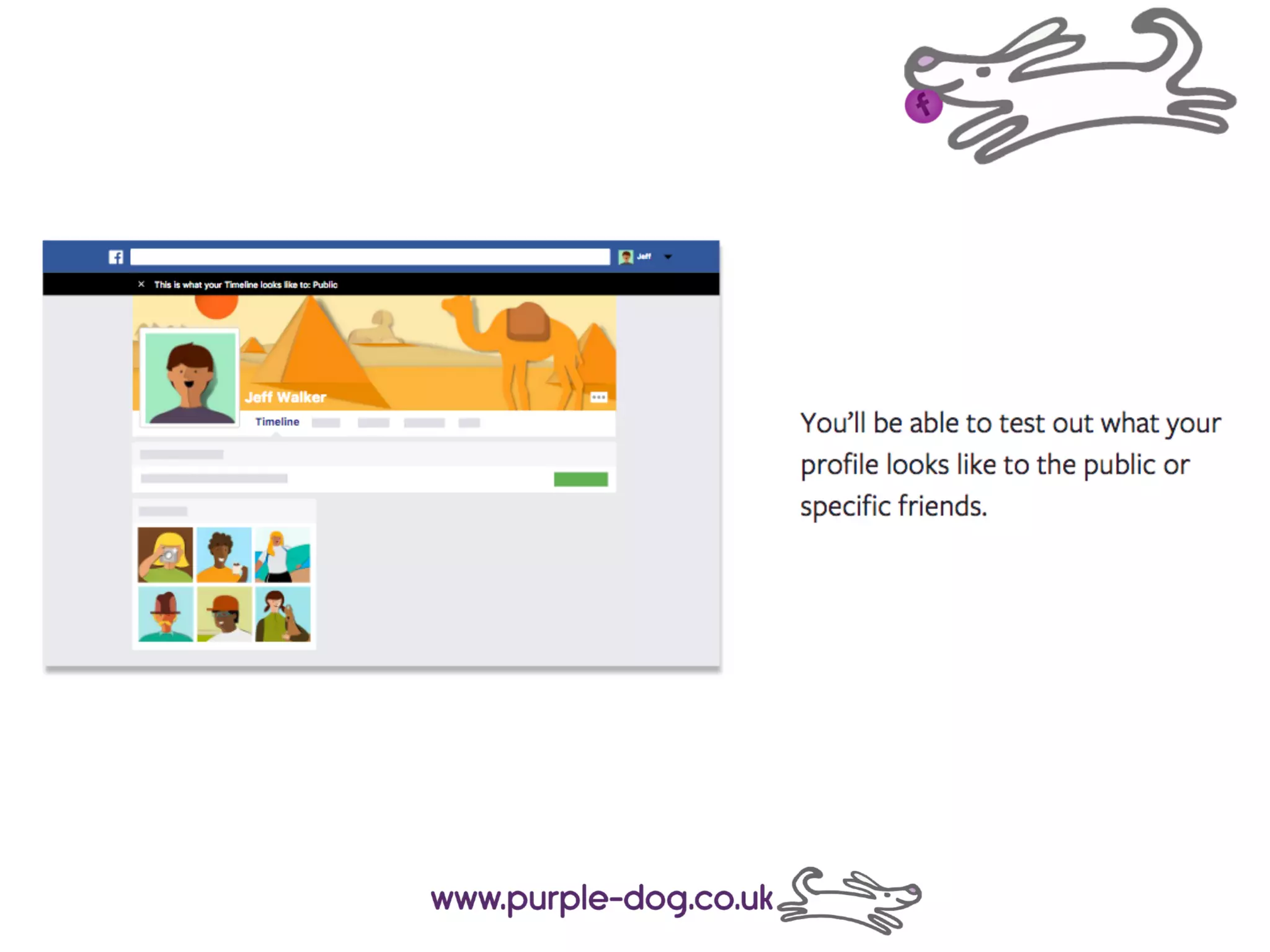
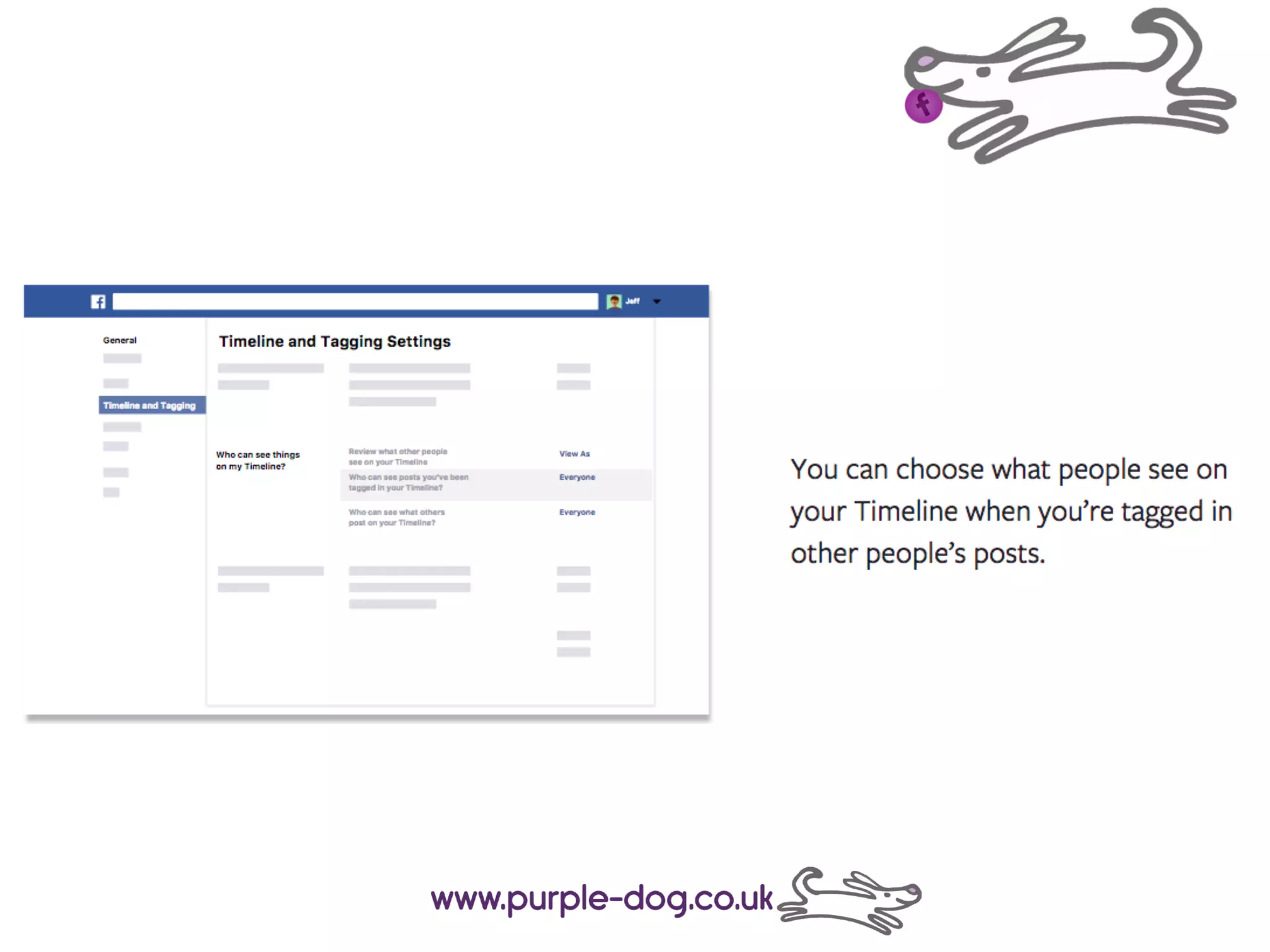
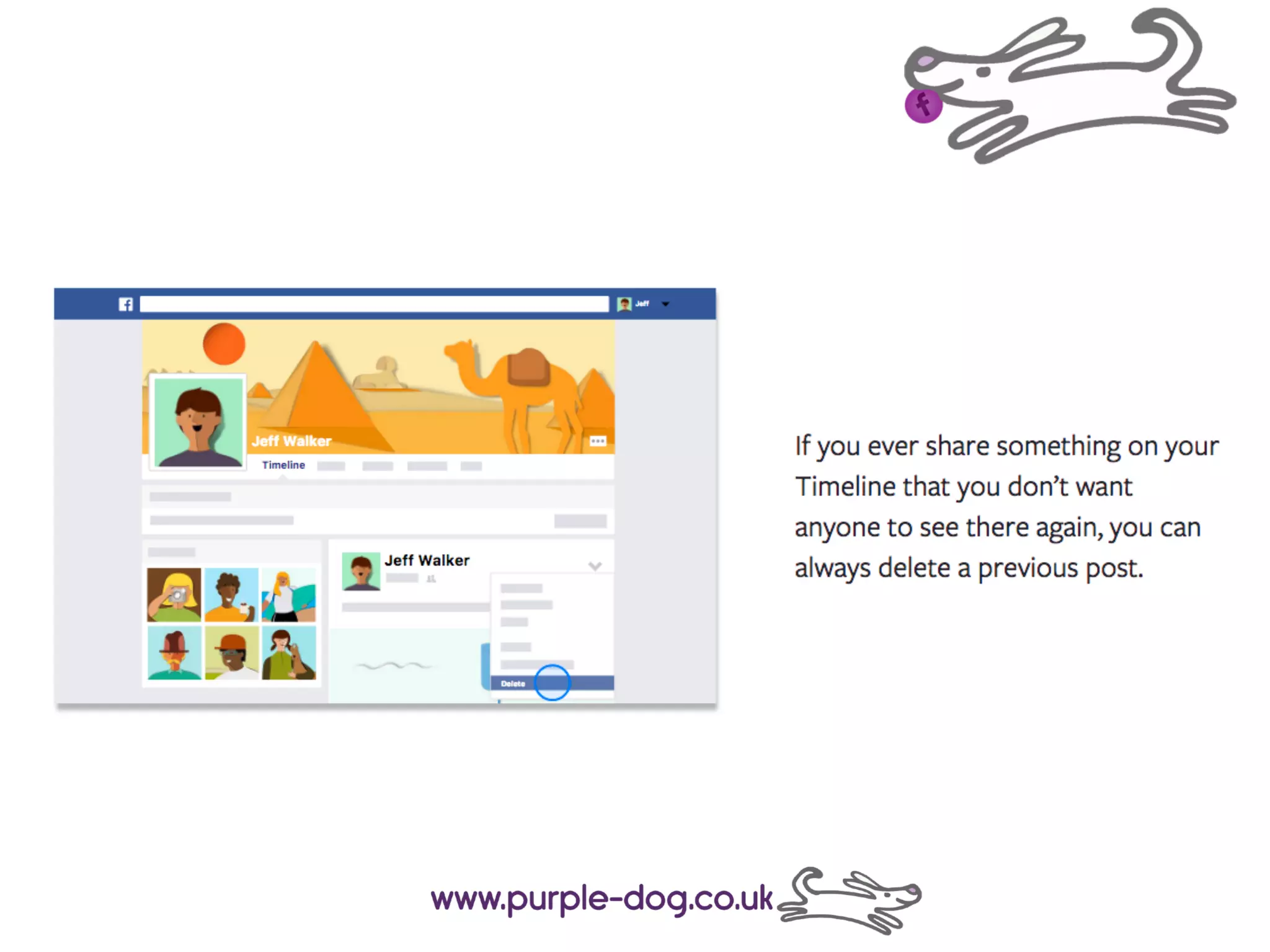
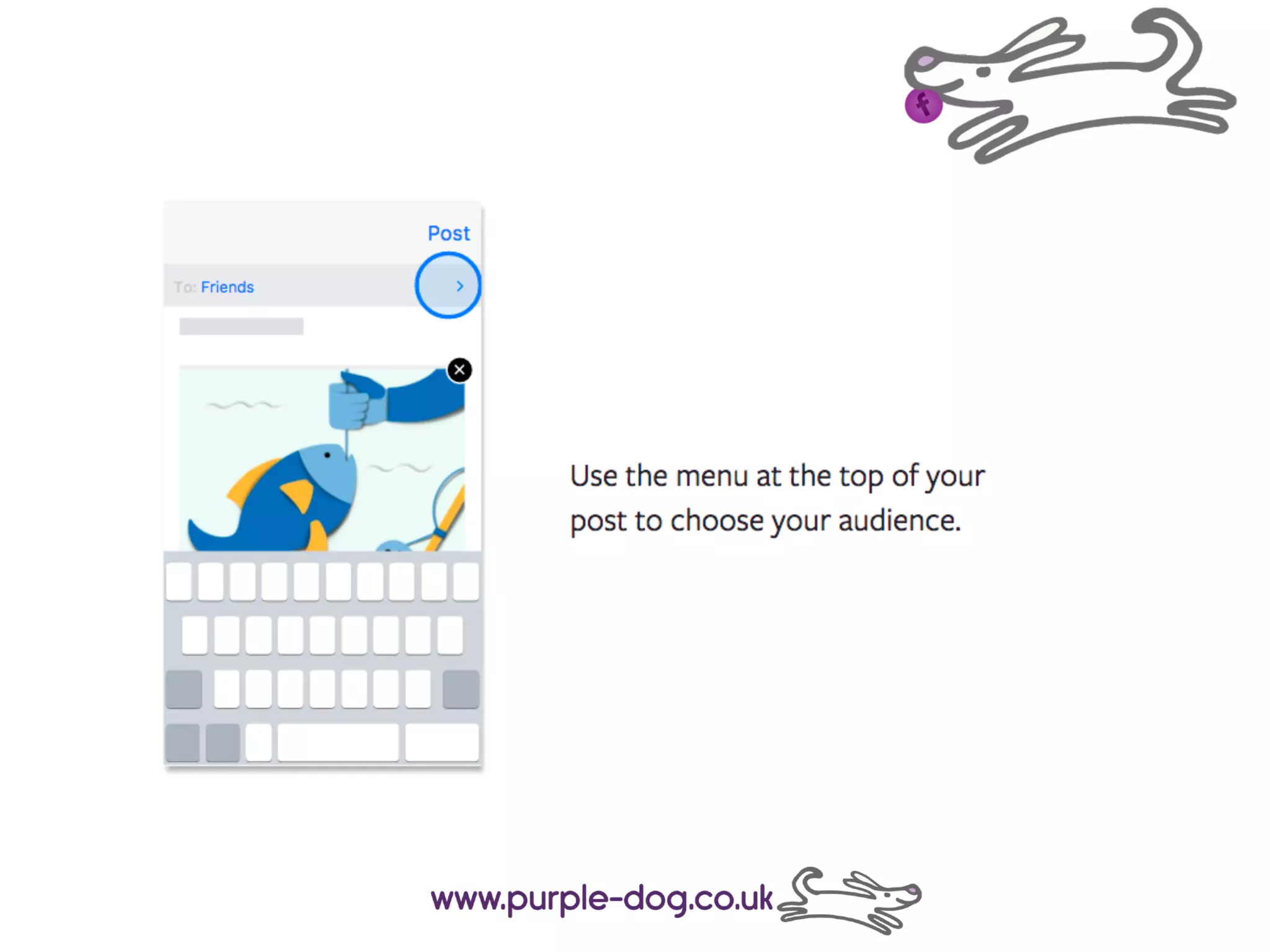
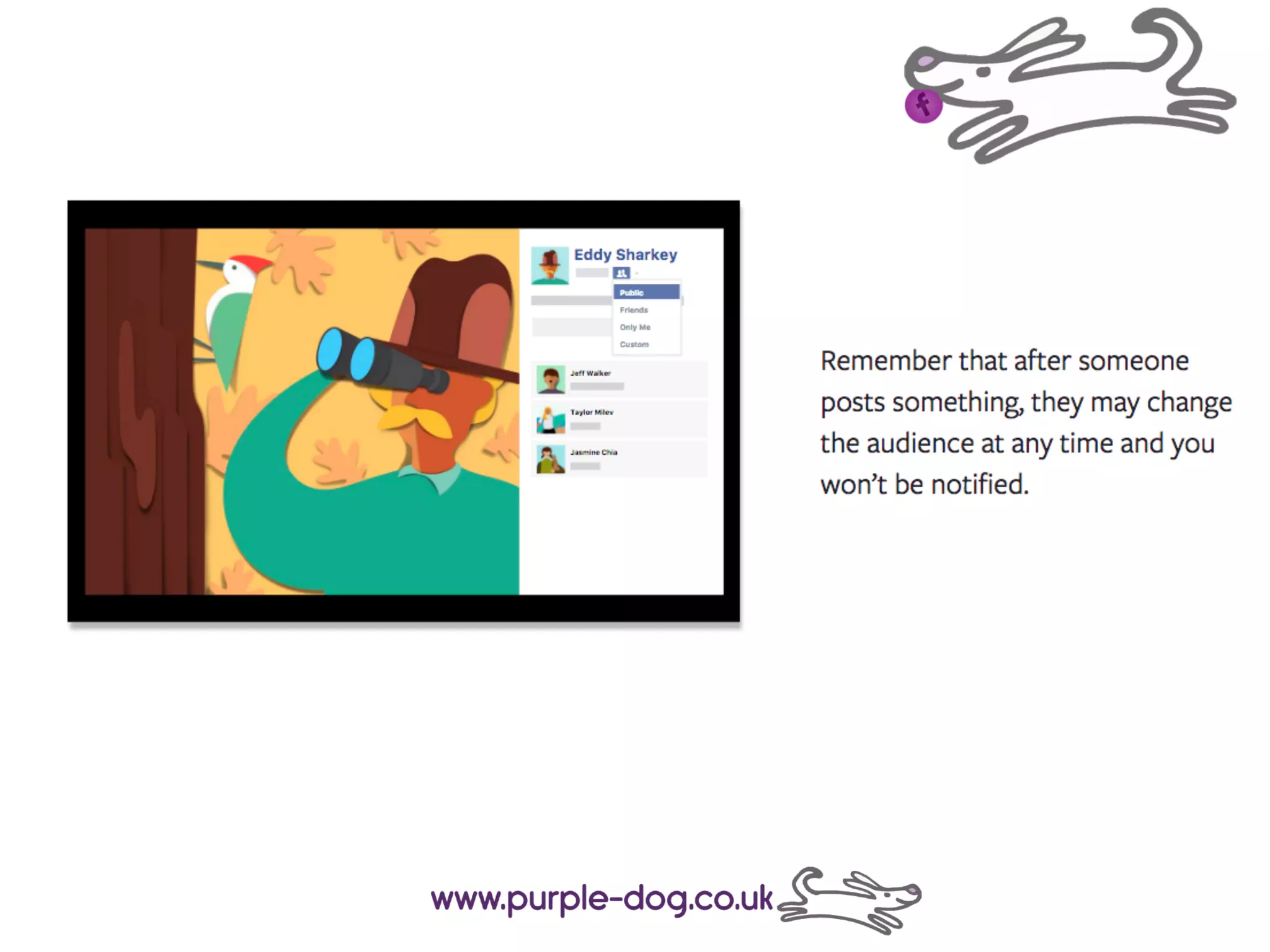
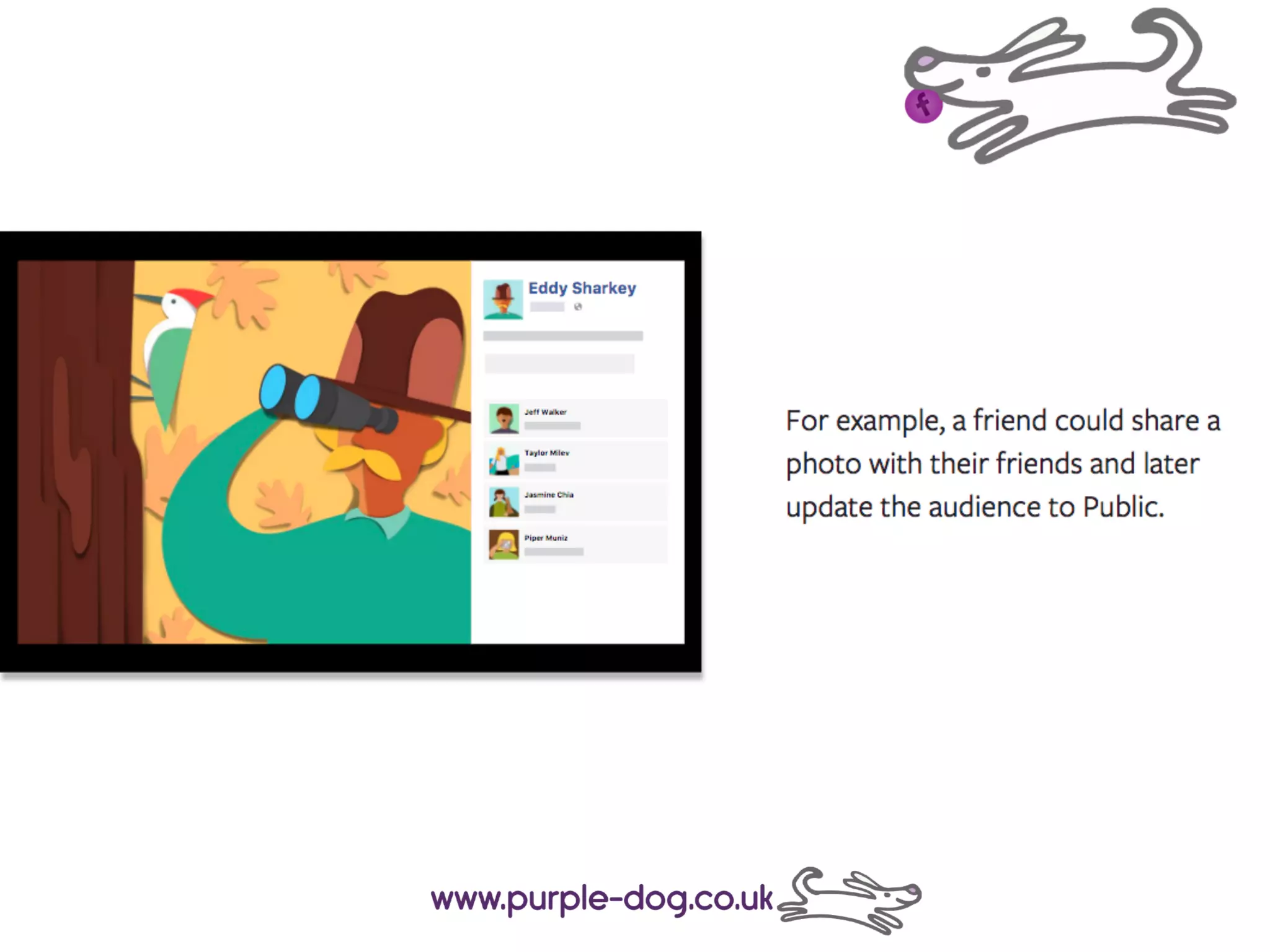
You have control over who sees what you
share on Facebook.
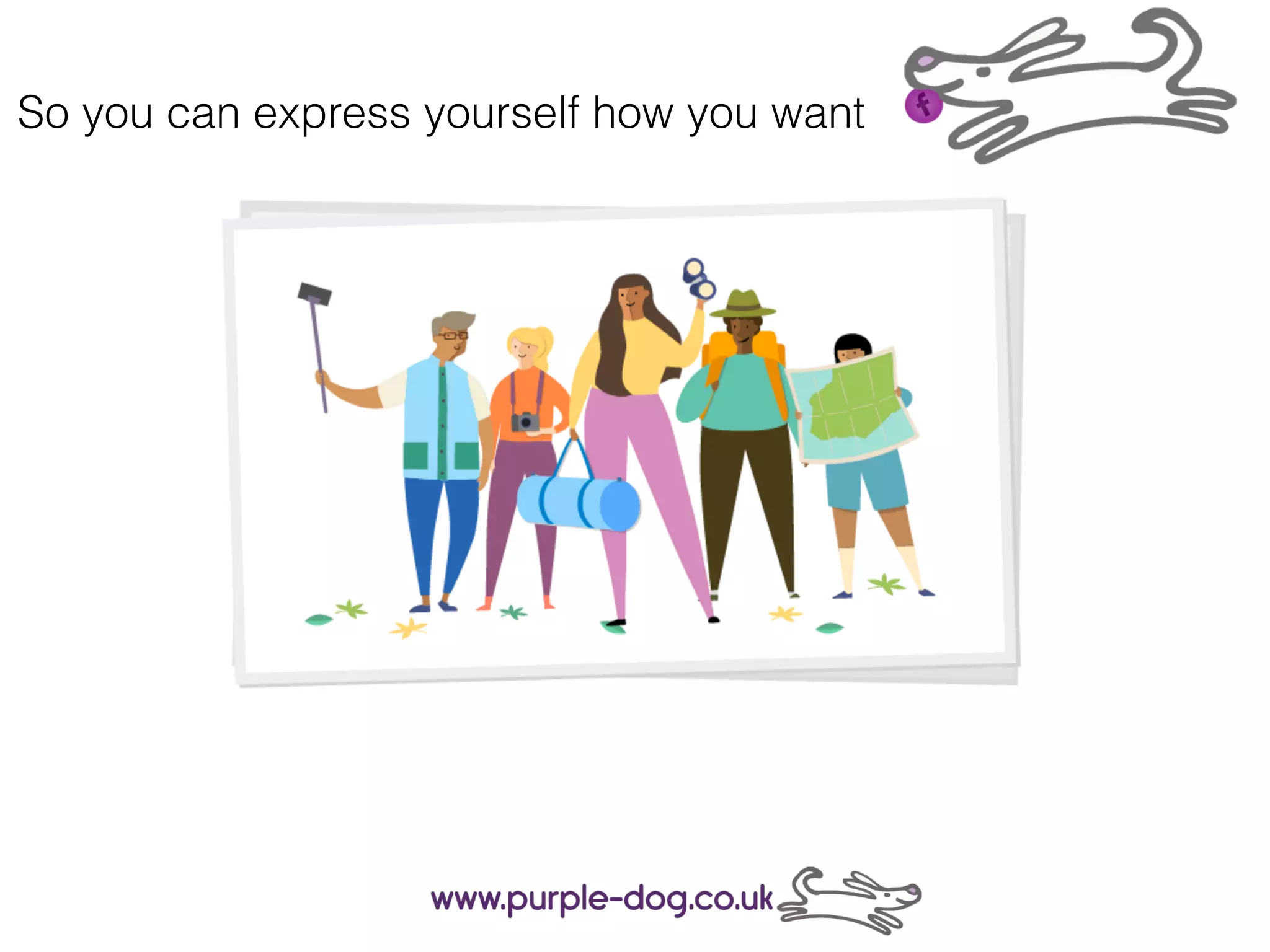
So you can express yourself how you want
Managing your Privacy
on facebook
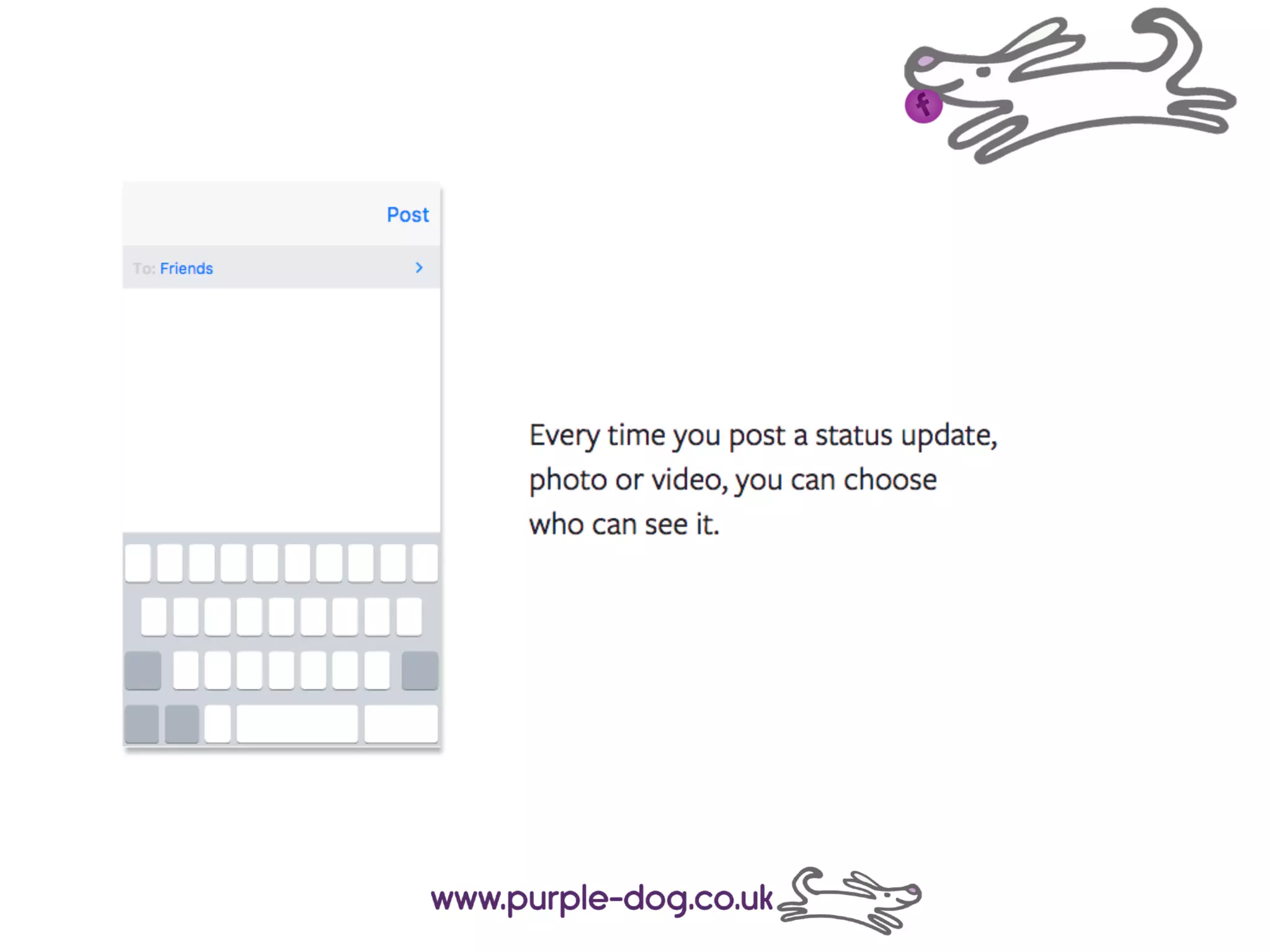
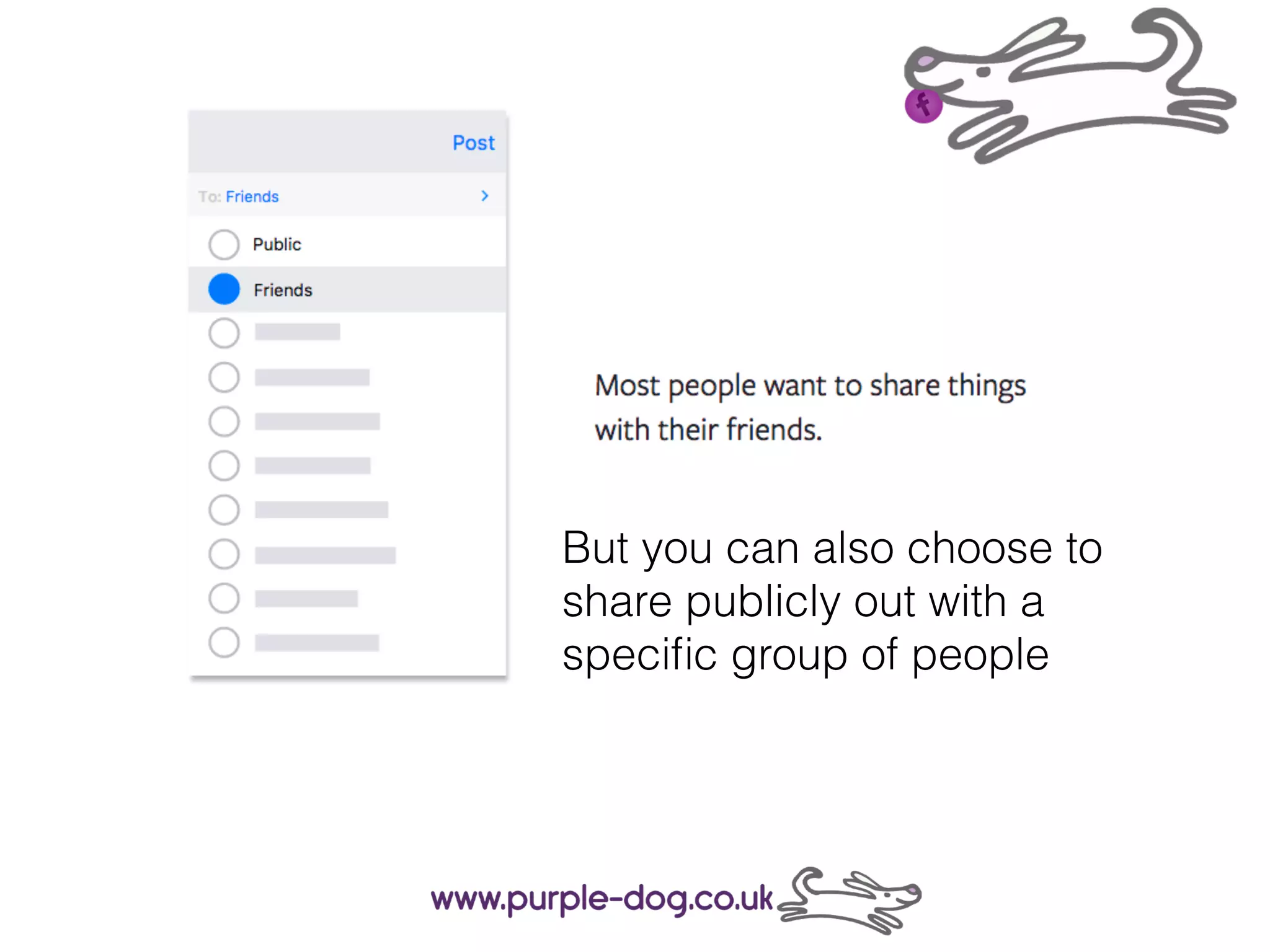
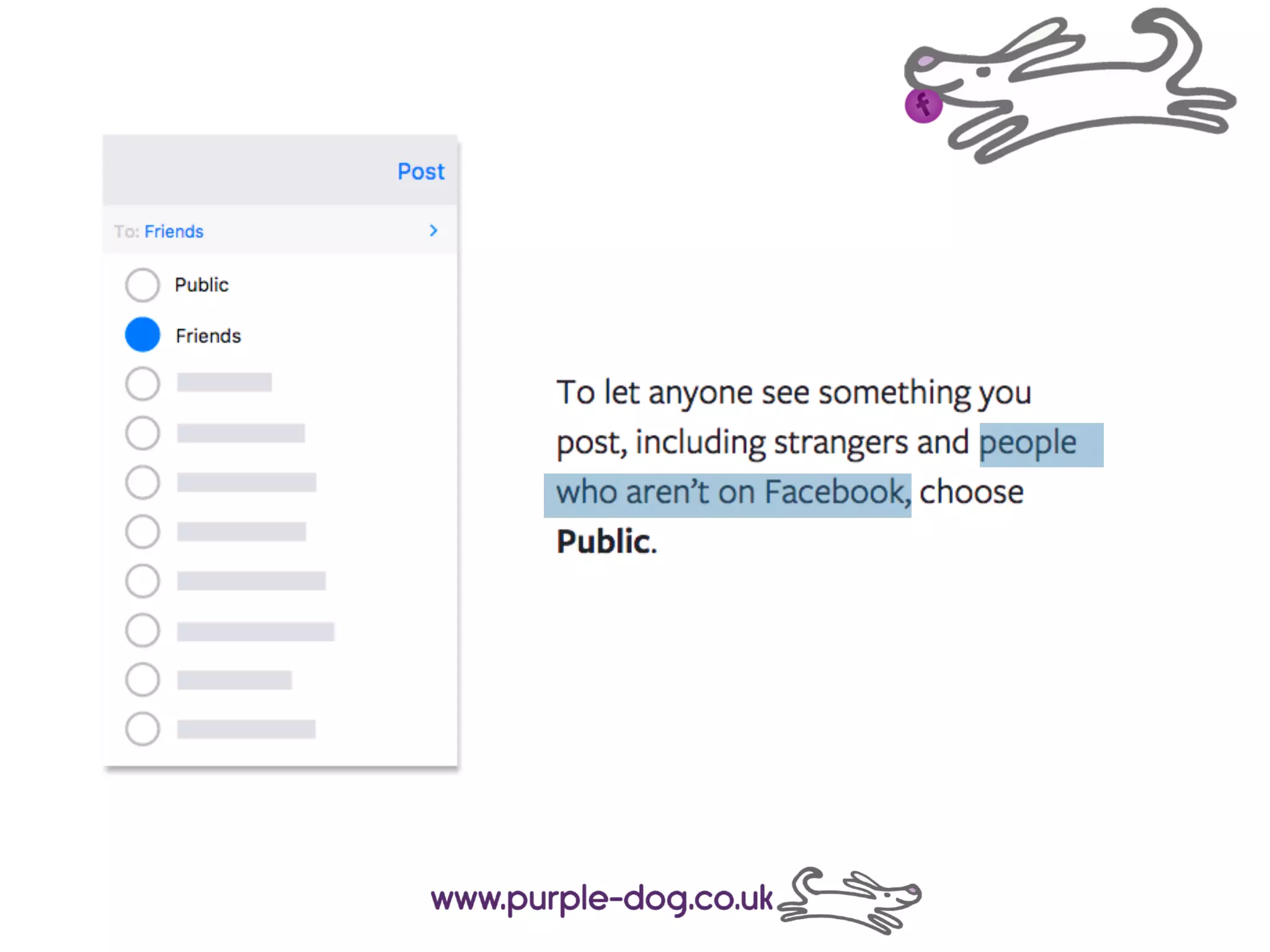
But you can also choose to
share publicly out with a
specific group of people
Click edit privacy
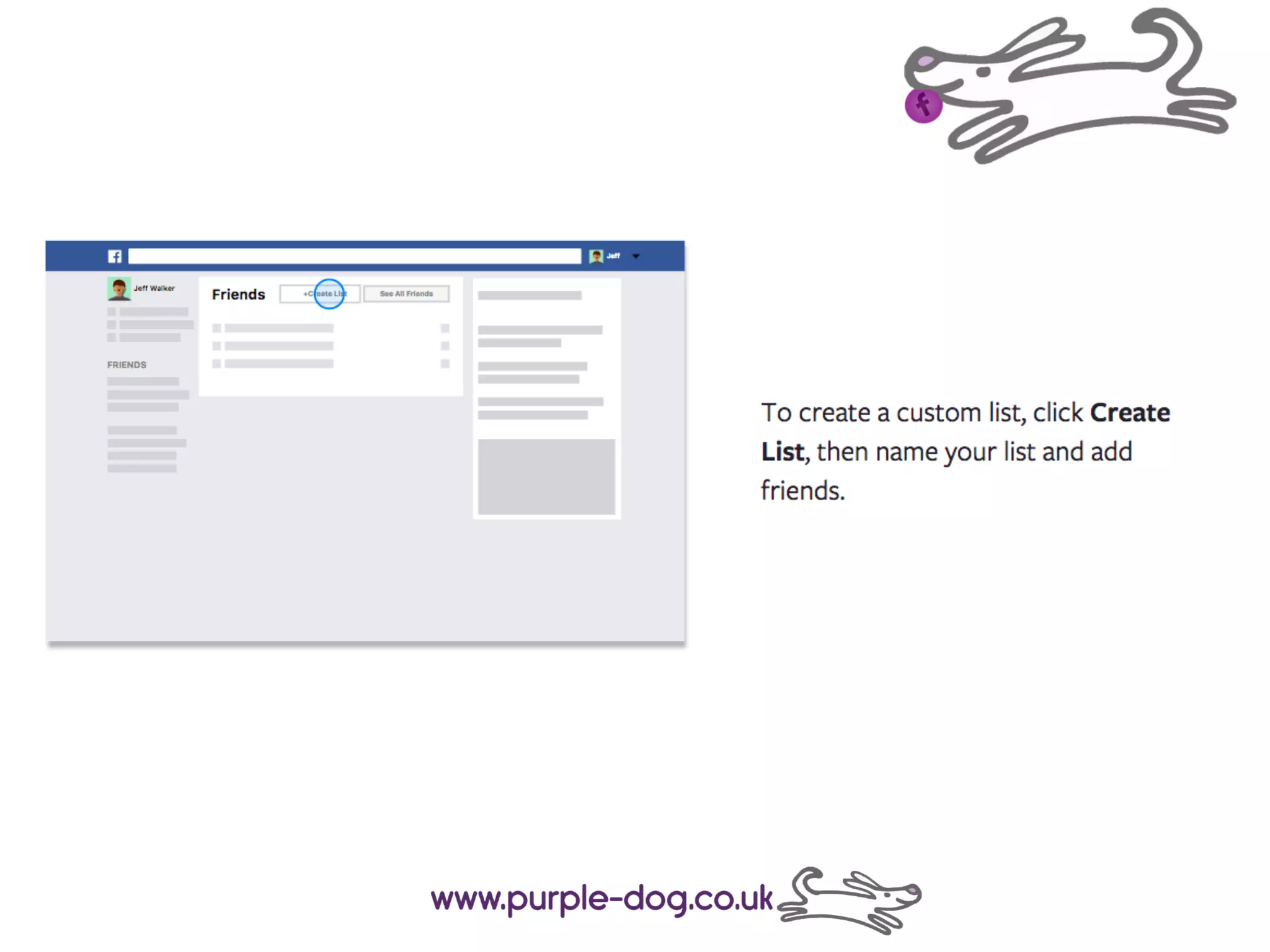
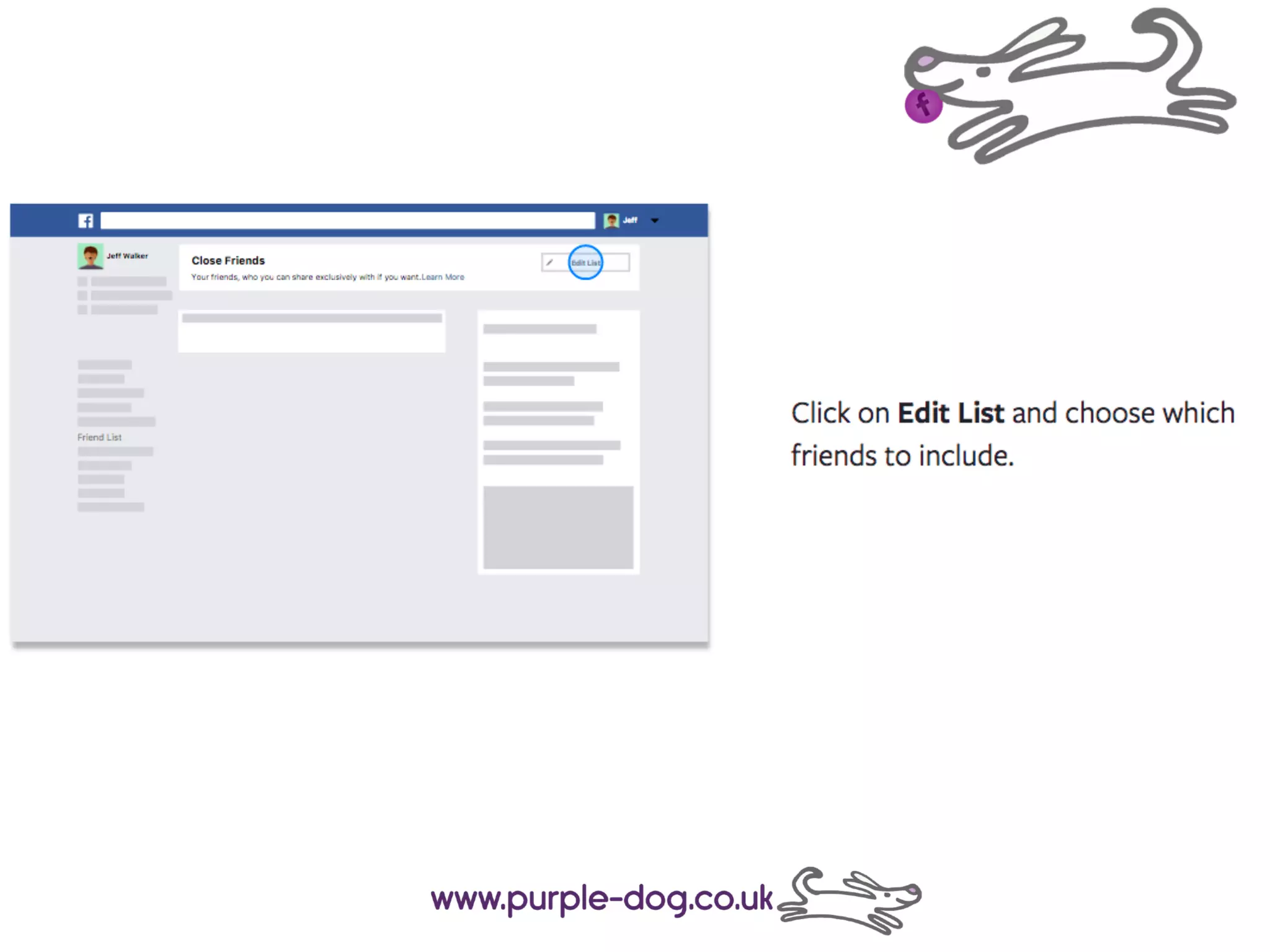
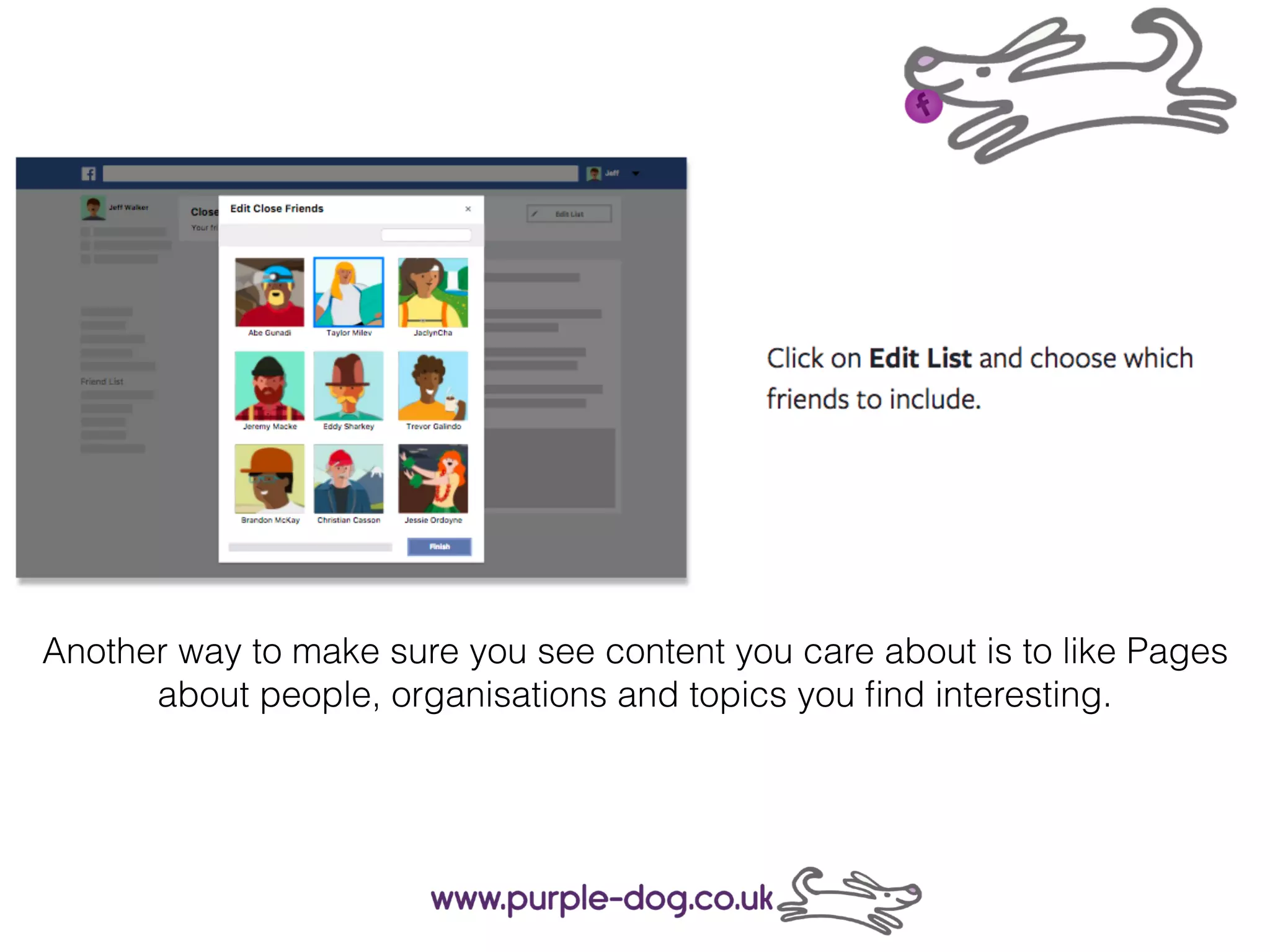
They can help you organise groups of friends
You can choose from Close Friends, Acquaintances and Restricted, or
create your own custom lists.
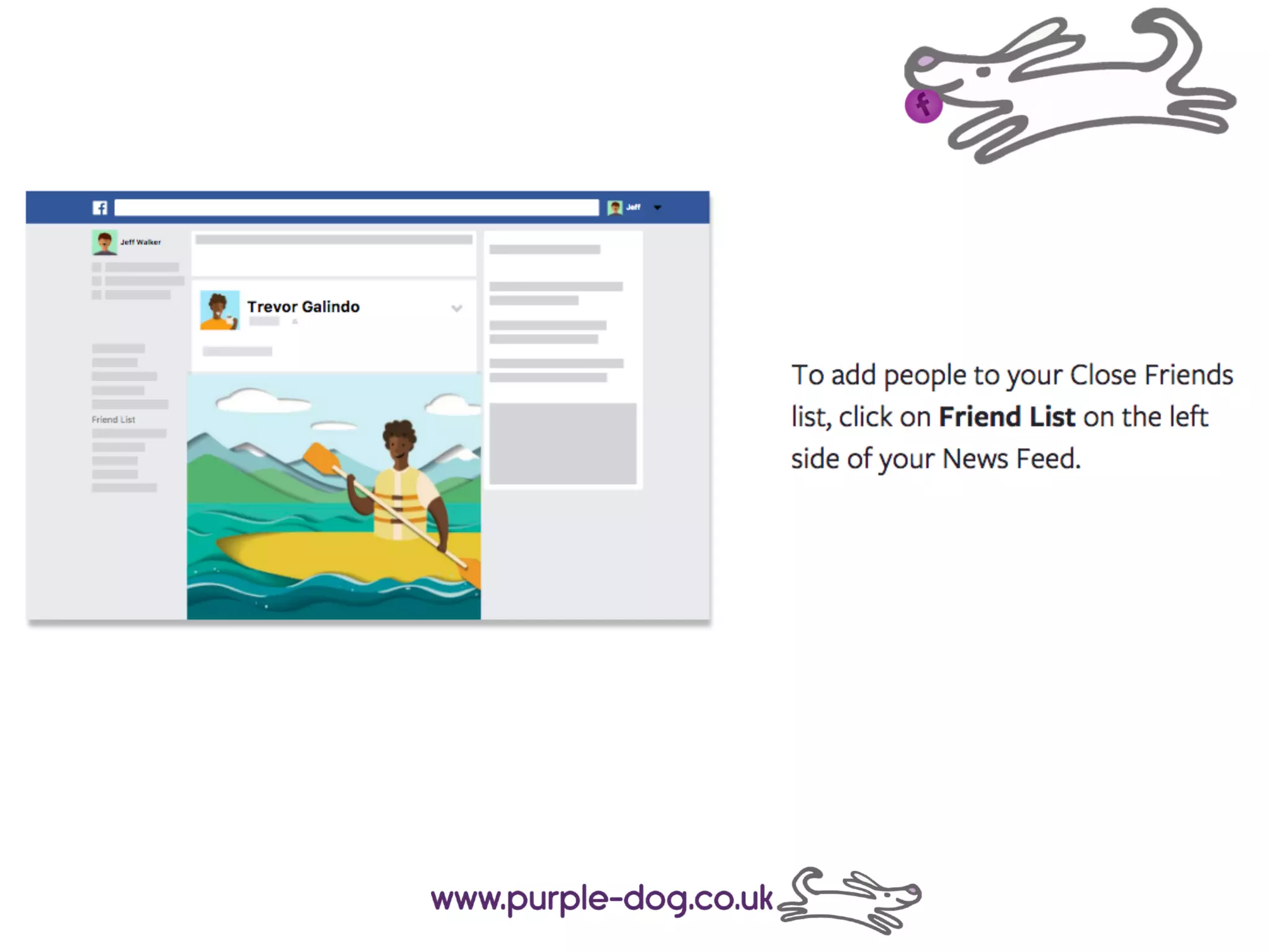
To add friends to a new list, log into Facebook on a computer. Then go
to the Friends section on the left side of your News Feed and click More.
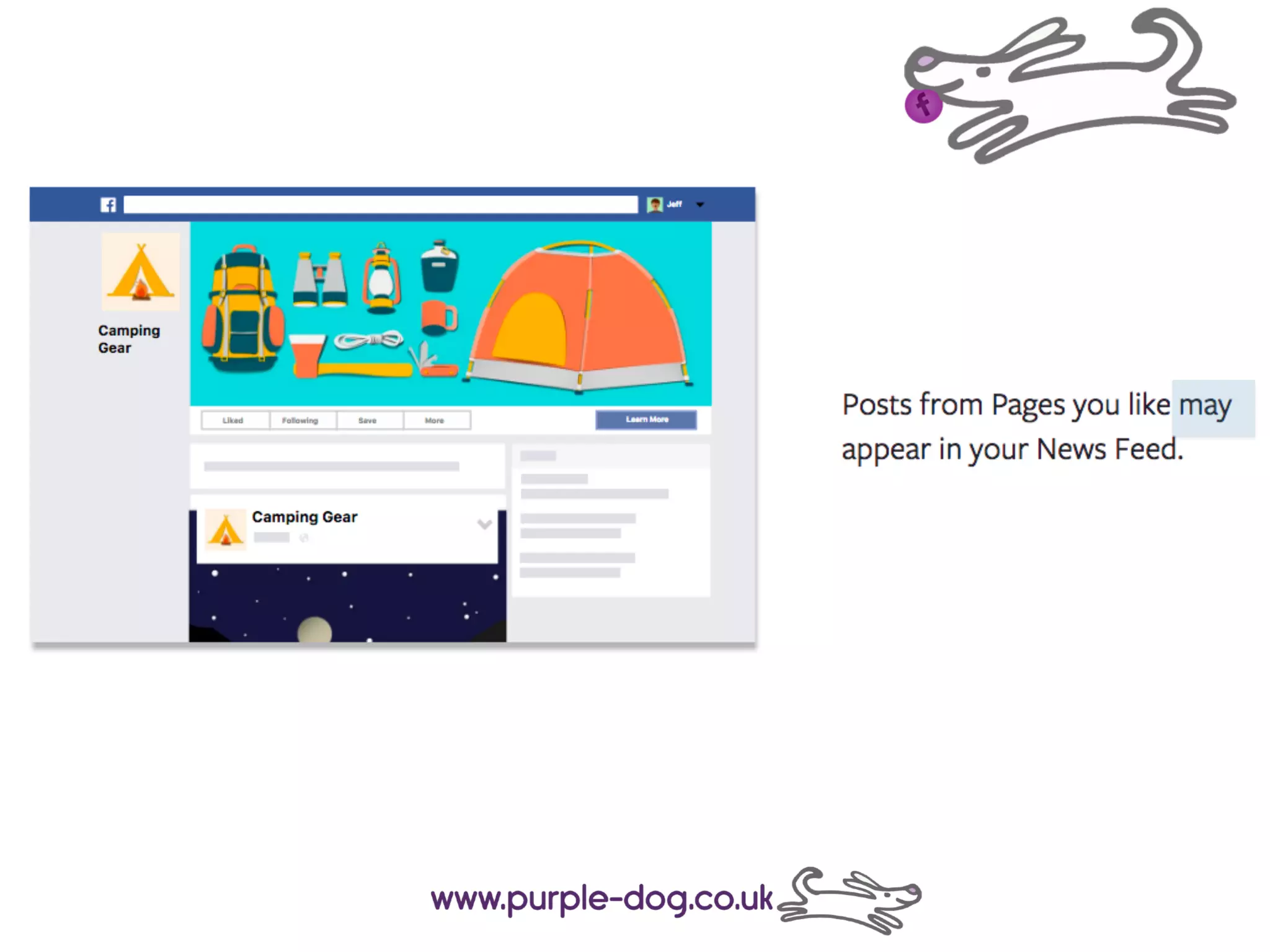
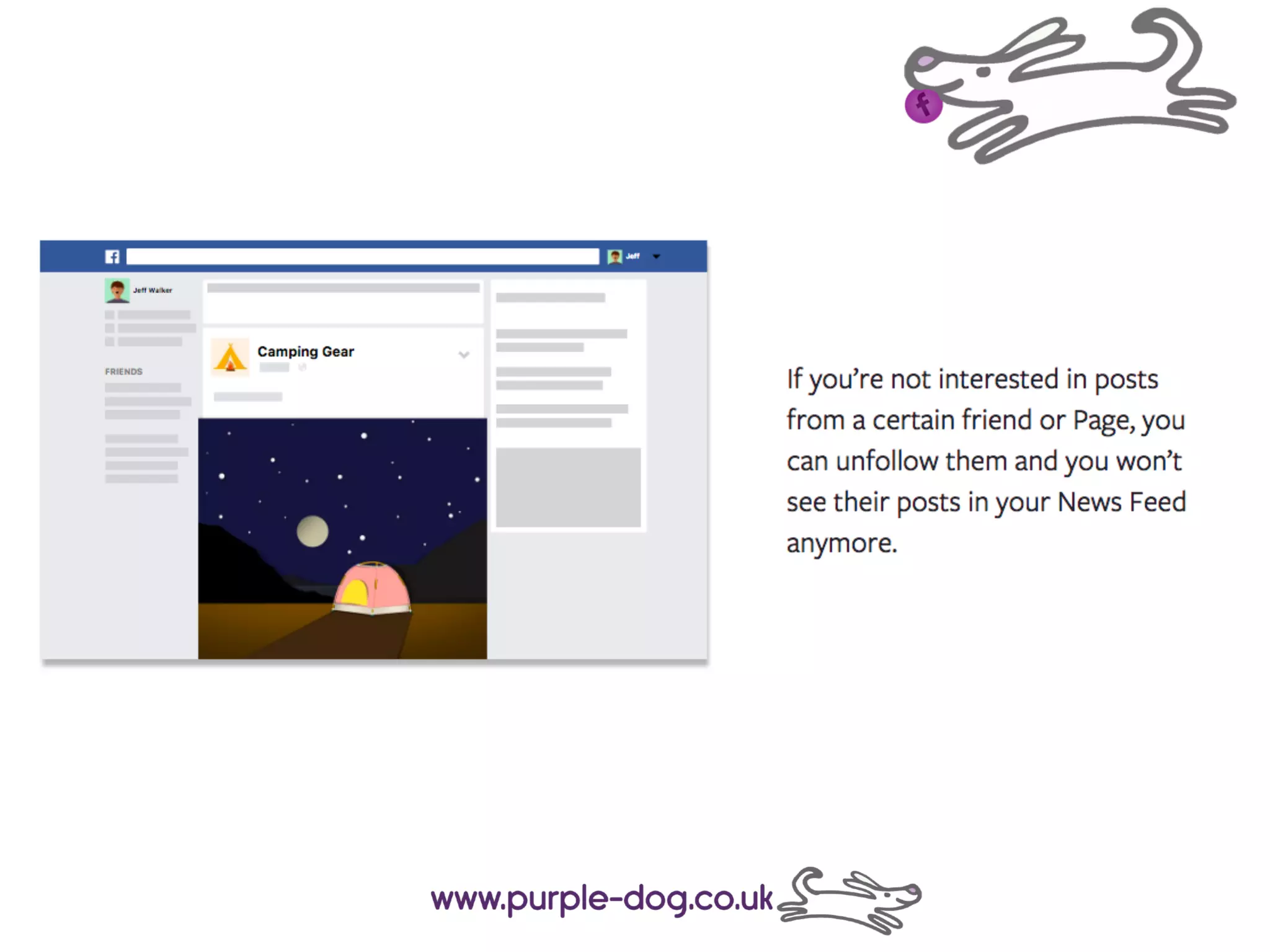
Things like who you’re friends with and which Pages you like
help determine what shows up.
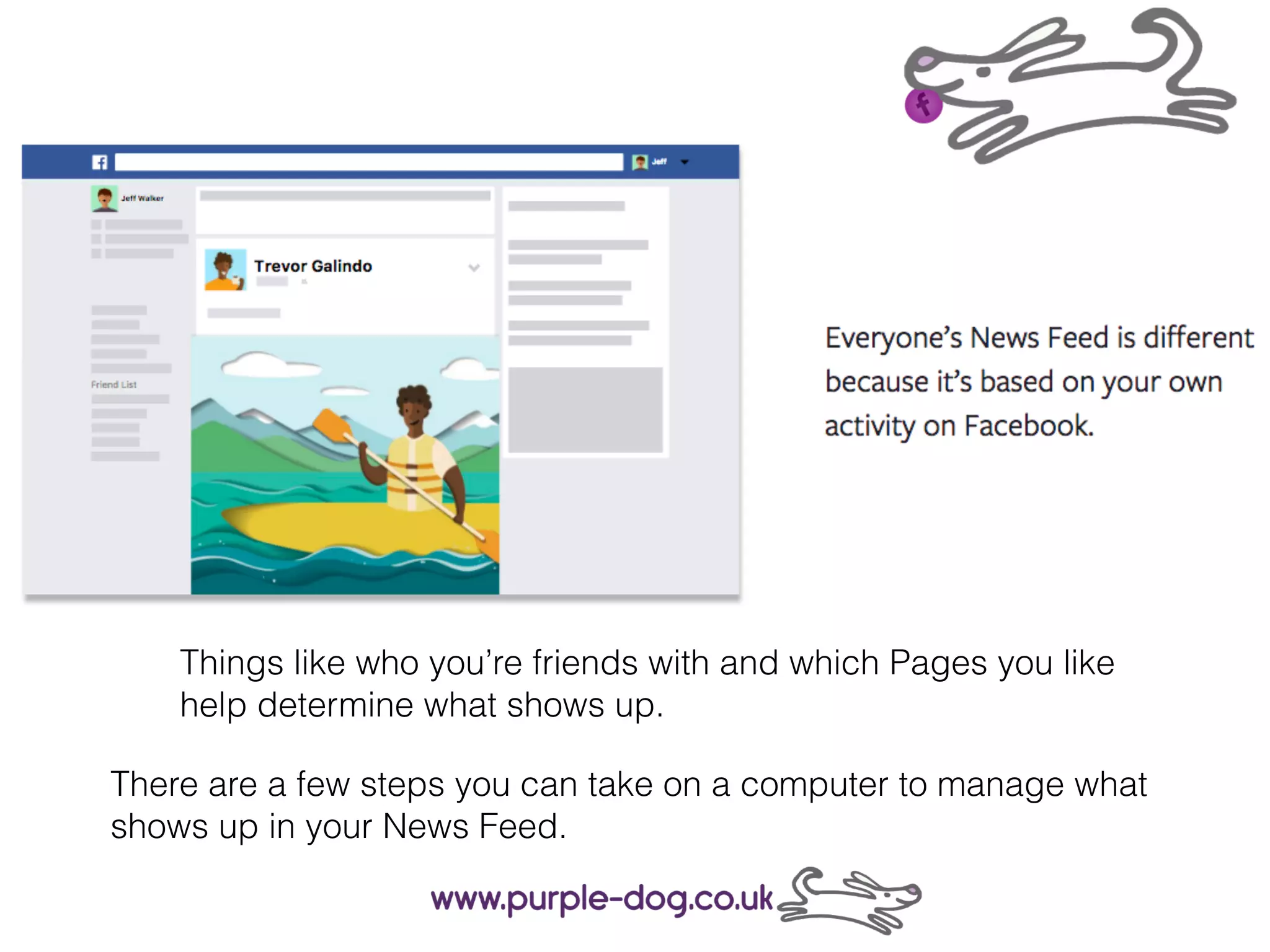
There are a few steps you can take on a computer to manage what
shows up in your News Feed.
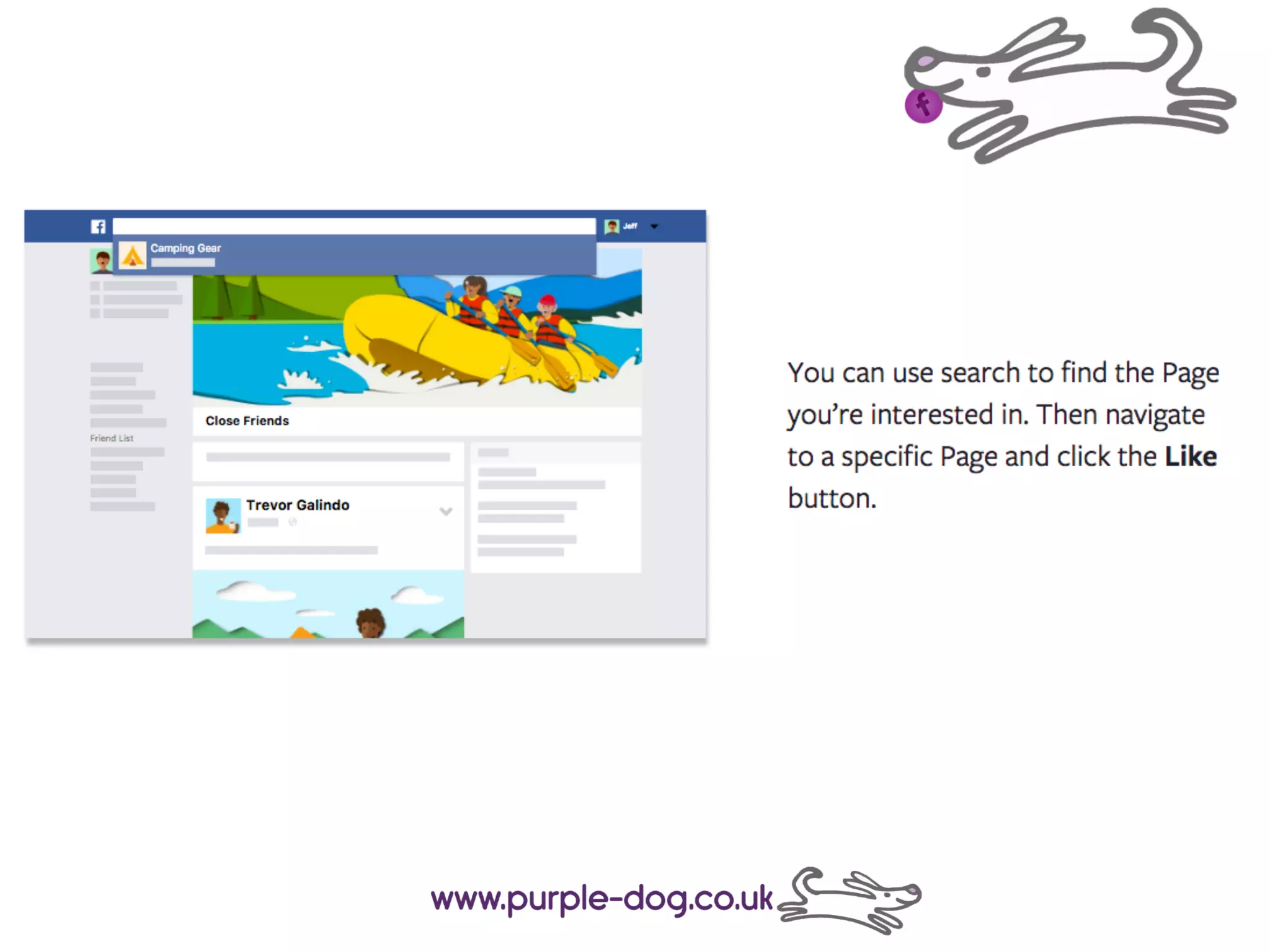
Another way to make sure you see content you care about is to like Pages
about people, organisations and topics you find interesting.
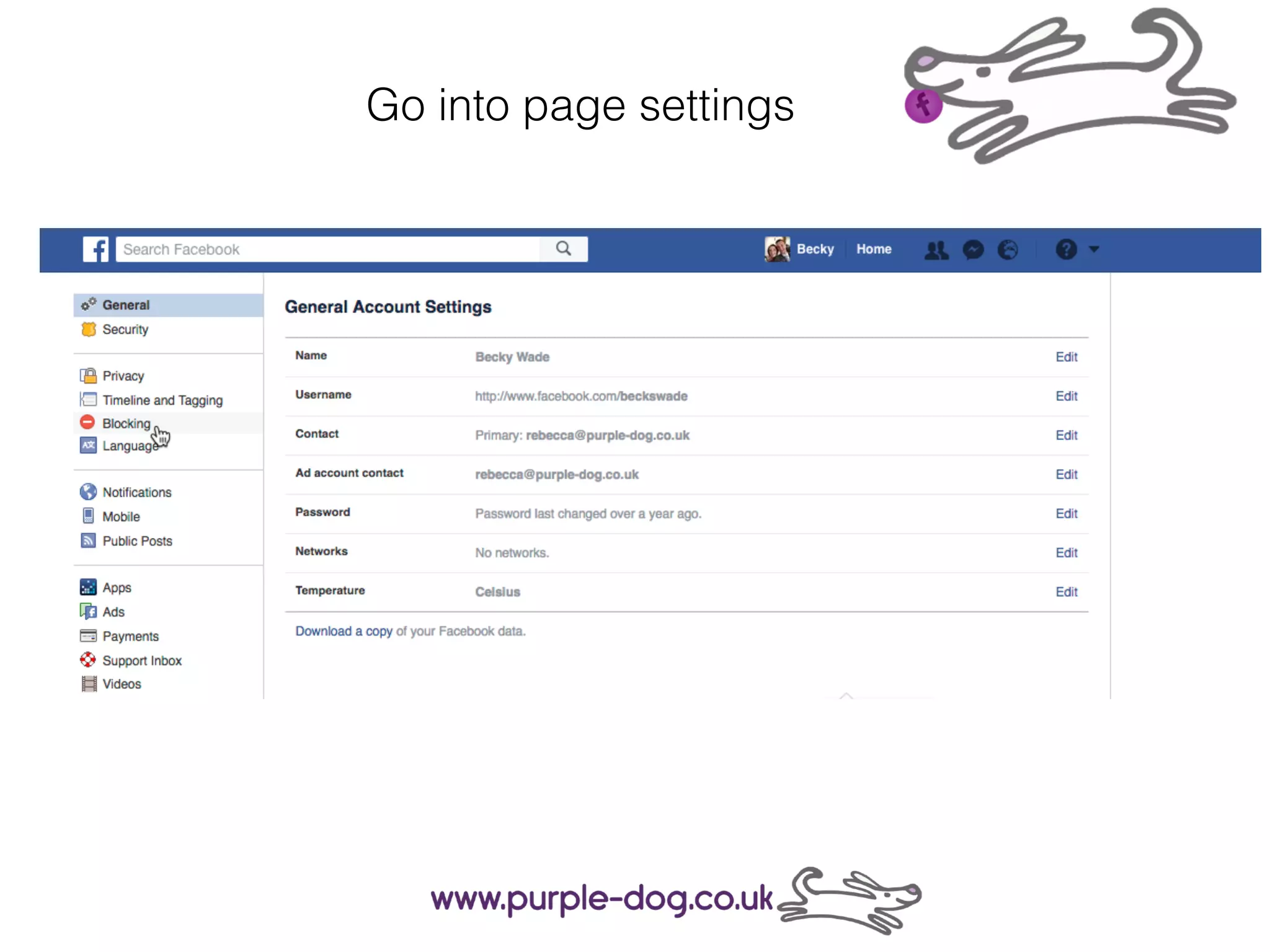
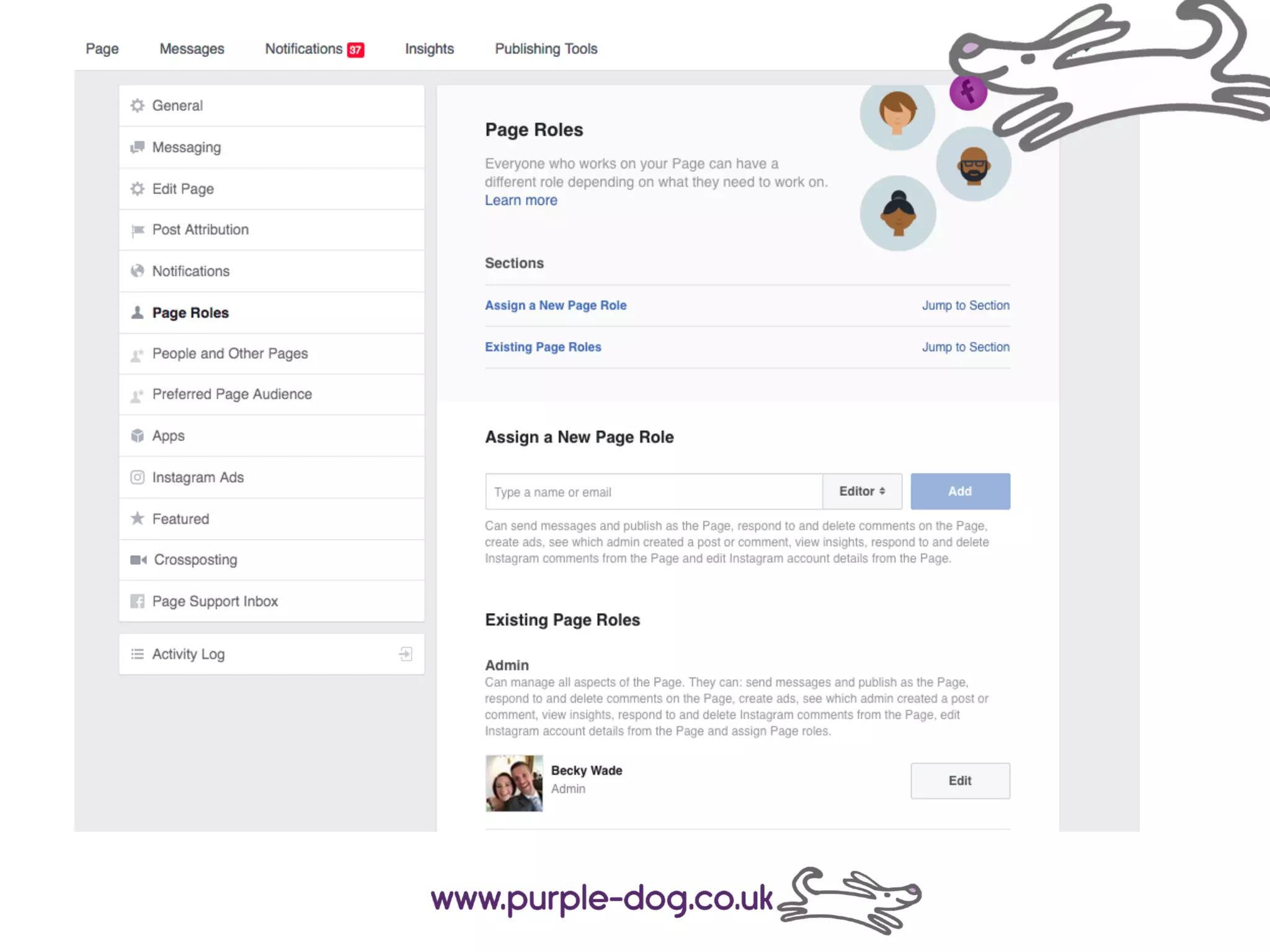
Go into page settings
If you’re tweets are private then you can
approve or deny follower requests.
Accounts with public Tweets will never be asked
to approve a follower request.
Managing your
twitter privacy
Should you choose to protect your Tweets, you can do so
through your account settings.
If you protect your Tweets, you’ll receive a request when new
people want to follow you, which you can approve or deny.
Accounts that began following you before you protected your
Tweets will still be able to view and interact with your protected
Tweets unless you block them.
When you sign up for Twitter, your
Tweets are public by default; anyone
can view and interact with your
Tweets.
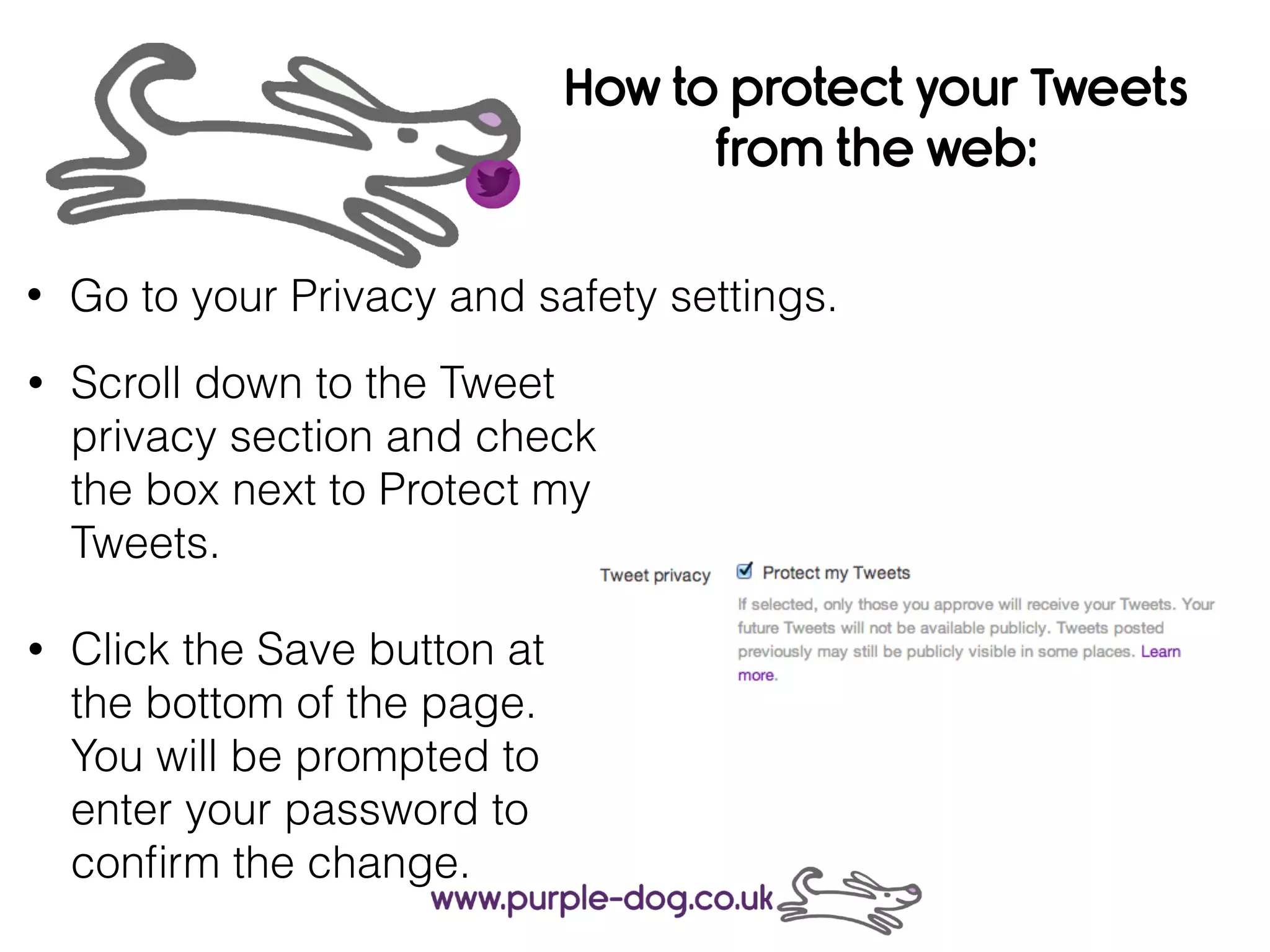
How to protect your Tweets
from the web:
• Scroll down to the Tweet
privacy section and check
the box next to Protect my
Tweets.
• Click the Save button at
the bottom of the page.
You will be prompted to
enter your password to
confirm the change.
• Go to your Privacy and safety settings.
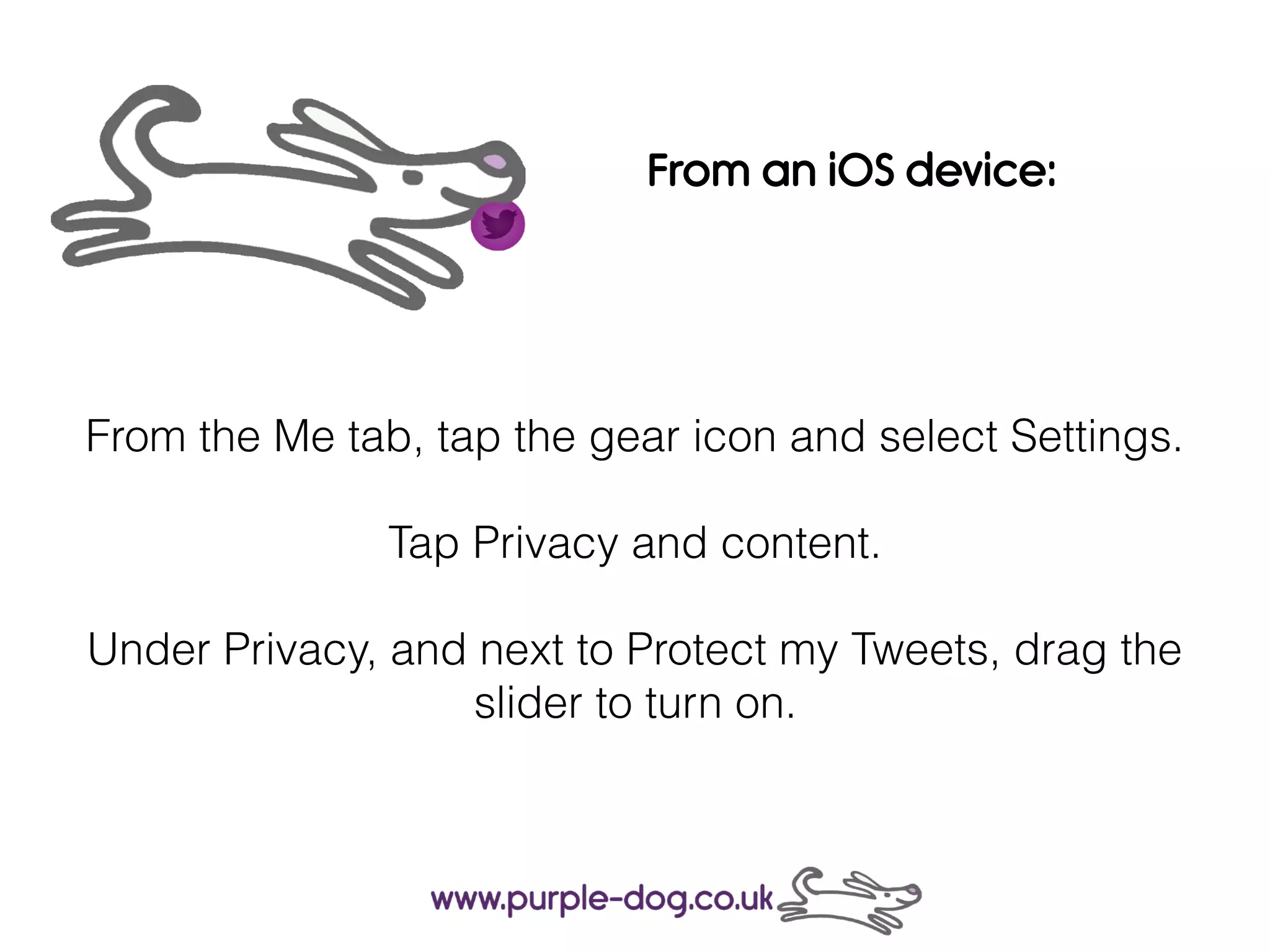
From the Me tab, tap the gear icon and select Settings.
Tap Privacy and content.
Under Privacy, and next to Protect my Tweets, drag the
slider to turn on.
From an iOS device:
In the top menu, you will either see a navigation menu icon or
your profile icon.
Tap whichever icon you have and select Settings.
Tap Privacy and content.
Next to Protect my Tweets, check the box.
From an Android device:
Block is a feature that helps you control
how you interact with other accounts on
Twitter. This feature helps users in
restricting specific accounts from
contacting them, seeing their Tweets, and
following them.
Accounts you have blocked cannot follow you,
and you cannot follow an account you have blocked.
Blocking an account you are currently following will cause you to unfollow that
account (and them to unfollow you). If you decide to unblock that account, you
will have to follow that account again.
Blocked accounts do not receive a notification alerting them that their account
has been blocked. However, if a blocked account visits the profile of an
account that has blocked them, they will see they have been blocked
Blocking accounts on Twitter
Blocking from a profile:
• Go to the profile page of the account you wish to block.
• Click the gear icon on their profile page.
• Select Block from the menu.
• Click Block to confirm.
To block a Twitter account on the web
Blocking from a Tweet:
From a Tweet, click the more icon
Click Block.
By default, anyone can
view your profile and posts
on Instagram.
You can make your posts
private so that only
followers you approve can
see them.
If your posts are set to
private, only your approved
followers will see them in
the Photos tab of Search &
Explore or on hashtag or
location pages.
To set your posts to private
from the Instagram app:
(iPhone or Windows Phone)
Go to your profile by tapping
the person icon
Tap the settings cog.
Turn on the Private Account
setting
(Android)
Go to your profile by tapping
the person icon
Tap the three dots
Turn on the Private Account
setting
Use a tool!
Depending on who needs to post or view your posts will
depend on the best tool for you……..
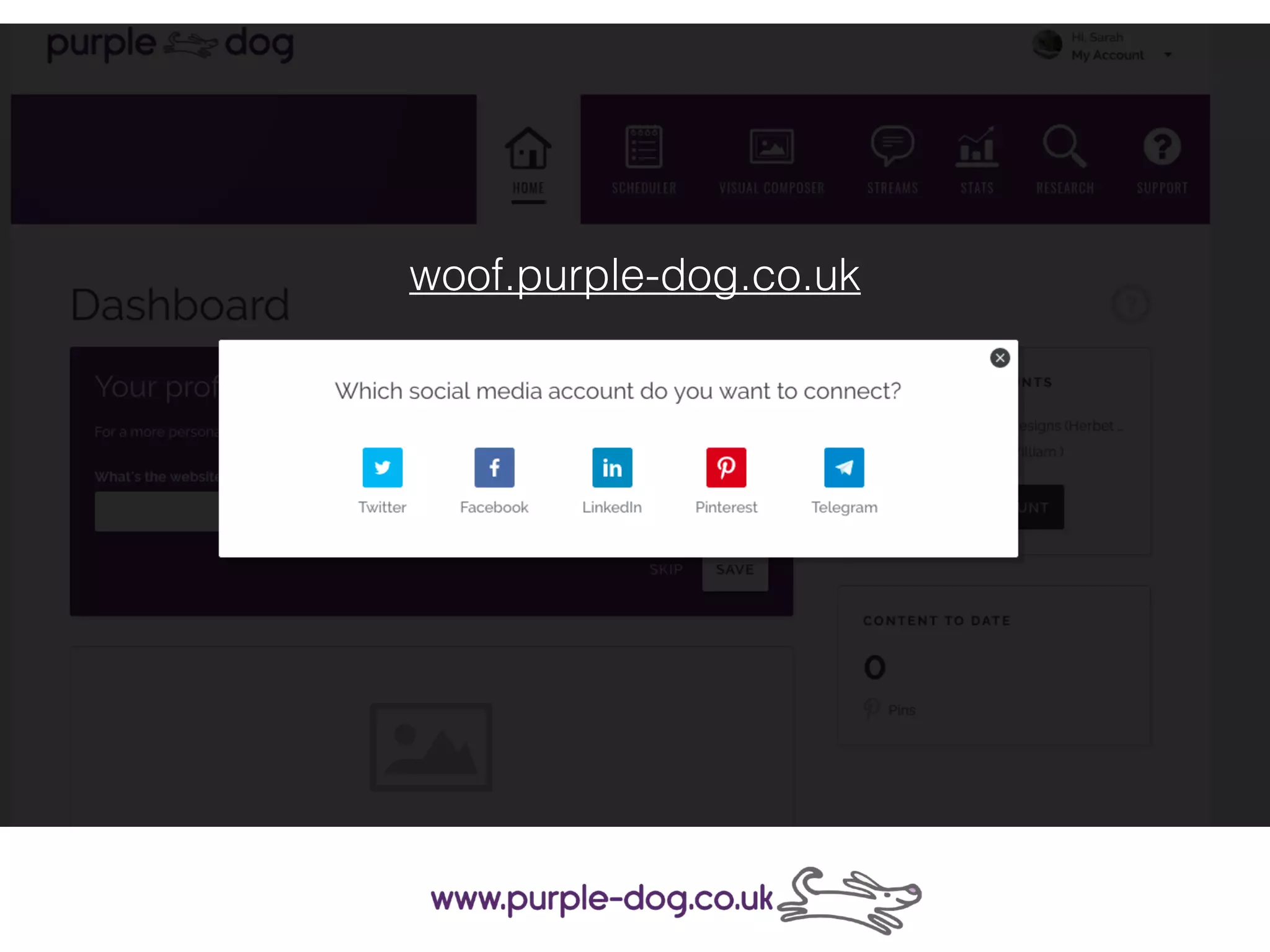
woof.purple-dog.co.uk
Identify your needs
• Manage social media easier
• Reduce time spent on social media
• Make social media management ore cost efficient
• Facilitate team work - make collaboration easier
• Gather useful insights
• What networks do you work with
• What is your budget (plus price per user)
• Improve customer service
• Be able to use on the go: mobile app
Managing social media profiles

Managing social media profiles

  • 1.
    Managing your Social Media Profiles Forboth personal and business use
  • 5.
  • 6.
    • Onepassword • Dashlane •Zoho Vault • LastPass
  • 9.
    An 8 yearold who signed up to facebook 5 years ago saying they were 13 years old will now appear as an 18 year old on the site. If an adult tries to groom your now 13 year old via social media, they will be able to argue that they were talking to another adult!
  • 10.
    You have controlover who sees what you share on Facebook.
  • 11.
    So you canexpress yourself how you want
  • 12.
  • 23.
    But you canalso choose to share publicly out with a specific group of people
  • 27.
  • 29.
    They can helpyou organise groups of friends You can choose from Close Friends, Acquaintances and Restricted, or create your own custom lists. To add friends to a new list, log into Facebook on a computer. Then go to the Friends section on the left side of your News Feed and click More.
  • 37.
    Things like whoyou’re friends with and which Pages you like help determine what shows up. There are a few steps you can take on a computer to manage what shows up in your News Feed.
  • 42.
    Another way tomake sure you see content you care about is to like Pages about people, organisations and topics you find interesting.
  • 47.
    Go into pagesettings
  • 51.
    If you’re tweetsare private then you can approve or deny follower requests. Accounts with public Tweets will never be asked to approve a follower request. Managing your twitter privacy
  • 52.
    Should you chooseto protect your Tweets, you can do so through your account settings. If you protect your Tweets, you’ll receive a request when new people want to follow you, which you can approve or deny. Accounts that began following you before you protected your Tweets will still be able to view and interact with your protected Tweets unless you block them. When you sign up for Twitter, your Tweets are public by default; anyone can view and interact with your Tweets.
  • 53.
    How to protectyour Tweets from the web: • Scroll down to the Tweet privacy section and check the box next to Protect my Tweets. • Click the Save button at the bottom of the page. You will be prompted to enter your password to confirm the change. • Go to your Privacy and safety settings.
  • 54.
    From the Metab, tap the gear icon and select Settings. Tap Privacy and content. Under Privacy, and next to Protect my Tweets, drag the slider to turn on. From an iOS device:
  • 55.
    In the topmenu, you will either see a navigation menu icon or your profile icon. Tap whichever icon you have and select Settings. Tap Privacy and content. Next to Protect my Tweets, check the box. From an Android device:
  • 56.
    Block is afeature that helps you control how you interact with other accounts on Twitter. This feature helps users in restricting specific accounts from contacting them, seeing their Tweets, and following them. Accounts you have blocked cannot follow you, and you cannot follow an account you have blocked. Blocking an account you are currently following will cause you to unfollow that account (and them to unfollow you). If you decide to unblock that account, you will have to follow that account again. Blocked accounts do not receive a notification alerting them that their account has been blocked. However, if a blocked account visits the profile of an account that has blocked them, they will see they have been blocked Blocking accounts on Twitter
  • 57.
    Blocking from aprofile: • Go to the profile page of the account you wish to block. • Click the gear icon on their profile page. • Select Block from the menu. • Click Block to confirm. To block a Twitter account on the web Blocking from a Tweet: From a Tweet, click the more icon Click Block.
  • 58.
    By default, anyonecan view your profile and posts on Instagram. You can make your posts private so that only followers you approve can see them. If your posts are set to private, only your approved followers will see them in the Photos tab of Search & Explore or on hashtag or location pages.
  • 59.
    To set yourposts to private from the Instagram app: (iPhone or Windows Phone) Go to your profile by tapping the person icon Tap the settings cog. Turn on the Private Account setting (Android) Go to your profile by tapping the person icon Tap the three dots Turn on the Private Account setting
  • 61.
    Use a tool! Dependingon who needs to post or view your posts will depend on the best tool for you……..
  • 68.
  • 69.
    Identify your needs •Manage social media easier • Reduce time spent on social media • Make social media management ore cost efficient • Facilitate team work - make collaboration easier • Gather useful insights • What networks do you work with • What is your budget (plus price per user) • Improve customer service • Be able to use on the go: mobile app