HOW TO MAKE A BETTER
PRESENTATION
Ron Marks
7/13/2014
• Introduction1
• Setup & Materials2
• Engaging Participation3
• The use of video4
• Tips for creating an effective presentation5
• Common mistakes of presentations6
• Things to remember7
• References8
Today’s Overview
Introduction
• State name and job history
• Icebreaker
• Expectations from this course
Figure 1. Handshake. Image from Microsoft Word 2010.
(Mikoluk, 2013)
• Test audio visual system
• Venue setup
• Upload material
• Name tags
• Writing materials
Setup and Materials
("Holding a meeting," 2104)
Figure 2. Start. Image from Microsoft Word 2010.
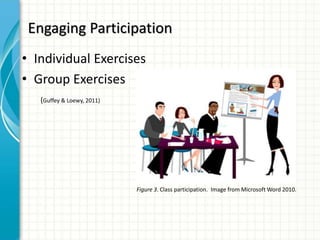
• Individual Exercises
• Group Exercises
Engaging Participation
(Guffey & Loewy, 2011)
Figure 3. Class participation. Image from Microsoft Word 2010.
• Video enhances presentations
• Captivates audience
The use of video
Figure 4. Television. Image from Microsoft Word 2010.
(O'Loughlin, 2013)
(Mikoluk, 2013)
Creating an effective presentation
• Use Helvetic or Arial font styles
• Use bullet points or short sentences
• Incorporate graphics into presentation
• Check spelling and grammar
• Label all charts and graphs
(Microsoft, 2014)
Figure 5. Instructor. Image from Microsoft Word 2010.
Common mistakes of presentations
• Too much text
• Poor contrast between text and background
• Blocking the projector screen
• Reading the subject matter to audience
• Too much animation and clip art
(Newbold, 2014)
Figure 6. Confused. Image from Microsoft Word 2010.
Things to remember
• The benefits of effective PowerPoints
– Captivate audience’s attention
– Visual impact
– Collaboration
– Content sharing
– Flexibility
(Bell, 2014)
Figure 7. Bright ideas. Image from Microsoft Word 2010.
References
• Bell, K. (2014). What are benefits of PowerPoint?. Retrieved from
http://smallbusiness.chron.com/benefits-powerpoint-55958.html
• Guffey, M. & Loewy, D. (2011). Business Communication: Process and
Product (7th Ed.) Independence, KY: Cengage Learning.
• Microsoft. (2014). Tips for creating and delivering an effective
presentation. Retrieved from http://office.microsoft.com/en-
us/powerpoint-help/tips-for-creating-and-delivering-an-effective-
presentation-HA010207864.aspx
• Mikoluk, K. (2013, June 3). 8 best PowerPoint presentations: How to
create engaging presentations [Web log message]. Retrieved from
https://www.udemy.com/blog/best-powerpoint-presentations/
• Newbold, C. (2014). Top 12 most annoying PowerPoint presentation
mistakes. Retrieved from
http://thevisualcommunicationguy.com/2013/09/24/top-12-most-
annoying-powerpoint-presentation-mistakes/
• O'Loughlin, E. (2013). How to embed a YouTube video into a PowerPoint
2010 presentation [Web]. Retrieved from
http://www.youtube.com/watch?v=D-tnoIKqnd4

Making a Better PowerPoint Presentation

  • 1.
    HOW TO MAKEA BETTER PRESENTATION Ron Marks 7/13/2014
  • 2.
    • Introduction1 • Setup& Materials2 • Engaging Participation3 • The use of video4 • Tips for creating an effective presentation5 • Common mistakes of presentations6 • Things to remember7 • References8 Today’s Overview
  • 3.
    Introduction • State nameand job history • Icebreaker • Expectations from this course Figure 1. Handshake. Image from Microsoft Word 2010. (Mikoluk, 2013)
  • 4.
    • Test audiovisual system • Venue setup • Upload material • Name tags • Writing materials Setup and Materials ("Holding a meeting," 2104) Figure 2. Start. Image from Microsoft Word 2010.
  • 5.
    • Individual Exercises •Group Exercises Engaging Participation (Guffey & Loewy, 2011) Figure 3. Class participation. Image from Microsoft Word 2010.
  • 6.
    • Video enhancespresentations • Captivates audience The use of video Figure 4. Television. Image from Microsoft Word 2010. (O'Loughlin, 2013) (Mikoluk, 2013)
  • 7.
    Creating an effectivepresentation • Use Helvetic or Arial font styles • Use bullet points or short sentences • Incorporate graphics into presentation • Check spelling and grammar • Label all charts and graphs (Microsoft, 2014) Figure 5. Instructor. Image from Microsoft Word 2010.
  • 8.
    Common mistakes ofpresentations • Too much text • Poor contrast between text and background • Blocking the projector screen • Reading the subject matter to audience • Too much animation and clip art (Newbold, 2014) Figure 6. Confused. Image from Microsoft Word 2010.
  • 9.
    Things to remember •The benefits of effective PowerPoints – Captivate audience’s attention – Visual impact – Collaboration – Content sharing – Flexibility (Bell, 2014) Figure 7. Bright ideas. Image from Microsoft Word 2010.
  • 10.
    References • Bell, K.(2014). What are benefits of PowerPoint?. Retrieved from http://smallbusiness.chron.com/benefits-powerpoint-55958.html • Guffey, M. & Loewy, D. (2011). Business Communication: Process and Product (7th Ed.) Independence, KY: Cengage Learning. • Microsoft. (2014). Tips for creating and delivering an effective presentation. Retrieved from http://office.microsoft.com/en- us/powerpoint-help/tips-for-creating-and-delivering-an-effective- presentation-HA010207864.aspx • Mikoluk, K. (2013, June 3). 8 best PowerPoint presentations: How to create engaging presentations [Web log message]. Retrieved from https://www.udemy.com/blog/best-powerpoint-presentations/ • Newbold, C. (2014). Top 12 most annoying PowerPoint presentation mistakes. Retrieved from http://thevisualcommunicationguy.com/2013/09/24/top-12-most- annoying-powerpoint-presentation-mistakes/ • O'Loughlin, E. (2013). How to embed a YouTube video into a PowerPoint 2010 presentation [Web]. Retrieved from http://www.youtube.com/watch?v=D-tnoIKqnd4