Machinima Majenna/TSL Pia Klaar/SL
Overview Setting User Preferences Shortcut Keys Using Camera Controls Recording Video Editing and Compressing Files Sharing videos
#1: Setting Up User Preferences
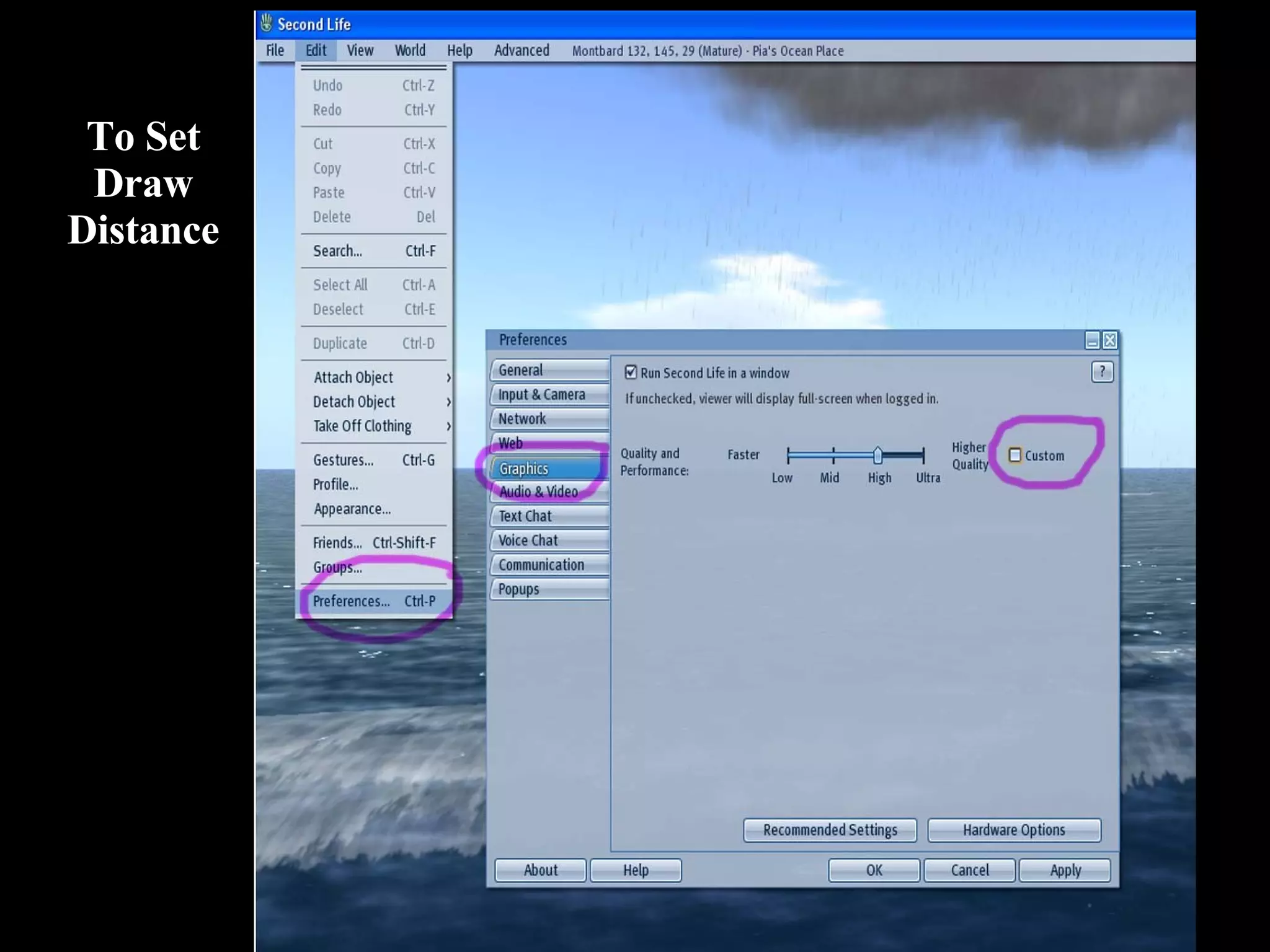
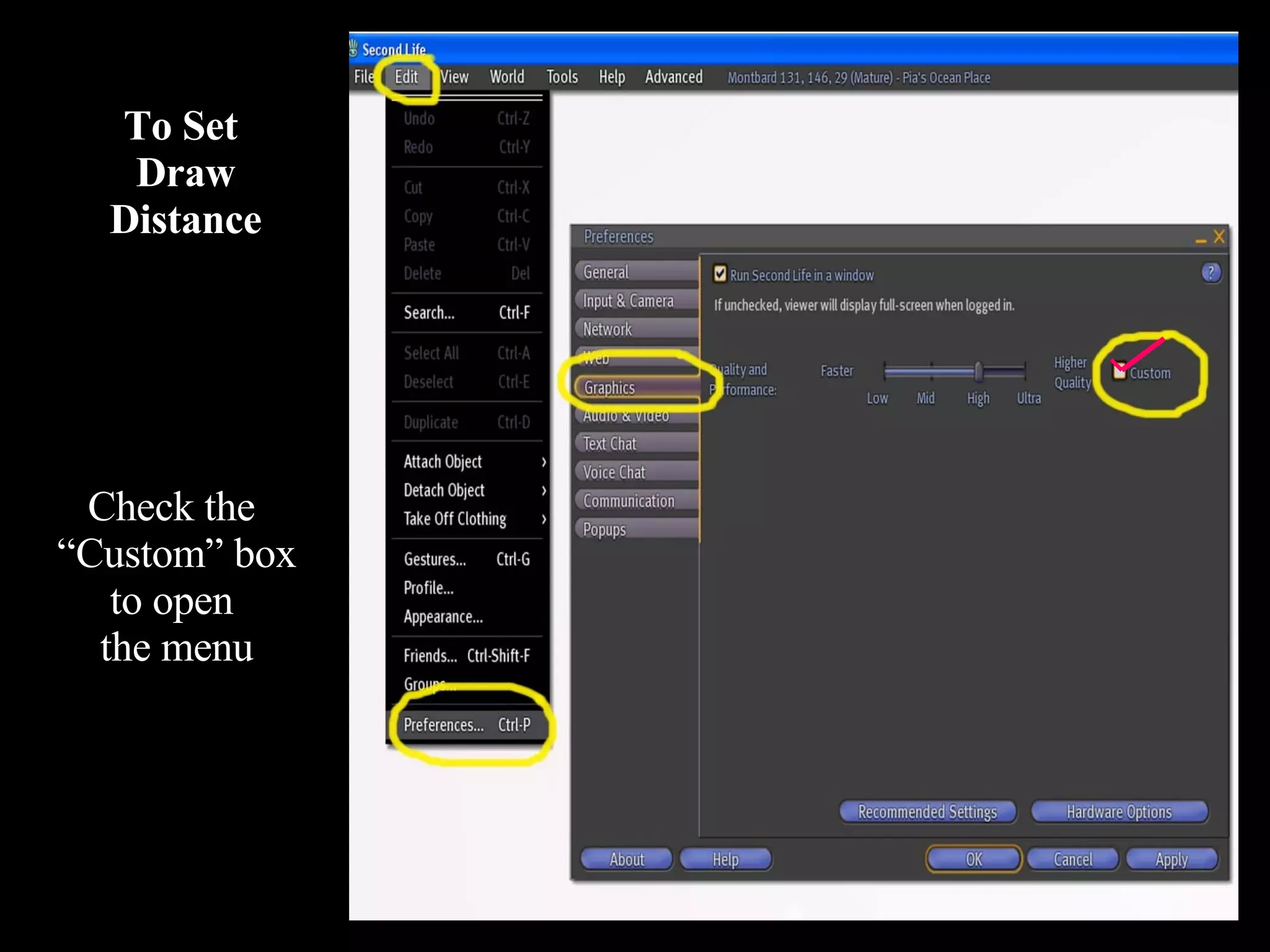
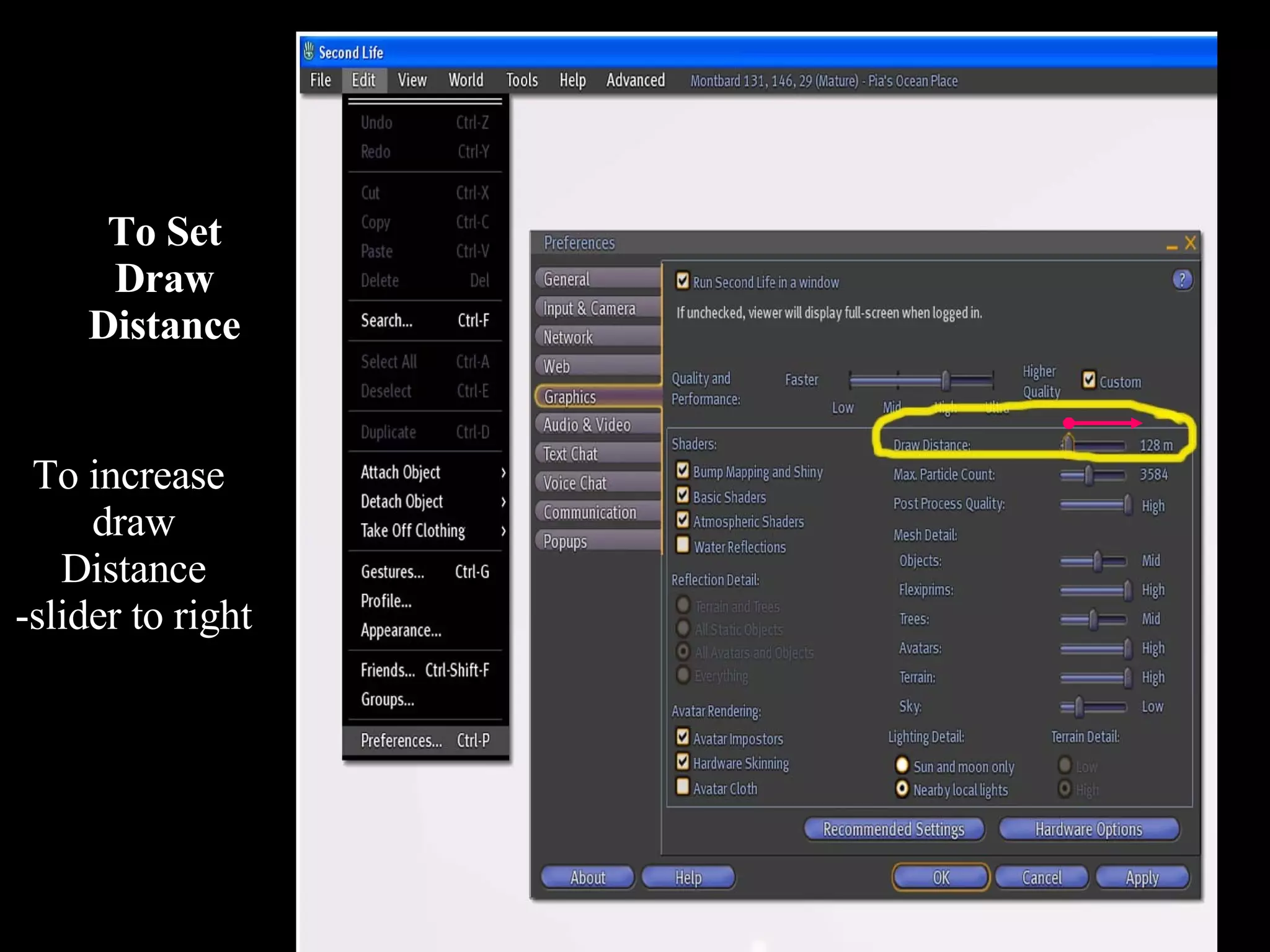
Preference: Draw Distance Edit/Preferences/Graphics Tab Then Check the   Custom   tab to open the settings Decrease Draw Distance is easier on computer  (range is 64 - 512) Set Draw Distance to : 128 or lower Increase if: shooting overhead scenes of landscapes you need to see distant objects
To Set Draw Distance
To Set  Draw Distance Check the  “ Custom” box to open  the menu
To Set Draw Distance To increase  draw Distance -slider to right
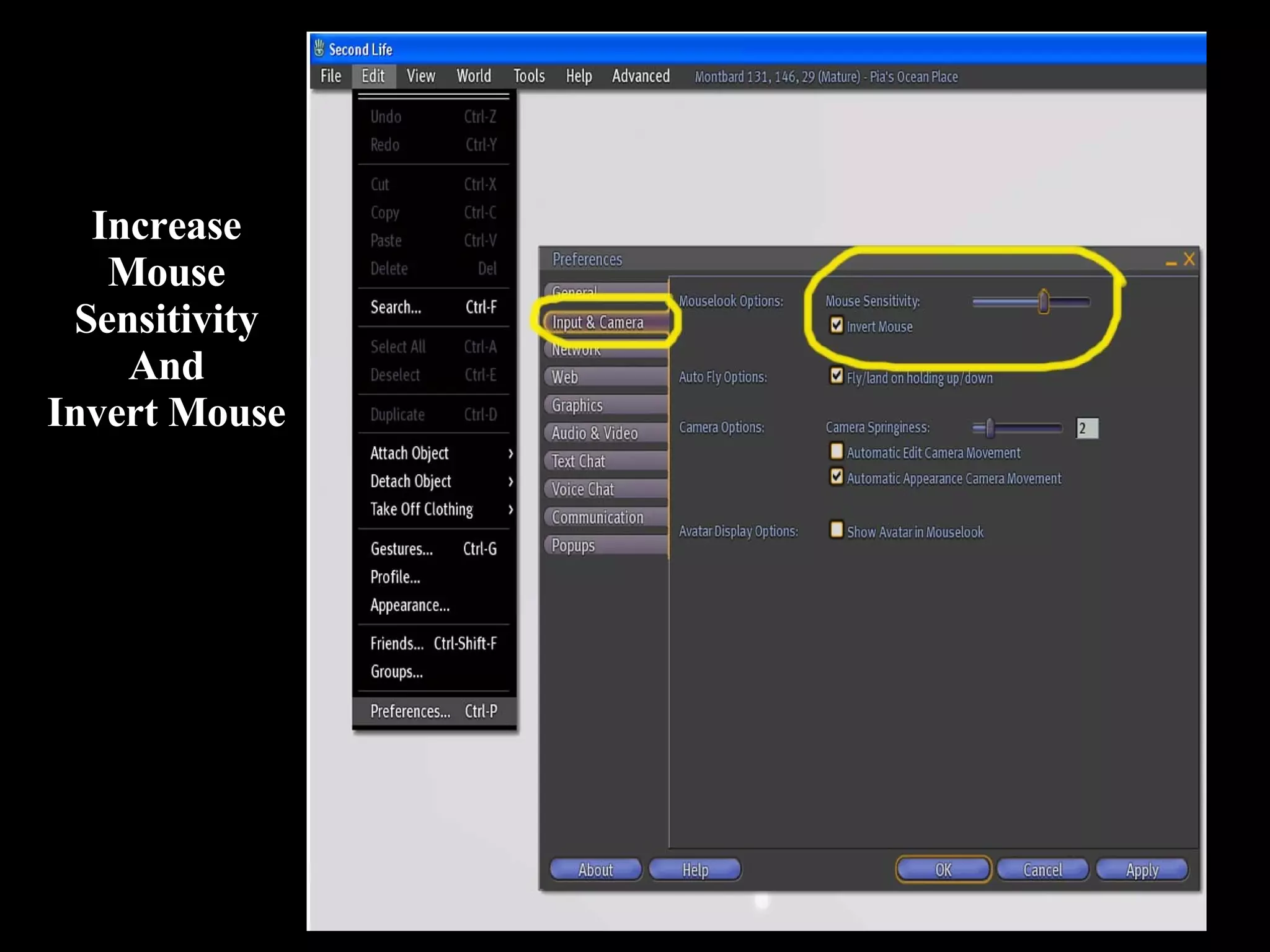
Preferences: Mouse Sensitivity Edit | Preferences |Input & Camera   You can increase the mouse sensitivity. Also can invert the mouse so that when you move upwards it moves you up
Increase Mouse Sensitivity And Invert Mouse
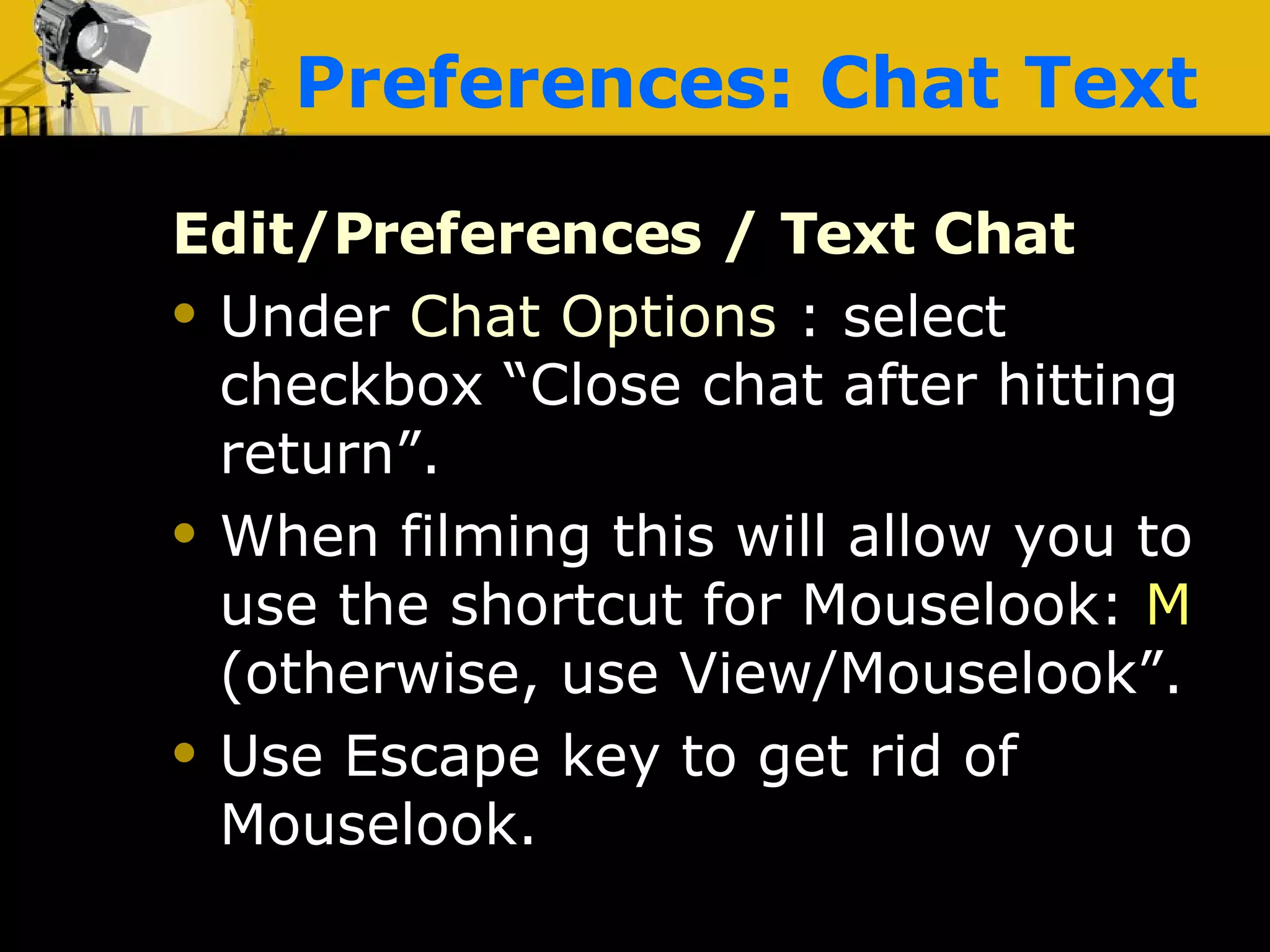
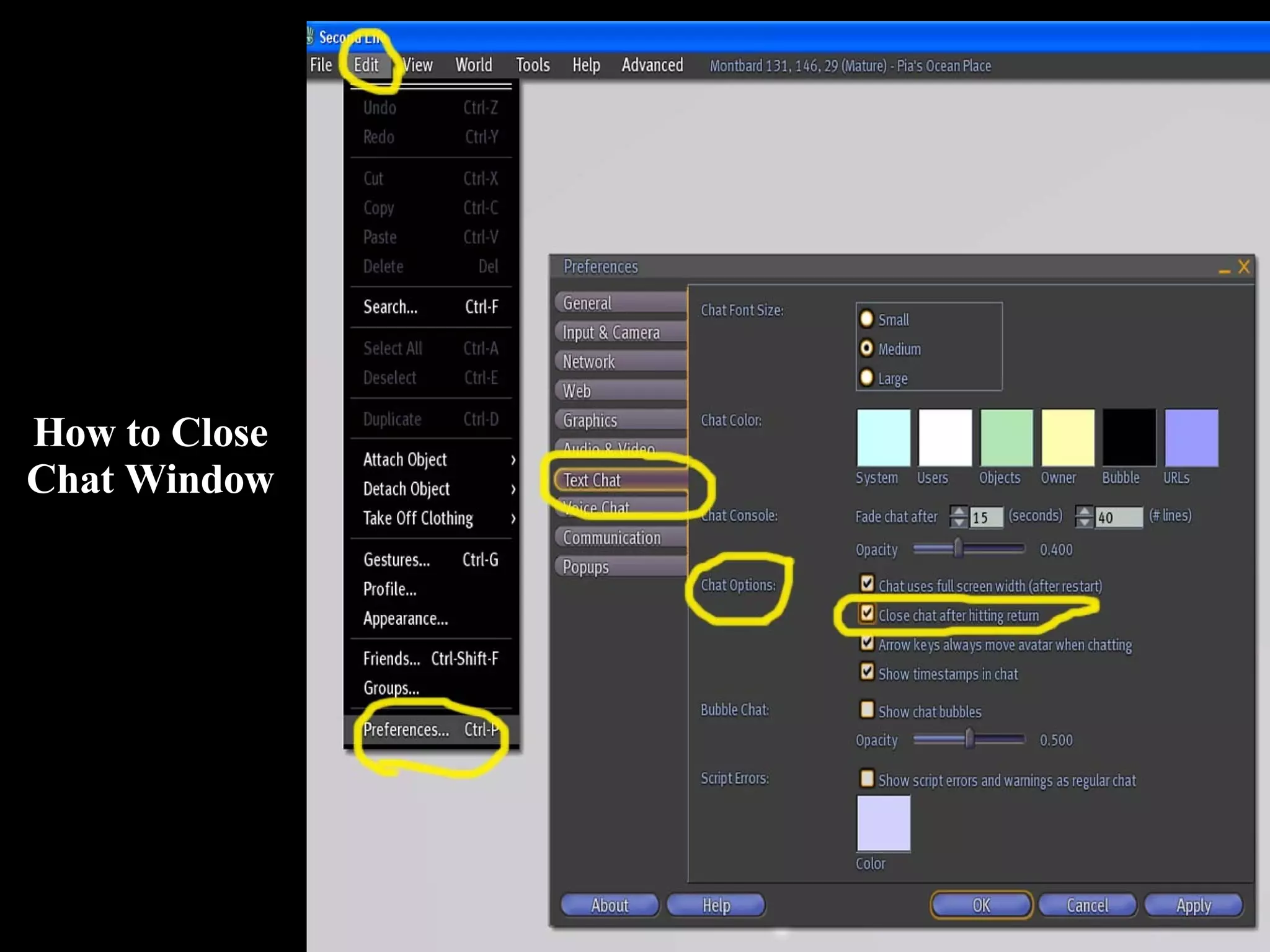
Preferences: Chat Text Edit/Preferences / Text Chat Under  Chat Options  : select checkbox “Close chat after hitting return”. When filming this will allow you to use the shortcut for Mouselook:  M  (otherwise, use View/Mouselook”. Use Escape key to get rid of Mouselook.
How to Close Chat Window
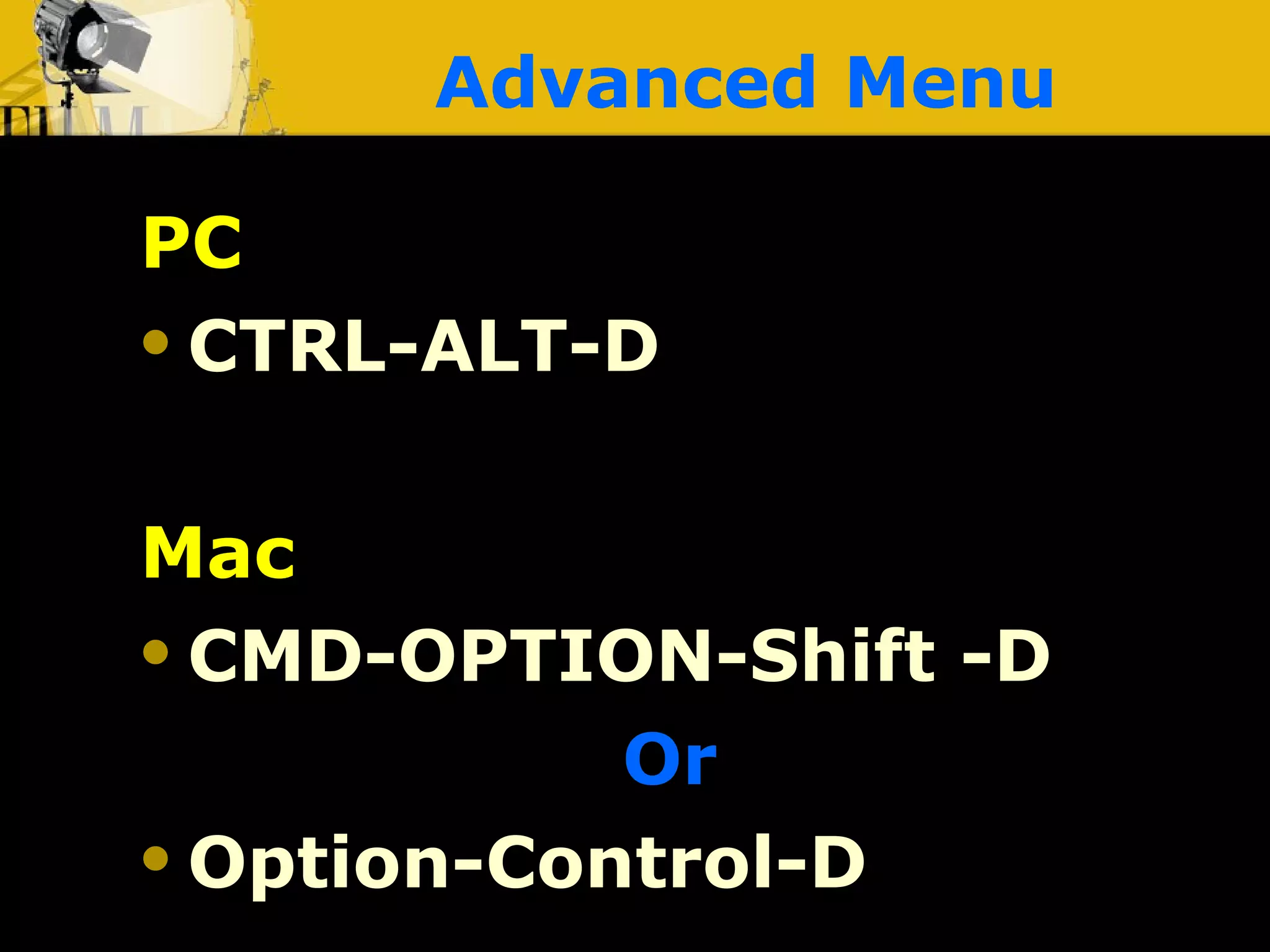
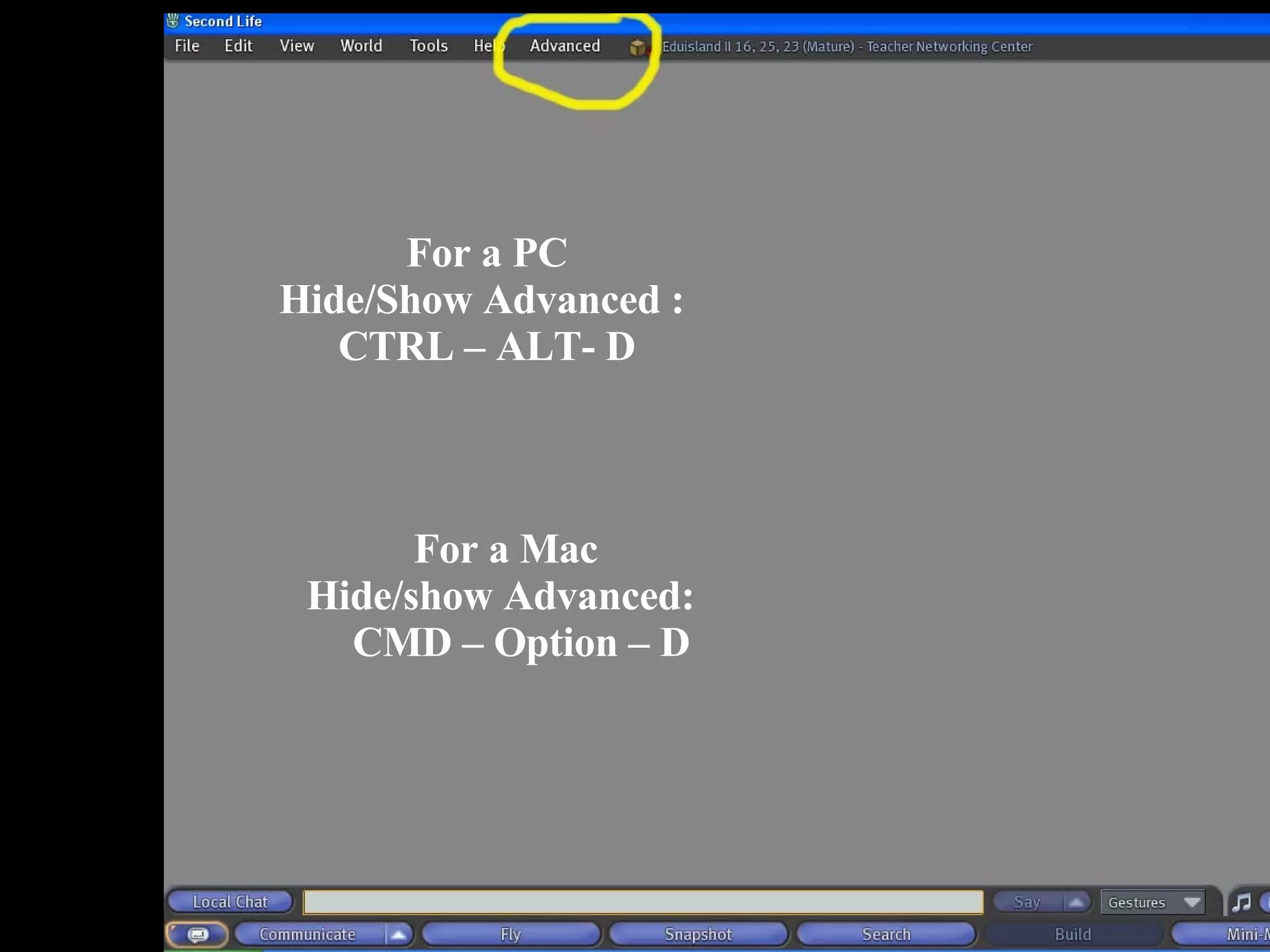
Advanced Menu PC CTRL-ALT-D Mac CMD-OPTION-Shift -D   Or   Option-Control-D
For a PC Hide/Show Advanced :  CTRL – ALT- D For a Mac Hide/show Advanced:  CMD – Option – D
User Interface To get rid of User Interface: Must have  Advanced Menu   displayed Hide/Show UI for PCs:   CTRL-ALT-F1 Hide/Show UI for Macs:   CMD-Option-1
Mouselook and no User Interface Mouselook Mode:   Chat bar must be closed Edit/Preferences/Text Chat/Chat Options/ Close chat after hitting return Hit ESCAPE button or type M to return to default view Get rid of UI and Getting it back Again: CTRL-ALT-F1  –PCs CMD-OPT-F1  – MACs Now go into   Mouselook---M Hit Escape or M to exit Mouselook, then get back UI CTRL-ALT-F1 or CMD-OPT-F1
#2: Shortcut Keys
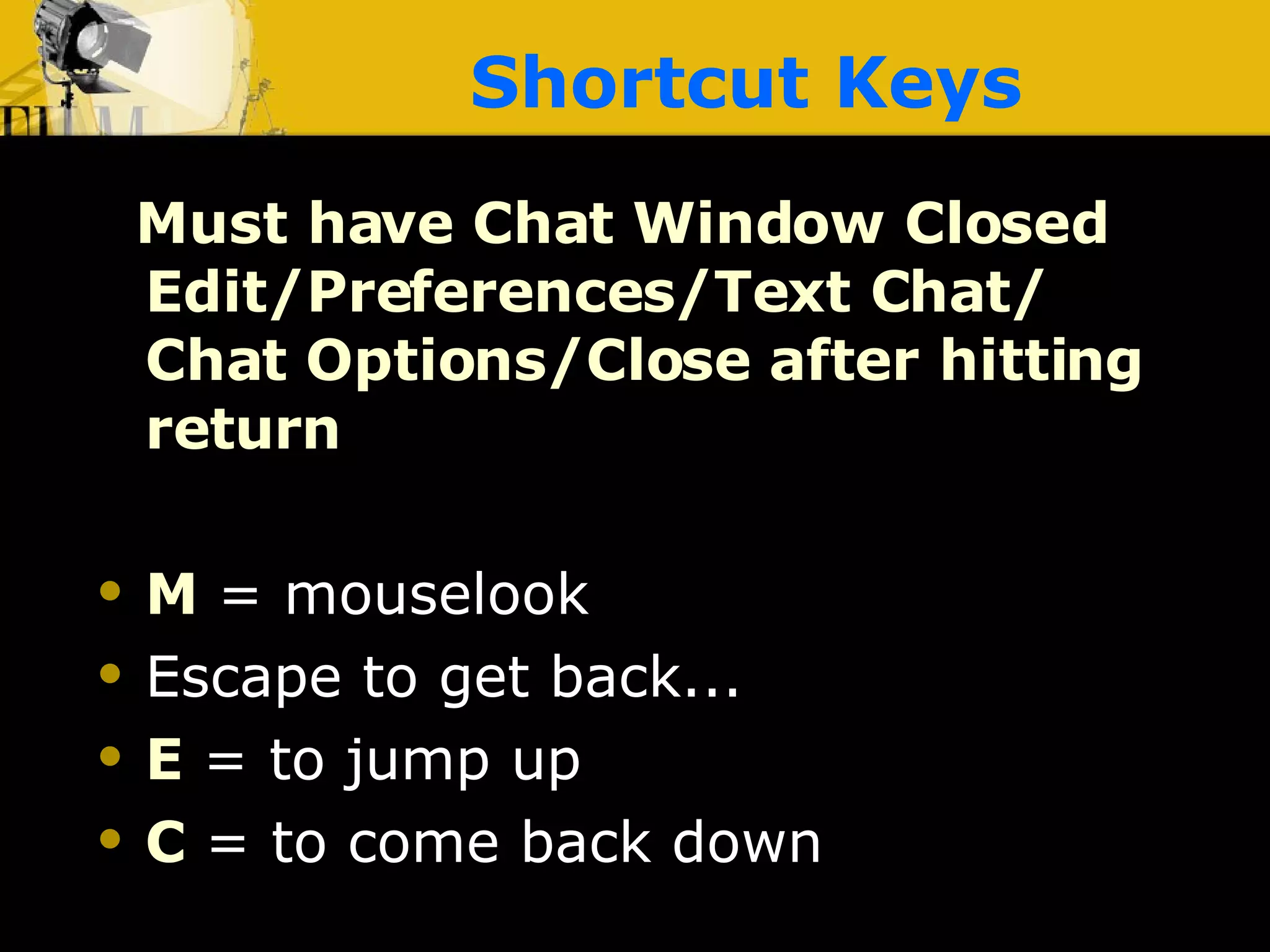
Shortcut Keys Must have Chat Window Closed Edit/Preferences/Text Chat/ Chat Options/Close after hitting return M   = mouselook Escape to get back... E   = to jump up C   = to come back down
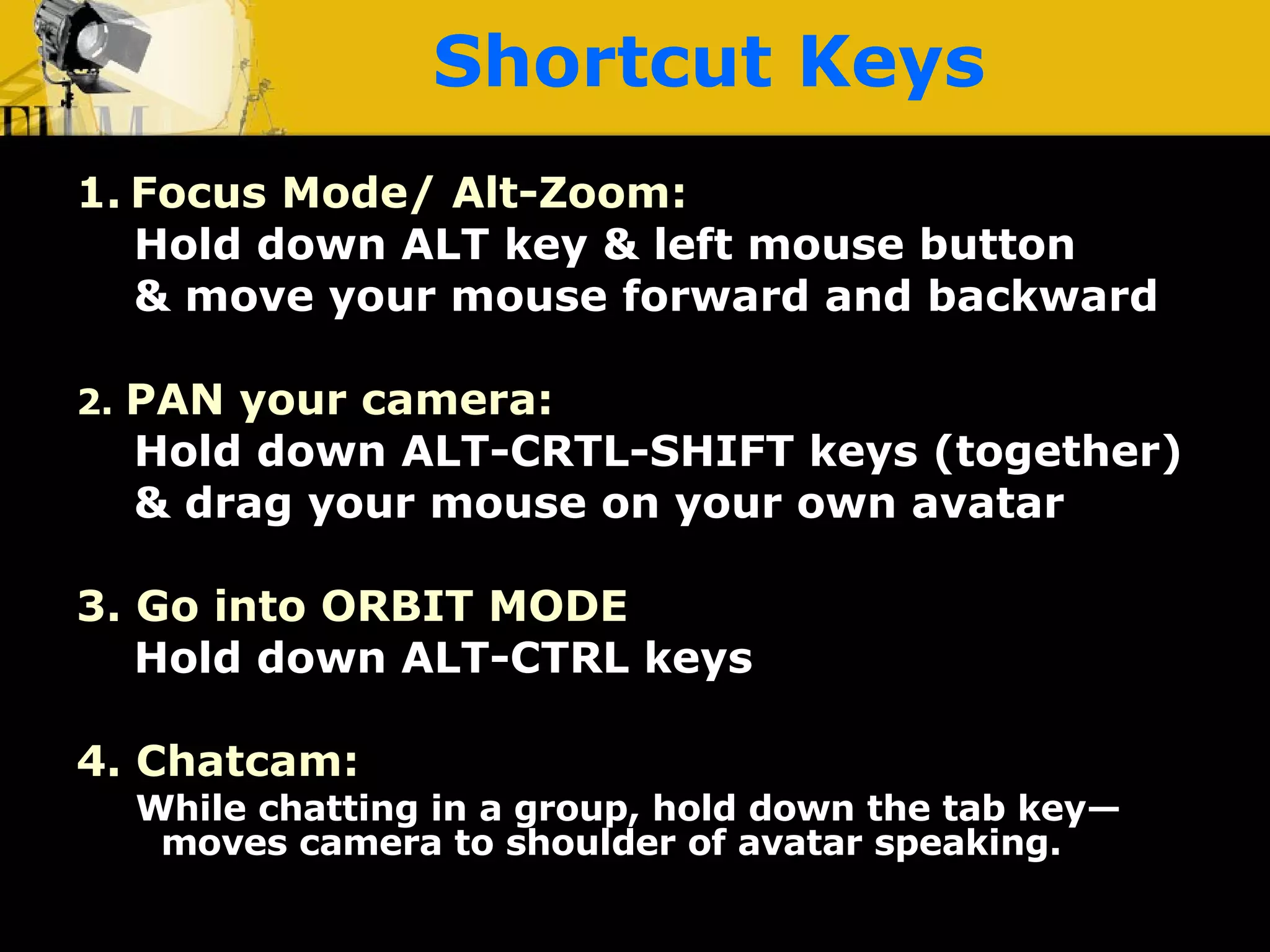
Shortcut Keys 1.   Focus Mode/ Alt-Zoom: Hold down ALT key & left mouse button & move your mouse forward and backward 2.  PAN your camera: Hold down ALT-CRTL-SHIFT keys (together) & drag your mouse on your own avatar 3. Go into ORBIT MODE Hold down ALT-CTRL keys 4. Chatcam:  While chatting in a group, hold down the tab key—moves camera to shoulder of avatar speaking.
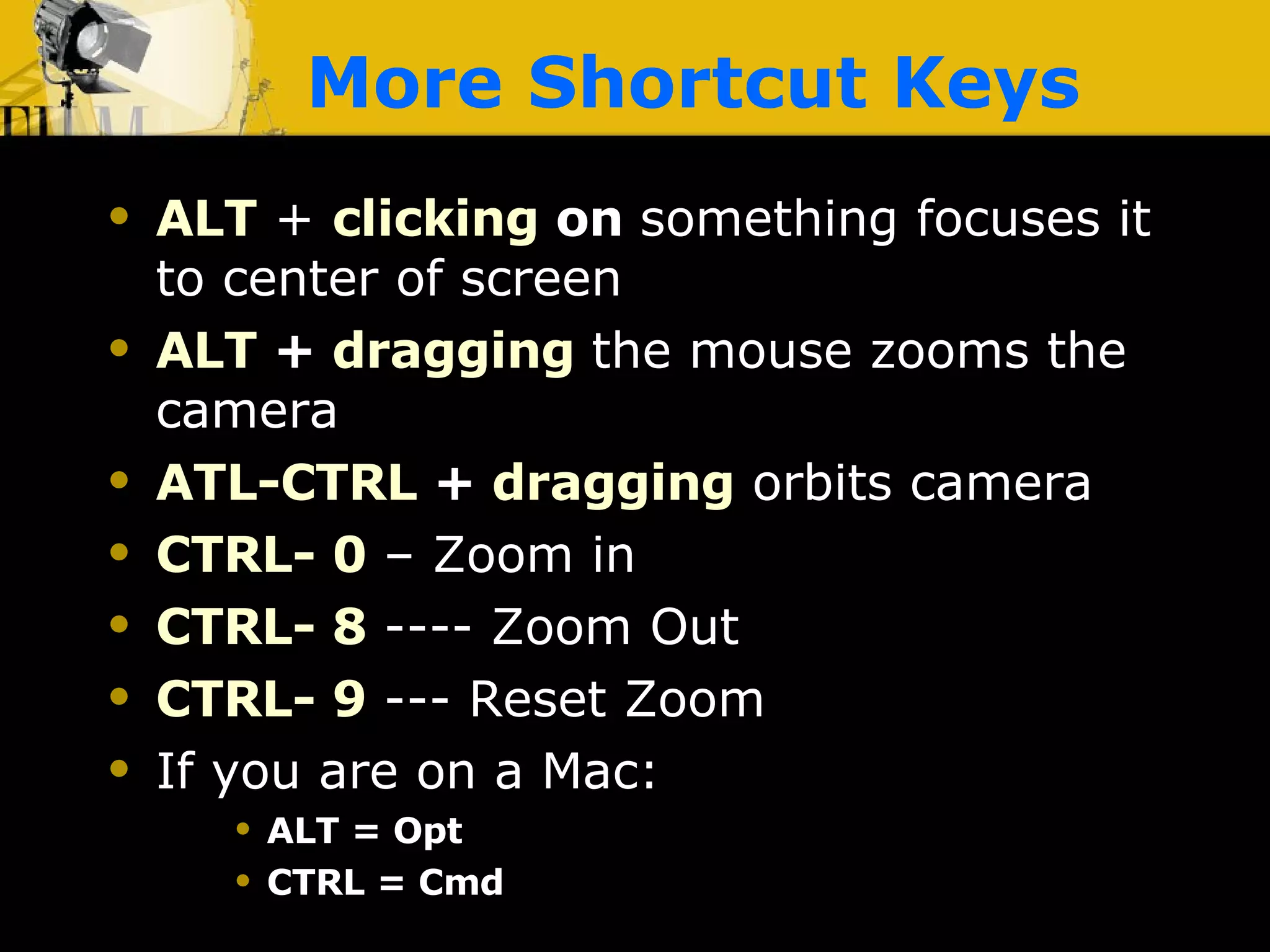
More Shortcut Keys ALT  +   clicking  on  something focuses it to center of screen ALT  +  dragging   the mouse zooms the camera ATL-CTRL   +  dragging  orbits camera CTRL- 0  – Zoom in CTRL- 8  ---- Zoom Out CTRL- 9  --- Reset Zoom If you are on a Mac:  ALT = Opt CTRL = Cmd
#3 Camera Controls
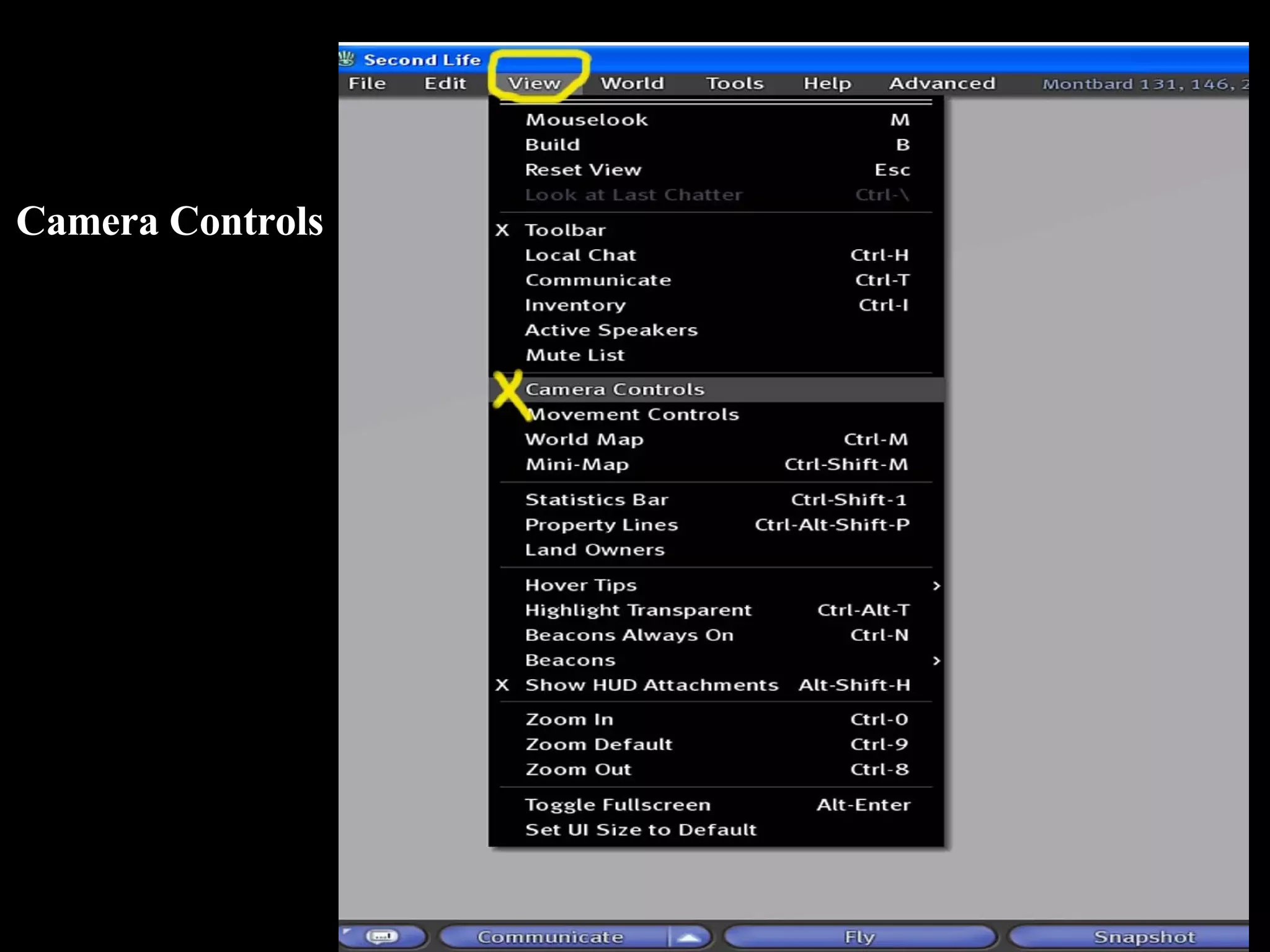
Camera Controls
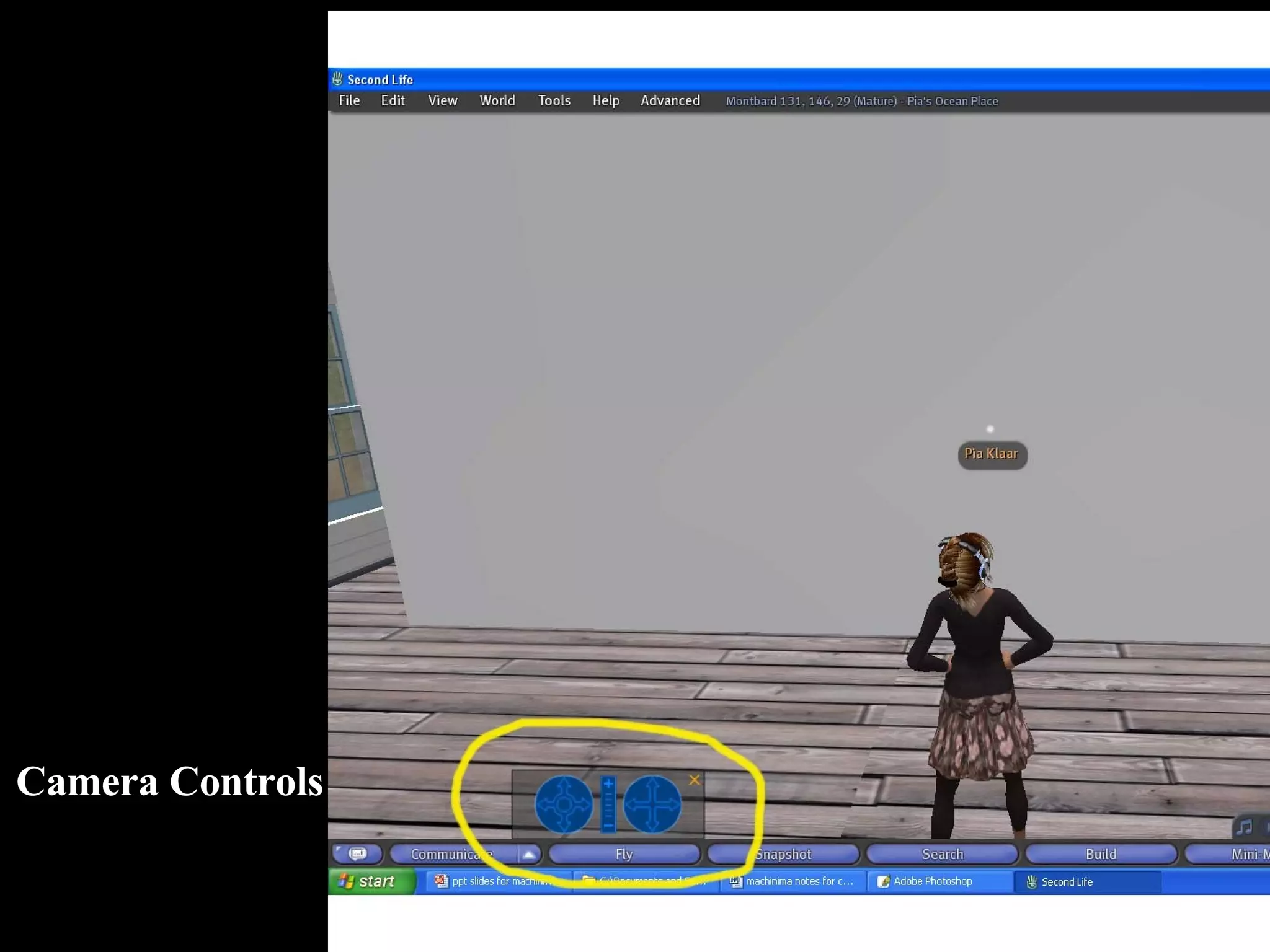
Camera Controls
Setting Up Shots using Camera Control View/ Camera Controls  +  alt-zoom   - moving mouse forward or backwards ) Open up our camera controls and use them to get a close up view of our av's face. Using left blue wheel on the camera control, use the left or right arrow to spin yourself around. Use the + sign at the top of the zoom bar to put yourself in the middle of the window---- a close up view. Can you see yourselves?
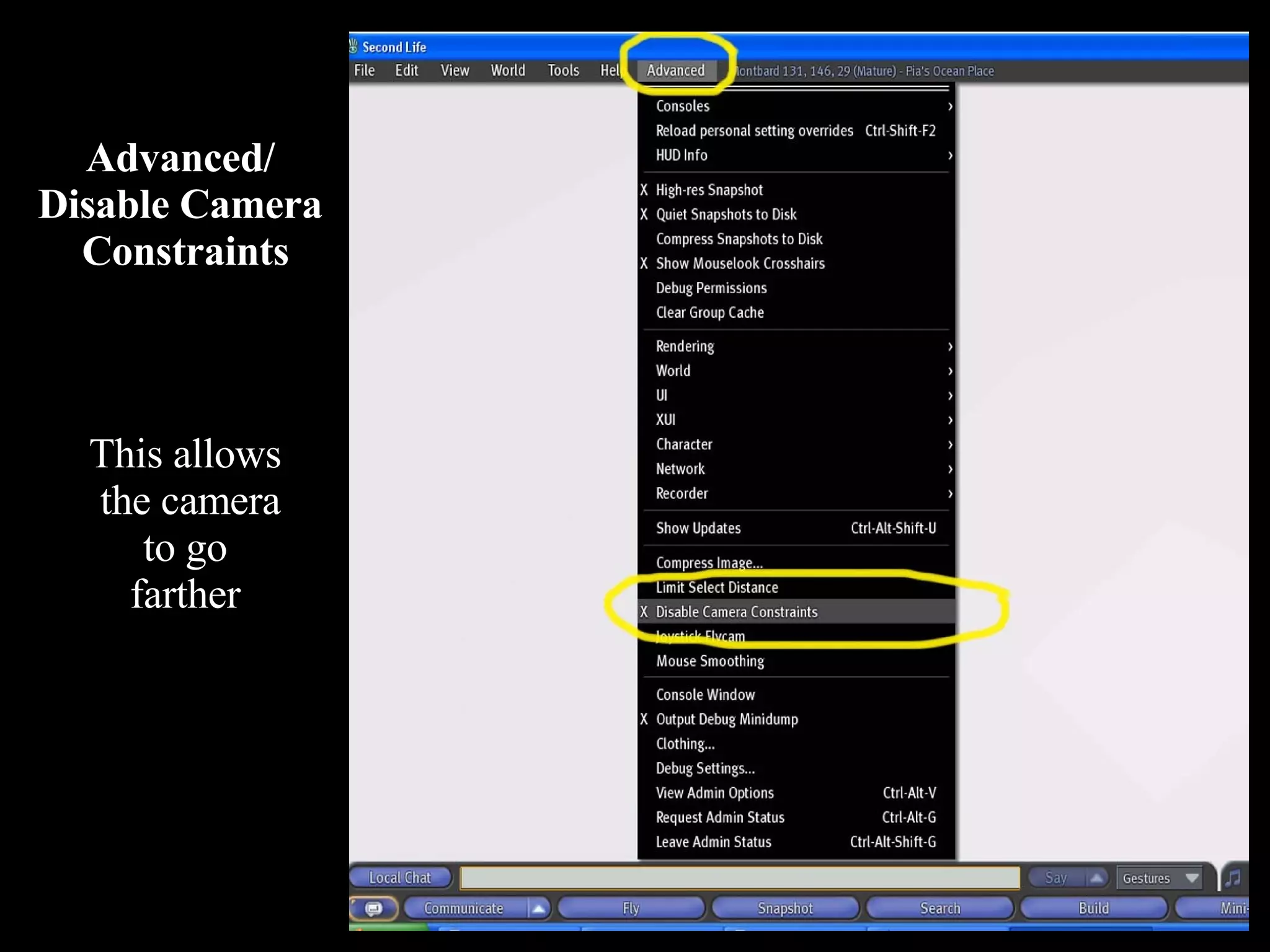
Advanced/  Disable Camera  Constraints This allows the camera to go farther
#4: Recording Video
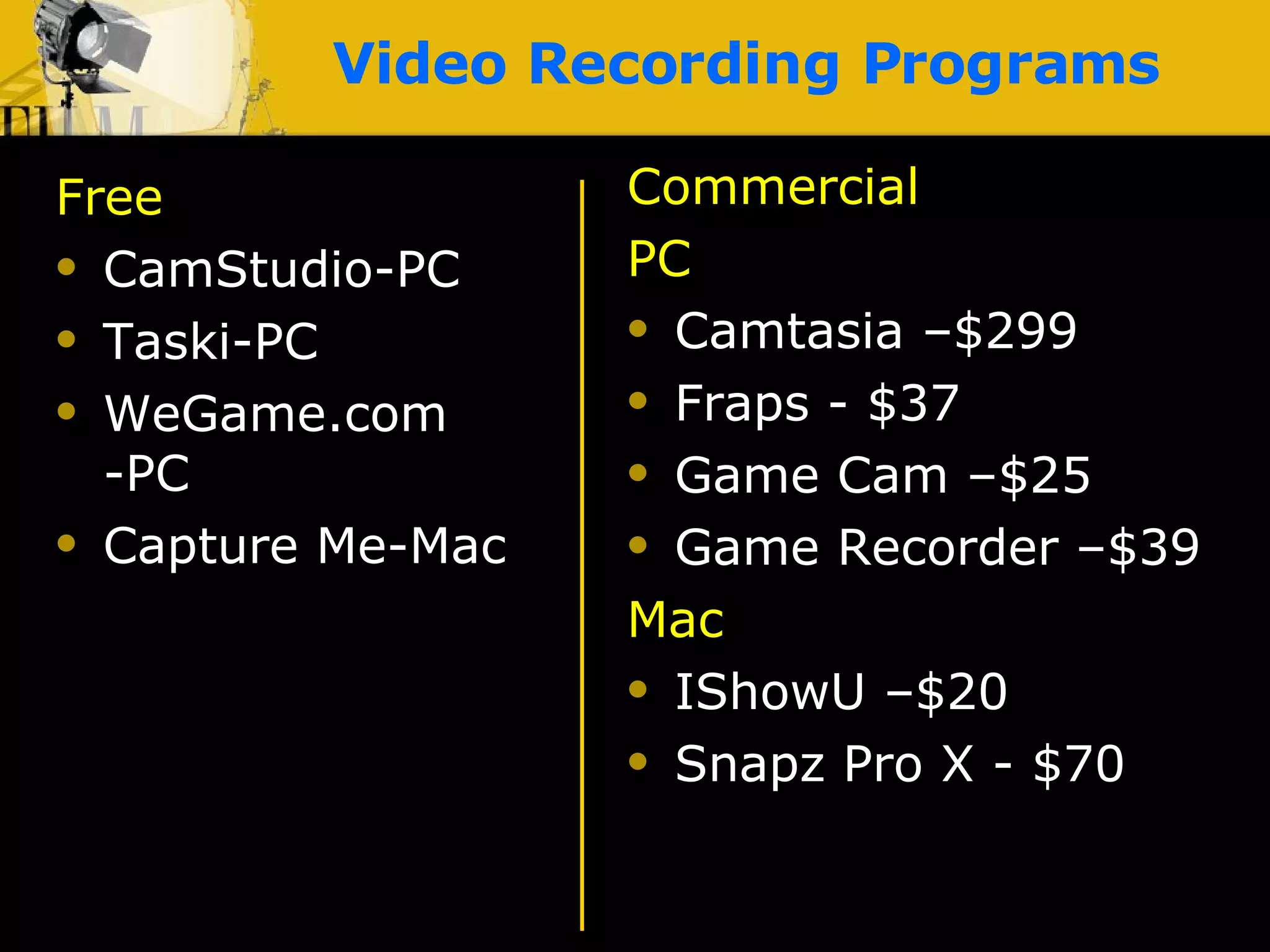
Video Recording Programs Free CamStudio-PC Taski-PC WeGame.com -PC Capture Me-Mac Commercial PC Camtasia –$299 Fraps - $37 Game Cam –$25 Game Recorder –$39 Mac IShowU –$20 Snapz Pro X - $70
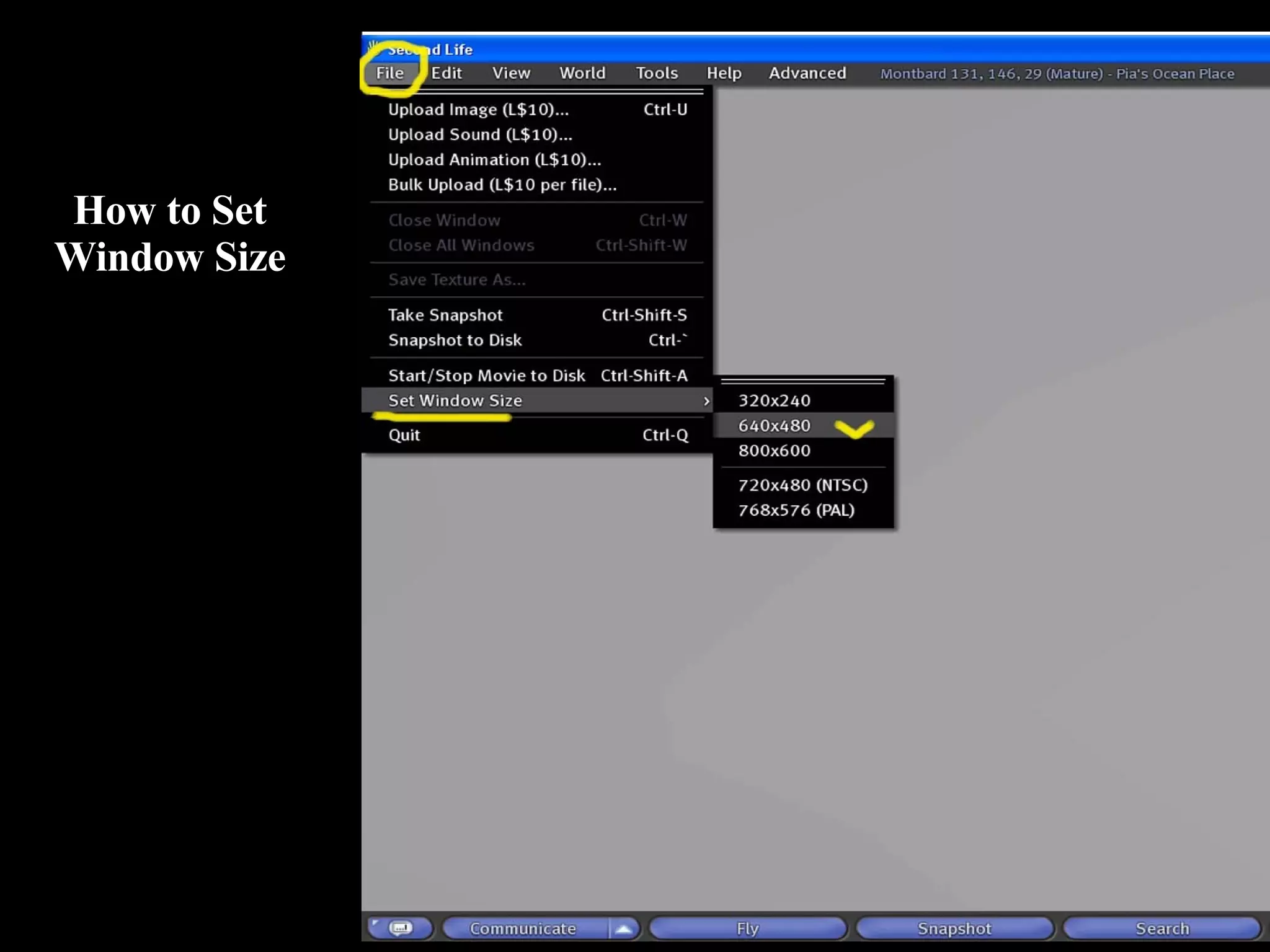
Quick Overall Set Window Size File menu --- Set window size to reduce file size  –  640 x 480
How to Set Window Size
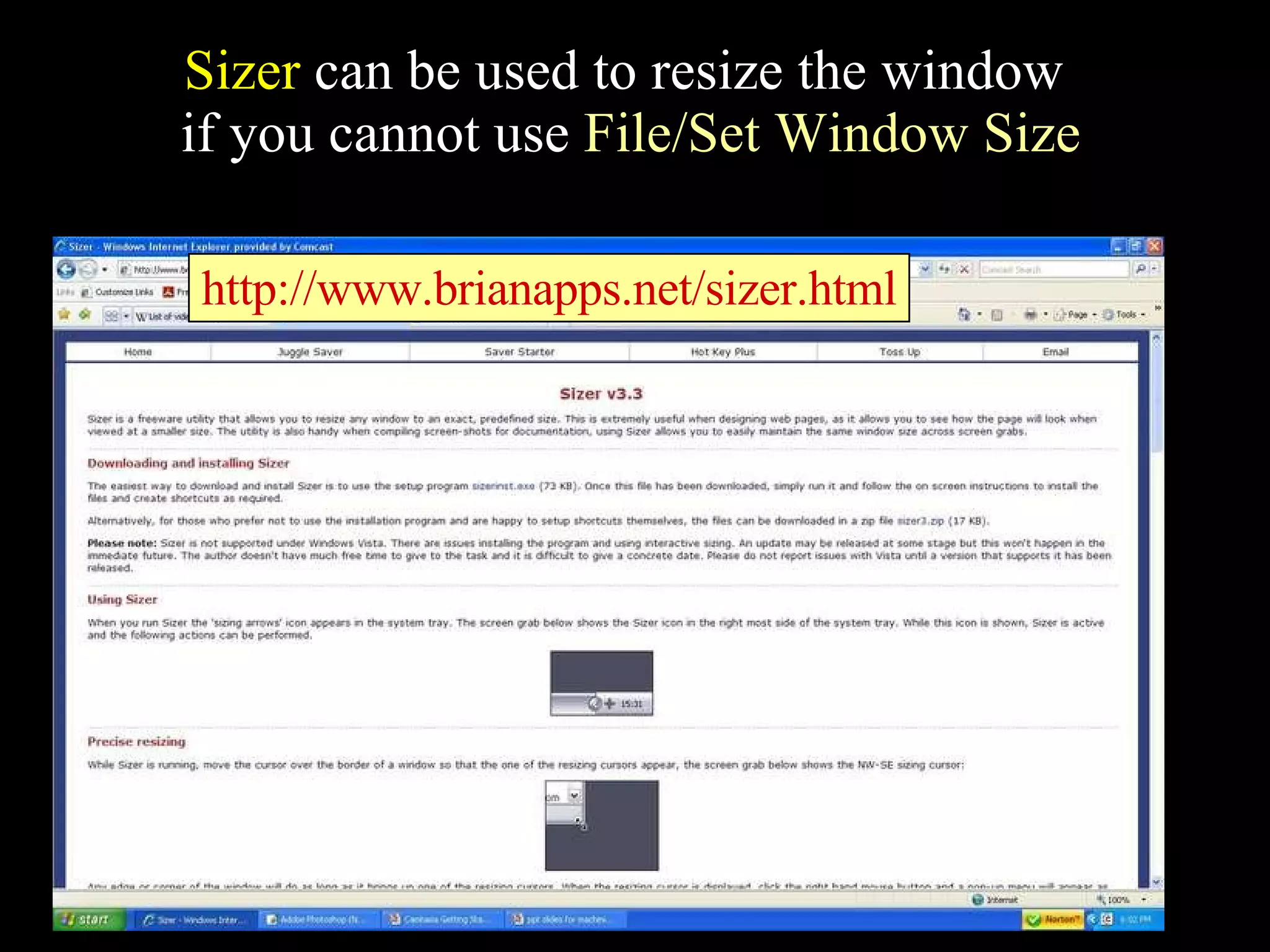
Sizer  can be used to resize the window  if you cannot use  File/Set Window Size http://www.brianapps.net/sizer.html
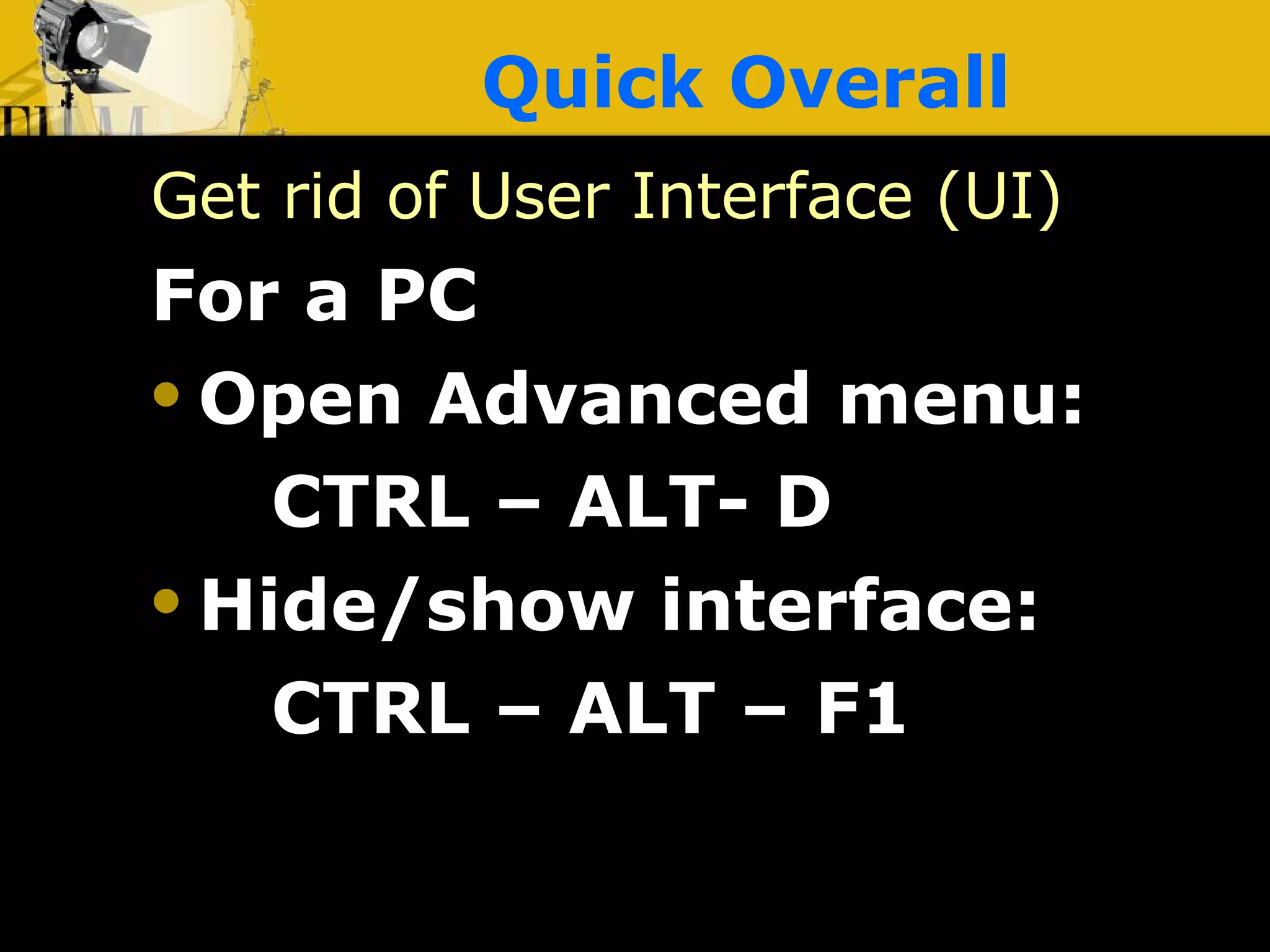
Quick Overall Get rid of User Interface (UI) For a PC Open Advanced menu:  CTRL – ALT- D Hide/show interface:  CTRL – ALT – F1
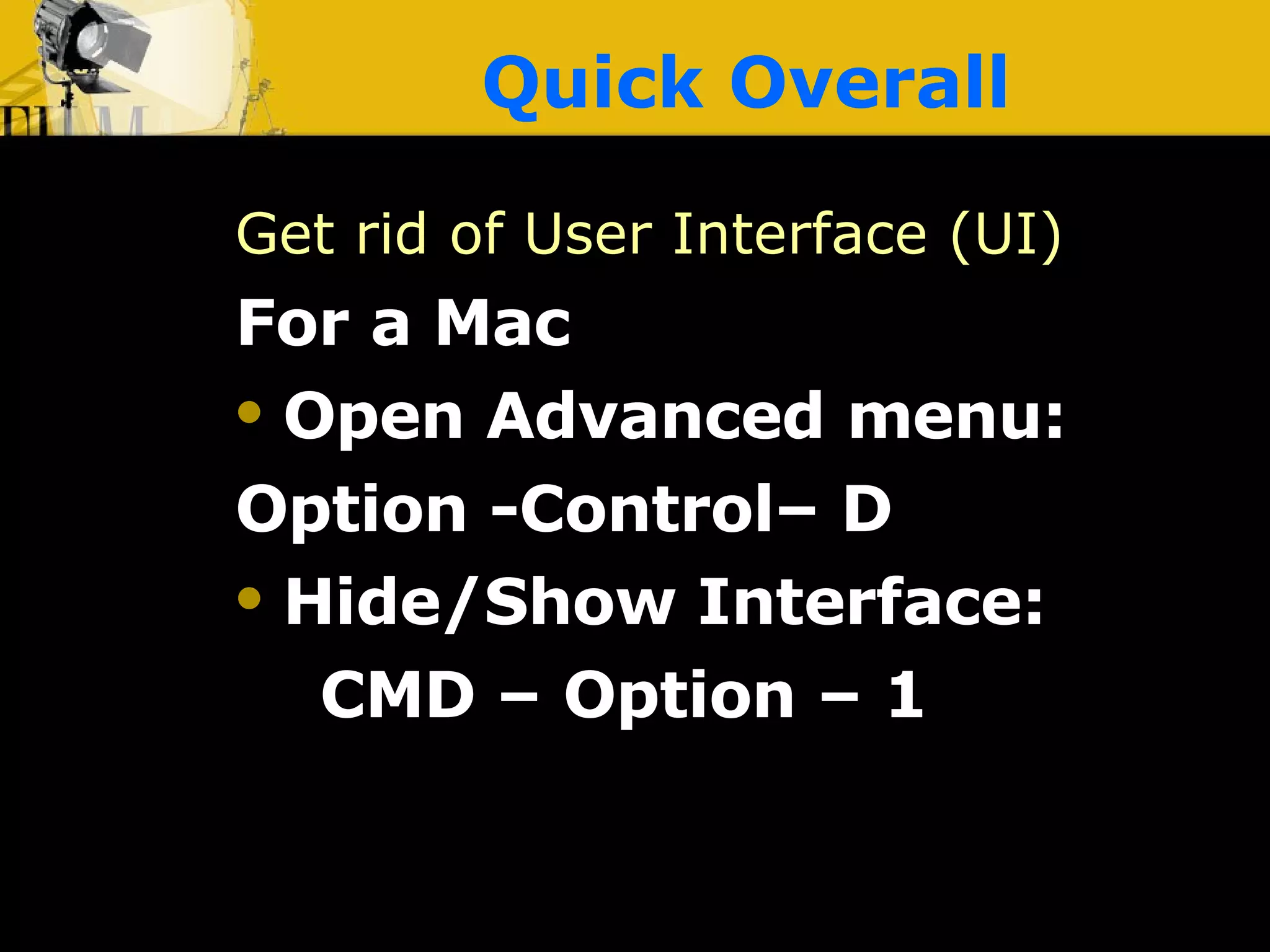
Quick Overall Get rid of User Interface (UI) For a Mac Open Advanced menu:  Option -Control– D Hide/Show Interface:  CMD – Option – 1
# 5: Editing and Compressing Video Files
Editing After you capture footage Need to edit into a finished movie Can use –  Windows Movie Maker  iMovie for Mac Other
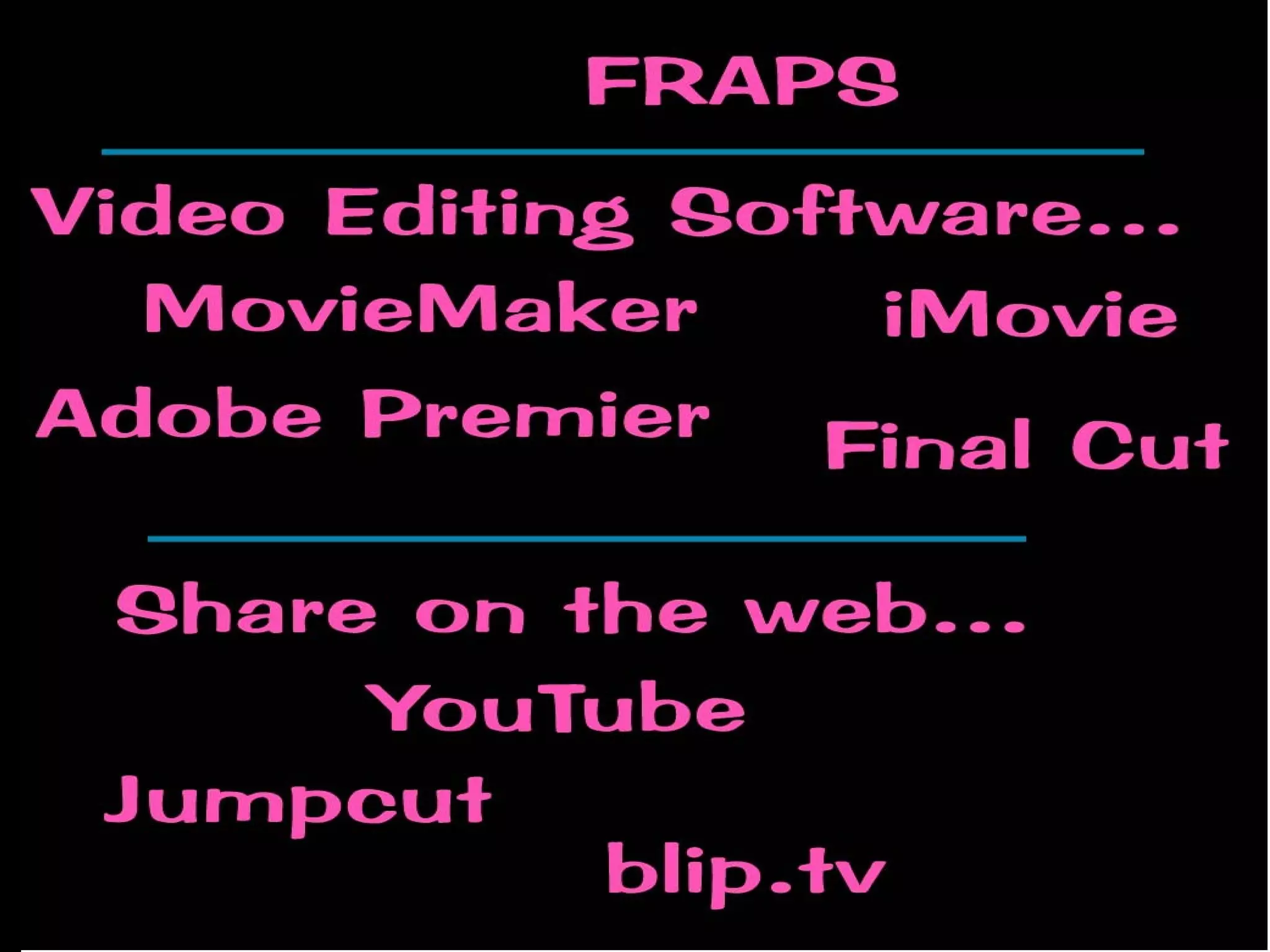
Some Editing Software Camtasia – PC- Capturing and editing software good for tutorials  Adobe Premiere-PC  Sony Vegas-PC  Sony Vegas – PC MovieMaker -PC Final Cut Pro or Express-Mac iMovie - Mac
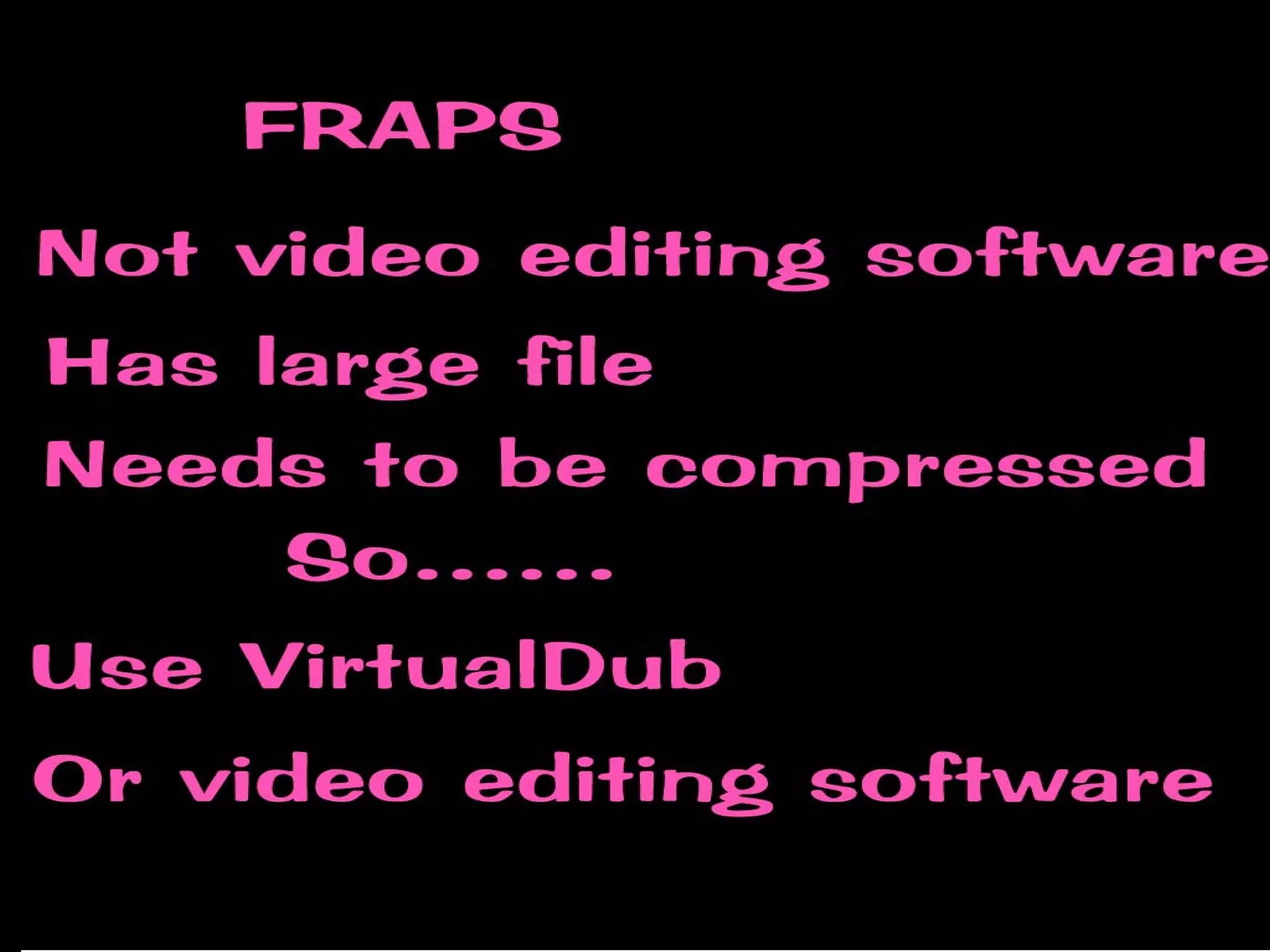
Rendering and Encoding After editing the video, now need to compress the video size. Many video editing software programs will do this as a flash, .avi or .mov file I save as an .avi file, then open that .avi file in Quicktime Pro to export as a .mov file Now ready to share
Video Hosting Sites YouTube Blip.tv Jumpcut Vimeo Yahoo Videos YouAre.TV CacheFly.com
Some Tips 1.   Screen capture software------FRAPS  http:// www.fraps.com 2. Dolly shots ----free scripted camera --- Alt-Zoom Studios  http://alt-zoom.com 3. Try to isolate your action ----no extra objects or scripts in view 4. Mouselook Mode – smoother camera movements
Tips 5. Capture footage ---  640 X 480 ---has a higher quality 6. Capture extra frames in front of and at end of scene 7. Do not move camera too fast 8. Hide User Interface –UI —  CTRL+ALT+F1  or  CMD-OPT-F1
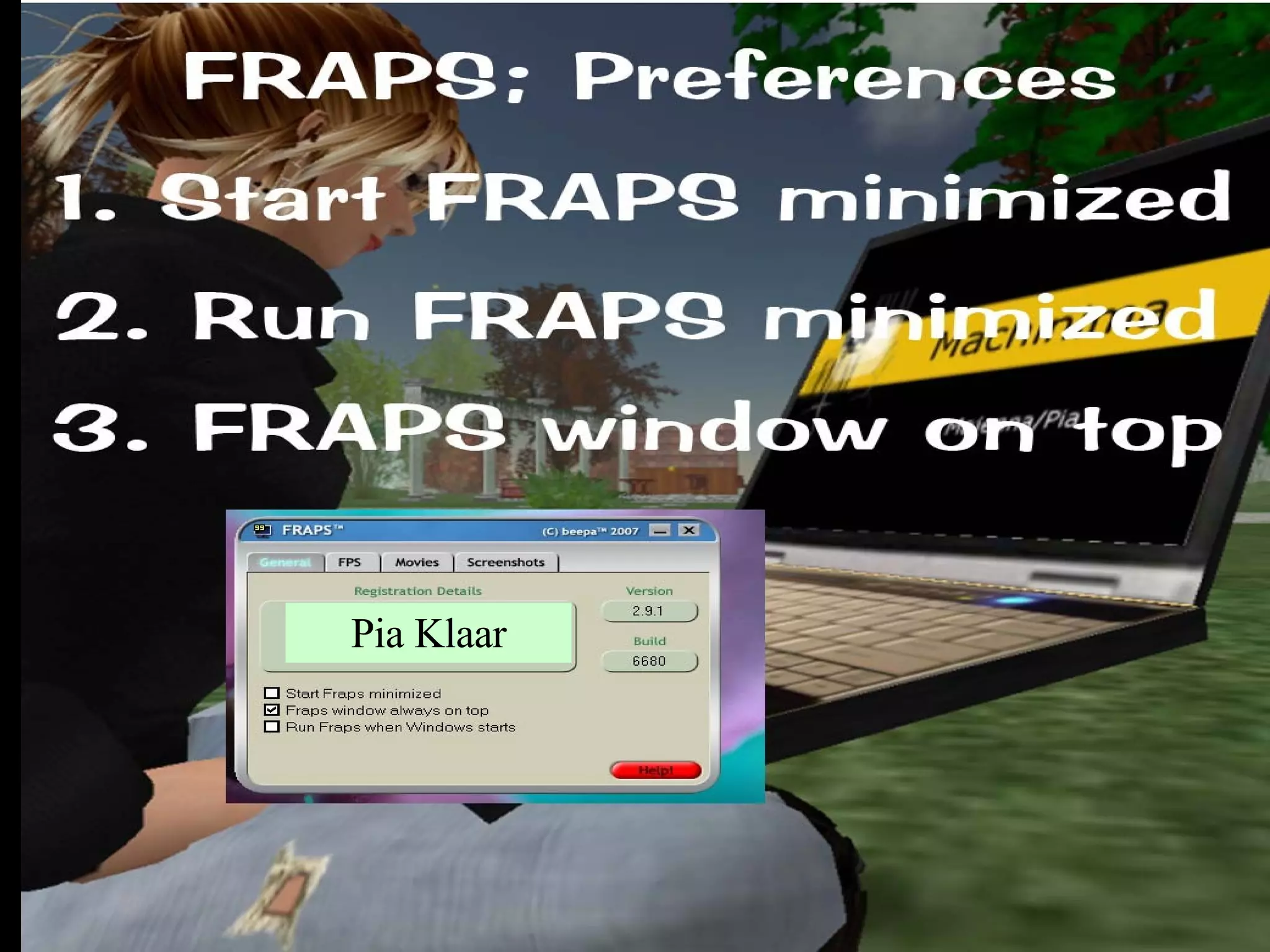
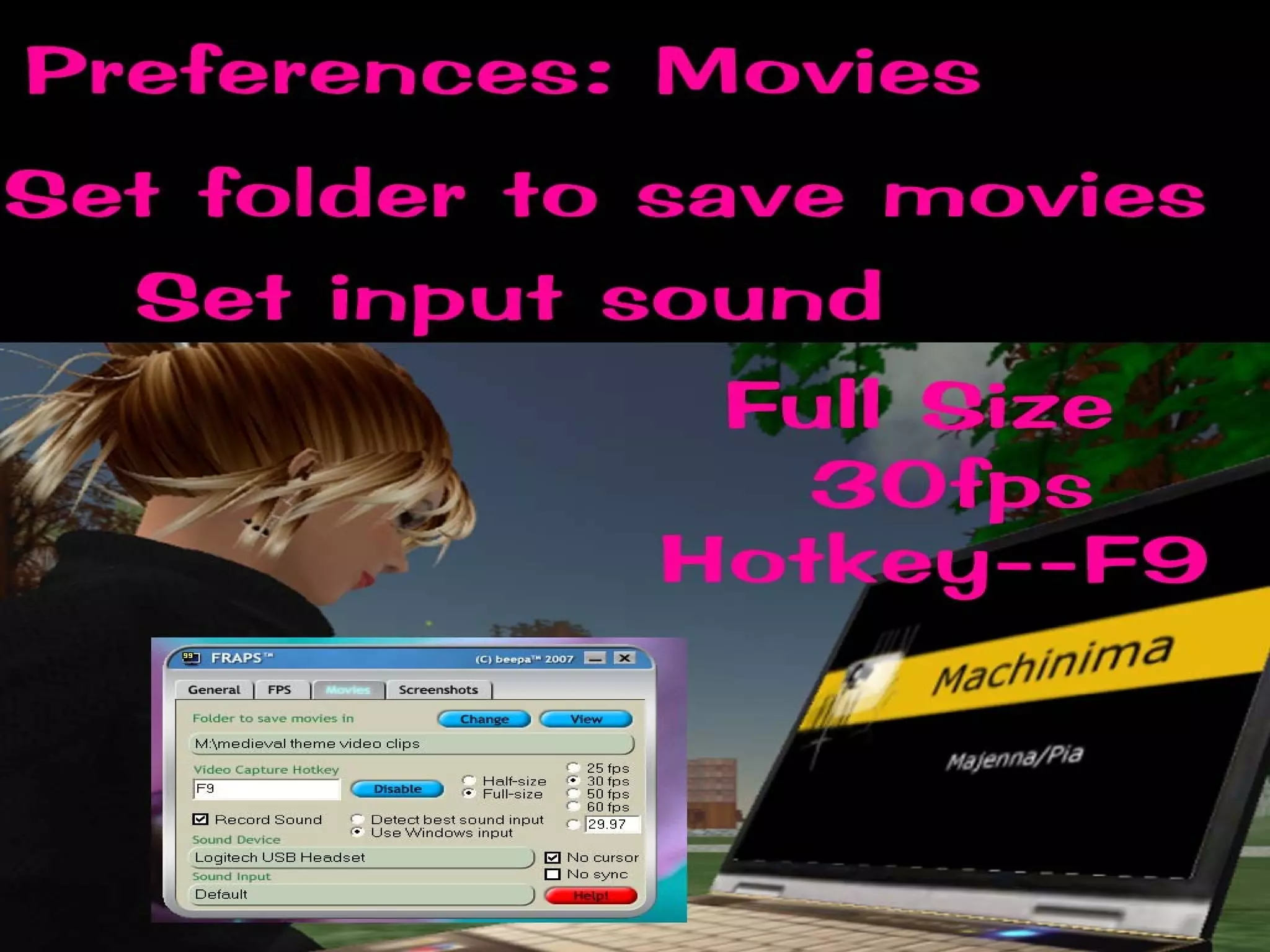
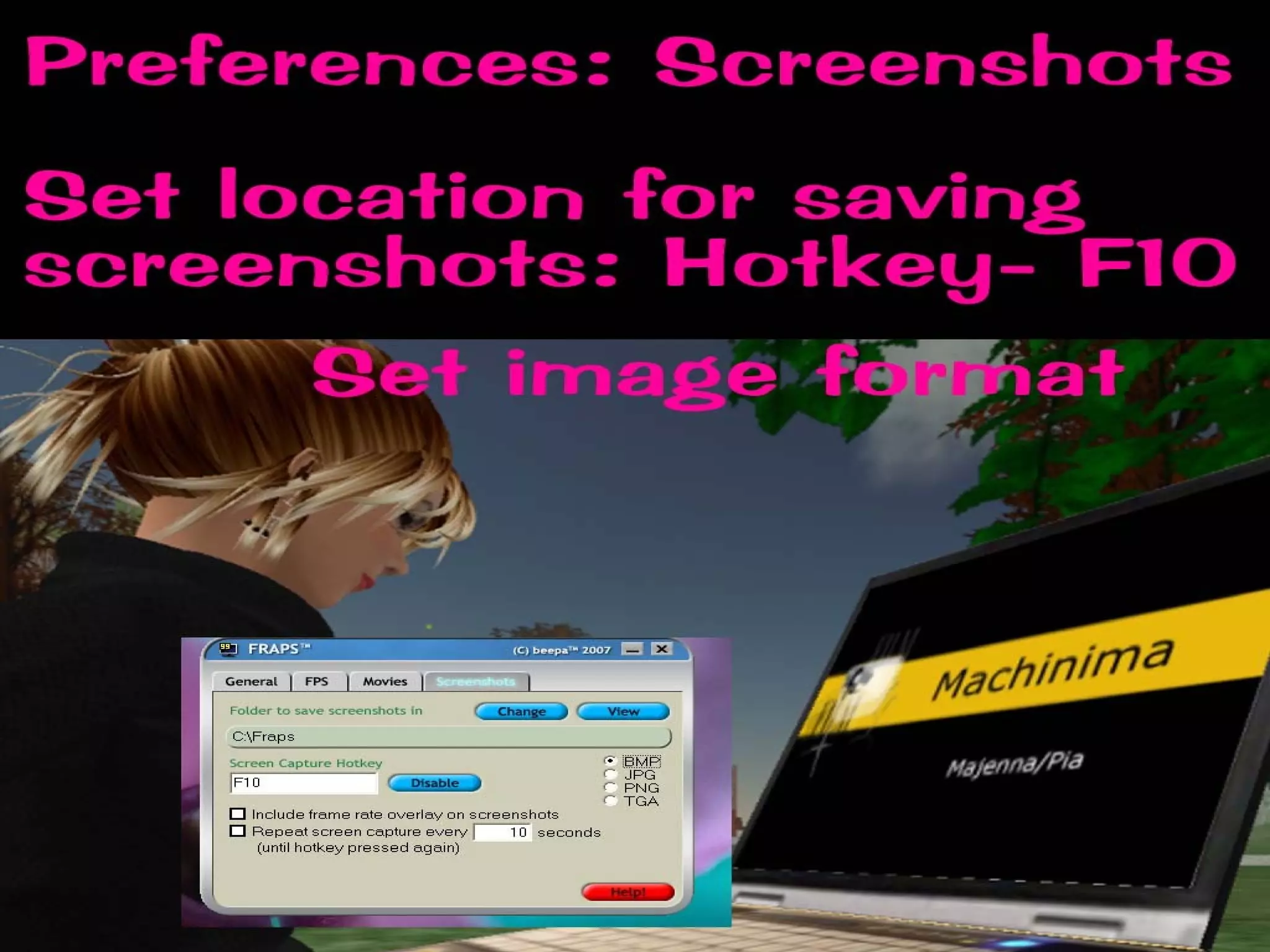
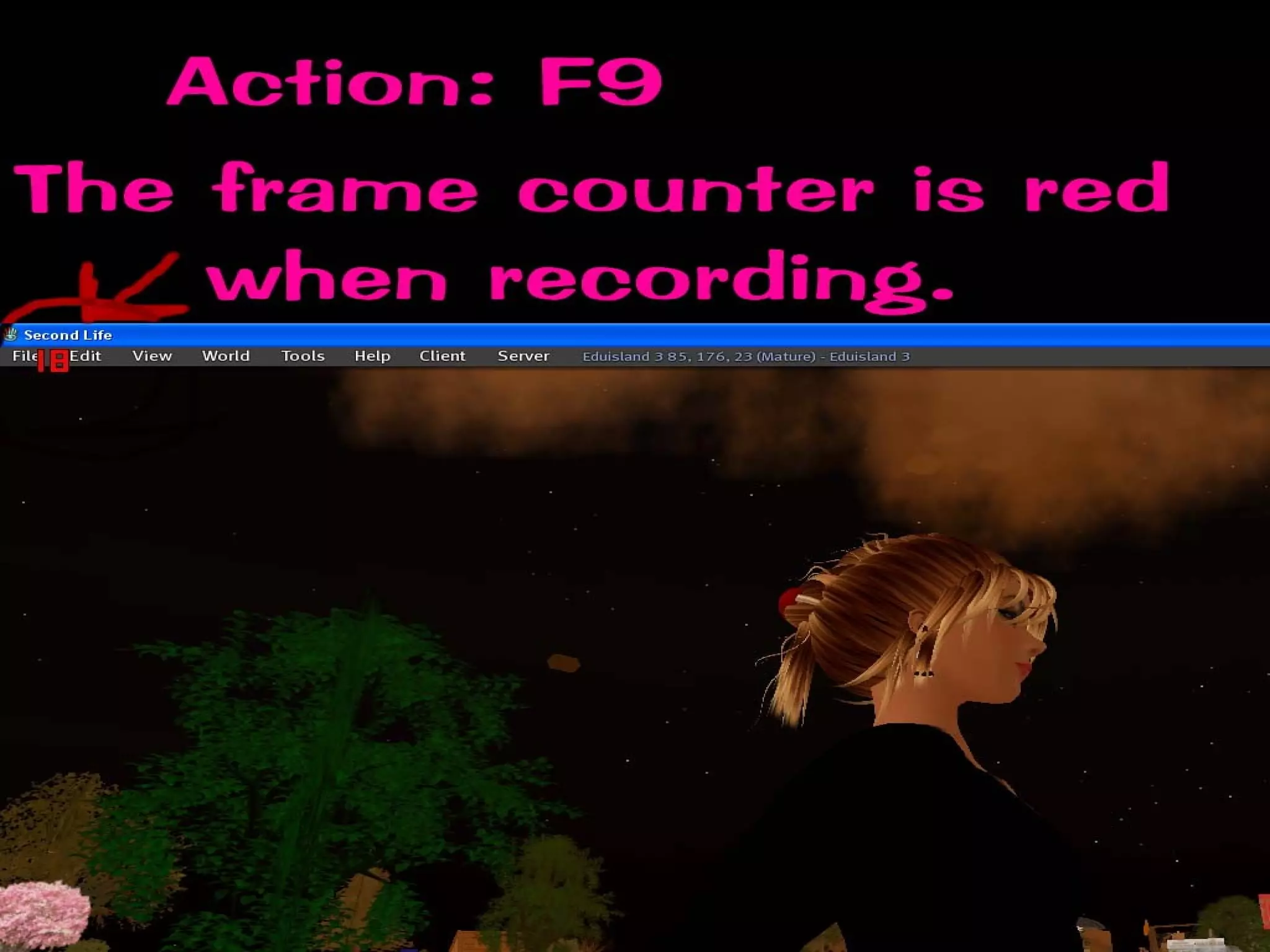
How to Capture Video Using FRAPs
Pia Klaar


How to create a video with images http:// majenna.blogspot.com / I used this online video tool. Here is an example on my blog. Animoto.com
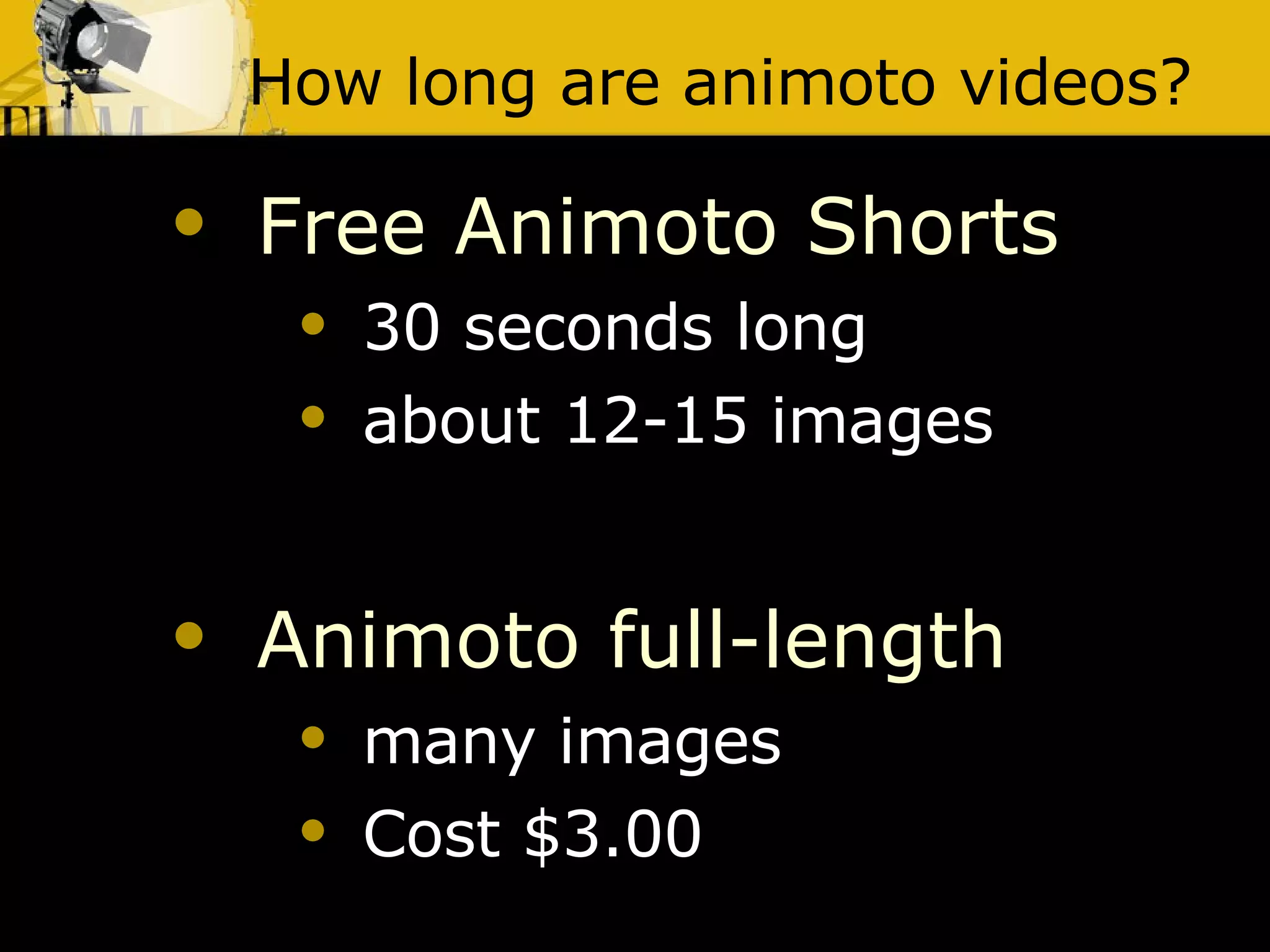
How long are animoto videos? Free Animoto Shorts   30 seconds long  about 12-15 images Animoto full-length   many images  Cost $3.00
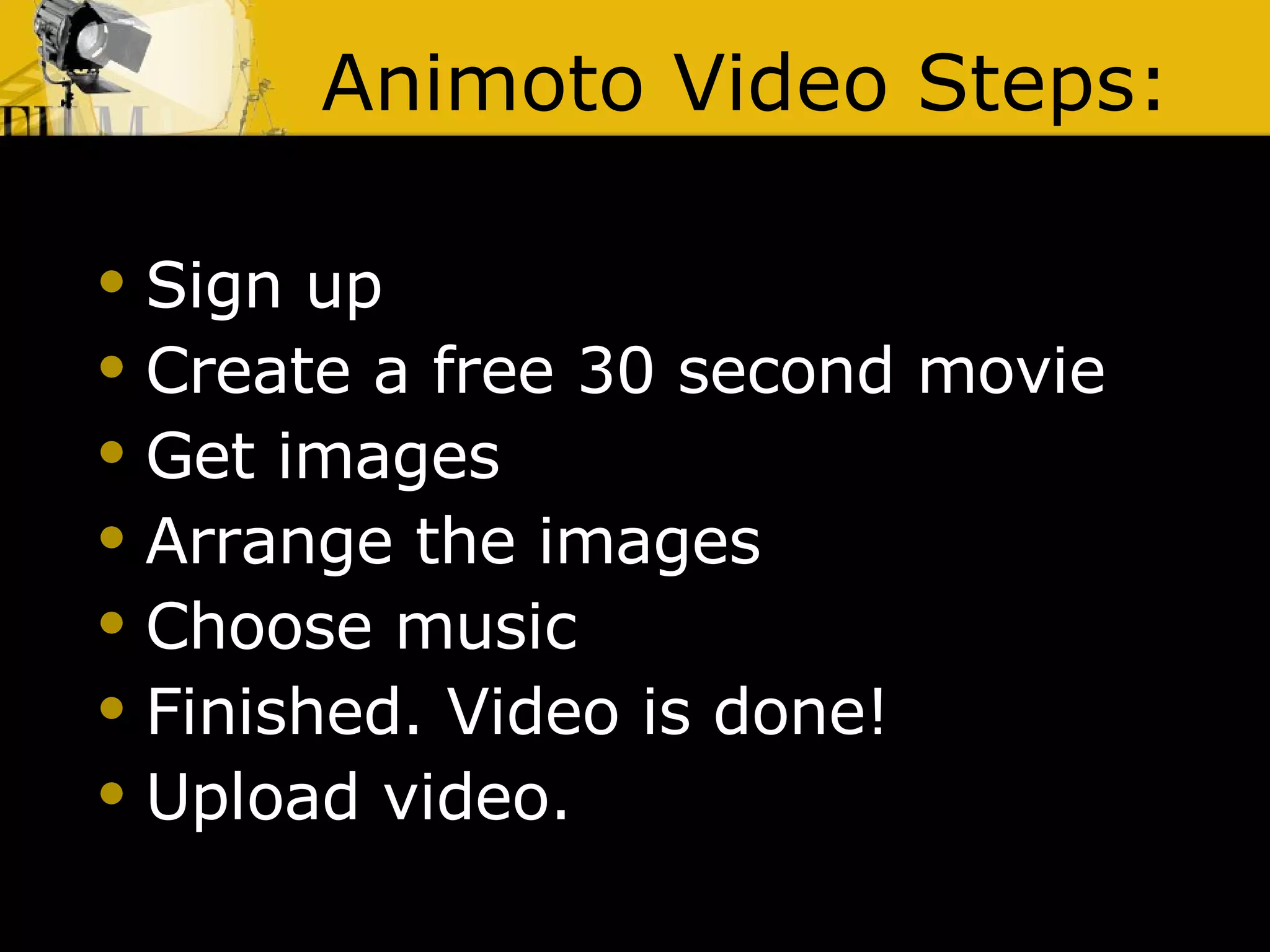
Animoto Video Steps: Sign up Create a free 30 second movie Get images Arrange the images Choose music Finished. Video is done! Upload video.
Where do I get Images for animoto? Retrieve images from Flickr. You can retrieve images from Flickr, Facebook, Smugmug, Picasa, and Photobucket. Or upload images from your computer
Where can I post animoto videos? You can post the videos to MySpace, Facebook, Friendster, YouTube,your blog or web page, or your computer.
Machinima Samples http://www.youtube.com/user/majenh http://piaklar.blip.tv/ http:// majenna.blogspot.com /

Machinima --How To in Second Life

  • 1.
  • 2.
    Overview Setting UserPreferences Shortcut Keys Using Camera Controls Recording Video Editing and Compressing Files Sharing videos
  • 3.
    #1: Setting UpUser Preferences
  • 4.
    Preference: Draw DistanceEdit/Preferences/Graphics Tab Then Check the Custom tab to open the settings Decrease Draw Distance is easier on computer (range is 64 - 512) Set Draw Distance to : 128 or lower Increase if: shooting overhead scenes of landscapes you need to see distant objects
  • 5.
    To Set DrawDistance
  • 6.
    To Set Draw Distance Check the “ Custom” box to open the menu
  • 7.
    To Set DrawDistance To increase draw Distance -slider to right
  • 8.
    Preferences: Mouse SensitivityEdit | Preferences |Input & Camera You can increase the mouse sensitivity. Also can invert the mouse so that when you move upwards it moves you up
  • 9.
  • 10.
    Preferences: Chat TextEdit/Preferences / Text Chat Under Chat Options : select checkbox “Close chat after hitting return”. When filming this will allow you to use the shortcut for Mouselook: M (otherwise, use View/Mouselook”. Use Escape key to get rid of Mouselook.
  • 11.
    How to CloseChat Window
  • 12.
    Advanced Menu PCCTRL-ALT-D Mac CMD-OPTION-Shift -D Or Option-Control-D
  • 13.
    For a PCHide/Show Advanced : CTRL – ALT- D For a Mac Hide/show Advanced: CMD – Option – D
  • 14.
    User Interface Toget rid of User Interface: Must have Advanced Menu displayed Hide/Show UI for PCs: CTRL-ALT-F1 Hide/Show UI for Macs: CMD-Option-1
  • 15.
    Mouselook and noUser Interface Mouselook Mode: Chat bar must be closed Edit/Preferences/Text Chat/Chat Options/ Close chat after hitting return Hit ESCAPE button or type M to return to default view Get rid of UI and Getting it back Again: CTRL-ALT-F1 –PCs CMD-OPT-F1 – MACs Now go into Mouselook---M Hit Escape or M to exit Mouselook, then get back UI CTRL-ALT-F1 or CMD-OPT-F1
  • 16.
  • 17.
    Shortcut Keys Musthave Chat Window Closed Edit/Preferences/Text Chat/ Chat Options/Close after hitting return M = mouselook Escape to get back... E = to jump up C = to come back down
  • 18.
    Shortcut Keys 1. Focus Mode/ Alt-Zoom: Hold down ALT key & left mouse button & move your mouse forward and backward 2. PAN your camera: Hold down ALT-CRTL-SHIFT keys (together) & drag your mouse on your own avatar 3. Go into ORBIT MODE Hold down ALT-CTRL keys 4. Chatcam: While chatting in a group, hold down the tab key—moves camera to shoulder of avatar speaking.
  • 19.
    More Shortcut KeysALT + clicking on something focuses it to center of screen ALT + dragging the mouse zooms the camera ATL-CTRL + dragging orbits camera CTRL- 0 – Zoom in CTRL- 8 ---- Zoom Out CTRL- 9 --- Reset Zoom If you are on a Mac: ALT = Opt CTRL = Cmd
  • 20.
  • 21.
  • 22.
  • 23.
    Setting Up Shotsusing Camera Control View/ Camera Controls + alt-zoom - moving mouse forward or backwards ) Open up our camera controls and use them to get a close up view of our av's face. Using left blue wheel on the camera control, use the left or right arrow to spin yourself around. Use the + sign at the top of the zoom bar to put yourself in the middle of the window---- a close up view. Can you see yourselves?
  • 24.
    Advanced/ DisableCamera Constraints This allows the camera to go farther
  • 25.
  • 26.
    Video Recording ProgramsFree CamStudio-PC Taski-PC WeGame.com -PC Capture Me-Mac Commercial PC Camtasia –$299 Fraps - $37 Game Cam –$25 Game Recorder –$39 Mac IShowU –$20 Snapz Pro X - $70
  • 27.
    Quick Overall SetWindow Size File menu --- Set window size to reduce file size – 640 x 480
  • 28.
    How to SetWindow Size
  • 29.
    Sizer canbe used to resize the window if you cannot use File/Set Window Size http://www.brianapps.net/sizer.html
  • 30.
    Quick Overall Getrid of User Interface (UI) For a PC Open Advanced menu: CTRL – ALT- D Hide/show interface: CTRL – ALT – F1
  • 31.
    Quick Overall Getrid of User Interface (UI) For a Mac Open Advanced menu: Option -Control– D Hide/Show Interface: CMD – Option – 1
  • 32.
    # 5: Editingand Compressing Video Files
  • 33.
    Editing After youcapture footage Need to edit into a finished movie Can use – Windows Movie Maker iMovie for Mac Other
  • 34.
    Some Editing SoftwareCamtasia – PC- Capturing and editing software good for tutorials Adobe Premiere-PC Sony Vegas-PC Sony Vegas – PC MovieMaker -PC Final Cut Pro or Express-Mac iMovie - Mac
  • 35.
    Rendering and EncodingAfter editing the video, now need to compress the video size. Many video editing software programs will do this as a flash, .avi or .mov file I save as an .avi file, then open that .avi file in Quicktime Pro to export as a .mov file Now ready to share
  • 36.
    Video Hosting SitesYouTube Blip.tv Jumpcut Vimeo Yahoo Videos YouAre.TV CacheFly.com
  • 37.
    Some Tips 1. Screen capture software------FRAPS http:// www.fraps.com 2. Dolly shots ----free scripted camera --- Alt-Zoom Studios http://alt-zoom.com 3. Try to isolate your action ----no extra objects or scripts in view 4. Mouselook Mode – smoother camera movements
  • 38.
    Tips 5. Capturefootage --- 640 X 480 ---has a higher quality 6. Capture extra frames in front of and at end of scene 7. Do not move camera too fast 8. Hide User Interface –UI — CTRL+ALT+F1 or CMD-OPT-F1
  • 39.
    How to CaptureVideo Using FRAPs
  • 40.
  • 41.
  • 42.
  • 43.
  • 44.
  • 45.
  • 46.
    How to createa video with images http:// majenna.blogspot.com / I used this online video tool. Here is an example on my blog. Animoto.com
  • 47.
    How long areanimoto videos? Free Animoto Shorts 30 seconds long about 12-15 images Animoto full-length many images Cost $3.00
  • 48.
    Animoto Video Steps:Sign up Create a free 30 second movie Get images Arrange the images Choose music Finished. Video is done! Upload video.
  • 49.
    Where do Iget Images for animoto? Retrieve images from Flickr. You can retrieve images from Flickr, Facebook, Smugmug, Picasa, and Photobucket. Or upload images from your computer
  • 50.
    Where can Ipost animoto videos? You can post the videos to MySpace, Facebook, Friendster, YouTube,your blog or web page, or your computer.
  • 51.
    Machinima Samples http://www.youtube.com/user/majenhhttp://piaklar.blip.tv/ http:// majenna.blogspot.com /