We're using bodies
evolvedfor hunting,
gathering, and gratuitous
violence for information-
age tasks like word
processing and
spreadsheet tweaking.
—David Liddle
11.
We’re in themidst
of an interaction
design revolution.
What we’re going
totalk about
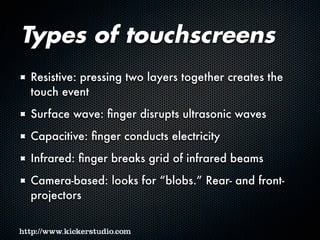
Sensors and touchscreen types
Kinesiology and physiology
Touch targets
Communicating
Choosing appropriate gestures
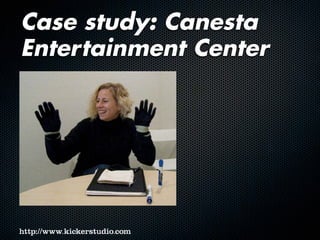
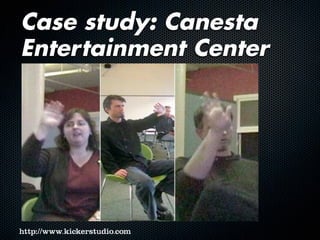
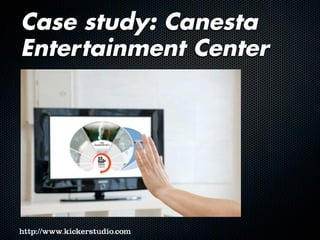
Case study: Canesta Entertainment Center
14.
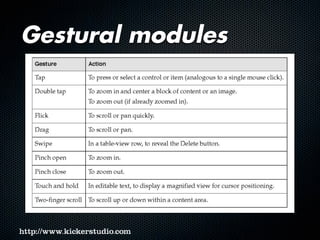
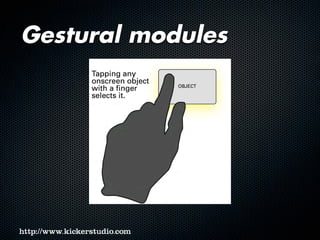
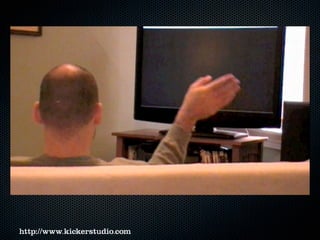
Gesture: any physical
movementthat can be
sensed and responded to
by a digital system
without the aid of a
traditional input device
such as a mouse or stylus.
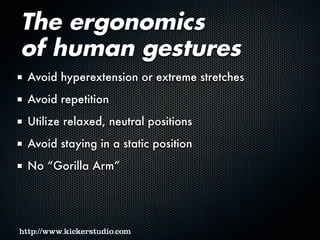
The ergonomics
of humangestures
Avoid hyperextension or extreme stretches
Avoid repetition
Utilize relaxed, neutral positions
Avoid staying in a static position
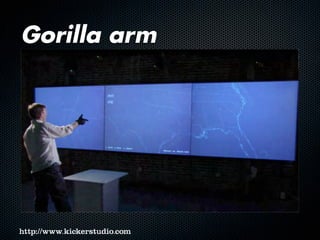
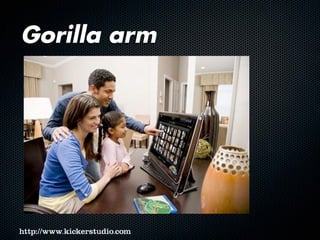
No “Gorilla Arm”
30.
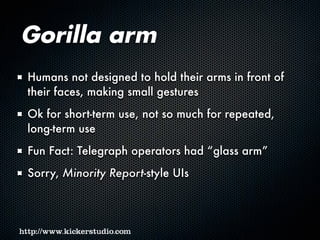
Gorilla arm
Humans notdesigned to hold their arms in front of
their faces, making small gestures
Ok for short-term use, not so much for repeated,
long-term use
Fun Fact: Telegraph operators had “glass arm”
Sorry, Minority Report-style UIs
The more challengingand
complicated the gesture,
the fewer people who will
be able to perform it.
35.
What about
accessibility?
No good,clear answer
Improving via addition of haptics (and hopefully,
eventually, speech)
Some touchscreen systems much better than
traditional WIMP systems
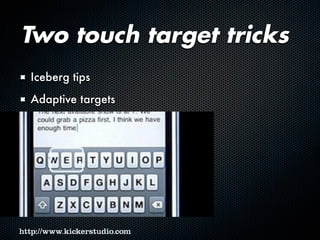
Special care when designing touch targets
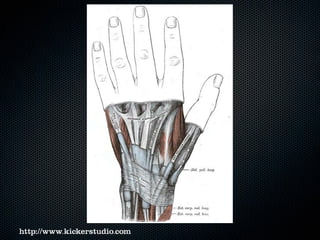
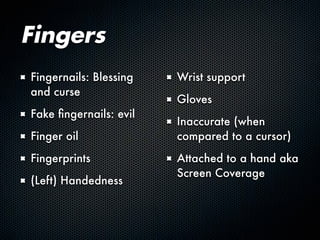
Fingers
Fingernails: Blessing
and curse
Fakefingernails: evil
Finger oil
Fingerprints
(Left) Handedness
Wrist support
Gloves
Inaccurate (when
compared to a cursor)
Attached to a hand aka
Screen Coverage
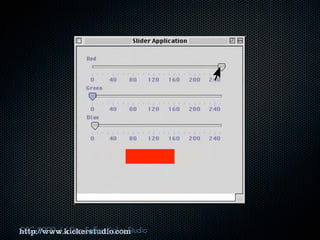
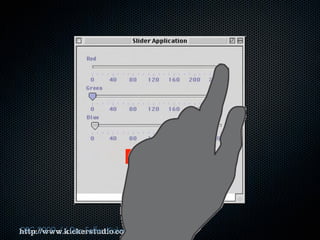
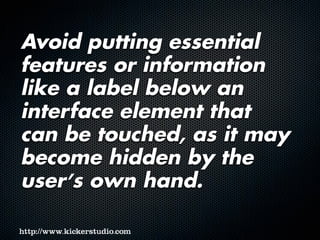
Avoid putting essential
featuresor information
like a label below an
interface element that
can be touched, as it may
become hidden by the
user’s own hand.
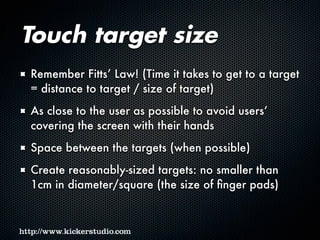
Touch target size
RememberFitts’ Law! (Time it takes to get to a target
= distance to target / size of target)
As close to the user as possible to avoid users’
covering the screen with their hands
Space between the targets (when possible)
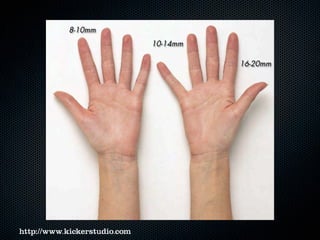
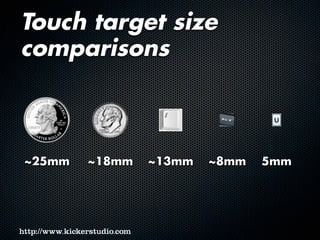
Create reasonably-sized targets: no smaller than
1cm in diameter/square (the size of finger pads)
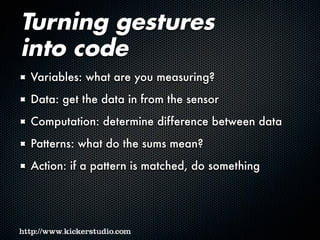
Turning gestures
into code
Variables:what are you measuring?
Data: get the data in from the sensor
Computation: determine difference between data
Patterns: what do the sums mean?
Action: if a pattern is matched, do something
Architectural
wireframes
“Master UI” “IndividualUI”
Run by presenter
Live Touchscreen
Projection Area
Used by show attendees
[floor]
[ showing typical arm’s reach for 6’ tall user ] [ showing typical arm’s reach for 6’ tall user ]
touchscreenoverview
[floor]
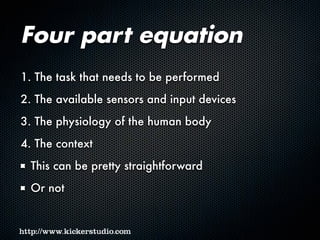
Four part equation
1.The task that needs to be performed
2. The available sensors and input devices
3. The physiology of the human body
4. The context
This can be pretty straightforward
Or not
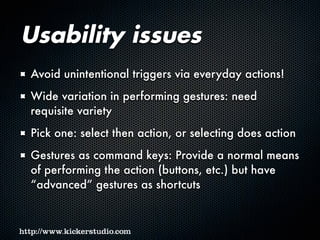
Usability issues
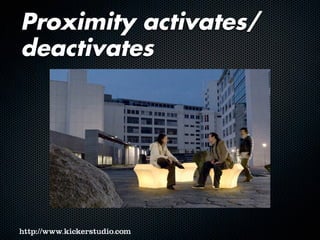
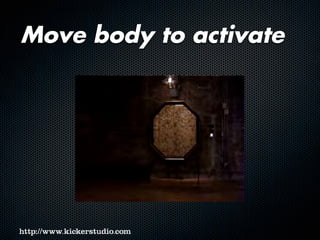
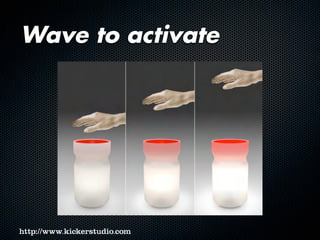
Avoid unintentionaltriggers via everyday actions!
Wide variation in performing gestures: need
requisite variety
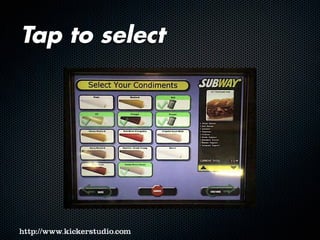
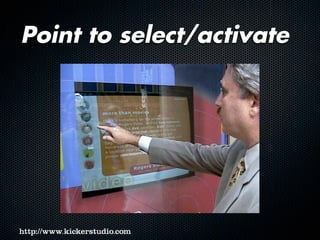
Pick one: select then action, or selecting does action
Gestures as command keys: Provide a normal means
of performing the action (buttons, etc.) but have
“advanced” gestures as shortcuts




![Architectural
wireframes
“Master UI” “Individual UI”
Run by presenter
Live Touchscreen
Projection Area
Used by show attendees
[floor]
[ showing typical arm’s reach for 6’ tall user ] [ showing typical arm’s reach for 6’ tall user ]
touchscreenoverview
[floor]](https://image.slidesharecdn.com/tapisthenewclick-091113125811-phpapp01/85/Tap-is-the-New-Click-77-320.jpg)