Getting the most out of
your iPad
Daily notices

•

Open Safari

•

In the address bar type
Paduaintranet

•

At home use:
http://paduaintranet.padua.qld.edu.au

•

Enter your Padua username and Password

•

Save this as a Bookmark
Blackboard
•

Open safari

•

Type the address padua.blackboard.com

•

Save as a bookmark

•

Click on the Forgot Your Password link under the
password box

•

Filling the details in option 1 ONLY

•

Click on submit
•

Go to your email and open the one from Mrs
Anderson

•

Click on the long blue link

•

Set your password (keep it the same as your
Padua password)

•

Go back to the login screen and login
Citrix Receiver
https://citrix.padua.qld.edu.au
Manual setup
Description – your name
iCloud
•

Go to SETTINGS, iCLOUD

•

Sign in with your Apple ID details

•

Go to storage and backup in your account and make
sure iCloud backup is turned on

•

Go through your list of apps and make sure iCloud
backup is turned on for Pages, Keynote, iMovie

•

Make sure that you go back to your account at home
and check the last backup
iBooks
•

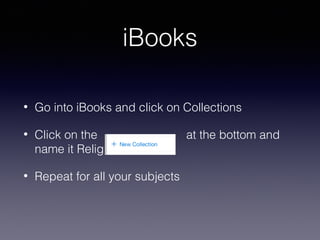
Go into iBooks and click on Collections

•

Click on the
name it Religion

•

Repeat for all your subjects

at the bottom and
Creating folders
•

To create folders of apps, touch one app until it
wiggles

•

Drag it on top of another app

•

Name the folder appropriately eg Creativity

•

Continue until your apps are in folders
Spotlight search (where did I
put it?)
•

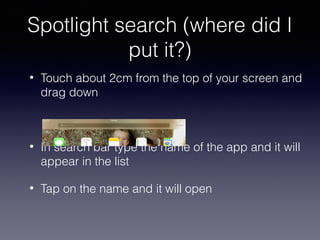
Touch about 2cm from the top of your screen and
drag down

•

In search bar type the name of the app and it will
appear in the list

•

Tap on the name and it will open
My iPad is frozen �
•

You need to do a 'hard reset'

•

Hold down the home button and sleep/wake
button at the same time until the apple appears

•

Everyone try it
Screen shots
•

Hold the home button and sleep/wake button at
the same time and let go quickly

•

Check your photos to see if it worked!
Tips for photo and videos
•

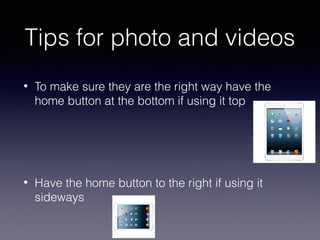
To make sure they are the right way have the
home button at the bottom if using it top

•

Have the home button to the right if using it
sideways
Saving images from the internet
(and referencing them!)
•

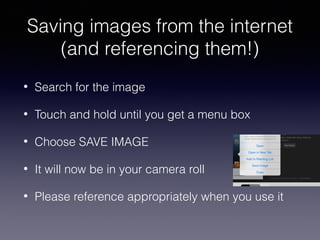
Search for the image

•

Touch and hold until you get a menu box

•

Choose SAVE IMAGE

•

It will now be in your camera roll

•

Please reference appropriately when you use it

Introducing the i pad

  • 1.
    Getting the mostout of your iPad
  • 2.
    Daily notices • Open Safari • Inthe address bar type Paduaintranet • At home use: http://paduaintranet.padua.qld.edu.au • Enter your Padua username and Password • Save this as a Bookmark
  • 3.
    Blackboard • Open safari • Type theaddress padua.blackboard.com • Save as a bookmark • Click on the Forgot Your Password link under the password box • Filling the details in option 1 ONLY • Click on submit
  • 4.
    • Go to youremail and open the one from Mrs Anderson • Click on the long blue link • Set your password (keep it the same as your Padua password) • Go back to the login screen and login
  • 5.
  • 6.
    iCloud • Go to SETTINGS,iCLOUD • Sign in with your Apple ID details • Go to storage and backup in your account and make sure iCloud backup is turned on • Go through your list of apps and make sure iCloud backup is turned on for Pages, Keynote, iMovie • Make sure that you go back to your account at home and check the last backup
  • 7.
    iBooks • Go into iBooksand click on Collections • Click on the name it Religion • Repeat for all your subjects at the bottom and
  • 8.
    Creating folders • To createfolders of apps, touch one app until it wiggles • Drag it on top of another app • Name the folder appropriately eg Creativity • Continue until your apps are in folders
  • 9.
    Spotlight search (wheredid I put it?) • Touch about 2cm from the top of your screen and drag down • In search bar type the name of the app and it will appear in the list • Tap on the name and it will open
  • 10.
    My iPad isfrozen � • You need to do a 'hard reset' • Hold down the home button and sleep/wake button at the same time until the apple appears • Everyone try it
  • 11.
    Screen shots • Hold thehome button and sleep/wake button at the same time and let go quickly • Check your photos to see if it worked!
  • 12.
    Tips for photoand videos • To make sure they are the right way have the home button at the bottom if using it top • Have the home button to the right if using it sideways
  • 13.
    Saving images fromthe internet (and referencing them!) • Search for the image • Touch and hold until you get a menu box • Choose SAVE IMAGE • It will now be in your camera roll • Please reference appropriately when you use it