iPad Academy for Beginners 
Martin Cisneros 
Academic Technology Specialist 
mcisneros@sccoe.org
Day 1 Day 2 Day 3 
Communication & Collaboration Curation & Creation Tools 
Tools 
Getting to Know Your iPad & 
Productivity Tools 
IPAD ACADEMY AGENDA 
Join us as we hosts iPad Academy for the Beginner! Integrating iPads into your curriculum is easier than ever - it's just about 
knowing where to start and how to find the good stuff! In our sessions, we will start with the basics, then move on to how it 
can improve your productivity and effectively improve student learning. Each session will focus on one particular area. You'll 
be shown how to use the apps in practical ways at a pace that is right for you! You can feel comfortable knowing that when 
you walk away from this academy, you will be armed with a toolbox of resources and skills to help foster creativity and 
increase student learning. Look forward to an Advanced iPad Academy in Spring 2015!
GET THE PRESO @ bit.ly/iPadAB 
bit.ly/iPadAB
THE BASICS 
‣ Using the Notification 
Center 
‣ Twitter, Facebook, 
Flickr, and Vimeo 
integration 
‣ Setting up an Apple ID 
with your iOS device 
‣ Customizing your 
wallpaper 
‣ Multitasking 
‣ Sharing files with 
AirDrop 
‣ A tour of the device 
‣ The Lock and Home 
screens 
‣ Accessing and using 
Control Center 
‣ Choosing and 
controlling your sounds 
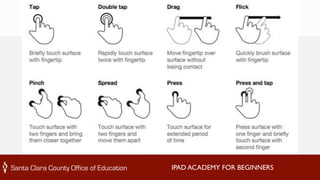
‣ Learning finger 
gestures 
‣ Connecting to Wi-Fi 
networks
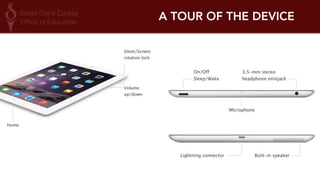
A TOUR OF THE DEVICE
IPAD ACADEMY FOR BEGINNERS
Lock & Home Button 
IPAD ACADEMY FOR BEGINNERS 
‣ The Home button is on the front of the 
iPad. Its primary purpose is to 
immediately get you back to your home 
screen. Now, when your screen is locked, 
as it currently is here. Pressing the Home 
button is like pressing the sleep/wake 
button. It activates your screen. But you 
still have to slide your finger across the 
screen from left to right to unlock the 
iPad. So this is the home screen of the 
iPad, where you can access the various 
functions and apps that are available.
CONNECTING TO WIFI NETWORKS 
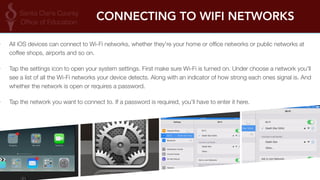
‣ All iOS devices can connect to Wi-Fi networks, whether they're your home or office networks or public networks at 
coffee shops, airports and so on. 
‣ Tap the settings icon to open your system settings. First make sure Wi-Fi is turned on. Under choose a network you'll 
see a list of all the Wi-Fi networks your device detects. Along with an indicator of how strong each ones signal is. And 
whether the network is open or requires a password. 
‣ Tap the network you want to connect to. If a password is required, you'll have to enter it here.
CONTROL CENTER 
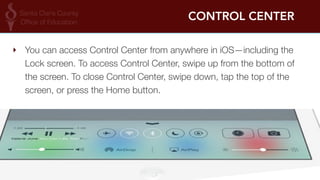
‣ You can access Control Center from anywhere in iOS—including the 
Lock screen. To access Control Center, swipe up from the bottom of 
the screen. To close Control Center, swipe down, tap the top of the 
screen, or press the Home button.
NOTIFICATION CENTER 
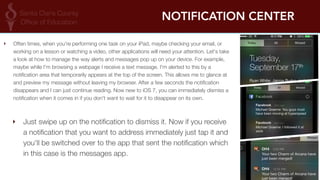
‣ Often times, when you're performing one task on your iPad, maybe checking your email, or 
working on a lesson or watching a video, other applications will need your attention. Let's take 
a look at how to manage the way alerts and messages pop up on your device. For example, 
maybe while I'm browsing a webpage I receive a text message. I'm alerted to this by a 
notification area that temporarily appears at the top of the screen. This allows me to glance at 
and preview my message without leaving my browser. After a few seconds the notification 
disappears and I can just continue reading. Now new to iOS 7, you can immediately dismiss a 
notification when it comes in if you don't want to wait for it to disappear on its own. 
‣ Just swipe up on the notification to dismiss it. Now if you receive 
a notification that you want to address immediately just tap it and 
you'll be switched over to the app that sent the notification which 
in this case is the messages app.
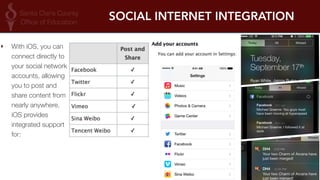
SOCIAL INTERNET INTEGRATION 
‣ With iOS, you can 
connect directly to 
your social network 
accounts, allowing 
you to post and 
share content from 
nearly anywhere. 
iOS provides 
integrated support 
for:
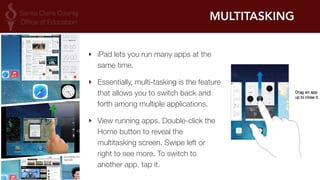
MULTITASKING 
‣ iPad lets you run many apps at the 
same time. 
‣ Essentially, multi-tasking is the feature 
that allows you to switch back and 
forth among multiple applications. 
‣ View running apps. Double-click the 
Home button to reveal the 
multitasking screen. Swipe left or 
right to see more. To switch to 
another app, tap it.
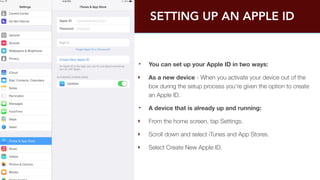
SETTING UP AN APPLE ID 
‣ You can set up your Apple ID in two ways: 
‣ As a new device - When you activate your device out of the 
box during the setup process you're given the option to create 
an Apple ID. 
‣ A device that is already up and running: 
‣ From the home screen, tap Settings. 
‣ Scroll down and select iTunes and App Stores. 
‣ Select Create New Apple ID.
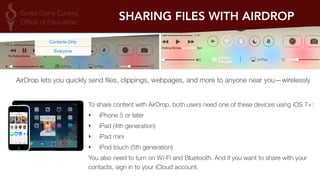
SHARING FILES WITH AIRDROP 
AirDrop lets you quickly send files, clippings, webpages, and more to anyone near you—wirelessly 
To share content with AirDrop, both users need one of these devices using iOS 7+: 
‣ iPhone 5 or later 
‣ iPad (4th generation) 
‣ iPad mini 
‣ iPod touch (5th generation) 
You also need to turn on Wi-Fi and Bluetooth. And if you want to share with your 
contacts, sign in to your iCloud account.
IPAD ACADEMY FOR BEGINNERS 
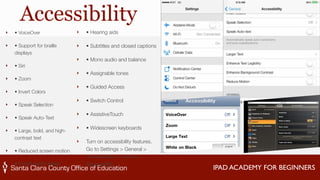
Accessibility 
‣ • VoiceOver 
‣ • Support for braille 
displays 
‣ • Siri 
‣ • Zoom 
‣ • Invert Colors 
‣ • Speak Selection 
‣ • Speak Auto-Text 
‣ • Large, bold, and high-contrast 
text 
‣ • Reduced screen motion 
‣ • On/off switch labels 
‣ • Hearing aids 
‣ • Subtitles and closed captions 
‣ • Mono audio and balance 
‣ • Assignable tones 
‣ • Guided Access 
‣ • Switch Control 
‣ • AssistiveTouch 
‣ • Widescreen keyboards 
‣ Turn on accessibility features. 
Go to Settings > General > 
Accessibility, or use the 
Accessibility
IPAD ACADEMY FOR BEGINNERS 
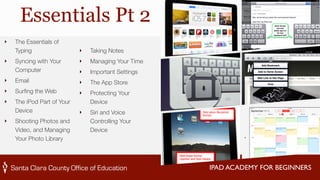
Essentials Pt 2 
‣ Taking Notes 
‣ Managing Your Time 
‣ Important Settings 
‣ The App Store 
‣ Protecting Your 
Device 
‣ Siri and Voice 
Controlling Your 
Device 
‣ The Essentials of 
Typing 
‣ Syncing with Your 
Computer 
‣ Email 
‣ Surfing the Web 
‣ The iPod Part of Your 
Device 
‣ Shooting Photos and 
Video, and Managing 
Your Photo Library
IPAD ACADEMY FOR BEGINNERS 
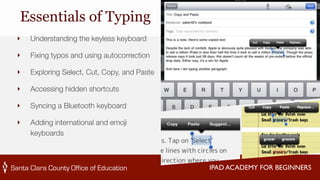
Essentials of Typing 
‣ Understanding the keyless keyboard 
‣ Fixing typos and using autocorrection 
‣ Exploring Select, Cut, Copy, and Paste 
‣ Accessing hidden shortcuts 
‣ Syncing a Bluetooth keyboard 
‣ Adding international and emoji 
keyboards
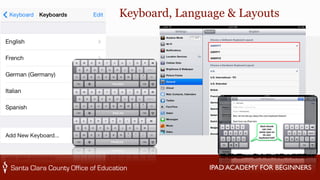
Keyboard, Language & Layouts 
IPAD ACADEMY FOR BEGINNERS
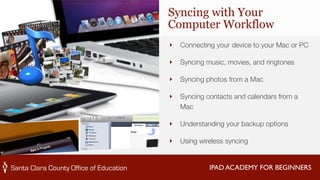
Syncing with Your 
Computer Workflow 
‣ Connecting your device to your Mac or PC 
‣ Syncing music, movies, and ringtones 
‣ Syncing photos from a Mac 
‣ Syncing contacts and calendars from a 
IPAD ACADEMY FOR BEGINNERS 
Mac 
‣ Understanding your backup options 
‣ Using wireless syncing
IPAD ACADEMY FOR BEGINNERS 
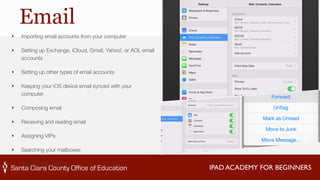
Email 
‣ Importing email accounts from your computer 
‣ Setting up Exchange, iCloud, Gmail, Yahoo!, or AOL email 
accounts 
‣ Setting up other types of email accounts 
‣ Keeping your iOS device email synced with your 
computer 
‣ Composing email 
‣ Receiving and reading email 
‣ Assigning VIPs 
‣ Searching your mailboxes 
‣ Setting mail options
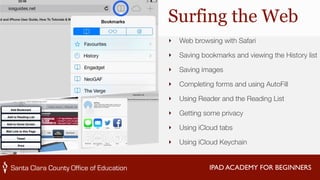
Surfing the Web 
‣ Web browsing with Safari 
‣ Saving bookmarks and viewing the History list 
‣ Saving images 
‣ Completing forms and using AutoFill 
‣ Using Reader and the Reading List 
‣ Getting some privacy 
‣ Using iCloud tabs 
‣ Using iCloud Keychain 
IPAD ACADEMY FOR BEGINNERS
IPAD ACADEMY FOR BEGINNERS 
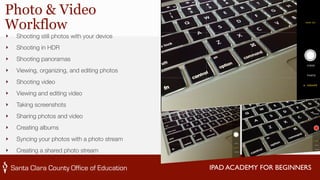
Photo & Video 
Workflow 
‣ Shooting still photos with your device 
‣ Shooting in HDR 
‣ Shooting panoramas 
‣ Viewing, organizing, and editing photos 
‣ Shooting video 
‣ Viewing and editing video 
‣ Taking screenshots 
‣ Sharing photos and video 
‣ Creating albums 
‣ Syncing your photos with a photo stream 
‣ Creating a shared photo stream
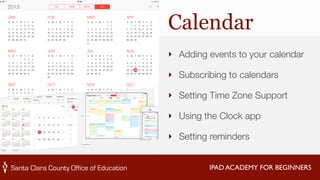
Calendar 
‣ Adding events to your calendar 
‣ Subscribing to calendars 
‣ Setting Time Zone Support 
‣ Using the Clock app 
‣ Setting reminders 
IPAD ACADEMY FOR BEGINNERS
IPAD ACADEMY FOR BEGINNERS 
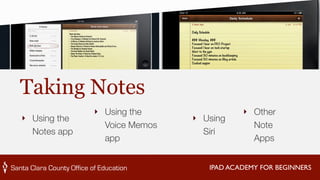
Taking Notes 
‣ Using the 
Notes app 
‣ Using the 
Voice Memos 
app 
‣ Using 
Siri 
‣ Other 
Note 
Apps
IPAD ACADEMY FOR BEGINNERS 
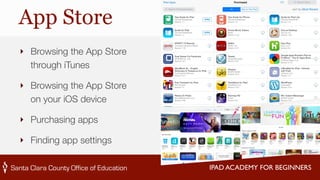
App Store 
‣ Browsing the App Store 
through iTunes 
‣ Browsing the App Store 
on your iOS device 
‣ Purchasing apps 
‣ Finding app settings
IPAD ACADEMY FOR BEGINNERS 
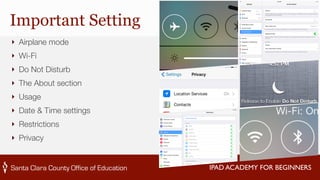
Important Setting 
‣ Airplane mode 
‣ Wi-Fi 
‣ Do Not Disturb 
‣ The About section 
‣ Usage 
‣ Date & Time settings 
‣ Restrictions 
‣ Privacy
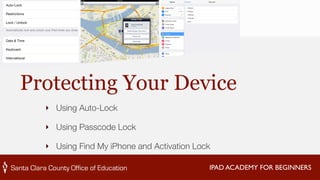
Protecting Your Device 
‣ Using Auto-Lock 
‣ Using Passcode Lock 
‣ Using Find My iPhone and Activation Lock 
IPAD ACADEMY FOR BEGINNERS
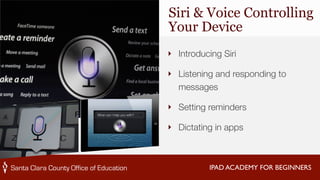
Siri & Voice Controlling 
Your Device 
‣ Introducing Siri 
‣ Listening and responding to 
messages 
‣ Setting reminders 
‣ Dictating in apps 
IPAD ACADEMY FOR BEGINNERS
IPAD ACADEMY FOR BEGINNERS 
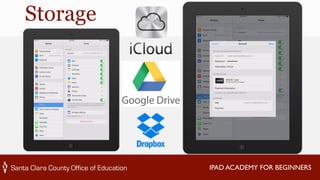
Storage
IPAD ACADEMY FOR BEGINNERS 
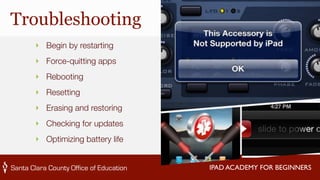
Troubleshooting 
‣ Begin by restarting 
‣ Force-quitting apps 
‣ Rebooting 
‣ Resetting 
‣ Erasing and restoring 
‣ Checking for updates 
‣ Optimizing battery life
QUESTION TIME
IPAD ACADEMY FOR BEGINNERS 
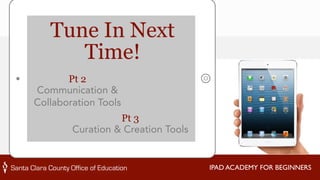
Tune In Next 
Time! 
Pt 2 
Communication & 
Collaboration Tools 
Pt 3 
Curation & Creation Tools
IPAD ACADEMY FOR BEGINNERS
34 
MART I N 
RICARDO 
CISNEROS 
ACADEMIC 
T ECHNOLOGY 
SPECIAL I ST 
! 
E: 
mcisneros@sccoe.org 
Web: 
sccoe.org/edtech 
G+: 
google.@TheTechProfe com/+MarHnCisneros 
@sccoetech 
iPad 
Academy 
for 
Beginners

iPad Academy for Beginners

  • 1.
    iPad Academy forBeginners Martin Cisneros Academic Technology Specialist mcisneros@sccoe.org
  • 2.
    Day 1 Day2 Day 3 Communication & Collaboration Curation & Creation Tools Tools Getting to Know Your iPad & Productivity Tools IPAD ACADEMY AGENDA Join us as we hosts iPad Academy for the Beginner! Integrating iPads into your curriculum is easier than ever - it's just about knowing where to start and how to find the good stuff! In our sessions, we will start with the basics, then move on to how it can improve your productivity and effectively improve student learning. Each session will focus on one particular area. You'll be shown how to use the apps in practical ways at a pace that is right for you! You can feel comfortable knowing that when you walk away from this academy, you will be armed with a toolbox of resources and skills to help foster creativity and increase student learning. Look forward to an Advanced iPad Academy in Spring 2015!
  • 3.
    GET THE PRESO@ bit.ly/iPadAB bit.ly/iPadAB
  • 4.
    THE BASICS ‣Using the Notification Center ‣ Twitter, Facebook, Flickr, and Vimeo integration ‣ Setting up an Apple ID with your iOS device ‣ Customizing your wallpaper ‣ Multitasking ‣ Sharing files with AirDrop ‣ A tour of the device ‣ The Lock and Home screens ‣ Accessing and using Control Center ‣ Choosing and controlling your sounds ‣ Learning finger gestures ‣ Connecting to Wi-Fi networks
  • 5.
    A TOUR OFTHE DEVICE
  • 6.
  • 7.
    Lock & HomeButton IPAD ACADEMY FOR BEGINNERS ‣ The Home button is on the front of the iPad. Its primary purpose is to immediately get you back to your home screen. Now, when your screen is locked, as it currently is here. Pressing the Home button is like pressing the sleep/wake button. It activates your screen. But you still have to slide your finger across the screen from left to right to unlock the iPad. So this is the home screen of the iPad, where you can access the various functions and apps that are available.
  • 8.
    CONNECTING TO WIFINETWORKS ‣ All iOS devices can connect to Wi-Fi networks, whether they're your home or office networks or public networks at coffee shops, airports and so on. ‣ Tap the settings icon to open your system settings. First make sure Wi-Fi is turned on. Under choose a network you'll see a list of all the Wi-Fi networks your device detects. Along with an indicator of how strong each ones signal is. And whether the network is open or requires a password. ‣ Tap the network you want to connect to. If a password is required, you'll have to enter it here.
  • 9.
    CONTROL CENTER ‣You can access Control Center from anywhere in iOS—including the Lock screen. To access Control Center, swipe up from the bottom of the screen. To close Control Center, swipe down, tap the top of the screen, or press the Home button.
  • 10.
    NOTIFICATION CENTER ‣Often times, when you're performing one task on your iPad, maybe checking your email, or working on a lesson or watching a video, other applications will need your attention. Let's take a look at how to manage the way alerts and messages pop up on your device. For example, maybe while I'm browsing a webpage I receive a text message. I'm alerted to this by a notification area that temporarily appears at the top of the screen. This allows me to glance at and preview my message without leaving my browser. After a few seconds the notification disappears and I can just continue reading. Now new to iOS 7, you can immediately dismiss a notification when it comes in if you don't want to wait for it to disappear on its own. ‣ Just swipe up on the notification to dismiss it. Now if you receive a notification that you want to address immediately just tap it and you'll be switched over to the app that sent the notification which in this case is the messages app.
  • 11.
    SOCIAL INTERNET INTEGRATION ‣ With iOS, you can connect directly to your social network accounts, allowing you to post and share content from nearly anywhere. iOS provides integrated support for:
  • 12.
    MULTITASKING ‣ iPadlets you run many apps at the same time. ‣ Essentially, multi-tasking is the feature that allows you to switch back and forth among multiple applications. ‣ View running apps. Double-click the Home button to reveal the multitasking screen. Swipe left or right to see more. To switch to another app, tap it.
  • 13.
    SETTING UP ANAPPLE ID ‣ You can set up your Apple ID in two ways: ‣ As a new device - When you activate your device out of the box during the setup process you're given the option to create an Apple ID. ‣ A device that is already up and running: ‣ From the home screen, tap Settings. ‣ Scroll down and select iTunes and App Stores. ‣ Select Create New Apple ID.
  • 14.
    SHARING FILES WITHAIRDROP AirDrop lets you quickly send files, clippings, webpages, and more to anyone near you—wirelessly To share content with AirDrop, both users need one of these devices using iOS 7+: ‣ iPhone 5 or later ‣ iPad (4th generation) ‣ iPad mini ‣ iPod touch (5th generation) You also need to turn on Wi-Fi and Bluetooth. And if you want to share with your contacts, sign in to your iCloud account.
  • 15.
    IPAD ACADEMY FORBEGINNERS Accessibility ‣ • VoiceOver ‣ • Support for braille displays ‣ • Siri ‣ • Zoom ‣ • Invert Colors ‣ • Speak Selection ‣ • Speak Auto-Text ‣ • Large, bold, and high-contrast text ‣ • Reduced screen motion ‣ • On/off switch labels ‣ • Hearing aids ‣ • Subtitles and closed captions ‣ • Mono audio and balance ‣ • Assignable tones ‣ • Guided Access ‣ • Switch Control ‣ • AssistiveTouch ‣ • Widescreen keyboards ‣ Turn on accessibility features. Go to Settings > General > Accessibility, or use the Accessibility
  • 16.
    IPAD ACADEMY FORBEGINNERS Essentials Pt 2 ‣ Taking Notes ‣ Managing Your Time ‣ Important Settings ‣ The App Store ‣ Protecting Your Device ‣ Siri and Voice Controlling Your Device ‣ The Essentials of Typing ‣ Syncing with Your Computer ‣ Email ‣ Surfing the Web ‣ The iPod Part of Your Device ‣ Shooting Photos and Video, and Managing Your Photo Library
  • 17.
    IPAD ACADEMY FORBEGINNERS Essentials of Typing ‣ Understanding the keyless keyboard ‣ Fixing typos and using autocorrection ‣ Exploring Select, Cut, Copy, and Paste ‣ Accessing hidden shortcuts ‣ Syncing a Bluetooth keyboard ‣ Adding international and emoji keyboards
  • 18.
    Keyboard, Language &Layouts IPAD ACADEMY FOR BEGINNERS
  • 19.
    Syncing with Your Computer Workflow ‣ Connecting your device to your Mac or PC ‣ Syncing music, movies, and ringtones ‣ Syncing photos from a Mac ‣ Syncing contacts and calendars from a IPAD ACADEMY FOR BEGINNERS Mac ‣ Understanding your backup options ‣ Using wireless syncing
  • 20.
    IPAD ACADEMY FORBEGINNERS Email ‣ Importing email accounts from your computer ‣ Setting up Exchange, iCloud, Gmail, Yahoo!, or AOL email accounts ‣ Setting up other types of email accounts ‣ Keeping your iOS device email synced with your computer ‣ Composing email ‣ Receiving and reading email ‣ Assigning VIPs ‣ Searching your mailboxes ‣ Setting mail options
  • 21.
    Surfing the Web ‣ Web browsing with Safari ‣ Saving bookmarks and viewing the History list ‣ Saving images ‣ Completing forms and using AutoFill ‣ Using Reader and the Reading List ‣ Getting some privacy ‣ Using iCloud tabs ‣ Using iCloud Keychain IPAD ACADEMY FOR BEGINNERS
  • 22.
    IPAD ACADEMY FORBEGINNERS Photo & Video Workflow ‣ Shooting still photos with your device ‣ Shooting in HDR ‣ Shooting panoramas ‣ Viewing, organizing, and editing photos ‣ Shooting video ‣ Viewing and editing video ‣ Taking screenshots ‣ Sharing photos and video ‣ Creating albums ‣ Syncing your photos with a photo stream ‣ Creating a shared photo stream
  • 23.
    Calendar ‣ Addingevents to your calendar ‣ Subscribing to calendars ‣ Setting Time Zone Support ‣ Using the Clock app ‣ Setting reminders IPAD ACADEMY FOR BEGINNERS
  • 24.
    IPAD ACADEMY FORBEGINNERS Taking Notes ‣ Using the Notes app ‣ Using the Voice Memos app ‣ Using Siri ‣ Other Note Apps
  • 25.
    IPAD ACADEMY FORBEGINNERS App Store ‣ Browsing the App Store through iTunes ‣ Browsing the App Store on your iOS device ‣ Purchasing apps ‣ Finding app settings
  • 26.
    IPAD ACADEMY FORBEGINNERS Important Setting ‣ Airplane mode ‣ Wi-Fi ‣ Do Not Disturb ‣ The About section ‣ Usage ‣ Date & Time settings ‣ Restrictions ‣ Privacy
  • 27.
    Protecting Your Device ‣ Using Auto-Lock ‣ Using Passcode Lock ‣ Using Find My iPhone and Activation Lock IPAD ACADEMY FOR BEGINNERS
  • 28.
    Siri & VoiceControlling Your Device ‣ Introducing Siri ‣ Listening and responding to messages ‣ Setting reminders ‣ Dictating in apps IPAD ACADEMY FOR BEGINNERS
  • 29.
    IPAD ACADEMY FORBEGINNERS Storage
  • 30.
    IPAD ACADEMY FORBEGINNERS Troubleshooting ‣ Begin by restarting ‣ Force-quitting apps ‣ Rebooting ‣ Resetting ‣ Erasing and restoring ‣ Checking for updates ‣ Optimizing battery life
  • 31.
  • 32.
    IPAD ACADEMY FORBEGINNERS Tune In Next Time! Pt 2 Communication & Collaboration Tools Pt 3 Curation & Creation Tools
  • 33.
  • 34.
    34 MART IN RICARDO CISNEROS ACADEMIC T ECHNOLOGY SPECIAL I ST ! E: mcisneros@sccoe.org Web: sccoe.org/edtech G+: google.@TheTechProfe com/+MarHnCisneros @sccoetech iPad Academy for Beginners