Technology at tutorials
A look at the practical and possible in terms of using
technology at tutorial venues. Some hints and tips to lift the
veil on the mysterious world of PCs and projectors and the
Internet in study centres the length and breadth of R13

Nigel Gibson – 16/06/12
What I’m going to cover
• Some thoughts on using technology in tutorials
• Some ideas on how to make sure that you are
  prepared


                        Technology at tutorials    2
What I’m not going to cover
• How to make a perfect omelette (but I can offer some
  tips)
• How to get new/different technologies available in
  venues
• How to turn on the projector in room NT06 at
  Canterbury Christ Church University


                        Technology at tutorials          3
• So who are you? What are you
  here for?


 Technology at tutorials         4
Process (in R13)
• Book your kit well in advance (as early as possible!)
• Any passwords will be in the room allocation email
• If you have any problems with the kit at the venue let
  Trudi Turner (AL Services) know and she will feed it
  back


                         Technology at tutorials           5
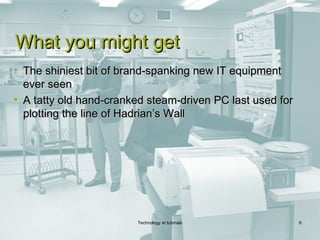
What you might get
• The shiniest bit of brand-spanking new IT equipment
  ever seen
• A tatty old hand-cranked steam-driven PC last used for
  plotting the line of Hadrian’s Wall


                        Technology at tutorials            6
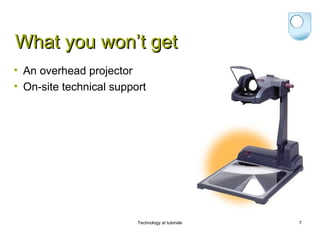
What you won’t get
• An overhead projector
• On-site technical support


                         Technology at tutorials   7
Smartboards


• There are a few sites which have them
• There is a wide range of kit
• In some sites there are instructions – but not all


                          Technology at tutorials      8
What you can’t rely on
• Anything!
• Don’t assume that there will be an optical drive
• Always assume that any wireless connection will fail


                         Technology at tutorials         9
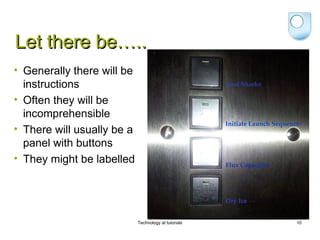
Let there be…..
• Generally there will be
  instructions
• Often they will be
  incomprehensible
• There will usually be a
  panel with buttons
• They might be labelled


                            Technology at tutorials   10
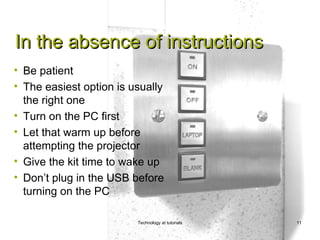
In the absence of instructions
• Be patient
• The easiest option is usually
  the right one
• Turn on the PC first
• Let that warm up before
  attempting the projector
• Give the kit time to wake up
• Don’t plug in the USB before
  turning on the PC

                         Technology at tutorials   11
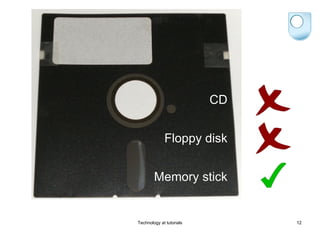
CD


             Floppy disk


        Memory stick


Technology at tutorials        12
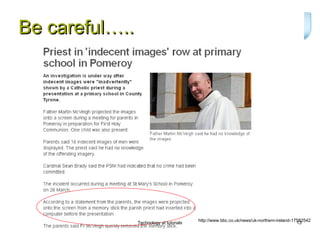
Be careful…..


                                          http://www.bbc.co.uk/news/uk-northern-ireland-17582542
                Technology at tutorials                                                   13
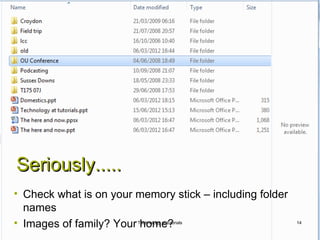
Seriously.....
• Check what is on your memory stick – including folder
  names
• Images of family? Your home?
                        Technology at tutorials           14
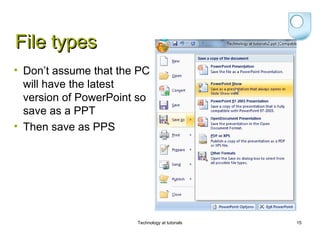
File types
• Don’t assume that the PC
  will have the latest
  version of PowerPoint so
  save as a PPT
• Then save as PPS


                       Technology at tutorials   15
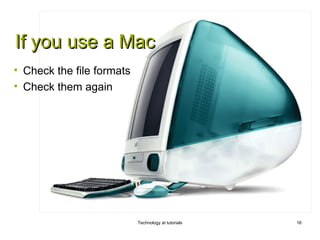
If you use a Mac
• Check the file formats
• Check them again


                           Technology at tutorials   16
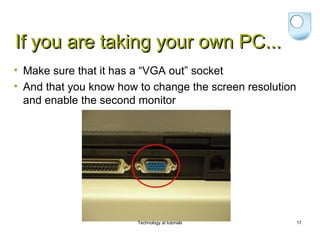
If you are taking your own PC...
• Make sure that it has a “VGA out” socket
• And that you know how to change the screen resolution
  and enable the second monitor


                        Technology at tutorials           17
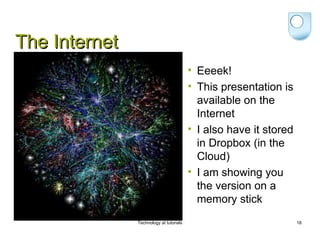
The Internet
                                         • Eeeek!
                                         • This presentation is
                                           available on the
                                           Internet
                                         • I also have it stored
                                           in Dropbox (in the
                                           Cloud)
                                         • I am showing you
                                           the version on a
                                           memory stick
               Technology at tutorials                             18
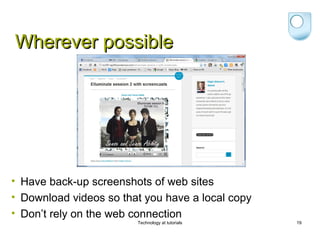
Wherever possible


• Have back-up screenshots of web sites
• Download videos so that you have a local copy
• Don’t rely on the web connection
                        Technology at tutorials   19
Be defensive
• Belt & braces
• Have a back-up
  plan
• Question what
  value is added by
  the technology


                      Technology at tutorials   20
Any questions?

     Technology at tutorials   21

Technology at tutorials

  • 1.
    Technology at tutorials Alook at the practical and possible in terms of using technology at tutorial venues. Some hints and tips to lift the veil on the mysterious world of PCs and projectors and the Internet in study centres the length and breadth of R13 Nigel Gibson – 16/06/12
  • 2.
    What I’m goingto cover • Some thoughts on using technology in tutorials • Some ideas on how to make sure that you are prepared Technology at tutorials 2
  • 3.
    What I’m notgoing to cover • How to make a perfect omelette (but I can offer some tips) • How to get new/different technologies available in venues • How to turn on the projector in room NT06 at Canterbury Christ Church University Technology at tutorials 3
  • 4.
    • So whoare you? What are you here for? Technology at tutorials 4
  • 5.
    Process (in R13) •Book your kit well in advance (as early as possible!) • Any passwords will be in the room allocation email • If you have any problems with the kit at the venue let Trudi Turner (AL Services) know and she will feed it back Technology at tutorials 5
  • 6.
    What you mightget • The shiniest bit of brand-spanking new IT equipment ever seen • A tatty old hand-cranked steam-driven PC last used for plotting the line of Hadrian’s Wall Technology at tutorials 6
  • 7.
    What you won’tget • An overhead projector • On-site technical support Technology at tutorials 7
  • 8.
    Smartboards • There area few sites which have them • There is a wide range of kit • In some sites there are instructions – but not all Technology at tutorials 8
  • 9.
    What you can’trely on • Anything! • Don’t assume that there will be an optical drive • Always assume that any wireless connection will fail Technology at tutorials 9
  • 10.
    Let there be….. •Generally there will be instructions • Often they will be incomprehensible • There will usually be a panel with buttons • They might be labelled Technology at tutorials 10
  • 11.
    In the absenceof instructions • Be patient • The easiest option is usually the right one • Turn on the PC first • Let that warm up before attempting the projector • Give the kit time to wake up • Don’t plug in the USB before turning on the PC Technology at tutorials 11
  • 12.
    CD Floppy disk Memory stick Technology at tutorials 12
  • 13.
    Be careful….. http://www.bbc.co.uk/news/uk-northern-ireland-17582542 Technology at tutorials 13
  • 14.
    Seriously..... • Check whatis on your memory stick – including folder names • Images of family? Your home? Technology at tutorials 14
  • 15.
    File types • Don’tassume that the PC will have the latest version of PowerPoint so save as a PPT • Then save as PPS Technology at tutorials 15
  • 16.
    If you usea Mac • Check the file formats • Check them again Technology at tutorials 16
  • 17.
    If you aretaking your own PC... • Make sure that it has a “VGA out” socket • And that you know how to change the screen resolution and enable the second monitor Technology at tutorials 17
  • 18.
    The Internet • Eeeek! • This presentation is available on the Internet • I also have it stored in Dropbox (in the Cloud) • I am showing you the version on a memory stick Technology at tutorials 18
  • 19.
    Wherever possible • Haveback-up screenshots of web sites • Download videos so that you have a local copy • Don’t rely on the web connection Technology at tutorials 19
  • 20.
    Be defensive • Belt& braces • Have a back-up plan • Question what value is added by the technology Technology at tutorials 20
  • 21.
    Any questions? Technology at tutorials 21