BMVA Summer School: Matlab Programming Laboratory
Barry-John Theobald (b.theobald@uea.ac.uk)
School of Computing Sciences, University of East Anglia
July 2014
Introduction
This laboratory session concerns Matlab programming in the context of imaging and vision. It is
a difficult session to plan as some of you will have no prior Matlab experience, and undoubtedly
many of you will use Matlab everyday for your research. Thus to devise a work sheet that is
suitably challenging and yet accessible to all is difficult.
To this end, this work sheet is divided into three sections:
1. A series of simple exercises relating to image segmentation. These are targeted to novice
Matlab programmers and are designed to demonstrate how imaging operations can be
done quickly in just a few lines of Matlab code.
2. A set of exercises for intermediate Matlab programmers that look at improving the per-
formance of Matlab by creating vectorised code.
3. A brief look at the MEX programming interface for more advanced Matlab users.
If you are a confident (competent) Matlab programmer, feel free to skip the first section of the
work sheet. If you are a novice programmer, do not worry too much about completing all of
the exercises.
Getting Help
Matlab is very well documented. All Matlab functions are documented with help, which can
be accessed using the help command. For example:
>> help commandname
displays the help for the named command. Help is also available via a graphical user interface
using the helpdesk command. If you want to locate a command, but are not sure of the exact
name, use the lookfor command.
>> lookfor keyword
This will search the help and return a list of functions that contain the given keyword.
1
1 Introductory Exercises
These exercises focus on low-level computer vision, which often involves tasks such as the
recovery of image acquisition properties, and image pre-processing, filtering and segmentation.
Higher-level vision tasks might concern the recovery of object structure, motion estimation,
object recognition and classification, and scene understanding. These higher-level tasks usually
are very application specific, so in these exercises we will focus on tasks that must be performed
before we get to higher-level vision.
We are going to look at some images from a DNA microarray system. The exact details of the
biochemistry are not important but there is a need to isolate the spots in the image1
. Note that
the techniques used here are relatively simple, so it is difficult to obtain a good segmentation
using these approaches. A good segmentation is not necessarily our aim. Rather the aim is to
become familiar with image manipulation and image processing using Matlab.
1. Firstly, clear the Matlab workspace of any existing variables using:
>> clear all
and then read the image that we wish to segment using:
>> X = imread(‘greenarrayt.tif’);
This opens the image file and decompresses the data so that the image is available in the Matlab
workspace as a variable. In the workspace, the image is represented as a numerical array — in
this case, since the image is grayscale, it is stored as a 2D matrix of pixel values.
2. Display the image using:
>> imshow(X);
Notice that there is no need to initialise a window, a rendering context, or anything else typically
required with displaying information on the screen. After displaying the image you should see
4 × 8 groups of 9 × 9 spots — hence 2592 spots.
There are various ways to query the properties of the image. Some primitive information is
available at the command prompt via the whos command.
>> whos X
Name Size Bytes Class Attributes
X 1316x795 2092440 uint16
which displays the number of rows and columns, the memory footprint required by the image,
and the respective data type. Additional information is available directly from the image file
using:
>> imfinfo(‘greenarrayt.tif’)
3. Using these commands, determine how many pixels there are in the image, and determine
the bit depth of the image.
1
A copy of the image we will be working with can be downloaded from
http://www.cmp.uea.ac.uk/~bjt/temp/bmva-lab.
2
Our task is to create a binary mask where a value of 0 is assigned to background pixels and
a value of 1 is assigned to foreground pixels (the dots). The obvious approach to segmenting
the spots is to threshold the pixel intensities. We could do this manually by inspecting the
histogram of the image to identify a suitable pixel intensity that appears to separate the regions
of interest from the background, then apply this threshold to the image.
4. First look at the histogram for the image:
>> figure;
>> imhist(X)
The figure command opens a new figure window ready to receive drawing commands, and
imhist computes and displays the image histogram in the newly created figure window.
5. Use the histogram to identify a suitable intensity to distinguish the background and
foreground pixels. Note that you can use the gradient above the x-axis to identify a
suitable brightness, and then use the numerical value on the x-axis at that brightness to
determine the threshold value.
Let us assume that a pixel intensity of approximately 10,000 will be sufficient for our task.
That is, pixels with an intensity less than or equal to 10,000 are considered background pixels,
whilst those greater than 10,000 are considered foreground.
In a C-derived language, you would create the binary mask by looping over the pixels of the
image and use a relational operator to test the current pixel. For example, the following code
snippet2
might have a familiar structure:
int row, col;
for (col = 0; col < width; col++) {
for (row = 0; row < height; row++) {
T[row][col] = (X[row][col] > 10000) ? 1 : 0;
}
}
where T is the binary mask and X is the image.
Matlab works with array data natively, so often there is no need to iterate over the elements
of an array. Indeed the run-time of a code segment is often significantly lower if loops are
avoided. Typically, if relational or logical operators are applied to an array, then the operators
will usually act on all of the elements of the array individually.
6. To threshold the image using the greater than operator and assign the result to a new
image (the binary mask) use:
>> T = X > 10000;
Notice that there is no need to predefine variables in Matlab, nor do we need to preallocate
memory for them. Variables are created dynamically when the output of an expression is
assigned to a variable name. If a variable with the assigned name does not exist, then a new
variable is created with that name. If a variable already exists with that name then it is
overwritten. Matlab is not strongly-typed, so the relevant data type is determined at run-time.
2
This snippet of course assumes that the relevant arrays have been preallocated and that the width and
height have been set.
3
7. We can see how well the segmentation via thresholding has worked by inspecting the
binary mask using:
>> figure;
>> imshow(T);
After opening a new figure window this displays the binary mask as an image, where elements
equal to zero (background) are black pixels and elements equal to one (dots) are white.
8. Experiment with the threshold value to see if you can find a more suitable value. What
would you expect to happen if the threshold value were to decrease? Looking at the
histogram, what would you expect to see if the threshold were set at, say, 1500?
Rather than setting the threshold manually, you could try a standard automatic method for
finding the threshold, e.g. Otsu’s method [4], which is implemented in Matlab via graythresh.
9. The help corresponding to graythresh gives a detailed overview of what the function
does:
>> help graythresh
The graythresh function accepts a single input argument (the image) and the default is to
return a single output argument, which is the normalised threshold value (normalised in the
range 0–1).
10. Call the thresholding function using:
>> t = graythresh(X);
Given the threshold value returned from graythresh, the mask can be created using im2bw.
This does effectively what you did in Step 6, but takes into account the data type of the input
(the range of intensities is different for different data types).
11. Create the binary mask using the new threshold value and inspect the output using:
>> T = im2bw(X,t);
>> figure;
>> imshow(T);
Does the automated approach do a better or worse job than your manual segmentation?
Thresholding the image using either a manual or an automatic approach appears to be fairly
ineffective. The reason is the histogram is unimodal and there is not an obvious distinction
between the background and the foreground pixel intensities.
12. To examine this problem further, click on one of the bright spots and plot a slice though
the image:
>> figure(1);
>> [x,y] = ginput(1);
>> figure
>> plot(X(round(y),:));
>> title([‘Slice through line ’, num2str(round(y))])
4
Even allowing for the fact that spot grid is not perfectly aligned with the pixel grid3
, there does
seem to be a large variation in the intensity of the spots — one threshold does not suit all4
.
Instead of simple thresholding, we might look for regions that are locally maximal — the spots
are locally bright compared to the surrounding background.
Regional extrema come-up so often in computer vision that there is a whole theory of image
processing based on detecting them and then simplifying the image so as to preserve regional
maxima — the scale-space approach [2, 3]. Scale-space systems are often associated with
Gaussian filtering since Gaussian filters are claimed to not enhance regional extrema after
filtering [1] but, today, we shall use one of Matlab’s commands to find these regional maxima
directly.
13. Matlab has a collection of morphology algorithms (largely based on [5]). So, for example,
>> T = imregionalmax(X,4);
>> imshow(T)
computes and displays all of the four-connected regional maxima in the image.
Clearly we cannot work with just regional maxima since noise generates maxima too. One
possibility is to compute the h-maxima transform to suppress the maxima in the image with
an intensity of less than some threshold.
14. In Matlab the h-maxima transform can be applied using:
>> Y = imhmax(X, 5000, 8);
which uses eight connectivity and a threshold value of 50005
.
Then, as was done in Step 13, the regional maxima can be computed from the suppressed
image using:
>> M = imregionalmax(Y, 8);
>> imshow(M)
This is starting look like a possible mask. Having obtained a mask, M, we might consider
labelling each region in the binary mask and extract some information about the shapes.
15. This can be achieved using:
>> L = bwlabel(M);
>> P = regionprops(L, ‘Area’, ‘Eccentricity’);
The function bwlabel parses the input mask to identify connected pixels. The connected pixels
form a region and all pixels belonging to a regions are assigned a value equal to the unique
region identifier. The regionprops function then measures the area and eccentricity of each
of the regions in L. There are a number of properties that can be measured — see the help for
other properties.
3
If this bothers you then the commands imrotate or improfile might be of interest.
4
This is why thresholding is unpopular in general vision systems — it does not work! Where one can control
the lighting, it remains viable.
5
The actual process of applying the transform is to subtract the threshold from the pixel intensities of the
image, then perform a morphological reconstruction (a series of successive dilations) using a mask.
5
The output from regionprops is a structure array, where each element in the array corresponds
to a region in the mask (the region ID is the index into the array L). The structure has a field
for each of the properties requested.
16. Can you see how you might remove spots that are too small, too large or not circular
enough? The following code fragment might give you some ideas6
:
>> for n = 1:max(L(:))
imshow(L==n)
title([‘Area=’,num2str(P(n).Area),‘ Eccen=’,num2str(P(n).Eccentricity)])
waitforbuttonpress
end
Further morphological operators could be used to help clean up the binary mask. In particular,
we know the shape of interest is a disk, and we can use the region properties to estimate the
approximate size of the disk.
17. Given that the approximate area of the regions within the mask are about 30–100 pixels,
we can use an opening filter with a disk structuring element of radius, say, 3 pixels:
>> close all;
>> H = strel(‘disk’, 3);
>> N = imopen(M, H);
>> imshow(M); figure; imshow(N);
Notice how spurious isolated pixels, especially those at the edge of the image are removed from
the mask. What is the effect of increasing the size of the structuring element? The strel
function can return a number of different shaped structuring elements. Experiment with the
shape and size of the structuring element and observe the influence on the mask.
Alternative approaches to this problem could be considered. Here we have been focussing on
greyscale morphology because we wanted to alert you to it but could we have used a more
model-based approach using shape-models or, perhaps, the Hough transform?
References
[1] J. Babaud, A. P. Witkin, M. Baudin, and R. O. Duda. Uniqueness of the gaussian kernel
for scale-space filtering. IEEE Transactions on Pattern Analysis and Machine Intelligence
8(1):26–33, 1986.
[2] J. Koenderink. The structure of images. Biological Cybernetics, 50:363370, 1984.
[3] T. Lindeberg. Scale-space theory in computer vision. Kluwer Academic Publishers, 1994.
[4] N. Otsu. A threshold selection method from gray-level histograms. IEEE Transactions on
Systems, Man, and Cybernetics,, 9(1):62–22, 1979.
[5] P. Soille. Morphological image analysis. Springer-Verlag, 1999.
6
Note, rather than inspect every region, you can close figure window to break out of the loop.
6
2 Vectorisation
Matlab is used predominately for rapid prototyping. Ideas can be implemented and tested
quickly and so it is often used as a research tool or for developing a proof-of-concept. However,
Matlab is rarely used for production code. There are a number of reasons for this, but a limi-
tation is that it is an interpreted language, and so the run-time performance is poor compared
with C-derived (compiled) languages.
There are certain things that can be done to improve the run-time efficiency of Matlab — we
will consider three things here. Broadly, in order of increasing complexity these are:
• Be aware of the rules for just-in-time (JIT) acceleration.
• Manipulate arrays rather than array elements.
• Use the MEX interface to create binaries for slow code.
Before considering optimising code for run-time performance, it is worth checking where opti-
misation is actually required. Matlab provides a useful profiler which can be used to identify
the bottlenecks in your functions. Essentially the profiler will monitor the execution of your
functions and return detailed statistics about the behaviour during execution. Consider the
following inefficient implementation of a function that approximates three cycles of a square
wave using a number of sine waves
function [y,tout] = fseries(f0, nTerms)
t = linspace(0,6*pi,1000);
for n = 1:2:nTerms
for k = 1:length(t)
if(n == 1)
y(k) = 0;
end
y(k) = y(k) + (1/n) * sin(f0*n*t(k));
end
end
if(nargout > 1)
tout = t;
end
In the example, the first input argument is the frequency of the square wave and the second
input argument is the number of terms that should be used to approximate the square wave (a
better approximation can be obtained for an increasing number of terms). You can generate
and view an example using:
[y,t] = fseries(1,51);
plot(t,y);
To monitor the performance of this function you can use the profiler. There are a number
of options that allow you to customise the statistics gathered by the profiler (e.g. CPU time
7
Figure 1: The default Matlab profiler window.
vs. real-world time), but here we will focus only on the defaults. Use the profile viewer
command to launch the profile window, shown in Figure 1.
To profile a function, simply enter the command (with arguments) into the input box labeled
Run this code:. Matlab will then execute the function and, once complete, populate the
viewer with an overview of the behaviour. See Figure 2.
The updated profile viewer contains a list of functions that were called, the number of times
each function was called, the total time spent inside each function, and the time spent in each
function excluding calls to any child functions (labelled self-time). The Total Time Plot is a
graphic overview of the proportion of time spent in each of the functions called. Clicking a
function name, e.g. fseries, allows you to drill down and localise the bottlenecks, see Figure
3. In particular, the profiler updates with an outline of the time taken to execute each line in
the function. Notice the lines are conveniently ordered by % Time.
The profiler also indicates how long was spent in each child function, and the Code Analyser
provides hints that might help improve the efficiency of the code. In particular, in this example
we are warned that the array representing the variable y is changing size in each iteration of
the loop. The following sections will provide some tips on improving the run-time efficiency of
Matlab code given that you now know how to locate the bottlenecks.
8
Figure 2: The profiler window updated after execution is complete.
Figure 3: The time taken to execute each line of the fseries function.
9
2.1 JIT Acceleration
Exploiting the JIT accelerator is the most simple way to improve the performance of Mat-
lab programs. JIT acceleration is a behind-the-scenes optimisation, which involves analysing
control flow loops (e.g. for loops) to both convert p-code instructions7
to native machine in-
structions, and also to perform run-time analysis on the size and type requirements of variables
used in the loops. To help ensure the best performance in terms of JIT acceleration, keep the
following in mind when developing Matlab programs that involve loops:
• Pre-allocate all variables before entering the loop.
• Ensure the size and type of variables are fixed in the loop.
• Loop indices should be scalar values.
• Conditional statements should perform scalar comparisons.
• Each line should contain only one statement.
Observing these simple rules can significantly improve the performance of your Matlab code.
Consider computing the cumulative sum of the numbers 1–1,000,000. An inefficient way to
compute this would be to do something like:
tic
csum = 1;
for k = 2:1000000
csum(k) = csum(k-1) + k;
end
toc
Note, because the tic and toc functions are used to time the code execution and you obviously
do not wish to include the time spent entering the commands, you should paste the code into
a script and run the script. On my machine this requires ≈ 0.3 seconds. One reason for the
poor performance is that each time we assign beyond the current array bounds a contiguous
block of memory for the new larger array is requested, and then the existing array contents are
copied into this new array — this happens in every iteration of the loop.
Since the size of the final array is known before entering the loop, the memory for this array
can be requested once before entering the loop. The change to the code is only very minor, but
the impact is significant:
tic
csum = ones(1,1000000);
for k = 2:1000000
csum(k) = csum(k-1) + k;
end
toc
This same functionality requires only ≈ 0.01 seconds on my machine — this is around 30
times faster. There are a host of functions available for initialising arrays depending on your
7
p-code is parsed Matlab code — typically in memory.
10
requirements. Some frequently used examples include: zeros, ones, rand, randn, linspace,
and logspace.
We will not dwell on JIT acceleration too much, but since The Mathworks introduced it, it
has helped to improve the performance of Matlab. That said, it is often better code solutions
without using loops in the first place.
2.2 Code Vectorisation
In a nutshell, vectorisation involves taking a segment of code that operates element-by-element
on array data and re-casting the solution so that the operations work on the arrays themselves.
Some vectorisation is obvious and is done without thought. For example, consider computing
the sum of the corresponding elements in two vectors. One might do this in Matlab as you
would in other languages and iterate over the elements of the array:
>> a = randn(1,100); b = randn(1,100); c = zeros(1,100);
>> for k = 1:length(a)
c(k) = a(k) + b(k);
end
However this is inefficient because, as most of you are probably aware, the mathematical oper-
ators work natively with arrays. So the same thing is achieved using:
>> c = a + b;
This is better because it is more readable and involves less code (and so there is less poten-
tial for introducing bugs!). A caveat is that the arithmetic operators perform the equivalent
mathematical function. So,
>> c = a * b;
is undefined and will result in an error since we cannot, in a mathematical sense, compute
the product of two equal sized vectors. To perform element-by-element multiplication (known
either as the Hadamard product or the Schur product) the operator needs to be preceded by a
dot:
>> c = a .* b;
Likewise for the power operator (ˆ). Understanding that Matlab operates natively with arrays
is the most obvious step in vectorising code. The following sections will build on this to look
at other measures that can be employed to create Matlab functions that do not require loops.
2.2.1 Numerical Indexing
Matlab allows several elements of an array to be indexed and assigned to simultaneously. This is
done by providing an array of indices. For example, to create an array containing ten elements,
which are alternating ones and zeros, one might do:
11
>> n = 10;
>> x = ones(1,n);
>> x(2:2:end) = 0
x =
1 0 1 0 1 0 1 0 1 0
There are several things to point out here. Firstly, the colon operator in this context is short-
hand for creating an array, and it uses three arguments. The first argument is the value to
store in the first element of the array, the second argument is the value added to that stored in
the previous array element to generate the value for the next element, and the third argument
is the maximum value. The second point to note is that the third term in creating the array of
indices was not numeric, rather end was used. In this context, end means the index of the last
element (10 in this case since the array is initialised to contain ten elements). So,
>> 2:2:10
ans =
2 4 6 8 10
This is itself an array, the contents of which are used to index the elements x. The indexed
elements of x are then all assigned the value 0. Note if a scalar is assigned to multiple array ele-
ments then they are all assigned the scalar value. If an array is assigned, then the corresponding
elements are copied across (and so the arrays must be the same size); For example:
>> x = 1:10; % Short-hand for 1:1:10
>> x(2:2:end) = 10:-2:1; % The RHS is short-hand for 10, 8, 6, 4, 2
x =
1 10 3 8 5 6 7 4 9 2
2.2.2 Linear Indexing
To refer to an element of an array you simply provide the unit-offset index of the element of
interest. So, a(4) indexes the fourth element of the array a. If the array has more than one
dimension (e.g. a matrix) you simply provide an index for each dimension, e.g. A(2,3) refers to
the element in the third column on the second row. However, Matlab stores arrays in memory
in column-major form. That is, a matrix is stored as a vector with the columns stacked on top
of one another. So a matrix of the form
3 5 7
1 2 6
is actually stored as
12
3
1
5
2
7
6
The value 7 in this array could be referred to using the standard subscript indexing (using
indices (1,3)) or it can be referred to using the linear index (5). Matlab provides the ind2sub
and the sub2ind functions for converting indices between these representations. This is often
a useful technique if the particular arrangement of data is not important.
2.2.3 Logical Indexing
Rather than using numerical values to index the elements of an array, logical indexing instead
uses a logical array. When a logical array is used then only the elements that correspond to
true are indexed. Logical indexing always results in a column vector and it provides a means
for simultaneously accessing all of the elements of an array that meet some condition.
The following code generates a 3 × 3 matrix of normally distributed pseudo-random numbers:
>> a = randn(3)
a =
0.1588 0.8395 -1.5402
0.6196 0.1392 -0.2222
-0.0458 0.4095 0.3954
Let us assume that we wish to ensure that negative values in this array are clamped to zero.
We can use the logical operator (<) to compare each element to zero. Specifically:
>> a < 0
ans =
0 0 1
0 0 1
1 0 0
generates a logical array which is true where the corresponding elements of a are less than
zero, and false where the corresponding elements of a are greater than or equal to zero. This
logical array itself can be used to index the array a to refer to the negative elements:
13
>> a(a < 0)
ans =
-0.0458
-1.5402
-0.2222
Remember that this indexing returns a column vector. Finally, we can simultaneously assign
zero to these elements:
>> a(a < 0) = 0
a =
0.1588 0.8395 0
0.6196 0.1392 0
0 0.4095 0.3954
This is a very contrived example, but logical indexing is one of the principles that allows us to
create efficient and vectorised code.
2.2.4 Other useful tools for vectorisation
Two other functions that are used frequently to help vectorise Matlab code are reshape and
repmat. The reshape function changes the shape (e.g. number of rows and columns) of an
array without changing the number of elements, and the repmat function allows a matrix to be
replicated a given number of times in each dimension. These are often used in conjunction with
the transpose operator (’) to manipulate an array so that it is in a form that can be processed
without resorting to loops. For the reshape function, it is important to remember that array
content is ordered by column.
There is an argument to be made for avoiding the use of repmat since it is itself a function
consisting of control flow statements. A neat way to avoid using repmat is to repeatedly index
the required elements of an array. For example, consider the following row vector:
>> x = [5 4 3 6 7];
This can be tiled vertically five times using:
>> repmat(x,5,1)
ans =
5 4 3 6 7
5 4 3 6 7
5 4 3 6 7
5 4 3 6 7
5 4 3 6 7
14
However, the same effect can be achieved without incurring the cost of the function call by
using:
>> x(ones(1,5),:)
ans =
5 4 3 6 7
5 4 3 6 7
5 4 3 6 7
5 4 3 6 7
5 4 3 6 7
Here the ones function creates an array containing five ones, so this indexes the first row of
x five times. The same principle can be applied to tiling horizontally, but this is more tricky
since all of the columns need to be indexed. Assume the same vector (x) needs to be tiled three
times vertically and twice horizontally, one might do something like:
>> columns = (1:length(x))’;
>> x(ones(1,3),columns(:,ones(1,2)))
ans =
5 4 3 6 7 5 4 3 6 7
5 4 3 6 7 5 4 3 6 7
5 4 3 6 7 5 4 3 6 7
Again this is easily extended for matrices:
>> x = randn(2,3);
>> rows = (1:size(x,1))’;
>> columns = (1:size(x,2))’;
>> x(rows(:,ones(1,3)),columns(:,ones(1,2)));
Note, an elegant way to do this in a single step (without needing to generate the rows and
columns variables) is to use a vector product:
>> x = randn(2,3);
>> x((1:size(x,1))’ * ones(1, 3), (1:size(x,2))’ * ones(1, 2));
Finally, a useful short-cut for the reshape function is the colon operator (:). This reshapes any
array so that it has a single column (all columns are stacked on top of one another).
15
2.3 A Worked Example
As an example, let us consider building a run-length encoder for an image. The encoder must
store the width and height of the image, then it stores the intensity of the first pixel and the
number of consecutive columns that share that intensity, then the next intensity value is stored
and the number of times it is repeated, and so on. The pixel at the start of each row should be
considered adjacent to the last pixel on the previous row. So, the image is scanned in a raster
fashion from the top left pixel to the bottom right pixel.
A non-optimised implementation might look something like the following:
function code = rle(img)
code = size(img);
count = 1;
for m = 1:code(1)
if m > 1
if (img(m,1) - img(m-1,code(2))) == 0
count = count + 1;
else
code(end+1) = img(m-1,code(2)); code(end+1) = count;
count = 1;
end
end
for n = 2:code(2)
if (img(m,n) - img(m,n-1)) == 0
count = count + 1;
else
code(end+1) = img(m,n-1); code(end+1) = count;
count = 1;
end
end
end
code(end+1) = img(end,end); code(end+1) = count;
We could of course just use the equality operator to test if two pixels have the same intensity,
but the difference has been used here so it relates directly to the subsequent steps.
The first thing to deal with is the special case of checking if we are on the first row. The
first pixel of one row is adjacent to the last pixel of the previous row, so we can reshape the
matrix so that it is just a vector. But, because we are scanning across the columns, we must
transpose the matrix representing the image data (remember that arrays are stored in column
major form). So, the original solution reduces to:
16
function code = rle(img)
code = size(img);
img = img’;
img = img(:);
count = 1;
for m = 2:length(img)
if (img(m) - img(m-1)) == 0
count = count + 1;
else
code(end+1) = img(m-1);
code(end+1) = count;
count = 1;
end
end
code(end+1) = img(end);
code(end+1) = count;
Notice that in each iteration of the loop, each pixel intensity is subtracted from the intensity
of the previous pixel. These differences need not be computed inside the loop. We can instead
compute all of the differences in a single operation and then loop over the difference scan to
find the non-zero elements.
17
function code = rle(img)
code = size(img);
img = img’;
img = img(:);
count = 1;
dif = img(2:end) - img(1:end-1);
for m = 1:length(dif)
if (dif(m)) == 0
count = count + 1;
else
code(end+1) = img(m);
code(end+1) = count;
count = 1;
end
end
code(end+1) = img(end);
code(end+1) = count;
The code inside the loop is counting the number of times zero is repeated before a non-zero
value is found. A different way to do this would be to find the indices of the non-zero elements,
and then compute the difference between successive indices. The index of the non-zero elements
can also be used to lookup the corresponding intensities. A fully vectorised solution looks like:
function code = rle(img)
siz = size(img);
img = img’;
img = img(:);
count = 1;
dif = img(2:end) - img(1:end-1);
idx = 1:length(img);
nonzero = dif ~= 0;
nonzero_indices = [0 idx(nonzero) idx(end)];
counts = nonzero_indices(2:end) - nonzero_indices(1:end-1);
intensities = img(nonzero_indices(2:end))’;
code = [intensities; counts];
code = [siz’; code(:)];
Note that 0 is prepended and the largest index is appended to the list of non-zero indices. This
is so that when the counts are computed, the values at either end of the array are not lost.
18
To quantify the efficiency improvements provided by this simple vectorisation, download a
reasonably sized image (I tested with a 2448×3264 image converted to greyscale) and run both
versions. On my machine the non-vectorised solution took ≈ 2.98s, whereas the vectorised
solution required only ≈ 0.29s — the code is around ten times faster to do exactly the same
thing. Whilst the difference may not appear immediately significant, in the context of large
experiments with many images, these performance gains quickly add up.
2.4 Vectorisation Problems
Using the simple ideas outlined above can lead to very concise Matlab code. The following exer-
cises vary in terms of difficulty, and they are designed to give you some practise at vectorisation.
Your solutions should require no loops. First up, some relatively easy problems:
1. Write a function to count the number of elements in an array that are above a pre-specified
value.
2. Write a function to add up the values in an array that are above a pre-specified value.
3. Create a function that normalises the rows of an arbitrary sized matrix so that each row
has zero mean and unit variance.
4. Write a function that receives two arguments. An m×3 matrix of coordinates and a 1×3
vector of coordinates. Return the index of the row closest to the specified vector.
A slightly more tricky problem:
5. Write a function to compute the histogram for a greyscale image. Assume that the image
is formed of unsigned 8-bit integers.
Some tougher problems:
6. Write a function that accepts two input arguments: a matrix (M) and a scalar value (n).
The goal is to concatenate n columns to the left and right above and below each column
of the matrix. Assume that for out-of-bounds columns, the first and last column are
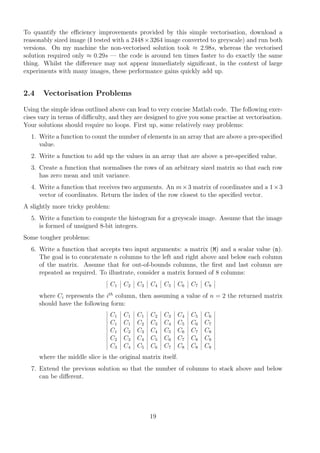
repeated as required. To illustrate, consider a matrix formed of 8 columns:
C1 C2 C3 C4 C5 C6 C7 C8
where Ci represents the ith
column, then assuming a value of n = 2 the returned matrix
should have the following form:
C1 C1 C1 C2 C3 C4 C5 C6
C1 C1 C2 C3 C4 C5 C6 C7
C1 C2 C3 C4 C5 C6 C7 C8
C2 C3 C4 C5 C6 C7 C8 C8
C3 C4 C5 C6 C7 C8 C8 C8
where the middle slice is the original matrix itself.
7. Extend the previous solution so that the number of columns to stack above and below
can be different.
19
This is tricky, but it can be implemented as a surprisingly compact solution. Mine used no
loops and required fewer than ten lines of code.
Finally, a very tricky problem.
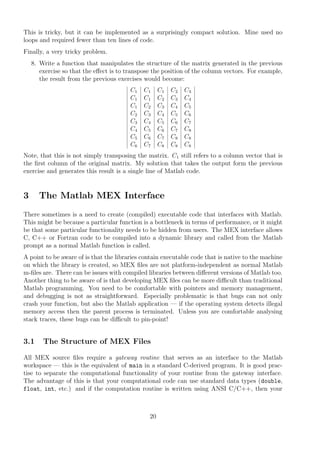
8. Write a function that manipulates the structure of the matrix generated in the previous
exercise so that the effect is to transpose the position of the column vectors. For example,
the result from the previous exercises would become:
C1 C1 C1 C2 C3
C1 C1 C2 C3 C4
C1 C2 C3 C4 C5
C2 C3 C4 C5 C6
C3 C4 C5 C6 C7
C4 C5 C6 C7 C8
C5 C6 C7 C8 C8
C6 C7 C8 C8 C8
Note, that this is not simply transposing the matrix. C1 still refers to a column vector that is
the first column of the original matrix. My solution that takes the output form the previous
exercise and generates this result is a single line of Matlab code.
3 The Matlab MEX Interface
There sometimes is a need to create (compiled) executable code that interfaces with Matlab.
This might be because a particular function is a bottleneck in terms of performance, or it might
be that some particular functionality needs to be hidden from users. The MEX interface allows
C, C++ or Fortran code to be compiled into a dynamic library and called from the Matlab
prompt as a normal Matlab function is called.
A point to be aware of is that the libraries contain executable code that is native to the machine
on which the library is created, so MEX files are not platform-independent as normal Matlab
m-files are. There can be issues with compiled libraries between different versions of Matlab too.
Another thing to be aware of is that developing MEX files can be more difficult than traditional
Matlab programming. You need to be comfortable with pointers and memory management,
and debugging is not as straightforward. Especially problematic is that bugs can not only
crash your function, but also the Matlab application — if the operating system detects illegal
memory access then the parent process is terminated. Unless you are comfortable analysing
stack traces, these bugs can be difficult to pin-point!
3.1 The Structure of MEX Files
All MEX source files require a gateway routine that serves as an interface to the Matlab
workspace — this is the equivalent of main in a standard C-derived program. It is good prac-
tise to separate the computational functionality of your routine from the gateway interface.
The advantage of this is that your computational code can use standard data types (double,
float, int, etc.) and if the computation routine is written using ANSI C/C++, then your
20
working code can be later integrated more easily into a standard program/application outside
of Matlab.
The gateway routine is implemented in a function called mexFunction, which has the following
declaration:
void mexFunction(int nlhs, mxArray *plhs[], int nrhs, const mxArray *prhs[]);
There are four arguments to mexFunction. Firstly, nlhs and nrhs are integers that indicate the
number or arguments on the left and right hand side of the expression entered at the command
prompt. So, nrhs represents the number of input arguments passed to the function, and nlhs
represents the number of output arguments requested from the function.
The arguments plhs and prhs are of type mxArray, which is a C language opaque type, and is
the fundamental type for all Matlab data. The MEX libraries provide a host of functions for
getting/setting data in mxArrays. plhs is an array that will contain pointers to what will be
the output arguments from the function, and prhs is an array to the pointers to the input data.
The input data should be considered read only — modifying the contents of these variables can
cause unexpected side effects in the Matlab environment.
3.2 MEX Programming
As stated previously, there are a wealth of functions available for interacting with both the
Matlab environment and Matlab data. Generally function names that begin with mex interact
with the Matlab environment, and functions that begin with mx interact with data in memory8
.
First the obligatory Hello World example:
#include "mex.h"
void mexFunction(int nlhs, mxArray *plhs[], int nrhs, const mxArray *prhs[]) {
mexPrintf("Hello World!n");
}
You should use mexPrintf to print text in the Matlab command window. Using fprintf can
cause unexpected results: it could be that the standard output is not set and so nothing is
printed, or worse doing so could cause Matlab to terminate unexpectedly.
Save the code above into a file, say hello.c, and compile it using:
mex hello.c
This will create a dynamic library called hello.*9
and assuming that this is on the Matlab path,
the function can be called as follows:
8
There are other prefixes, for example mat is used for functions that interact with Matlab data files, but our
main focus will be on interacting with data directly.
9
The file extension of the library depends on the operating system and the architecture of the machine on
which the code is compiled.
21
>> hello
Hello World!
The dynamic library appears as any Matlab mfile function, but the underlying implementation
is formed of native machine instructions rather than Matlab mcode.
A more useful function will receive input arguments and return output arguments. To keep
things simple, let us build a function to add the contents of two column vectors to each other
and return the result. Of course this can be done with the + operator, but this example serves
to illustrate the process of retrieving the pointers to the input data, setting the pointers to the
output data, performing any necessary error checking, and separating the computational code
from the gateway routine.
The code listing for the entire program (mexSum.c) is:
#include "mex.h"
void sumArrays(double *augend, double *addend, double *result, int n);
void mexFunction(int nlhs, mxArray *plhs[], int nrhs, const mxArray *prhs[]) {
int nelements;
double *augend, *addend, *sum;
if (nrhs < 2 || nlhs != 1)
mexErrMsgTxt("Error: one output and two input arguments are required.");
if (mxGetN(prhs[0]) != 1 || mxGetN(prhs[1]) != 1)
mexErrMsgTxt("Error: input arguments must be column vectors.");
if (mxGetM(prhs[0]) != mxGetM(prhs[1]))
mexErrMsgTxt("Error: input arguments must be the same length.");
nelements = (int)mxGetM(prhs[0]);
augend = mxGetPr(prhs[0]);
addend = mxGetPr(prhs[1]);
plhs[0] = mxCreateNumericMatrix(nelements, 1, mxDOUBLE_CLASS, mxREAL);
sum = mxGetPr(plhs[0]);
sumArrays(augend, addend, sum, nelements);
}
void sumArrays(double *augend, double *addend, double *sum, int n) {
int i;
for (i = 0; i < n; i++)
sum[i] = augend[i] + addend[i];
}
22
Save this into a file called mexSum.c and compile using:
mex mexSum.c
The following gives a detailed breakdown of the components of this program.
3.2.1 Error Checking
It is good practise to include appropriate error checking at the start of all Matlab programs
since Matlab is not a strongly typed language. You need to ensure that the required arguments
are present and optional arguments have default values, you should also check that the input is
of the appropriate type and size. This are especially true when working with MEX as memory
problems will likely crash Matlab. Type checking is often easier to implement in Matlab code,
especially if parameter/value pairs can be specified in any order (e.g. as with the plot command).
In this case one might create an mfile and do all type checking in Matlab code, and then place
a call to the MEX function within this mfile — the mfile itself acts as a wrapper function for
the MEX implementation. This provides the ease of error handling afforded by Matlab with
the speed gains provided by C. In this example the argument checking is being done in C code
so that you can see how it is done using the MEX API.
In mexSum.c the minimal error checking was performed. We really only checked that the inputs
were provided, the output was requested, and that the data were stored in equal length column
vectors.
if (nrhs < 2 || nlhs != 1)
mexErrMsgTxt("Error: one output and two intput arguments are required.");
This checks the number of right hand side arguments (inputs) and the number of left hand side
arguments (outputs). Notice that mexErrMsgTxt is used to print an error message to the screen
if the function is called incorrectly. This is the MEX equivalent of calling error in mcode. The
advantage of this is that your function is terminated and the error message is formatted as a
standard error message in the command window.
if (mxGetN(prhs[0]) != 1 || mxGetN(prhs[1]) != 1)
mexErrMsgTxt("Error: input arguments must be column vectors.");
if (mxGetM(prhs[0]) != mxGetM(prhs[1]))
mexErrMsgTxt("Error: input arguments must be the same length.");
Recall that prhs is an array containing pointers to the data in the Matlab workspace. So,
prhs[0] is a pointer to the first input argument and prhs[1] is the pointer to the second input
argument. Notice that arrays in MEX are zero-offset, whereas Matlab itself is unit-offset —
this can be a cause of headaches!
The functions mxGetM and mxGetN are used to determine the number of rows and the number
of columns of the provided input argument. For completeness we might also have checked that
23
the input arguments contained double precision numerical values (using mxIsDouble) and that
the arrays did not contain complex values (using mxIsComplex).
3.2.2 Retrieving the Data
The data type of the inputs is mxArray and we require a pointer to the underlying numerical
data.
nelements = (int)mxGetM(prhs[0]);
augend = mxGetPr(prhs[0]);
addend = mxGetPr(prhs[1]);
The function mxGetPr is used to retrieve the pointer to the first element of the input array.
Technically this retrieves the pointer to the real part of the first array element (mxGetPi would
return the equivalent imaginary part if the array contained complex values). Since these are
double precision values, the output from this function is assigned to a standard double precision
pointer. This can be accessed like any standard C array.
3.2.3 Configuring the Output
Before the sumArrays function is called we must create memory for the output variable — the
result needs to be stored somewhere.
plhs[0] = mxCreateNumericMatrix(nelements, 1, mxDOUBLE_CLASS, mxREAL);
sum = mxGetPr(plhs[0]);
This program works with 2D numerical arrays, so the mxCreateNumericMatrix function is used
to create a pointer to a new mxArray that is assigned to the first output argument (plhs[0]).
If multi-dimensional arrays are used (e.g. images) then mxCreateNumericArray should instead
be used. Again, so that we can store the result of the computation, a pointer to the underlying
memory is required and so mxGetPr is used.
3.2.4 Performing the Computation
The function header for the computational routine is declared as:
void sumArrays(double *augend, double *addend, double *sum, int n);
This is standard C, and the subroutine itself contains only ANSI C code. Having retrieved
pointers to the underlying input and output data, everything is in place to call the sumArrays
function.
A real benefit of MEX is that it effectively provides a harness for Unit Testing code. A toolbox
that contains many functions can be ported to a standalone program/application by creating a
24
MEX equivalent of each function and testing it in the context of the rest of the working toolbox.
Doing this one function at a time means it is much easier to isolate errors and code can be
ported much more quickly. Once all of the routines have a MEX equivalent and the functions
all work together, the computational routines from each MEX file can be pasted into code for
the external library/program — this is why it is better to separate the gateway routines and
the computation routine.
There is no requirement to place mexFunction and sumArrays in the same source file. These
could be placed in separate files (say main.c and sumArrays.c and the same executable created
using10
:
mex main.c sumArrays.c -o mexSum
3.3 Exercises
1. Create a Matlab (mcode) function to compute the pair-wise Euclidean distance between
the columns of a matrix. Your function should perform the equivalent of:
>> D = squareform(pdist(X’,‘euclidean’));
So, for an m × n input to your function, you return an n × n (symmetric) matrix of
distances.
2. Create a Matlab MEX implementation that performs the same operation.
3. Measure the run-time required for both solutions.
I tested a solution on a matrix of size 50 × 10000 and found that the MEX version was approx-
imately 15 times faster than the mcode version.
3.4 Other Issues
Using MEX files opens up a number of opportunities for extending basic Matlab programming.
For example, it is possible to link with external libraries, allowing other tools (such as OpenCV)
to be used in the Matlab environment. Likewise, linking against OpenGL libraries allows the
graphics hardware to be exploited to perform fast computation/rendering directly from the
Matlab command prompt.
When dealing with memory and I/O you should always use the functions in the MEX libraries
rather than the equivalent functions in the standard libraries. For example, call mexPrintf
rather than fprintf, and use mxCalloc rather than calloc. Using the MEX versions will
ensure the behaviour of your functions is consistent. Using functions in many of the standard
libraries will crash your function, or the behaviour is not defined within the Matlab environment.
10
Some platforms do not accept the -o switch to specify the output file name.
25
See http://classes.soe.ucsc.edu/ee264/Fall11/cmex.pdf for an excellent overview of cre-
ating Matlab MEX files, and the Matlab documentation is also an excellent resource to help
get started.
26

BMVA summer school MATLAB programming tutorial

  • 1.
    BMVA Summer School:Matlab Programming Laboratory Barry-John Theobald (b.theobald@uea.ac.uk) School of Computing Sciences, University of East Anglia July 2014 Introduction This laboratory session concerns Matlab programming in the context of imaging and vision. It is a difficult session to plan as some of you will have no prior Matlab experience, and undoubtedly many of you will use Matlab everyday for your research. Thus to devise a work sheet that is suitably challenging and yet accessible to all is difficult. To this end, this work sheet is divided into three sections: 1. A series of simple exercises relating to image segmentation. These are targeted to novice Matlab programmers and are designed to demonstrate how imaging operations can be done quickly in just a few lines of Matlab code. 2. A set of exercises for intermediate Matlab programmers that look at improving the per- formance of Matlab by creating vectorised code. 3. A brief look at the MEX programming interface for more advanced Matlab users. If you are a confident (competent) Matlab programmer, feel free to skip the first section of the work sheet. If you are a novice programmer, do not worry too much about completing all of the exercises. Getting Help Matlab is very well documented. All Matlab functions are documented with help, which can be accessed using the help command. For example: >> help commandname displays the help for the named command. Help is also available via a graphical user interface using the helpdesk command. If you want to locate a command, but are not sure of the exact name, use the lookfor command. >> lookfor keyword This will search the help and return a list of functions that contain the given keyword. 1
  • 2.
    1 Introductory Exercises Theseexercises focus on low-level computer vision, which often involves tasks such as the recovery of image acquisition properties, and image pre-processing, filtering and segmentation. Higher-level vision tasks might concern the recovery of object structure, motion estimation, object recognition and classification, and scene understanding. These higher-level tasks usually are very application specific, so in these exercises we will focus on tasks that must be performed before we get to higher-level vision. We are going to look at some images from a DNA microarray system. The exact details of the biochemistry are not important but there is a need to isolate the spots in the image1 . Note that the techniques used here are relatively simple, so it is difficult to obtain a good segmentation using these approaches. A good segmentation is not necessarily our aim. Rather the aim is to become familiar with image manipulation and image processing using Matlab. 1. Firstly, clear the Matlab workspace of any existing variables using: >> clear all and then read the image that we wish to segment using: >> X = imread(‘greenarrayt.tif’); This opens the image file and decompresses the data so that the image is available in the Matlab workspace as a variable. In the workspace, the image is represented as a numerical array — in this case, since the image is grayscale, it is stored as a 2D matrix of pixel values. 2. Display the image using: >> imshow(X); Notice that there is no need to initialise a window, a rendering context, or anything else typically required with displaying information on the screen. After displaying the image you should see 4 × 8 groups of 9 × 9 spots — hence 2592 spots. There are various ways to query the properties of the image. Some primitive information is available at the command prompt via the whos command. >> whos X Name Size Bytes Class Attributes X 1316x795 2092440 uint16 which displays the number of rows and columns, the memory footprint required by the image, and the respective data type. Additional information is available directly from the image file using: >> imfinfo(‘greenarrayt.tif’) 3. Using these commands, determine how many pixels there are in the image, and determine the bit depth of the image. 1 A copy of the image we will be working with can be downloaded from http://www.cmp.uea.ac.uk/~bjt/temp/bmva-lab. 2
  • 3.
    Our task isto create a binary mask where a value of 0 is assigned to background pixels and a value of 1 is assigned to foreground pixels (the dots). The obvious approach to segmenting the spots is to threshold the pixel intensities. We could do this manually by inspecting the histogram of the image to identify a suitable pixel intensity that appears to separate the regions of interest from the background, then apply this threshold to the image. 4. First look at the histogram for the image: >> figure; >> imhist(X) The figure command opens a new figure window ready to receive drawing commands, and imhist computes and displays the image histogram in the newly created figure window. 5. Use the histogram to identify a suitable intensity to distinguish the background and foreground pixels. Note that you can use the gradient above the x-axis to identify a suitable brightness, and then use the numerical value on the x-axis at that brightness to determine the threshold value. Let us assume that a pixel intensity of approximately 10,000 will be sufficient for our task. That is, pixels with an intensity less than or equal to 10,000 are considered background pixels, whilst those greater than 10,000 are considered foreground. In a C-derived language, you would create the binary mask by looping over the pixels of the image and use a relational operator to test the current pixel. For example, the following code snippet2 might have a familiar structure: int row, col; for (col = 0; col < width; col++) { for (row = 0; row < height; row++) { T[row][col] = (X[row][col] > 10000) ? 1 : 0; } } where T is the binary mask and X is the image. Matlab works with array data natively, so often there is no need to iterate over the elements of an array. Indeed the run-time of a code segment is often significantly lower if loops are avoided. Typically, if relational or logical operators are applied to an array, then the operators will usually act on all of the elements of the array individually. 6. To threshold the image using the greater than operator and assign the result to a new image (the binary mask) use: >> T = X > 10000; Notice that there is no need to predefine variables in Matlab, nor do we need to preallocate memory for them. Variables are created dynamically when the output of an expression is assigned to a variable name. If a variable with the assigned name does not exist, then a new variable is created with that name. If a variable already exists with that name then it is overwritten. Matlab is not strongly-typed, so the relevant data type is determined at run-time. 2 This snippet of course assumes that the relevant arrays have been preallocated and that the width and height have been set. 3
  • 4.
    7. We cansee how well the segmentation via thresholding has worked by inspecting the binary mask using: >> figure; >> imshow(T); After opening a new figure window this displays the binary mask as an image, where elements equal to zero (background) are black pixels and elements equal to one (dots) are white. 8. Experiment with the threshold value to see if you can find a more suitable value. What would you expect to happen if the threshold value were to decrease? Looking at the histogram, what would you expect to see if the threshold were set at, say, 1500? Rather than setting the threshold manually, you could try a standard automatic method for finding the threshold, e.g. Otsu’s method [4], which is implemented in Matlab via graythresh. 9. The help corresponding to graythresh gives a detailed overview of what the function does: >> help graythresh The graythresh function accepts a single input argument (the image) and the default is to return a single output argument, which is the normalised threshold value (normalised in the range 0–1). 10. Call the thresholding function using: >> t = graythresh(X); Given the threshold value returned from graythresh, the mask can be created using im2bw. This does effectively what you did in Step 6, but takes into account the data type of the input (the range of intensities is different for different data types). 11. Create the binary mask using the new threshold value and inspect the output using: >> T = im2bw(X,t); >> figure; >> imshow(T); Does the automated approach do a better or worse job than your manual segmentation? Thresholding the image using either a manual or an automatic approach appears to be fairly ineffective. The reason is the histogram is unimodal and there is not an obvious distinction between the background and the foreground pixel intensities. 12. To examine this problem further, click on one of the bright spots and plot a slice though the image: >> figure(1); >> [x,y] = ginput(1); >> figure >> plot(X(round(y),:)); >> title([‘Slice through line ’, num2str(round(y))]) 4
  • 5.
    Even allowing forthe fact that spot grid is not perfectly aligned with the pixel grid3 , there does seem to be a large variation in the intensity of the spots — one threshold does not suit all4 . Instead of simple thresholding, we might look for regions that are locally maximal — the spots are locally bright compared to the surrounding background. Regional extrema come-up so often in computer vision that there is a whole theory of image processing based on detecting them and then simplifying the image so as to preserve regional maxima — the scale-space approach [2, 3]. Scale-space systems are often associated with Gaussian filtering since Gaussian filters are claimed to not enhance regional extrema after filtering [1] but, today, we shall use one of Matlab’s commands to find these regional maxima directly. 13. Matlab has a collection of morphology algorithms (largely based on [5]). So, for example, >> T = imregionalmax(X,4); >> imshow(T) computes and displays all of the four-connected regional maxima in the image. Clearly we cannot work with just regional maxima since noise generates maxima too. One possibility is to compute the h-maxima transform to suppress the maxima in the image with an intensity of less than some threshold. 14. In Matlab the h-maxima transform can be applied using: >> Y = imhmax(X, 5000, 8); which uses eight connectivity and a threshold value of 50005 . Then, as was done in Step 13, the regional maxima can be computed from the suppressed image using: >> M = imregionalmax(Y, 8); >> imshow(M) This is starting look like a possible mask. Having obtained a mask, M, we might consider labelling each region in the binary mask and extract some information about the shapes. 15. This can be achieved using: >> L = bwlabel(M); >> P = regionprops(L, ‘Area’, ‘Eccentricity’); The function bwlabel parses the input mask to identify connected pixels. The connected pixels form a region and all pixels belonging to a regions are assigned a value equal to the unique region identifier. The regionprops function then measures the area and eccentricity of each of the regions in L. There are a number of properties that can be measured — see the help for other properties. 3 If this bothers you then the commands imrotate or improfile might be of interest. 4 This is why thresholding is unpopular in general vision systems — it does not work! Where one can control the lighting, it remains viable. 5 The actual process of applying the transform is to subtract the threshold from the pixel intensities of the image, then perform a morphological reconstruction (a series of successive dilations) using a mask. 5
  • 6.
    The output fromregionprops is a structure array, where each element in the array corresponds to a region in the mask (the region ID is the index into the array L). The structure has a field for each of the properties requested. 16. Can you see how you might remove spots that are too small, too large or not circular enough? The following code fragment might give you some ideas6 : >> for n = 1:max(L(:)) imshow(L==n) title([‘Area=’,num2str(P(n).Area),‘ Eccen=’,num2str(P(n).Eccentricity)]) waitforbuttonpress end Further morphological operators could be used to help clean up the binary mask. In particular, we know the shape of interest is a disk, and we can use the region properties to estimate the approximate size of the disk. 17. Given that the approximate area of the regions within the mask are about 30–100 pixels, we can use an opening filter with a disk structuring element of radius, say, 3 pixels: >> close all; >> H = strel(‘disk’, 3); >> N = imopen(M, H); >> imshow(M); figure; imshow(N); Notice how spurious isolated pixels, especially those at the edge of the image are removed from the mask. What is the effect of increasing the size of the structuring element? The strel function can return a number of different shaped structuring elements. Experiment with the shape and size of the structuring element and observe the influence on the mask. Alternative approaches to this problem could be considered. Here we have been focussing on greyscale morphology because we wanted to alert you to it but could we have used a more model-based approach using shape-models or, perhaps, the Hough transform? References [1] J. Babaud, A. P. Witkin, M. Baudin, and R. O. Duda. Uniqueness of the gaussian kernel for scale-space filtering. IEEE Transactions on Pattern Analysis and Machine Intelligence 8(1):26–33, 1986. [2] J. Koenderink. The structure of images. Biological Cybernetics, 50:363370, 1984. [3] T. Lindeberg. Scale-space theory in computer vision. Kluwer Academic Publishers, 1994. [4] N. Otsu. A threshold selection method from gray-level histograms. IEEE Transactions on Systems, Man, and Cybernetics,, 9(1):62–22, 1979. [5] P. Soille. Morphological image analysis. Springer-Verlag, 1999. 6 Note, rather than inspect every region, you can close figure window to break out of the loop. 6
  • 7.
    2 Vectorisation Matlab isused predominately for rapid prototyping. Ideas can be implemented and tested quickly and so it is often used as a research tool or for developing a proof-of-concept. However, Matlab is rarely used for production code. There are a number of reasons for this, but a limi- tation is that it is an interpreted language, and so the run-time performance is poor compared with C-derived (compiled) languages. There are certain things that can be done to improve the run-time efficiency of Matlab — we will consider three things here. Broadly, in order of increasing complexity these are: • Be aware of the rules for just-in-time (JIT) acceleration. • Manipulate arrays rather than array elements. • Use the MEX interface to create binaries for slow code. Before considering optimising code for run-time performance, it is worth checking where opti- misation is actually required. Matlab provides a useful profiler which can be used to identify the bottlenecks in your functions. Essentially the profiler will monitor the execution of your functions and return detailed statistics about the behaviour during execution. Consider the following inefficient implementation of a function that approximates three cycles of a square wave using a number of sine waves function [y,tout] = fseries(f0, nTerms) t = linspace(0,6*pi,1000); for n = 1:2:nTerms for k = 1:length(t) if(n == 1) y(k) = 0; end y(k) = y(k) + (1/n) * sin(f0*n*t(k)); end end if(nargout > 1) tout = t; end In the example, the first input argument is the frequency of the square wave and the second input argument is the number of terms that should be used to approximate the square wave (a better approximation can be obtained for an increasing number of terms). You can generate and view an example using: [y,t] = fseries(1,51); plot(t,y); To monitor the performance of this function you can use the profiler. There are a number of options that allow you to customise the statistics gathered by the profiler (e.g. CPU time 7
  • 8.
    Figure 1: Thedefault Matlab profiler window. vs. real-world time), but here we will focus only on the defaults. Use the profile viewer command to launch the profile window, shown in Figure 1. To profile a function, simply enter the command (with arguments) into the input box labeled Run this code:. Matlab will then execute the function and, once complete, populate the viewer with an overview of the behaviour. See Figure 2. The updated profile viewer contains a list of functions that were called, the number of times each function was called, the total time spent inside each function, and the time spent in each function excluding calls to any child functions (labelled self-time). The Total Time Plot is a graphic overview of the proportion of time spent in each of the functions called. Clicking a function name, e.g. fseries, allows you to drill down and localise the bottlenecks, see Figure 3. In particular, the profiler updates with an outline of the time taken to execute each line in the function. Notice the lines are conveniently ordered by % Time. The profiler also indicates how long was spent in each child function, and the Code Analyser provides hints that might help improve the efficiency of the code. In particular, in this example we are warned that the array representing the variable y is changing size in each iteration of the loop. The following sections will provide some tips on improving the run-time efficiency of Matlab code given that you now know how to locate the bottlenecks. 8
  • 9.
    Figure 2: Theprofiler window updated after execution is complete. Figure 3: The time taken to execute each line of the fseries function. 9
  • 10.
    2.1 JIT Acceleration Exploitingthe JIT accelerator is the most simple way to improve the performance of Mat- lab programs. JIT acceleration is a behind-the-scenes optimisation, which involves analysing control flow loops (e.g. for loops) to both convert p-code instructions7 to native machine in- structions, and also to perform run-time analysis on the size and type requirements of variables used in the loops. To help ensure the best performance in terms of JIT acceleration, keep the following in mind when developing Matlab programs that involve loops: • Pre-allocate all variables before entering the loop. • Ensure the size and type of variables are fixed in the loop. • Loop indices should be scalar values. • Conditional statements should perform scalar comparisons. • Each line should contain only one statement. Observing these simple rules can significantly improve the performance of your Matlab code. Consider computing the cumulative sum of the numbers 1–1,000,000. An inefficient way to compute this would be to do something like: tic csum = 1; for k = 2:1000000 csum(k) = csum(k-1) + k; end toc Note, because the tic and toc functions are used to time the code execution and you obviously do not wish to include the time spent entering the commands, you should paste the code into a script and run the script. On my machine this requires ≈ 0.3 seconds. One reason for the poor performance is that each time we assign beyond the current array bounds a contiguous block of memory for the new larger array is requested, and then the existing array contents are copied into this new array — this happens in every iteration of the loop. Since the size of the final array is known before entering the loop, the memory for this array can be requested once before entering the loop. The change to the code is only very minor, but the impact is significant: tic csum = ones(1,1000000); for k = 2:1000000 csum(k) = csum(k-1) + k; end toc This same functionality requires only ≈ 0.01 seconds on my machine — this is around 30 times faster. There are a host of functions available for initialising arrays depending on your 7 p-code is parsed Matlab code — typically in memory. 10
  • 11.
    requirements. Some frequentlyused examples include: zeros, ones, rand, randn, linspace, and logspace. We will not dwell on JIT acceleration too much, but since The Mathworks introduced it, it has helped to improve the performance of Matlab. That said, it is often better code solutions without using loops in the first place. 2.2 Code Vectorisation In a nutshell, vectorisation involves taking a segment of code that operates element-by-element on array data and re-casting the solution so that the operations work on the arrays themselves. Some vectorisation is obvious and is done without thought. For example, consider computing the sum of the corresponding elements in two vectors. One might do this in Matlab as you would in other languages and iterate over the elements of the array: >> a = randn(1,100); b = randn(1,100); c = zeros(1,100); >> for k = 1:length(a) c(k) = a(k) + b(k); end However this is inefficient because, as most of you are probably aware, the mathematical oper- ators work natively with arrays. So the same thing is achieved using: >> c = a + b; This is better because it is more readable and involves less code (and so there is less poten- tial for introducing bugs!). A caveat is that the arithmetic operators perform the equivalent mathematical function. So, >> c = a * b; is undefined and will result in an error since we cannot, in a mathematical sense, compute the product of two equal sized vectors. To perform element-by-element multiplication (known either as the Hadamard product or the Schur product) the operator needs to be preceded by a dot: >> c = a .* b; Likewise for the power operator (ˆ). Understanding that Matlab operates natively with arrays is the most obvious step in vectorising code. The following sections will build on this to look at other measures that can be employed to create Matlab functions that do not require loops. 2.2.1 Numerical Indexing Matlab allows several elements of an array to be indexed and assigned to simultaneously. This is done by providing an array of indices. For example, to create an array containing ten elements, which are alternating ones and zeros, one might do: 11
  • 12.
    >> n =10; >> x = ones(1,n); >> x(2:2:end) = 0 x = 1 0 1 0 1 0 1 0 1 0 There are several things to point out here. Firstly, the colon operator in this context is short- hand for creating an array, and it uses three arguments. The first argument is the value to store in the first element of the array, the second argument is the value added to that stored in the previous array element to generate the value for the next element, and the third argument is the maximum value. The second point to note is that the third term in creating the array of indices was not numeric, rather end was used. In this context, end means the index of the last element (10 in this case since the array is initialised to contain ten elements). So, >> 2:2:10 ans = 2 4 6 8 10 This is itself an array, the contents of which are used to index the elements x. The indexed elements of x are then all assigned the value 0. Note if a scalar is assigned to multiple array ele- ments then they are all assigned the scalar value. If an array is assigned, then the corresponding elements are copied across (and so the arrays must be the same size); For example: >> x = 1:10; % Short-hand for 1:1:10 >> x(2:2:end) = 10:-2:1; % The RHS is short-hand for 10, 8, 6, 4, 2 x = 1 10 3 8 5 6 7 4 9 2 2.2.2 Linear Indexing To refer to an element of an array you simply provide the unit-offset index of the element of interest. So, a(4) indexes the fourth element of the array a. If the array has more than one dimension (e.g. a matrix) you simply provide an index for each dimension, e.g. A(2,3) refers to the element in the third column on the second row. However, Matlab stores arrays in memory in column-major form. That is, a matrix is stored as a vector with the columns stacked on top of one another. So a matrix of the form 3 5 7 1 2 6 is actually stored as 12
  • 13.
    3 1 5 2 7 6 The value 7in this array could be referred to using the standard subscript indexing (using indices (1,3)) or it can be referred to using the linear index (5). Matlab provides the ind2sub and the sub2ind functions for converting indices between these representations. This is often a useful technique if the particular arrangement of data is not important. 2.2.3 Logical Indexing Rather than using numerical values to index the elements of an array, logical indexing instead uses a logical array. When a logical array is used then only the elements that correspond to true are indexed. Logical indexing always results in a column vector and it provides a means for simultaneously accessing all of the elements of an array that meet some condition. The following code generates a 3 × 3 matrix of normally distributed pseudo-random numbers: >> a = randn(3) a = 0.1588 0.8395 -1.5402 0.6196 0.1392 -0.2222 -0.0458 0.4095 0.3954 Let us assume that we wish to ensure that negative values in this array are clamped to zero. We can use the logical operator (<) to compare each element to zero. Specifically: >> a < 0 ans = 0 0 1 0 0 1 1 0 0 generates a logical array which is true where the corresponding elements of a are less than zero, and false where the corresponding elements of a are greater than or equal to zero. This logical array itself can be used to index the array a to refer to the negative elements: 13
  • 14.
    >> a(a <0) ans = -0.0458 -1.5402 -0.2222 Remember that this indexing returns a column vector. Finally, we can simultaneously assign zero to these elements: >> a(a < 0) = 0 a = 0.1588 0.8395 0 0.6196 0.1392 0 0 0.4095 0.3954 This is a very contrived example, but logical indexing is one of the principles that allows us to create efficient and vectorised code. 2.2.4 Other useful tools for vectorisation Two other functions that are used frequently to help vectorise Matlab code are reshape and repmat. The reshape function changes the shape (e.g. number of rows and columns) of an array without changing the number of elements, and the repmat function allows a matrix to be replicated a given number of times in each dimension. These are often used in conjunction with the transpose operator (’) to manipulate an array so that it is in a form that can be processed without resorting to loops. For the reshape function, it is important to remember that array content is ordered by column. There is an argument to be made for avoiding the use of repmat since it is itself a function consisting of control flow statements. A neat way to avoid using repmat is to repeatedly index the required elements of an array. For example, consider the following row vector: >> x = [5 4 3 6 7]; This can be tiled vertically five times using: >> repmat(x,5,1) ans = 5 4 3 6 7 5 4 3 6 7 5 4 3 6 7 5 4 3 6 7 5 4 3 6 7 14
  • 15.
    However, the sameeffect can be achieved without incurring the cost of the function call by using: >> x(ones(1,5),:) ans = 5 4 3 6 7 5 4 3 6 7 5 4 3 6 7 5 4 3 6 7 5 4 3 6 7 Here the ones function creates an array containing five ones, so this indexes the first row of x five times. The same principle can be applied to tiling horizontally, but this is more tricky since all of the columns need to be indexed. Assume the same vector (x) needs to be tiled three times vertically and twice horizontally, one might do something like: >> columns = (1:length(x))’; >> x(ones(1,3),columns(:,ones(1,2))) ans = 5 4 3 6 7 5 4 3 6 7 5 4 3 6 7 5 4 3 6 7 5 4 3 6 7 5 4 3 6 7 Again this is easily extended for matrices: >> x = randn(2,3); >> rows = (1:size(x,1))’; >> columns = (1:size(x,2))’; >> x(rows(:,ones(1,3)),columns(:,ones(1,2))); Note, an elegant way to do this in a single step (without needing to generate the rows and columns variables) is to use a vector product: >> x = randn(2,3); >> x((1:size(x,1))’ * ones(1, 3), (1:size(x,2))’ * ones(1, 2)); Finally, a useful short-cut for the reshape function is the colon operator (:). This reshapes any array so that it has a single column (all columns are stacked on top of one another). 15
  • 16.
    2.3 A WorkedExample As an example, let us consider building a run-length encoder for an image. The encoder must store the width and height of the image, then it stores the intensity of the first pixel and the number of consecutive columns that share that intensity, then the next intensity value is stored and the number of times it is repeated, and so on. The pixel at the start of each row should be considered adjacent to the last pixel on the previous row. So, the image is scanned in a raster fashion from the top left pixel to the bottom right pixel. A non-optimised implementation might look something like the following: function code = rle(img) code = size(img); count = 1; for m = 1:code(1) if m > 1 if (img(m,1) - img(m-1,code(2))) == 0 count = count + 1; else code(end+1) = img(m-1,code(2)); code(end+1) = count; count = 1; end end for n = 2:code(2) if (img(m,n) - img(m,n-1)) == 0 count = count + 1; else code(end+1) = img(m,n-1); code(end+1) = count; count = 1; end end end code(end+1) = img(end,end); code(end+1) = count; We could of course just use the equality operator to test if two pixels have the same intensity, but the difference has been used here so it relates directly to the subsequent steps. The first thing to deal with is the special case of checking if we are on the first row. The first pixel of one row is adjacent to the last pixel of the previous row, so we can reshape the matrix so that it is just a vector. But, because we are scanning across the columns, we must transpose the matrix representing the image data (remember that arrays are stored in column major form). So, the original solution reduces to: 16
  • 17.
    function code =rle(img) code = size(img); img = img’; img = img(:); count = 1; for m = 2:length(img) if (img(m) - img(m-1)) == 0 count = count + 1; else code(end+1) = img(m-1); code(end+1) = count; count = 1; end end code(end+1) = img(end); code(end+1) = count; Notice that in each iteration of the loop, each pixel intensity is subtracted from the intensity of the previous pixel. These differences need not be computed inside the loop. We can instead compute all of the differences in a single operation and then loop over the difference scan to find the non-zero elements. 17
  • 18.
    function code =rle(img) code = size(img); img = img’; img = img(:); count = 1; dif = img(2:end) - img(1:end-1); for m = 1:length(dif) if (dif(m)) == 0 count = count + 1; else code(end+1) = img(m); code(end+1) = count; count = 1; end end code(end+1) = img(end); code(end+1) = count; The code inside the loop is counting the number of times zero is repeated before a non-zero value is found. A different way to do this would be to find the indices of the non-zero elements, and then compute the difference between successive indices. The index of the non-zero elements can also be used to lookup the corresponding intensities. A fully vectorised solution looks like: function code = rle(img) siz = size(img); img = img’; img = img(:); count = 1; dif = img(2:end) - img(1:end-1); idx = 1:length(img); nonzero = dif ~= 0; nonzero_indices = [0 idx(nonzero) idx(end)]; counts = nonzero_indices(2:end) - nonzero_indices(1:end-1); intensities = img(nonzero_indices(2:end))’; code = [intensities; counts]; code = [siz’; code(:)]; Note that 0 is prepended and the largest index is appended to the list of non-zero indices. This is so that when the counts are computed, the values at either end of the array are not lost. 18
  • 19.
    To quantify theefficiency improvements provided by this simple vectorisation, download a reasonably sized image (I tested with a 2448×3264 image converted to greyscale) and run both versions. On my machine the non-vectorised solution took ≈ 2.98s, whereas the vectorised solution required only ≈ 0.29s — the code is around ten times faster to do exactly the same thing. Whilst the difference may not appear immediately significant, in the context of large experiments with many images, these performance gains quickly add up. 2.4 Vectorisation Problems Using the simple ideas outlined above can lead to very concise Matlab code. The following exer- cises vary in terms of difficulty, and they are designed to give you some practise at vectorisation. Your solutions should require no loops. First up, some relatively easy problems: 1. Write a function to count the number of elements in an array that are above a pre-specified value. 2. Write a function to add up the values in an array that are above a pre-specified value. 3. Create a function that normalises the rows of an arbitrary sized matrix so that each row has zero mean and unit variance. 4. Write a function that receives two arguments. An m×3 matrix of coordinates and a 1×3 vector of coordinates. Return the index of the row closest to the specified vector. A slightly more tricky problem: 5. Write a function to compute the histogram for a greyscale image. Assume that the image is formed of unsigned 8-bit integers. Some tougher problems: 6. Write a function that accepts two input arguments: a matrix (M) and a scalar value (n). The goal is to concatenate n columns to the left and right above and below each column of the matrix. Assume that for out-of-bounds columns, the first and last column are repeated as required. To illustrate, consider a matrix formed of 8 columns: C1 C2 C3 C4 C5 C6 C7 C8 where Ci represents the ith column, then assuming a value of n = 2 the returned matrix should have the following form: C1 C1 C1 C2 C3 C4 C5 C6 C1 C1 C2 C3 C4 C5 C6 C7 C1 C2 C3 C4 C5 C6 C7 C8 C2 C3 C4 C5 C6 C7 C8 C8 C3 C4 C5 C6 C7 C8 C8 C8 where the middle slice is the original matrix itself. 7. Extend the previous solution so that the number of columns to stack above and below can be different. 19
  • 20.
    This is tricky,but it can be implemented as a surprisingly compact solution. Mine used no loops and required fewer than ten lines of code. Finally, a very tricky problem. 8. Write a function that manipulates the structure of the matrix generated in the previous exercise so that the effect is to transpose the position of the column vectors. For example, the result from the previous exercises would become: C1 C1 C1 C2 C3 C1 C1 C2 C3 C4 C1 C2 C3 C4 C5 C2 C3 C4 C5 C6 C3 C4 C5 C6 C7 C4 C5 C6 C7 C8 C5 C6 C7 C8 C8 C6 C7 C8 C8 C8 Note, that this is not simply transposing the matrix. C1 still refers to a column vector that is the first column of the original matrix. My solution that takes the output form the previous exercise and generates this result is a single line of Matlab code. 3 The Matlab MEX Interface There sometimes is a need to create (compiled) executable code that interfaces with Matlab. This might be because a particular function is a bottleneck in terms of performance, or it might be that some particular functionality needs to be hidden from users. The MEX interface allows C, C++ or Fortran code to be compiled into a dynamic library and called from the Matlab prompt as a normal Matlab function is called. A point to be aware of is that the libraries contain executable code that is native to the machine on which the library is created, so MEX files are not platform-independent as normal Matlab m-files are. There can be issues with compiled libraries between different versions of Matlab too. Another thing to be aware of is that developing MEX files can be more difficult than traditional Matlab programming. You need to be comfortable with pointers and memory management, and debugging is not as straightforward. Especially problematic is that bugs can not only crash your function, but also the Matlab application — if the operating system detects illegal memory access then the parent process is terminated. Unless you are comfortable analysing stack traces, these bugs can be difficult to pin-point! 3.1 The Structure of MEX Files All MEX source files require a gateway routine that serves as an interface to the Matlab workspace — this is the equivalent of main in a standard C-derived program. It is good prac- tise to separate the computational functionality of your routine from the gateway interface. The advantage of this is that your computational code can use standard data types (double, float, int, etc.) and if the computation routine is written using ANSI C/C++, then your 20
  • 21.
    working code canbe later integrated more easily into a standard program/application outside of Matlab. The gateway routine is implemented in a function called mexFunction, which has the following declaration: void mexFunction(int nlhs, mxArray *plhs[], int nrhs, const mxArray *prhs[]); There are four arguments to mexFunction. Firstly, nlhs and nrhs are integers that indicate the number or arguments on the left and right hand side of the expression entered at the command prompt. So, nrhs represents the number of input arguments passed to the function, and nlhs represents the number of output arguments requested from the function. The arguments plhs and prhs are of type mxArray, which is a C language opaque type, and is the fundamental type for all Matlab data. The MEX libraries provide a host of functions for getting/setting data in mxArrays. plhs is an array that will contain pointers to what will be the output arguments from the function, and prhs is an array to the pointers to the input data. The input data should be considered read only — modifying the contents of these variables can cause unexpected side effects in the Matlab environment. 3.2 MEX Programming As stated previously, there are a wealth of functions available for interacting with both the Matlab environment and Matlab data. Generally function names that begin with mex interact with the Matlab environment, and functions that begin with mx interact with data in memory8 . First the obligatory Hello World example: #include "mex.h" void mexFunction(int nlhs, mxArray *plhs[], int nrhs, const mxArray *prhs[]) { mexPrintf("Hello World!n"); } You should use mexPrintf to print text in the Matlab command window. Using fprintf can cause unexpected results: it could be that the standard output is not set and so nothing is printed, or worse doing so could cause Matlab to terminate unexpectedly. Save the code above into a file, say hello.c, and compile it using: mex hello.c This will create a dynamic library called hello.*9 and assuming that this is on the Matlab path, the function can be called as follows: 8 There are other prefixes, for example mat is used for functions that interact with Matlab data files, but our main focus will be on interacting with data directly. 9 The file extension of the library depends on the operating system and the architecture of the machine on which the code is compiled. 21
  • 22.
    >> hello Hello World! Thedynamic library appears as any Matlab mfile function, but the underlying implementation is formed of native machine instructions rather than Matlab mcode. A more useful function will receive input arguments and return output arguments. To keep things simple, let us build a function to add the contents of two column vectors to each other and return the result. Of course this can be done with the + operator, but this example serves to illustrate the process of retrieving the pointers to the input data, setting the pointers to the output data, performing any necessary error checking, and separating the computational code from the gateway routine. The code listing for the entire program (mexSum.c) is: #include "mex.h" void sumArrays(double *augend, double *addend, double *result, int n); void mexFunction(int nlhs, mxArray *plhs[], int nrhs, const mxArray *prhs[]) { int nelements; double *augend, *addend, *sum; if (nrhs < 2 || nlhs != 1) mexErrMsgTxt("Error: one output and two input arguments are required."); if (mxGetN(prhs[0]) != 1 || mxGetN(prhs[1]) != 1) mexErrMsgTxt("Error: input arguments must be column vectors."); if (mxGetM(prhs[0]) != mxGetM(prhs[1])) mexErrMsgTxt("Error: input arguments must be the same length."); nelements = (int)mxGetM(prhs[0]); augend = mxGetPr(prhs[0]); addend = mxGetPr(prhs[1]); plhs[0] = mxCreateNumericMatrix(nelements, 1, mxDOUBLE_CLASS, mxREAL); sum = mxGetPr(plhs[0]); sumArrays(augend, addend, sum, nelements); } void sumArrays(double *augend, double *addend, double *sum, int n) { int i; for (i = 0; i < n; i++) sum[i] = augend[i] + addend[i]; } 22
  • 23.
    Save this intoa file called mexSum.c and compile using: mex mexSum.c The following gives a detailed breakdown of the components of this program. 3.2.1 Error Checking It is good practise to include appropriate error checking at the start of all Matlab programs since Matlab is not a strongly typed language. You need to ensure that the required arguments are present and optional arguments have default values, you should also check that the input is of the appropriate type and size. This are especially true when working with MEX as memory problems will likely crash Matlab. Type checking is often easier to implement in Matlab code, especially if parameter/value pairs can be specified in any order (e.g. as with the plot command). In this case one might create an mfile and do all type checking in Matlab code, and then place a call to the MEX function within this mfile — the mfile itself acts as a wrapper function for the MEX implementation. This provides the ease of error handling afforded by Matlab with the speed gains provided by C. In this example the argument checking is being done in C code so that you can see how it is done using the MEX API. In mexSum.c the minimal error checking was performed. We really only checked that the inputs were provided, the output was requested, and that the data were stored in equal length column vectors. if (nrhs < 2 || nlhs != 1) mexErrMsgTxt("Error: one output and two intput arguments are required."); This checks the number of right hand side arguments (inputs) and the number of left hand side arguments (outputs). Notice that mexErrMsgTxt is used to print an error message to the screen if the function is called incorrectly. This is the MEX equivalent of calling error in mcode. The advantage of this is that your function is terminated and the error message is formatted as a standard error message in the command window. if (mxGetN(prhs[0]) != 1 || mxGetN(prhs[1]) != 1) mexErrMsgTxt("Error: input arguments must be column vectors."); if (mxGetM(prhs[0]) != mxGetM(prhs[1])) mexErrMsgTxt("Error: input arguments must be the same length."); Recall that prhs is an array containing pointers to the data in the Matlab workspace. So, prhs[0] is a pointer to the first input argument and prhs[1] is the pointer to the second input argument. Notice that arrays in MEX are zero-offset, whereas Matlab itself is unit-offset — this can be a cause of headaches! The functions mxGetM and mxGetN are used to determine the number of rows and the number of columns of the provided input argument. For completeness we might also have checked that 23
  • 24.
    the input argumentscontained double precision numerical values (using mxIsDouble) and that the arrays did not contain complex values (using mxIsComplex). 3.2.2 Retrieving the Data The data type of the inputs is mxArray and we require a pointer to the underlying numerical data. nelements = (int)mxGetM(prhs[0]); augend = mxGetPr(prhs[0]); addend = mxGetPr(prhs[1]); The function mxGetPr is used to retrieve the pointer to the first element of the input array. Technically this retrieves the pointer to the real part of the first array element (mxGetPi would return the equivalent imaginary part if the array contained complex values). Since these are double precision values, the output from this function is assigned to a standard double precision pointer. This can be accessed like any standard C array. 3.2.3 Configuring the Output Before the sumArrays function is called we must create memory for the output variable — the result needs to be stored somewhere. plhs[0] = mxCreateNumericMatrix(nelements, 1, mxDOUBLE_CLASS, mxREAL); sum = mxGetPr(plhs[0]); This program works with 2D numerical arrays, so the mxCreateNumericMatrix function is used to create a pointer to a new mxArray that is assigned to the first output argument (plhs[0]). If multi-dimensional arrays are used (e.g. images) then mxCreateNumericArray should instead be used. Again, so that we can store the result of the computation, a pointer to the underlying memory is required and so mxGetPr is used. 3.2.4 Performing the Computation The function header for the computational routine is declared as: void sumArrays(double *augend, double *addend, double *sum, int n); This is standard C, and the subroutine itself contains only ANSI C code. Having retrieved pointers to the underlying input and output data, everything is in place to call the sumArrays function. A real benefit of MEX is that it effectively provides a harness for Unit Testing code. A toolbox that contains many functions can be ported to a standalone program/application by creating a 24
  • 25.
    MEX equivalent ofeach function and testing it in the context of the rest of the working toolbox. Doing this one function at a time means it is much easier to isolate errors and code can be ported much more quickly. Once all of the routines have a MEX equivalent and the functions all work together, the computational routines from each MEX file can be pasted into code for the external library/program — this is why it is better to separate the gateway routines and the computation routine. There is no requirement to place mexFunction and sumArrays in the same source file. These could be placed in separate files (say main.c and sumArrays.c and the same executable created using10 : mex main.c sumArrays.c -o mexSum 3.3 Exercises 1. Create a Matlab (mcode) function to compute the pair-wise Euclidean distance between the columns of a matrix. Your function should perform the equivalent of: >> D = squareform(pdist(X’,‘euclidean’)); So, for an m × n input to your function, you return an n × n (symmetric) matrix of distances. 2. Create a Matlab MEX implementation that performs the same operation. 3. Measure the run-time required for both solutions. I tested a solution on a matrix of size 50 × 10000 and found that the MEX version was approx- imately 15 times faster than the mcode version. 3.4 Other Issues Using MEX files opens up a number of opportunities for extending basic Matlab programming. For example, it is possible to link with external libraries, allowing other tools (such as OpenCV) to be used in the Matlab environment. Likewise, linking against OpenGL libraries allows the graphics hardware to be exploited to perform fast computation/rendering directly from the Matlab command prompt. When dealing with memory and I/O you should always use the functions in the MEX libraries rather than the equivalent functions in the standard libraries. For example, call mexPrintf rather than fprintf, and use mxCalloc rather than calloc. Using the MEX versions will ensure the behaviour of your functions is consistent. Using functions in many of the standard libraries will crash your function, or the behaviour is not defined within the Matlab environment. 10 Some platforms do not accept the -o switch to specify the output file name. 25
  • 26.
    See http://classes.soe.ucsc.edu/ee264/Fall11/cmex.pdf foran excellent overview of cre- ating Matlab MEX files, and the Matlab documentation is also an excellent resource to help get started. 26