Getting Started  with Lively by Google By Mike Bogle
Presentation Contents The following slideshow will address  the following questions: What is Google Lively? How do you install it on Facebook? How do you create and customise rooms? How do you create an avatar?
What is Google Lively? Lively is a virtual environment recently launched by Google and is a Labs project in early Alpha. It is essentially a stripped-down, more user-friendly version of SecondLife designed to add a new level of interaction to web use.  Primarily for text chat. Avatars interact in user-created rooms, which enable chatting, viewing still or streaming media, and minor interactions with surrounding objects.
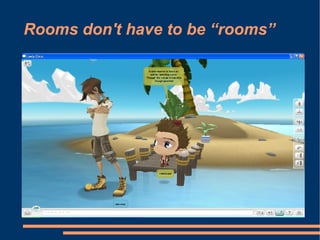
Rooms don't have to be “rooms”
How do you install it on Facebook? Google Lively has its own Facebook application: http://apps.facebook.com/livelybygoogle/home.php Upon loading URL, users will be prompted to download and install the Lively software. Currently this supports PC's only.
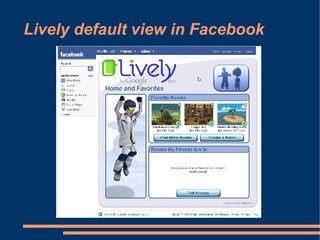
How do you create and customise rooms After installing the software you will be given the opportunity to: Create a new room Find and enter an existing room Invite your friends to use Lively Avatars (Lively characters) are created once inside a room using the menu options on the right of the screen.
Lively default view in Facebook
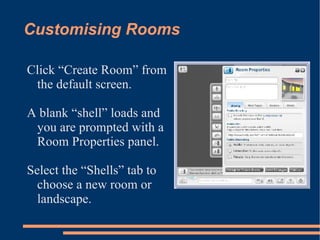
Customising Rooms Click “Create Room” from the default screen. A blank “shell” loads and you are prompted with a Room Properties panel. Select the “Shells” tab to choose a new room or landscape.
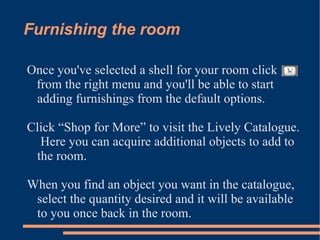
Furnishing the room Once you've selected a shell for your room click from the right menu and you'll be able to start adding furnishings from the default options. Click “Shop for More” to visit the Lively Catalogue.  Here you can acquire additional objects to add to the room.  When you find an object you want in the catalogue, select the quantity desired and it will be available to you once back in the room.
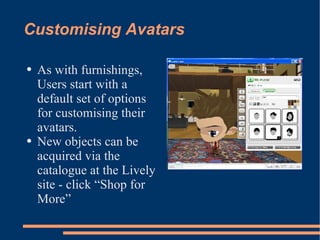
Customising Avatars As with furnishings, Users start with a default set of options for customising their avatars. New objects can be acquired via the catalogue at the Lively site - click “Shop for More”
One final word on Google Lively... Google Lively is still considered a Labs project, which means it's in the developmental stages. As such the application may experience outages and downtime unexpectedly and at times for extended periods.  Support is available at the following sites: http://www.lively.com/help/ http://groups.google.com/group/lively-help

Lively By Google

  • 1.
    Getting Started with Lively by Google By Mike Bogle
  • 2.
    Presentation Contents Thefollowing slideshow will address the following questions: What is Google Lively? How do you install it on Facebook? How do you create and customise rooms? How do you create an avatar?
  • 3.
    What is GoogleLively? Lively is a virtual environment recently launched by Google and is a Labs project in early Alpha. It is essentially a stripped-down, more user-friendly version of SecondLife designed to add a new level of interaction to web use. Primarily for text chat. Avatars interact in user-created rooms, which enable chatting, viewing still or streaming media, and minor interactions with surrounding objects.
  • 4.
    Rooms don't haveto be “rooms”
  • 5.
    How do youinstall it on Facebook? Google Lively has its own Facebook application: http://apps.facebook.com/livelybygoogle/home.php Upon loading URL, users will be prompted to download and install the Lively software. Currently this supports PC's only.
  • 6.
    How do youcreate and customise rooms After installing the software you will be given the opportunity to: Create a new room Find and enter an existing room Invite your friends to use Lively Avatars (Lively characters) are created once inside a room using the menu options on the right of the screen.
  • 7.
  • 8.
    Customising Rooms Click“Create Room” from the default screen. A blank “shell” loads and you are prompted with a Room Properties panel. Select the “Shells” tab to choose a new room or landscape.
  • 9.
    Furnishing the roomOnce you've selected a shell for your room click from the right menu and you'll be able to start adding furnishings from the default options. Click “Shop for More” to visit the Lively Catalogue. Here you can acquire additional objects to add to the room. When you find an object you want in the catalogue, select the quantity desired and it will be available to you once back in the room.
  • 10.
    Customising Avatars Aswith furnishings, Users start with a default set of options for customising their avatars. New objects can be acquired via the catalogue at the Lively site - click “Shop for More”
  • 11.
    One final wordon Google Lively... Google Lively is still considered a Labs project, which means it's in the developmental stages. As such the application may experience outages and downtime unexpectedly and at times for extended periods. Support is available at the following sites: http://www.lively.com/help/ http://groups.google.com/group/lively-help