WE ARE MOTION EXPERTS!
FACT
TOM AND LILLY
WHAT IS MOTION…..
 Motion lets you create sophisticated moving images and other visual
effects on the fly and in real time. Simply drag one of Motion’s built-in
behaviours (such as Spin or Throw) or filters (such as Glow or Strobe)

onto an object in the Canvas and watch your clip be made. We have used
motion for our social networks animation clip when our voice of god
talks about how many people use social networks. The animation is used
to support the Voice of God which is conventional for documentaries.
PROJECT PANE
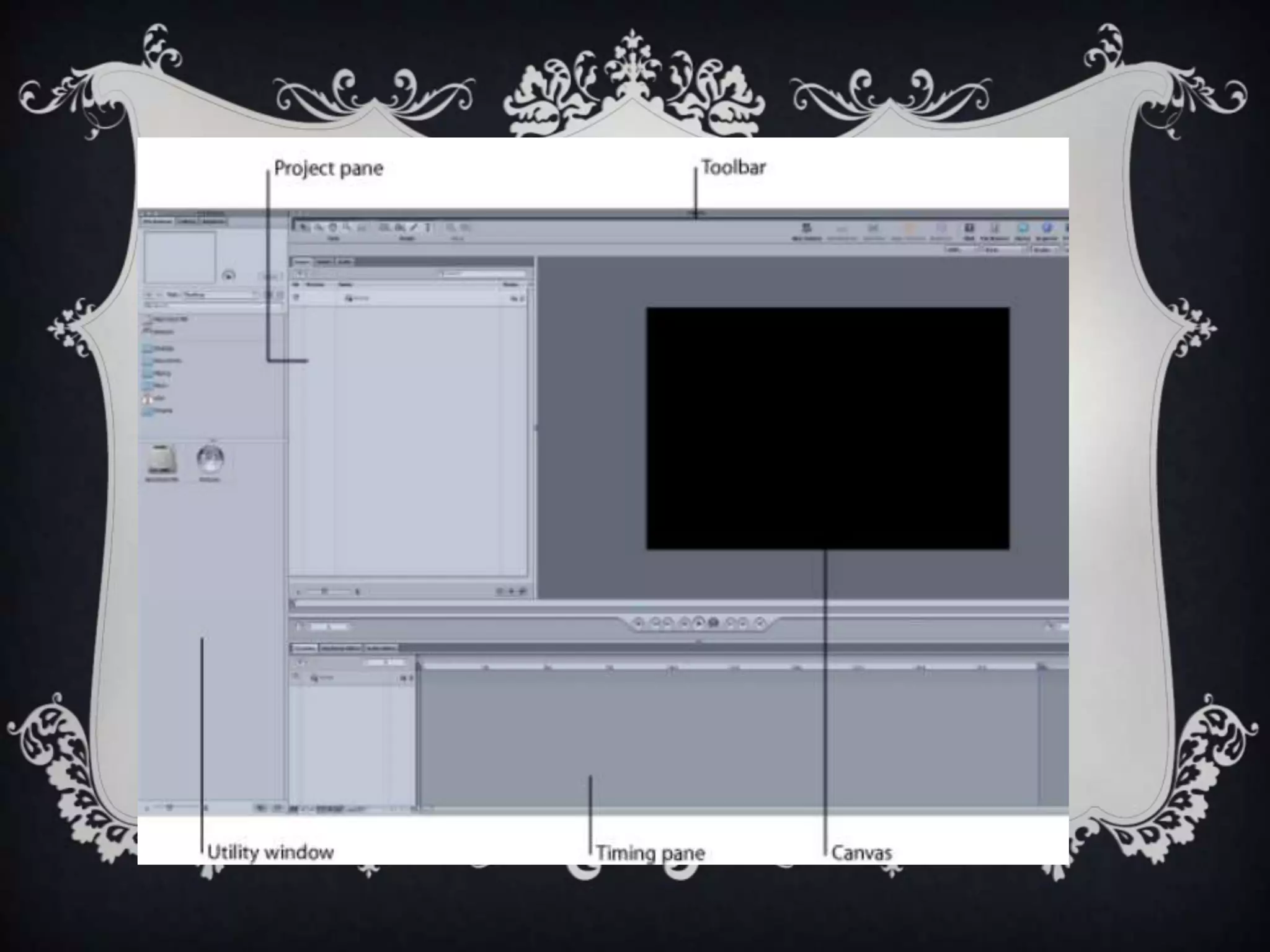
 The Project pane can appear on either the left or right side of the
Canvas window and can be hidden to maximize the Canvas working area.
The Project pane contains three tabs that allowed us to see and
manipulate the contents of the current project in a variety of ways.
 We used the project Plane when creating our animation all the time as
we had to move different images around in order to get our animation to
make sense. We couldn’t have an image of Facebook when our voice over
was talking about twitter.
TOOLBAR
 The Toolbar contains controls to create and edit elements in our
project, such as text, shapes, and masks. There are also icons to apply
filters and behaviours, to create particle systems and replicators, and to

show and hide the various windows and panes of the Motion interface.
 We used the toolbar all the time when we had to put a mask over each
of our images so they could be seen and also when we put our space like
background in.
CANVAS
 The Canvas is the main work area of the interface, where we can
view and manipulate elements, as well as control playback of our
project. The Canvas also contains the Status bar and the project view

options.
 Obviously we had to keep watching our animation back to see if
the timings were right and to see if it worked so this is when we used
the canvas.
UTILITY WINDOW
 The utility window includes the Preview area, File Browser,
Library, and the Inspector. This basically allowed us to take the
images from the internet such as the Facebook logo and put them

into motion. It is a little like exporting on final cut. This then allowed
us to put them onto our project pane to play around with them and
edit them.
TIMING PANE
 The Timing pane appears at the bottom of the Canvas window and
can be hidden to maximize the Canvas working area. The Timing pane
contains three tabs that allow you to see and manipulate different aspects

of the current project with an emphasis on how they are arranged in time.
 This is a little bit like a timeline on final cut as it is where your clips
will go to be editing and it is where you can drag your play head over to
get the correct bit of clip which you want.

Motion tutorial

  • 1.
    WE ARE MOTIONEXPERTS! FACT TOM AND LILLY
  • 2.
    WHAT IS MOTION….. Motion lets you create sophisticated moving images and other visual effects on the fly and in real time. Simply drag one of Motion’s built-in behaviours (such as Spin or Throw) or filters (such as Glow or Strobe) onto an object in the Canvas and watch your clip be made. We have used motion for our social networks animation clip when our voice of god talks about how many people use social networks. The animation is used to support the Voice of God which is conventional for documentaries.
  • 4.
    PROJECT PANE  TheProject pane can appear on either the left or right side of the Canvas window and can be hidden to maximize the Canvas working area. The Project pane contains three tabs that allowed us to see and manipulate the contents of the current project in a variety of ways.  We used the project Plane when creating our animation all the time as we had to move different images around in order to get our animation to make sense. We couldn’t have an image of Facebook when our voice over was talking about twitter.
  • 5.
    TOOLBAR  The Toolbarcontains controls to create and edit elements in our project, such as text, shapes, and masks. There are also icons to apply filters and behaviours, to create particle systems and replicators, and to show and hide the various windows and panes of the Motion interface.  We used the toolbar all the time when we had to put a mask over each of our images so they could be seen and also when we put our space like background in.
  • 6.
    CANVAS  The Canvasis the main work area of the interface, where we can view and manipulate elements, as well as control playback of our project. The Canvas also contains the Status bar and the project view options.  Obviously we had to keep watching our animation back to see if the timings were right and to see if it worked so this is when we used the canvas.
  • 7.
    UTILITY WINDOW  Theutility window includes the Preview area, File Browser, Library, and the Inspector. This basically allowed us to take the images from the internet such as the Facebook logo and put them into motion. It is a little like exporting on final cut. This then allowed us to put them onto our project pane to play around with them and edit them.
  • 8.
    TIMING PANE  TheTiming pane appears at the bottom of the Canvas window and can be hidden to maximize the Canvas working area. The Timing pane contains three tabs that allow you to see and manipulate different aspects of the current project with an emphasis on how they are arranged in time.  This is a little bit like a timeline on final cut as it is where your clips will go to be editing and it is where you can drag your play head over to get the correct bit of clip which you want.