Linux Server
Administration
Padam Banthia Roshan Gulgulia
Systems Administration
O Administering the system?
O Keep the system up in a consistent state
O Monitor performance
O Babysit users, make changes on their behalf
O Install, configure, upgrade, maintain
O Backup, restore, disaster recovery
Sysadmins
O System administration handled by various
people
O Full time dedicated sysadmins on site
O Remote services
O Generic ‘IT’ personnel
O That user that seems to know what they’re
doing
O Can be a skill set central to a career path, or
a means to an end
Privilege Hierarchy
O Want to divide system privilege by account
O First step is file level permissions
O Default permissions limit end users in what
configuration files they can read and which
programs they can run
O Next level is within system programs
O Limit certain functions to only users with
‘elevated’ privileges
The Superuser
O By default, one account has elevated
privileges to issue any command, access
any file, and perform every function
O Superuser, a.k.a. root
O Technically, can change to anything – but
don’t
O User and group number 0
System Operation
O Booting the system
O Runlevels
O Modes
O Shutting down the system
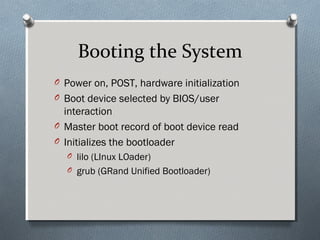
Booting the System
O Power on, POST, hardware initialization
O Boot device selected by BIOS/user
interaction
O Master boot record of boot device read
O Initializes the bootloader
O lilo (LInux LOader)
O grub (GRand Unified Bootloader)
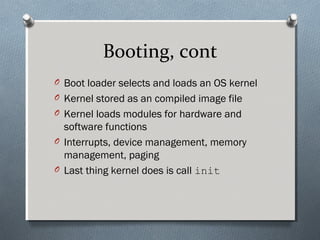
Booting, cont
O Boot loader selects and loads an OS kernel
O Kernel stored as an compiled image file
O Kernel loads modules for hardware and
software functions
O Interrupts, device management, memory
management, paging
O Last thing kernel does is call init
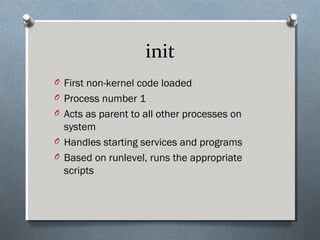
init
O First non-kernel code loaded
O Process number 1
O Acts as parent to all other processes on
system
O Handles starting services and programs
O Based on runlevel, runs the appropriate
scripts
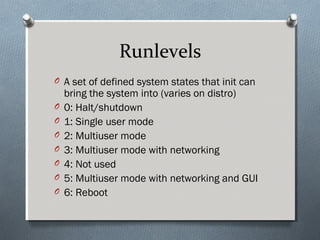
Runlevels
O A set of defined system states that init can
bring the system into (varies on distro)
O 0: Halt/shutdown
O 1: Single user mode
O 2: Multiuser mode
O 3: Multiuser mode with networking
O 4: Not used
O 5: Multiuser mode with networking and GUI
O 6: Reboot
Runlevels, cont
O On boot, init checks /etc/inittab to see what
runlevel to bring system to
O To change runlevel after boot
O telinit runlevel
O shutdown/halt/reboot
O Any time the runlevel changes, init consults
a set of scripts to determine what to
stop/start
Scripts
O Init works with run command (rc) scripts
O Found in /etc/rc.d
O All scripts housed in /etc/rc.d/init.d
O Each script takes a parameter for changing
operation (start/stop/halt/reboot)
O Each runlevel has it’s own directory
O /etc/rc.d/rcN.d
Single User Mode
O Runlevel 1
O Console only – no terminals
O Very minimal environment
O Some filesystems might not be mounted
O Maintenance of filesystems
O Fixing configuration errors
O Disaster recovery
Multiuser Mode
O Runlevels 2-5
O Runlevel 2 allows terminal logins
O Runlevel 3 allows remote terminal logins
O Runlevel 5 enable X11 graphical
environment
O Runlevels 3 and 5 are the most common
levels for day-to-day operations
Shutting Down the System
O Syntax:
shutdown [options] time [message]
O Time: XX:XX or +X or NOW
O -k: don’t really shutdown, just send message
O -r: reboot
O -h: halt
O -c: cancel a shutdown
O halt: calls shutdown –h
O reboot: calls shutdown -r
Scheduling
O Linux systems uses the Cron system for time-
based job scheduling
O Allows users to schedule jobs to run
O Allows sysadmins to run jobs and batch
processes
O Different distros implement the structures
differently
O Most use /etc/crontab as primary set of
instructions
O Sometimes other files are used, like
/var/spool/cron/*
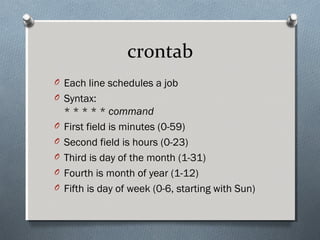
crontab
O Each line schedules a job
O Syntax:
* * * * * command
O First field is minutes (0-59)
O Second field is hours (0-23)
O Third is day of the month (1-31)
O Fourth is month of year (1-12)
O Fifth is day of week (0-6, starting with Sun)
Filesystem Management
O A Linux installation can be comprised of
many different filesystems
O Each filesystem (except for swap) is
connected to the filesystem hierarchy at a
specific point in the tree
O This is referred to as the mount point
O A sysadmin uses mount, umount and
/etc/fstab to manage these mounts
mount
O Syntax (most commonly):
mount –t type device directory
O Associates a device (partition, CD-ROM, etc)
formatted with a particular type of
filesystem with a specified directory in the
hierarchy
O Requires root privileges to mount in most
cases
O mount with no arguments displays list of
mounted filesystems
umount
O Syntax:
umount directory | device
O Removes that association
O Cannot umount if device is still being
accessed (i.e. open files)
O Again, most likely requires root privileges
fstab
O For filesystems that should be mounted on
boot every time, put them in /etc/fstab
O Basically a tab delimited file that contains
the command line parameters you’d give to
mount
O Device
O Mount point (directory)
O FS type
O Options (Readonly, attributes, etc)
Creating New Filesystems
O First use fdisk device to create a
partition
O Similar in function to old fdisk from DOS
O Use ? to display commands, p to display
partition info
O Once partition created, must be formatted
O mkfs –t type filesystem
O Once formatted, you can mount it
Monitoring Disk Usage
O du – disk usage on files and directories
O df – reports filesystem utilization
O lsof – list open file handles
O quota – configure and display user quotas
O quotactl
O quotacheck
O quotaon
O edquota
Installing Software
O The open source movement has provided an
enormous volume of freely available
programs
O Two primary methods of installing programs
O By source
O By package manager
Installing by Source
O Download source code
O Usually comes in a compressed tar archive
(.tar.gz or similar)
O Extract source code
O Configure the installation (usually
./configure)
O Then compile (make)
O Then copy into filesystem (make install)
Package Managers
O There are a wide variety of package
managers available for different Linux
distributions
O In turn, there are several different types of
packages available for each of these
managers
O Packages are an archived version of the
source code
O Often tailored to a specific architecture or
distribution
RPM
O Red Hat Package Manager
O Package format and manager created by
Red Hat developers
O Used widely by Red Hat, Red Hat-based
distros, and many others
O System maintains a local RPM database to
maintain consistency and track installs
RPM, cont
O Many different utilities for managing RPMs
O rpm: command line package manager for
installing/removing/configuring packages
O up2date: command line package manager
that fetches packages from internet and
resolves dependencies
O yum, yast: similar to up2date
O Many GUI frontends available to these
utilities
User Administration
O User configuration stored in /etc/passwd
O File got it’s name because it originally
contained passwords as well
O Security problem – too many processes need
to read passwd
O A shadow file used now instead (more in a
sec)
O Each line contains info for one user
passwd
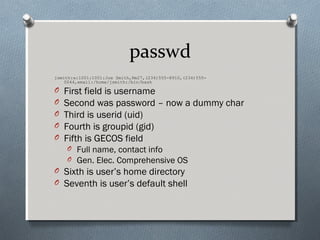
jsmith:x:1001:1001:Joe Smith,Rm27,(234)555-8910,(234)555-
0044,email:/home/jsmith:/bin/bash
O First field is username
O Second was password – now a dummy char
O Third is userid (uid)
O Fourth is groupid (gid)
O Fifth is GECOS field
O Full name, contact info
O Gen. Elec. Comprehensive OS
O Sixth is user’s home directory
O Seventh is user’s default shell
passwd, cont
O Originally passwd contained a user’s
password information
O How it works
O User picks a password
O A random number is generated (called the
salt)
O The salt and the password is passed into a
hash function (a one-way cryptographic
algorithm)
O The salt and result are stored in ASCII
passwd, cont
O Problem – user-level programs need to read
passwd
O Get user name, location
O Home directory, shell
O So passwd was world readable
O So anyone on system could see a user’s
salted hash
O It’s encrypted – what’s the big deal???
Adding Users
O If you really wanted to, edit /etc/passwd
by hand
O Some distributions have graphical or
simplified ways to add users
O Most widely available however is command
line utility useradd
Adding Users, cont
O Syntax:
useradd [options] [-g group] [-
d home] 
[-s shell] username
O -g to define user’s initial group
O -d to define user’s home directory
O -s to define user’s default shell
O Other options for expiration, using defaults,
etc
Deleting Users
O Again, could just hack /etc/passwd
O More elegant:
O Syntax: userdel [-r] username
O -r to delete home directory and it’s contents
Modifying Users
O Syntax: usermod [options]
username
O Options are pretty much identical to those of
useradd
O Also, -l to change the user’s login name
O And –G to list additional groups to add user
to
Group Management
O Group info housed in /etc/group
O Similar to user management
O groupadd
O groupdel
O groupmod
Daemons as Users
O For the most part, Linux daemons (services)
each run as a unique user account
O Provides additional security by segregating
processes and files
O Running daemons as root usually a bad idea
O Accounts usually created automatically and
assigned passwords
O Usually disabled from logging into system
Networking
O Linux is a powerful networking operating
system
O Much of it developed in tandem with the
Internet
O Ability to work as a client, server, or network
device
O Proxies, firewalls, routers, bridges, etc
Networking, cont
O Overall networking usually governed by
/etc/rc.d/init.d/network
O Invoked in runlevels 3 and 5 usually
O Network device/interface configurations in
either /etc/sysconfig/networking
or in /etc/sysconfig/network-
scripts
O Can either edit manually, or use utilities to
manage
ifconfig
O Displays or alters network device configs
O Syntax:
ifconfig interface
[options]
O With no options, shows interface’s config
O If interface omitted as well, show all configs
O Options include flags, IP address, subnet
mask, etc
hostname
O Used to set/display the computer’s network
name
O Depending on what protocols your network
uses, may also need to look at
O domainname
O dnsdomainname
O Especially important for Internet-accessible
systems
O Can be defined in /etc/sysconfig/network
Servers
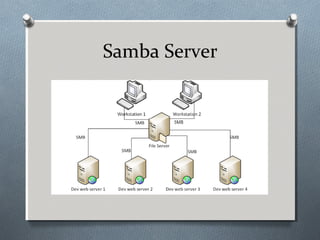
O Samba Server
O FTP Server
O Web Server
What is Samba Server ?
O Samba is an Open Source Suite, that provides
seamless file and print services to SMB/CIFS
clients.
O Samba is freely available. With Samba, you
can share a Linux files system with Windows
and vice versa.
O You can also share printers connected to
either Linux or a system with Windows.
O Samba enables a Linux or Unix server to
function as a file server for client PCs running
Windows software.
Samba Server
O What is SMB?
O SMB stands for – Server Message Block.
O It is a protocol by which a lot of PC-related
machines share files and printers and other
information such as lists of available files and
printers.
O Operating systems that support this natively
include Windows, OS/2, and Linux. What is
CIFS?
O CIFS – Common Internet File System is a
protocol that is basically an updated SMB.
Samba Server
Samba Server Installation
O Step 1: Install the vsftpd package:
O [root@localhost Desktop] # yum install
vsftpd
O Step 2: Configure the software:
O [root@localhost Desktop] # vim
/etc/vsftpd/vsftpd.conf
O Step 3: Starting the service:
O [root@localhost Desktop] # systemctl start
smb
O The service of Samba Web Server is started.
FTP Server
O FTP (File Transfer Protocol) is the simplest and most
secure way to exchange files over the Internet.
O Transferring files from a client computer to a server
computer is called "uploading" and transferring from
a server to a client is "downloading".
O To access an FTP server, users must be able to
connect to the Internet or an intranet (via a modem
or local area network) with an FTP client program.
O FTP doesn’t not really move, it copies files from one
computer to another
O FTP is the file transfer protocol in the Internet's
TCP/IP protocol suite’s Application Layer.
FTP Client
O Some commonly used FTP clients include the
following:
O FileZilla- a popular FTP client that is freely
available for Windows, Macintosh, and Linux users
Available as a free download from the Internet.
O Fire FTP- a plug-in for the popular Firefox web
browser that can be used just like a standalone
FTP program Installed through the FireFox
browser.
O Dreamweaver- page layout/design program,
which include FTP access as one of its many
features Available for purchase from Adobe
FTP Features
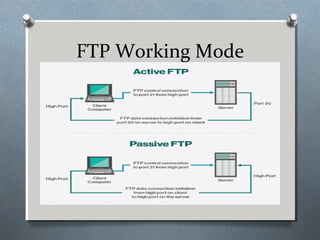
O The FTP protocol is used for transferring one file at a
time, in either direction, between the client machine
(the one which initiated the connection, i.e. the
calling machine) and the server machine (which
provided the FTP service, i.e. the called machine).
O The FTP protocol can also perform other actions,
such as creating and deleting directories (only if they
are empty), listing files, deleting and renaming files,
etc.
O FTP allows files to have ownership and access
restrictions
O FTP hides the details of individual computer systems
FTP Working Mode
FTP Installation
O Step 1: Install the vsftpd package:
O [root@localhost Desktop] # yum
install vsftpd
O Step 2: Configure the software:
O [root@localhost Desktop] # vim
/etc/vsftpd/vsftpd.conf
O Step 3: Starting the service:
O [root@localhost Desktop] #
systemctl start vsftpd
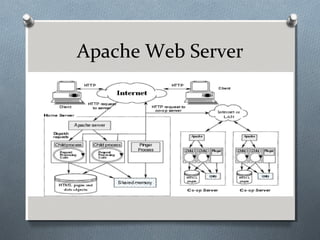
Web Server
O A Web server is a program that generates and
transmits responses to client requests for Web
resources.
O Handling a client request consists of several key
steps:
O Parsing the request message
O Checking that the request is authorized
O Associating the URL in the request with a file
name
O Constructing the response message
O Transmitting the response message to the
requesting client
Apache Web Server
Hypertext Transfer Protocol
(HTTP)
O The Hypertext Transfer Protocol (HTTP) is an
application protocol for distributed, collaborative,
hypermedia information systems.
O HTTP is the foundation of data communication for
the World Wide Web.
O HTTP functions as a request–response protocol in
the client–server computing model
O HTTP is an application layer protocol designed within
the framework of the Internet Protocol Suite.
O HTTP resources are identified and located on the
network by uniform resource locators (URLs), using
the uniform resource identifier (URI) schemes http
and https.
Installation of HTPD
O Step 1: Install the httpd package:
O [root@localhost Desktop] # yum
install httpd
O Step 2: Configure the software:
O [root@localhost Desktop] # vim
/etc/httpd/conf/httpd.conf
O Step 3: Starting the service:
O [root@localhost Desktop] #
systemctl start httpd
Intro to linux systems administration

Intro to linux systems administration

  • 1.
  • 2.
    Systems Administration O Administeringthe system? O Keep the system up in a consistent state O Monitor performance O Babysit users, make changes on their behalf O Install, configure, upgrade, maintain O Backup, restore, disaster recovery
  • 3.
    Sysadmins O System administrationhandled by various people O Full time dedicated sysadmins on site O Remote services O Generic ‘IT’ personnel O That user that seems to know what they’re doing O Can be a skill set central to a career path, or a means to an end
  • 4.
    Privilege Hierarchy O Wantto divide system privilege by account O First step is file level permissions O Default permissions limit end users in what configuration files they can read and which programs they can run O Next level is within system programs O Limit certain functions to only users with ‘elevated’ privileges
  • 5.
    The Superuser O Bydefault, one account has elevated privileges to issue any command, access any file, and perform every function O Superuser, a.k.a. root O Technically, can change to anything – but don’t O User and group number 0
  • 6.
    System Operation O Bootingthe system O Runlevels O Modes O Shutting down the system
  • 7.
    Booting the System OPower on, POST, hardware initialization O Boot device selected by BIOS/user interaction O Master boot record of boot device read O Initializes the bootloader O lilo (LInux LOader) O grub (GRand Unified Bootloader)
  • 8.
    Booting, cont O Bootloader selects and loads an OS kernel O Kernel stored as an compiled image file O Kernel loads modules for hardware and software functions O Interrupts, device management, memory management, paging O Last thing kernel does is call init
  • 9.
    init O First non-kernelcode loaded O Process number 1 O Acts as parent to all other processes on system O Handles starting services and programs O Based on runlevel, runs the appropriate scripts
  • 10.
    Runlevels O A setof defined system states that init can bring the system into (varies on distro) O 0: Halt/shutdown O 1: Single user mode O 2: Multiuser mode O 3: Multiuser mode with networking O 4: Not used O 5: Multiuser mode with networking and GUI O 6: Reboot
  • 11.
    Runlevels, cont O Onboot, init checks /etc/inittab to see what runlevel to bring system to O To change runlevel after boot O telinit runlevel O shutdown/halt/reboot O Any time the runlevel changes, init consults a set of scripts to determine what to stop/start
  • 12.
    Scripts O Init workswith run command (rc) scripts O Found in /etc/rc.d O All scripts housed in /etc/rc.d/init.d O Each script takes a parameter for changing operation (start/stop/halt/reboot) O Each runlevel has it’s own directory O /etc/rc.d/rcN.d
  • 13.
    Single User Mode ORunlevel 1 O Console only – no terminals O Very minimal environment O Some filesystems might not be mounted O Maintenance of filesystems O Fixing configuration errors O Disaster recovery
  • 14.
    Multiuser Mode O Runlevels2-5 O Runlevel 2 allows terminal logins O Runlevel 3 allows remote terminal logins O Runlevel 5 enable X11 graphical environment O Runlevels 3 and 5 are the most common levels for day-to-day operations
  • 15.
    Shutting Down theSystem O Syntax: shutdown [options] time [message] O Time: XX:XX or +X or NOW O -k: don’t really shutdown, just send message O -r: reboot O -h: halt O -c: cancel a shutdown O halt: calls shutdown –h O reboot: calls shutdown -r
  • 16.
    Scheduling O Linux systemsuses the Cron system for time- based job scheduling O Allows users to schedule jobs to run O Allows sysadmins to run jobs and batch processes O Different distros implement the structures differently O Most use /etc/crontab as primary set of instructions O Sometimes other files are used, like /var/spool/cron/*
  • 17.
    crontab O Each lineschedules a job O Syntax: * * * * * command O First field is minutes (0-59) O Second field is hours (0-23) O Third is day of the month (1-31) O Fourth is month of year (1-12) O Fifth is day of week (0-6, starting with Sun)
  • 18.
    Filesystem Management O ALinux installation can be comprised of many different filesystems O Each filesystem (except for swap) is connected to the filesystem hierarchy at a specific point in the tree O This is referred to as the mount point O A sysadmin uses mount, umount and /etc/fstab to manage these mounts
  • 19.
    mount O Syntax (mostcommonly): mount –t type device directory O Associates a device (partition, CD-ROM, etc) formatted with a particular type of filesystem with a specified directory in the hierarchy O Requires root privileges to mount in most cases O mount with no arguments displays list of mounted filesystems
  • 20.
    umount O Syntax: umount directory| device O Removes that association O Cannot umount if device is still being accessed (i.e. open files) O Again, most likely requires root privileges
  • 21.
    fstab O For filesystemsthat should be mounted on boot every time, put them in /etc/fstab O Basically a tab delimited file that contains the command line parameters you’d give to mount O Device O Mount point (directory) O FS type O Options (Readonly, attributes, etc)
  • 22.
    Creating New Filesystems OFirst use fdisk device to create a partition O Similar in function to old fdisk from DOS O Use ? to display commands, p to display partition info O Once partition created, must be formatted O mkfs –t type filesystem O Once formatted, you can mount it
  • 23.
    Monitoring Disk Usage Odu – disk usage on files and directories O df – reports filesystem utilization O lsof – list open file handles O quota – configure and display user quotas O quotactl O quotacheck O quotaon O edquota
  • 24.
    Installing Software O Theopen source movement has provided an enormous volume of freely available programs O Two primary methods of installing programs O By source O By package manager
  • 25.
    Installing by Source ODownload source code O Usually comes in a compressed tar archive (.tar.gz or similar) O Extract source code O Configure the installation (usually ./configure) O Then compile (make) O Then copy into filesystem (make install)
  • 26.
    Package Managers O Thereare a wide variety of package managers available for different Linux distributions O In turn, there are several different types of packages available for each of these managers O Packages are an archived version of the source code O Often tailored to a specific architecture or distribution
  • 27.
    RPM O Red HatPackage Manager O Package format and manager created by Red Hat developers O Used widely by Red Hat, Red Hat-based distros, and many others O System maintains a local RPM database to maintain consistency and track installs
  • 28.
    RPM, cont O Manydifferent utilities for managing RPMs O rpm: command line package manager for installing/removing/configuring packages O up2date: command line package manager that fetches packages from internet and resolves dependencies O yum, yast: similar to up2date O Many GUI frontends available to these utilities
  • 29.
    User Administration O Userconfiguration stored in /etc/passwd O File got it’s name because it originally contained passwords as well O Security problem – too many processes need to read passwd O A shadow file used now instead (more in a sec) O Each line contains info for one user
  • 30.
    passwd jsmith:x:1001:1001:Joe Smith,Rm27,(234)555-8910,(234)555- 0044,email:/home/jsmith:/bin/bash O Firstfield is username O Second was password – now a dummy char O Third is userid (uid) O Fourth is groupid (gid) O Fifth is GECOS field O Full name, contact info O Gen. Elec. Comprehensive OS O Sixth is user’s home directory O Seventh is user’s default shell
  • 31.
    passwd, cont O Originallypasswd contained a user’s password information O How it works O User picks a password O A random number is generated (called the salt) O The salt and the password is passed into a hash function (a one-way cryptographic algorithm) O The salt and result are stored in ASCII
  • 32.
    passwd, cont O Problem– user-level programs need to read passwd O Get user name, location O Home directory, shell O So passwd was world readable O So anyone on system could see a user’s salted hash O It’s encrypted – what’s the big deal???
  • 33.
    Adding Users O Ifyou really wanted to, edit /etc/passwd by hand O Some distributions have graphical or simplified ways to add users O Most widely available however is command line utility useradd
  • 34.
    Adding Users, cont OSyntax: useradd [options] [-g group] [- d home] [-s shell] username O -g to define user’s initial group O -d to define user’s home directory O -s to define user’s default shell O Other options for expiration, using defaults, etc
  • 35.
    Deleting Users O Again,could just hack /etc/passwd O More elegant: O Syntax: userdel [-r] username O -r to delete home directory and it’s contents
  • 36.
    Modifying Users O Syntax:usermod [options] username O Options are pretty much identical to those of useradd O Also, -l to change the user’s login name O And –G to list additional groups to add user to
  • 37.
    Group Management O Groupinfo housed in /etc/group O Similar to user management O groupadd O groupdel O groupmod
  • 38.
    Daemons as Users OFor the most part, Linux daemons (services) each run as a unique user account O Provides additional security by segregating processes and files O Running daemons as root usually a bad idea O Accounts usually created automatically and assigned passwords O Usually disabled from logging into system
  • 39.
    Networking O Linux isa powerful networking operating system O Much of it developed in tandem with the Internet O Ability to work as a client, server, or network device O Proxies, firewalls, routers, bridges, etc
  • 40.
    Networking, cont O Overallnetworking usually governed by /etc/rc.d/init.d/network O Invoked in runlevels 3 and 5 usually O Network device/interface configurations in either /etc/sysconfig/networking or in /etc/sysconfig/network- scripts O Can either edit manually, or use utilities to manage
  • 41.
    ifconfig O Displays oralters network device configs O Syntax: ifconfig interface [options] O With no options, shows interface’s config O If interface omitted as well, show all configs O Options include flags, IP address, subnet mask, etc
  • 42.
    hostname O Used toset/display the computer’s network name O Depending on what protocols your network uses, may also need to look at O domainname O dnsdomainname O Especially important for Internet-accessible systems O Can be defined in /etc/sysconfig/network
  • 43.
    Servers O Samba Server OFTP Server O Web Server
  • 44.
    What is SambaServer ? O Samba is an Open Source Suite, that provides seamless file and print services to SMB/CIFS clients. O Samba is freely available. With Samba, you can share a Linux files system with Windows and vice versa. O You can also share printers connected to either Linux or a system with Windows. O Samba enables a Linux or Unix server to function as a file server for client PCs running Windows software.
  • 45.
    Samba Server O Whatis SMB? O SMB stands for – Server Message Block. O It is a protocol by which a lot of PC-related machines share files and printers and other information such as lists of available files and printers. O Operating systems that support this natively include Windows, OS/2, and Linux. What is CIFS? O CIFS – Common Internet File System is a protocol that is basically an updated SMB.
  • 46.
  • 47.
    Samba Server Installation OStep 1: Install the vsftpd package: O [root@localhost Desktop] # yum install vsftpd O Step 2: Configure the software: O [root@localhost Desktop] # vim /etc/vsftpd/vsftpd.conf O Step 3: Starting the service: O [root@localhost Desktop] # systemctl start smb O The service of Samba Web Server is started.
  • 48.
    FTP Server O FTP(File Transfer Protocol) is the simplest and most secure way to exchange files over the Internet. O Transferring files from a client computer to a server computer is called "uploading" and transferring from a server to a client is "downloading". O To access an FTP server, users must be able to connect to the Internet or an intranet (via a modem or local area network) with an FTP client program. O FTP doesn’t not really move, it copies files from one computer to another O FTP is the file transfer protocol in the Internet's TCP/IP protocol suite’s Application Layer.
  • 49.
    FTP Client O Somecommonly used FTP clients include the following: O FileZilla- a popular FTP client that is freely available for Windows, Macintosh, and Linux users Available as a free download from the Internet. O Fire FTP- a plug-in for the popular Firefox web browser that can be used just like a standalone FTP program Installed through the FireFox browser. O Dreamweaver- page layout/design program, which include FTP access as one of its many features Available for purchase from Adobe
  • 50.
    FTP Features O TheFTP protocol is used for transferring one file at a time, in either direction, between the client machine (the one which initiated the connection, i.e. the calling machine) and the server machine (which provided the FTP service, i.e. the called machine). O The FTP protocol can also perform other actions, such as creating and deleting directories (only if they are empty), listing files, deleting and renaming files, etc. O FTP allows files to have ownership and access restrictions O FTP hides the details of individual computer systems
  • 51.
  • 52.
    FTP Installation O Step1: Install the vsftpd package: O [root@localhost Desktop] # yum install vsftpd O Step 2: Configure the software: O [root@localhost Desktop] # vim /etc/vsftpd/vsftpd.conf O Step 3: Starting the service: O [root@localhost Desktop] # systemctl start vsftpd
  • 53.
    Web Server O AWeb server is a program that generates and transmits responses to client requests for Web resources. O Handling a client request consists of several key steps: O Parsing the request message O Checking that the request is authorized O Associating the URL in the request with a file name O Constructing the response message O Transmitting the response message to the requesting client
  • 54.
  • 55.
    Hypertext Transfer Protocol (HTTP) OThe Hypertext Transfer Protocol (HTTP) is an application protocol for distributed, collaborative, hypermedia information systems. O HTTP is the foundation of data communication for the World Wide Web. O HTTP functions as a request–response protocol in the client–server computing model O HTTP is an application layer protocol designed within the framework of the Internet Protocol Suite. O HTTP resources are identified and located on the network by uniform resource locators (URLs), using the uniform resource identifier (URI) schemes http and https.
  • 56.
    Installation of HTPD OStep 1: Install the httpd package: O [root@localhost Desktop] # yum install httpd O Step 2: Configure the software: O [root@localhost Desktop] # vim /etc/httpd/conf/httpd.conf O Step 3: Starting the service: O [root@localhost Desktop] # systemctl start httpd