Introduction to
W3SCRIPTS.NET2011
openSUSE is a PC operating system based on GNU and Linux.It's a
free and open source. it developed by the community-supported
openSUSE Project and sponsored by SUSE.
openSUSE is suitable for laptops, desktops, netbooks, servers and
at home or in small offices.
New versions of openSUSE are released every 8 months,
supporting many languages - each release is provided with
security updates for a period of 18 months.
W3SCRIPTS.NET2011
openSUSE can be used anywhere and everywhere
Play games
Make documents, spreadsheets, presentation on
the go
Watch movies
Listen and share your favourite songs
Browse the Internet seamlessly
Do programming
And more.......
W3SCRIPTS.NET2011
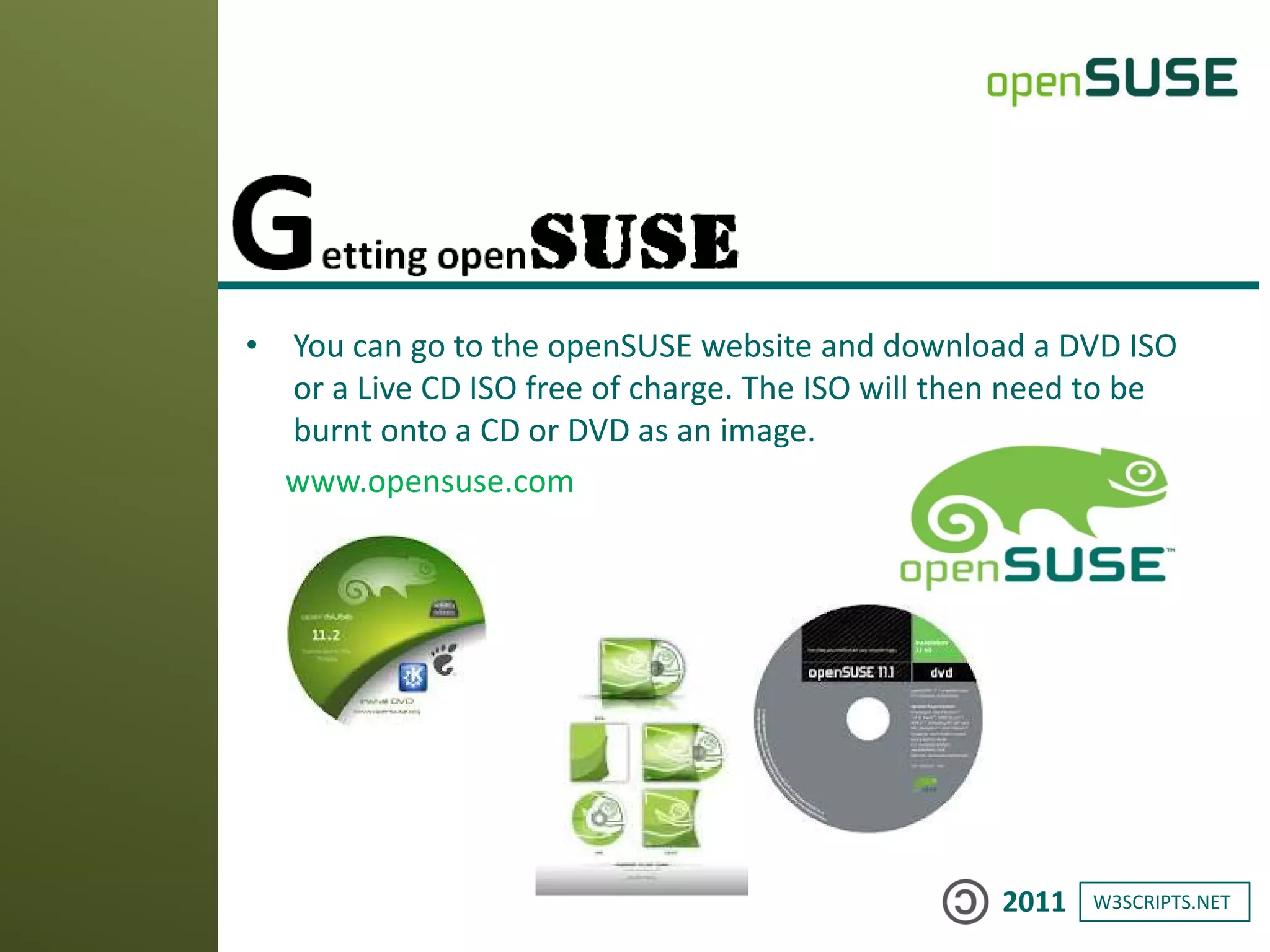
• You can go to the openSUSE website and download a DVD ISO
or a Live CD ISO free of charge. The ISO will then need to be
burnt onto a CD or DVD as an image.
www.opensuse.com
W3SCRIPTS.NET2011
openSUSE
System Minimum Requirements
CPU: Intel: Pentium or later; AMD: Duron, Athlon, Athlon XP,
Athlon MP, Athlon 64 and Sempron
RAM: 256 MB, 512 MB or more recommended (for
installation via Live CD/USB you should have 1-1,5 GB RAM)
Disk Space: 5,0 GB for a normal installation (10 GB or more
recommended)
Sound and Graphics Card: Most modern cards are supported
W3SCRIPTS.NET2011
1) free operating system
2) free firewall
3) free anti-virus (though not needed to protect Linux)
4) free Office suite
5) free DVD/Video playback programs
6) free games
7) free photo and video editing at pretty powerful level
8) free sound studio editing/mixing
9) you are FREE to participate: add language support; donate to
developers and etc
9 reasons on why openSUSE 11.3 is better than
Windows
W3SCRIPTS.NET2011
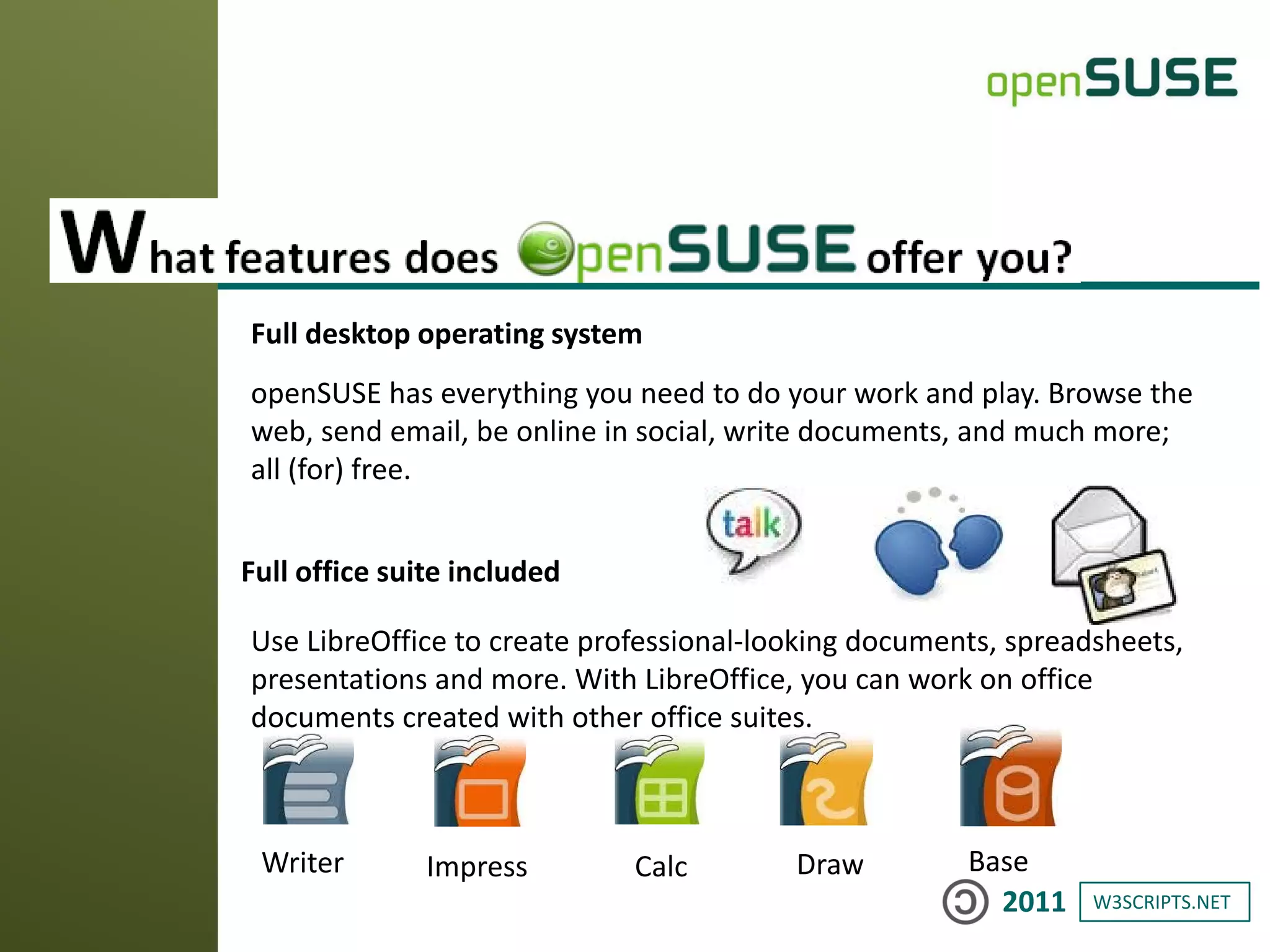
Full desktop operating system
openSUSE has everything you need to do your work and play. Browse the
web, send email, be online in social, write documents, and much more;
all (for) free.
Full office suite included
Use LibreOffice to create professional-looking documents, spreadsheets,
presentations and more. With LibreOffice, you can work on office
documents created with other office suites.
Writer Impress Calc Draw Base
W3SCRIPTS.NET2011
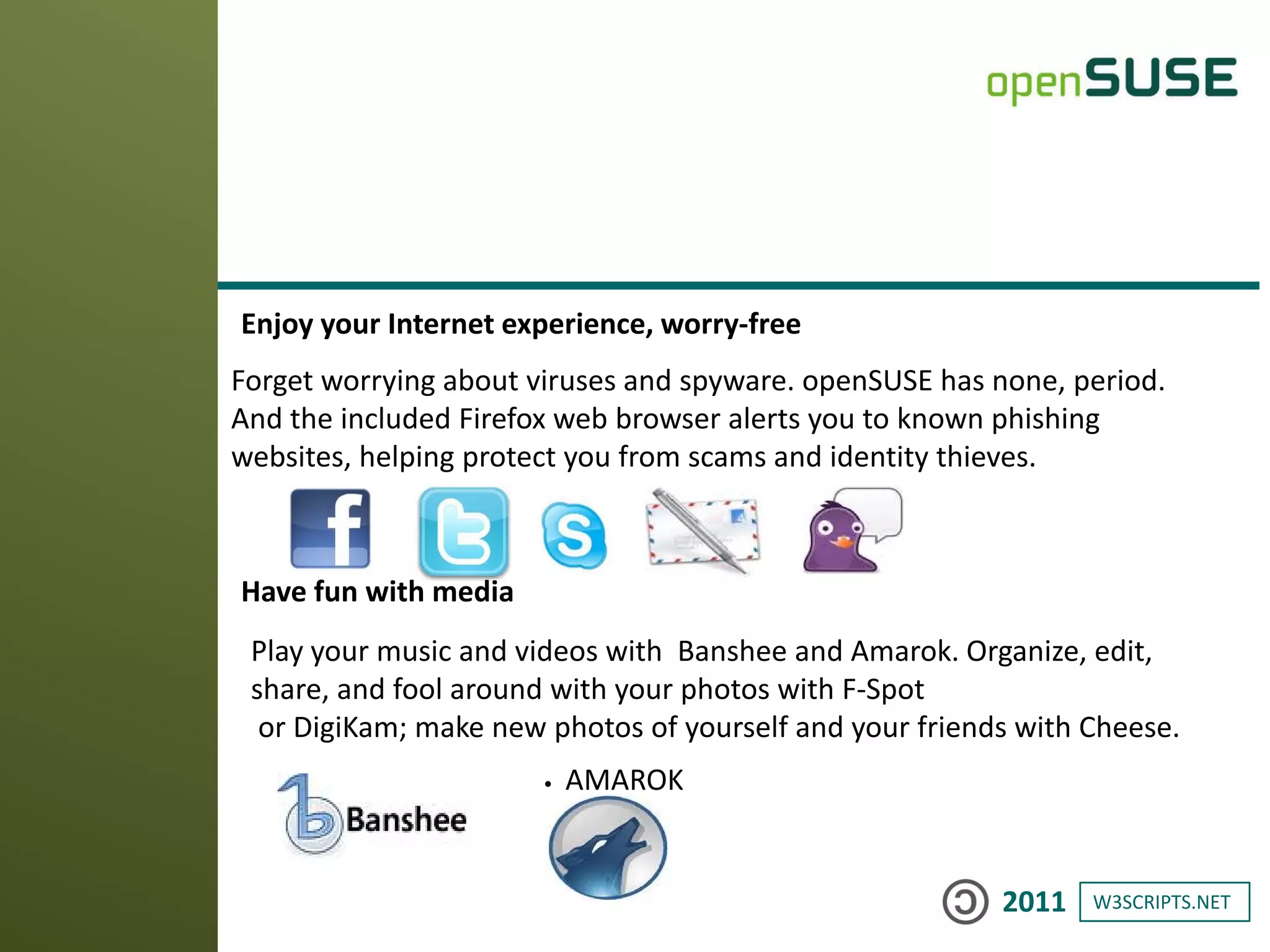
Enjoy your Internet experience, worry-free
Forget worrying about viruses and spyware. openSUSE has none, period.
And the included Firefox web browser alerts you to known phishing
websites, helping protect you from scams and identity thieves.
Have fun with media
Play your music and videos with Banshee and Amarok. Organize, edit,
share, and fool around with your photos with F-Spot
or DigiKam; make new photos of yourself and your friends with Cheese.
• AMAROK
W3SCRIPTS.NET2011
W3SCRIPTS.NET2011
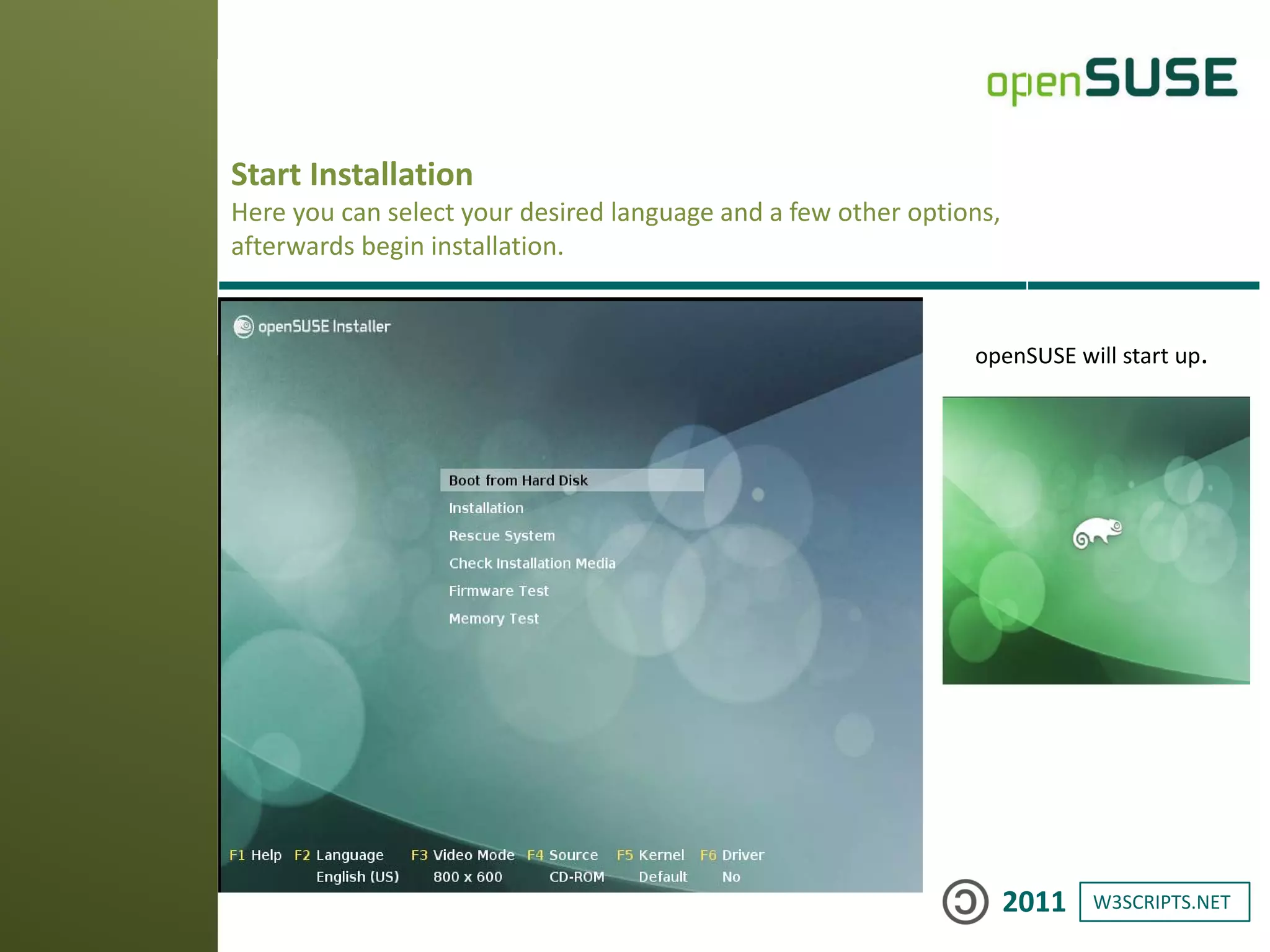
Start Installation
Here you can select your desired language and a few other options,
afterwards begin installation.
openSUSE will start up.
W3SCRIPTS.NET2011
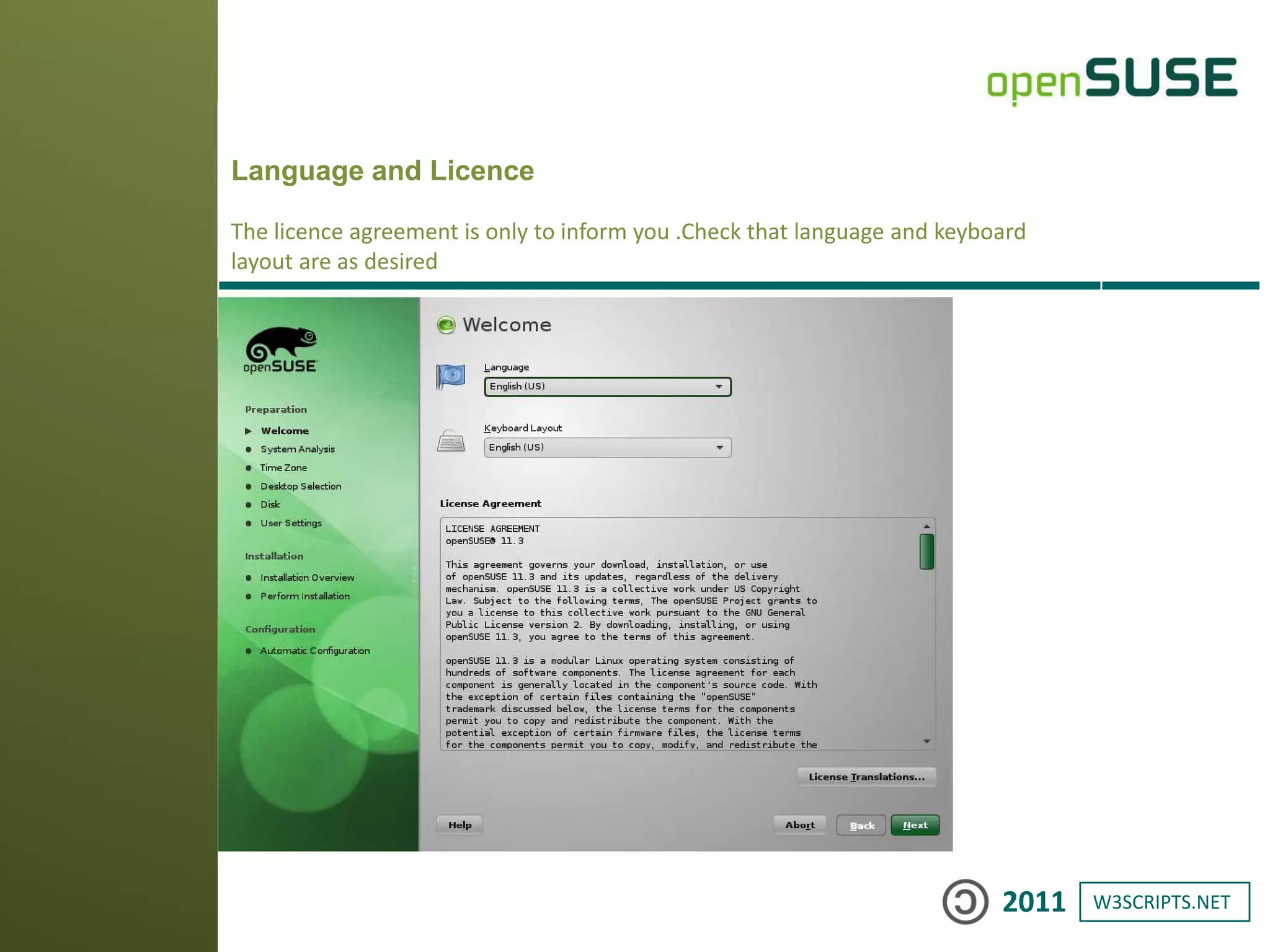
Language and Licence
The licence agreement is only to inform you .Check that language and keyboard
layout are as desired
W3SCRIPTS.NET2011
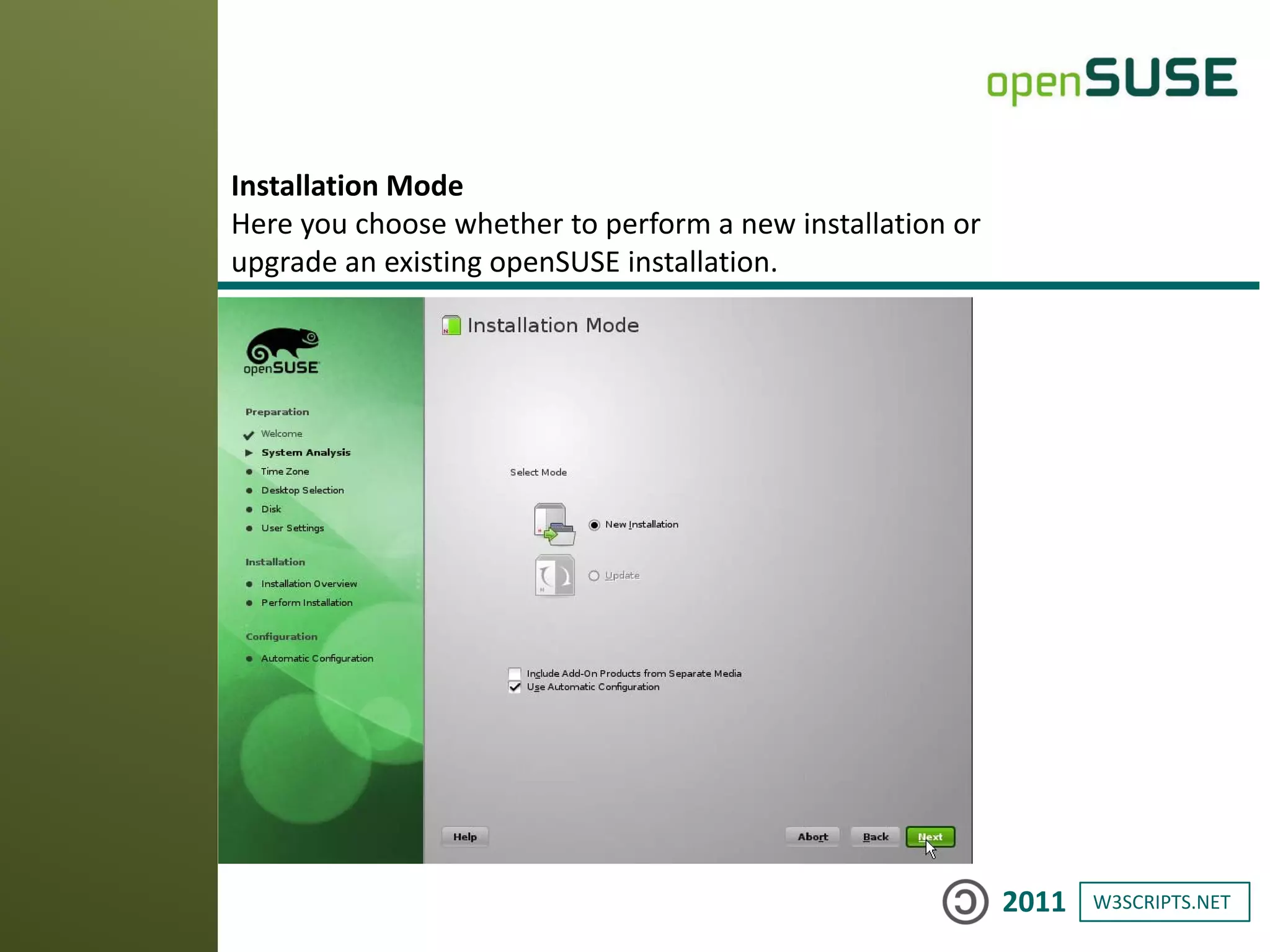
Installation Mode
Here you choose whether to perform a new installation or
upgrade an existing openSUSE installation.
W3SCRIPTS.NET2011
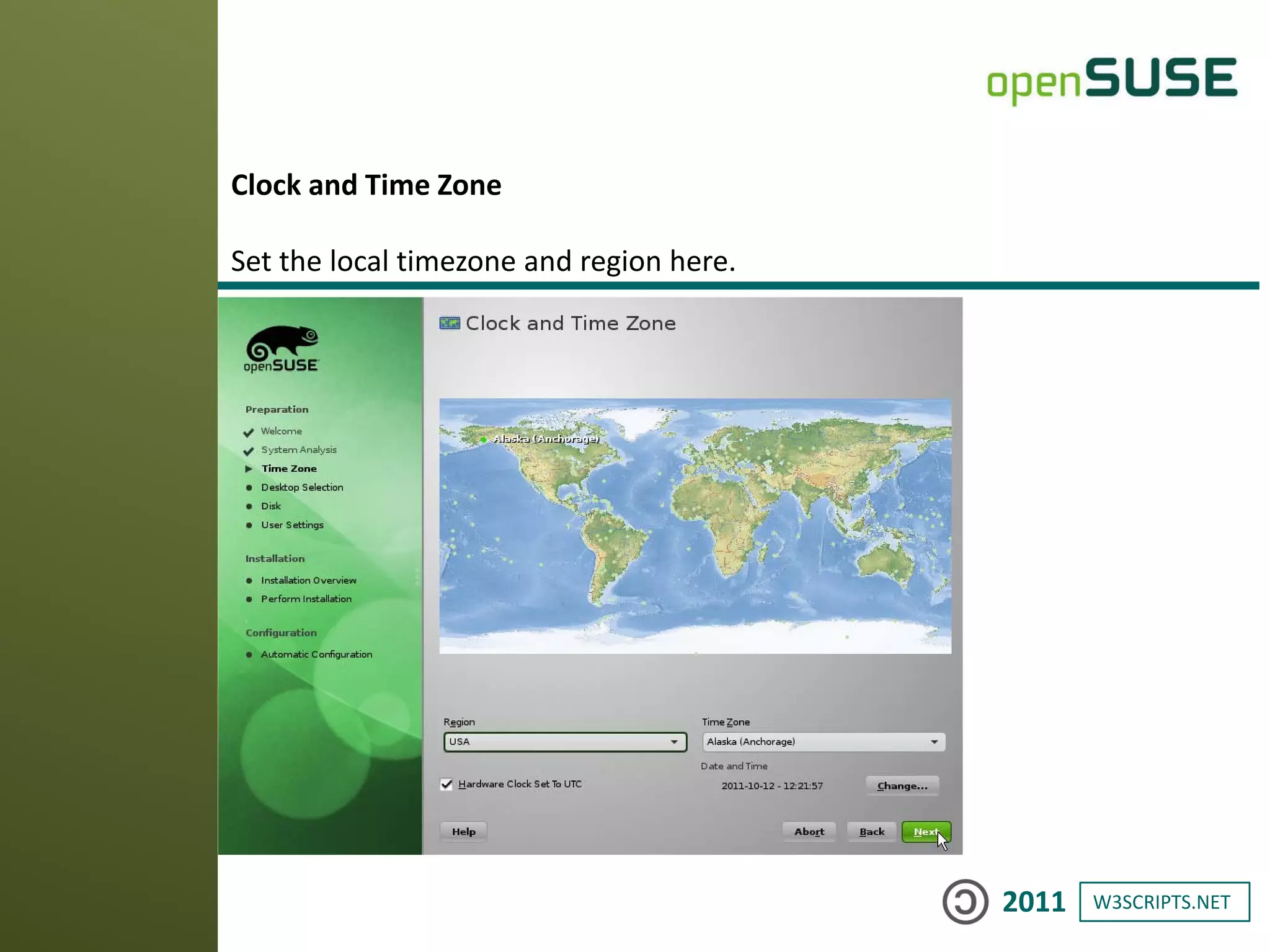
Clock and Time Zone
Set the local timezone and region here.
W3SCRIPTS.NET2011
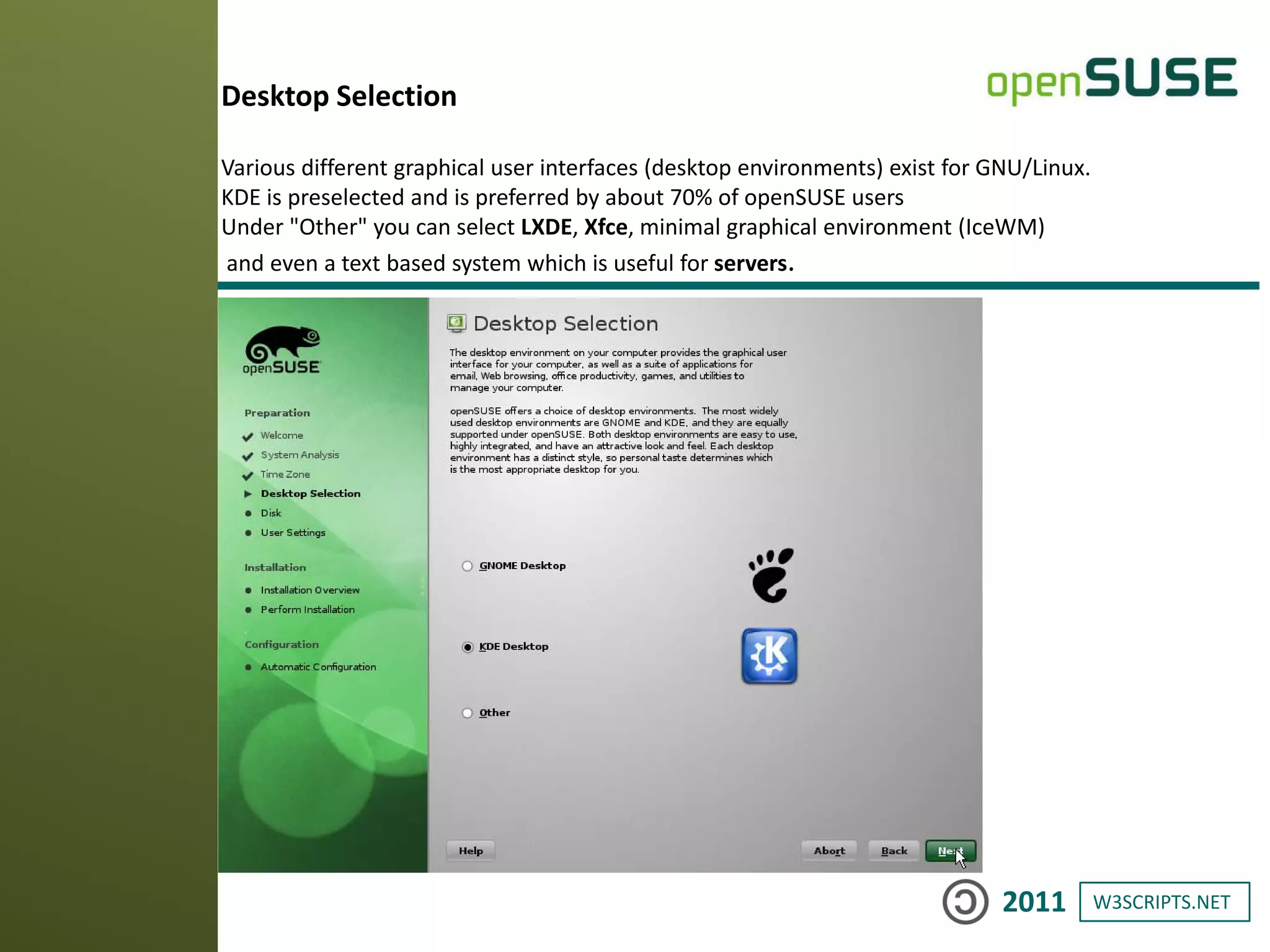
Desktop Selection
Various different graphical user interfaces (desktop environments) exist for GNU/Linux.
KDE is preselected and is preferred by about 70% of openSUSE users
Under "Other" you can select LXDE, Xfce, minimal graphical environment (IceWM)
and even a text based system which is useful for servers.
W3SCRIPTS.NET2011
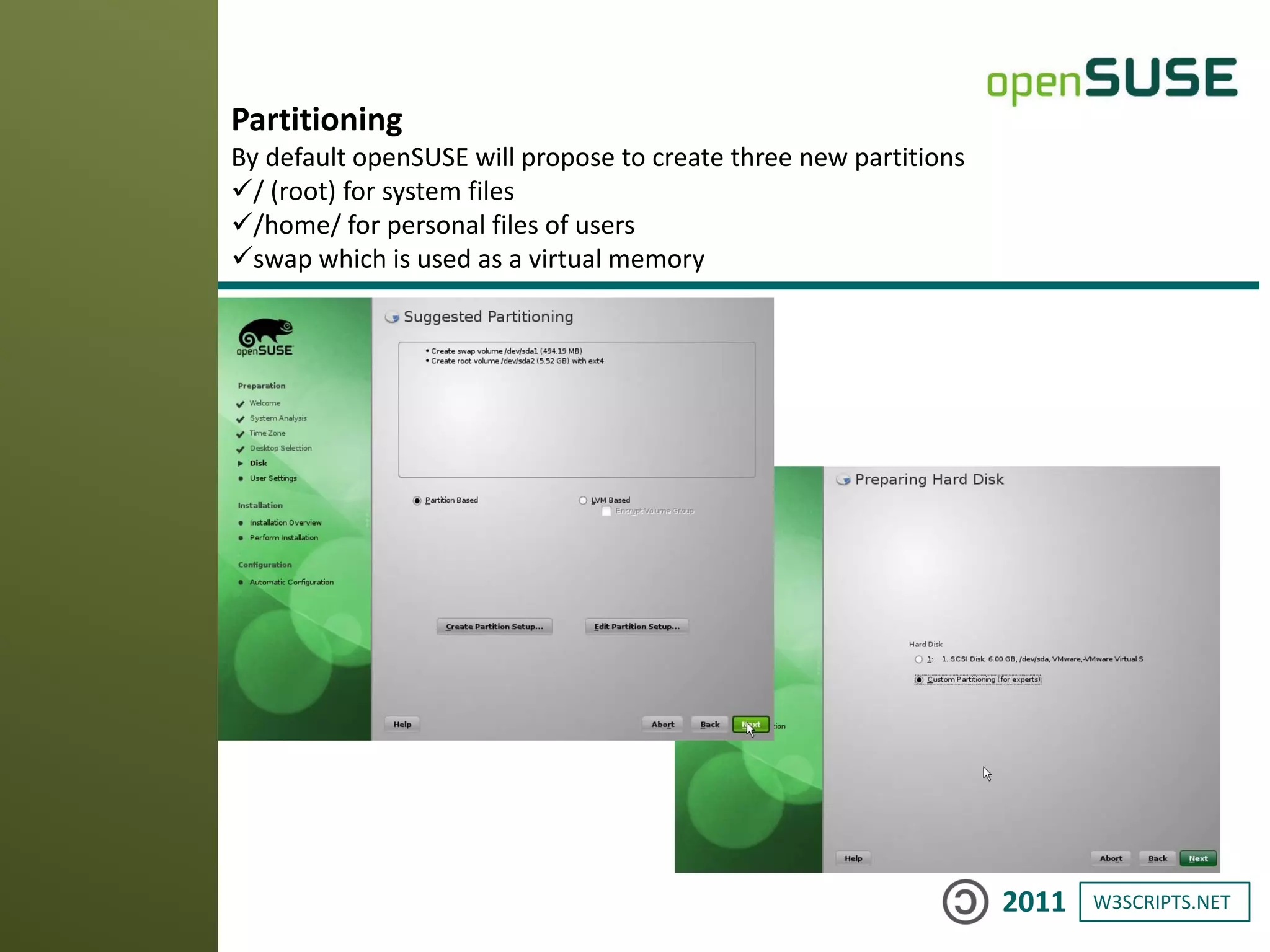
Partitioning
By default openSUSE will propose to create three new partitions
/ (root) for system files
/home/ for personal files of users
swap which is used as a virtual memory
W3SCRIPTS.NET2011
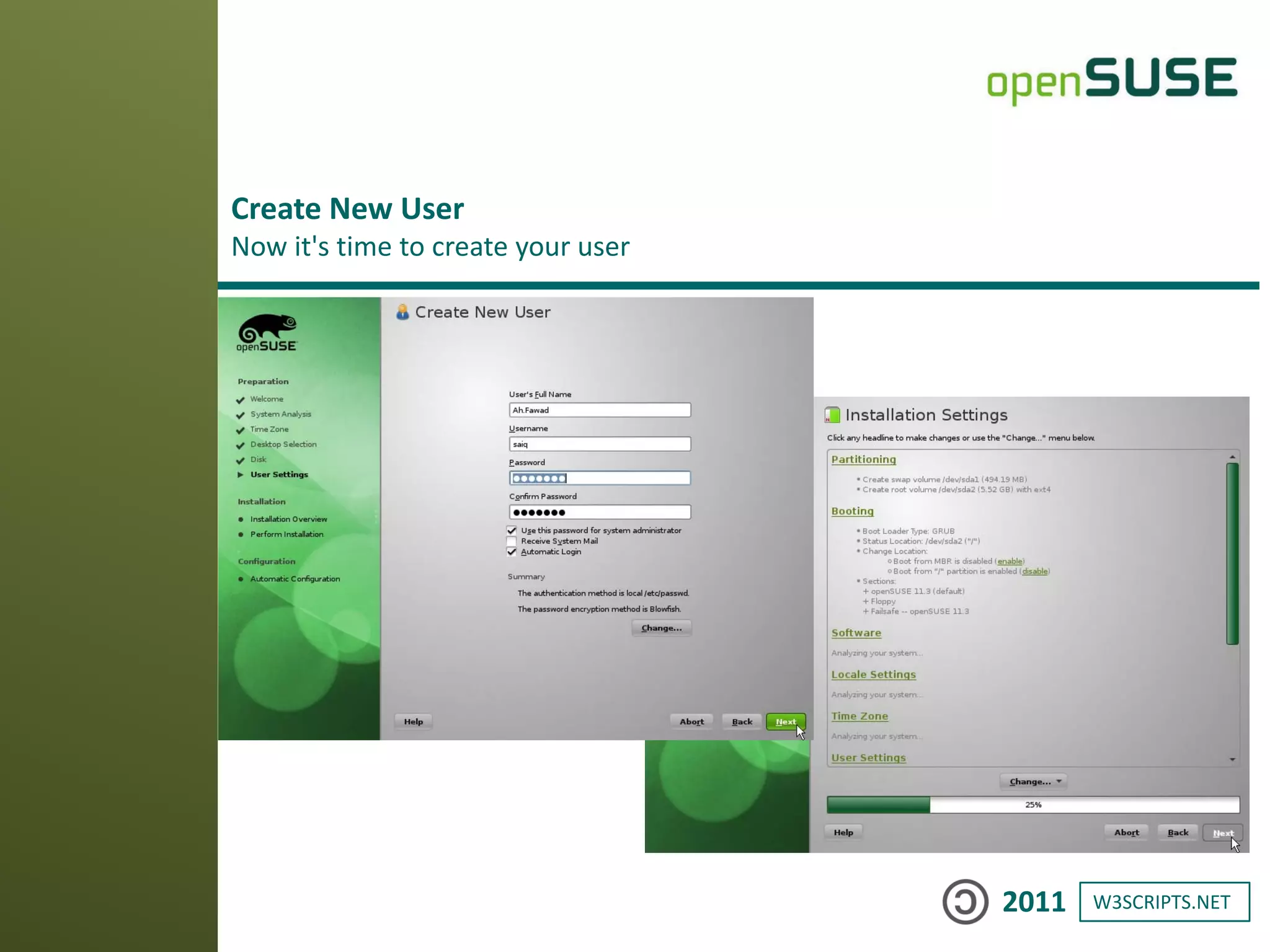
Create New User
Now it's time to create your user
W3SCRIPTS.NET2011
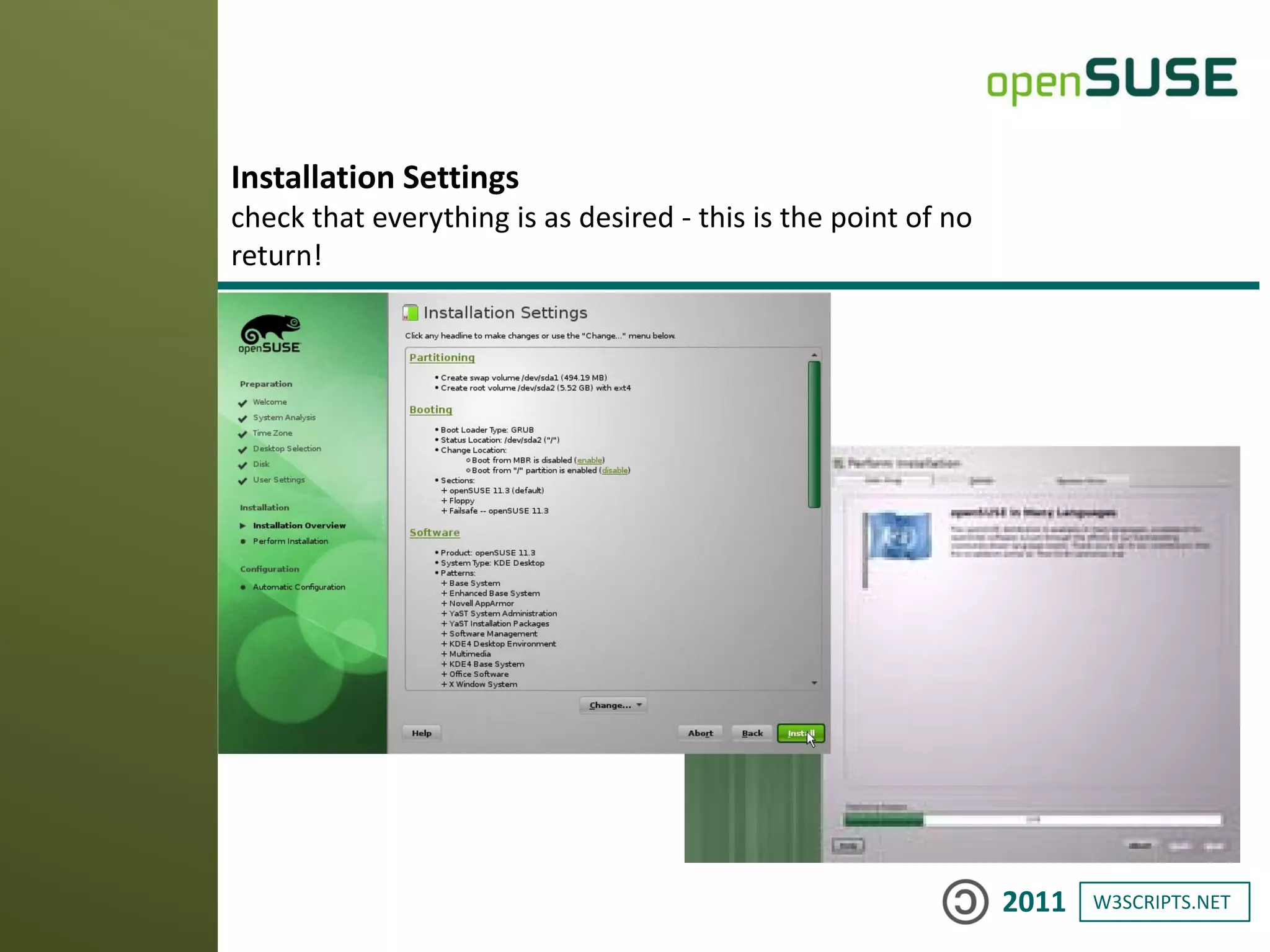
Installation Settings
check that everything is as desired - this is the point of no
return!
W3SCRIPTS.NET2011
Once everything has finished installing, you’ll be prompted to restart
openSUSE. Click OK.
After the reboot, the system will perform automatic configuration.
Congratulations, and have a lot of fun with
openSUSE!
W3SCRIPTS.NET2011
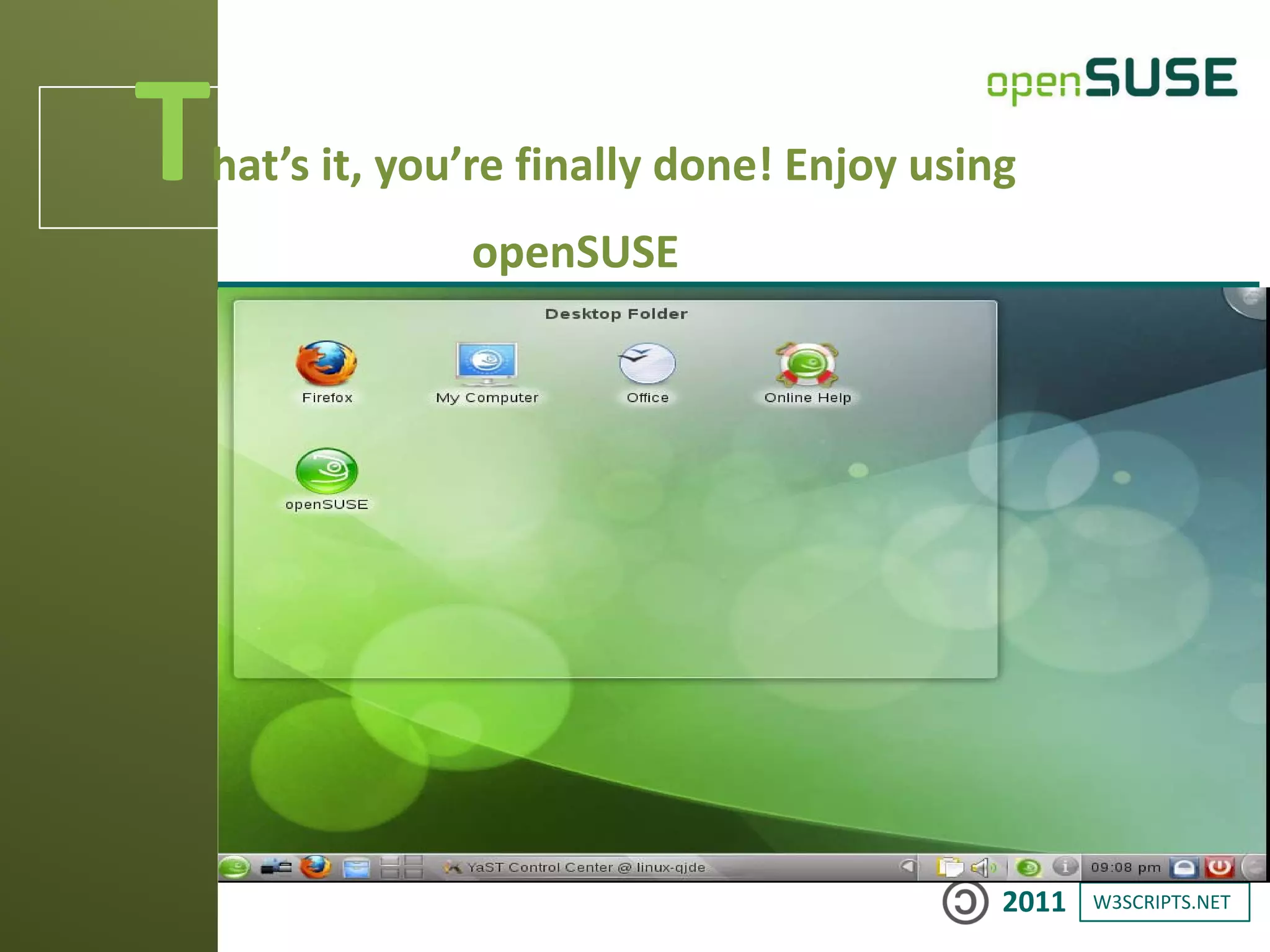
That’s it, you’re finally done! Enjoy using
openSUSE
W3SCRIPTS.NET2011
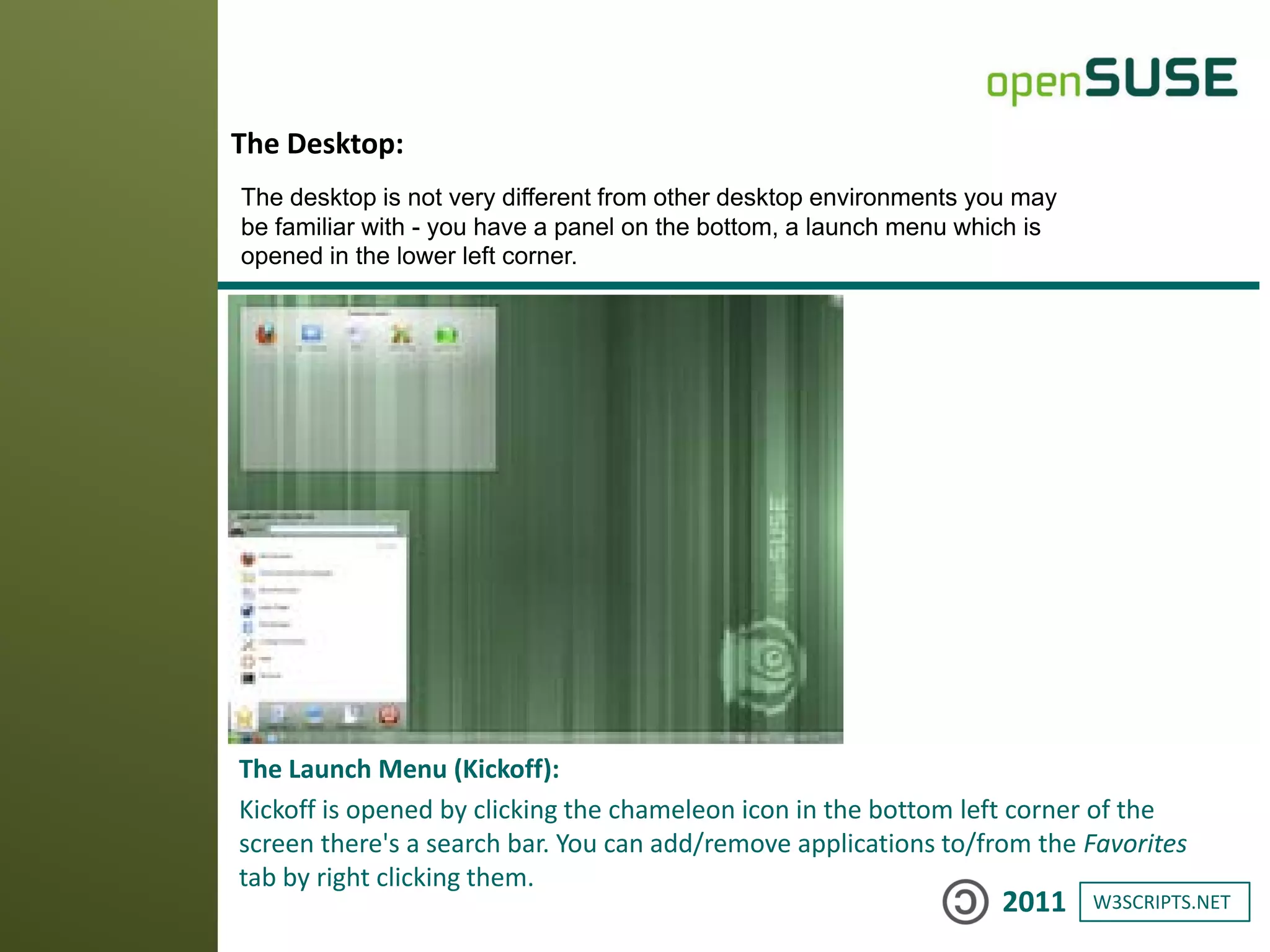
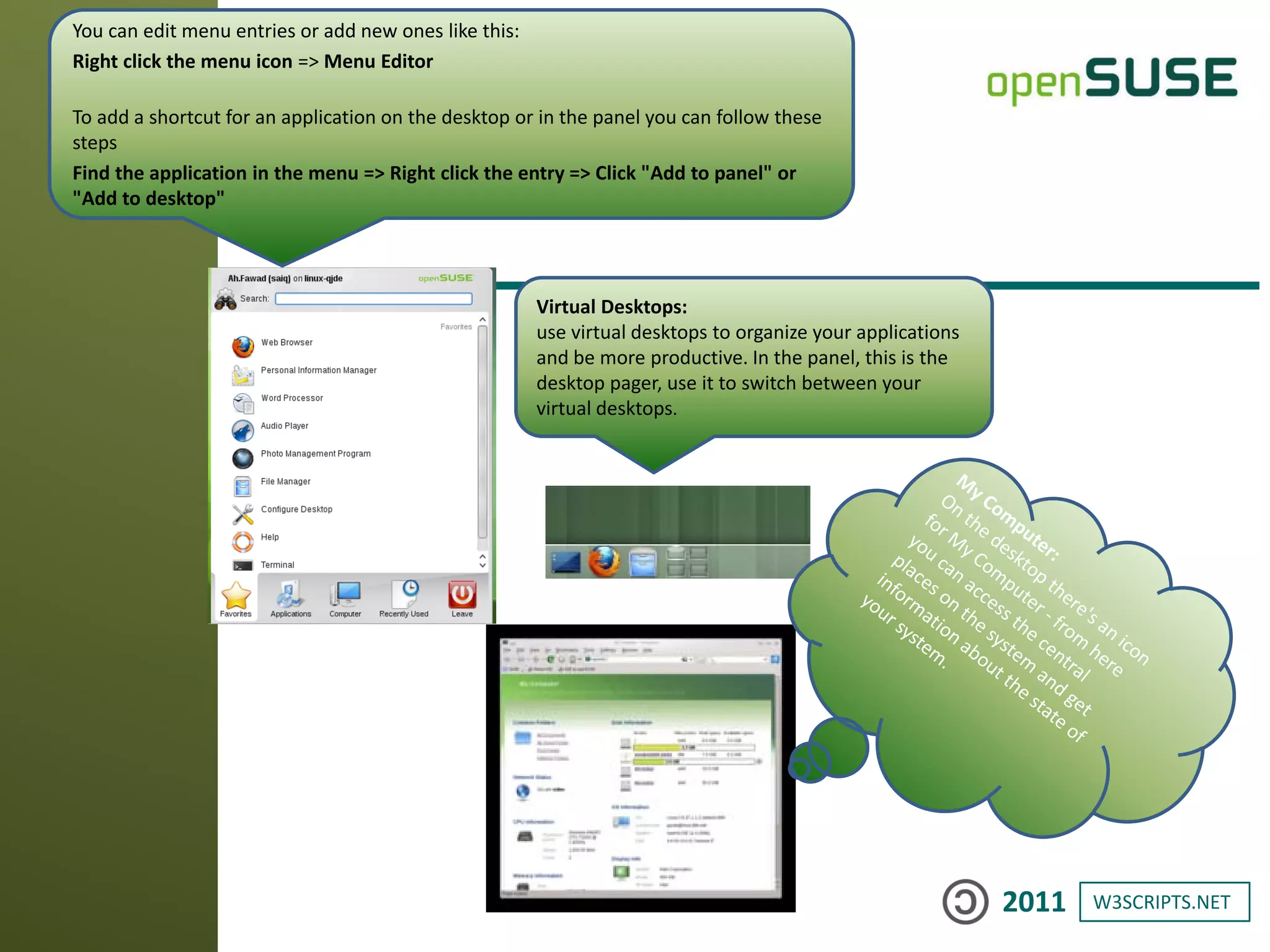
The Launch Menu (Kickoff):
Kickoff is opened by clicking the chameleon icon in the bottom left corner of the
screen there's a search bar. You can add/remove applications to/from the Favorites
tab by right clicking them.
The Desktop:
The desktop is not very different from other desktop environments you may
be familiar with - you have a panel on the bottom, a launch menu which is
opened in the lower left corner.
W3SCRIPTS.NET2011
You can edit menu entries or add new ones like this:
Right click the menu icon => Menu Editor
To add a shortcut for an application on the desktop or in the panel you can follow these
steps
Find the application in the menu => Right click the entry => Click "Add to panel" or
"Add to desktop"
Virtual Desktops:
use virtual desktops to organize your applications
and be more productive. In the panel, this is the
desktop pager, use it to switch between your
virtual desktops.
W3SCRIPTS.NET2011
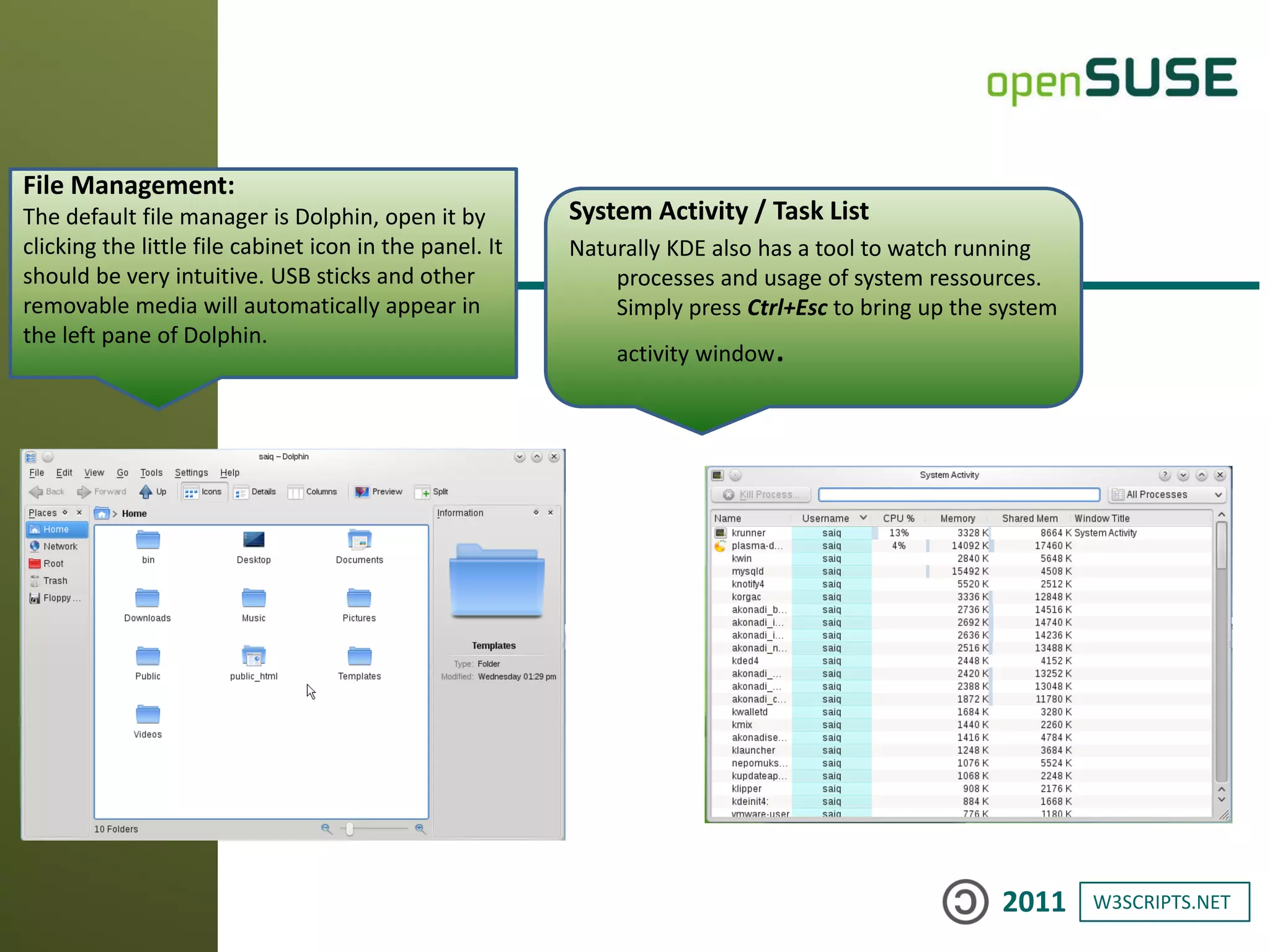
File Management:
The default file manager is Dolphin, open it by
clicking the little file cabinet icon in the panel. It
should be very intuitive. USB sticks and other
removable media will automatically appear in
the left pane of Dolphin.
System Activity / Task List
Naturally KDE also has a tool to watch running
processes and usage of system ressources.
Simply press Ctrl+Esc to bring up the system
activity window.
W3SCRIPTS.NET2011
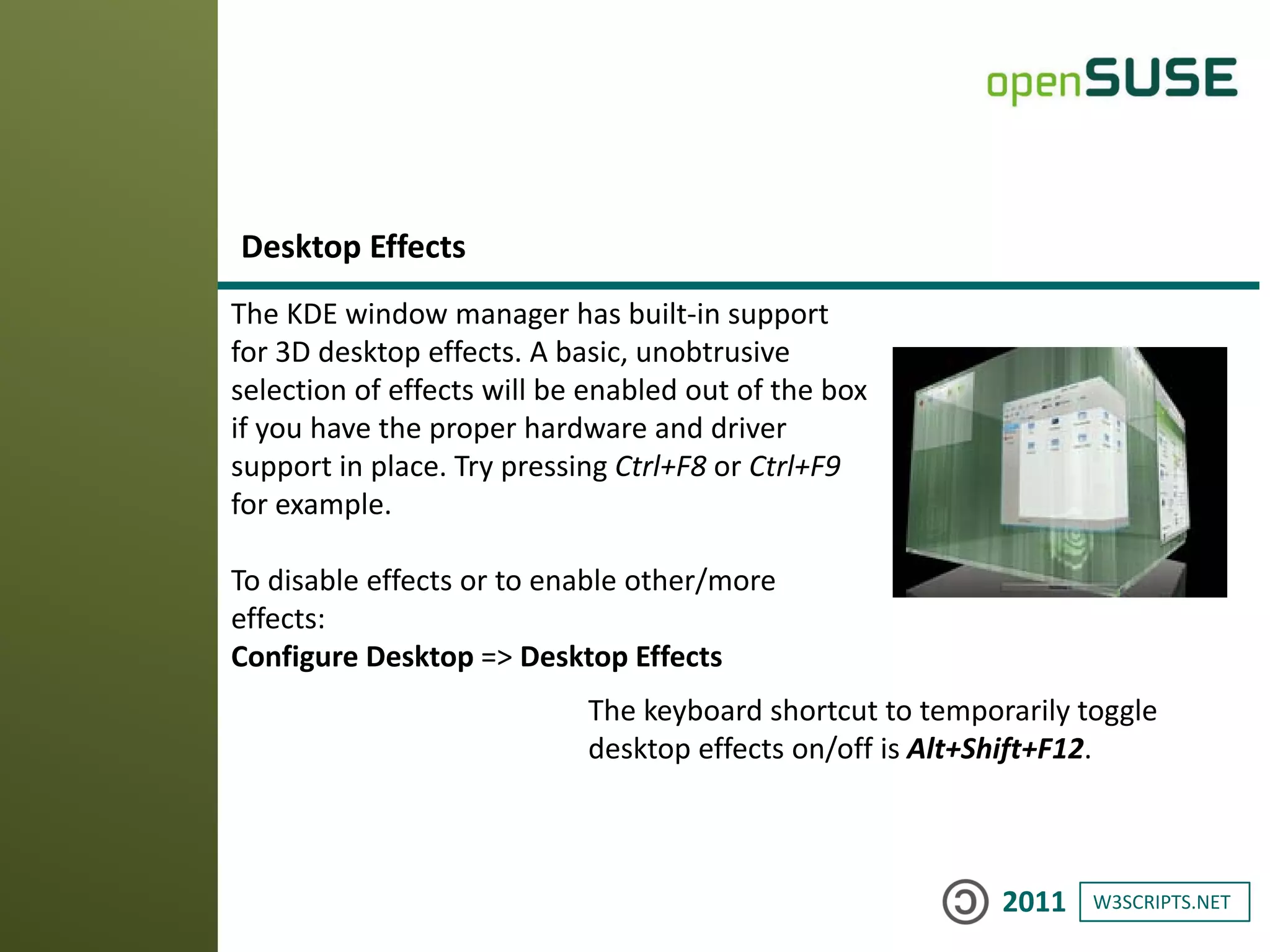
The KDE window manager has built-in support
for 3D desktop effects. A basic, unobtrusive
selection of effects will be enabled out of the box
if you have the proper hardware and driver
support in place. Try pressing Ctrl+F8 or Ctrl+F9
for example.
To disable effects or to enable other/more
effects:
Configure Desktop => Desktop Effects
Desktop Effects
The keyboard shortcut to temporarily toggle
desktop effects on/off is Alt+Shift+F12.
W3SCRIPTS.NET2011
Installing Software
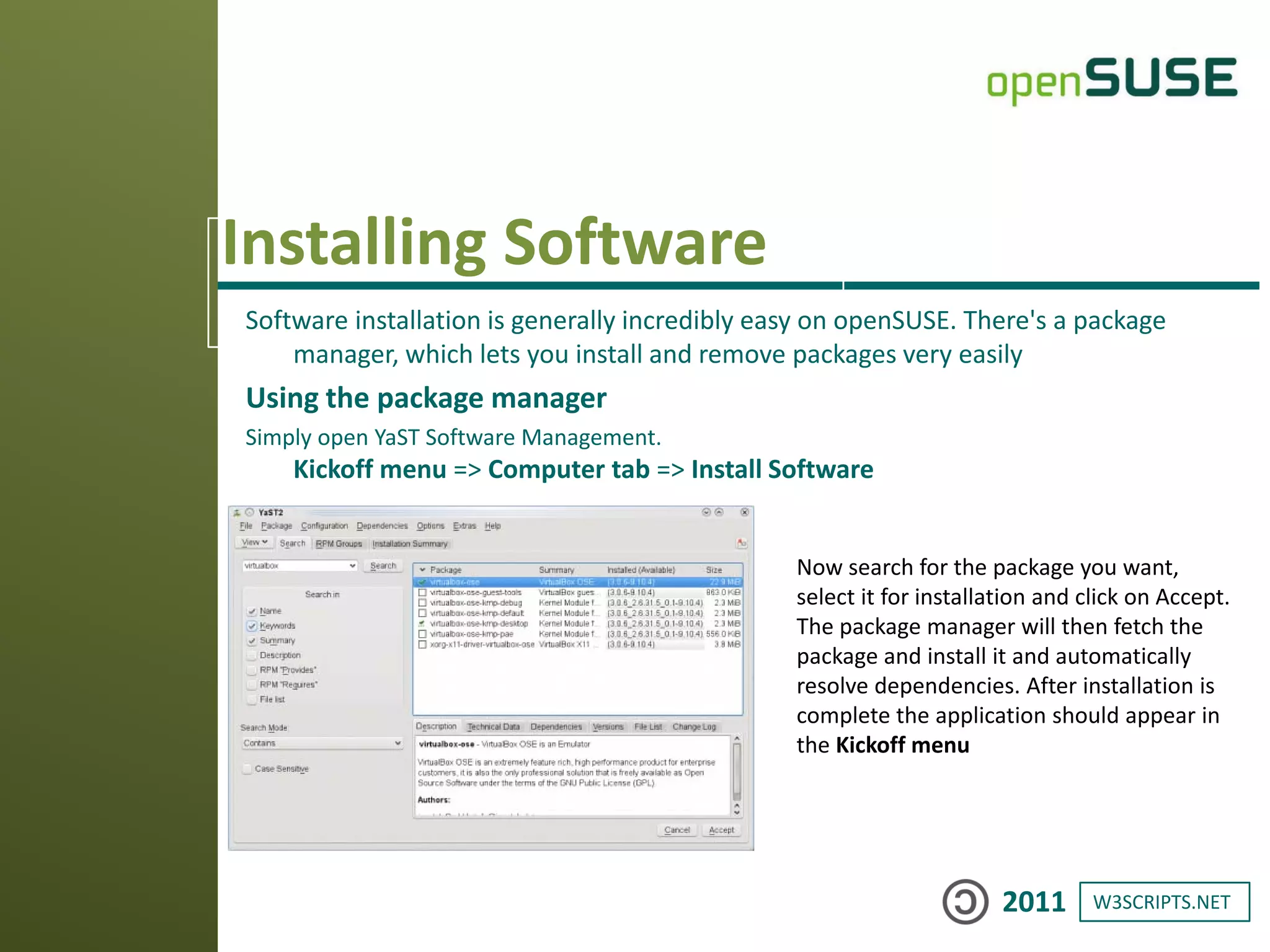
Software installation is generally incredibly easy on openSUSE. There's a package
manager, which lets you install and remove packages very easily
Using the package manager
Simply open YaST Software Management.
Kickoff menu => Computer tab => Install Software
Now search for the package you want,
select it for installation and click on Accept.
The package manager will then fetch the
package and install it and automatically
resolve dependencies. After installation is
complete the application should appear in
the Kickoff menu
W3SCRIPTS.NET2011
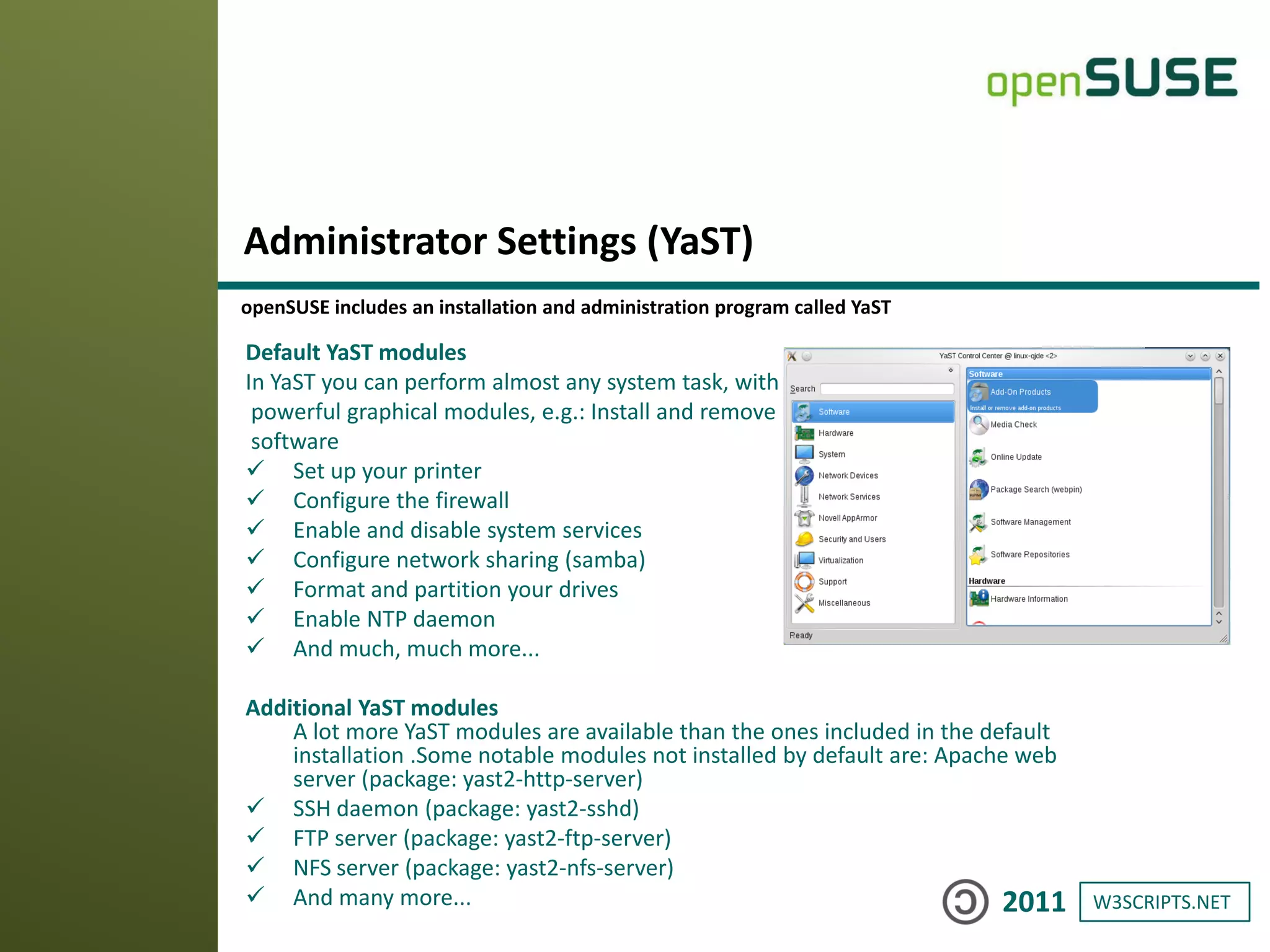
Default YaST modules
In YaST you can perform almost any system task, with
powerful graphical modules, e.g.: Install and remove
software
 Set up your printer
 Configure the firewall
 Enable and disable system services
 Configure network sharing (samba)
 Format and partition your drives
 Enable NTP daemon
 And much, much more...
Additional YaST modules
A lot more YaST modules are available than the ones included in the default
installation .Some notable modules not installed by default are: Apache web
server (package: yast2-http-server)
 SSH daemon (package: yast2-sshd)
 FTP server (package: yast2-ftp-server)
 NFS server (package: yast2-nfs-server)
 And many more...
Administrator Settings (YaST)
openSUSE includes an installation and administration program called YaST
W3SCRIPTS.NET2011
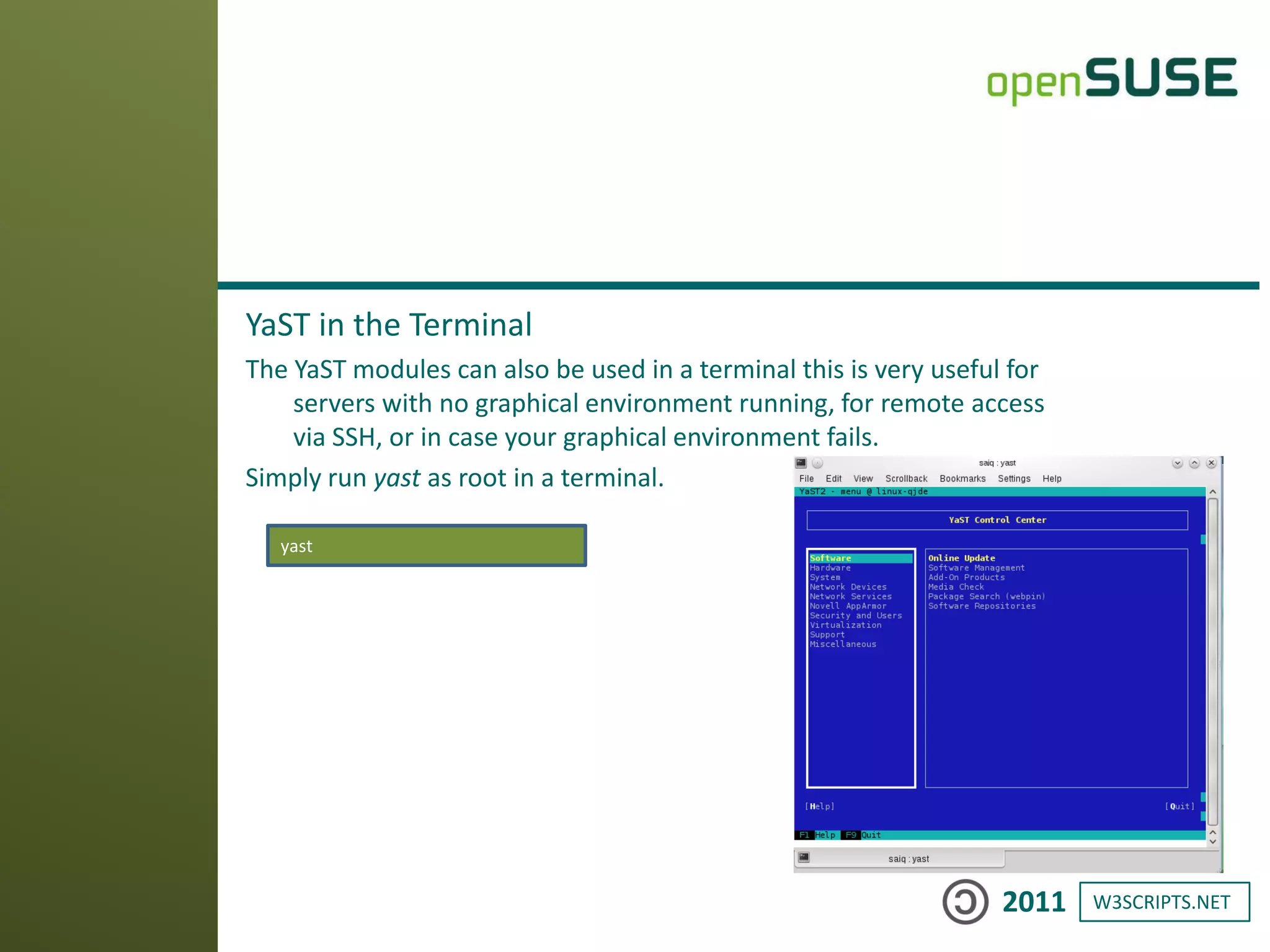
YaST in the Terminal
The YaST modules can also be used in a terminal this is very useful for
servers with no graphical environment running, for remote access
via SSH, or in case your graphical environment fails.
Simply run yast as root in a terminal.
yast
W3SCRIPTS.NET2011
If you wish, you can install and remove packages via a
terminal too.
To search for a package run zypper search [search term].
Example:
To install a package run zypper install [package name].
Example:
To remove a package run zypper remove [package name].
Example:
Package Management in the Terminal
zypper search thunder
zypper install MozillaThunderbird
zypper remove beagle
W3SCRIPTS.NET2011
Single RPM file
To install a single, downloaded RPM file:
Open the Dolphin file manager => Navigate to the RPM file => Click on it and follow the instructions
Or use the command line if you wish:
Tarball
If the website doesn't have an RPM for openSUSE, it will most likely have a so-called "tarball". Tarballs
(*.tar.gz, *.tar.bz2) are simply compressed archives similar to *.zip and *.rar files. To uncompress a tarball:
Open the Dolphin file manager => Navigate to the tarball => Right click => Extract Archive
The tarball might contain binaries that just need to be ran, or it might contain source code which needs to be
compiled to run on your system - which can be complicated, and requires you to first install various
developer tools. There's no one standard way to install tarball content, but you should always be able to
find instructions in included files called INSTALL, README or similar - or on the website.
Other Installation Methods
zypper install /path/to/manually/downloaded.rpm
W3SCRIPTS.NET2011
Basic Commands
File Management :
Making a directory
Listing the files
Deleting a file
Deleting a directory including contents
Copying a file
ls -l
mkdir
cp filename /home/user/directoryname/filename
rm filename
rm -rf /home/user/directoryname
Man Pages and Help :
all commands have a manual page for describing
how to use the command.
To leave the man page again press 'Q‘
If a command does not have a man page, try --help
instead.
Becoming Root :
To switch to the root user to perform system
administration tasks, type:
Then type your (root) password.
To stop working as root and return to working as
your normal user, run exit
man cp
cp --help
exit
su
W3SCRIPTS.NET2011
W3SCRIPTS.NET2011
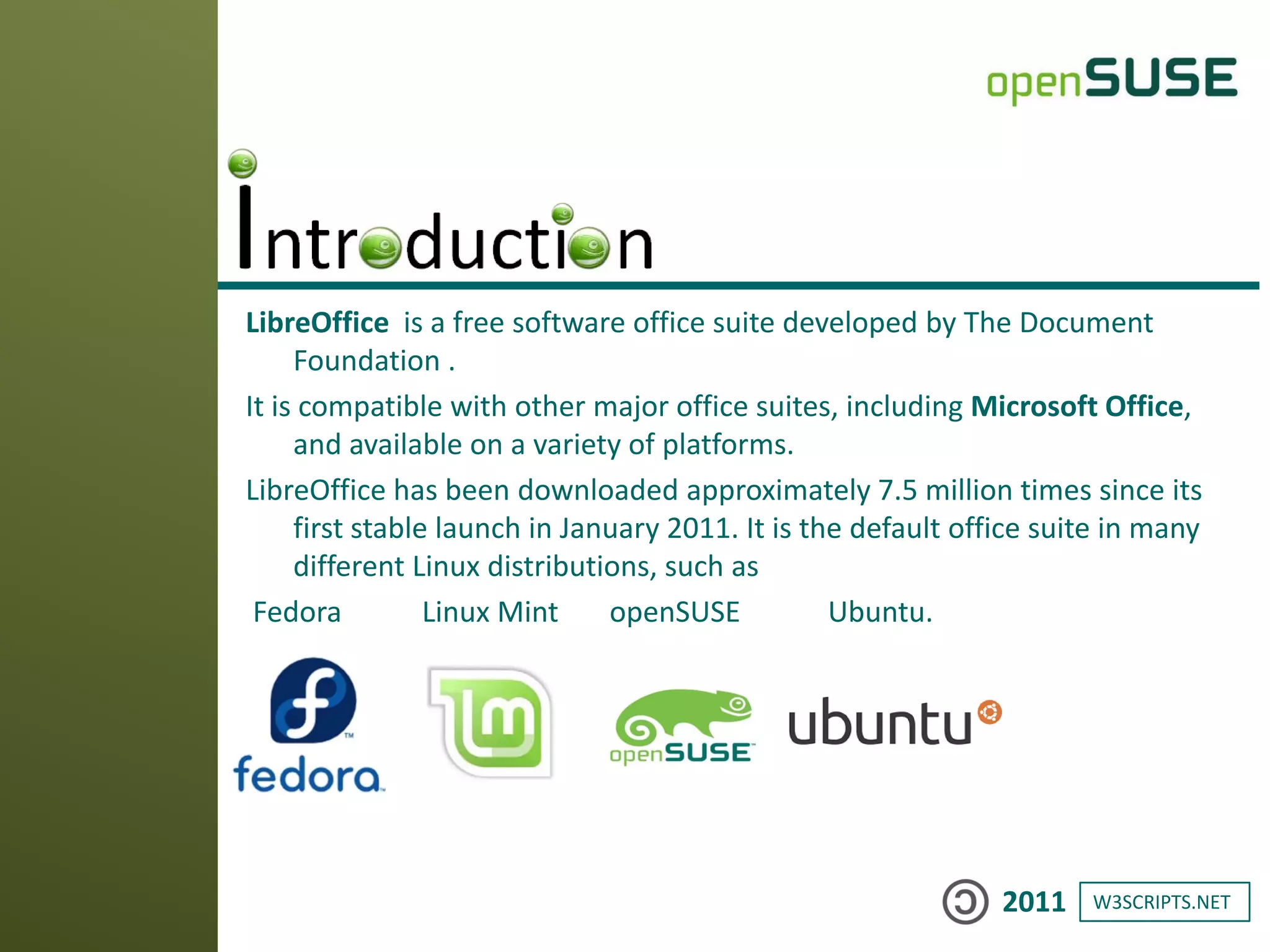
LibreOffice is a free software office suite developed by The Document
Foundation .
It is compatible with other major office suites, including Microsoft Office,
and available on a variety of platforms.
LibreOffice has been downloaded approximately 7.5 million times since its
first stable launch in January 2011. It is the default office suite in many
different Linux distributions, such as
Fedora Linux Mint openSUSE Ubuntu.
W3SCRIPTS.NET2011
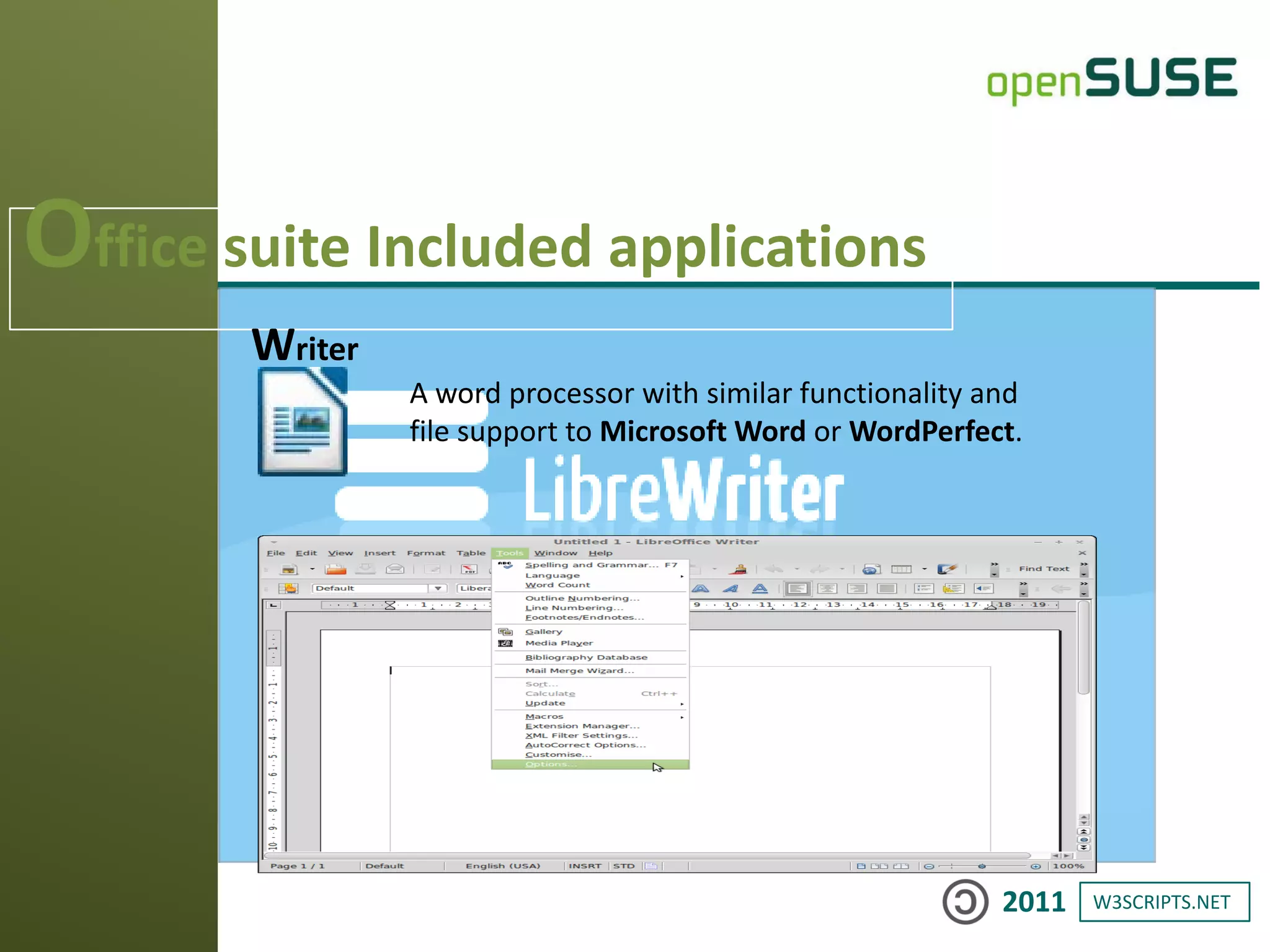
Office suite Included applications
Writer
A word processor with similar functionality and
file support to Microsoft Word or WordPerfect.
W3SCRIPTS.NET2011
Calc
A spreadsheet program, similar to Microsoft Excel or
Lotus 1-2-3
Calc
W3SCRIPTS.NET2011
Office suite Included applications
Base A database management program, similar to Microsoft Access.
LibreOffice Base allows the creation and management of databases,
preparation of forms and reports that provide end users easy access
to data.
W3SCRIPTS.NET2011
Draw
A vector graphics editor and diagramming tool similar to Microsoft Visio. It
provides connectors between shapes, which are available in a range of line
styles and facilitate building drawings such as flowcharts. It also includes
features similar to desktop publishing software such as Microsoft Publisher.
Draw
W3SCRIPTS.NET2011
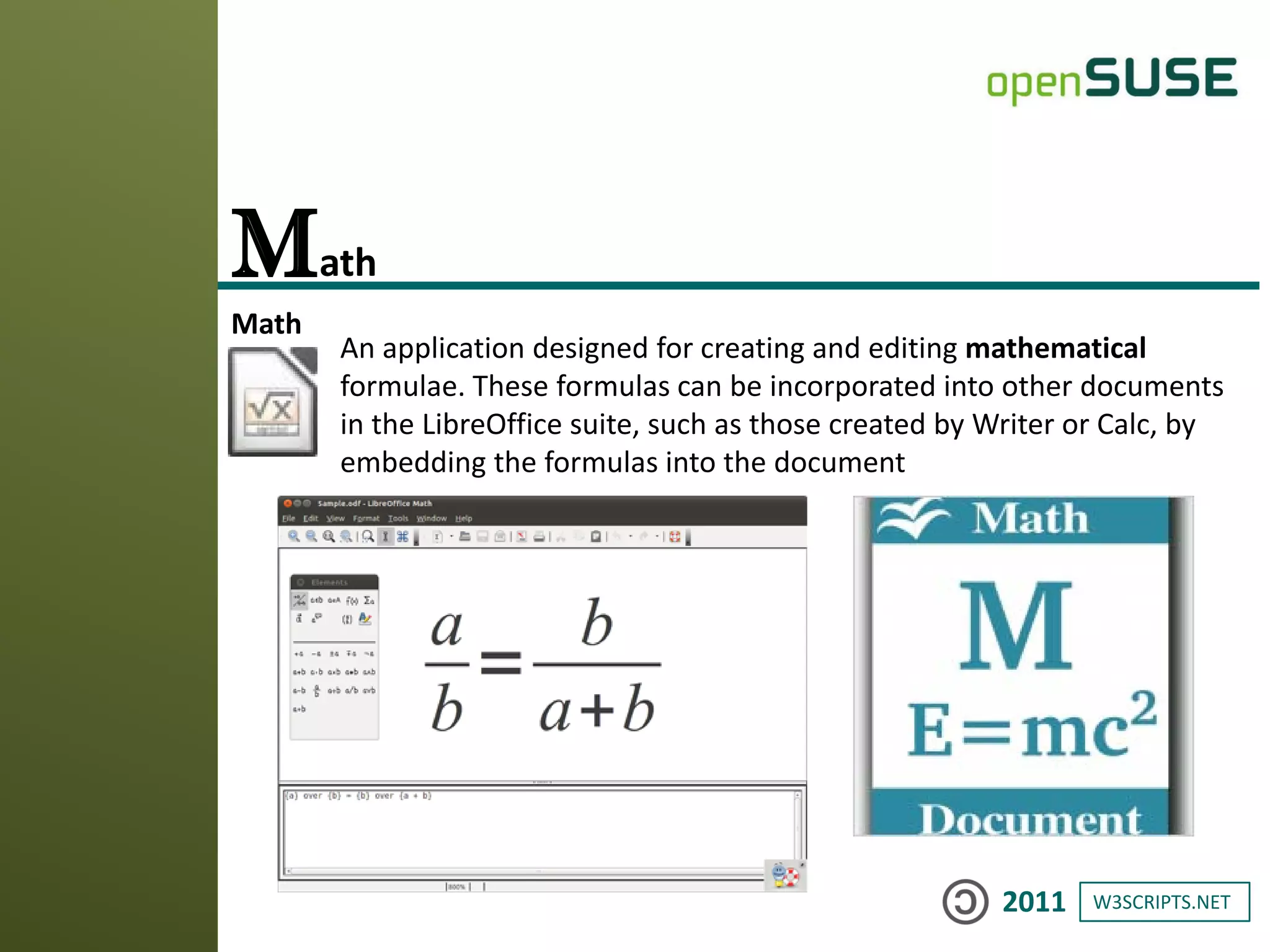
Math
An application designed for creating and editing mathematical
formulae. These formulas can be incorporated into other documents
in the LibreOffice suite, such as those created by Writer or Calc, by
embedding the formulas into the document
Math
W3SCRIPTS.NET2011
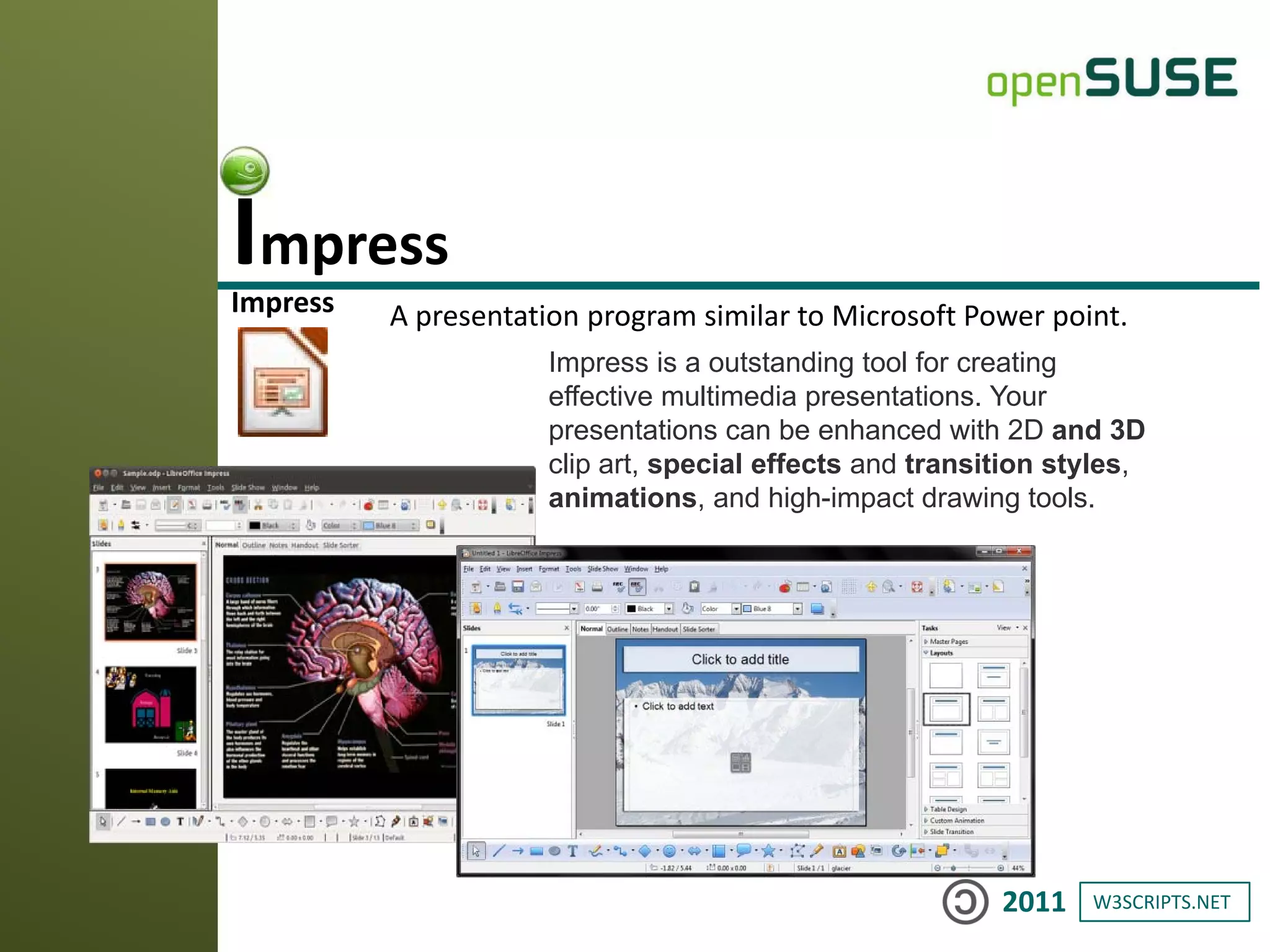
Impress A presentation program similar to Microsoft Power point.
Impress
Impress is a outstanding tool for creating
effective multimedia presentations. Your
presentations can be enhanced with 2D and 3D
clip art, special effects and transition styles,
animations, and high-impact drawing tools.
W3SCRIPTS.NET2011
Thanks

Open_suse

  • 2.
  • 3.
    W3SCRIPTS.NET2011 openSUSE is aPC operating system based on GNU and Linux.It's a free and open source. it developed by the community-supported openSUSE Project and sponsored by SUSE. openSUSE is suitable for laptops, desktops, netbooks, servers and at home or in small offices. New versions of openSUSE are released every 8 months, supporting many languages - each release is provided with security updates for a period of 18 months.
  • 4.
    W3SCRIPTS.NET2011 openSUSE can beused anywhere and everywhere Play games Make documents, spreadsheets, presentation on the go Watch movies Listen and share your favourite songs Browse the Internet seamlessly Do programming And more.......
  • 5.
    W3SCRIPTS.NET2011 • You cango to the openSUSE website and download a DVD ISO or a Live CD ISO free of charge. The ISO will then need to be burnt onto a CD or DVD as an image. www.opensuse.com
  • 6.
    W3SCRIPTS.NET2011 openSUSE System Minimum Requirements CPU:Intel: Pentium or later; AMD: Duron, Athlon, Athlon XP, Athlon MP, Athlon 64 and Sempron RAM: 256 MB, 512 MB or more recommended (for installation via Live CD/USB you should have 1-1,5 GB RAM) Disk Space: 5,0 GB for a normal installation (10 GB or more recommended) Sound and Graphics Card: Most modern cards are supported
  • 7.
    W3SCRIPTS.NET2011 1) free operatingsystem 2) free firewall 3) free anti-virus (though not needed to protect Linux) 4) free Office suite 5) free DVD/Video playback programs 6) free games 7) free photo and video editing at pretty powerful level 8) free sound studio editing/mixing 9) you are FREE to participate: add language support; donate to developers and etc 9 reasons on why openSUSE 11.3 is better than Windows
  • 8.
    W3SCRIPTS.NET2011 Full desktop operatingsystem openSUSE has everything you need to do your work and play. Browse the web, send email, be online in social, write documents, and much more; all (for) free. Full office suite included Use LibreOffice to create professional-looking documents, spreadsheets, presentations and more. With LibreOffice, you can work on office documents created with other office suites. Writer Impress Calc Draw Base
  • 9.
    W3SCRIPTS.NET2011 Enjoy your Internetexperience, worry-free Forget worrying about viruses and spyware. openSUSE has none, period. And the included Firefox web browser alerts you to known phishing websites, helping protect you from scams and identity thieves. Have fun with media Play your music and videos with Banshee and Amarok. Organize, edit, share, and fool around with your photos with F-Spot or DigiKam; make new photos of yourself and your friends with Cheese. • AMAROK
  • 10.
  • 11.
    W3SCRIPTS.NET2011 Start Installation Here youcan select your desired language and a few other options, afterwards begin installation. openSUSE will start up.
  • 12.
    W3SCRIPTS.NET2011 Language and Licence Thelicence agreement is only to inform you .Check that language and keyboard layout are as desired
  • 13.
    W3SCRIPTS.NET2011 Installation Mode Here youchoose whether to perform a new installation or upgrade an existing openSUSE installation.
  • 14.
    W3SCRIPTS.NET2011 Clock and TimeZone Set the local timezone and region here.
  • 15.
    W3SCRIPTS.NET2011 Desktop Selection Various differentgraphical user interfaces (desktop environments) exist for GNU/Linux. KDE is preselected and is preferred by about 70% of openSUSE users Under "Other" you can select LXDE, Xfce, minimal graphical environment (IceWM) and even a text based system which is useful for servers.
  • 16.
    W3SCRIPTS.NET2011 Partitioning By default openSUSEwill propose to create three new partitions / (root) for system files /home/ for personal files of users swap which is used as a virtual memory
  • 17.
    W3SCRIPTS.NET2011 Create New User Nowit's time to create your user
  • 18.
    W3SCRIPTS.NET2011 Installation Settings check thateverything is as desired - this is the point of no return!
  • 19.
    W3SCRIPTS.NET2011 Once everything hasfinished installing, you’ll be prompted to restart openSUSE. Click OK. After the reboot, the system will perform automatic configuration. Congratulations, and have a lot of fun with openSUSE!
  • 20.
    W3SCRIPTS.NET2011 That’s it, you’refinally done! Enjoy using openSUSE
  • 21.
    W3SCRIPTS.NET2011 The Launch Menu(Kickoff): Kickoff is opened by clicking the chameleon icon in the bottom left corner of the screen there's a search bar. You can add/remove applications to/from the Favorites tab by right clicking them. The Desktop: The desktop is not very different from other desktop environments you may be familiar with - you have a panel on the bottom, a launch menu which is opened in the lower left corner.
  • 22.
    W3SCRIPTS.NET2011 You can editmenu entries or add new ones like this: Right click the menu icon => Menu Editor To add a shortcut for an application on the desktop or in the panel you can follow these steps Find the application in the menu => Right click the entry => Click "Add to panel" or "Add to desktop" Virtual Desktops: use virtual desktops to organize your applications and be more productive. In the panel, this is the desktop pager, use it to switch between your virtual desktops.
  • 23.
    W3SCRIPTS.NET2011 File Management: The defaultfile manager is Dolphin, open it by clicking the little file cabinet icon in the panel. It should be very intuitive. USB sticks and other removable media will automatically appear in the left pane of Dolphin. System Activity / Task List Naturally KDE also has a tool to watch running processes and usage of system ressources. Simply press Ctrl+Esc to bring up the system activity window.
  • 24.
    W3SCRIPTS.NET2011 The KDE windowmanager has built-in support for 3D desktop effects. A basic, unobtrusive selection of effects will be enabled out of the box if you have the proper hardware and driver support in place. Try pressing Ctrl+F8 or Ctrl+F9 for example. To disable effects or to enable other/more effects: Configure Desktop => Desktop Effects Desktop Effects The keyboard shortcut to temporarily toggle desktop effects on/off is Alt+Shift+F12.
  • 25.
    W3SCRIPTS.NET2011 Installing Software Software installationis generally incredibly easy on openSUSE. There's a package manager, which lets you install and remove packages very easily Using the package manager Simply open YaST Software Management. Kickoff menu => Computer tab => Install Software Now search for the package you want, select it for installation and click on Accept. The package manager will then fetch the package and install it and automatically resolve dependencies. After installation is complete the application should appear in the Kickoff menu
  • 26.
    W3SCRIPTS.NET2011 Default YaST modules InYaST you can perform almost any system task, with powerful graphical modules, e.g.: Install and remove software  Set up your printer  Configure the firewall  Enable and disable system services  Configure network sharing (samba)  Format and partition your drives  Enable NTP daemon  And much, much more... Additional YaST modules A lot more YaST modules are available than the ones included in the default installation .Some notable modules not installed by default are: Apache web server (package: yast2-http-server)  SSH daemon (package: yast2-sshd)  FTP server (package: yast2-ftp-server)  NFS server (package: yast2-nfs-server)  And many more... Administrator Settings (YaST) openSUSE includes an installation and administration program called YaST
  • 27.
    W3SCRIPTS.NET2011 YaST in theTerminal The YaST modules can also be used in a terminal this is very useful for servers with no graphical environment running, for remote access via SSH, or in case your graphical environment fails. Simply run yast as root in a terminal. yast
  • 28.
    W3SCRIPTS.NET2011 If you wish,you can install and remove packages via a terminal too. To search for a package run zypper search [search term]. Example: To install a package run zypper install [package name]. Example: To remove a package run zypper remove [package name]. Example: Package Management in the Terminal zypper search thunder zypper install MozillaThunderbird zypper remove beagle
  • 29.
    W3SCRIPTS.NET2011 Single RPM file Toinstall a single, downloaded RPM file: Open the Dolphin file manager => Navigate to the RPM file => Click on it and follow the instructions Or use the command line if you wish: Tarball If the website doesn't have an RPM for openSUSE, it will most likely have a so-called "tarball". Tarballs (*.tar.gz, *.tar.bz2) are simply compressed archives similar to *.zip and *.rar files. To uncompress a tarball: Open the Dolphin file manager => Navigate to the tarball => Right click => Extract Archive The tarball might contain binaries that just need to be ran, or it might contain source code which needs to be compiled to run on your system - which can be complicated, and requires you to first install various developer tools. There's no one standard way to install tarball content, but you should always be able to find instructions in included files called INSTALL, README or similar - or on the website. Other Installation Methods zypper install /path/to/manually/downloaded.rpm
  • 30.
    W3SCRIPTS.NET2011 Basic Commands File Management: Making a directory Listing the files Deleting a file Deleting a directory including contents Copying a file ls -l mkdir cp filename /home/user/directoryname/filename rm filename rm -rf /home/user/directoryname Man Pages and Help : all commands have a manual page for describing how to use the command. To leave the man page again press 'Q‘ If a command does not have a man page, try --help instead. Becoming Root : To switch to the root user to perform system administration tasks, type: Then type your (root) password. To stop working as root and return to working as your normal user, run exit man cp cp --help exit su
  • 31.
  • 32.
    W3SCRIPTS.NET2011 LibreOffice is afree software office suite developed by The Document Foundation . It is compatible with other major office suites, including Microsoft Office, and available on a variety of platforms. LibreOffice has been downloaded approximately 7.5 million times since its first stable launch in January 2011. It is the default office suite in many different Linux distributions, such as Fedora Linux Mint openSUSE Ubuntu.
  • 33.
    W3SCRIPTS.NET2011 Office suite Includedapplications Writer A word processor with similar functionality and file support to Microsoft Word or WordPerfect.
  • 34.
    W3SCRIPTS.NET2011 Calc A spreadsheet program,similar to Microsoft Excel or Lotus 1-2-3 Calc
  • 35.
    W3SCRIPTS.NET2011 Office suite Includedapplications Base A database management program, similar to Microsoft Access. LibreOffice Base allows the creation and management of databases, preparation of forms and reports that provide end users easy access to data.
  • 36.
    W3SCRIPTS.NET2011 Draw A vector graphicseditor and diagramming tool similar to Microsoft Visio. It provides connectors between shapes, which are available in a range of line styles and facilitate building drawings such as flowcharts. It also includes features similar to desktop publishing software such as Microsoft Publisher. Draw
  • 37.
    W3SCRIPTS.NET2011 Math An application designedfor creating and editing mathematical formulae. These formulas can be incorporated into other documents in the LibreOffice suite, such as those created by Writer or Calc, by embedding the formulas into the document Math
  • 38.
    W3SCRIPTS.NET2011 Impress A presentationprogram similar to Microsoft Power point. Impress Impress is a outstanding tool for creating effective multimedia presentations. Your presentations can be enhanced with 2D and 3D clip art, special effects and transition styles, animations, and high-impact drawing tools.
  • 39.