Dr. D. P.
Mishra
Digitally signed by Dr. D. P.
Mishra
DN: cn=Dr. D. P. Mishra, o=durg,
ou=BIT,
email=dpmishra@bitdurg.ac.in,
c=IN
Date: 2023.02.14 10:04:46 +05'30'
OS Installation & Configuration
8 best Linux Distributions of 2022
1. Mx Linux - MX Linux is based on a stable Debian branch, this Linux
distribution is simple, easy to use, and highly effective.
2. EndeavourOS - community-driven OS, and comes well-equipped
with a few handy desktop environments
3. Linux Mint - Ubuntu-based Linux Mint is a versatile Linux operating
system that caters well to both beginner and experienced users.
4. Manjaro – one of the best arch based OS
5. Pop!OS
6. Ubuntu
7. Fedora
8. Debian
Linux
Laboratory
-
B.Tech.
6th
CSE
-
Dr.
D.
P.
Mishra,
BIT
Durg
Tools for creating bootable USB from ISO
• CD and DVD writers are a thing of the past. You are not likely to find
them in modern-day laptops.
• If your goal is to create a bootable medium, then creating a bootable
USB drive from an ISO file remains your best option.
• Some of the widely-used utilities for creating a bootable USB drive
from an ISO file in Linux desktop systems.
1. Rufus
2. Unetbootin
3. Balena Etcher
4. Ventoy
5. Universal USB Installer
Linux
Laboratory
-
B.Tech.
6th
CSE
-
Dr.
D.
P.
Mishra,
BIT
Durg
1. Rufus
• It’s a free tool to create bootable
USB pen drives, memory sticks, etc.
• Helpful for creating a USB
installation medium
• Rufus is a portable utility with a
small footprint – 1.3MB only.
• No installation is required.
• Creating USB bootable medium from
an ISO image of your choice (both
Windows and Linux).
• Rufus is only supported on Windows
Linux
Laboratory
-
B.Tech.
6th
CSE
-
Dr.
D.
P.
Mishra,
BIT
Durg
Preparing a Bootable USB
• Check the computer BIOS or UEFI.
• Download Rufus.
• Locate and run Rufus.
• Rufus application main window.
• Select the USB flash drive.
• Locate and select the Ubuntu ISO file.
• Select the partition scheme and target system.
• Start flashing the USB drive.
Linux
Laboratory
-
B.Tech.
6th
CSE
-
Dr.
D.
P.
Mishra,
BIT
Durg
Linux
Laboratory
-
B.Tech.
6th
CSE
-
Dr.
D.
P.
Mishra,
BIT
Durg
• First, check whether your computer’s motherboard is BIOS (Legacy) or UEFI.
• UEFI (Unified Extensible Firmware Interface) is a set of specifications written by the UEFI
• UEFI provides enhanced computer security features and supports most existing BIOS systems
with backward compatibility.
• UEFI supports drive sizes up to 9 zettabytes, whereas BIOS only supports 2.2 terabytes. UEFI
provides a faster boot time.
Press WIN+R to open the Run dialog, type msinfo32, and press Enter.
Linux
Laboratory
-
B.Tech.
6th
CSE
-
Dr.
D.
P.
Mishra,
BIT
Durg
BIOS MODE
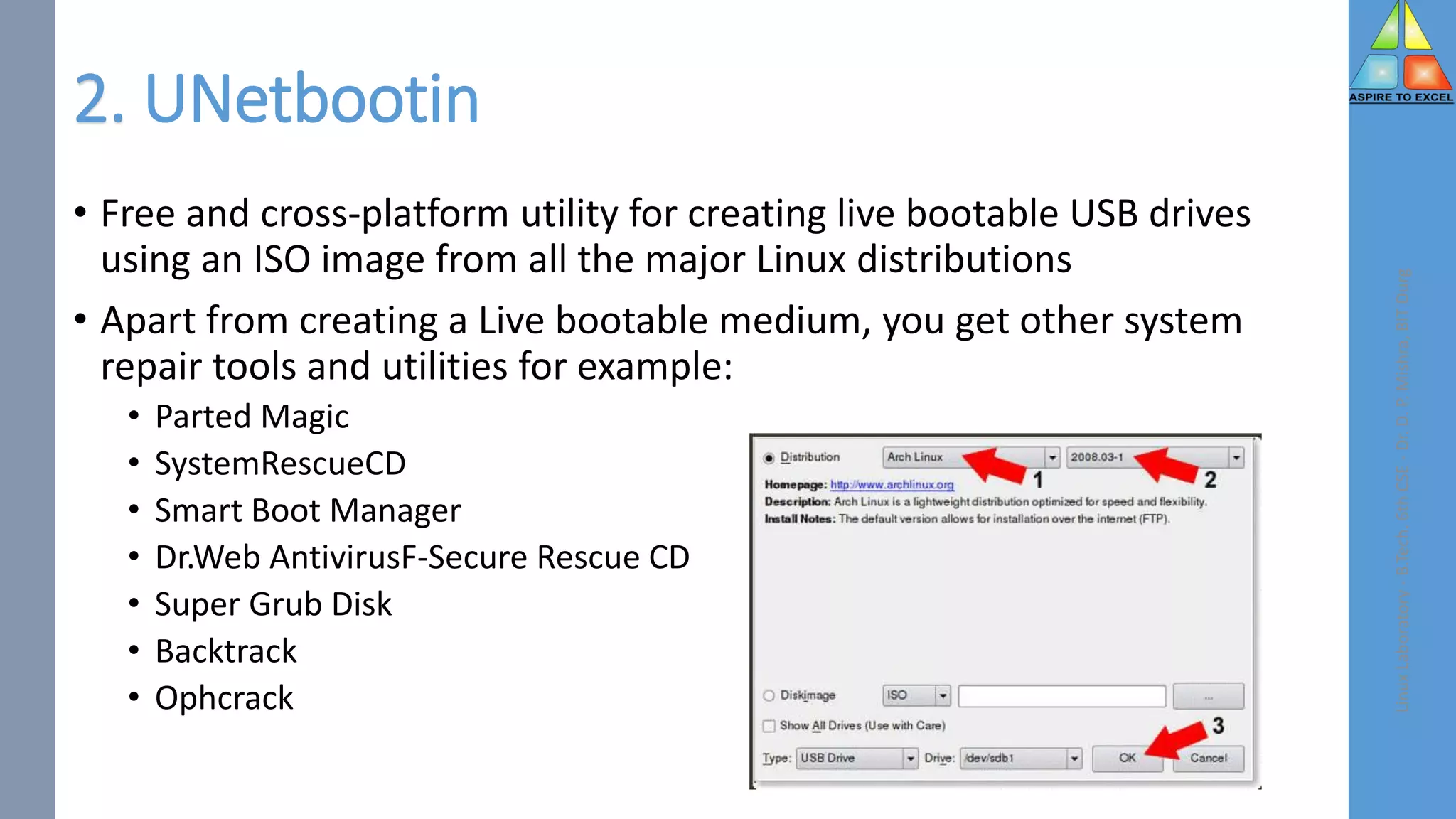
2. UNetbootin
• Free and cross-platform utility for creating live bootable USB drives
using an ISO image from all the major Linux distributions
• Apart from creating a Live bootable medium, you get other system
repair tools and utilities for example:
• Parted Magic
• SystemRescueCD
• Smart Boot Manager
• Dr.Web AntivirusF-Secure Rescue CD
• Super Grub Disk
• Backtrack
• Ophcrack
Linux
Laboratory
-
B.Tech.
6th
CSE
-
Dr.
D.
P.
Mishra,
BIT
Durg
3. Balena Etcher
• Etcher is a cross-platform
tool and is available for
download on Windows,
macOS, and Linux (both 32-
bit and 64-bit).
• It provides a very elegant
yet simple UI that provides a
smooth experience while
writing your images files.
Linux
Laboratory
-
B.Tech.
6th
CSE
-
Dr.
D.
P.
Mishra,
BIT
Durg
4. Ventoy
• Ventoy yet another utility that lets you not only create an ordinary
USB bootable medium but also allows you to create a multiboot.
• USB drive with several OS options.
• Notable features include:
• Support for both Legacy and UEFI BIOS modes.
• Support for ISO images larger than 4GB.
• MBR and GPT partition style supported (1.0.15+).
• USB drive write-protected support.
• You can directly boot from ISO/WIM
Linux
Laboratory
-
B.Tech.
6th
CSE
-
Dr.
D.
P.
Mishra,
BIT
Durg
5. Universal USB Installer
• Live Linux Bootable USB Creator
Software that allows you to easily
create a bootable USB from your
favorite Linux distribution or
Windows installer.
• Find a list of all the supported ISO
files.
Linux
Laboratory
-
B.Tech.
6th
CSE
-
Dr.
D.
P.
Mishra,
BIT
Durg
Virtualization
Linux
Laboratory
-
B.Tech.
6th
CSE
-
Dr.
D.
P.
Mishra,
BIT
Durg
Linux
Laboratory
-
B.Tech.
6th
CSE
-
Dr.
D.
P.
Mishra,
BIT
Durg
Step 1 − To download VirtualBox, click on the following
link https://www.virtualbox.org/wiki/Downloads Now, depending on your OS, select which version
to install. In our case, it will be the first one (Windows host).
Linux
Laboratory
-
B.Tech.
6th
CSE
-
Dr.
D.
P.
Mishra,
BIT
Durg
Step 2 − Once the option is selected, click on “Next”.
Linux
Laboratory
-
B.Tech.
6th
CSE
-
Dr.
D.
P.
Mishra,
BIT
Durg
Step 3 − You have the option asking where to install the application. We can leave it as default
and click on “Next”.
Linux
Laboratory
-
B.Tech.
6th
CSE
-
Dr.
D.
P.
Mishra,
BIT
Durg
Step 4 − Once the options are selected as shown in the following screenshot, click on Next.
Linux
Laboratory
-
B.Tech.
6th
CSE
-
Dr.
D.
P.
Mishra,
BIT
Durg
Step 5 − A dialog box will come up asking whether to proceed with the installation. Click “Yes”.
Linux
Laboratory
-
B.Tech.
6th
CSE
-
Dr.
D.
P.
Mishra,
BIT
Durg
Step 6 − In the next step, click on “Install”.
Linux
Laboratory
-
B.Tech.
6th
CSE
-
Dr.
D.
P.
Mishra,
BIT
Durg
Step 7 − Tick the start VirtualBox check box and click on “Finish”.
Linux
Laboratory
-
B.Tech.
6th
CSE
-
Dr.
D.
P.
Mishra,
BIT
Durg
Step 8 − VirtualBox application will now open as shown in the following screenshot. Now, we are
ready to install the virtual machines.
Linux
Laboratory
-
B.Tech.
6th
CSE
-
Dr.
D.
P.
Mishra,
BIT
Durg
Step 1 − To begin with, click on the “Oracle VM VirtualBox” icon on the desktop as shown in the
screenshot below.
Creating a VM with VirtualBox
Linux
Laboratory
-
B.Tech.
6th
CSE
-
Dr.
D.
P.
Mishra,
BIT
Durg
Step 2 − The next step is to click on “New” button, which is in the top left hand side of the screen.
Linux
Laboratory
-
B.Tech.
6th
CSE
-
Dr.
D.
P.
Mishra,
BIT
Durg
Step 3 − A table will pop-up requesting you the parameters for the virtual machine. These will be −
•Name − We have to put a friendly name for this Virtual Machine.
•Type − Enter the OS that is going to be installed on it.
•Version − Enter the specific version for that OS, which we have selected earlier.
bitdurg
Linux
Laboratory
-
B.Tech.
6th
CSE
-
Dr.
D.
P.
Mishra,
BIT
Durg
Step 4 − Select the amount of memory that you need to allocate in this VM → Click on “Next”.
Linux
Laboratory
-
B.Tech.
6th
CSE
-
Dr.
D.
P.
Mishra,
BIT
Durg
Step 5 − Check one of the three options for the HDD and click on “Create”.
Linux
Laboratory
-
B.Tech.
6th
CSE
-
Dr.
D.
P.
Mishra,
BIT
Durg
Step 6 − Select a file extension for your virtual HDD (It is recommended to use a common file
extension that most of the hypervisors use like VHD) → click on “Next”.
Linux
Laboratory
-
B.Tech.
6th
CSE
-
Dr.
D.
P.
Mishra,
BIT
Durg
Step 7 − Choose whether you want the Virtual HDD as dynamic or fixed. This is based on your
needs → Click on “Next”.
Linux
Laboratory
-
B.Tech.
6th
CSE
-
Dr.
D.
P.
Mishra,
BIT
Durg
Step 8 − Put a name for your virtual HDD file and select the disk size for your VM → Click on
“Create”.
bitdurg
The virtual machine created will be displayed
Linux
Laboratory
-
B.Tech.
6th
CSE
-
Dr.
D.
P.
Mishra,
BIT
Durg
https://www.onworks.net/ --- Free Cloud Hosting
Essential Linux Commands
Linux
Laboratory
-
B.Tech.
6th
CSE
-
Dr.
D.
P.
Mishra,
BIT
Durg
Linux
Laboratory
-
B.Tech.
6th
CSE
-
Dr.
D.
P.
Mishra,
BIT
Durg
Linux
Laboratory
-
B.Tech.
6th
CSE
-
Dr.
D.
P.
Mishra,
BIT
Durg
Computer Hardware
User
Interface
Linux
Laboratory
-
B.Tech.
6th
CSE
-
Dr.
D.
P.
Mishra,
BIT
Durg
Linux
Laboratory
-
B.Tech.
6th
CSE
-
Dr.
D.
P.
Mishra,
BIT
Durg
What Is a Linux Command?
• A Linux command is a program or utility that runs on the CLI – a
console that interacts with the system via texts and processes. It’s
similar to the Command Prompt application in Windows.
• Linux commands are executed on Terminal by pressing Enter at the
end of the line. You can run commands to perform various tasks
• For using Linux, you need to use a shell – a program that gives you
access to the operating system’s services.
• Tasks that require multiple steps on the GUI can be done in a matter of
seconds by entering commands into the CLI.
Linux
Laboratory
-
B.Tech.
6th
CSE
-
Dr.
D.
P.
Mishra,
BIT
Durg
Important Commands
• $ man <command> to get manual : man pages are essential tool , to
learn as developer
• $ ls - Inside a folder you can list all the files that the folder contains
using the ls command -
• ls accepts a lot of options. One favorite option combinations is -al
• $ ls –al /bin
• $ cd <directory name > change directory - Once you have a folder,
you can move into it using cd command
• You can use the cd .. special path to indicate the parent folder
• $ mkdir fruits
• $ mkdir cars
• $ cd fruits
• $ cd ../cars
Linux
Laboratory
-
B.Tech.
6th
CSE
-
Dr.
D.
P.
Mishra,
BIT
Durg
Important commands .
• $ pwd : Whenever you feel lost in the filesystem, call the $ pwd
command to know where you are:
• It will print the current folder path
• $ mkdir < directory name > for creating directory
• $ mkdir fruits
• You can create multiple folders with single command
• $ mkdir dogs cars
• You can also create multiple nested folders by adding the -p option:
• $ mkdir –p fruits/apple
Linux
Laboratory
-
B.Tech.
6th
CSE
-
Dr.
D.
P.
Mishra,
BIT
Durg
Important commands ..
• $ rmdir <directory name > - for deleting folder/directory
• $ mkdir fruits
• $ rmdir fruits
You can also delete multiple folders at once
• $ mkdir fruits cars
• $ rmdir fruits cars
• To delete folders with files in them, we'll use the more generic rm
command which deletes files and folders using –rf option
• $ rm –rf fruits cars
• Be careful as this command does not ask for confirmation and it will
immediately remove anything you ask it to remove.
• There is no bin when removing files from the command line, and recovering
lost files can be hard.
Linux
Laboratory
-
B.Tech.
6th
CSE
-
Dr.
D.
P.
Mishra,
BIT
Durg
Important commands …
• $ mv command used to move files around
• You can specify file current and new path
• $ touch test
• $ mv test test1
• $ touch pear
• $ touch apple
• $ mkdir fruits
• $ mv pear apple fruits // pears and apple moved to fruits
• mv command is used for renaming files and folders
Linux
Laboratory
-
B.Tech.
6th
CSE
-
Dr.
D.
P.
Mishra,
BIT
Durg
cp Copy Command
• $ cp - copy command used to copy files
• $ touch test
• $ cp apple another_apple
• To copy folders you need to add the -r option to recursively copy the
whole folder contents:
• $ mkdir fruits
• $ cp -r fruits cars
Linux
Laboratory
-
B.Tech.
6th
CSE
-
Dr.
D.
P.
Mishra,
BIT
Durg
touch command
• You can create an empty file using the $touch command:
• $ touch apple
• If the file already exists, it opens the file in write mode, and the
timestamp of the file is updated.
Linux
Laboratory
-
B.Tech.
6th
CSE
-
Dr.
D.
P.
Mishra,
BIT
Durg
cat command
• Cat command is used to print file content to standard output
• $ cat file
• $ cat file1 file2
• using the output redirection operator > you can concatenate the
content of multiple files into a new file:
• $ cat file1 file2 > file3
• Using > > you can append the content of multiple files into a new file,
creating it if it does not exist
• $ cat file1 file2 >> file3
• $ cat -n file1 - for printing line number
Linux
Laboratory
-
B.Tech.
6th
CSE
-
Dr.
D.
P.
Mishra,
BIT
Durg
Linux Installation

Linux Installation

  • 1.
    Dr. D. P. Mishra Digitallysigned by Dr. D. P. Mishra DN: cn=Dr. D. P. Mishra, o=durg, ou=BIT, email=dpmishra@bitdurg.ac.in, c=IN Date: 2023.02.14 10:04:46 +05'30'
  • 2.
    OS Installation &Configuration
  • 3.
    8 best LinuxDistributions of 2022 1. Mx Linux - MX Linux is based on a stable Debian branch, this Linux distribution is simple, easy to use, and highly effective. 2. EndeavourOS - community-driven OS, and comes well-equipped with a few handy desktop environments 3. Linux Mint - Ubuntu-based Linux Mint is a versatile Linux operating system that caters well to both beginner and experienced users. 4. Manjaro – one of the best arch based OS 5. Pop!OS 6. Ubuntu 7. Fedora 8. Debian Linux Laboratory - B.Tech. 6th CSE - Dr. D. P. Mishra, BIT Durg
  • 4.
    Tools for creatingbootable USB from ISO • CD and DVD writers are a thing of the past. You are not likely to find them in modern-day laptops. • If your goal is to create a bootable medium, then creating a bootable USB drive from an ISO file remains your best option. • Some of the widely-used utilities for creating a bootable USB drive from an ISO file in Linux desktop systems. 1. Rufus 2. Unetbootin 3. Balena Etcher 4. Ventoy 5. Universal USB Installer Linux Laboratory - B.Tech. 6th CSE - Dr. D. P. Mishra, BIT Durg
  • 5.
    1. Rufus • It’sa free tool to create bootable USB pen drives, memory sticks, etc. • Helpful for creating a USB installation medium • Rufus is a portable utility with a small footprint – 1.3MB only. • No installation is required. • Creating USB bootable medium from an ISO image of your choice (both Windows and Linux). • Rufus is only supported on Windows Linux Laboratory - B.Tech. 6th CSE - Dr. D. P. Mishra, BIT Durg
  • 6.
    Preparing a BootableUSB • Check the computer BIOS or UEFI. • Download Rufus. • Locate and run Rufus. • Rufus application main window. • Select the USB flash drive. • Locate and select the Ubuntu ISO file. • Select the partition scheme and target system. • Start flashing the USB drive. Linux Laboratory - B.Tech. 6th CSE - Dr. D. P. Mishra, BIT Durg
  • 7.
    Linux Laboratory - B.Tech. 6th CSE - Dr. D. P. Mishra, BIT Durg • First, checkwhether your computer’s motherboard is BIOS (Legacy) or UEFI. • UEFI (Unified Extensible Firmware Interface) is a set of specifications written by the UEFI • UEFI provides enhanced computer security features and supports most existing BIOS systems with backward compatibility. • UEFI supports drive sizes up to 9 zettabytes, whereas BIOS only supports 2.2 terabytes. UEFI provides a faster boot time. Press WIN+R to open the Run dialog, type msinfo32, and press Enter.
  • 8.
  • 9.
    2. UNetbootin • Freeand cross-platform utility for creating live bootable USB drives using an ISO image from all the major Linux distributions • Apart from creating a Live bootable medium, you get other system repair tools and utilities for example: • Parted Magic • SystemRescueCD • Smart Boot Manager • Dr.Web AntivirusF-Secure Rescue CD • Super Grub Disk • Backtrack • Ophcrack Linux Laboratory - B.Tech. 6th CSE - Dr. D. P. Mishra, BIT Durg
  • 10.
    3. Balena Etcher •Etcher is a cross-platform tool and is available for download on Windows, macOS, and Linux (both 32- bit and 64-bit). • It provides a very elegant yet simple UI that provides a smooth experience while writing your images files. Linux Laboratory - B.Tech. 6th CSE - Dr. D. P. Mishra, BIT Durg
  • 11.
    4. Ventoy • Ventoyyet another utility that lets you not only create an ordinary USB bootable medium but also allows you to create a multiboot. • USB drive with several OS options. • Notable features include: • Support for both Legacy and UEFI BIOS modes. • Support for ISO images larger than 4GB. • MBR and GPT partition style supported (1.0.15+). • USB drive write-protected support. • You can directly boot from ISO/WIM Linux Laboratory - B.Tech. 6th CSE - Dr. D. P. Mishra, BIT Durg
  • 12.
    5. Universal USBInstaller • Live Linux Bootable USB Creator Software that allows you to easily create a bootable USB from your favorite Linux distribution or Windows installer. • Find a list of all the supported ISO files. Linux Laboratory - B.Tech. 6th CSE - Dr. D. P. Mishra, BIT Durg
  • 13.
  • 14.
    Linux Laboratory - B.Tech. 6th CSE - Dr. D. P. Mishra, BIT Durg Step 1 −To download VirtualBox, click on the following link https://www.virtualbox.org/wiki/Downloads Now, depending on your OS, select which version to install. In our case, it will be the first one (Windows host).
  • 15.
    Linux Laboratory - B.Tech. 6th CSE - Dr. D. P. Mishra, BIT Durg Step 2 −Once the option is selected, click on “Next”.
  • 16.
    Linux Laboratory - B.Tech. 6th CSE - Dr. D. P. Mishra, BIT Durg Step 3 −You have the option asking where to install the application. We can leave it as default and click on “Next”.
  • 17.
    Linux Laboratory - B.Tech. 6th CSE - Dr. D. P. Mishra, BIT Durg Step 4 −Once the options are selected as shown in the following screenshot, click on Next.
  • 18.
    Linux Laboratory - B.Tech. 6th CSE - Dr. D. P. Mishra, BIT Durg Step 5 −A dialog box will come up asking whether to proceed with the installation. Click “Yes”.
  • 19.
  • 20.
    Linux Laboratory - B.Tech. 6th CSE - Dr. D. P. Mishra, BIT Durg Step 7 −Tick the start VirtualBox check box and click on “Finish”.
  • 21.
    Linux Laboratory - B.Tech. 6th CSE - Dr. D. P. Mishra, BIT Durg Step 8 −VirtualBox application will now open as shown in the following screenshot. Now, we are ready to install the virtual machines.
  • 22.
    Linux Laboratory - B.Tech. 6th CSE - Dr. D. P. Mishra, BIT Durg Step 1 −To begin with, click on the “Oracle VM VirtualBox” icon on the desktop as shown in the screenshot below. Creating a VM with VirtualBox
  • 23.
    Linux Laboratory - B.Tech. 6th CSE - Dr. D. P. Mishra, BIT Durg Step 2 −The next step is to click on “New” button, which is in the top left hand side of the screen.
  • 24.
    Linux Laboratory - B.Tech. 6th CSE - Dr. D. P. Mishra, BIT Durg Step 3 −A table will pop-up requesting you the parameters for the virtual machine. These will be − •Name − We have to put a friendly name for this Virtual Machine. •Type − Enter the OS that is going to be installed on it. •Version − Enter the specific version for that OS, which we have selected earlier. bitdurg
  • 25.
    Linux Laboratory - B.Tech. 6th CSE - Dr. D. P. Mishra, BIT Durg Step 4 −Select the amount of memory that you need to allocate in this VM → Click on “Next”.
  • 26.
    Linux Laboratory - B.Tech. 6th CSE - Dr. D. P. Mishra, BIT Durg Step 5 −Check one of the three options for the HDD and click on “Create”.
  • 27.
    Linux Laboratory - B.Tech. 6th CSE - Dr. D. P. Mishra, BIT Durg Step 6 −Select a file extension for your virtual HDD (It is recommended to use a common file extension that most of the hypervisors use like VHD) → click on “Next”.
  • 28.
    Linux Laboratory - B.Tech. 6th CSE - Dr. D. P. Mishra, BIT Durg Step 7 −Choose whether you want the Virtual HDD as dynamic or fixed. This is based on your needs → Click on “Next”.
  • 29.
    Linux Laboratory - B.Tech. 6th CSE - Dr. D. P. Mishra, BIT Durg Step 8 −Put a name for your virtual HDD file and select the disk size for your VM → Click on “Create”. bitdurg The virtual machine created will be displayed
  • 30.
  • 31.
  • 32.
  • 33.
  • 34.
  • 35.
  • 36.
    What Is aLinux Command? • A Linux command is a program or utility that runs on the CLI – a console that interacts with the system via texts and processes. It’s similar to the Command Prompt application in Windows. • Linux commands are executed on Terminal by pressing Enter at the end of the line. You can run commands to perform various tasks • For using Linux, you need to use a shell – a program that gives you access to the operating system’s services. • Tasks that require multiple steps on the GUI can be done in a matter of seconds by entering commands into the CLI. Linux Laboratory - B.Tech. 6th CSE - Dr. D. P. Mishra, BIT Durg
  • 37.
    Important Commands • $man <command> to get manual : man pages are essential tool , to learn as developer • $ ls - Inside a folder you can list all the files that the folder contains using the ls command - • ls accepts a lot of options. One favorite option combinations is -al • $ ls –al /bin • $ cd <directory name > change directory - Once you have a folder, you can move into it using cd command • You can use the cd .. special path to indicate the parent folder • $ mkdir fruits • $ mkdir cars • $ cd fruits • $ cd ../cars Linux Laboratory - B.Tech. 6th CSE - Dr. D. P. Mishra, BIT Durg
  • 38.
    Important commands . •$ pwd : Whenever you feel lost in the filesystem, call the $ pwd command to know where you are: • It will print the current folder path • $ mkdir < directory name > for creating directory • $ mkdir fruits • You can create multiple folders with single command • $ mkdir dogs cars • You can also create multiple nested folders by adding the -p option: • $ mkdir –p fruits/apple Linux Laboratory - B.Tech. 6th CSE - Dr. D. P. Mishra, BIT Durg
  • 39.
    Important commands .. •$ rmdir <directory name > - for deleting folder/directory • $ mkdir fruits • $ rmdir fruits You can also delete multiple folders at once • $ mkdir fruits cars • $ rmdir fruits cars • To delete folders with files in them, we'll use the more generic rm command which deletes files and folders using –rf option • $ rm –rf fruits cars • Be careful as this command does not ask for confirmation and it will immediately remove anything you ask it to remove. • There is no bin when removing files from the command line, and recovering lost files can be hard. Linux Laboratory - B.Tech. 6th CSE - Dr. D. P. Mishra, BIT Durg
  • 40.
    Important commands … •$ mv command used to move files around • You can specify file current and new path • $ touch test • $ mv test test1 • $ touch pear • $ touch apple • $ mkdir fruits • $ mv pear apple fruits // pears and apple moved to fruits • mv command is used for renaming files and folders Linux Laboratory - B.Tech. 6th CSE - Dr. D. P. Mishra, BIT Durg
  • 41.
    cp Copy Command •$ cp - copy command used to copy files • $ touch test • $ cp apple another_apple • To copy folders you need to add the -r option to recursively copy the whole folder contents: • $ mkdir fruits • $ cp -r fruits cars Linux Laboratory - B.Tech. 6th CSE - Dr. D. P. Mishra, BIT Durg
  • 42.
    touch command • Youcan create an empty file using the $touch command: • $ touch apple • If the file already exists, it opens the file in write mode, and the timestamp of the file is updated. Linux Laboratory - B.Tech. 6th CSE - Dr. D. P. Mishra, BIT Durg
  • 43.
    cat command • Catcommand is used to print file content to standard output • $ cat file • $ cat file1 file2 • using the output redirection operator > you can concatenate the content of multiple files into a new file: • $ cat file1 file2 > file3 • Using > > you can append the content of multiple files into a new file, creating it if it does not exist • $ cat file1 file2 >> file3 • $ cat -n file1 - for printing line number Linux Laboratory - B.Tech. 6th CSE - Dr. D. P. Mishra, BIT Durg