Installation Of Windows Server 2019 Standard
Windows Server 2019 Preview Build 17692 is available for IT personnel to explore.
Today we will install Windows Server 2019 Standard on Hyper-V.
As Microsoft has only issued this for insider preview only , wewill use system
requirements as per Windows server 2016.
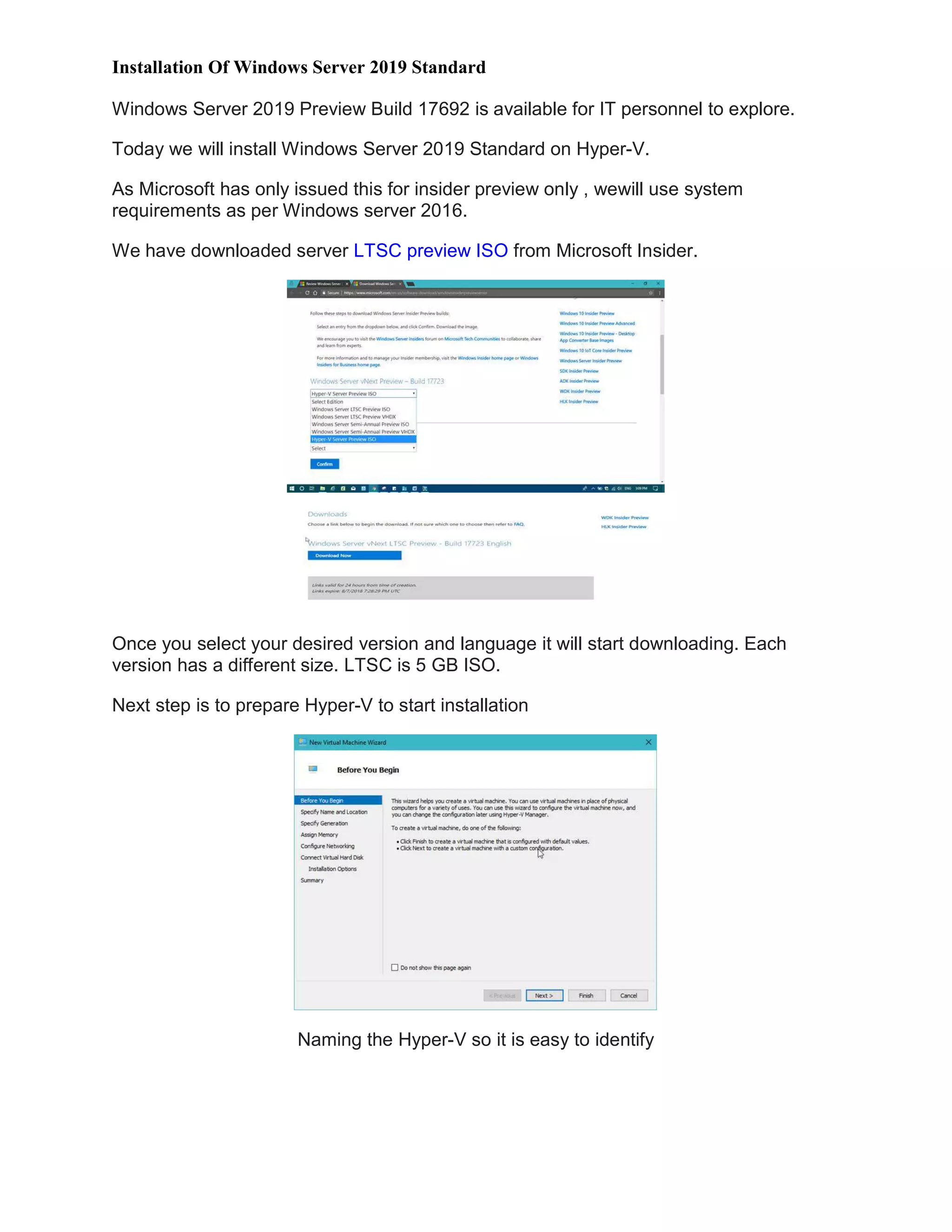
We have downloaded server LTSC preview ISO from Microsoft Insider.
Once you select your desired version and language it will start downloading. Each
version has a different size. LTSC is 5 GB ISO.
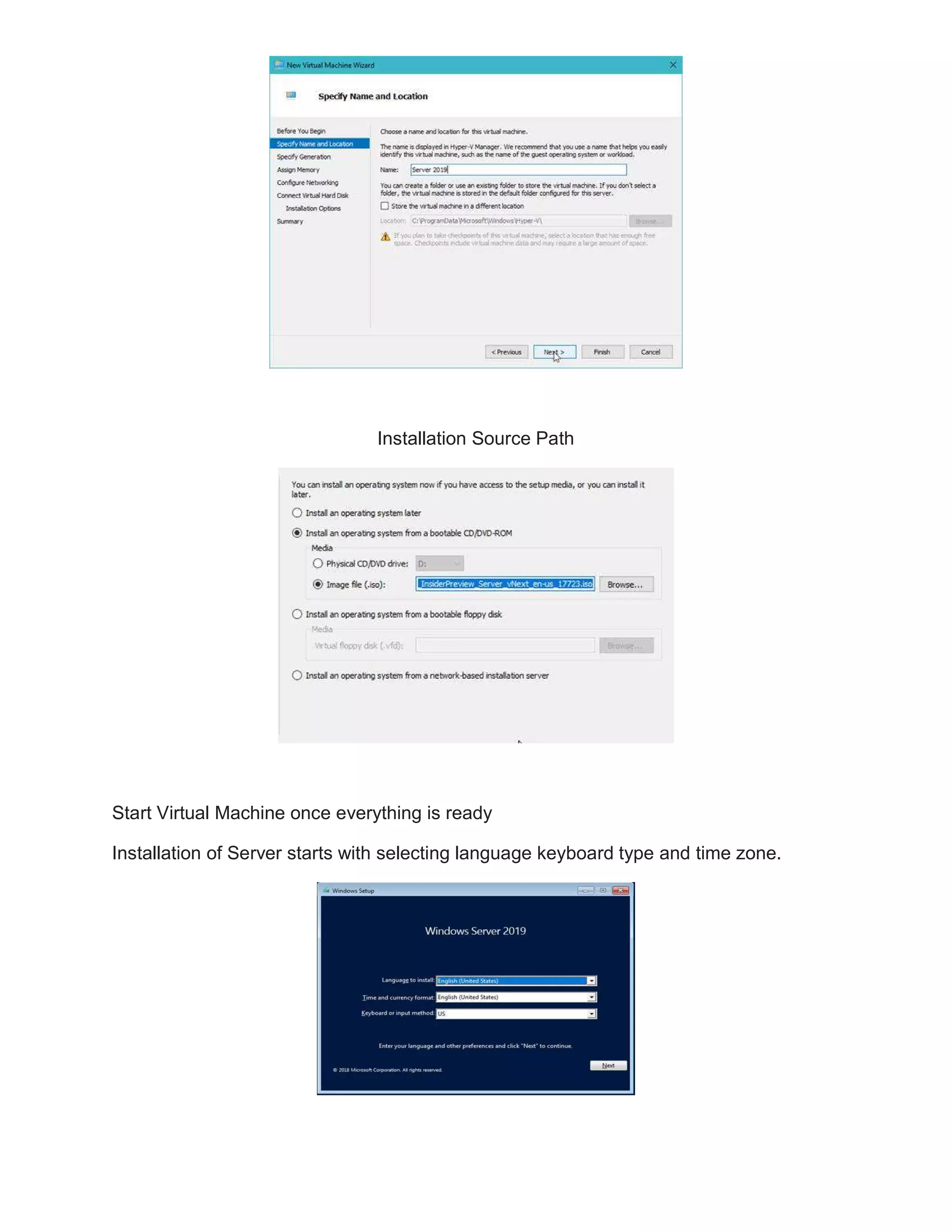
Next step is to prepare Hyper-V to start installation
Naming the Hyper-V so it is easy to identify
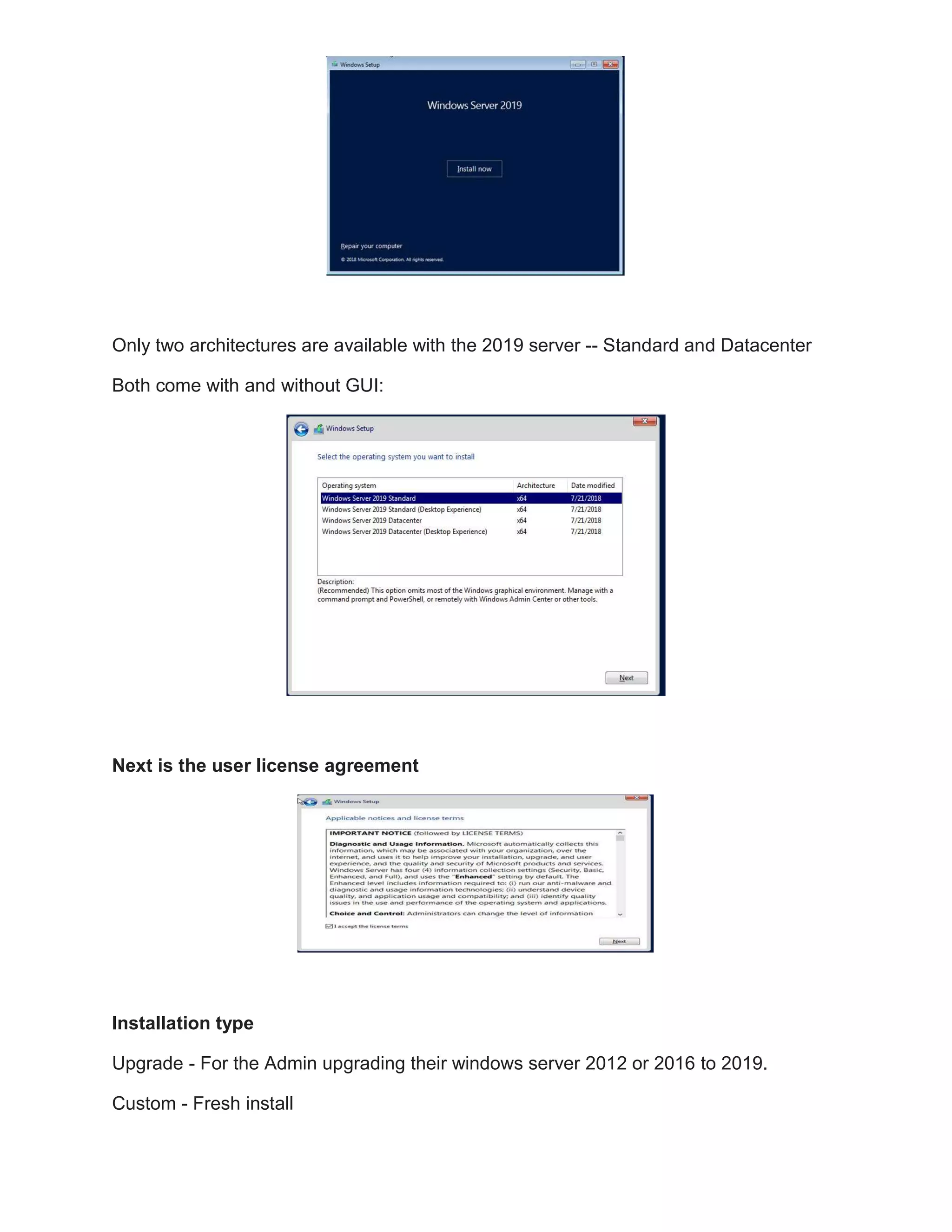
Installation Source Path
Start Virtual Machine once everything is ready
Installation of Server starts with selecting language keyboard type and time zone.
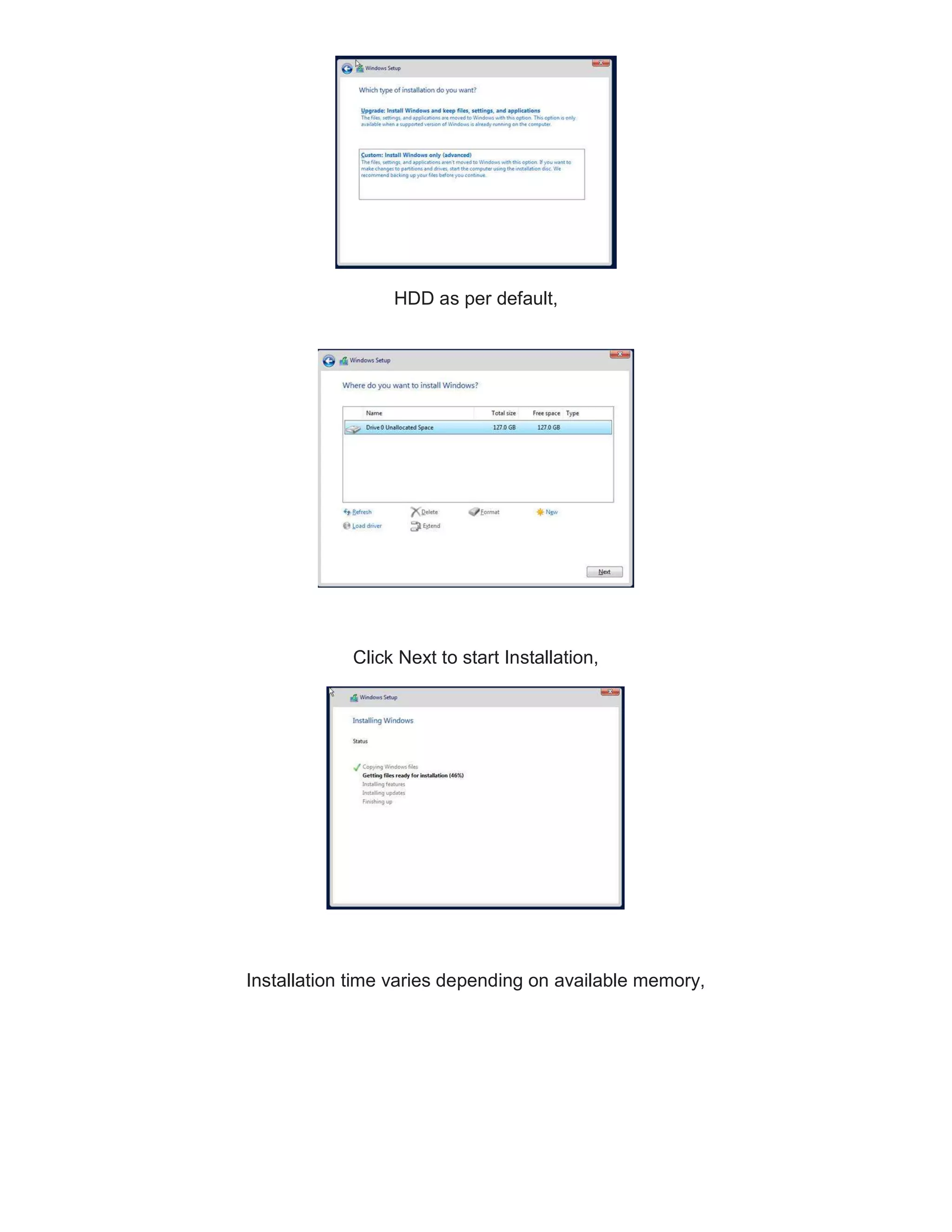
Only two architectures are available with the 2019 server -- Standard and Datacenter
Both come with and without GUI:
Next is the user license agreement
Installation type
Upgrade - For the Admin upgrading their windows server 2012 or 2016 to 2019.
Custom - Fresh install
HDD as per default,
Click Next to start Installation,
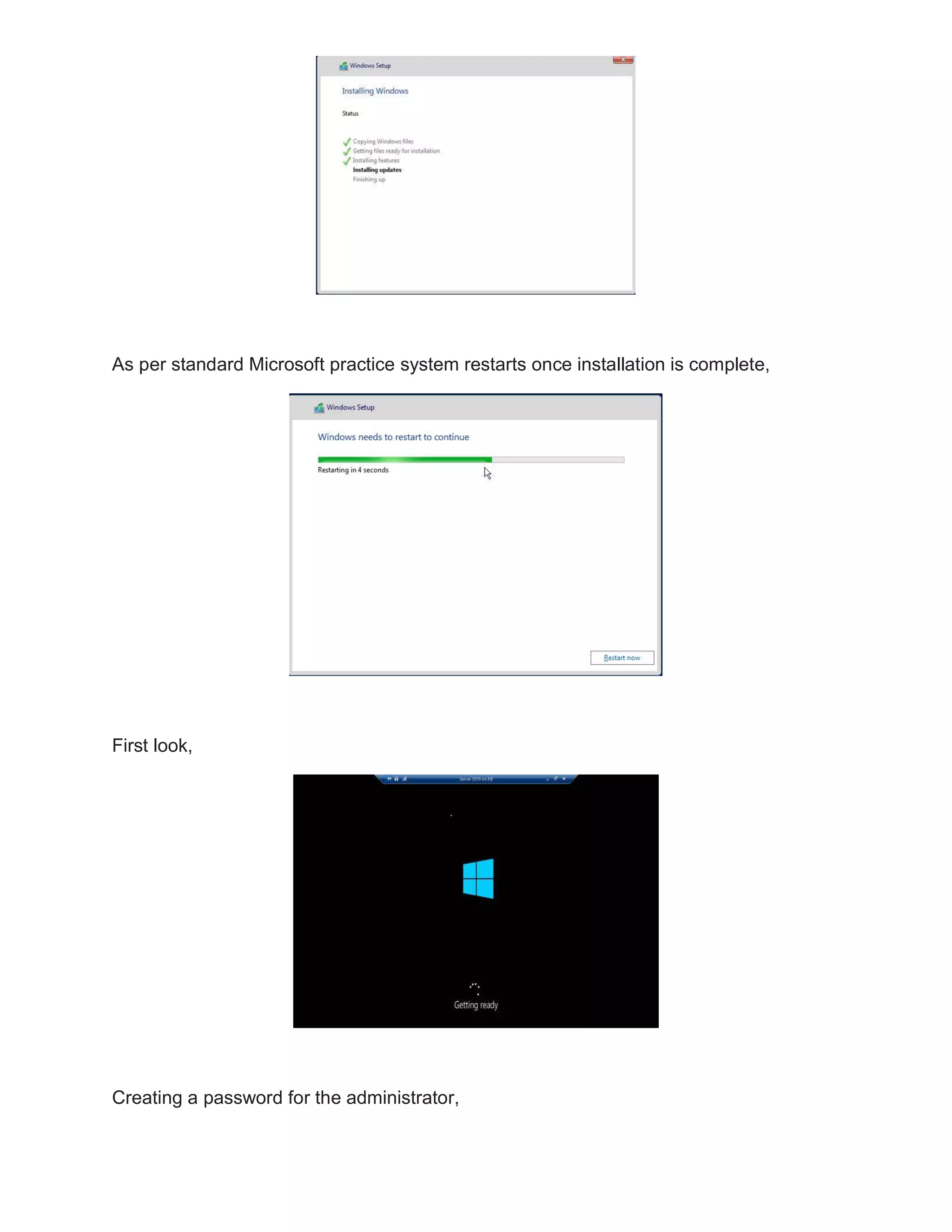
Installation time varies depending on available memory,
As per standard Microsoft practice system restarts once installation is complete,
First look,
Creating a password for the administrator,
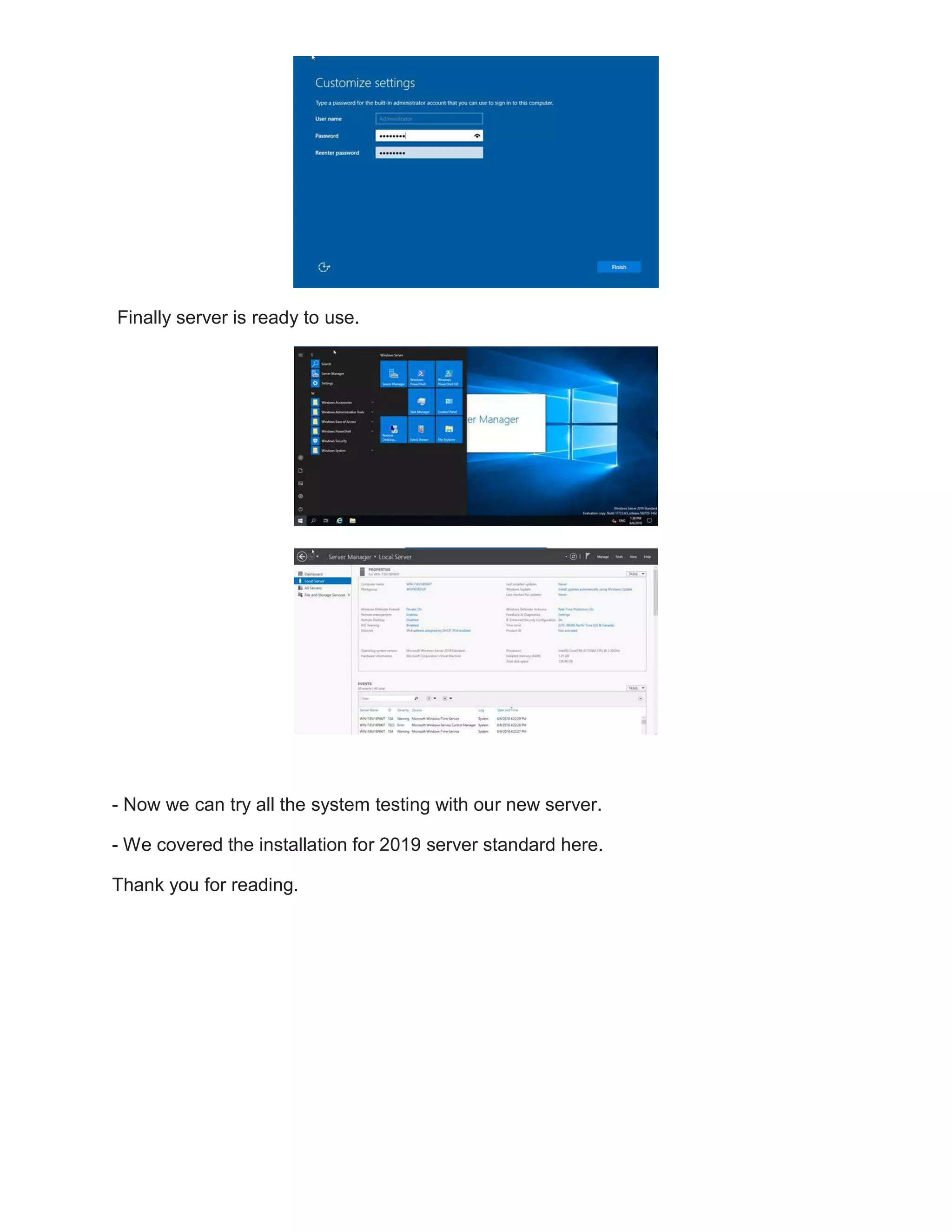
Finally server is ready to use.
- Now we can try all the system testing with our new server.
- We covered the installation for 2019 server standard here.
Thank you for reading.

Installation windows server 2019 standard

  • 1.
    Installation Of WindowsServer 2019 Standard Windows Server 2019 Preview Build 17692 is available for IT personnel to explore. Today we will install Windows Server 2019 Standard on Hyper-V. As Microsoft has only issued this for insider preview only , wewill use system requirements as per Windows server 2016. We have downloaded server LTSC preview ISO from Microsoft Insider. Once you select your desired version and language it will start downloading. Each version has a different size. LTSC is 5 GB ISO. Next step is to prepare Hyper-V to start installation Naming the Hyper-V so it is easy to identify
  • 2.
    Installation Source Path StartVirtual Machine once everything is ready Installation of Server starts with selecting language keyboard type and time zone.
  • 3.
    Only two architecturesare available with the 2019 server -- Standard and Datacenter Both come with and without GUI: Next is the user license agreement Installation type Upgrade - For the Admin upgrading their windows server 2012 or 2016 to 2019. Custom - Fresh install
  • 4.
    HDD as perdefault, Click Next to start Installation, Installation time varies depending on available memory,
  • 5.
    As per standardMicrosoft practice system restarts once installation is complete, First look, Creating a password for the administrator,
  • 6.
    Finally server isready to use. - Now we can try all the system testing with our new server. - We covered the installation for 2019 server standard here. Thank you for reading.