Lesson 6
• cat – concatenate files (or just show a single file without alteration)
• cut – cut chosen text out of each line of a file and display it.
• expand – expand tabs into spaces
• fmt – reformat a text file with a consistent right margin
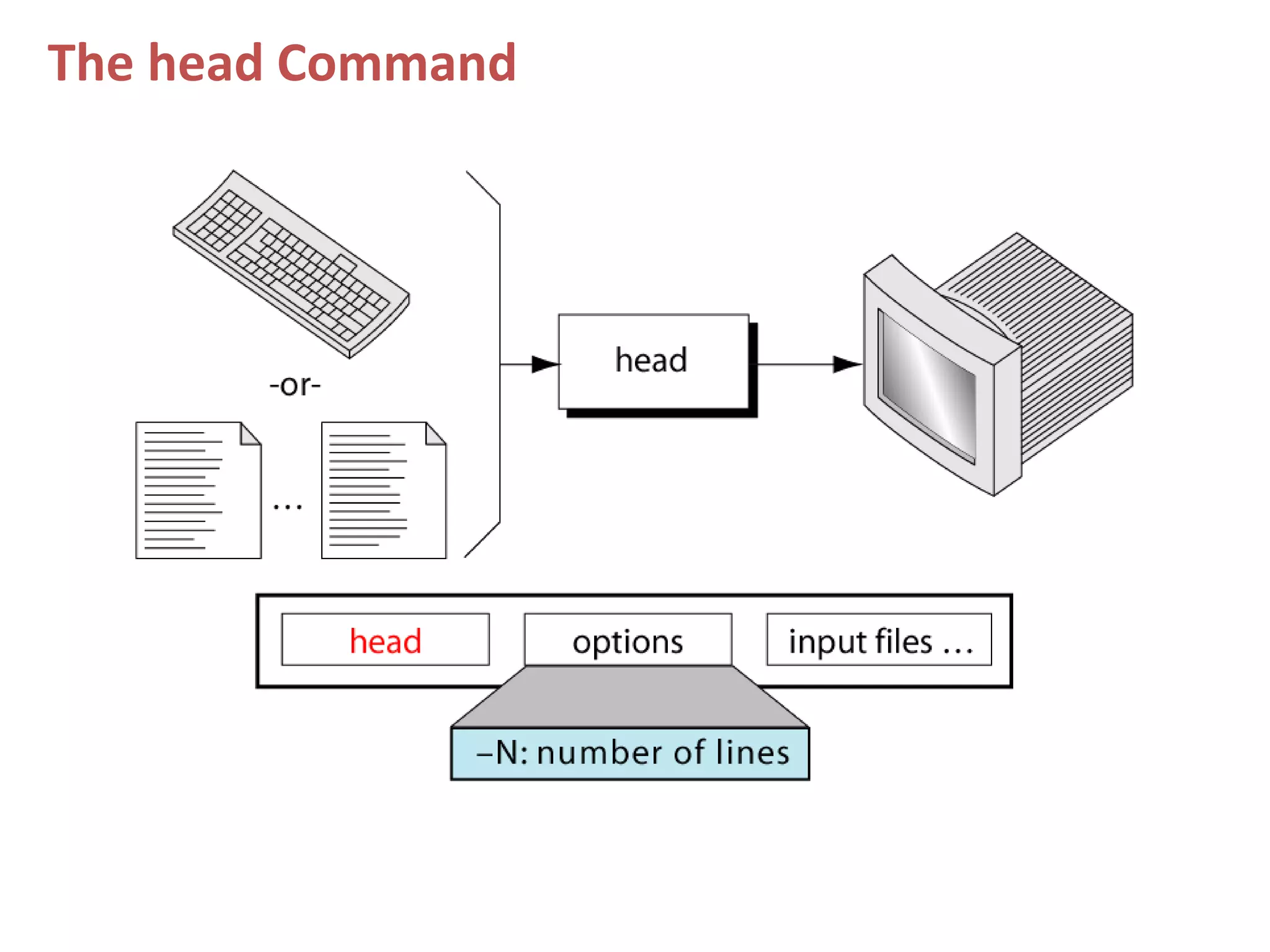
• head – show the first few (10) lines of a file
• join – join lines of two files on a common field
• nl – print the file with numbered lines
• od – octal dump of a file (or hexadecimal).
• paste – print a number of files side by side
• pr – format for printing (split into pages or columns and add headers)
• sed – stream editor (search and replace, append, cut, delete and more)
• sort – sort in alphabetical order (and numerical order too)
• split – split a single input into multiple files
• tac – print the lines of a file from back to front (backwards cat)
• tail – print the last few lines of a file
• tr – character translation (e.g. upper case to lower case).
• unexpand – convert spaces to tabs (unlike expand).
• uniq – remove duplicate lines from a sorted file
• wc – word count (and line count, and byte count)
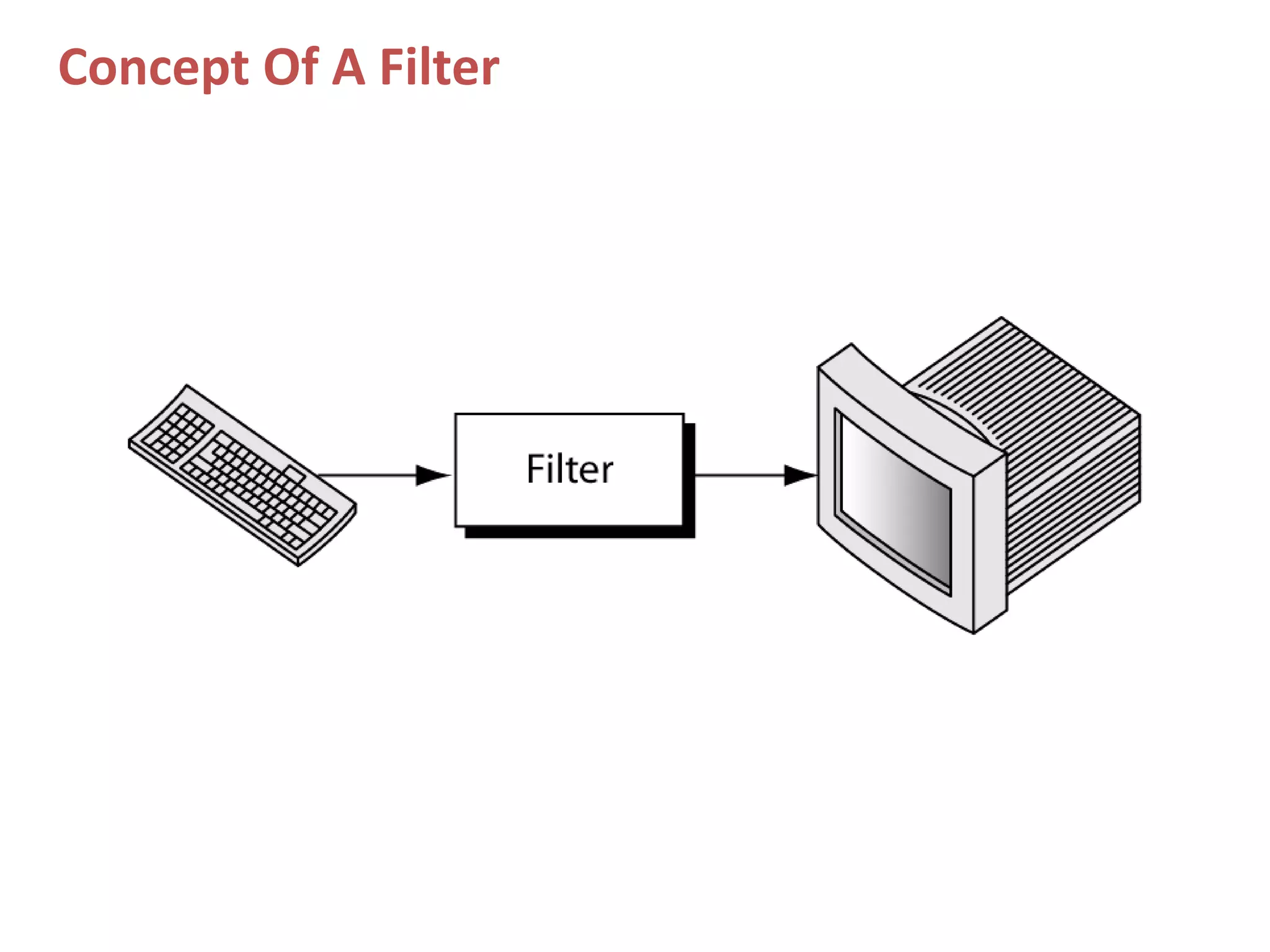
Concept Of A Filter
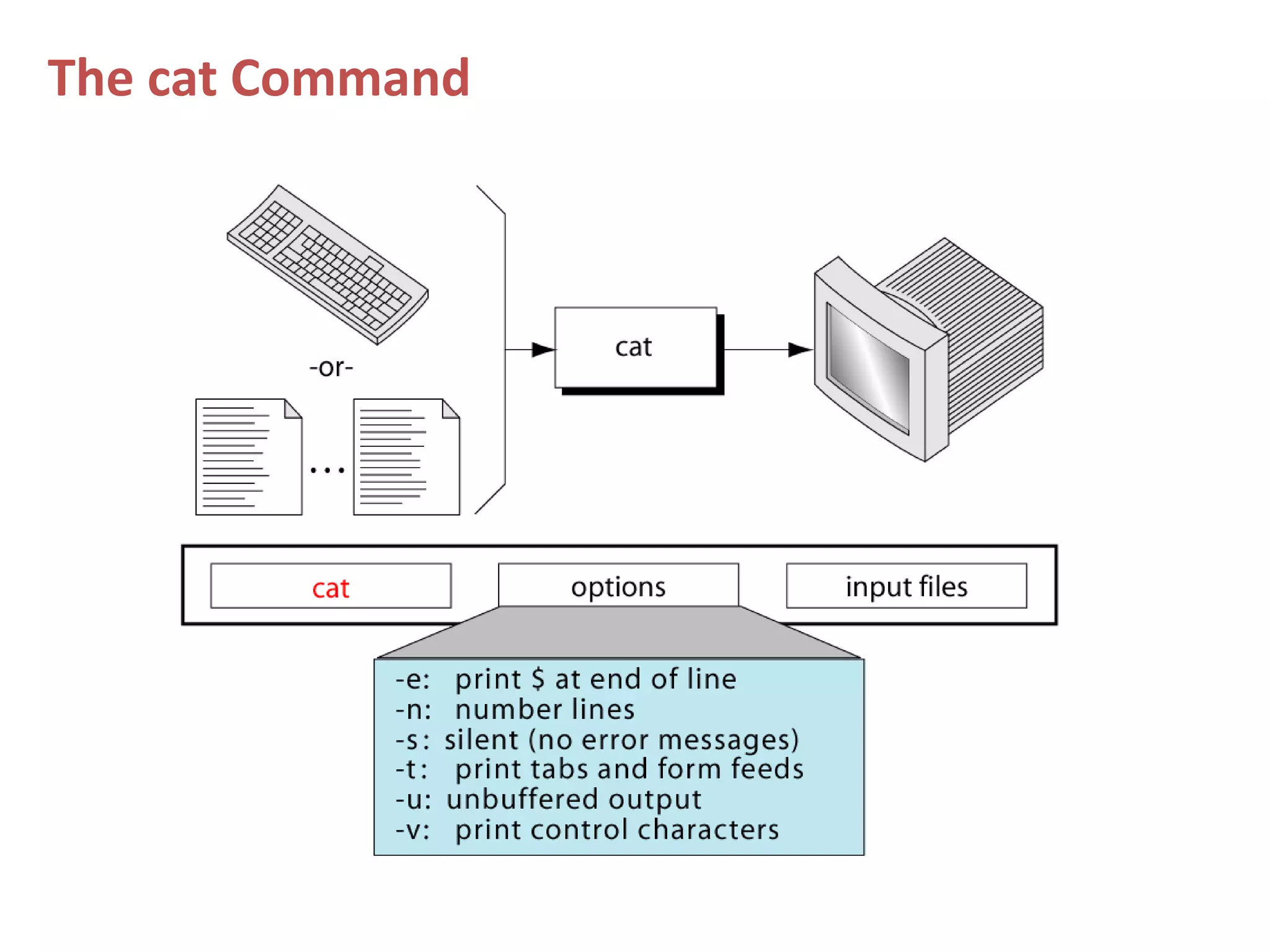
The cat Command
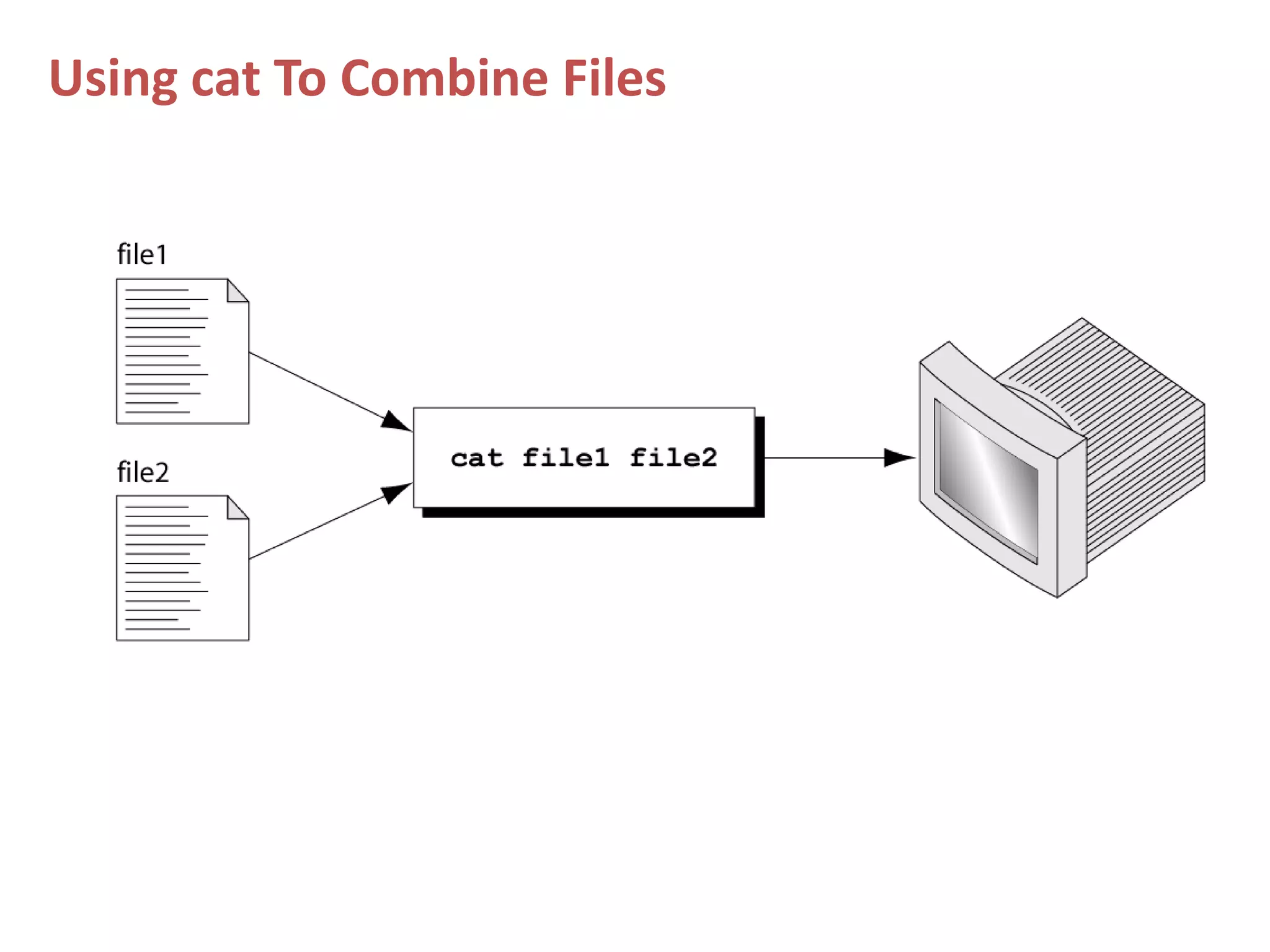
Using cat To Combine Files
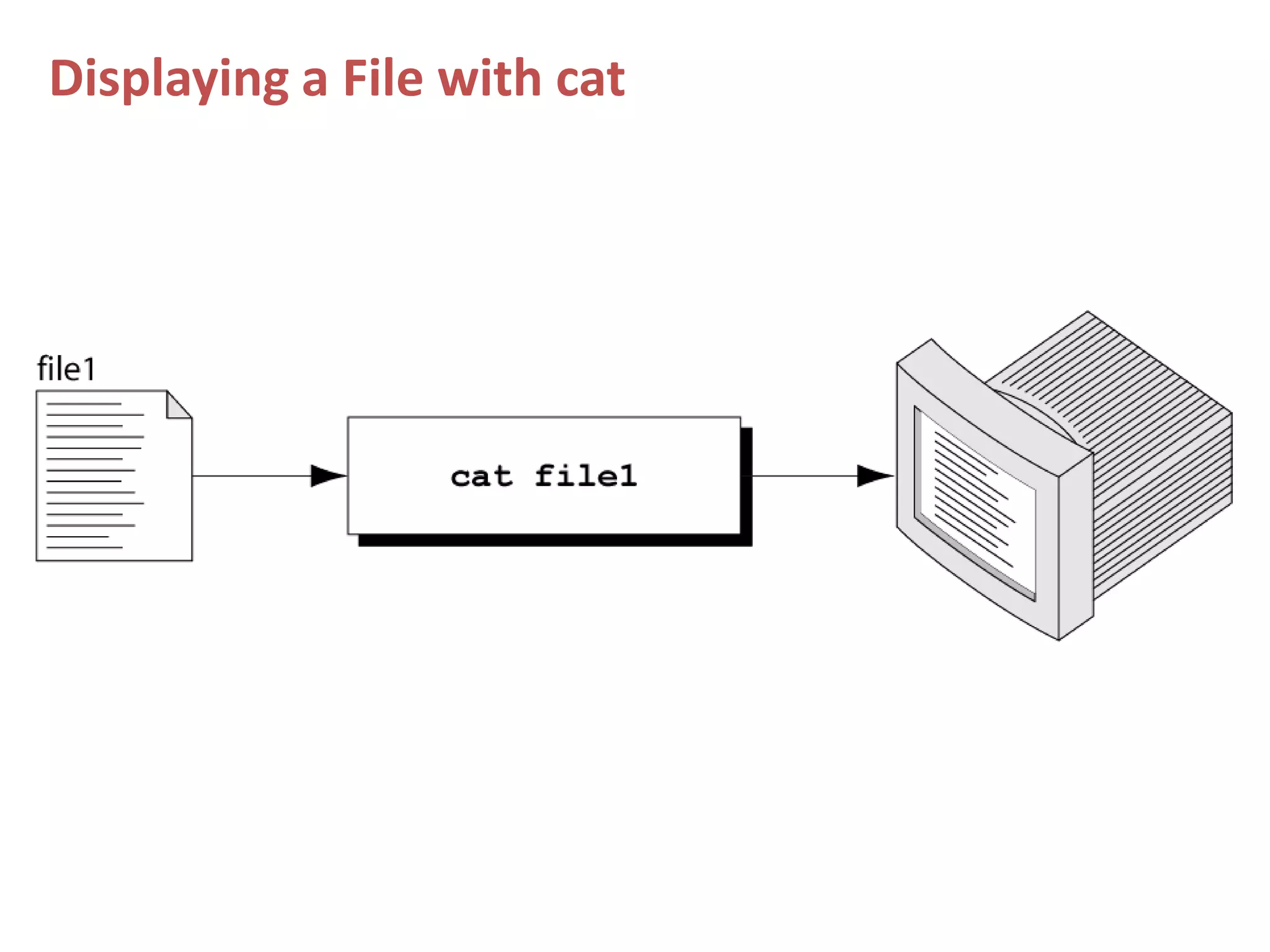
Displaying a File with cat
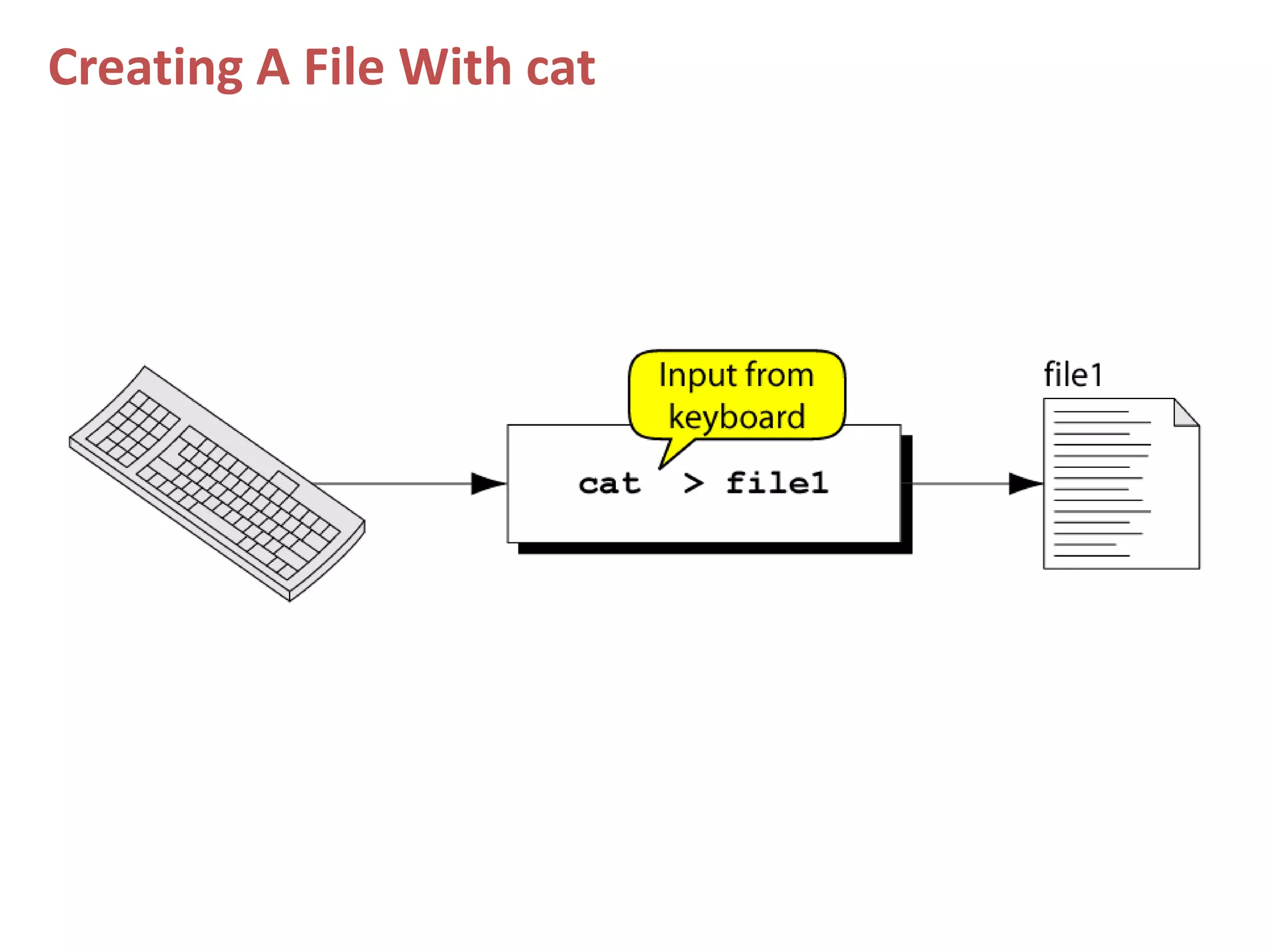
Creating A File With cat
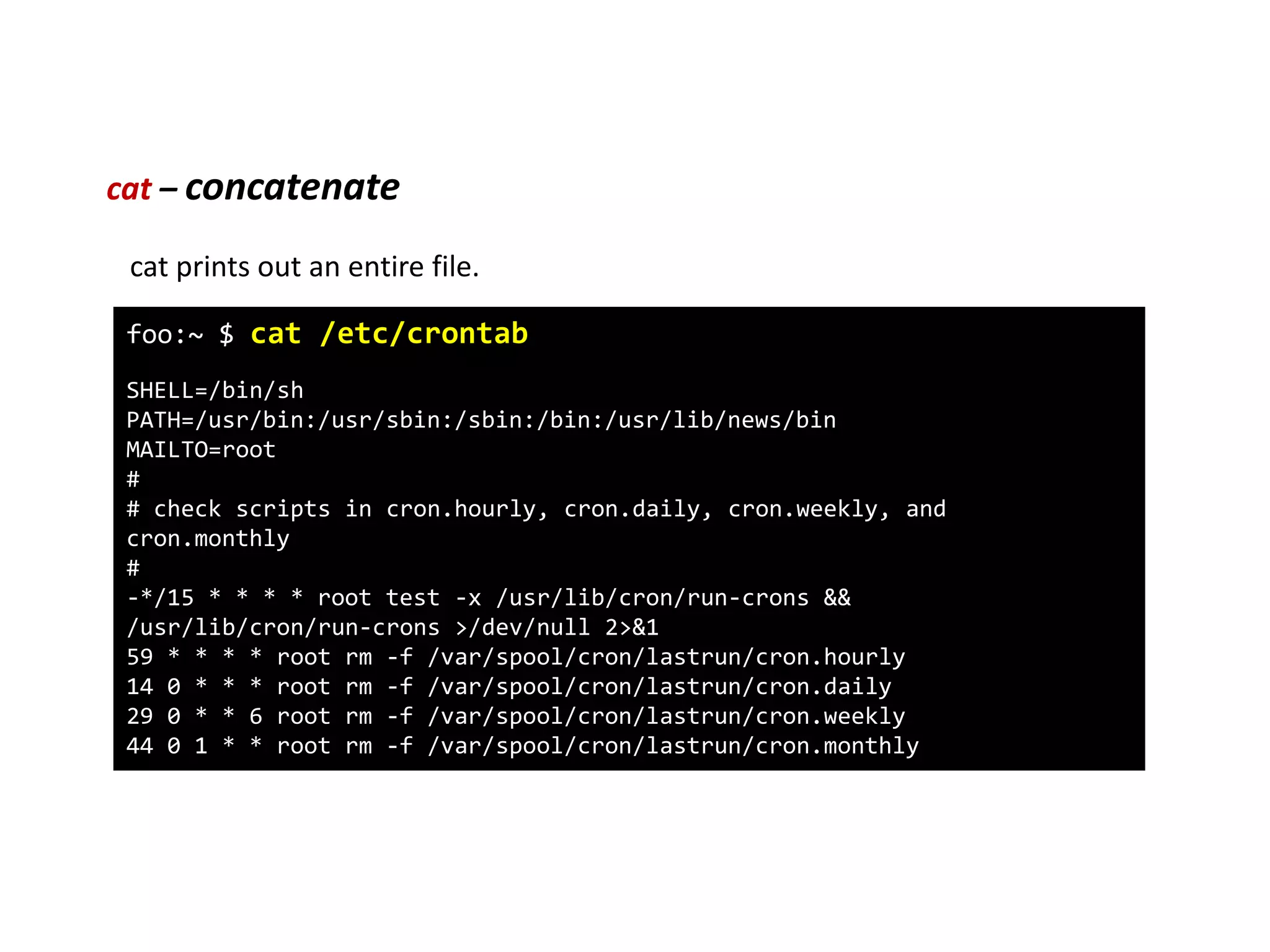
cat – concatenate
foo:~ $ cat /etc/crontab
SHELL=/bin/sh
PATH=/usr/bin:/usr/sbin:/sbin:/bin:/usr/lib/news/bin
MAILTO=root
#
# check scripts in cron.hourly, cron.daily, cron.weekly, and
cron.monthly
#
-*/15 * * * * root test -x /usr/lib/cron/run-crons &&
/usr/lib/cron/run-crons >/dev/null 2>&1
59 * * * * root rm -f /var/spool/cron/lastrun/cron.hourly
14 0 * * * root rm -f /var/spool/cron/lastrun/cron.daily
29 0 * * 6 root rm -f /var/spool/cron/lastrun/cron.weekly
44 0 1 * * root rm -f /var/spool/cron/lastrun/cron.monthly
cat prints out an entire file.
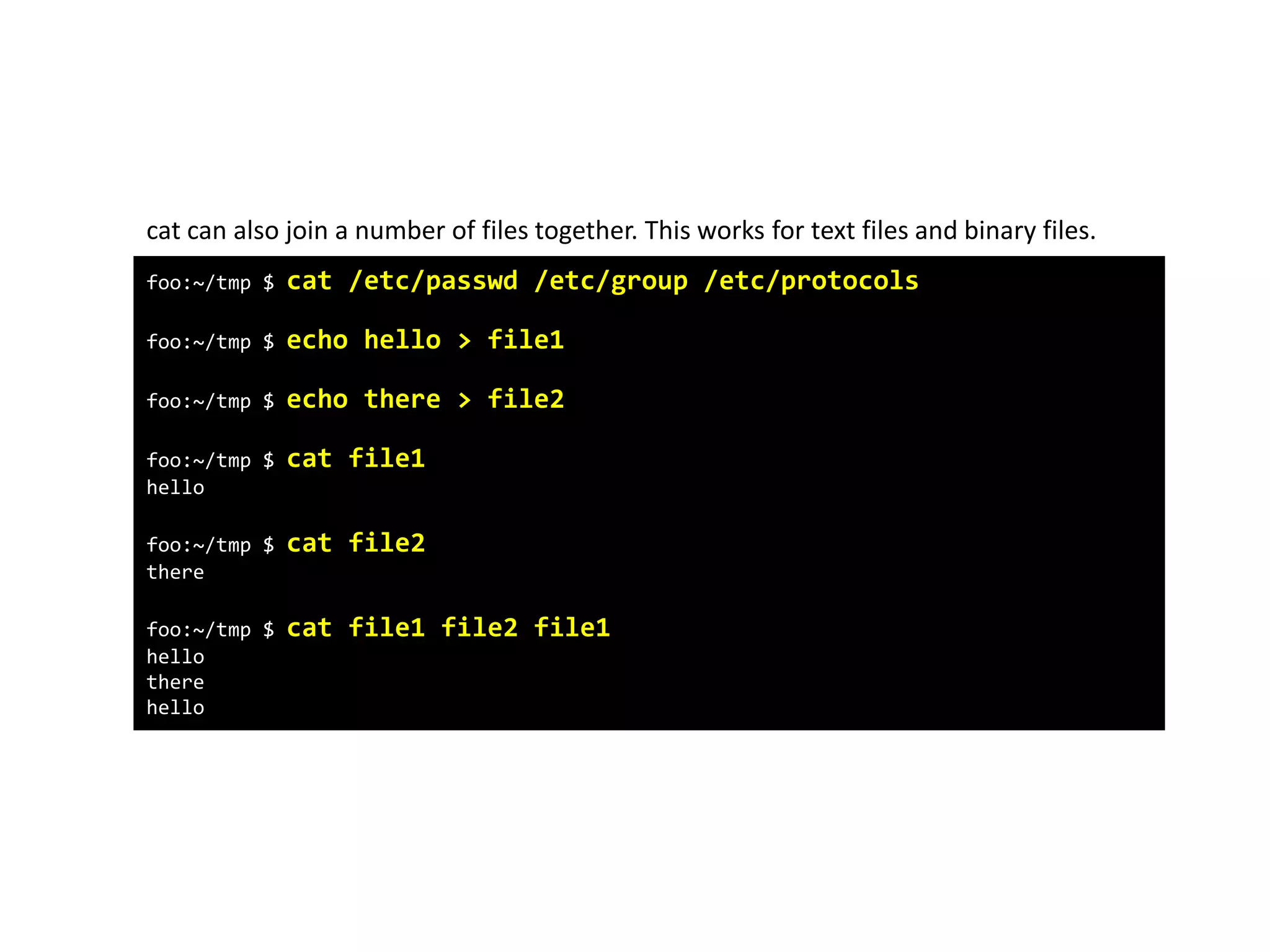
foo:~/tmp $ cat /etc/passwd /etc/group /etc/protocols
foo:~/tmp $ echo hello > file1
foo:~/tmp $ echo there > file2
foo:~/tmp $ cat file1
hello
foo:~/tmp $ cat file2
there
foo:~/tmp $ cat file1 file2 file1
hello
there
hello
cat can also join a number of files together. This works for text files and binary files.
The head Command
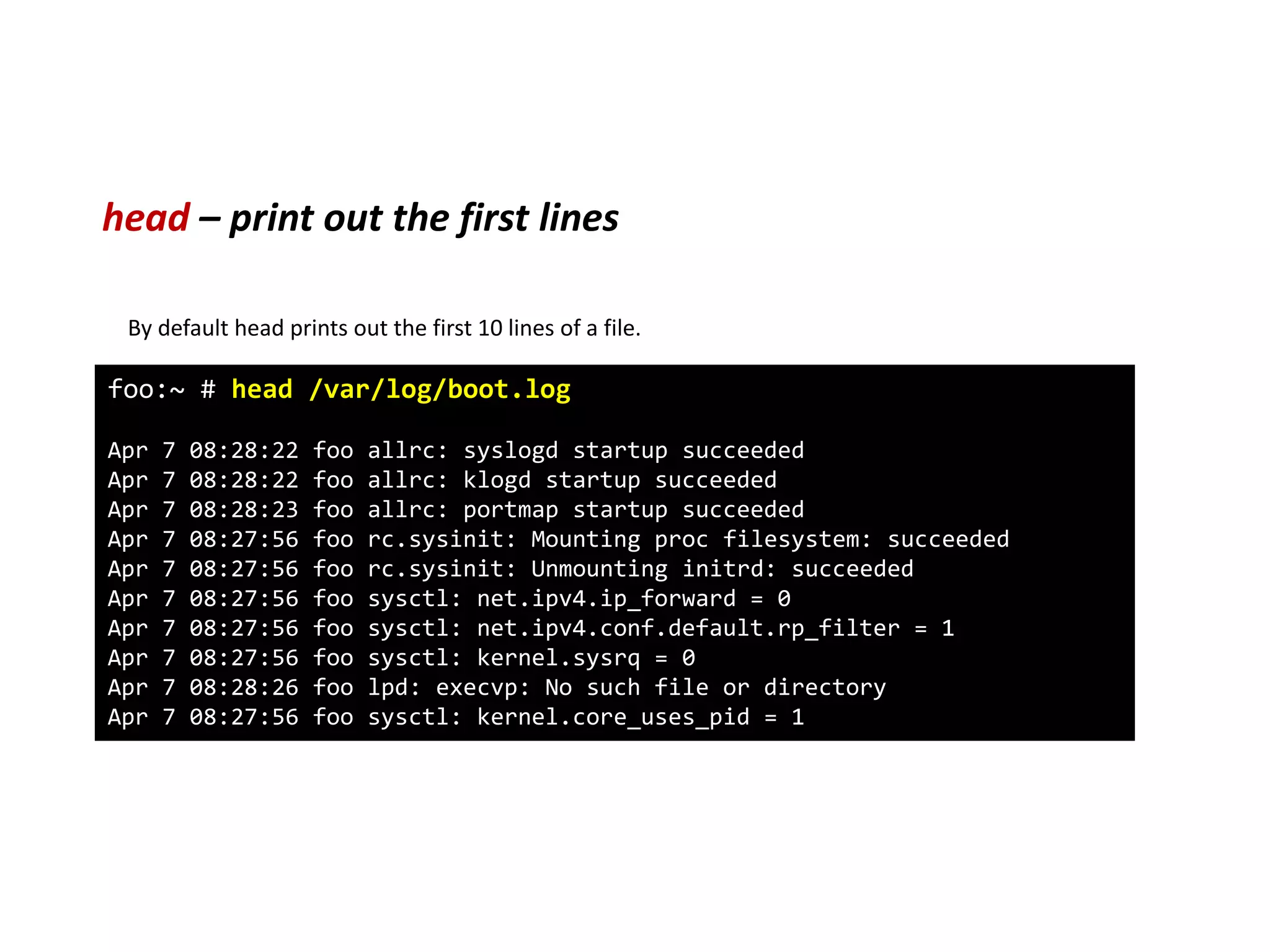
head – print out the first lines
foo:~ # head /var/log/boot.log
Apr 7 08:28:22 foo allrc: syslogd startup succeeded
Apr 7 08:28:22 foo allrc: klogd startup succeeded
Apr 7 08:28:23 foo allrc: portmap startup succeeded
Apr 7 08:27:56 foo rc.sysinit: Mounting proc filesystem: succeeded
Apr 7 08:27:56 foo rc.sysinit: Unmounting initrd: succeeded
Apr 7 08:27:56 foo sysctl: net.ipv4.ip_forward = 0
Apr 7 08:27:56 foo sysctl: net.ipv4.conf.default.rp_filter = 1
Apr 7 08:27:56 foo sysctl: kernel.sysrq = 0
Apr 7 08:28:26 foo lpd: execvp: No such file or directory
Apr 7 08:27:56 foo sysctl: kernel.core_uses_pid = 1
By default head prints out the first 10 lines of a file.
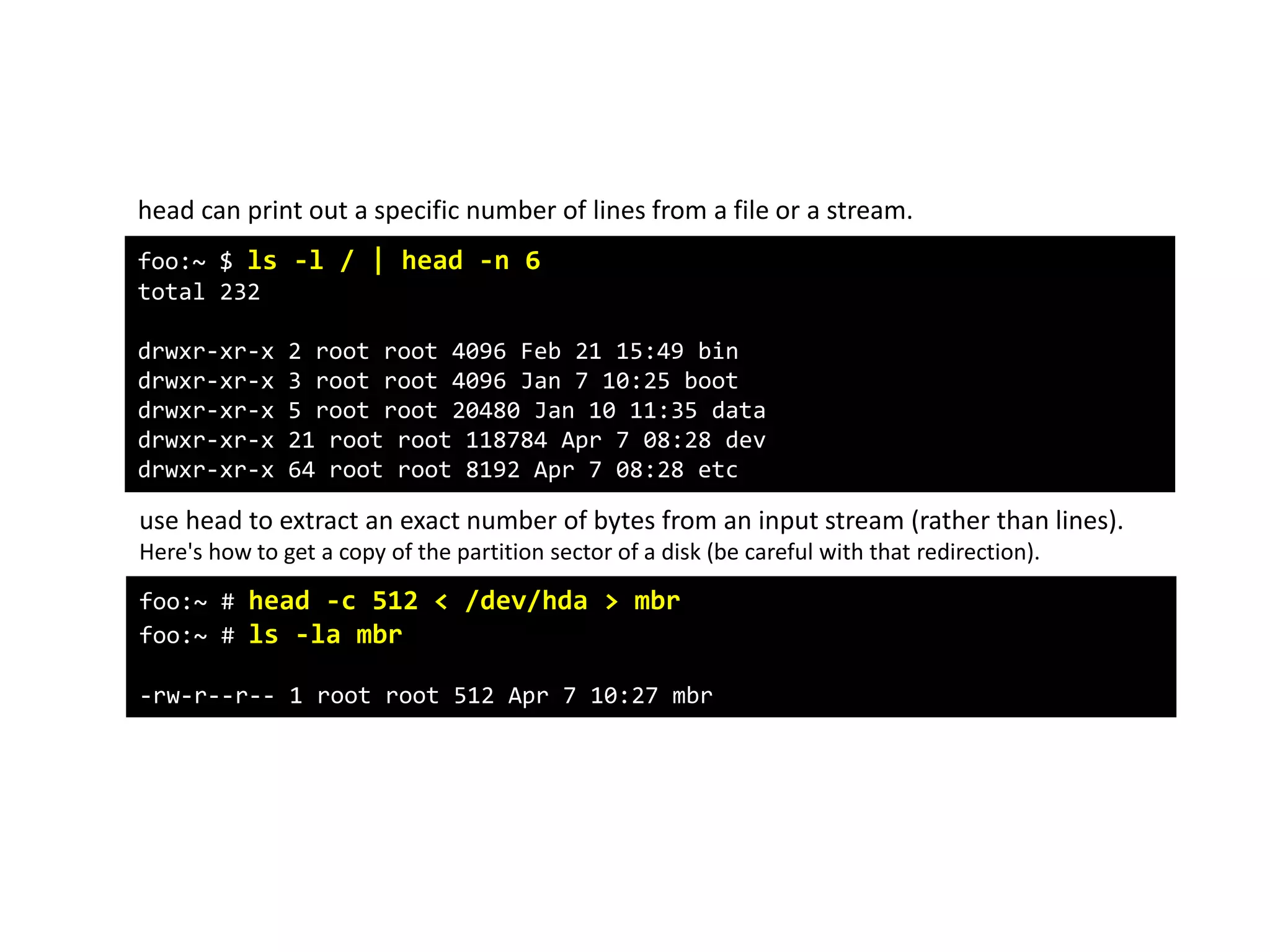
foo:~ $ ls -l / | head -n 6
total 232
drwxr-xr-x 2 root root 4096 Feb 21 15:49 bin
drwxr-xr-x 3 root root 4096 Jan 7 10:25 boot
drwxr-xr-x 5 root root 20480 Jan 10 11:35 data
drwxr-xr-x 21 root root 118784 Apr 7 08:28 dev
drwxr-xr-x 64 root root 8192 Apr 7 08:28 etc
head can print out a specific number of lines from a file or a stream.
use head to extract an exact number of bytes from an input stream (rather than lines).
Here's how to get a copy of the partition sector of a disk (be careful with that redirection).
foo:~ # head -c 512 < /dev/hda > mbr
foo:~ # ls -la mbr
-rw-r--r-- 1 root root 512 Apr 7 10:27 mbr
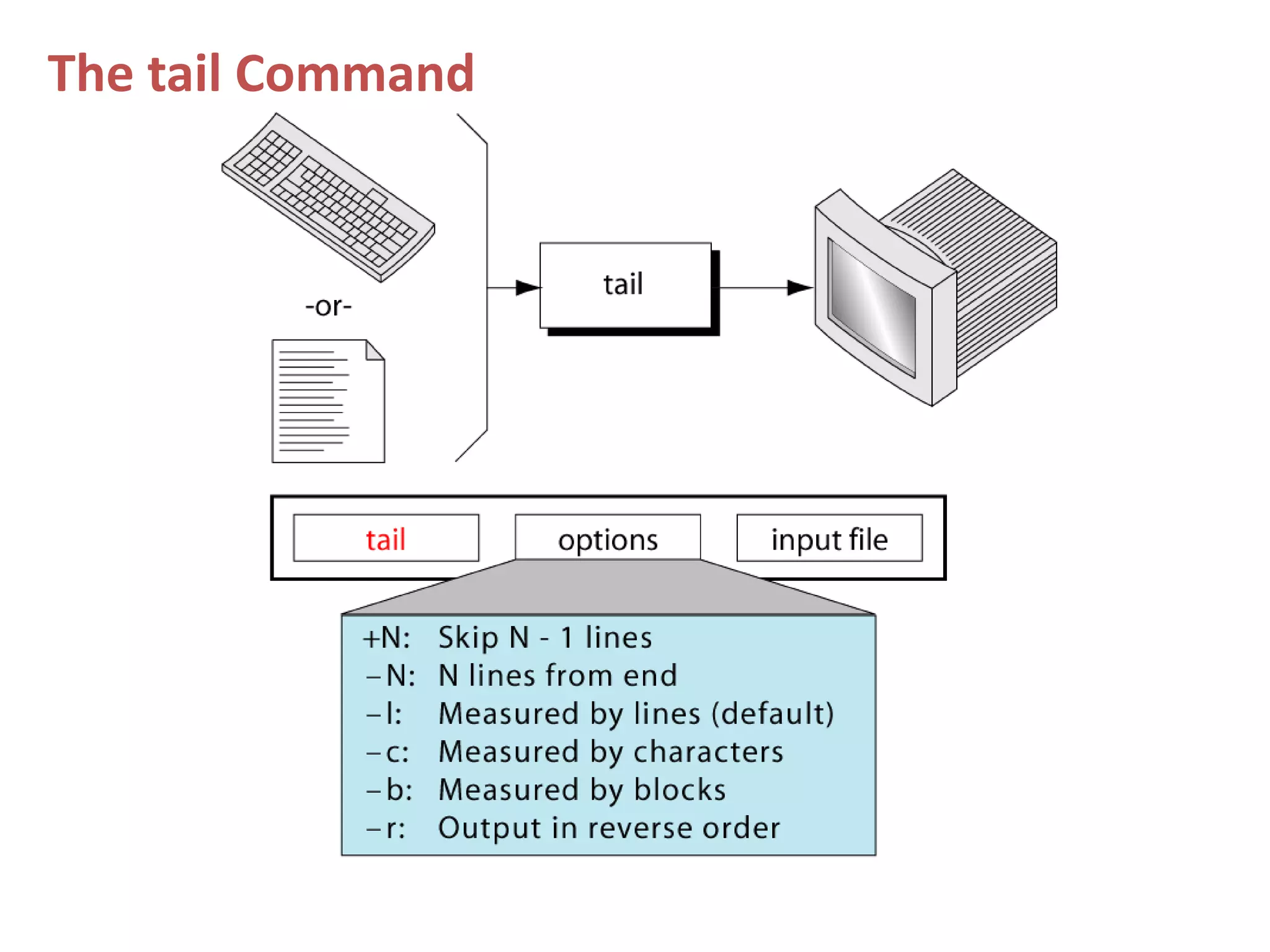
The tail Command
tail – show the end of a file
Selecting parts of a file (Filters that print out various parts of the input they receive)
root@foo:root # tail /var/log/messages
Apr 7 11:19:34 foo dhcpd: Wrote 9 leases to leases file.
Apr 7 11:19:34 foo dhcpd: DHCPREQUEST for 10.0.0.169 from
00:80:ad:02:65:7c via eth0
Apr 7 11:19:35 foo dhcpd: DHCPACK on 10.0.0.169 to
00:80:ad:02:65:7c via eth0
Apr 7 11:20:01 foo kdm[1151]: Cannot convert Internet address
10.0.0.168 to host name
Apr 7 11:26:46 foo ipop3d[22026]: connect from 10.0.0.10
(10.0.0.10)
Apr 7 11:26:55 foo ipop3d[22028]: connect from 10.0.0.10
(10.0.0.10)
Apr 7 11:26:58 foo ipop3d[22035]: connect from 10.0.0.3 (10.0.0.3)
Apr 7 11:27:01 foo ipop3d[22036]: connect from 10.0.0.3 (10.0.0.3)
Apr 7 11:29:31 foo kdm[21954]: pam_unix2: session started for user
joe, service xdm
Apr 7 11:32:41 foo sshd[22316]: Accepted publickey for root from
10.0.0.143 port 1250 ssh2
Ex: tail is just like head, but it shows the tail end of the file.
tail can be used to watch a file as it grows.
Run the command tail –f /var/log/messages on one console and then log in on another virtual console.
tail –n 20 file or tail -20 file will show last 20 lines of file. tail –c 20 file will show last 20 characters of a file.
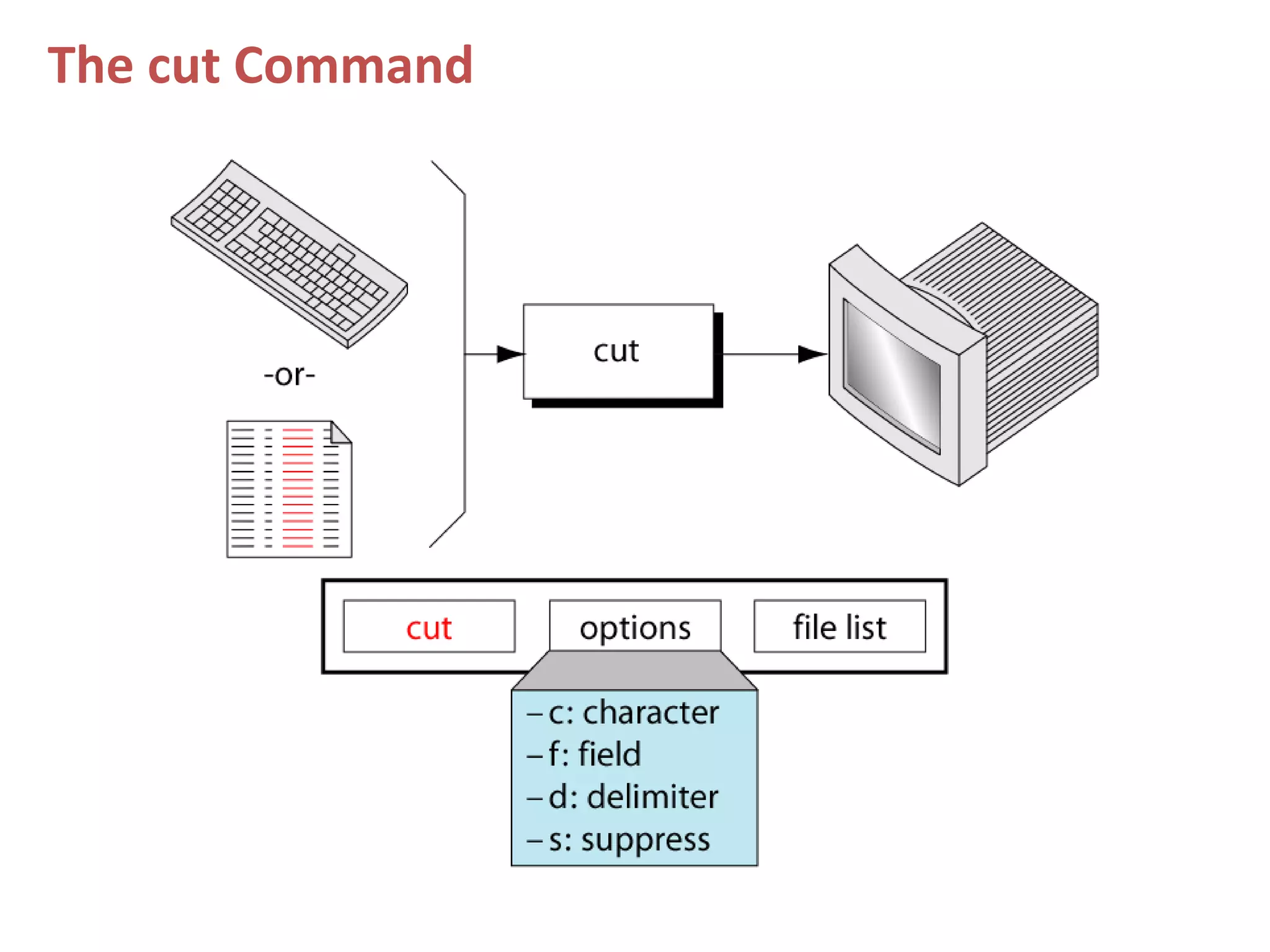
The cut Command
cut – pull out columns
Selecting parts of a file (Filters that print out various parts of the input they receive)
root@foo:root # tail /var/log/messages
Apr 7 11:19:34 foo dhcpd: Wrote 9 leases to leases file.
Apr 7 11:19:34 foo dhcpd: DHCPREQUEST for 10.0.0.169 from
00:80:ad:02:65:7c via eth0
Apr 7 11:19:35 foo dhcpd: DHCPACK on 10.0.0.169 to
00:80:ad:02:65:7c via eth0
Apr 7 11:20:01 foo kdm[1151]: Cannot convert Internet address
10.0.0.168 to host name
Apr 7 11:26:46 foo ipop3d[22026]: connect from 10.0.0.10
(10.0.0.10)
Apr 7 11:26:55 foo ipop3d[22028]: connect from 10.0.0.10
(10.0.0.10)
Apr 7 11:26:58 foo ipop3d[22035]: connect from 10.0.0.3 (10.0.0.3)
Apr 7 11:27:01 foo ipop3d[22036]: connect from 10.0.0.3 (10.0.0.3)
Apr 7 11:29:31 foo kdm[21954]: pam_unix2: session started for user
joe, service xdm
Apr 7 11:32:41 foo sshd[22316]: Accepted publickey for root from
10.0.0.143 port 1250 ssh2
Ex:
Cut can be used to select certain columns of the input stream.
Columns can be defined by either their position, or by being separated by field separators.
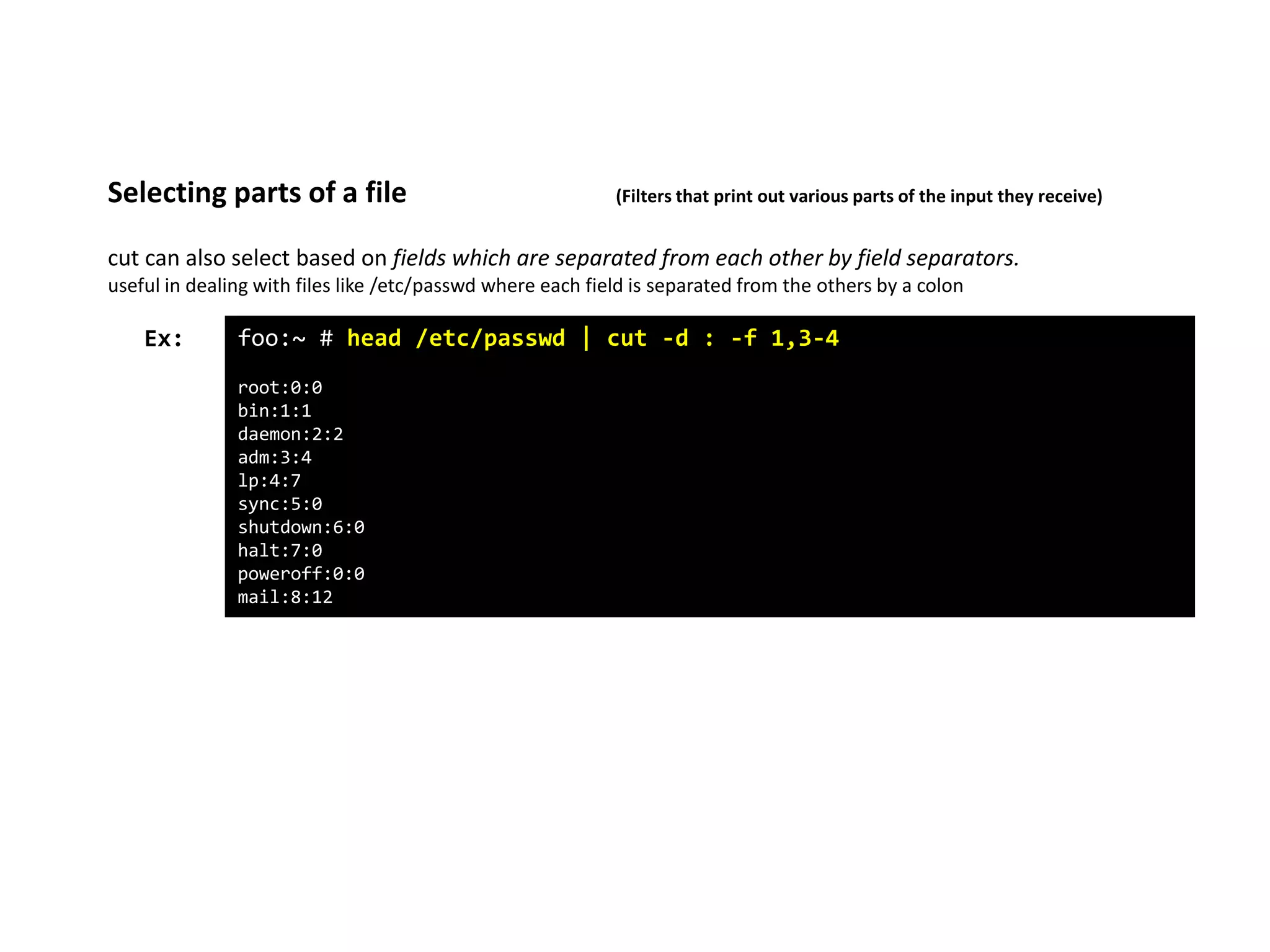
cut can also select based on fields which are separated from each other by field separators.
useful in dealing with files like /etc/passwd where each field is separated from the others by a colon
Selecting parts of a file (Filters that print out various parts of the input they receive)
foo:~ # head /etc/passwd | cut -d : -f 1,3-4
root:0:0
bin:1:1
daemon:2:2
adm:3:4
lp:4:7
sync:5:0
shutdown:6:0
halt:7:0
poweroff:0:0
mail:8:12
Ex:
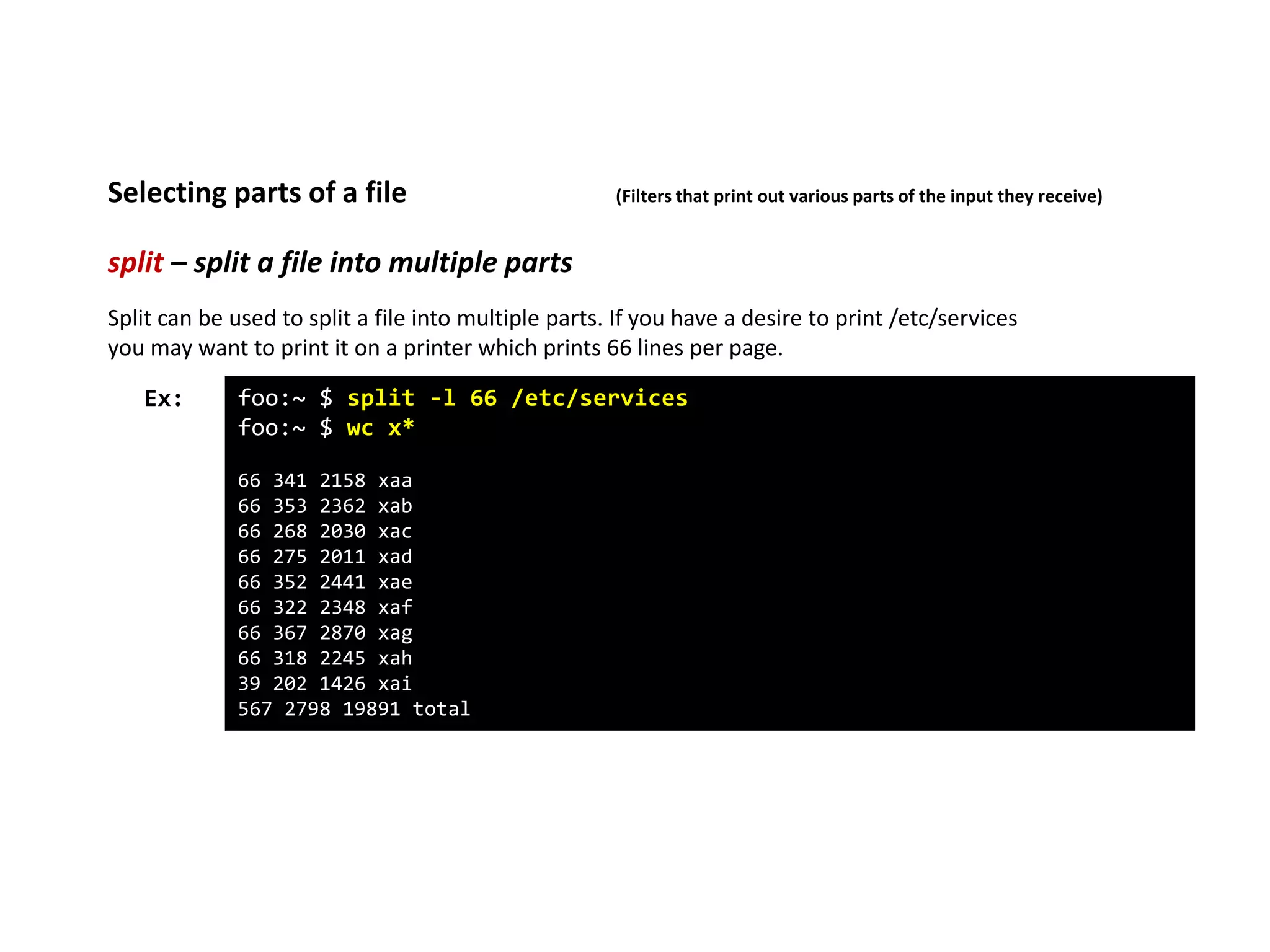
split – split a file into multiple parts
Selecting parts of a file (Filters that print out various parts of the input they receive)
foo:~ $ split -l 66 /etc/services
foo:~ $ wc x*
66 341 2158 xaa
66 353 2362 xab
66 268 2030 xac
66 275 2011 xad
66 352 2441 xae
66 322 2348 xaf
66 367 2870 xag
66 318 2245 xah
39 202 1426 xai
567 2798 19891 total
Ex:
Split can be used to split a file into multiple parts. If you have a desire to print /etc/services
you may want to print it on a printer which prints 66 lines per page.
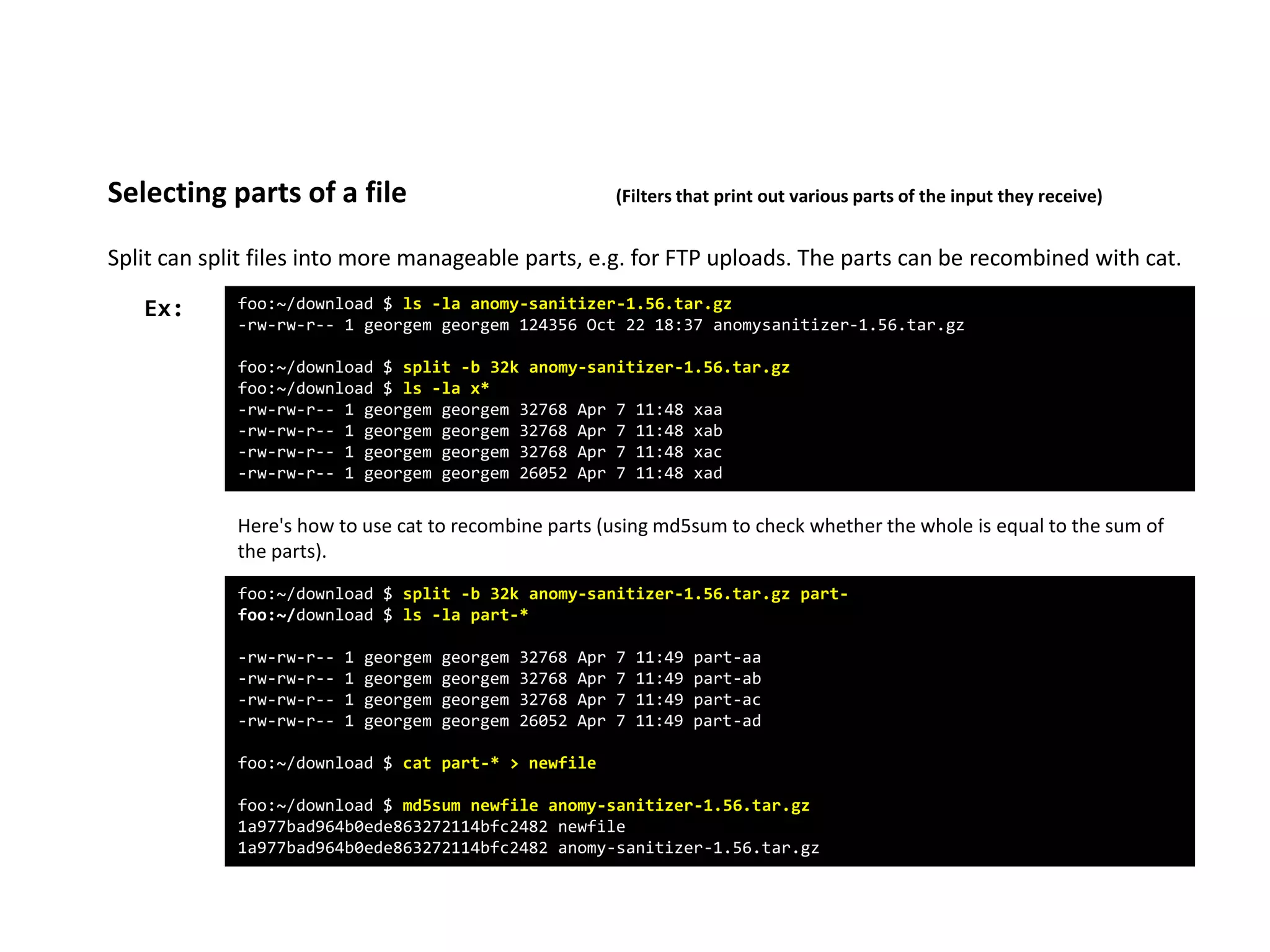
Split can split files into more manageable parts, e.g. for FTP uploads. The parts can be recombined with cat.
Selecting parts of a file (Filters that print out various parts of the input they receive)
foo:~/download $ ls -la anomy-sanitizer-1.56.tar.gz
-rw-rw-r-- 1 georgem georgem 124356 Oct 22 18:37 anomysanitizer-1.56.tar.gz
foo:~/download $ split -b 32k anomy-sanitizer-1.56.tar.gz
foo:~/download $ ls -la x*
-rw-rw-r-- 1 georgem georgem 32768 Apr 7 11:48 xaa
-rw-rw-r-- 1 georgem georgem 32768 Apr 7 11:48 xab
-rw-rw-r-- 1 georgem georgem 32768 Apr 7 11:48 xac
-rw-rw-r-- 1 georgem georgem 26052 Apr 7 11:48 xad
Ex:
Here's how to use cat to recombine parts (using md5sum to check whether the whole is equal to the sum of
the parts).
foo:~/download $ split -b 32k anomy-sanitizer-1.56.tar.gz part-
foo:~/download $ ls -la part-*
-rw-rw-r-- 1 georgem georgem 32768 Apr 7 11:49 part-aa
-rw-rw-r-- 1 georgem georgem 32768 Apr 7 11:49 part-ab
-rw-rw-r-- 1 georgem georgem 32768 Apr 7 11:49 part-ac
-rw-rw-r-- 1 georgem georgem 26052 Apr 7 11:49 part-ad
foo:~/download $ cat part-* > newfile
foo:~/download $ md5sum newfile anomy-sanitizer-1.56.tar.gz
1a977bad964b0ede863272114bfc2482 newfile
1a977bad964b0ede863272114bfc2482 anomy-sanitizer-1.56.tar.gz
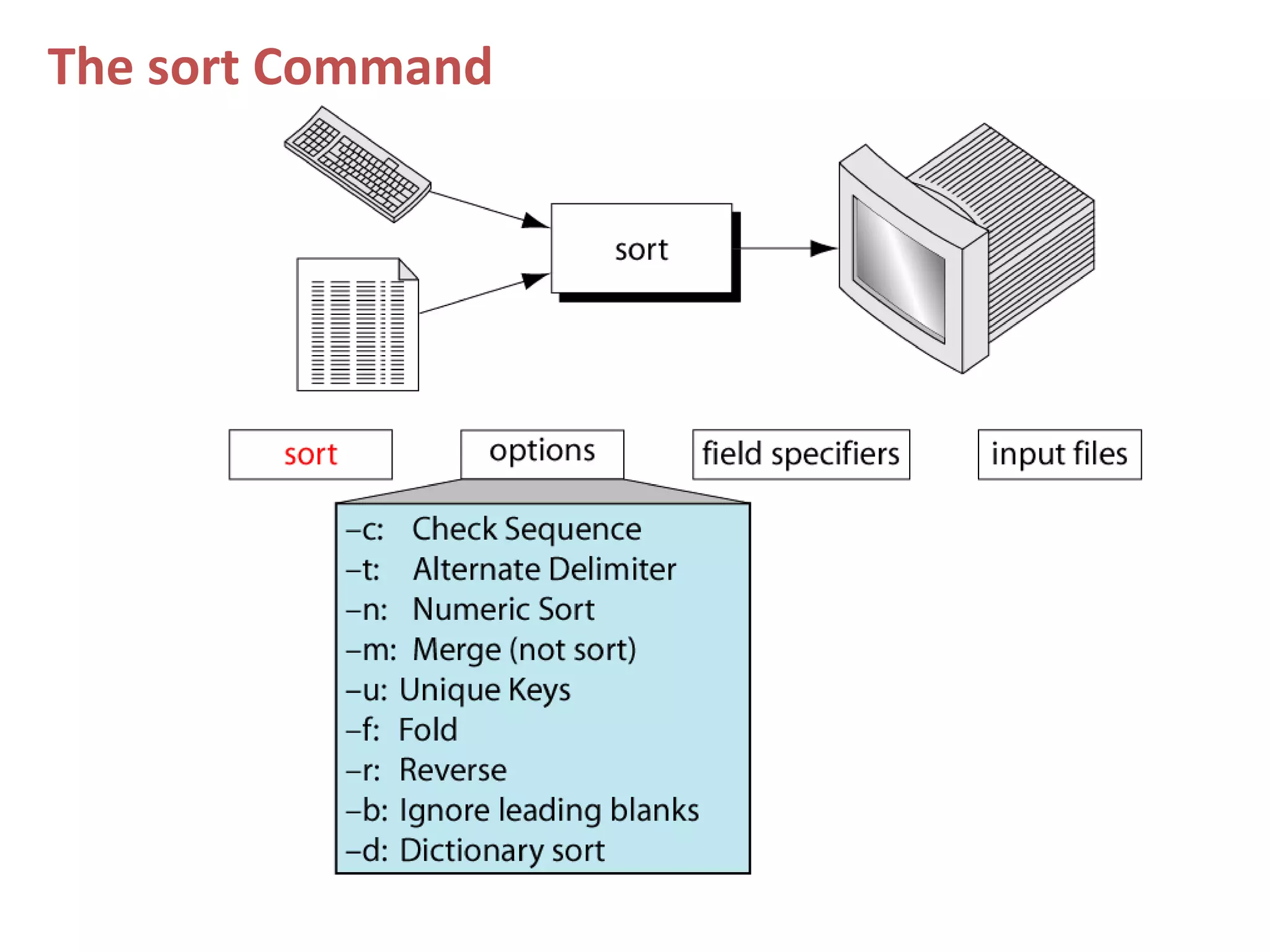
The sort Command
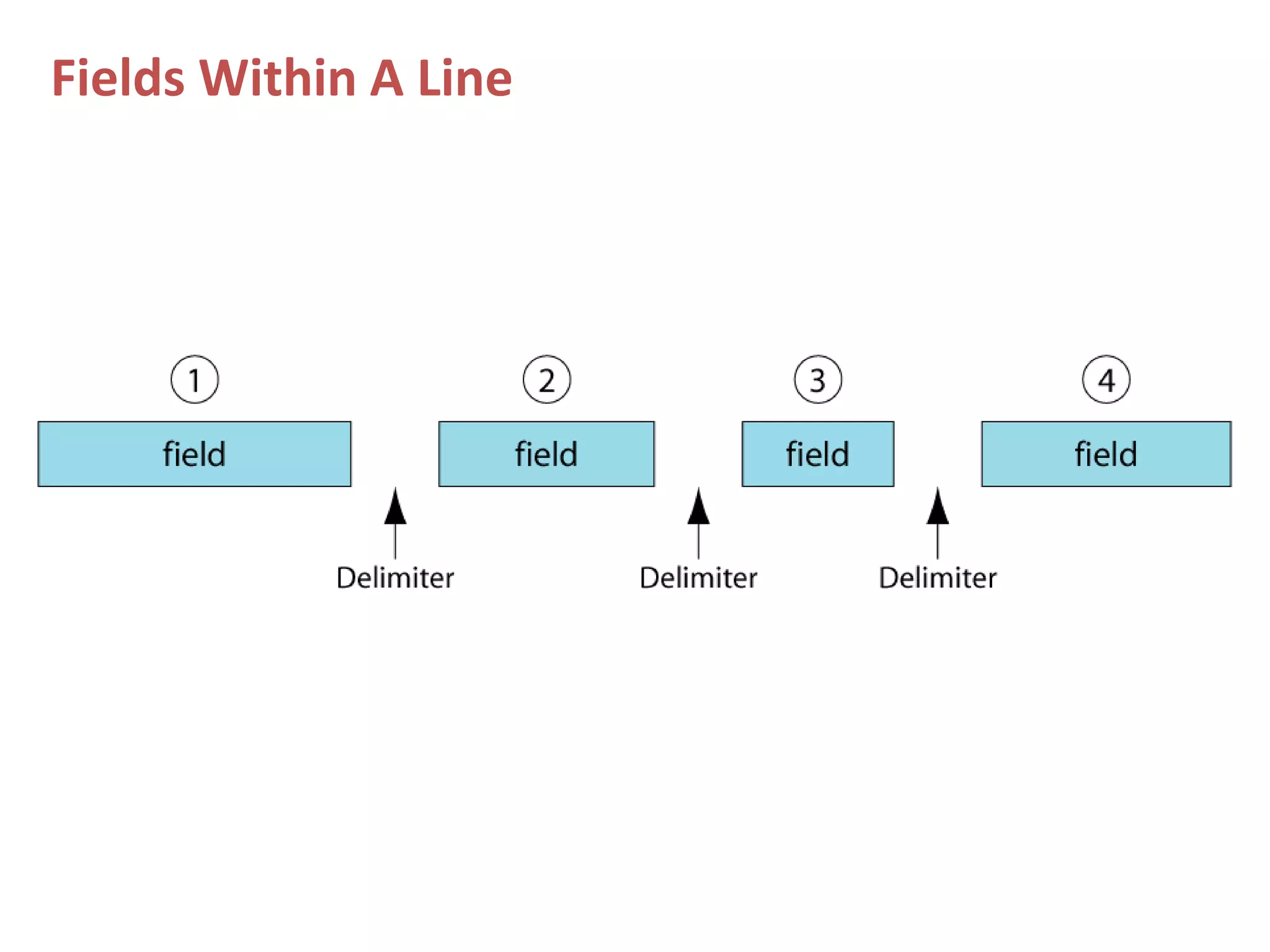
Fields Within A Line
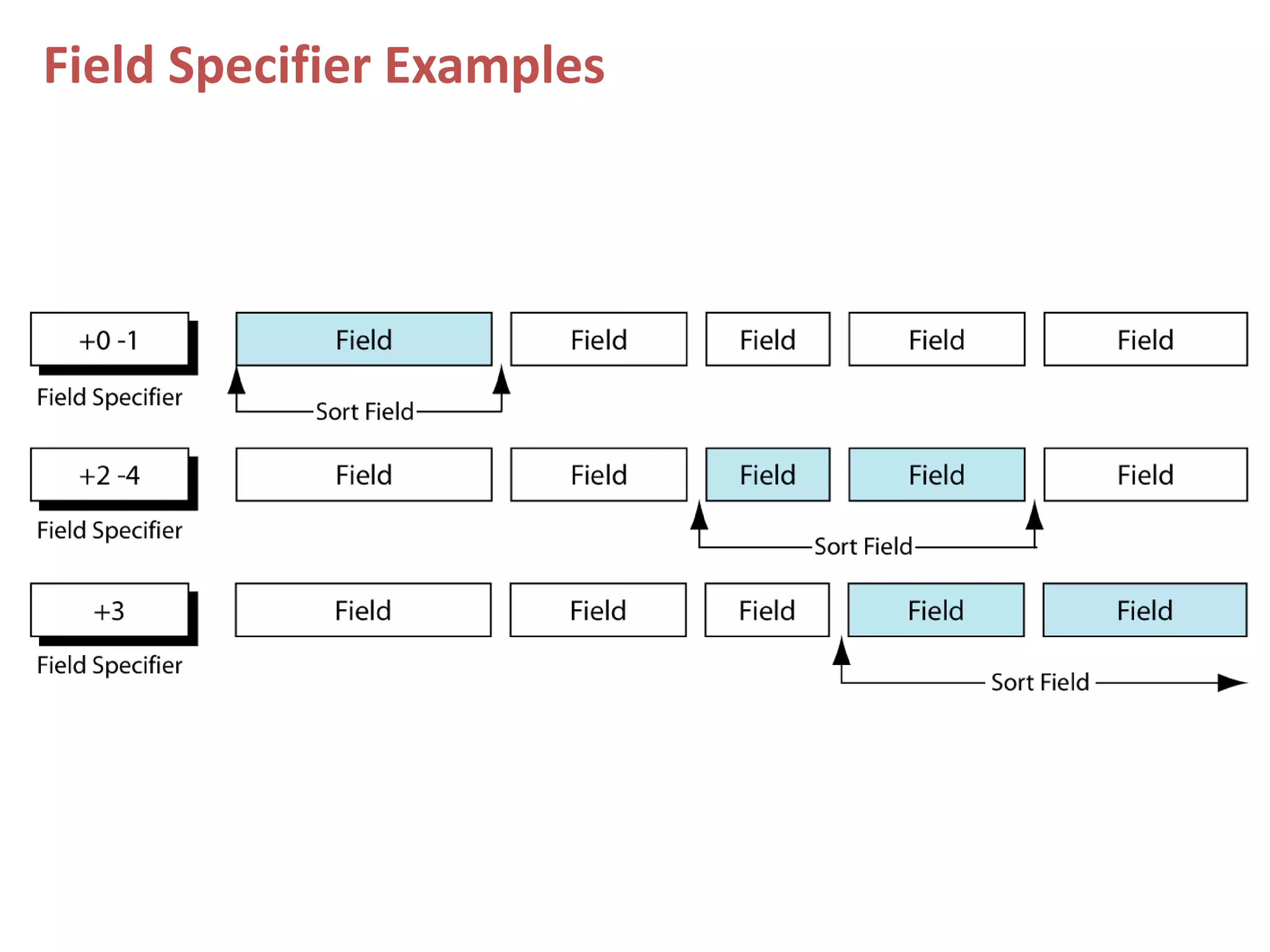
Field Specifier Examples
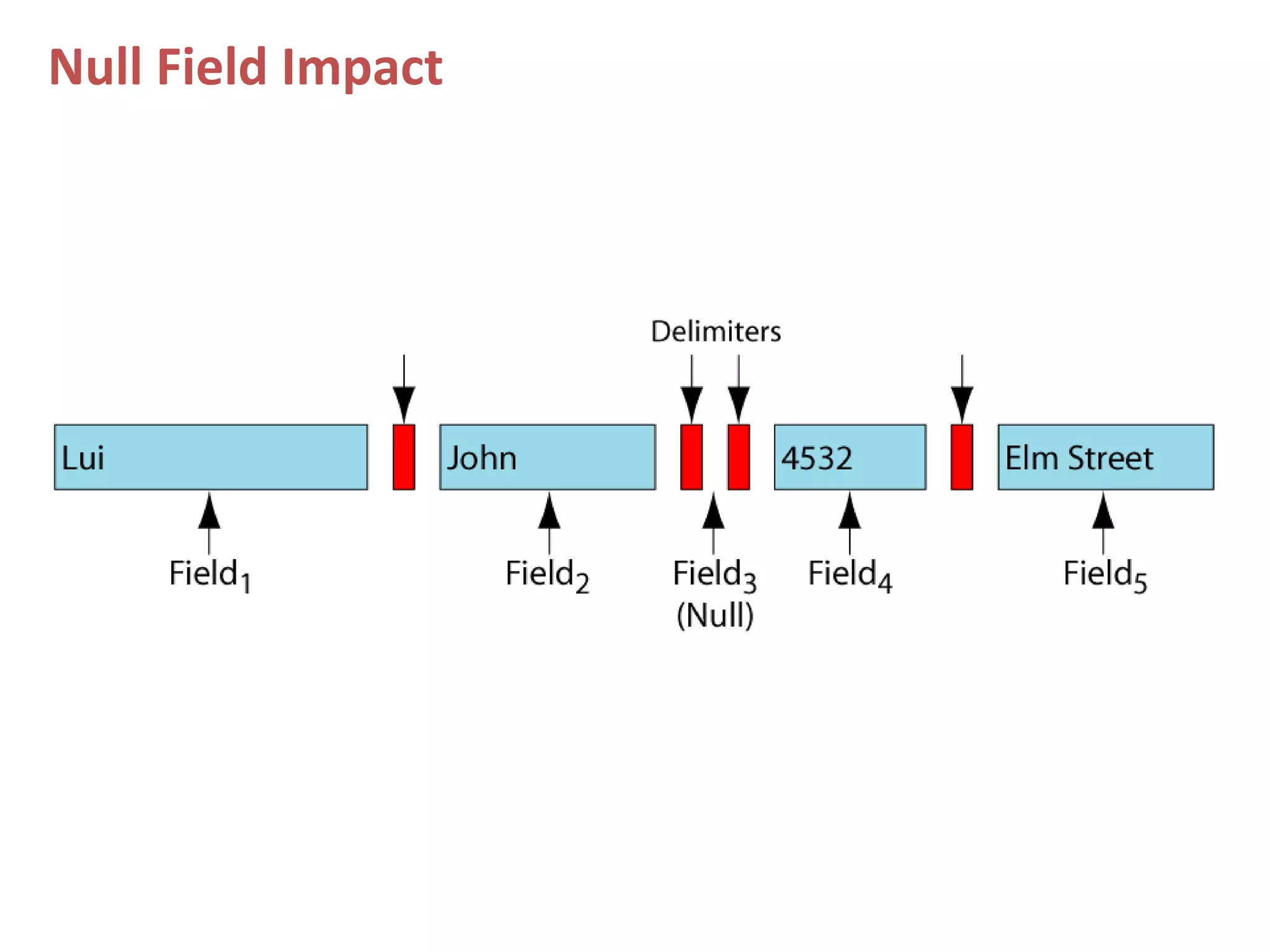
Null Field Impact
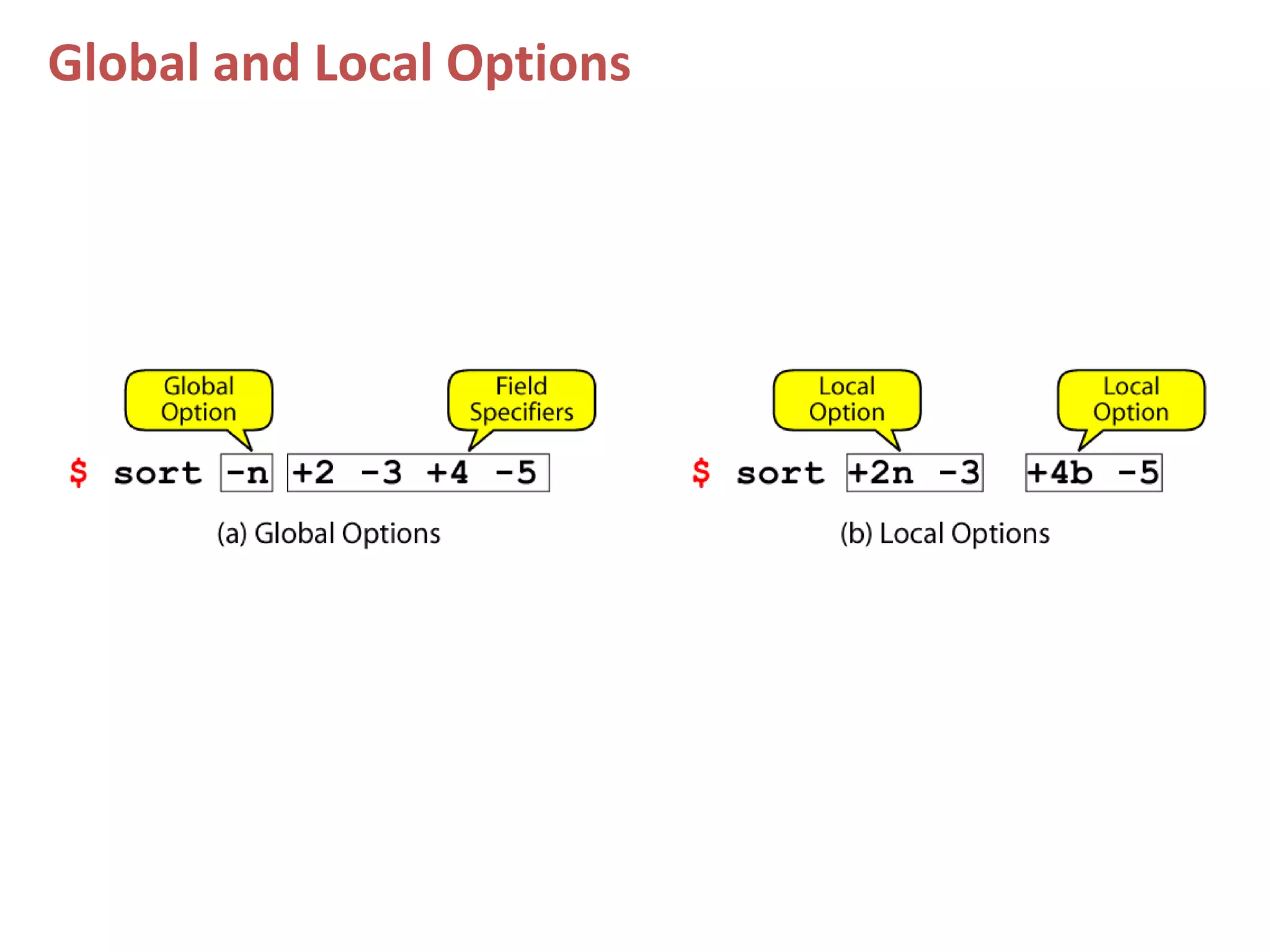
Global and Local Options
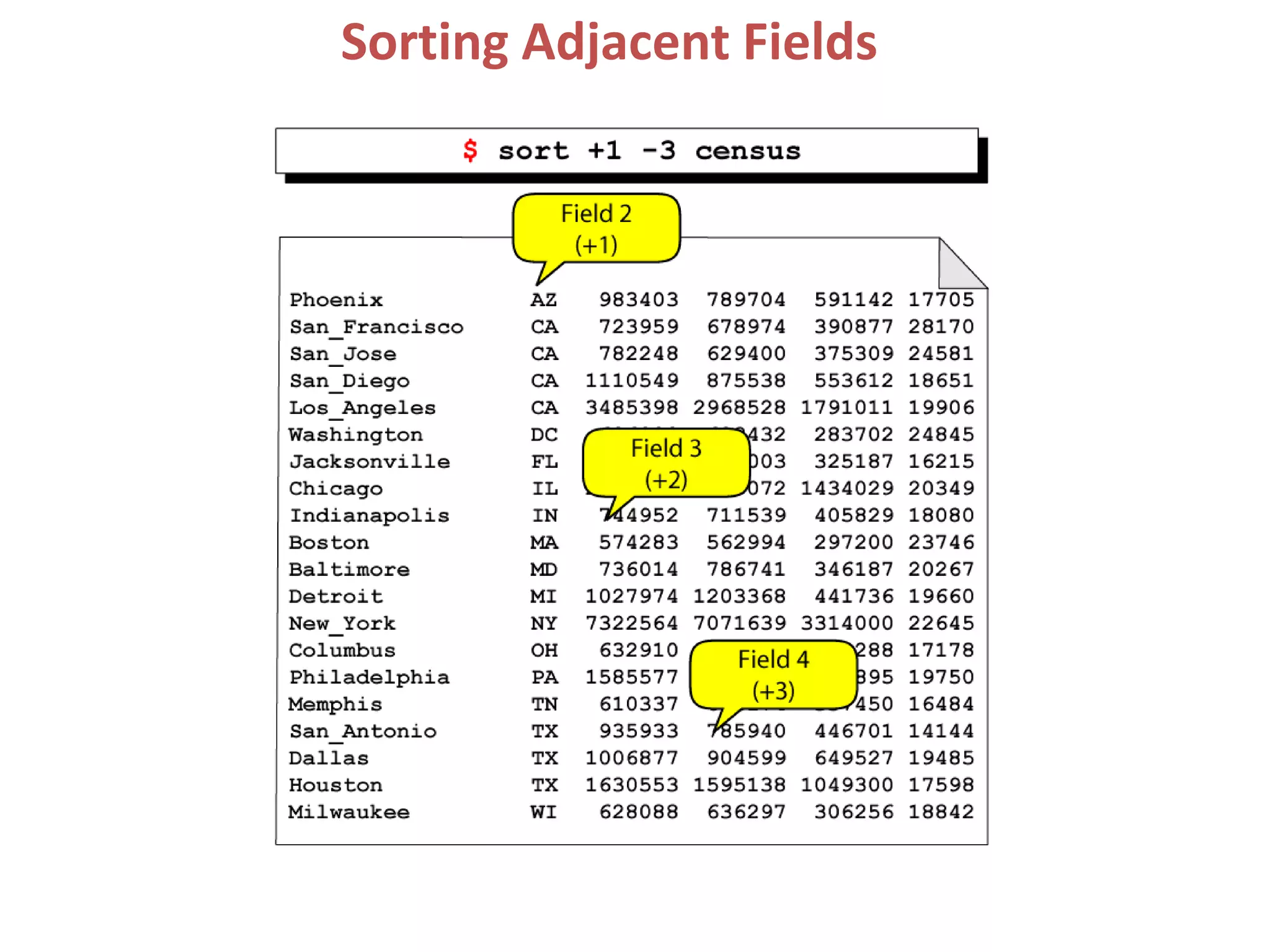
Sorting Adjacent Fields
Sorting
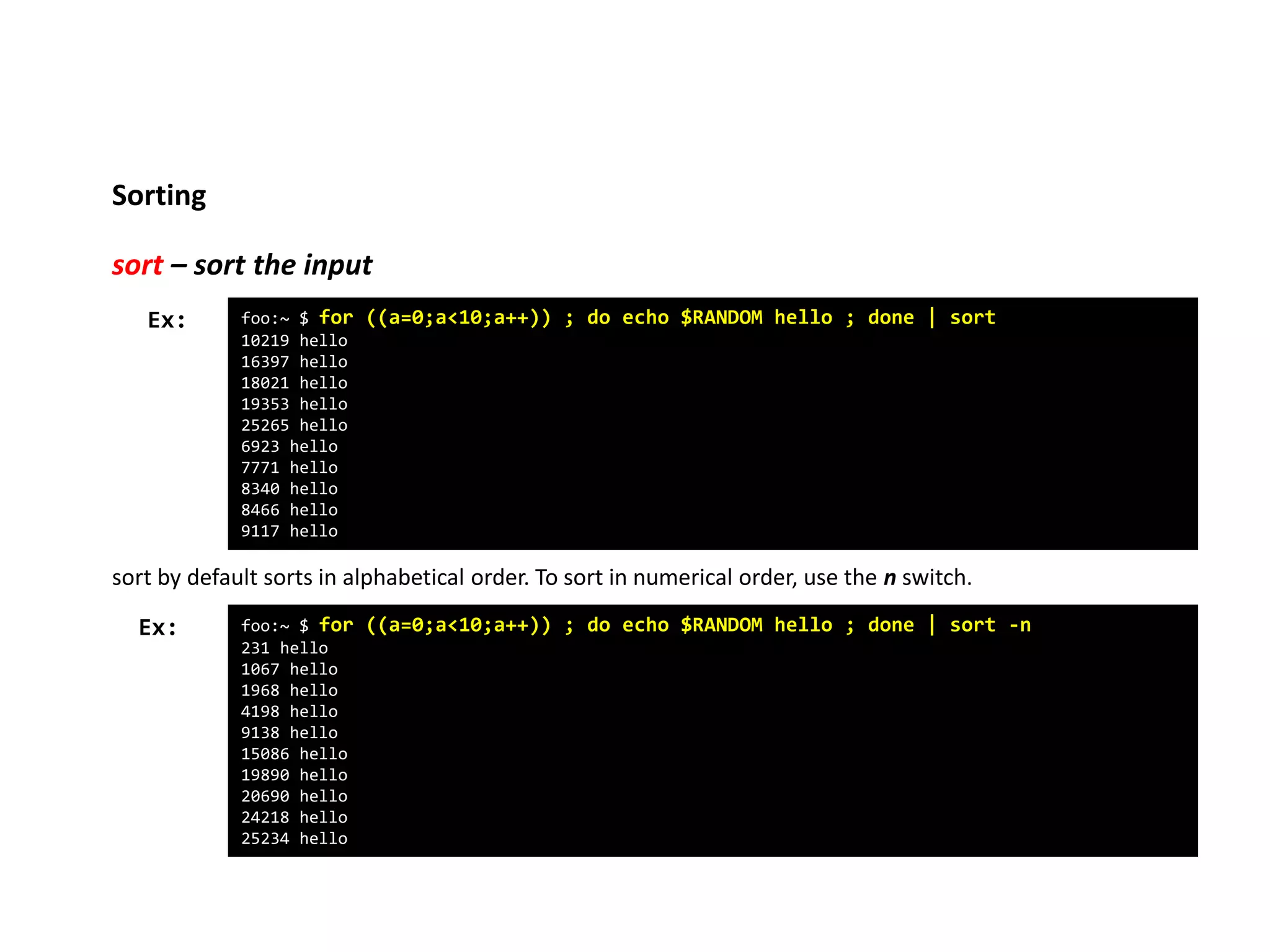
sort – sort the input
foo:~ $ for ((a=0;a<10;a++)) ; do echo $RANDOM hello ; done | sort
10219 hello
16397 hello
18021 hello
19353 hello
25265 hello
6923 hello
7771 hello
8340 hello
8466 hello
9117 hello
Ex:
sort by default sorts in alphabetical order. To sort in numerical order, use the n switch.
foo:~ $ for ((a=0;a<10;a++)) ; do echo $RANDOM hello ; done | sort -n
231 hello
1067 hello
1968 hello
4198 hello
9138 hello
15086 hello
19890 hello
20690 hello
24218 hello
25234 hello
Ex:
Sorting
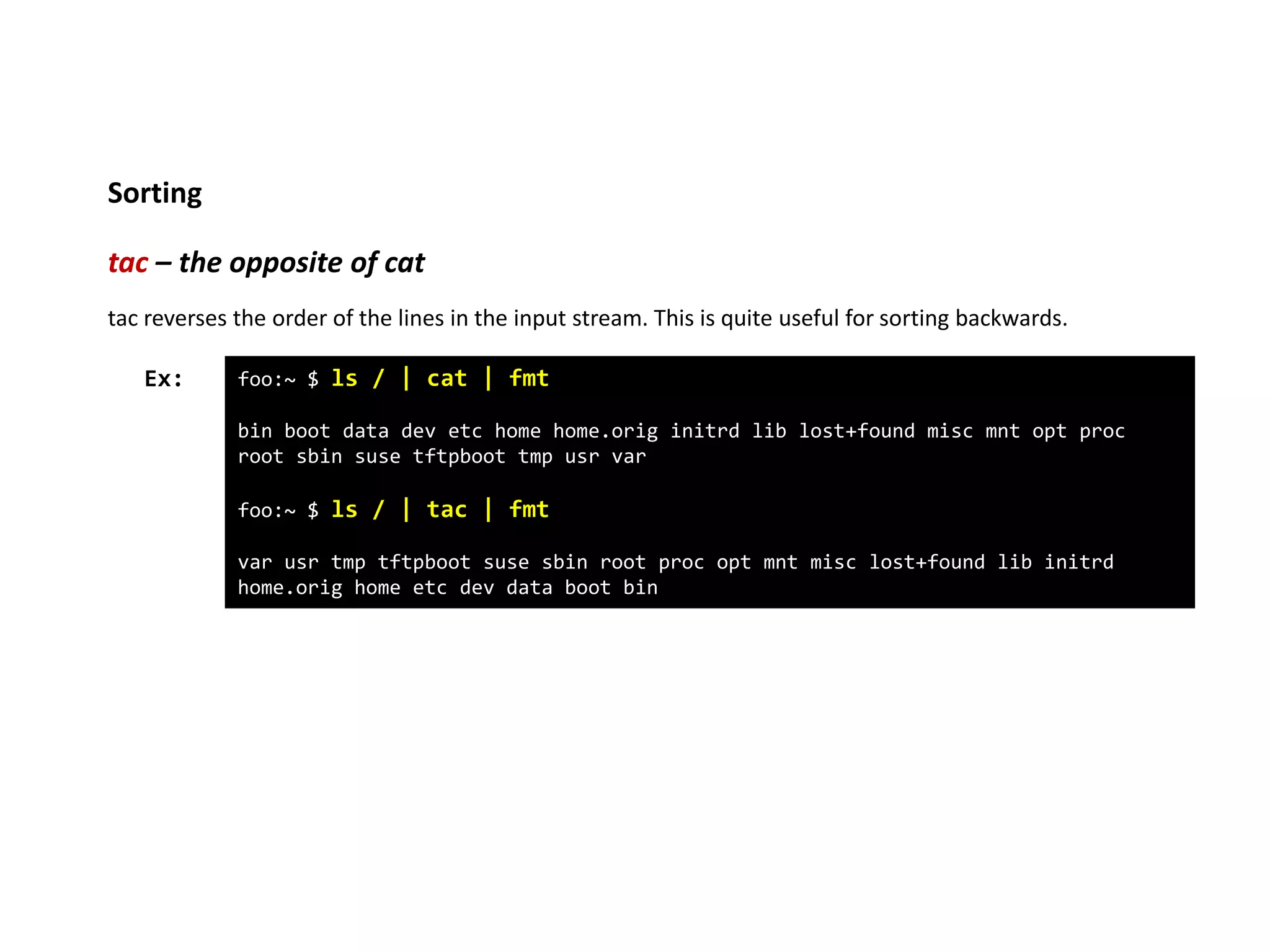
tac – the opposite of cat
foo:~ $ ls / | cat | fmt
bin boot data dev etc home home.orig initrd lib lost+found misc mnt opt proc
root sbin suse tftpboot tmp usr var
foo:~ $ ls / | tac | fmt
var usr tmp tftpboot suse sbin root proc opt mnt misc lost+found lib initrd
home.orig home etc dev data boot bin
Ex:
tac reverses the order of the lines in the input stream. This is quite useful for sorting backwards.
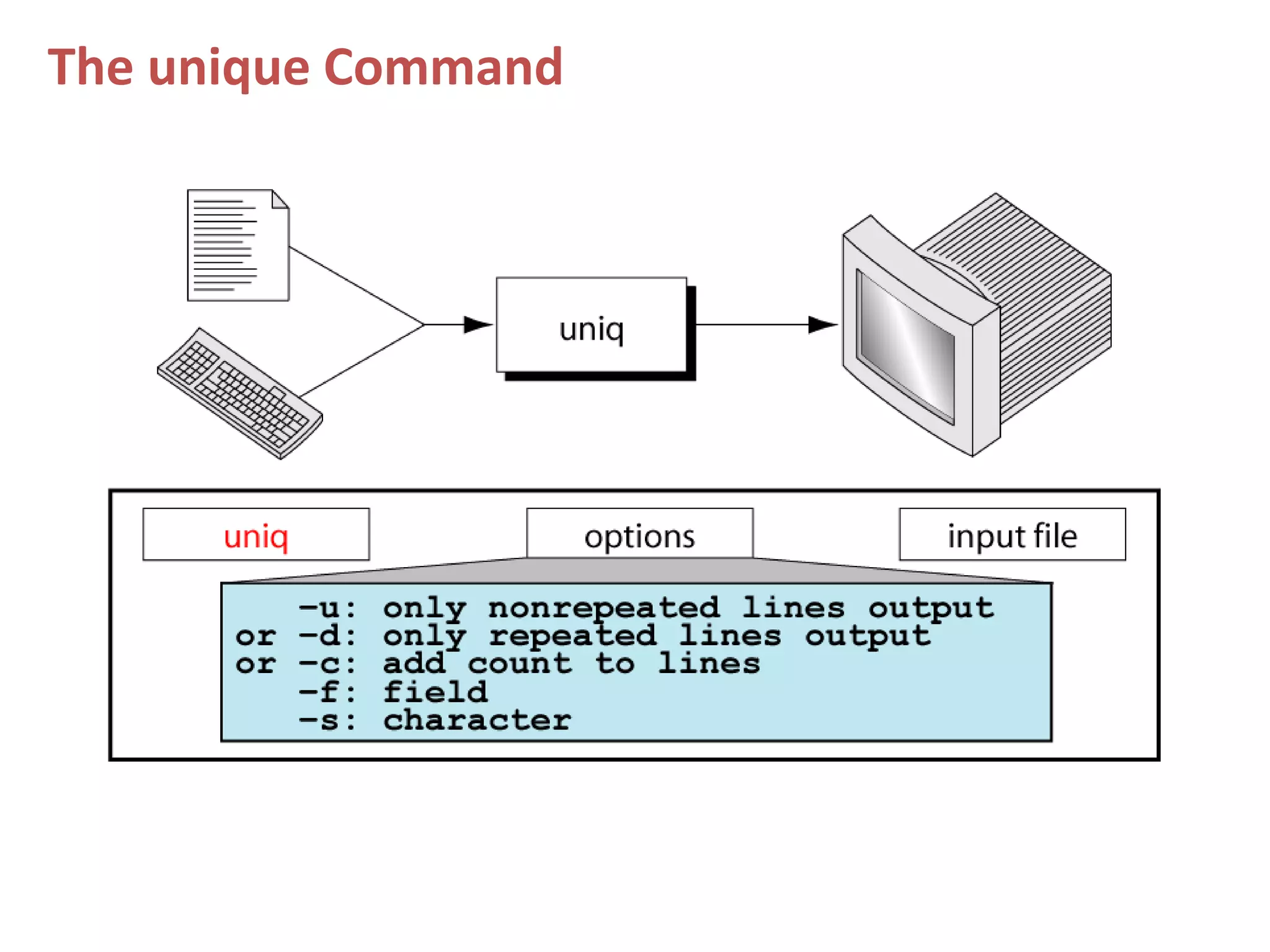
The unique Command
Sorting
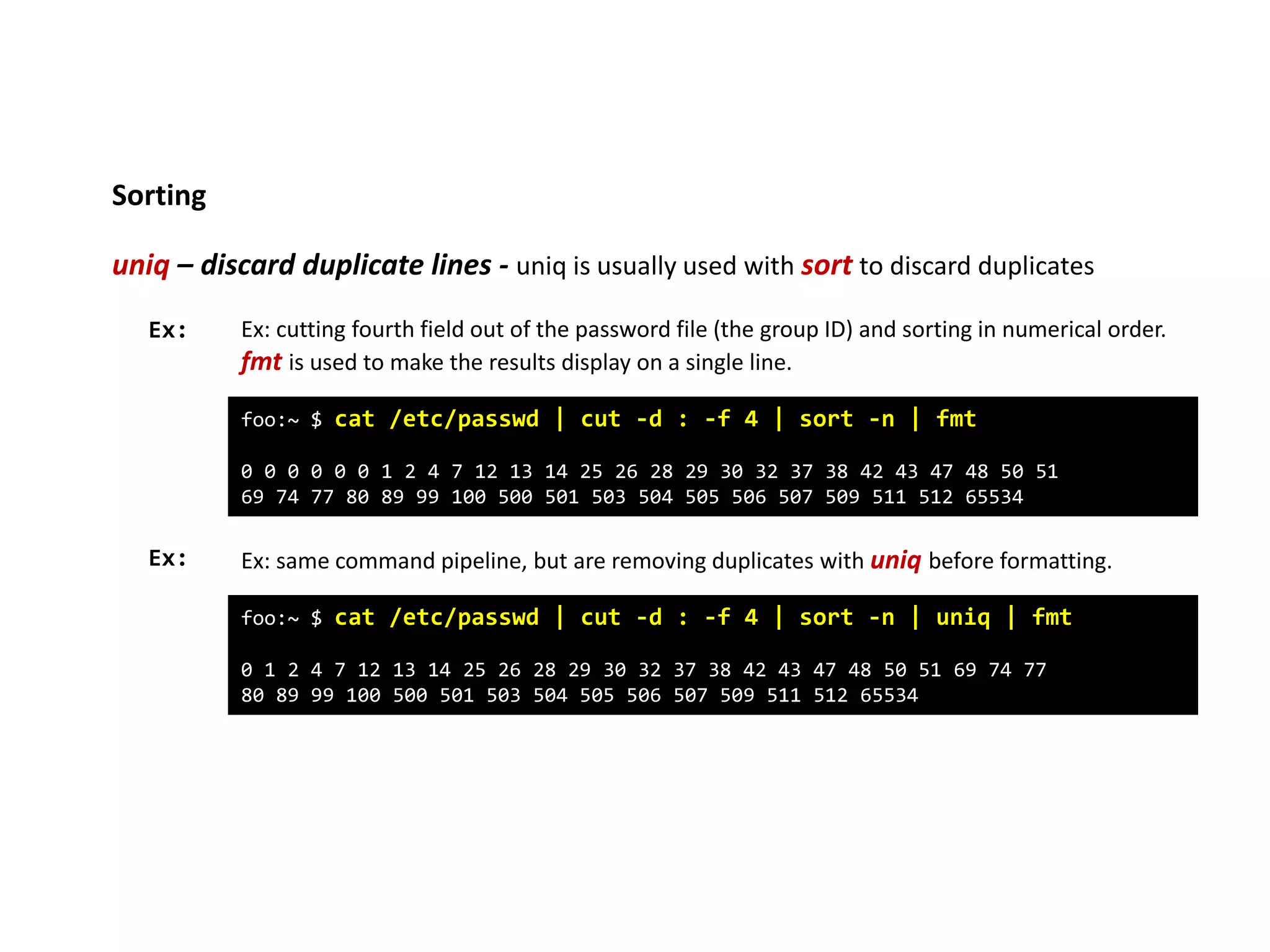
uniq – discard duplicate lines - uniq is usually used with sort to discard duplicates
foo:~ $ cat /etc/passwd | cut -d : -f 4 | sort -n | fmt
0 0 0 0 0 0 1 2 4 7 12 13 14 25 26 28 29 30 32 37 38 42 43 47 48 50 51
69 74 77 80 89 99 100 500 501 503 504 505 506 507 509 511 512 65534
Ex: Ex: cutting fourth field out of the password file (the group ID) and sorting in numerical order.
fmt is used to make the results display on a single line.
Ex: Ex: same command pipeline, but are removing duplicates with uniq before formatting.
foo:~ $ cat /etc/passwd | cut -d : -f 4 | sort -n | uniq | fmt
0 1 2 4 7 12 13 14 25 26 28 29 30 32 37 38 42 43 47 48 50 51 69 74 77
80 89 99 100 500 501 503 504 505 506 507 509 511 512 65534
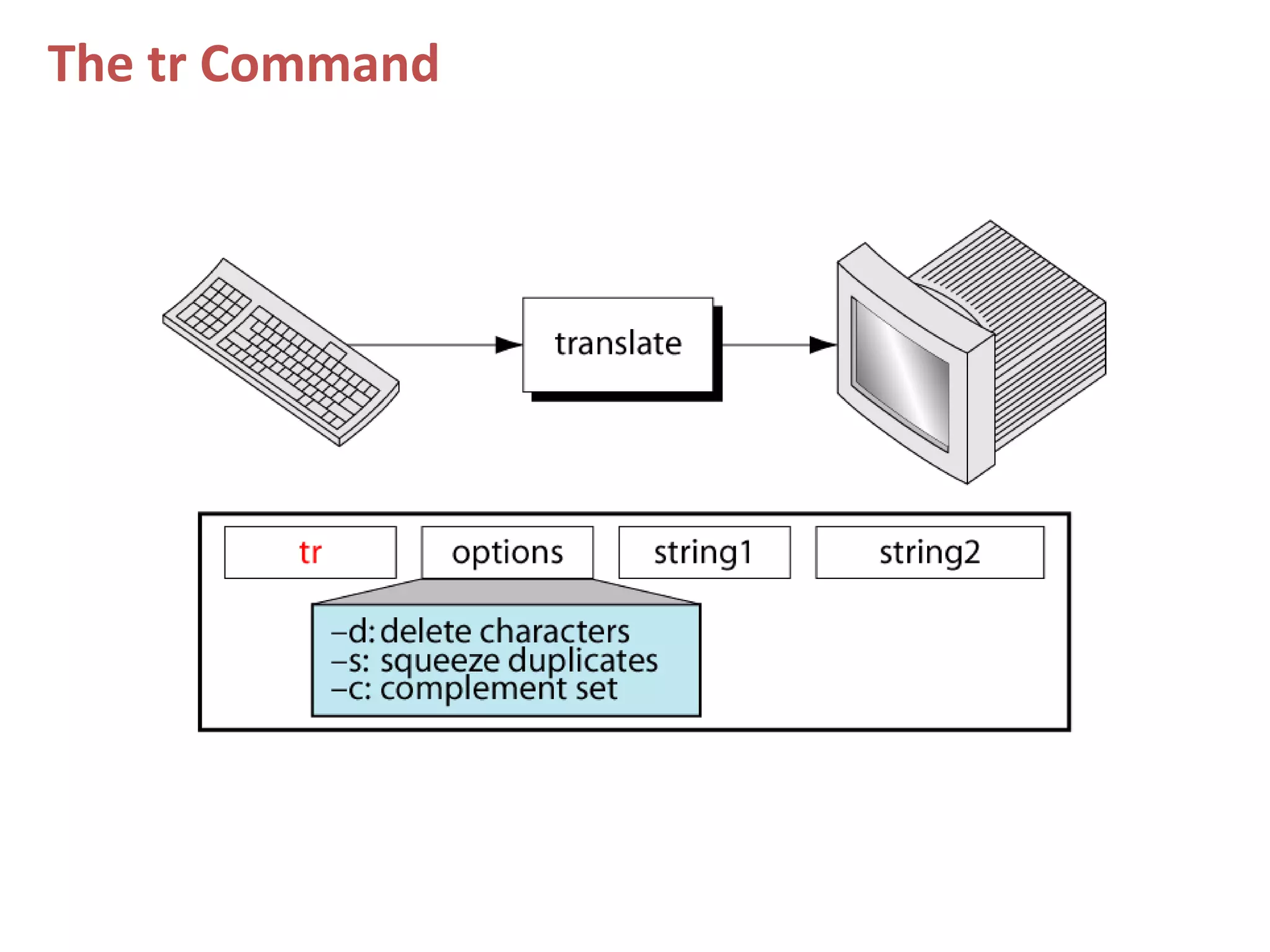
The tr Command
Manipulation
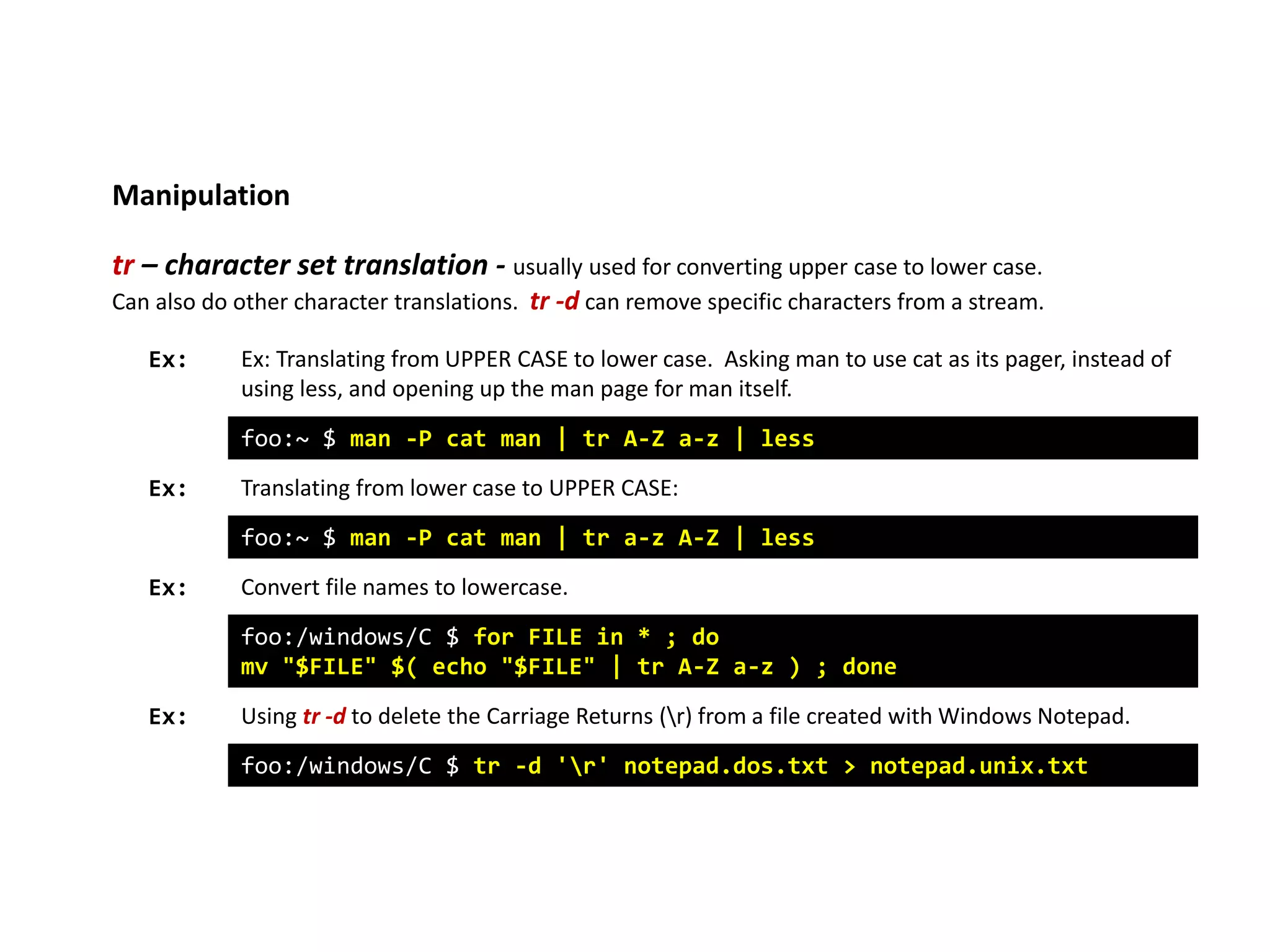
tr – character set translation - usually used for converting upper case to lower case.
Can also do other character translations. tr -d can remove specific characters from a stream.
foo:~ $ man -P cat man | tr A-Z a-z | less
Ex: Ex: Translating from UPPER CASE to lower case. Asking man to use cat as its pager, instead of
using less, and opening up the man page for man itself.
Translating from lower case to UPPER CASE:
foo:~ $ man -P cat man | tr a-z A-Z | less
Convert file names to lowercase.
foo:/windows/C $ for FILE in * ; do
mv "$FILE" $( echo "$FILE" | tr A-Z a-z ) ; done
Using tr -d to delete the Carriage Returns (r) from a file created with Windows Notepad.
foo:/windows/C $ tr -d 'r' notepad.dos.txt > notepad.unix.txt
Ex:
Ex:
Ex:
Manipulation
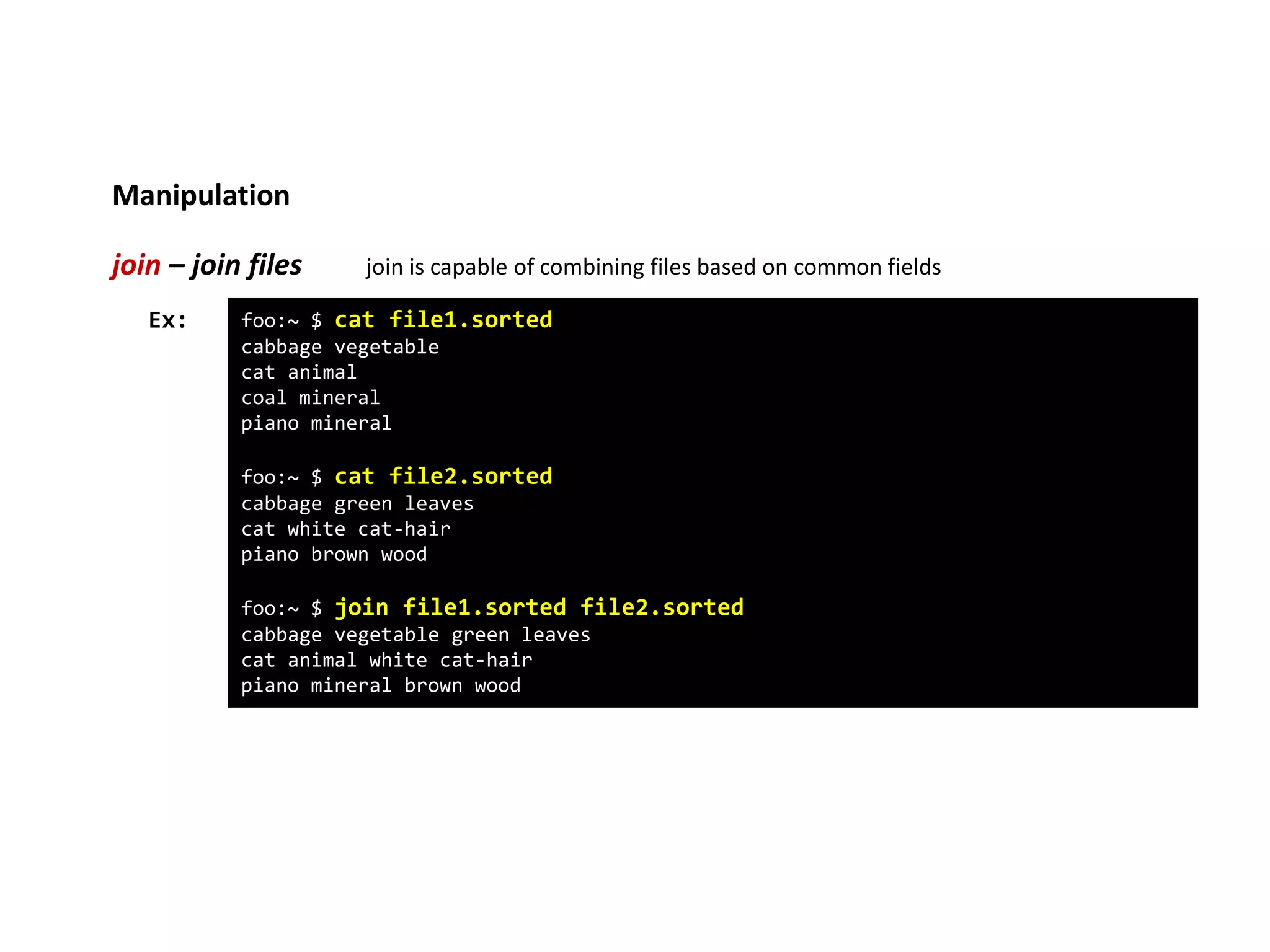
join – join files join is capable of combining files based on common fields
foo:~ $ cat file1.sorted
cabbage vegetable
cat animal
coal mineral
piano mineral
foo:~ $ cat file2.sorted
cabbage green leaves
cat white cat-hair
piano brown wood
foo:~ $ join file1.sorted file2.sorted
cabbage vegetable green leaves
cat animal white cat-hair
piano mineral brown wood
Ex:
Manipulation
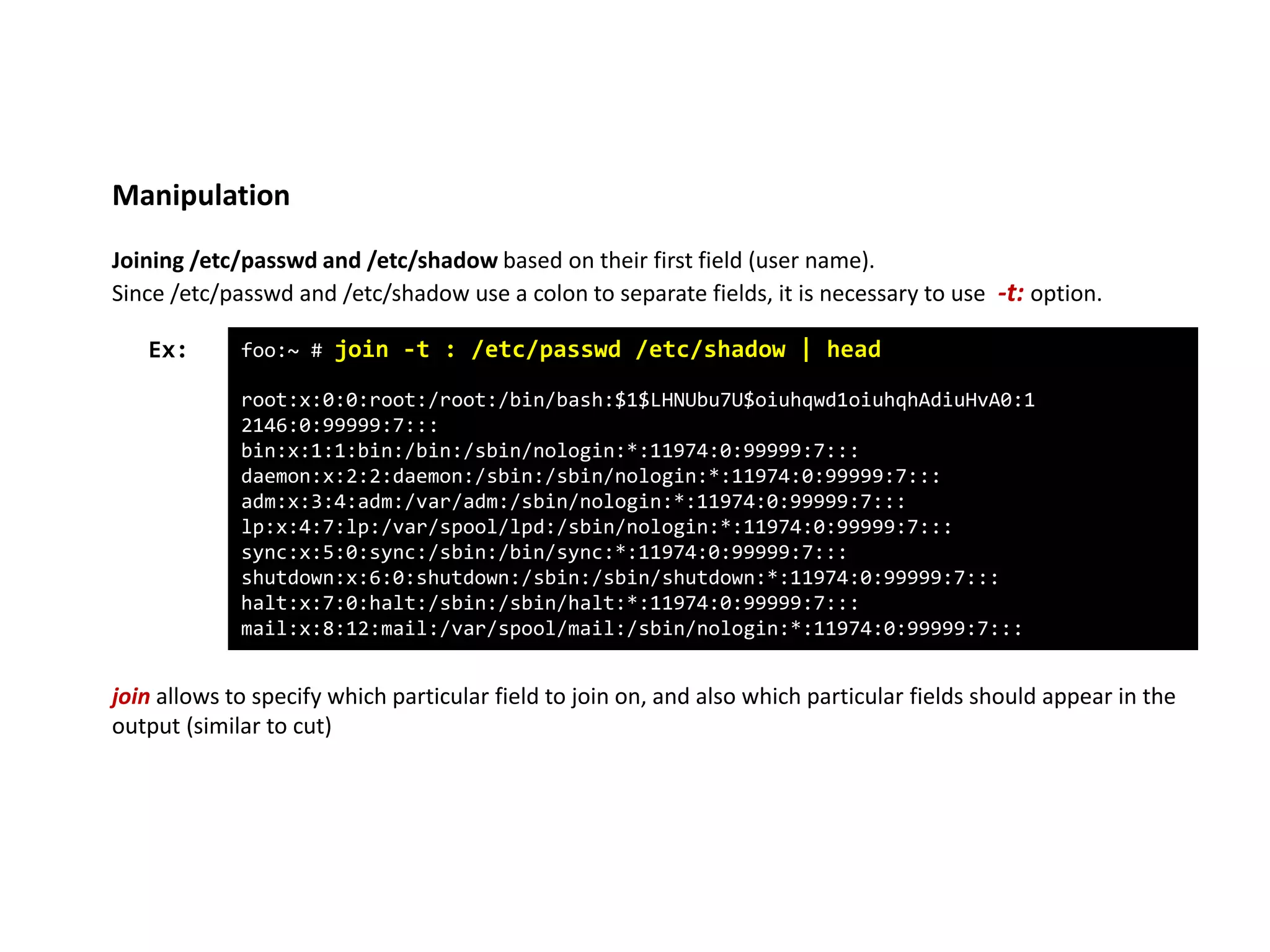
Joining /etc/passwd and /etc/shadow based on their first field (user name).
Since /etc/passwd and /etc/shadow use a colon to separate fields, it is necessary to use -t: option.
foo:~ # join -t : /etc/passwd /etc/shadow | head
root:x:0:0:root:/root:/bin/bash:$1$LHNUbu7U$oiuhqwd1oiuhqhAdiuHvA0:1
2146:0:99999:7:::
bin:x:1:1:bin:/bin:/sbin/nologin:*:11974:0:99999:7:::
daemon:x:2:2:daemon:/sbin:/sbin/nologin:*:11974:0:99999:7:::
adm:x:3:4:adm:/var/adm:/sbin/nologin:*:11974:0:99999:7:::
lp:x:4:7:lp:/var/spool/lpd:/sbin/nologin:*:11974:0:99999:7:::
sync:x:5:0:sync:/sbin:/bin/sync:*:11974:0:99999:7:::
shutdown:x:6:0:shutdown:/sbin:/sbin/shutdown:*:11974:0:99999:7:::
halt:x:7:0:halt:/sbin:/sbin/halt:*:11974:0:99999:7:::
mail:x:8:12:mail:/var/spool/mail:/sbin/nologin:*:11974:0:99999:7:::
Ex:
join allows to specify which particular field to join on, and also which particular fields should appear in the
output (similar to cut)
Manipulation
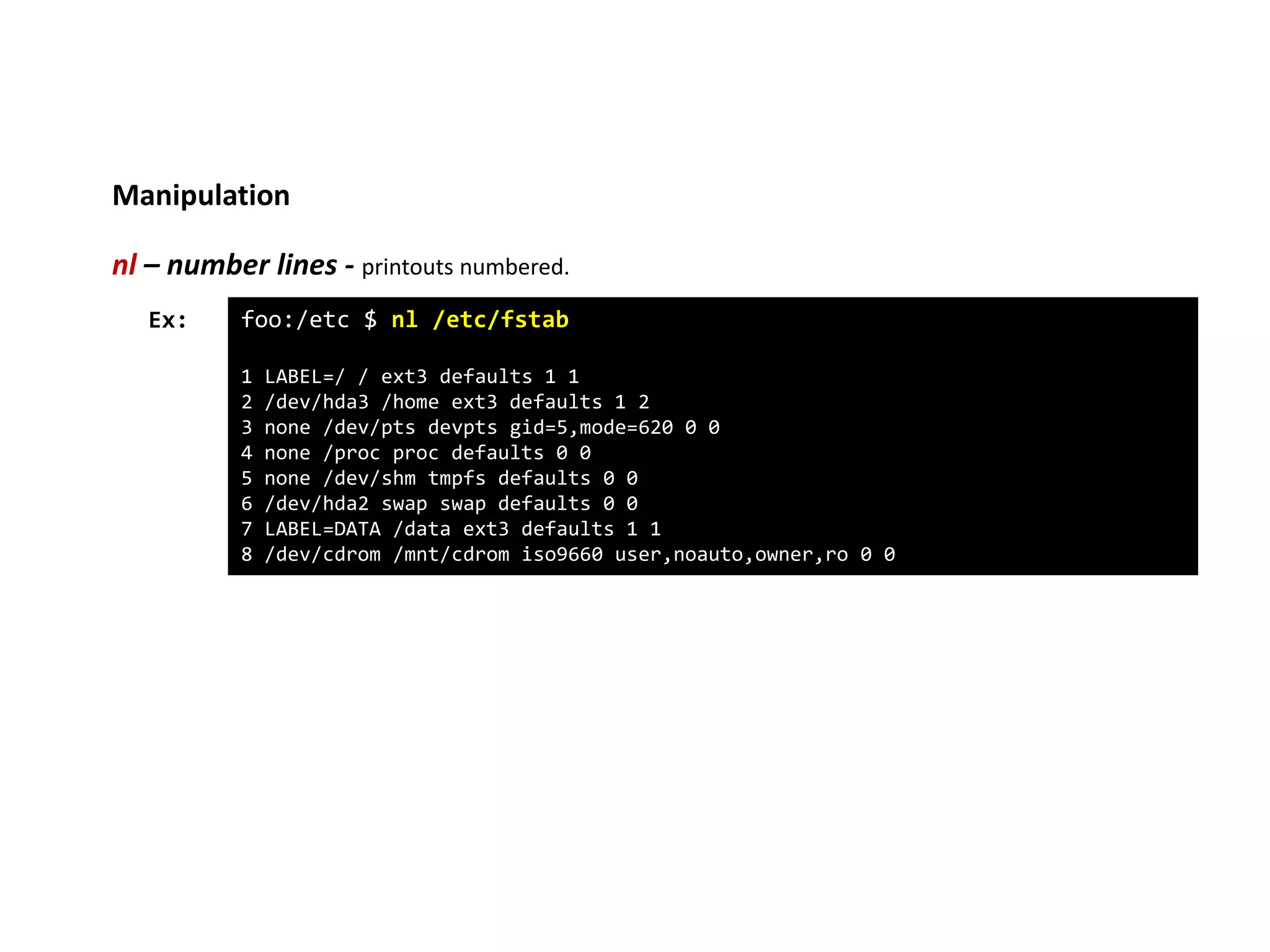
nl – number lines - printouts numbered.
foo:/etc $ nl /etc/fstab
1 LABEL=/ / ext3 defaults 1 1
2 /dev/hda3 /home ext3 defaults 1 2
3 none /dev/pts devpts gid=5,mode=620 0 0
4 none /proc proc defaults 0 0
5 none /dev/shm tmpfs defaults 0 0
6 /dev/hda2 swap swap defaults 0 0
7 LABEL=DATA /data ext3 defaults 1 1
8 /dev/cdrom /mnt/cdrom iso9660 user,noauto,owner,ro 0 0
Ex:
Manipulation
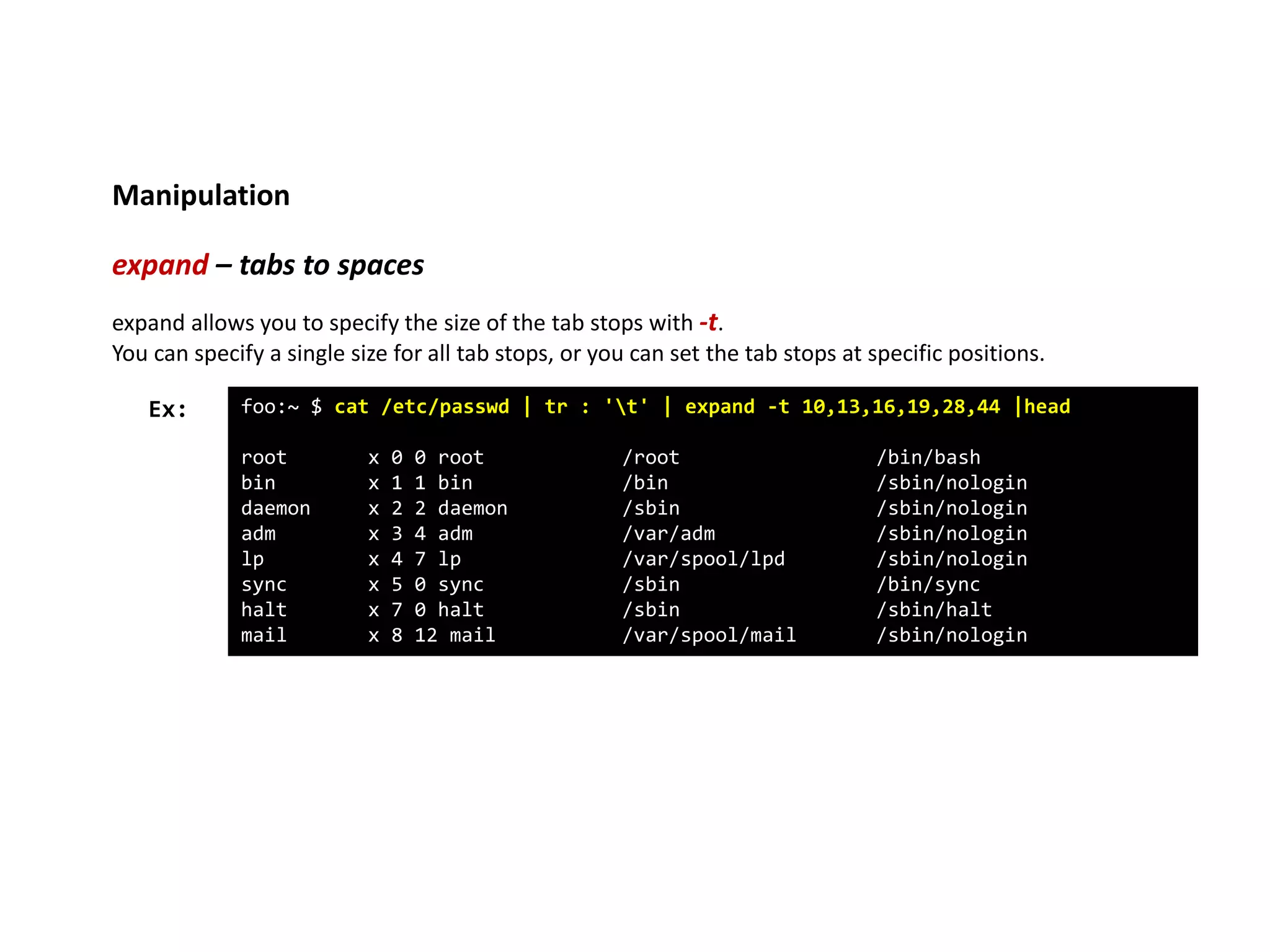
expand – tabs to spaces
foo:~ $ cat /etc/passwd | tr : 't' | expand -t 10,13,16,19,28,44 |head
root x 0 0 root /root /bin/bash
bin x 1 1 bin /bin /sbin/nologin
daemon x 2 2 daemon /sbin /sbin/nologin
adm x 3 4 adm /var/adm /sbin/nologin
lp x 4 7 lp /var/spool/lpd /sbin/nologin
sync x 5 0 sync /sbin /bin/sync
halt x 7 0 halt /sbin /sbin/halt
mail x 8 12 mail /var/spool/mail /sbin/nologin
Ex:
expand allows you to specify the size of the tab stops with -t.
You can specify a single size for all tab stops, or you can set the tab stops at specific positions.
Manipulation
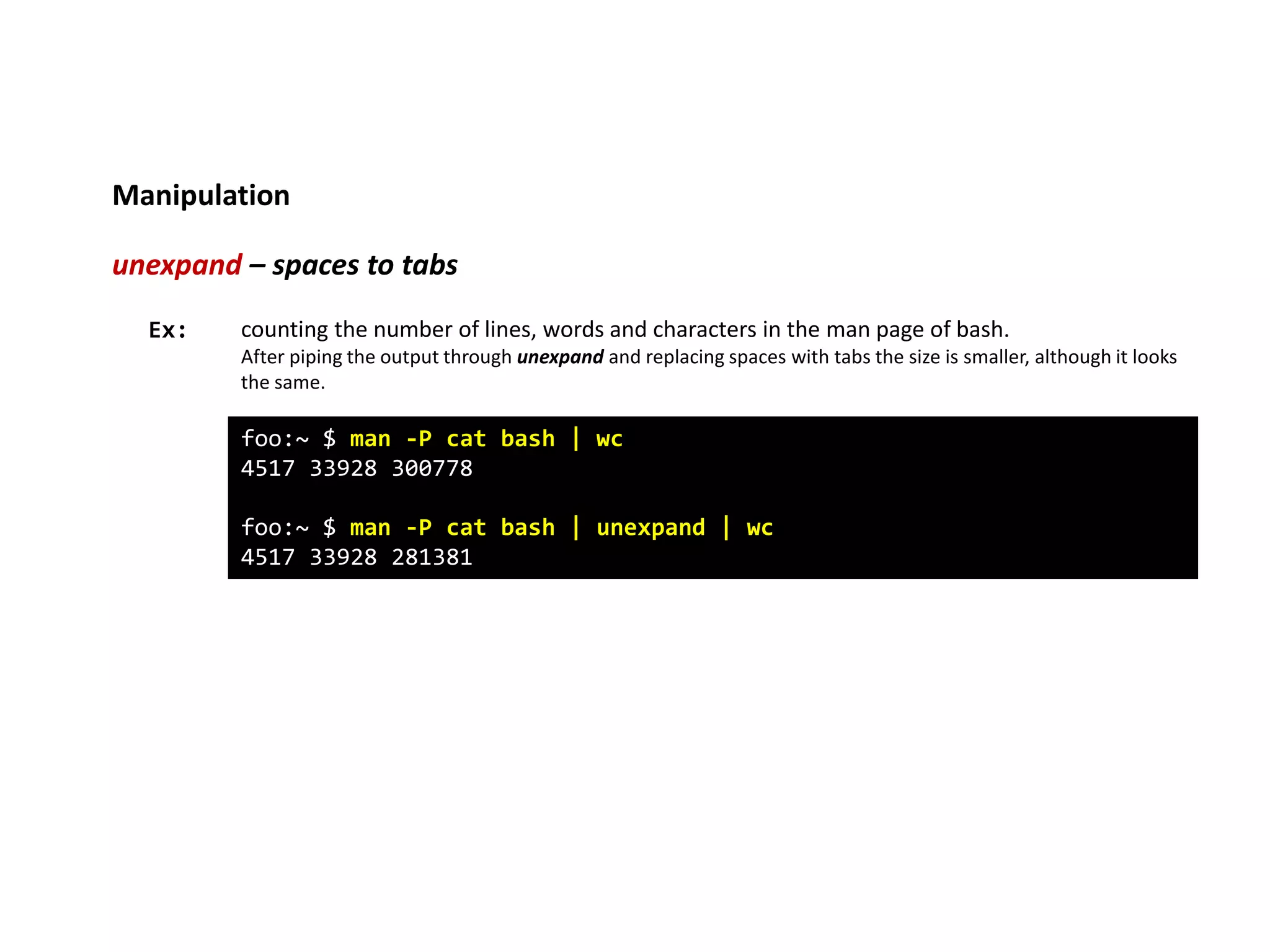
unexpand – spaces to tabs
foo:~ $ man -P cat bash | wc
4517 33928 300778
foo:~ $ man -P cat bash | unexpand | wc
4517 33928 281381
Ex: counting the number of lines, words and characters in the man page of bash.
After piping the output through unexpand and replacing spaces with tabs the size is smaller, although it looks
the same.
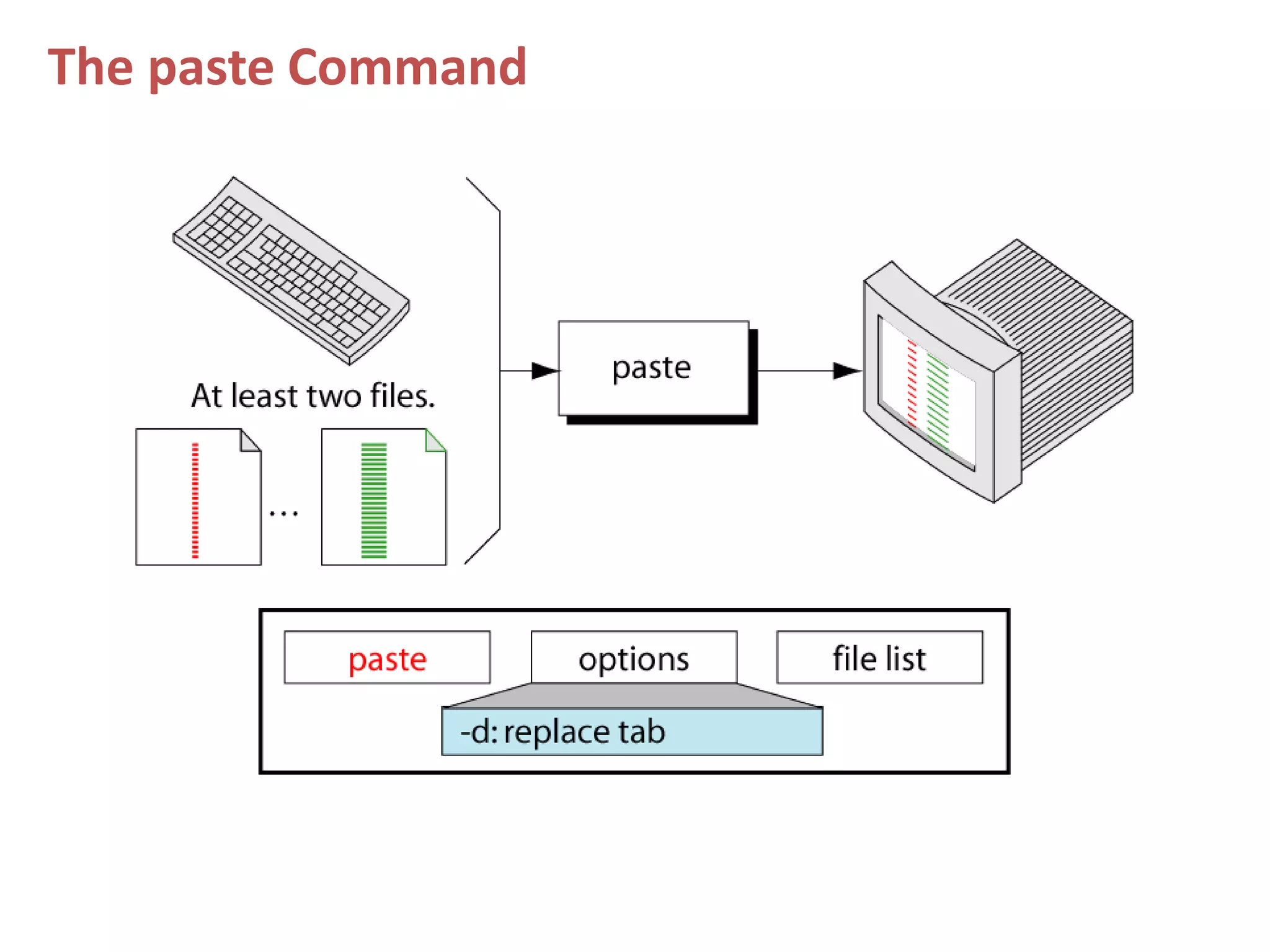
The paste Command
Manipulation
37
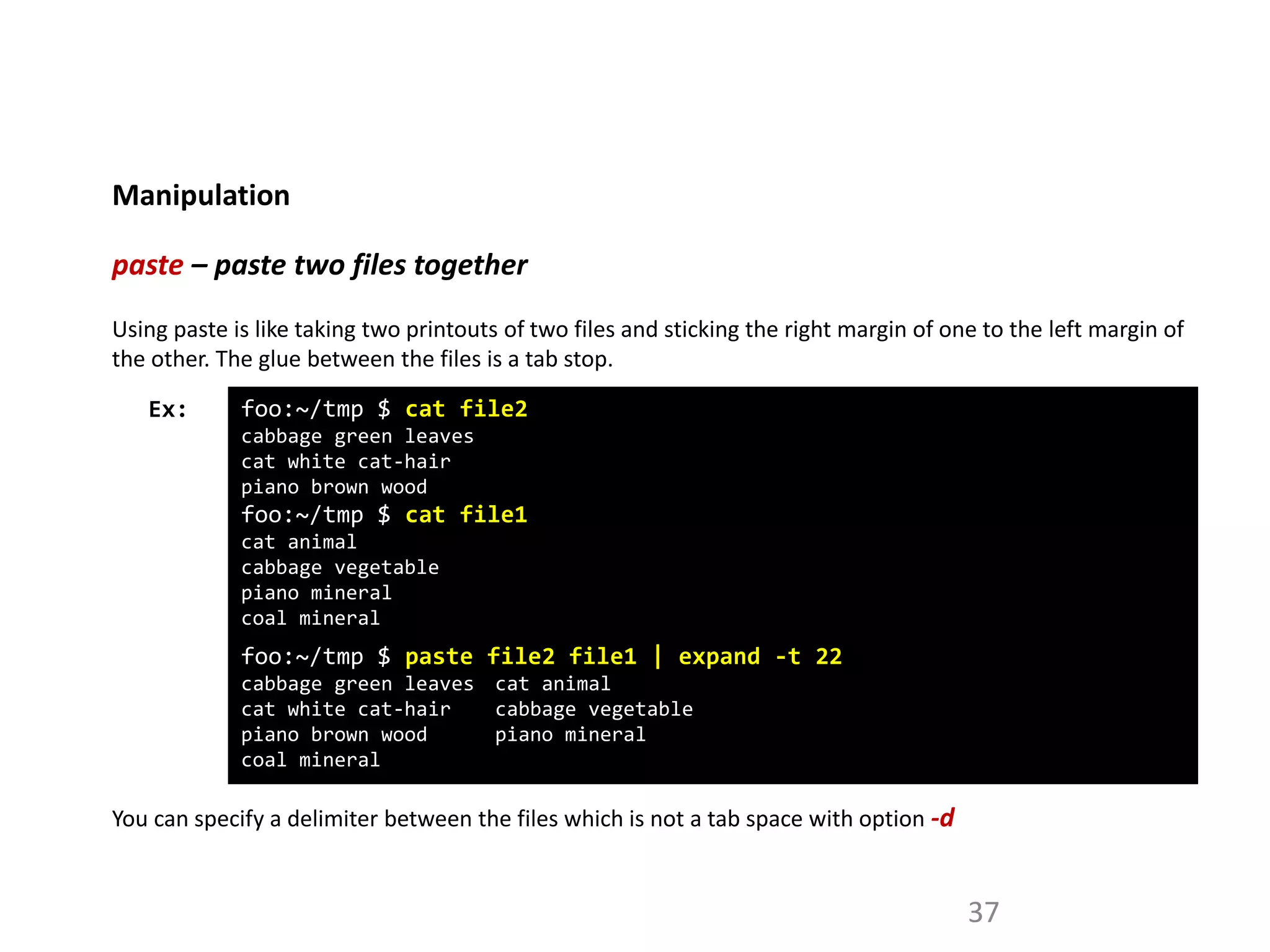
paste – paste two files together
foo:~/tmp $ cat file2
cabbage green leaves
cat white cat-hair
piano brown wood
foo:~/tmp $ cat file1
cat animal
cabbage vegetable
piano mineral
coal mineral
foo:~/tmp $ paste file2 file1 | expand -t 22
cabbage green leaves cat animal
cat white cat-hair cabbage vegetable
piano brown wood piano mineral
coal mineral
Ex:
Using paste is like taking two printouts of two files and sticking the right margin of one to the left margin of
the other. The glue between the files is a tab stop.
You can specify a delimiter between the files which is not a tab space with option -d
Formatting
38
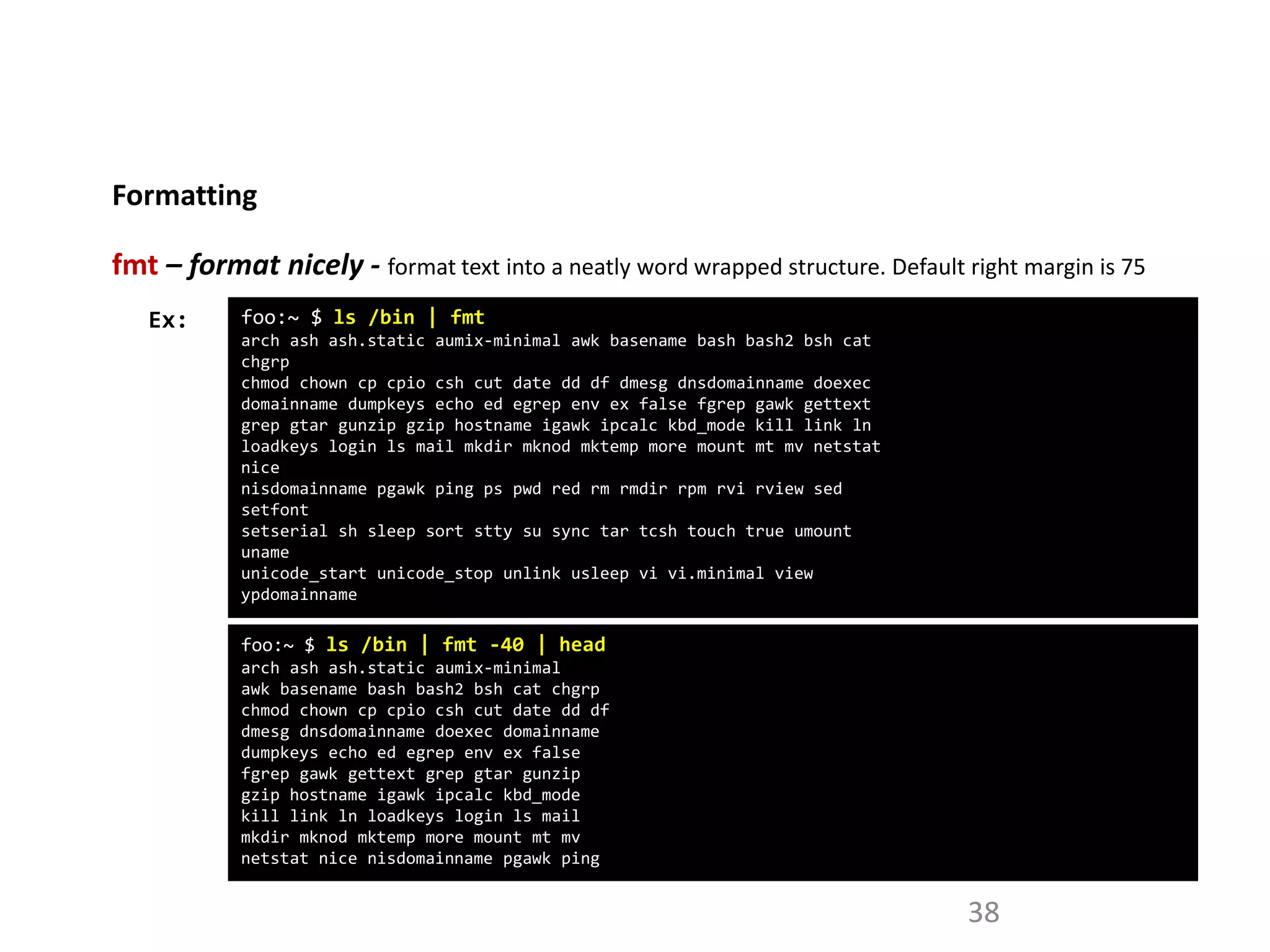
fmt – format nicely - format text into a neatly word wrapped structure. Default right margin is 75
foo:~ $ ls /bin | fmt
arch ash ash.static aumix-minimal awk basename bash bash2 bsh cat
chgrp
chmod chown cp cpio csh cut date dd df dmesg dnsdomainname doexec
domainname dumpkeys echo ed egrep env ex false fgrep gawk gettext
grep gtar gunzip gzip hostname igawk ipcalc kbd_mode kill link ln
loadkeys login ls mail mkdir mknod mktemp more mount mt mv netstat
nice
nisdomainname pgawk ping ps pwd red rm rmdir rpm rvi rview sed
setfont
setserial sh sleep sort stty su sync tar tcsh touch true umount
uname
unicode_start unicode_stop unlink usleep vi vi.minimal view
ypdomainname
Ex:
foo:~ $ ls /bin | fmt -40 | head
arch ash ash.static aumix-minimal
awk basename bash bash2 bsh cat chgrp
chmod chown cp cpio csh cut date dd df
dmesg dnsdomainname doexec domainname
dumpkeys echo ed egrep env ex false
fgrep gawk gettext grep gtar gunzip
gzip hostname igawk ipcalc kbd_mode
kill link ln loadkeys login ls mail
mkdir mknod mktemp more mount mt mv
netstat nice nisdomainname pgawk ping
Formatting
39
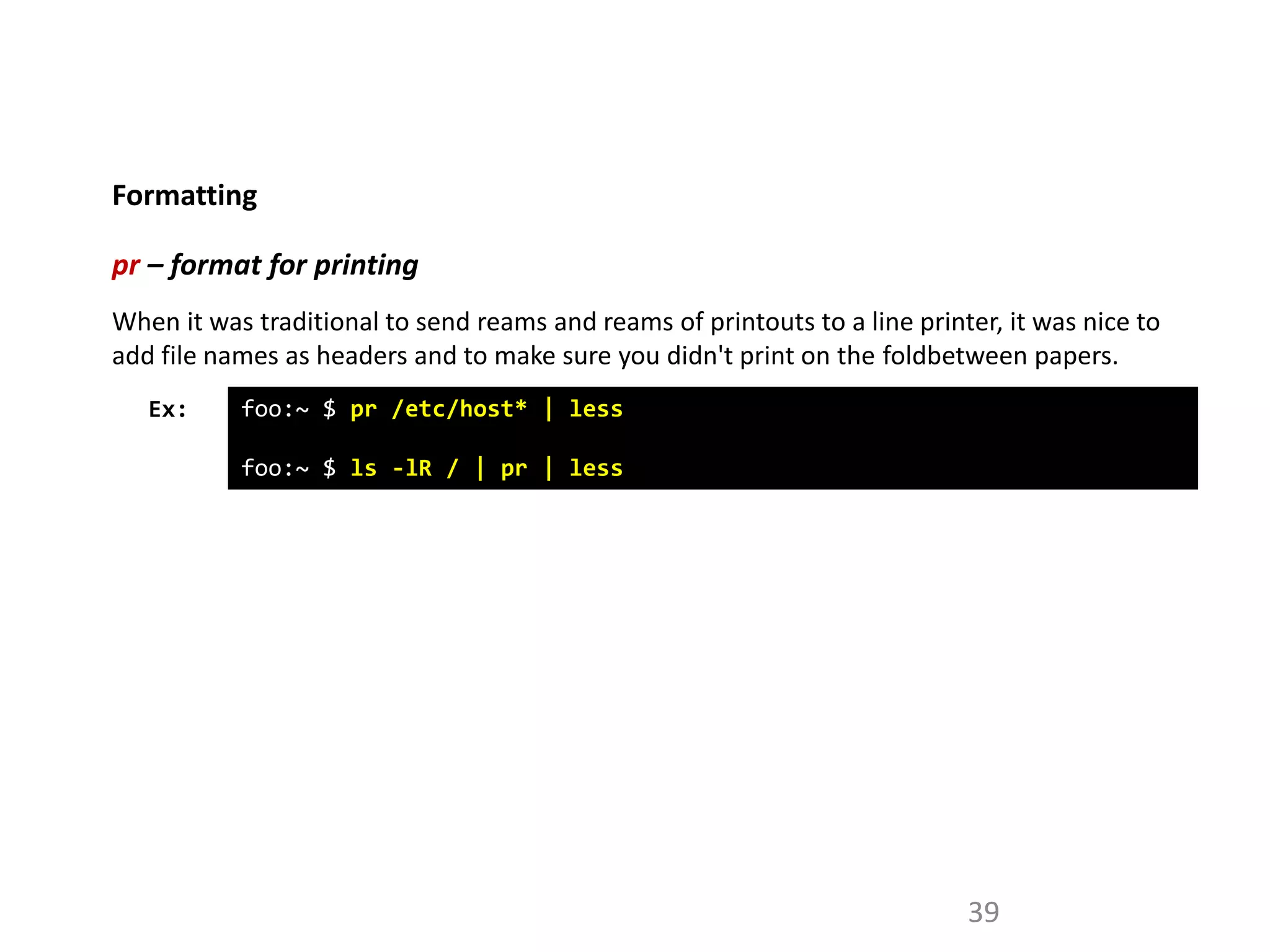
pr – format for printing
Ex: foo:~ $ pr /etc/host* | less
foo:~ $ ls -lR / | pr | less
When it was traditional to send reams and reams of printouts to a line printer, it was nice to
add file names as headers and to make sure you didn't print on the foldbetween papers.
Formatting
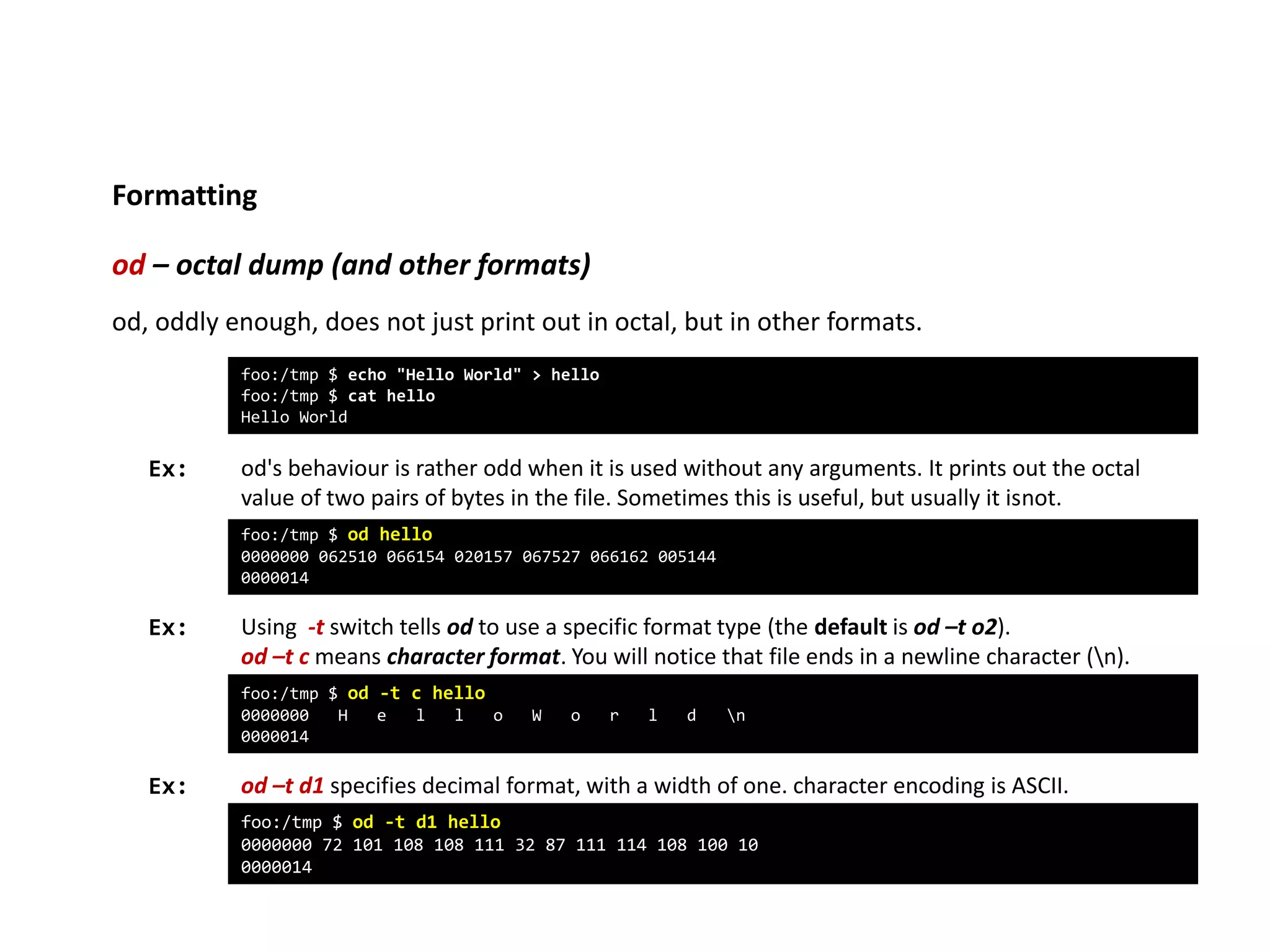
od – octal dump (and other formats)
Ex:
foo:/tmp $ echo "Hello World" > hello
foo:/tmp $ cat hello
Hello World
od, oddly enough, does not just print out in octal, but in other formats.
foo:/tmp $ od hello
0000000 062510 066154 020157 067527 066162 005144
0000014
od's behaviour is rather odd when it is used without any arguments. It prints out the octal
value of two pairs of bytes in the file. Sometimes this is useful, but usually it isnot.
Using -t switch tells od to use a specific format type (the default is od –t o2).
od –t c means character format. You will notice that file ends in a newline character (n).
foo:/tmp $ od -t c hello
0000000 H e l l o W o r l d n
0000014
od –t d1 specifies decimal format, with a width of one. character encoding is ASCII.
Ex:
Ex:
foo:/tmp $ od -t d1 hello
0000000 72 101 108 108 111 32 87 111 114 108 100 10
0000014
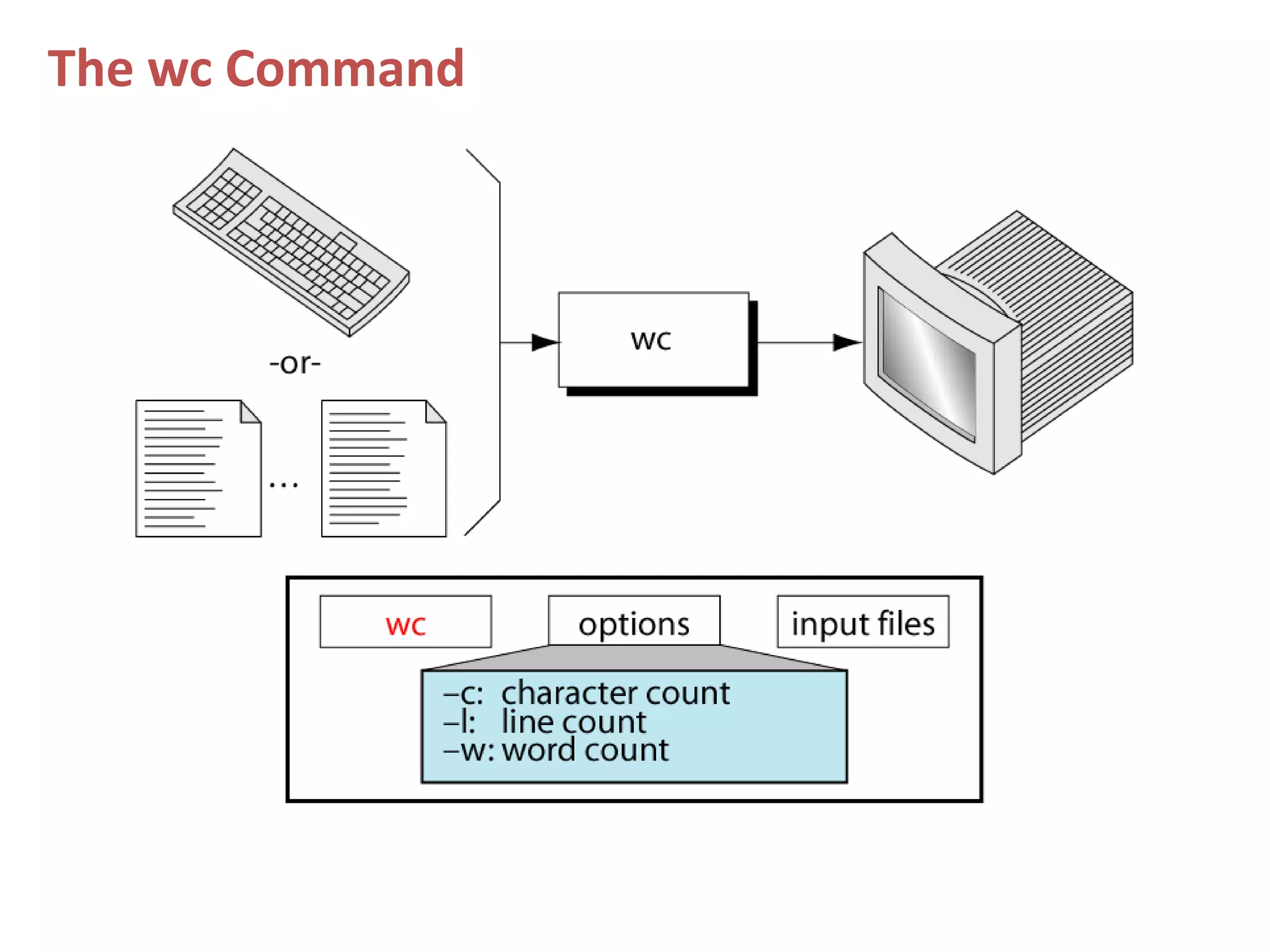
The wc Command
Formatting
42
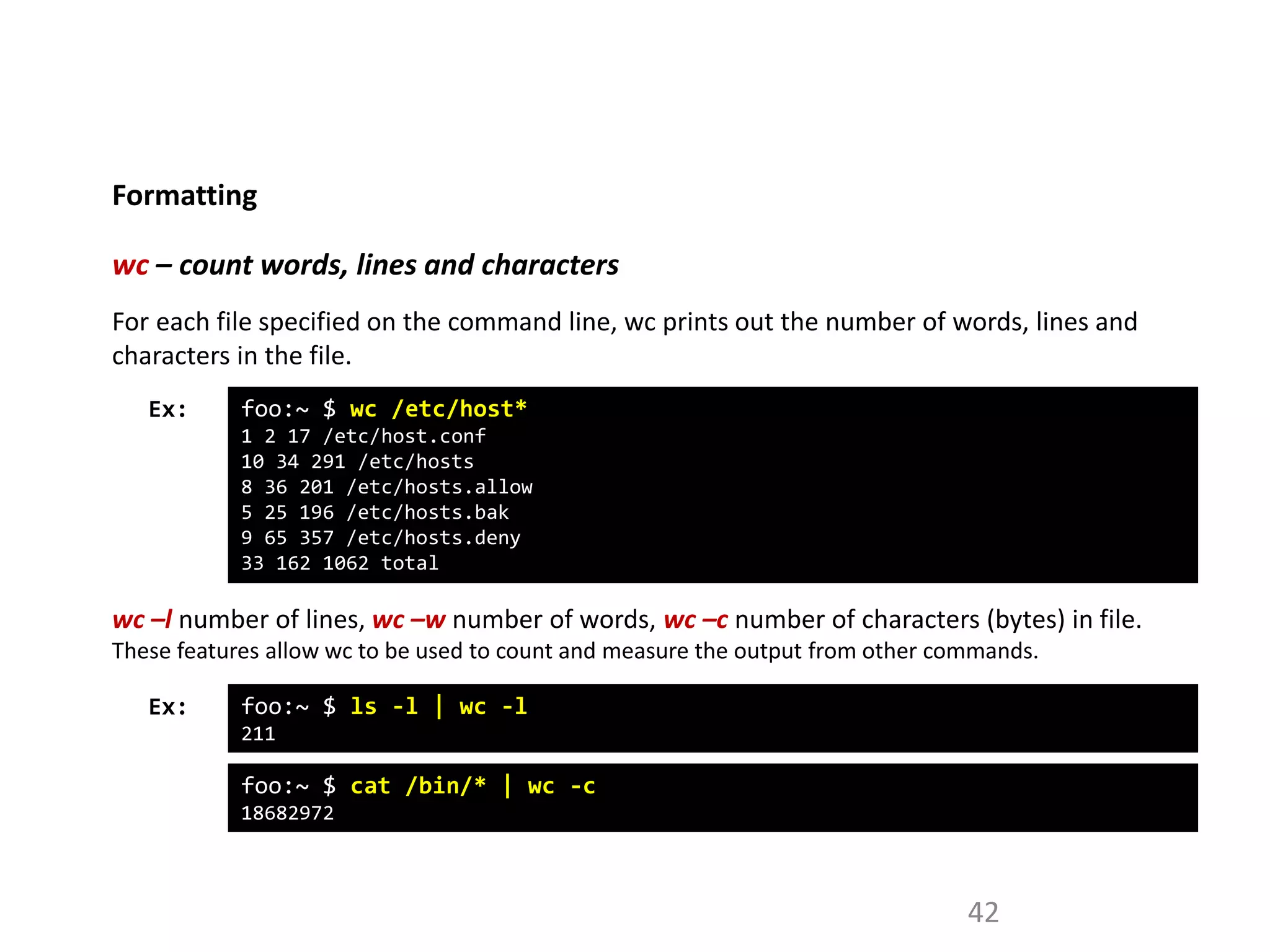
wc – count words, lines and characters
Ex: foo:~ $ wc /etc/host*
1 2 17 /etc/host.conf
10 34 291 /etc/hosts
8 36 201 /etc/hosts.allow
5 25 196 /etc/hosts.bak
9 65 357 /etc/hosts.deny
33 162 1062 total
For each file specified on the command line, wc prints out the number of words, lines and
characters in the file.
wc –l number of lines, wc –w number of words, wc –c number of characters (bytes) in file.
These features allow wc to be used to count and measure the output from other commands.
Ex: foo:~ $ ls -l | wc -l
211
foo:~ $ cat /bin/* | wc -c
18682972
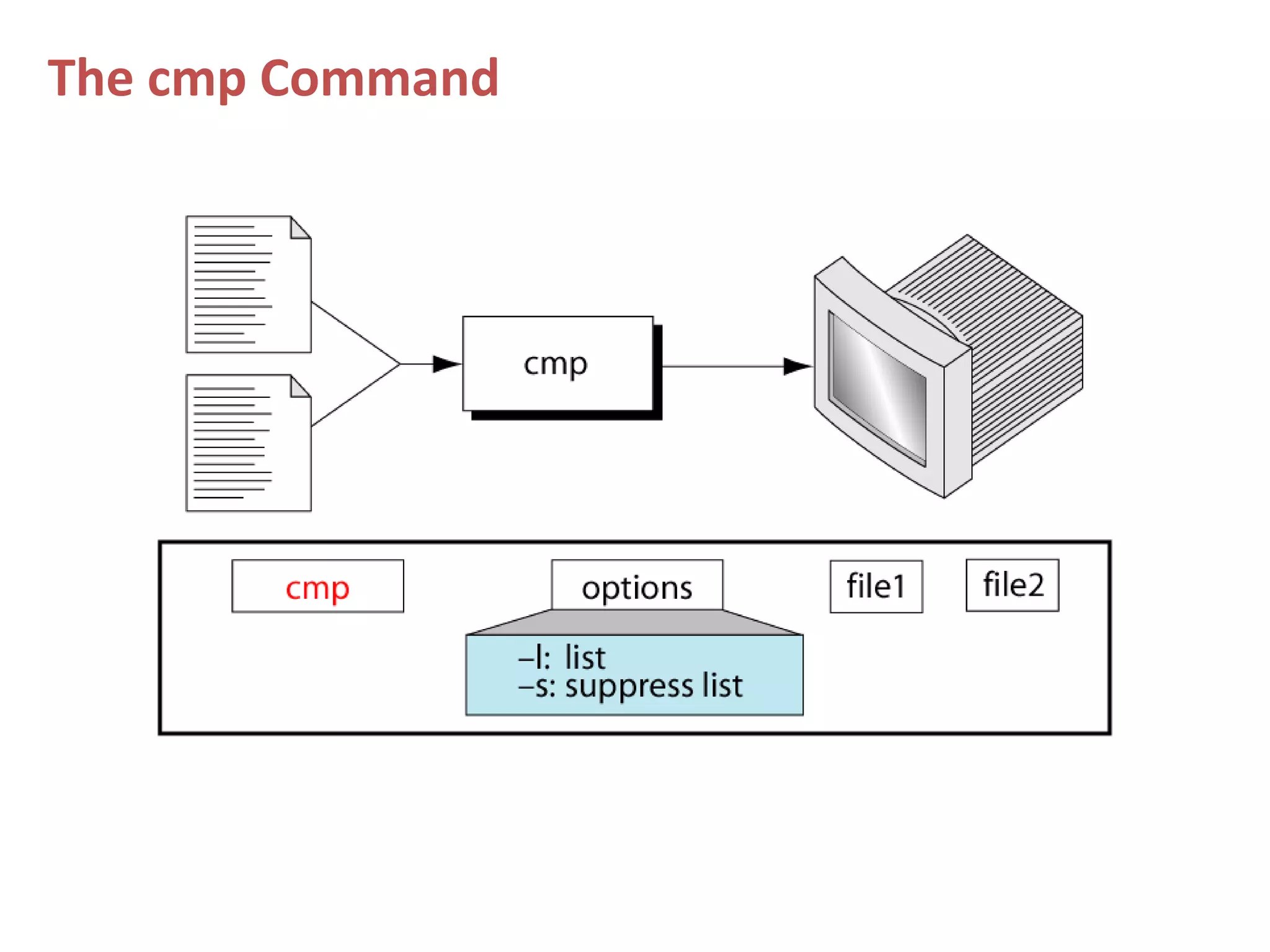
The cmp Command
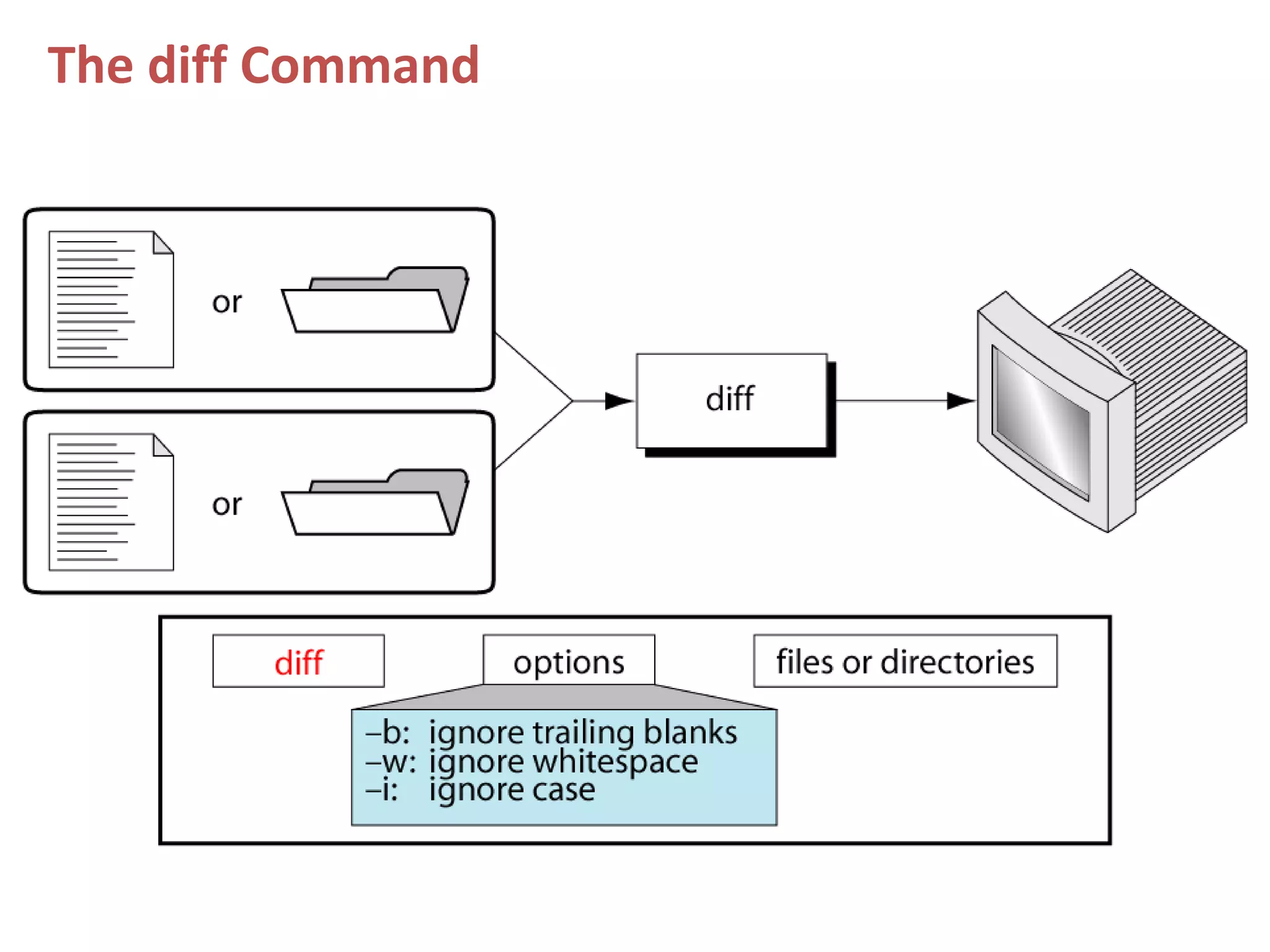
The diff Command
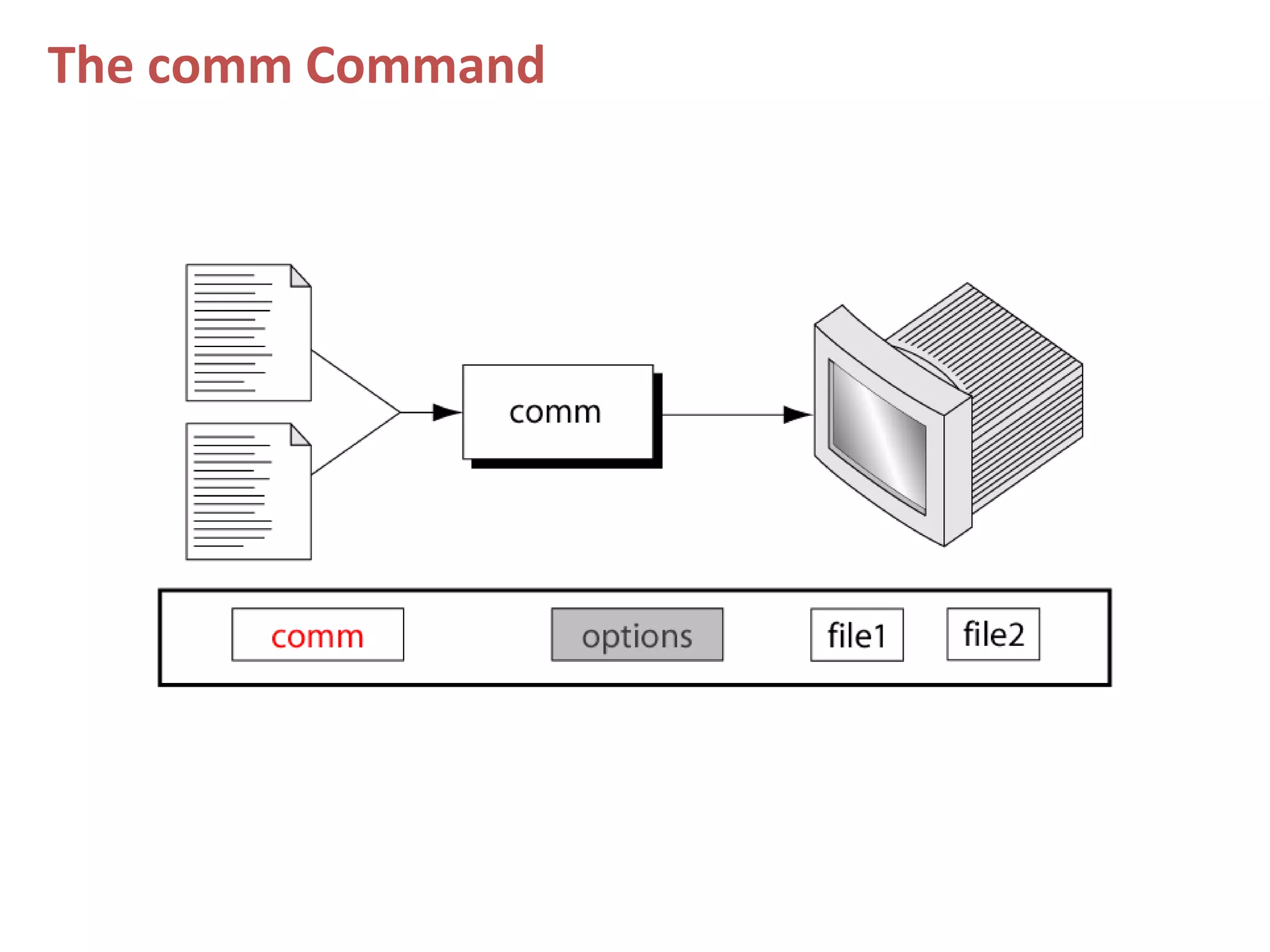
The comm Command
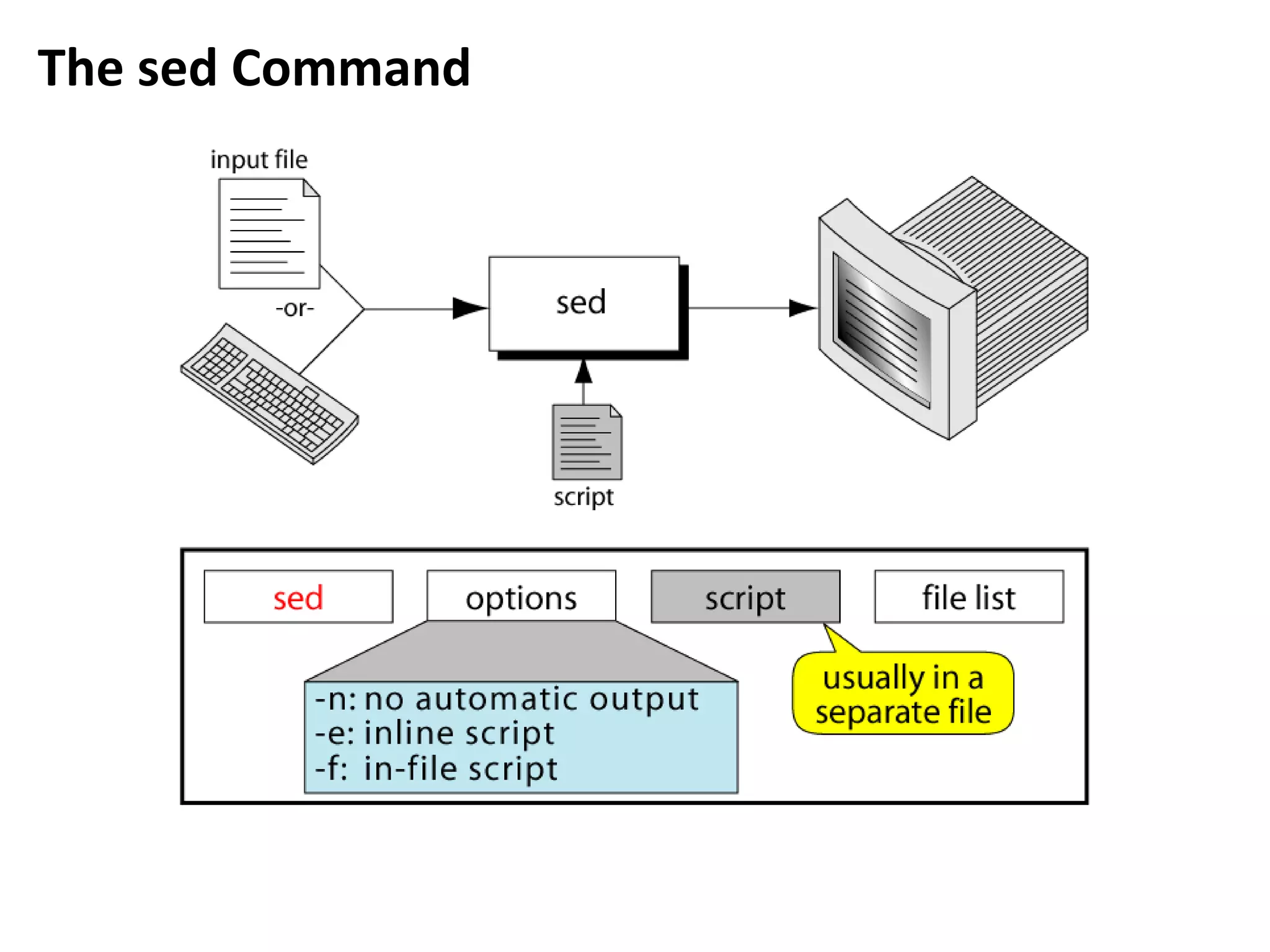
The sed Command
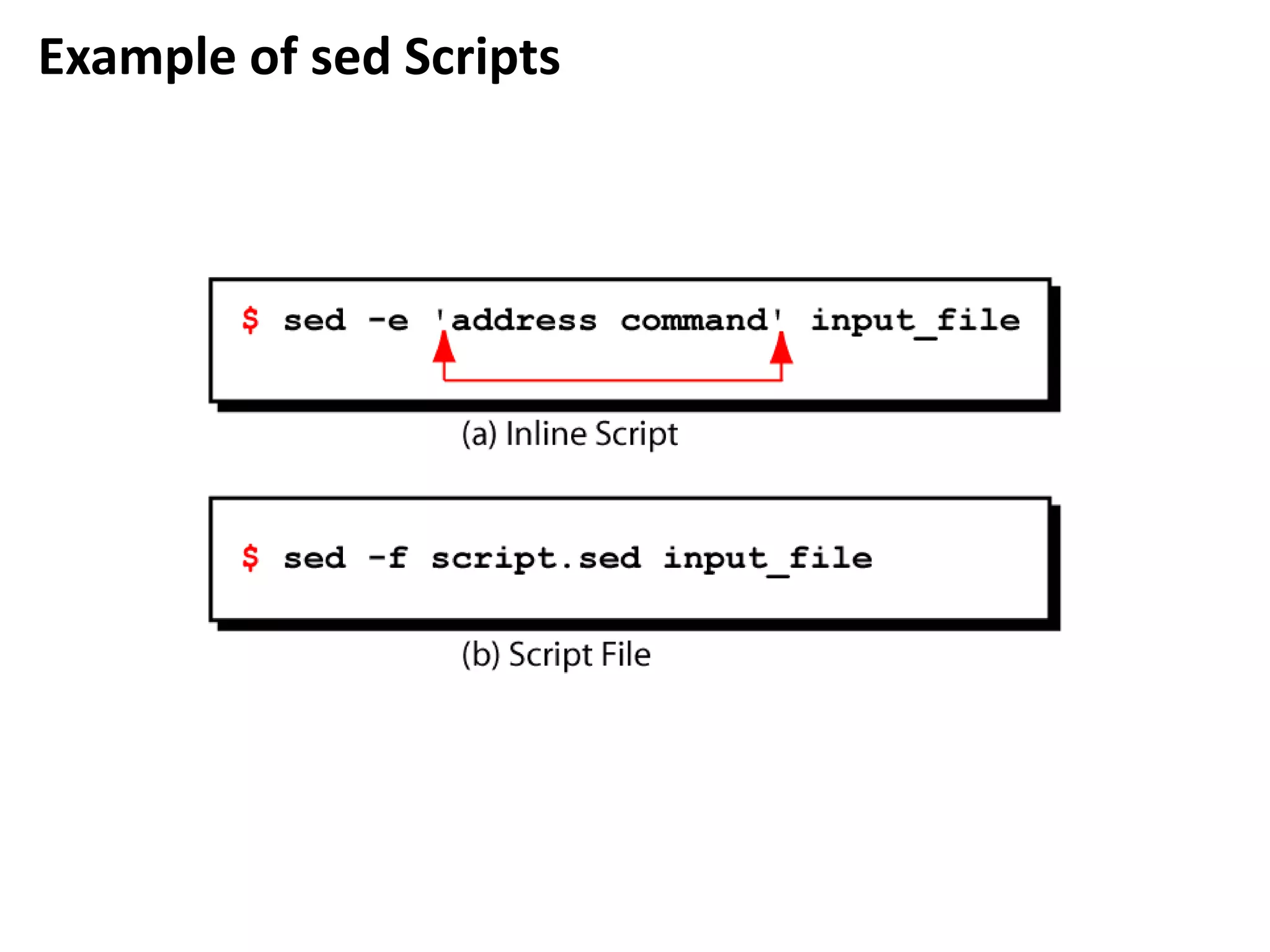
Example of sed Scripts
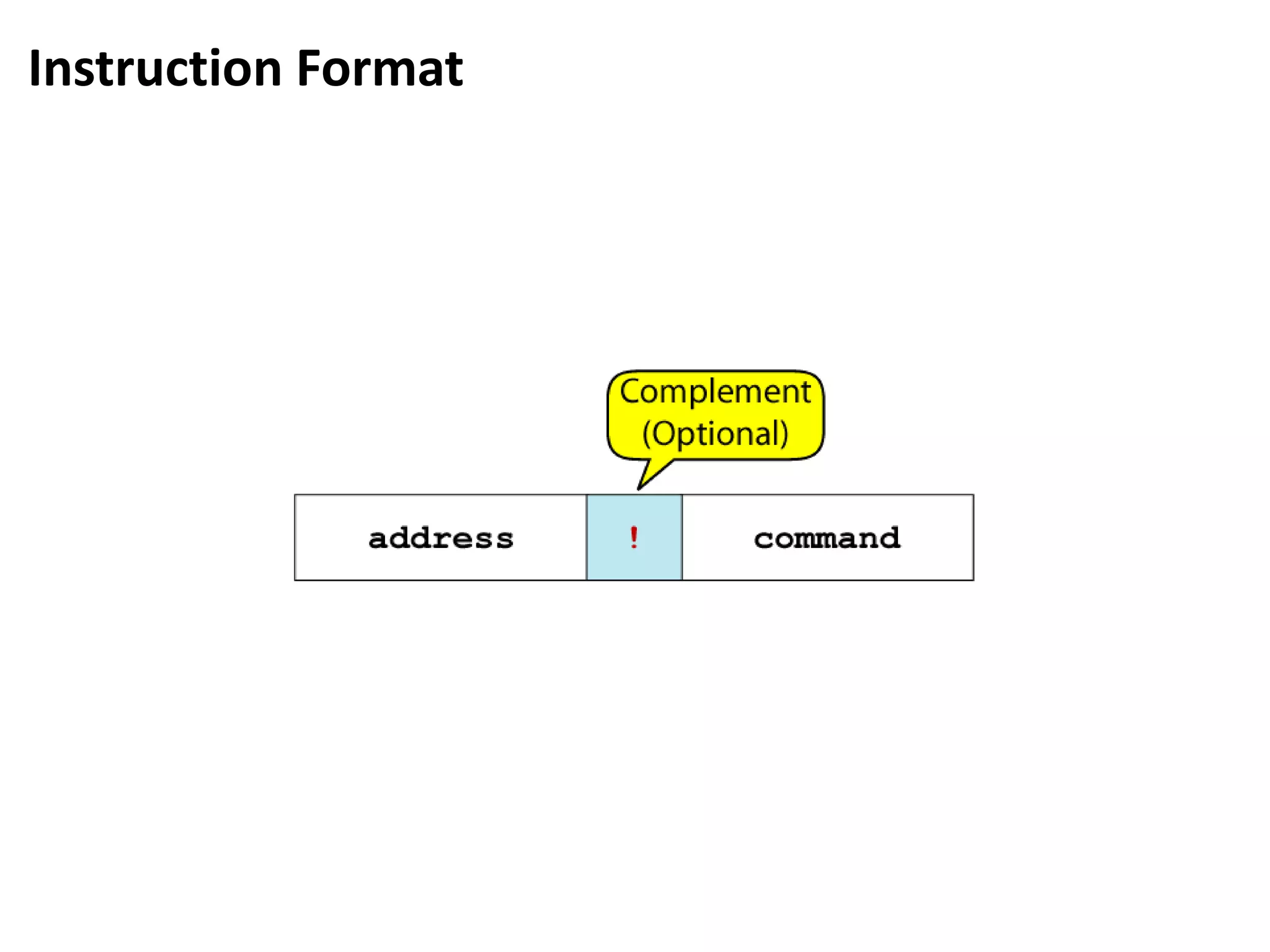
Instruction Format
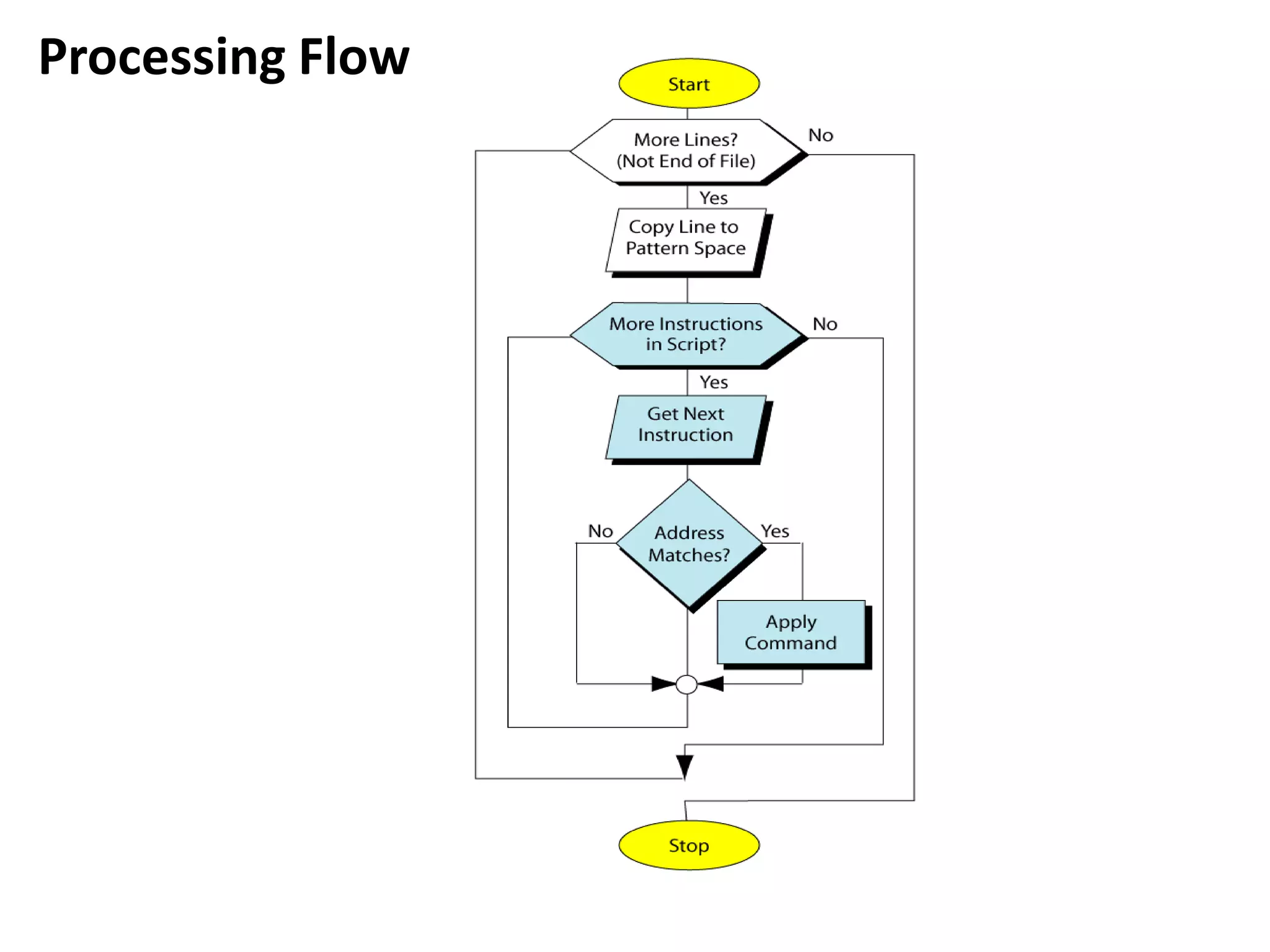
Processing Flow
Manipulation
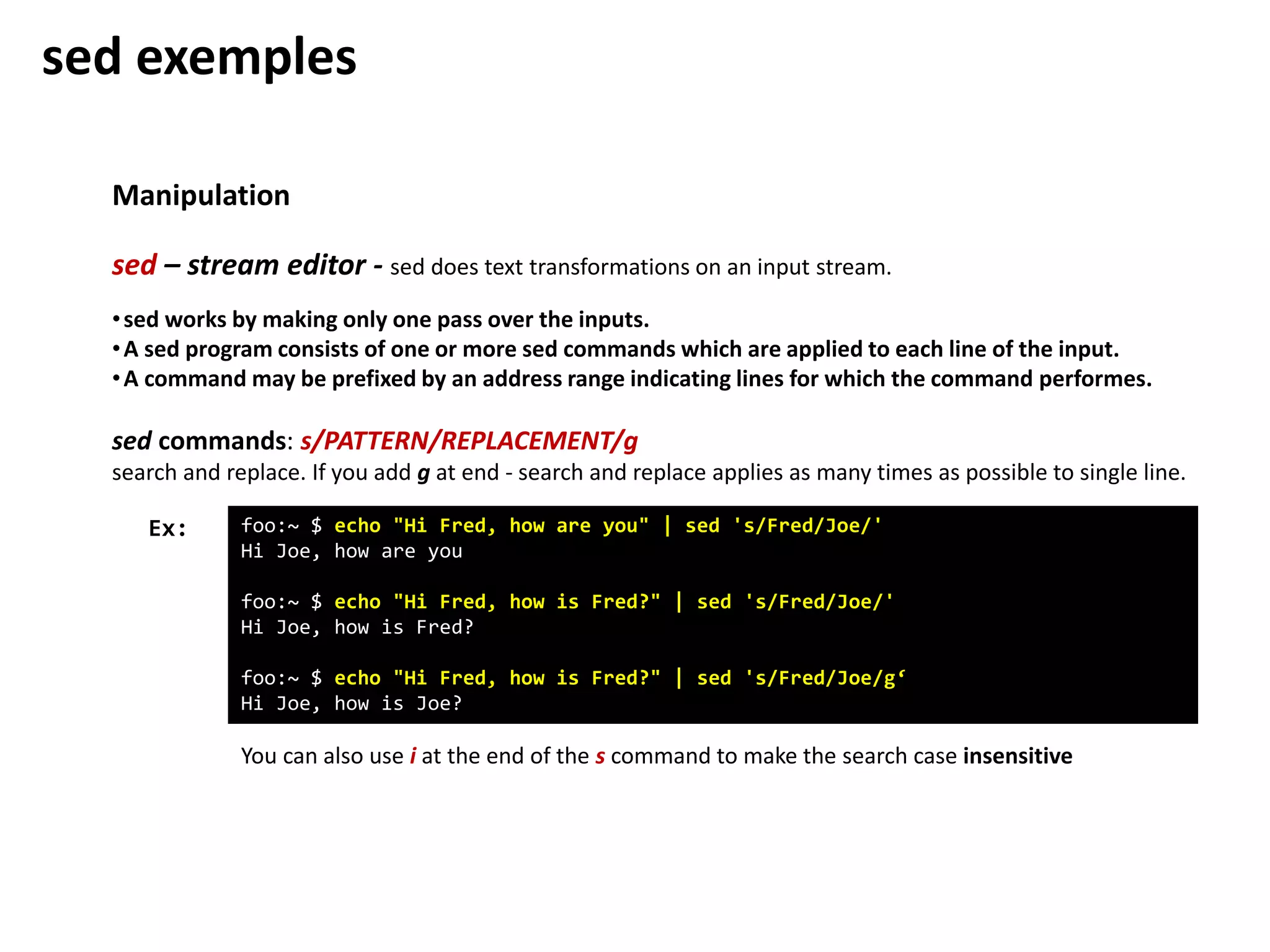
sed – stream editor - sed does text transformations on an input stream.
foo:~ $ echo "Hi Fred, how are you" | sed 's/Fred/Joe/'
Hi Joe, how are you
foo:~ $ echo "Hi Fred, how is Fred?" | sed 's/Fred/Joe/'
Hi Joe, how is Fred?
foo:~ $ echo "Hi Fred, how is Fred?" | sed 's/Fred/Joe/g‘
Hi Joe, how is Joe?
Ex:
•sed works by making only one pass over the inputs.
•A sed program consists of one or more sed commands which are applied to each line of the input.
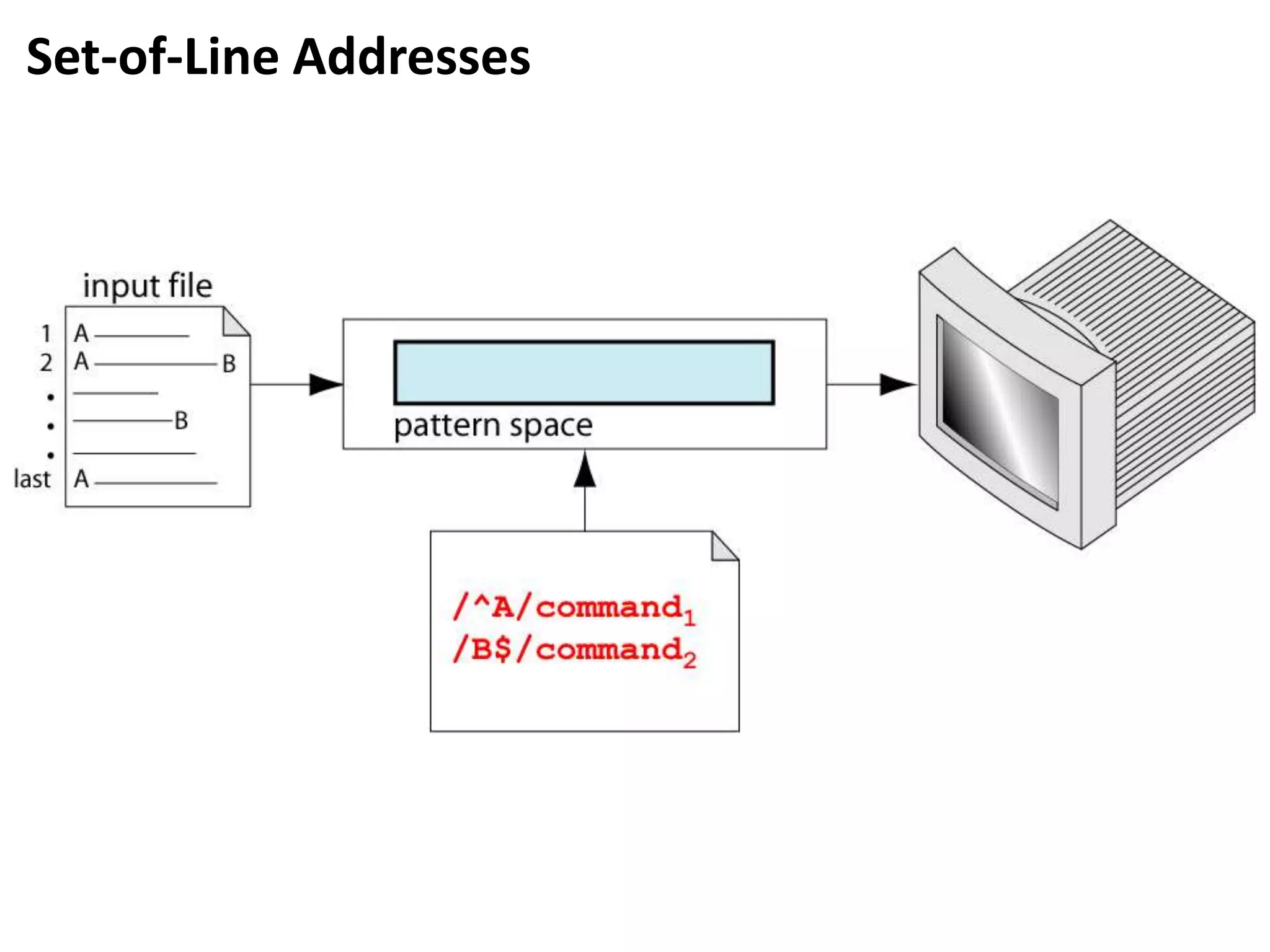
•A command may be prefixed by an address range indicating lines for which the command performes.
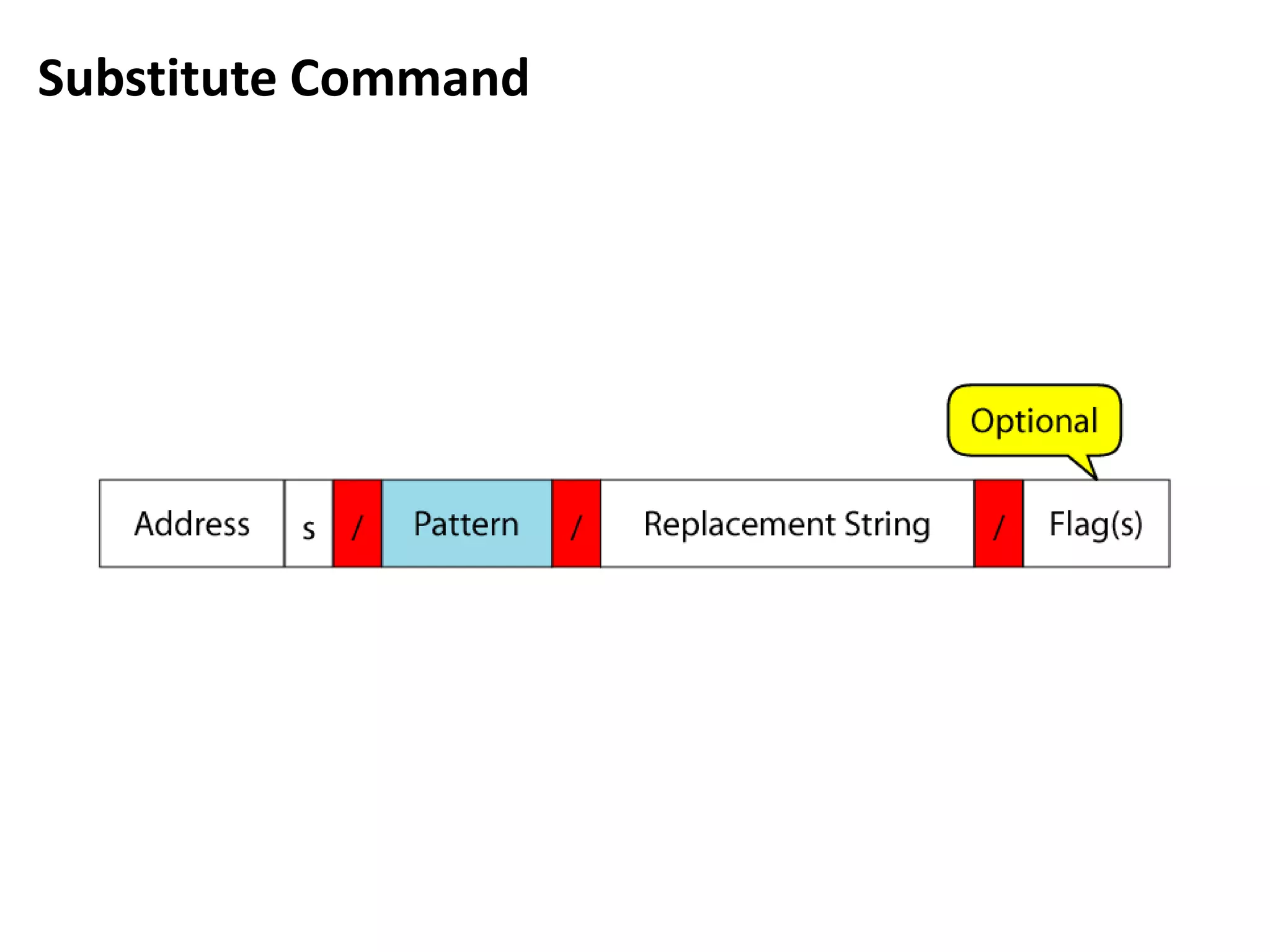
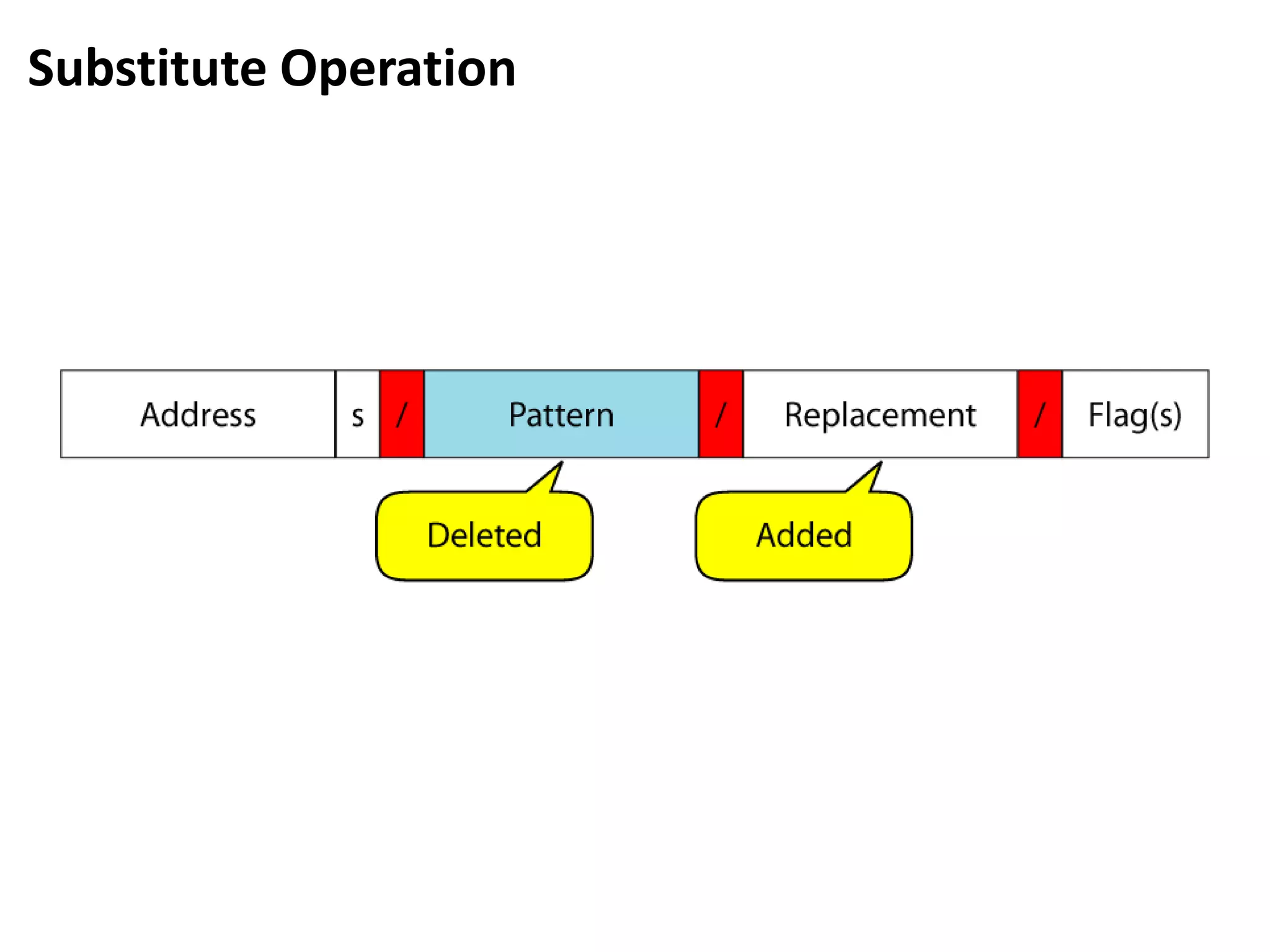
sed commands: s/PATTERN/REPLACEMENT/g
search and replace. If you add g at end - search and replace applies as many times as possible to single line.
You can also use i at the end of the s command to make the search case insensitive
sed exemples
Manipulation
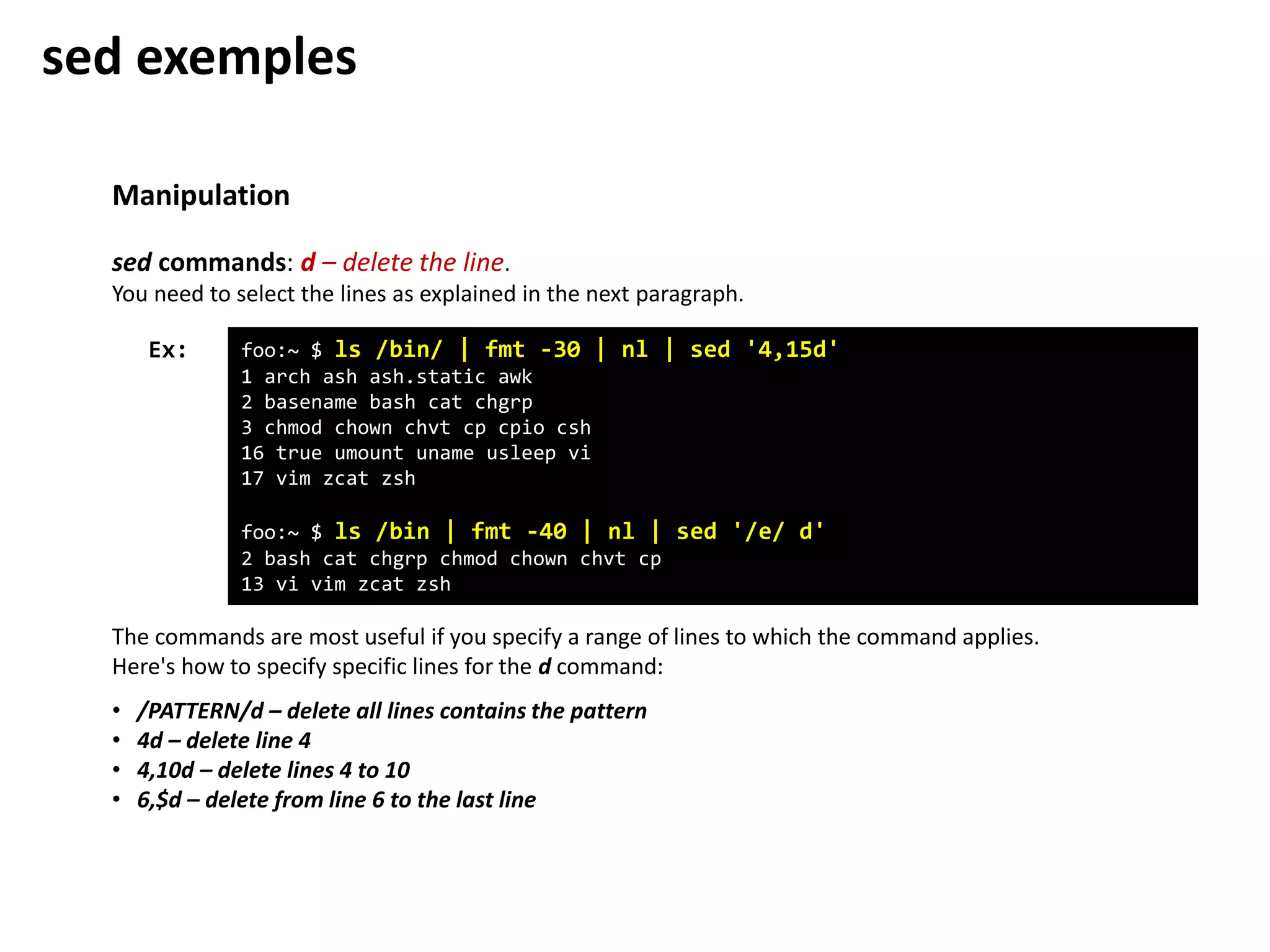
foo:~ $ ls /bin/ | fmt -30 | nl | sed '4,15d'
1 arch ash ash.static awk
2 basename bash cat chgrp
3 chmod chown chvt cp cpio csh
16 true umount uname usleep vi
17 vim zcat zsh
foo:~ $ ls /bin | fmt -40 | nl | sed '/e/ d'
2 bash cat chgrp chmod chown chvt cp
13 vi vim zcat zsh
Ex:
sed commands: d – delete the line.
You need to select the lines as explained in the next paragraph.
The commands are most useful if you specify a range of lines to which the command applies.
Here's how to specify specific lines for the d command:
• /PATTERN/d – delete all lines contains the pattern
• 4d – delete line 4
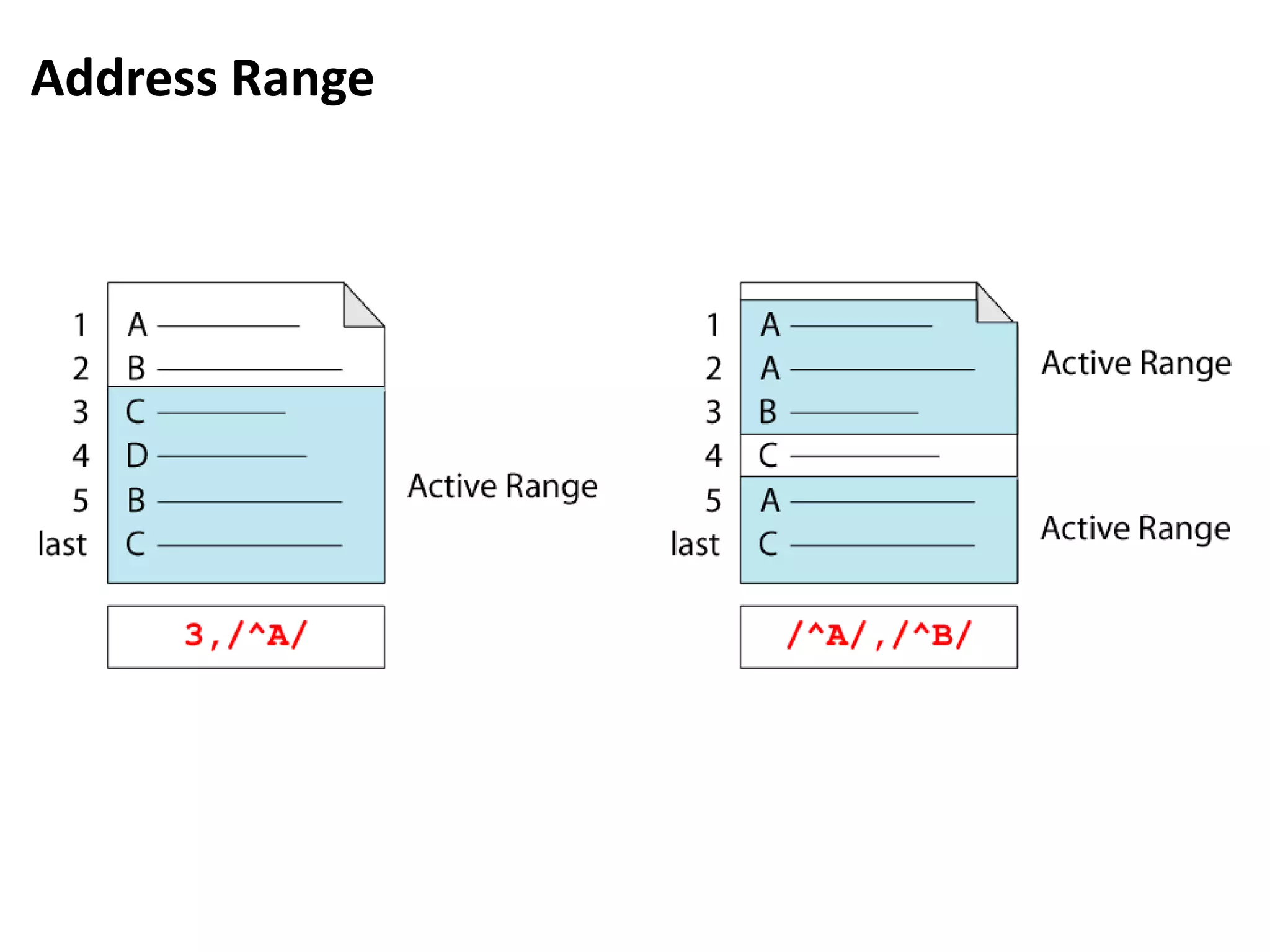
• 4,10d – delete lines 4 to 10
• 6,$d – delete from line 6 to the last line
sed exemples
Manipulation
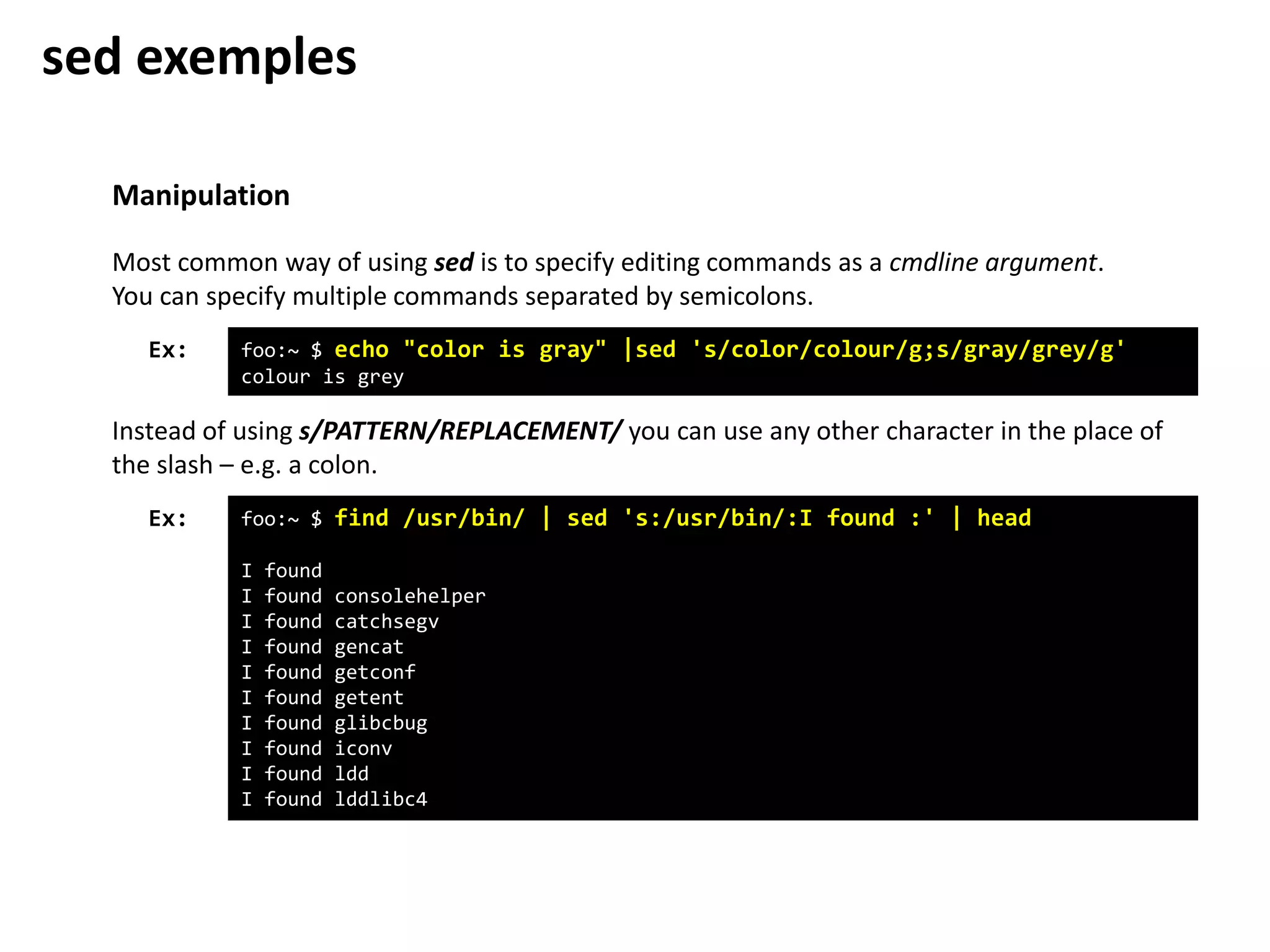
foo:~ $ echo "color is gray" |sed 's/color/colour/g;s/gray/grey/g'
colour is grey
Ex:
Most common way of using sed is to specify editing commands as a cmdline argument.
You can specify multiple commands separated by semicolons.
Instead of using s/PATTERN/REPLACEMENT/ you can use any other character in the place of
the slash – e.g. a colon.
foo:~ $ find /usr/bin/ | sed 's:/usr/bin/:I found :' | head
I found
I found consolehelper
I found catchsegv
I found gencat
I found getconf
I found getent
I found glibcbug
I found iconv
I found ldd
I found lddlibc4
Ex:
sed exemples
Manipulation
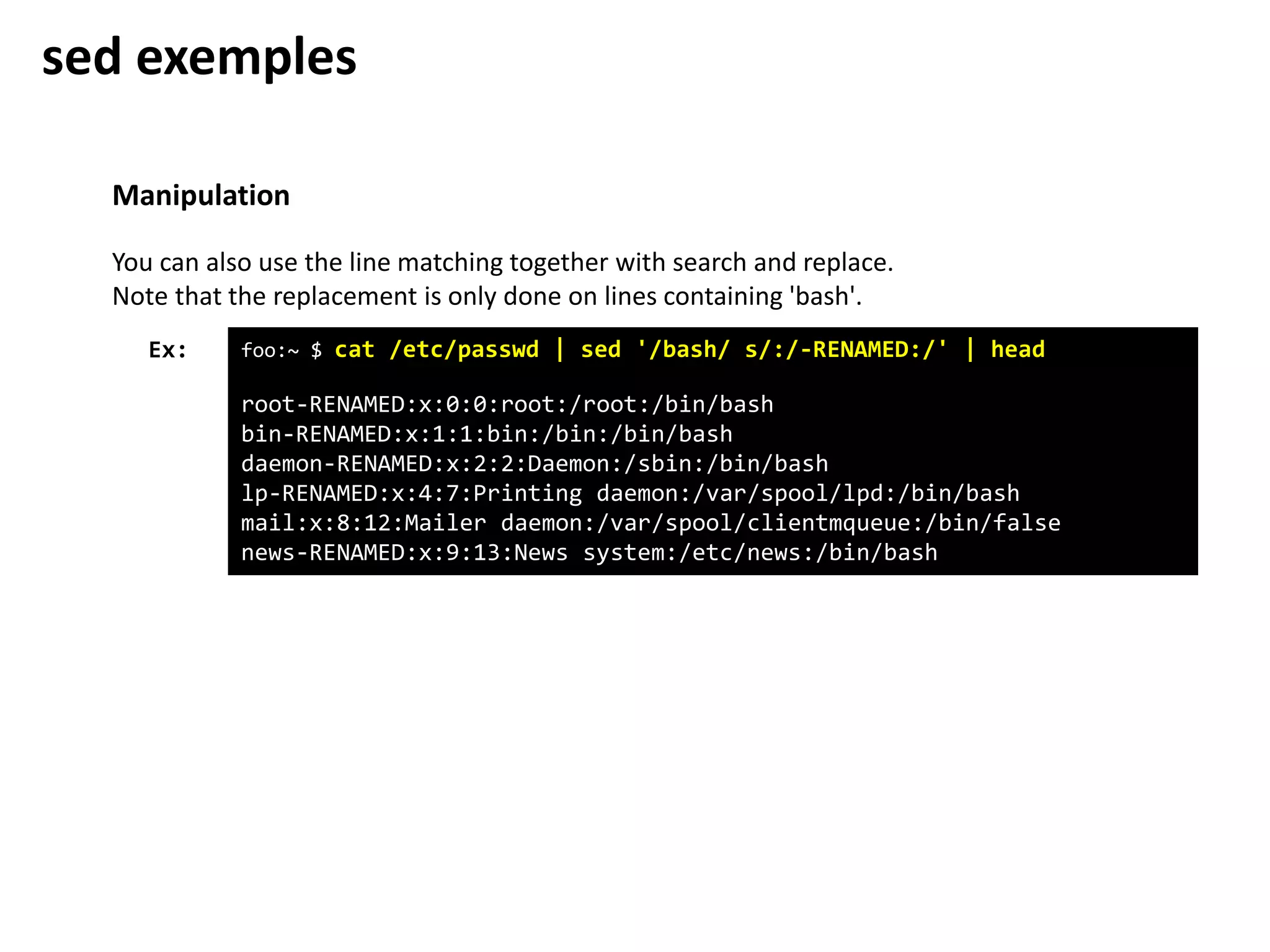
foo:~ $ cat /etc/passwd | sed '/bash/ s/:/-RENAMED:/' | head
root-RENAMED:x:0:0:root:/root:/bin/bash
bin-RENAMED:x:1:1:bin:/bin:/bin/bash
daemon-RENAMED:x:2:2:Daemon:/sbin:/bin/bash
lp-RENAMED:x:4:7:Printing daemon:/var/spool/lpd:/bin/bash
mail:x:8:12:Mailer daemon:/var/spool/clientmqueue:/bin/false
news-RENAMED:x:9:13:News system:/etc/news:/bin/bash
Ex:
You can also use the line matching together with search and replace.
Note that the replacement is only done on lines containing 'bash'.
sed exemples
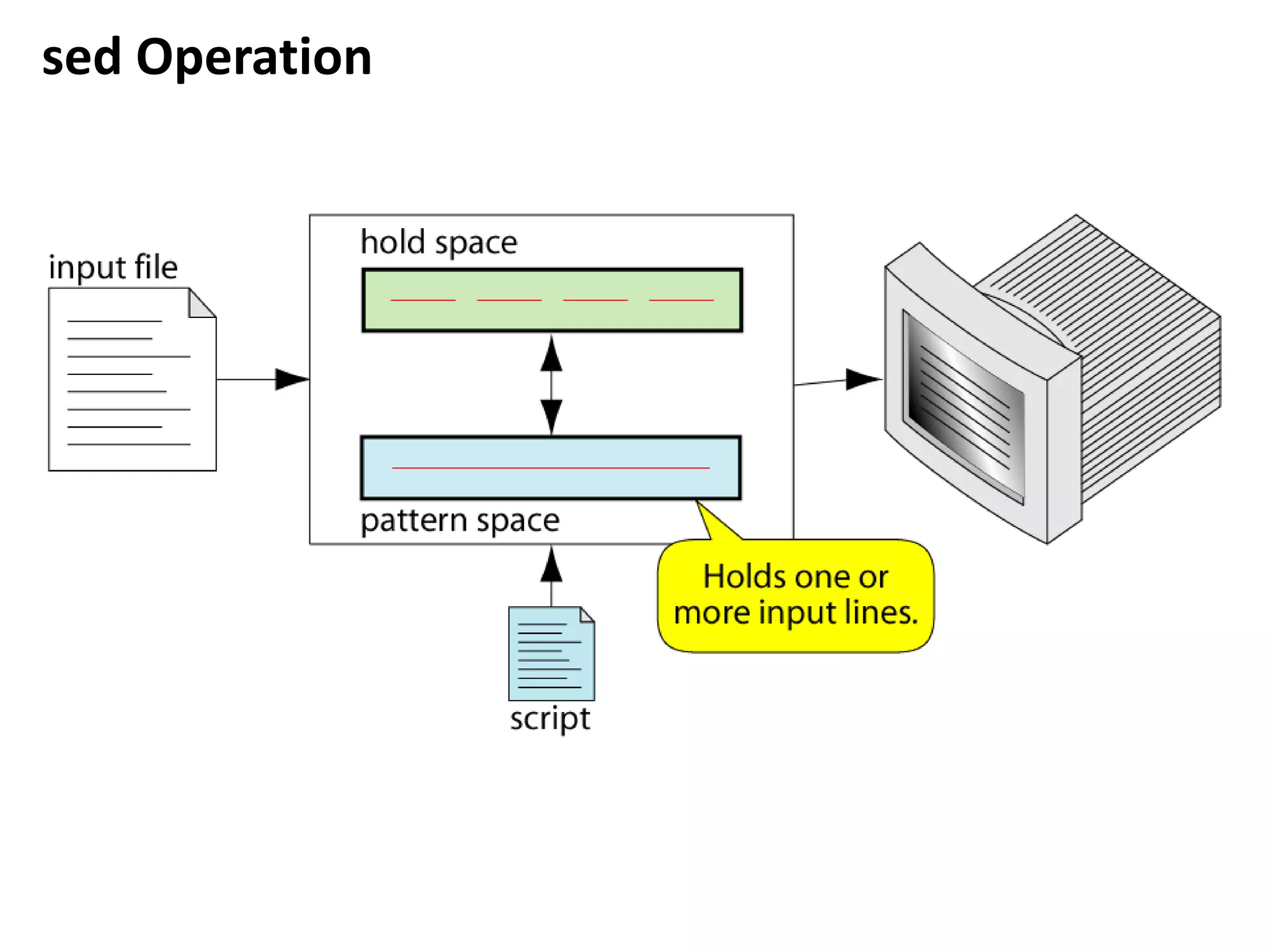
sed Operation
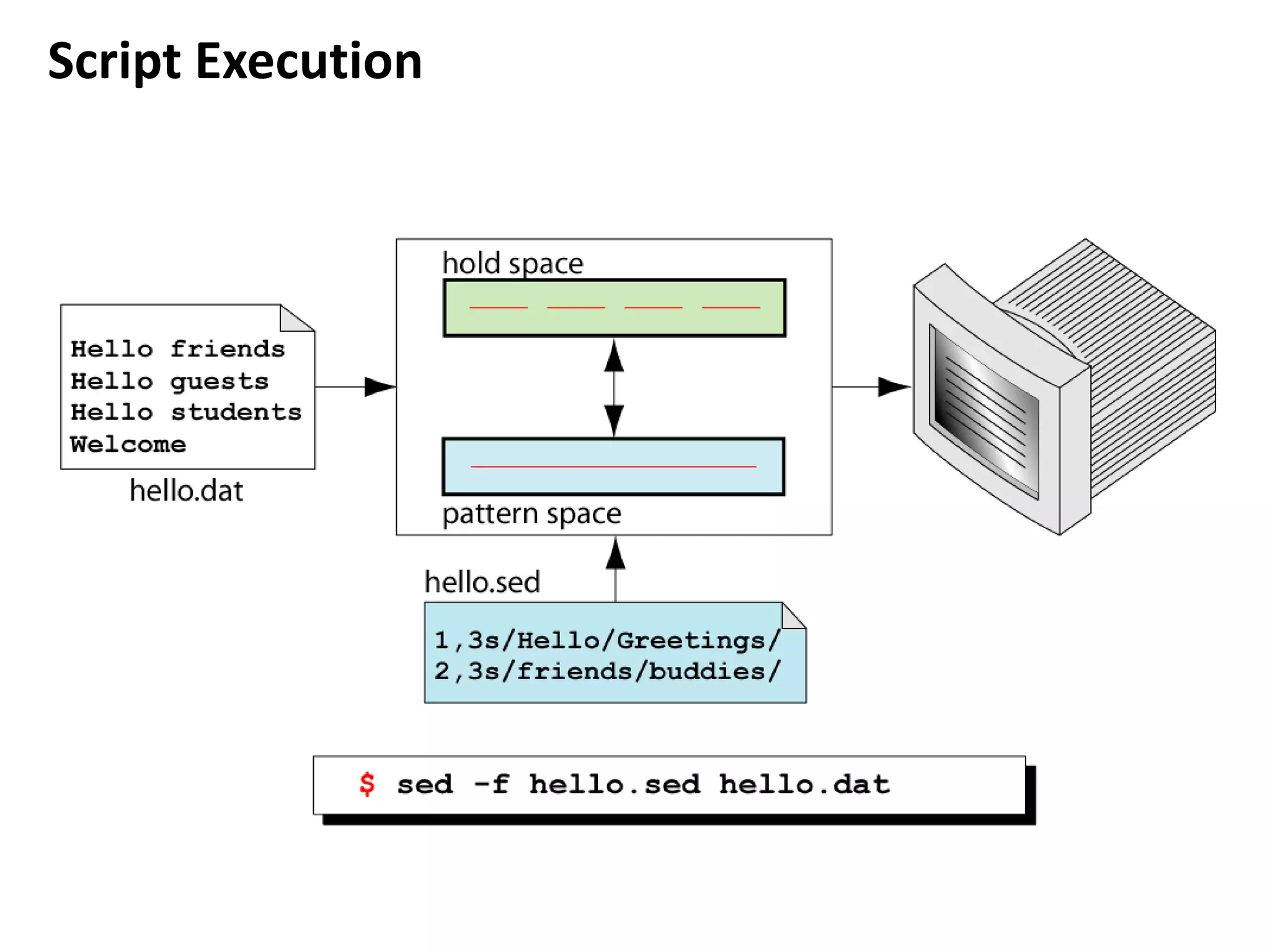
Script Execution
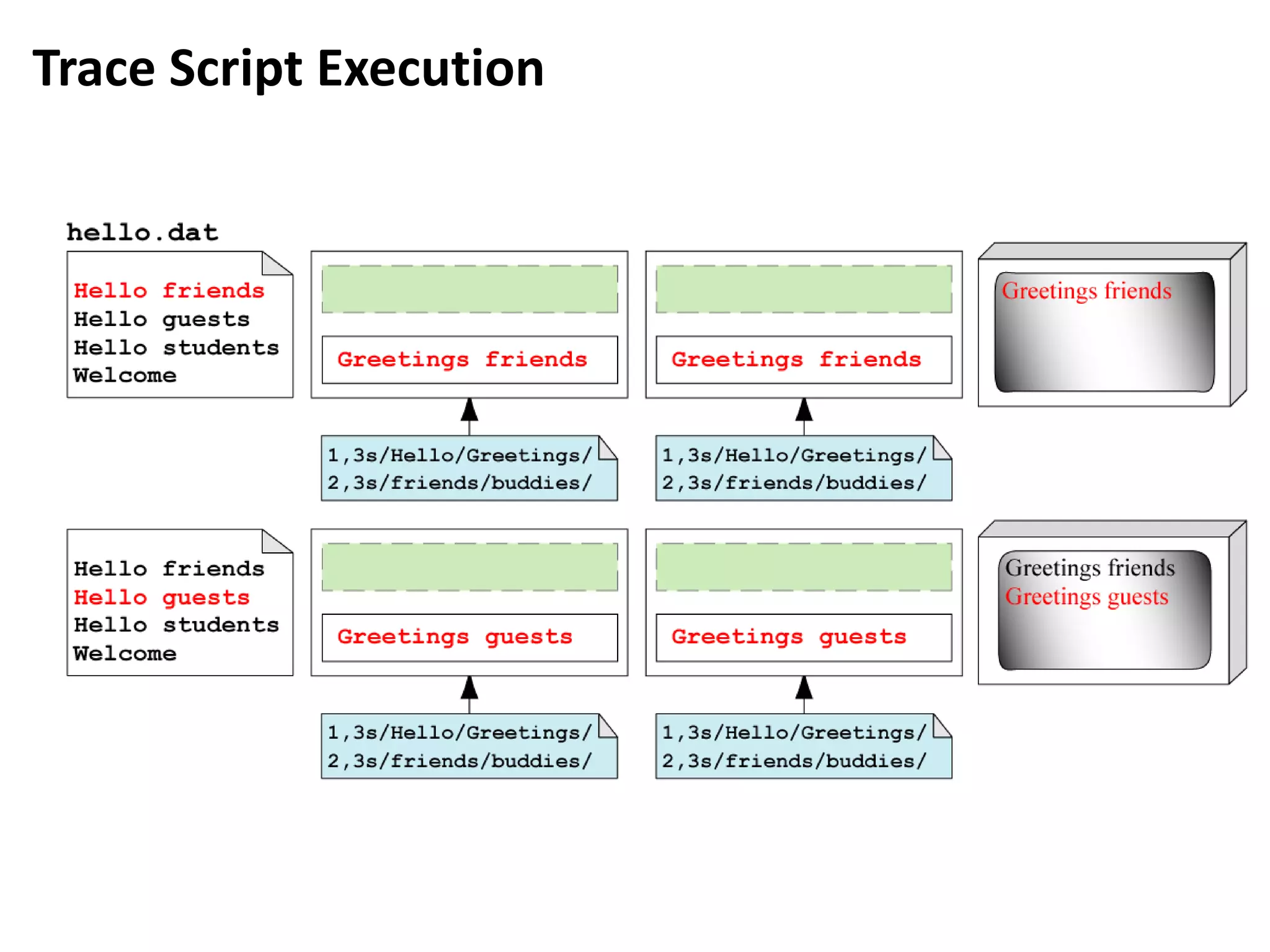
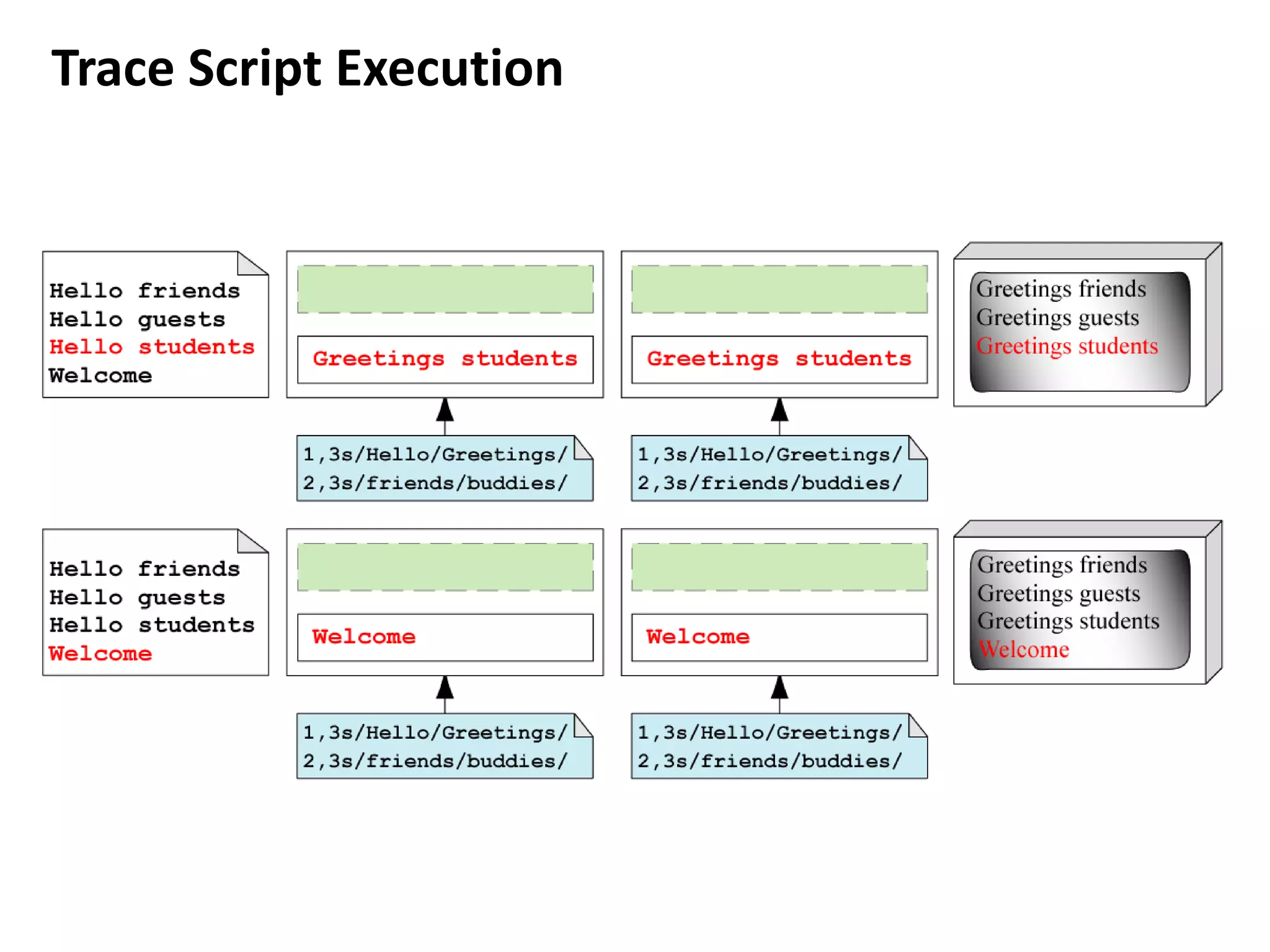
Trace Script Execution
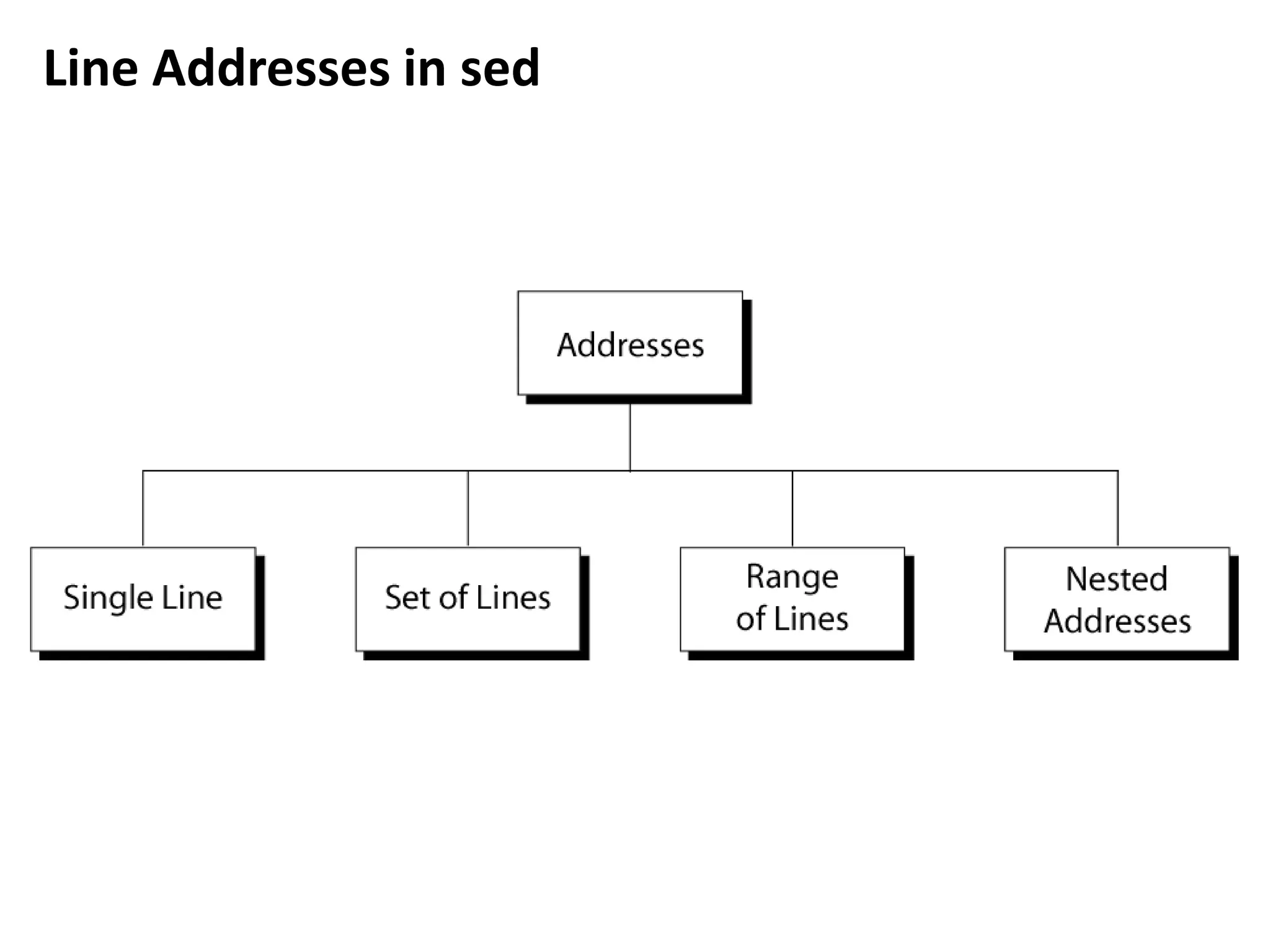
Line Addresses in sed
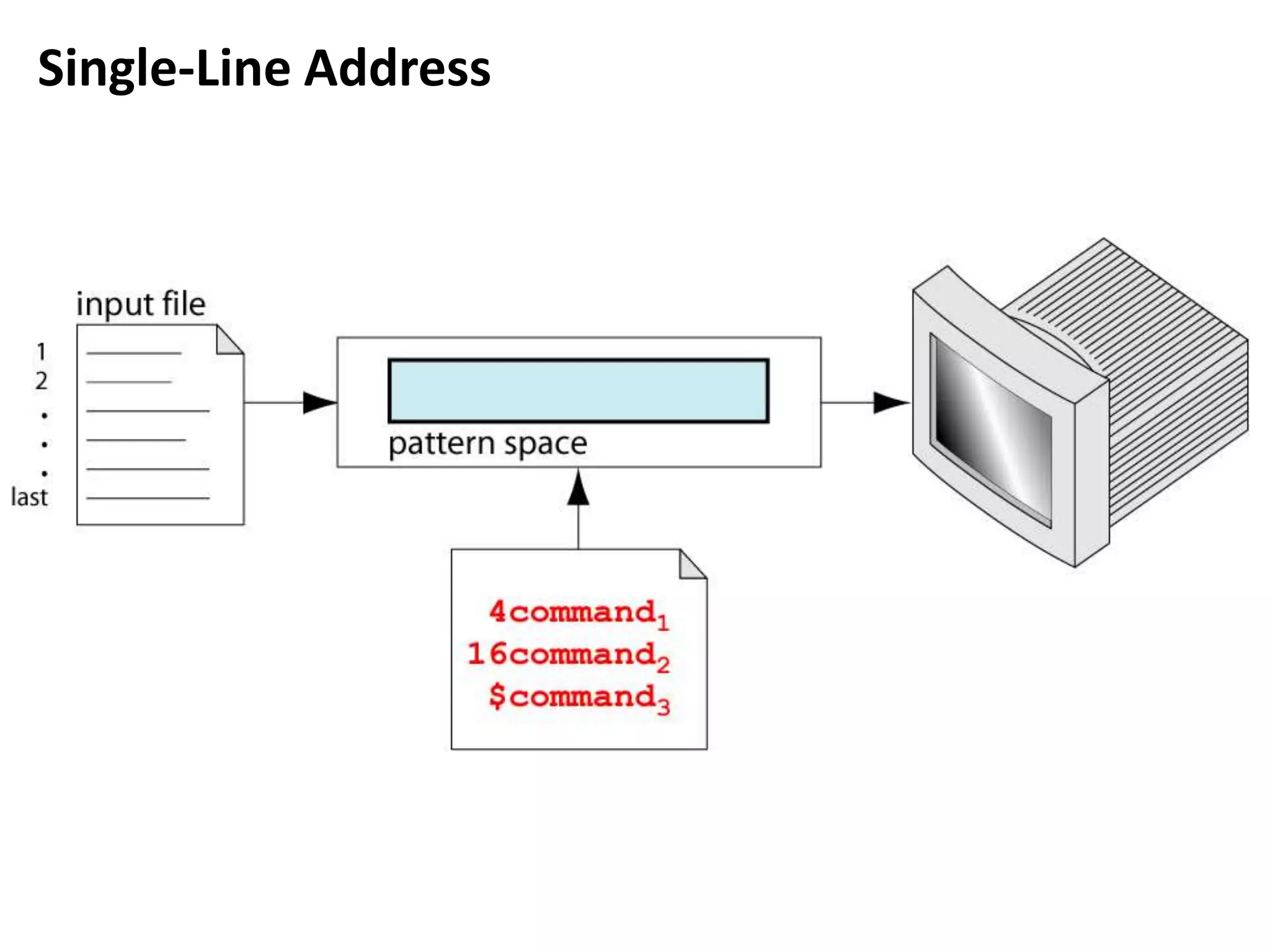
Single-Line Address
Set-of-Line Addresses
Address Range
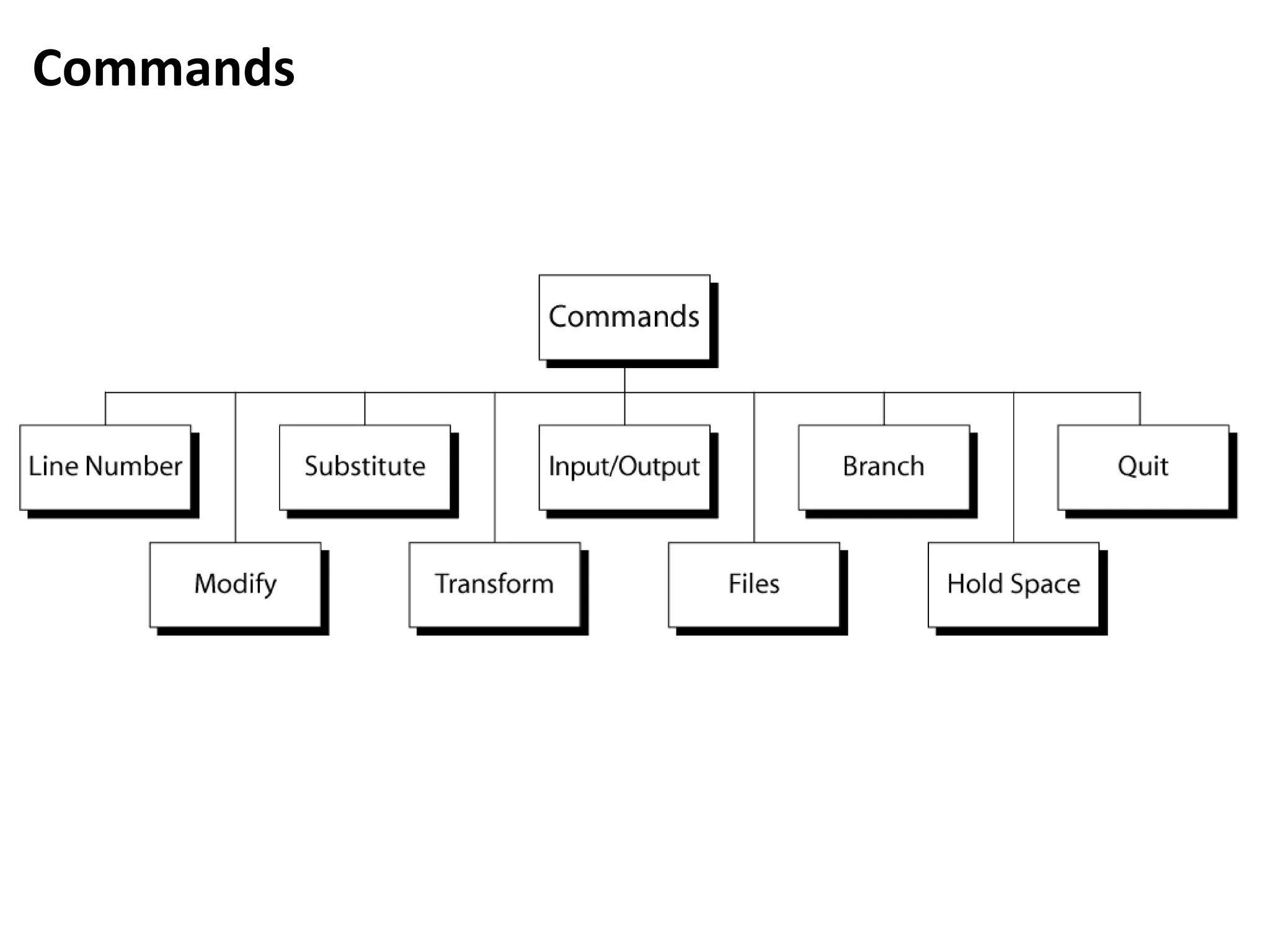
Commands
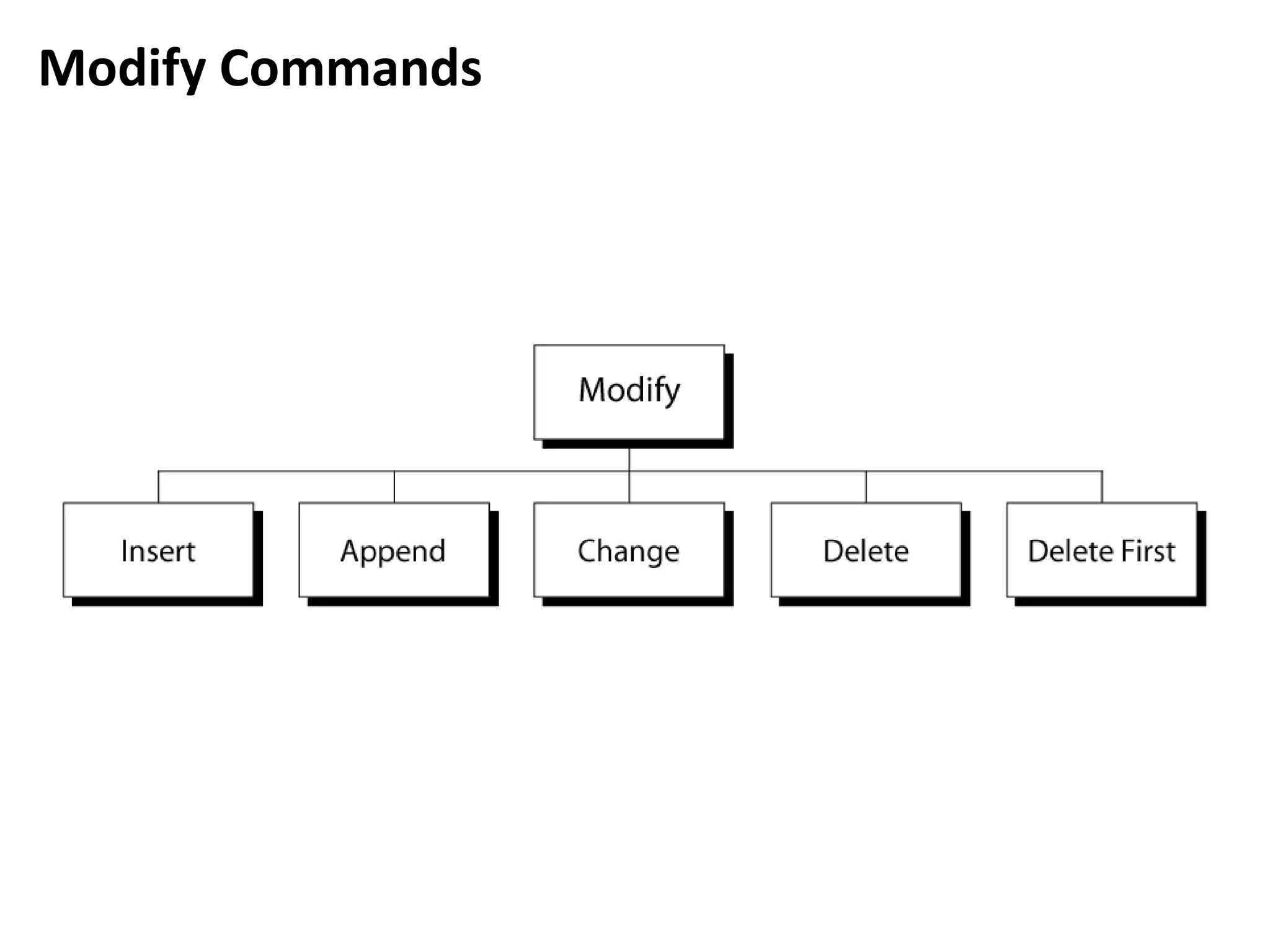
Modify Commands
Substitute Command
Substitute Operation
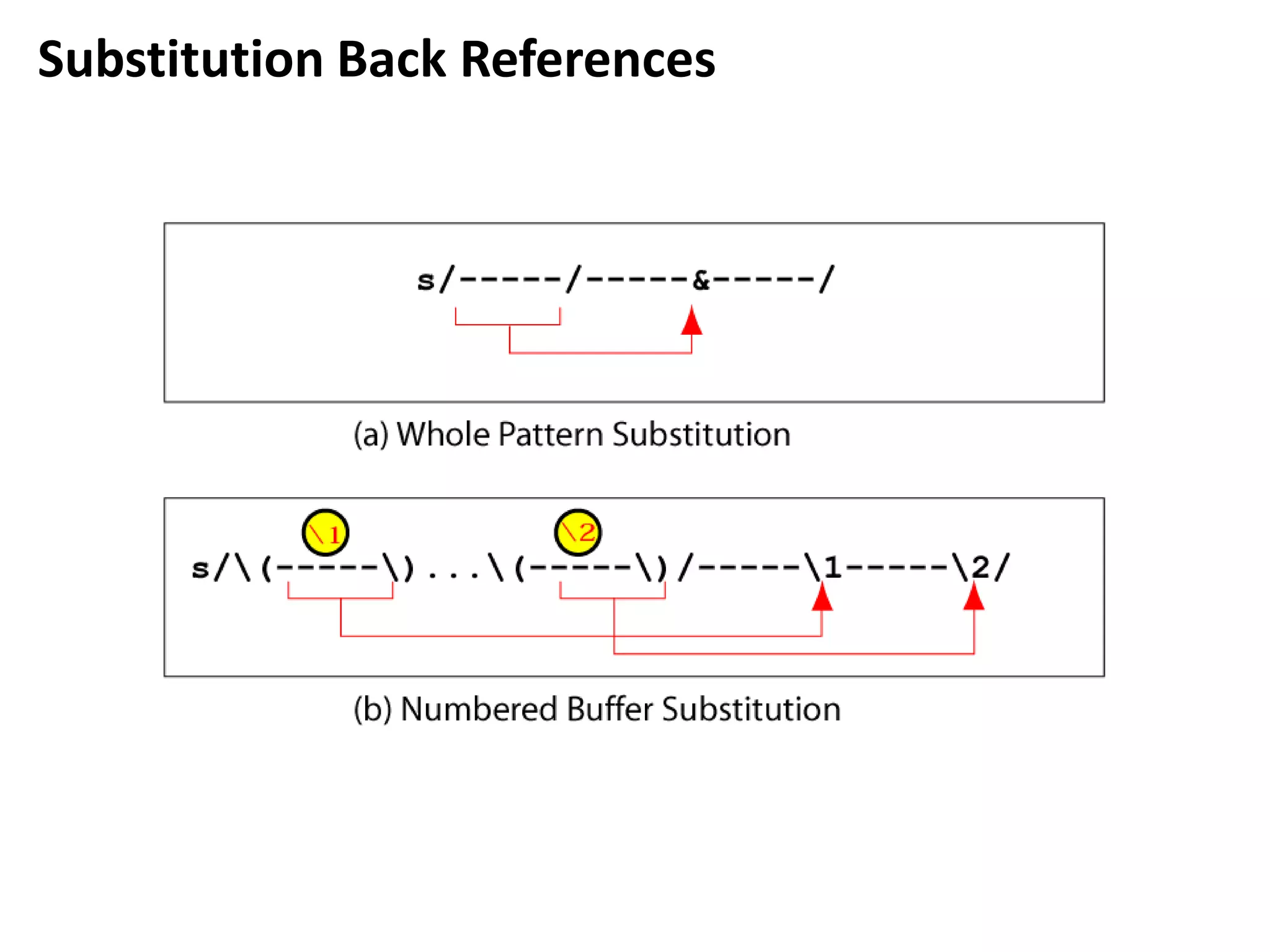
Substitution Back References
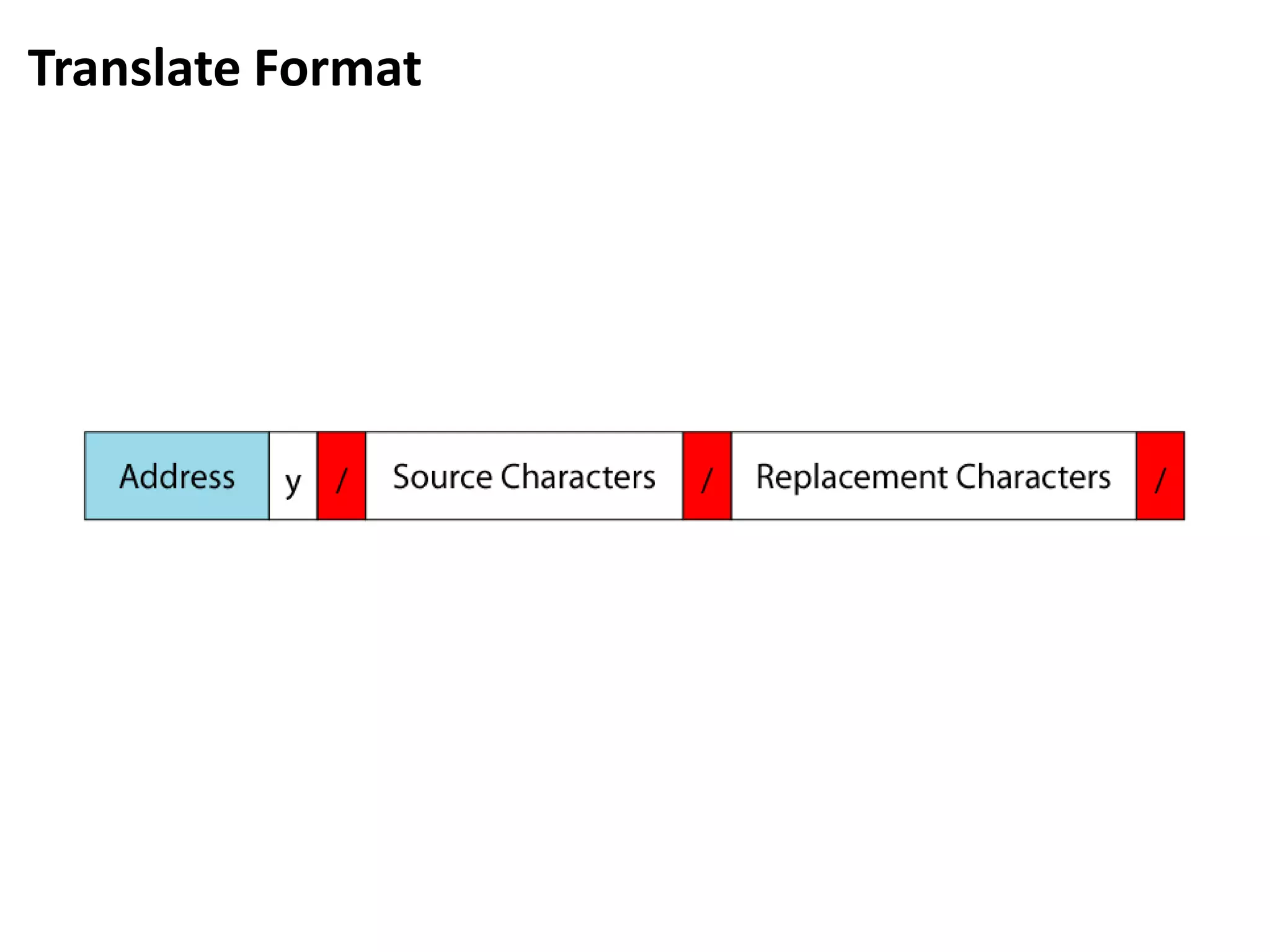
Translate Format
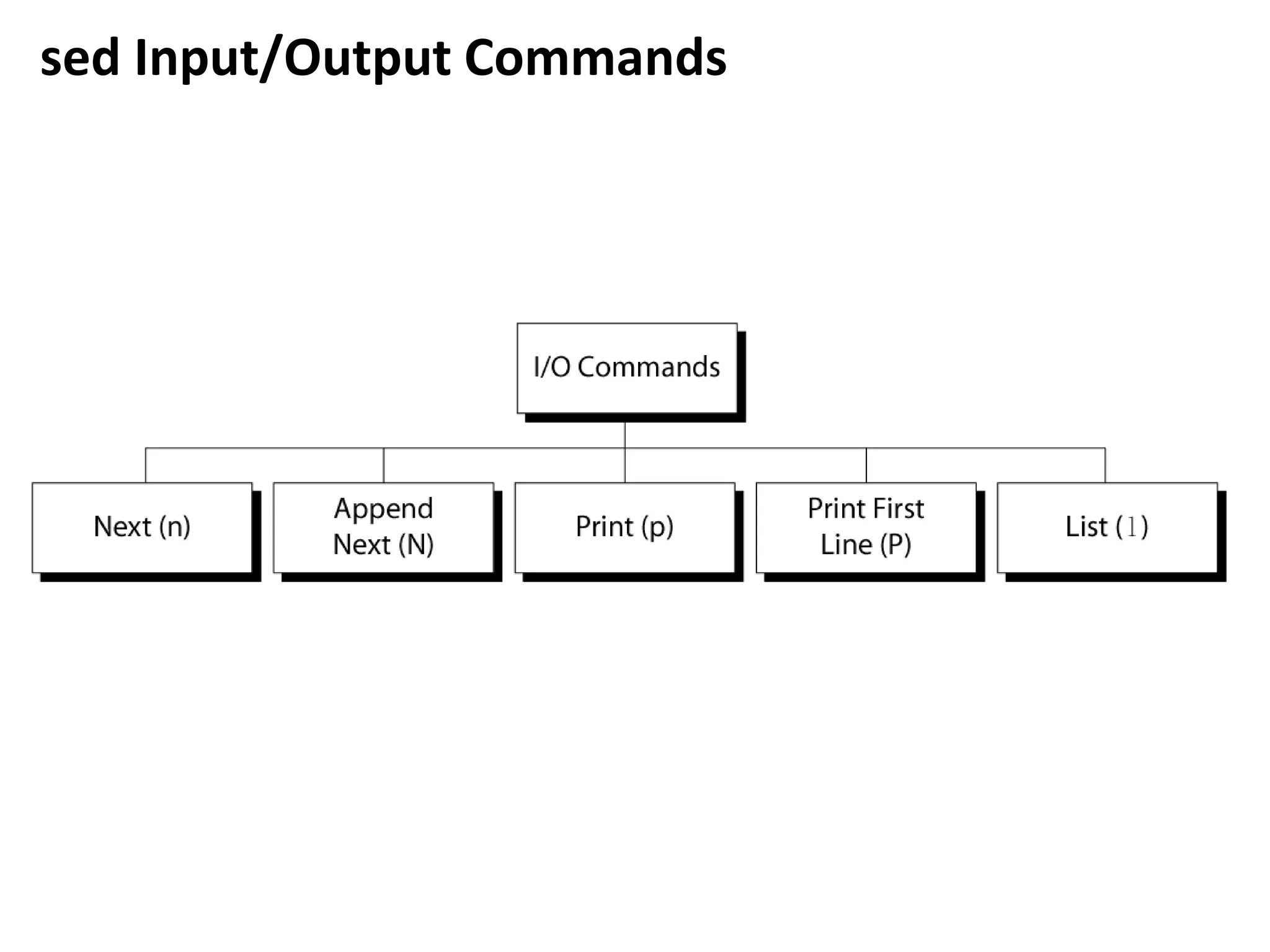
sed Input/Output Commands
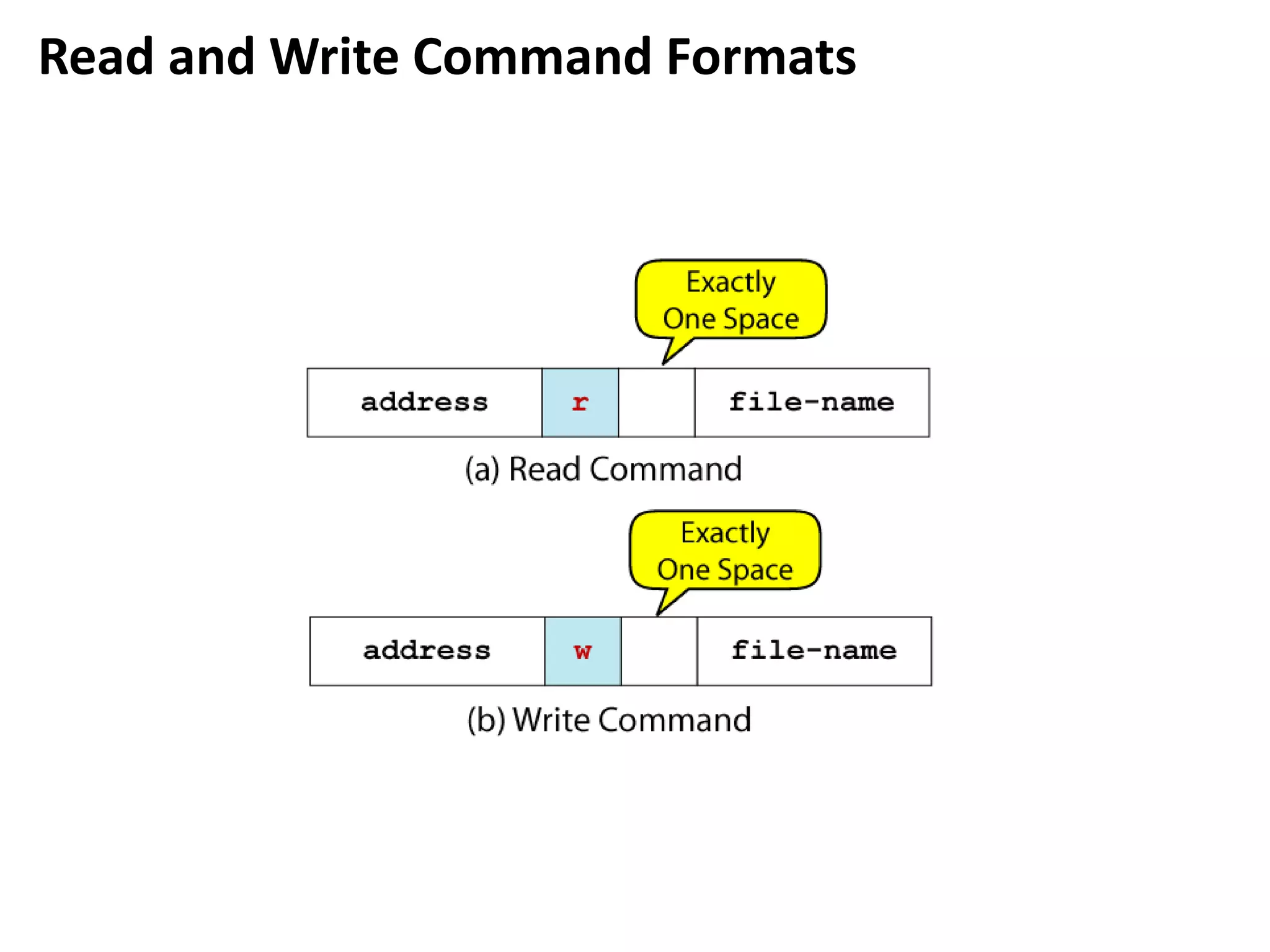
Read and Write Command Formats
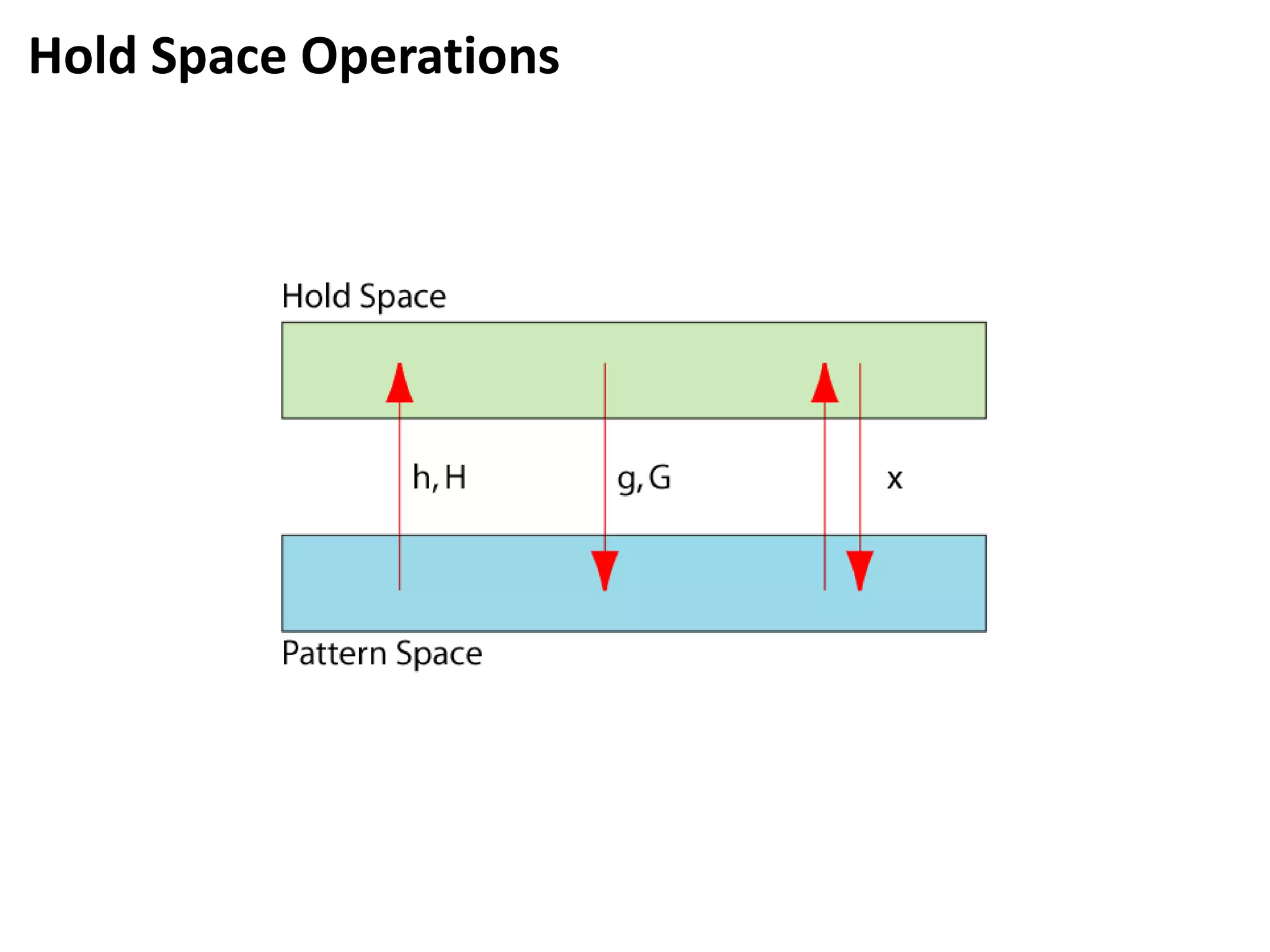
Hold Space Operations

Licão 06 process text streams with filters

  • 1.
    Lesson 6 • cat– concatenate files (or just show a single file without alteration) • cut – cut chosen text out of each line of a file and display it. • expand – expand tabs into spaces • fmt – reformat a text file with a consistent right margin • head – show the first few (10) lines of a file • join – join lines of two files on a common field • nl – print the file with numbered lines • od – octal dump of a file (or hexadecimal). • paste – print a number of files side by side • pr – format for printing (split into pages or columns and add headers) • sed – stream editor (search and replace, append, cut, delete and more) • sort – sort in alphabetical order (and numerical order too) • split – split a single input into multiple files • tac – print the lines of a file from back to front (backwards cat) • tail – print the last few lines of a file • tr – character translation (e.g. upper case to lower case). • unexpand – convert spaces to tabs (unlike expand). • uniq – remove duplicate lines from a sorted file • wc – word count (and line count, and byte count)
  • 2.
  • 3.
  • 4.
    Using cat ToCombine Files
  • 5.
  • 6.
  • 7.
    cat – concatenate foo:~$ cat /etc/crontab SHELL=/bin/sh PATH=/usr/bin:/usr/sbin:/sbin:/bin:/usr/lib/news/bin MAILTO=root # # check scripts in cron.hourly, cron.daily, cron.weekly, and cron.monthly # -*/15 * * * * root test -x /usr/lib/cron/run-crons && /usr/lib/cron/run-crons >/dev/null 2>&1 59 * * * * root rm -f /var/spool/cron/lastrun/cron.hourly 14 0 * * * root rm -f /var/spool/cron/lastrun/cron.daily 29 0 * * 6 root rm -f /var/spool/cron/lastrun/cron.weekly 44 0 1 * * root rm -f /var/spool/cron/lastrun/cron.monthly cat prints out an entire file.
  • 8.
    foo:~/tmp $ cat/etc/passwd /etc/group /etc/protocols foo:~/tmp $ echo hello > file1 foo:~/tmp $ echo there > file2 foo:~/tmp $ cat file1 hello foo:~/tmp $ cat file2 there foo:~/tmp $ cat file1 file2 file1 hello there hello cat can also join a number of files together. This works for text files and binary files.
  • 9.
  • 10.
    head – printout the first lines foo:~ # head /var/log/boot.log Apr 7 08:28:22 foo allrc: syslogd startup succeeded Apr 7 08:28:22 foo allrc: klogd startup succeeded Apr 7 08:28:23 foo allrc: portmap startup succeeded Apr 7 08:27:56 foo rc.sysinit: Mounting proc filesystem: succeeded Apr 7 08:27:56 foo rc.sysinit: Unmounting initrd: succeeded Apr 7 08:27:56 foo sysctl: net.ipv4.ip_forward = 0 Apr 7 08:27:56 foo sysctl: net.ipv4.conf.default.rp_filter = 1 Apr 7 08:27:56 foo sysctl: kernel.sysrq = 0 Apr 7 08:28:26 foo lpd: execvp: No such file or directory Apr 7 08:27:56 foo sysctl: kernel.core_uses_pid = 1 By default head prints out the first 10 lines of a file.
  • 11.
    foo:~ $ ls-l / | head -n 6 total 232 drwxr-xr-x 2 root root 4096 Feb 21 15:49 bin drwxr-xr-x 3 root root 4096 Jan 7 10:25 boot drwxr-xr-x 5 root root 20480 Jan 10 11:35 data drwxr-xr-x 21 root root 118784 Apr 7 08:28 dev drwxr-xr-x 64 root root 8192 Apr 7 08:28 etc head can print out a specific number of lines from a file or a stream. use head to extract an exact number of bytes from an input stream (rather than lines). Here's how to get a copy of the partition sector of a disk (be careful with that redirection). foo:~ # head -c 512 < /dev/hda > mbr foo:~ # ls -la mbr -rw-r--r-- 1 root root 512 Apr 7 10:27 mbr
  • 12.
  • 13.
    tail – showthe end of a file Selecting parts of a file (Filters that print out various parts of the input they receive) root@foo:root # tail /var/log/messages Apr 7 11:19:34 foo dhcpd: Wrote 9 leases to leases file. Apr 7 11:19:34 foo dhcpd: DHCPREQUEST for 10.0.0.169 from 00:80:ad:02:65:7c via eth0 Apr 7 11:19:35 foo dhcpd: DHCPACK on 10.0.0.169 to 00:80:ad:02:65:7c via eth0 Apr 7 11:20:01 foo kdm[1151]: Cannot convert Internet address 10.0.0.168 to host name Apr 7 11:26:46 foo ipop3d[22026]: connect from 10.0.0.10 (10.0.0.10) Apr 7 11:26:55 foo ipop3d[22028]: connect from 10.0.0.10 (10.0.0.10) Apr 7 11:26:58 foo ipop3d[22035]: connect from 10.0.0.3 (10.0.0.3) Apr 7 11:27:01 foo ipop3d[22036]: connect from 10.0.0.3 (10.0.0.3) Apr 7 11:29:31 foo kdm[21954]: pam_unix2: session started for user joe, service xdm Apr 7 11:32:41 foo sshd[22316]: Accepted publickey for root from 10.0.0.143 port 1250 ssh2 Ex: tail is just like head, but it shows the tail end of the file. tail can be used to watch a file as it grows. Run the command tail –f /var/log/messages on one console and then log in on another virtual console. tail –n 20 file or tail -20 file will show last 20 lines of file. tail –c 20 file will show last 20 characters of a file.
  • 14.
  • 15.
    cut – pullout columns Selecting parts of a file (Filters that print out various parts of the input they receive) root@foo:root # tail /var/log/messages Apr 7 11:19:34 foo dhcpd: Wrote 9 leases to leases file. Apr 7 11:19:34 foo dhcpd: DHCPREQUEST for 10.0.0.169 from 00:80:ad:02:65:7c via eth0 Apr 7 11:19:35 foo dhcpd: DHCPACK on 10.0.0.169 to 00:80:ad:02:65:7c via eth0 Apr 7 11:20:01 foo kdm[1151]: Cannot convert Internet address 10.0.0.168 to host name Apr 7 11:26:46 foo ipop3d[22026]: connect from 10.0.0.10 (10.0.0.10) Apr 7 11:26:55 foo ipop3d[22028]: connect from 10.0.0.10 (10.0.0.10) Apr 7 11:26:58 foo ipop3d[22035]: connect from 10.0.0.3 (10.0.0.3) Apr 7 11:27:01 foo ipop3d[22036]: connect from 10.0.0.3 (10.0.0.3) Apr 7 11:29:31 foo kdm[21954]: pam_unix2: session started for user joe, service xdm Apr 7 11:32:41 foo sshd[22316]: Accepted publickey for root from 10.0.0.143 port 1250 ssh2 Ex: Cut can be used to select certain columns of the input stream. Columns can be defined by either their position, or by being separated by field separators.
  • 16.
    cut can alsoselect based on fields which are separated from each other by field separators. useful in dealing with files like /etc/passwd where each field is separated from the others by a colon Selecting parts of a file (Filters that print out various parts of the input they receive) foo:~ # head /etc/passwd | cut -d : -f 1,3-4 root:0:0 bin:1:1 daemon:2:2 adm:3:4 lp:4:7 sync:5:0 shutdown:6:0 halt:7:0 poweroff:0:0 mail:8:12 Ex:
  • 17.
    split – splita file into multiple parts Selecting parts of a file (Filters that print out various parts of the input they receive) foo:~ $ split -l 66 /etc/services foo:~ $ wc x* 66 341 2158 xaa 66 353 2362 xab 66 268 2030 xac 66 275 2011 xad 66 352 2441 xae 66 322 2348 xaf 66 367 2870 xag 66 318 2245 xah 39 202 1426 xai 567 2798 19891 total Ex: Split can be used to split a file into multiple parts. If you have a desire to print /etc/services you may want to print it on a printer which prints 66 lines per page.
  • 18.
    Split can splitfiles into more manageable parts, e.g. for FTP uploads. The parts can be recombined with cat. Selecting parts of a file (Filters that print out various parts of the input they receive) foo:~/download $ ls -la anomy-sanitizer-1.56.tar.gz -rw-rw-r-- 1 georgem georgem 124356 Oct 22 18:37 anomysanitizer-1.56.tar.gz foo:~/download $ split -b 32k anomy-sanitizer-1.56.tar.gz foo:~/download $ ls -la x* -rw-rw-r-- 1 georgem georgem 32768 Apr 7 11:48 xaa -rw-rw-r-- 1 georgem georgem 32768 Apr 7 11:48 xab -rw-rw-r-- 1 georgem georgem 32768 Apr 7 11:48 xac -rw-rw-r-- 1 georgem georgem 26052 Apr 7 11:48 xad Ex: Here's how to use cat to recombine parts (using md5sum to check whether the whole is equal to the sum of the parts). foo:~/download $ split -b 32k anomy-sanitizer-1.56.tar.gz part- foo:~/download $ ls -la part-* -rw-rw-r-- 1 georgem georgem 32768 Apr 7 11:49 part-aa -rw-rw-r-- 1 georgem georgem 32768 Apr 7 11:49 part-ab -rw-rw-r-- 1 georgem georgem 32768 Apr 7 11:49 part-ac -rw-rw-r-- 1 georgem georgem 26052 Apr 7 11:49 part-ad foo:~/download $ cat part-* > newfile foo:~/download $ md5sum newfile anomy-sanitizer-1.56.tar.gz 1a977bad964b0ede863272114bfc2482 newfile 1a977bad964b0ede863272114bfc2482 anomy-sanitizer-1.56.tar.gz
  • 19.
  • 20.
  • 21.
  • 22.
  • 23.
  • 24.
  • 25.
    Sorting sort – sortthe input foo:~ $ for ((a=0;a<10;a++)) ; do echo $RANDOM hello ; done | sort 10219 hello 16397 hello 18021 hello 19353 hello 25265 hello 6923 hello 7771 hello 8340 hello 8466 hello 9117 hello Ex: sort by default sorts in alphabetical order. To sort in numerical order, use the n switch. foo:~ $ for ((a=0;a<10;a++)) ; do echo $RANDOM hello ; done | sort -n 231 hello 1067 hello 1968 hello 4198 hello 9138 hello 15086 hello 19890 hello 20690 hello 24218 hello 25234 hello Ex:
  • 26.
    Sorting tac – theopposite of cat foo:~ $ ls / | cat | fmt bin boot data dev etc home home.orig initrd lib lost+found misc mnt opt proc root sbin suse tftpboot tmp usr var foo:~ $ ls / | tac | fmt var usr tmp tftpboot suse sbin root proc opt mnt misc lost+found lib initrd home.orig home etc dev data boot bin Ex: tac reverses the order of the lines in the input stream. This is quite useful for sorting backwards.
  • 27.
  • 28.
    Sorting uniq – discardduplicate lines - uniq is usually used with sort to discard duplicates foo:~ $ cat /etc/passwd | cut -d : -f 4 | sort -n | fmt 0 0 0 0 0 0 1 2 4 7 12 13 14 25 26 28 29 30 32 37 38 42 43 47 48 50 51 69 74 77 80 89 99 100 500 501 503 504 505 506 507 509 511 512 65534 Ex: Ex: cutting fourth field out of the password file (the group ID) and sorting in numerical order. fmt is used to make the results display on a single line. Ex: Ex: same command pipeline, but are removing duplicates with uniq before formatting. foo:~ $ cat /etc/passwd | cut -d : -f 4 | sort -n | uniq | fmt 0 1 2 4 7 12 13 14 25 26 28 29 30 32 37 38 42 43 47 48 50 51 69 74 77 80 89 99 100 500 501 503 504 505 506 507 509 511 512 65534
  • 29.
  • 30.
    Manipulation tr – characterset translation - usually used for converting upper case to lower case. Can also do other character translations. tr -d can remove specific characters from a stream. foo:~ $ man -P cat man | tr A-Z a-z | less Ex: Ex: Translating from UPPER CASE to lower case. Asking man to use cat as its pager, instead of using less, and opening up the man page for man itself. Translating from lower case to UPPER CASE: foo:~ $ man -P cat man | tr a-z A-Z | less Convert file names to lowercase. foo:/windows/C $ for FILE in * ; do mv "$FILE" $( echo "$FILE" | tr A-Z a-z ) ; done Using tr -d to delete the Carriage Returns (r) from a file created with Windows Notepad. foo:/windows/C $ tr -d 'r' notepad.dos.txt > notepad.unix.txt Ex: Ex: Ex:
  • 31.
    Manipulation join – joinfiles join is capable of combining files based on common fields foo:~ $ cat file1.sorted cabbage vegetable cat animal coal mineral piano mineral foo:~ $ cat file2.sorted cabbage green leaves cat white cat-hair piano brown wood foo:~ $ join file1.sorted file2.sorted cabbage vegetable green leaves cat animal white cat-hair piano mineral brown wood Ex:
  • 32.
    Manipulation Joining /etc/passwd and/etc/shadow based on their first field (user name). Since /etc/passwd and /etc/shadow use a colon to separate fields, it is necessary to use -t: option. foo:~ # join -t : /etc/passwd /etc/shadow | head root:x:0:0:root:/root:/bin/bash:$1$LHNUbu7U$oiuhqwd1oiuhqhAdiuHvA0:1 2146:0:99999:7::: bin:x:1:1:bin:/bin:/sbin/nologin:*:11974:0:99999:7::: daemon:x:2:2:daemon:/sbin:/sbin/nologin:*:11974:0:99999:7::: adm:x:3:4:adm:/var/adm:/sbin/nologin:*:11974:0:99999:7::: lp:x:4:7:lp:/var/spool/lpd:/sbin/nologin:*:11974:0:99999:7::: sync:x:5:0:sync:/sbin:/bin/sync:*:11974:0:99999:7::: shutdown:x:6:0:shutdown:/sbin:/sbin/shutdown:*:11974:0:99999:7::: halt:x:7:0:halt:/sbin:/sbin/halt:*:11974:0:99999:7::: mail:x:8:12:mail:/var/spool/mail:/sbin/nologin:*:11974:0:99999:7::: Ex: join allows to specify which particular field to join on, and also which particular fields should appear in the output (similar to cut)
  • 33.
    Manipulation nl – numberlines - printouts numbered. foo:/etc $ nl /etc/fstab 1 LABEL=/ / ext3 defaults 1 1 2 /dev/hda3 /home ext3 defaults 1 2 3 none /dev/pts devpts gid=5,mode=620 0 0 4 none /proc proc defaults 0 0 5 none /dev/shm tmpfs defaults 0 0 6 /dev/hda2 swap swap defaults 0 0 7 LABEL=DATA /data ext3 defaults 1 1 8 /dev/cdrom /mnt/cdrom iso9660 user,noauto,owner,ro 0 0 Ex:
  • 34.
    Manipulation expand – tabsto spaces foo:~ $ cat /etc/passwd | tr : 't' | expand -t 10,13,16,19,28,44 |head root x 0 0 root /root /bin/bash bin x 1 1 bin /bin /sbin/nologin daemon x 2 2 daemon /sbin /sbin/nologin adm x 3 4 adm /var/adm /sbin/nologin lp x 4 7 lp /var/spool/lpd /sbin/nologin sync x 5 0 sync /sbin /bin/sync halt x 7 0 halt /sbin /sbin/halt mail x 8 12 mail /var/spool/mail /sbin/nologin Ex: expand allows you to specify the size of the tab stops with -t. You can specify a single size for all tab stops, or you can set the tab stops at specific positions.
  • 35.
    Manipulation unexpand – spacesto tabs foo:~ $ man -P cat bash | wc 4517 33928 300778 foo:~ $ man -P cat bash | unexpand | wc 4517 33928 281381 Ex: counting the number of lines, words and characters in the man page of bash. After piping the output through unexpand and replacing spaces with tabs the size is smaller, although it looks the same.
  • 36.
  • 37.
    Manipulation 37 paste – pastetwo files together foo:~/tmp $ cat file2 cabbage green leaves cat white cat-hair piano brown wood foo:~/tmp $ cat file1 cat animal cabbage vegetable piano mineral coal mineral foo:~/tmp $ paste file2 file1 | expand -t 22 cabbage green leaves cat animal cat white cat-hair cabbage vegetable piano brown wood piano mineral coal mineral Ex: Using paste is like taking two printouts of two files and sticking the right margin of one to the left margin of the other. The glue between the files is a tab stop. You can specify a delimiter between the files which is not a tab space with option -d
  • 38.
    Formatting 38 fmt – formatnicely - format text into a neatly word wrapped structure. Default right margin is 75 foo:~ $ ls /bin | fmt arch ash ash.static aumix-minimal awk basename bash bash2 bsh cat chgrp chmod chown cp cpio csh cut date dd df dmesg dnsdomainname doexec domainname dumpkeys echo ed egrep env ex false fgrep gawk gettext grep gtar gunzip gzip hostname igawk ipcalc kbd_mode kill link ln loadkeys login ls mail mkdir mknod mktemp more mount mt mv netstat nice nisdomainname pgawk ping ps pwd red rm rmdir rpm rvi rview sed setfont setserial sh sleep sort stty su sync tar tcsh touch true umount uname unicode_start unicode_stop unlink usleep vi vi.minimal view ypdomainname Ex: foo:~ $ ls /bin | fmt -40 | head arch ash ash.static aumix-minimal awk basename bash bash2 bsh cat chgrp chmod chown cp cpio csh cut date dd df dmesg dnsdomainname doexec domainname dumpkeys echo ed egrep env ex false fgrep gawk gettext grep gtar gunzip gzip hostname igawk ipcalc kbd_mode kill link ln loadkeys login ls mail mkdir mknod mktemp more mount mt mv netstat nice nisdomainname pgawk ping
  • 39.
    Formatting 39 pr – formatfor printing Ex: foo:~ $ pr /etc/host* | less foo:~ $ ls -lR / | pr | less When it was traditional to send reams and reams of printouts to a line printer, it was nice to add file names as headers and to make sure you didn't print on the foldbetween papers.
  • 40.
    Formatting od – octaldump (and other formats) Ex: foo:/tmp $ echo "Hello World" > hello foo:/tmp $ cat hello Hello World od, oddly enough, does not just print out in octal, but in other formats. foo:/tmp $ od hello 0000000 062510 066154 020157 067527 066162 005144 0000014 od's behaviour is rather odd when it is used without any arguments. It prints out the octal value of two pairs of bytes in the file. Sometimes this is useful, but usually it isnot. Using -t switch tells od to use a specific format type (the default is od –t o2). od –t c means character format. You will notice that file ends in a newline character (n). foo:/tmp $ od -t c hello 0000000 H e l l o W o r l d n 0000014 od –t d1 specifies decimal format, with a width of one. character encoding is ASCII. Ex: Ex: foo:/tmp $ od -t d1 hello 0000000 72 101 108 108 111 32 87 111 114 108 100 10 0000014
  • 41.
  • 42.
    Formatting 42 wc – countwords, lines and characters Ex: foo:~ $ wc /etc/host* 1 2 17 /etc/host.conf 10 34 291 /etc/hosts 8 36 201 /etc/hosts.allow 5 25 196 /etc/hosts.bak 9 65 357 /etc/hosts.deny 33 162 1062 total For each file specified on the command line, wc prints out the number of words, lines and characters in the file. wc –l number of lines, wc –w number of words, wc –c number of characters (bytes) in file. These features allow wc to be used to count and measure the output from other commands. Ex: foo:~ $ ls -l | wc -l 211 foo:~ $ cat /bin/* | wc -c 18682972
  • 43.
  • 44.
  • 45.
  • 46.
  • 47.
  • 48.
  • 49.
  • 50.
    Manipulation sed – streameditor - sed does text transformations on an input stream. foo:~ $ echo "Hi Fred, how are you" | sed 's/Fred/Joe/' Hi Joe, how are you foo:~ $ echo "Hi Fred, how is Fred?" | sed 's/Fred/Joe/' Hi Joe, how is Fred? foo:~ $ echo "Hi Fred, how is Fred?" | sed 's/Fred/Joe/g‘ Hi Joe, how is Joe? Ex: •sed works by making only one pass over the inputs. •A sed program consists of one or more sed commands which are applied to each line of the input. •A command may be prefixed by an address range indicating lines for which the command performes. sed commands: s/PATTERN/REPLACEMENT/g search and replace. If you add g at end - search and replace applies as many times as possible to single line. You can also use i at the end of the s command to make the search case insensitive sed exemples
  • 51.
    Manipulation foo:~ $ ls/bin/ | fmt -30 | nl | sed '4,15d' 1 arch ash ash.static awk 2 basename bash cat chgrp 3 chmod chown chvt cp cpio csh 16 true umount uname usleep vi 17 vim zcat zsh foo:~ $ ls /bin | fmt -40 | nl | sed '/e/ d' 2 bash cat chgrp chmod chown chvt cp 13 vi vim zcat zsh Ex: sed commands: d – delete the line. You need to select the lines as explained in the next paragraph. The commands are most useful if you specify a range of lines to which the command applies. Here's how to specify specific lines for the d command: • /PATTERN/d – delete all lines contains the pattern • 4d – delete line 4 • 4,10d – delete lines 4 to 10 • 6,$d – delete from line 6 to the last line sed exemples
  • 52.
    Manipulation foo:~ $ echo"color is gray" |sed 's/color/colour/g;s/gray/grey/g' colour is grey Ex: Most common way of using sed is to specify editing commands as a cmdline argument. You can specify multiple commands separated by semicolons. Instead of using s/PATTERN/REPLACEMENT/ you can use any other character in the place of the slash – e.g. a colon. foo:~ $ find /usr/bin/ | sed 's:/usr/bin/:I found :' | head I found I found consolehelper I found catchsegv I found gencat I found getconf I found getent I found glibcbug I found iconv I found ldd I found lddlibc4 Ex: sed exemples
  • 53.
    Manipulation foo:~ $ cat/etc/passwd | sed '/bash/ s/:/-RENAMED:/' | head root-RENAMED:x:0:0:root:/root:/bin/bash bin-RENAMED:x:1:1:bin:/bin:/bin/bash daemon-RENAMED:x:2:2:Daemon:/sbin:/bin/bash lp-RENAMED:x:4:7:Printing daemon:/var/spool/lpd:/bin/bash mail:x:8:12:Mailer daemon:/var/spool/clientmqueue:/bin/false news-RENAMED:x:9:13:News system:/etc/news:/bin/bash Ex: You can also use the line matching together with search and replace. Note that the replacement is only done on lines containing 'bash'. sed exemples
  • 54.
  • 55.
  • 56.
  • 57.
  • 58.
  • 59.
  • 60.
  • 61.
  • 62.
  • 63.
  • 64.
  • 65.
  • 66.
  • 67.
  • 68.
  • 69.
    Read and WriteCommand Formats
  • 70.